

Adding & Removing Participants (EX)
What's on this page
Qtip: This page describes functionality available to Engagement, Lifecycle, Pulse, and Ad Hoc Employee Research projects. However, only Engagement and Pulse projects have hierarchies. For more details on each, see Types of Employee Experience Projects.
About Adding and Removing Participants
You can add participants for your Employee Engagement or Lifecycle project in the Participants section of the Participants tab. You can add these participants in large batches with a CSV/TSV made in Excel, or you can manually enter in information for just a few at a time. During this process, you can also include additional information called metadata for your participants that will later help you build hierarchies (EE) and organize data on your dashboards.
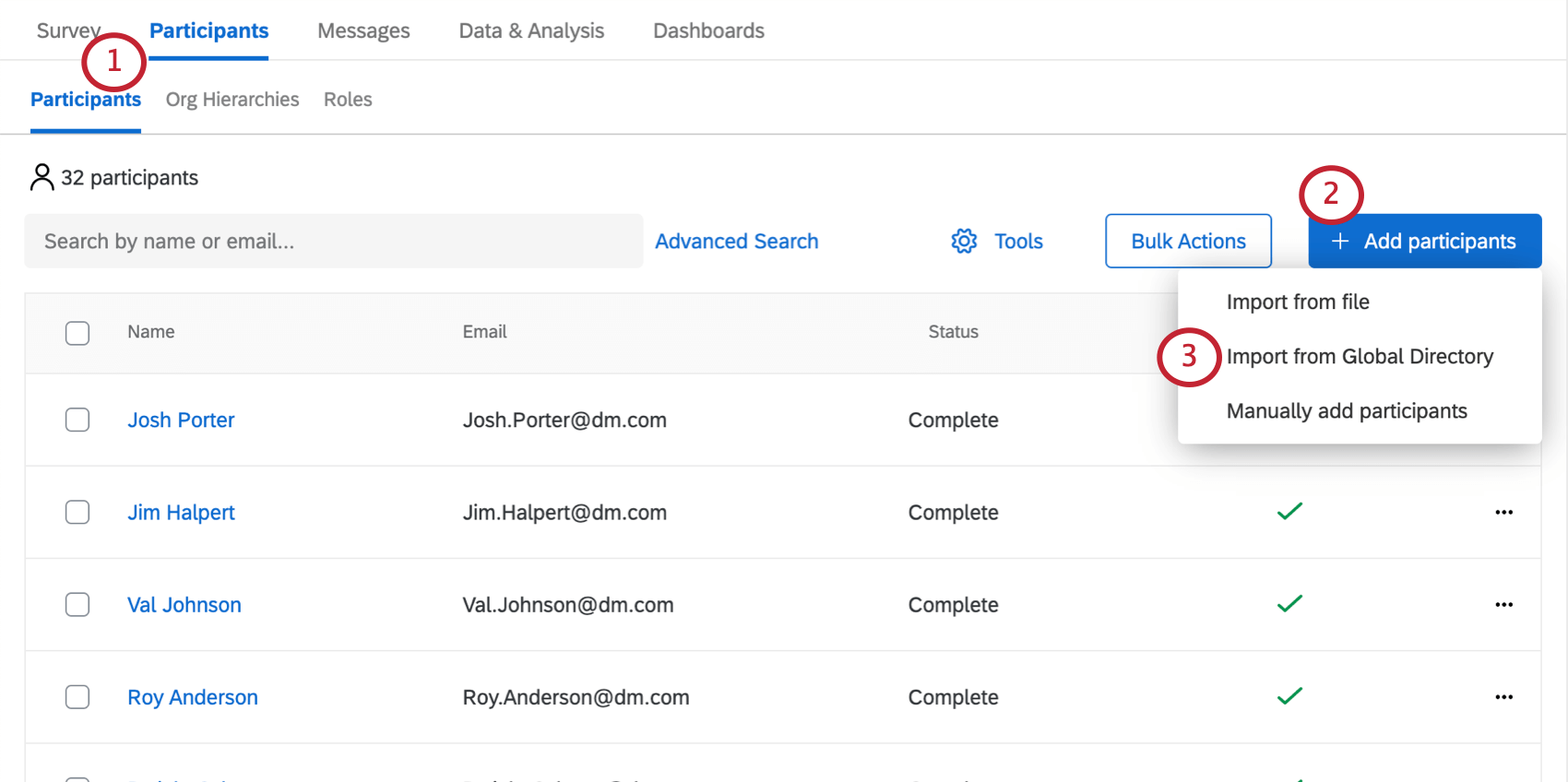
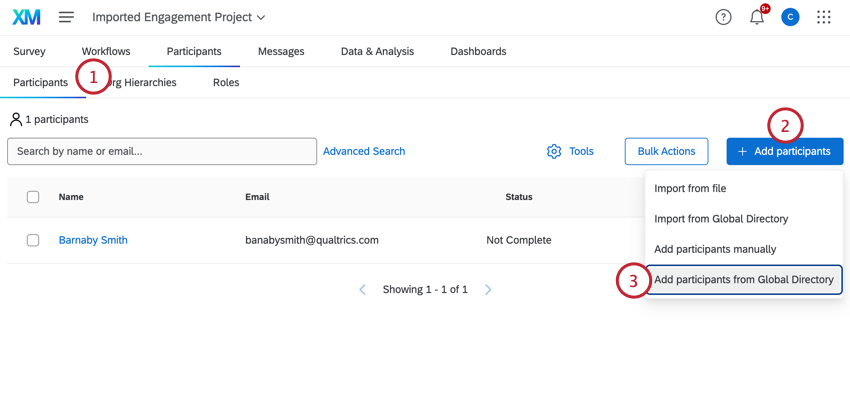
To add participants to your project, click the Add participants button and then choose how you’d like to add participants:
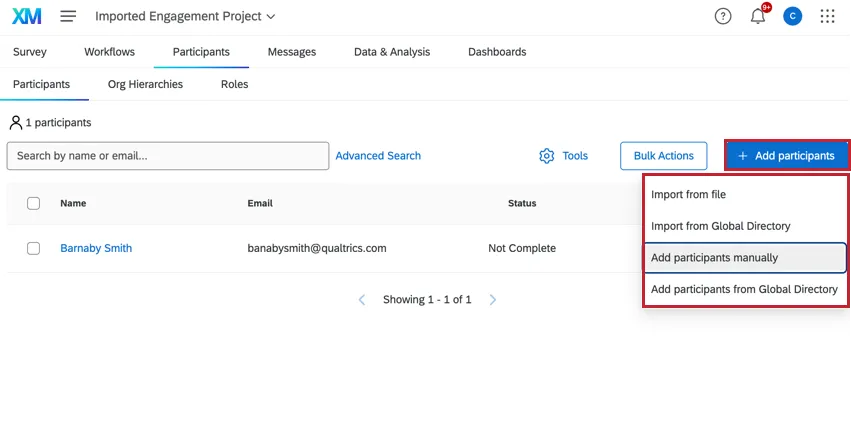
- Import from file: Upload a file containing participant data.
- Import from Global Directory: Sample existing participants from your EX directory.
- Add participants manually: Manually enter participant data.
- Add participants from Global Directory: Search for individual participants that exist in your EX directory.
Qtip: If you are editing a Lifecycle project, you also have the option of setting up a participant import automation.
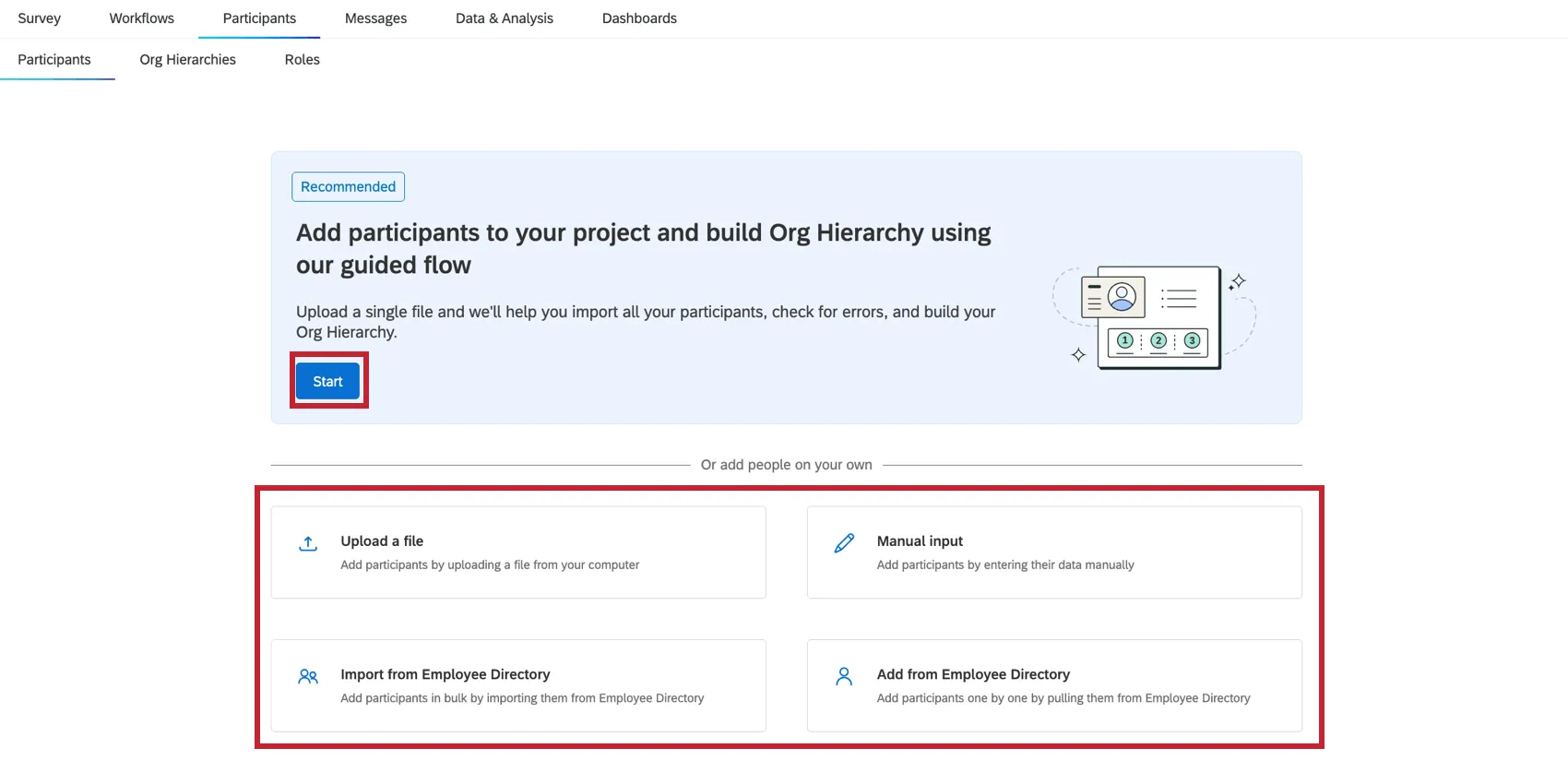
Qtip: For fresh Engagement projects, there is an additional guided flow that walks you through participant import and org hierarchy generation. You can still also use any of the other import methods covered on this page.
Qtip: Employee Insights Admins and EX Administrators can import Brand Administrators as project participants. However, they cannot edit any Brand Admin user data, which can only be changed by other Brand Admins. This is to prevent user account admin information from being modified by lower level user admins. If you’d like to change this behavior, please reach out to Account Services and ask to have the Limit EX Admin Update Person permission disabled for the organization.
Manually Adding Participants
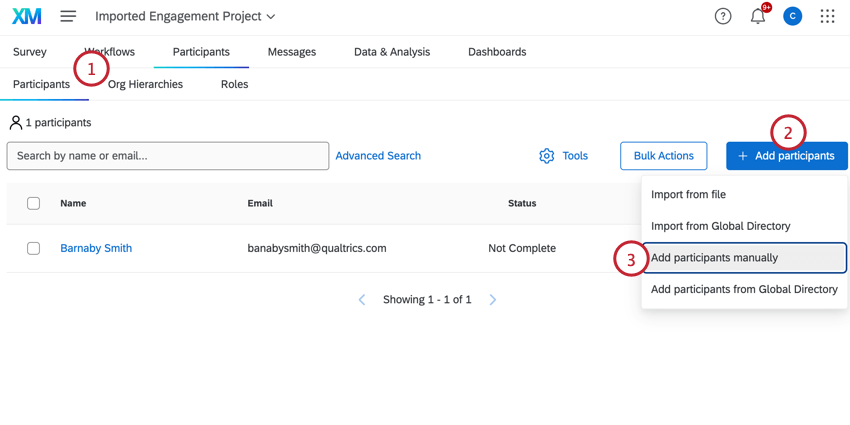
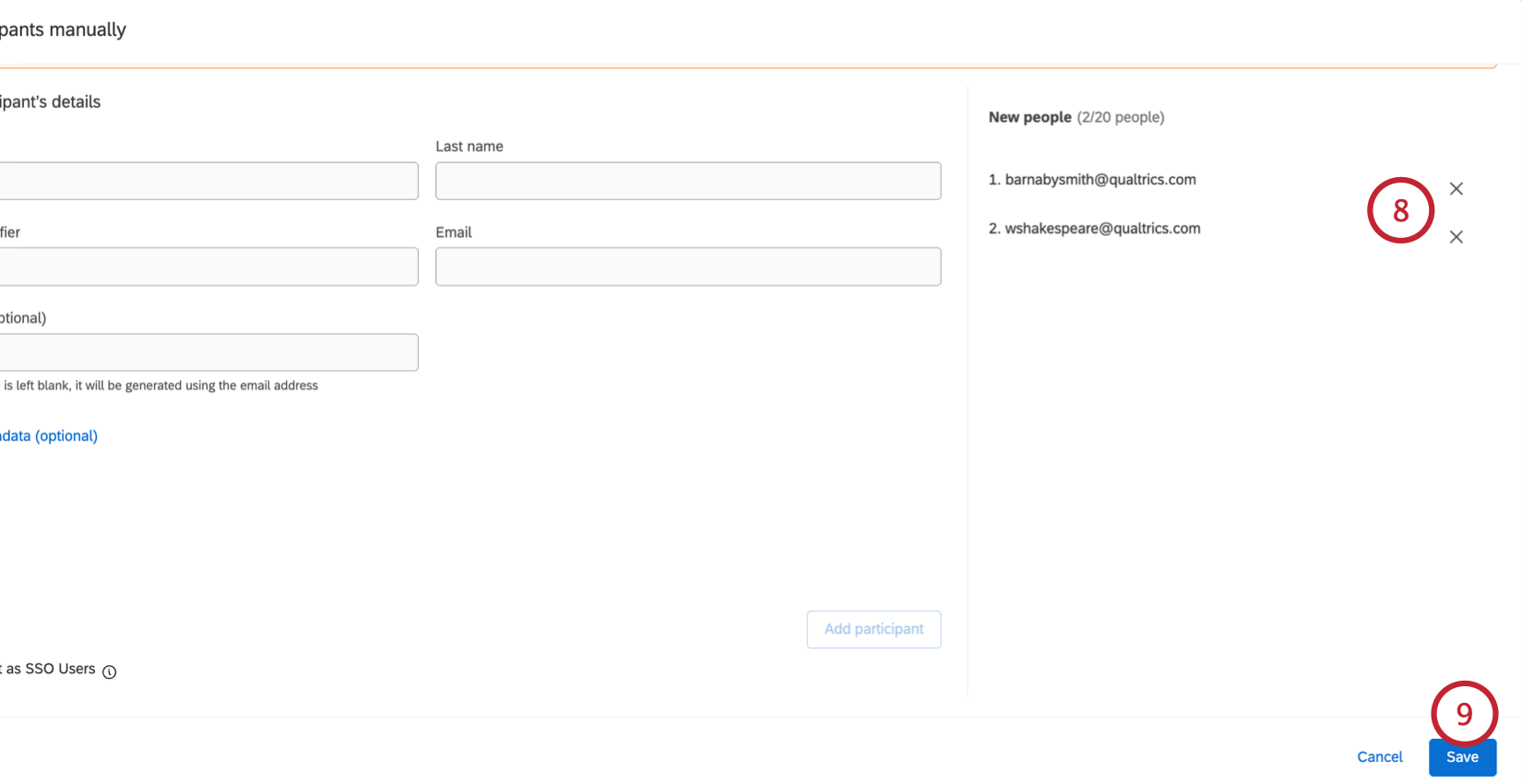
You can manually add participants to your project which is useful if you only have a handful of participants to add. You can use this method to search for participants that already exist in your EX directory and import them, or to create new participants if they do not exist.
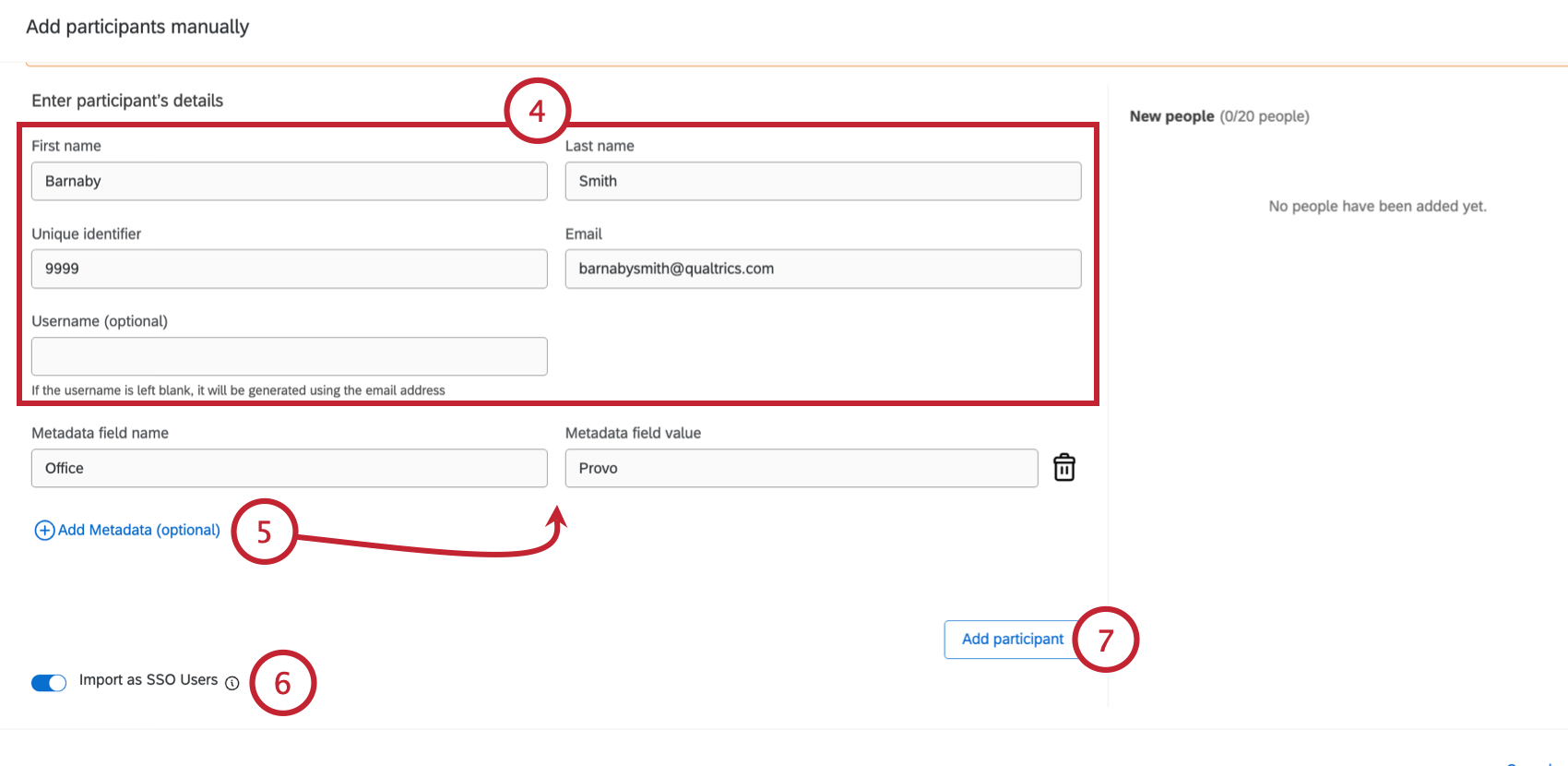
- First name
- Last name
- Unique identifier
- Username (optional) Qtip: If your license has SSO, we recommend uploading your participants to the directory first. Then you can add or import the existing users from your directory.

Qtip: You’re allowed to add as many metadata fields as you want, and you can make the names whatever you want. However, please only use “Language” for the language metadata field.
Qtip: Metadata edits made in the Employee Directory only apply to the directory; metadata edits made to the project only apply to the project. The only exception is if edits are made to UserName or Unique Identifier – this information will be updated across the platform.
Qtip: If adding special characters, you must place the entire field in quotes.
Importing Participants with a File
You can upload a file that contains your participant data. This method is useful if you have a lot of participants to add to your project. If your file contains data for participants that already exist in the EX directory, then those participants will be added to the project. If there is no match in the EX directory, then new participants will be created.
Qtip: If your license has SSO, make sure you upload your participants to the directory with their UserName before you upload participants! Once they’re in the directory, you can upload participants and exclude the UserName column, so long as you have their unique identifiers.
Navigate to the Participants section of the Participants tab.
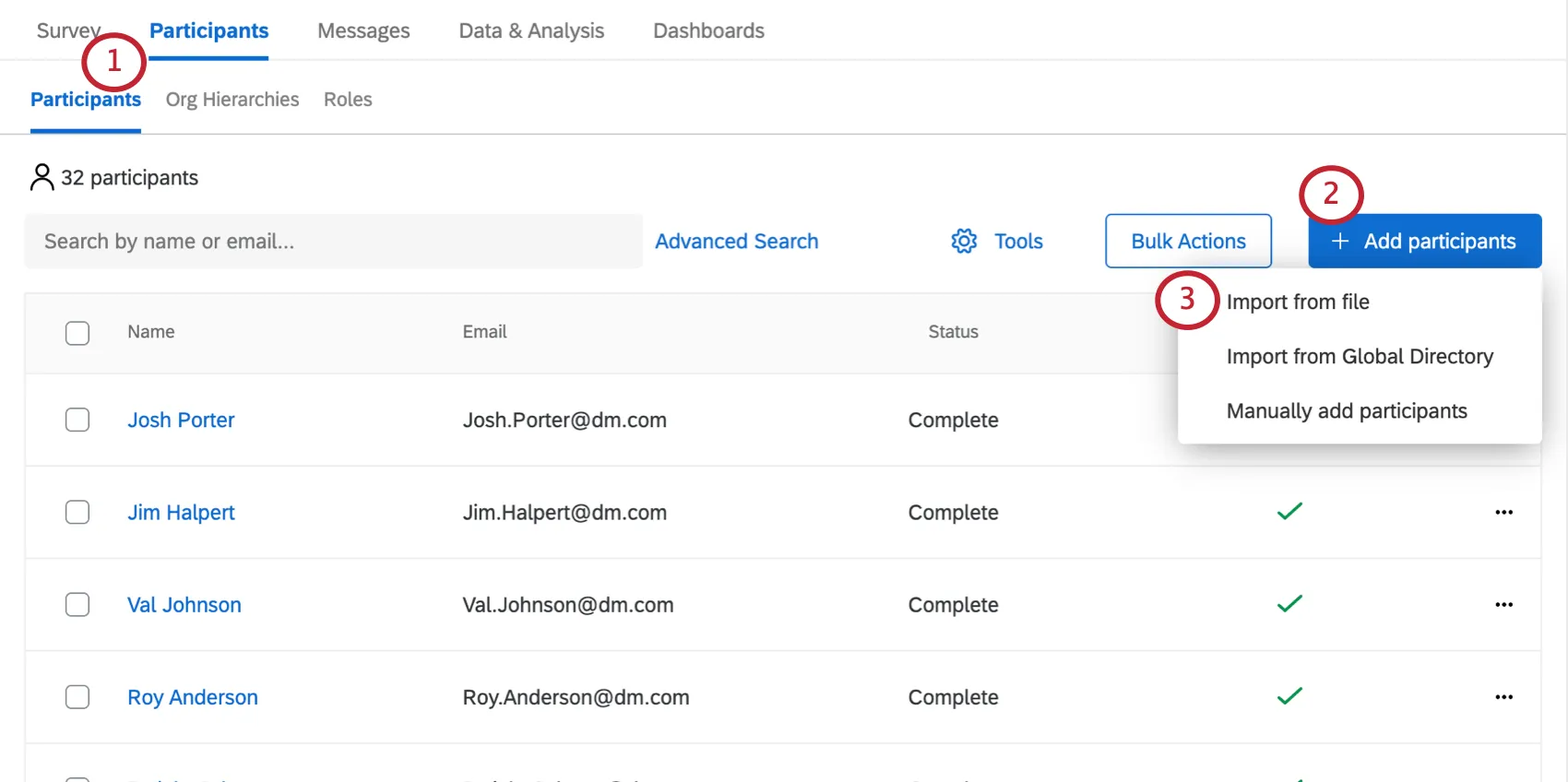
Click Add Participants on the top-right.
Select Import Participants.
Download the example CSV or TSV file. These are both spreadsheet files that can be opened in Excel and other similar programs.
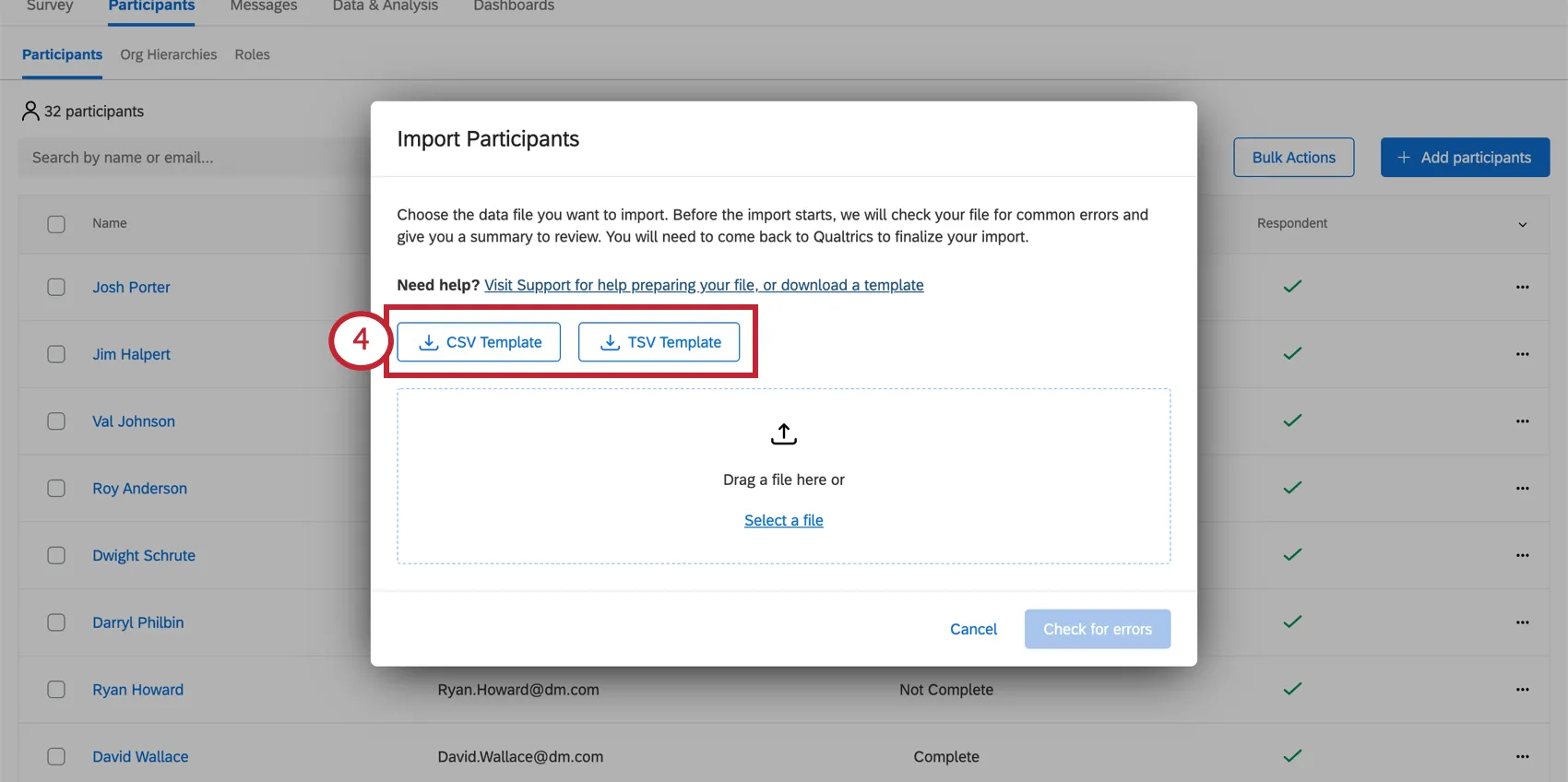
Qtip: We recommend the TSV file if any of your fields, such as names of participants, contain characters other than numbers or the English alphabet.
Attention: If you use comma delimiters to separate multiple values in a metadata field, you will not be able to use Participation Summary Widgets that filter by that field.

Add participants to your spreadsheet, with one row for each participant (each participant must have an entry in the UniqueIdentifier, Email, FirstName, and LastName columns, though other columns may have blank cells). See our Preparing Your Participant File for Import support page for more information on what information to include in order to build hierarchies.
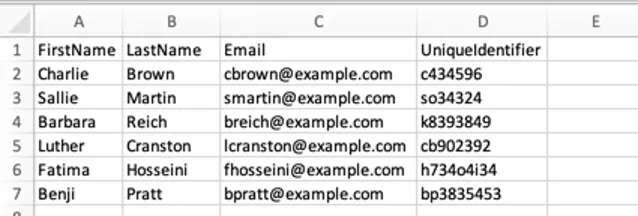
Qtip: The participant username will by default be the same value in the Email column. If you’d like to specify a different username for your participants, add a column titled UserName and specify a username. This username is what your participants will use to login to view dashboards. All uppercase characters will be converted to lowercase for the username.
Save the file as a UTF-8 encoded CSV (Comma Separated Values) or TSV (Tab Separated Values).
Qtip: The maximum file size for a contact list upload is 100 MB.
Click Select a file to browse your files.
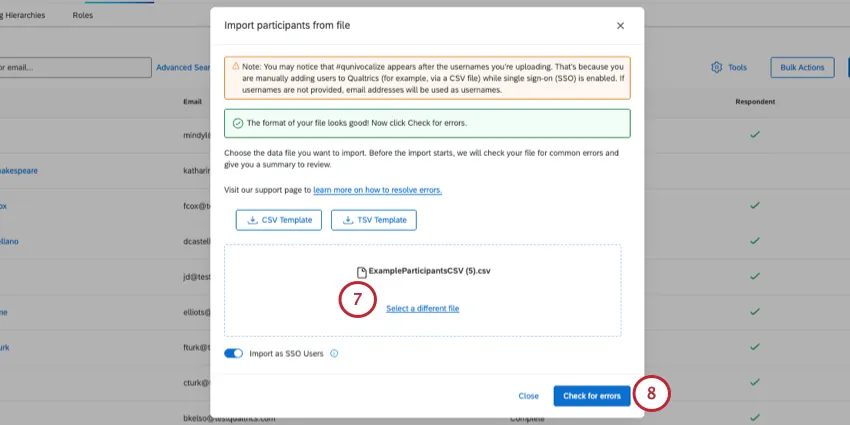
To proceed, click Check for Errors.
When loaded, the importer will summarize what participants will be updated or added to the project, and what impact this will have on your directory, too.
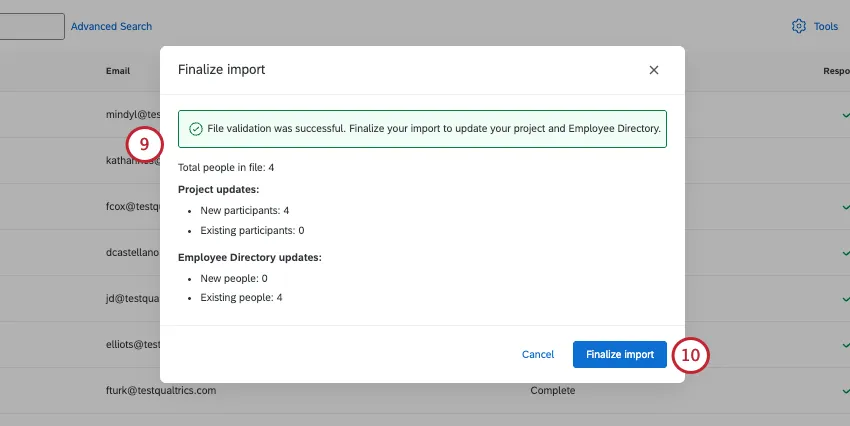
If you are happy with these changes, click Finalize import.
You will be shown the status of your recent imports / exports.
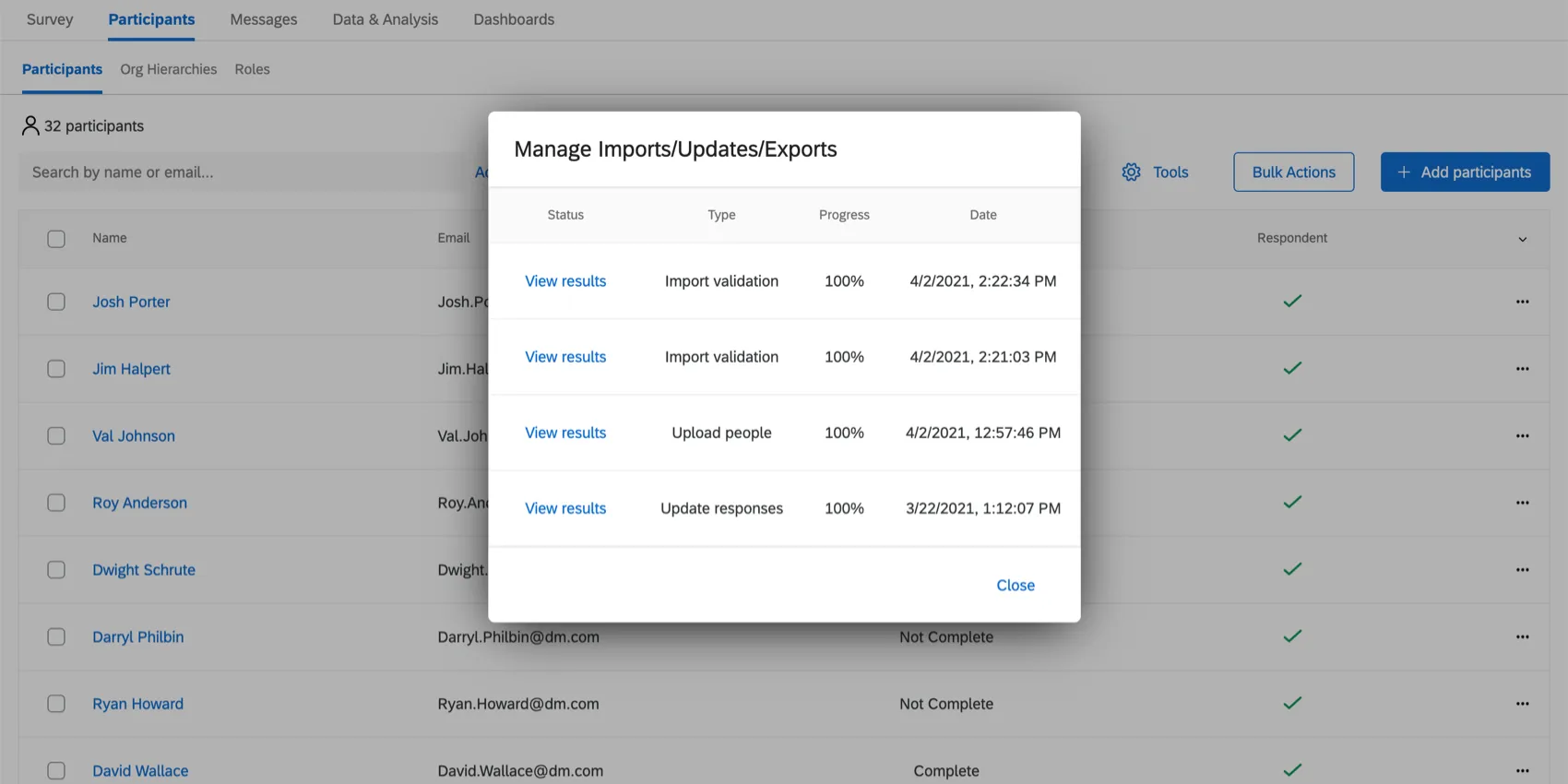
Errors Detected in a Participant File
If you allow the importer to check for errors and some are detected, you will be given an error report you can download as a CSV, in case you have a large file that necessitates a large report.
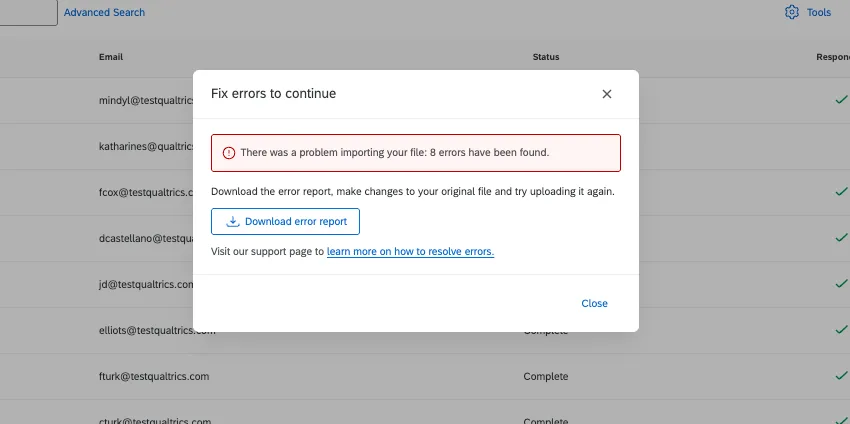
Click Download error report to view this.
For a full list of issues and their possible solutions, see Participant Import Error Messages.
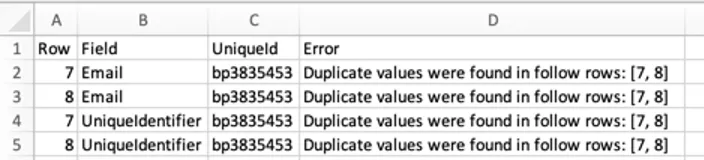
The report will give the exact row of the file that had the error, the field that had the issue, and the unique identifier of the participant who had the errors.
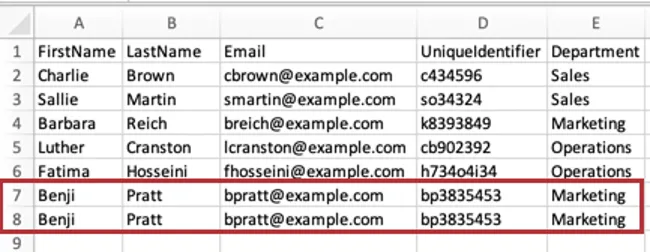
Example: We accidentally uploaded our user with the unique identifier “bp3835453” twice. Both the unique identifier and email address are the exact same on each of the two rows. If we erase one of the rows, the issue will be resolved when we go back to upload the file.

Qtip: The person importer does not detect hierarchy-specific issues.
Importing Participants from the Directory
One common way to balance how frequent a survey goes out with the “survey fatigue” respondents may feel being asked to complete the survey over and over is to only survey a filtered subset. For example, you can survey one region or business unit at a time, or survey a random sample of the employees. This can allow higher levels of the organization to get representative engagement feedback without surveying the same employees as often.
When you add participants to a project from the Employee Directory, you can choose to add a randomized sample, with or without filter criteria.
Qtip: Do you send out Engagement surveys in the style of a “pulse” program? This functionality is perfect for you!
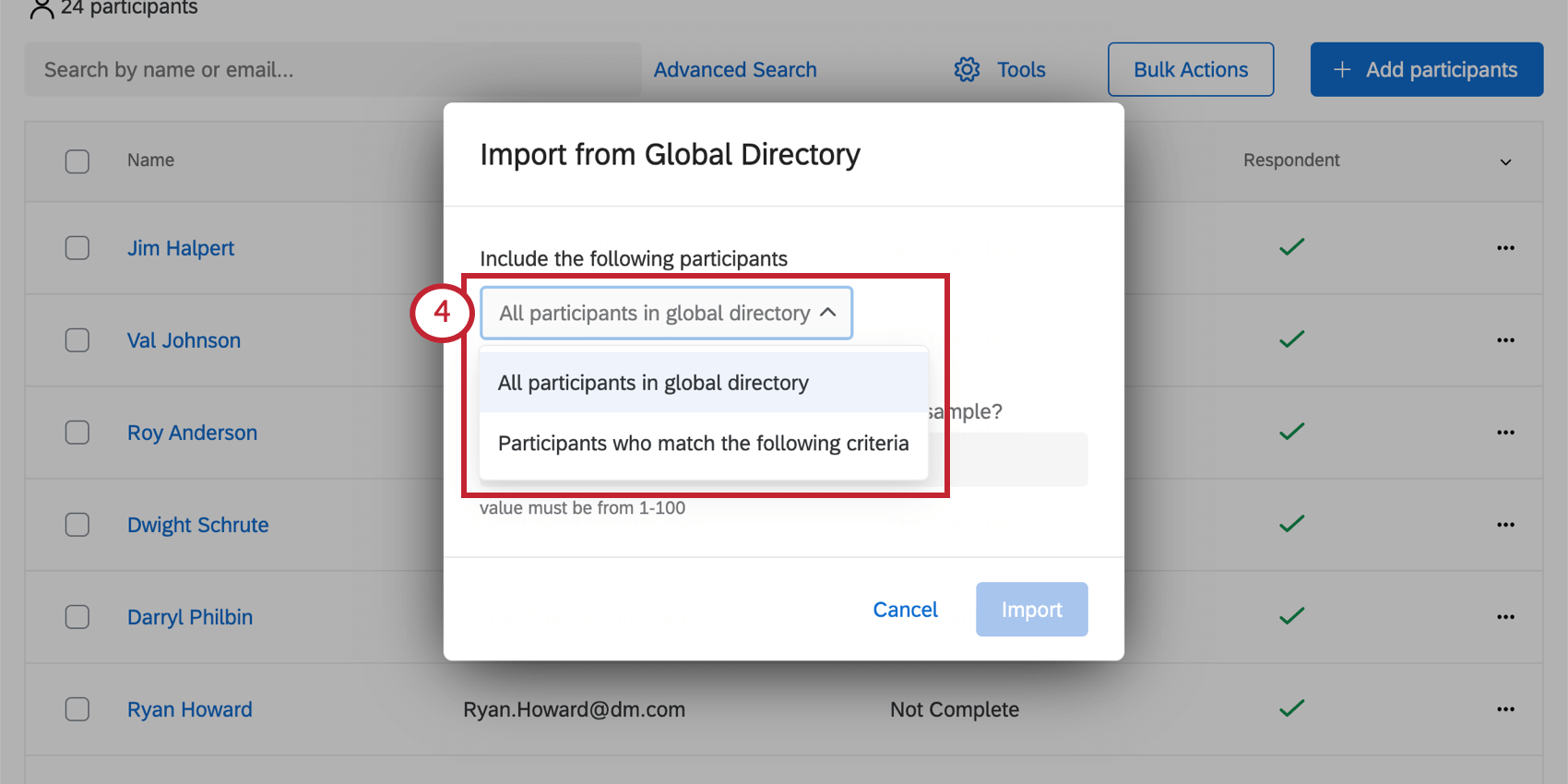
Qtip: If you choose to import all participants, skip Steps 5-7.
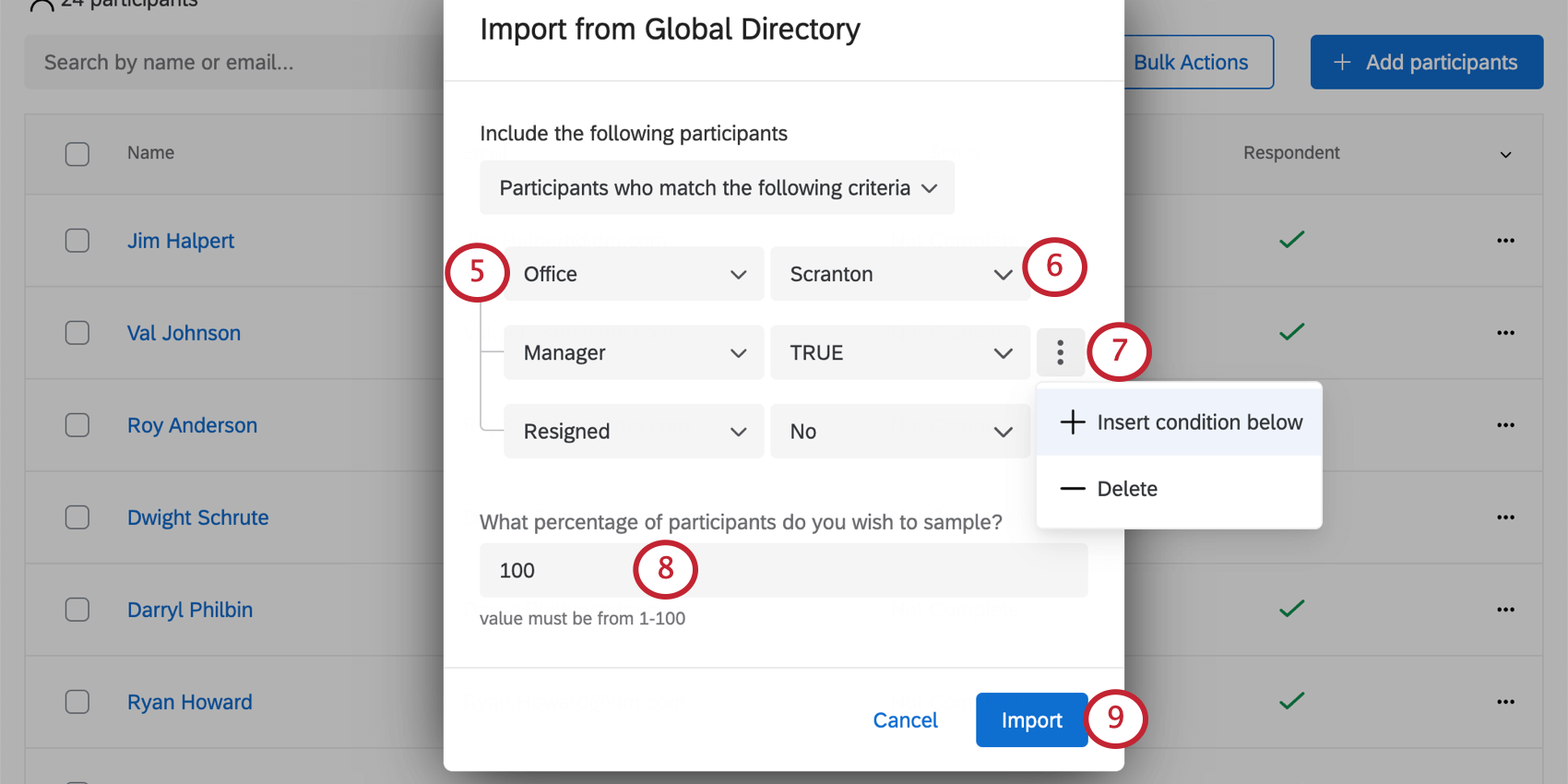
Qtip: These values will be joined by “or;” for example, choosing France and Germany for country looks for employees with France or Germany listed as their country.
Qtip: If there are no options, that means no one in the directory has a value for that field. Remember, you can remove metadata fields from your directory, but should only do so if you are totally sure you don’t use these fields or plan to use them.
Qtip: Multiple criteria are joined by an “And” clause. For example, saying Country should be France and Department should be Finance means you’ll only import the Finance department members located in France.
Qtip: When combined with a filter, this is the percentage of participants who meet the filter’s criteria. When not paired with a filter, this is the percentage of the entire employee directory.
Adding Participants from the Employee Directory
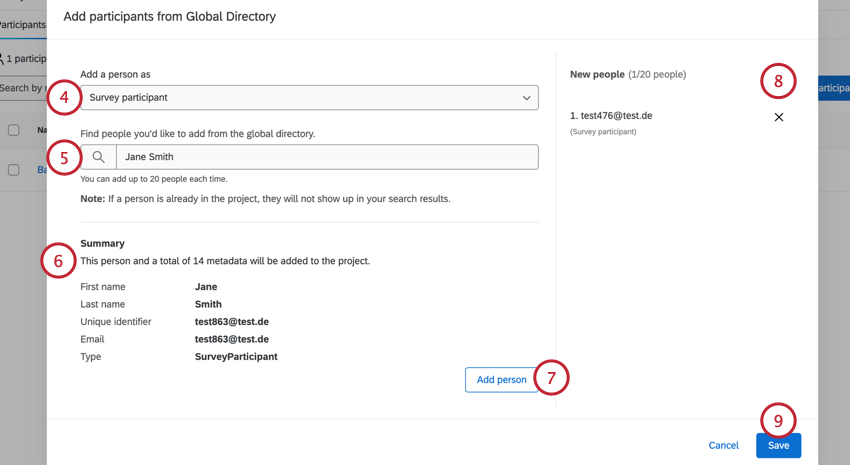
You can manually add individual participants from the employee directory. With this method, you can upload participants as either survey participants or dashboard users (non-respondents).
You can add up to 20 participants at a time using this method. When adding participants from the Employee Directory, you can only add participants that already exist in the directory, and you cannot edit their metadata until after they’ve been added to the project. When these participants are added to the project, all of their metadata in the employee directory will be added.
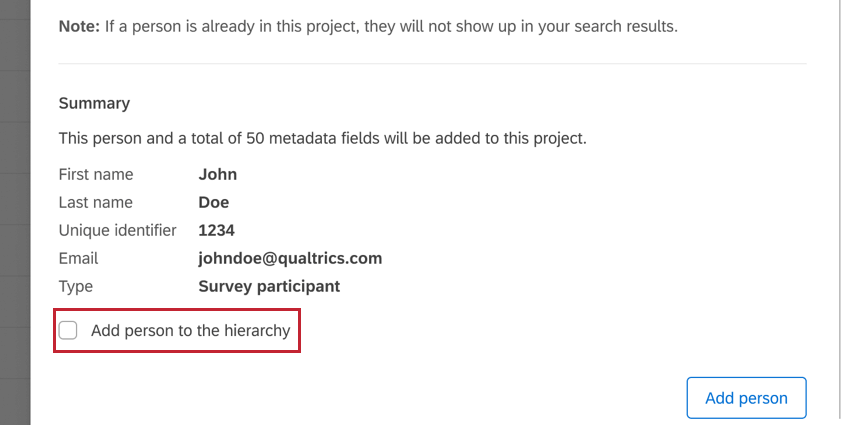
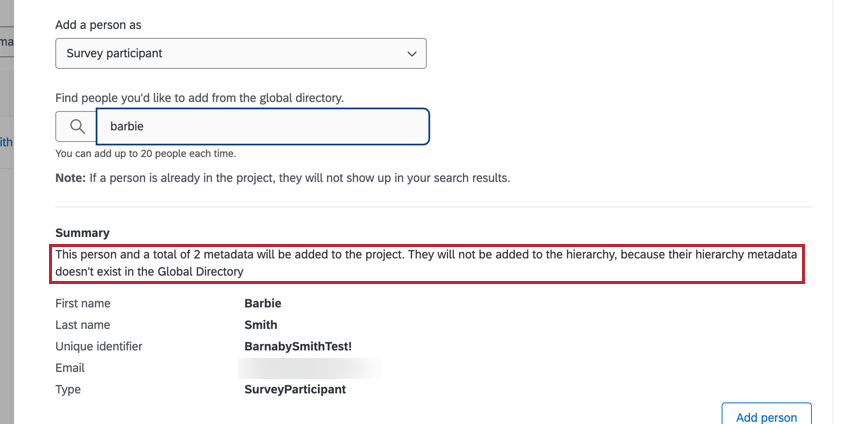
Qtip: If adding participants to an Engagement or Pulse program with an org hierarchy, the participant will NOT be automatically added to the hierarchy. If the participant has metadata in the directory that corresponds with the hierarchy, then an “Add person to the hierarchy” checkbox will appear for you to select if you’d like them to be added to the hierarchy once they’re added to the project.
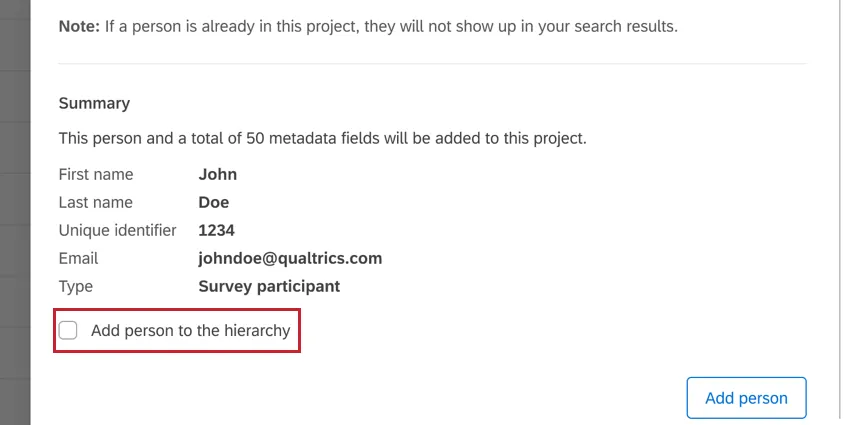
If the participant does not have hierarchy metadata, then you will see a message about this in the “Summary” section.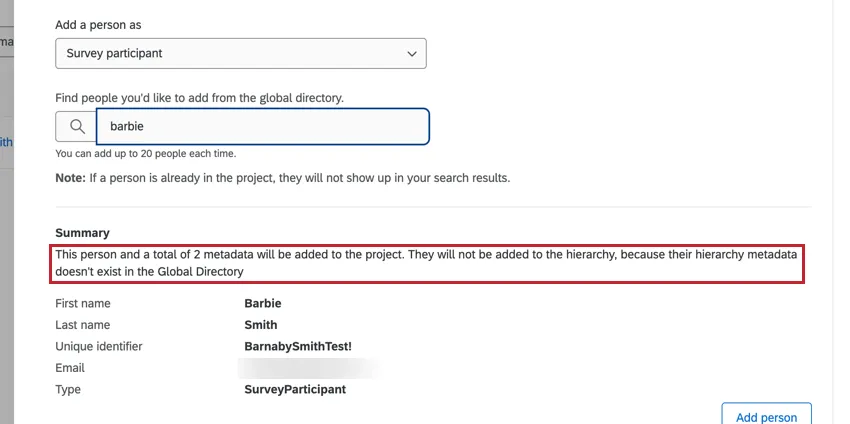
Import Participants and Build Org Hierarchy with Guidance
Qtip: This option is only available in fresh Engagement projects that have not yet imported any participants. Removing participants from an existing project will not give access to the guided flow.
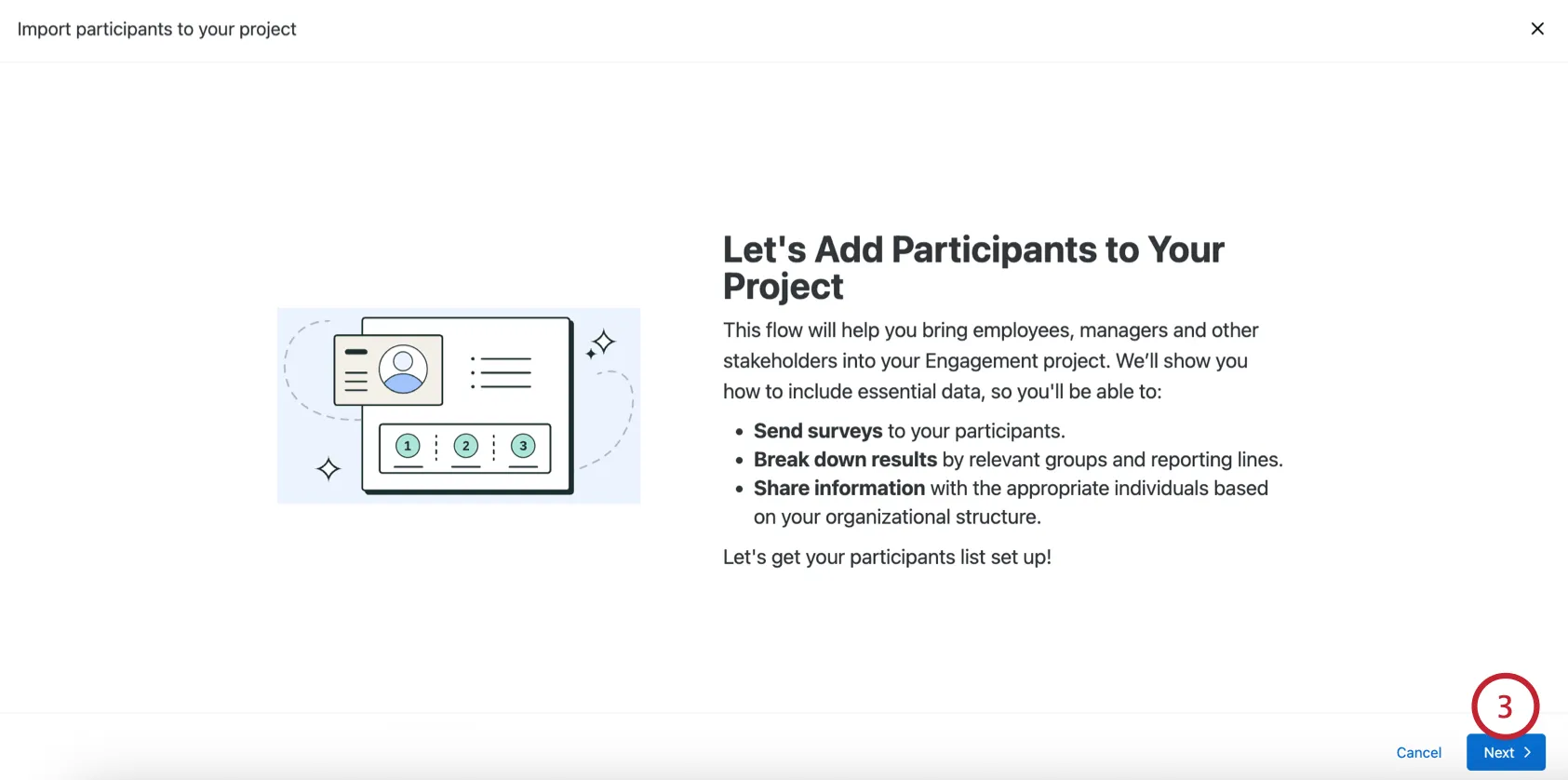
Feeling stuck on adding participants and building an org hierarchy? The guided flow for importing participants and building an org hierarchy will walk you through the steps needed to get your project up and running.
Navigate to the Participants tab of your project.
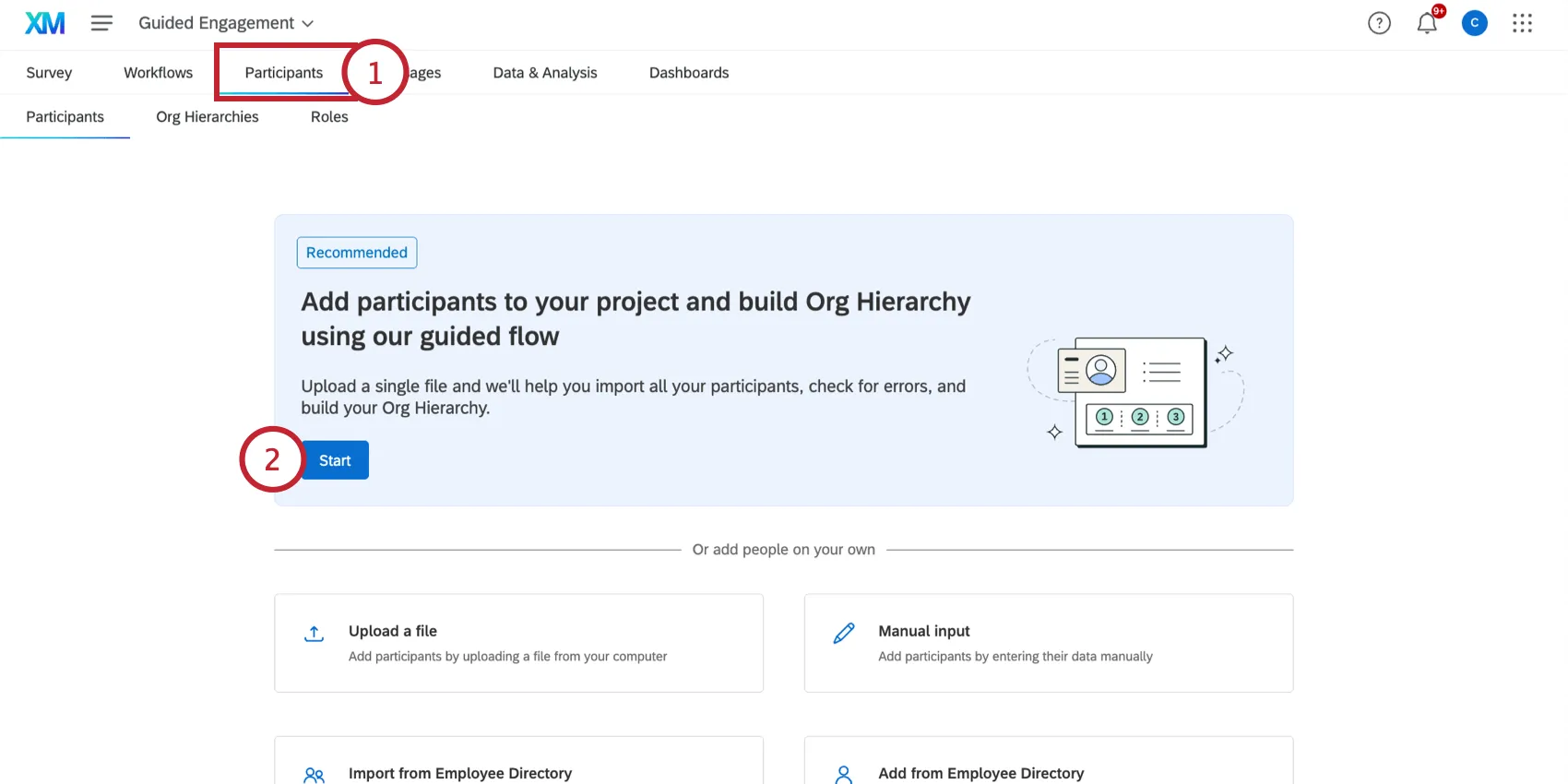
In the guided flow section, click Start.
Qtip: This option is only available in a fresh Engagement project with no prior participants.
Click Next.
Click Download a file template.
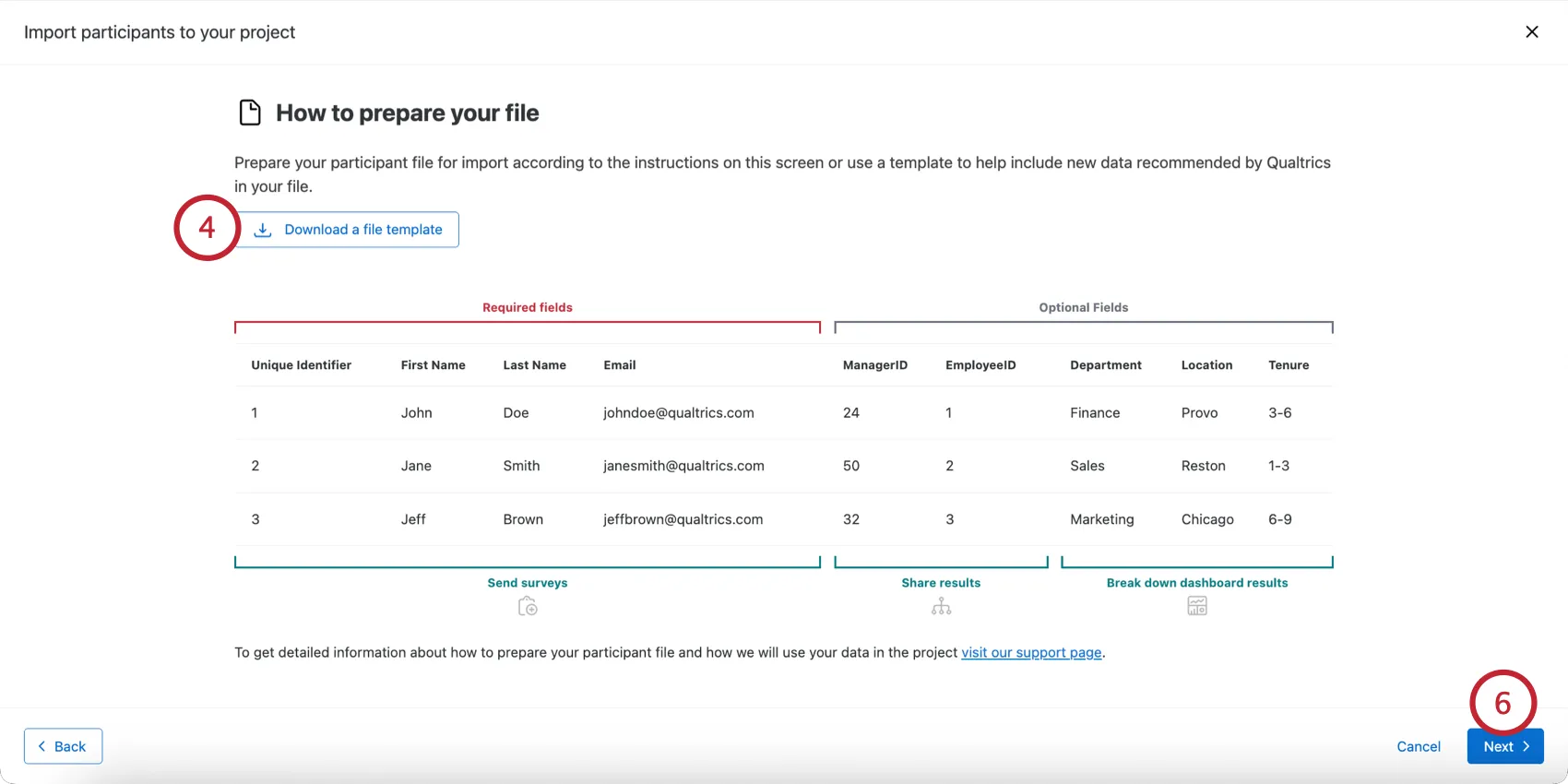
Open the file in a spreadsheet editor on your computer and add your participant data. The Qualtrics interface contains some guidance; see Preparing Your Participant File for Import for additional help.
Click Next.
Choose if you’d like to build an org hierarchy:
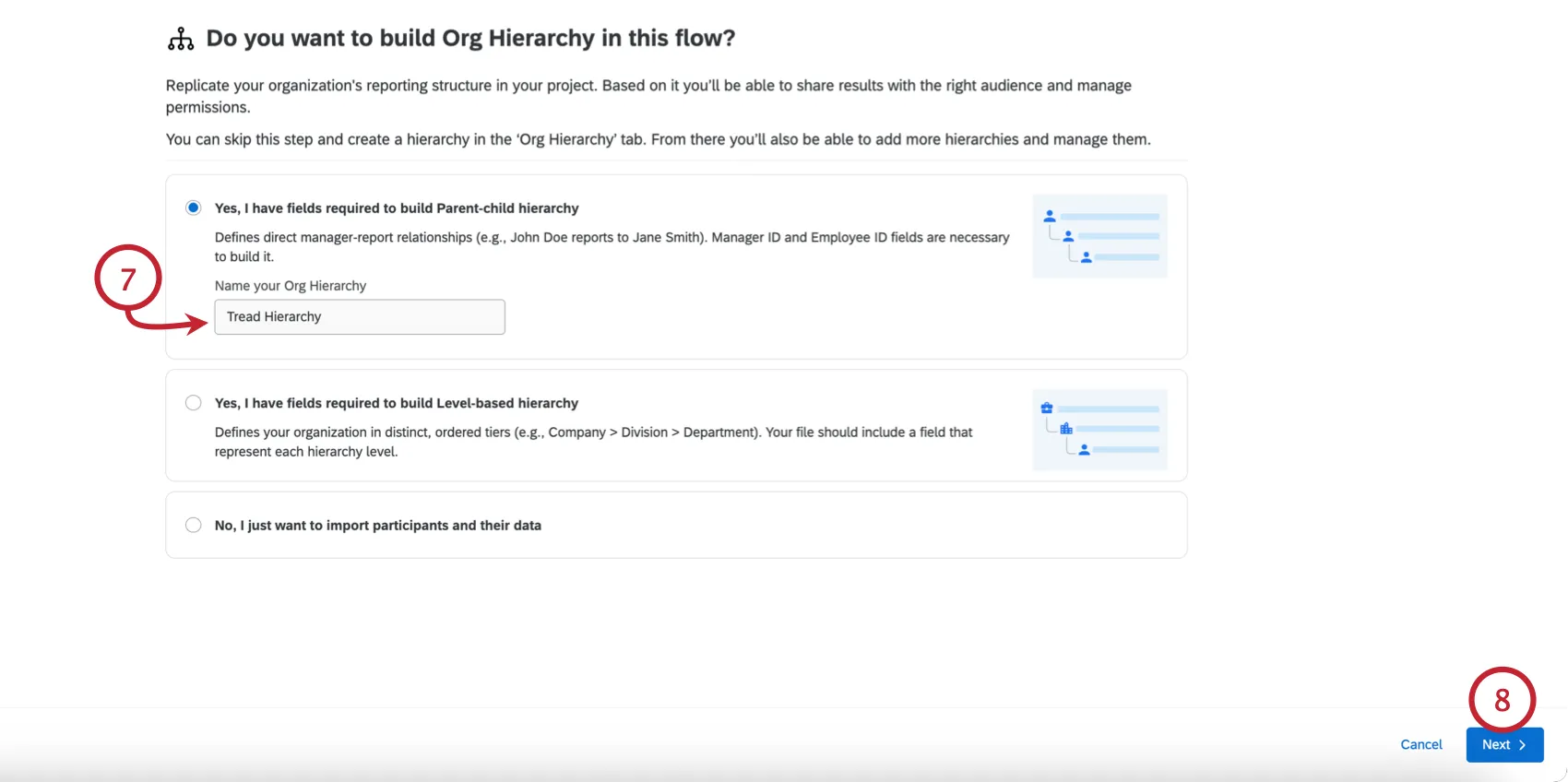
- Yes, I have fields required to build Parent-child hierarchy: Create a parent-child hierarchy. If chosen, enter a name for the hierarchy.
- Yes, I have fields required to build Level-based hierarchy: Create a level-based hierarchy. If chosen, enter a name for the hierarchy.
- No, I just want to import participants and their data: Do not create a hierarchy. You can always manually add org hierarchy fields and build a hierarchy later.
Click Next.
Click Select a file and choose the participant file saved on your computer.
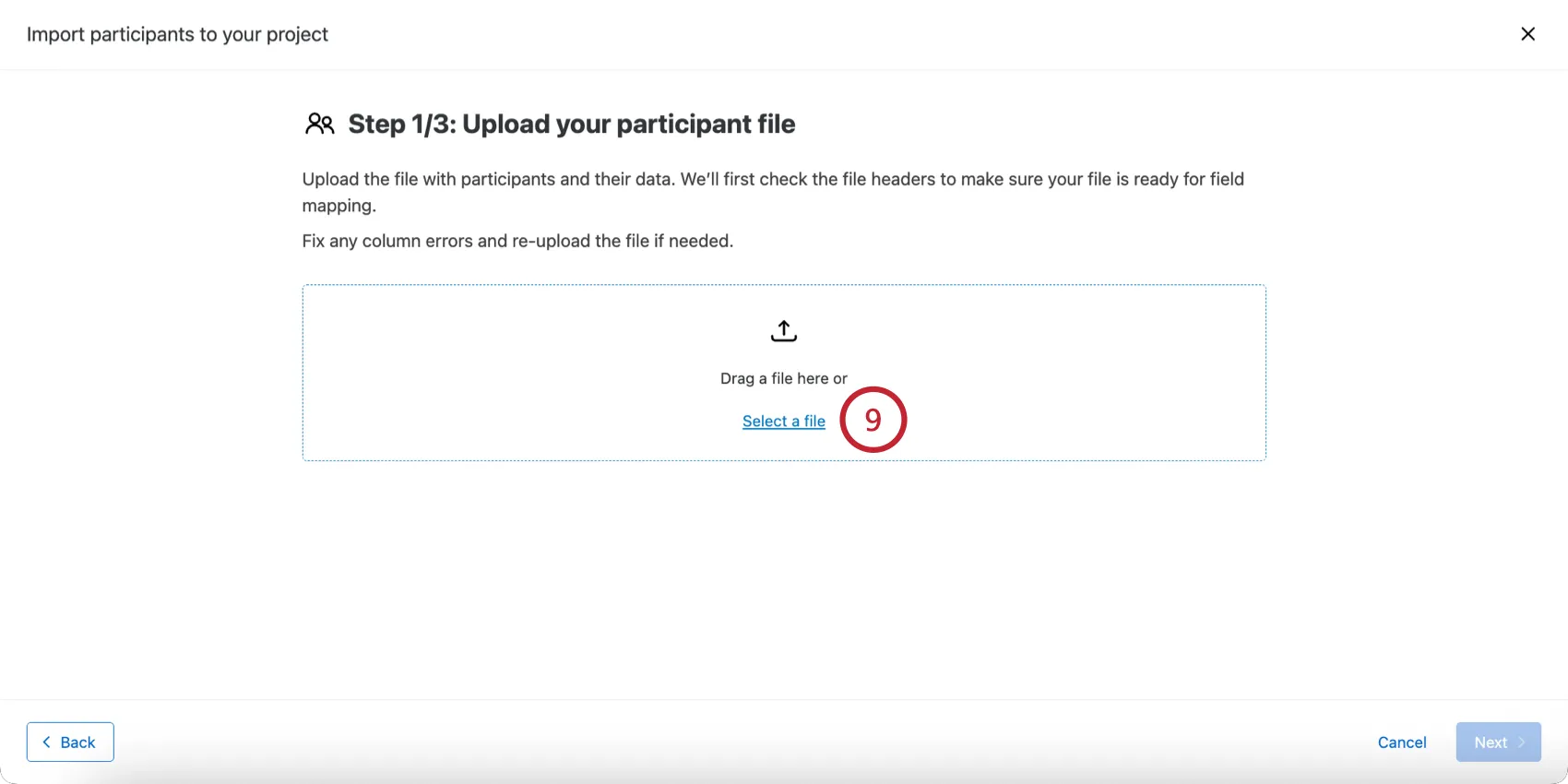
You’ll see a confirmation message if your file can be successfully uploaded. Any errors with the file will be displayed here for you to fix before continuing.
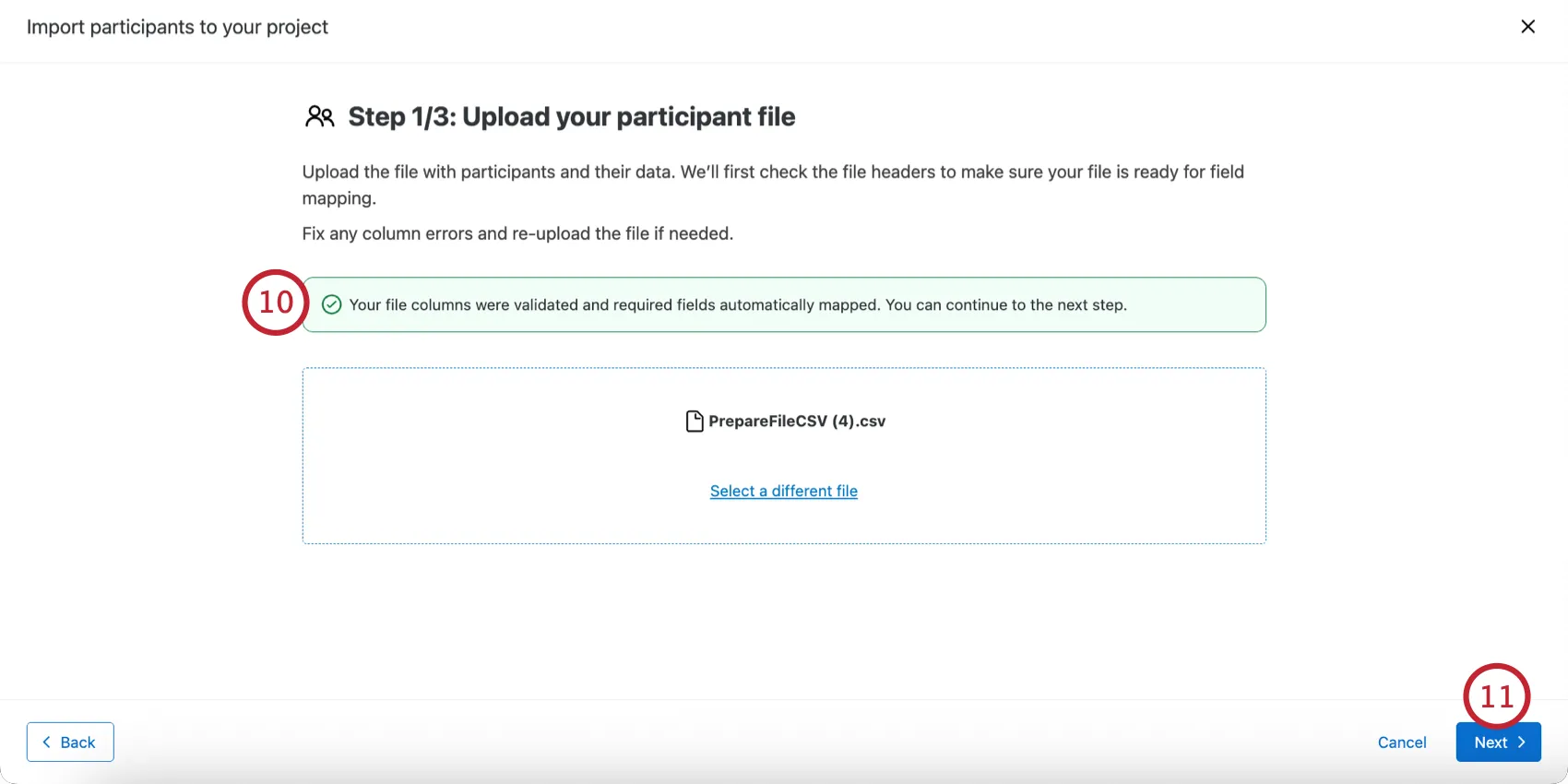
Qtip: See Importing Participants with a File for help preventing and fixing the most common errors.
Click Next.
Qualtrics will automatically map your file fields to the required participant fields. Double check the mappings. If you see any errors with these fields, then fix your participant file headers to make sure they match the required field names, and then click “Back” to reimport the file before continuing.
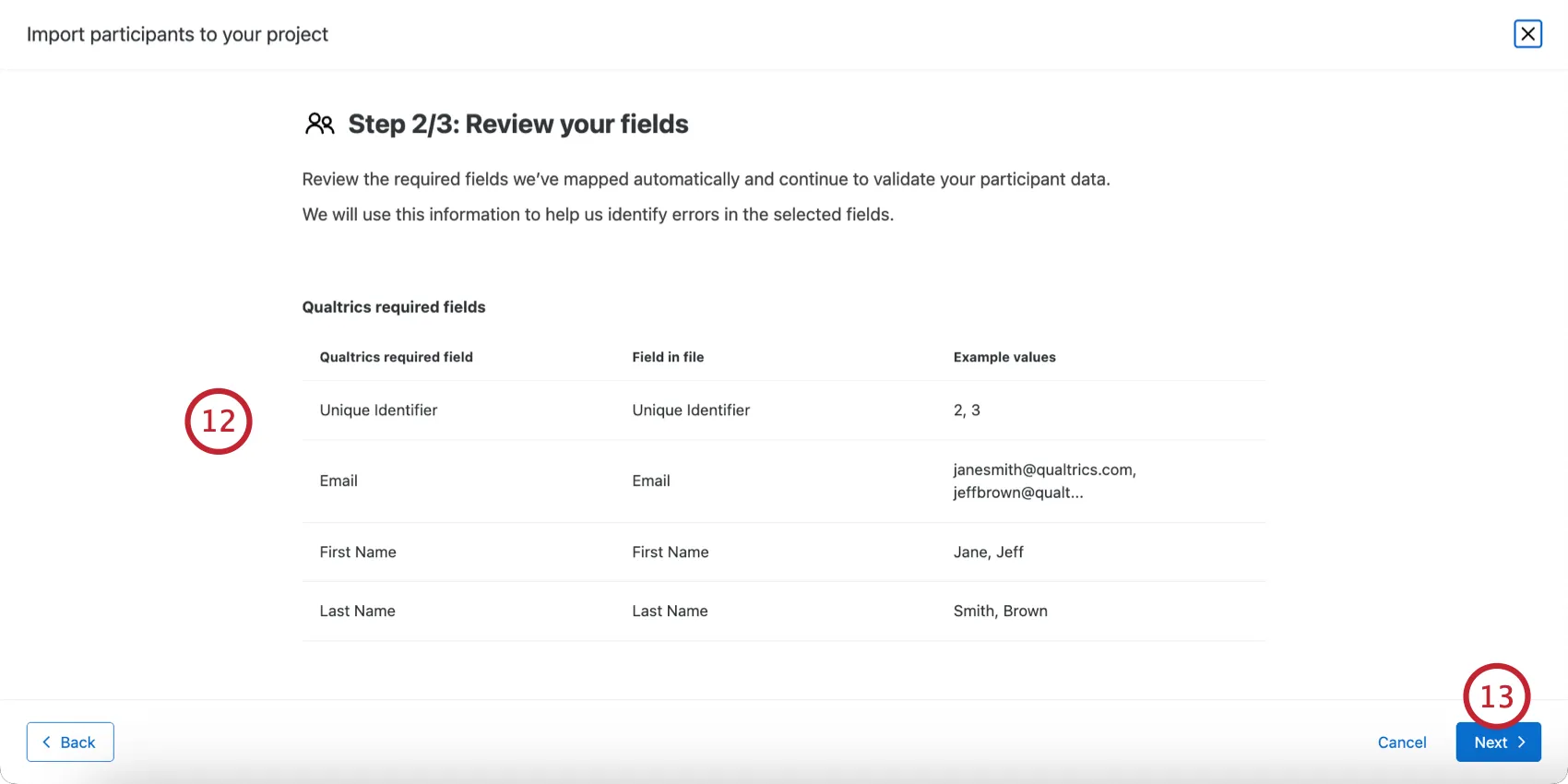
Qtip: If you are importing fields for an org hierarchy, then you can adjust your hierarchy fields using the dropdown menus.
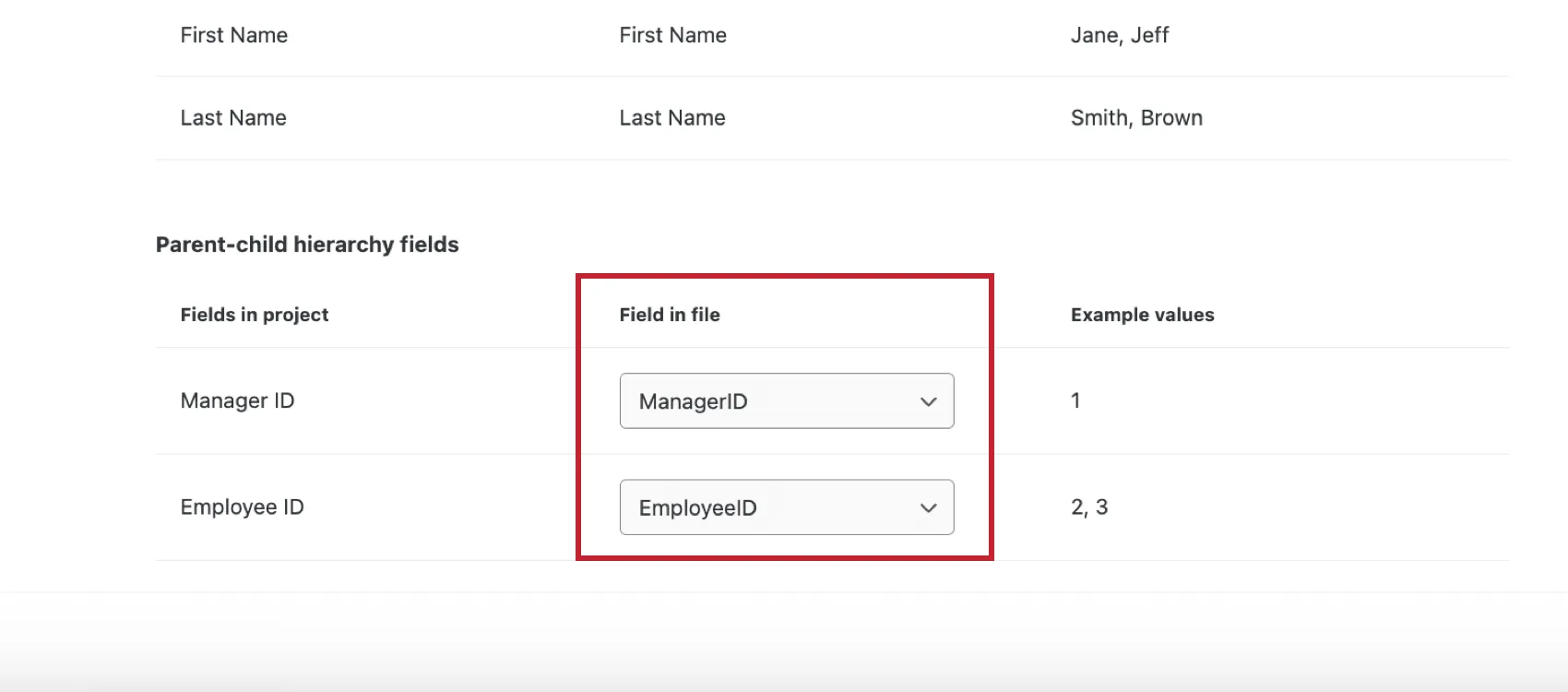
Click Next.
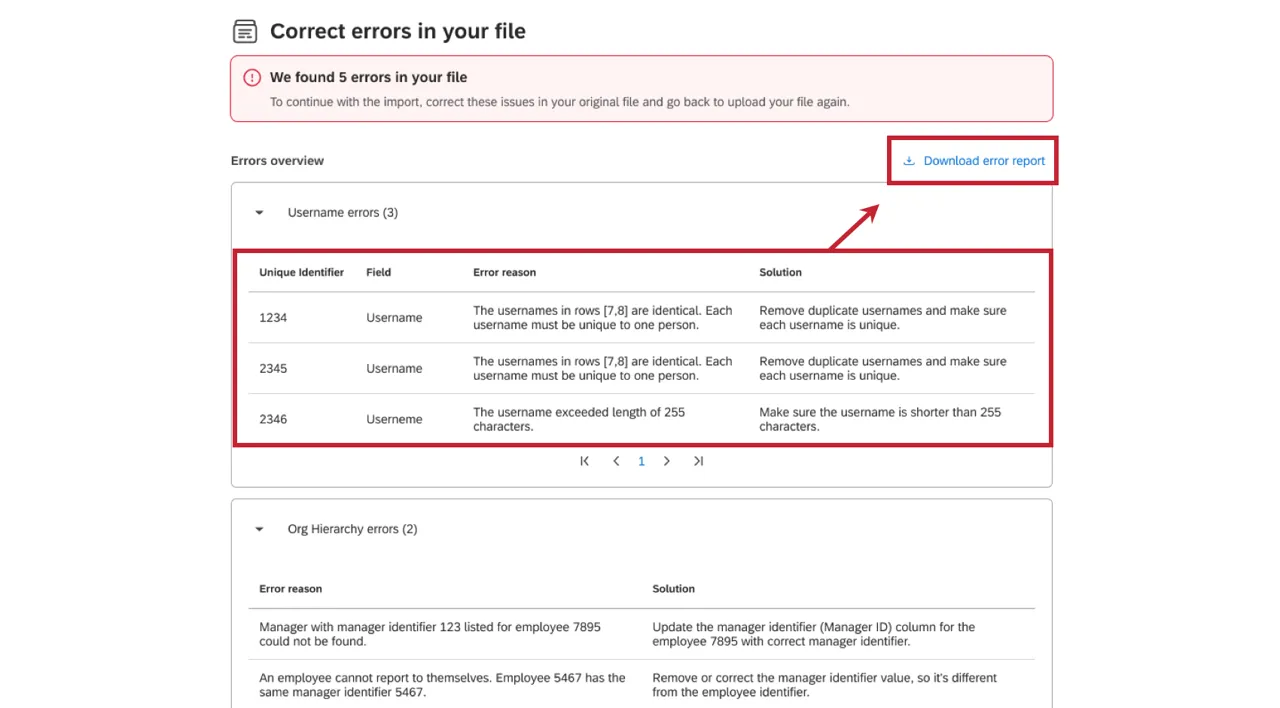
Qtip: After clicking “Next,” we’ll evaluate your file for any errors, which will be flagged to you. Each error has an explanation of the error reason and how to resolve it. You can click “Download error report” to export these errors to a CSV file. If your file contains over 100 errors, you must download the error report to access the individual errors. Please correct the flagged issues in your original file, and then click the “Back” button to return to the upload file step.
Review the import details, which includes the number of participants to add, the number of participant fields included, and information about the org hierarchy.
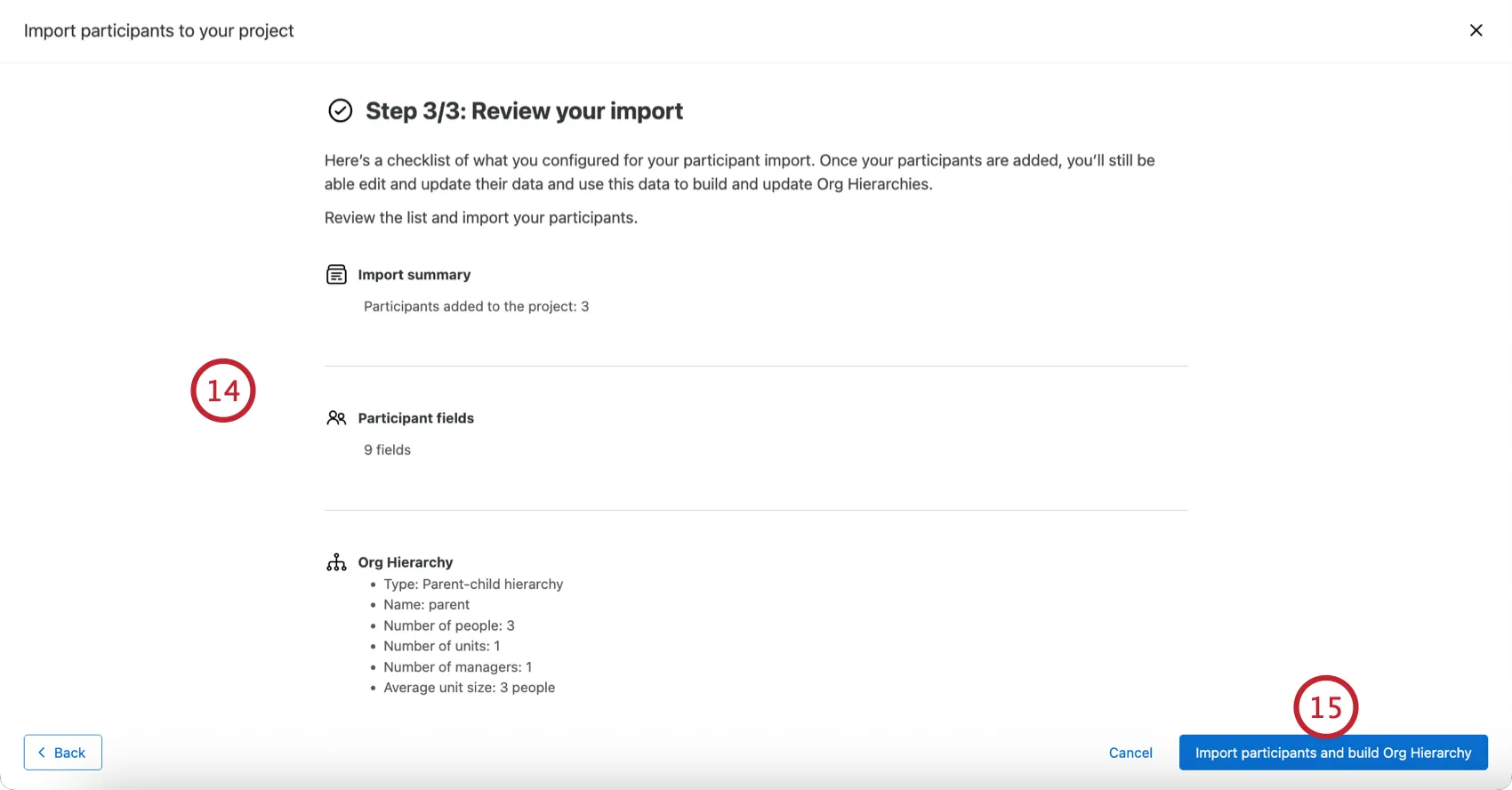
Click Import participants and build Org Hierarchy.
You can monitor the progress of your import from the Manage Imports/Updates/Exports page.
Updating Participants
Let’s say you already uploaded your participants, but realize you forgot to include some metadata. Maybe you accidentally uploaded the wrong values for your hierarchy, or you just want to add the location of each participant so you can add the option for your participants to filter their dashboard by the country their office is in. The good news is that you can upload another CSV/TSV file to update this metadata, so long as you follow the steps below.
Importing an Updated File
Follow the instructions on the Importing Participants section of this page to learn where to get an example file, and then upload it to your employee project. Remember to always include a Unique Identifier column so Qualtrics knows which participants to update. You may exclude participants and metadata columns you don’t want to change.
Qtip: This method can be used to edit, add, and remove metadata values. Uploading a file with empty values for a metadata field will erase participants’ current metadata values. (For example, this can help in instances where you may’ve accidentally assigned too many level hierarchy columns to a participant and need to remove a few. By including these columns but leaving values blank, you indicate these levels are empty.) The importer will not skip any columns you include in the import, even if all the participants have a blank value for it.
Attention: The hierarchy will only update when you import a file containing every metadata in your hierarchy. For example, if you used Unique Identifier, Manager ID, Org Unit ID, and Org Unit Description to build your hierarchy, all 4 of these columns will need to be present in an import to trigger a change in your hierarchy. You will not need metadata unrelated to the hierarchy, such as Age or Tenure.
Qtip: If a participant is updated with a new value for Email, their username will also be updated to match the new email address. This will happen unless one of the following is true:
Pushing Metadata Updates to Responses and Dashboards
Qtip: These methods only work for Ad Hoc Employee Research and Engagement projects. Lifecycle participants do not have these options. See more on EX Project Types.
If you have made changes to your participants’ information by importing new metadata or through the participant information window, you will want to make sure these updates are reflected in your dashboards and with your responses. There are several ways to update participant metadata, depending on the level of edits you have made:
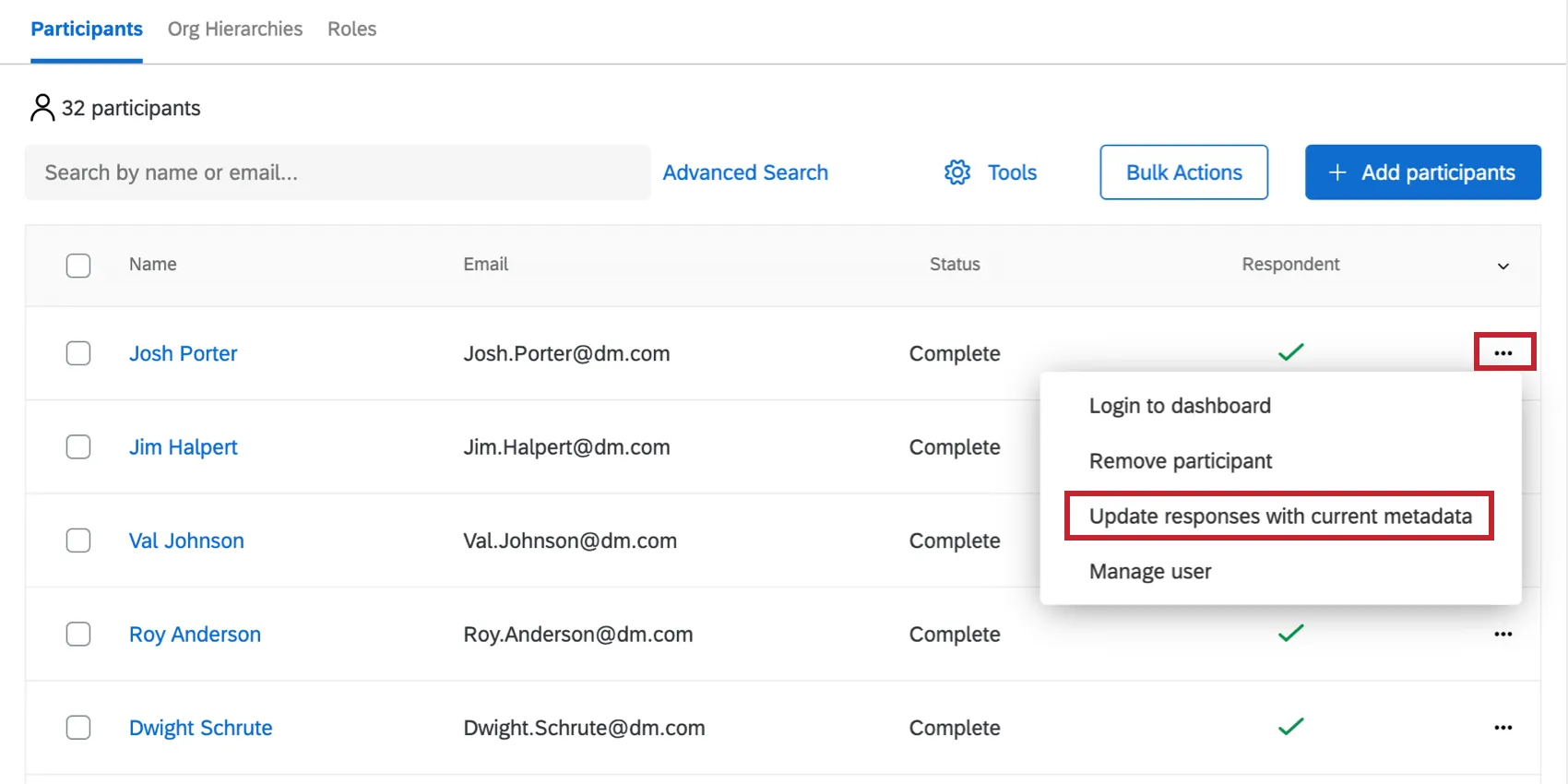
You can update participants one at a time in the Participants tab, using the dropdown to the right of their name.
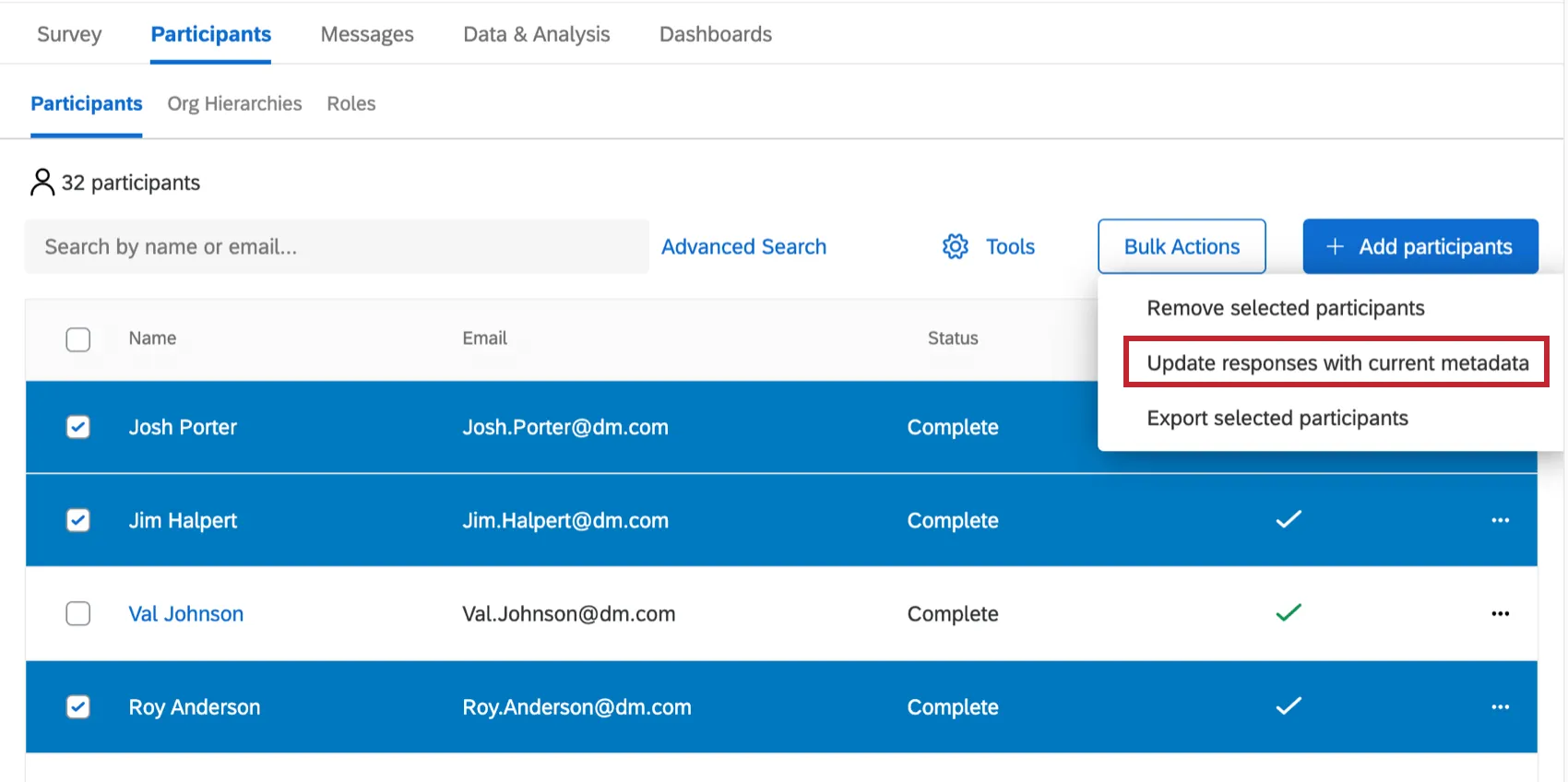
If you have updated only a few participants, you can update metadata by selecting people you want to update, clicking Bulk actions, then selecting Update responses with current metadata.
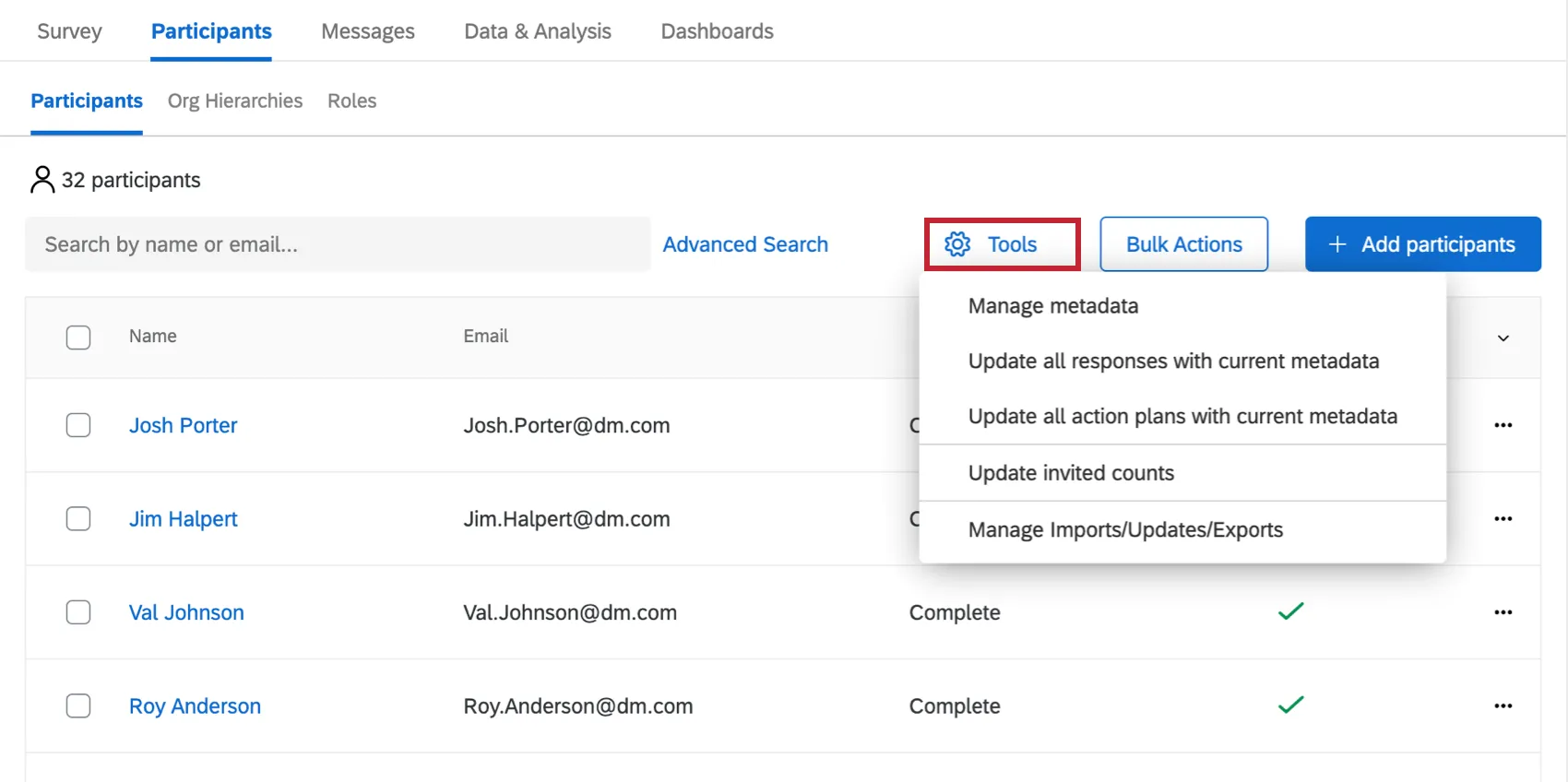
If you made many changes to many participants, you can update all metadata under Tools.
Warning: Changes made to a participant’s metadata in a project will not reflect in the employee directory, nor will it change the participant’s metadata in historical projects. Metadata changes are specific to the project in which the change is made.
Metadata
Warning: There are certain characters that metadata names and values cannot support, as well as other naming conventions to consider. Please see Maximum and Supported Characters for guidance.
When adding participants, your file must contain metadata. Metadata are variables containing information about your participants, such as employee identification number, role in the company, or start date. Metadata can be used to create your hierarchy in Employee Engagement or to filter data in your dashboards in both Employee Lifecycle and Engagement.
Qtip: Forgot to upload certain metadata before data collection? Check out our section on Updating Participants.
In an imported file, metadata is represented as a column of data. The header becomes the name of the variable in Qualtrics.
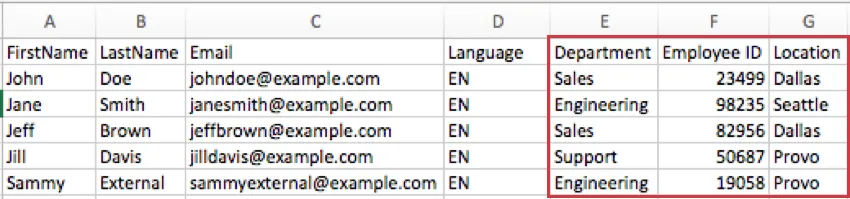
Example: Employee ID and Manager ID are metadata used in building parent-child hierarchies (EE). Let’s say that at my company, my employee number is 831 and my manager’s employee number is 909. When adding myself as a participant, my Employee ID column would say 831 and my Manager ID column would say 909.
Example: In your Employee Engagement or Lifecycle dashboard, you want to provide comparisons of data from all the different departments against a baseline performance of engagement. When you add your participants, you should include a Department column with each of your employees’ department information so that this information is saved to the project and you can generate these comparisons in your dashboard once the engagement data is collected.
Removing Participants
There are a couple different ways to remove participants. One is a manual approach where you select participants and remove them by pages of the Participants tab. The other is a convenient import process where you can upload a list of Unique IDs for the participants you’d like to remove.
Attention: When you remove a participant from a project, you will remove their response data from the project. This means it will no longer be available on corresponding dashboards. Only remove a participant if you are sure you want to lose this data or if you have confirmed that no response was collected.
Manual Removal
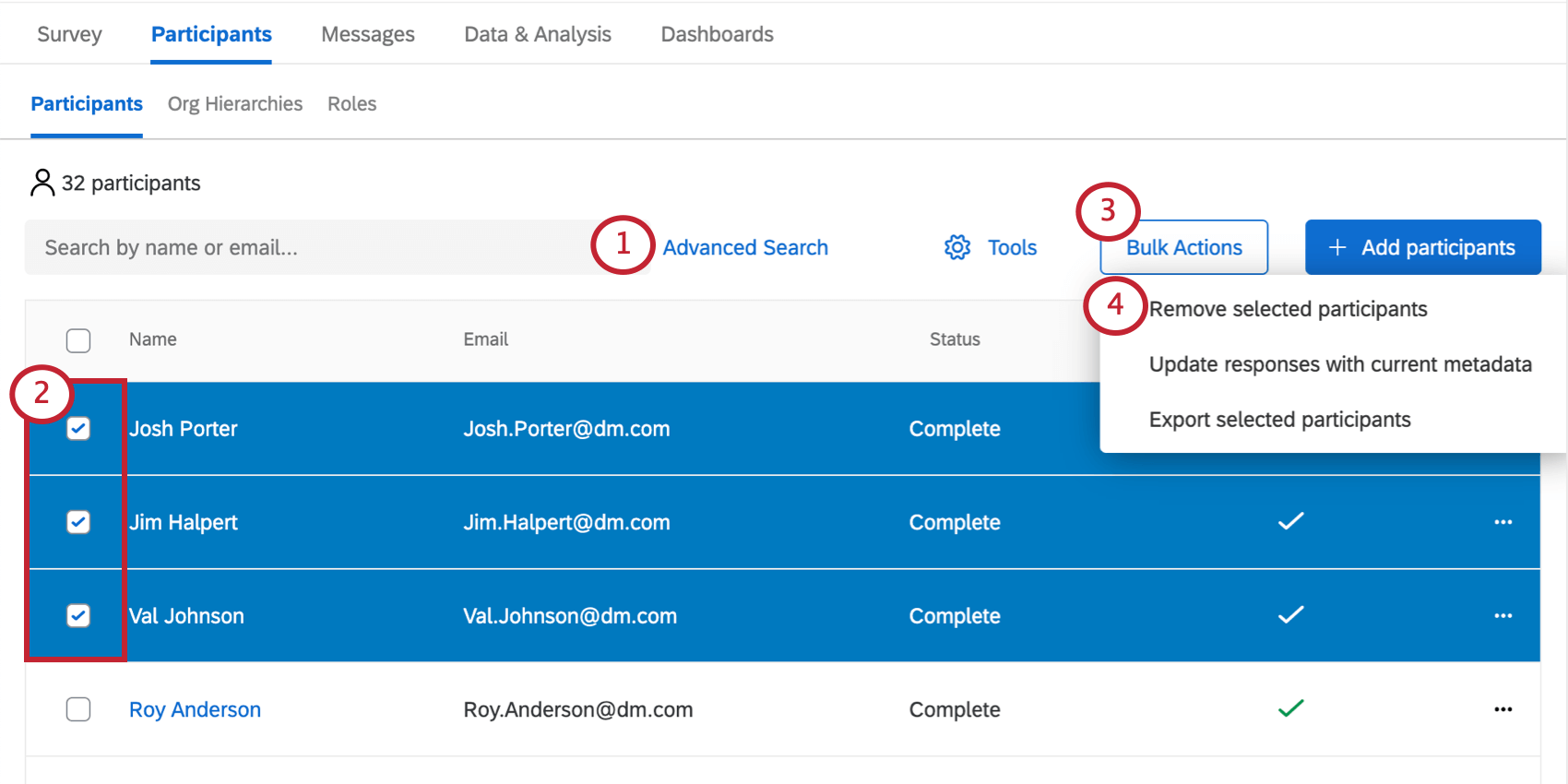
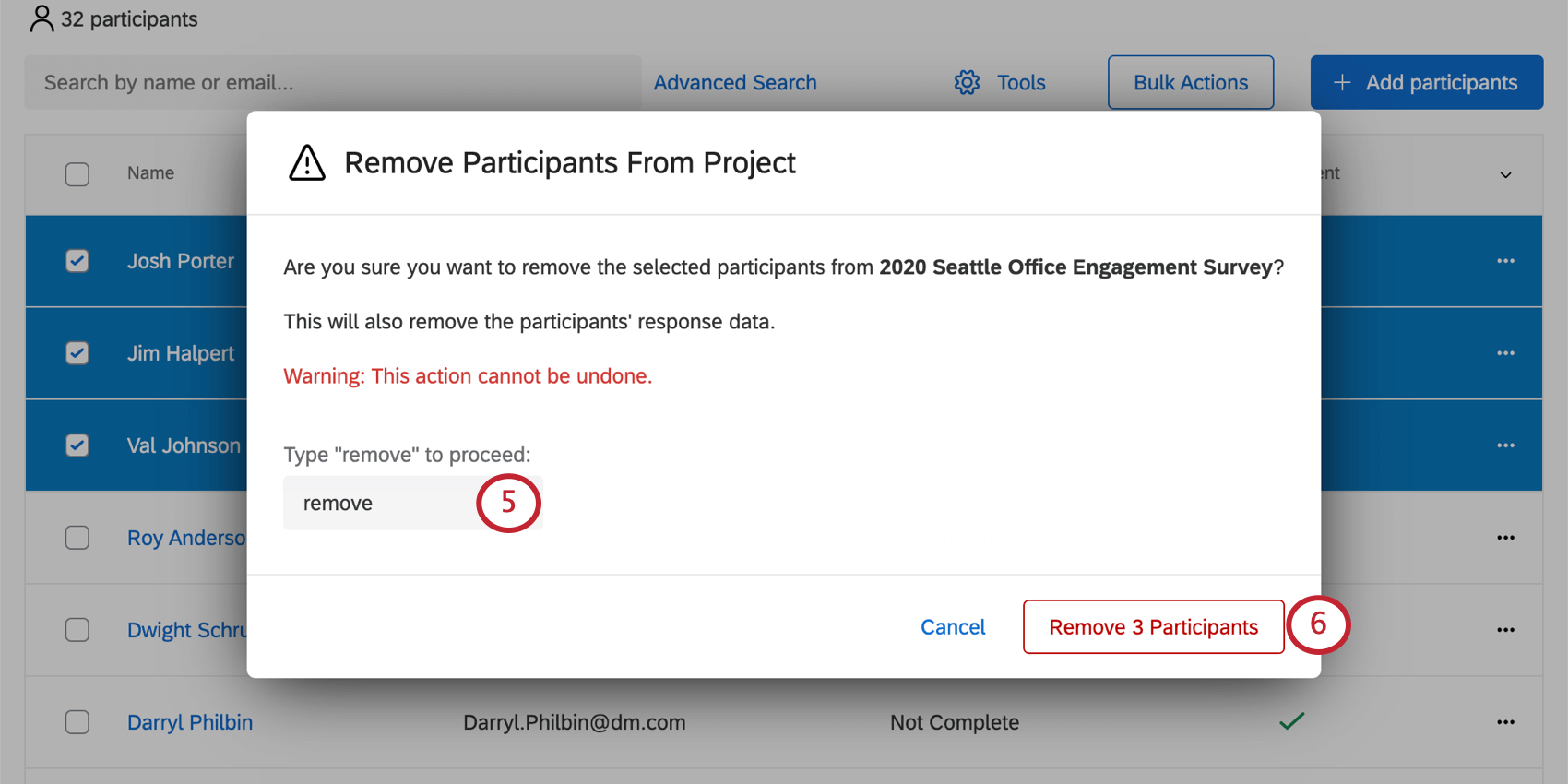
Qtip: You can only delete users together if they are on the same page of the Participants tab. If you go to the next page, any selections you made on the previous page are deselected.
Bulk Removal Through Import
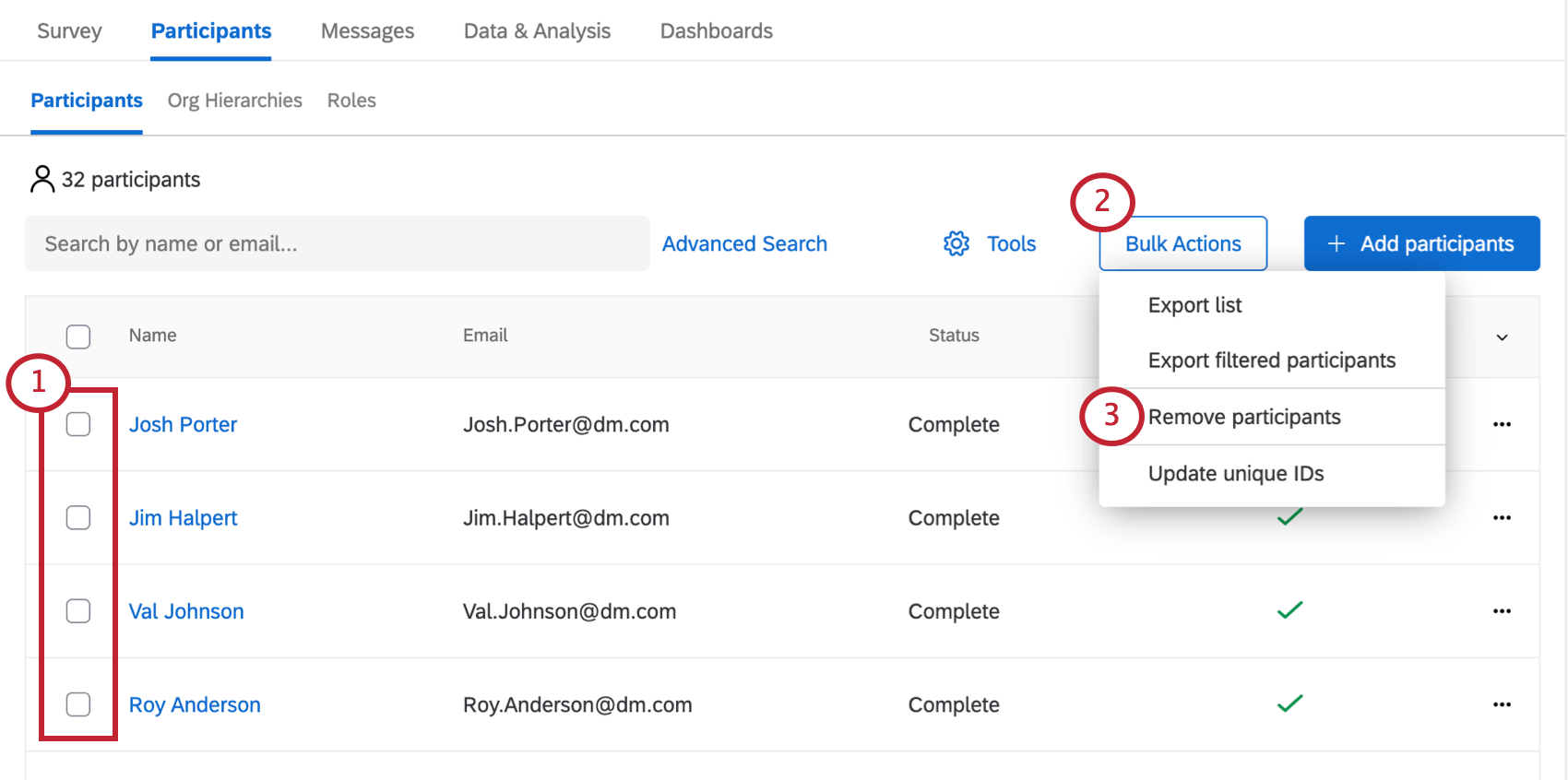
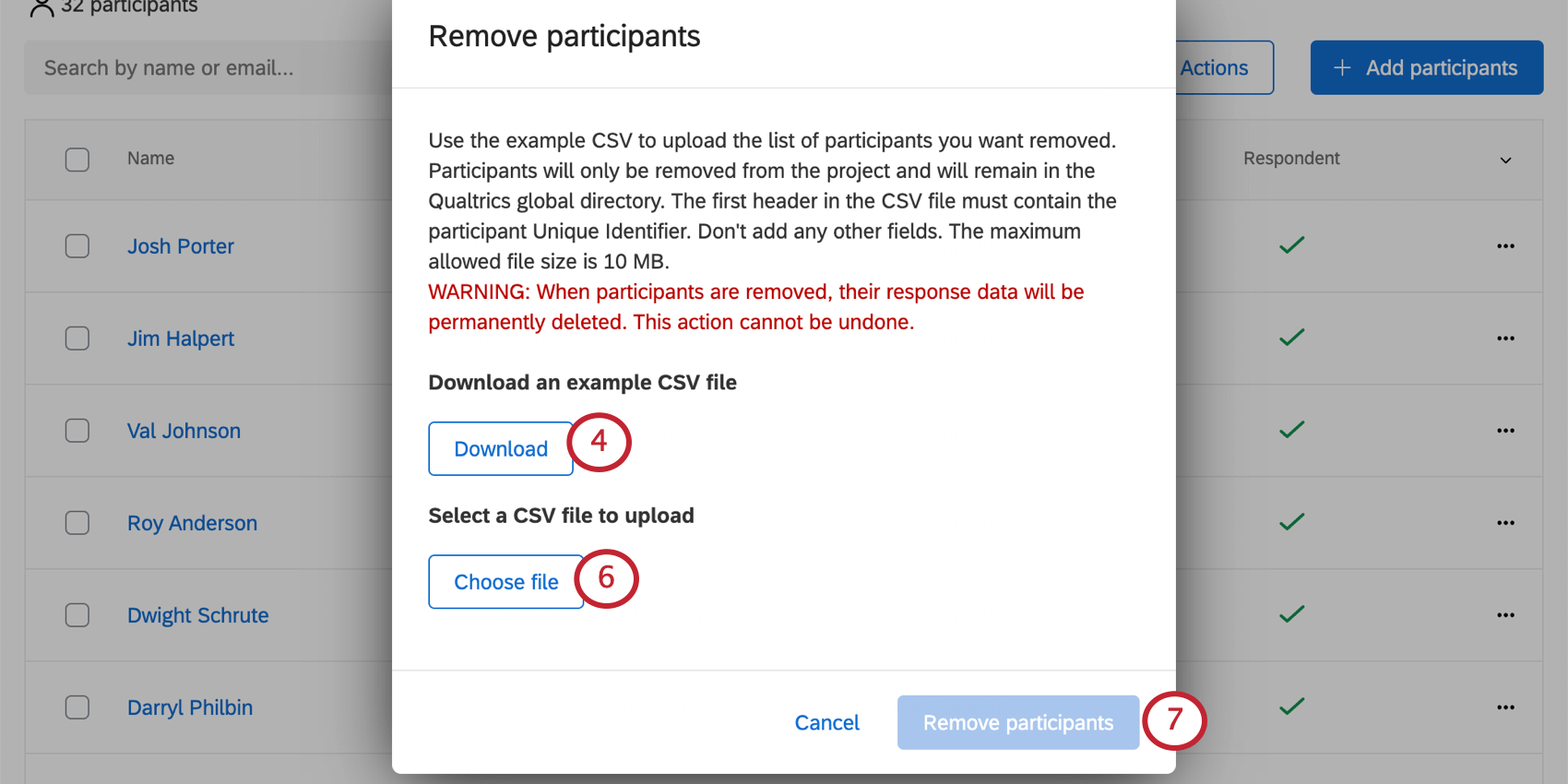
Qtip: If you’re not familiar with your participants’ unique IDs, you may want to export your participants list.
You may remove up to 25,000 participants at one time with this method. If you need to remove more than 25,000 participants, you will need to perform multiple removals.
FAQs
I've already uploaded my participant file and collected data, but I need to make a change to my hierarchy. How do I do this?
I've already uploaded my participant file and collected data, but I need to make a change to my hierarchy. How do I do this?
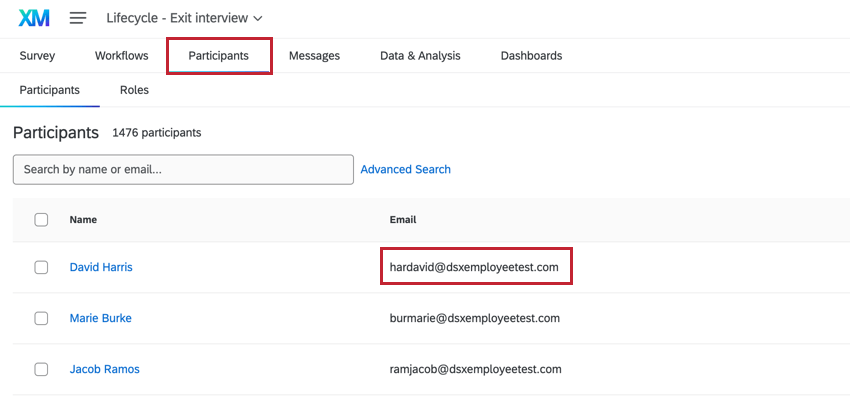
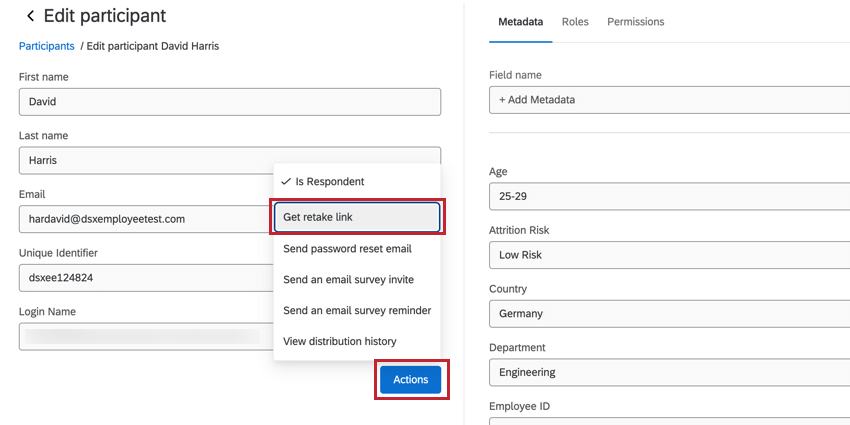
My Employee Engagement participants want to retake their responses. How can they do this?
My Employee Engagement participants want to retake their responses. How can they do this?
How do I get historical data into my EX dashboard?
How do I get historical data into my EX dashboard?
I'm uploading employees to my directory, and my organization has SSO. How do I format the UserName column?
I'm uploading employees to my directory, and my organization has SSO. How do I format the UserName column?
You should not include the SSO suffix (#brandID) in the participant usernames. Qualtrics will automatically add the suffix on all usernames. If you do include the SSO suffix, Qualtrics will add it a second time.
When I create participants, are there any metadata limits I should consider?
When I create participants, are there any metadata limits I should consider?
That's great! Thank you for your feedback!
Thank you for your feedback!