

Creating a Pulse
What's on this page
About Pulses
If you want to gather targeted employee feedback on a regularly scheduled basis, you can use a pulse. Pulses are valuable to Human Resources and senior management as a way to get ongoing employee feedback on everything from trust in leadership, to significant company events (like mergers or acquisitions), to the general employee experience. From there, you can piece together trends over time and take action on developmental areas.
Once you set up a pulse, it runs itself. Pulses can run on a cadence of your choosing. You don’t have to worry about survey fatigue with more frequent pulses, either, thanks to the pulse’s unique participant sampling feature.
You can also make changes to your pulse as needed, adding one-off questions or changing the future wording of all subsequent pulses.
Now that you’ve got an idea of the pulse’s capabilities, let’s start setting one up.
Attention: This feature requires your brand to be on the updated backend infrastructure. Please fill out this survey to see if your brand is eligible. If your brand needs to be updated, a Brand Administrator can request your brand to be updated via this survey.

Creating a Pulse
Attention: You must create your pulse project and schedule surveys at least 1 day (24 hours) before you want your pulse to start to account for pulse creation and sampling operations.
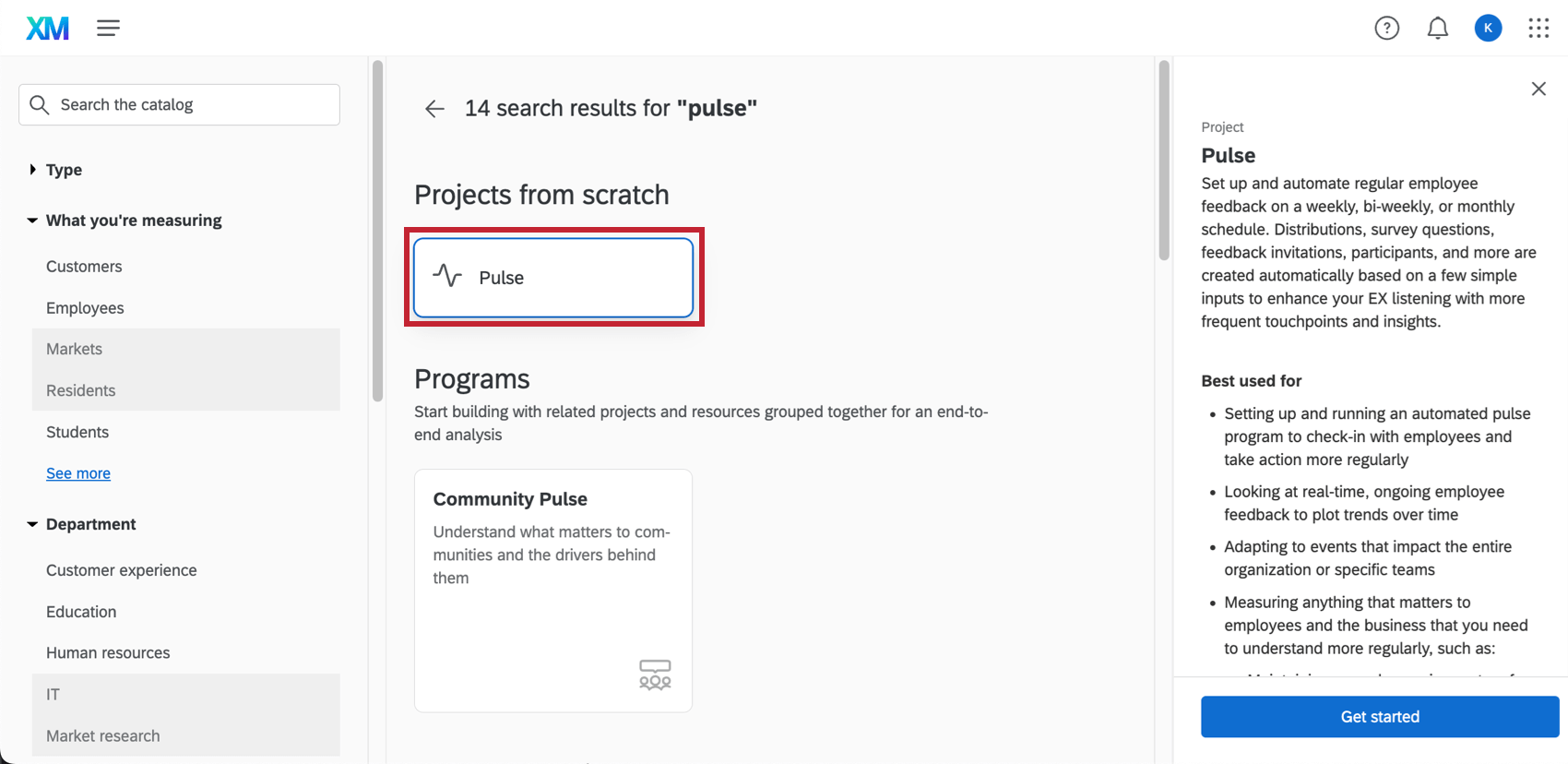
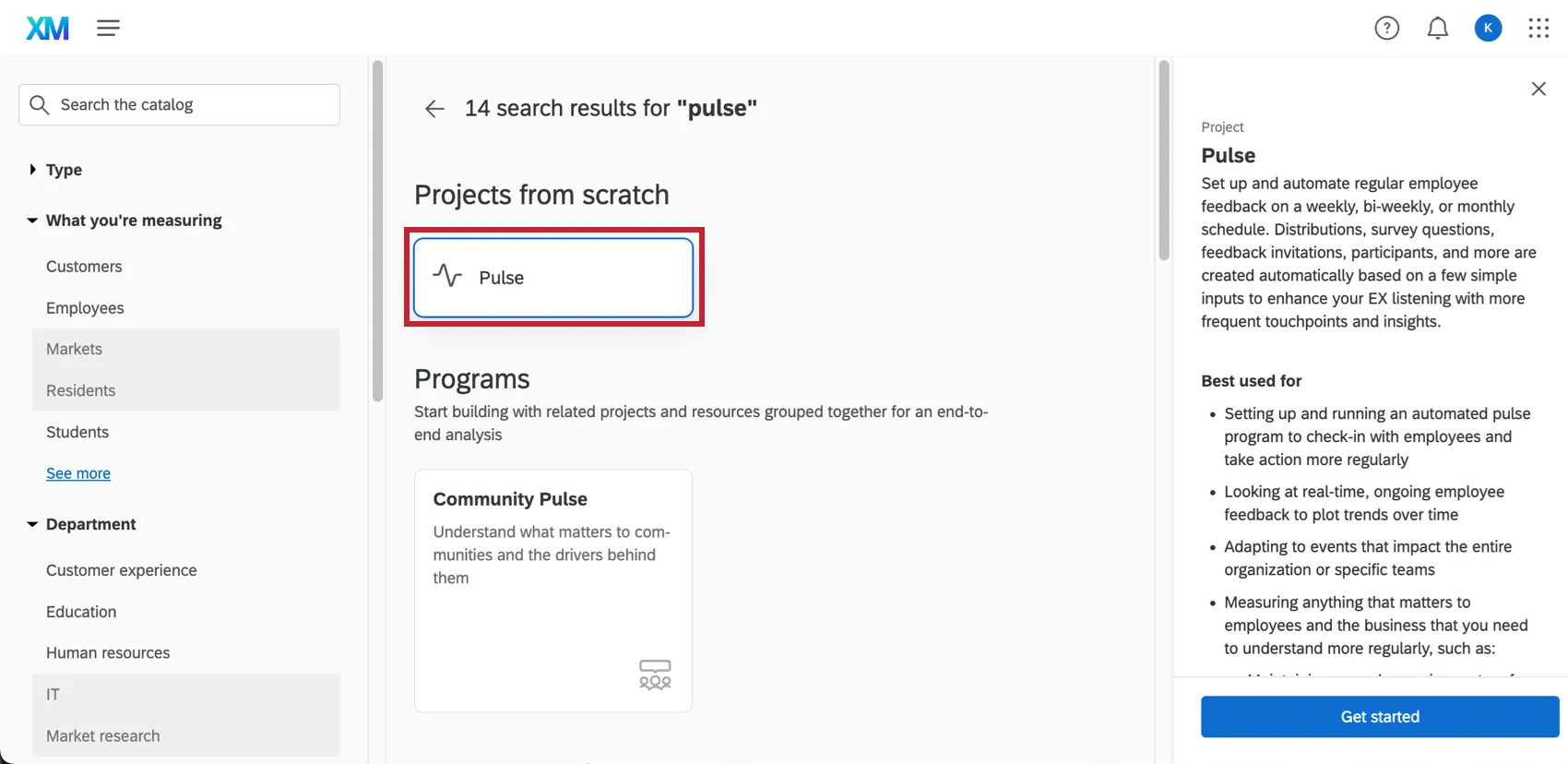
To create a pulse, go to the Catalog page and search “Pulse.” You will see a tile for “Pulse” under Projects from scratch.
Qtip: Pulse programs are available with People Engage, EX Engagement Add-On, or EX Foundational license.
Once you’ve created your pulse, you’ll be brought to the Overview tab. Here, you can click through and complete the following steps:
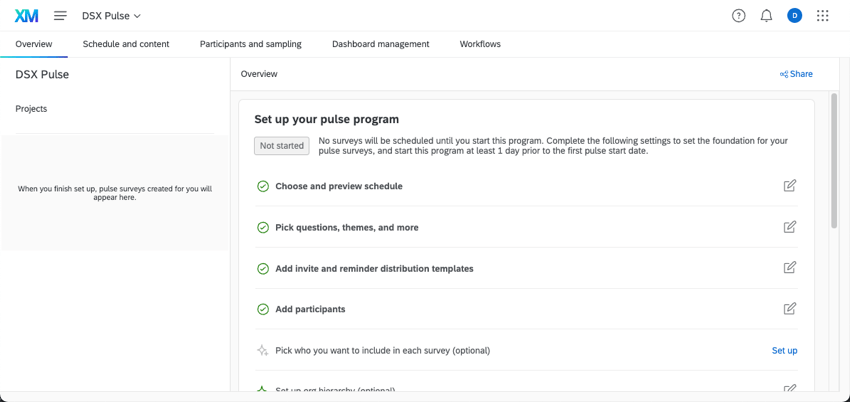
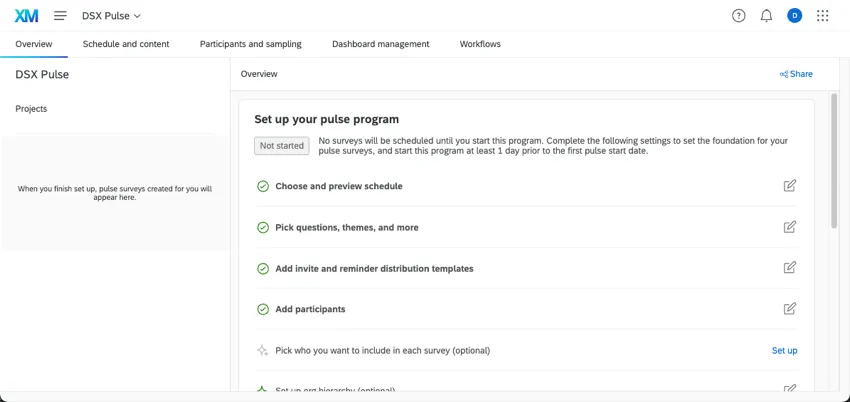
Qtip: This step may or may not be optional based on the schedule you selected.
See the linked sections to learn more about each step.
Starting a Pulse
Once you’ve finished all the steps to create your pulse, you can start your program, distributing surveys to your participants.
When you’re ready, go to the Overview tab and select Start.
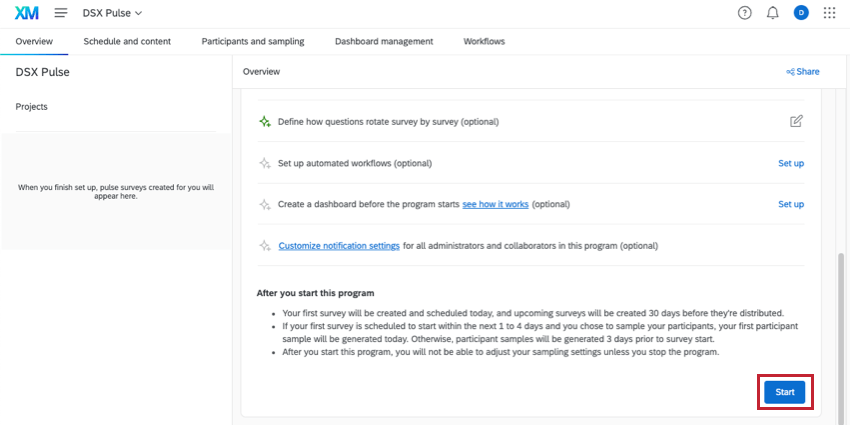
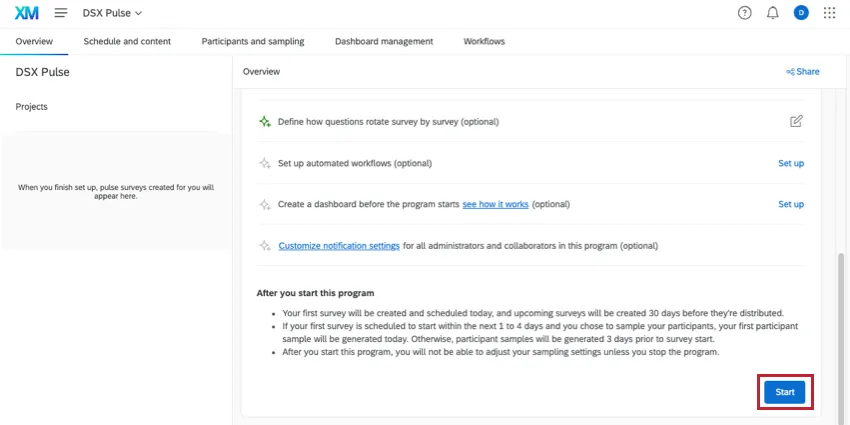
Once you start your pulse:
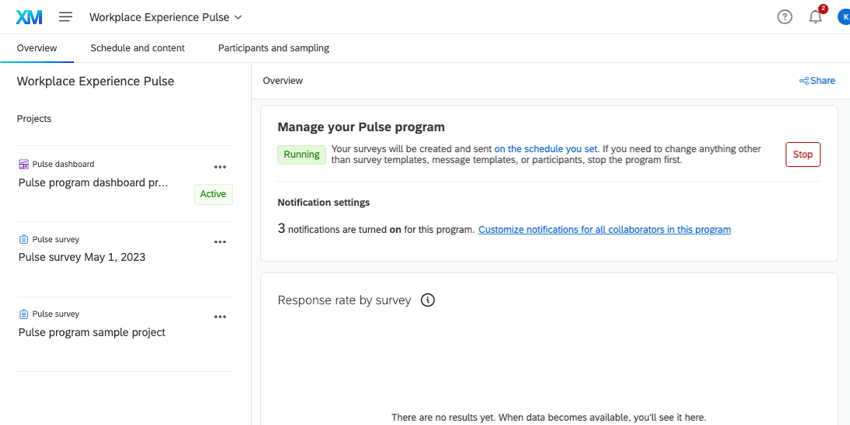
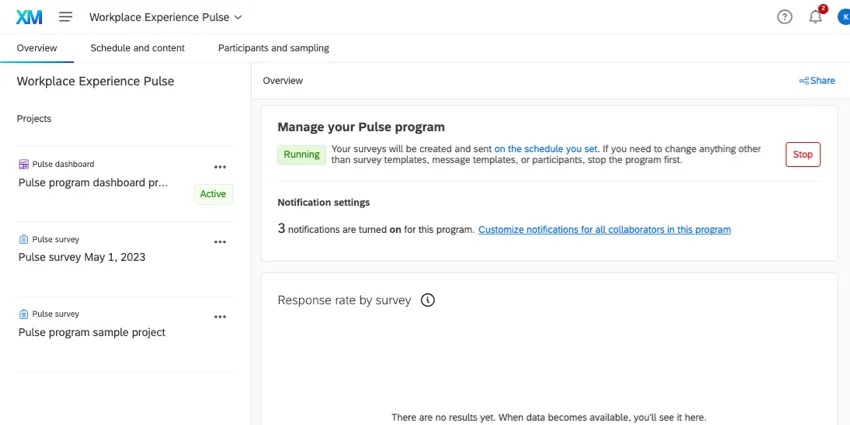
- Your future pulse surveys and a dashboard will be generated in the Projects list to the left. Qtip: Learn more about managing these individual projects.

- You won’t be able to make edits to your schedule or sampling settings. You can only edit these settings after you stop the pulse.
- Pulses will continue to send on the schedule you chose unless you manually stop them.
Dashboard Management
Qtip: Dashboards are not available during setup stage. You have to start your program first.
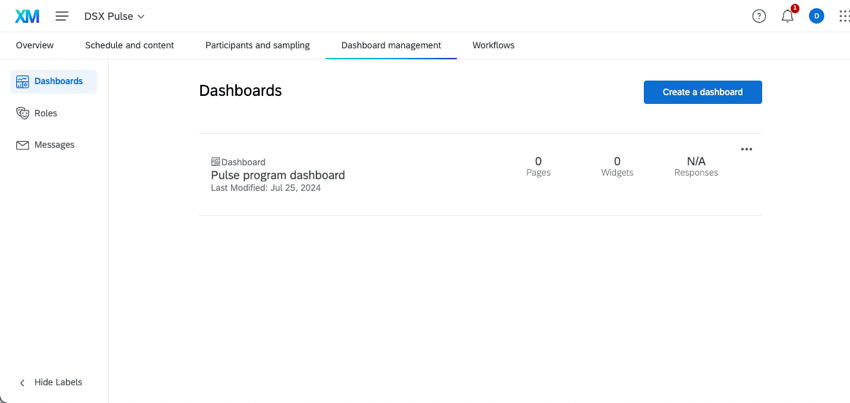
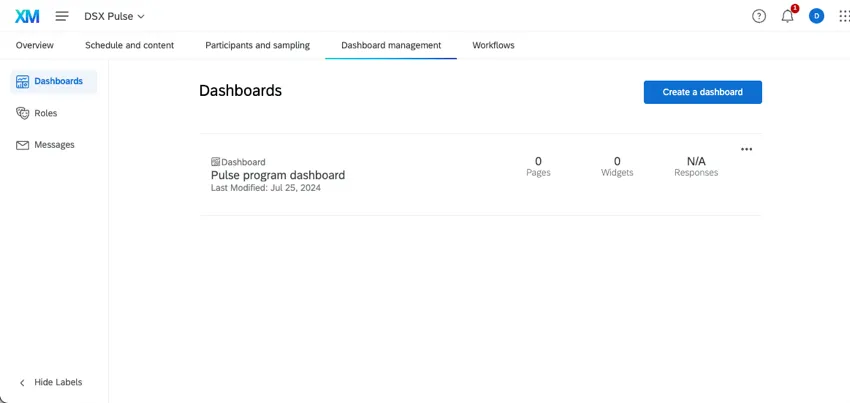
Once your program is up and running, you can start dashboard management. You can take your time to design your dashboards and set up user roles before you invite anyone to see the dashboard.
FAQs
Can I import historical pulse data into my program?
Can I import historical pulse data into my program?
- You can skip any steps involving hierarchies.
- The dashboard where you will map the historical data will be the pulse dashboard.
Can I use Text iQ with a pulse?
Can I use Text iQ with a pulse?
How can I see my response rates?
How can I see my response rates?
I tried to schedule my pulse, but I got an error message. I think I’ve completed all the setup. What do I do?
I tried to schedule my pulse, but I got an error message. I think I’ve completed all the setup. What do I do?
Can I edit the survey questions for individual touchpoints?
Can I edit the survey questions for individual touchpoints?
Can I use an org hierarchy with a pulse program?
Can I use an org hierarchy with a pulse program?
Can I use Stats iQ in a Pulse dashboard?
Can I use Stats iQ in a Pulse dashboard?
Stats iQ is only available to the user if the following is true:
- Restrict Data is disabled in the user’s role.
- Can view sensitive fields and Can view comment fields are both enabled in the user’s role.
- Enhanced Anonymity is disabled for the dashboard.
That's great! Thank you for your feedback!
Thank you for your feedback!