

Export Unique Links in XM Directory
What's on this page
About Exporting Unique Links in XM Directory
Instead of emailing contacts from XM Directory, you can also create a spreadsheet of links for a single contact or for each contact in a mailing list, sample, or segment. Personal links like these allow you to distribute your survey using a method outside of Qualtrics.
Qtip: If you are collaborating on a survey with another user who doesn’t have XM Directory, you will not be able to use your mailing lists to distribute the survey. If you want to distribute using your contacts, make a copy of the survey on your account, or be sure to create the surveys on your account going forward.

Personal Links
The type of links generated by this option are personal links. Personal links can save information about the contact with their survey response. However, they can only be used once.
Personal links get a distribution history just like email distributions do. Responses to be completed with personal links also appear in the directory contacts’ individual history.
To learn more about how these kinds of links function, see the Personal Links page.
Generating Unique Links
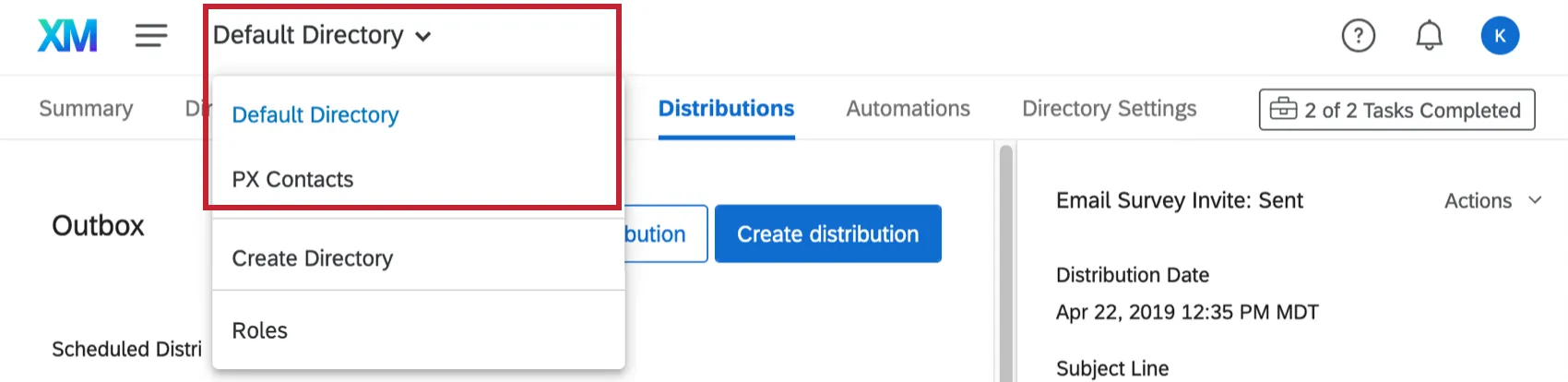
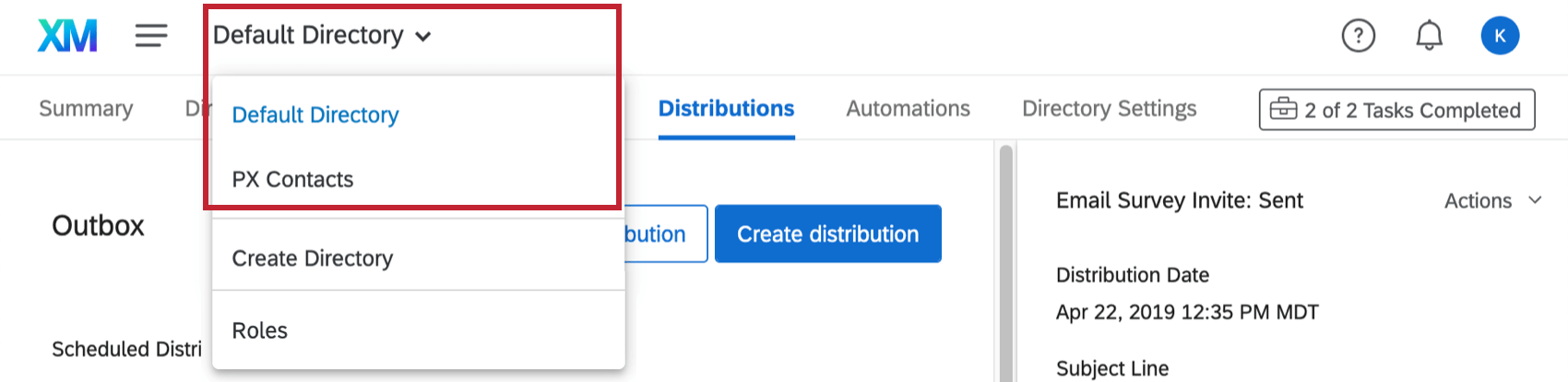
Qtip: If you have access to multiple directories, make sure you’ve selected the correct one before you try to send distributions. Otherwise you might not be able to find the contacts, lists, or segments you want to distribute to.
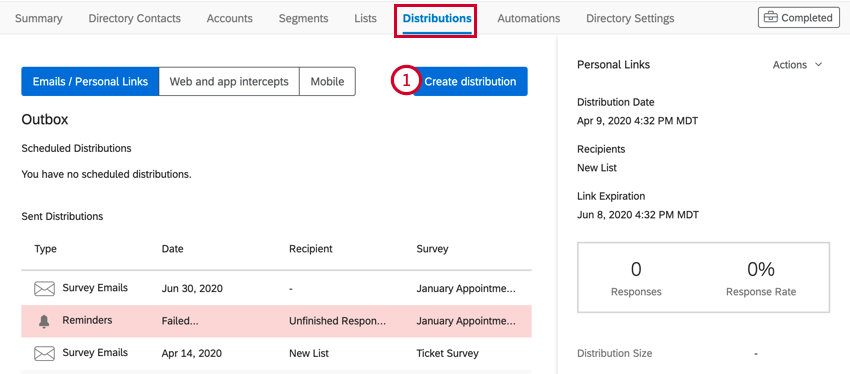
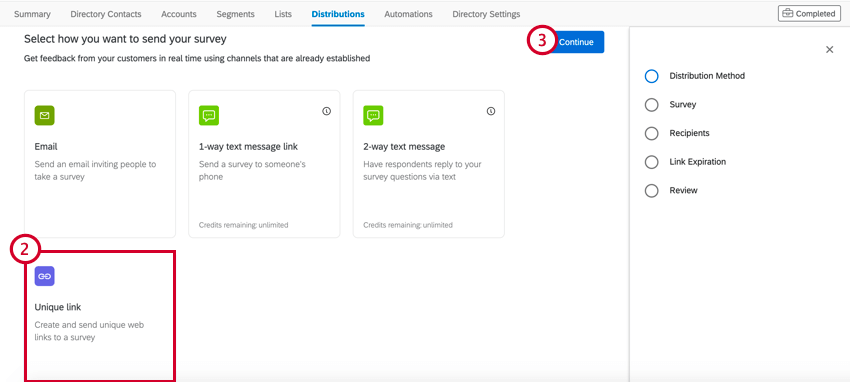
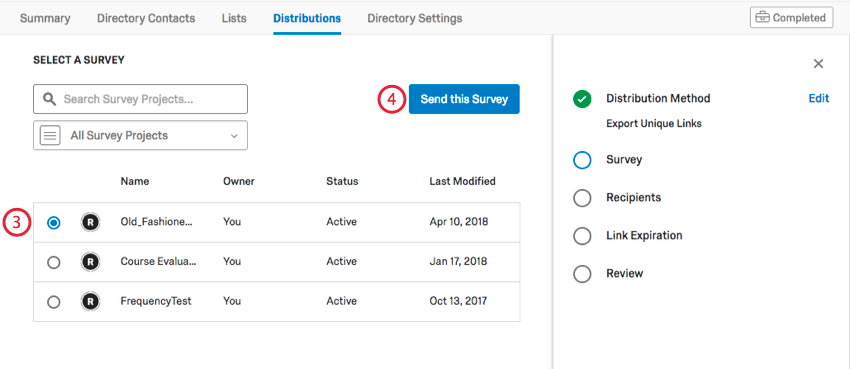
Qtip: You can use the search bar and folder dropdown list to locate your survey.
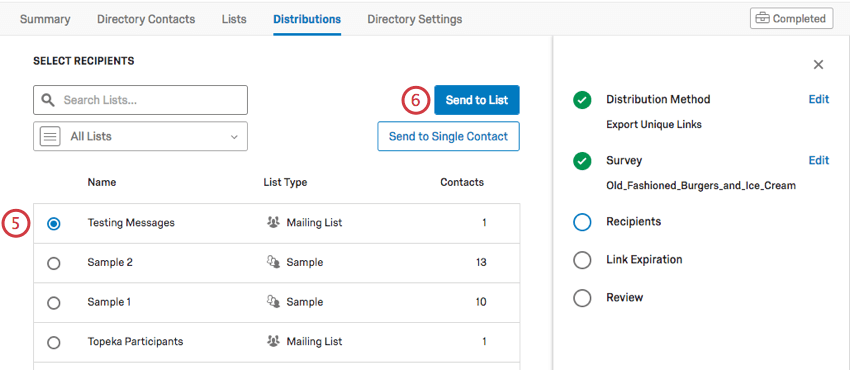
Qtip: You can use the search bar and folder dropdown list to locate your list or sample.
Qtip: You can also generate unique links for a segment or transaction group.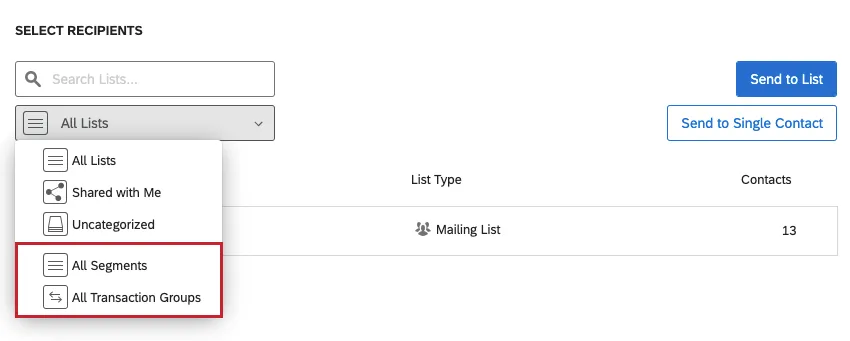
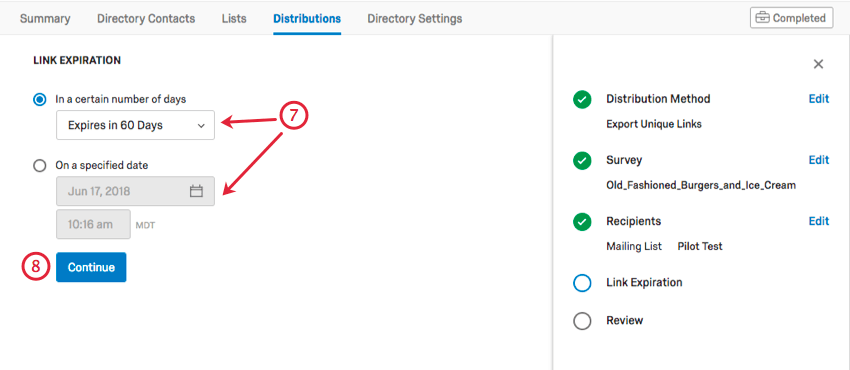
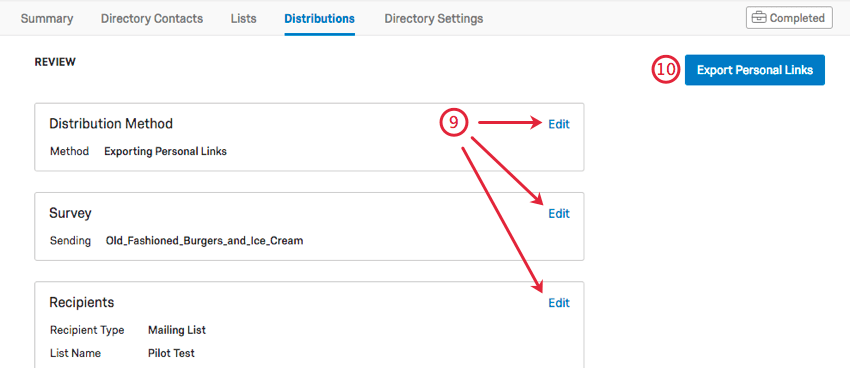
Qtip: Don’t leave the page until this file has downloaded. If you leave by accident, download the distribution history in the Outbox to get your links.
Send to Single Contact
You can also generate links for an individual contact in a mailing list. Once you have reached the Select Recipients page, select a mailing list and then select Send to Single Contact.
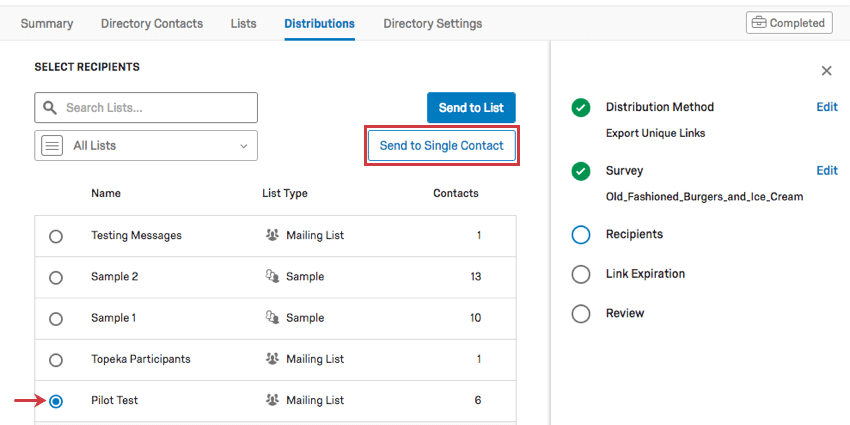
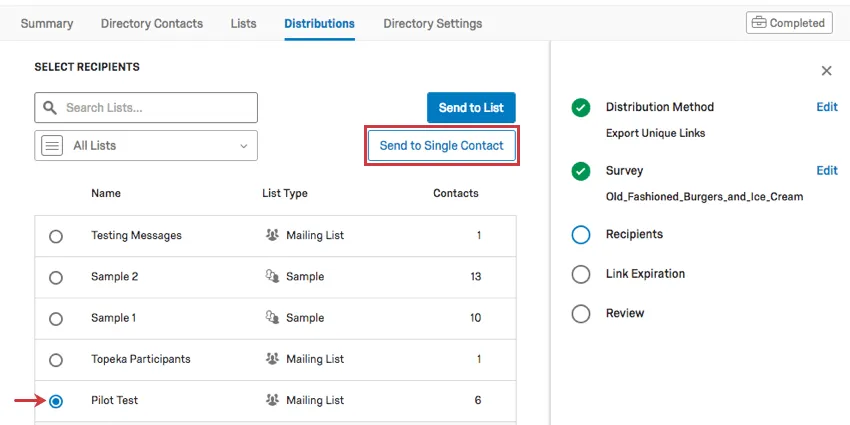
Qtip: You cannot generate a link for an individual contact if you have a sample selected. You must have a mailing list selected.
Once you’ve moved to the next page, you can select the contact you wish to generate a link for. Remember that you can only choose one at a time and that only members of the mailing list are shown.
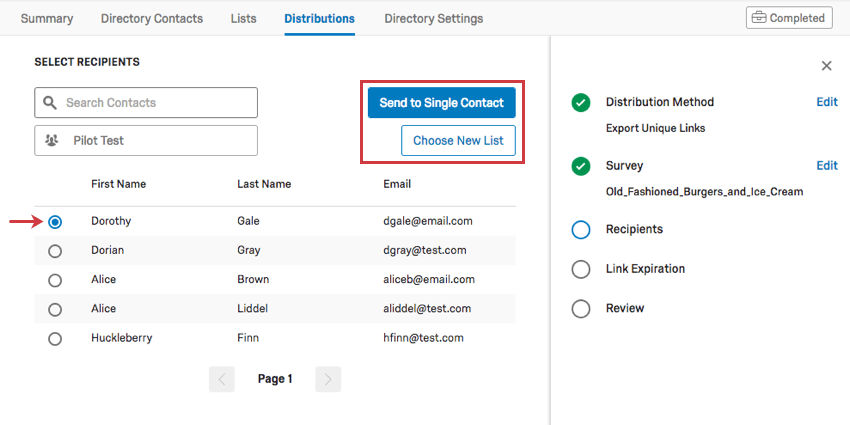
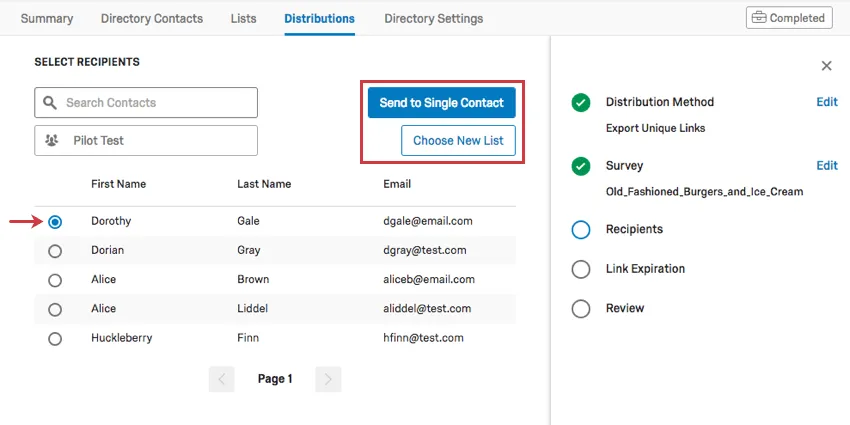
After selecting the desired contact, click Send to Single Contact to proceed with creating your links or select Choose New List to choose another mailing list instead.
Projects You Can Create Unique Links For
Qtip: The features discussed in this section are not necessarily included with every license. If you’re interested in getting access, please reach out to your Account Executive.
You can use XM Directory to create links for several types of Qualtrics projects. However, not every Qualtrics project type is compatible with XM Directory.
XM Directory can be used to send the following:
- Survey projects
- Conjoint / MaxDiff
- Certain non-EX XM Solutions
In contrast, XM Directory cannot be used to generate unique links for any Employee Experience (EX) projects. Instead, distributions in Employee Experience are completely disconnected from XM directory.
FAQs
What’s XM Directory? / Where’s Target Audience?
What’s XM Directory? / Where’s Target Audience?
That's great! Thank you for your feedback!
Thank you for your feedback!