

Building Dashboards with Social Data
What's on this page
Attention: This feature is only available to users on the new simplified pricing and packaging plans or customers who actively participated in the Preview Program for this feature. For more information, see Qualtrics Public Preview. If you have questions about your Qualtrics pricing and packaging plan, reach out to Account Services.

About Building Dashboards with Social Data
Once your social data has loaded in your dashboard, you can customize the dashboard however you want. We have many dashboard support pages across this website that you can use. However, to make things easier, we’ll show you some common widget setups used specifically with social data.
Before you can customize your social dashboard, you need to create your dashboard and map your social data. See also the list of social data available and recommended field types.
General Dashboard Resources
In the next few support pages, we’ll cover some useful dashboard setups that can help you make the most of your social data. However, you’re also free to use the data however you want. Below, we have some general dashboard resources that can be helpful:
- Creating CX Dashboard Pages
- Building Widgets
- Filtering CX Dashboards
- Text iQ in Dashboards
- Stats iQ in Dashboards
- Managing Dashboards within a Project
- Sharing and Administering CX Dashboards
- Setting Up Dashboard Viewer
As we go through the following use cases, we’ll also link out to widgets and functionality, such as bar widgets, response tickers, Text iQ in dashboards, and more.
Displaying Top-Ranked Social Posts
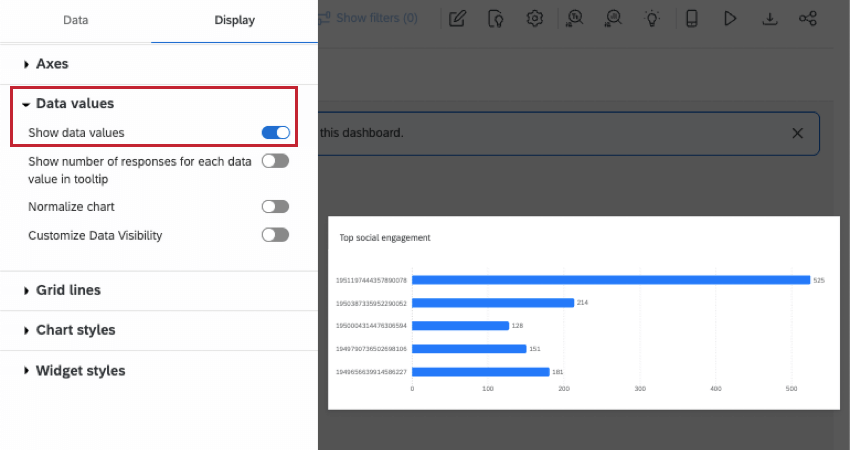
In this section, we’ll show you how to display the top 5+ social media posts with the most engagement.
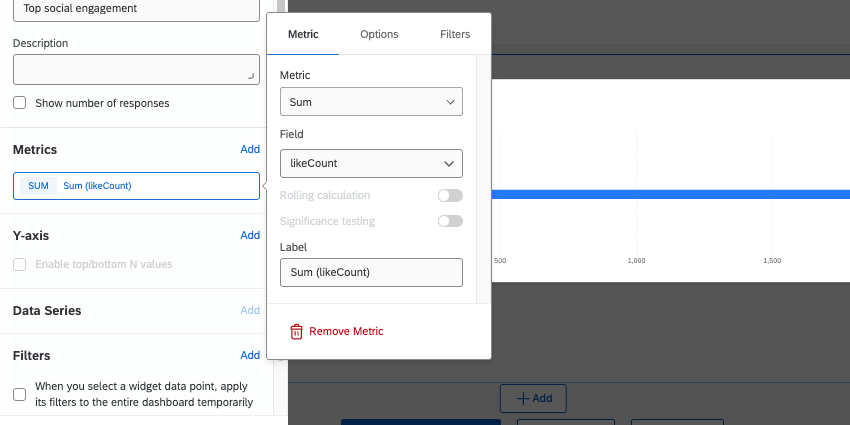
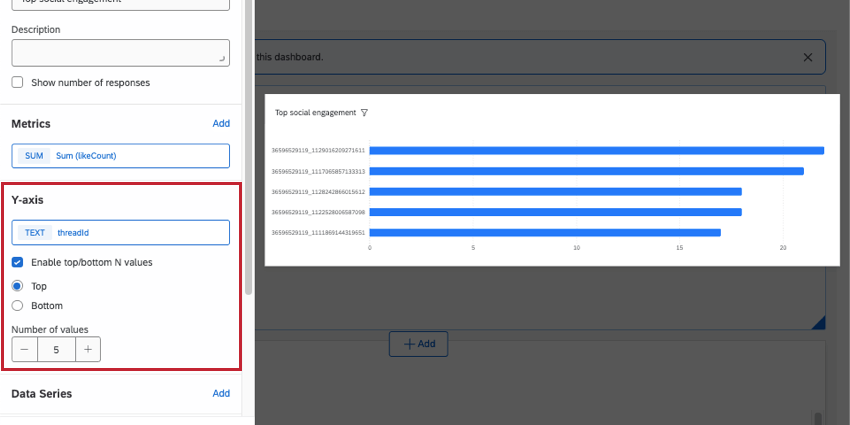
Qtip: Make sure threadId is set to the Text Set field type.

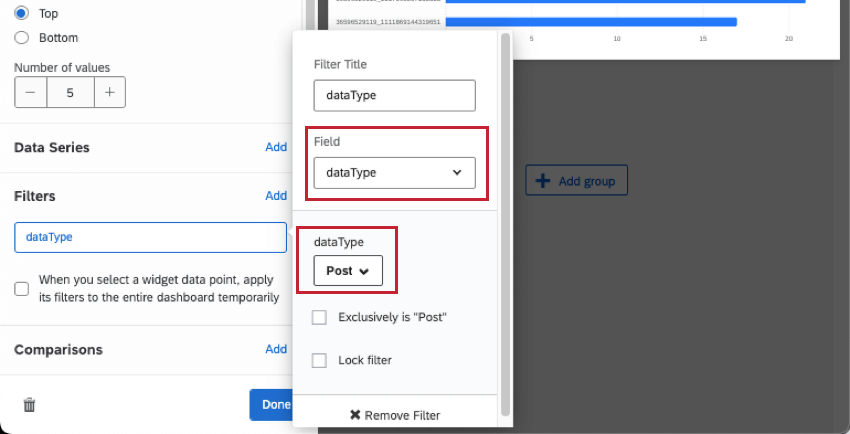
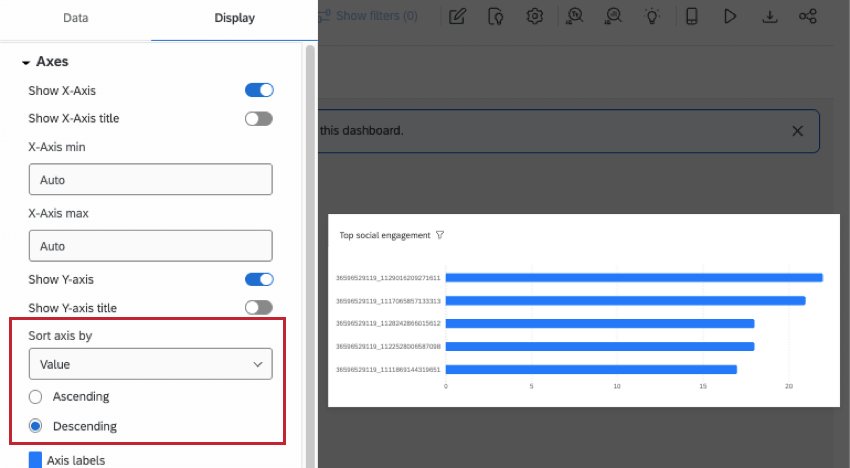
Qtip: On a table, you can click headers to change how the widget is sorted.
Show the specific social media post when an ID is selected
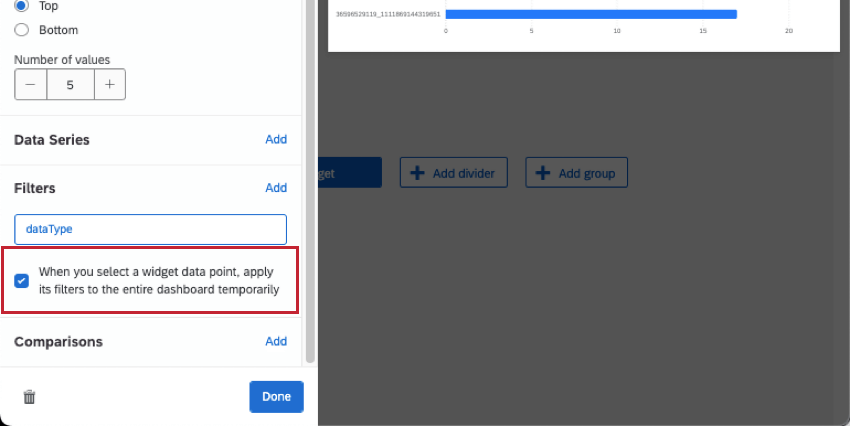
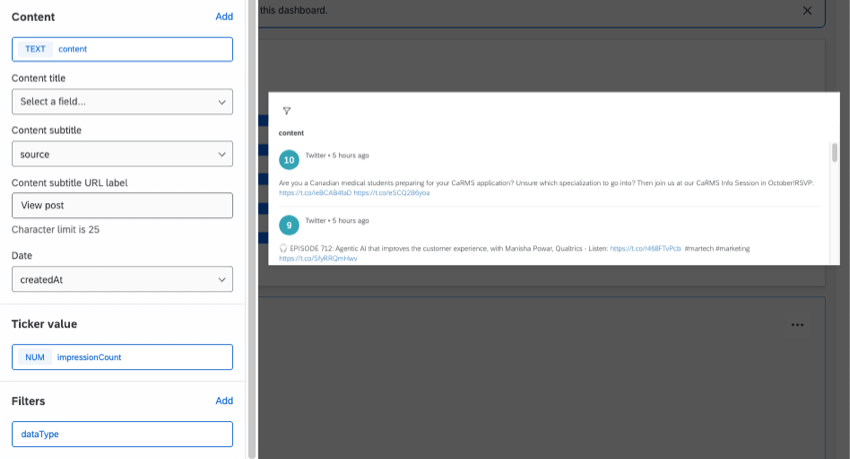
By letting the top ranked posts widget act like a filter, you can let dashboard visitors click on post IDs to learn more. (And click again to remove the filter.) You can use this functionality to display the text of the post itself as well as other information about the post.
Qtip: This functionality will filter the entire dashboard page when a part of the widget is clicked. Because of this, you should group widgets you want to be filtered together on the same page.
Analyzing Social Media Posts with Text iQ
Comments tend to have a varying range of content, which makes use of Text iQ and its enrichments a great choice for analysis. Using Text iQ, you can uncover trends in your brand’s social media activity.
The field you’ll analyze in Text iQ is content, since this is where the text of the post or review is stored. For step-by-step guides to text analysis and related dashboard widgets, see the following:
Analyzing All Posts and Comments in a Thread
You can view a post and all of its related comments using the field called threadId. The threadId is the same for all posts and comments that come from the same thread.
Qtip: You’ll want threadId mapped as a text value for this solution. If you already have it mapped as a text set for use in other widgets, you can always map a second copy of the field – just make sure to give it a different name. For example, “Thread ID for Filtering.”
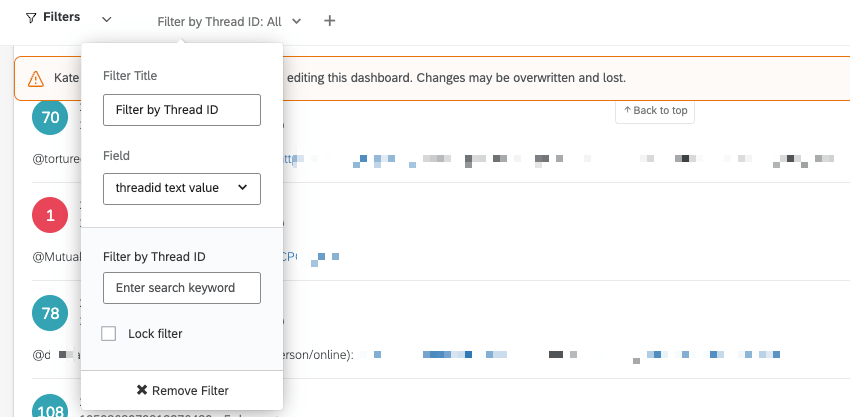
Creating a dashboard filter
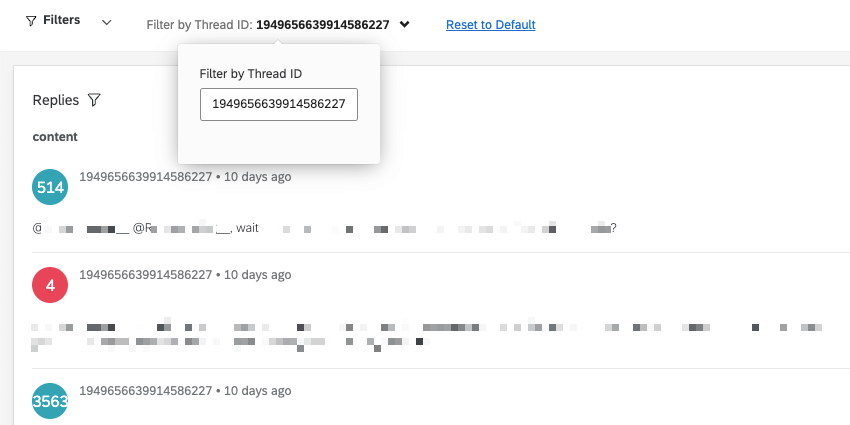
Displaying posts, comments, and thread IDs
These steps show an easy way to display posts, connected comments, and their threadIDs, so you can use these in your filters. However, you can also add any other widgets you want on your page for comment analysis. We recommend a Word Cloud, a Text iQ Bubble Widget, and / or a Text iQ Table Widget.
FAQs
Why are some of the comments/replies missing from my dashboard?
Why are some of the comments/replies missing from my dashboard?
- Qualtrics pulls posts and comments from the last 14 days for Instagram. If the comments are older, they may have been excluded.
- The workflow prioritizes the most recent data. Depending on the amount of traffic on targeted pages and profiles, this means older comments may not be pulled at first, and it may take a few workflow runs before they are available within Qualtrics for analysis.
- Due to volume and API limits, only a certain amount of data can be pulled into Qualtrics at a given time. Some of these are Qualtrics-imposed limits, while others are due to Facebook or Instagram’s API token rate limits. Unfortunately, while we can help with Qualtrics-related limits, we are not able to retrieve your Meta accounts’ limits.
That's great! Thank you for your feedback!
Thank you for your feedback!