

Create an XM Directory Sample Task
What's on this page
About the Create an XM Directory Sample Task
The Create an XM Directory sample task allows you to create samples of contacts to use within a workflow. This sample can then be referenced in subsequent workflow tasks.
For example, let’s say you have a mailing list in your XM Directory that contains every customer who is signed up for your customer loyalty program. Every month, you want a random 10% of that mailing list to receive a feedback survey on how to improve the program. You also do not want the same customer to receive the feedback survey within a 6 month period. You can set up a workflow to create this sample, and then that same workflow can distribute a feedback survey to that sample.
Qtip: This task is compatible with both XM Directory and XM Directory Lite. However, this task is not available in all licenses, and may not include certain features when used with XM Directory Lite. If you’d like to upgrade to XM Directory, reach out to your Account Executive.
Qtip: While the output created in this task can be used in the workflow, it will not be saved as a mailing list sample unless an existing mailing list is selected as the sample source.
Setting up a Create XM Directory Sample Task
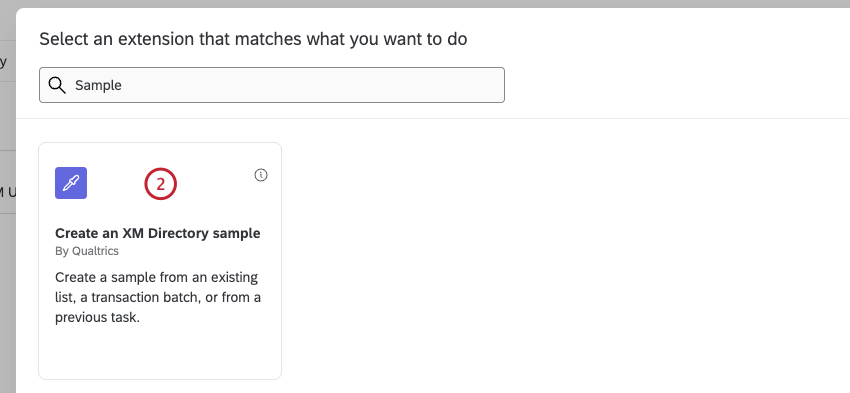
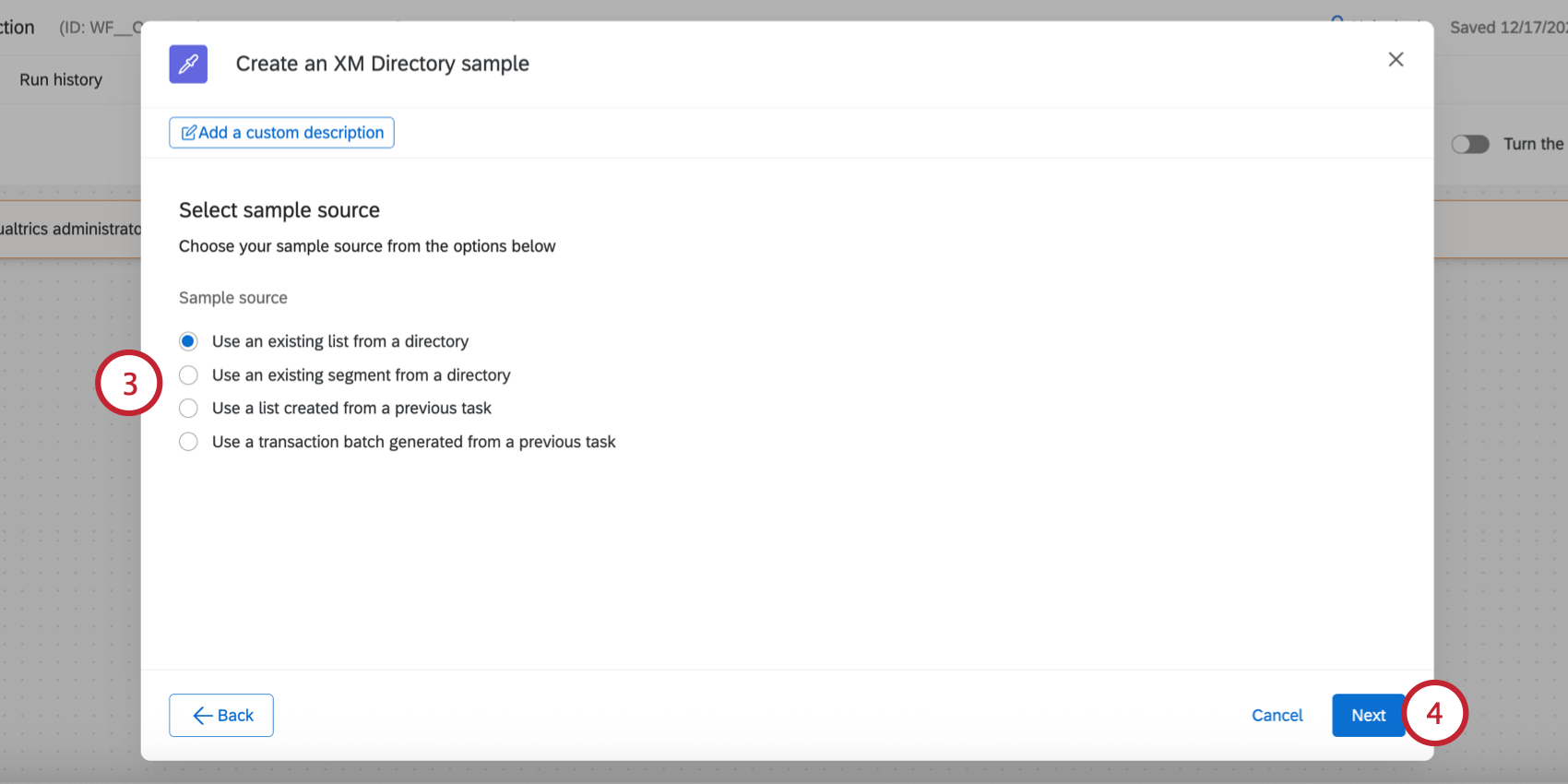
Your options include:
- Use an existing list from a directory: Generate your sample from a mailing list that already exists in your XM Directory.
- Use an existing segment from a directory: Generate your sample from a segment that already exists in your XM Directory.
- Use a list created from a previous task: Generate your sample from a mailing list from a previous task in your workflow. See Piped Text for Sampling Workflows for more information on making sure you choose the right mailing list ID. Example: For example, let’s say you’re uploading customer contacts from your company’s SFTP server using the extract data from SFTP files task. You can then save these contacts to a new list in your directory using an add contacts and transactions to XMD task. Then, use the create an XM Directory sample task to create a sample from this list.

- Use a transaction batch generated from a previous task: Generate your sample from a transaction batch from a previous task in your workflow.
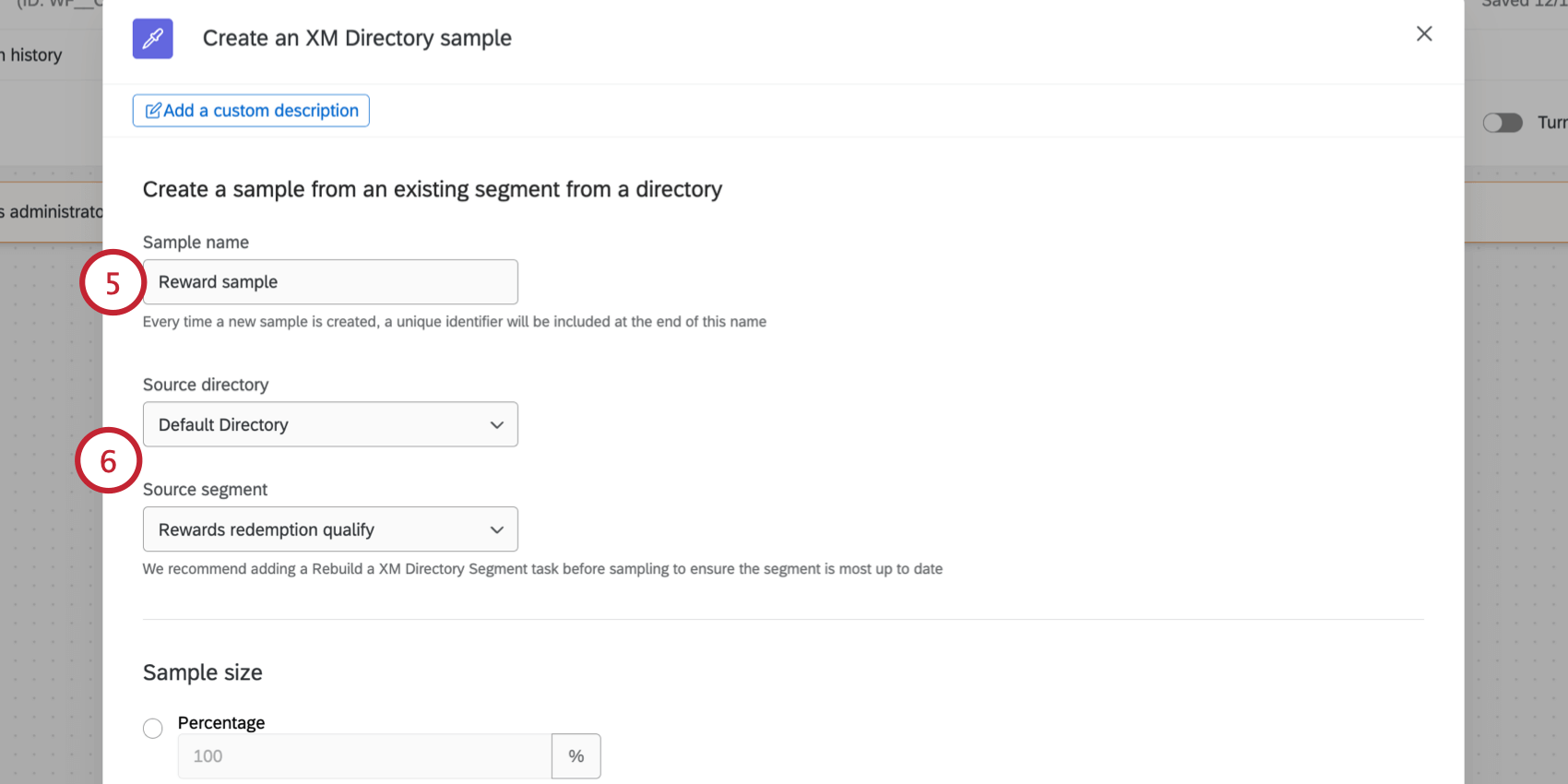
- For Source directory, choose which directory contains the mailing list you want to reference. If you chose “select from previous task” as your source, then choose the same directory that contains the mailing list or transaction batch you plan to reference. Your newly created sample will be saved in this directory. Qtip: Not all organizations have multiple directories. If your organization only has 1 directory, then your only option is “Default Directory.”

- For the second Source, choose the list that contains the contacts you’d like to sample. The options that appear here depend on the option you selected in step 3. For example, if you are building a sample based on an existing segment, then you’ll chose the segment here.
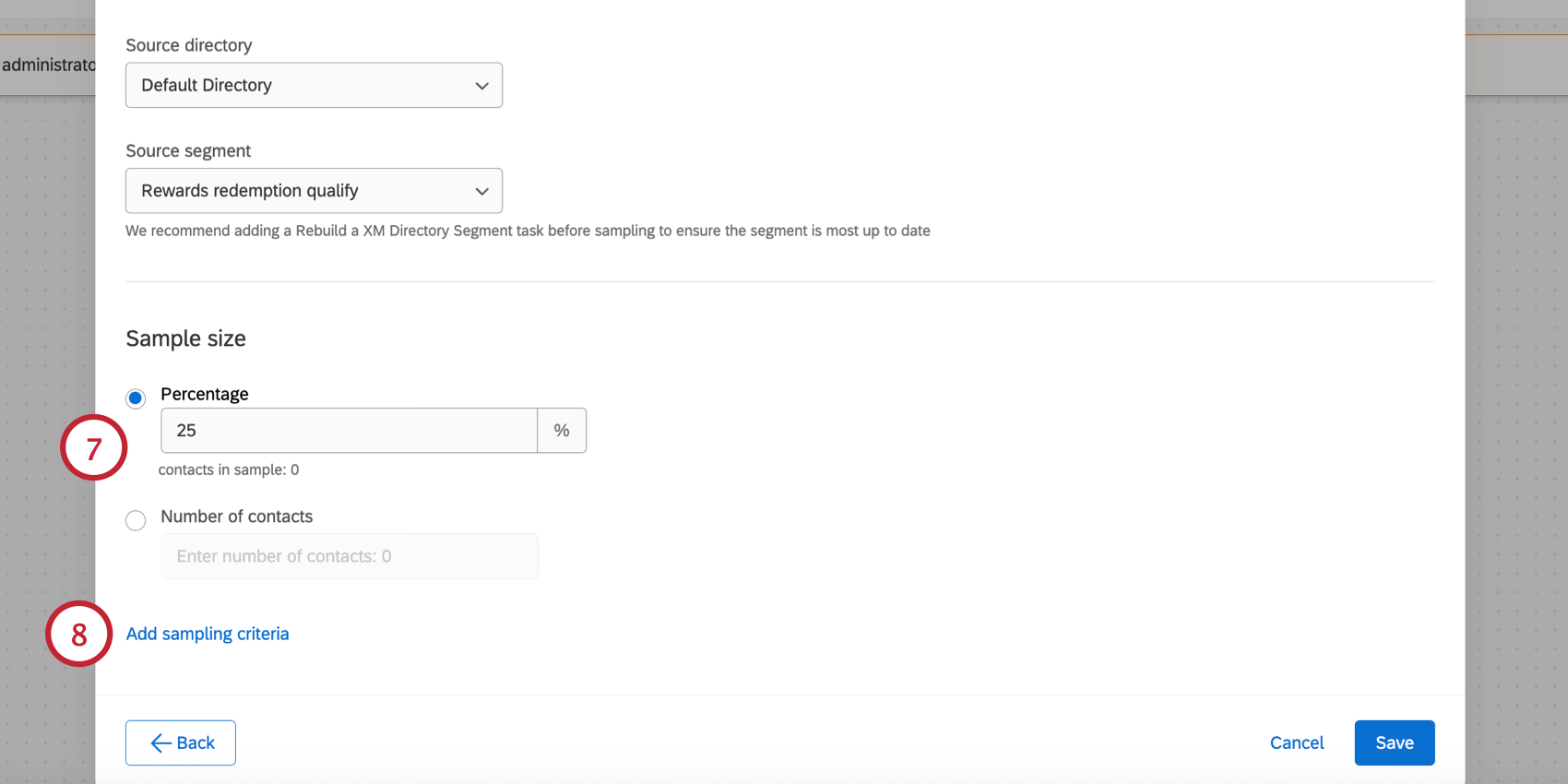
You can set the sample size using 2 different methods:
- Percentage: Enter a percentage between 1-100 to sample a portion of the source list.
- Number of contacts: Enter the number of contacts you want to include in the sample. Qtip: If the number of contacts meeting the sampling criteria is less than the number specified here, only the contacts that meet the sampling criteria will be returned.
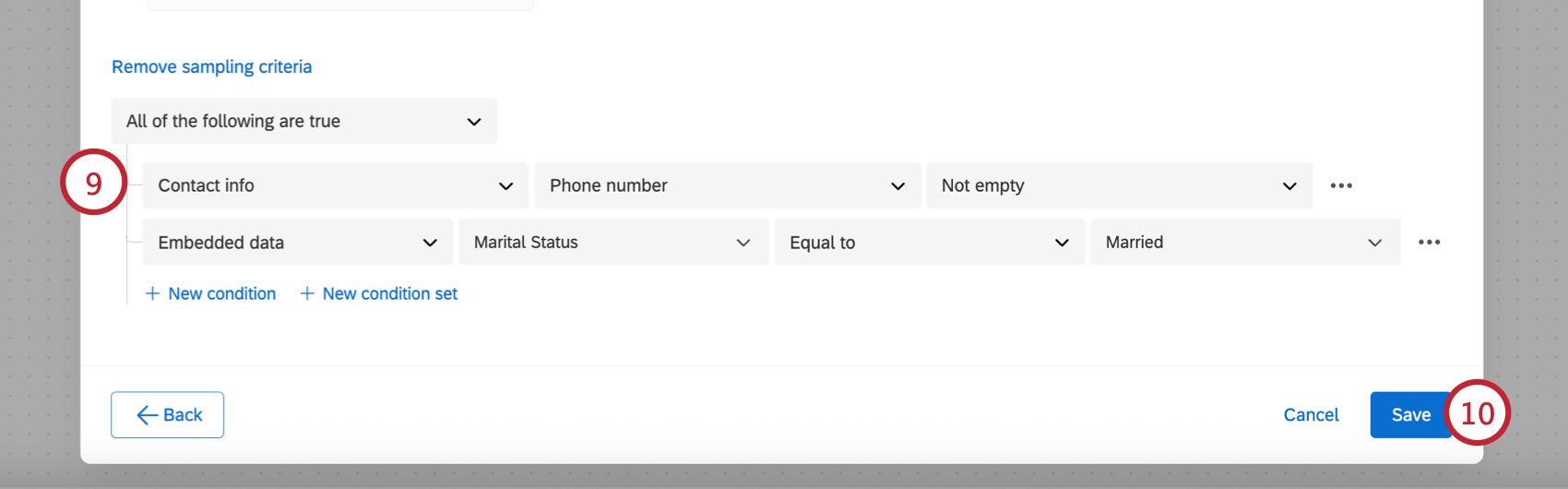
Attention: When sampling by transaction fields, only transactions with a Transaction Date from the past year will be returned. For example, if you added a transaction today, but gave it a Transaction Date set 2 years in the past, then that contact will not meet the sampling criteria.

Attention: Trailing spaces will not be trimmed.
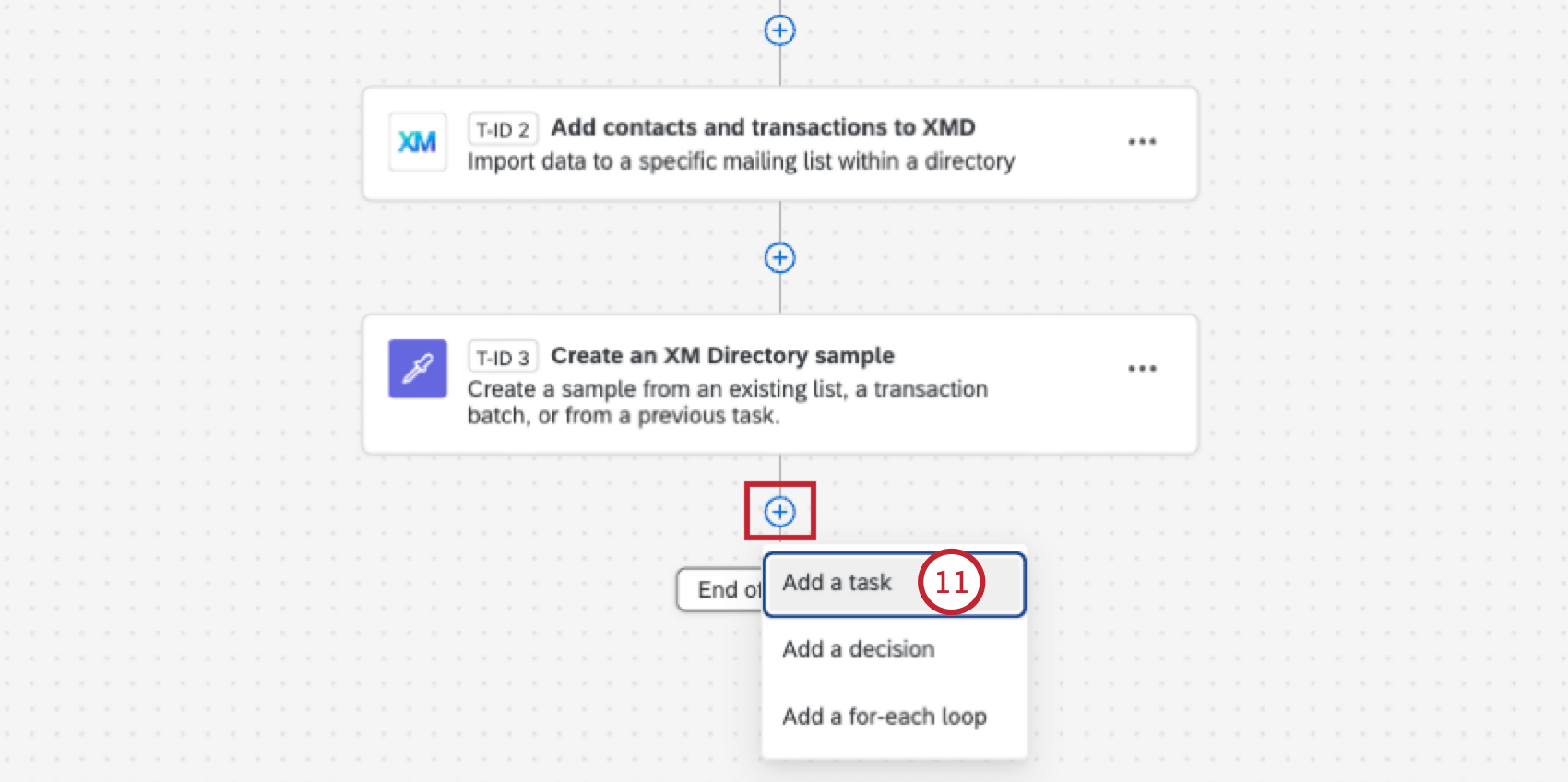
The most commonly used tasks are:
- Send Survey via Email Task: Distribute a survey to your sample via email.
- Send Survey via Text Message (SMS) Task: Distribute a survey to your sample via text message (SMS).
Piped Text for Sampling Workflows
This section covers how to set up piped text for different sampling workflows.
Create an XM Directory Sample Task
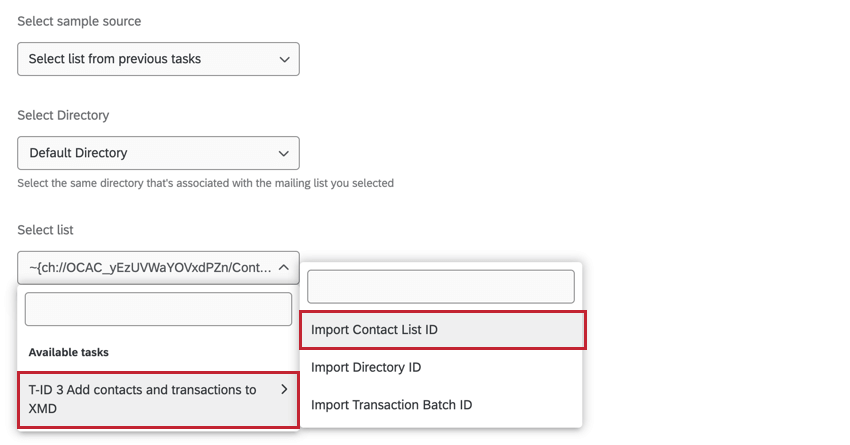
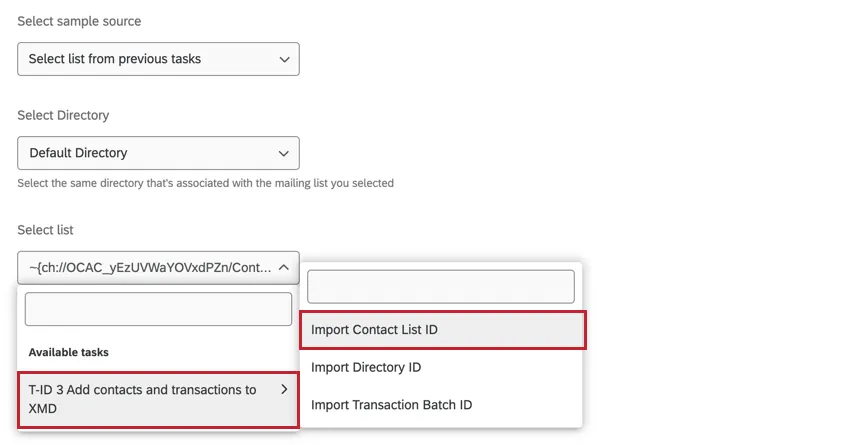
If you’re choosing to base your sample off a mailing list that’s created in the same workflow, you’ll need to choose your mailing list’s ID in the sampling task.
In the Select list dropdown, hover over the task that creates the mailing list and then select Import Contact List ID.
Send Survey Tasks
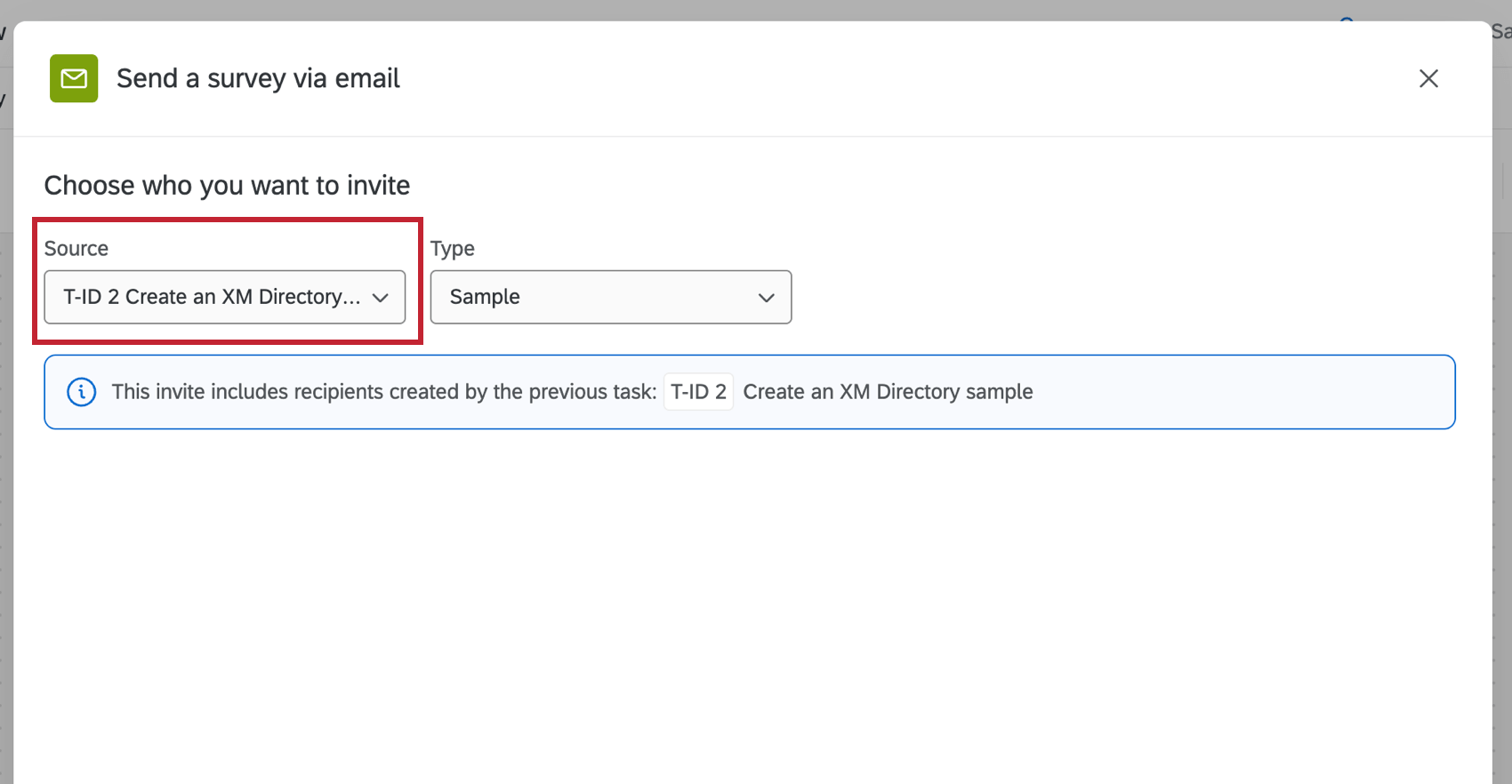
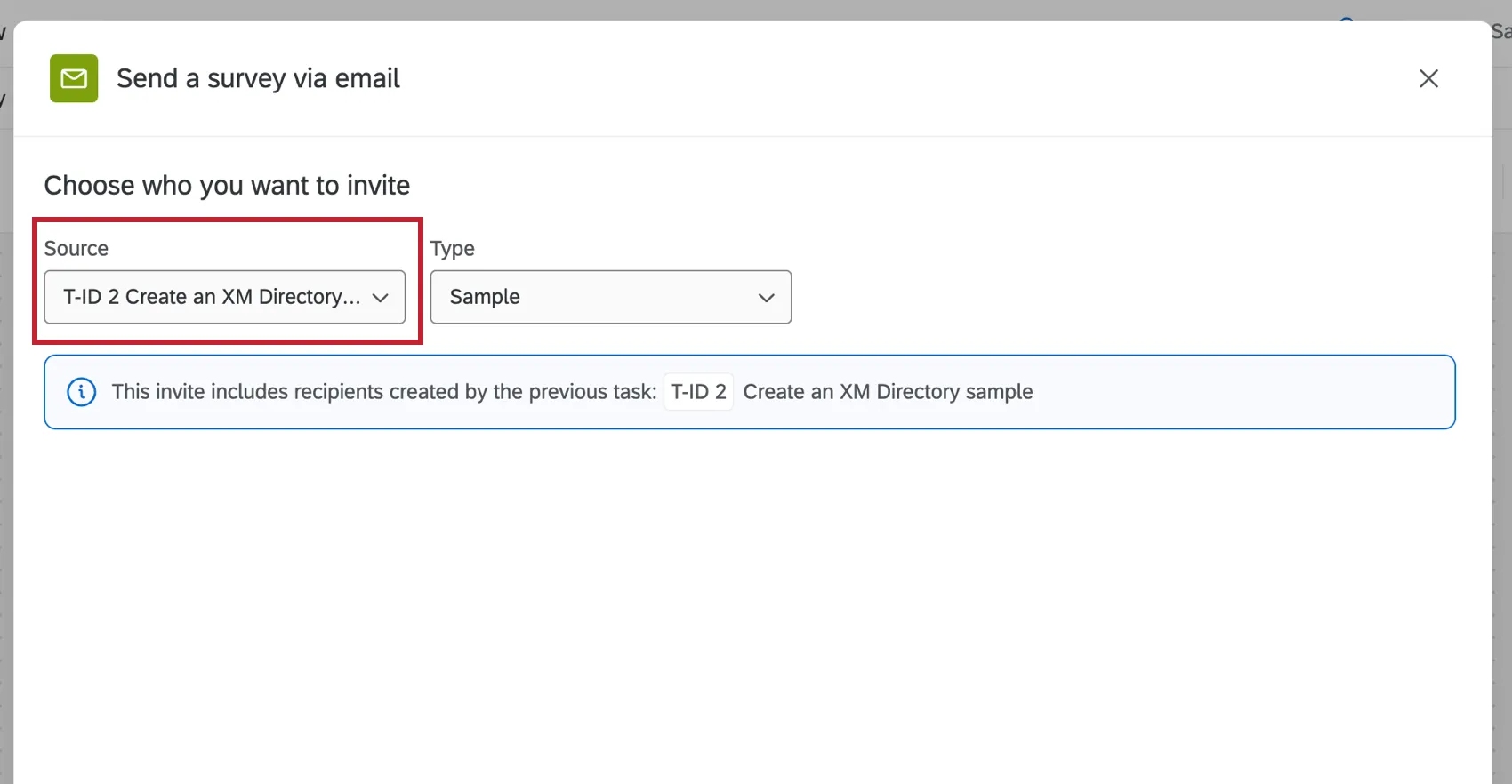
You can distribute a survey to your newly created sample list by choosing the previously configured “Create an XM Directory Sample Task” as your Source.
That's great! Thank you for your feedback!
Thank you for your feedback!