

Google Sheets Task
What's on this page
About the Google Sheets Task
Automate your workflows by bringing the data you collect into the software you and your collaborators use most. The Google Sheets task allows you to automatically add new survey responses as new rows to a Google Sheet and look up data in an existing Google Sheet.
Qtip: This feature is available to any user with access to workflows.
Attention: This task has a limit of 60 calls per minute per user. If you exceed this limit, the task will fail and will be automatically retried.

Data Edits
For this extension, survey retakes are always treated as a unique new response and added as a new row of data, rather than rewriting old data.
Any edits made to previously collected data in Qualtrics will not be reflected in Google Sheets.
Creating a Google Sheet
If you plan on using an existing Google Sheet in your task, make sure you’ve already created a Google Sheet where you plan to import the data, and make sure you know the file’s name. If the file you’re planning to use was created by someone else, make sure they’ve given you editing access.
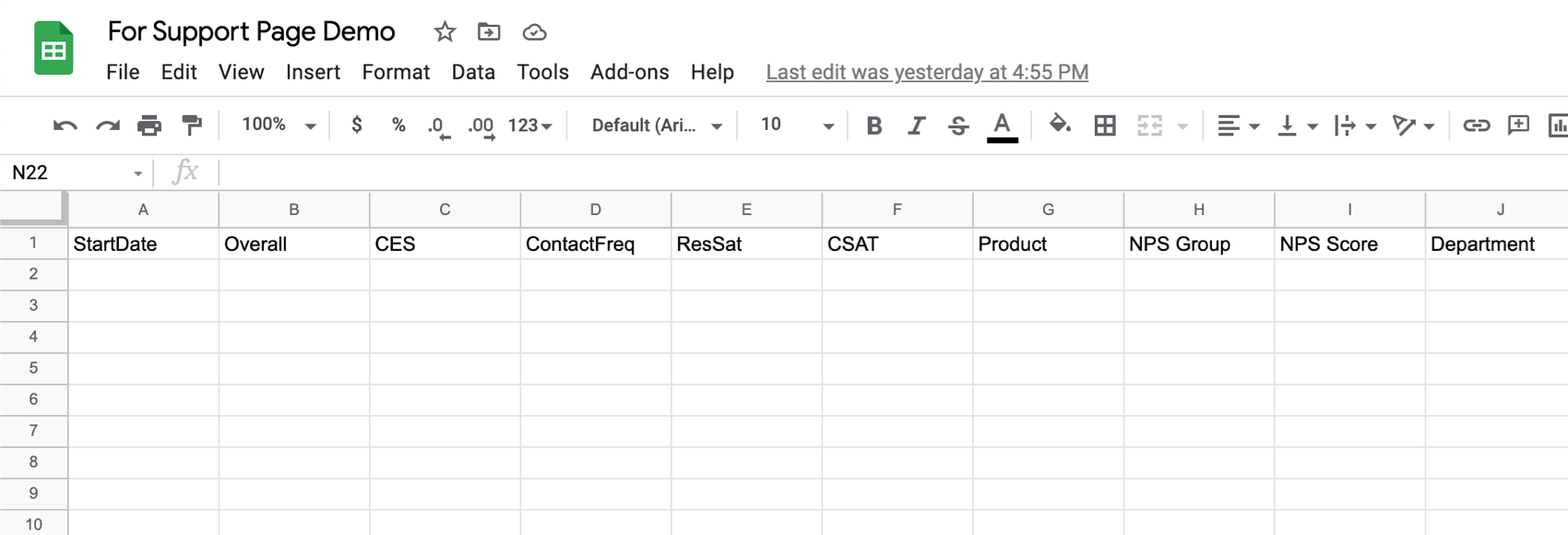
The Google Sheet doesn’t need to have data in it yet, but if you plan to add to an existing sheet (tab), it must have column headers set up before you set up your automation in Qualtrics. See the example below.
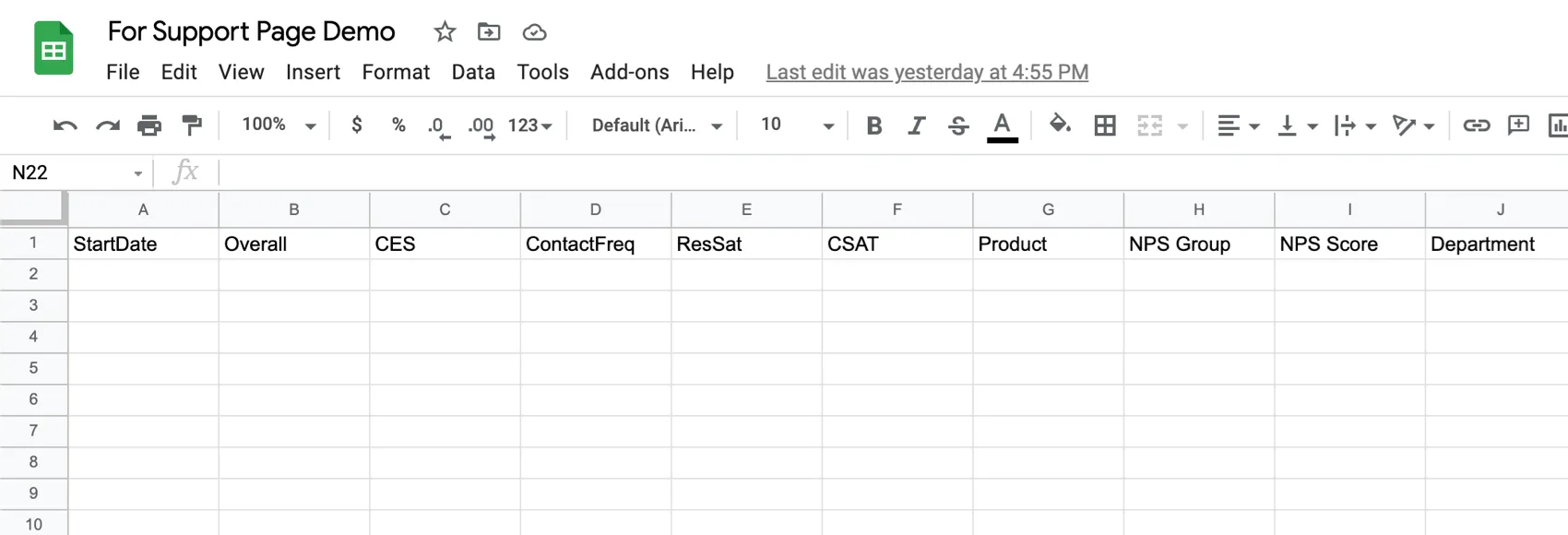
Make sure you don’t have duplicate column names in your sheet. Do not use quotes ( “ ) in column names.
Do not edit a sheet after connecting to the Qualtrics extensions, or it may not work correctly.
Connecting a Google Drive Account
Before you can use the Google Sheets task, you must connect a Google Drive account for Qualtrics to import data to. Accounts may be added by Brand Administrators for other users in the brand to use, or by individual users for their personal use.
Adding an Account as a Brand Administrator
If you are a Brand Administrator, follow the steps in this section to add a Google Drive account for some or all users in your license to use.
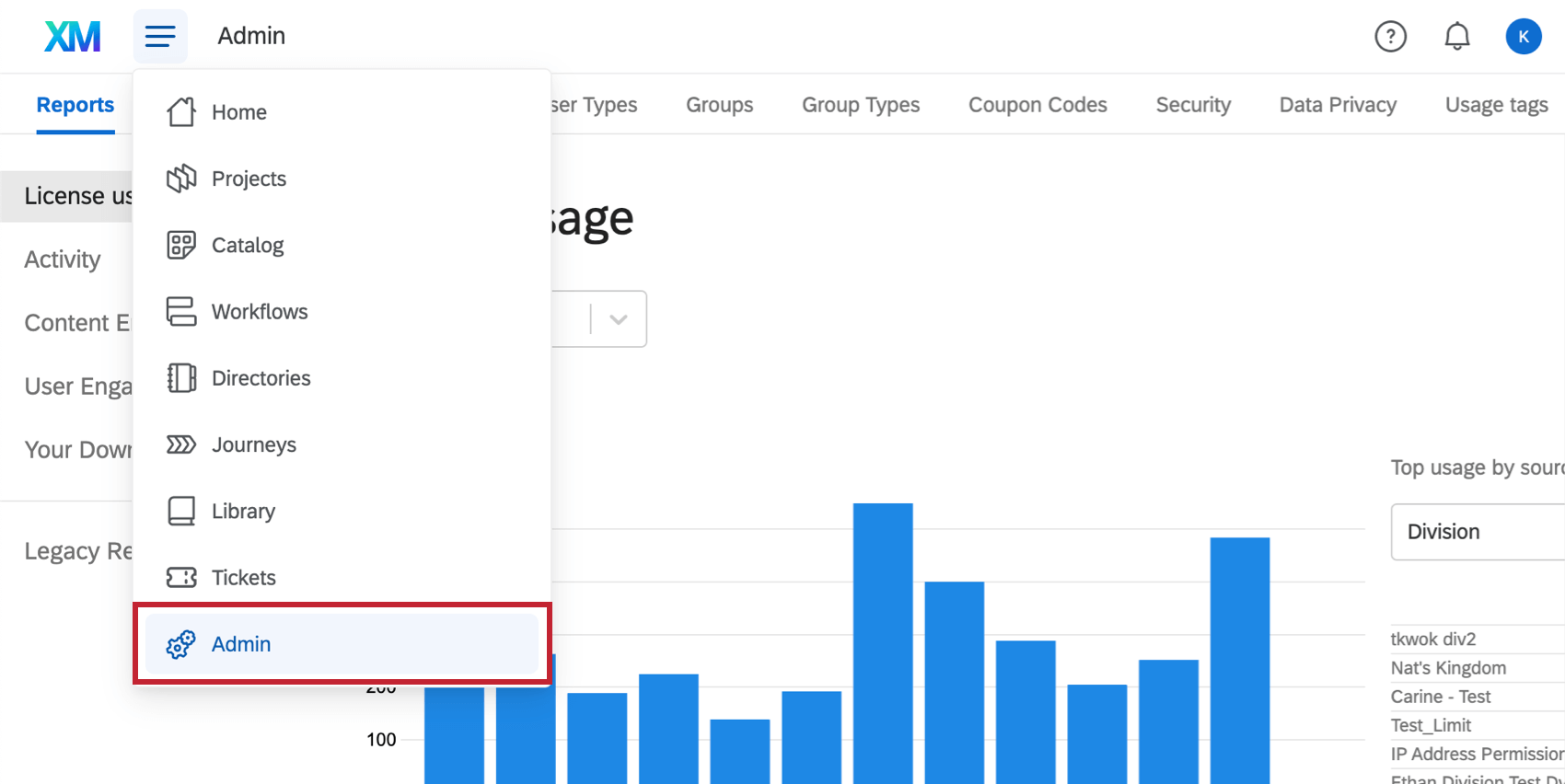
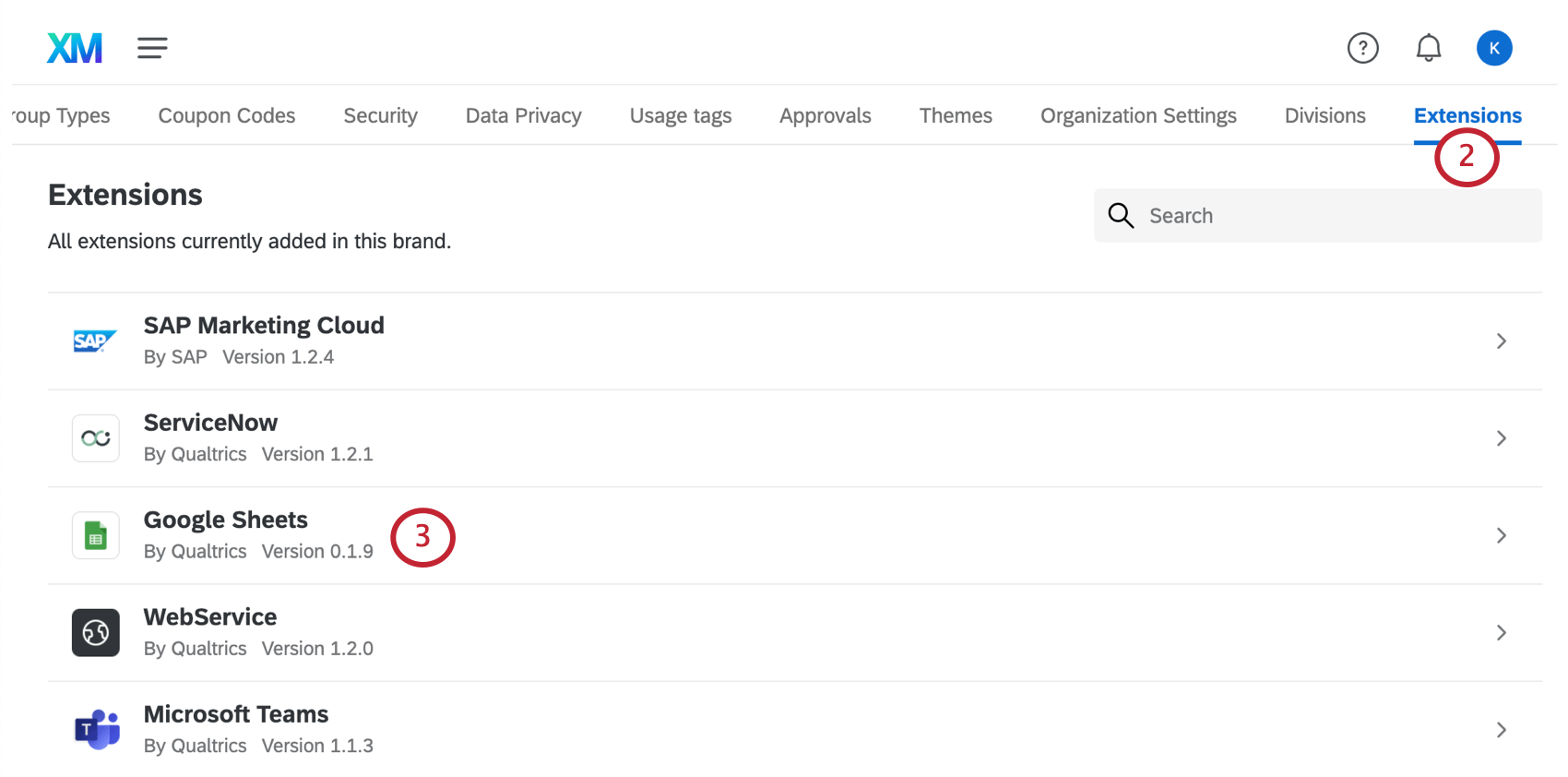
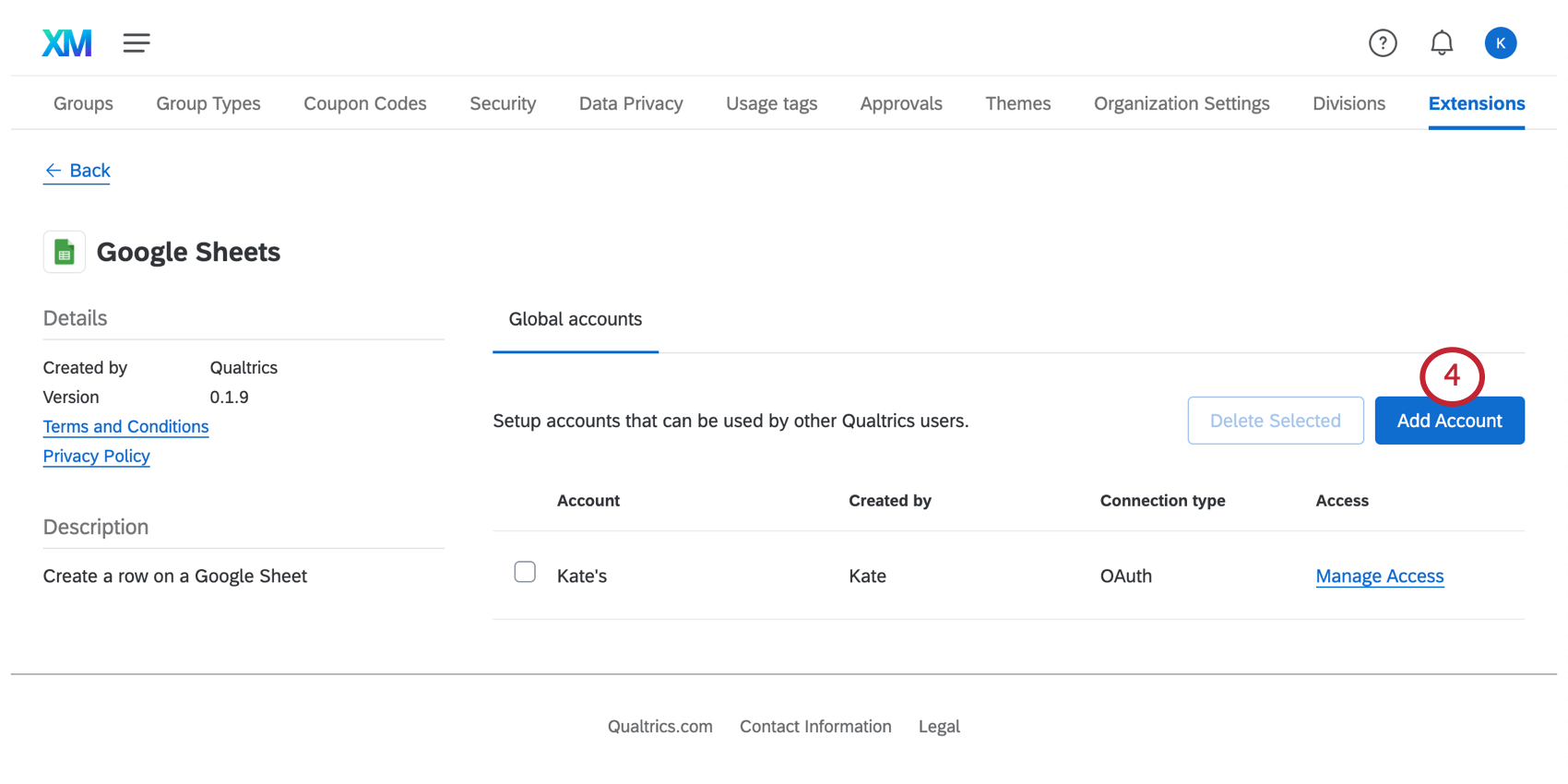
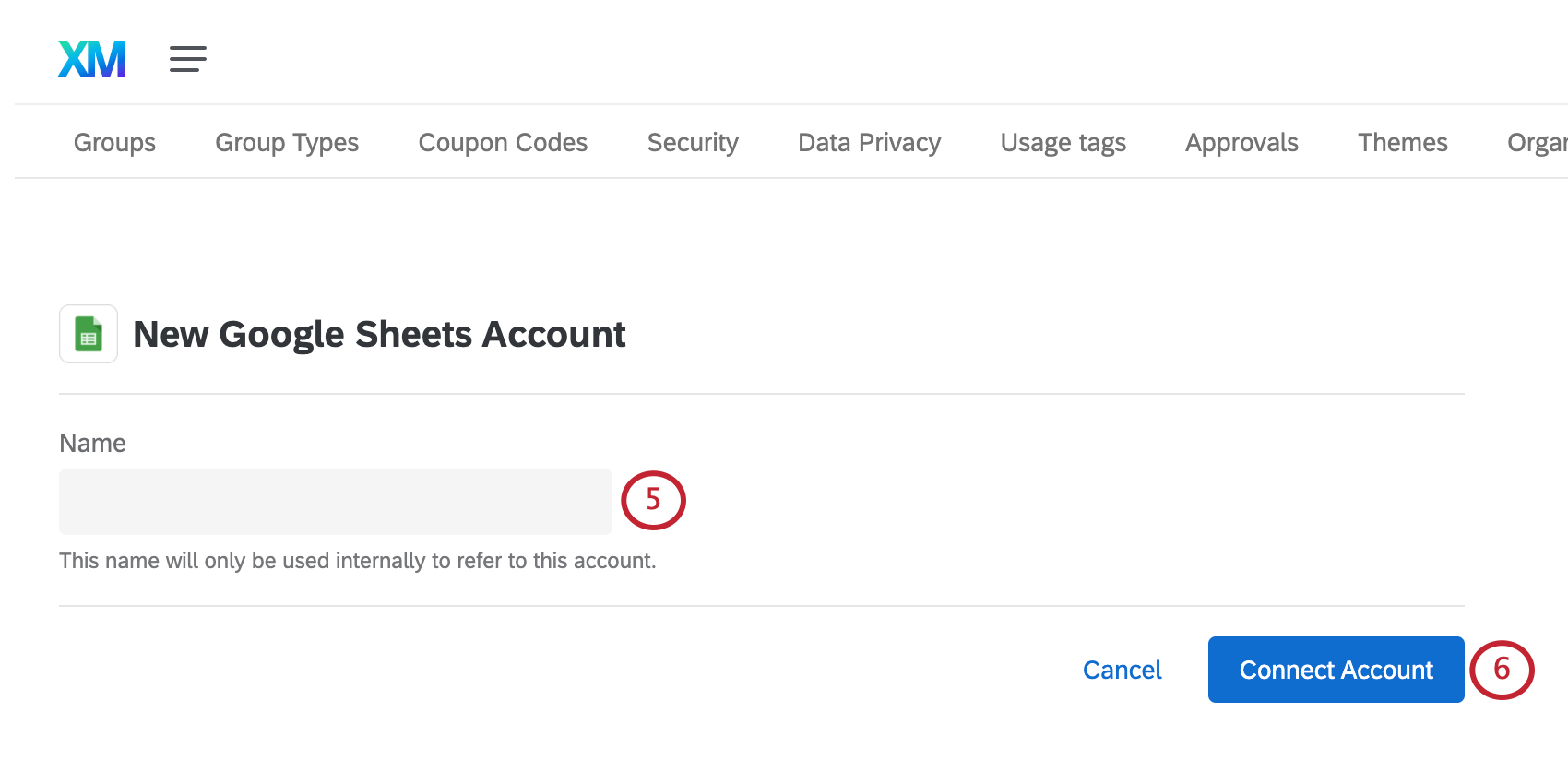
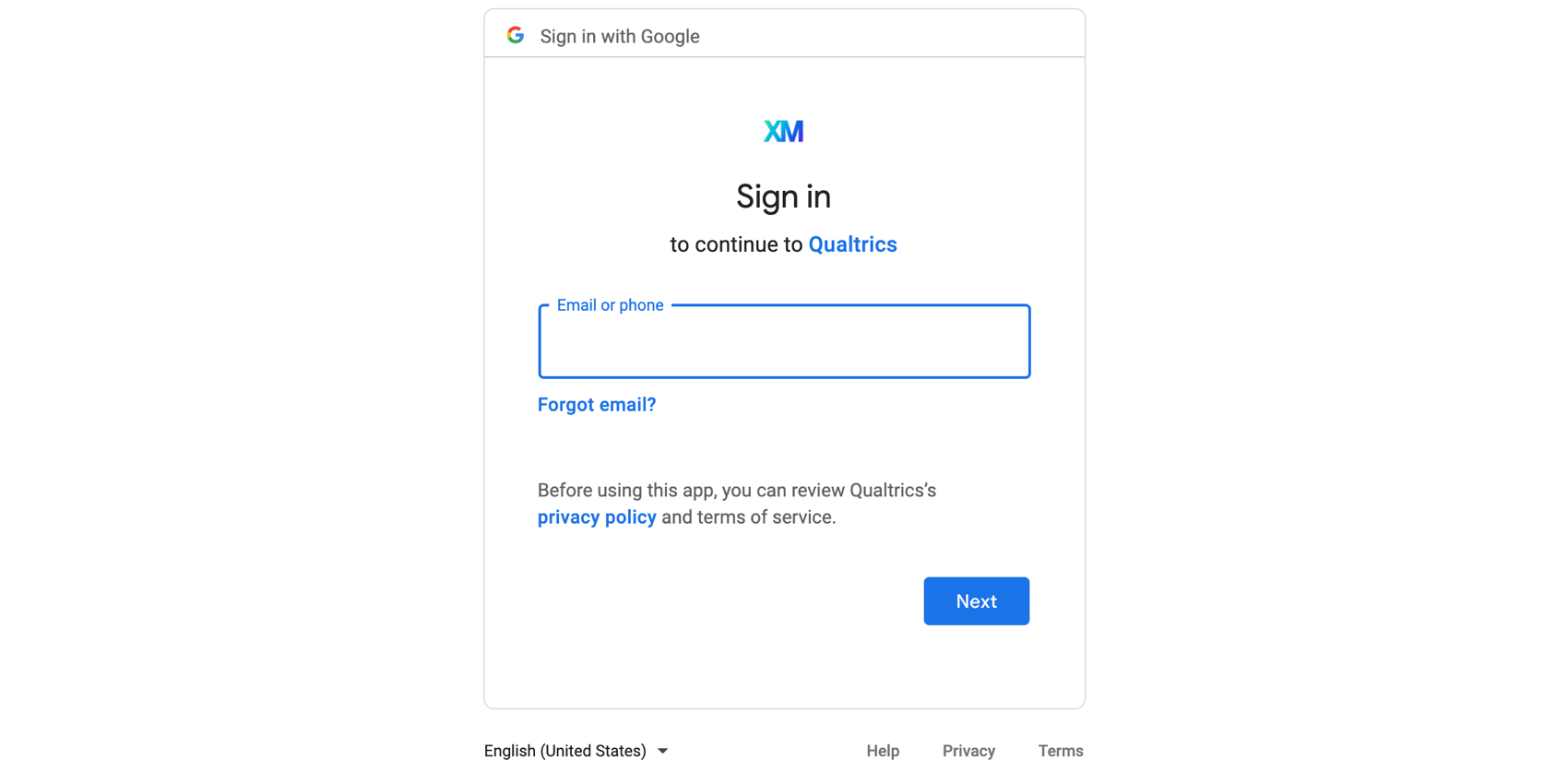
For more on managing which users have access to this account, see Determining Who Can Use an Extension Account.
Adding an account as an Individual User
Follow the steps in this section to add a Google Drive account for your personal use. Only you will be able to use the account that you connect.
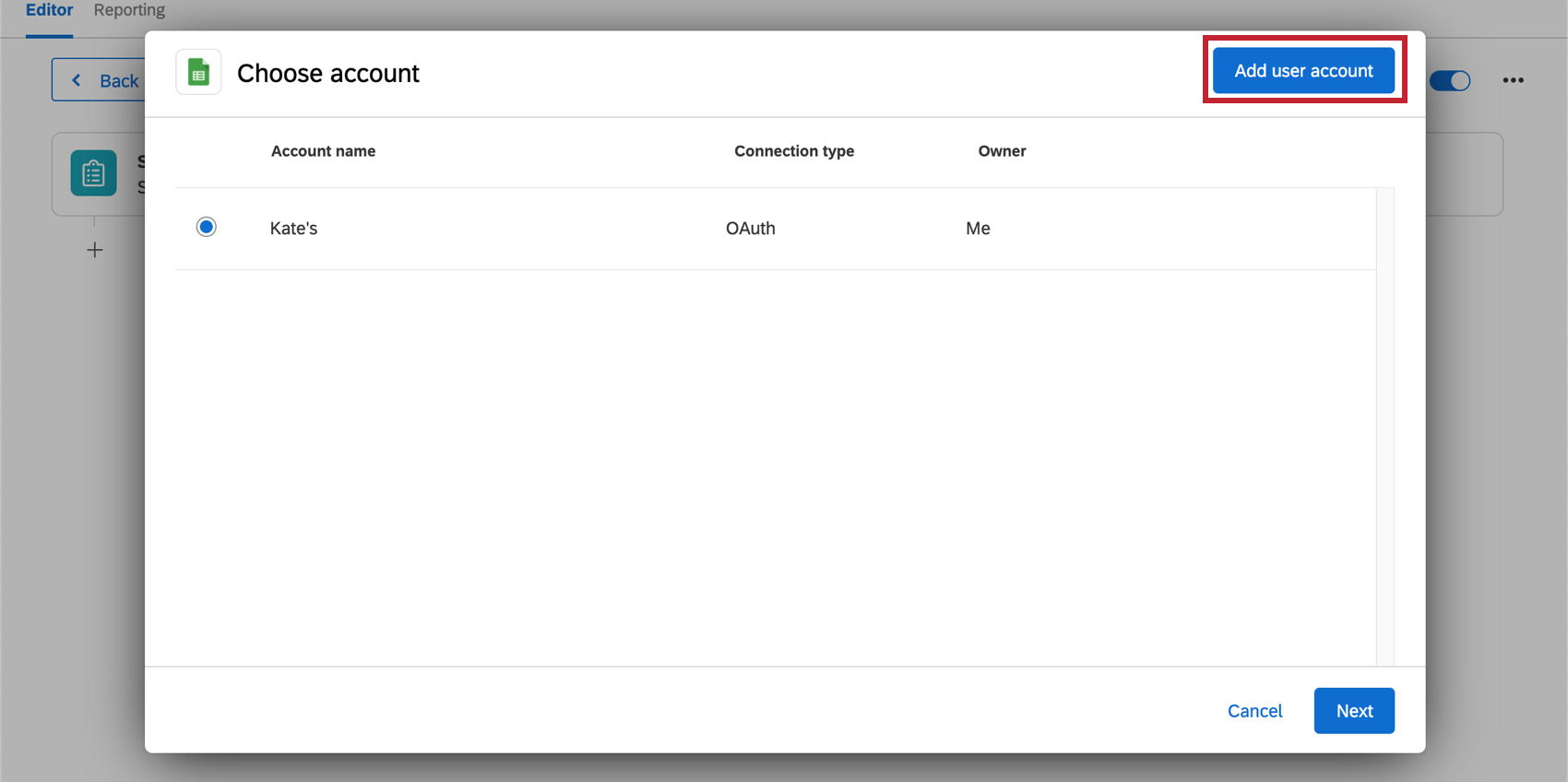
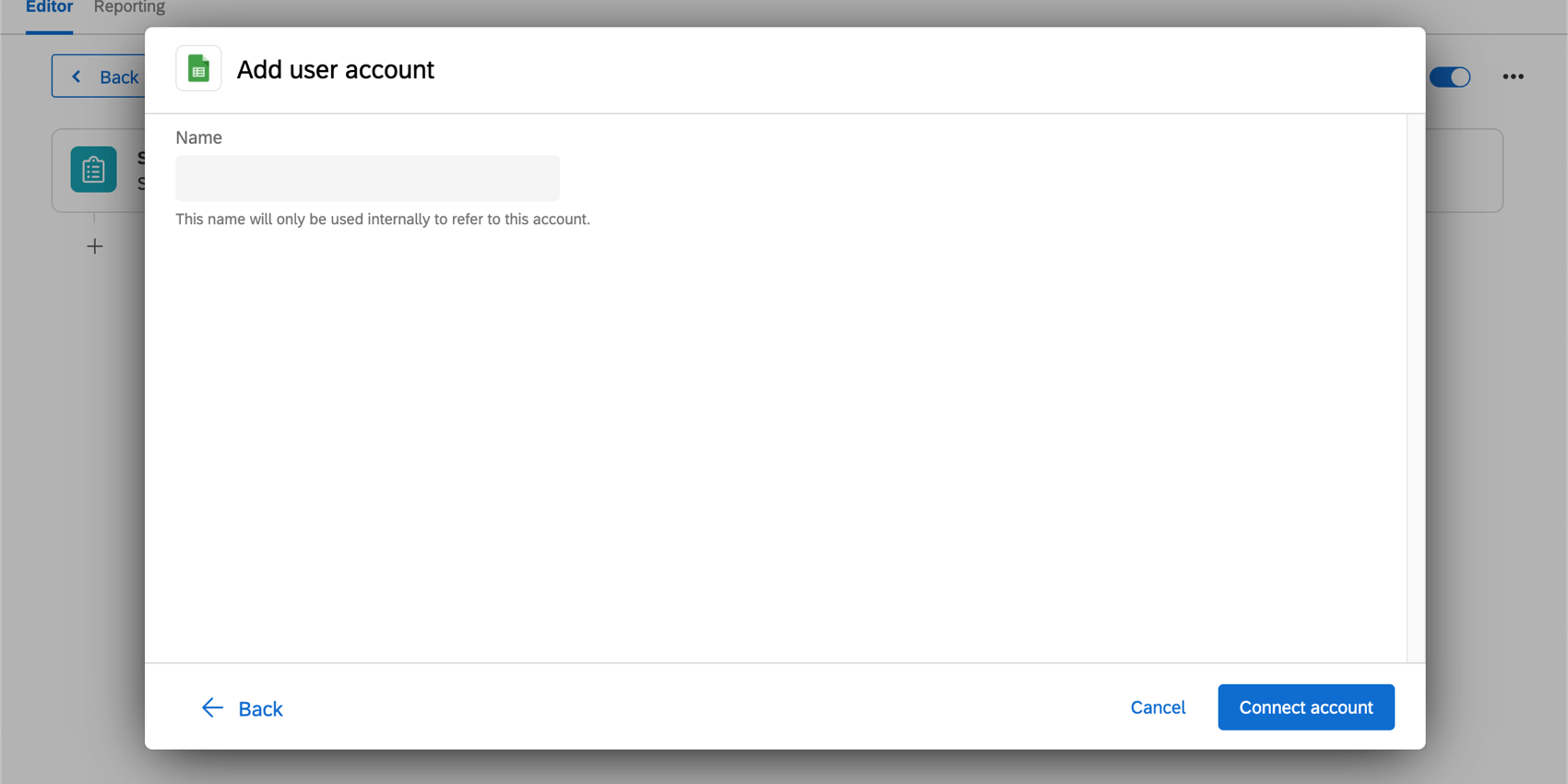
Creating a Google Sheets Task
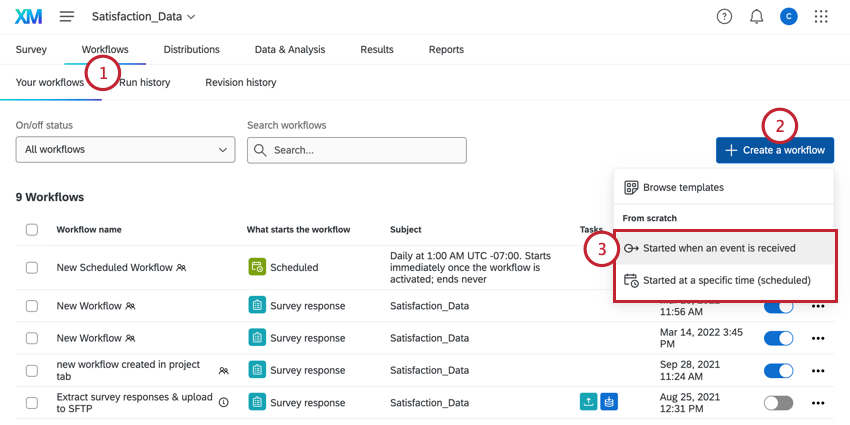
Qtip: To link this to a particular survey’s responses, we recommend starting in the Workflows tab of a survey.
Attention: You should not use a scheduled workflow with this task. You need a survey response event to establish a data source, that you can then pull from to save in your Google Sheets file.
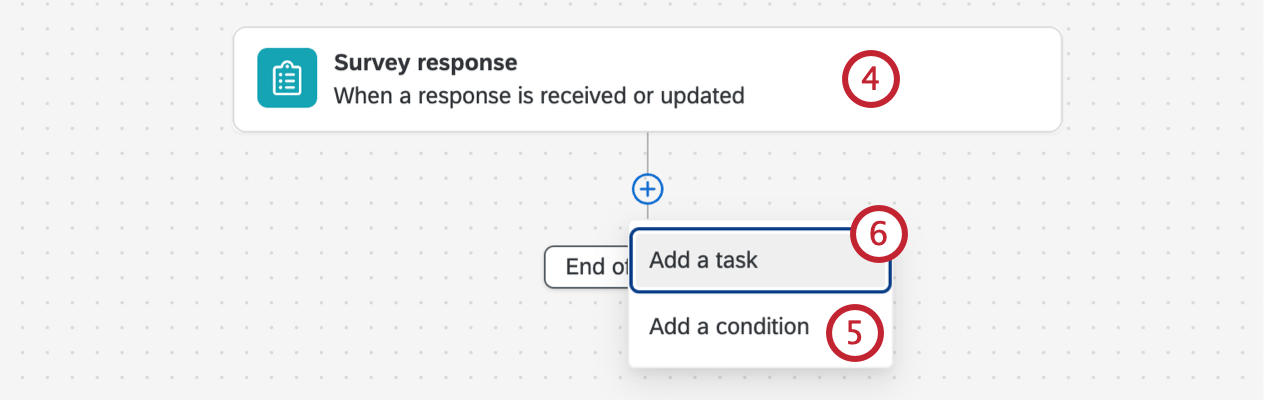
Qtip: This will automatically add this survey’s data to your Google Sheets whenever a new response is collected.
Qtip: For more information on building conditions in workflows, see Creating Conditions.
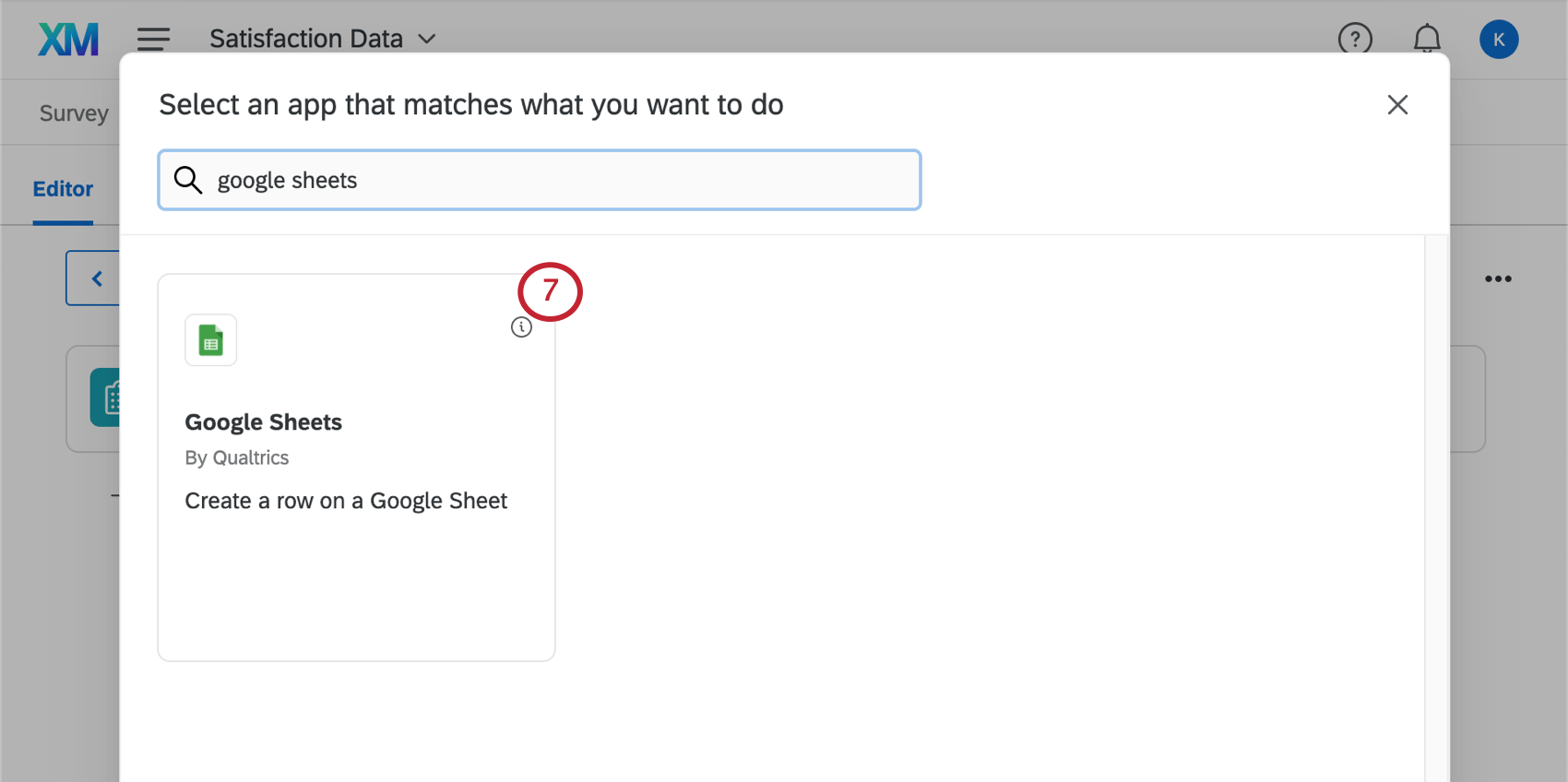
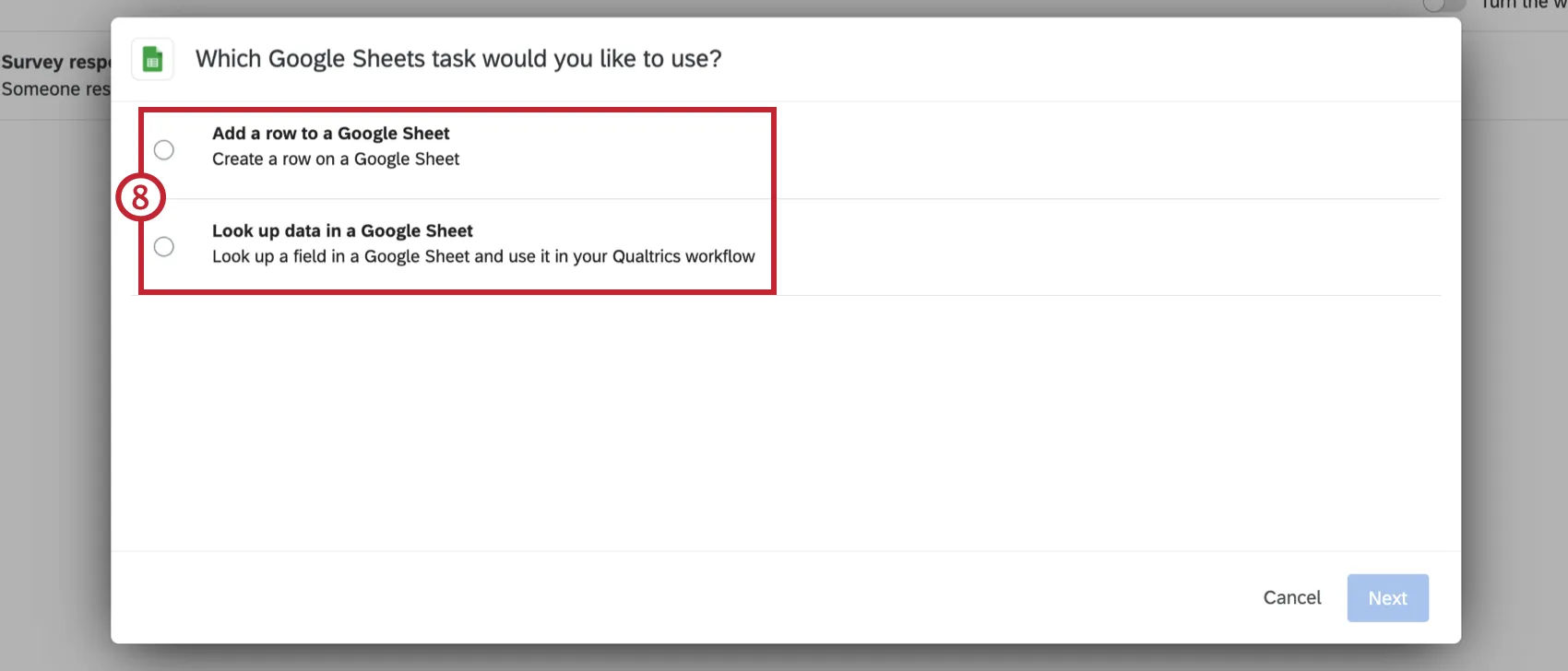
Adding a Row to a Google Sheet
Once you’ve created a new Google Sheets task, follow these steps to configure your task to add rows to a Google Sheet. This task is useful for adding survey data directly to a Google Sheet. New rows are added to the bottom of the sheet below existing rows.
Qtip: Any date / time data you pull from your survey will be in Mountain Standard Time (MST-7). This is regardless of your account time zone settings.
Attention: Qualtrics recommends the Google sheet (including all tabs) contain less than 1 million cells of data. You may experience extended wait times and potential errors when adding rows to a sheet that exceeds this limit.
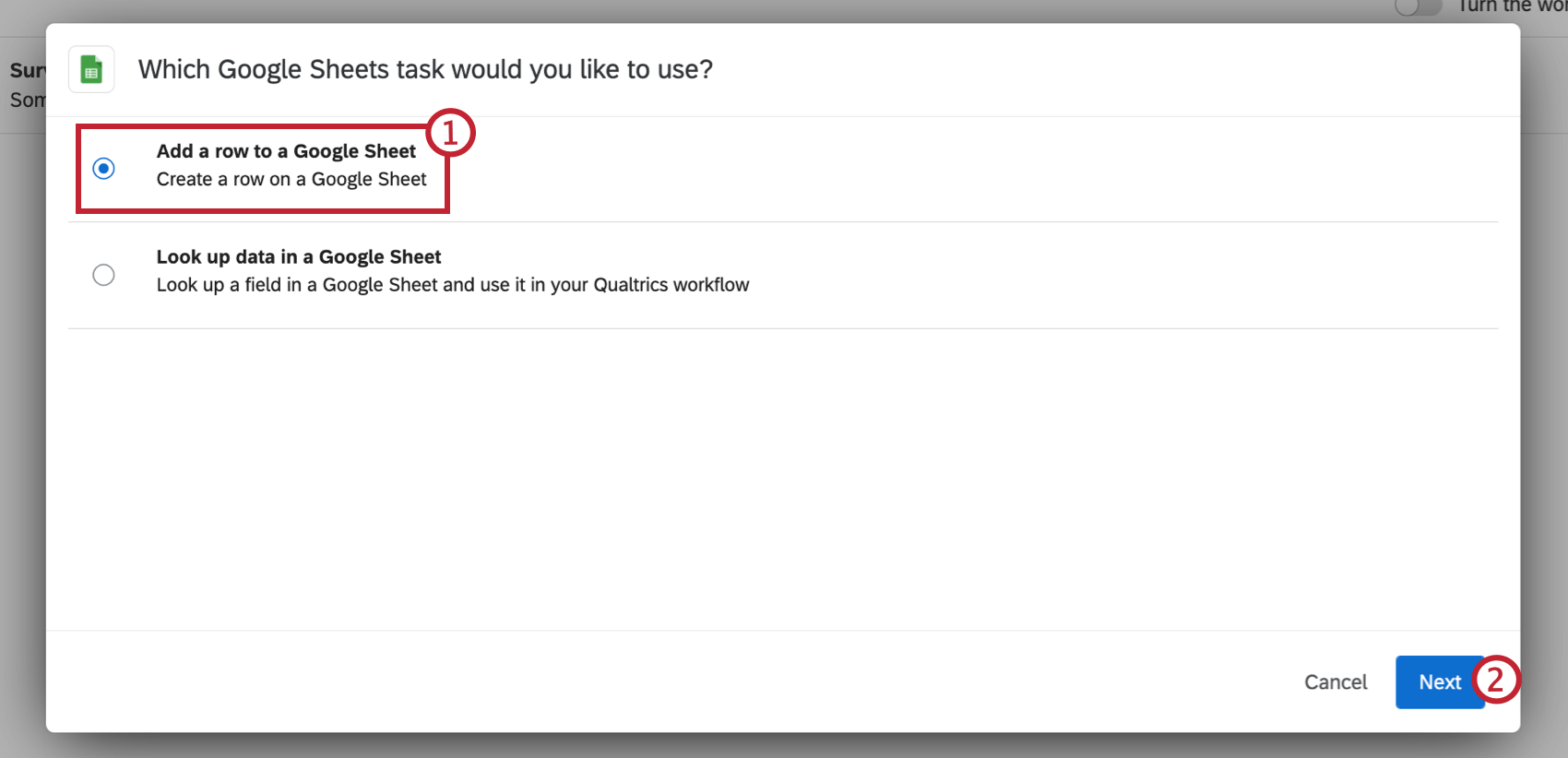
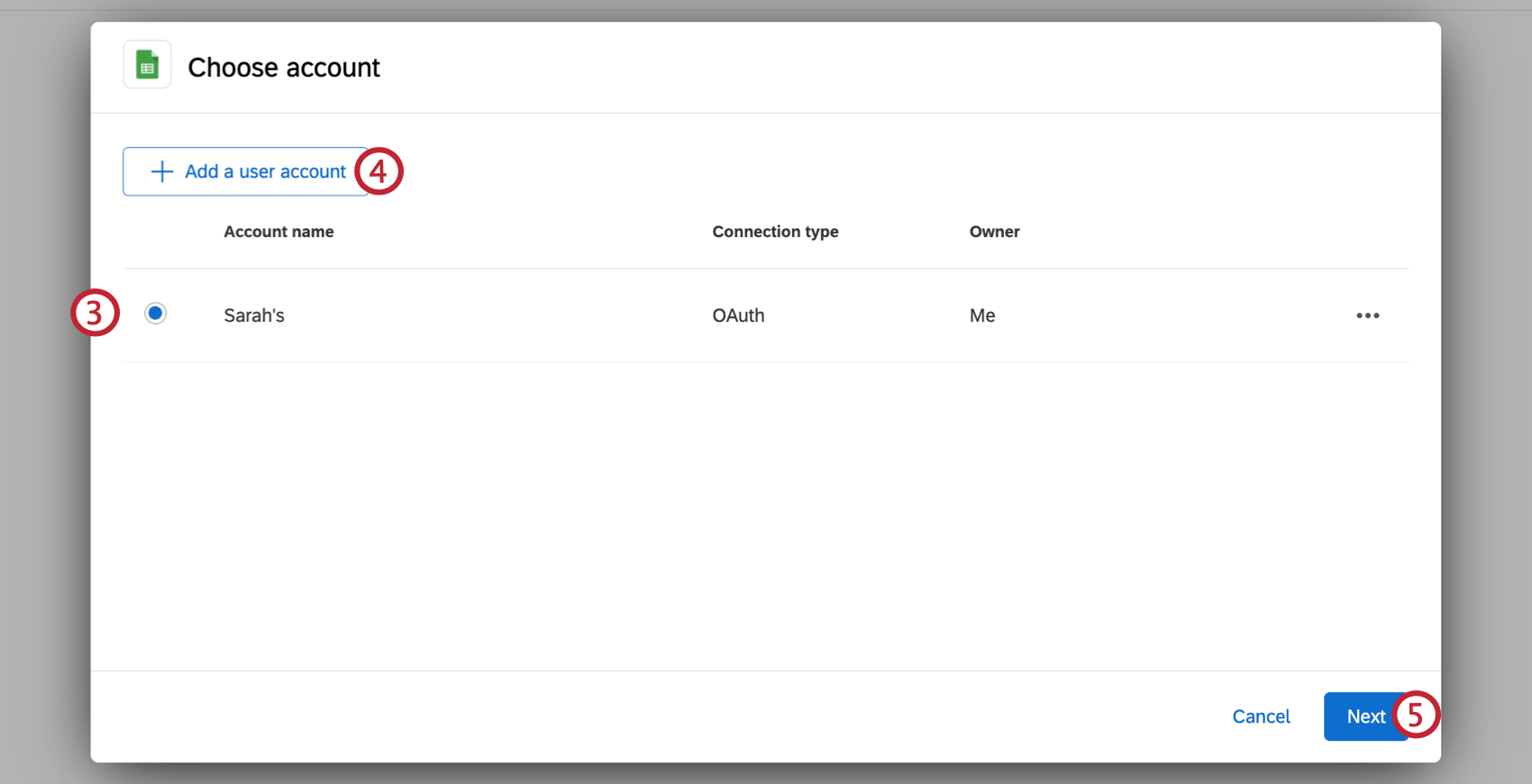
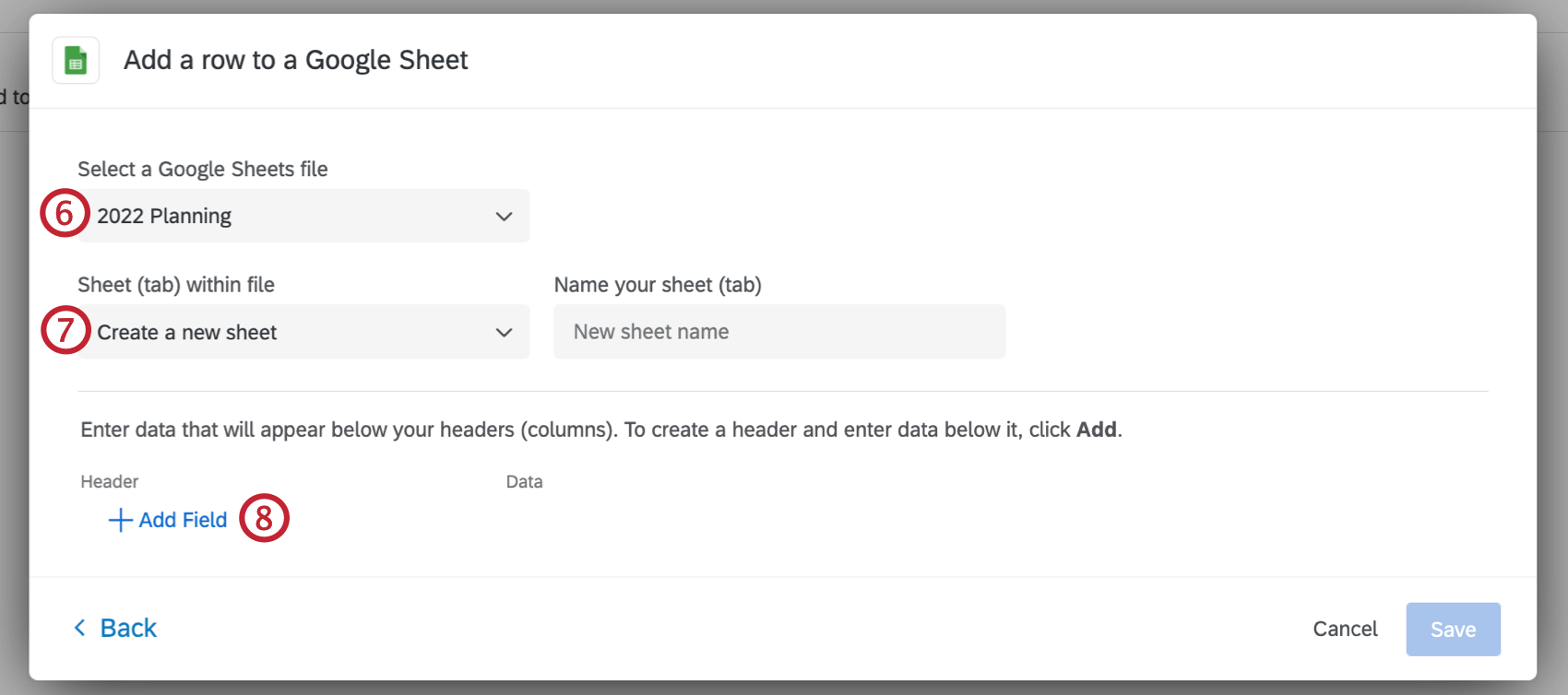
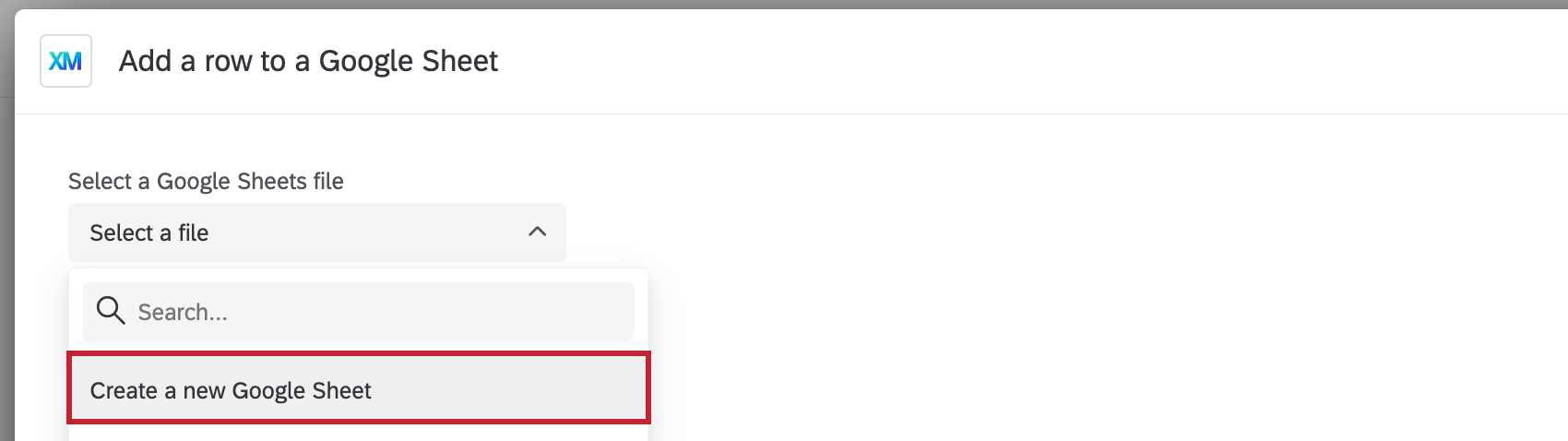
Qtip: You can also select Create a new Google Sheet if you want to create a new Google Sheet to add your data to.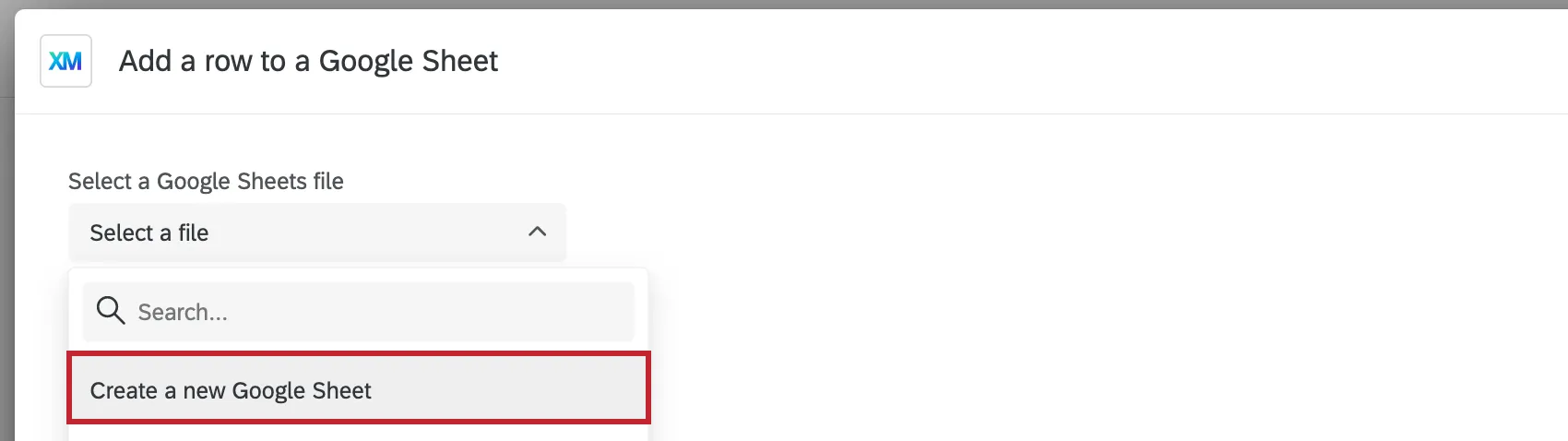
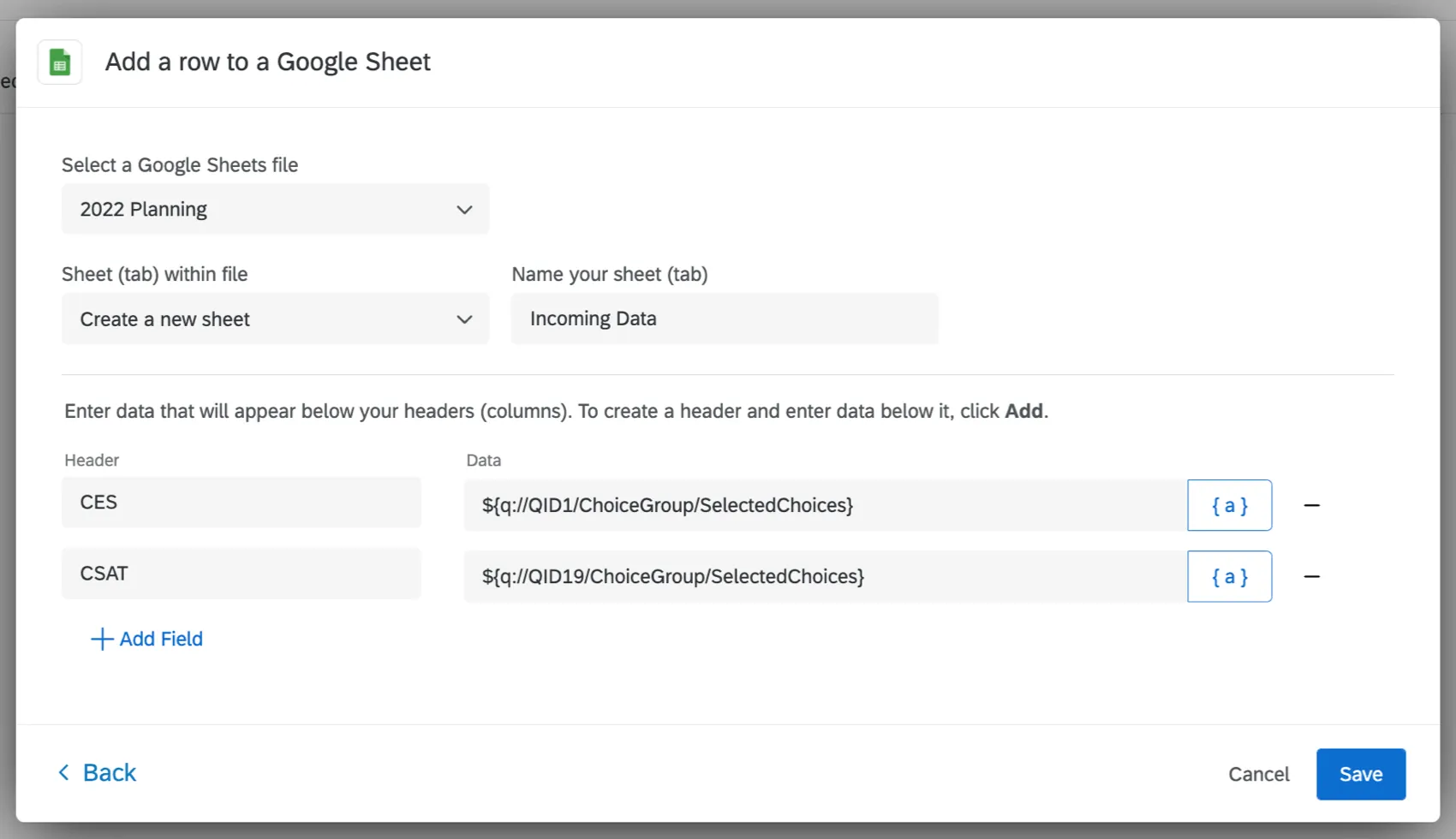
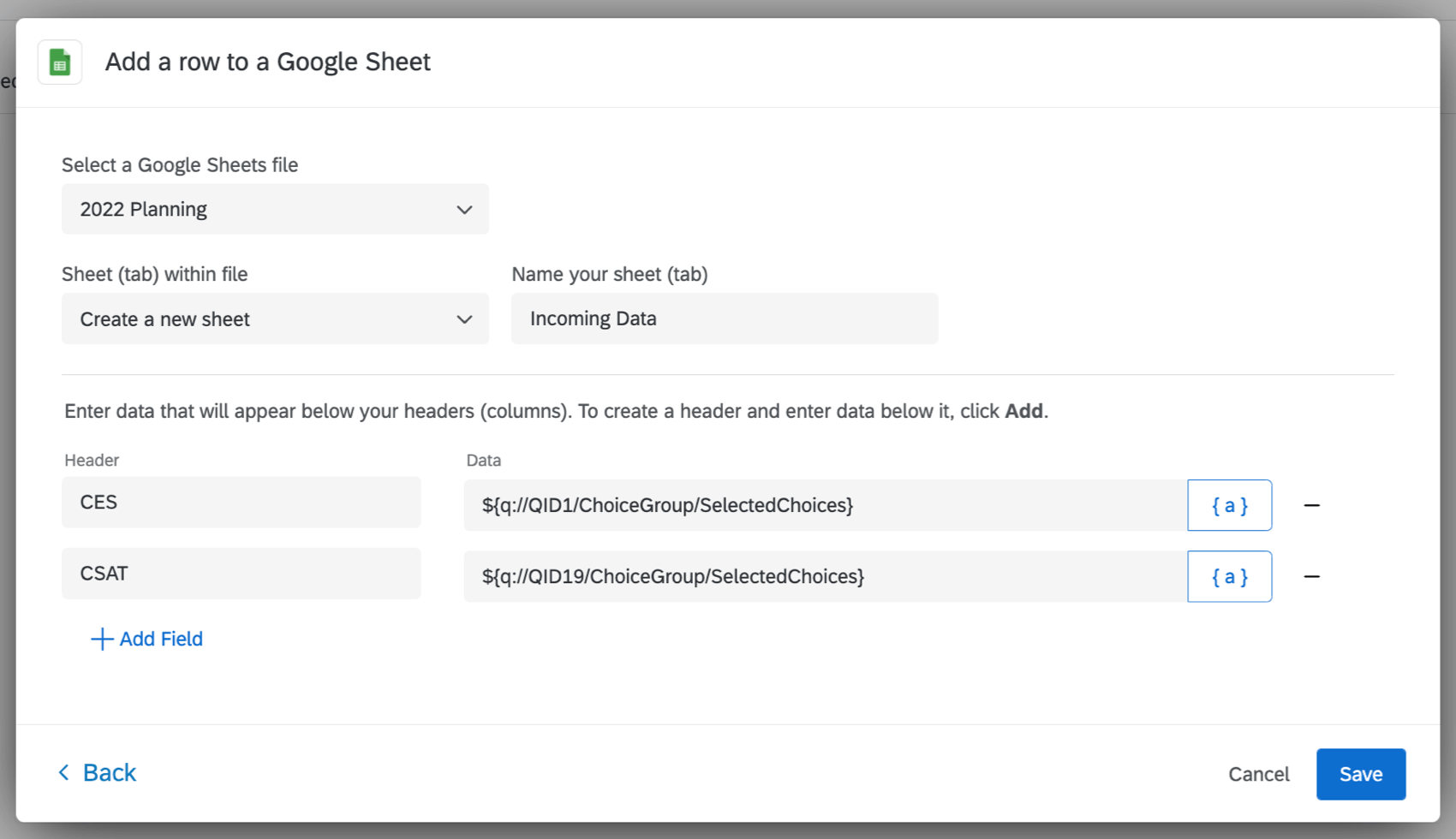
- Create a new sheet in your file. If you select this option, you will need to name the new sheet.
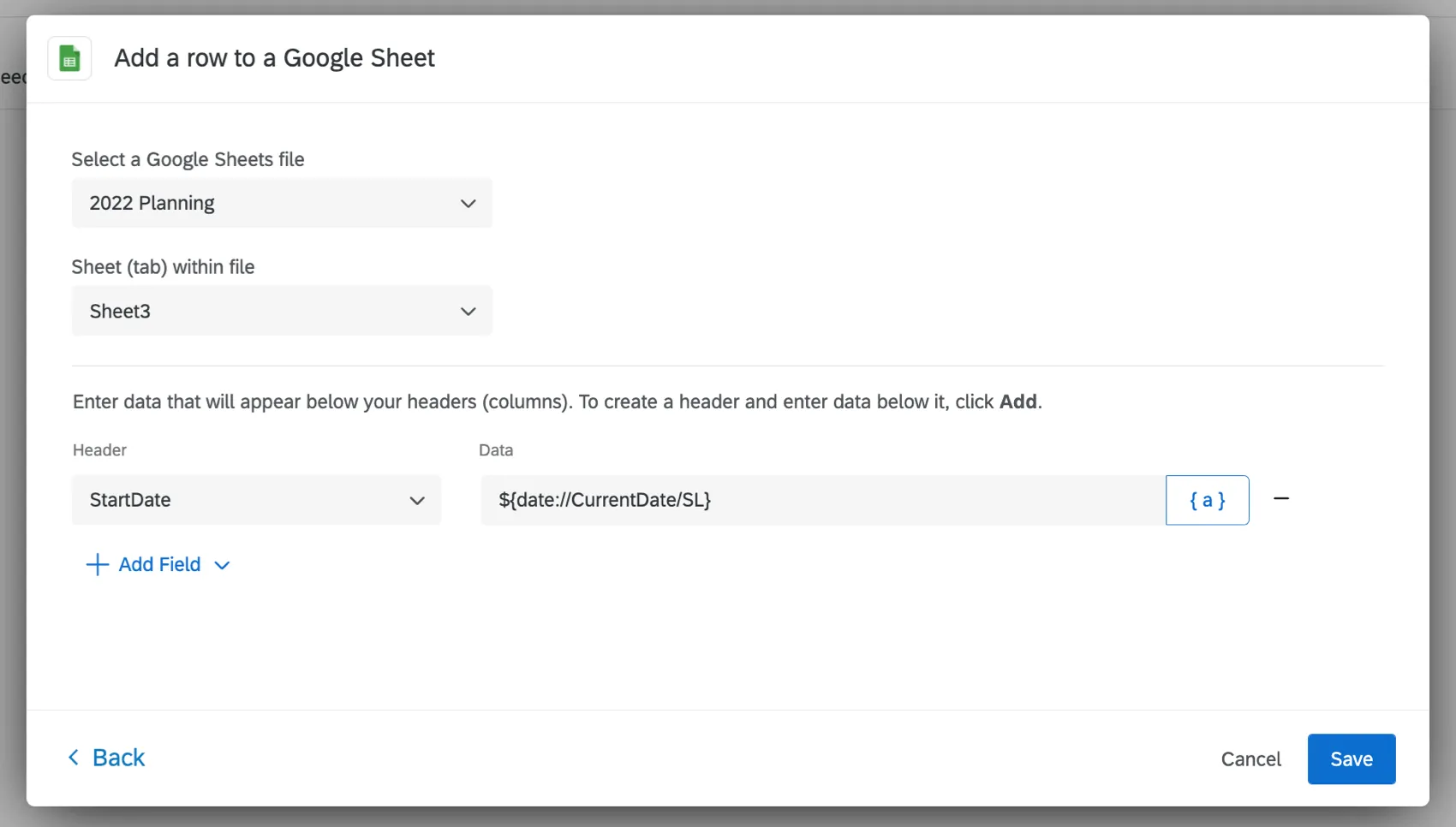
- Add the file to an existing sheet. Make sure the sheet already has headers inside it, and ensure there are no empty cells in the header row of the sheet.
 Qtip: Don’t see the changes made in a Google file reflected to Qualtrics yet? No problem. In Qualtrics, click Back in the lower-left of the window, then re-select the account you want to connect to. This will reload the data pulled from Google, so any new files or columns will appear.
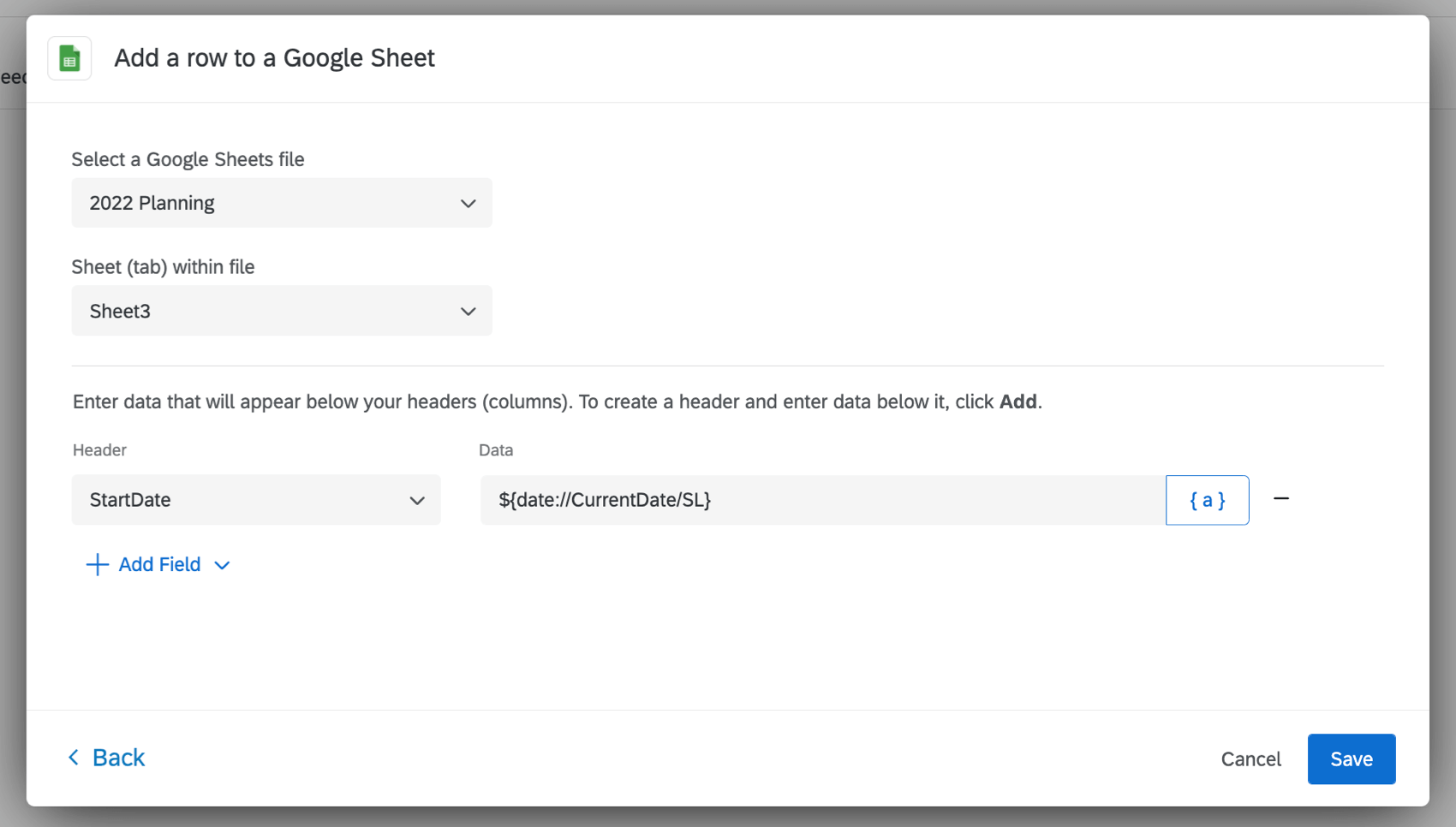
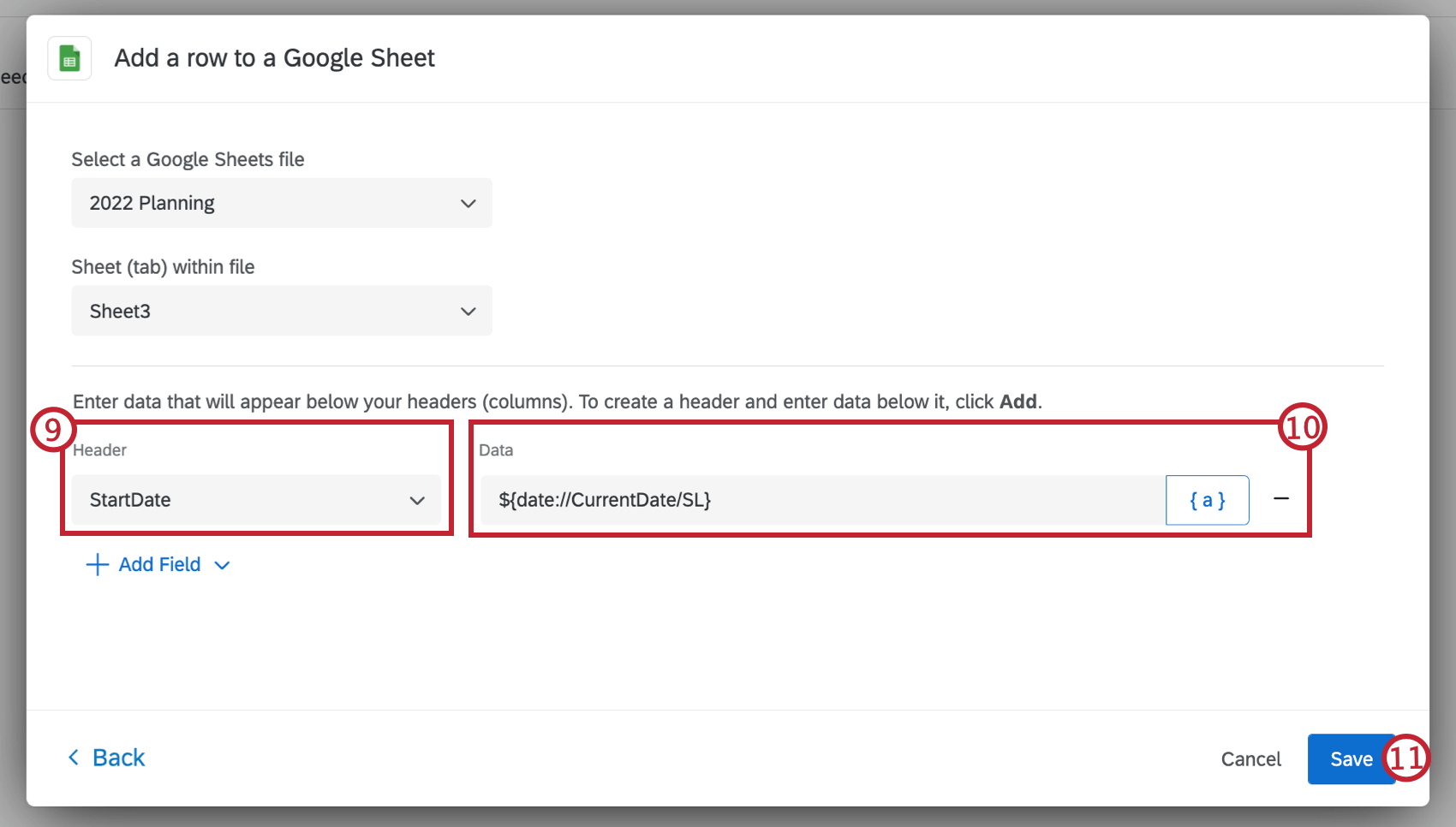
Qtip: When you add rows to a Google sheet with many formulas, data support may be limited due to ongoing formula recalculations. Consider minimizing formulas or using a raw data sheet for your workflow.
Looking up Data in a Google Sheet
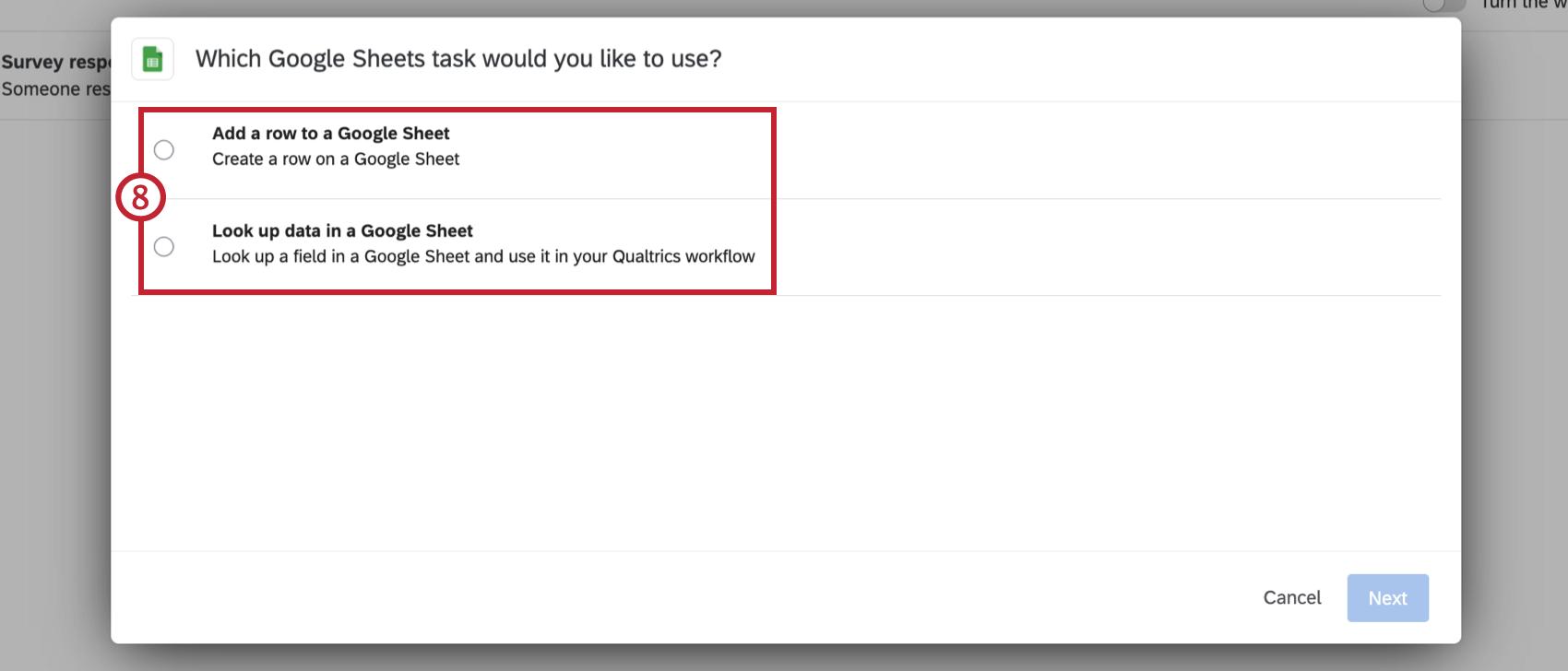
Once you’ve created a new Google Sheets task, follow these steps to configure your task to look up data in a Google Sheet. This task is useful for looking up data in Google Sheets that can be used in subsequent tasks.
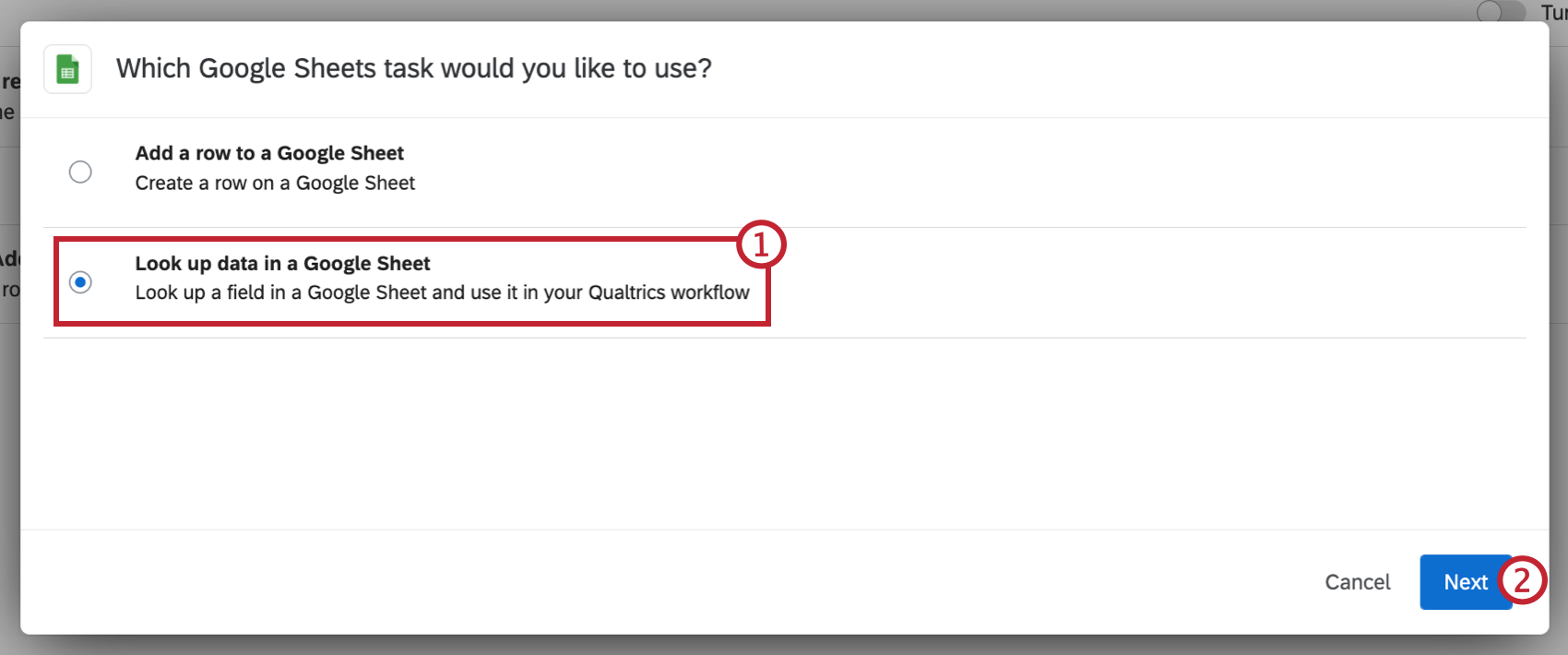
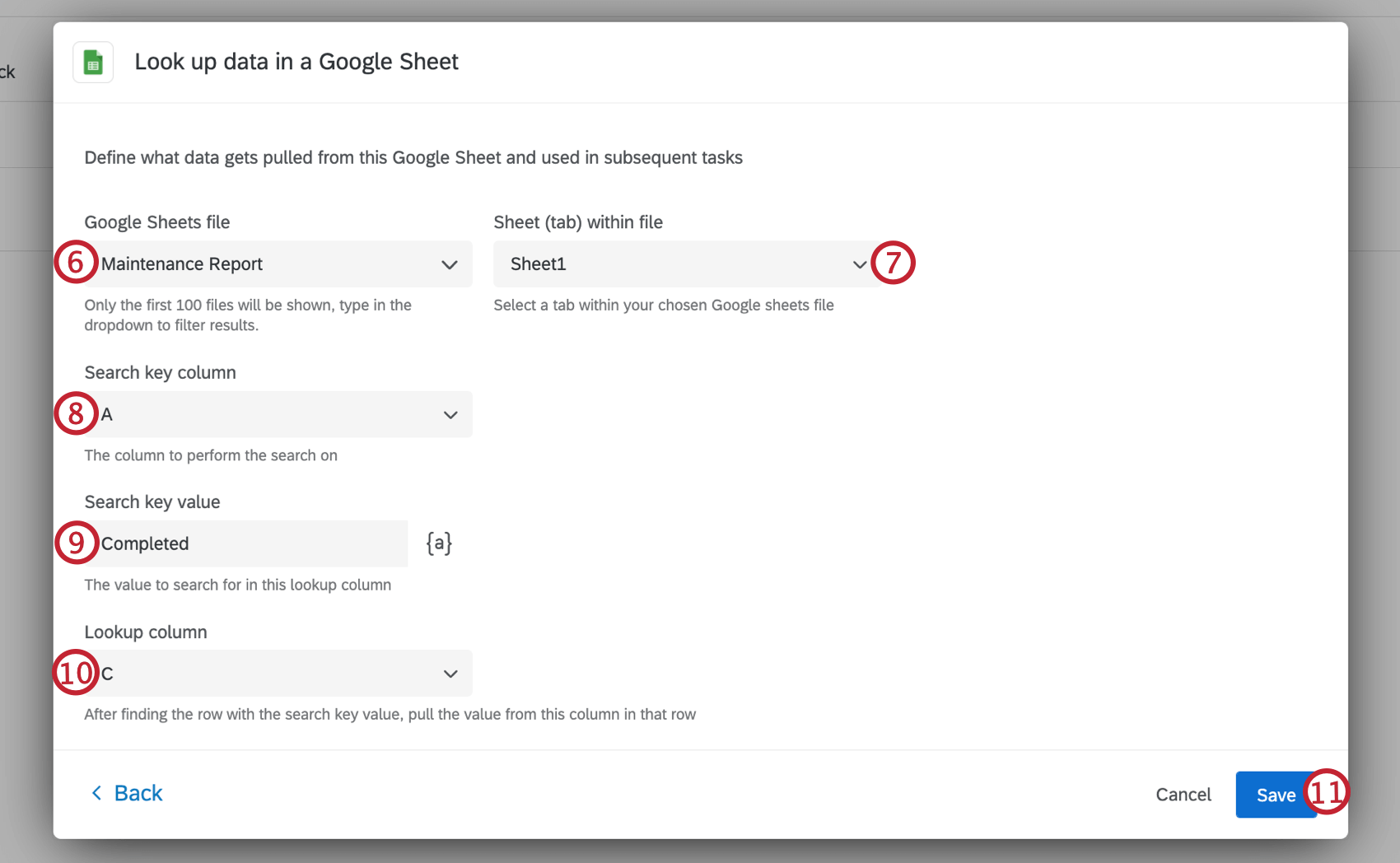
Qtip: If there are multiple rows in the column with the same key value, the first row with the key value will be selected.
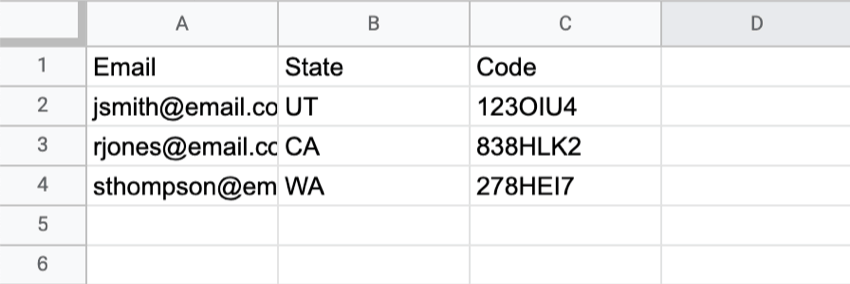
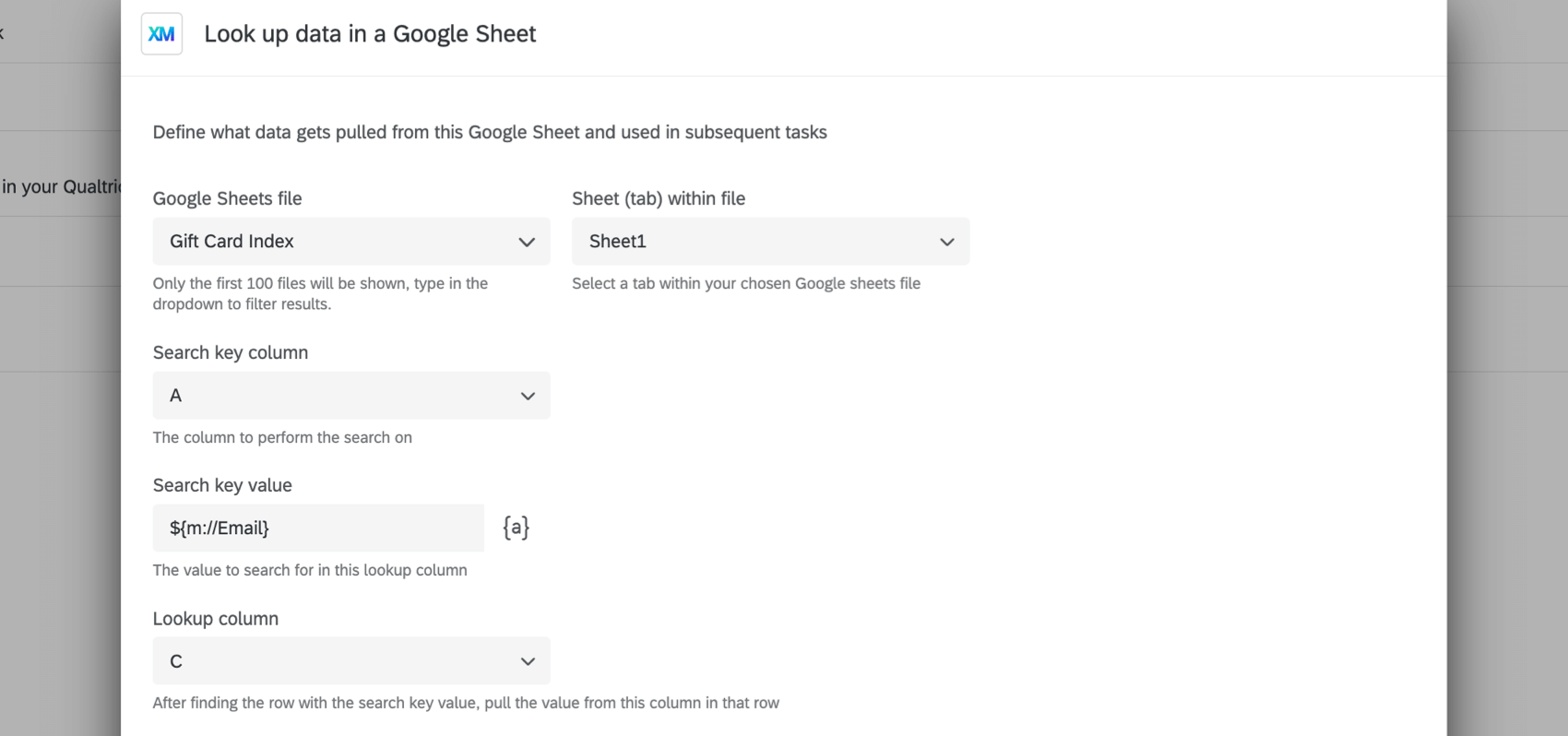
Example: Customers that complete a feedback survey will be awarded a $5 gift card for their participation. Gift card codes are stored within a Google Sheet.
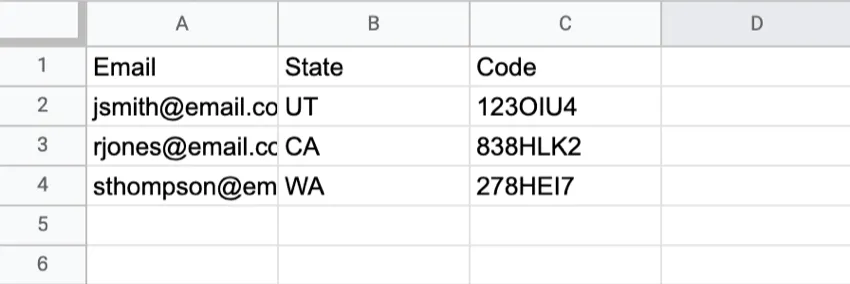
A Look up data in a Google Sheet task can be used to search for a respondent’s email within the Google Sheet every time a survey response is submitted.
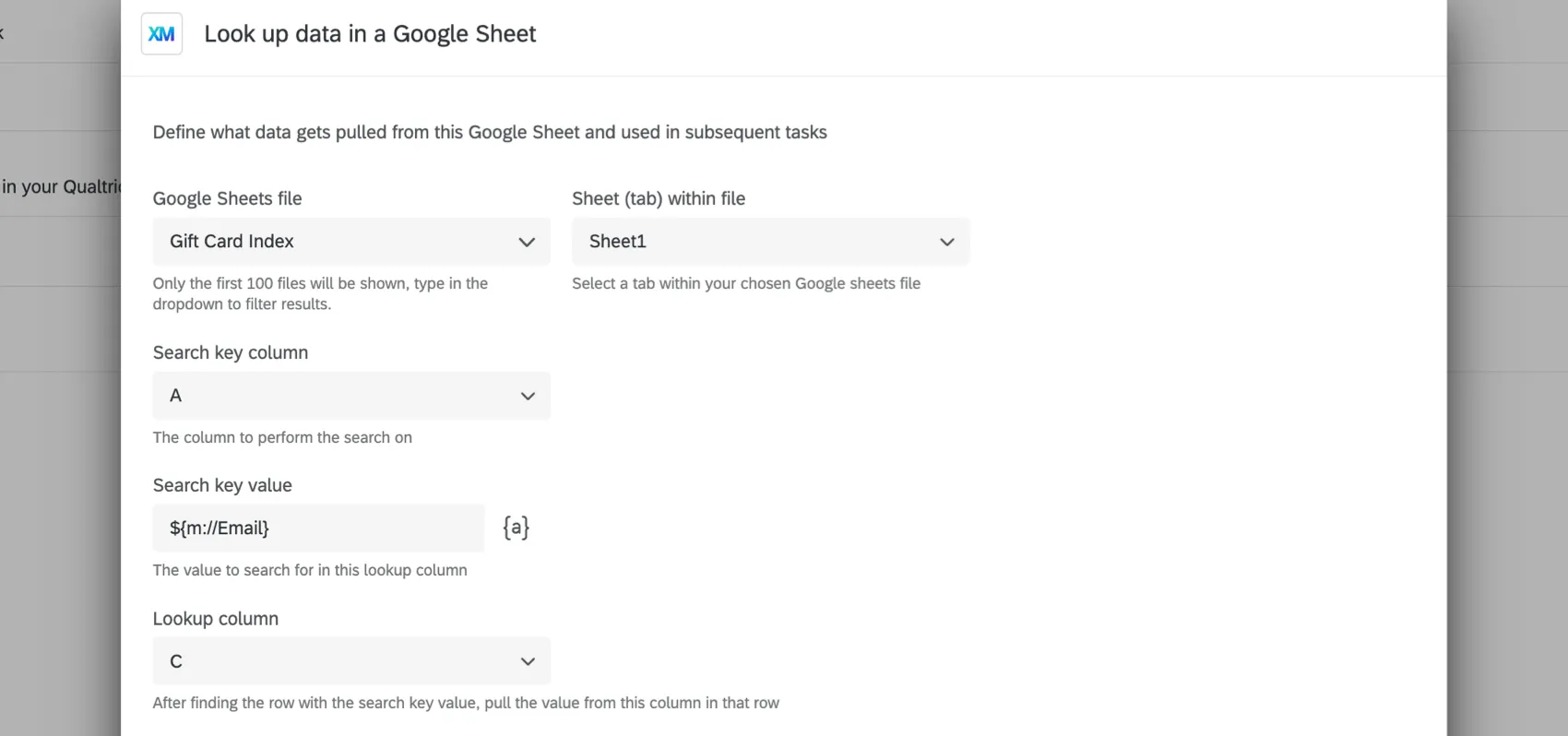
The returned gift card code value can then be used in subsequent tasks, such as sending an email with the code directly to the respondent.
Compatibility of Formulas
Formulas are used in Google Sheets to transform data and make calculations. You can see a list of Google Sheets formulas in their documentation.
The Qualtrics Google Sheets extension is compatible with almost all formulas, except those listed below. If the Google Sheet you’re connecting to has one of these formulas, the formula will not execute; instead, an apostrophe ( ‘ ) will be added beforehand, and the formula used be be displayed. (E.g., ‘IMAGE)
Incompatible Formulas
This is the full list of formulas we do not support.
- IMPORTXML
- IMPORTFEED
- IMPORTHTML
- IMPORTRANGE
- IMAGE
Tips for Mapping Piped Text to Columns
For more information on piped text, see the linked support page.
- Piped text can be used to pull data from the following:
- Survey questions
- Embedded data fields
- GeoIP location
- Date and time
- Panel fields
- Quotas
- Response ID (See “Response ID” column on the Understanding Your Dataset page)
- Response link (Link to the response report. Does not require any kind of login or security setting to view)
- Status (See “Status” column on the Understanding Your Dataset page)
- When you’re adding the piped text for a question, the “Selected Choices” option will dynamically paste the answer the respondent selected into the field.
- When you’re adding the piped text for a question, the “Selected Choices – Recode” option will dynamically paste the numeric value of the answer the respondent selected. Make sure your recode values are set before you collect data, though – because you’re ingesting data into Google as it’s submitted to Qualtrics, any changes you make to recode values later will not be reflected in Google files.
- “Panel fields” refers to contact list information. This will only be relevant if you distributed your survey with a method that required a contact list. (Email, SMS, authenticator, personal links, etc.)
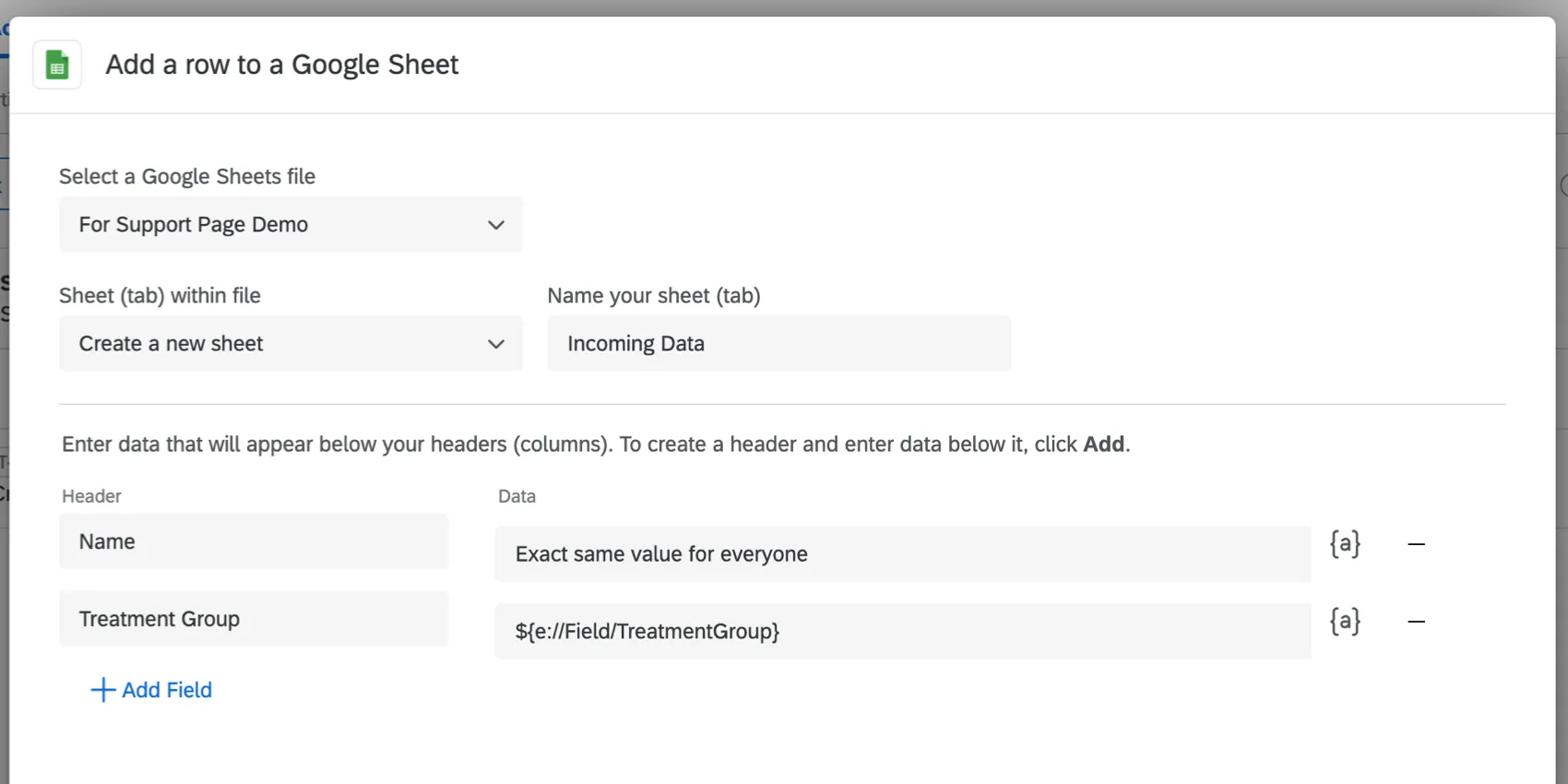
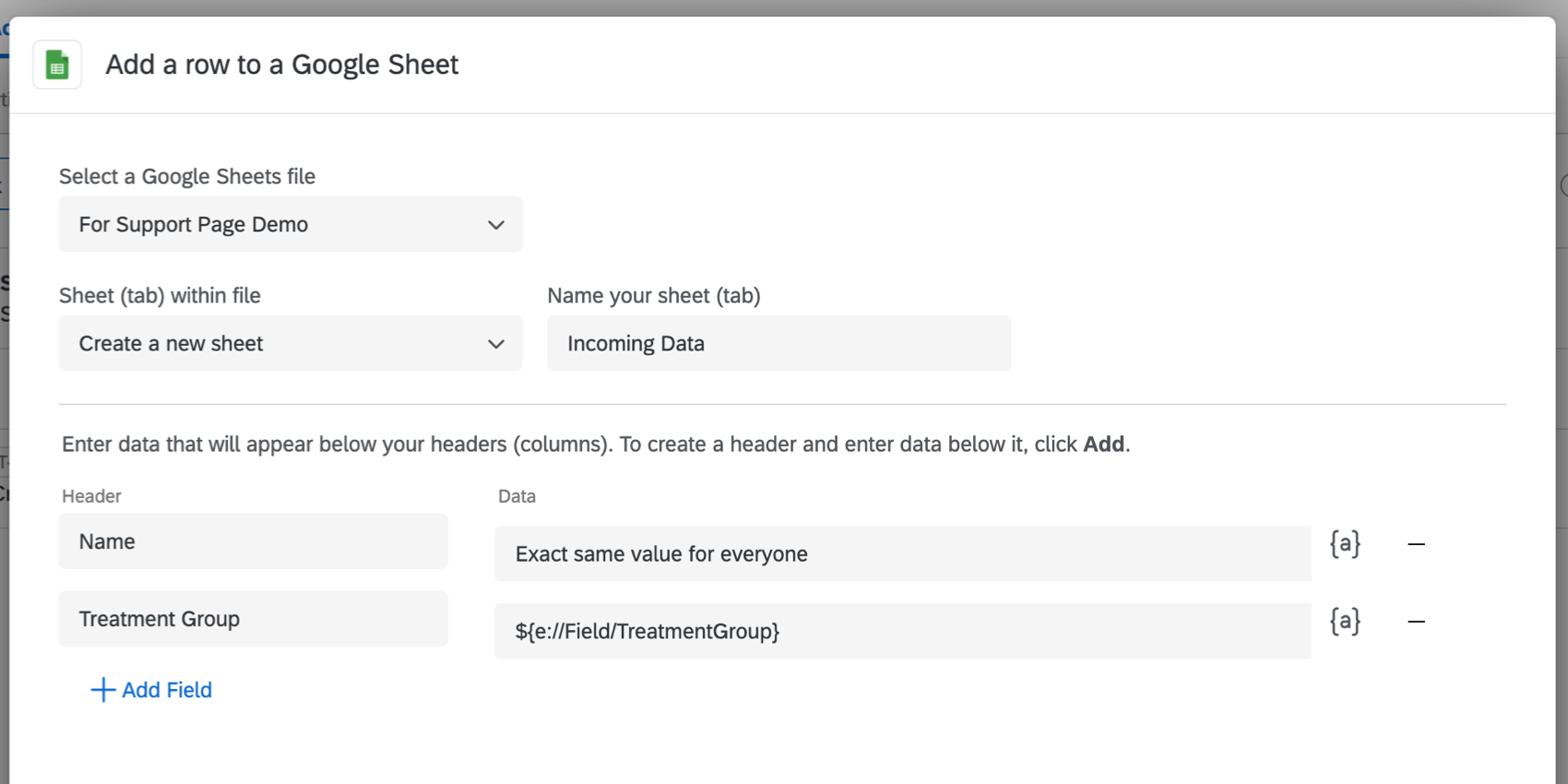
- You can type values in the fields instead of using piped text, but we don’t always recommend doing this, since that means every respondent will have the same value for that field. It could be useful if you are using conditions in your workflows to dynamically assign different values to different groups of respondents, but even then, it is often better to use logic and embedded data to assign values, and pipe that embedded data’s value into the Google Sheet; that way data is saved in the survey response and the Google Sheet, not just the Google Sheet. Example: In the image below, the field “Name” is an example of a field where everyone will get the exact same value, because information was typed into the field, instead of using piped text. “Treatment Group” will vary based on the embedded data that respondents have been assigned, because it is piped text for a given field.

FAQs
How can I tell the difference between first party and third party extensions? Where do I go for support for either kind?
How can I tell the difference between first party and third party extensions? Where do I go for support for either kind?
How do I add or remove an extension from my Qualtrics account?
How do I add or remove an extension from my Qualtrics account?
The survey response dates in this workflow aren't displaying in my time zone. Is that intended?
The survey response dates in this workflow aren't displaying in my time zone. Is that intended?
To capture the date in your time zone, you can always set an embedded data equal to today's date.
That's great! Thank you for your feedback!
Thank you for your feedback!