

Preview Survey
What's on this page
About Previewing Surveys
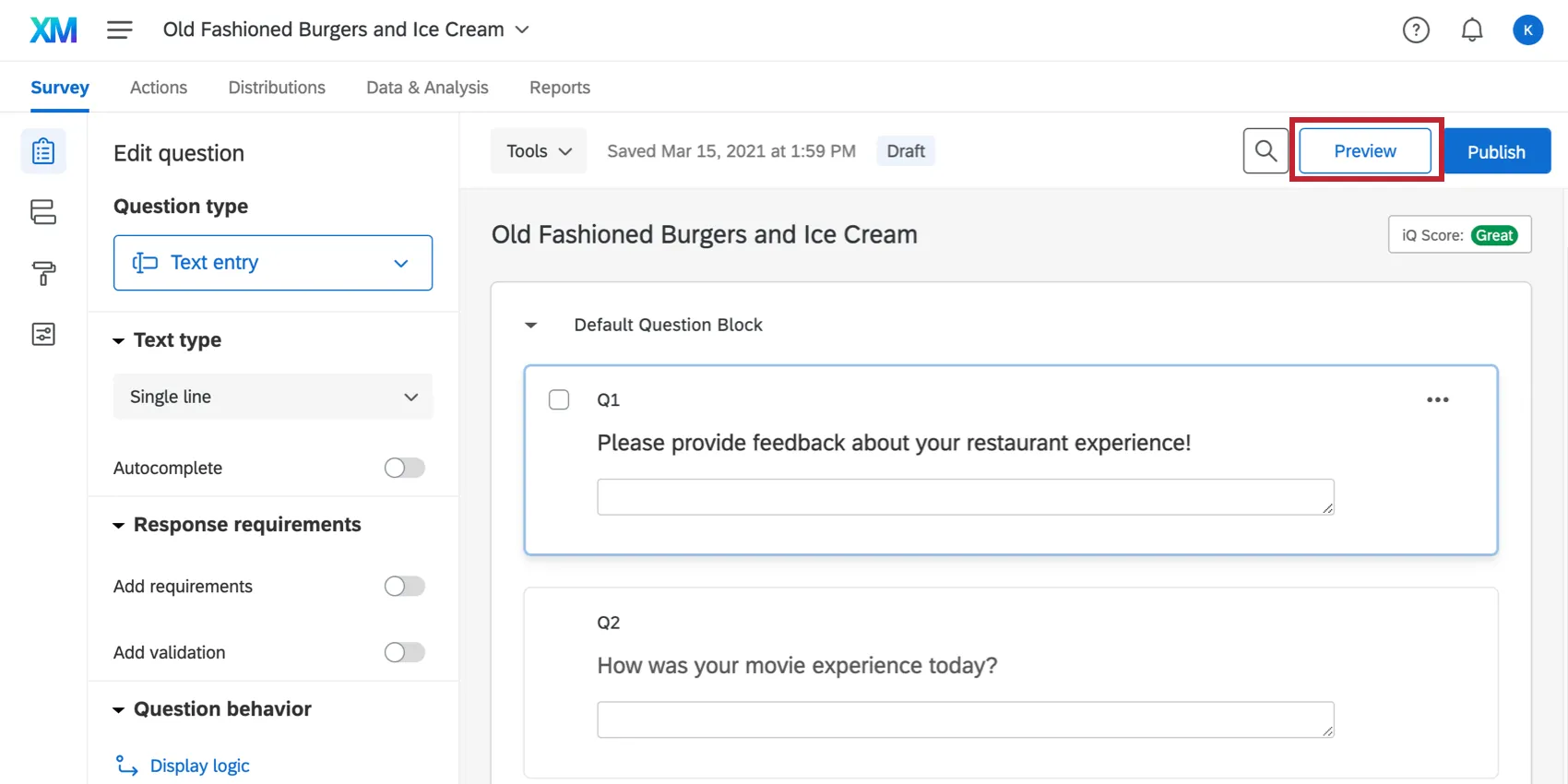
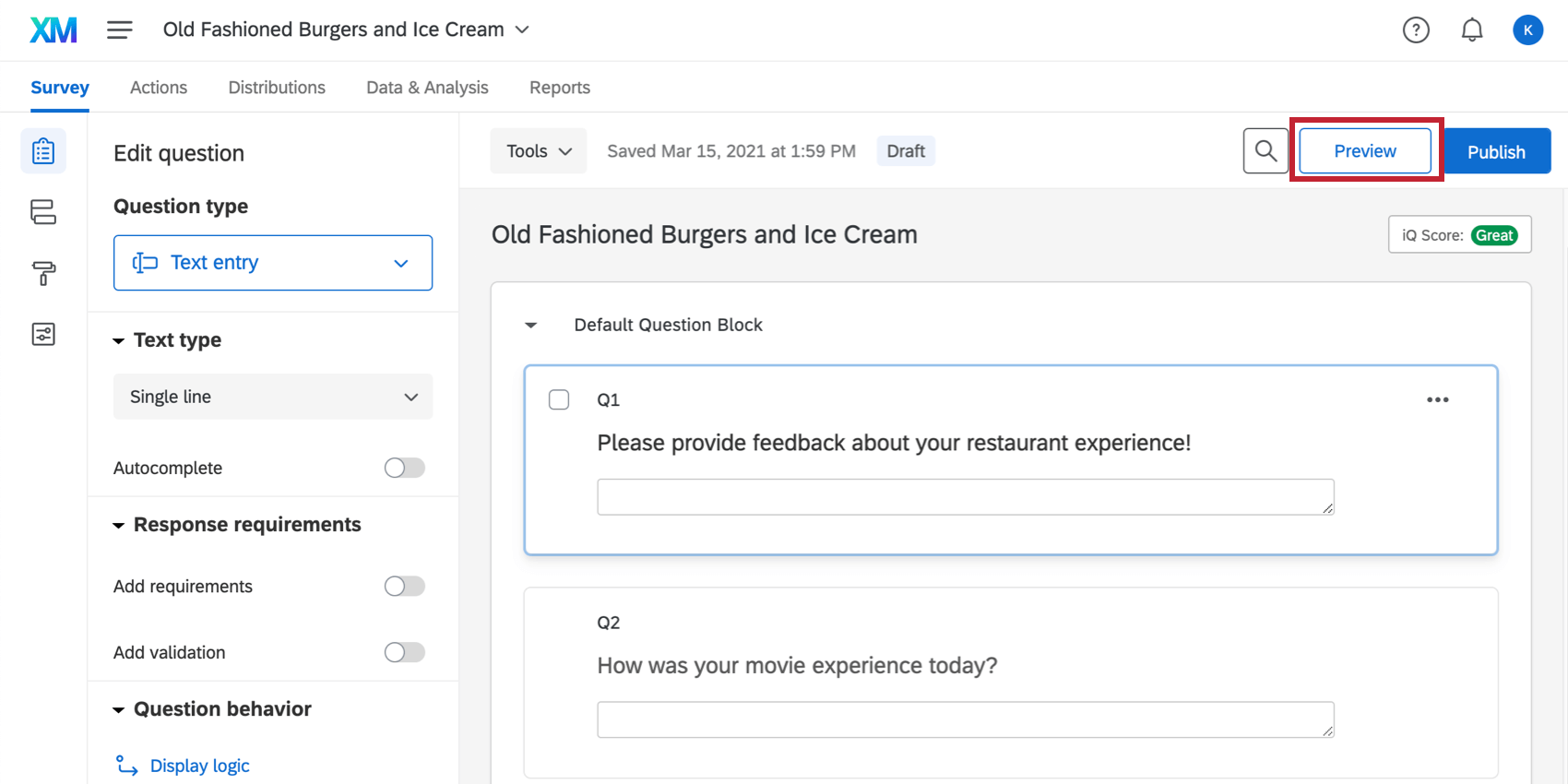
Once you have finished building your survey, you can preview it to ensure that everything is working the way you want by clicking Preview in the top-right of the Survey tab.
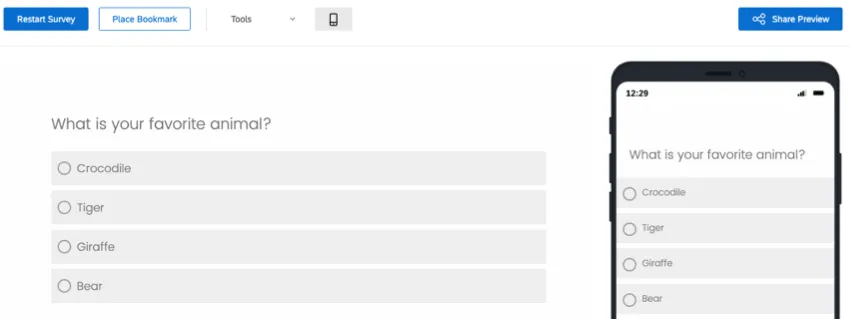
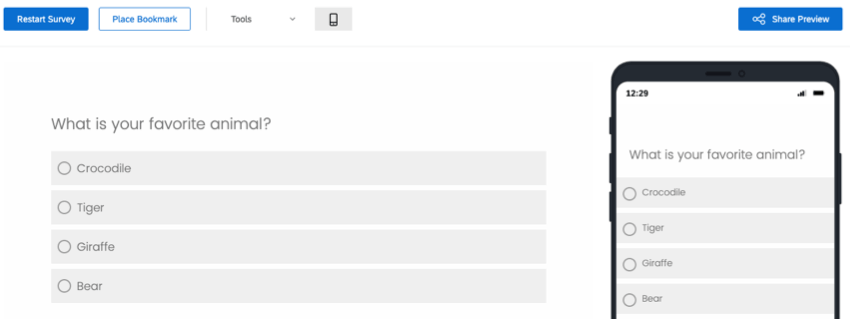
In the preview survey mode, you can answer questions and move through the survey the same way your respondents would with a real link. The survey will look exactly the same as in the real link, except you’ll have some additional options available at the top to help you test your survey; these options won’t appear in the real link.
Attention: Preview links should not be distributed to survey takers. The survey preview is for testing and survey building purposes only. However, if you would like another individual to preview the survey, you can share the preview link with them.

Attention: Preview survey works similarly to what’s described on this page in various Employee Experience projects, but there is a one key difference. Previewing an engagement, lifecycle, or ad hoc employee research project does not produce a response. When you fill out the preview link and submit a response, the response is not recorded.
Preview Banner
This banner will have options useful for previewing the survey. Remember, these options are only available within preview mode and will not be accessible with live links.
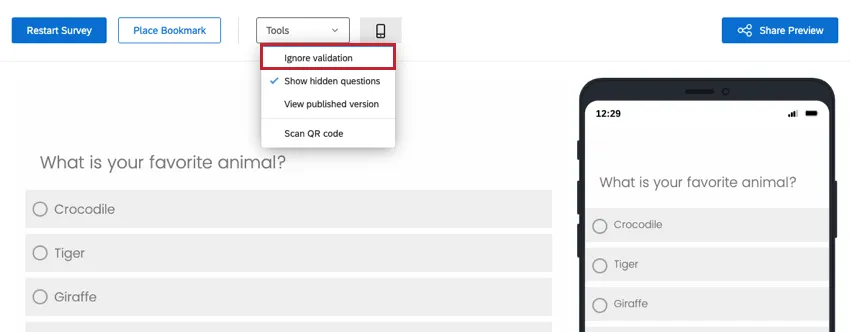
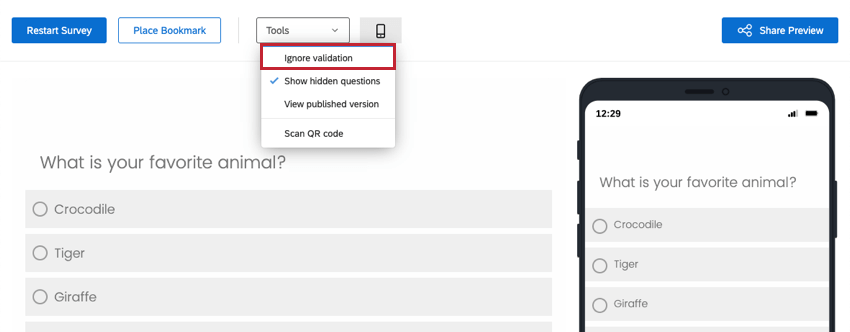
Ignore Validation
Ignore validation bypasses questions with answer validation, such as any character limits in Text Entry questions. This includes force response and custom validation. It also allows you to bypass non-SSO authenticators so that you can complete the survey without authenticating. This is helpful when you want to test a specific portion of your survey without having to answer every required question.
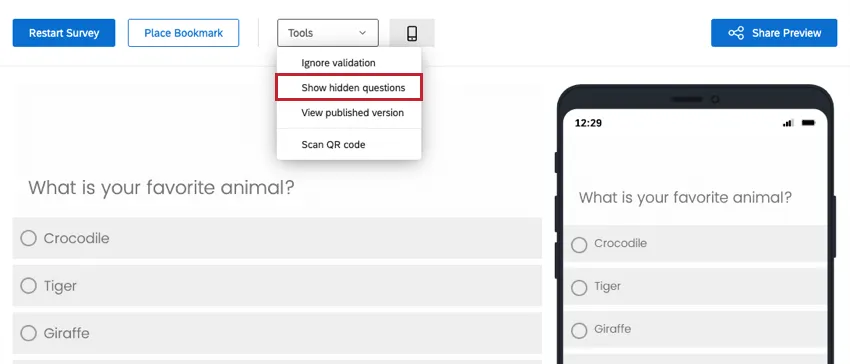
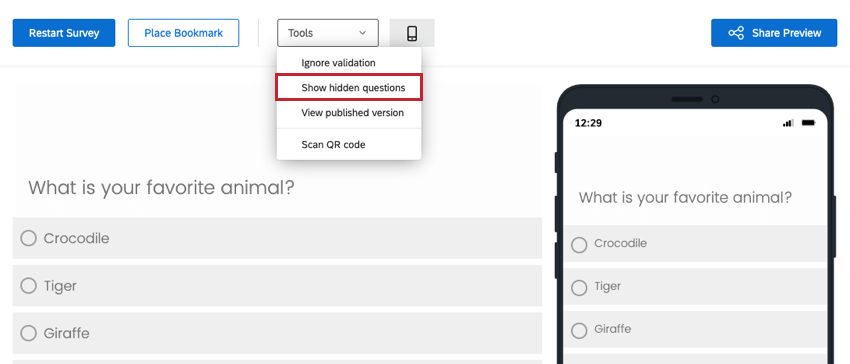
Show Hidden Questions
Show hidden questions lets you view questions that may be hidden to respondents, like timing and meta info questions. This option is enabled by default. Remember that this option only applies to the preview survey mode and that these questions will not be seen by respondents accessing a live link.
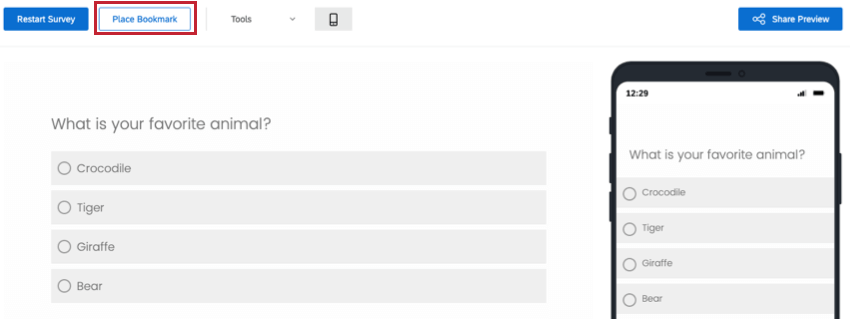
Place Bookmark
Attention: Response data saved in preview bookmarks are accessible to all survey takers with access to the preview link. Avoid using sensitive data in bookmarked responses.
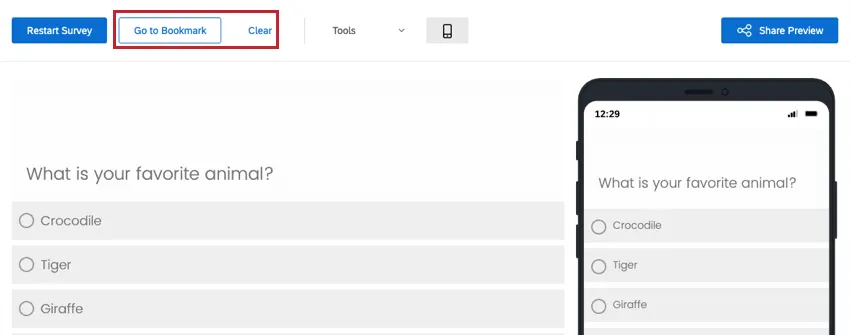
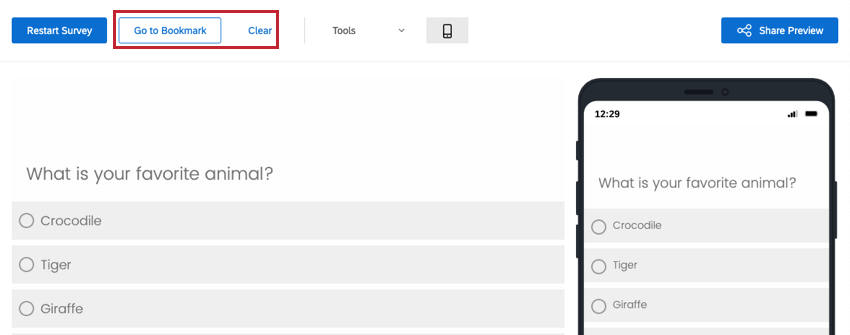
Place Bookmark tags any page you are currently on, letting you skip previously tested questions later. Note that after placing the bookmark, the Place Bookmark button will be replaced with a button that says, “Go to Bookmark.” The next time you start your preview survey, you can click Go to Bookmark and jump ahead to the bookmarked page.
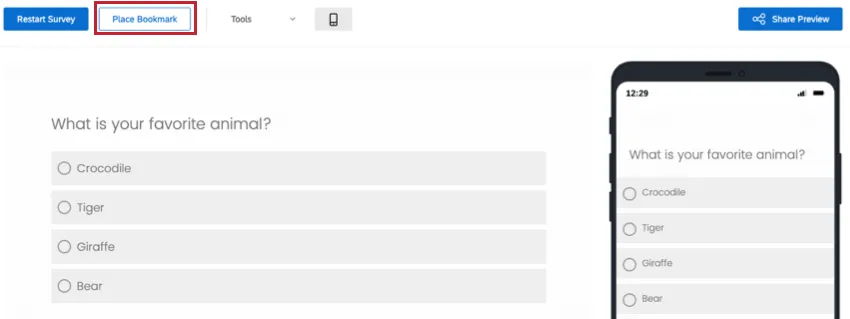
At any point, you can clear away the bookmark or place it somewhere else. Click the “Clear” button to clear your current bookmark and place a new one.
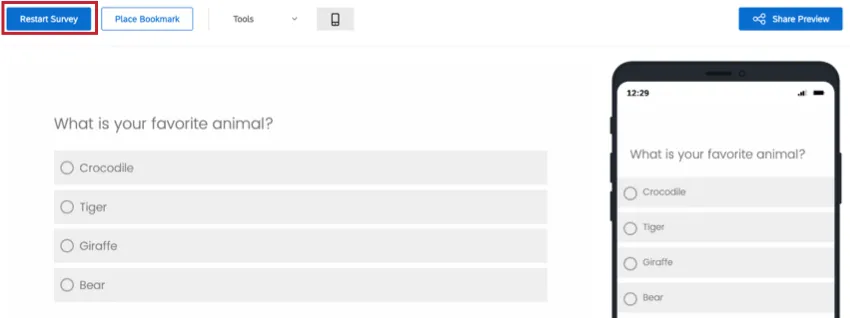
Restart Survey
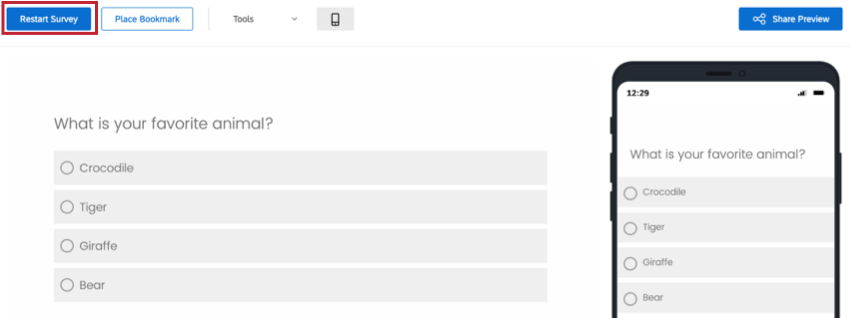
Restart Survey jumps back to the beginning of your preview.
Preview Responses
Preview responses are recorded in your data as a way to let you see what your response data might look like on the backend. These responses do not count toward your license total, and they will only be recorded if the entire survey is previewed and finished. Because of this, a preview can never be a response in progress.
Although these preview responses are flagged in your data and included in your results, the preview survey link is only for testing the survey and should not be used to record real data. For example, your participants could ignore validation, see hidden questions, save their answers for the next participant, or not have their incomplete response recorded.
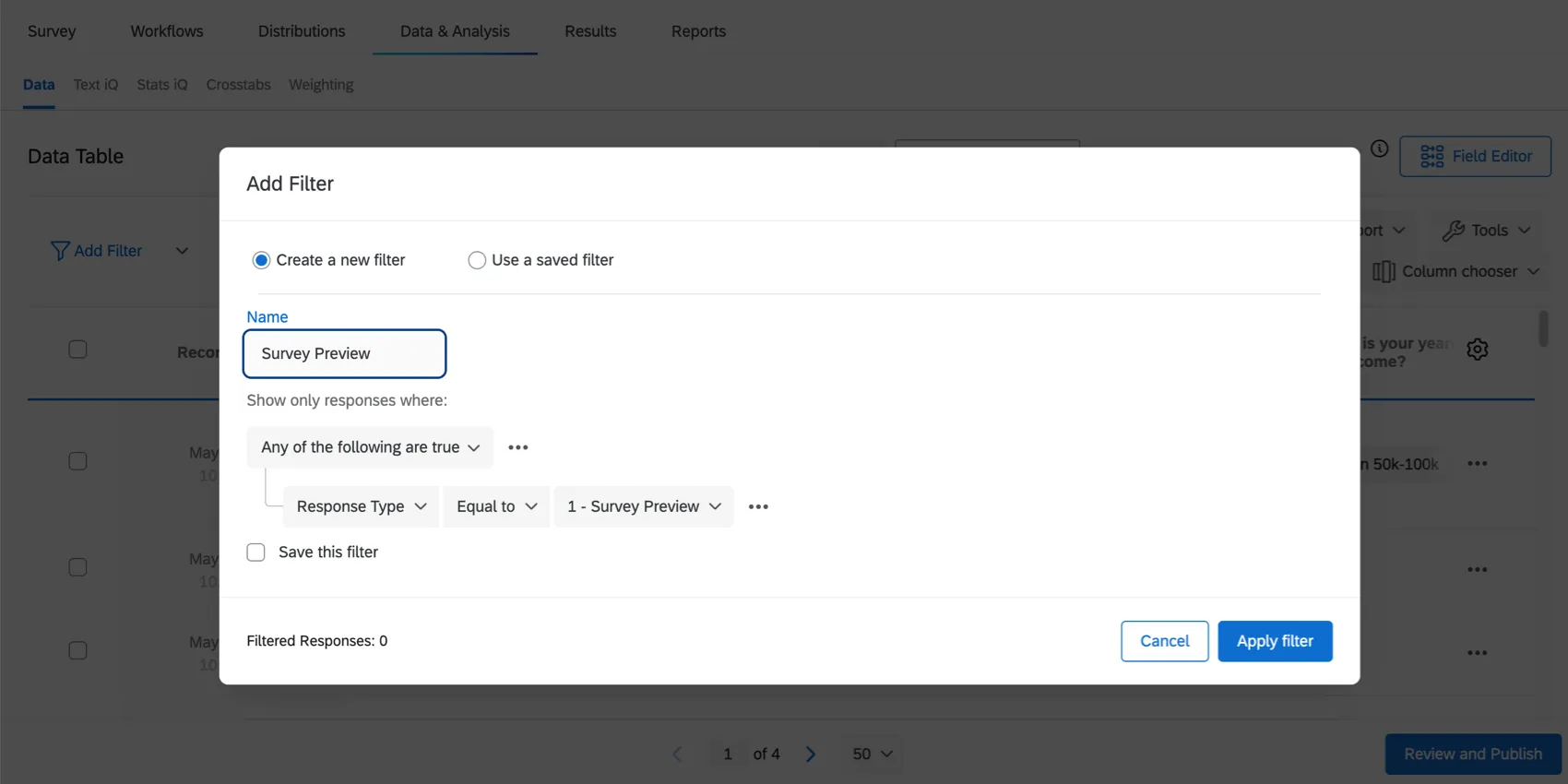
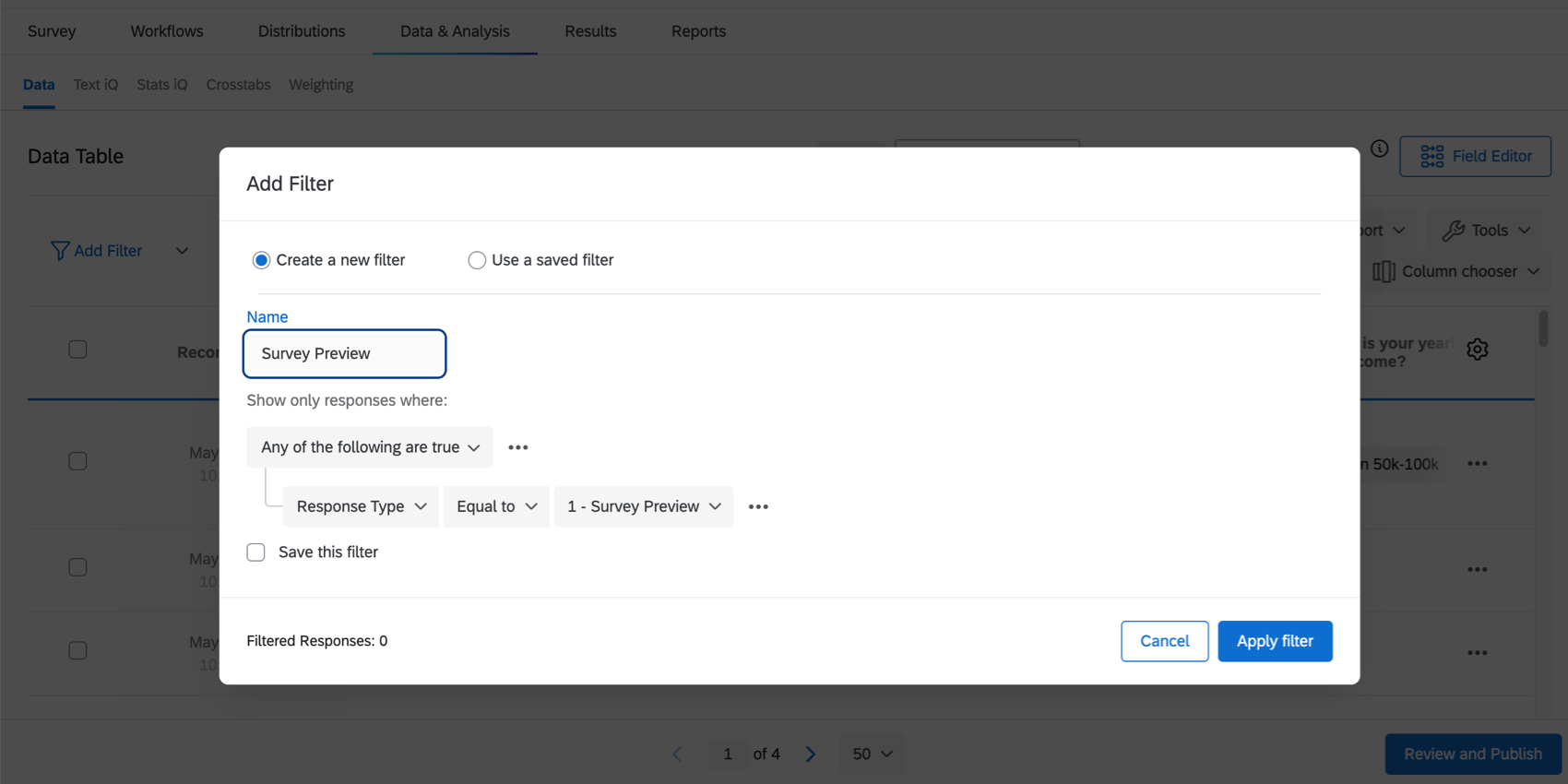
You can quickly delete all preview responses at one time by navigating to the Data section in the Data & Analysis tab, clicking Add Filter, filtering for the survey preview response type, and selecting all responses to delete.
Qtip: The preview email you can send yourself in the Distributions tab uses the preview survey link; be careful to not forward this link to your participants!
Attention: Preview responses will increment quota counts if they satisfy the conditions for the quota. You can manually modify quota counts to remove these preview responses from the count.
Mobile Preview
You can also preview how the survey will look on a mobile device from your desktop. This mobile representation is dynamic, and you can use it to move forward in the survey. You can hide or show the mobile preview by clicking the yellow mobile device icon in the upper-right corner.
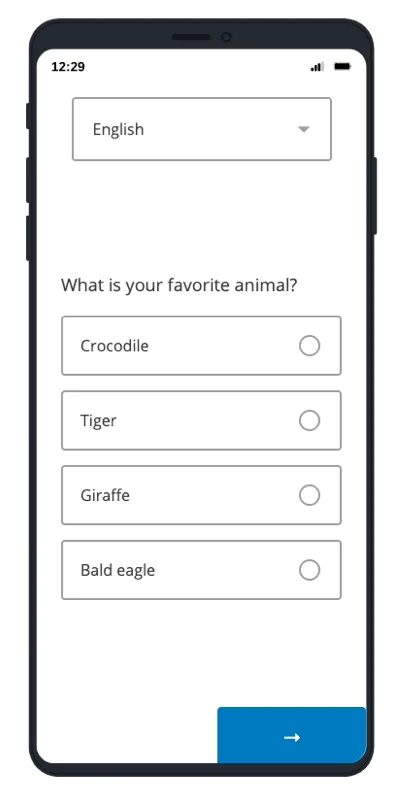
Qtip: This mobile preview shown on desktop is not device-specific. This means it will not work with device-based logic, even if it’s just set to “mobile” as opposed to a specific device. If you want to test mobile device logic, try accessing your preview link with one of the following:
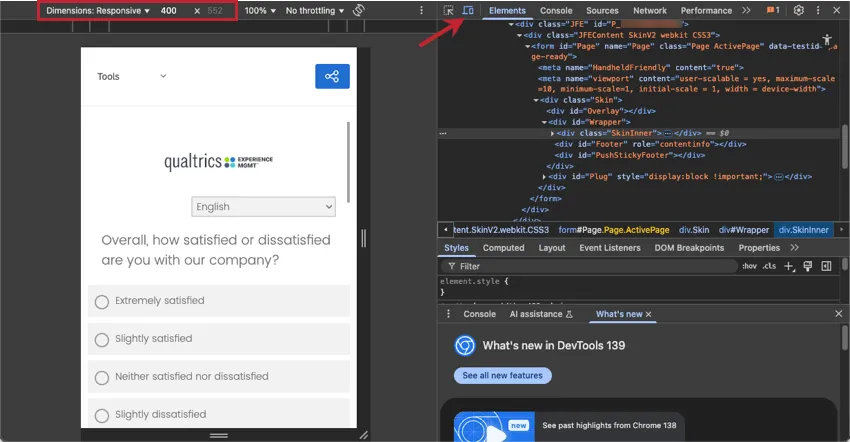
- See if your browser lets you test device and browser dimensions. For example, in Google Chrome, you can right click, select Inspect, and choose the desktop and mobile icon. You can then adjust dimensions you’d like to test. You may need to refresh your preview link after browser adjustments.
- Use your personal device. See steps below.
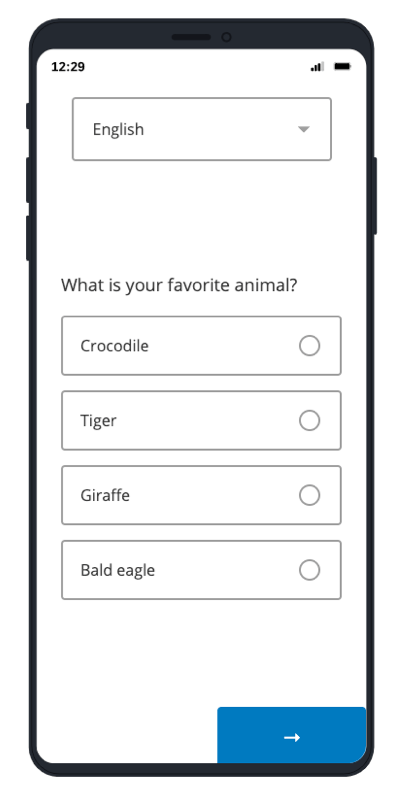
Previewing on a mobile device
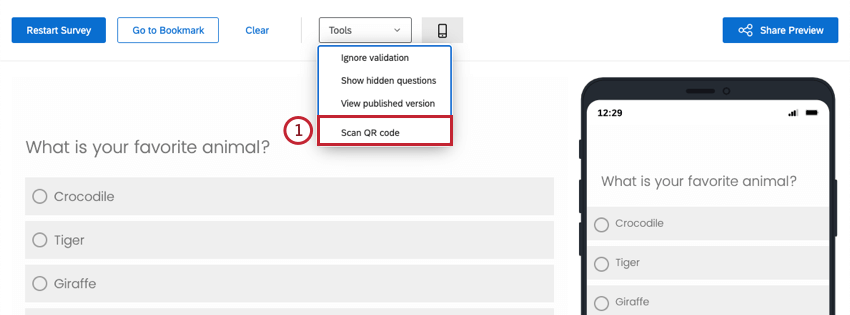
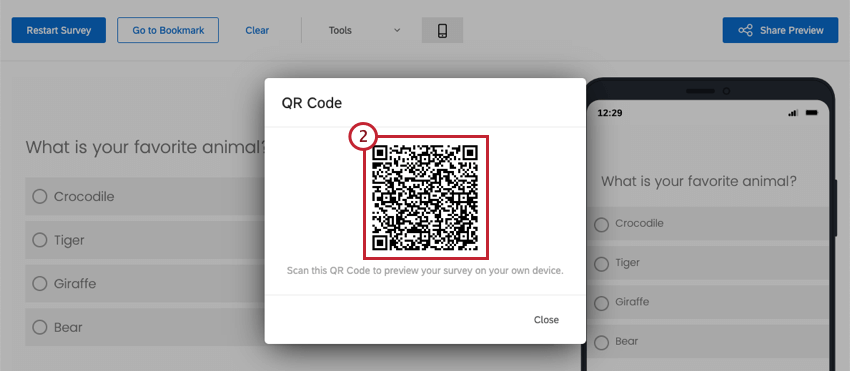
Qtip: For more information on mobile-friendly survey options, visit our Mobile Device Optimization page.
Share Preview
Attention: All new and existing surveys will have their preview links limited to Brand internal only by default. If the preview link is shared, users will be prompted to login to their Qualtrics account and will only be able to access the preview once they have successfully logged in.
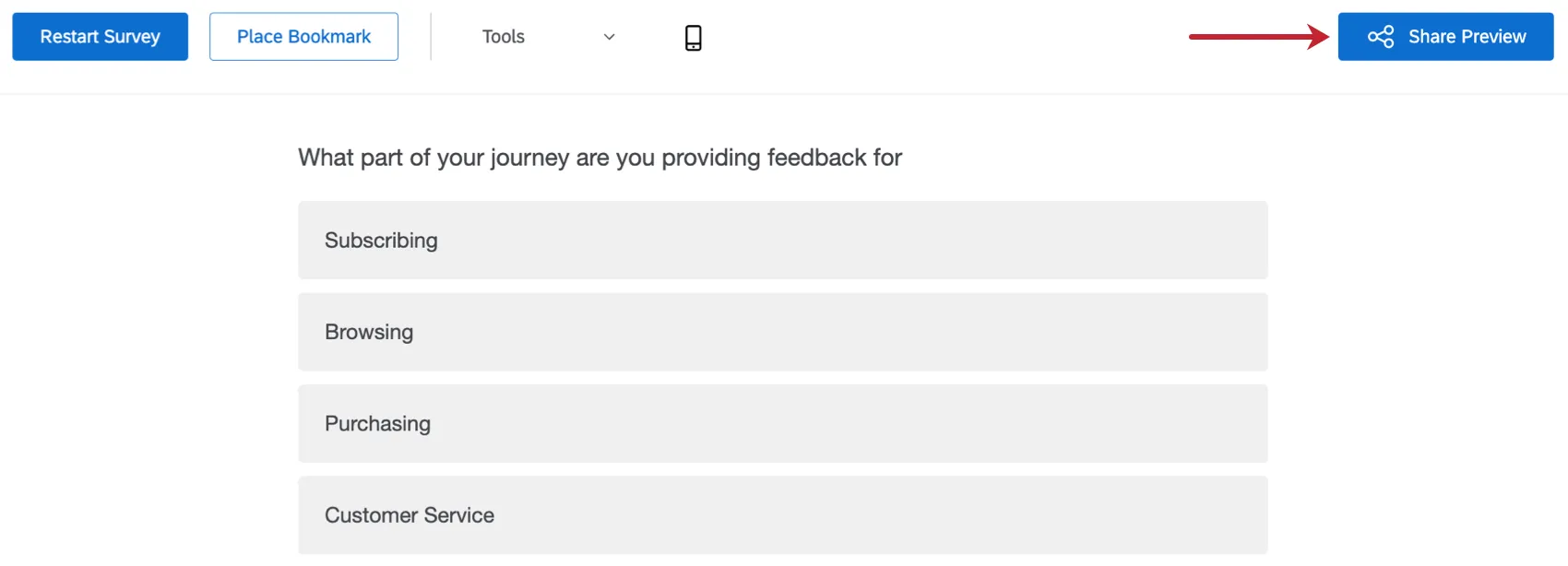
If you would like another individual to preview the survey, you can share your preview link by clicking the Share Preview button.
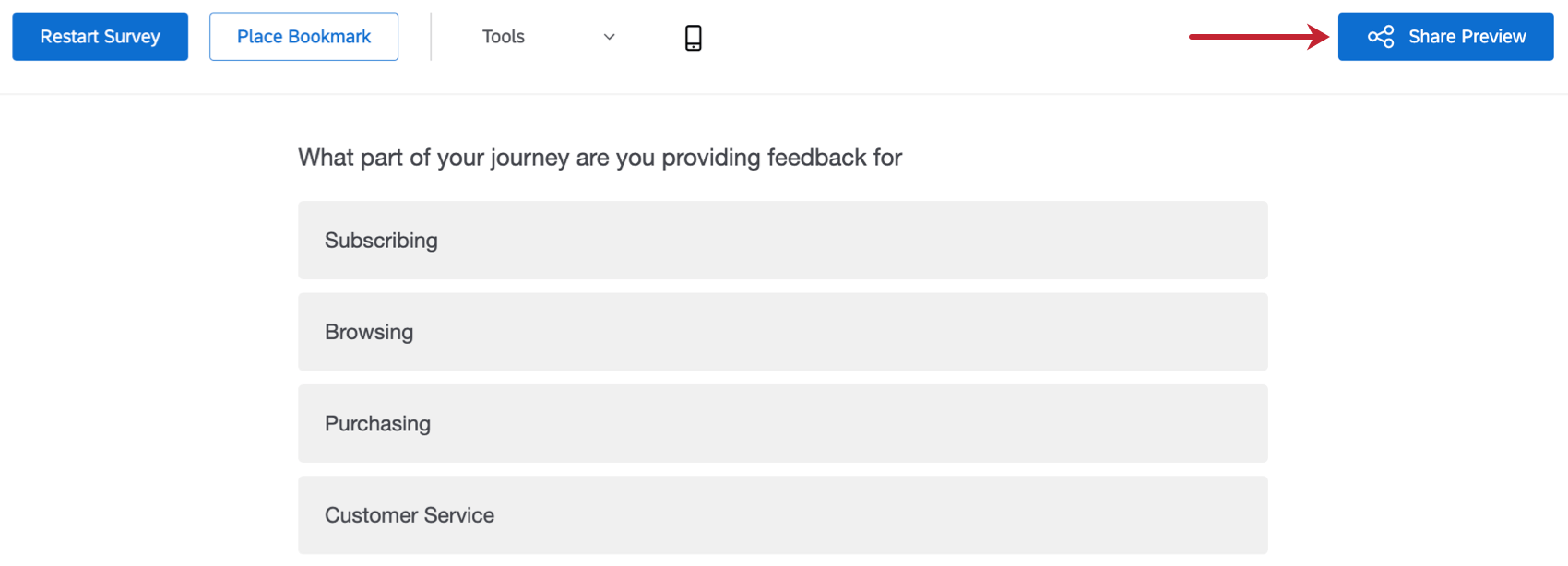
Use the dropdown to select if you want your preview link to be viewable by just people within your brand, or public for everyone that has the link.
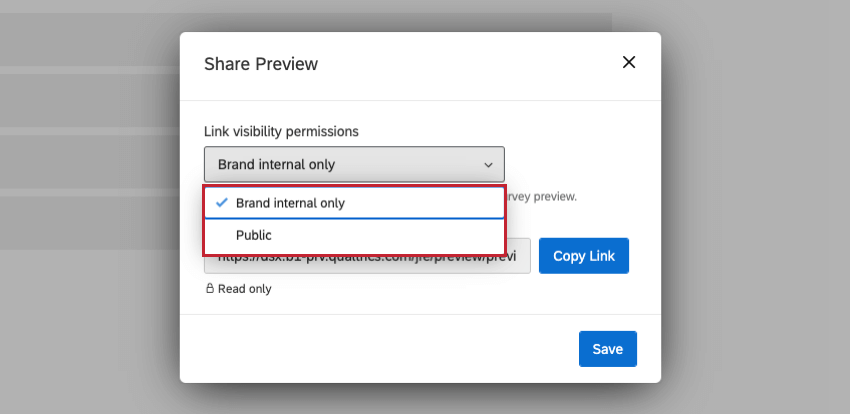
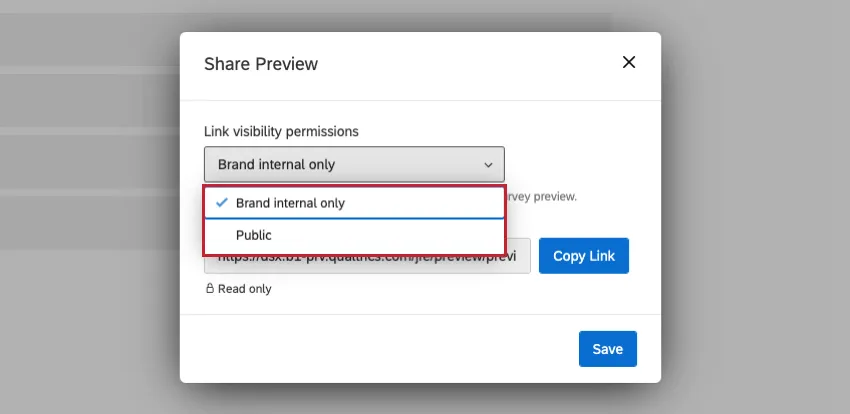
- Brand Internal Only: The preview link will only be viewable by people with accounts in your brand. Users will need to login to their Qualtrics account to preview the survey. This is selected by default for all surveys.
- Public: The preview link will be viewable to everyone that has the link. Qtip: Note that your associate doesn’t need to have a Qualtrics account to view the preview link and test out the survey.

Once you’ve selected your link visibility, you can copy the preview link to share with others.
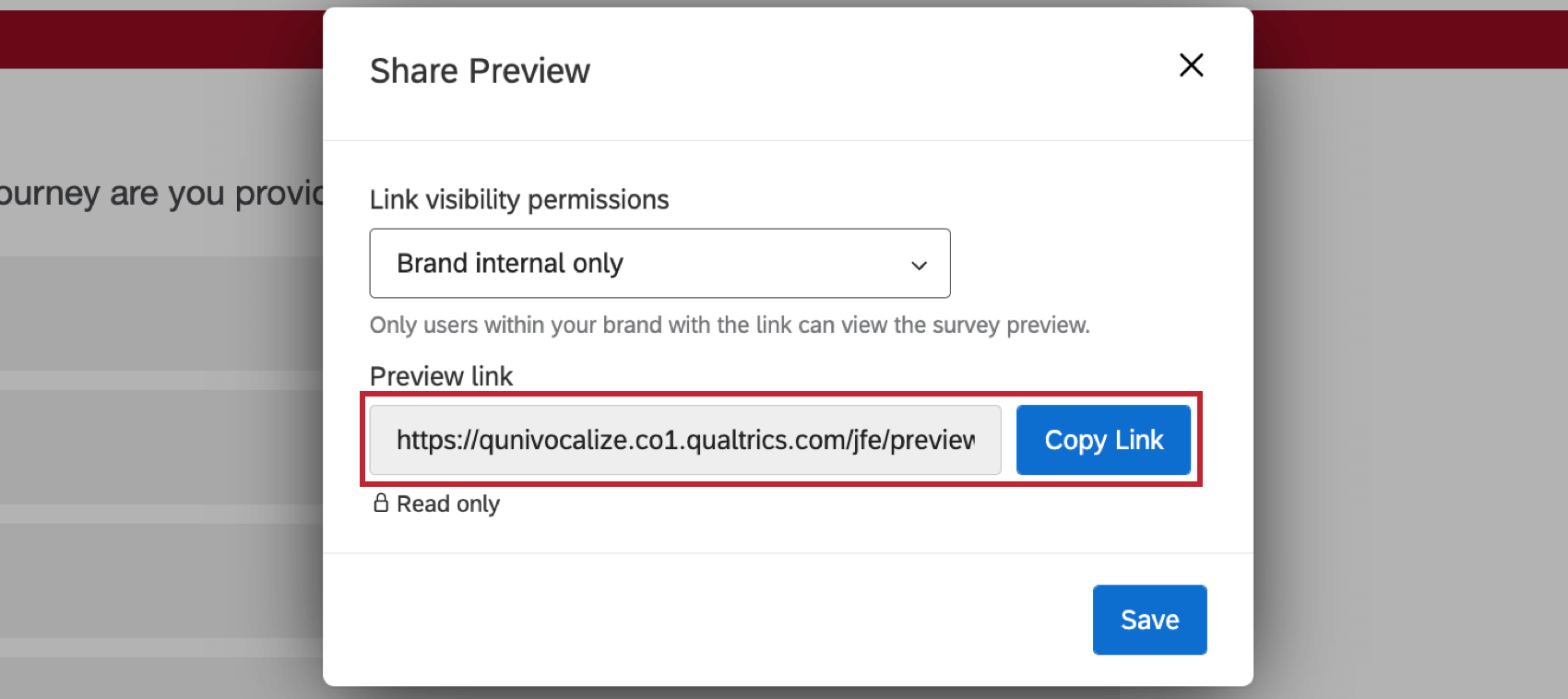
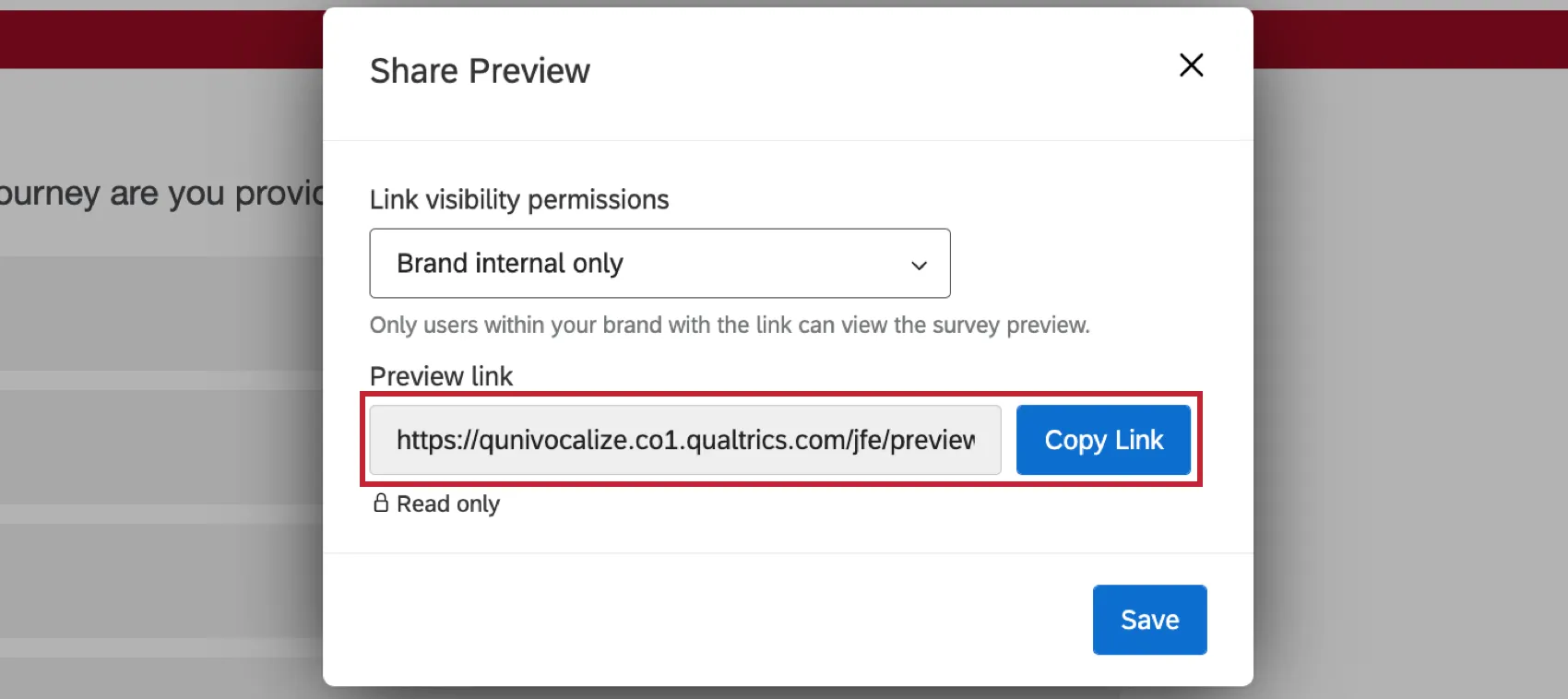
Click Save when you are done making changes.
Other Preview Modes
In addition to the preview survey, there are two other preview modes: block and question.
Qtip: We recommend previewing the entire survey in order to fully test skip and branch logic, piped text, and other interactive elements in your survey.
Block Preview
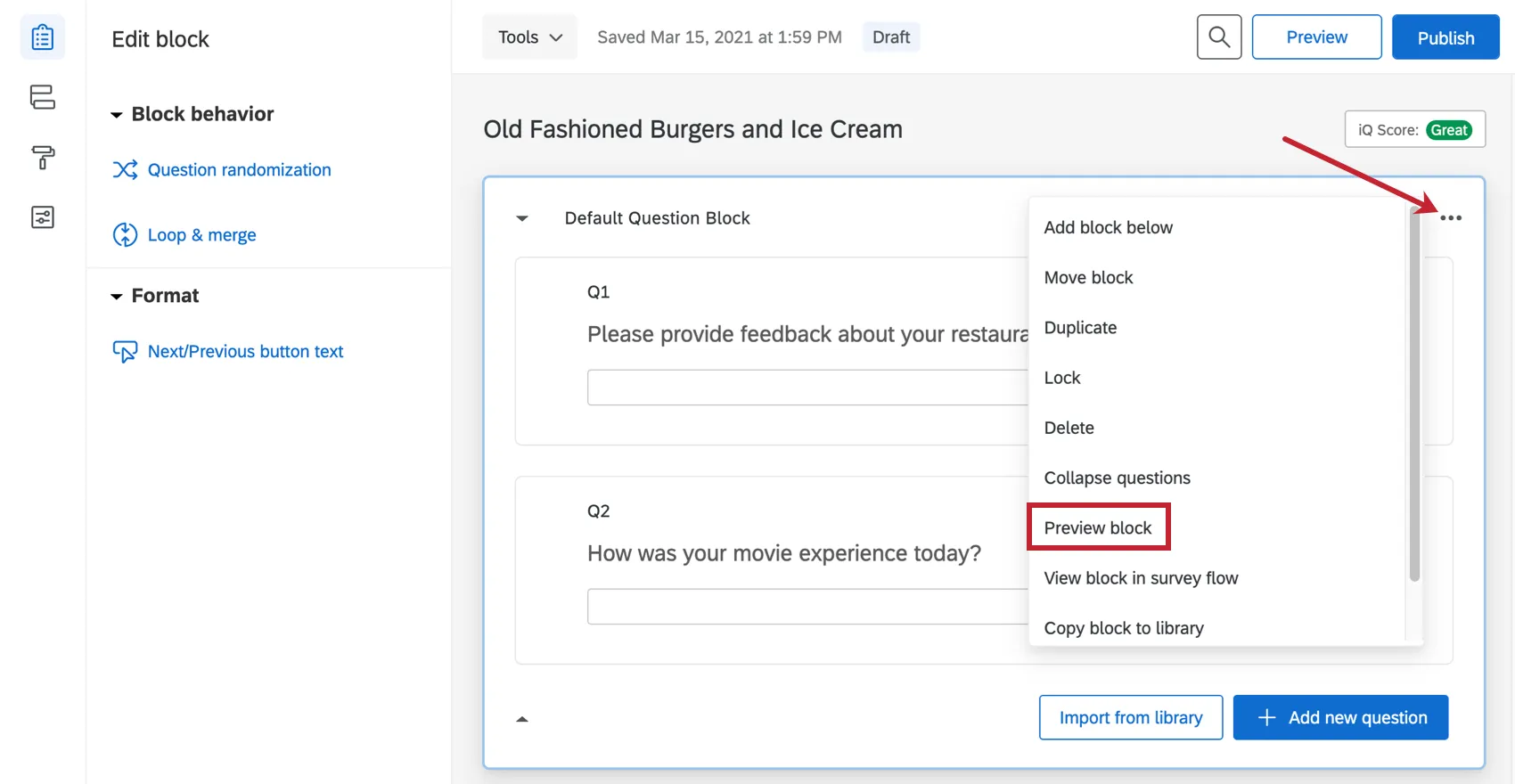
In some cases, you only need to preview a block of questions instead of the entire survey. In these instances, you can click on the block options in the top-right of each block and select Preview block from the menu.
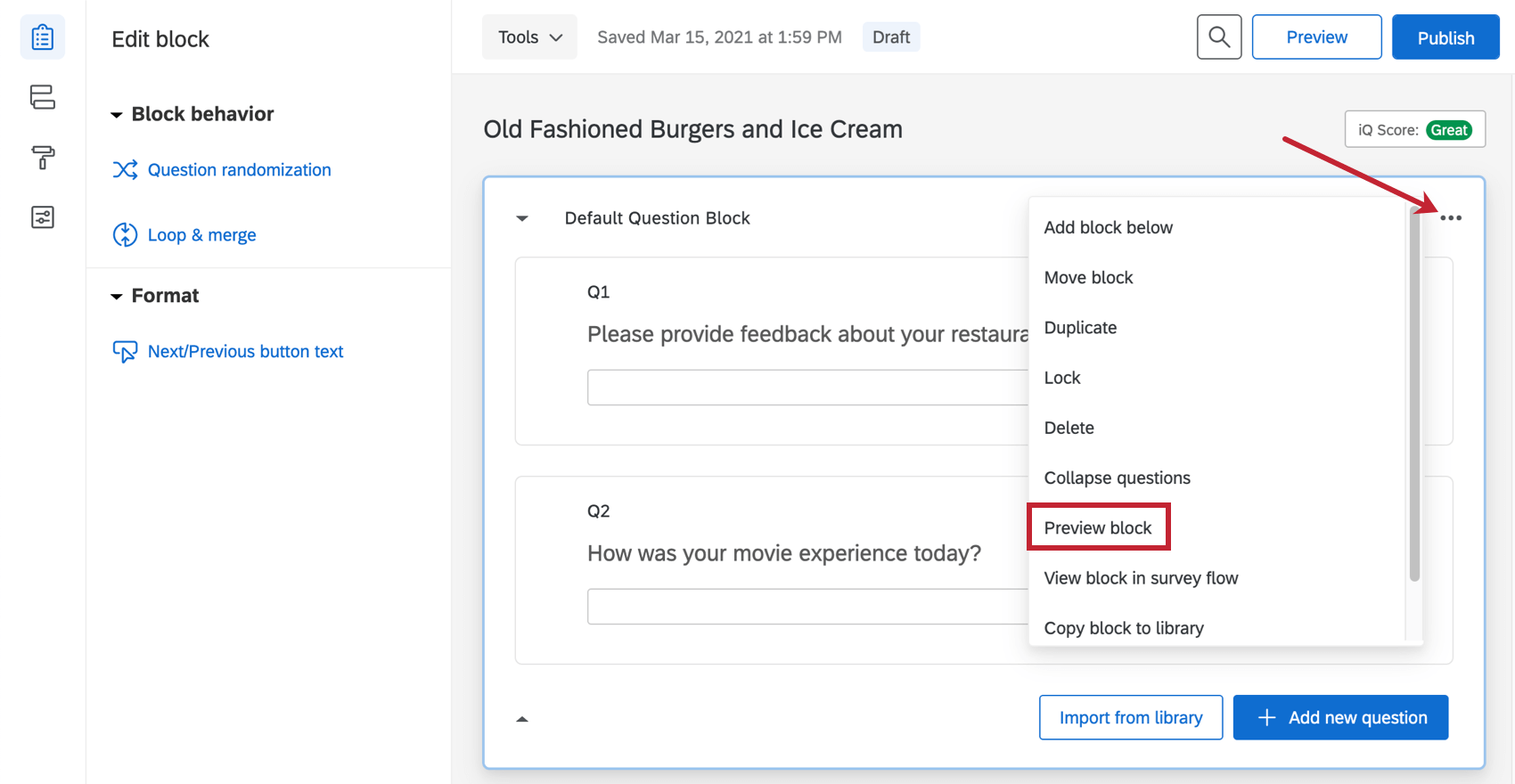
Qtip: Note that you will be unable to test any survey flow elements with this method since survey flow elements appear before or after a block, not within.
Question Preview
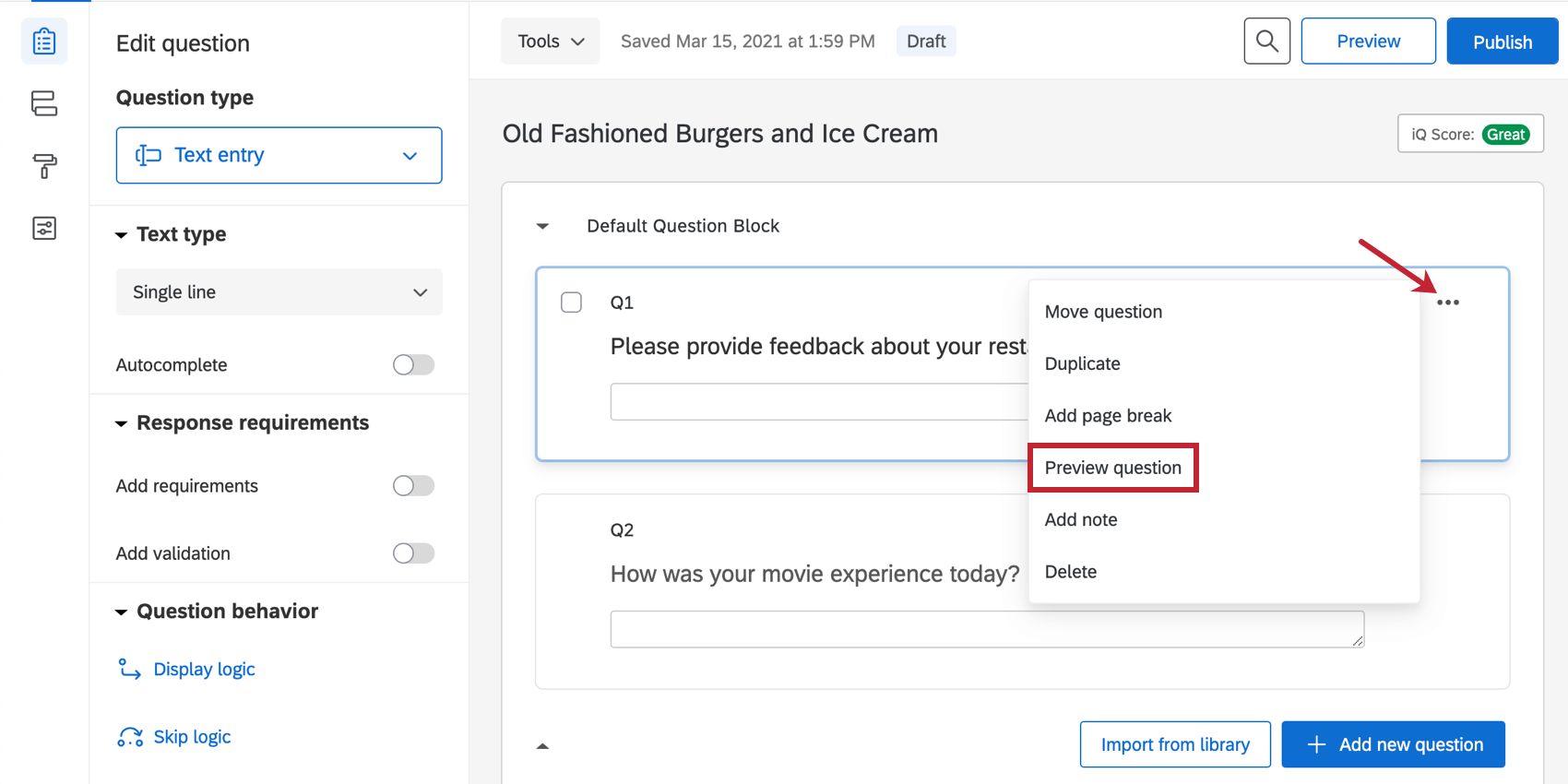
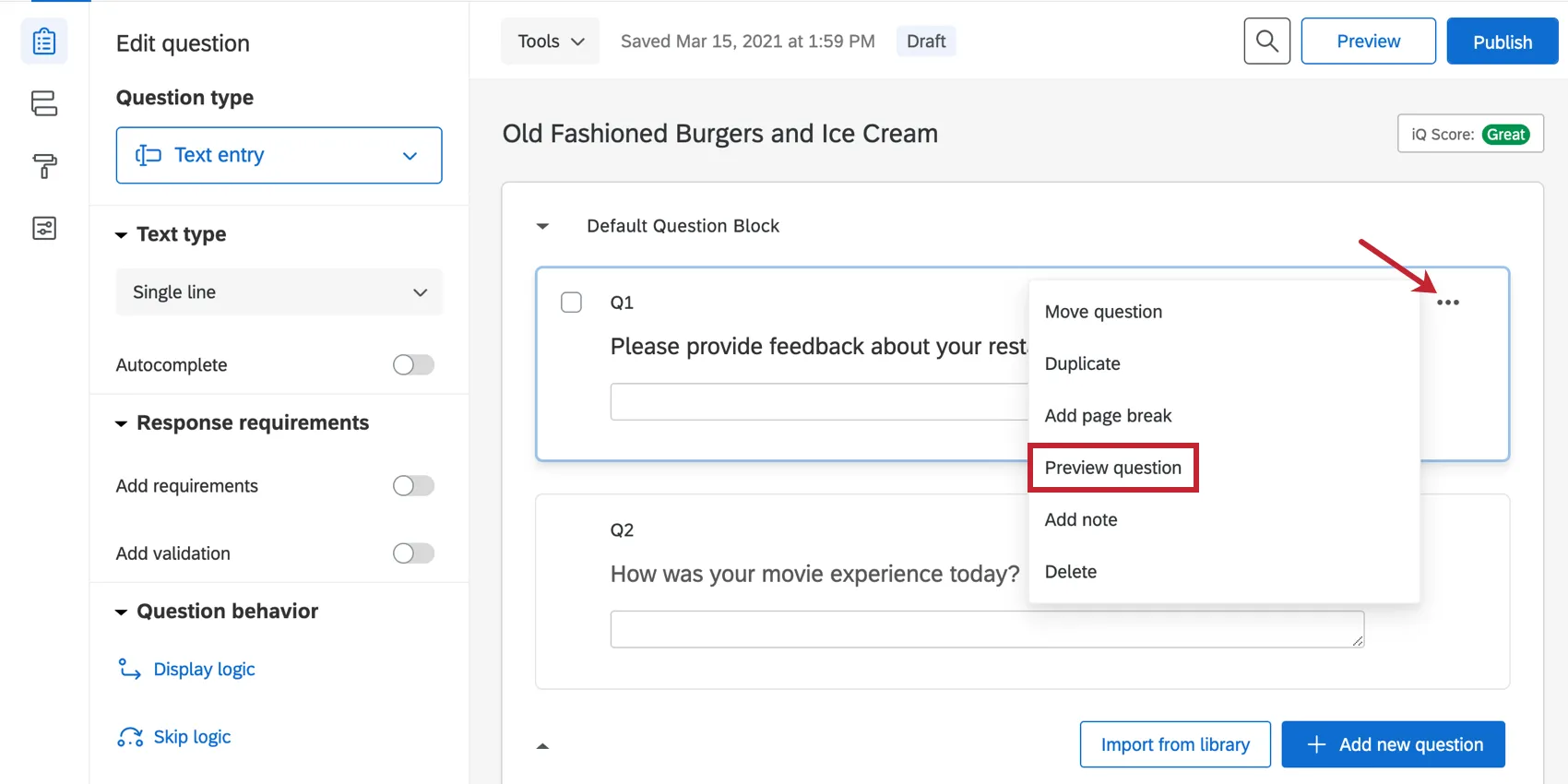
You can preview a single question instead of the whole block or survey by clicking on the dots in the upper-right of a question and clicking Preview question.
Previewing/Testing Your Survey with Embedded Data
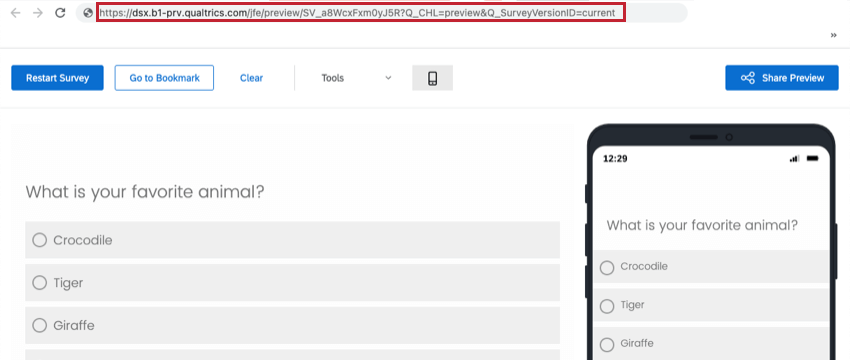
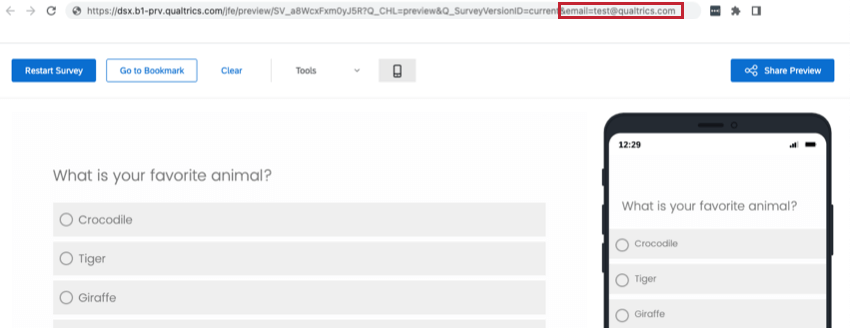
If you have added a lot of embedded data to your survey and also have logic that depends on the values of these embedded data fields, you may find testing/previewing your survey difficult. However, you can always test your survey by adding these embedded data values as query strings to the end of the preview survey link.
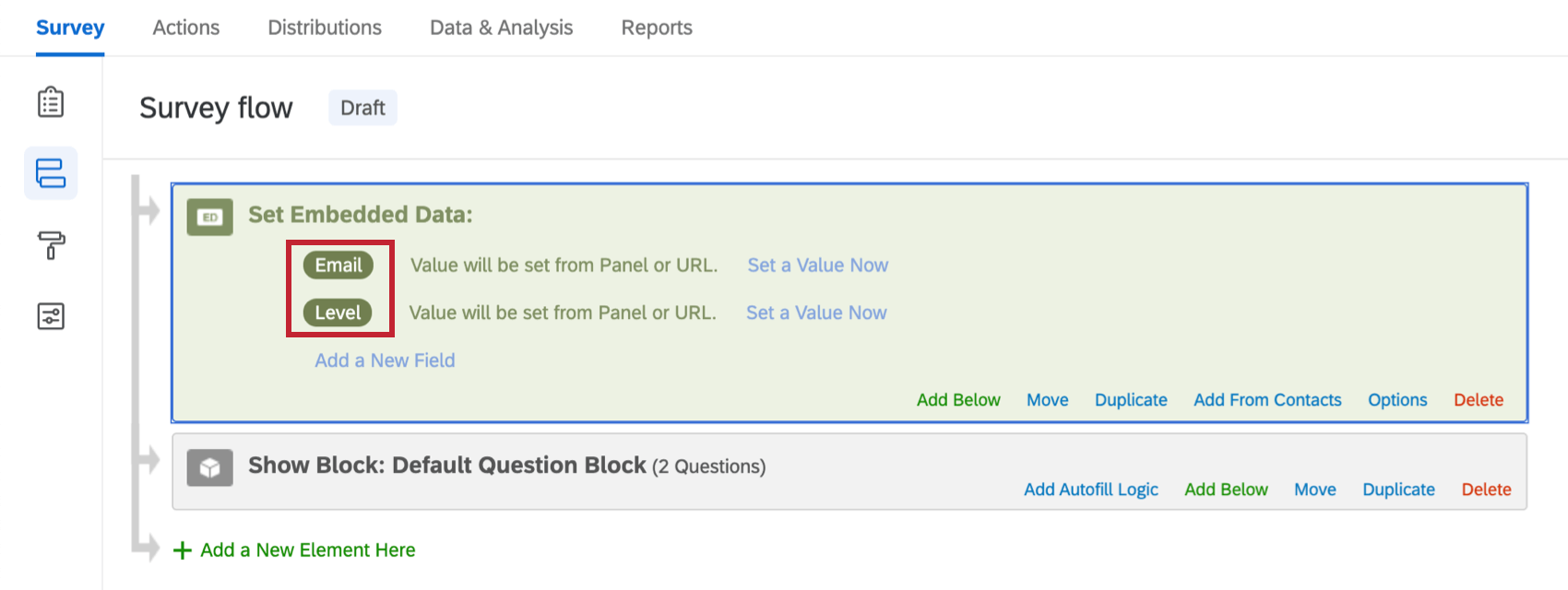
When you have embedded dataset in your survey flow that says “Value will be set from Panel or URL,” this means that your survey will look to one of two places to find this value: either from a contact list (i.e., Panel) or from the URL. Most likely you were planning on using individual links that are connected to an individual in your contact list so that the embedded data values are populated automatically when that person takes your survey. However, preview survey links are not connected to a contact list, so this means you will have to add test embedded data values as query strings to the end of the preview survey link in order to completely test your survey.
In the example below, there are two embedded data fields whose values would normally be pulled from a contact list. Therefore, you would want to add these two fields as query strings to your preview survey link.
QR Code is a registered trademark of DENSO WAVE INCORPORATED.
Previewing Different Project Types
Many different types of projects let you preview your survey before you publish it. The options described on this page are available in:
For 360 projects, see Preview Survey (360).
FAQs
How do I delete my preview responses or test responses?
How do I delete my preview responses or test responses?
Note that “Survey Tests” refers to fake data generated by the Generate Test Responses feature and does not refer to surveys submitted during live testing.
How do I test my survey before sending it out?
How do I test my survey before sending it out?
To learn more, visit our page on Testing and Editing an Active Survey.
That's great! Thank you for your feedback!
Thank you for your feedback!