

Creating & Managing Multiple Directories
What's on this page
Attention: This page is about a feature that is not included with XM Directory by default. If you do not have the ability to create multiple directories and would like to purchase access, contact your Account Executive.

About Multiple Directories
XM Directory allows you to have multiple directories at a time. This is helpful for situations where you need to create separate groups of contacts with different directory-wide settings.
Example: You want to save employee contacts and customer contacts in separate directories. Since external emails must follow stricter laws and regulations than internal company emails, this allows you to apply GDPR-compliant contact frequency rules and/or any other local data protection regulations for your customers. On the other side, you can set employees to automatically merge duplicates based on employee ID (set as External Data Reference), a field that cannot be used to deduplicate customers, who have no such IDs.

Only Brand Administrators are able to create and manage multiple directories.
Qtip: If you are not using roles, all Qualtrics users in your license will have access to all directories. While standard users do not have access to the Directory Contacts, Directory Settings, or Automations tabs, they can upload mailing lists to and distribute from any directory in the brand.

Creating Multiple Directories
Qtip: You can create up to 5 directories by default.
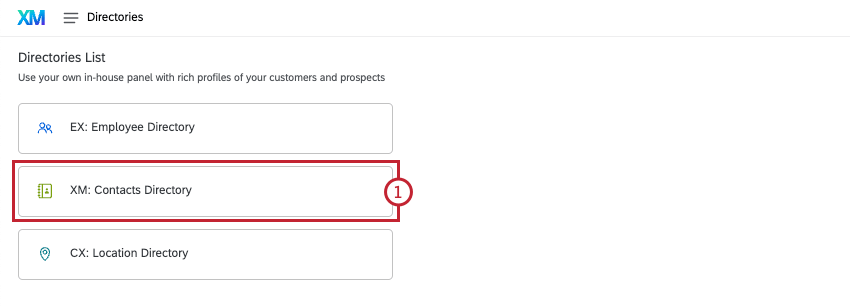
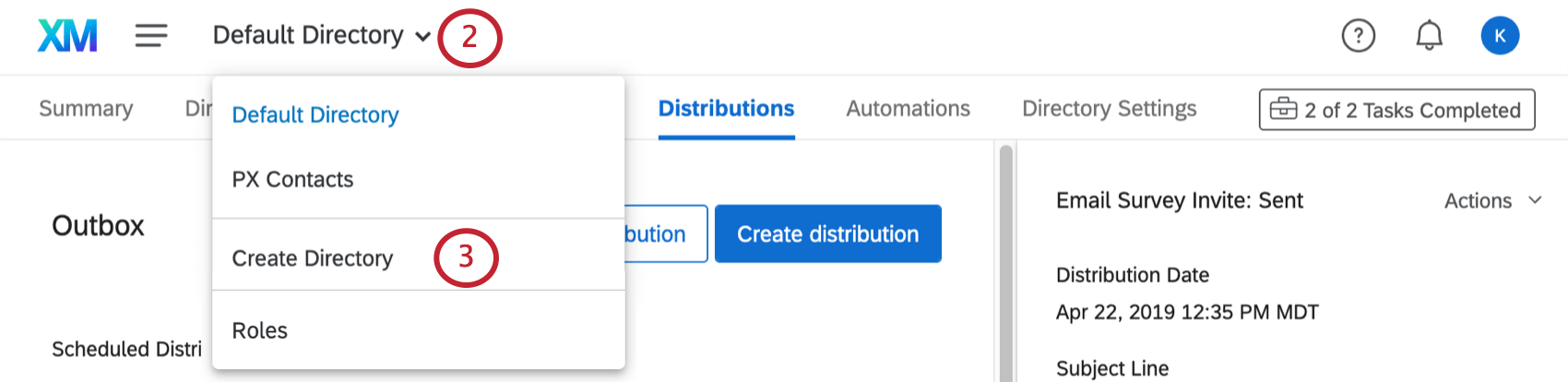
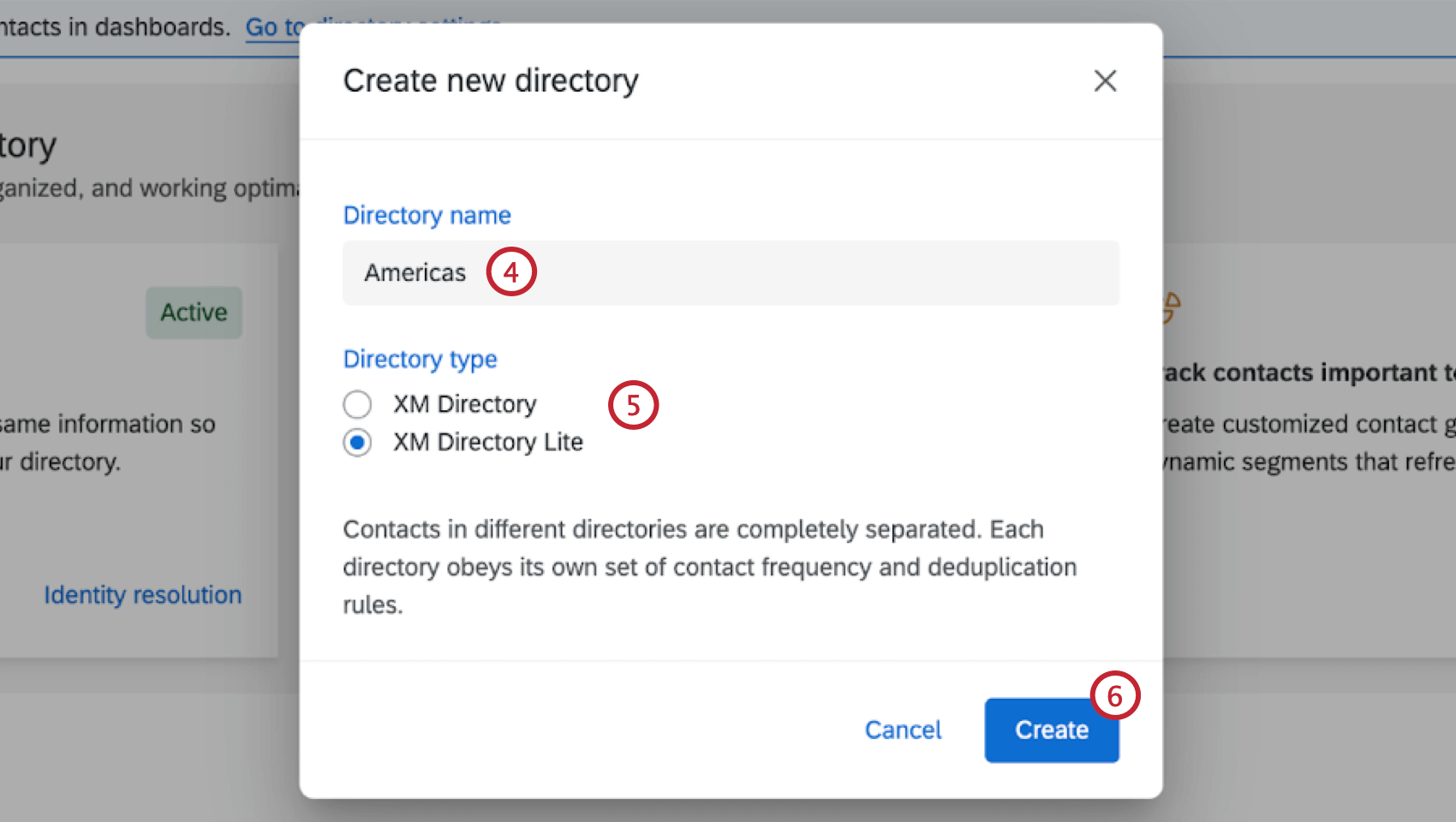
- XM Directory: An organization-wide directory with rich profiles of your contacts. Contacts in the directory can be viewed by anyone with directory access. With this type of directory, you can create contact frequency rules, build dynamic segments, merge duplicate contacts, and more.
- XM Directory Lite: A decentralized directory made up of mailing lists. Contacts can only be viewed by users who created the mailing list they are in or who have had access shared with them. With this type of directory, contacts in each list are completely separate from contacts in other lists.
Qtip: Once created, XM Directory Lite directories will have a Lite flag to distinguish them.

Determining Which Users Have Access to Each Directory
You can determine which users have access to each directory in your license. You can even determine whether or not this directory access should be admin-level, allowing certain users to manage the directory’s settings.
To learn more, see our XM Directory Roles support page.
Editing Different Directories
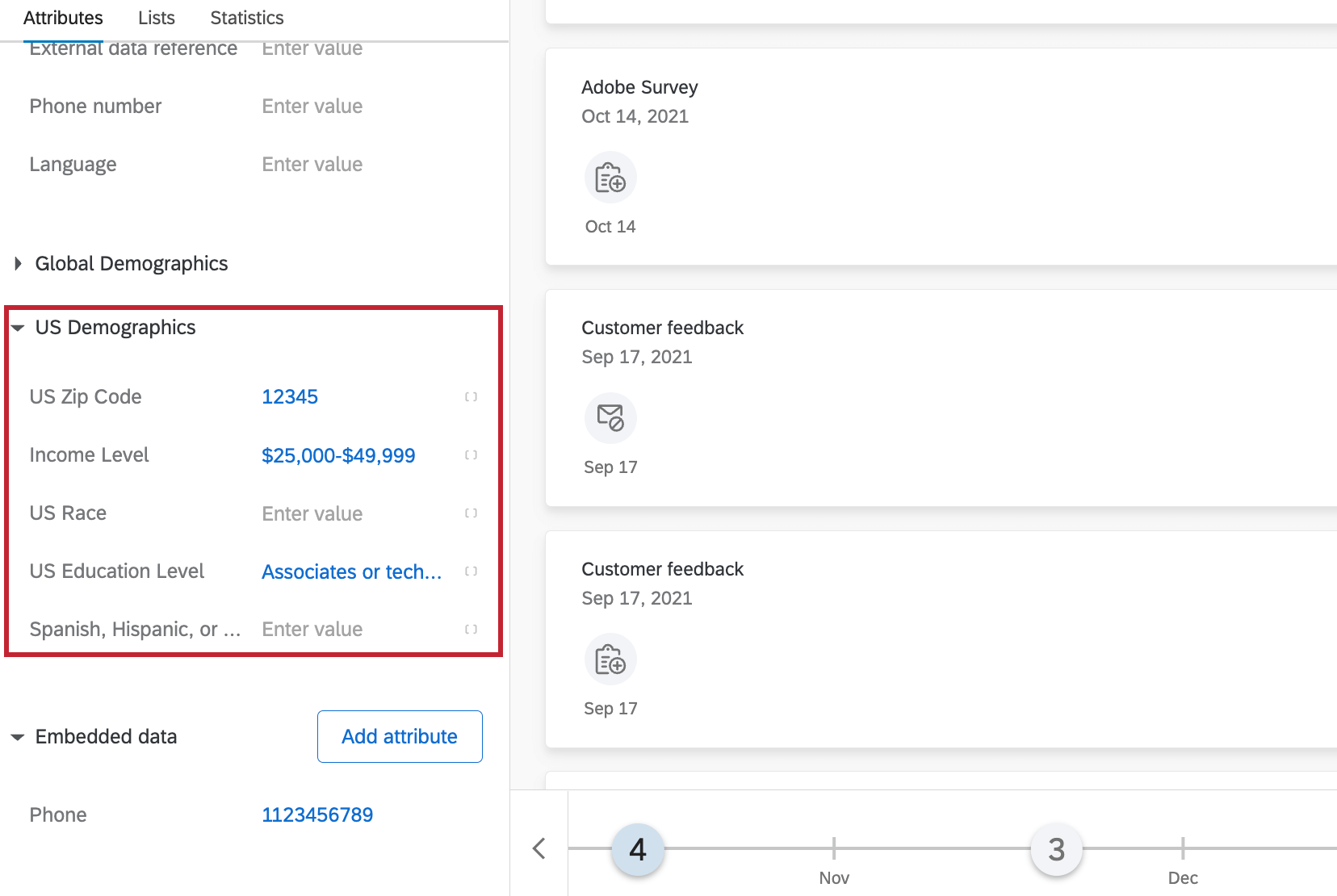
You can navigate between directories using the directory dropdown menu at the top of the page.
Qtip: The default directory will be the first directory listed in the dropdown menu.
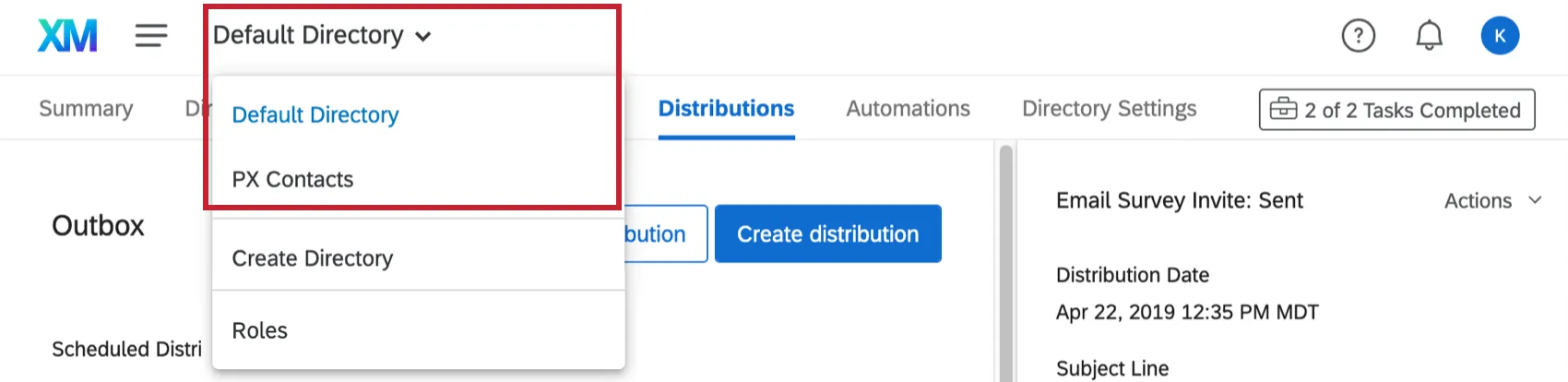
Once inside a directory, you can make edits in each of the tabs just as you normally would. However, when editing one directory, you have absolutely no effect on the others. This means contacts and mailing lists uploaded in one directory only exist in that directory, and directory settings, such as contact frequency rules or duplicate contact consolidation, are unique to each directory.
Renaming a Directory
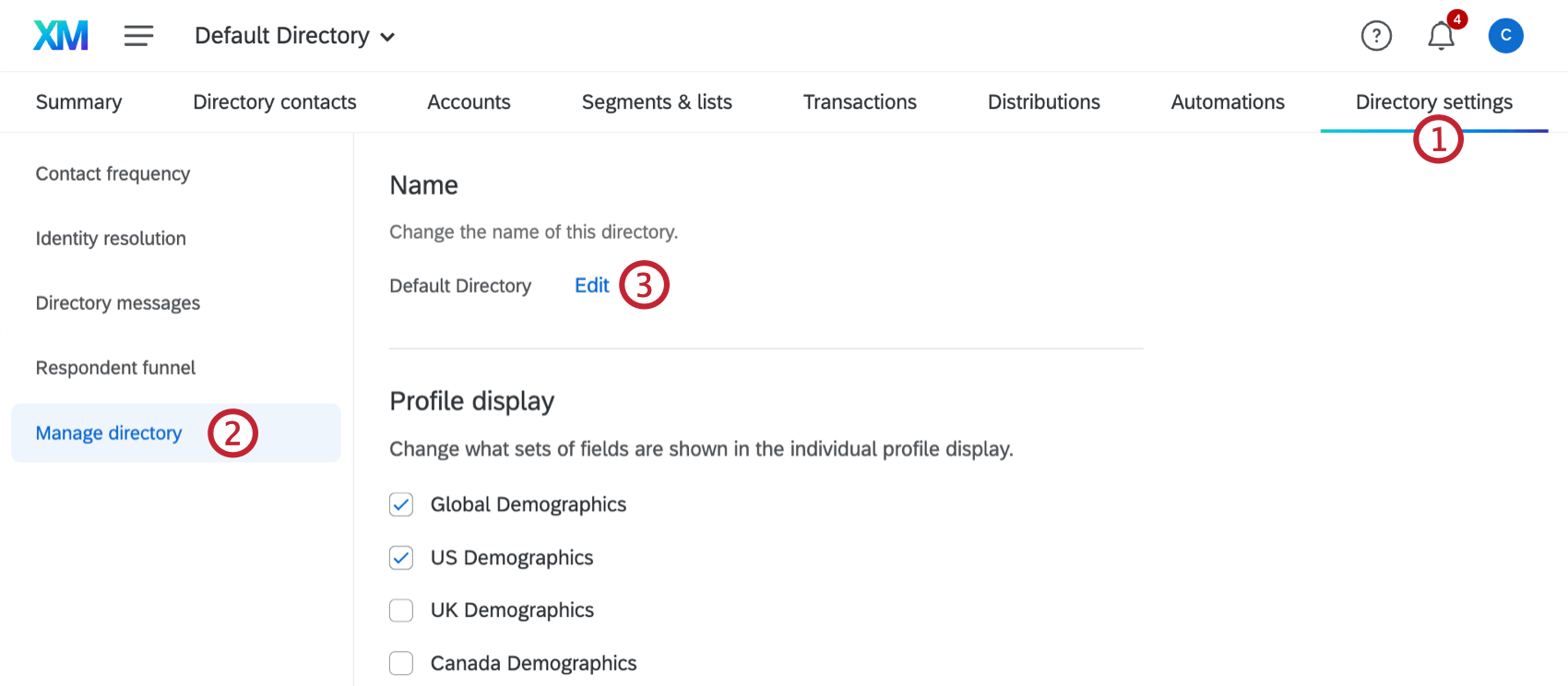
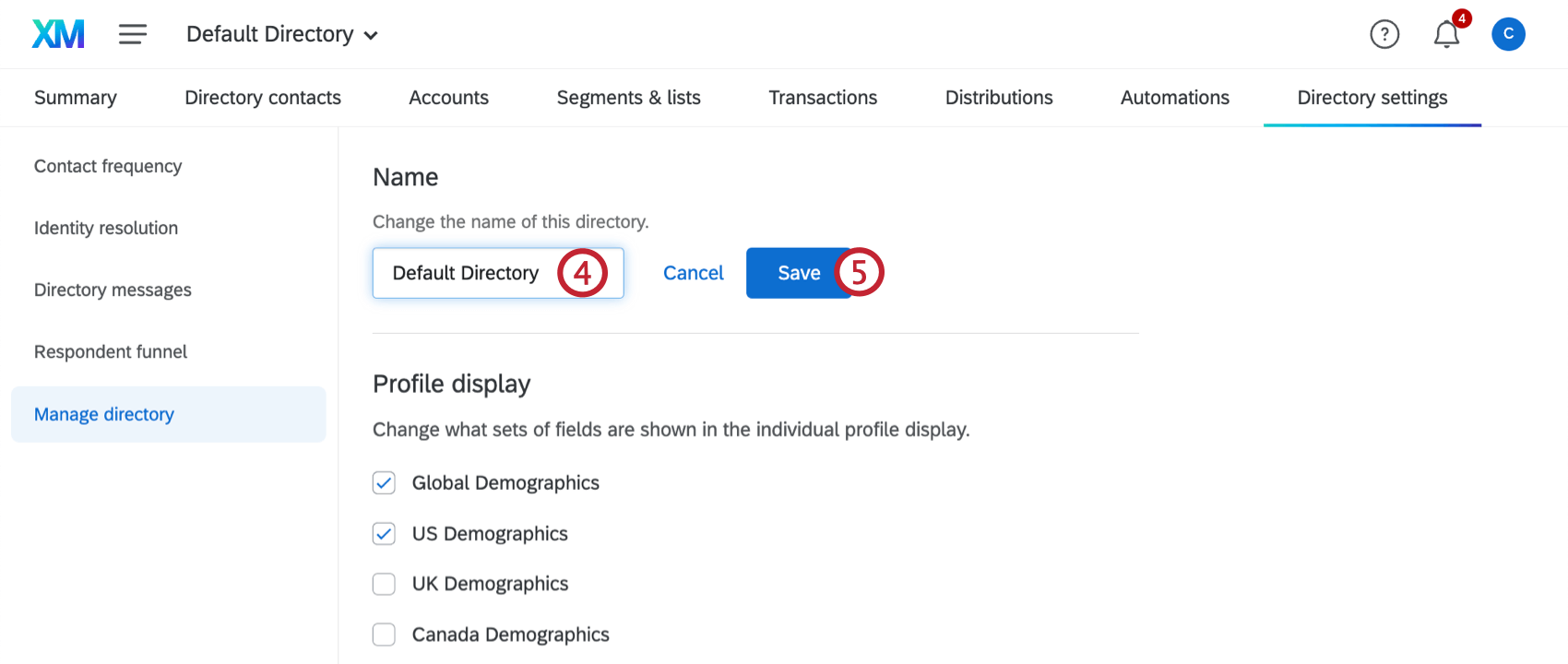
ENABLING PRIVATE DATA IN LISTS
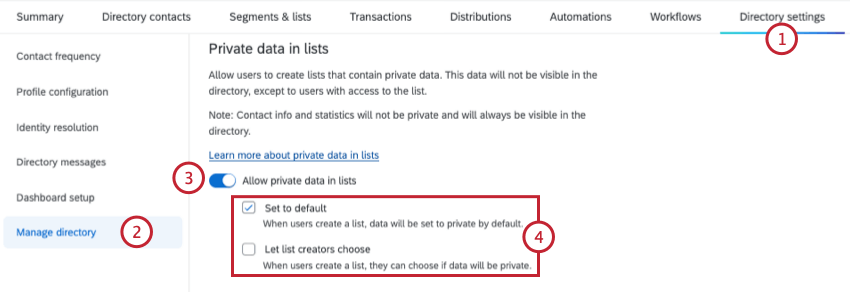
- Set to default: When users create a list, data will be set to private by default. If this is the only option selected, all new lists will have private embedded data by default.
- Let list creators choose: When users create a list, they can choose if data will be private. If this is the only option selected, users can choose whether new lists have private data or not.
Qtip: You can select both options, 1 option, or neither. If neither option is selected, list creators will be able to choose if list data is private.
Qtip: If this setting is disabled after lists are created with private data, that data will still be private, but no new lists can be created with private data.
Changing the Profile Display
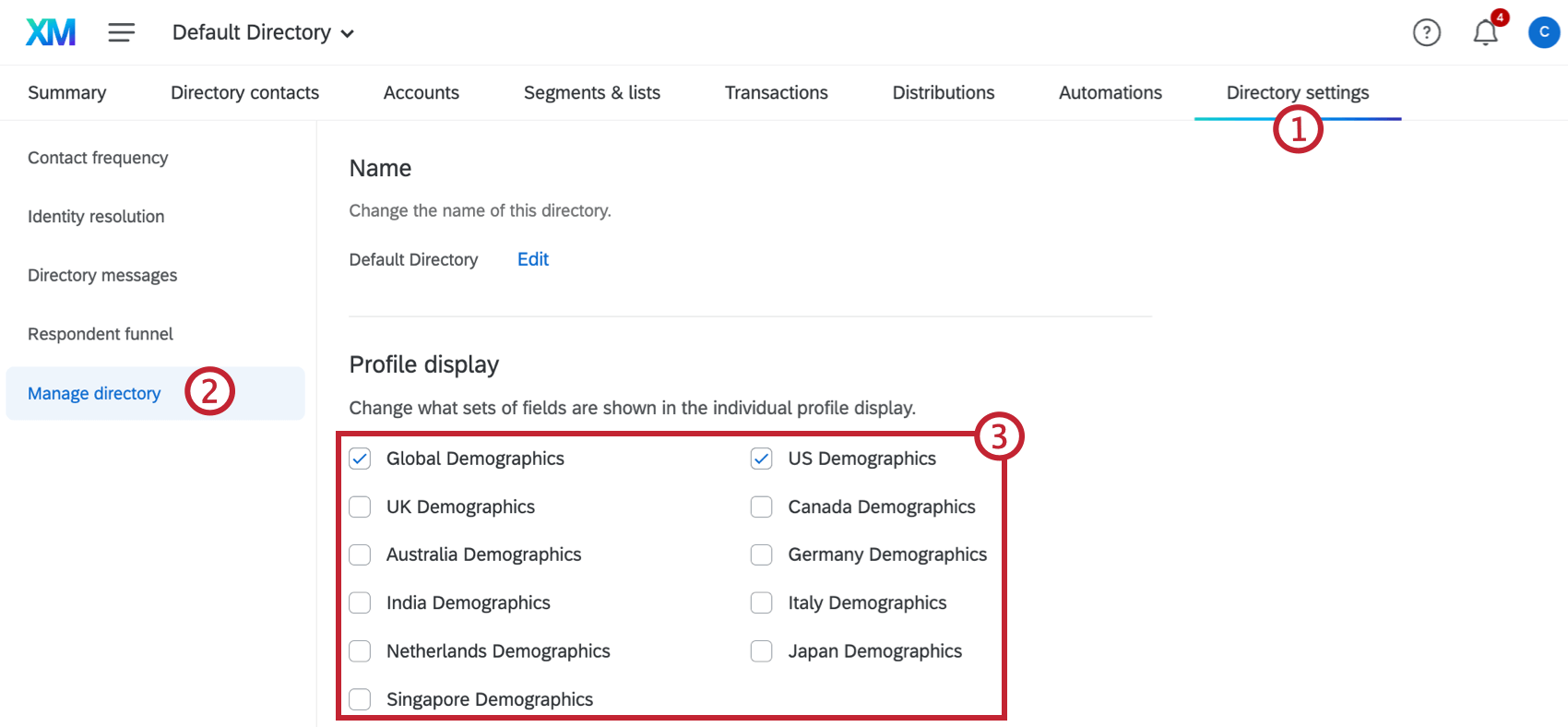
Qtip: You can add values to these fields manually, or you can use certified questions to collect this information in your surveys and automatically map it back to XM Directory.
Example: If you select US Demographics, a US Demographics section will be added to all your contact profiles.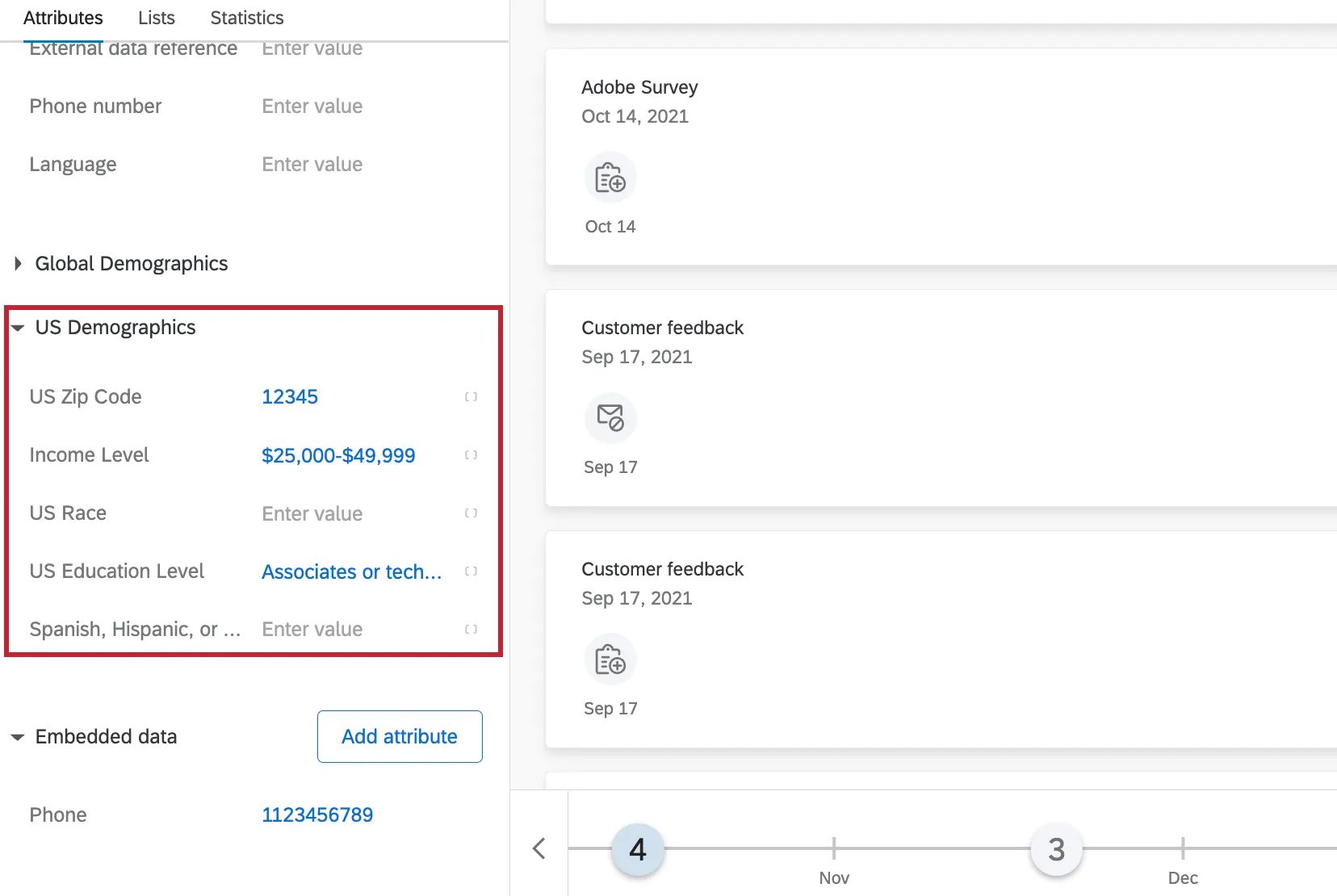
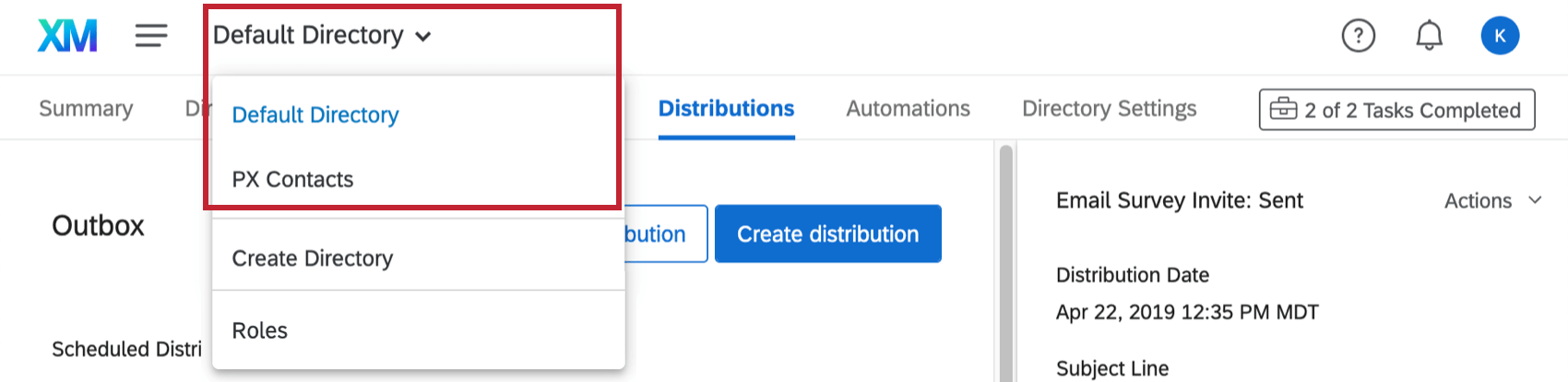
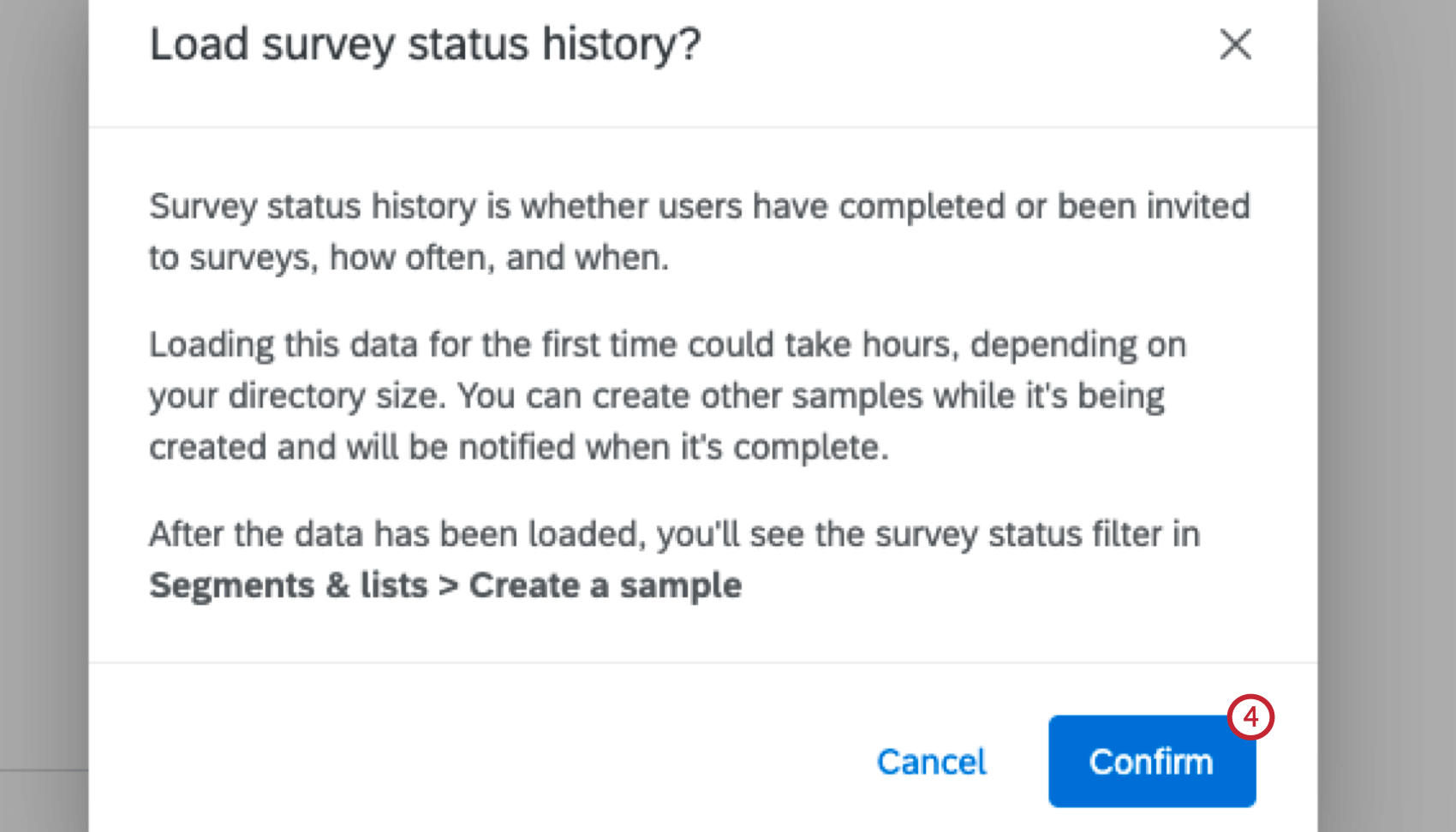
Loading Survey Status History
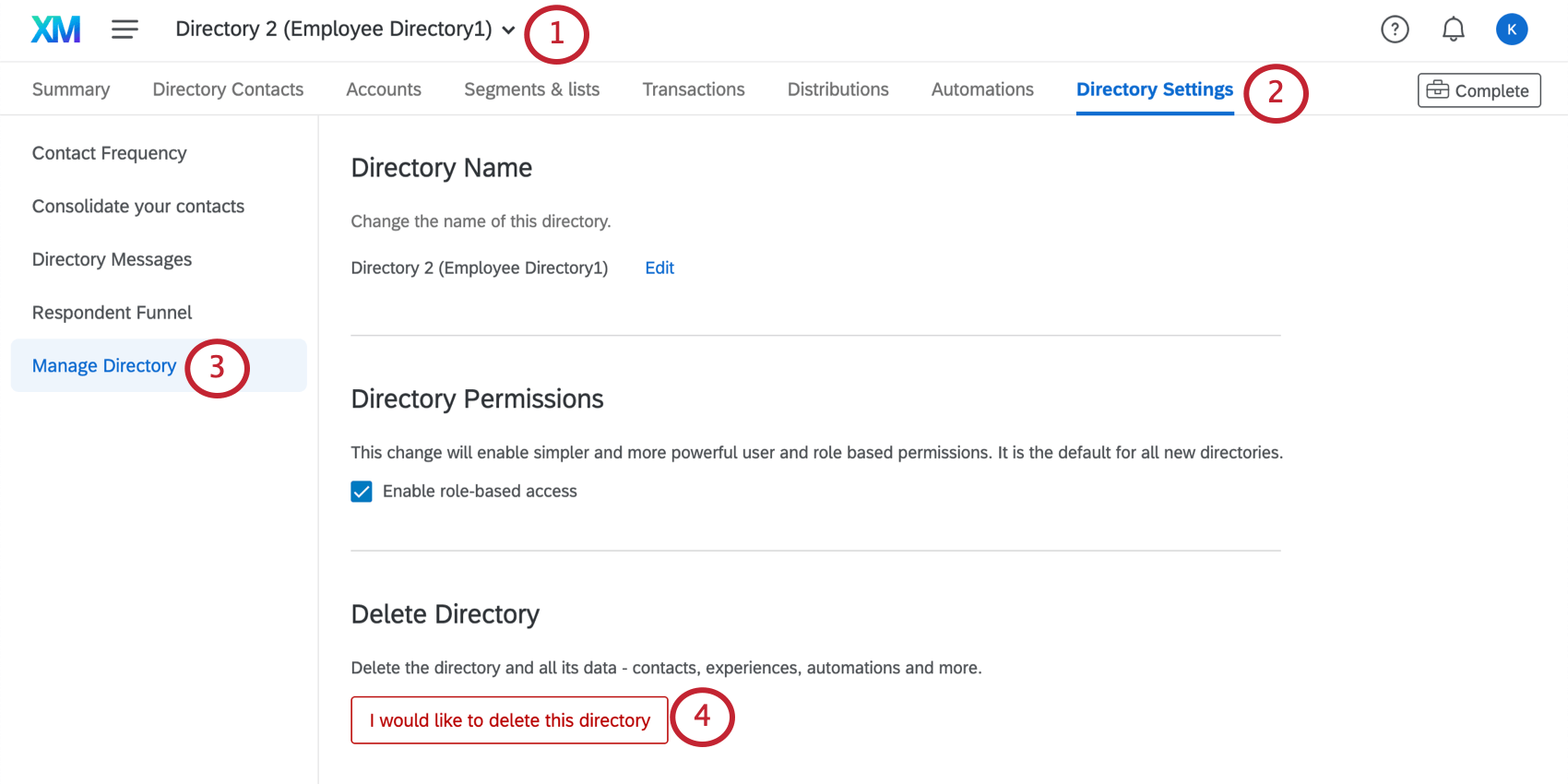
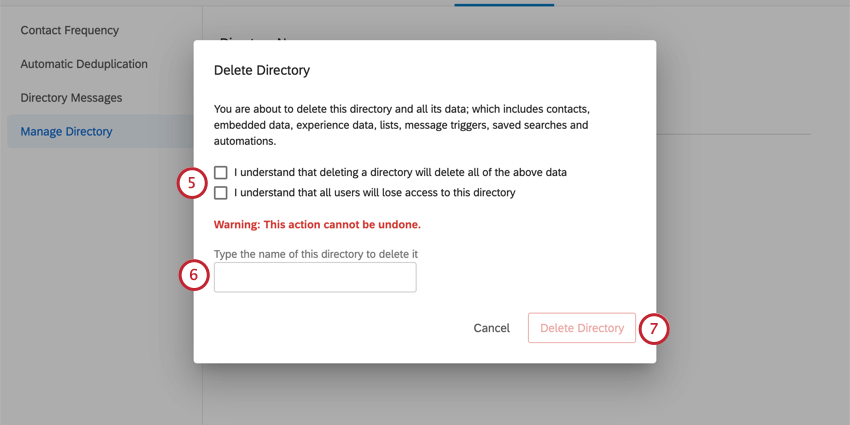
Deleting Directories
Qtip: You cannot delete the default directory. The delete option will be grayed out.
Attention: Deleting a directory will delete all its data, including contacts, embedded data, experience data, lists, message triggers, saved searches and automations.
Distributing from Your Directories
You can distribute to a mailing list in any directory you have access to from the Distributions tab of your directory.
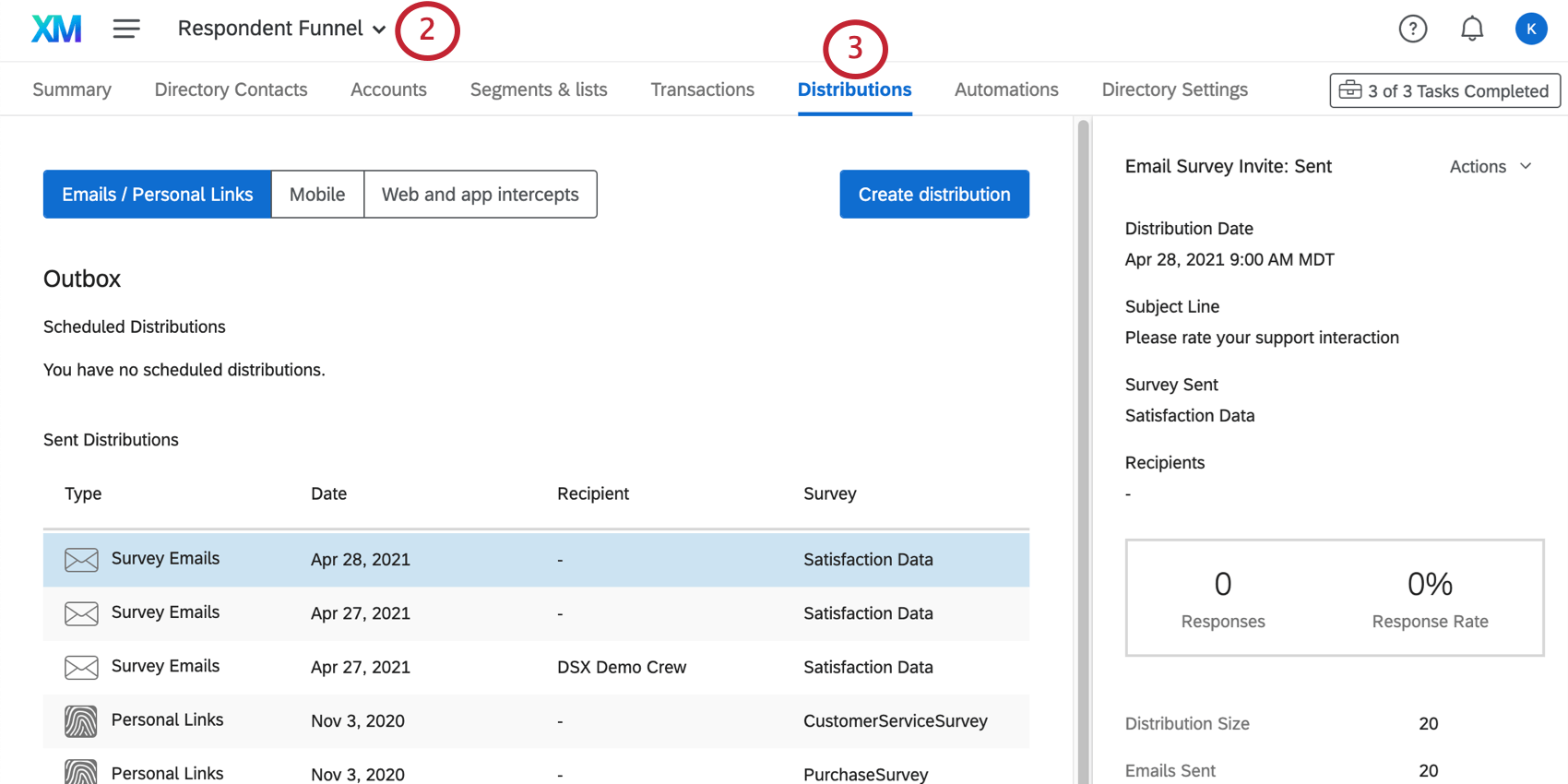
To learn more about your distribution options, see the Send Emails in XM Directory, Export Unique Links in XM Directory, SMS Distributions in XM Directory, WhatsApp Distributions, or Web and App Feedback Distributions in XM Directory support pages.
Qtip: You can distribute to mailing lists in any directory two ways:
FAQs
Should I have a single directory or multiple directories?
Should I have a single directory or multiple directories?
In our directory implementation guides, we walk you through the steps to determine what’s best for your organization. See Step 1: Design Your Directory and Step 2, where we discuss Dividing Your Data Amongst Separate Directories.
That's great! Thank you for your feedback!
Thank you for your feedback!