

Workflows Based on XM Directory Segments
What's on this page
About Workflows Based on XM Directory Segments
You can set up different conditions for your workflows based on segments your organization has added to XM Directory. In particular, you can target the segments that have responded to a given survey.
Example: Your company is running a feedback survey. Your team checks the responses every week, but your manager wants to know if a customer from a key segment responds so they can look at it right away.

Example: Your company has a survey where customers submit support requests. For certain customer segments, if they report a high priority issue, you’d like to flag it to a specialized triage team who knows this segment’s program inside and out.
Before Setting Up a Workflow
In order to use this functionality, you need to have access to segments in XM Directory. Get to know the segments you have access to in order to decide which you’d like to target. If you are a directory administrator, you will also be able to create segments as needed.
Before you can use segments in workflows, you also need to make sure you plan to distribute your survey using XM Directory. This can mean using segments themselves, but you can also distribute through any method that involves a mailing list. Such methods include email, SMS, WhatsApp, personal links, authenticators, and more. So long as you did not distribute through an anonymous link (without a contact list authenticator attached), you will be able to use this feature.
Qtip: If you do not currently have access to segments in XM Directory and are interested in learning more, reach out to Account Services.

Setting Up Workflows Based on XM Directory Segments
Qtip: You can also set up workflows like these in the stand-alone Workflows page, but given that these kinds of workflows are always linked to a specific survey, it’s usually easier to use the Workflows tab in a project.
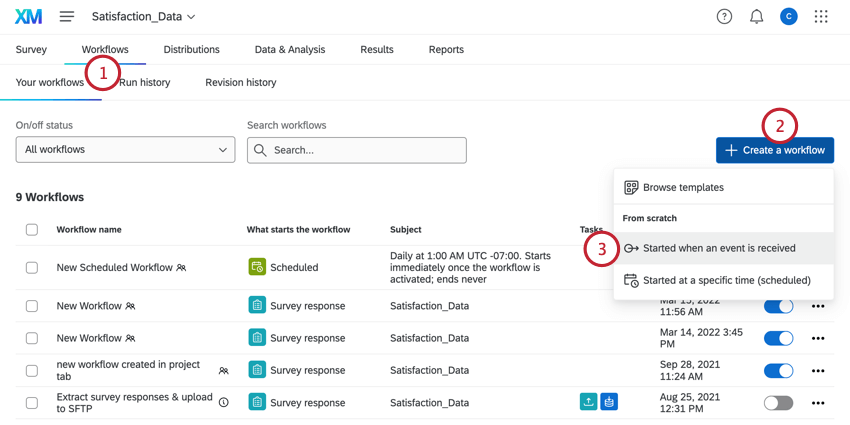
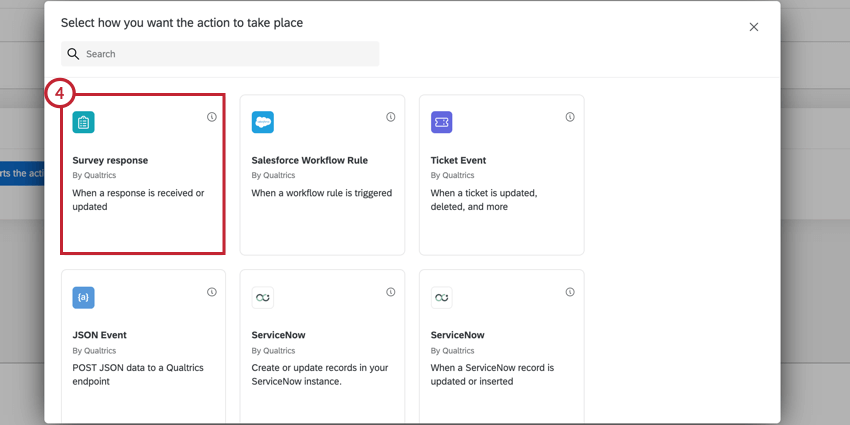
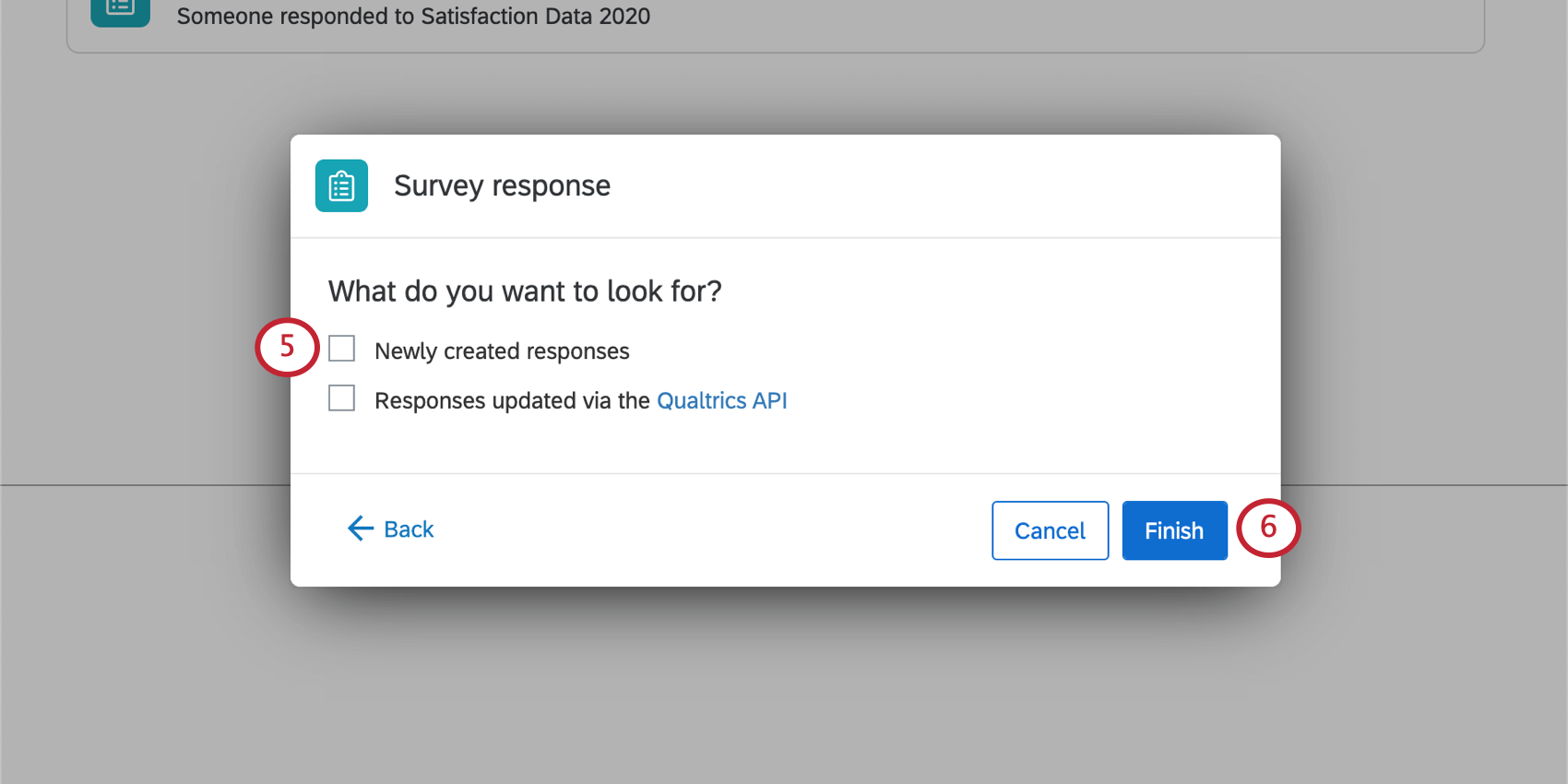
Qtip: Most often, you will select Newly created responses, especially if you have automatically tagged topics.

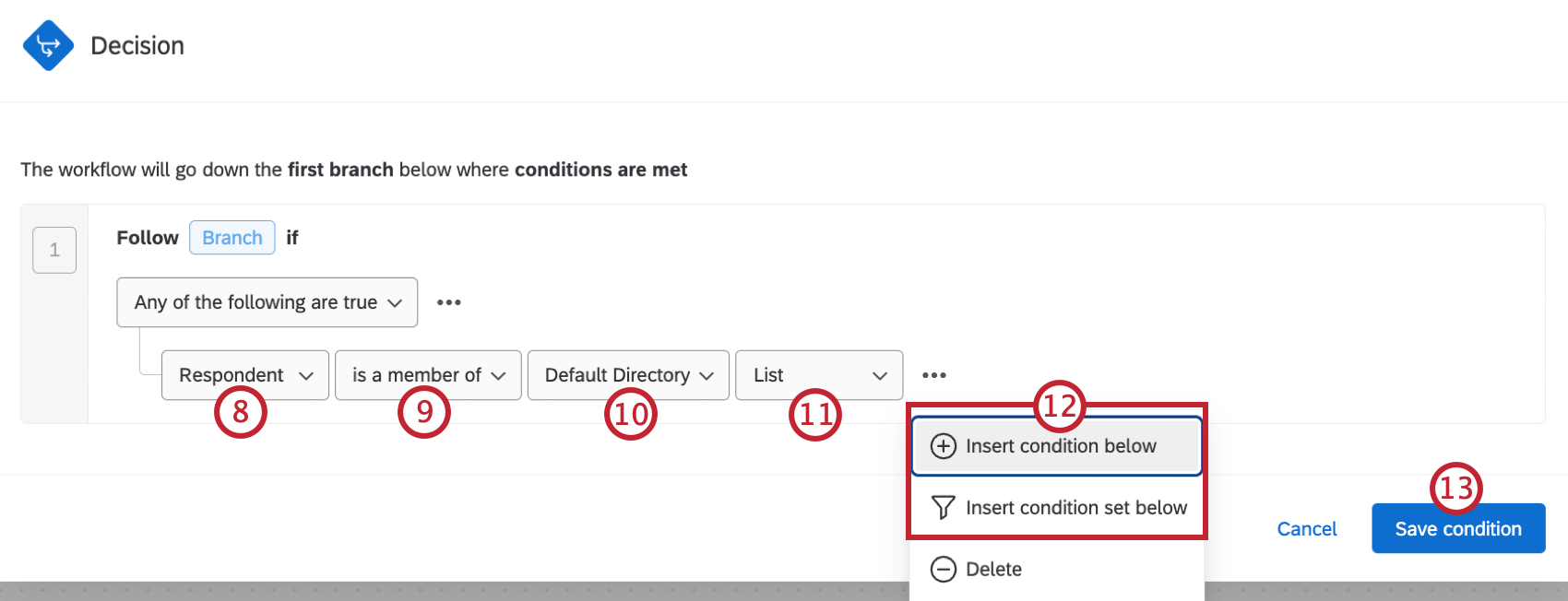
Qtip: This option is here for those who have access to multiple directories, which would house completely separate sets of segments.


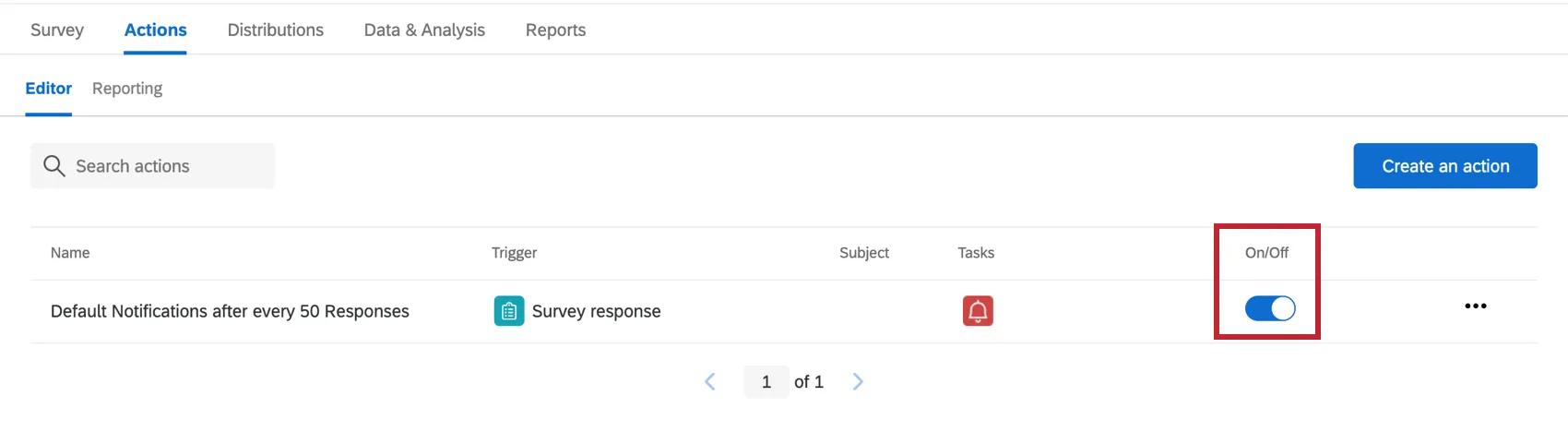
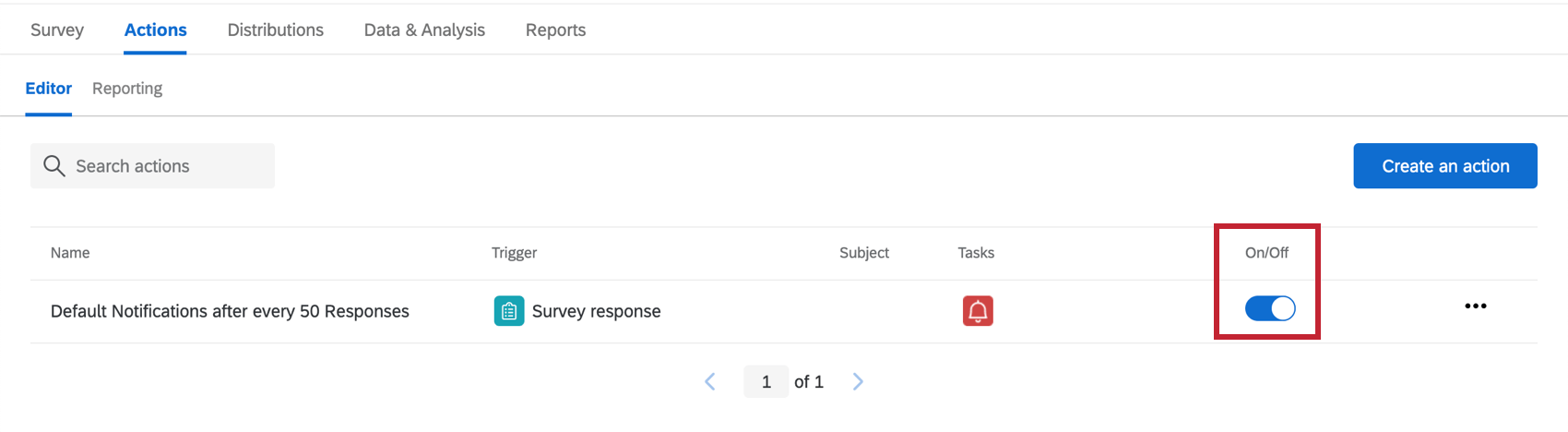
Qtip: Once your workflow is configured, make sure it is enabled.
FAQs
How can I tell if I have XM Directory or XM Directory Lite?
How can I tell if I have XM Directory or XM Directory Lite?
For admins, being able to tell whether or not you have XM Directory Full or XM Directory Lite on your license is easy. Admins of XM Directory have access to many more features than the average XM Directory Lite user, including the Summary tab, the Directory Contacts tab, and Directory Settings.
However, even if you’re not an admin, you can often tell whether you have XM Directory Full or XM Directory Lite in one of the following ways: If you’re still not sure which feature you have, reach out to a Brand Administrator. Brand Administrators who are unsure can reach out to their Account Executive or Account Services.
That's great! Thank you for your feedback!
Thank you for your feedback!