

Question Randomization
What's on this page
About Question Randomization
Sometimes you need to randomize the order of questions in a block. With question randomization, you can do just that—and so much more. Some common options include:
- Displaying all the questions in a random order
- Displaying a set number of questions from a larger group
- Locking certain questions in a specific position
- Hiding specific questions
Setting Up Question Randomization
Qtip: Questions are randomized on a block basis, so make sure all the questions you want to randomize appear in the same block of questions.
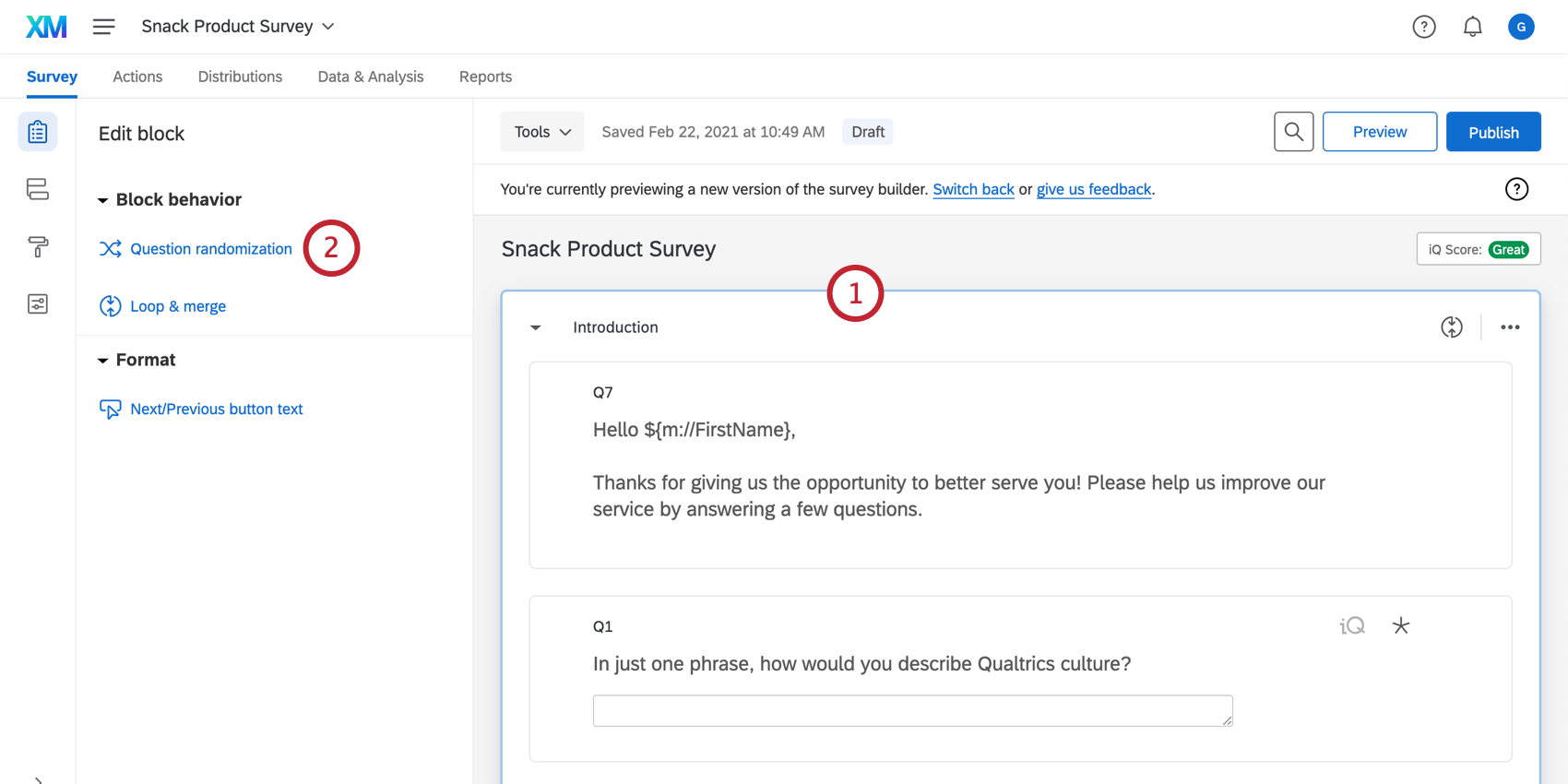
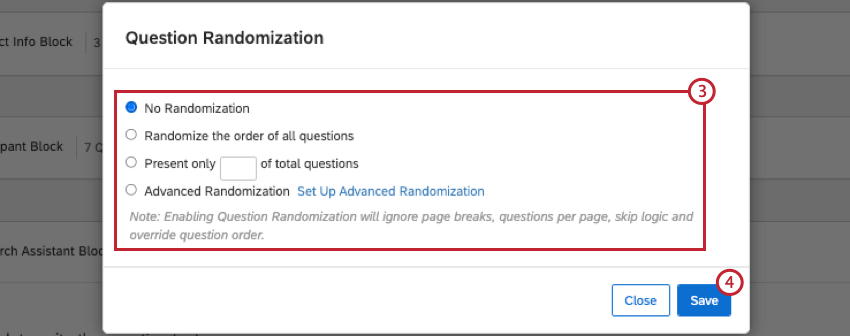
Qtip: Question randomization will override page breaks, questions per page, and skip logic. Disabling question randomization will restore these features.
Randomization Options
There are 4 main randomization options:
- No Randomization: Display your questions in the order they appear in your survey editor.
- Randomize the order of all questions: Present all of the questions in the block in random order.
- Present only __ of total questions: Specify the number of choices (out of the total) to have randomly displayed in the survey (2 of 4, 3 of 7, etc.).
- Advanced Randomization: Access even more randomization options.
Advanced Randomization
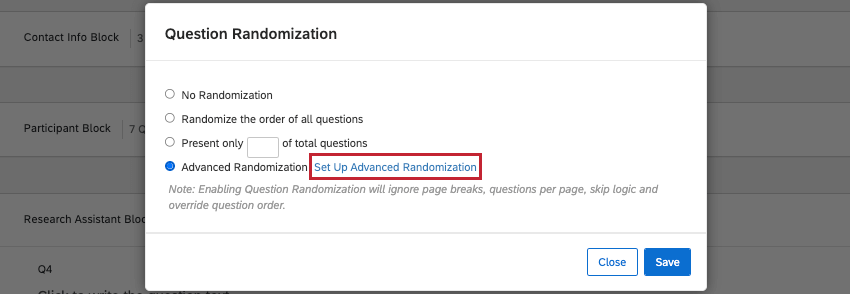
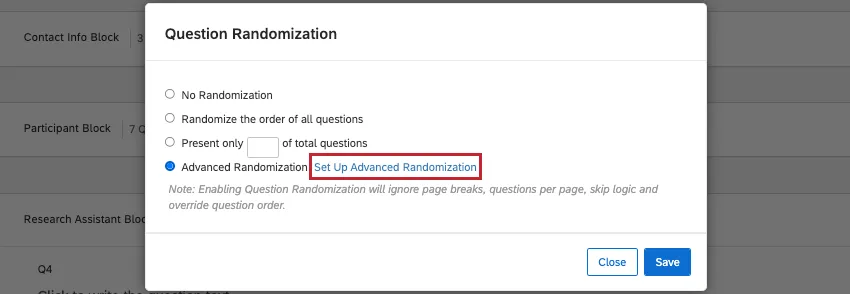
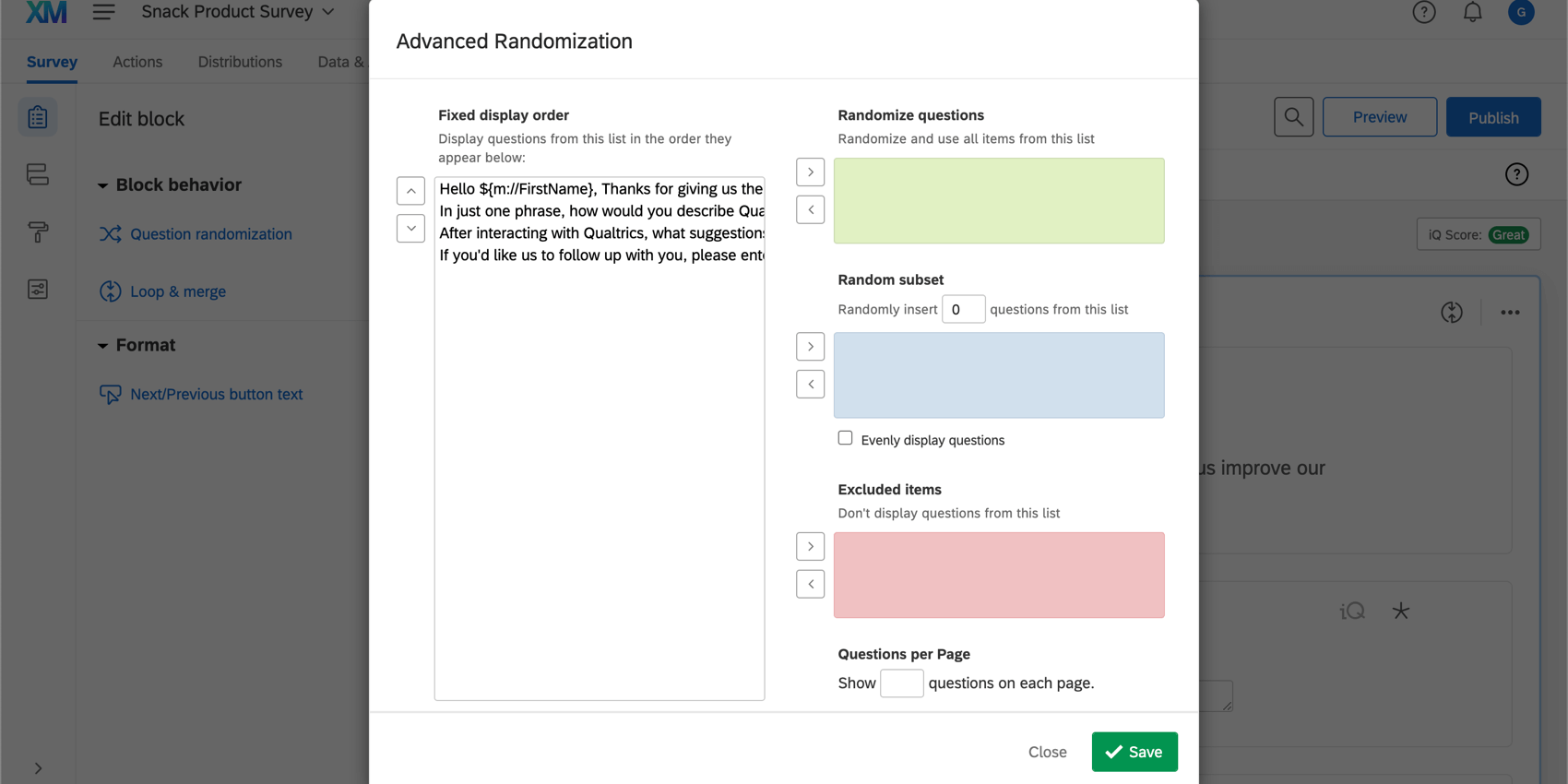
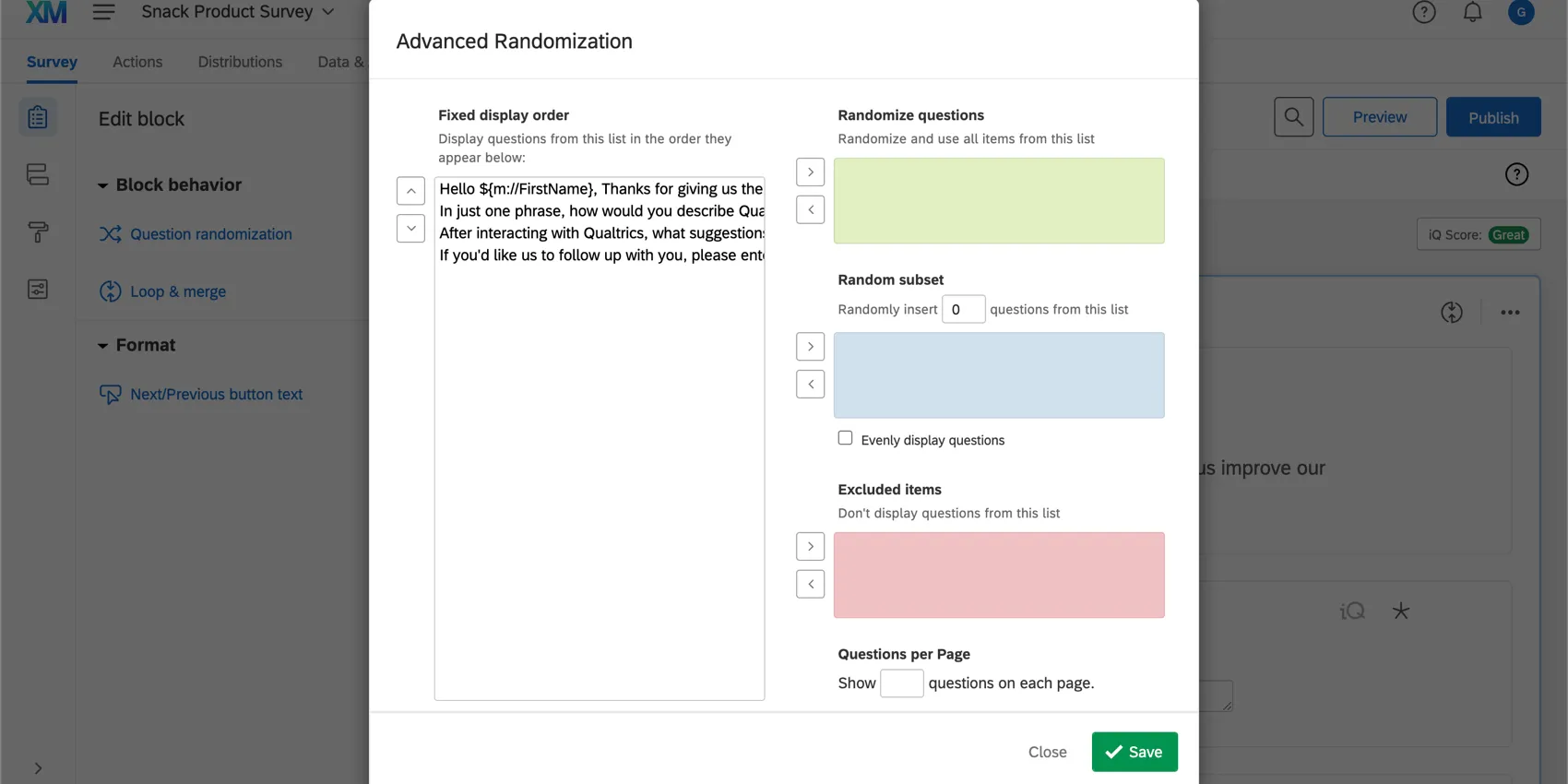
Advanced randomization has additional and more sophisticated randomization settings. Click Set Up Advanced Randomization from within the Question Randomization pop-up to open these settings.
- Fixed Display Order: This box shows the fixed questions in the block and where the random subset falls in the order of questions. You can rearrange the choice order with the up/down arrow buttons and move choices in or out of the randomization options using the left/right arrow buttons. Qtip: Questions with no text (such as graphics) will still appear in the Fixed Display Order box, but they’ll appear as empty lines. You can address this by adding question labels.

- Randomize Questions: All questions moved into this box will be presented in a random order.
- Random Subset: A specified number of questions from this box will be randomly displayed.
- Excluded Items: Questions in this box won’t be displayed at all.
- Questions per Page: This option determines the number of questions be displayed on each page (this will override any page breaks on the block).
Qtip: If you want to randomize groups of questions, not just the questions themselves, see the Randomizer page for instructions.
Random Subsets
Random subset allows you to ensure that each randomized question is seen the same amount of times by your respondent pool. To make sure your randomized questions are shown evenly, enable Evenly Present Elements.
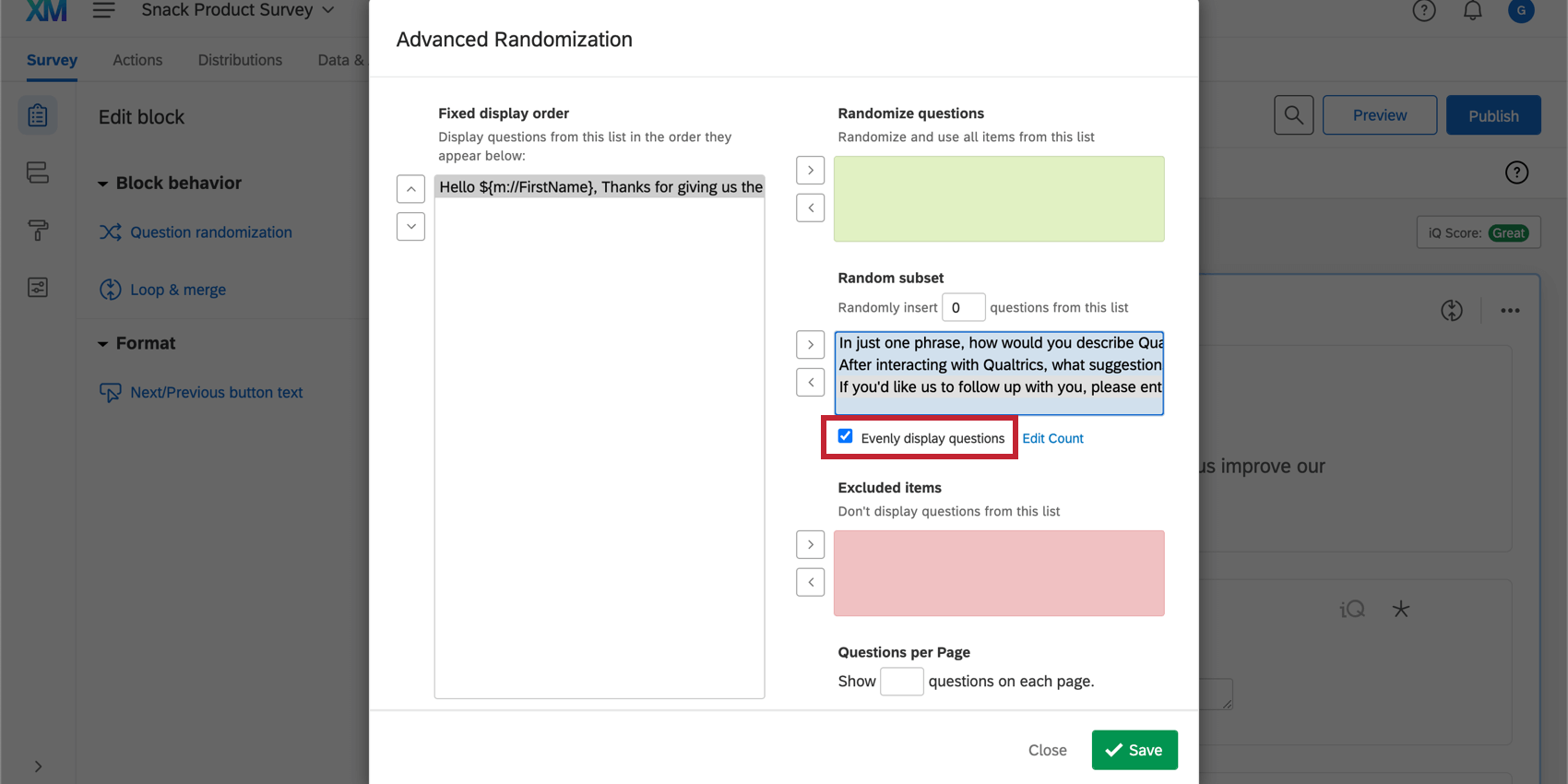
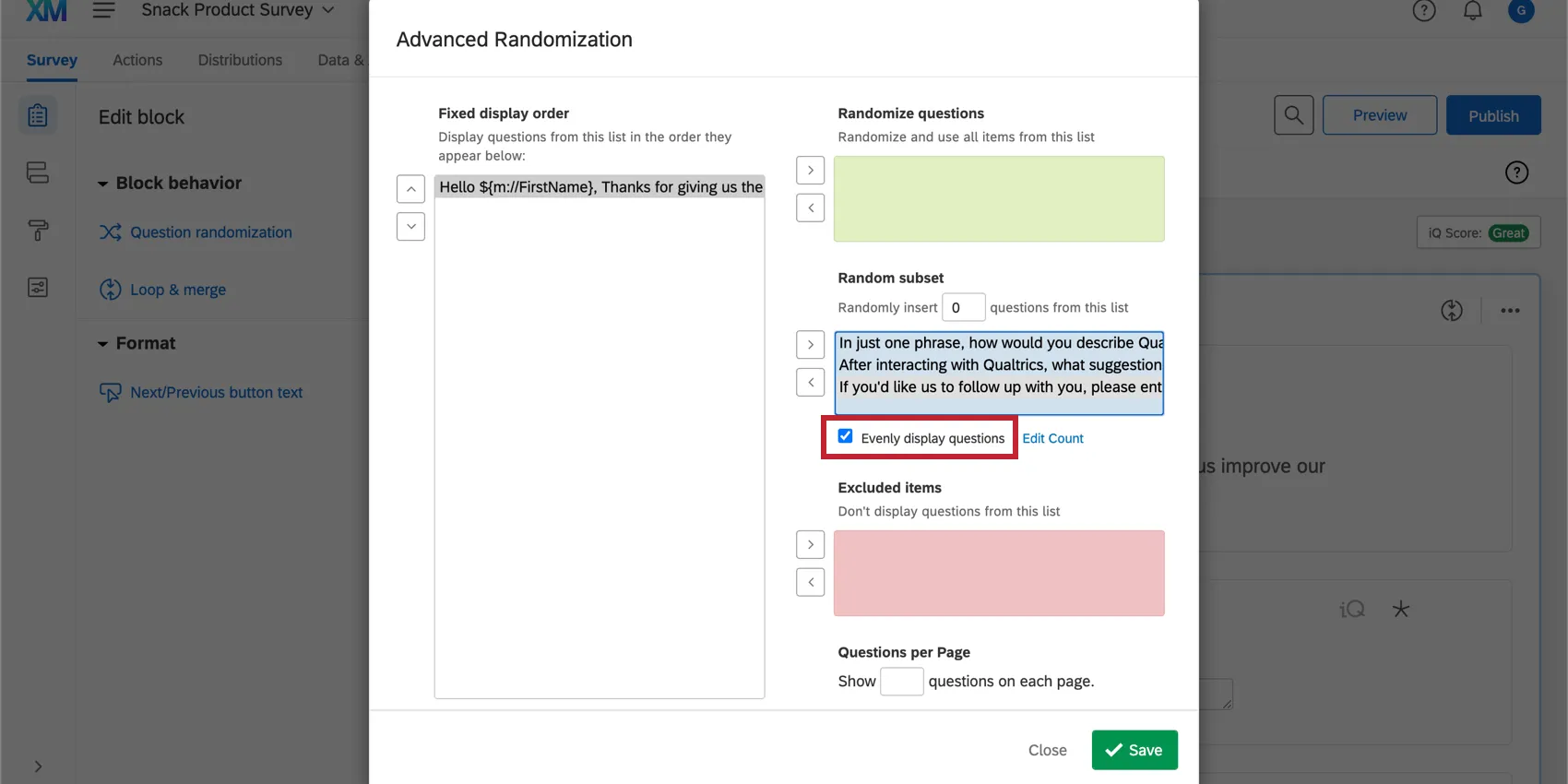
You can also view and adjust the counts for how many times a given question has been presented. To do so, click Edit Count next to the Evenly Present Elements option. When viewing your counts, these numbers should be roughly the same, but you can override the counts if you need to temporarily give preference to a specific question. To change a question’s count, type the desired count into the box next to the question text.
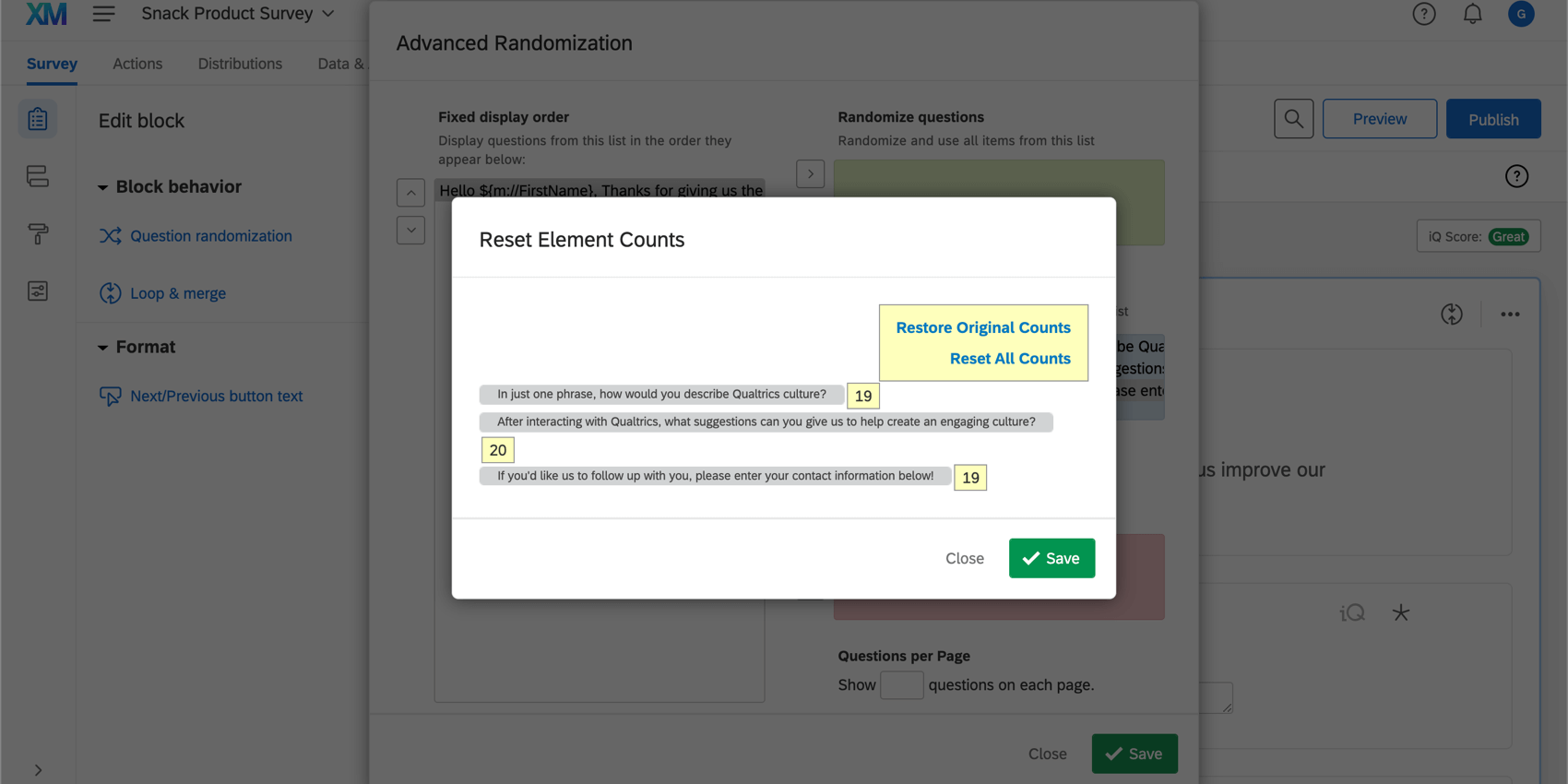
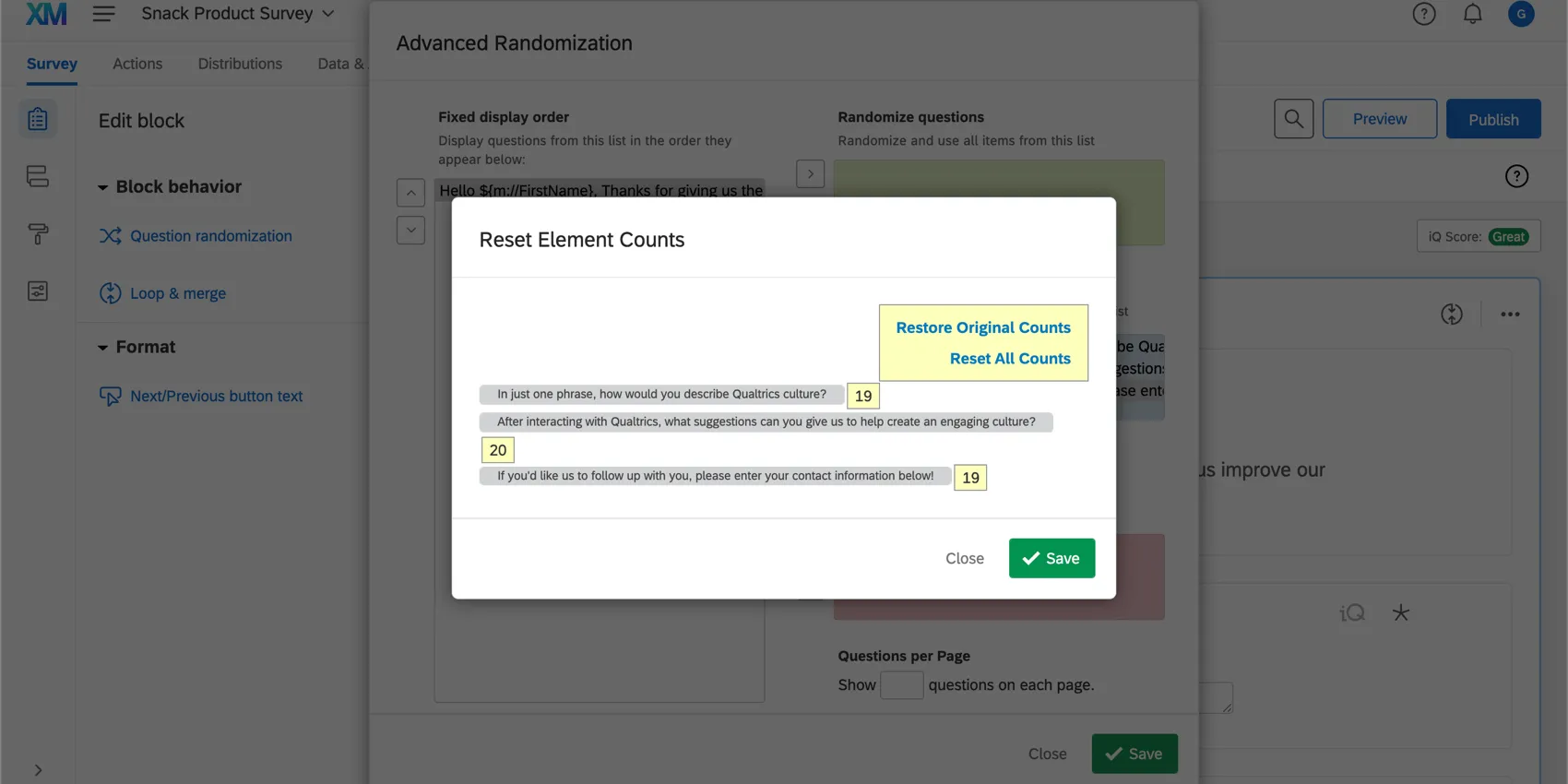
You also have the option to reset all counts back to 0 or to restore all counts to what they were before you changed them.
- Restore Original Counts: This option restores counts back to their original number before you edited them. Warning: This option only restores counts for the timeframe in which you have the Edit Counts window open. If you edit your counts, save the changes, then return to edit the counts, the Restore Original Counts option won’t revert your counts to before your edits.

- Reset All Counts: This option sets the count for all elements to 0.
Randomization Data
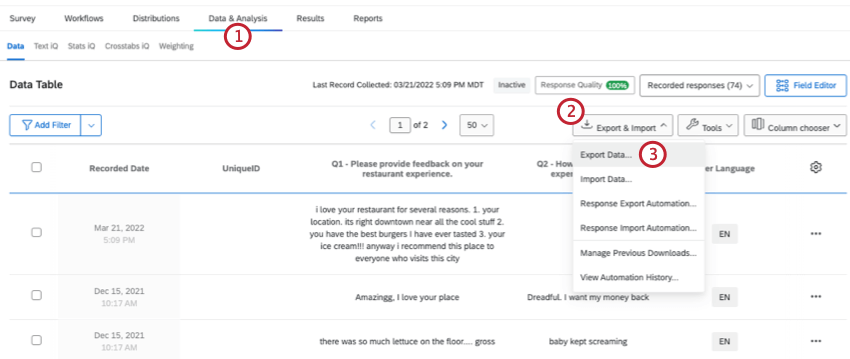
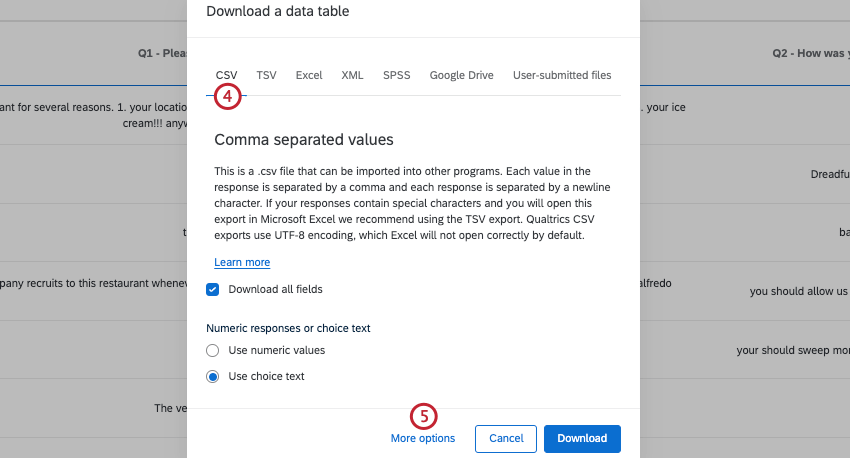
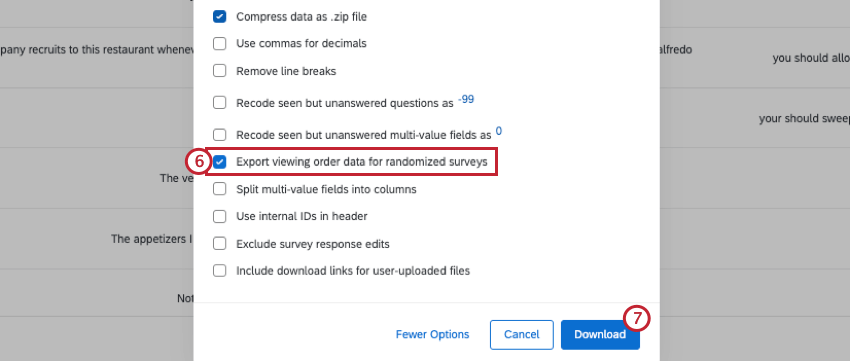
You can view the order in which your choices were displayed to respondents by enabling Export Randomized Viewing Order before exporting your data. The display order of questions will appear as a column in your data file with multiple questions separated by a bar “|” if multiple questions were seen.
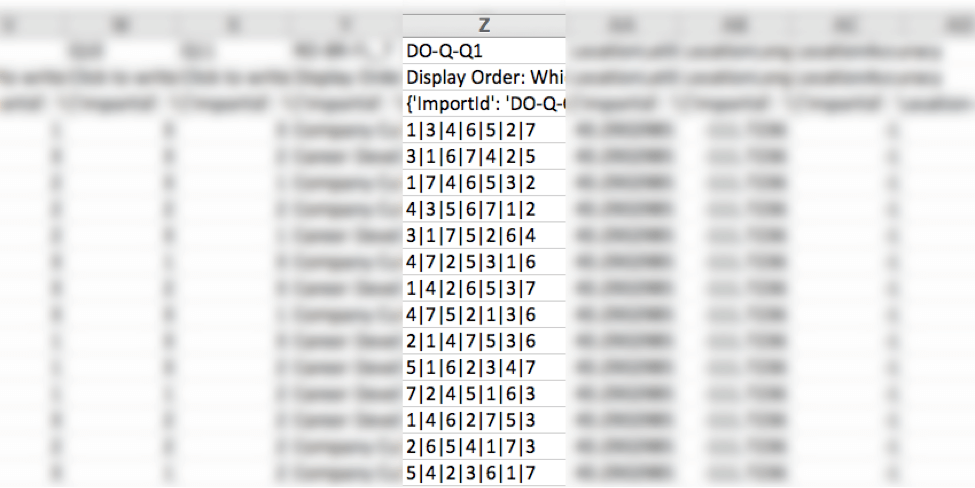
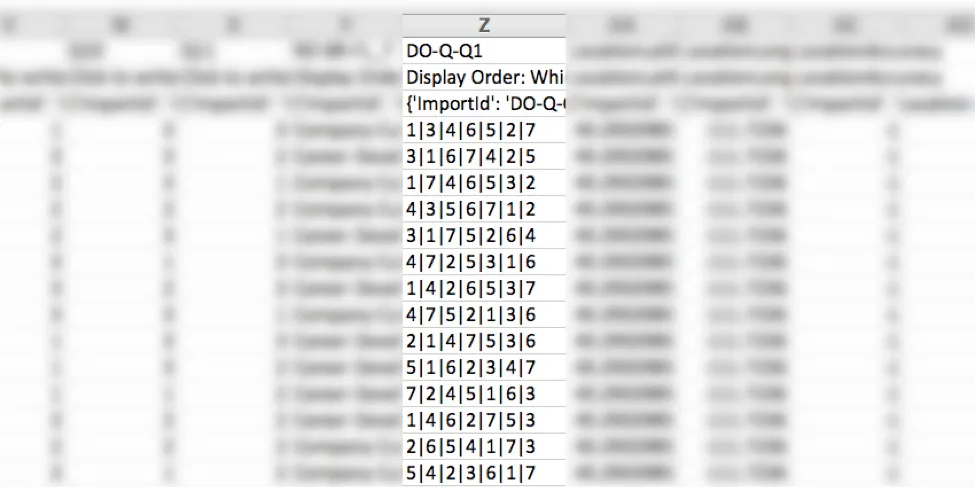
If you export with Split multi-value fields into columns selected, this will separate the viewing order into separate columns, instead of listing all displayed questions within 1 column.
Downloading randomization data
Qtip: To learn more about exporting data, see Download Options.
Question Randomization in Different Project Types
This type of question behavior is available in almost every project type. The options described on this page are available in:
FAQs
Why are my page breaks being ignored?
Why are my page breaks being ignored?
- Questions per Page set in the Look and feel
- Question randomization set up in a block
- Skip logic, display logic, and carry forward (all 3 by default will insert a page break)
That's great! Thank you for your feedback!
Thank you for your feedback!