

Benchmarks Basic Overview (CX)
What's on this page
About Benchmarks (CX)
Benchmarks are a metric standard that help you understand how your results compare against industry peers or a global average. Within CX Dashboards they can be used to establish overall customer experience, NPS, or digital experience goals based on company and industry comparisons.
Benchmarks can be created in the benchmark editor or directly inside a widget. These benchmarks can use your own company-determined goals, or they can be drawn from benchmarks developed by Qualtrics experts. Regardless, displaying benchmarks in your dashboard gives your collaborators transparency into their goals and performance. You can use benchmarks to identify gaps in performance, and make informed decisions on how your company would like to address each gap.
Attention: The benchmark editor is available in a few different types of dashboard. However, this support page only covers how the benchmark editor works in CX Dashboards. For Employee Experience dashboards, see Benchmark Editor (EX).

Opting In and Out of the New Benchmark Editor
The new benchmark editor is available for CX Dashboards and offers a number of improvements that make the overall experience easier and faster. We’ve separated out the process of choosing metrics and adding filters, which means you don’t have to make lots of separate benchmarks anymore, and can quickly grab the data you’re looking for when you set up widgets. The specific changes enabling these improvements include:
- Faster Qualtrics benchmark creation.
- Ability to adjust metrics once you add Qualtrics benchmarks to widgets.
- Industry and regional filters you can save for later or set as page defaults.
- Improved version update.
Attention: If you enable the new benchmark editor, any Qualtrics benchmarks you made before opting in will not be deleted, and you’ll still be able to use them in widgets. However, they will become “read-only,” meaning you won’t be able to edit them.
Opting Into the New Editor
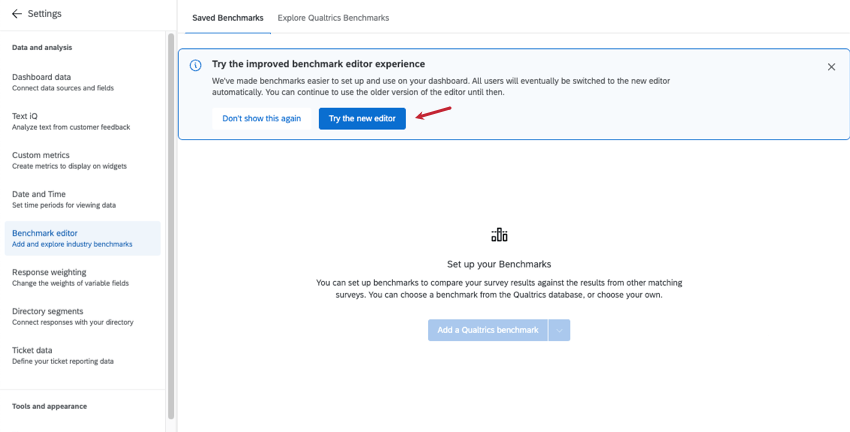
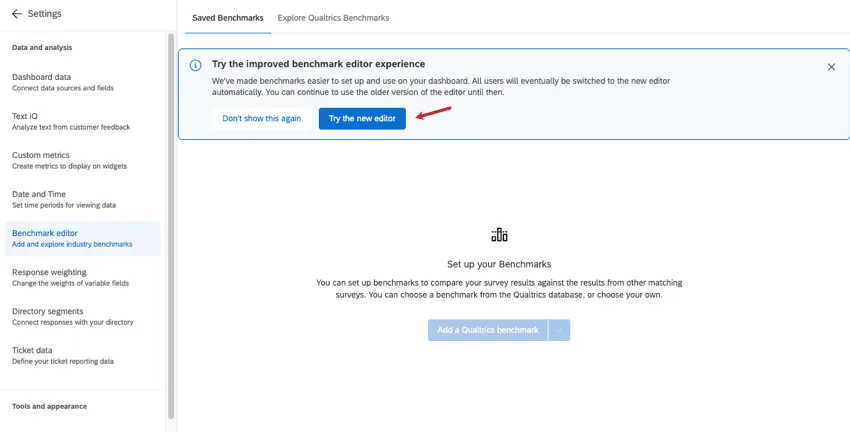
Once you open the benchmark editor, you’ll see a banner at the top. Click Try the new editor to opt into the change.
To learn about the new benchmark editor, see the following support pages:
- Benchmarks Basic Overview (CX) (The page you’re currently reading)
- Using Premade Qualtrics Benchmarks (CX)
- Creating Custom Benchmarks (CX)
- Displaying Benchmarks in Widgets (CX)
Opting Out of the New Editor
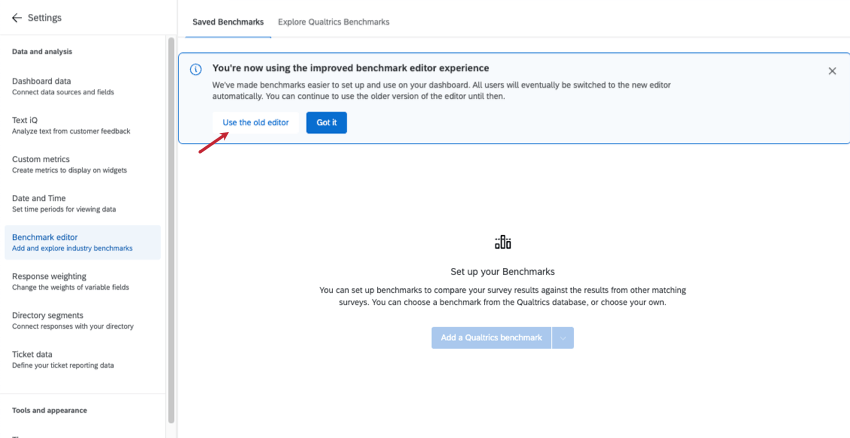
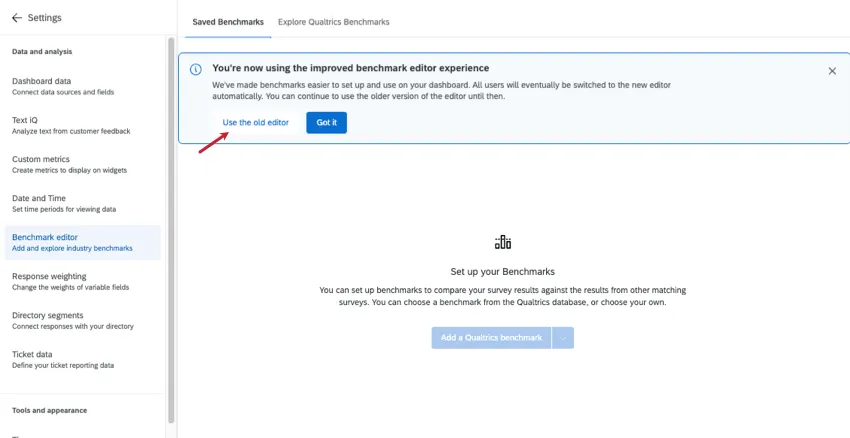
If you want to return to the old editor, click Use the old editor.
For support on the old benchmark editor:
Navigating the Benchmark Editor
The benchmark editor comes with a number of benefits, including the ability to explore industry benchmarks developed by Qualtrics research experts, upload custom benchmarks in bulk, and configure benchmarks so that they’re easy to reuse and maintain across the dashboard.

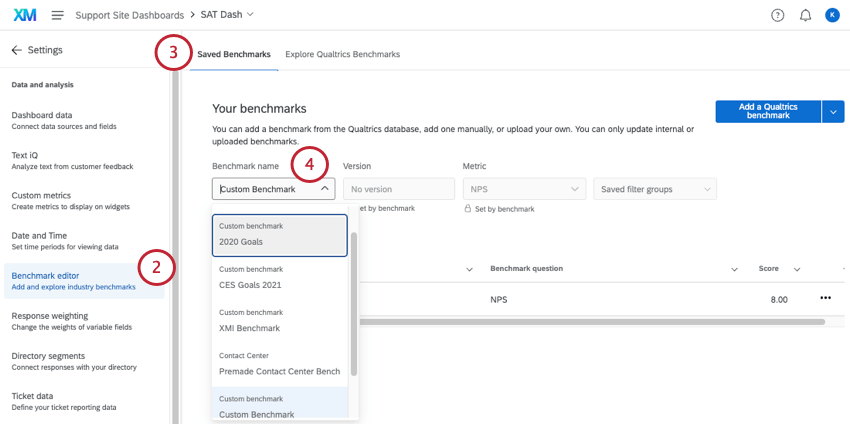
Qtip: When you create a benchmark, you may map goals to multiple dashboard fields. These multiple fields within the same benchmark are the benchmark “rows.” You might have some benchmarks with only 1 row, and you might have benchmarks with multiple rows.
Qtip: For industry benchmarks, see filter groups.
Custom vs. Premade Benchmarks
You can upload your own benchmark goals and match them to different KPIs in your dashboard. If your organization has already set its own targets, you probably want to add your own, custom benchmarks. For steps, see Creating Custom Benchmarks.
Qualtrics also offers ready-made benchmarks. These benchmarks were created by research experts to capture global performance in different fields, and can be a great way to calibrate your company’s performance against those in similar industries. To explore premade benchmarks Qualtrics offers, see Using Premade Qualtrics Benchmarks.
Adding Benchmarks to Widgets
Regardless of whether you created custom widgets or want to use premade data, once your benchmarks are configured in the editor, you can add them to widgets. You also have the option of creating one-time, quick benchmarks right inside widgets, without having to use the benchmark editor at all.
For steps, see Displaying Benchmarks in Widgets.
Writing Questions that Can Be Mapped to Benchmarks
When mapping your survey questions to Qualtrics benchmarks, it is important to make sure the question text and response scales you use closely match the benchmark fields to ensure valid comparisons. The following best practices should be used when creating and mapping questions to your Qualtrics benchmark fields.
Question Text
- Match the content of your question to the benchmark field you are mapping it to.
- Ensure any organization references in your question are synonymous with references in the benchmark field. Example: If the benchmark field uses the word “department”, ensure your question uses the same word or a similar word, like “business unit” or “function”.

- Consider the level of difficulty of your questions. Choose questions that are likely to provide objective feedback instead of questions that prompt favorable responses.
- Ensure the specificity used in your question matches the benchmark field. Example: If the benchmark field is “I receive feedback that helps me improve my performance” but your question text is “I receive ongoing feedback and coaching that helps me improve my performance”, reword your question to match the specificity of the benchmark. Using “ongoing feedback and coaching” is more specific than “feedback”, which is what the benchmark assesses.
- Ensure the qualifiers used in your question match the benchmark field. Example: If your benchmark field is “I would recommend this company as a place to work” but your question text is “I would recommend this company as a great place to work”, reword your question to remove the qualifier “great”, as the benchmark does not include this.
- Ensure your question has the same tense as the benchmark field you are mapping it to. If a benchmark field assesses the respondent’s feelings in the present, make sure your question also asks about the present. Example: If the benchmark field is “I am satisfied with career opportunities at this company” but your question text is “I am interested in growing my career with this company”, edit your question to match the tense of the benchmark.
- Don’t map the same benchmark field to multiple survey questions. If the same benchmark applies to multiple survey questions, the questions may be redundant. Consider combining or removing redundant questions from your survey.
Response Scales
- Use an approved response scale to ensure valid comparisons with benchmarks.
- Make sure the response scale in your question matches the response scale of your benchmark. This includes both the scale labels and the number of scale points. Qtip: The answer choice “Don’t know/Not applicable” can also be included in the scale because it doesn’t contribute to benchmark aggregations. To exclude these answer choices from analysis see Recoding Fields (CX Dashboards) or Scales (EX Dashboards).

- Make sure the wording and sentiment of the response scale in your question matches the wording and sentiment in the benchmark. Example: The scale Strongly disagree-Disagree-Neither agree nor disagree-Agree-Strongly agree does not match the scale Strongly Disagree-Somewhat Disagree-Neither Disagree nor Agree-Somewhat Agree-Strongly Agree.
Approved Response Scales
Field Types for Benchmarked Fields
Every benchmark, whether custom or using Qualtrics data, has to map back to a field, whether this is a survey question, embedded data, or other kinds of data. In the previous section, we showed how to write questions that can be mapped back to benchmarks. Once your survey is written, it’s time to think about the field types (and field groups) compatible with benchmarked fields.
Since benchmarks are naturally formatted as scales (e.g., from “very satisfied” to “very dissatisfied”), the benchmarks you create can use various scale-friendly formats. These include:
These are the only field types that appear when choosing a field to map a benchmark back to in the editor.
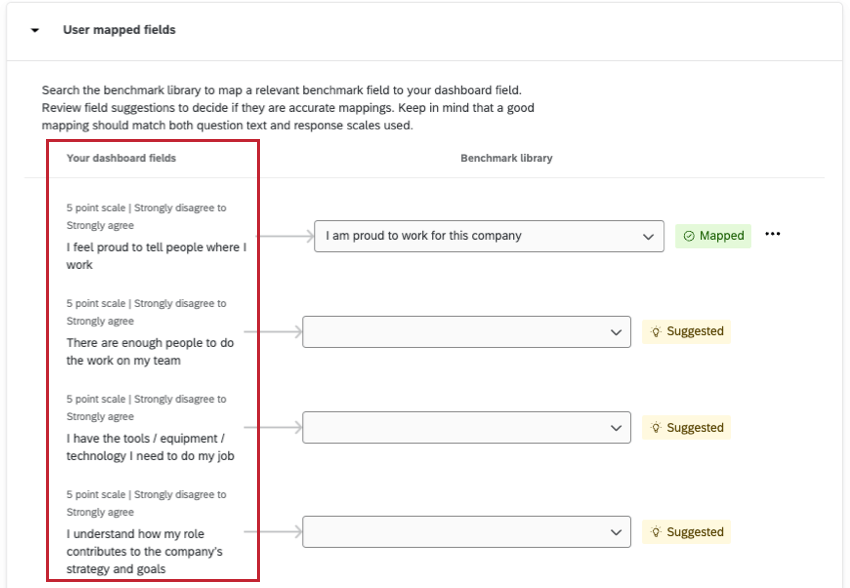
Example: Below is a screenshot of the benchmark editor. This is what it looks like when you match a dashboard field to premade Qualtrics benchmarks. These fields only match the types listed above.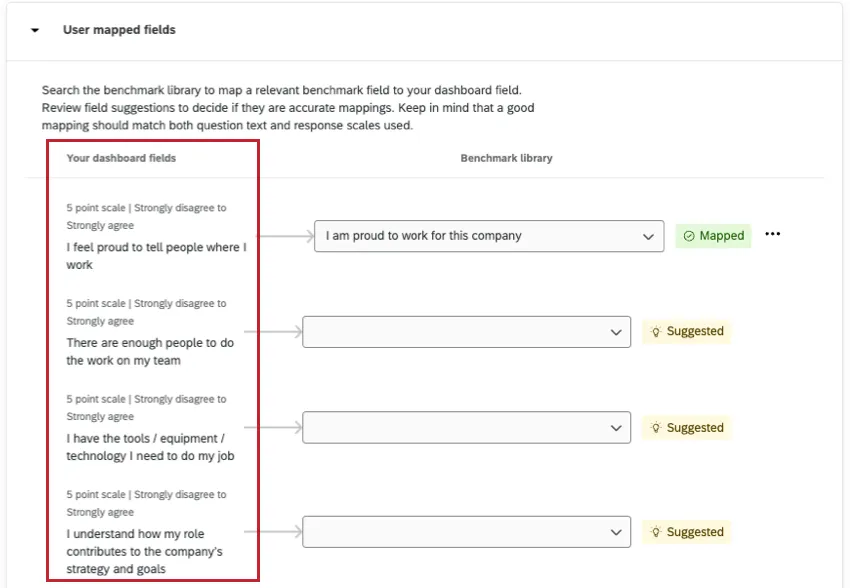
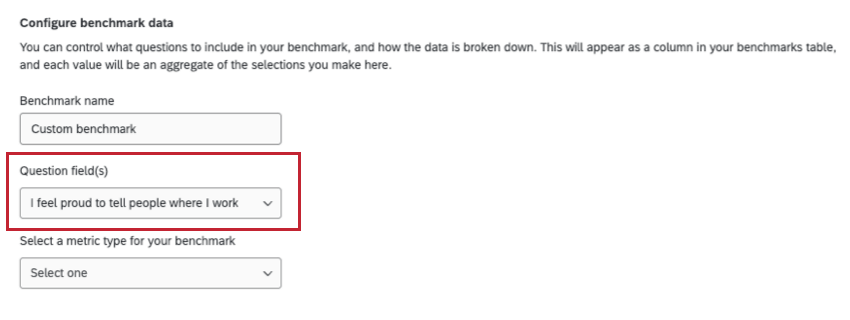
Example: Below is a screenshot of the benchmark editor. This is what it looks like when you match a dashboard field to a custom benchmark. These fields only match the types listed above.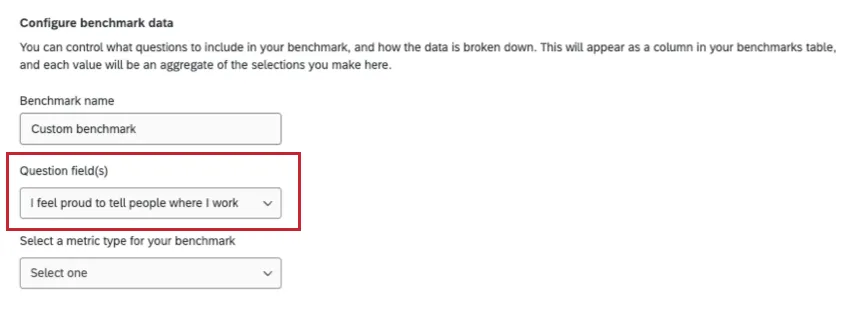
FAQs
Now that I’ve created my benchmarks, how do I add them to widgets?
Now that I’ve created my benchmarks, how do I add them to widgets?
What’s the difference between making an industry benchmark in the editor and using a one-time benchmark?
What’s the difference between making an industry benchmark in the editor and using a one-time benchmark?
Benchmarks made in the editor can be added to a widget as a comparison, appearing as a goal line. Benefits of the benchmark editor include the ability to explore data beforehand and being able to reuse the configurations you created in the editor, including filter groups. When creating benchmarks from the same Qualtrics study, you can also map a few rows at once, making it easier to create more benchmarks at a time.
One-time benchmarks appear as the primary metric in a widget (although you can often add more metrics to the same widget for comparison). Benefits of “one-time benchmarks” include speed and ease of use. In general, we recommend using these if you only want to create one or two benchmarks in your dashboard.
What information can I filter industry benchmarks by?
What information can I filter industry benchmarks by?
What’s the difference between making a custom benchmark in the editor and using a one-time benchmark?
What’s the difference between making a custom benchmark in the editor and using a one-time benchmark?
Benefits of the benchmark editor include being able to reuse the configurations you created in the editor and upload many benchmarks at a time.
Benefits of “one-time benchmarks” include speed and ease of use. In general, we recommend using these if you only want to create one or two benchmarks in your dashboard.
Regardless of which option you choose, the benchmark appears as a goal line on the widget, a visual comparison to your main data.
I followed all of the steps, but I don’t see my comparison line on my widget. What do I do?
I followed all of the steps, but I don’t see my comparison line on my widget. What do I do?
That's great! Thank you for your feedback!
Thank you for your feedback!