

Category Rules (Designer)
What's on this page
About Category Rules
Category rules determine which sentences should be assigned to each category. Category rules are typically examples of words that you want to be included or excluded in the category.
Basic Rules
Basic rules categorize sentences by specifying words that should either be included or excluded in a sentence.
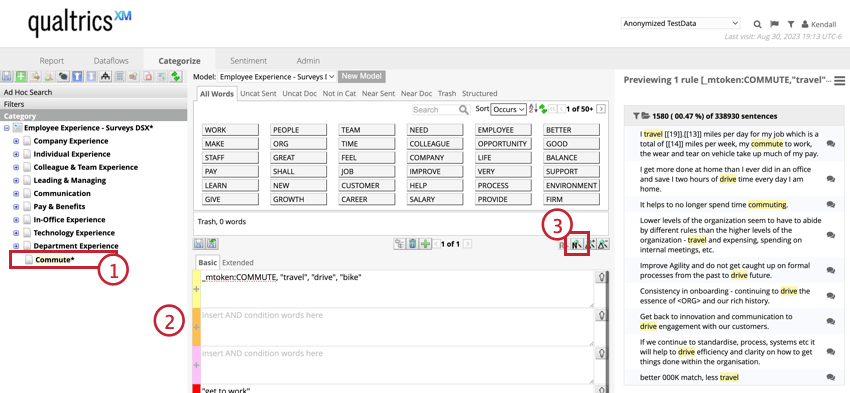
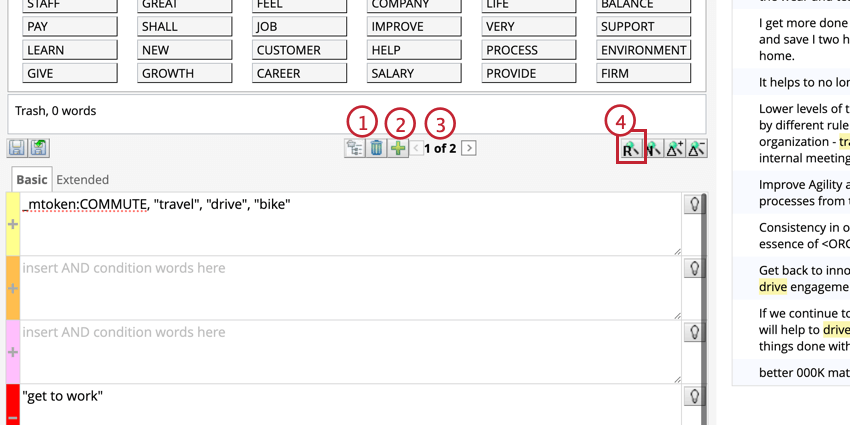
Example: Let’s say you want to create a category for “Commute”. The rules should contain words that are related to commuting to work (like “commute” or“travel”), and exclude words that are unrelated to commuting but could show up in the search (“drive” or “get to work”).

Some characters are used to create advanced search operators and therefore will affect the results if used to build a rule. The following characters can be used to basic rule creation:
- Letters
- Numbers
- Percent sign ( % )
- Emojis
- Emoticons
- Currency symbols ( $, €, £ )
Qtip: If you’re including words or phrases that contain contractions when building a rule (e.g. “couldn’t find” or “didn’t fit”), these should be written into the rule in their full form and inside quotes (e.g. “could not” or “did not”).

Using the 4 Rule Lanes
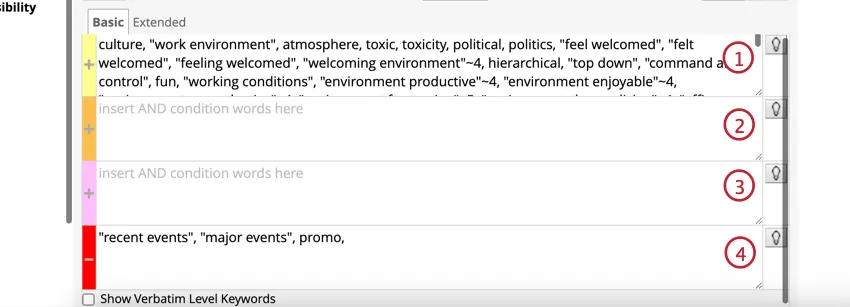
There are 4 rule lanes that determine the relationship of the words in the rule: OR, AND, AND, NOT.
Rule Lane Suggestions
Rule lane suggestions helps to build categories faster by analyzing the words typed into a rule lane and suggesting synonyms, related concepts, and common misspellings.
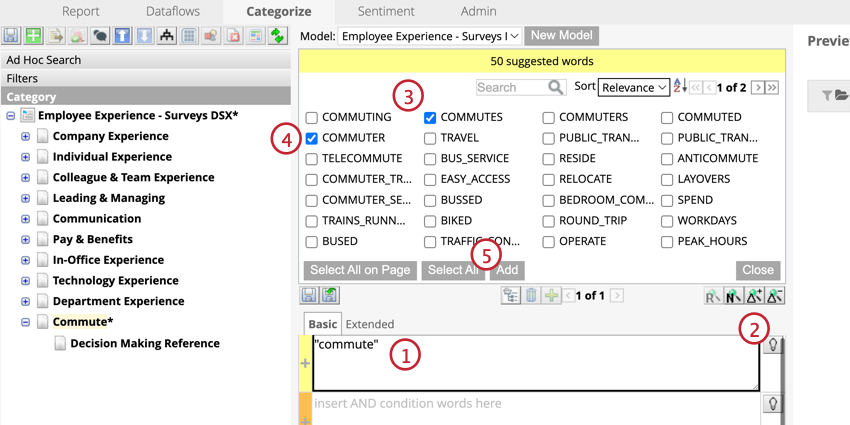
Qtip: Sort suggested words by relevance or name.
Suggestions are compatible with the following input:
- Simple terms: e.g. “car”
- Exact phrases: e.g. “sports car”
- Single-character wildcards: e.g. “c?r”
- Multiple-character wildcards: e.g. “technol*”
- Key words: e.g. _mtoken:CAR
Qtip: Suggestions are based on a large external dataset and not specific to project data.
Attention: Suggestions ignore words and phrases with boolean operators. See Advanced Rule Operators for more information.

Context Rules
Context rules categorize tweets and comments based on the content of the original post or parent document. These rules are useful when categorizing data from threaded conversations on social media.
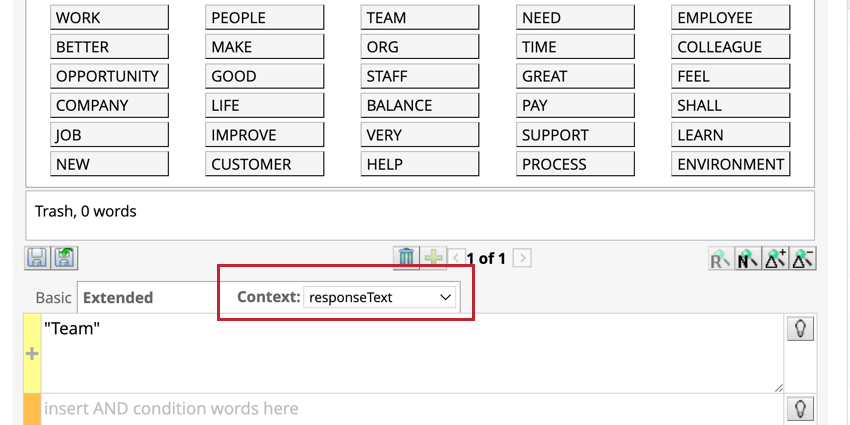
Example: For example, a company posts an announcement for their new product and receives lots of comments, but they only want to categorize comments from this specific post. So, they create a context rule (“New Product”) for their new product. If a basic rule is added, Designer will pull sentences that mention that rule (“Product Feature”) in comments from the extended rule (“New Product”).
A context rule is true if it relates to any sentence in the parent document and if it’s true then all sentences from all child documents get categorized. If a context rule is applied to a category group, it will also be applied to all categories in that group as an extended query to every basic rule.
Qtip: Basic and extended queries have an AND relationship, so the text gets categorized only if both conditions are met.
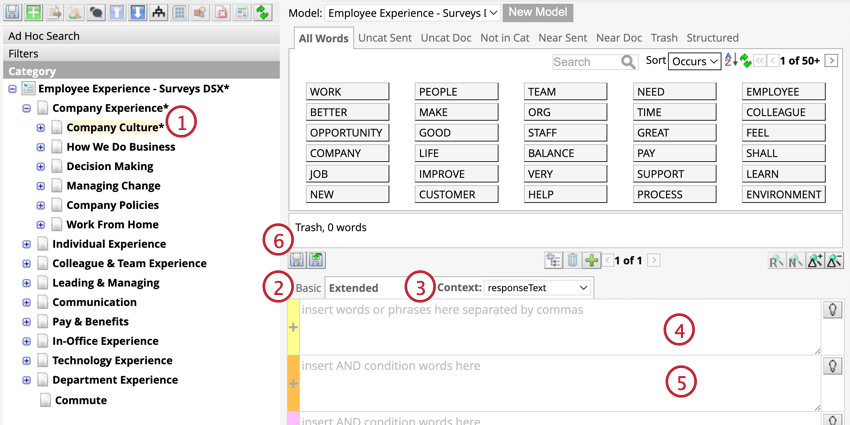
Attention: Extended rules may increase the time it takes to categorize your model.
When creating extended rules, the preview window will not reflect extended rules. Instead, to see the extended rules applied to the sentences or topic, you must publish the node, classify it, and view the results in Studio.
CONTEXT RULES FROM FACEBOOK DATA
Data from Facebook is uploaded as a post or a comment. Only comments can contain a link to a parent post, which can be used in context rules.
Qtip: Users can reply to comments on facebook. When this is the case, a comment can also serve as a parent to another comment.
CONTEXT RULES FROM TWITTER DATA
Data from Twitter can be uploaded as a tweet, a retweet, or a reply. Only replies contain a link to a parent tweet, which can be used in context rules. Replies to a retweet will have the original tweet as its parents.
Qtip: Users can reply to comments on Twitter. When this is the case, a comment can also serve as a parent to another comment.
CONTEXT RULES FROM FILE DATA
Uploaded files can have parent-child hierarchy as long as they have a column mapped to the Parent Natural ID system attribute. This should match the Natural ID of a parent document.
Verbatim-Specific Rules
A verbatim-specific rule categorizes sentences by terms that occur in the verbatim rather than the sentence. These rules are useful when working with social media data where sentence boundaries and style can differ. For more information, see Verbatim-Specific Rules.
Advanced Rule Operators
Special characters can be used for building more advanced rules.
Example: You may want to search for the term “décor”. While some responses may use the accent mark, others may have omitted. To include both options, use a single character wildcard search: “d?cor”
| Character | Use |
|---|---|
| ? | Single character wildcard search.
|
| * | Multiple character wildcard search.
|
| Boolean operators: AND, OR, NOT | Multiple character wildcard search.
|
Attention: Queries that start with wildcards may cause longer classification load times.
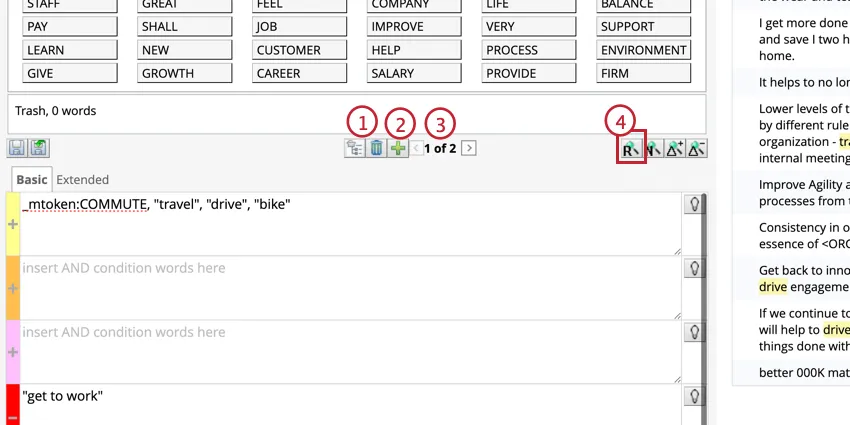
Applying Multiple Rules per Category
You can apply several rules per category. When multiple rules are specified, their queries always have an OR relationship, meaning sentences get categorized if they match at least one of the rules.
Referencing Categories in Rules
When you reference a category, you can reuse one category’s rules in another category. Referencing works across all category models, so you can share rules between different models in a project. If you make changes to the referenced category, you need to re-run classification on all categories that reference it to apply those changes.
Attention: A single rule can contain up to 30 category references. A chain of category references can have up to 2 links, so for example if category A references category B which references category C.
Qtip: A category cannot reference itself or its parent or child categories.
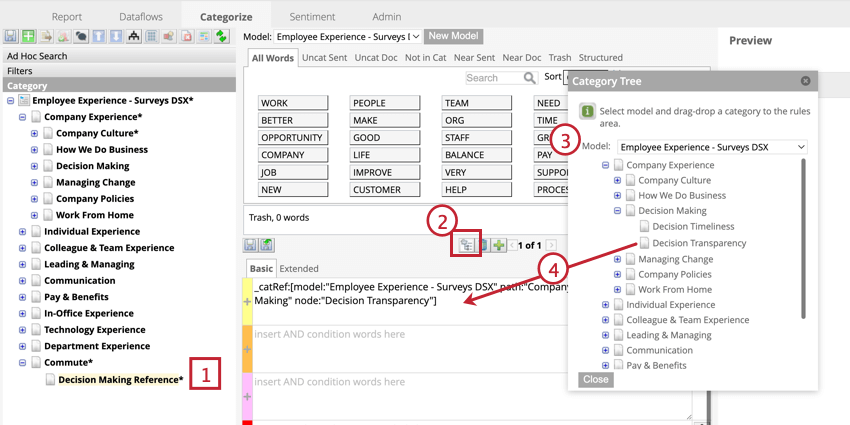
Category references have the syntax “catRef” and include the category model and category path.
_catRef:[model:”Model Name” path:”Parent Category” node:”CHILD CATEGORY”] Once you add a category reference, you can click the “Referring Category Nodes” button above the rule lanes of the category that has been referenced to see all references to that node.
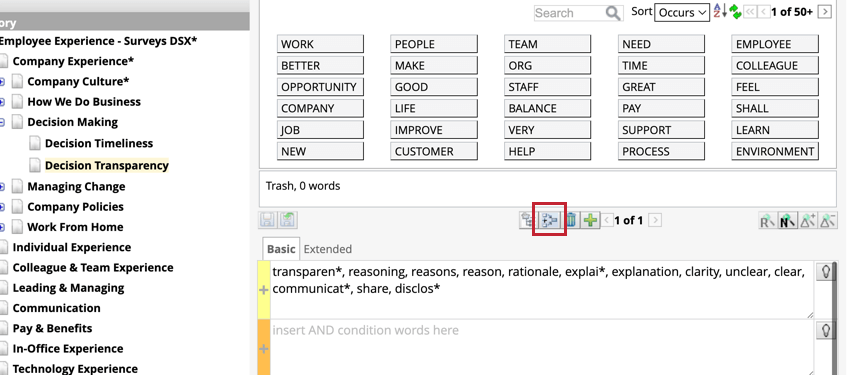
Attention: You cannot delete a category that has been referenced. All references must be removed before a category can be deleted.
Creating and Editing Rules with Smart Query
Smart Query uses artificial intelligence (AI) to generate rules based on your use case. This can be helpful for building and developing more complex category models.
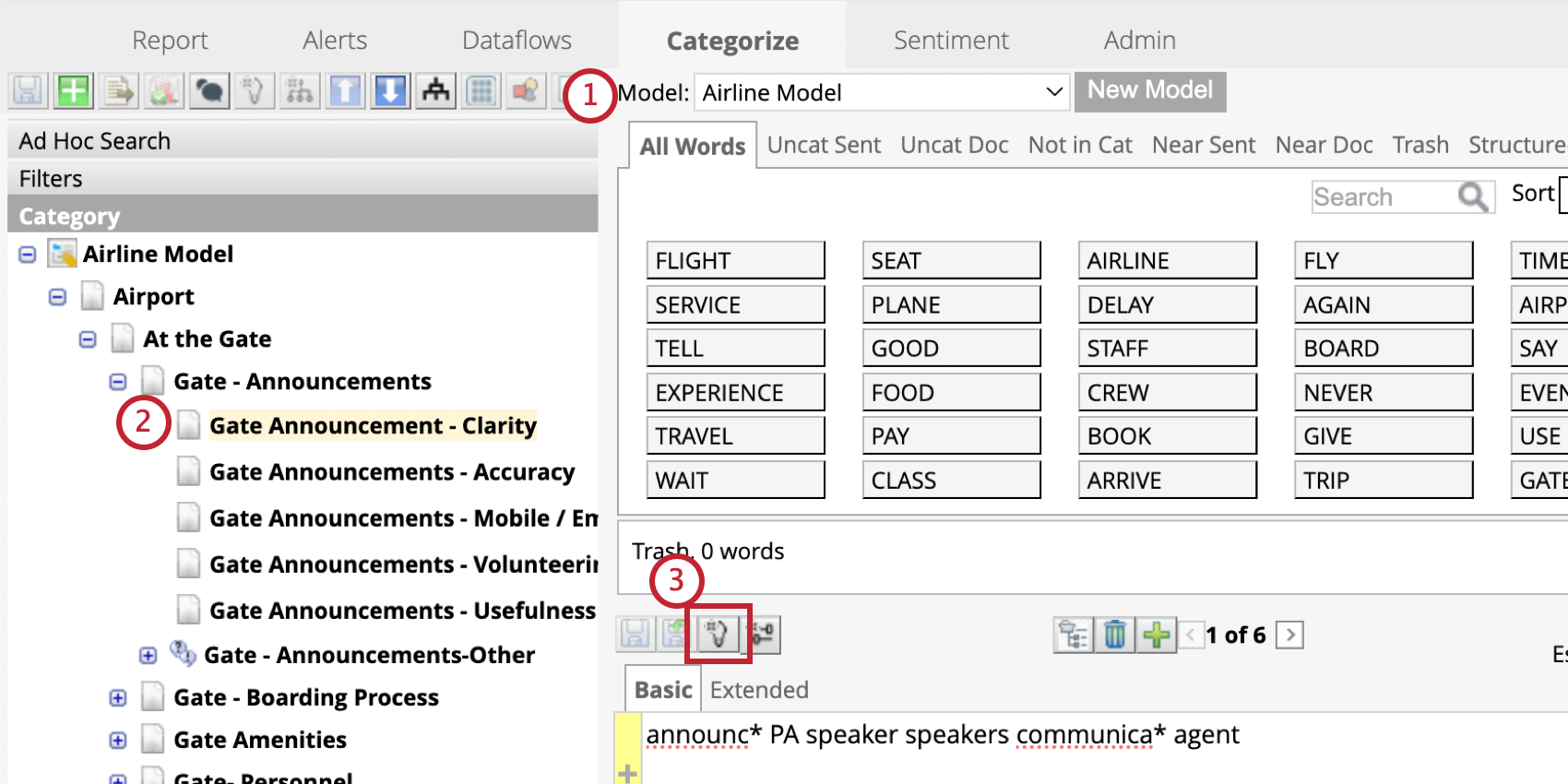
Qtip: You can use smart queries to create rules for blank categories as well. For information on creating new categories, see Adding Categories.
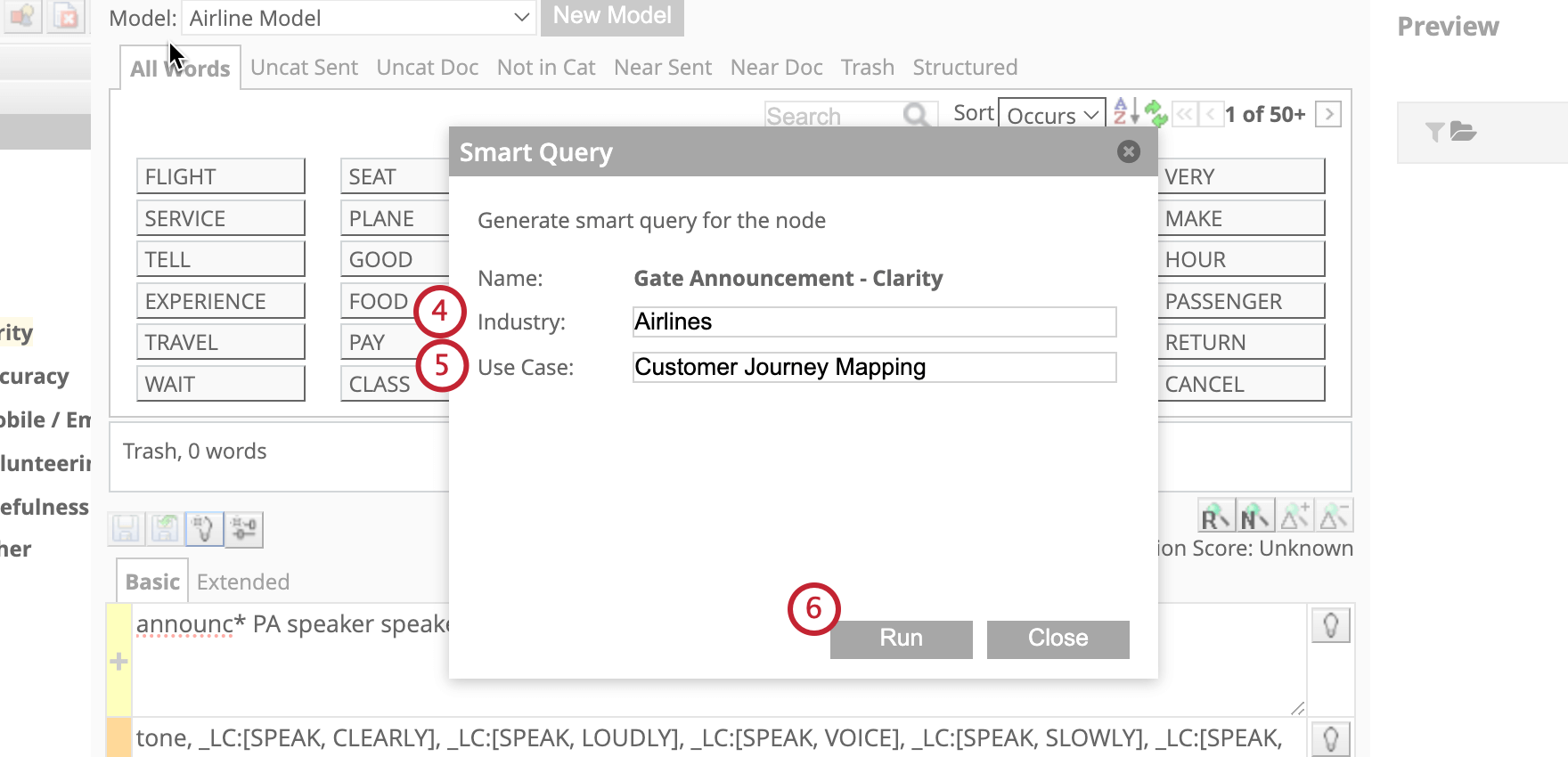
Best Practices for Entering Use Cases
The Use Case is an open-text field where you can provide instruction for how Smart Query builds your rule. Here are some best practices for creating your use case:
- Identify key roles and perspectives: Provide context around yourself as a requester and your role.
- Define focus areas for the model: Describe what the model will do, beyond its title.
- Include desired outcomes: Describe what you aim to achieve with this use case.
- Clarify data and verbatim sources: Specify the data being used in your analysis, and the nature and/or provider of that data.
- Specify important touchpoints: Indicate critical areas where touchpoints may occur. You can also note, if it is not an exhaustive list, that other touchpoints should be considered.
- Balance detail and coverage: Make sure your input allows for rules that are sufficiently detailed but broad enough to cover various scenarios. You can also clarify the level of detail and/or number of rule lanes that you’d like to use.
Example: Here is an example of a use case using the best practices listed above:
“I am a [role] querying [data/verbatim source] for [company name]. This model is focused on [focus area for model]. I aim to [desired outcome]. Consider the inclusion of queries related to [important touchpoints]—this is not an all-inclusive list and other relevant queries need to be included. Create rules that account for different expressions from [data source] language without being overly restrictive; not all inclusion lanes should be used.”
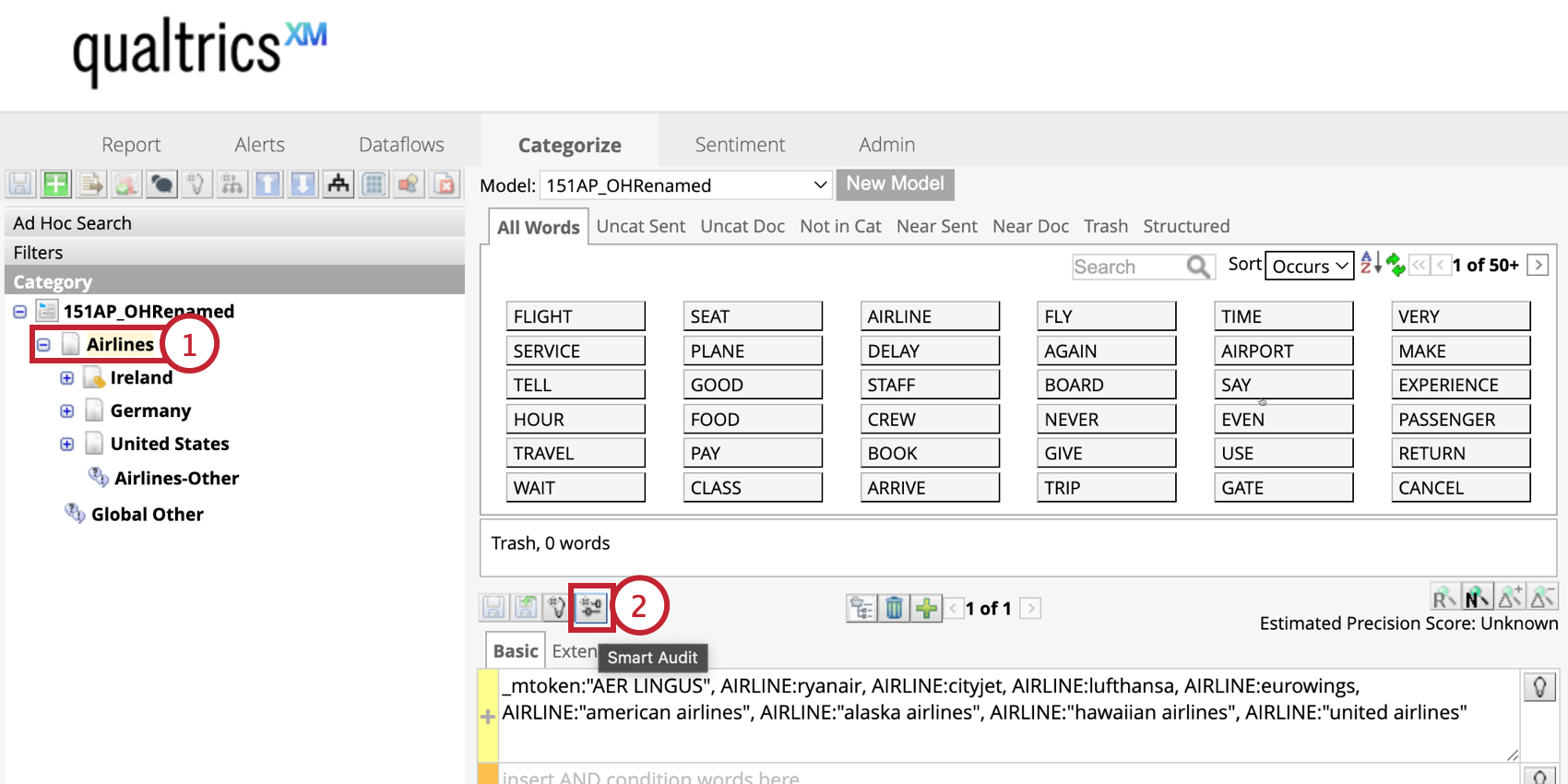
Smart Audit
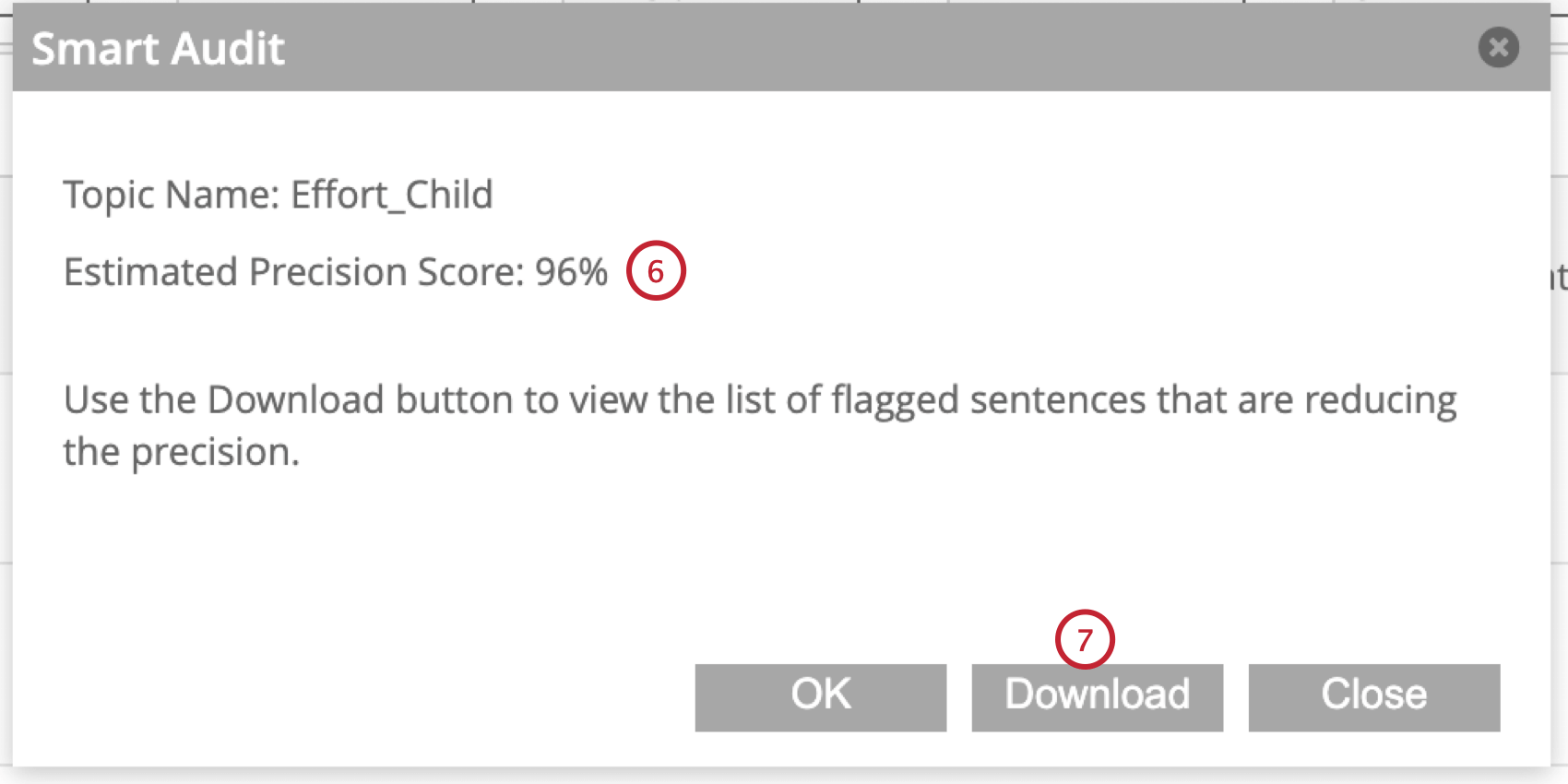
Smart audit uses generative artificial intelligence (AI) to enhance your topic queries in XM Discover. It analyzes your sentences tagged with a topic, generating a precision score for the query, and identifying the sentences that should be removed from your model.
Qtip: Smart audit can be enabled or disabled by an account administrator.
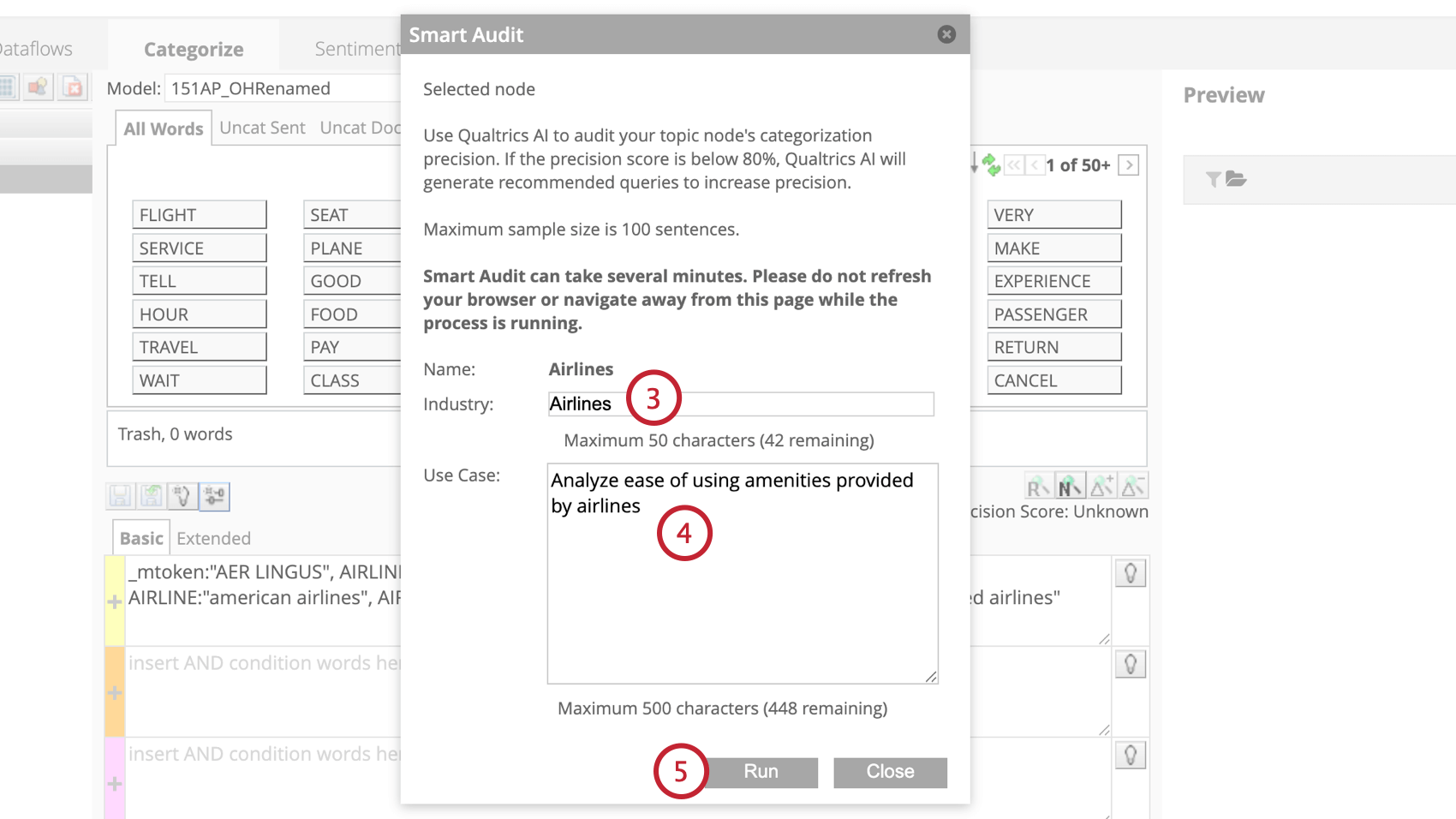
Best Practices
- Use Ad Hoc Search to explore data and experiment with rules without altering your category model.
- Fill nodes with basic rules or reuse rules from existing categories.
- Use Theme Detection to refine results.
- Filter your data based on structured attributes and system attributes.
- Use the Source Highlighter to preview a sentence and see which categories the sentence has been assigned to.
That's great! Thank you for your feedback!
Thank you for your feedback!