

Editing Dashboards (Studio)
What's on this page
About Editing Studio Dashboards
After a dashboard is created, you can change its properties or edit its widgets.
Assigning Dashboard Editors
To edit a dashboard, you must have an Edit Dashboard permission and have the specific dashboard shared with you with the Can Edit permission enabled.
If a dashboard is personalized, you must also be included in the related organization hierarchy’s users mapping file to be able to edit the dashboard.
Switching Between Edit and View Mode
To edit widgets, you need to open the dashboard in edit mode. There are several ways to do this:
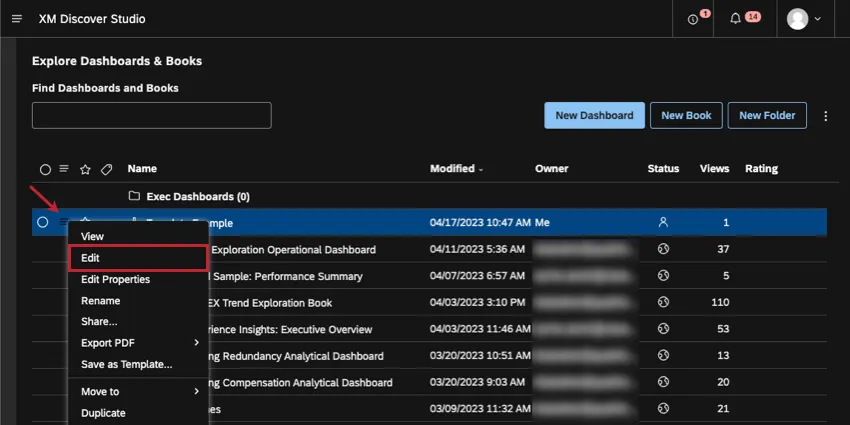
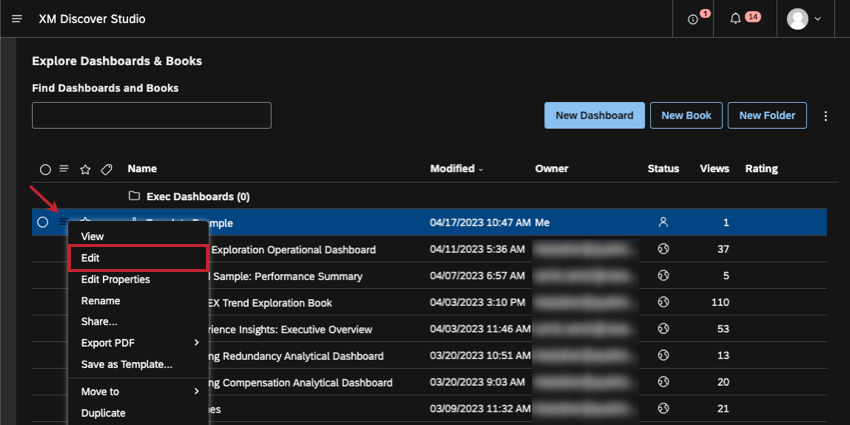
- On the homepage, under Explore Dashboards and Books, click the menu next to your dashboard and select Edit.
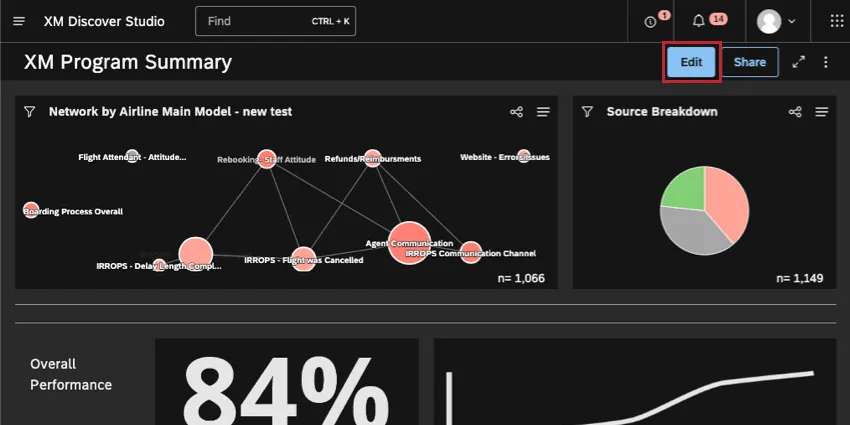
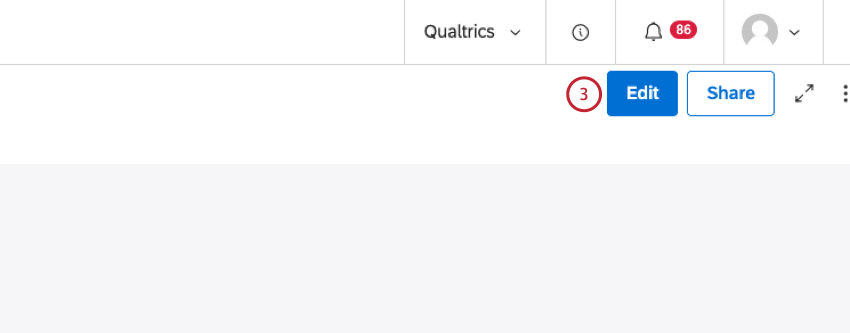
- When viewing a dashboard, click the Edit button in the dashboard header.
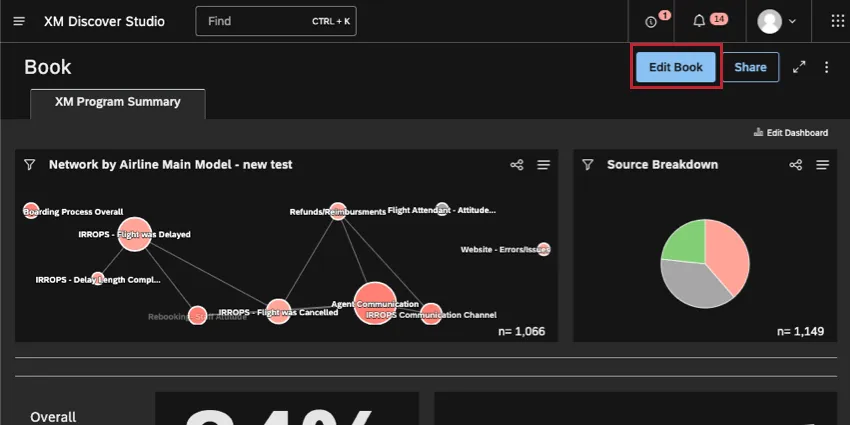
- When viewing a dashboard inside a book, click the Edit Dashboard button in the book header.
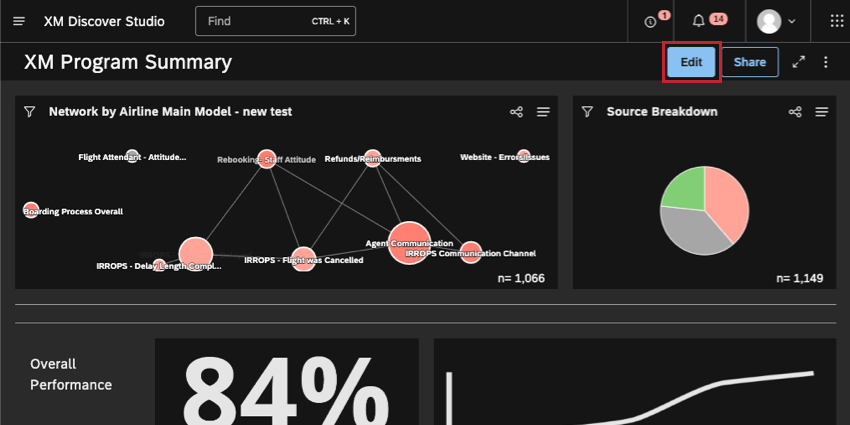
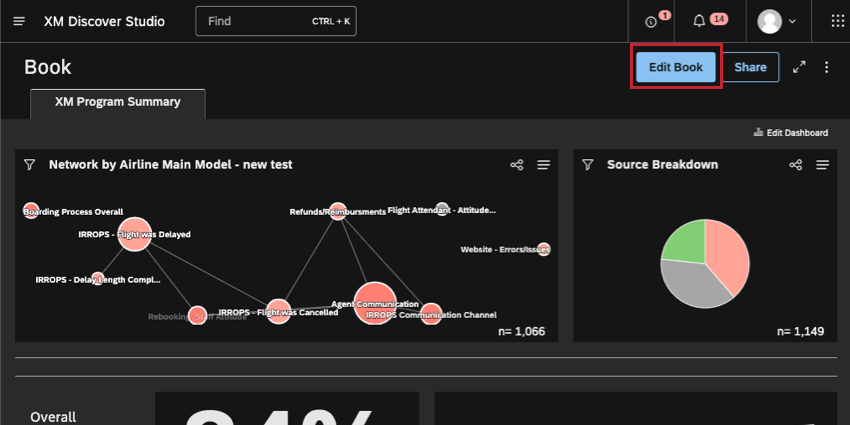
To return to View mode, either save or cancel your changes using corresponding buttons at the top.
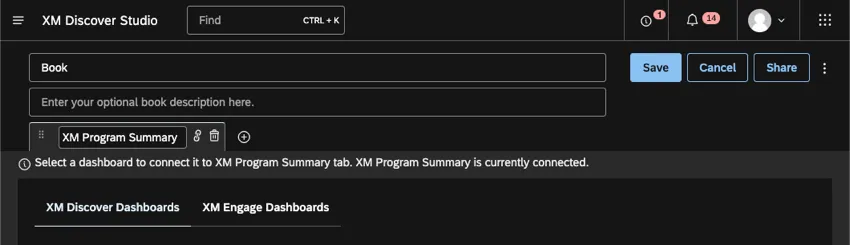
Saving Your Dashboard
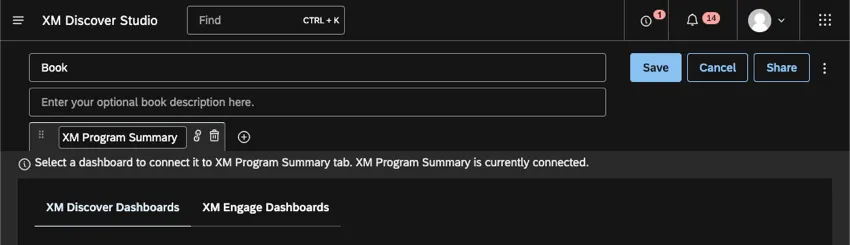
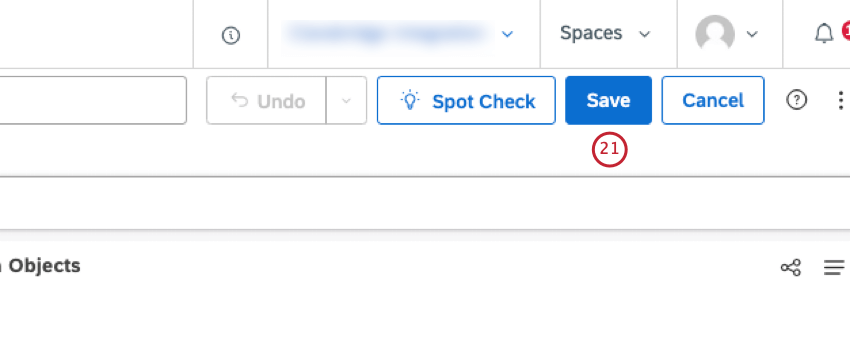
Click Save in the upper-right to save your changes.
Changes Saved Automatically
Your dashboard is saved automatically every time you perform the following actions:
- Add a new widget from the menu or using drilling.
- Change the dashboard name.
- Copy a widget.
- Delete a widget.
Editing Dashboard Properties
The Dashboard Properties editor contains some basic information about the dashboard, such as name, owner, and color palette, in addition to advanced settings, such as drilling settings.
See Dashboard Properties to learn more.
Qtip: When editing your dashboard, you can change the name in the top-left without going to the dashboard properties.



Editing Widgets
Widgets are content you can add to your dashboard. Widgets can display reports, images, text, and videos.
For more on how to add, copy, resize, and customize your widgets, see Widgets Basic Overview (Studio).
Undoing and Redoing Dashboard Edits
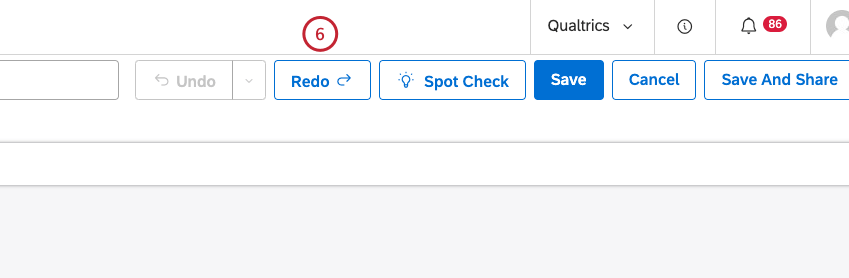
Attention: To be able to undo and redo edits to a dashboard, you must own or have edit rights for the dashboard.

The undo and redo feature is available when doing the following in a dashboard:
- Adding a widget
- Duplicating a widget
- Deleting a widget
- Linking and unlinking a widget-as-filter
- Updating widget settings
- Moving widgets
- Resizing widgets
- Updating dashboard properties
Studio will remember up to the 10 most recent actions made to widgets in a dashboard to allow you to undo or redo them if necessary. For more information about widgets, please see Widgets (XM Discover).
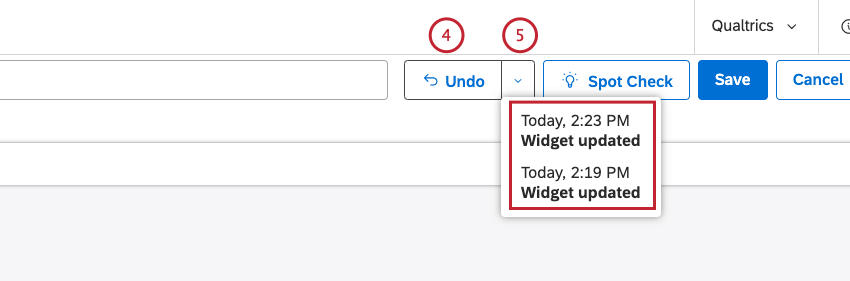
Qtip: You can click each of the separate edits in the list in any order.
Attention: For edits that are connected, for example updating a widget and then deleting it, undoing an edit from the list may result in multiple edits being undone.
Using Spot Check
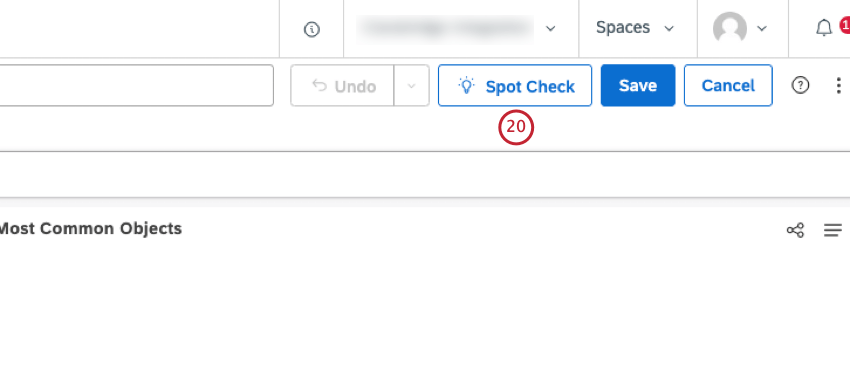
Attention: To use spot check to scan a dashboard, you must own or have edit rights for the dashboard.
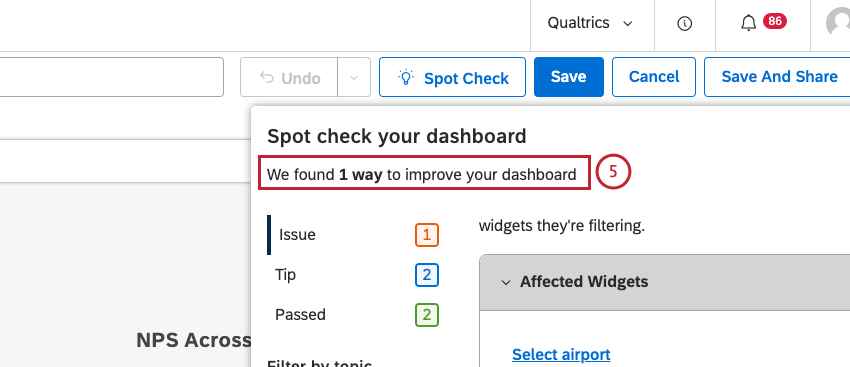
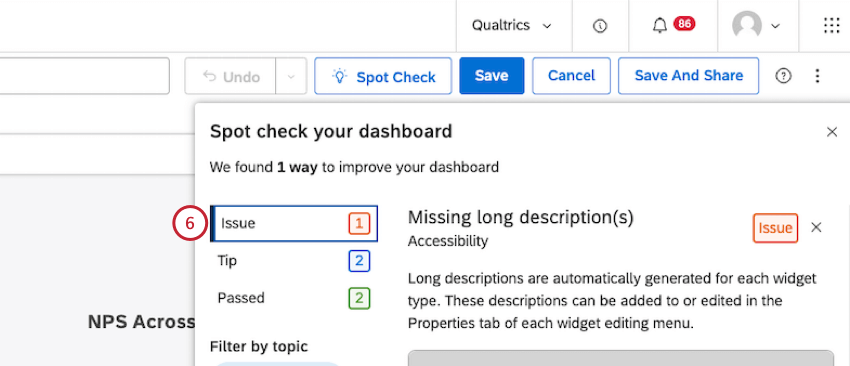
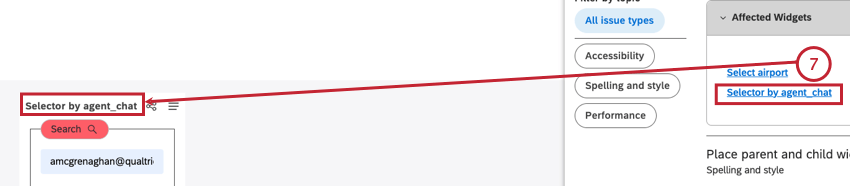
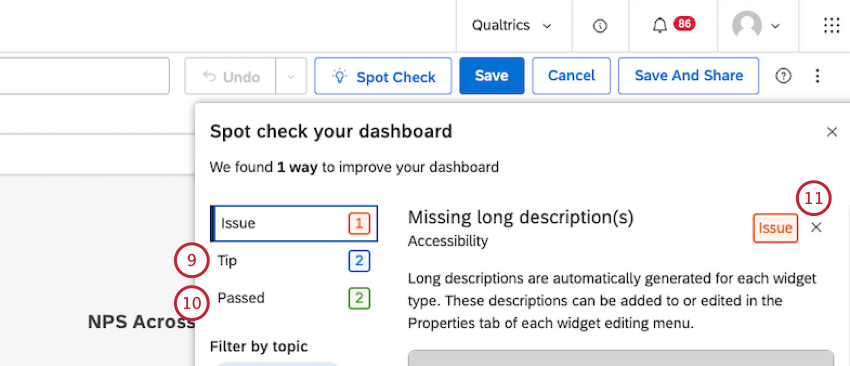
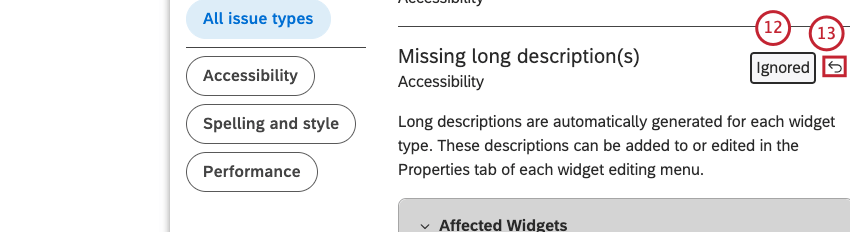
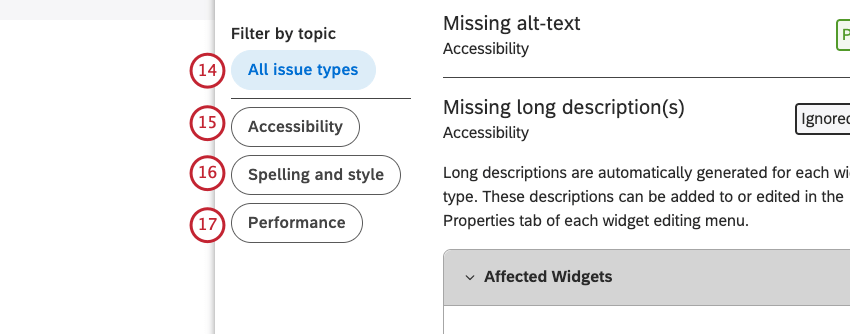
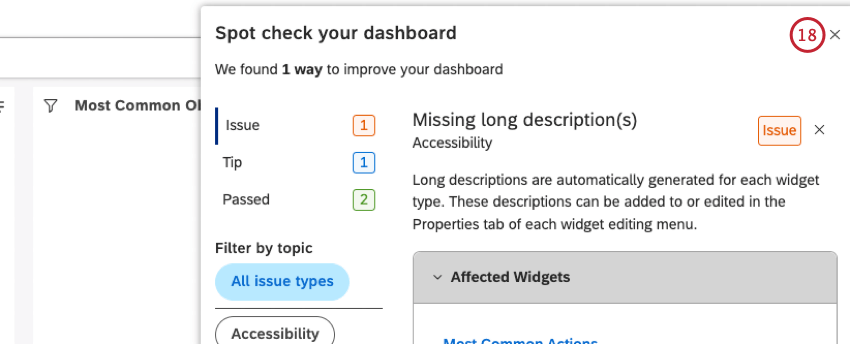
You can use spot check to scan dashboard content for common issues and leverage best practice tips to improve dashboard performance. This enables you to:
- Ensure that the dashboard is accessible, polished, and performing efficiently.
- Quickly troubleshoot issues and get back to editing the dashboard.
- Catch issues before deploying a dashboard to a large audience.

Filtering
Adding filters can help you focus on data especially important to you. Narrow down data by date, topics, and attributes, and save the filters you use the most. You can apply filters to specific widgets or to the entire dashboard.
For more, see:
That's great! Thank you for your feedback!
Thank you for your feedback!