

Conversion Funnel Reporting (BX)
What's on this page
Common Funnel Reporting
Conversion funnels, also called brand funnels, display the proportion of people that have different levels of interaction with a brand. These funnel levels are based on questions in the survey that the respondent answered about each brand. Common funnel questions include:
- Aided/Prompted Awareness: Which of these brands have you heard of?
- Consideration: How likely are you to consider this brand the next time you buy?
- Regular Usage: Which of these brands do you regularly use?
- Subscription: Do you have a contract with or subscribe to any of the following of these brands?
- Future/Purchase Intent: How likely are you to purchase [brand] next time you buy?
- Preference: Which of the following brands are you most likely to purchase?
Funnels should only have about 3-5 levels, and they should be ordered logically, from the broadest group to the narrowest. For example, Awareness => Consideration => Regular Usage => Subscription. Each level logically proceeds to the next, with Awareness as the group with the most people, and Subscription as the smallest.
Qtip: As you progress from one level to the next, it can be useful to have carry forward on gradually smaller funnel levels. The Brand Tracker includes this setup by default.

Auto-Generated Content by Brand Tracker Type
The setup assistant in the Brand Tracker project creates the following for the default funnel levels:
- Questions
- Embedded data fields
- Data mappings
- Custom metrics
- Widgets
These are the specific funnel levels included by default, by type of Brand Tracker project:
- Online Subscription Services: Awareness => Consideration => Regular Use => Subscription
- Consumer Packaged Goods Brand Tracker: Awareness => Consideration => Regular Use
Attention: If changes are made to these questions or their fields, then the survey and dashboard will need to be updated manually according to the directions on this support page.

Recommended Widgets for Funnel Reporting
In this section we’ll go over the recommended widgets for funnel reporting, and how these widgets add value to a dashboard. We’ll go over the step-by-step details of how to set them up later in the page, after we perfect the survey and dashboard data requirements.
For Funnel Levels
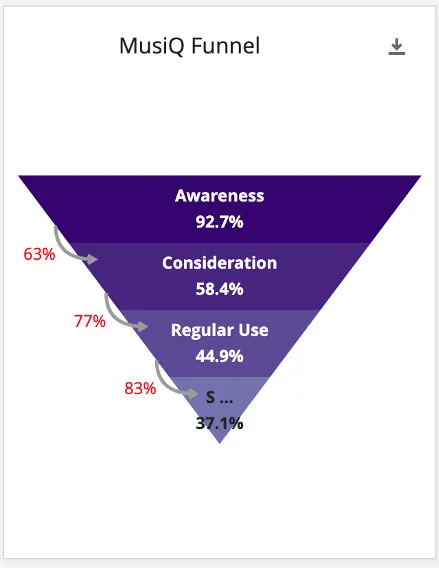
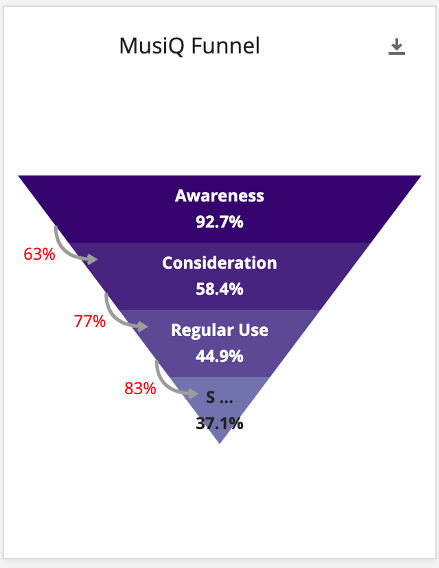
The funnel widget shows the levels of the funnel for a single brand. We see the number of respondents who select the brand for each level divided by the total number of responses. For example, 92.7% of all respondents answered that they were aware of the brand in the above image. This metric can help you understand how your brand is doing in their overall marketplace.
In addition, the chart shows the “conversion ratio”, or the percent of people who pass from one level to the next.
Example: 63% of people who are aware of the brand also consider the brand in the above image. This metric can help clients see how well they are doing at converting people from one level to the next. Perhaps they have high awareness, but a low conversion ratio to consideration, meaning that something is keeping people from considering their brand, perhaps due to messaging or price. Conversely, perhaps the brand has low awareness but a high conversion ratio to consideration, meaning that perhaps the brand needs a marketing boost. If people only knew about the brand, they would be likely to consider.

For Trending Charts
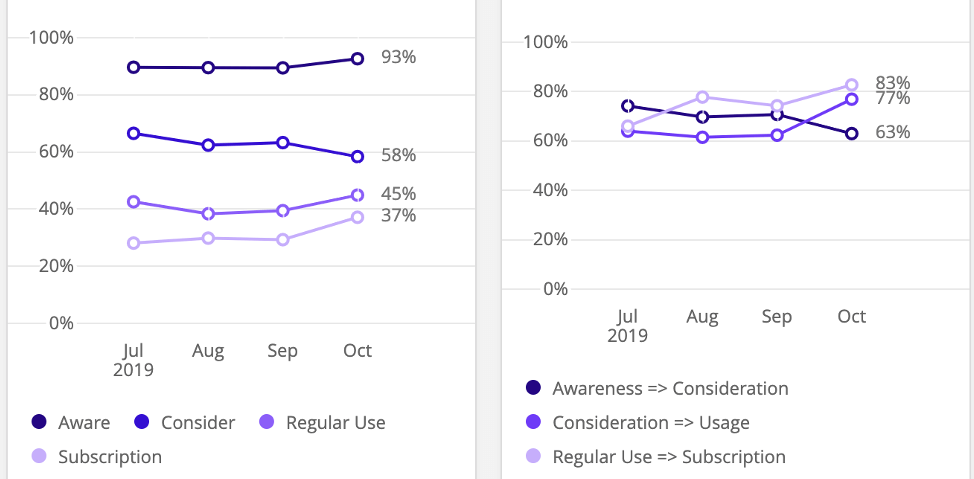
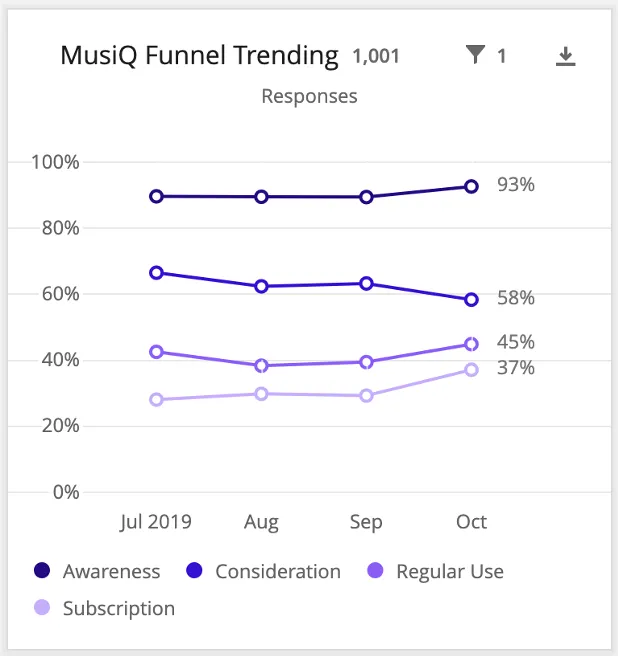
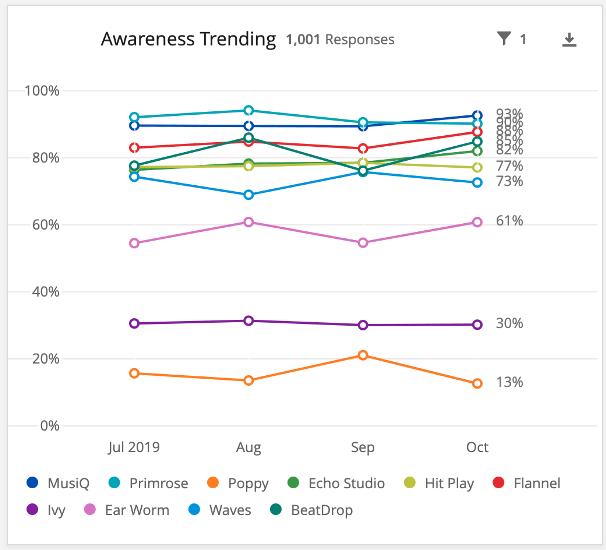
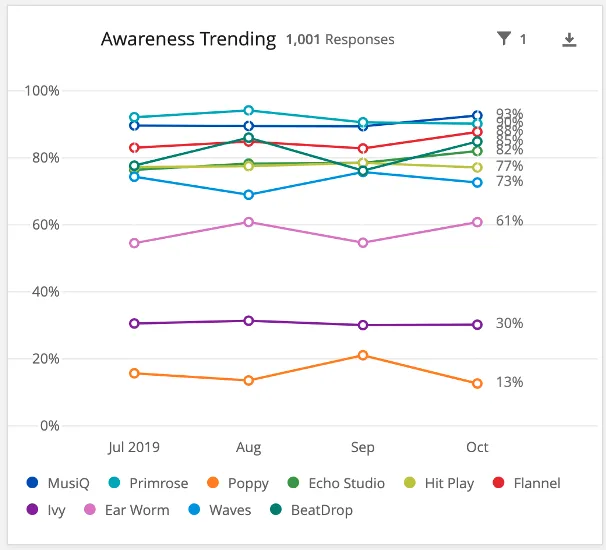
Simple charts (formatted as line charts) can be used to show the trends of actual funnel percentages and conversion rates. From this, you can monitor how your funnel levels and conversion ratios are doing over time.
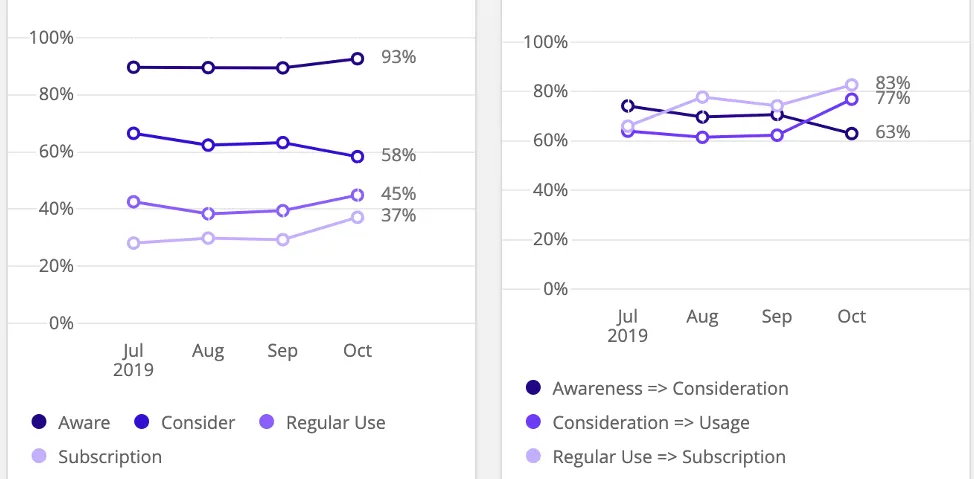
Qtip: We recommend making these charts for your brand and its top (or all) competitors.
For Competitive Charts
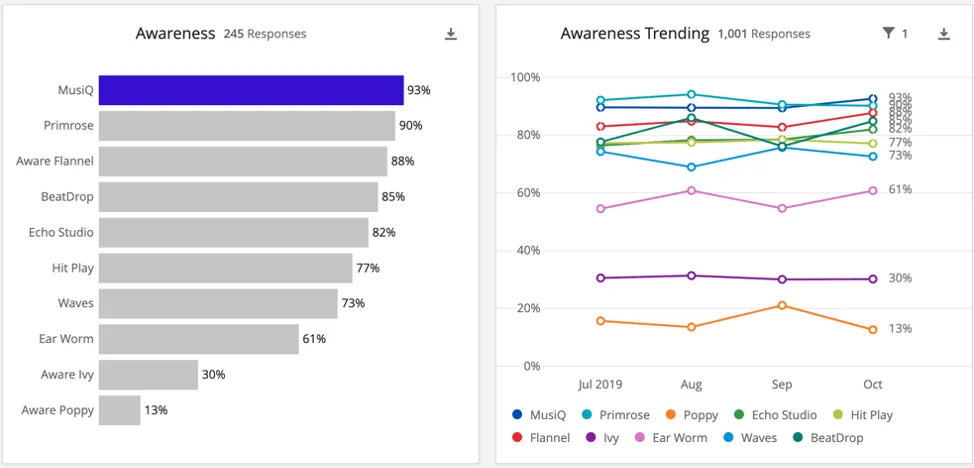
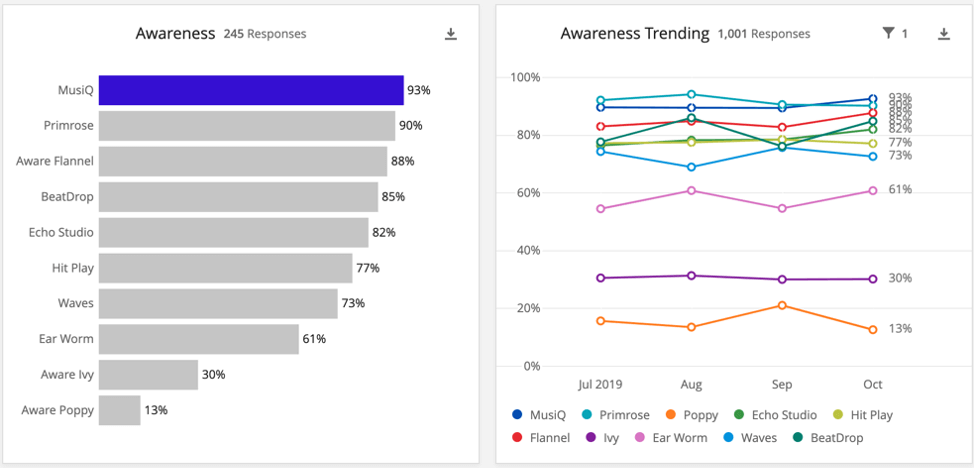
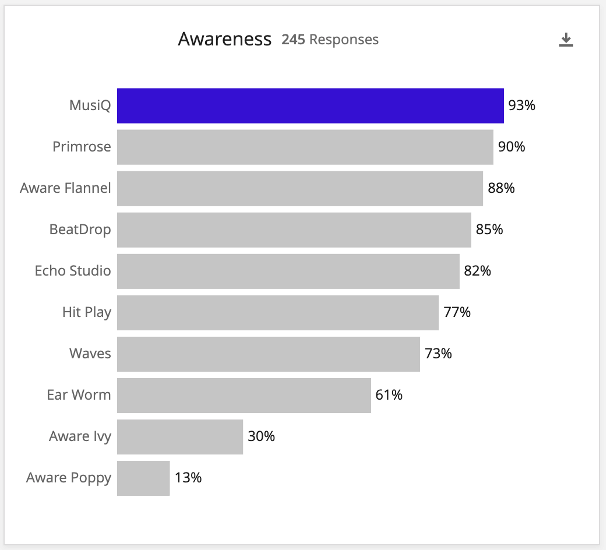
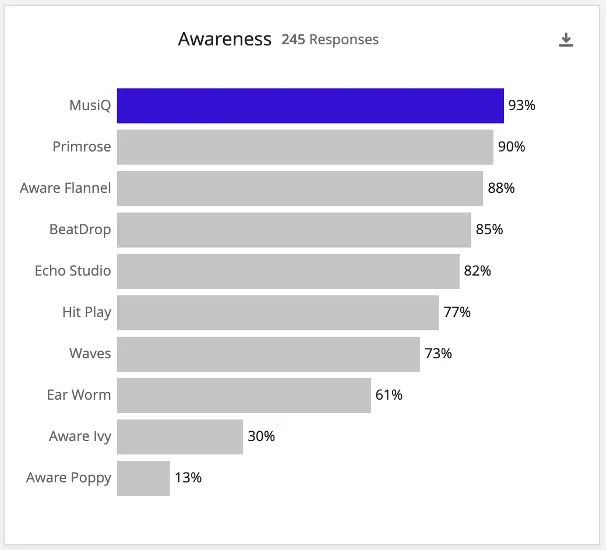
Finally, you can use two more simple charts to create competitive charts. These allow you to easily see how your brand is performing relative to your competitors on any given level. The competitive charts usually consist of one bar chart showing percentages for all brands for that funnel level, and one line chart showing the same data over time.
Survey Setups
In this section, we’ll go over the types of questions you can use in your Brand Tracker survey in order to later map the data back into the widgets we discussed. There are three different setups, which can be modified based on your needs:
Qtip: When you create a Brand Tracker project, a mix of the basic and scale setup is currently used. If you would like to change your implementation, this section goes through how.
Warning: Survey customization should be completed before you collect data from respondents.
Basic Setup
The funnel widget was designed to be compatible with multiple choice questions. Both multiple-answer and single-answer formats are compatible.
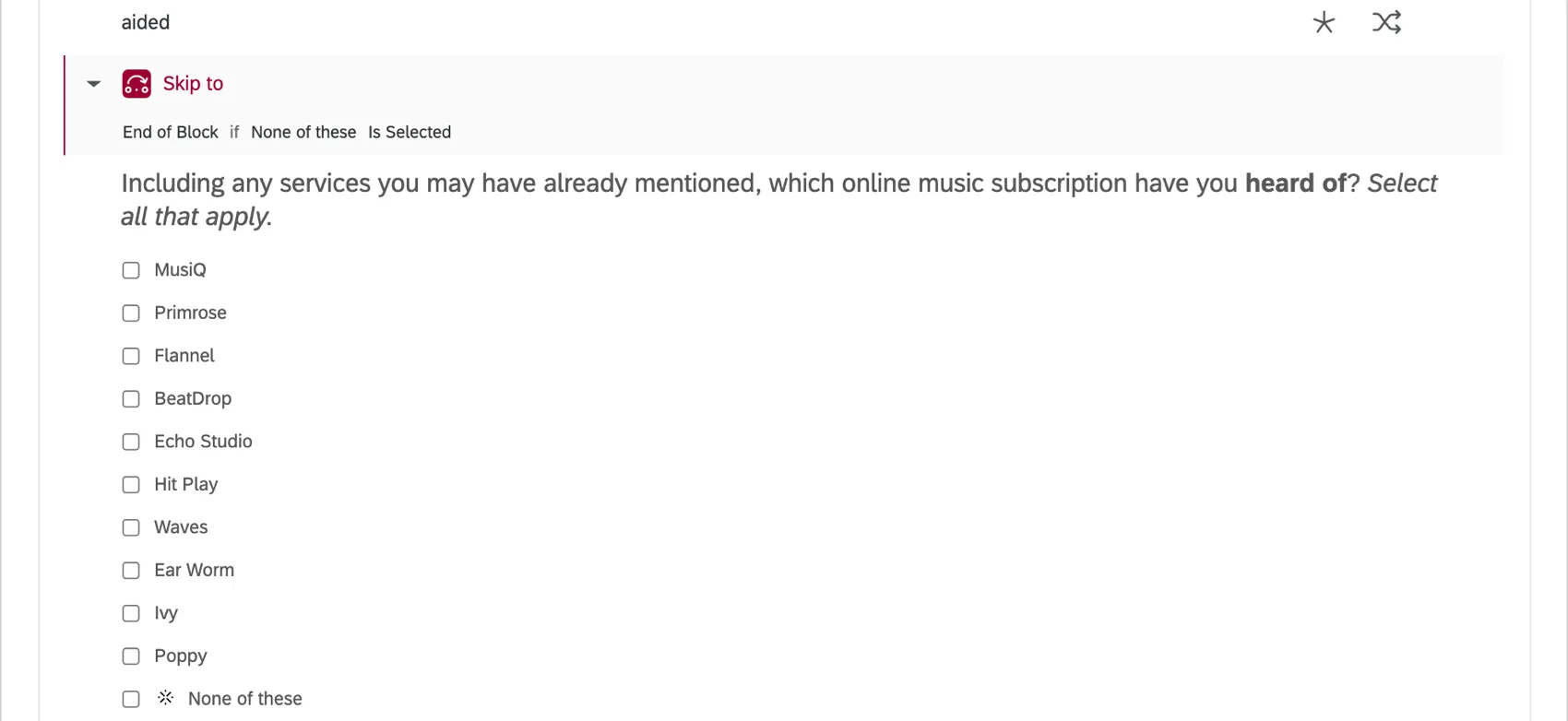
For example, questions may ask respondents to pick which brands respondents are aware of, or have used recently, or would consider purchasing. Your brands are the answers, and they’re all listed together in a single question. The multiple-answer format lets respondents pick every brand that qualifies.
For other questions, we ask respondents to select a favorite or preference. Each brand is an answer option, but respondents can only select one.
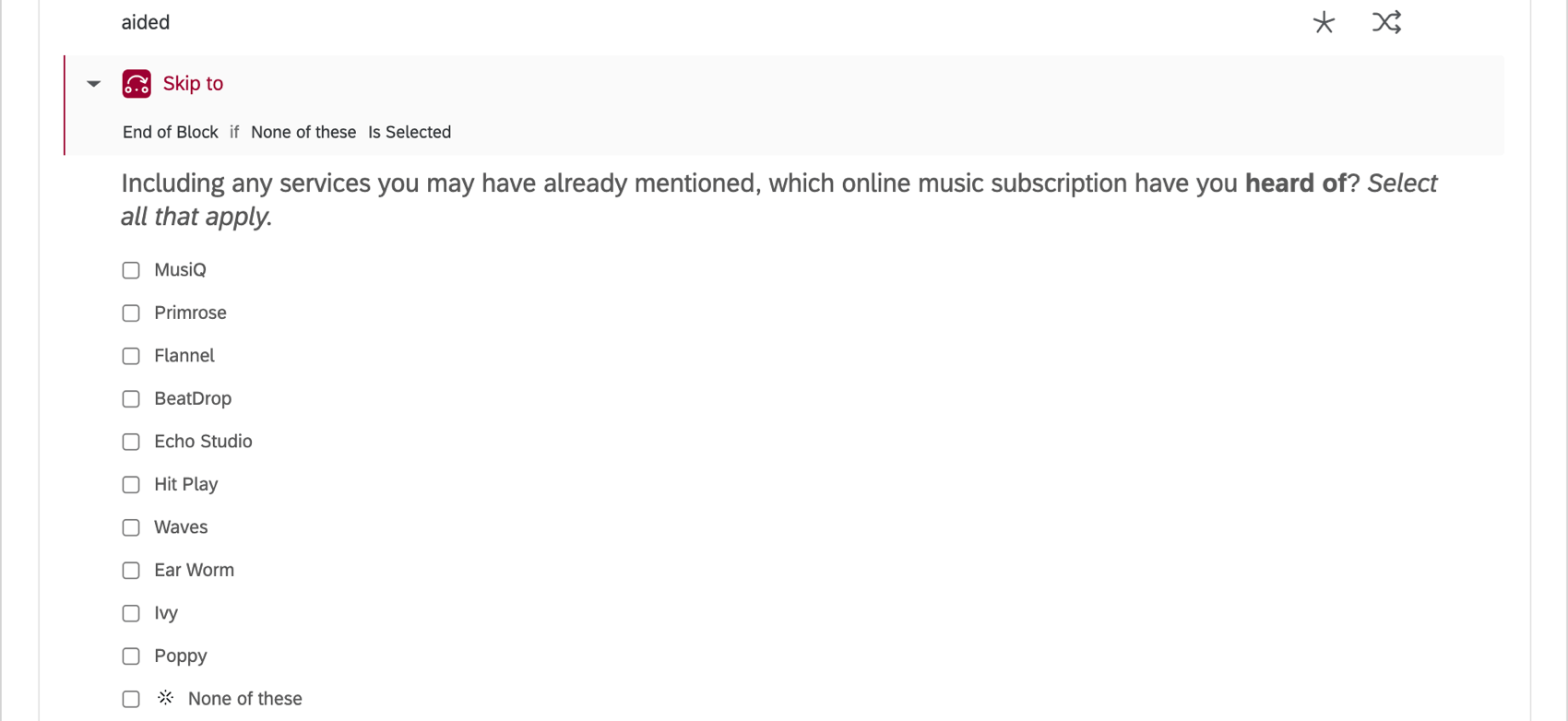
Example: Let’s say our Awareness question is a simple multiple choice question in a multiple answer format. To use this in a Funnel widget for “MusiQ” in the dashboard, we would choose the question “aided” and select the answer “MusiQ”. Nothing special needs to happen in the survey programming. The Multiple Answer question, where the brands are the answer options, is directly compatible with Funnel widget.
Customizing Your Survey with Scales
Another common format is doing one of the following:
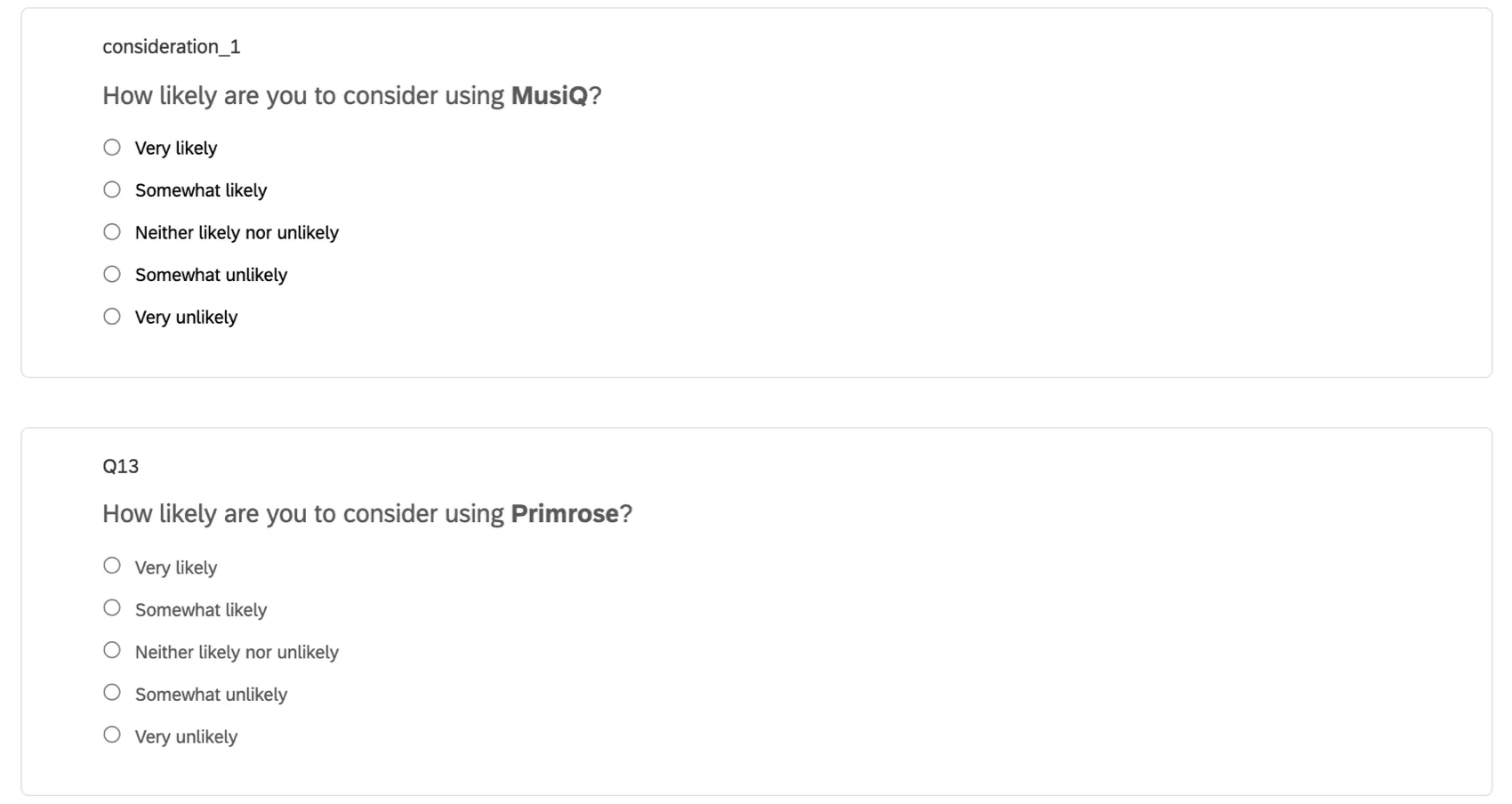
- Making a separate multiple choice questions in a single answer format per brand, with scaled answer options.
- Making one matrix table in a Likert format, where you ask a separate question per brand and give respondents scaled answer options.
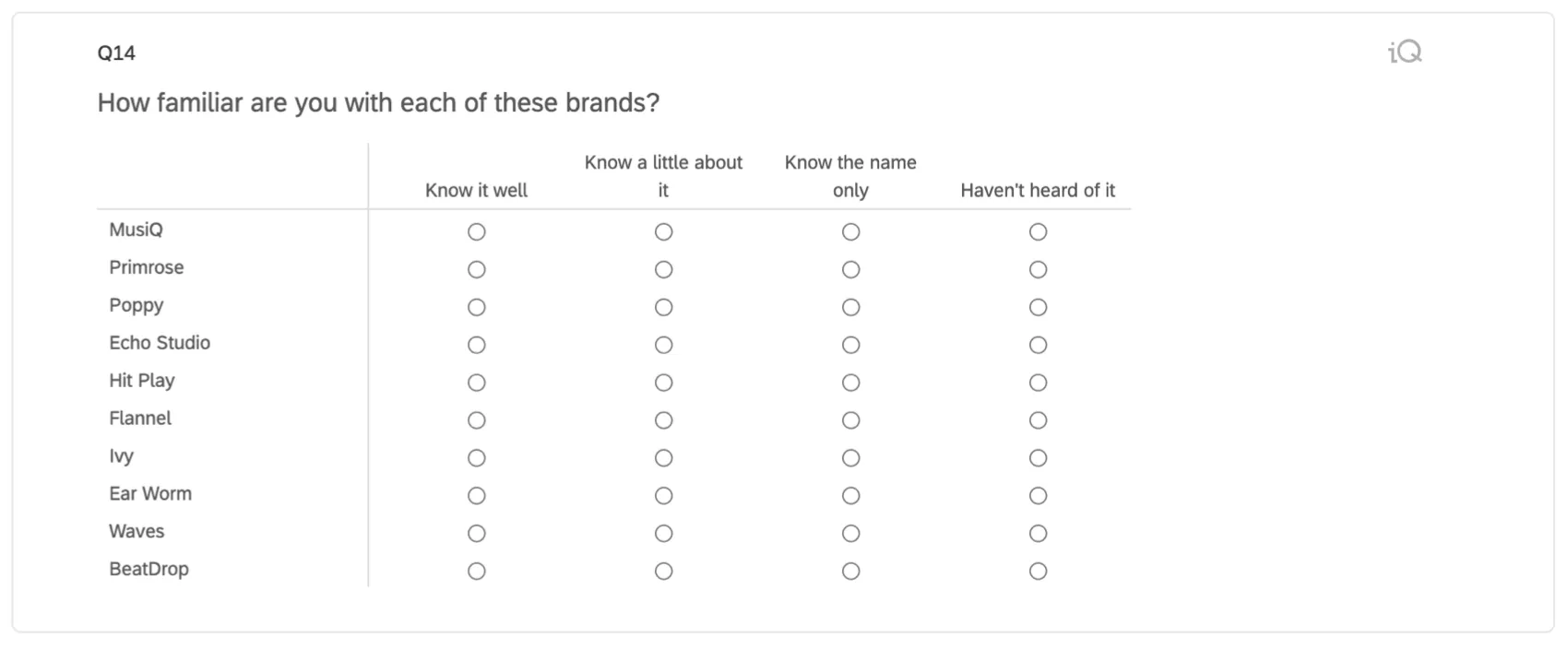
Qtip: Multiple choice questions are generally the better choice, and less likely to fatigue respondents or encourage straightlining. See our blog for more on how matrix tables affect data collection.
This allows greater granularity during analysis (rather than the binary will consider/will not consider in a multiple answer question. The scale option gives more nuance).
However, these type of questions cannot be directly added to a funnel widget. For example, if we tried to add one of these questions to the funnel, we would be forced to pick just one answer option. If we wanted to be able to use both “Very likely” AND “Somewhat likely”, we wouldn’t be able to. We could only pick one of them. In most cases with a scale, we would want to be able to include top 2 box, top 3 box, etc., since that is more meaningful than any one value from the scale.
To make these kinds of questions work with our widgets:
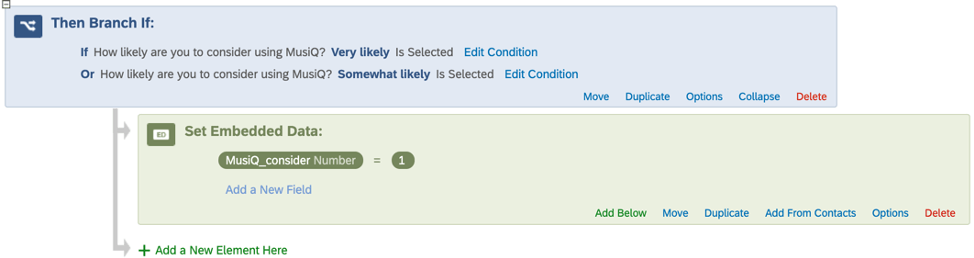
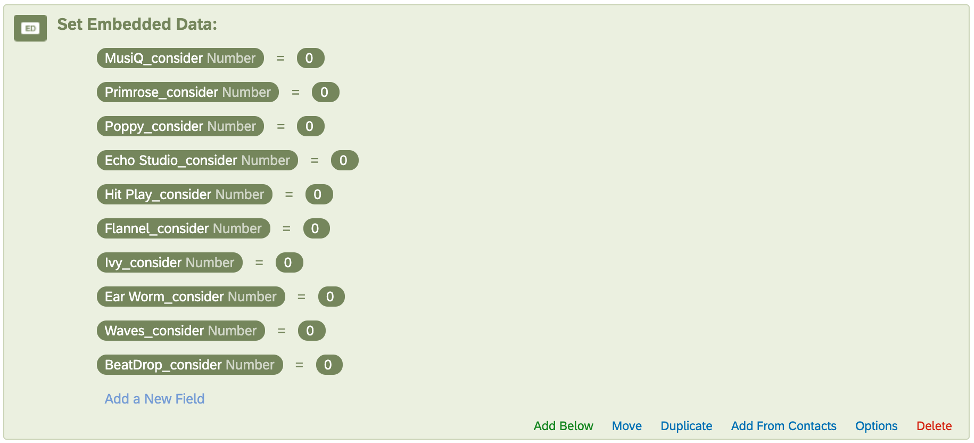
In the Funnel widget, we would then choose “MusiQ_consider” for the field and “1” as the value.
We would have separate branches with embedded data set up for each brand so that we could create separate Funnel widgets for all of them.
Customizing Your Survey by Splitting Funnel Questions
Ideally, the data for a single funnel level is collected in a single survey question. However, you may need the data split between two questions.
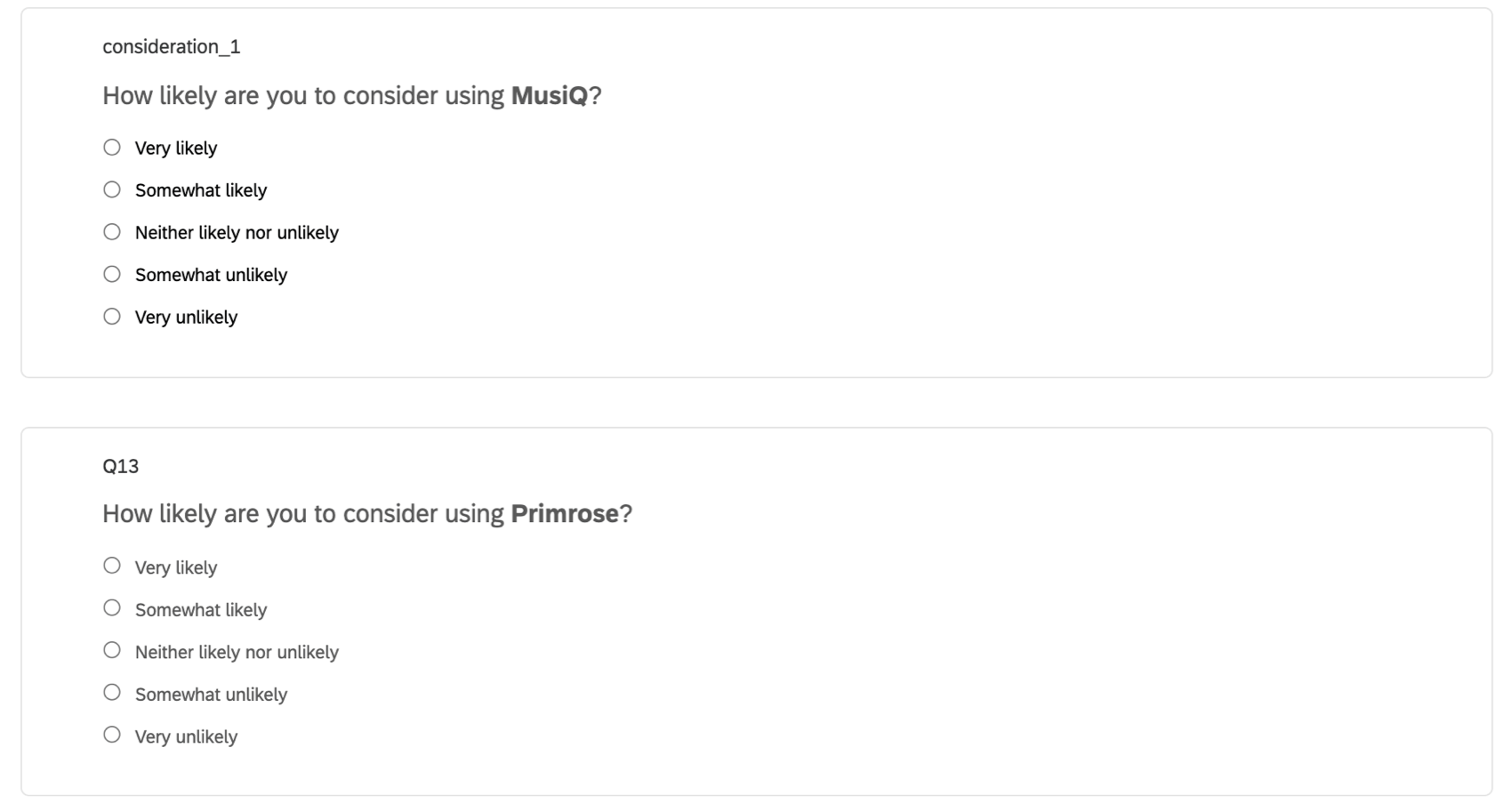
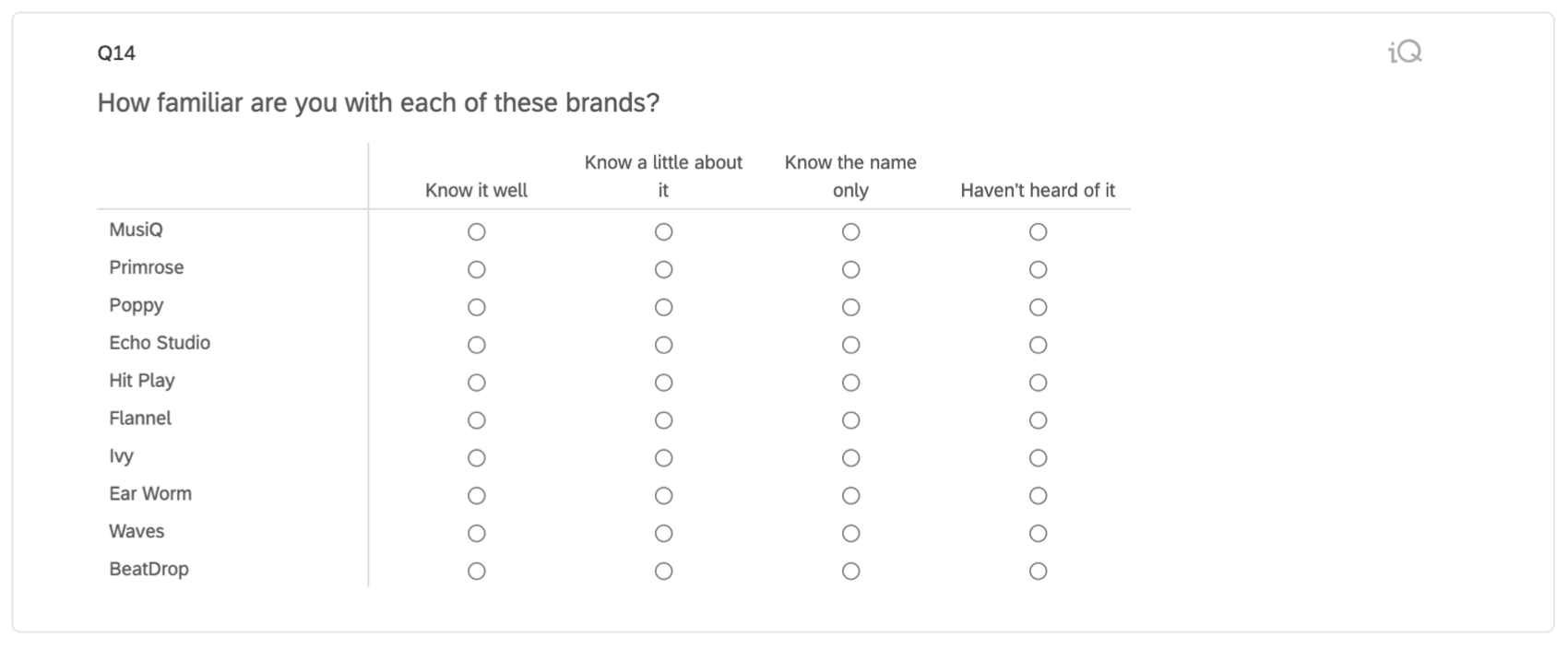
Example: In the images below, we wanted our consideration question phrased differently if the respondent was a current subscriber of the brand or not. We would like both of these questions to contribute to the same “Consideration” funnel level in the dashboard, though.
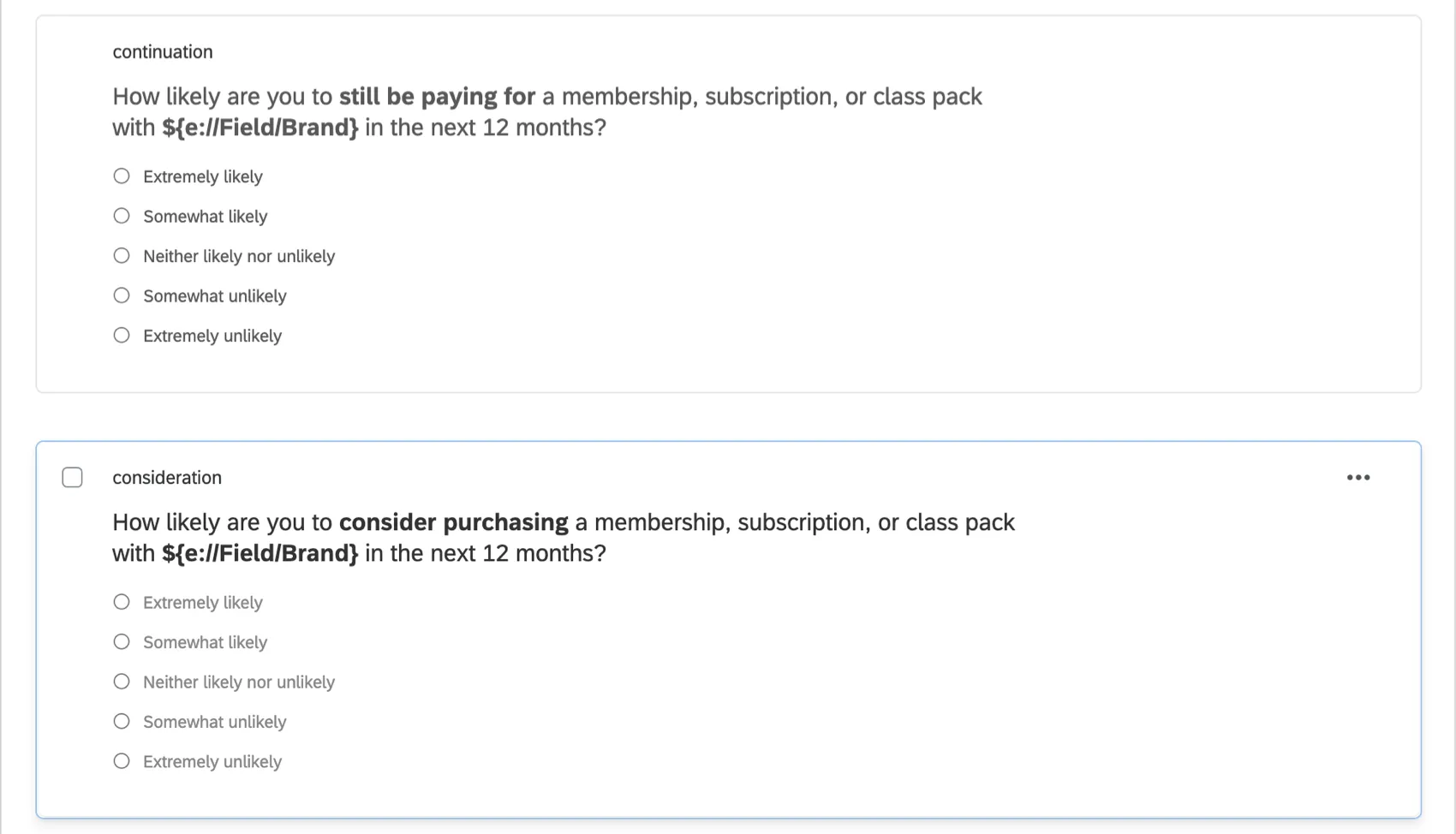
For instances where our funnel level is split across multiple questions, we need to create an embedded data field for each brand and set a value if the respondent selects any qualifying answer option. In this way, we effectively combine data from the relevant questions together in one place.
To make these kinds of questions work with our widgets:
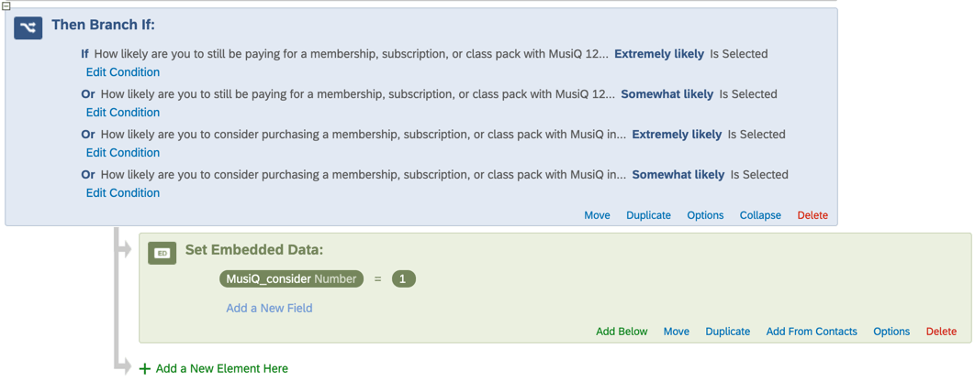

In the Funnel widget, we would then choose “MusiQ_consider” for the field and “1” as the value.
We would have separate branches with Embedded Data set up for each brand so that we could create separate Funnel widgets for all of them.
Dashboard Data Preparation
Once our survey is set up, we can turn to the dashboard side. Within the Dashboard Data section of the dashboard settings, we need to make several checks and adjustments to ensure the data is appropriately formatted.
Qtip: This is fundamental data preparation that should be done for all the widgets involved in funnel reporting.
Qtip: The Brand Tracker may have already mapped these fields for you.
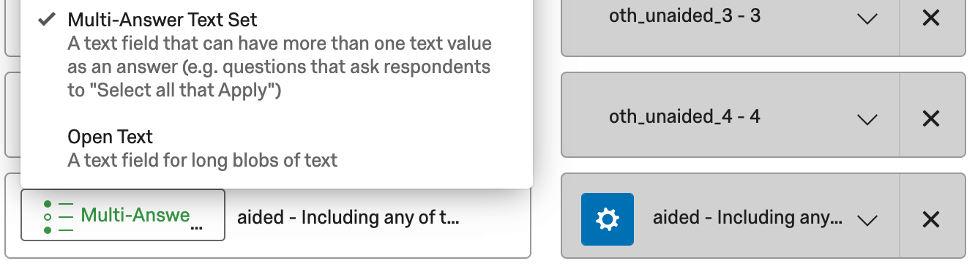
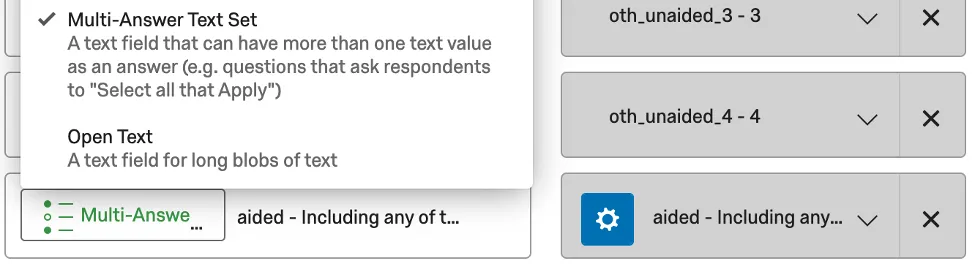
For Multiple Choice – Multiple Answer questions, we need to ensure they are mapped as Multi-Answer Text Sets.
For the 0/1 Embedded Data fields we described earlier, we need to ensure they are mapped in as Text Sets.
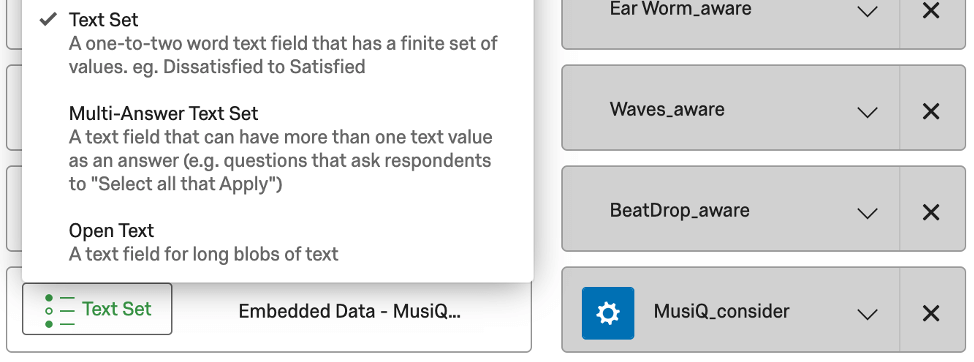
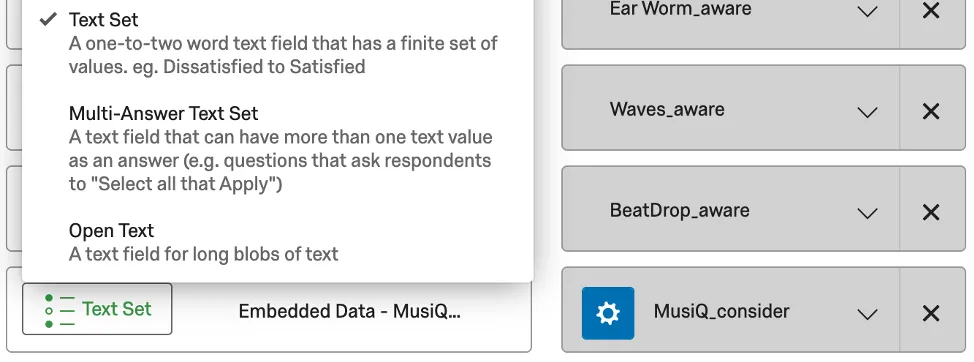
For these Embedded Data fields, we also need to click the blue gear (the Recode Editor), select More Options, and select Manage Labels. In this menu, we need to add labels for our Embedded Data values (often just “0” and “1”, although you can customize as necessary).
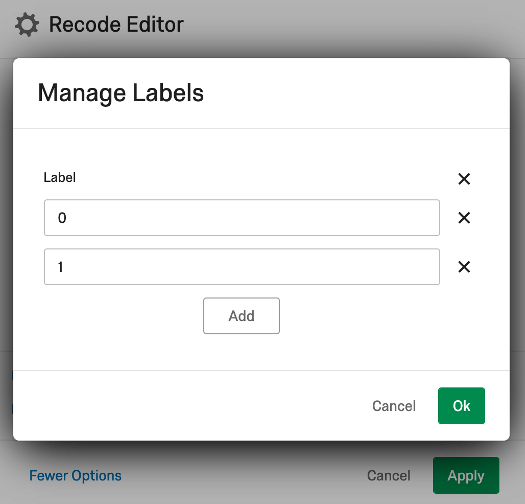
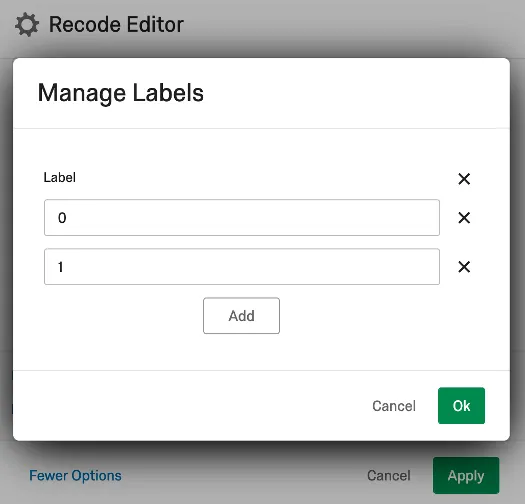
Once we’ve added the labels, we need to assign Source values to the labels (often the same name/value as the labels we’ve just created).
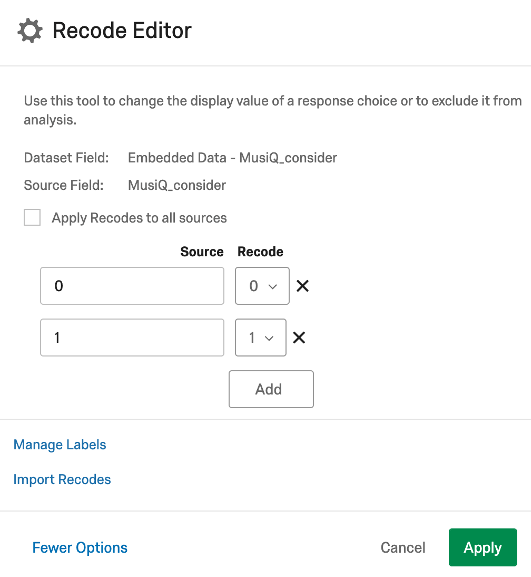
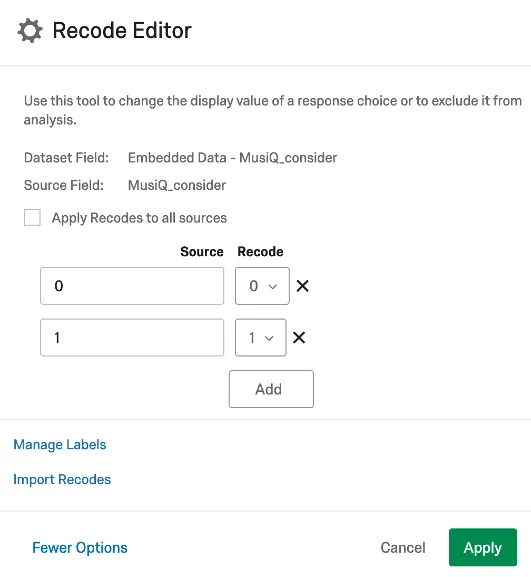
We need to repeat this process for each funnel Embedded Data field for each brand.
Once we’ve completed all the mapping adjustments and saved, the data is ready to be used in the Funnel widgets.
However, to prep the data for use in the trending and competitive charts, we now need to create custom metrics.
Custom Metrics for Trending and Competitive Charts
In the Custom Metrics section of the dashboard, we’ll need a custom metric for each funnel level and conversion ratio for each brand. This is so we can build our trending line charts and competitive charts.
Let’s say we have four funnel levels: Awareness => Consideration => Regular Usage => Subscription. We’ll need to create seven custom metrics per brand:
Funnel Level custom metrics we need:
- Awareness
- Consideration
- Regular Usage
- Subscription
Conversion ratio custom metrics we need:
- Awareness => Consideration
- Consideration => Regular Usage
- Regular Usage => Subscription
If we have 10 brands, then that means that for this example, we need 70 custom metrics.
Auto-Generated Content
By default, each Brand Tracker project will generate custom metrics for you, meaning no further customization is required unless you have customized the funnel levels included in your survey.
The following instructions are to help you build additional custom metrics if you are running a brand tracking survey where you have added other funnel questions.
Funnel Level Metrics
We want to create a custom metric that takes the number of people who qualify for that level for that brand and divides by the total number of respondents. This is accomplished by adding the following to a custom metric:

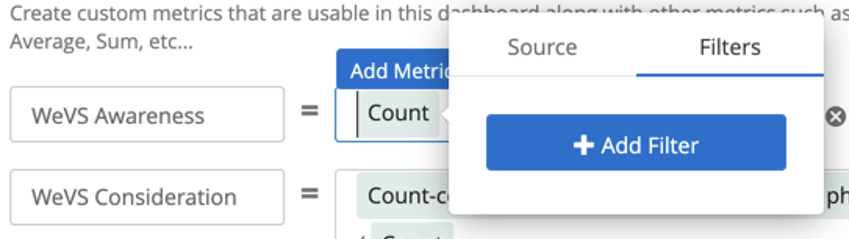
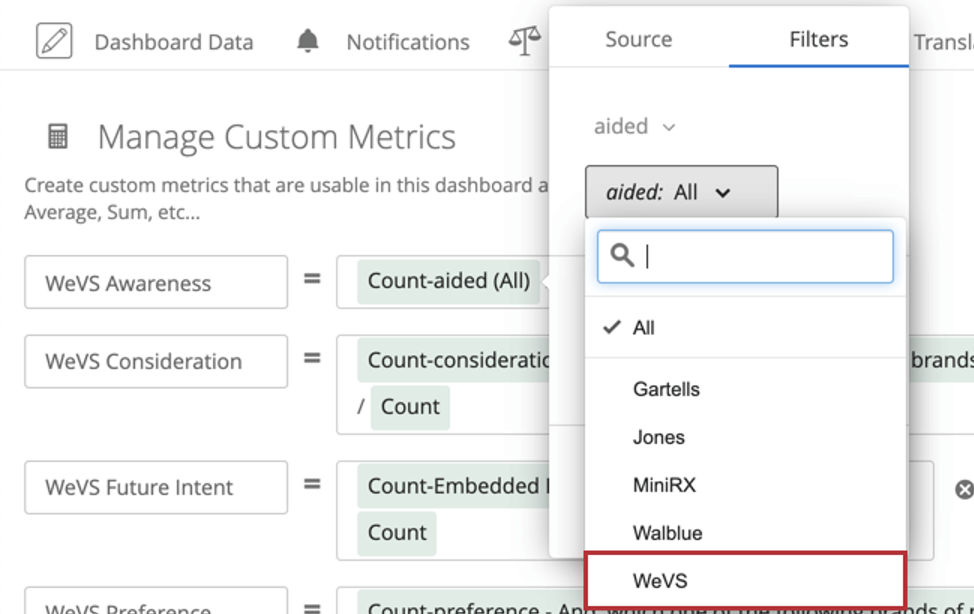
Qtip: Please note that Custom Metric filters, much like regular metric filters, will override both page level filters and widget filters.
Here’s an example of what some of these finished custom metrics might look like:
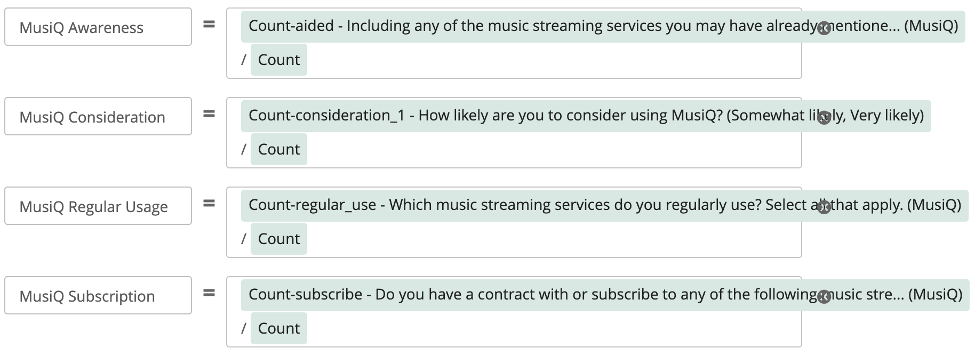
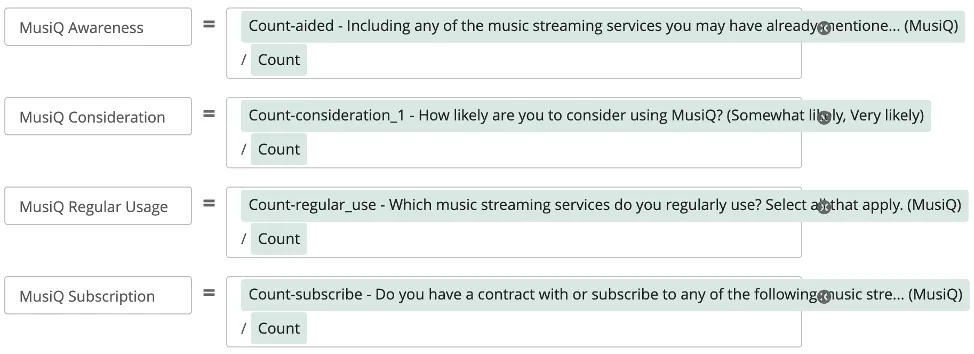
Qtip: Why are each of these metrics based on total respondents? Aided awareness is displayed to every respondent, but the subsequent funnel metrics are displayed only to the subset of respondents who meet the criteria. For subsequent funnel questions, while logically they need to be displayed to only a subset of respondents, they still are reflective of the entire universe of respondents and therefore need to be based to total count.
Conversion Ratio Metrics
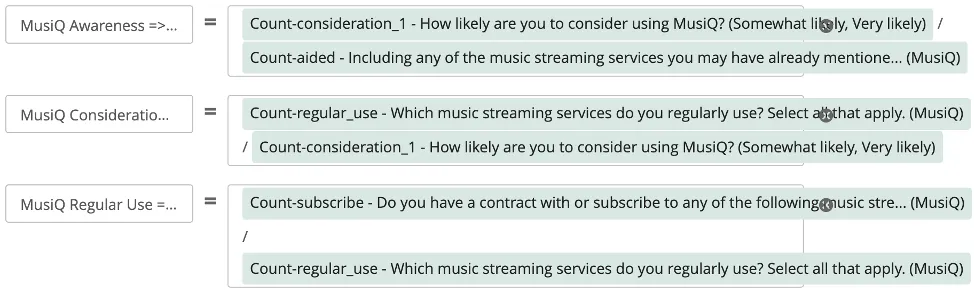
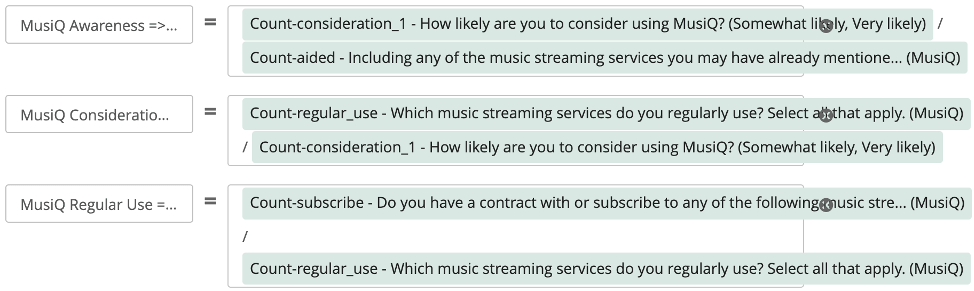
We need to take the number of people who qualify for a given level for a given brand, and divide by the level immediately before it.
Example: For the Awareness => Consideration conversion ratio, we would take the number of people who select Consideration for the brand MusiQ, and divide by the number of people who select Awareness for the brand MusiQ.
Widget Set Up
This section goes over the detailed steps of how to set up each widget. Remember that if you used the Brand Tracker assisted setup, all of these widgets have been created for you. This set up is only necessary if you customized your survey’s funnel levels.
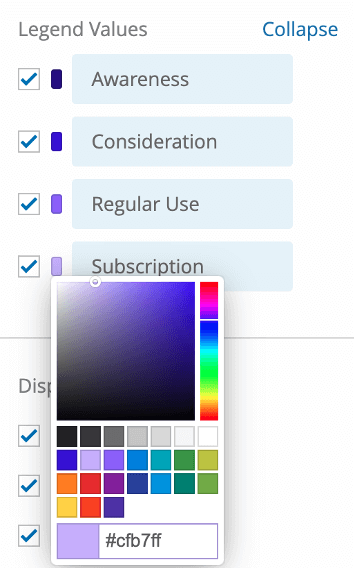
Qtip: From chart to chart, it helps to make sure each brand uses the same color. For instance, if Flannel is red in the Awareness Trending chart, it should be red in the Consideration Trending chart, the Regular Usage Trending chart, and so on. This makes it easier to follow the data from chart to chart.
Brand Funnel Widget
See the Funnel Widget (BX) support page.
Funnel Level Trending
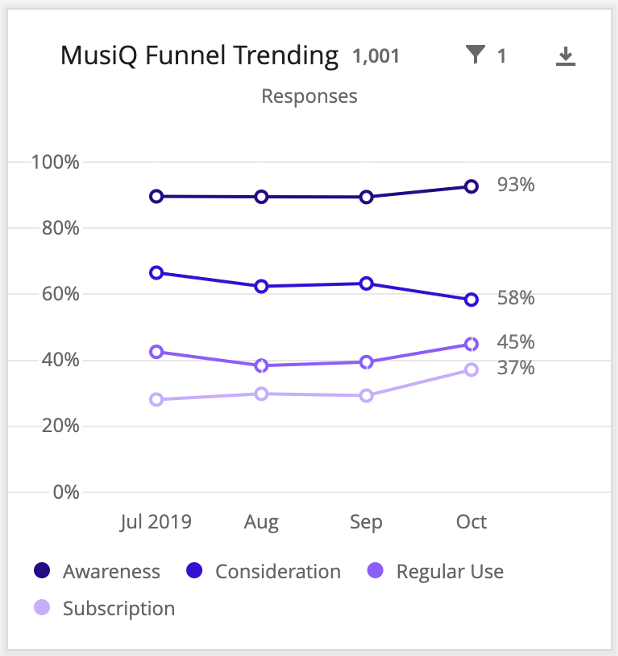
For each brand:
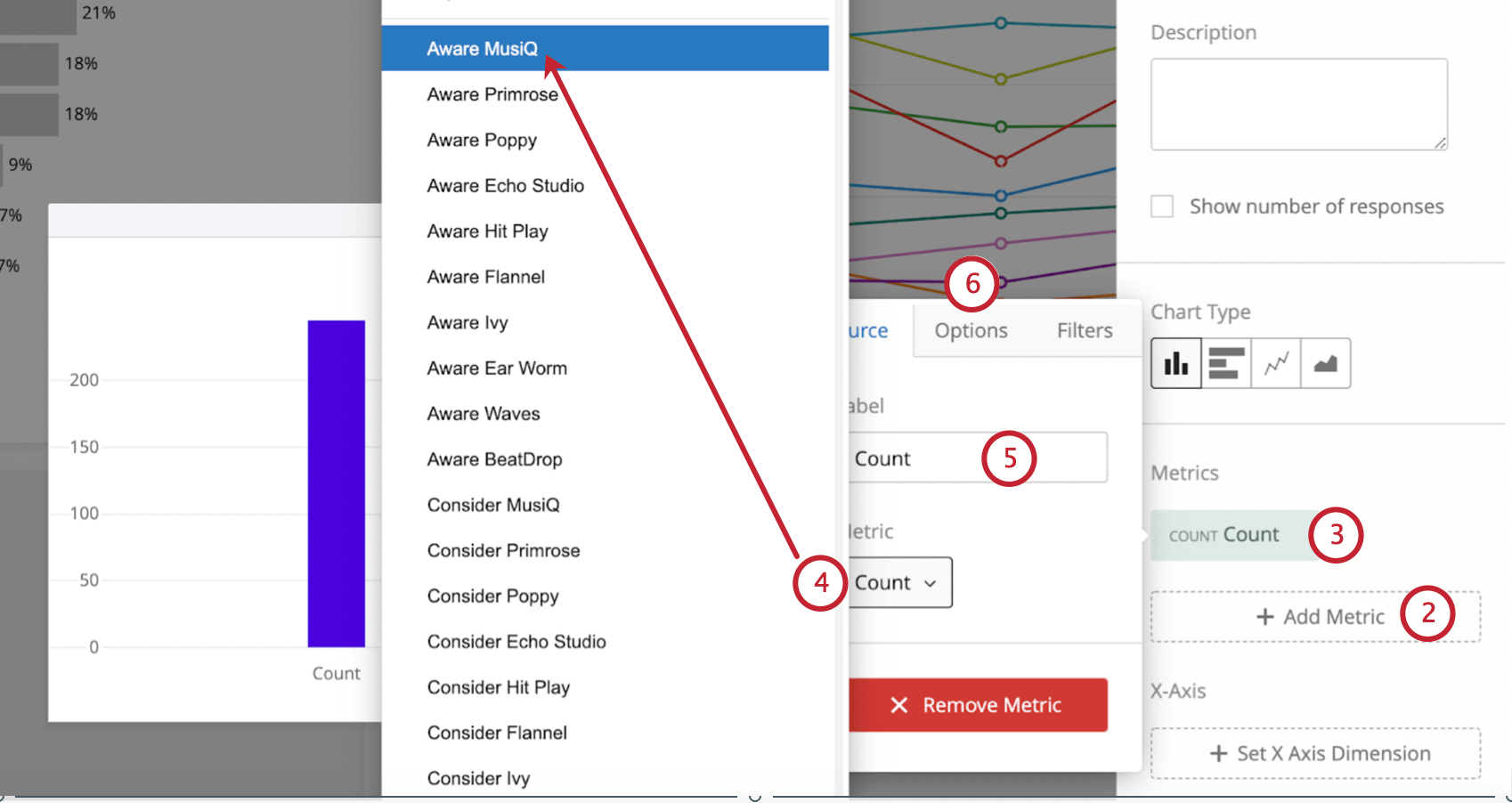
Example: We want to focus on the brand MusiQ. The first level we’re adding is awareness. We add the MusiQ Awareness custom metric.
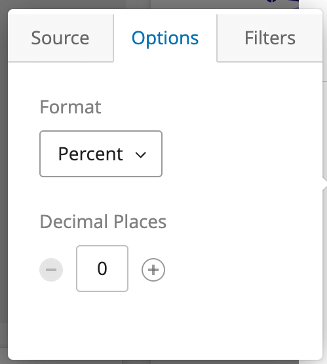
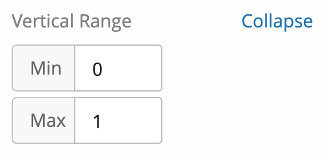
Qtip: This is usually set to 1, but can be 0, if desired. Decimal places should be consistent throughout the dashboard.
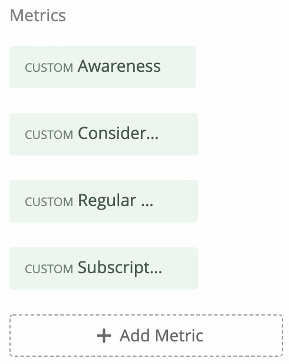
Qtip: See common funnel reporting for the logical list of funnel levels.
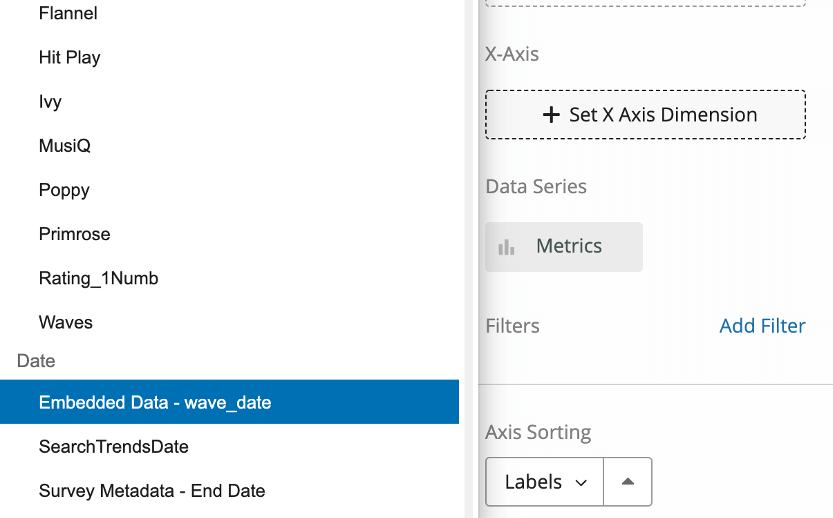
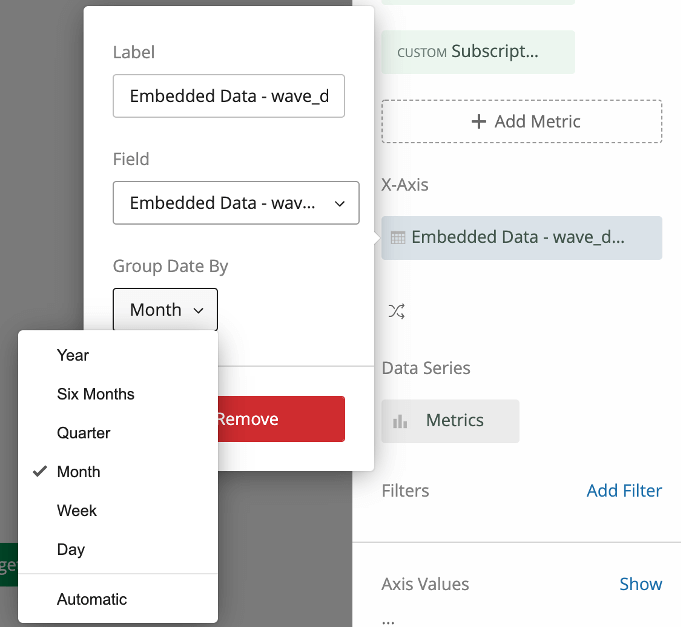
Qtip: Custom wave date fields are common to ensure respondents are assigned to the appropriate wave group, rather than being assigned to a month based on raw completion date.
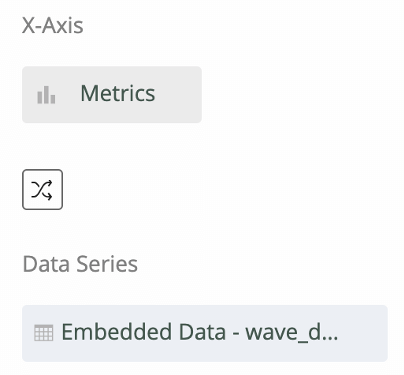
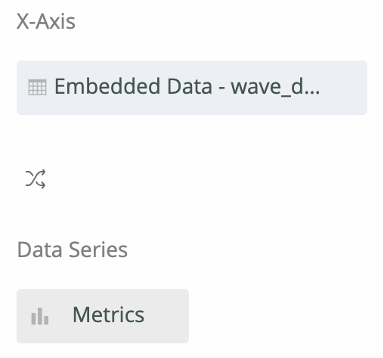
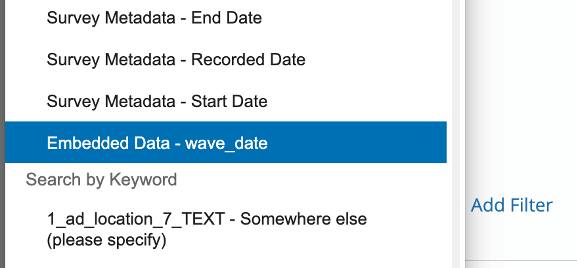
Qtip: Note that without this filter, if you add a time filter to the top of this page (e.g., “This Month”), the trend chart will update to show just that point in time, which makes the line format difficult to interpret.
Qtip: It’s also possible to set this filter to a rolling time frame (e.g., last 90 days, last 180 days).
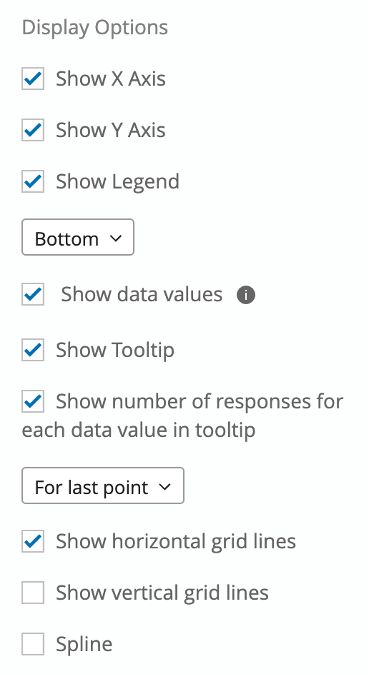
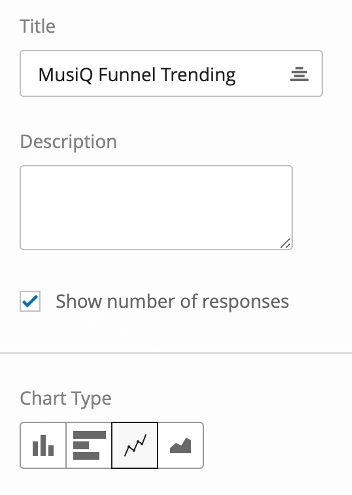
- Show X Axis
- Show Y Axis
- Show Legend (Bottom)
- Show data values
- Show tooltip
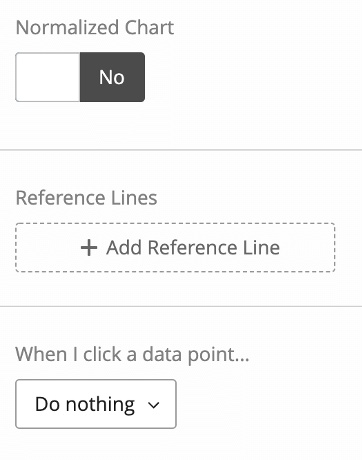
- Show number of responses for each data value in tooltip (for last point)
- Show horizontal grid lines
- Do not show vertical grid lines
- Do not spline
Qtip: A quick way to check that this widget was set up correctly is to set a page filter for a single time point, and then compare the percentages between this trend chart and the Funnel chart. They should match exactly.
Conversion Rates Trending
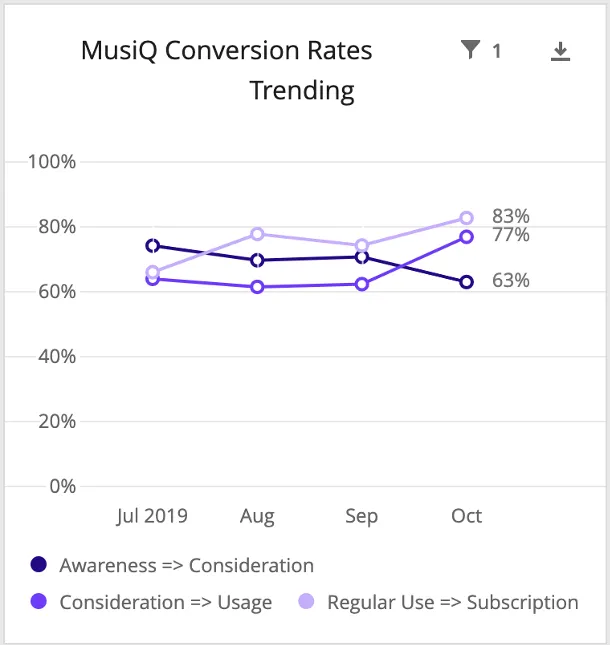
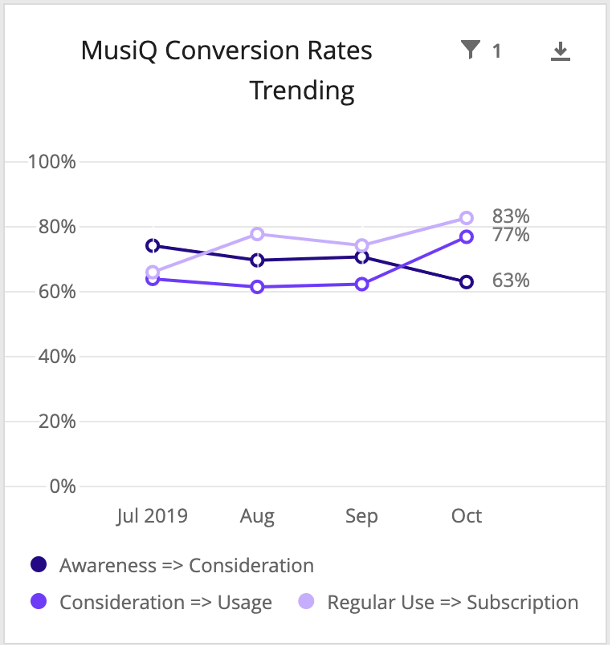
Our Conversion Rates Trending chart will be set up much the same way as the previous, funnel level trending widget. We’ll add our conversion rate custom metrics (e.g., MusiQ Awareness => Consideration) instead of the funnel level metrics, but other than that, almost all the set up and settings will be the same.
Qtip: The only difference is that we won’t enable Show number of responses since in reality, the base size for each conversion ratio is the level before it, and so varies from ratio to ratio. Show number of responses will only show the biggest base, which can be confusing, so we disable it here.
Competitive Charts
For our competitive charts, we’ll create two charts for each level of our funnel: a point-in-time bar chart and a trending chart.
Let’s start with the point-in-time bar chart.
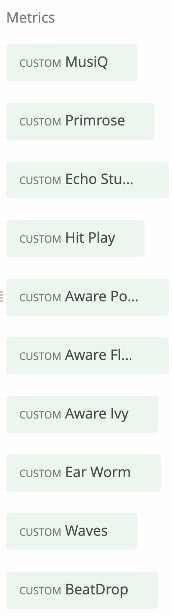
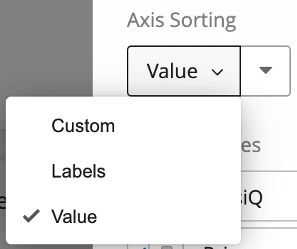
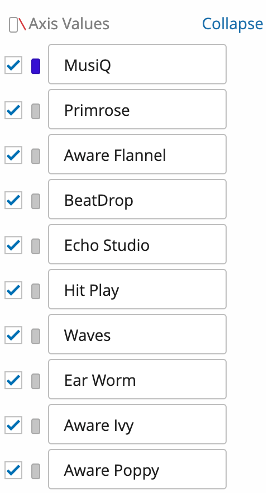
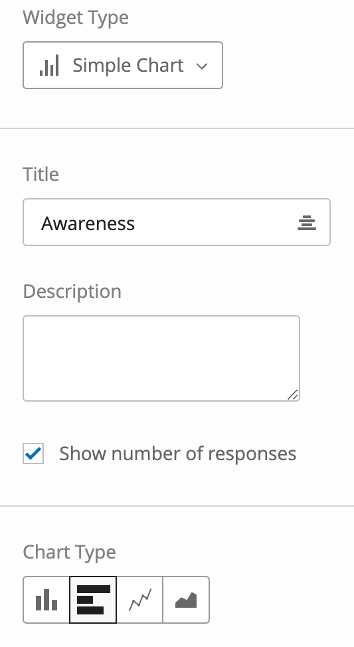
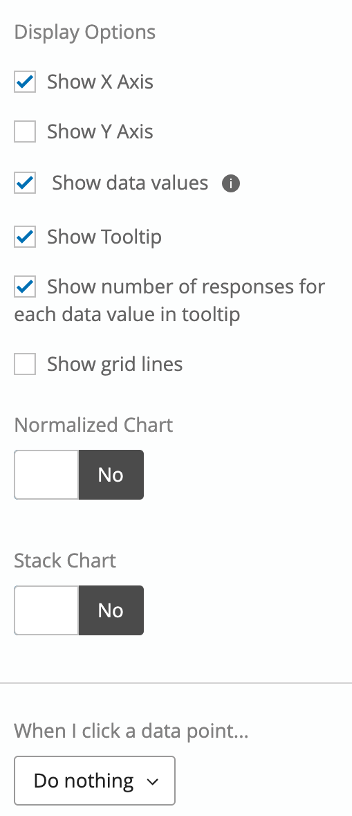
For our trending version of this chart, we duplicate the widget we just made and make a few adjustments.
Here are our changes:
- Add “Trending” to the chart title.
- Change the Chart Type to
- Add our date field as the Data Series and group dates as desired.
- Swap axes so that we see our date field as the X-Axis and our Metrics as the Data Series (so we see our custom metrics trending over time).
- Click the date field, add a filter, and set it to All Time (or the chosen rolling period). This is to keep the structure of the line chart – if someone filters the page by date, it can change the line chart to a single point, which doesn’t make as much sense.
- Enable Show Y Axis and Show Horizontal Grid Lines in the Display Options
Our final chart should look something like this:
We then repeat this process for the other funnel levels.
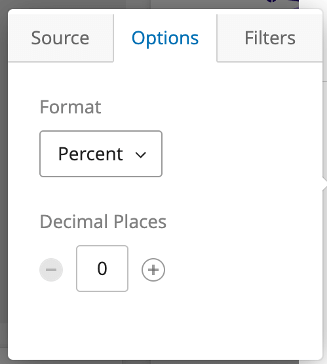
Qtip: You can duplicate the widget you made for the preceding level and update the custom metrics to save time on the formatting. Note that after updating a metric, you still need to click the metrics, go into Options, and set the Format and Decimal Places.
FAQs
I didn’t create the 0/1 Embedded Data fields for my funnel questions—can I fix it?
I didn’t create the 0/1 Embedded Data fields for my funnel questions—can I fix it?
Assuming you do need this combining and it wasn’t set up from the get-go, you have two options. First, you can go back and create those fields now in the survey flow (with all the appropriate logic so that it functions in the future), and update any data collected so far by manually response editing or by importing data.
Second, if the values that need to be combined are from the same question (e.g., T2B in a scale), you can recode the question answers to the same value in the Dashboard Data mapper. Let’s say we have a 5-pt scale for our consideration question, and we didn’t create the 0/1 fields for our top 2 box. We could open the Recode Editor and change Very likely and Somewhat likely to both be coded as Very likely.
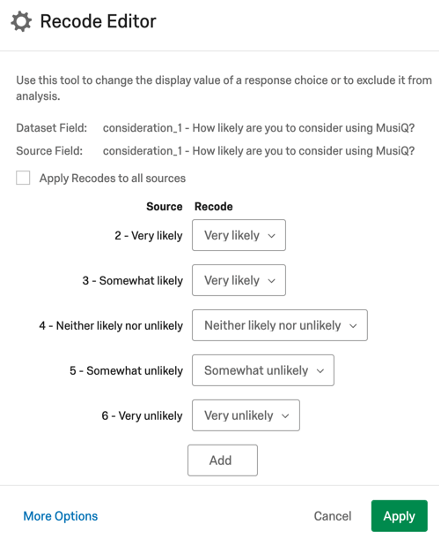
In this way, we can choose just “Very likely” in our Funnel widget and it will contain the answers for both Very likely and Somewhat likely. The main caution here is that it can become confusing later if someone tries to use this consideration field and doesn’t realize that Very and Somewhat have been combined. We recommend using clear labeling in the field name (e.g., adding something like “Funnel Version” to the field name) to minimize confusion.
Can I change the decimals in the Funnel widget?
Can I change the decimals in the Funnel widget?
Why isn’t my field showing up in the Funnel metric list?
Why isn’t my field showing up in the Funnel metric list?
- Your field isn’t mapped into the dashboard as a Text Set or Multi-Answer Text Set.
- Your field is an Embedded Data field and you haven’t set up data labels in the Recode Editor.
Does the size of the funnel rows in the widget triangle vary?
Does the size of the funnel rows in the widget triangle vary?
Can I change the funnel levels? How many there are?
Can I change the funnel levels? How many there are?
- Services: Awareness => Consideration => Regular Usage => Subscription
- CPG: Awareness => Consideration => Regular Usage
If you want to make changes, we recommend 3-5 funnel levels.
My funnel percentages look strange - is something wrong?
My funnel percentages look strange - is something wrong?
If that’s not the case, the next area to evaluate is how the funnel questions in the survey are structured. Is it possible for a respondent to answer that they’re not aware of a brand, but then answer that they would consider that brand later? In a situation like that, would it make more sense to improve the survey design by restricting which brands are carried forward into each subsequent level of the funnel, forcing respondents to answer logically?
The main caveat with survey adjustments is a counter question: is it possible, even though it doesn’t appear logical, for respondents to meaningfully answer such that lower levels of the funnel have higher percentages than higher levels? Let’s look at the below music streaming example.
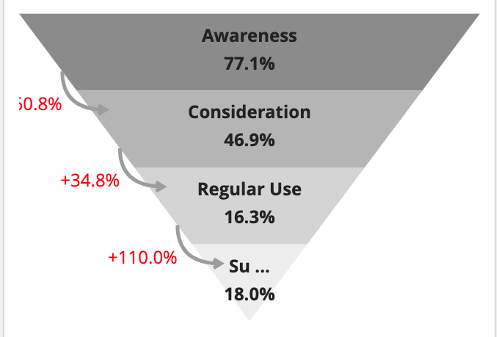
At first glance, we might think there’s a problem because Subscription is higher than its preceding level, Regular Use. However, for this particular brand, music streaming is included as part of a package with a lot of other services. As such, it is possible for people to be paying a subscription to the brand and receiving access to music streaming services, but also to not be using that music streaming service regularly.
Before we adjust funnel logic, we should thoughtfully consider whether it’s possible for people to qualify for lower levels of the funnel without qualifying for higher levels. Note that if you want to filter levels of the funnel (e.g., only show Subscribers who are also Regular Users), that type of data set up needs to happen in the survey programming. We are not able to filter specific levels directly in the Funnel widget.
I used the Setup Assistant and I see tons of 0/1 Embedded Data fields in the Survey Flow. What are these for? Are they important to maintain?
I used the Setup Assistant and I see tons of 0/1 Embedded Data fields in the Survey Flow. What are these for? Are they important to maintain?
Most of the time, if you need to display data in trending charts, bar charts, and the like, you can create Custom Metrics. However, there are some advantages to using the 0/1 fields from the Survey Flow instead.
Warning: When using the Average metric on a 0/1 field, you must be sure that the base size of respondents assigned the 0/1 fields is appropriate to what you’re trying to calculate. For funnel fields, you generally want the base size to be all respondents, so you must ensure every respondent has a value. For something like ad recall, imagery, or other items, you might want your base size to be awareness, usage, or something else, and so values must only be assigned if the respondent is supposed to be in that base size.
How do custom metric filters interact with page filters in BX dashboards?
How do custom metric filters interact with page filters in BX dashboards?
That's great! Thank you for your feedback!
Thank you for your feedback!