

Mailing List Options
What's on this page
About Mailing List Options
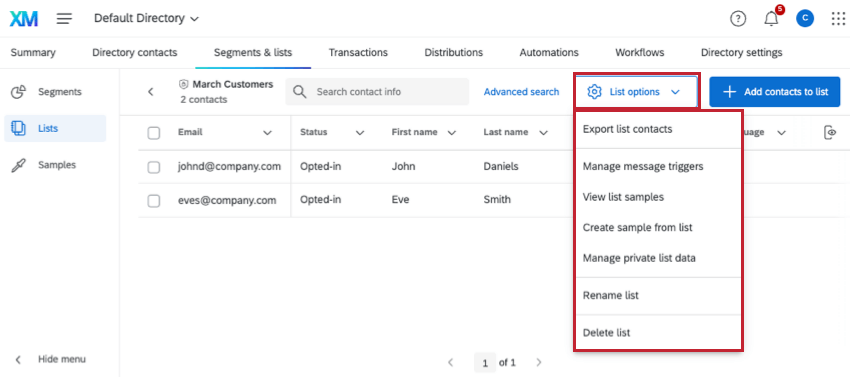
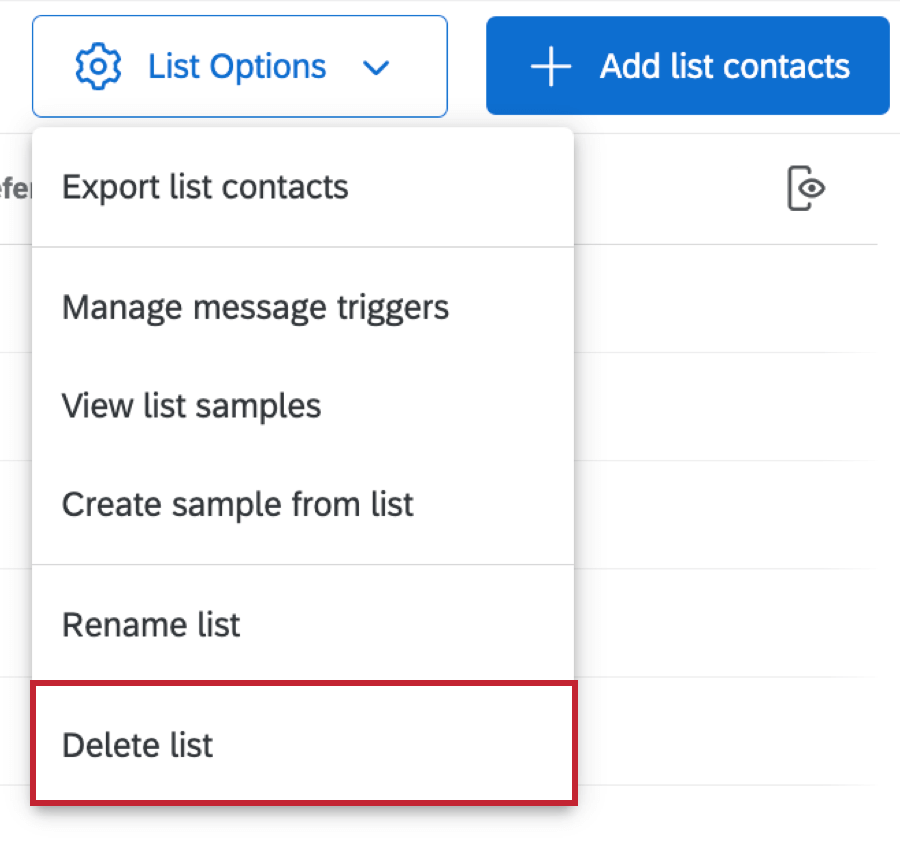
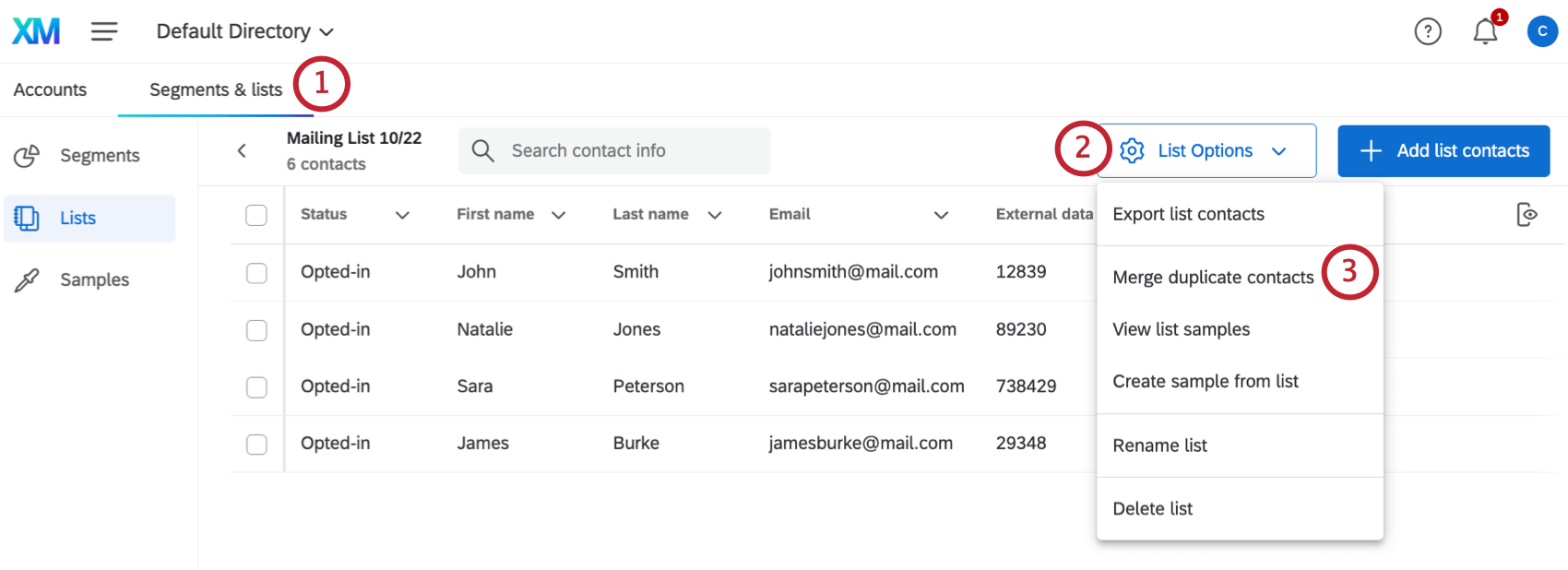
When you are inside of a mailing list or a sample, there is a List Options button in the upper-right corner. This button allows you to manage your list in many ways, including by adding samples, exporting the list, renaming the list, and deleting the list.
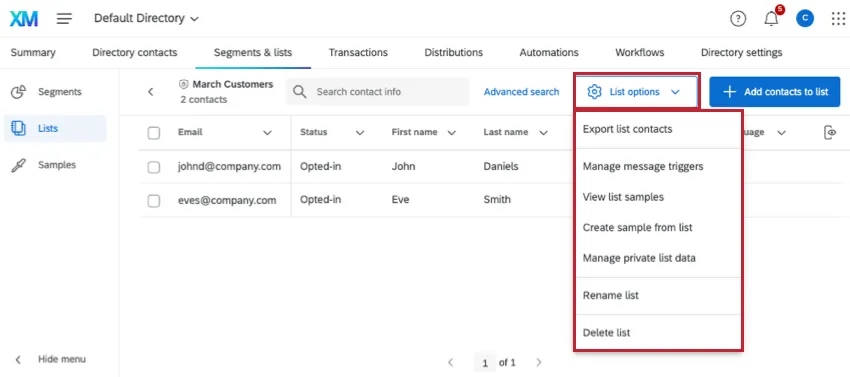
Qtip: This page refers to mailing list options in XM Directory and XM Directory Lite.

Exporting All List Contacts
You can export your mailing list in a file format of your choosing.
Qtip: All contacts will always be included in this export, regardless of which contacts are selected or what filters are applied. To only export selected contacts, see this page.
Qtip: Keep in mind that depending on the number of contacts in the list, the file can get larger, and thus it can take longer to download. Exporting contact stats and including too many embedded data (step 4 and 5) can also affect the file size.
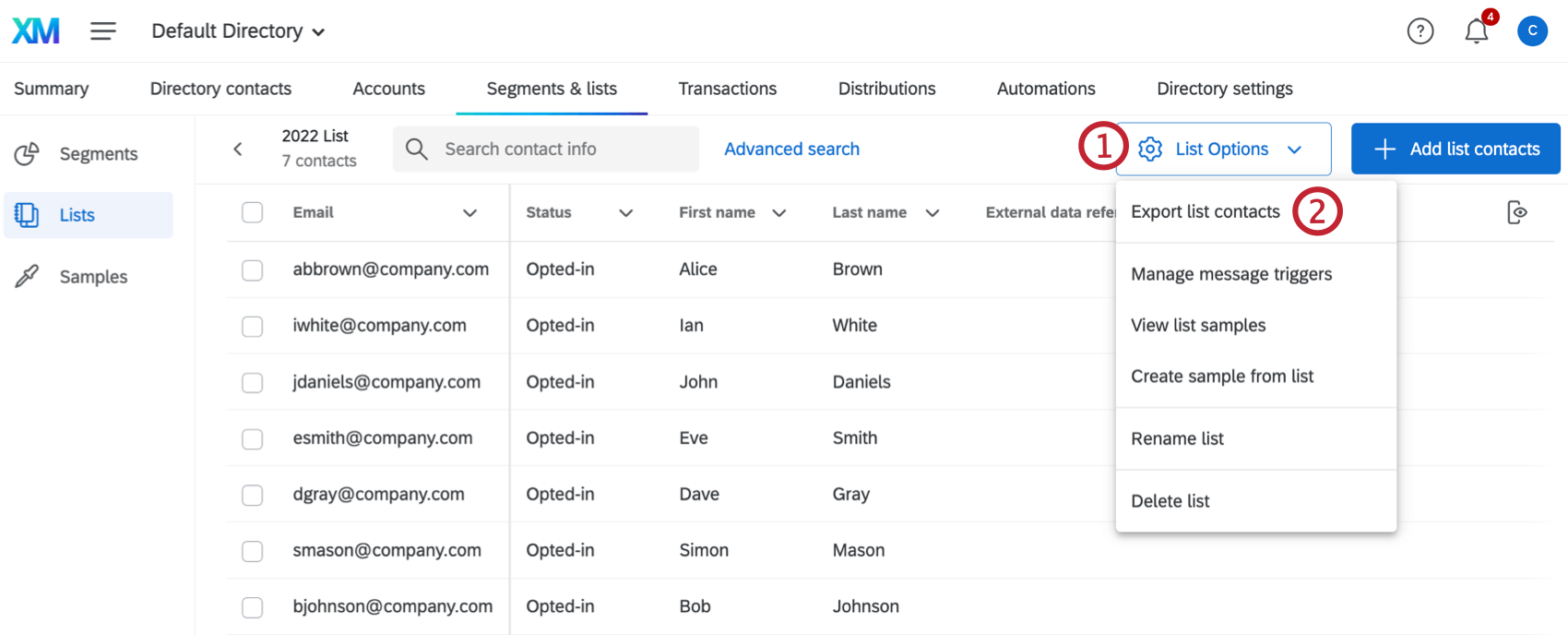
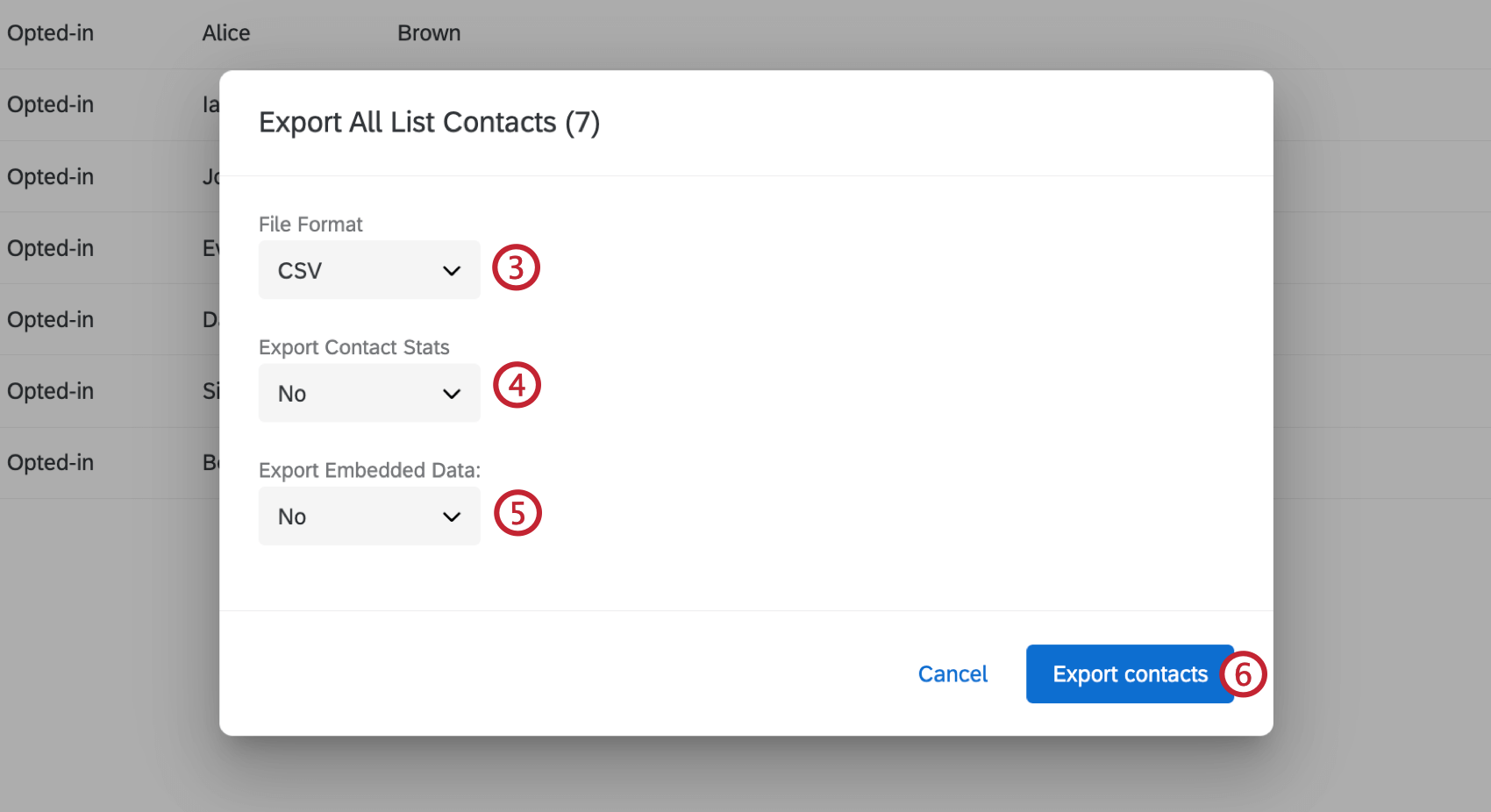
Export Sample Contacts
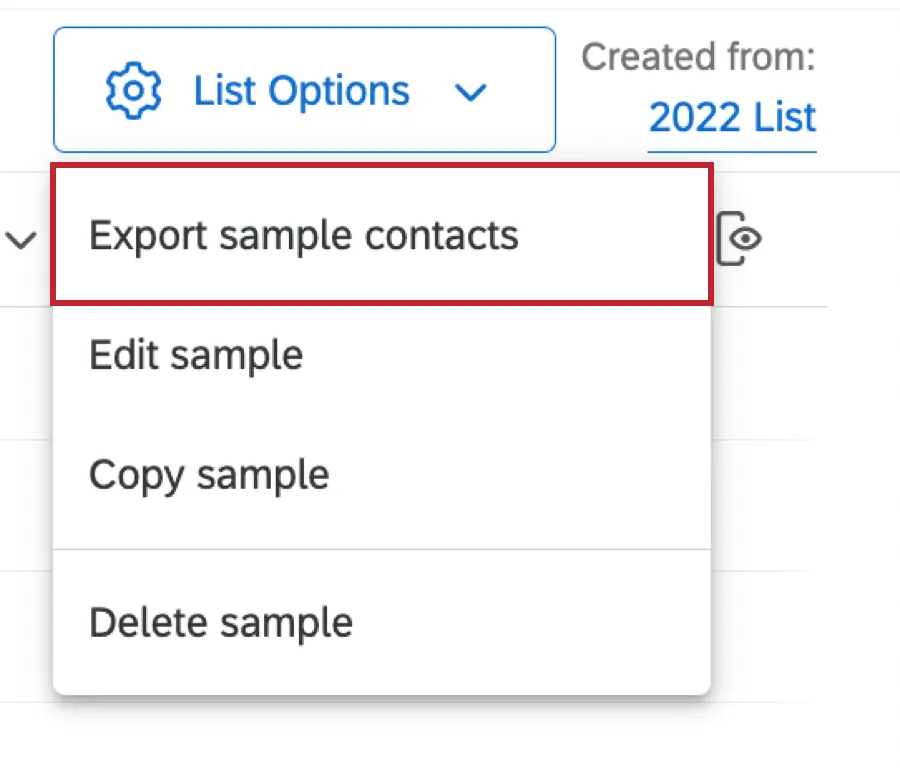
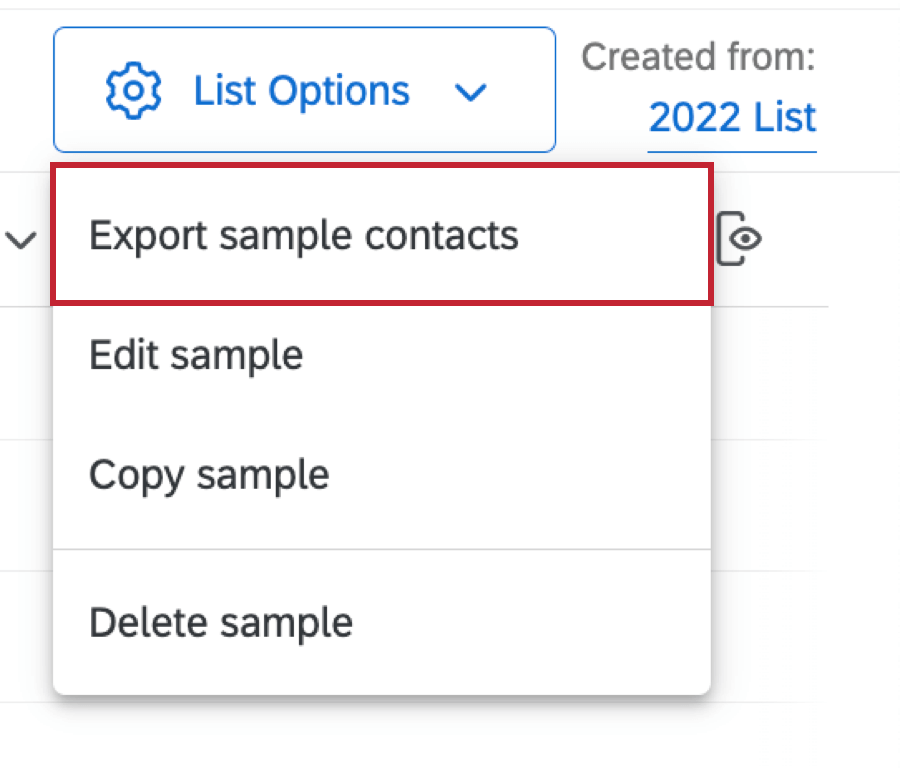
You can export all the contacts in a sample using the same workflow after going to List Options and selecting Export sample contacts.
Specify Embedded Data
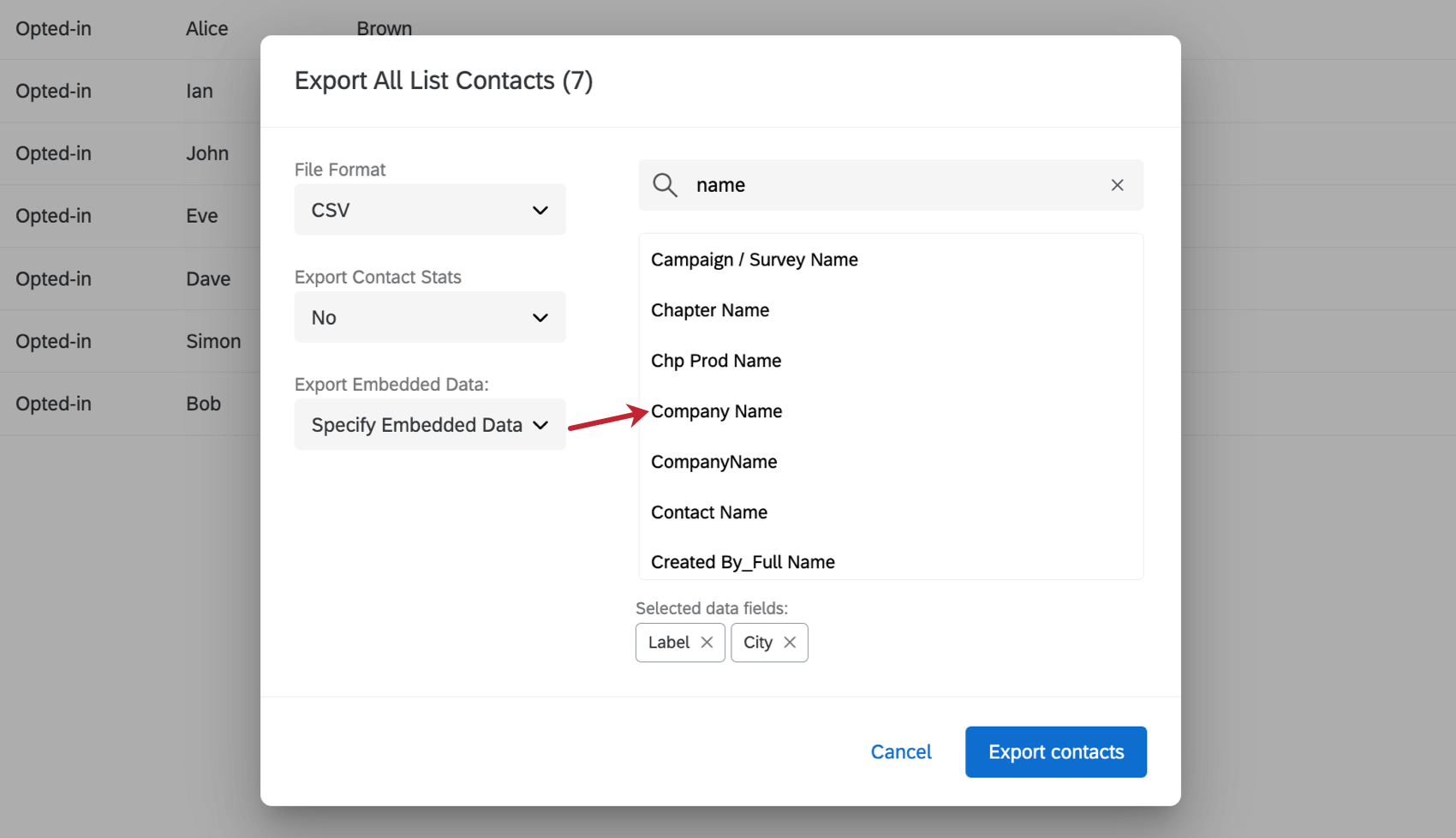
To specify embedded data, simply select fields from the menu on the right. Selected fields appear along the bottom of the menu.
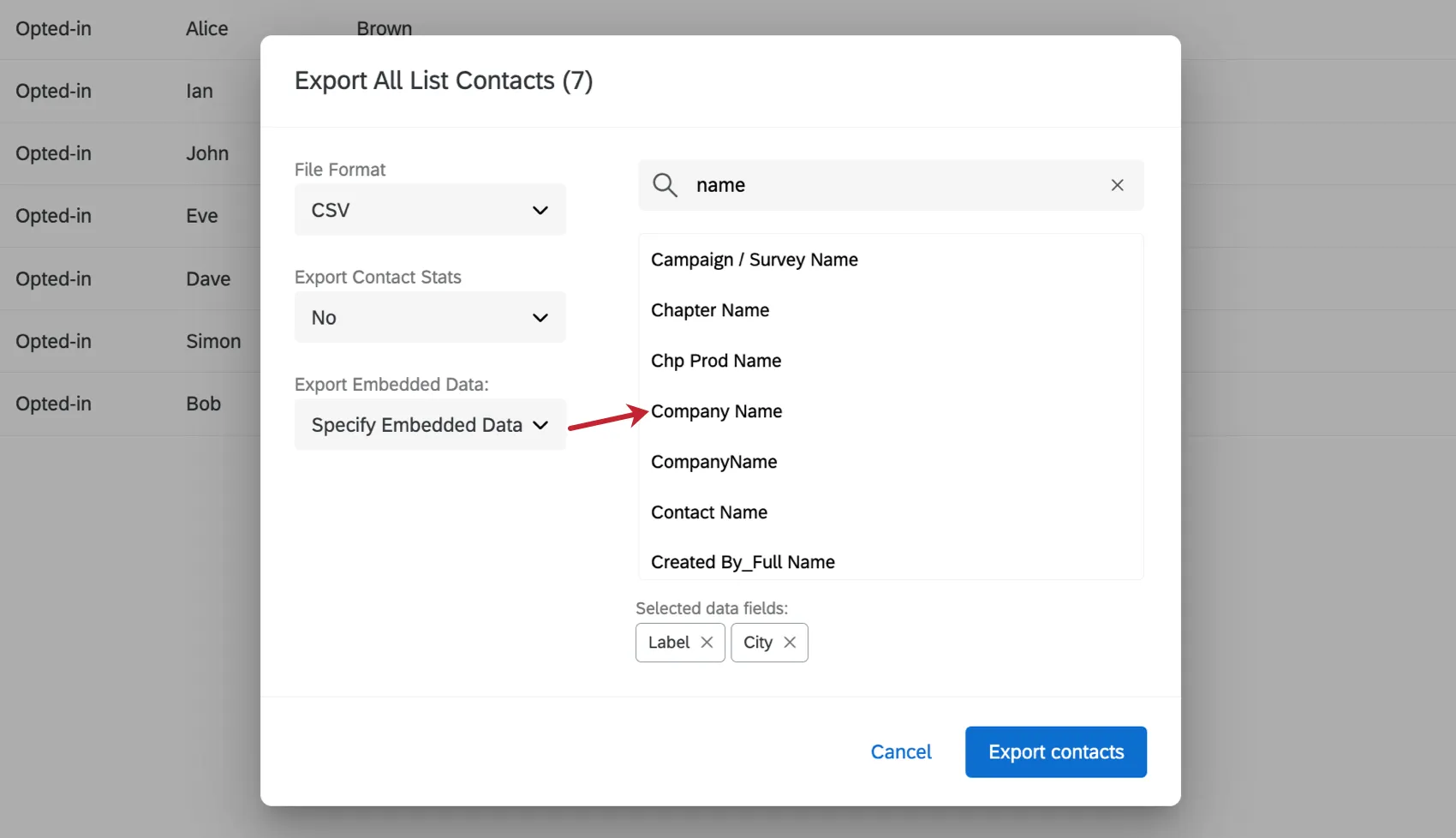
To remove fields, click the X next to their names.
View List Samples
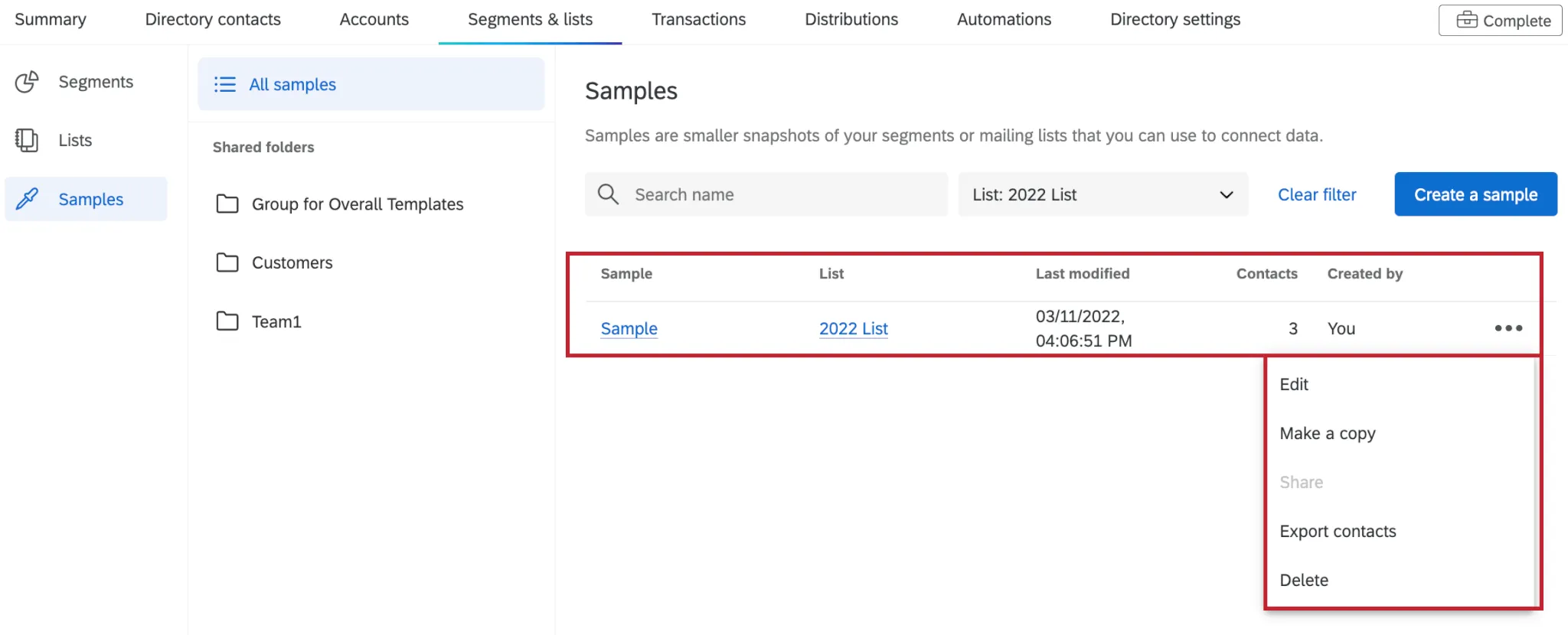
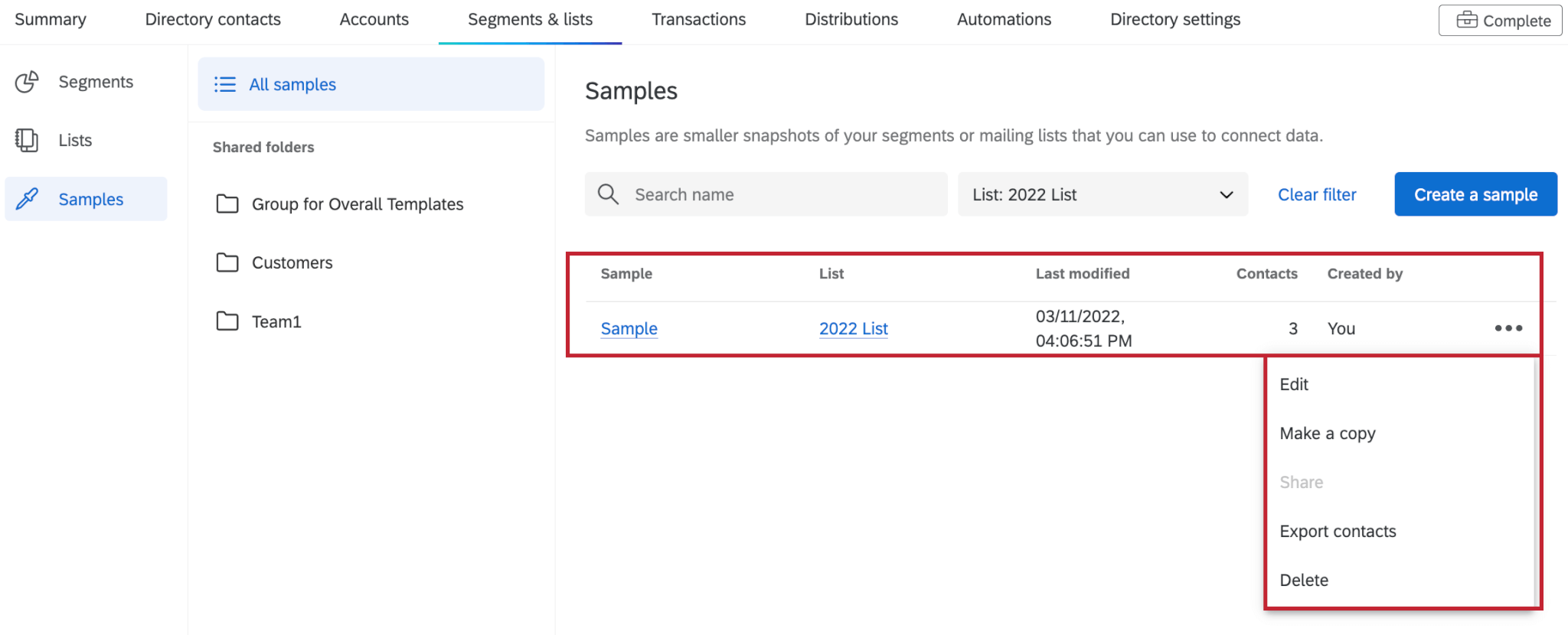
Selecting View list samples will take you to the Samples tab, where you can view a list of the samples you’ve created for this mailing list. You can also use the 3 dots on the right of each sample to edit, copy, export, or delete it.
Manage Message Triggers
Message Triggers send out an email when a contact is added to a chosen mailing list. This email can go to any email address you want, or to the contact themselves.
For more details, see Message Triggers in Workflows.
Create Sample from List
Create Sample from List will take you to the sample creation screen.
Manage Private List Data
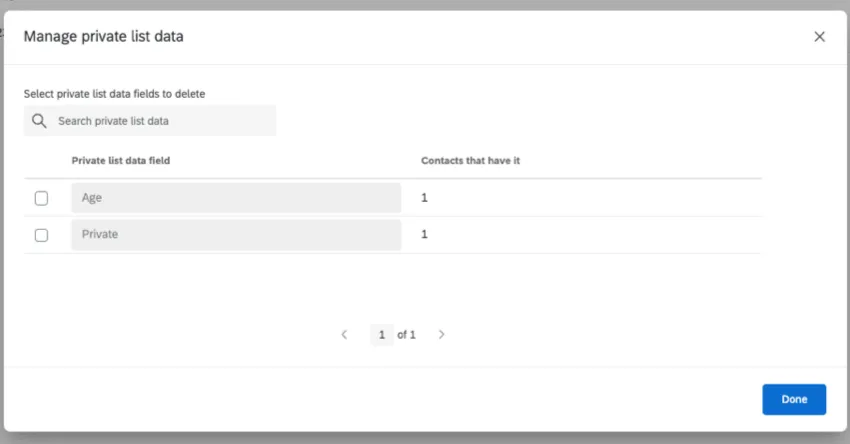
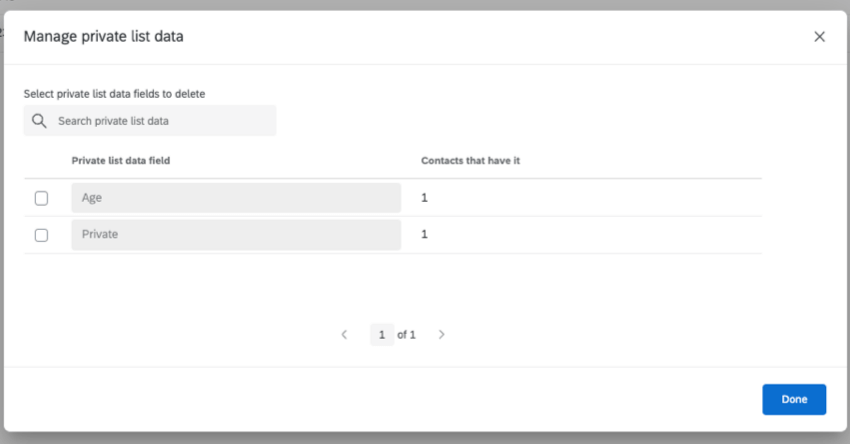
Selecting Manage private list data will display all private data fields that exist within the mailing list. You can search for fields, view how many contacts have a value for that field, and delete fields.
Rename List
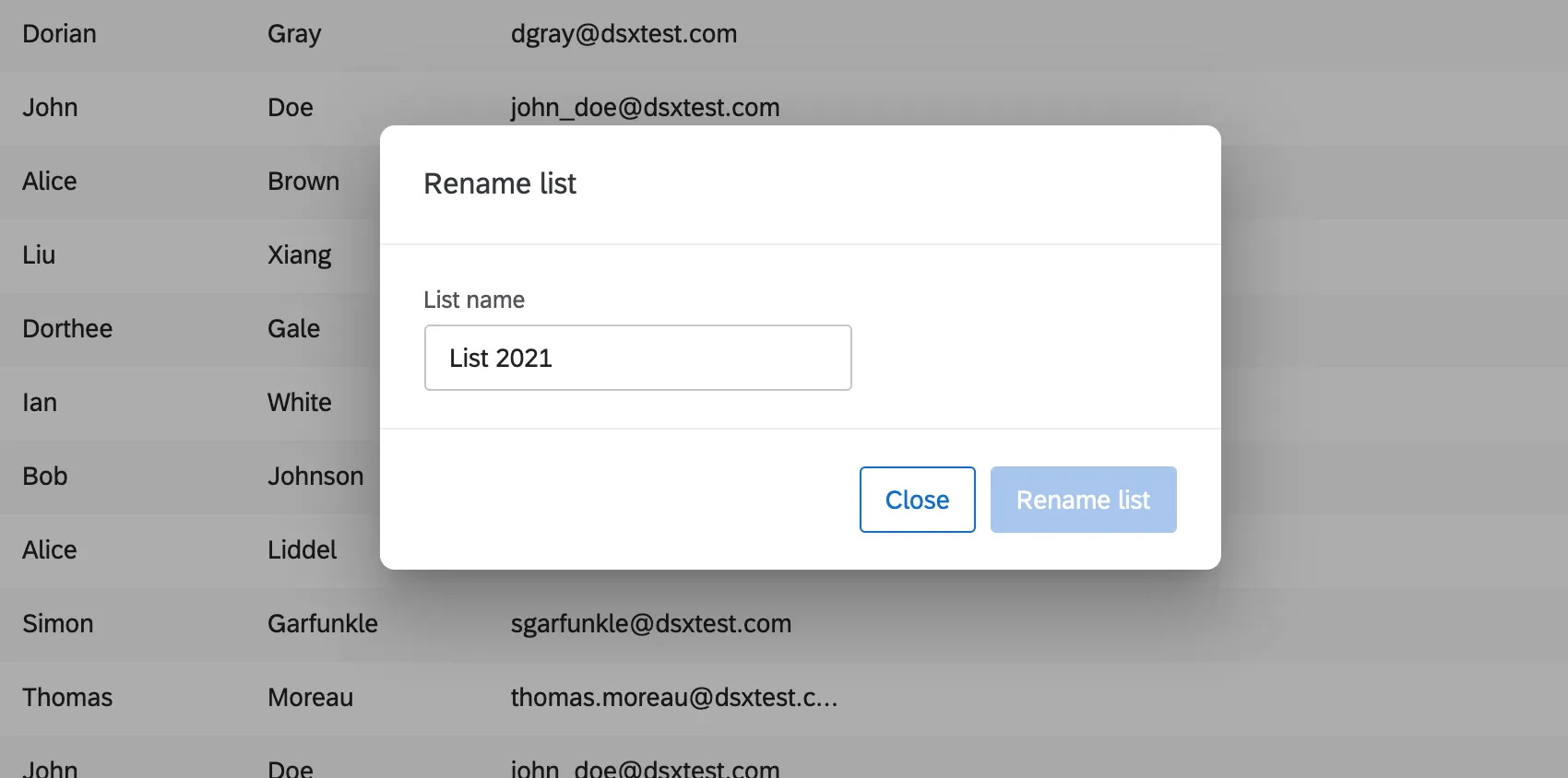
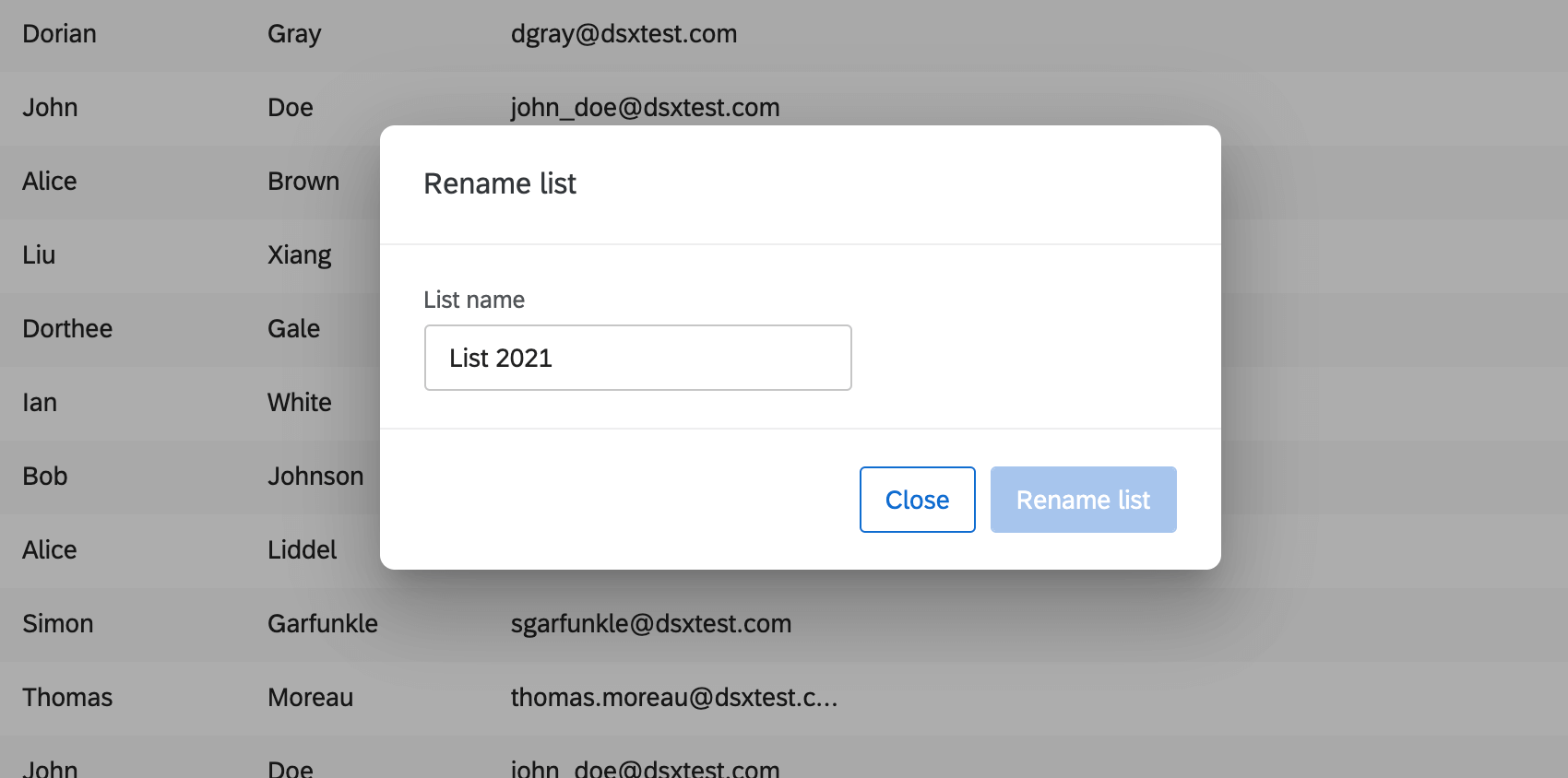
After you select Rename list, type the new name in the field. Then click Rename list.
Delete List
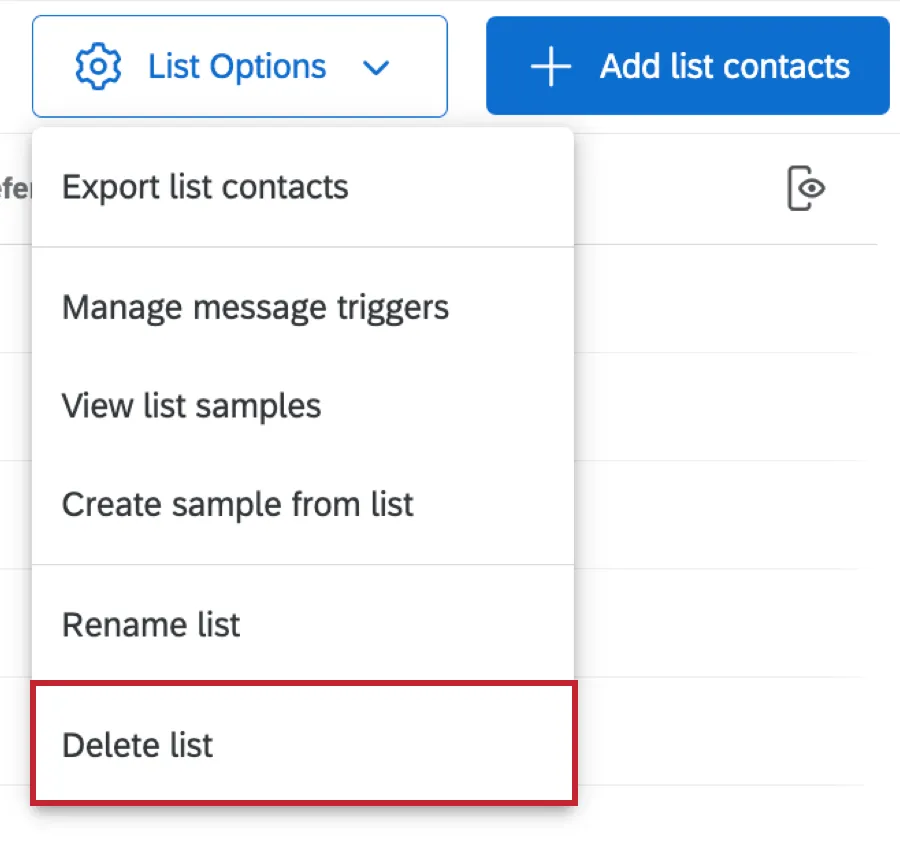
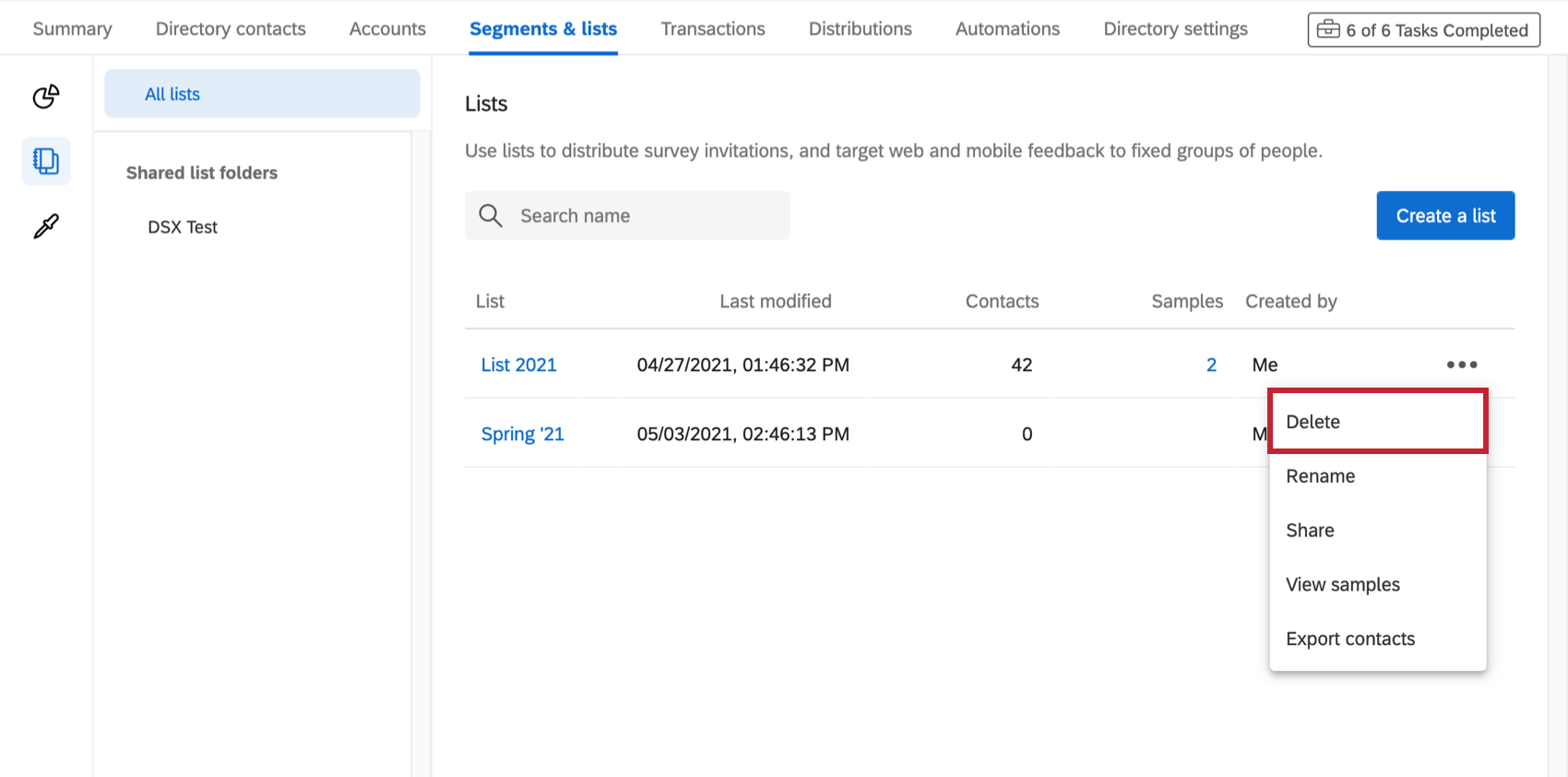
You can delete a mailing list or a sample by selecting Delete list/Delete sample under List Options.
You can also find it under the dropdown arrow next to a list on the Segments & lists tab.
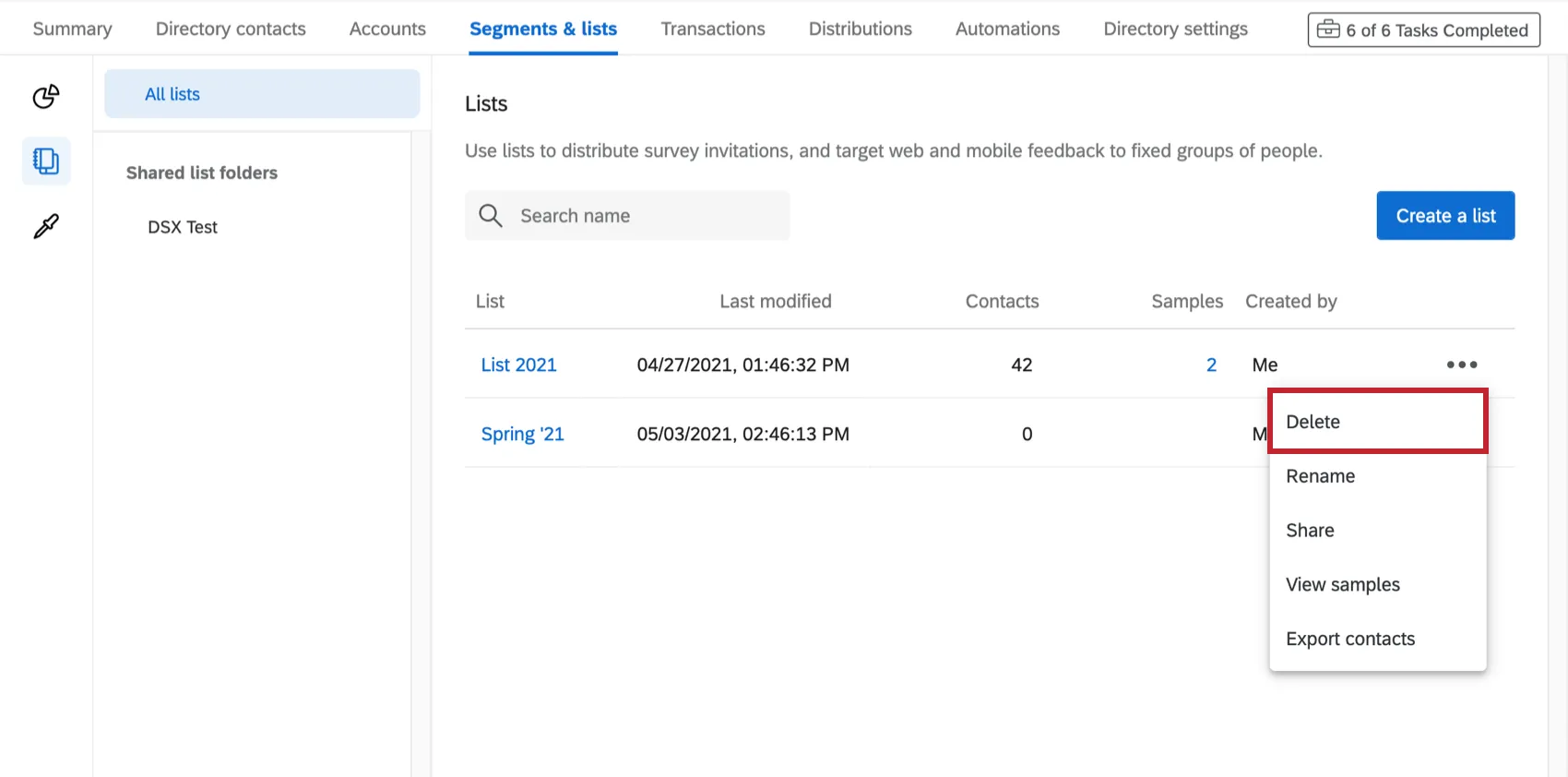
Once deleted, these lists are irretrievable. The contacts will still exist in the directory and in any other lists they’ve been added to.
Any distributions sent with this list will no longer have links in the history, and any link not clicked will be disabled; however, any links opened with responses in progress will still work and be able to submit a response complete with contact information.
Completed survey responses will remain in the contact’s timeline. No response data will be deleted from the survey.
The results of deleting a sample is the same as deleting a mailing list.
Attention: Deleting a mailing list deletes all its samples.

Attention: After deleting a contact inside the mailing list, the contact in the corresponding sample will not be deleted immediately, but will be deleted at the end of the day local time.
Sample List Options
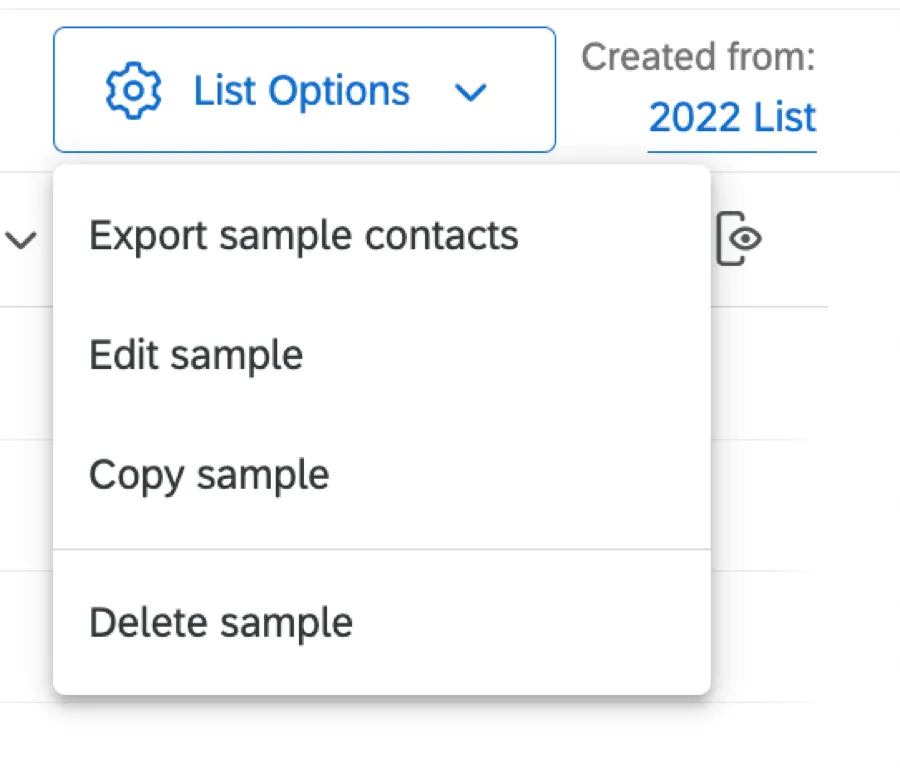
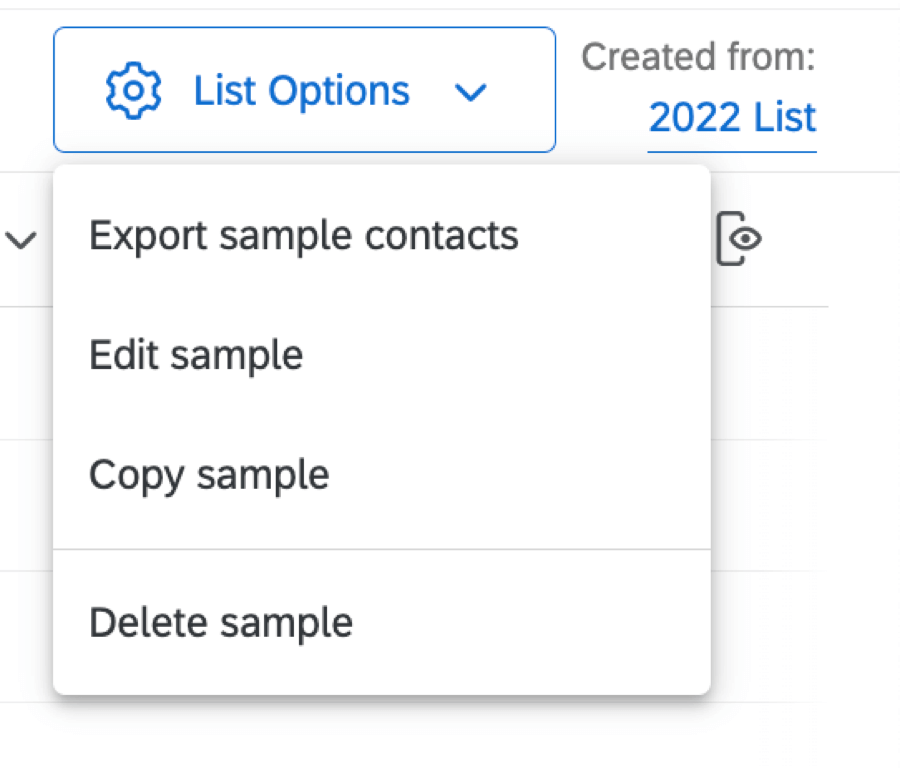
- Export Sample Contacts: Export your sample. This works just list exporting your mailing list.
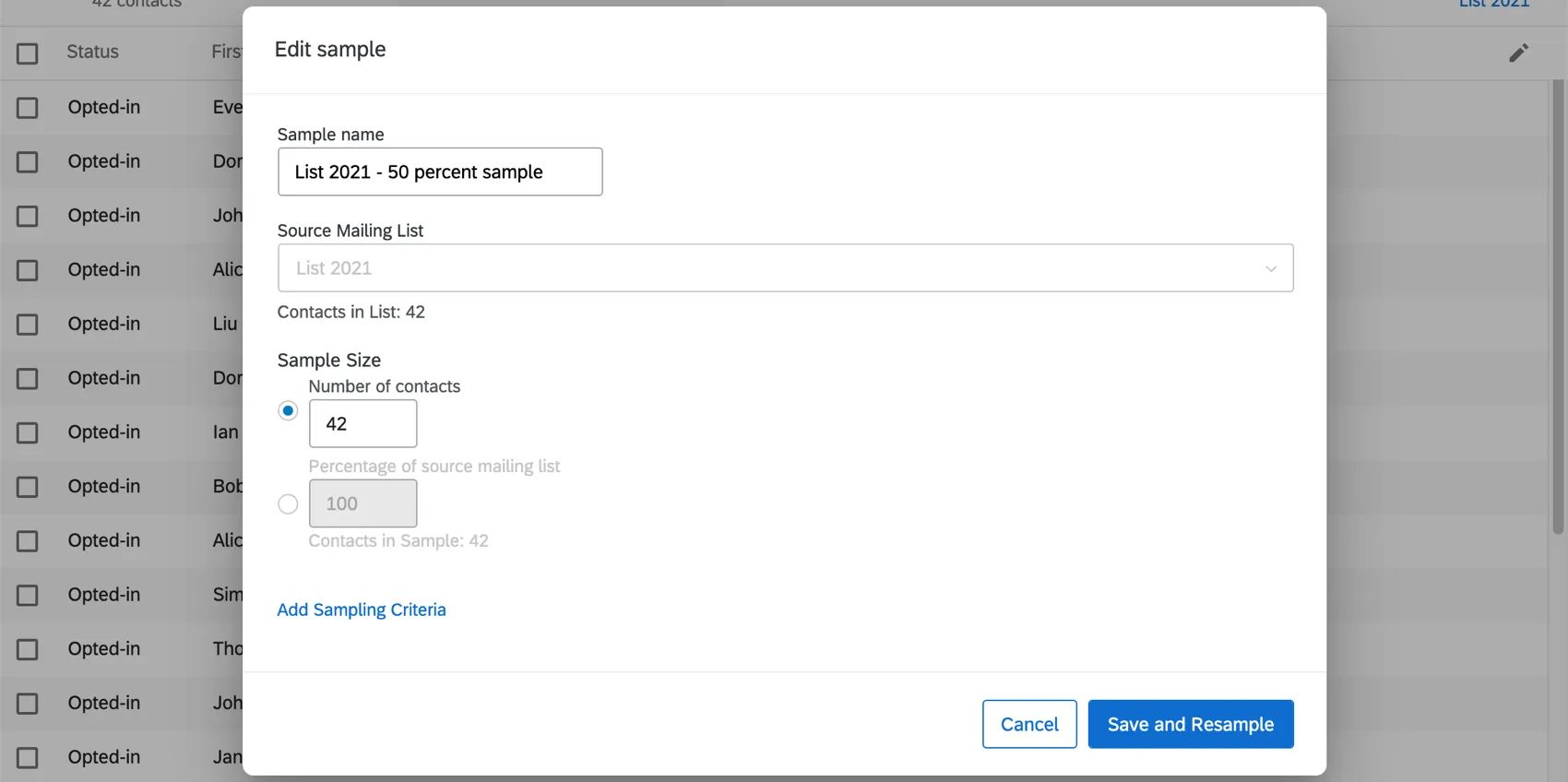
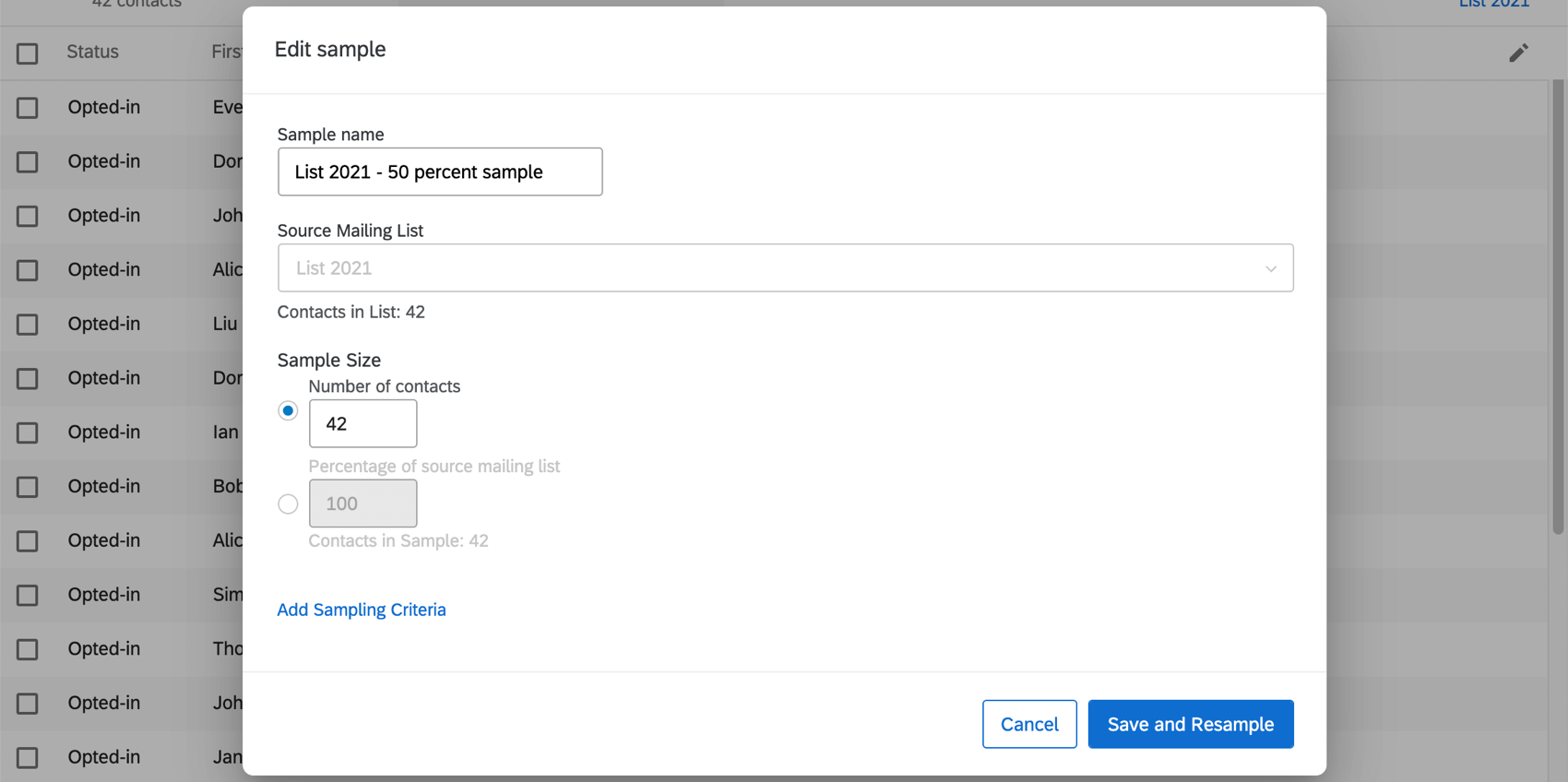
- Edit Sample: Change the name, sample size, and sampling criteria. Once you click Save and Resample, the sample will be taken again according to the conditions.
- Copy Sample: Create a copy of the sample.
- Delete Sample: Delete the sample.
Merge Duplicate Contacts
Attention: This section describes specific functionality available to licenses with XM Directory Lite. (See FAQs for details.) If you are an XM Directory user, see Merging Duplicate Contacts in XM Directory instead.
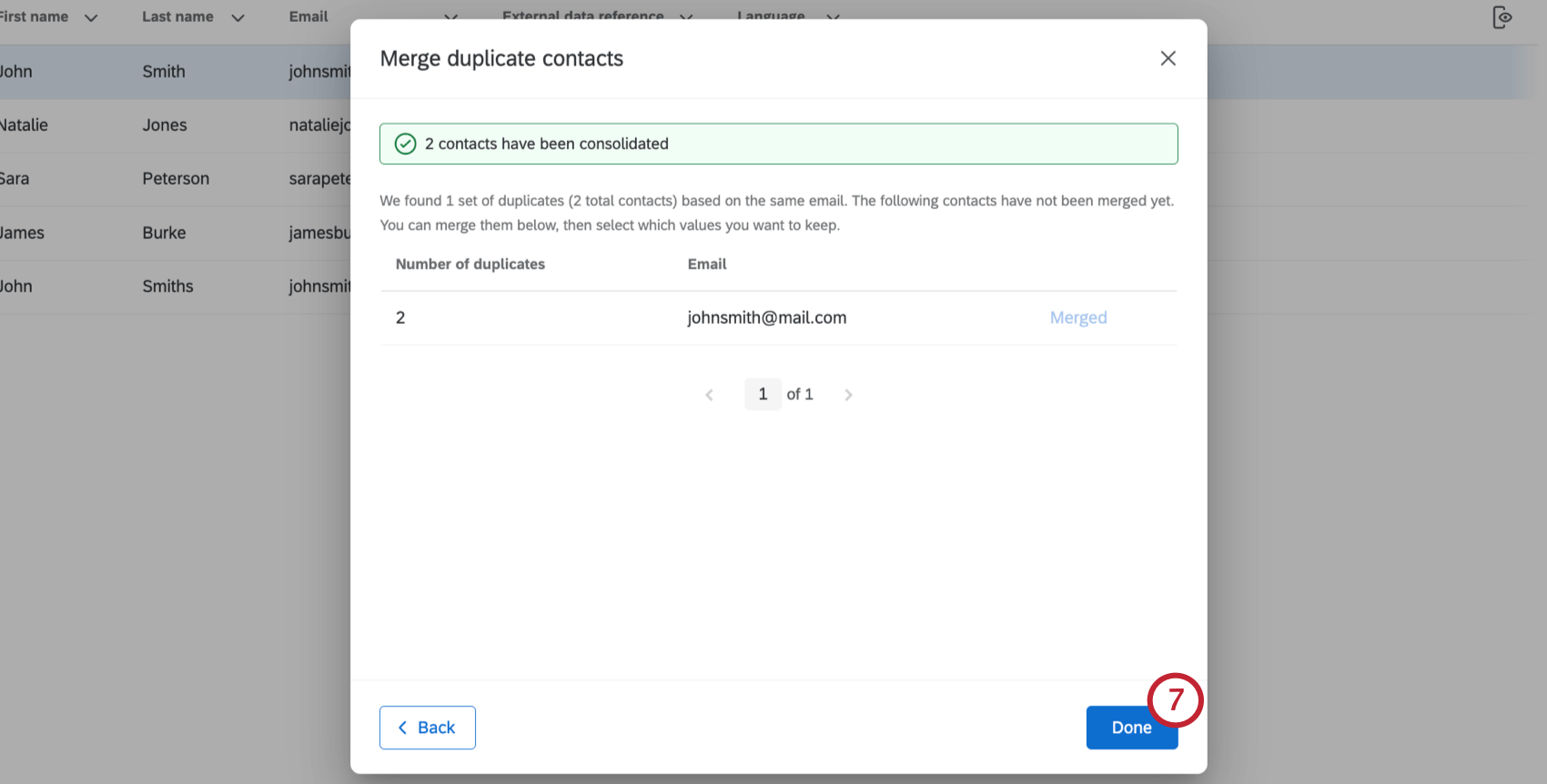
Sometimes you may accidentally add the same email address to a mailing list multiple times. It’s easy to merge these duplicates together using Merge duplicate contacts.
With this feature, you can only consolidate duplicates based on email addresses. You cannot identify duplicates using any other field. (E.g., last name, ID number.)
Attention: Contacts can only be merged with this method if they have fewer than 100 embedded data fields. If a duplicate contact has over 100 embedded data fields, the consolidation will not work.
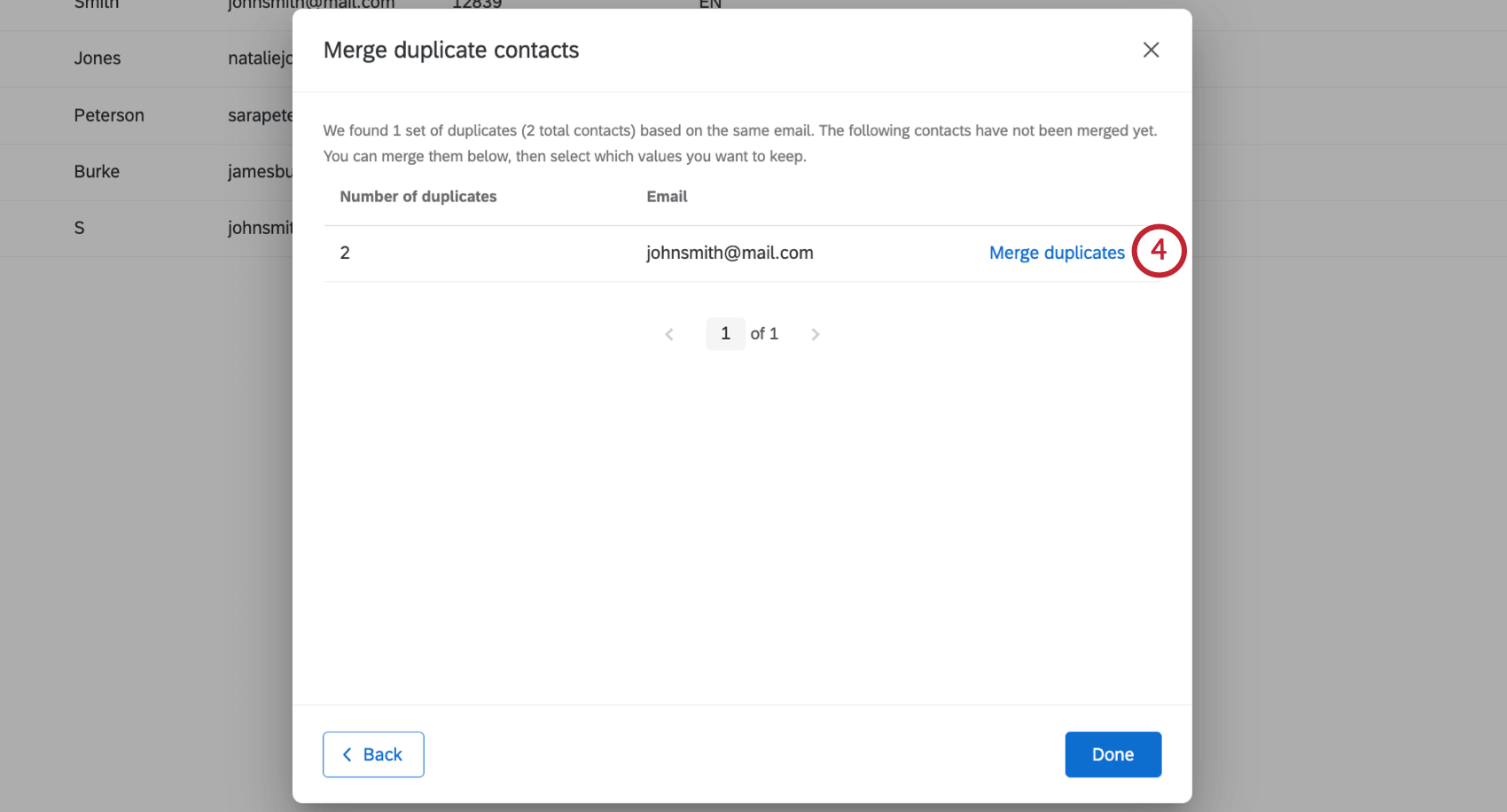
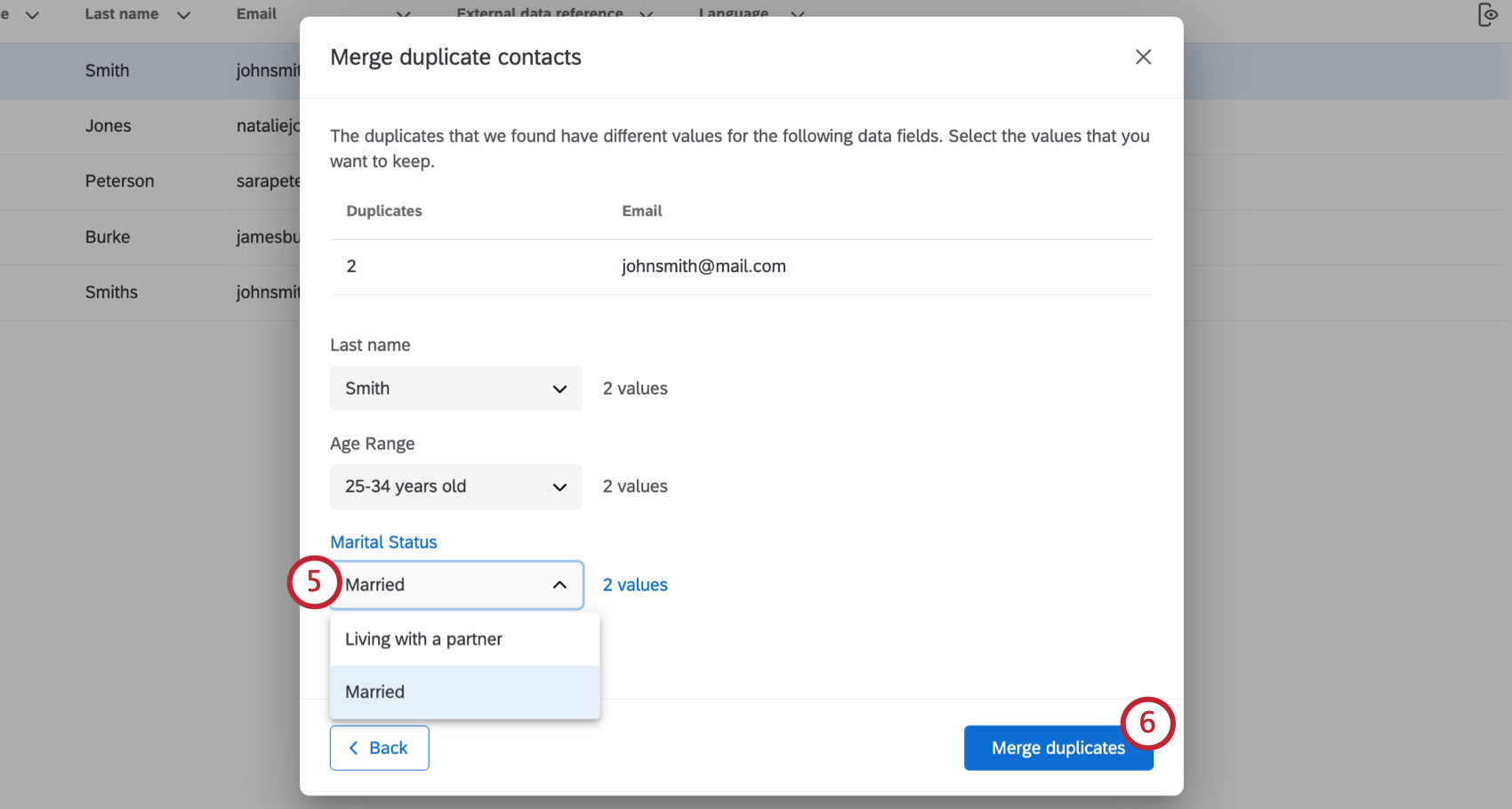
Qtip: You can only keep 1 value per field. The option you don’t choose will be erased.
FAQs
If someone unsubscribes from one of my contact lists, will they automatically be unsubscribed from all my other contact lists?
If someone unsubscribes from one of my contact lists, will they automatically be unsubscribed from all my other contact lists?
How do I opt someone out of a contact list? I don't want them to receive emails from this list anymore.
How do I opt someone out of a contact list? I don't want them to receive emails from this list anymore.
You can also change a contact's subscription status in the product. See this page.
What’s XM Directory? / Where’s Target Audience?
What’s XM Directory? / Where’s Target Audience?
How can I tell if I have XM Directory or XM Directory Lite?
How can I tell if I have XM Directory or XM Directory Lite?
For admins, being able to tell whether or not you have XM Directory Full or XM Directory Lite on your license is easy. Admins of XM Directory have access to many more features than the average XM Directory Lite user, including the Summary tab, the Directory Contacts tab, and Directory Settings.
However, even if you’re not an admin, you can often tell whether you have XM Directory Full or XM Directory Lite in one of the following ways: If you’re still not sure which feature you have, reach out to a Brand Administrator. Brand Administrators who are unsure can reach out to their Account Executive or Account Services.
That's great! Thank you for your feedback!
Thank you for your feedback!