

Opting Respondents Out of Emails
What's on this page
About Opting Respondents Out of Emails in Qualtrics
Whether you’re sending your respondents survey invites, reminders, or thank you messages over email, they can choose to unsubscribe from further communications. Every survey distribution in Qualtrics requires an opt-out link, and comes with one by default. But if you have XM Directory, it’s important to understand what level your recipients have opted out of – mailing list, one directory, or all directories – so you can customize your program accordingly.
On this page, we’ll link out to key resources on subscription behavior for survey distributions and how opt-out links work. This support page only covers subscription behavior for emails connected to standard survey projects.
Qtip: Throughout this page, we’ll cover differences in behavior for XM Directory and XM Directory Lite. If you’re unsure which you have, check our FAQs below for a guide.

Understanding Opt-Out Behavior
XM Directory
In XM Directory, you can have a directory that contains multiple mailing lists. Therefore, contacts can be opted out on the “level” of a list or an entire directory.
Contacts can be opted out of lists, samples, and the directory. They cannot be opted out of segments.
To learn more, see Opt-out Behavior in Directories and Lists.
XM Directory Lite
In XM Directory Lite, when you opt a recipient out of the list (or they opt themselves out by clicking the link), they are opted out of the specific mailing list you contacted.
Because XM Directory Lite doesn’t have a directory feature, every mailing list has its own, separate contact records. You cannot identify other lists the contact belongs to without checking those lists, and you cannot opt contacts out of all lists at once. To do that, you would need to switch your license to full XM Directory instead.
Understanding the Opt-Out Link
When you send a survey through Qualtrics, an opt-out link is included in your email by default. Regardless of whether you use XM Directory Lite or XM Directory, this link opts respondents out of the specific mailing list, not a directory.
Qtip: If you have XM Directory, then contacts see the option to unsubscribe from all contact lists (the entire directory) after they unsubscribe from the list. For information on how to customize this opt-out message, see Directory Messages. For help making a link removes them from the directory instead, see this section below.
For more information, see Using the Opt-Out Link.
To learn how to add an opt-out link back to your email, see this page.
Where opt-out links are supported
The following is also a list of features where the opt-out link piped text will work.
- Emailed survey invites sent from either the survey Distributions tab or Directories Distributions tab
- Emailed survey invites sent using the Send a survey via email task
- Emails without surveys
- Library messages made for:
- Survey invitations
- Reminders
- Thank you emails
- XM Directory Messages
Where opt-out links are not supported
The following is also a list of features where the opt-out link piped text will not work.
- SMS and WhatsApp distributions (these use stop words instead of opt out links)
- Preview links
- Email tasks
- Library message types not listed as “supported” in the previous section
- Distributions for other project types, such as Employee Experience
Making an “Unsubscribe from Directory” Link
If you’re using XM Directory, your contacts can be part of multiple mailing lists, as well as a larger directory of contacts. It’s important to keep in mind that the default opt-out link included in your invite unsubscribes respondents from the mailing list. Only after they click this link, they’ll be asked if they want to unsubscribe from the entire directory.
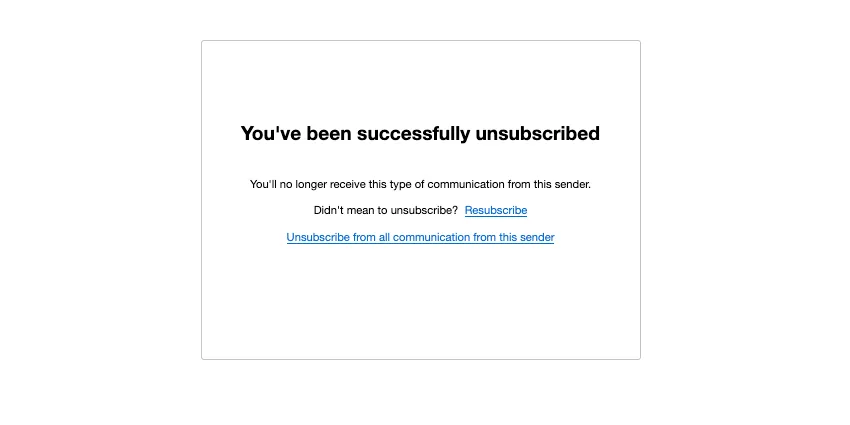
However, you can make an opt-out link that unsubscribes the contact from the entire directory. To do this, add &OptOut=dir to the end of the opt-out link piped text in the survey invite.
Example: To display the directory unsubscribe button as a clickable URL, you’d use ${l://OptOutURL}&OptOut=dir

Attention: After respondents click the link to unsubscribe from the directory, they’ll be asked to confirm their choice.

Qtip: Make sure you also consider how you want email provider subscription buttons to work.
Unsubscribing from Email Provider Buttons
While Qualtrics opt-out links appear in the body of the email, email providers also offer an “unsubscribe” button that appears in their tool menus. For example, here is what this button looks like in Yahoo mail:
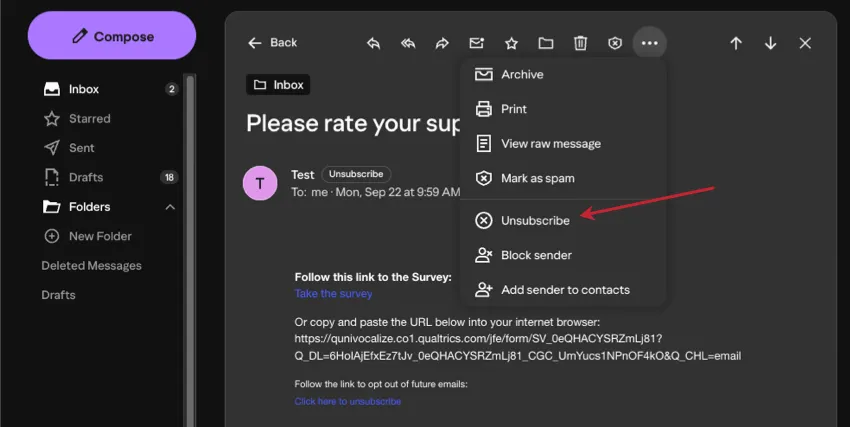
When recipients click non-Qualtrics unsubscribe buttons, they are unsubscribed from the mailing list, but not the larger directory.
To change this behavior, please reach out to Account Services and ask for them to enable the “directory-level unsubscribe” brand permission. Once this permission is enabled, then any time a recipient uses the provider “unsubscribe” button on emails sent from your Qualtrics organization, they’ll be unsubscribed from the entire directory. Keep in mind this directory-level behavior is only available or necessary for XM Directory Full, not Lite.
Qtip: For information on how the “Report Spam” button impacts recipient subscriptions, see When Emails from Qualtrics are Marked as Spam.
Opting Contacts Out of Lists or Directories
In this section, we’ll link out to resources that show how you, as a Qualtrics user, can opt contacts out of lists and directories. You may need to do this for a contact if they ask you to change their subscription status, or if you only temporarily want to disable someone’s communications without permanently deleting them from a list.
In general, the user who owns the mailing list can opt contacts into or out of their own lists.
XM Directory
To opt contacts into or out of the directory (or lists you don’t own), you need to be an XM Directory admin.
XM Directory Lite
See Changing Subscription Status in Lite Lists.
Viewing Subscription Status
If you'd like to view whether or not a contact is opted into or out of communications, you have a few options.
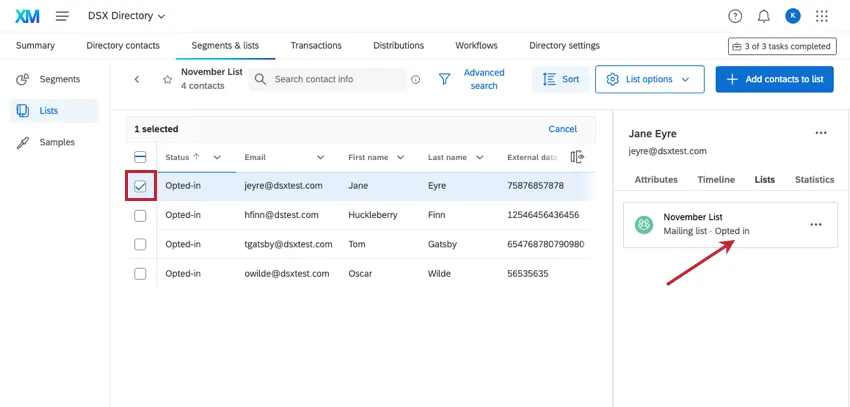
To check one contact, click on them. On the right, you'll be able to find directory opt-out status, plus membership for lists and samples.
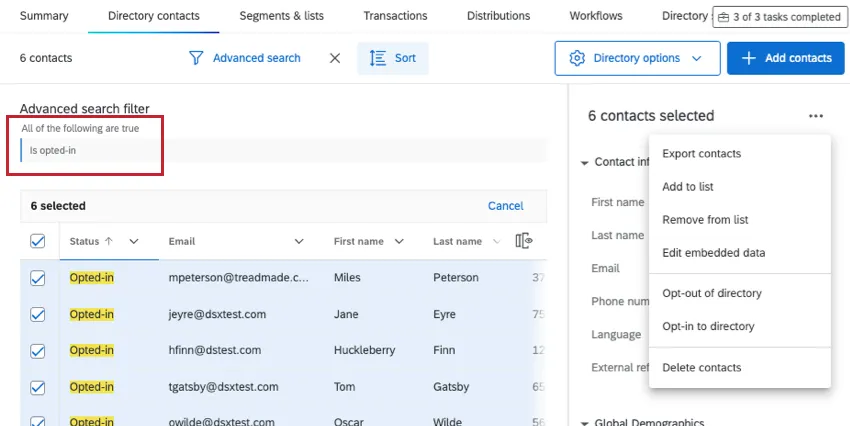
You can also filter by opt-out status to find all of the contacts in a directory who are either opted in or out. You can then export this list of filtered contacts.
Qtip: The contact's opt-in/opt-out status is not included in the distribution history or distribution status.
XM Directory
- Checking one contact's list or sample status: You can check a contact's list and sample membership from either the directory or from the list/sample itself.
- From the directory: Find the contact in your directory, then click on them. From the Lists tab, you will see every list the contact belongs to, and whether the contact's opted in or out.
- From a list or sample: Open up a list or sample, then click on the contact. From the Lists tab, you can tell whether the contact's opted in or out.
- Checking one contact's directory status: Find the contact in your directory, then click on them. In the Attributes tab, you'll see a Directory status that indicates whether the contact is opted in or not.
- Finding all contacts opted out of a directory: Open your directory. Filter your directory contacts by directory opt-out status. Once you find contacts, you can select them and export them (or change their status).
Qtip: You can filter contacts quickly and easily using AI-generated search! Just describe the kind of contacts you want to find, and the AI will suggest filter conditions.
Attention: Regardless of whether you filter from the directory or a specific list, "Opt-Out Status" only searches for directory status. Therefore, you can only filter for contacts opted out of the directory, not a specific list or sample.
Qtip: When you export contacts, you choose the fields to include in the file. We recommend including the opt-out status information.
- Finding all contacts opted out of a list or sample: Open the list and click Sort. Sort the list by Status. You can change the direction as needed. From there, you can select contacts to export them (or change their status).
XM Directory Lite
- Checking one contact's list or sample status: Open up a list or sample, then click on the contact. From the Lists tab, you can tell whether the contact's opted in or out.
- Finding contacts opted out of a list or sample: Open the list and click Sort. Sort the list by Status. You can change the direction as needed to either start the list with all of the contacts who opted out, or with those opted in. From there, you can select contacts to export them (or change their status).
FAQs
If someone unsubscribes from one of my contact lists, will they automatically be unsubscribed from all my other contact lists?
If someone unsubscribes from one of my contact lists, will they automatically be unsubscribed from all my other contact lists?
How can I avoid my emails being marked as spam?
How can I avoid my emails being marked as spam?
How do I opt someone out of a contact list? I don't want them to receive emails from this list anymore.
How do I opt someone out of a contact list? I don't want them to receive emails from this list anymore.
You can also change a contact's subscription status in the product. See this page.
How can I tell if I have XM Directory or XM Directory Lite?
How can I tell if I have XM Directory or XM Directory Lite?
For admins, being able to tell whether or not you have XM Directory Full or XM Directory Lite on your license is easy. Admins of XM Directory have access to many more features than the average XM Directory Lite user, including the Summary tab, the Directory Contacts tab, and Directory Settings.
However, even if you’re not an admin, you can often tell whether you have XM Directory Full or XM Directory Lite in one of the following ways: If you’re still not sure which feature you have, reach out to a Brand Administrator. Brand Administrators who are unsure can reach out to their Account Executive or Account Services.
That's great! Thank you for your feedback!
Thank you for your feedback!