

Data Export Formats
What's on this page
About Export Formats
When you export responses from your project, you can choose a file type for your data. This page goes over each of the file types available.
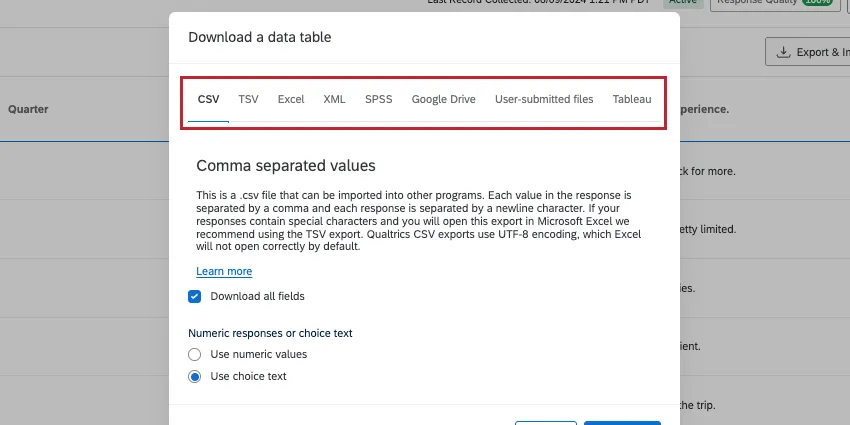
Qtip: Not all export formats on this page are included with all licenses. If you do not see one of these formats on your account and would like it added, please reach out to the Brand Administrator in your organization. If you are the Brand Administrator, you can reach out to your Account Executive.

Qtip: Although these file types are compatible with different software and use cases, once opened, they all organize data into rows and columns. To learn more about what the different rows and columns mean, see Understanding Your Dataset.
CSV
CSV (Comma Separated Values) is a text file type that can be opened in spreadsheet software such as Microsoft Excel. From Excel, a CSV file can be edited, viewed, or converted into other file types compatible with other statistical software.
CSV files cannot support customization in Excel such as sheets, highlights, column filtering, and other advanced changes. To use those features, you must change your file to another type.
However, CSV and TSV are compatible file formats for importing response data, contacts, and more into Qualtrics. See the Troubleshooting CSV/TSV Upload Issues support page if you are having trouble importing with these file types.
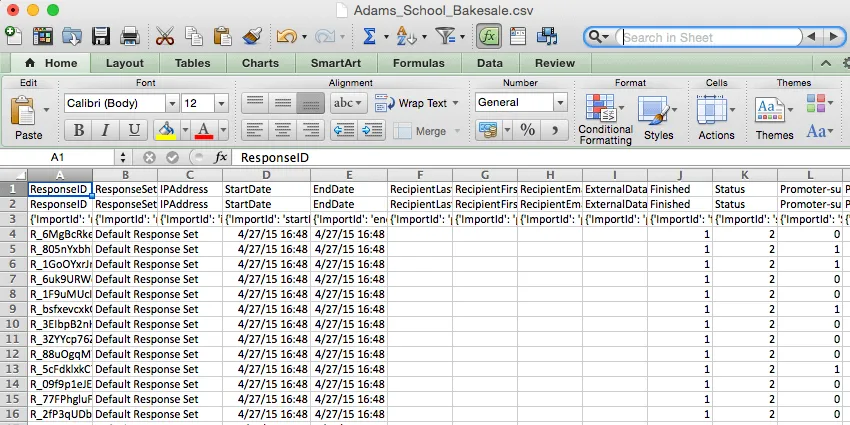
Qtip: Though CSV files do not have a column limit, Excel does. Excel 2003 has a limit of 256 columns, Excel 2007 has a limit of 16000, and Excel 2010 has a limit of 16384 columns. Some surveys may have more variables than these. In these situations, the data will be stored in the downloaded CSV file, but cannot be displayed in Excel. If this is the case, you will need to find another program to view the data (Google Sheets, SPSS, SAS, STATA, etc.).
TSV
A TSV (Tab Separated Values) file is a simple text format for storing data in a tabular structure.
Each column is separated (delimited) by a tab. TSV is an alternative to the comma separated values (CSV) format and can be opened by Text Editors (such as Notepad) and spreadsheet programs (such as Excel). While CSV is the standard for numeric data and the English language alphabet, if your data contains other forms of writing and special characters, TSV is often the better choice.
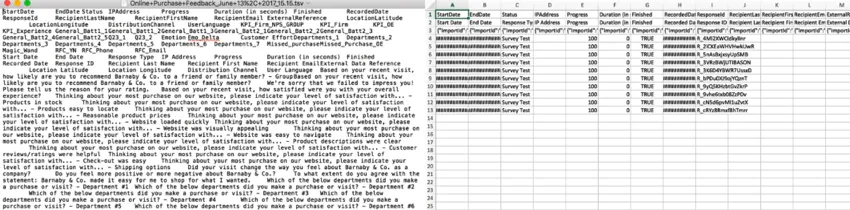
TSV files cannot support customization in Excel such as sheets, highlights, column filtering, and other advanced changes. To use those features, you must change your file to another type. However, CSV and TSV are compatible file formats for importing response data, contacts, and more into Qualtrics.
Qtip: If you have trouble opening your TSV file with Excel, see our CSV/TSV Upload Issues page for troubleshooting guidelines.
Excel
When you export in Excel format, the resulting file will be in an XLSX format.
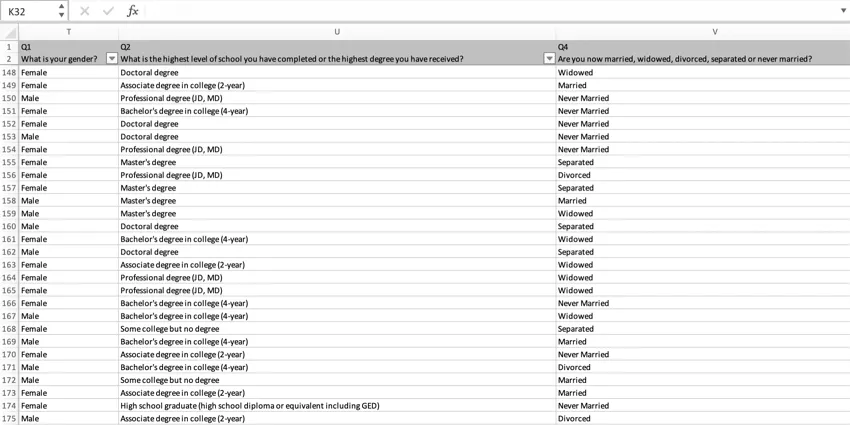
Although CSV, TSV, and XML are all compatible with Excel, the default document format in Excel is generally XLSX. XLSX exports can support customization in Excel such as sheets, highlights, column filtering, and other advanced changes that the other available file types cannot.
Qtip: XLSX files cannot be imported back into Qualtrics.
XML
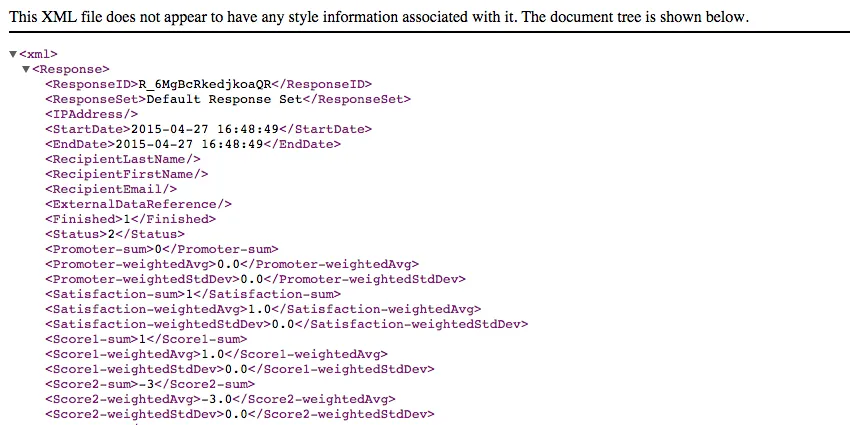
XML (Extensible Markup Language) is a general-purpose markup language that defines a set of rules for encoding documents. Files in XML format are readable by both computers and machines and are commonly used for putting your raw data into a database. It is also compatible with Excel.
SPSS
SPSS (Statistical Analysis Package) is a software used for statistical analysis. SPSS files download in SAV format.
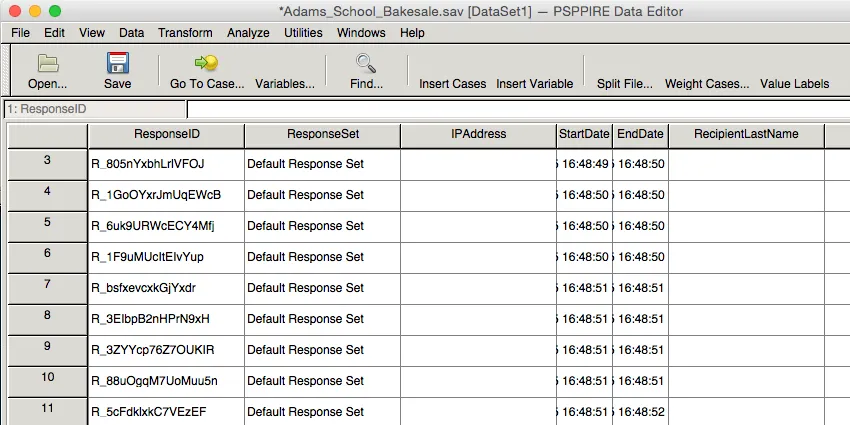
If you’re having difficulty with international characters in your file and you’re using SPSS version 16 or later, you can try changing the Character Encoding for Data and Syntax setting to Unicode.
Qtip: For support with SPSS, see IBM®’s support resources.
Change Character Encoding for Data and Syntax
Qualtrics encodes international characters using the unicode UTF-8 character set. Unfortunately, old versions of SPSS (SPSS Version 15 and earlier) do not support unicode. You may want to consider upgrading to a newer version of SPSS.
SPSS Syntax Files & Corresponding Data Files
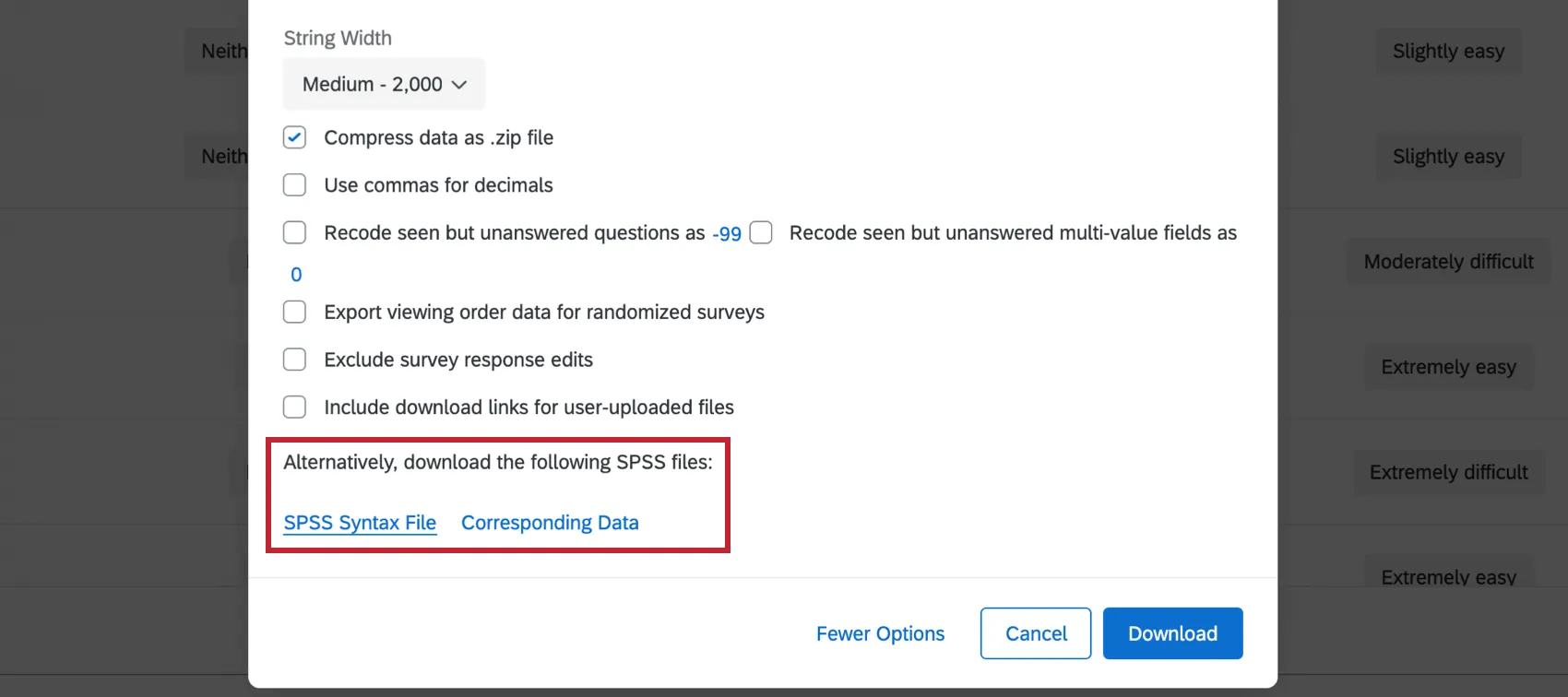
2 additional file formats are available in the More Options for SPSS exports: SPSS Syntax File and Corresponding Data. The syntax file and corresponding data can be used to build the SPSS file after download. However, please note that prior SPSS knowledge is needed to do this. Qualtrics Support is unable to help with SPSS file parsing.
If you are looking for a simple SPSS file, we recommend downloading the standard SPSS file format.
Google Drive
The Google Drive export option allows you to export your data as a Google Sheet to Google Drive. To use this feature, you must have a Google account to link to your Qualtrics account. For more information about linking your account and exporting your data, read our page on Exporting Response Data to Google Drive.
User Submitted Files
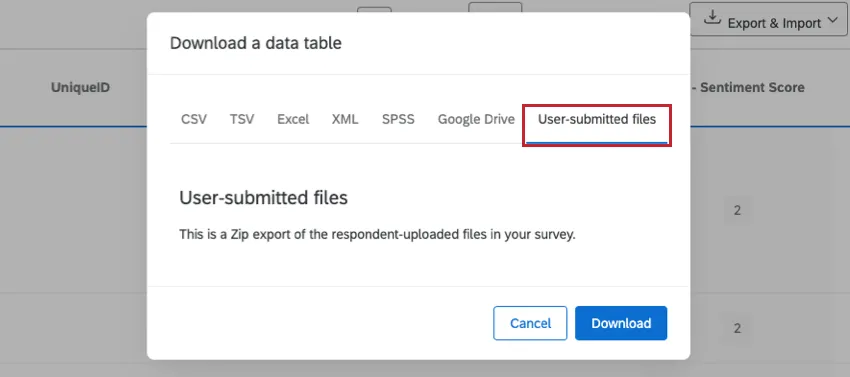
If you used the file upload, screen capture, video response, or signature question type in your survey, you can use the User Submitted Files option to download all respondent-uploaded files at once. They will download to your computer in a .zip file and will include the original file names and the response ID for each response submitted.
Tableau
Warning: This export format is available only if you have the Tableau Extension enabled for your account. If you’re interested in this feature, please reach out to your Account Executive.

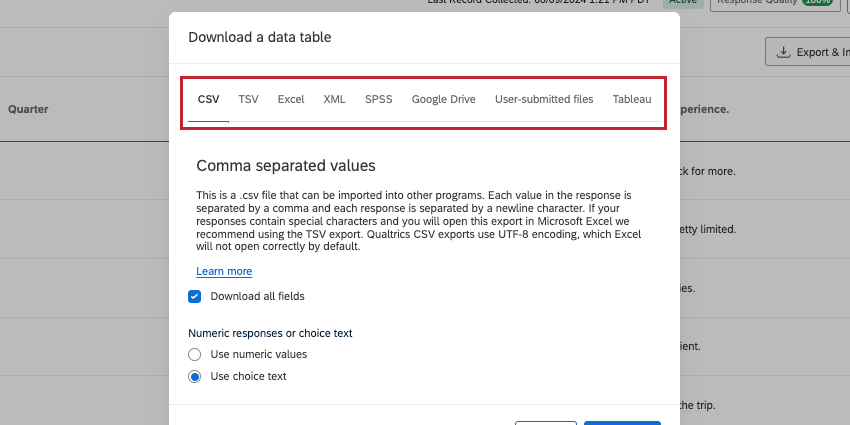
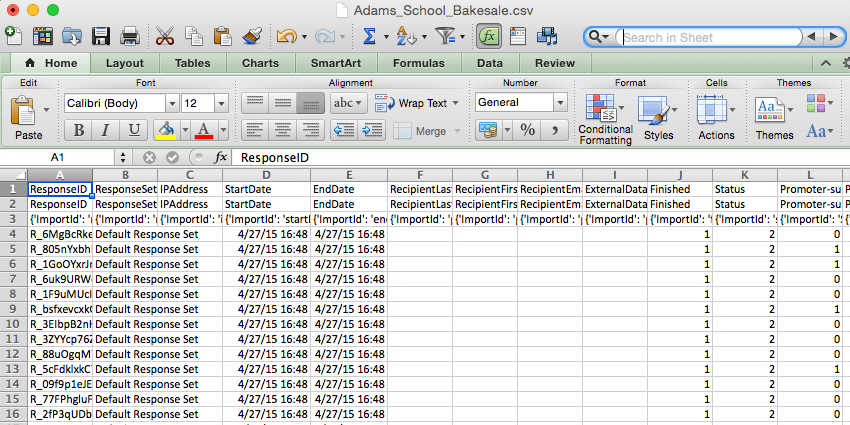
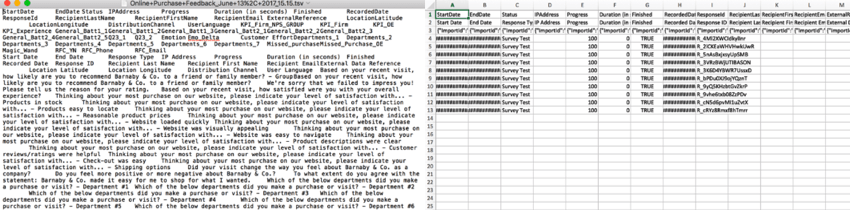
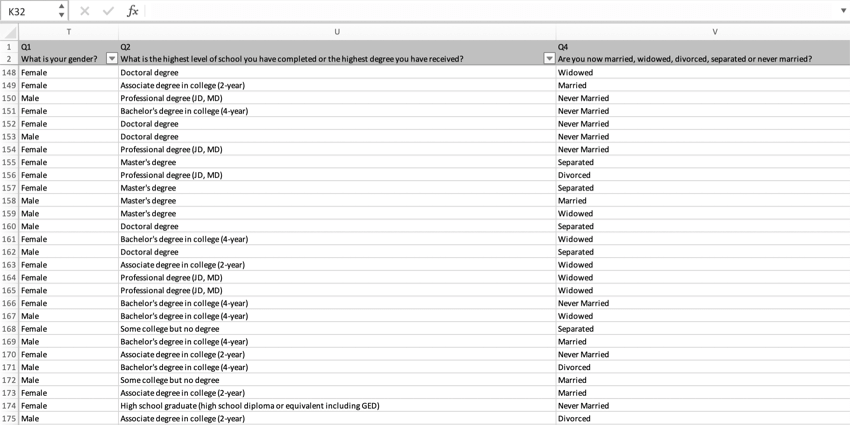
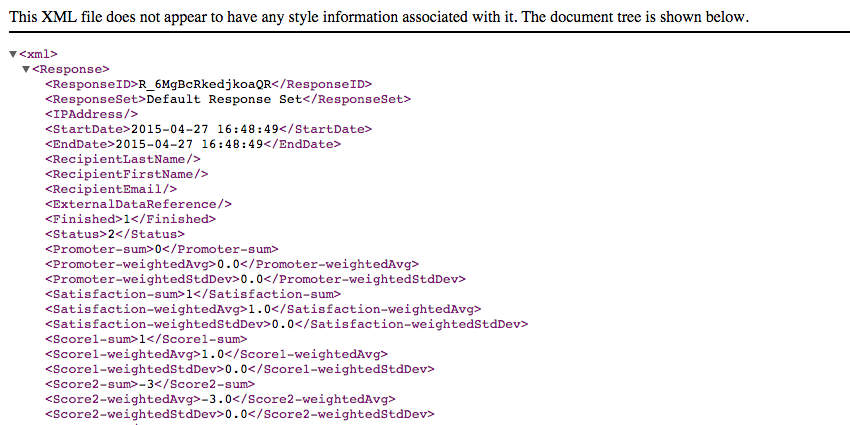
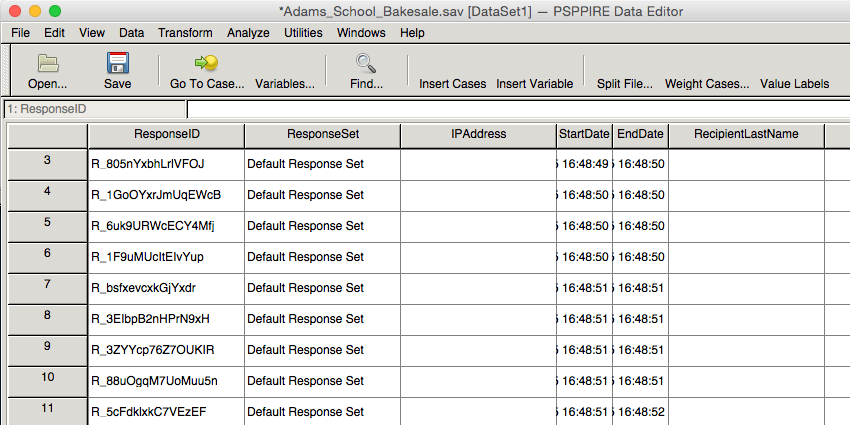
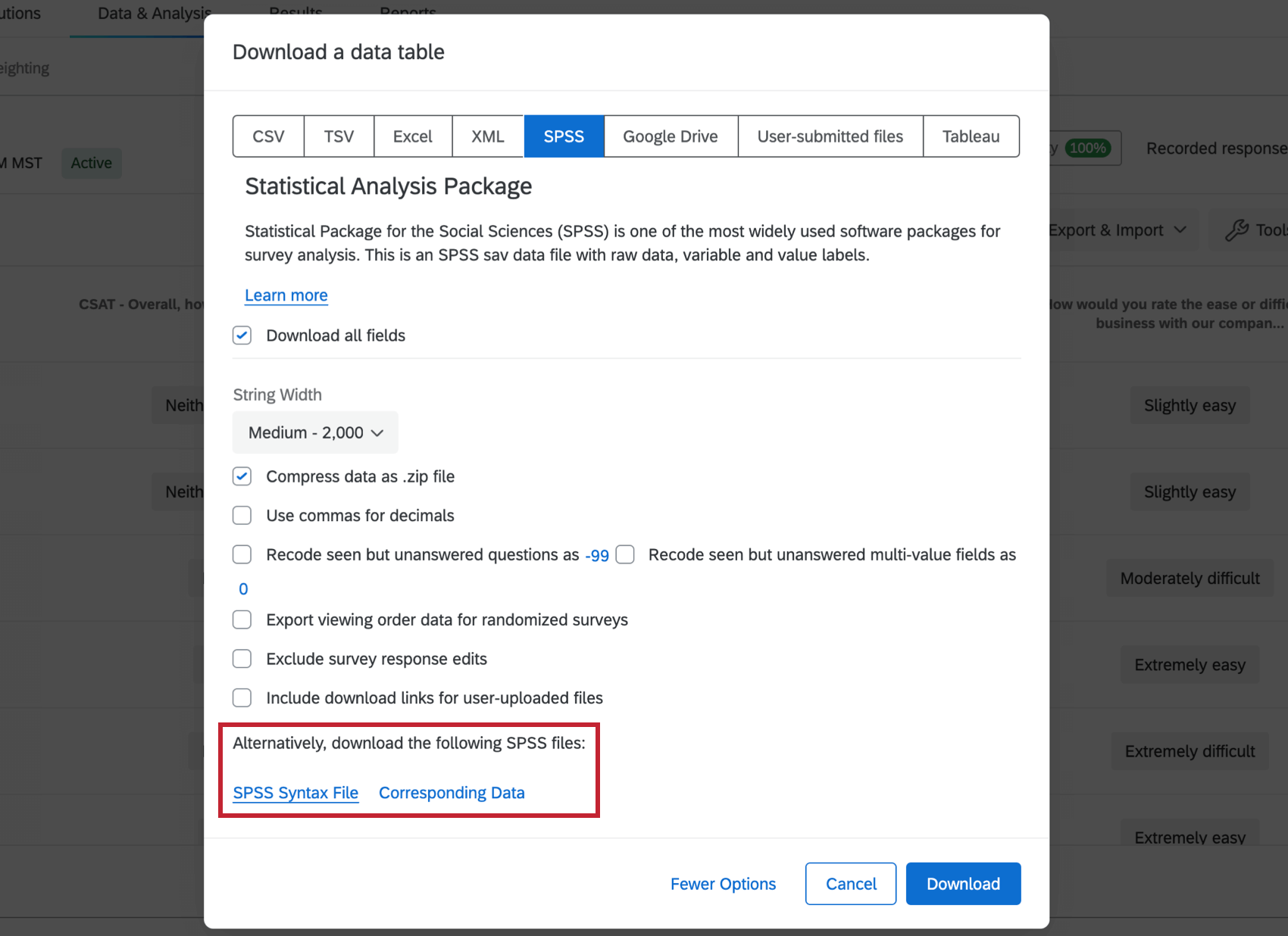
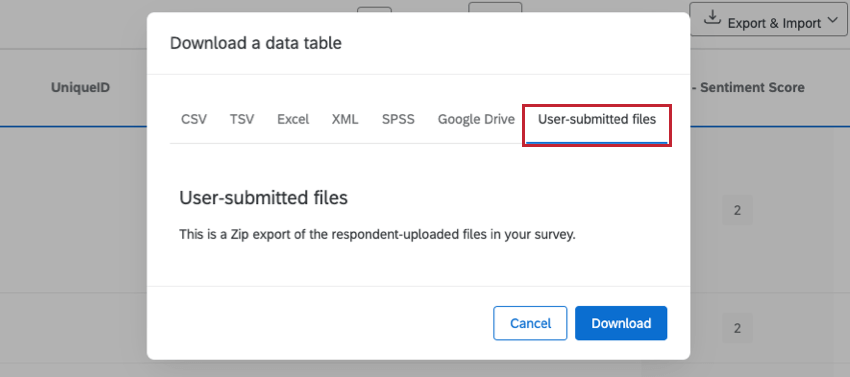
Tableau is a data analysis software. With our extension, you can send Qualtrics data directly to Tableau.
For more information, visit our Tableau extension page.
JSON and NDJSON
Warning: This export format is available only with the API Extension.
JSON (Javascript Object Notation) and NDJSON (newline delimited JSON) exports are only available through our API. See our API documentation on Surveys Response Import/Export API. File type is set during the Start Response Export step.
Exporting Data in Different Project Types
You can export response data in many different types of projects. The steps and options described on this page apply to the following project types:
There are a few other types of projects where you can export response data. However, these exports do not support the same file types listed above.
Different File Types Supported by Different Projects
- For Imported Data projects, see Data & Analysis in Imported Data Projects.
- For 360 projects, see Exporting Response Data (360).
- For all other Employee Experience projects, see Exporting Response Data (EX).
Qtip: While other projects, like dashboards and directories, may also allow you to export data, this support page is solely focused on how to export response data from Data & Analysis. For steps on exporting other kinds of data across the XM platform, try narrowing your support site search.
FAQs
How can I export an individual response report to PDF? Is it possible to download them all at once?
How can I export an individual response report to PDF? Is it possible to download them all at once?
Unfortunately, exporting all individual responses to PDF at once is not possible. However, you can export all of your responses to a variety of formats (CSV, SPSS, etc.) by using our Export Data feature.
What is the difference between downloading the data as numeric values and downloading as choice text?
What is the difference between downloading the data as numeric values and downloading as choice text?
Choice text is the answer choice text participants see when they take the survey. Downloading your data as choice text will give you the text the participants clicked on, rather than a number associated with that option.
For example, in your survey you might ask “Are you willing to participate in this study?” and the answers might be “Yes” and “No”. If you download the numeric values, the data file might show a “1” for anyone who selected Yes and a “2” for anyone who selected No. If you download the choice text, the data file will show the actual text “Yes” and “No” instead
How can I better understand the values I am seeing in my downloaded data file?
How can I better understand the values I am seeing in my downloaded data file?
There are also columns for for scoring categories and Embedded Data fields. Note that if an Embedded Data field is not set in the Survey Flow of the survey, it will not appear in the downloaded data.
Questions each get their own column with results listed underneath. Columns are headed with the question numbers and the first few lines of the question text. Simple questions (Text Entry, Multiple Choice - Single Answer, etc.) will be contained in one column, but more complex questions (Matrix Table, Side by Side, etc.) will be broken across columns. Examine a question’s label and recode values to better navigate and understand these results.
See our Understanding Your Data Set page for more information.
What do the different columns in my downloaded data mean (Status, Finished, External Data Reference)?
What do the different columns in my downloaded data mean (Status, Finished, External Data Reference)?
How do I export my data into a CSV or SPSS file?
How do I export my data into a CSV or SPSS file?
How do I export either the answer choice text or the recode values my respondent selected in the survey?
How do I export either the answer choice text or the recode values my respondent selected in the survey?
Why is my exported data file not showing all of my columns of data?
Why is my exported data file not showing all of my columns of data?
Data can also be excluded from the export if you you have a filter applied when you export the data.
If you are missing information that is stored in a contact list, you will want to make sure that you added Embedded Data to your Survey Flow so that your survey knows to collect this information. This Embedded Data can be added retroactively if you forgot the first time. You can find instructions for this on the Embedded Data support page.
If redaction is set up for a topic, will data exports also redact that data?
If redaction is set up for a topic, will data exports also redact that data?
Why have my contact fields been replaced with “******”?
Why have my contact fields been replaced with “******”?
That's great! Thank you for your feedback!
Thank you for your feedback!