

Conversational Feedback
What's on this page
About Conversational Feedback
Qtip: While we have guardrails in place and are continually refining our products, artificial intelligence may at times generate output that is inaccurate, incomplete, or outdated. Prior to using any output from Qualtrics’ AI features, you must review the output for accuracy and ensure that it is suitable for your use case. Output from Qualtrics’ AI features is not a substitute for human review or professional guidance.
Feature Availability
Attention: Conversational feedback is only available to users on the new simplified pricing and packaging plans or customers who actively participated in the Preview Program for this feature. For more information, see Qualtrics Public Preview. If you have questions about your Qualtrics pricing and packaging plan, reach out to Account Services.

Adaptive follow-up questions can be used in all projects that support text entry questions, except for 360 and adhoc survey projects.
Qtip: Only 1 follow-up question is supported for Engagement and Lifecycle projects.
Response clarity questions can be used in all projects that support text entry questions, including 360 and adhoc survey projects.
Text Entry Setup for Conversational Feedback
Qtip: This section contains functionality for Response Clarity that we intend to release starting November 4, 2026. Qualtrics may, in its sole discretion and without liability, change the timing of any product feature rollout, change the functionality for any in preview or in development product feature, or choose not to release a product feature or functionality for any reason or for no reason.
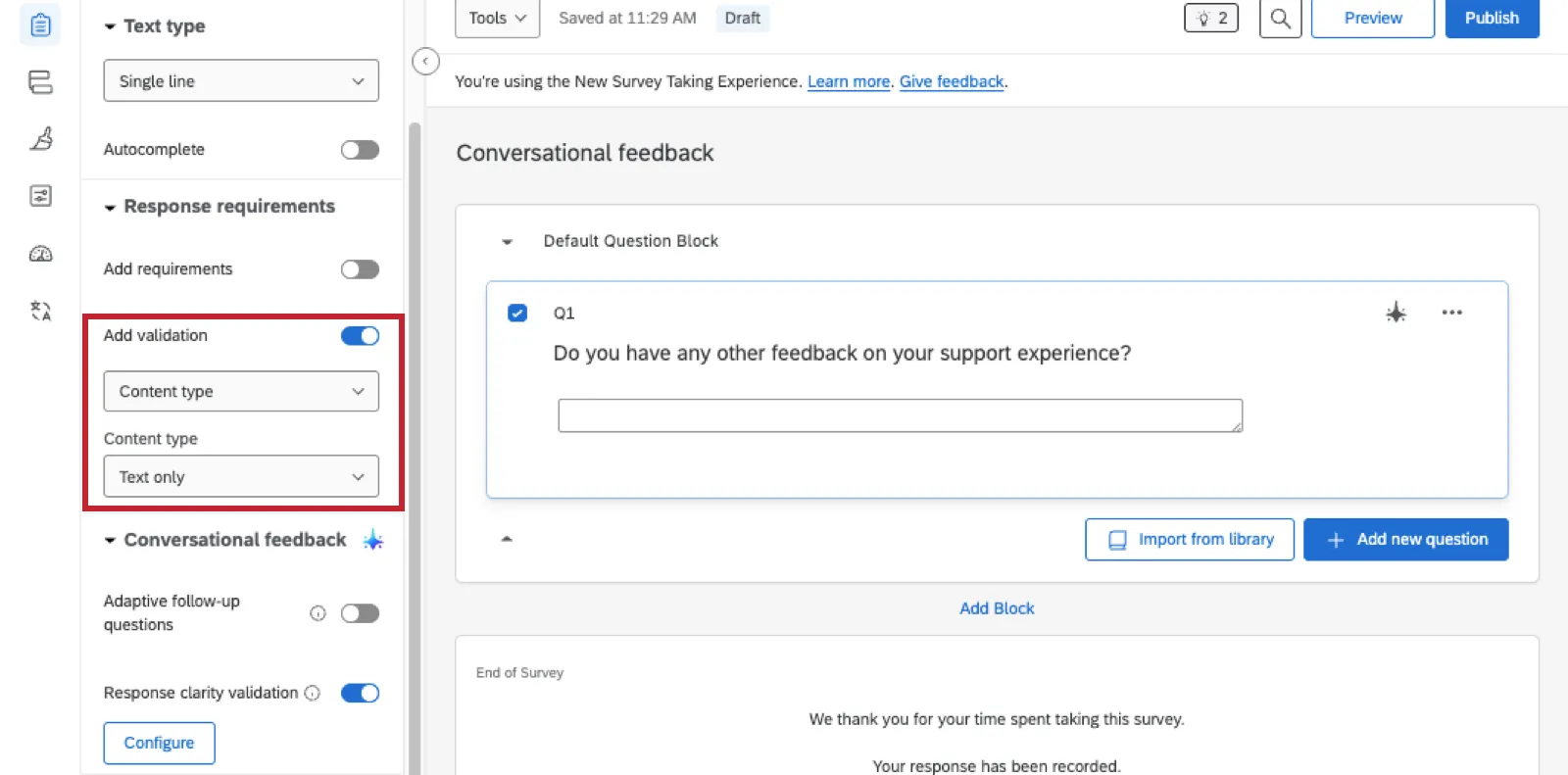
If you want to use conversational feedback on a text entry question, you have to make sure that question’s only using compatible settings. In this section, the features listed work with both response clarity validation and advanced follow-up questions.
The following text types are supported:
- Single line
- Multiple lines
- Essay text box
Qtip: You cannot use conversational feedback with a password text entry question.
Qtip: Autocomplete is not compatible with adaptive follow-up questions. It is compatible with response clarity.
The following response requirements are supported:
- Force response
- Request response
- Text entry validation:
- Minimum length
- Maximum length
- Character range
- Custom validation
- Content type validation set to Text only
Qtip: Conversational feedback cannot be used with other content type validation settings, like email or address.
Adaptive Follow-Up Questions
Adaptive follow-up questions are created instantly using artificial intelligence, tailored to the feedback your respondents write in the open text.
Qtip: Survey takers can only receive up to 2 advanced follow-ups per survey. If a survey taker has already been asked a question with 2 follow-ups enabled, then when they get to the next question with an advanced follow-up, the follow-up will not trigger. However, basic follow-ups (first follow-up, in English-only, with no topics to avoid) are unlimited.
Enabling Adaptive Follow-Up
Qtip: For help enabling this feature, reach out to your Brand Administrator.
To use this feature, you must have the AI Adaptive Followup – Advanced third party organization setting enabled. Once the organization setting is enabled, you must have either the AI Adaptive followup – Basic or the AI Adaptive followup – Advanced user permission.
With advanced adaptive follow-up enabled, you can set up 2 follow-up questions instead of just 1. You can also add topics that you want the AI to avoid when generating follow-up questions.
Qtip: Currently, adaptive follow-up is supported in all the same languages surveys can be launched in, except Cebuano (CEB), Central Kurdish (CKB), Hiligaynon (HIL), and Montenegrin (CNR). This is the case for both survey and Employee Experience projects. For non-English languages, the AI Adaptive followup – Advanced permission must be enabled, and only 1 follow-up question is supported.
Setting Up Adaptive Follow-Up
Example: Adaptive follow-up questions work best when asking a specific, detailed text entry question. For example, the question “How was your experience at Qualtrics.com” will provide a better opportunity for follow-up questions than “Tell us more”.

Select your text entry question.
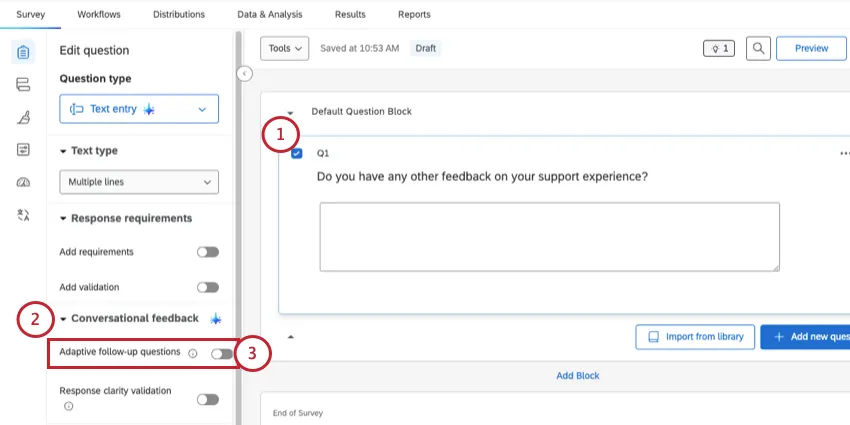
Look under Conversational feedback.
Switch on Adaptive follow-up questions.
Enter the name of your company.
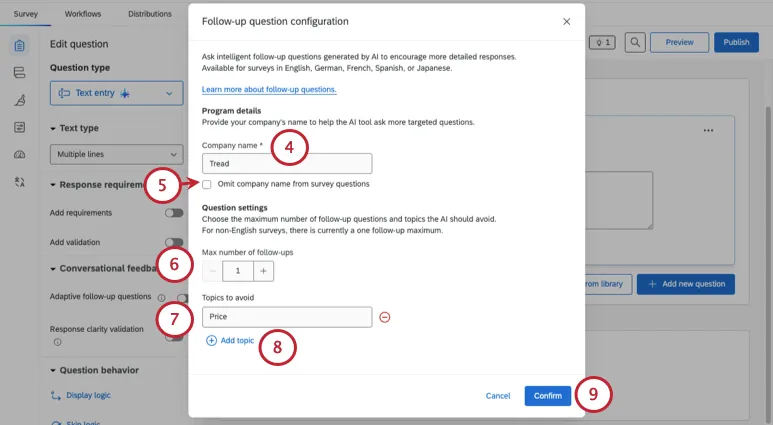
If you’d like to ensure your company name is not displayed to respondents during the survey, select Omit company name from survey questions.
Qtip: If the company name is already being displayed elsewhere in the survey, it may still be included in generated follow-up questions.
Select the maximum number of follow-up questions a respondent can receive. You can select up to 2.
Qtip: This setting is only available for advanced follow-up in English.
Enter any topics you would like to avoid.
Attention: This setting is only available for advanced follow-up.
Qtip: Do not add more than one topic to each topic line. Topics can be phrases describing what you would like to avoid, and are not limited to key words.
Click Add topic to add more topics.
Qtip: If you’d like to delete a topic, click the minus sign ( – ) next to that topic.
Click Confirm.
To apply display logic to the follow-up question, click Display logic.
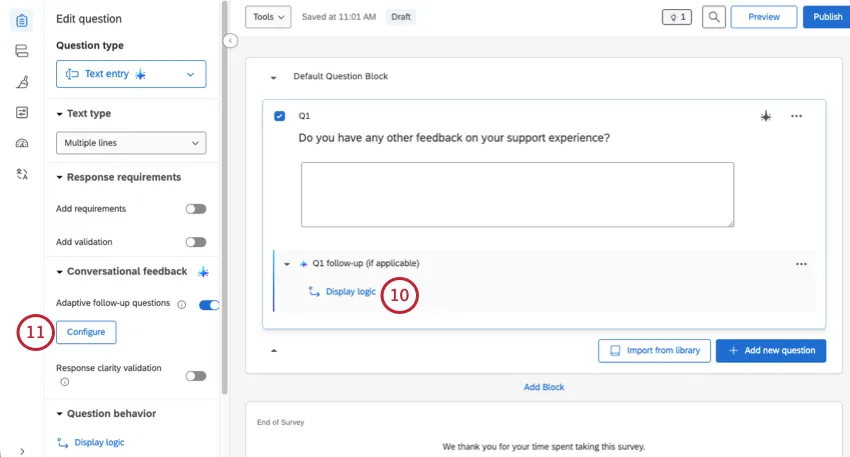
To edit your follow-up question settings, click Configure.
Attention: You can only show 1 follow-up question per page. If you add a second follow-up question, the system will automatically add a page break, even if it doesn't look like it in the editor.
Qtip: All Javascript tags and images are ignored by the AI when providing a follow up question.
Video Walkthrough
Need help getting started with adaptive follow-up? Check out this 2-minute video walkthrough:
For questions and discussions about adaptive follow-up, visit the Qualtrics Experience Community AI Center, where you can connect with other Qualtrics users about all things AI.
Response Clarity Validation
When enabled on a text entry question, response clarity validation analyzes the respondent’s answer using AI, and prompts them to give a fuller response if their answer is vague or only partially addresses the question. This prompt will appear when the respondent clicks the Next button to continue to the next page in your survey.
At this time, response clarity validation can be used for surveys whose the base language matches anything from the list of languages surveys can be launched in, except Cebuano (CEB), Central Kurdish (CKB), Hiligaynon (HIL), and Montenegrin (CNR).
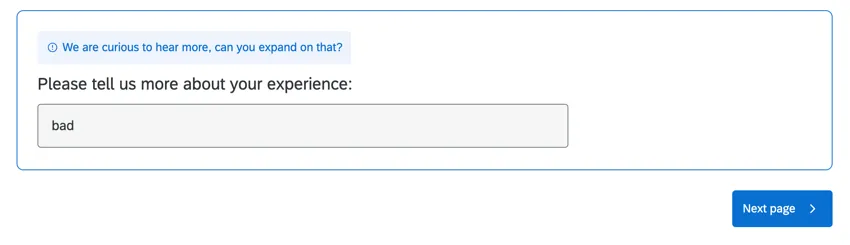
Qtip: This prompt only appears a maximum of 1 time per question it is enabled on. If the respondent’s answer is still not clear after seeing this prompt, they will not see it again and will be allowed to continue the survey.
Enabling Response Clarity Validation
Qtip: For help enabling this feature, reach out to your Brand Administrator.
To use this feature, you must have the Response Clarity first party organization setting enabled. Once the organization setting is enabled, you must have the Response Clarity user permission.
Setting Up Response Clarity Validation
Qtip: You cannot use this option with the password question variation.
Select a text entry question.
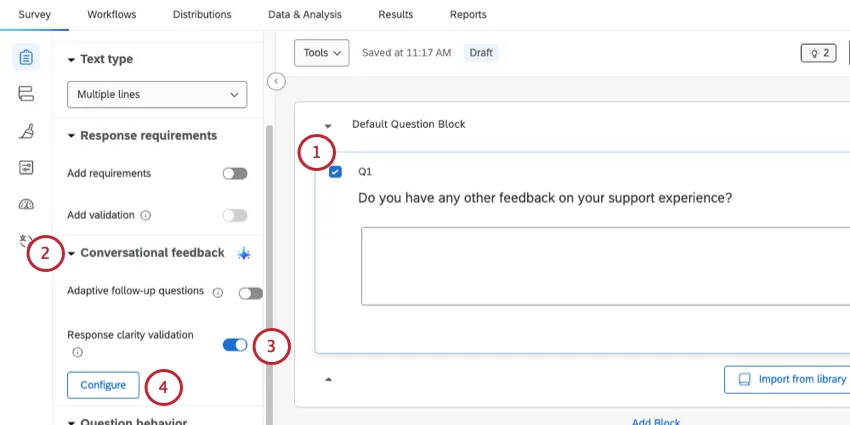
Look under Conversational feedback.
Choose Response clarity validation.
To customize the prompts survey takers see, click Configure.
There are 5 different criteria that are used to evaluate the response’s clarity:
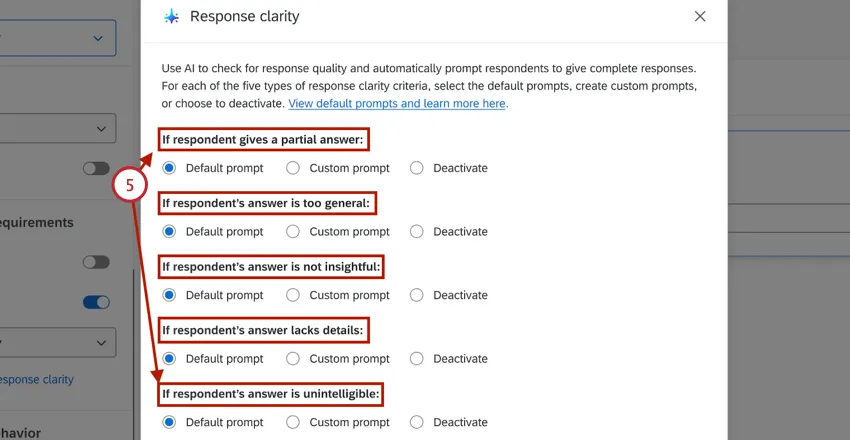
- Partial answer: The respondent’s answer did not fully answer the question or only answered parts of it.
- Too general answer: The respondent’s answer was too vague.
- Not insightful answer: The respondent’s answer does not provide any insights when it is reasonable to have an opinion on the question asked.
- Lacks details: The respondent’s answer did not provide any meaningful details.
- Unintelligible answer: The respondent’s answer does not make sense or does not contain real words.
Select Default prompt if you’d like to use the default prompt messages for a given criteria. The default messages are:
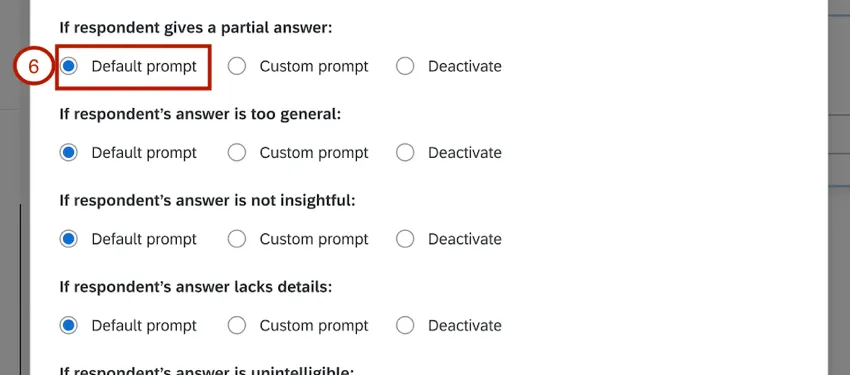
- Partial answer:
- We appreciate your response. Can you answer all parts of the question.
- That’s helpful. Can you review the question and answer all parts?
- Thanks for the feedback. Can you add additional information to fully answer the entire question?
- Too generalized answer:
- We’d like to hear more about that. Can you add additional detail to your response?
- Can you please explain that in a bit more detail?
- Can you tell me more about that? What makes you say X?
- Non-insightful answer:
- We value your opinion. Is there anything else you can share?
- Your input is valuable. Anything else to add?
- We’d like to get more specifics. Is there anything else you’d like to add?
- Lacks details:
- This is helpful. Can you tell us a little more about that?
- Can you provide more detail about your answer or give an example?
- We are curious to hear more, can you expand on that?
- Unintelligible answer:
- Your response was hard to understand. Can you try answering the question again?
- Your response is unclear. Could you clarify what you mean?
- Your response is important to us. Can you try answering the question again?
Qtip: When a response fits into one of these criteria, only 1 of the possible prompt messages will be displayed to the respondent.
To use custom prompts for a criteria, enable the Custom prompt option.
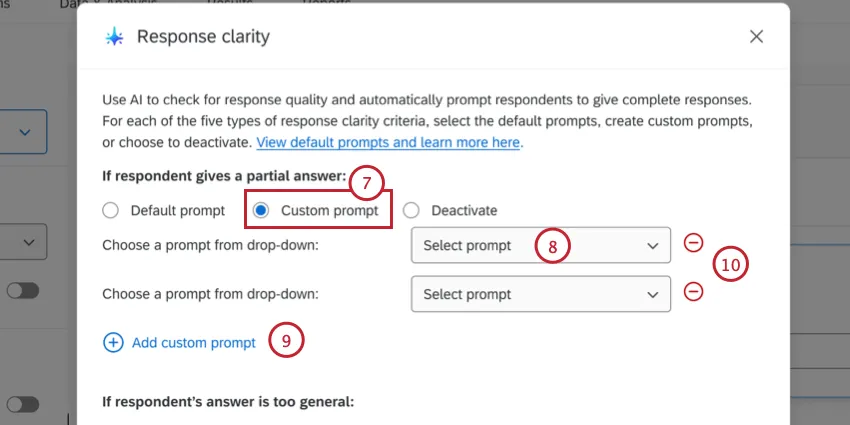
Use the Select prompt menu to choose a message from any messages library you have access to. You can use any general message as the prompt. Select New Message to create a new message instead.
You can add up to 3 possible messages for a criteria by clicking Add custom prompt.
Qtip: When a response fits into one of these criteria, only 1 of the possible prompt messages will be displayed to the respondent.
To remove a custom prompt, click the minus sign ( – ) next to it.
To disable prompt messages for a certain criteria entirely, select Deactivate for that criteria.
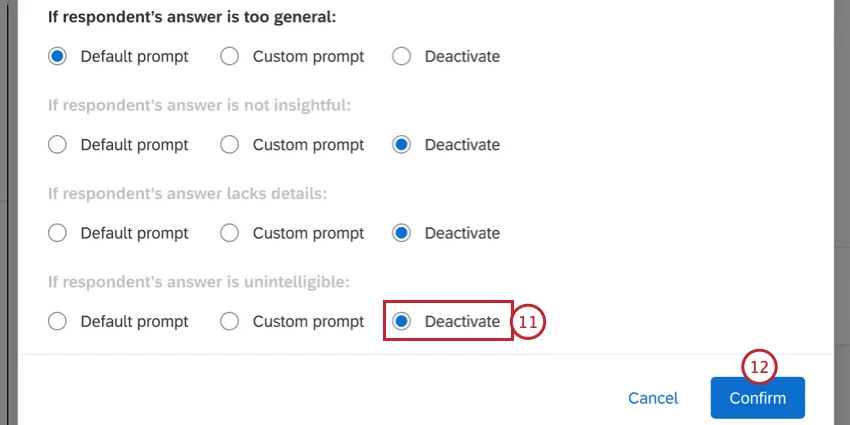
When finished, click Confirm.
Data Output for Conversational Feedback
Adaptive Follow-Up Data
The following columns will be added to your dataset for each adaptive follow-up question:
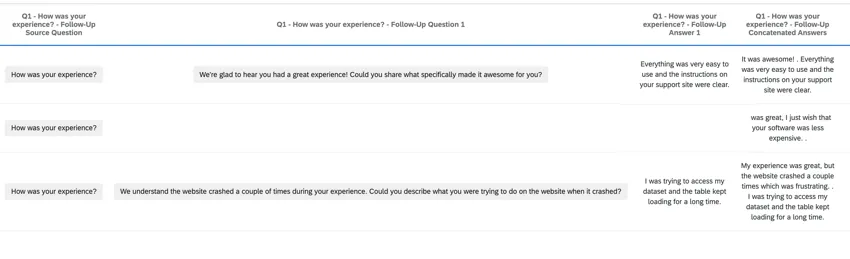
Q# – {Question Text} – Follow-Up Transcript: The source question, source response, follow-up questions, and follow-up question responses.

Qtip: Display this data in a response ticker widget to follow the conversation, allowing you to read each response at a time.
Q# – {Question Text} – Follow-Up Concatenated Answers: The source question response and follow-up response, combined together into a single text response.
Qtip: Analyze this field for Text iQ topics and text enrichments.
- Q# = {Question Text} – Follow-Up Question: The follow-up question that was created in response to the answer of text entry data.
- Q# = {Question Text} – Follow-Up Answer: The response to the follow-up question that was generated.
Termination Reasons
A column with the name Termination_Reason is added to Data & Analysis for each question that has adaptive follow-up enabled. If a respondent receives a follow-up question, this column will be empty. If they do not receive a follow-up question, this column will contain one of the following termination reasons:
- NotEligibleForFollowUp: The response was too vague or low quality to receive a follow-up question.
- NoFollowUpNeeded: The response was sufficient and does not need a follow-up.
- FollowUpNotAvailable: The network timed out or the model could not provide a follow-up.
Attention: Adaptive follow-up only triggers if a respondent provides a sufficiently long and relevant answer. No follow-up questions are asked if there is not enough information in a respondent's answer.
Response Clarity Embedded Data
When you enable response quality validation on a question, there are additional embedded data fields available in your dataset to help track response clarity. These fields include:
- <QID>_AICategory: The category the original response was classified as. Possible values include:
- Passed – Good Answer: The respondent’s answer was sufficient and did not trigger response clarity validation.
- Passed – Not Applicable: The respondent understood the question and put in an effort to answer it, but the question did not apply to them
- AIError: There was an error analyzing the response.
- AITimeout: The AI analysis request timed-out.
- UnsupportedLanguage: The response was in an unsupported language.
- Gibberish: The response matched the “unintelligible answer” criteria.
- Insufficient Detail: The response matched the “lacks detail” criteria.
- Non-Insightful: The response matched the “non-insightful answer” criteria.
- Overly Generalized Answer: The response matched the “too generalized answer” criteria.
- Partial Answer: The response matched the “partial answer” criteria.
- <QID>_OriginalResponse: The user’s original response.
- <QID>_FollowUpPrompt: The exact prompt that was displayed to the user. This will be blank if the response passed the response clarity validation without triggering it.
Qtip: In the above embedded data field names, <QID> will be replaced with the question’s internal question ID.
FAQs
Where can I find more information about the safety and security of AI features?
Where can I find more information about the safety and security of AI features?
The Qualtrics Trust Center contains our most detailed documentation of the inner workings of AI features. Specific feature guidebooks are also available at the Trust Center.
Can I use display logic to limit which survey respondents can see Adaptive Follow-up questions?
Can I use display logic to limit which survey respondents can see Adaptive Follow-up questions?
Yes. When you enable Adaptive Follow-up on a Text Entry question, you can use display logic to limit which survey respondents are able to see generated follow-ups.
I want to enable Adaptive Follow-up on a question in a live survey. What steps should I take?
I want to enable Adaptive Follow-up on a question in a live survey. What steps should I take?
- Enable and configure adaptive follow-up on your survey question.
- Complete a preview response, making sure to add additional detail when prompted by generated questions.
- In the Data and Analysis tab, go to "Field Editor," select "Create Field," and select the "Combine” tab. Select the original open text field and the new concatenated open text field to create a new merged field. See Combining Fields for more information.
- Review the new embedded data field in Data and Analysis. Publish changes on the survey.
- Go to any impacted dashboards and replace the existing open text field with the new concatenated field (can be found under Derived Data).
How do Response Clarity and Adaptive Follow-up determine which language the respondent is using?
How do Response Clarity and Adaptive Follow-up determine which language the respondent is using?
We look at the current language that is selected in the survey session. If the respondent is taking the survey in one language and enters their response in another language, their response may be flagged as “Unintelligible answer”.
When should I use Response Clarity or Adaptive Follow-up? When should I use both?
When should I use Response Clarity or Adaptive Follow-up? When should I use both?
There’s no set rule for when to use either or both features, but below are some considerations:
- If you are concerned about increasing the length of your survey, enable Response Clarity only.
- If you are getting mixed-quality responses, enable both Response Clarity and Adaptive Follow-up with “Too generalized answer” and “Lacks details” turned off for Response Clarity.
What types of Text Entry questions are good candidates for Response Clarity and/or Adaptive Follow-up?
What types of Text Entry questions are good candidates for Response Clarity and/or Adaptive Follow-up?
In all cases, it is important to choose questions that offer sufficient context. Avoid enabling these features on overly broad questions, such as "Why?" or "Tell us more," as they are poor candidates for effective intervention. Instead, use these features on questions that are more specific, such as "Please tell us about your experience during your last store visit."
That's great! Thank you for your feedback!
Thank you for your feedback!