

Translate Comments
What's on this page
About Translating Comments
We often want to reach as wide an audience as possible. But if the members of our research team don’t speak multiple languages, this can limit our ability to analyze feedback provided in foreign languages. Luckily you can make analyzing respondent feedback easier by translating text responses.
You can translate comments in the Data & Analysis tab. This feature is compatible with Text iQ, response editing, data exports, reporting, and CX Dashboards. This feature is not compatible with API.
By default, all previously collected responses will be translated when you set up the job and then all new responses will be translated within a day of being recorded. For more details, see the Editing Translations section below.
Attention: Due to the time it takes to translate text, translated comments cannot be pulled into workflows.

Qtip: This support page describes the process of translating open text response data. To learn how to translate your survey, visit the Translate Survey page.

Translating Your Text Responses
Attention: Text translation requires that you have Advanced Text iQ and that you have Allow Third-Party Comment Translations enabled in the Organization Settings tab. Please note that even if you disable this permission, any comment translations you have started will not stop until you suspend them. For access to Advanced Text iQ, contact Account Services or your Brand Administrator.
Qtip: Brand Administrators can adjust which third-party providers are available for auto-translation. For steps, see Organization-Wide Control for Third-Party Auto-Translators.
Translating text responses enables you to to analyze text feedback from multiple languages in a single unified field.
Click on Tools.
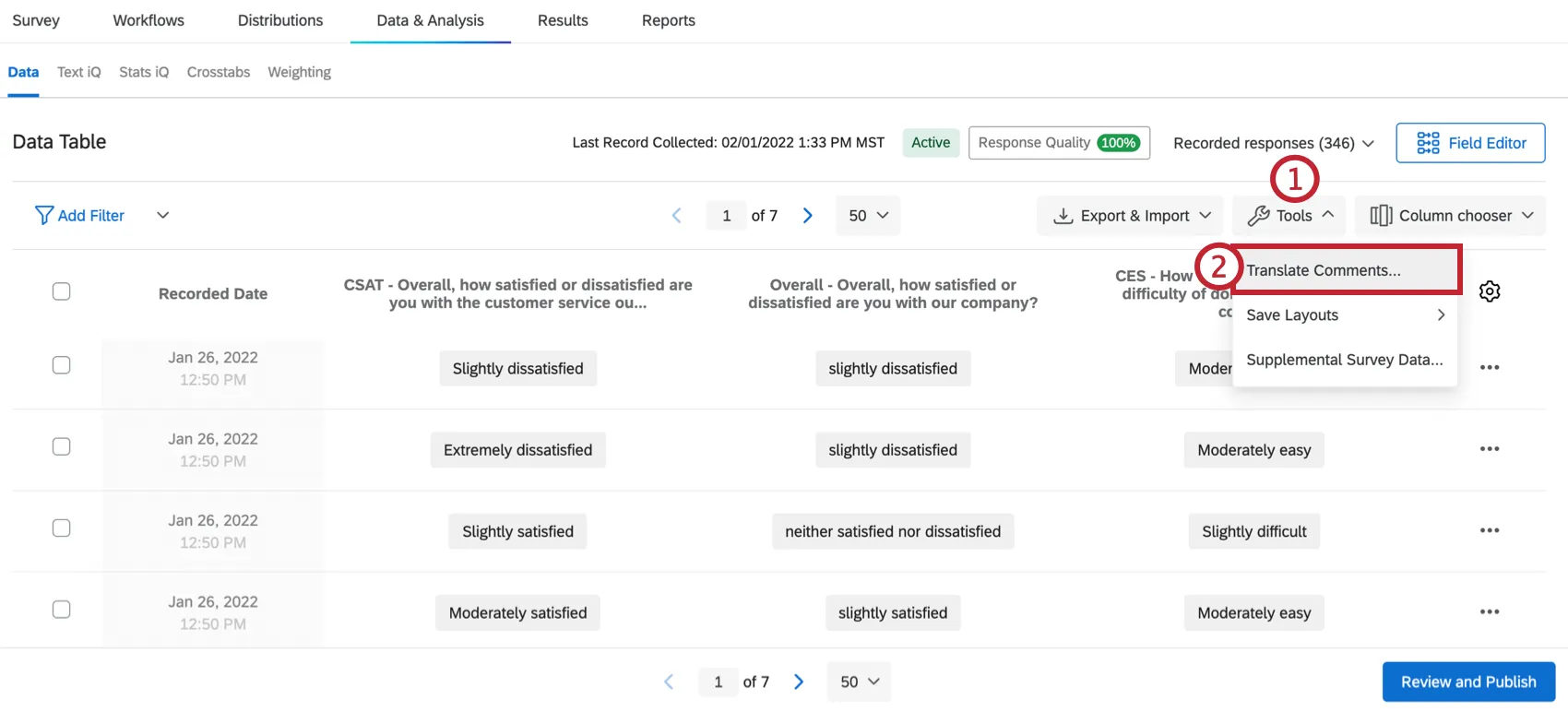
Select Translate Comments.
Select the translation service you want to use:
- Google Translate: Translate your responses with Advanced Google Cloud Translation API. Your data is not stored on Google’s servers (check out Google’s data usage policy for more information).
- Amazon Translate: Translate your responses with Amazon Translate. Your data is not stored on Amazon’s servers (check out the Amazon Translate FAQs for more information).
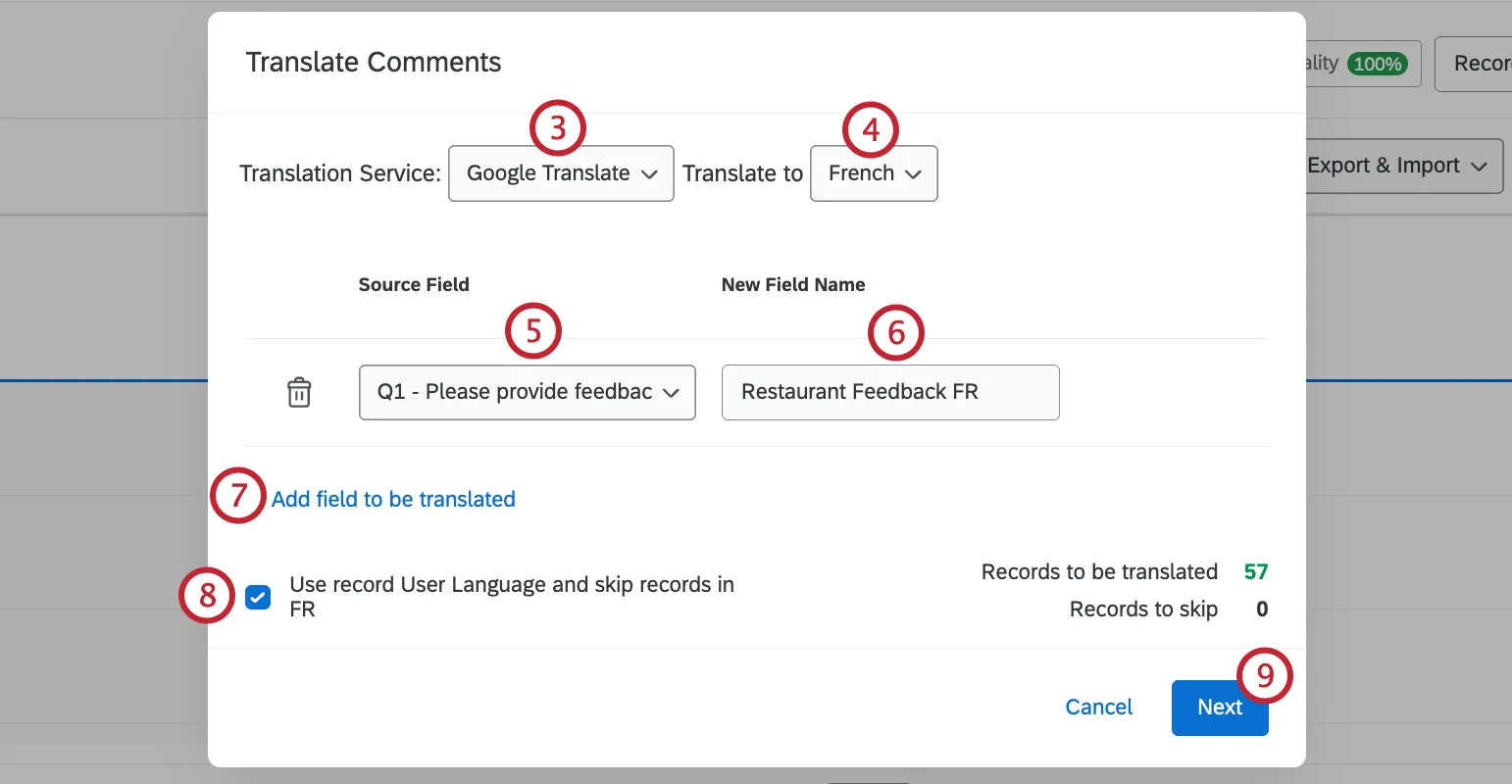
Under Translate to, choose a language to translate your text into.
Under Source Field, select the specific feedback field to translate.
Qtip: Any field that allows text entry, including Embedded Data, is compatible with Translate Responses. However, you can only translate Embedded Data fields set to the Texttype.
Name your new, translated field. By default, the name will be the text of the question plus the language code.
To translate more fields, click Add field to be translated.
Qtip: Questions that have already been translated will appear greyed out.
By default, Skip[chosen language]. You should select this option if your survey has collected data in multiple languages, and you want to skip translating responses that are already in your target language. Skipped responses will be directly copied into the output translated field without being translated.
Qtip: Sometimes you may suspect that the User Language metadata doesn’t match the language of the response. For example, although you only distributed your survey in English, some of the respondents wrote feedback in Spanish. When disabled, this option will ignore the User Language and instead try to detect the correct language, meaning that the system will understand that the Spanish response incorrectly marked as English is in Spanish and will translate this accordingly.
Qtip: Keep in mind that if responses are labeled with the wrong language, and you have this option enabled, you may see unexpected results with translations.
Click Next.
Review the Summary.
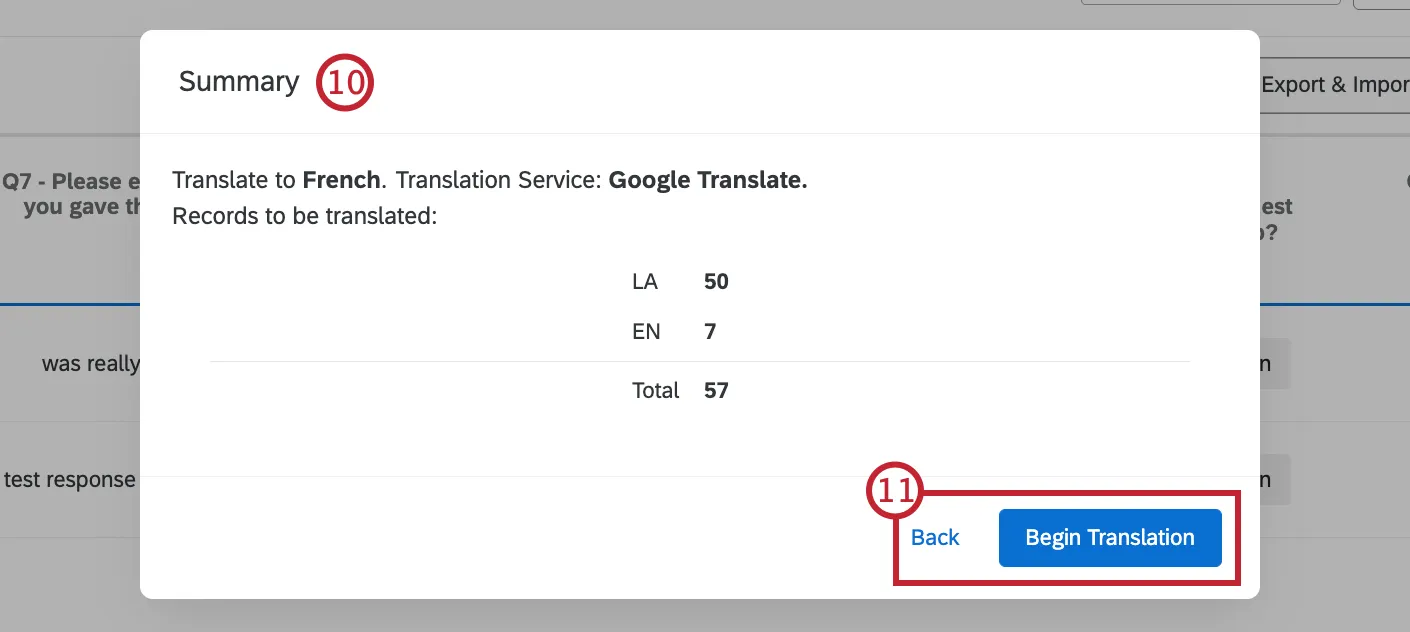
If you’d like to change your details, click Back to return to the previous screen. If everything looks correct, click Begin Translation.
Attention: Only the first 5,000 characters in a single comment will be translated. The total limit per brand per year is 2.5 billion characters.
Qtip: When adding already translated comments within the Recorded Responses page using the Column chooser, they will be under the Embedded Data header.
Depending on the number of responses that need to be translated, the process may take a while and you may need to refresh the page before they appear in Data & Analysis. Notice in the screenshot below that the translation appears in addition to the original version of the text entry question, not as a replacement. You can create as many translations of your text responses as you would like.
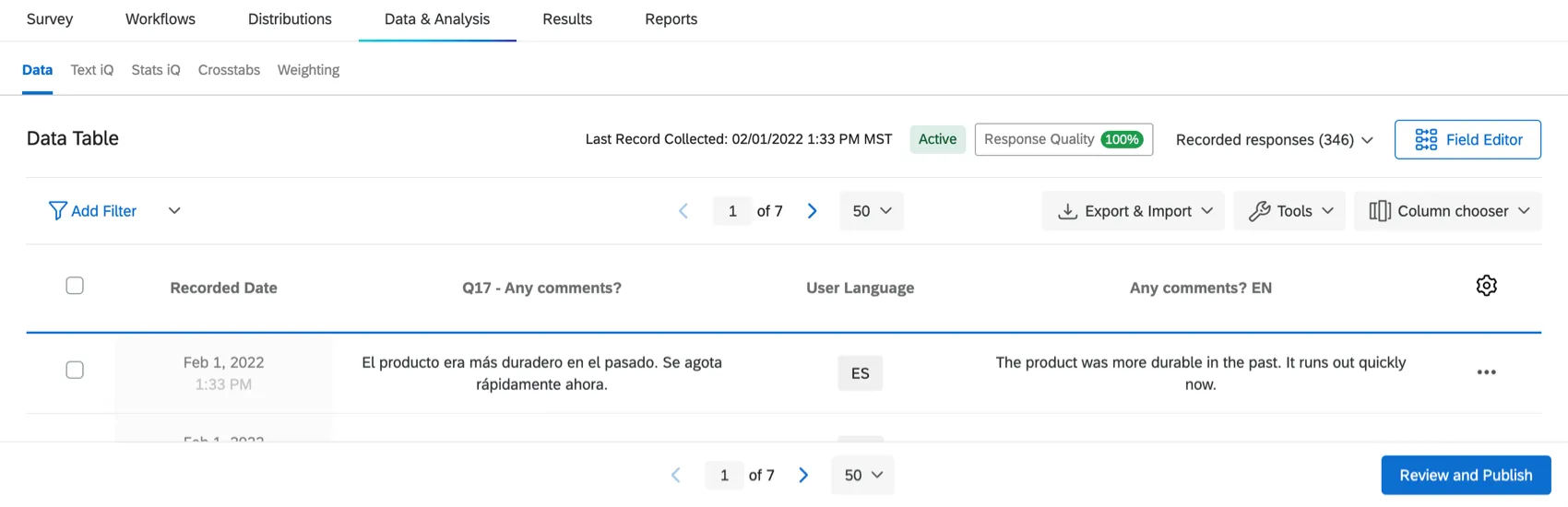
Attention: You cannot edit or delete a translated text variable. If you are looking to delete the translated comment for only 1 of your respondents, you can delete their entire survey response.
Editing Translations
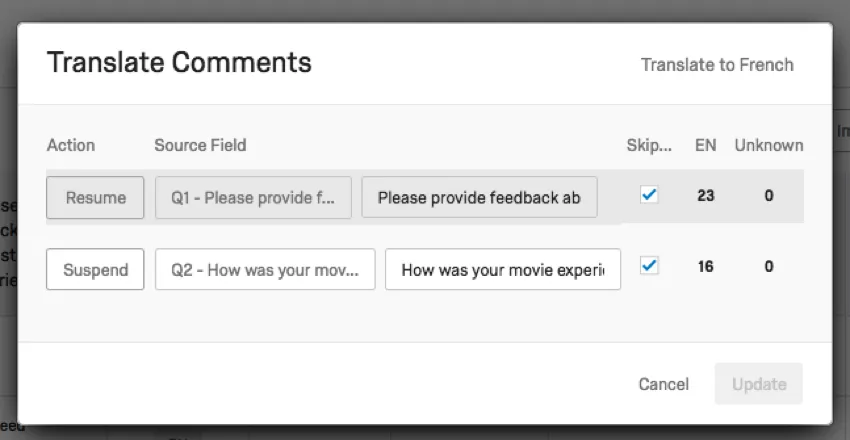
By default, all previously collected responses will be translated when you set up the job and then all new responses will be translated within a day of being recorded (and often faster). However, when you create a translated text variable, you can decide if you want translations to continue as you collect data, or to stop future responses from being translated.
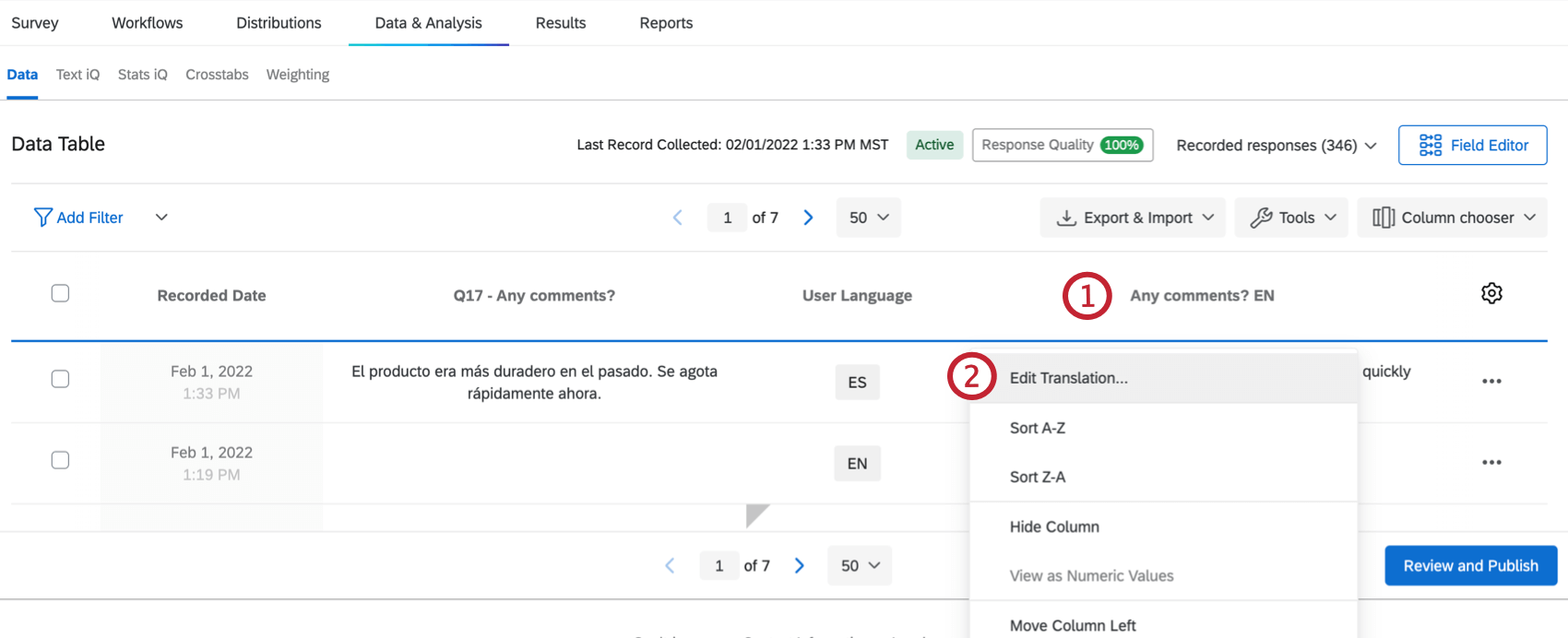
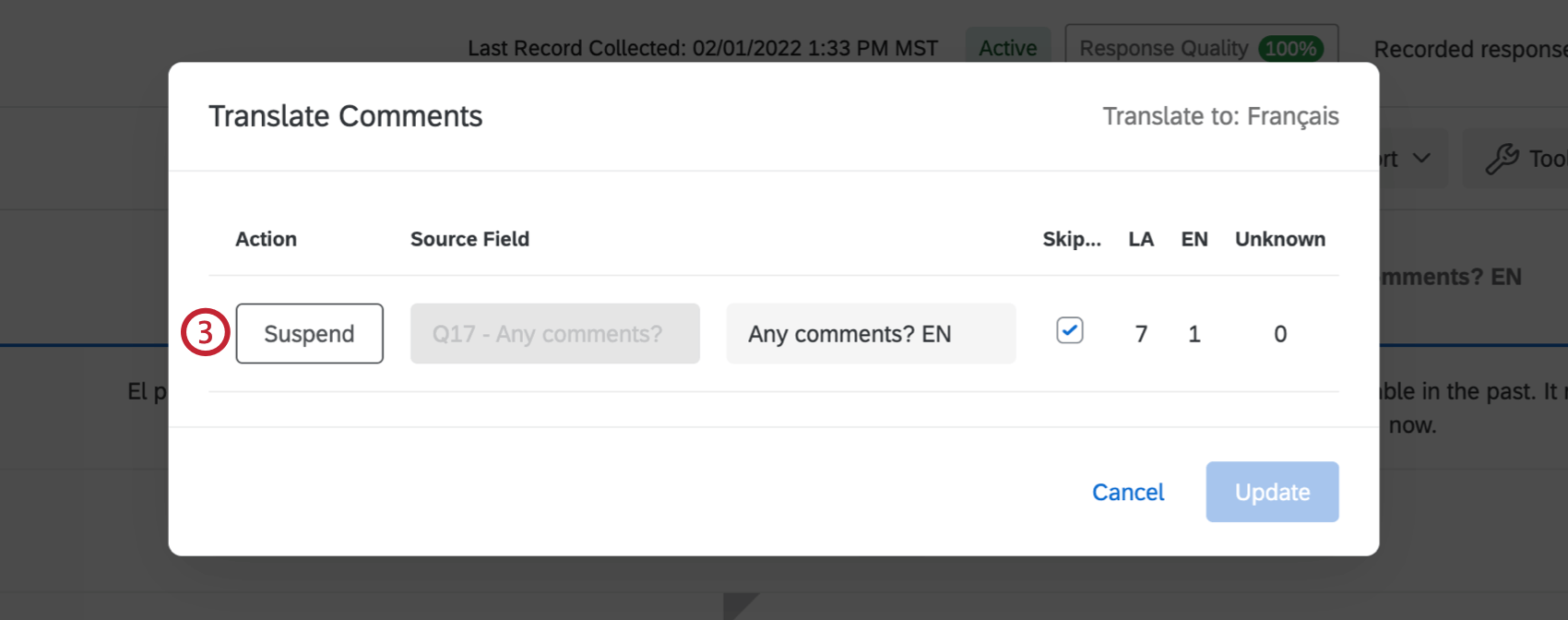
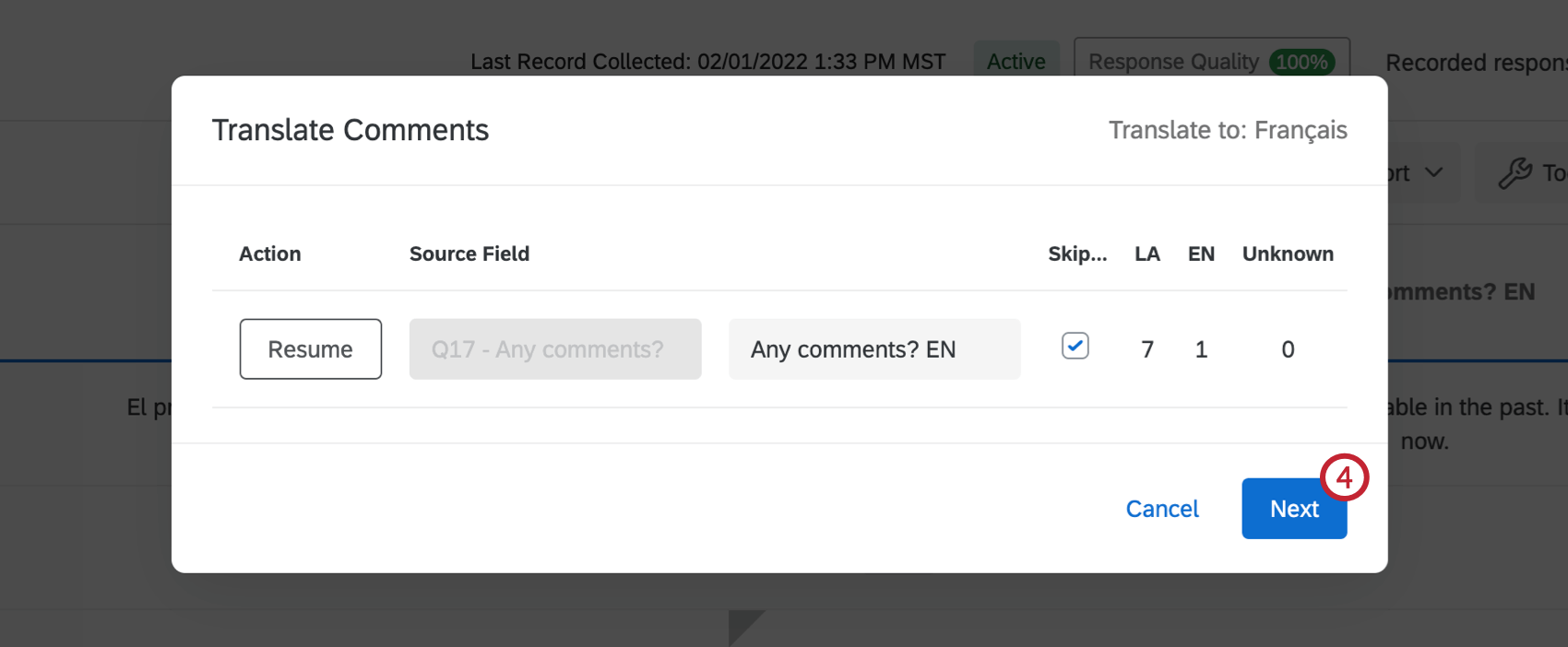
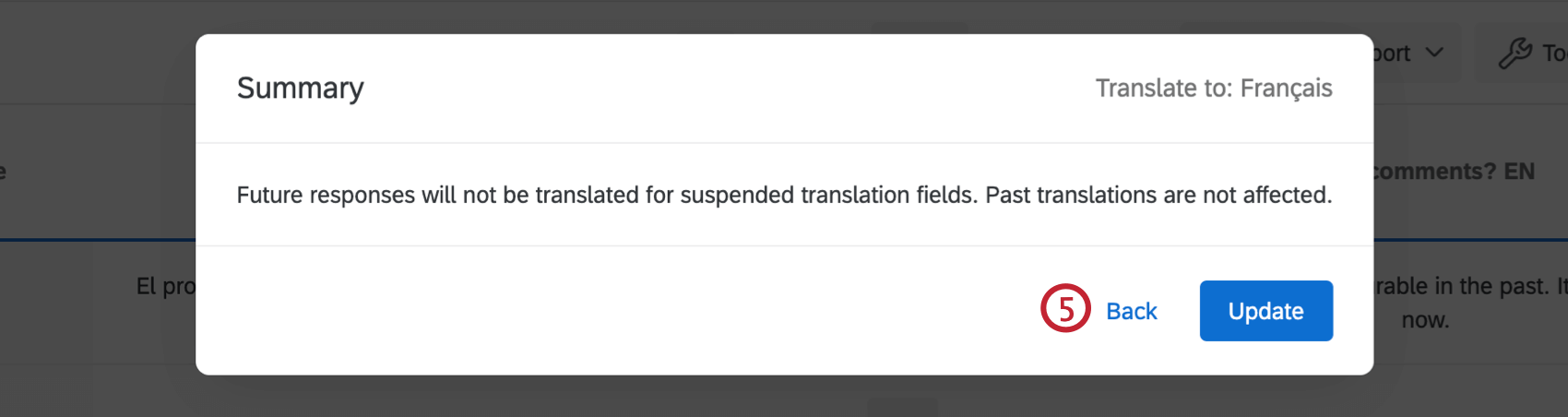
Qtip: If the Action available to you is Resume, that means future translations are suspended. If the Action available to you is Suspend, that means the survey will continue to translate that field. In the example below, Q1 is not translating new responses to French, but Q2 is.
Re-translating skipped comments
Earlier, we mentioned you might encounter a situation where the user language doesn’t match the language the response were actually written in. For example, let’s say you ran the survey in English, but received Spanish responses. If you realize this after you set up your translation settings with “Use record User Language and skip records” selected, the Spanish comments won’t be translated the next time translations run. Instead, follow these steps to translate your comments.
Qtip: Following these steps will count towards your limit of translated characters per year.
Qtip: Do not delete the entire response record. Just make sure the translated field (e.g., “Please give us feedback. EN”) is empty.
Qtip: This can be anywhere from 15 minutes to a few hours.
Qtip: Do not suspend your translation.
Types of Projects Where You Can Translate Comments
This feature is available in just about every type of project where you can collect and analyze data. This includes:
FAQs
How do I translate my survey into other languages and specify a language for my survey respondents?
How do I translate my survey into other languages and specify a language for my survey respondents?
How do text topics work for responses collected in multiple languages?
How do text topics work for responses collected in multiple languages?
For example, if you have one response in English that references the word "good" and another response in Spanish that references the word "bueno," these responses will be tagged with separate topics.
If you have collected data in multiple languages and would like your responses to share topics, you will need to do the following:
That's great! Thank you for your feedback!
Thank you for your feedback!