

Audience Management Program
What's on this page
About the Audience Management Program
No matter the experience you’re trying to improve, it’s important to know your audience. The Audience Management Program is a pre-built solution designed to help you create and manage your own panel of respondents.
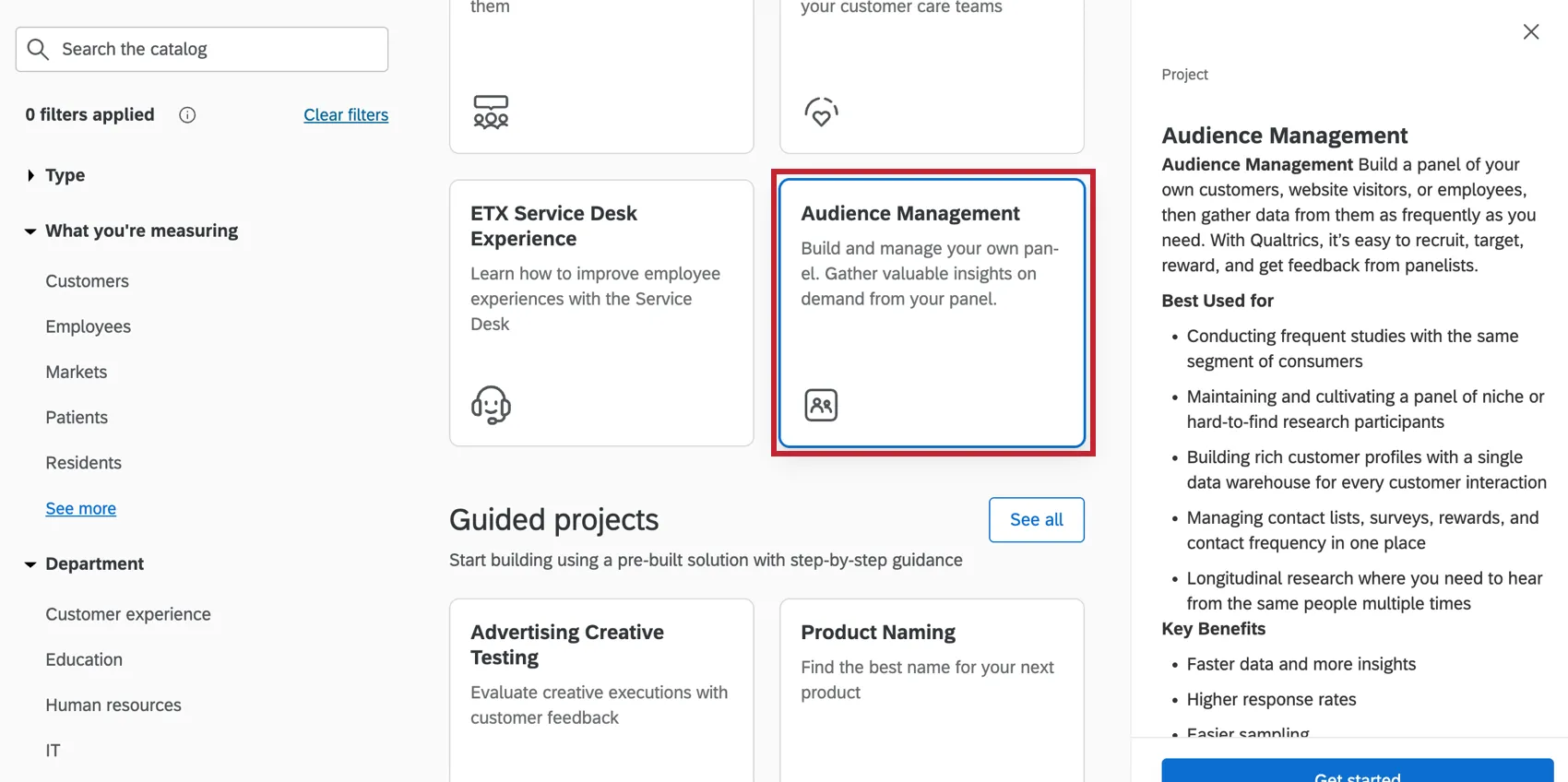
This program comes with 6 pre-configured parts:
Qtip: To use this feature, you need the following permissions enabled:
- Create Audience Management Solutions
- Customer Experience
- Use CX Dashboards
- Create CX Projects
A Brand Administrator can adjust these permissions, so long as your organization has access to this feature. If you’re an administrator and are interested in getting access to this feature, reach out to your Account Executive.

Creating an Audience Management Program
See Creating Guided Solutions for a step-by-step guide on how to create this program from the Catalog. This section contains tips to keep in mind when creating your program.
- You can save your contacts to a new or existing list in your XM Directory. If saving contacts to a new list, the list will be created in your default directory.
- You can include customizable demographic questions based on geographic region. These responses to these questions are automatically mapped back to demographic fields in XM Directory. To learn more about these types of questions, see certified questions.
- To add custom questions to your program, see Adding Customized Questions.
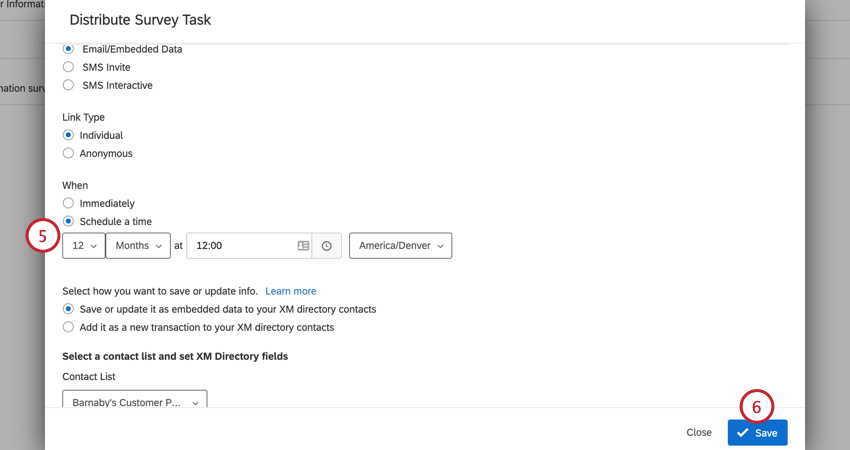
- You can send an update survey to panelists on a schedule of every 3, 6, 9, or 12 months. You can set a custom schedule by following the instructions in the to Choosing the Update Survey Schedule
Qtip: A Default Directory is required in order to implement an Audience Management program, or else you will receive an Error Message. If you are experiencing issues while implementing an Audience Management program, check your Directories page via the following steps:
- Navigate into Directories via the Main Menu
- Check if your Directory has a Default Directory page
If your Directory does not have a Default Directory page, or your account does not have directories at all, contact your Brand Administrator to see if you can access these features.
Navigating the Program
You’ll be brought to the program overview page after creating your program. On this page:
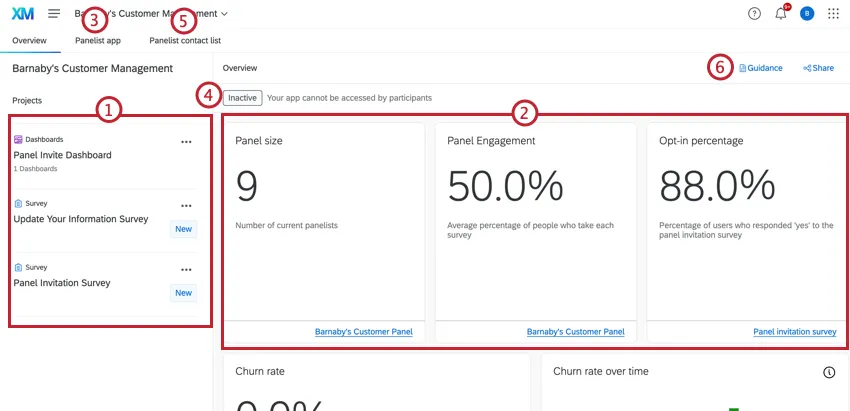
Qtip: You can add additional projects to your audience management program. The only type of project you can add are standard surveys. Other types, like Conjoint and MaxDiff, are not compatible with audience management.
Overview Page Widgets
The widgets on the overview page display the following information about your panel:
- The number of contacts in the panel.
- The percentage of contacts who responded “yes” to the invitation survey.
- The percentage of contacts who opted-out after joining the panel.
- Churn rate over time, which shows the number of contacts added and opted-out each month.
- Engagement over time, which shows your panel’s email open rate, response rate, and opt-out rate each month.
- Contact frequency, which shows the percentage of contacts that have been contacted more than 1 time, less than 1 time, and exactly 1 time over the past 30 days.
- The age and gender demographics of your panel, based on the Global Demographics information in the contacts’ attributes.
You can click the link in the bottom right hand corner of a given widget to be brought to the data source for that widget (i.e., the contact list or the invitation survey).
Adding Customized Questions
You can customize the audience management program with additional questions of your choice. This section covers how to add additional questions and map the responses back to fields in XM Directory.
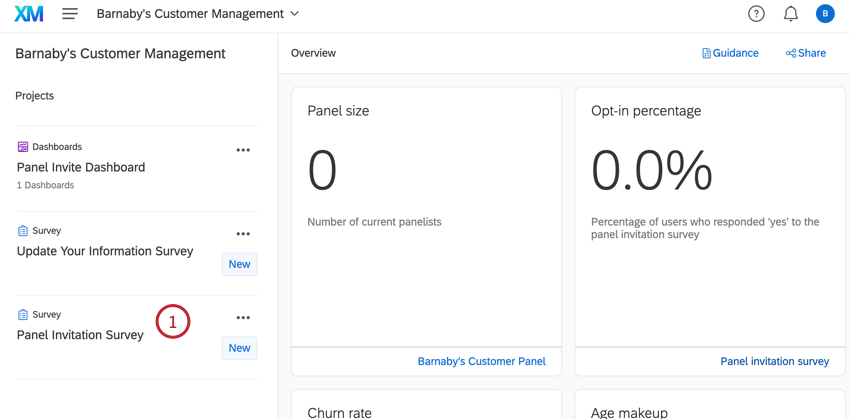
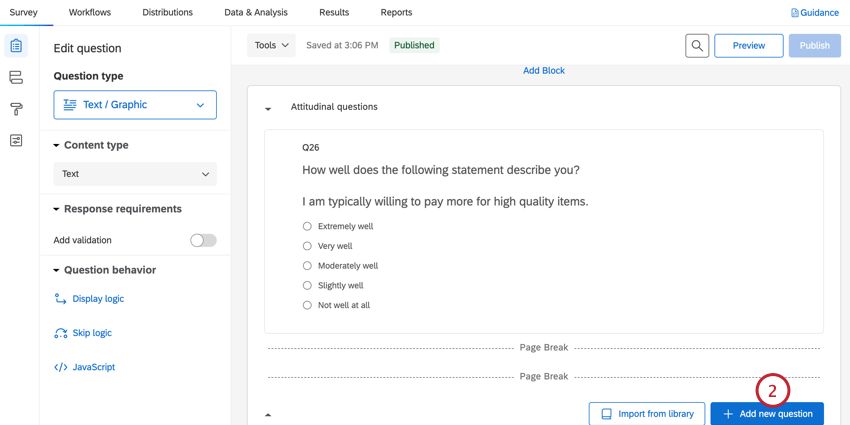
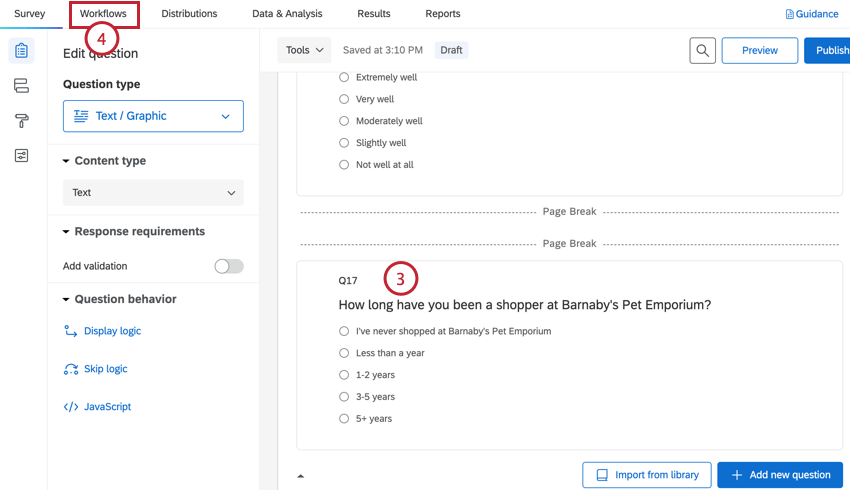
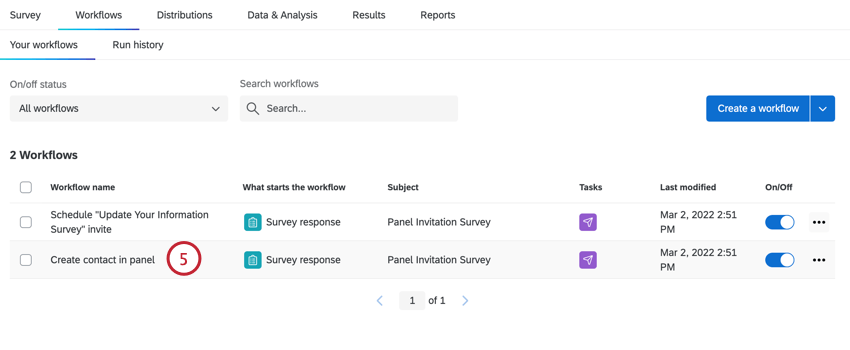
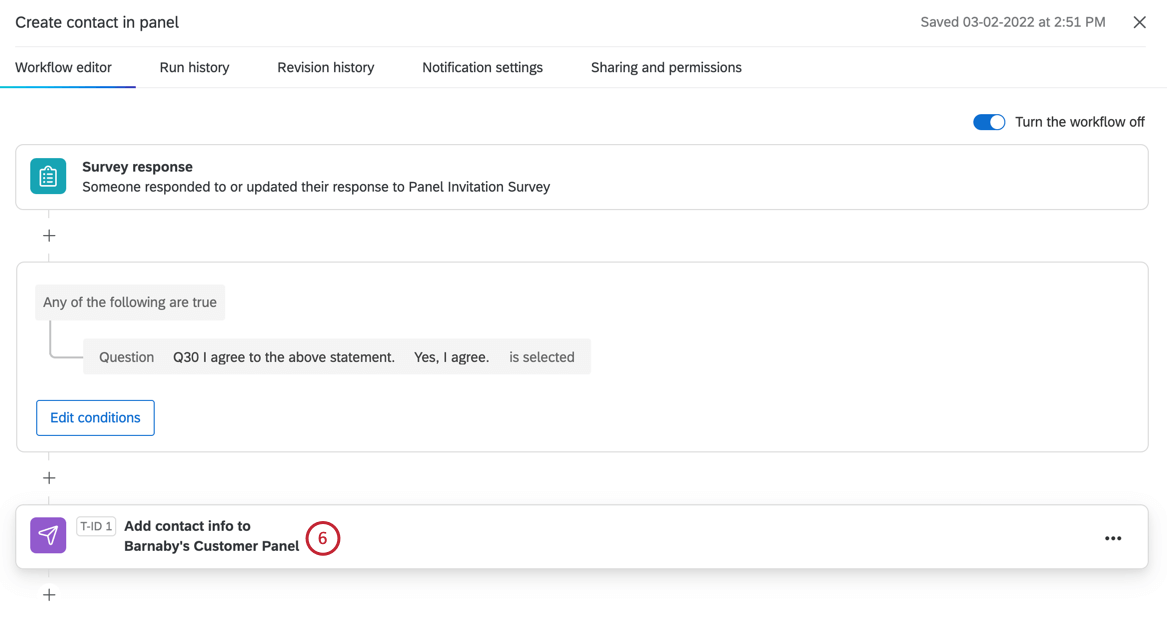
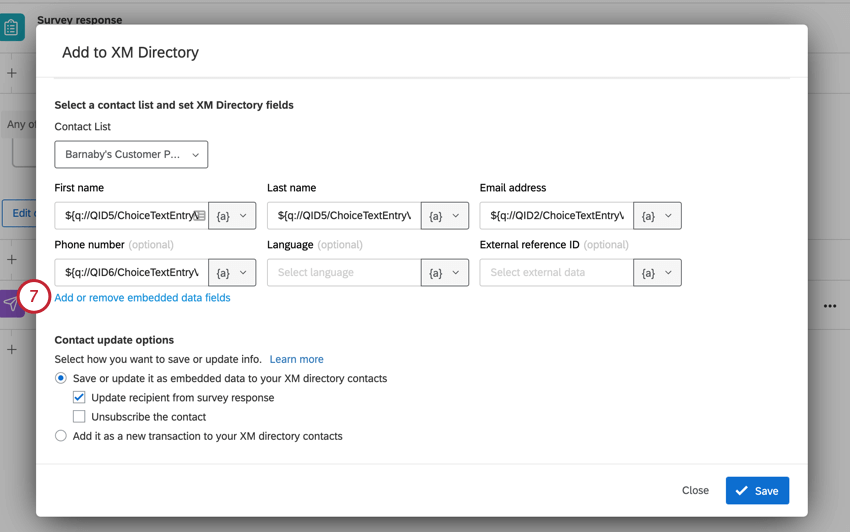
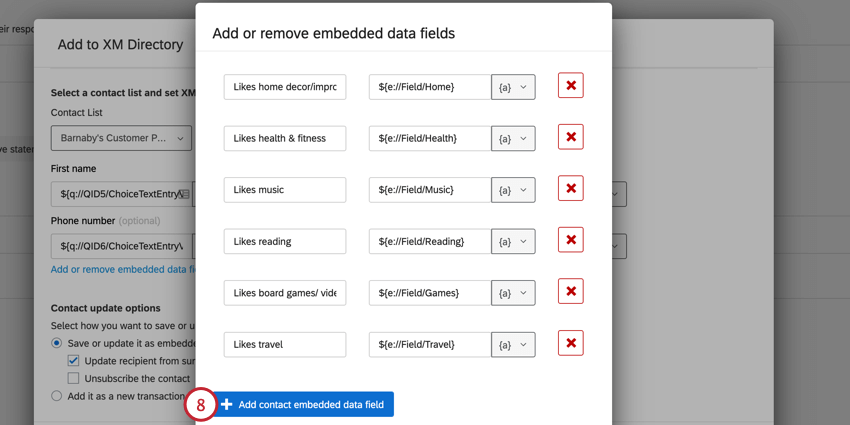
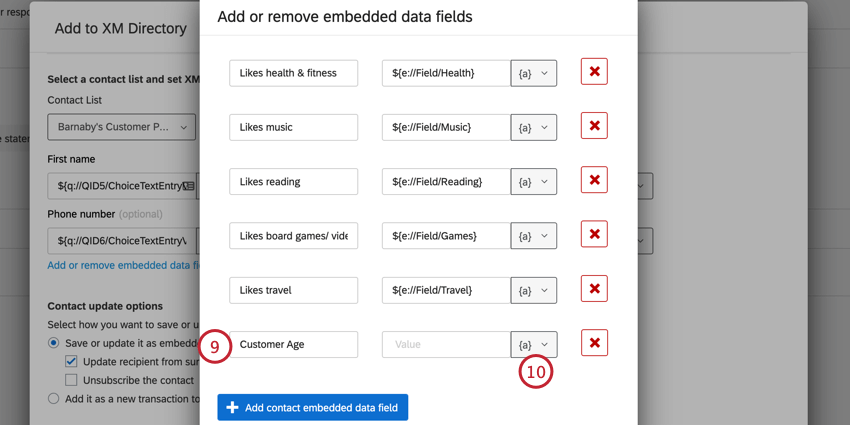
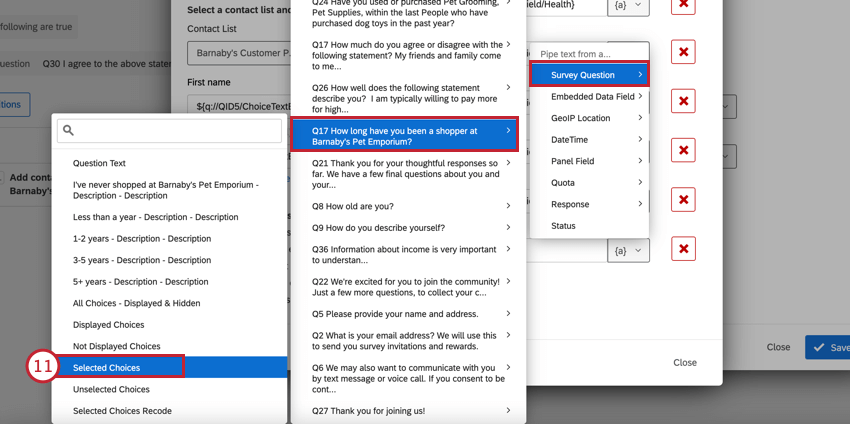
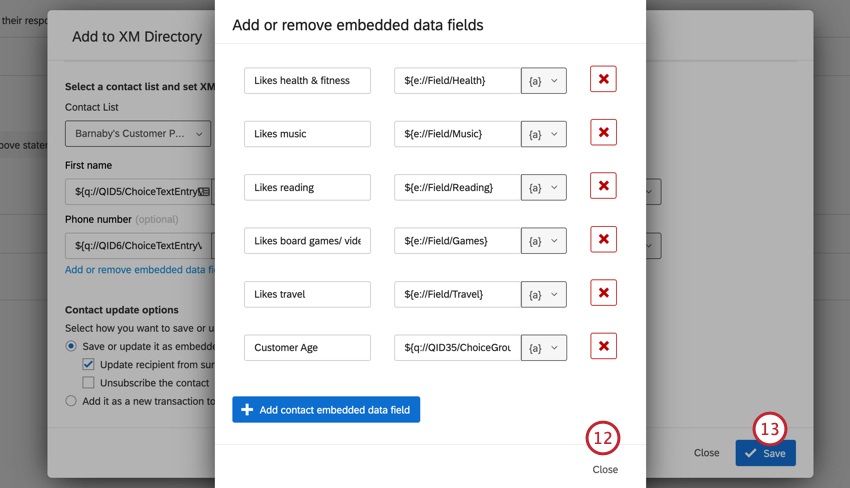
Please note that custom questions will not be automatically reflected in your dashboard. To add this data to your dashboard, you must map these fields to your dashboard. See Mapping CX Dashboard Data for more information.
For additional information on survey editing, see Survey Basic Overview.
Choosing the Update Survey Schedule
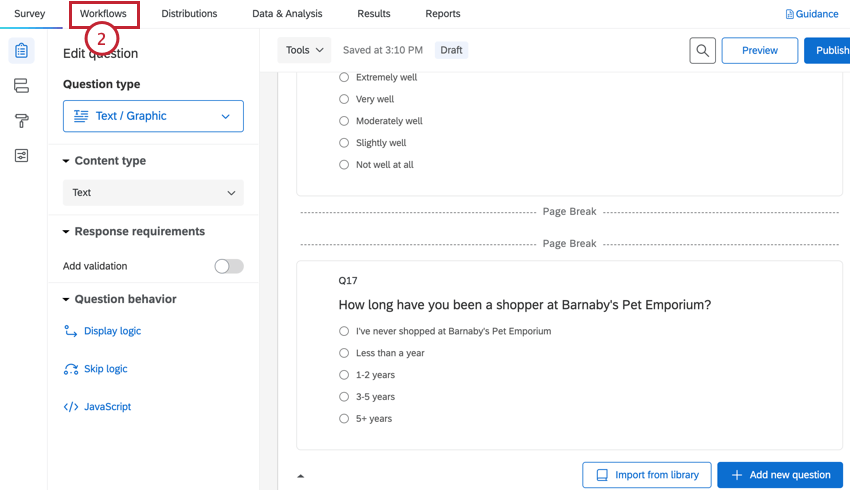
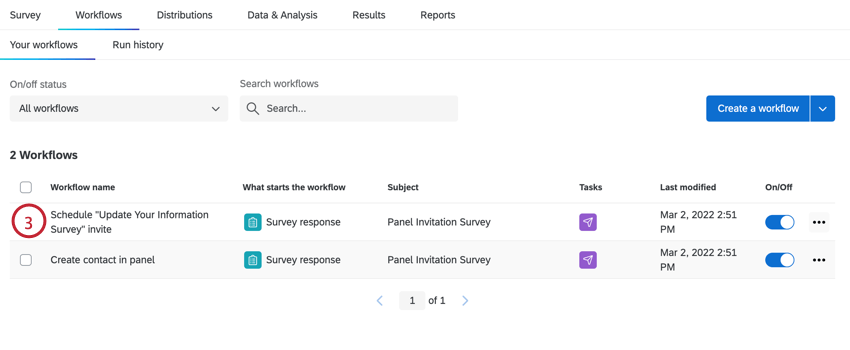
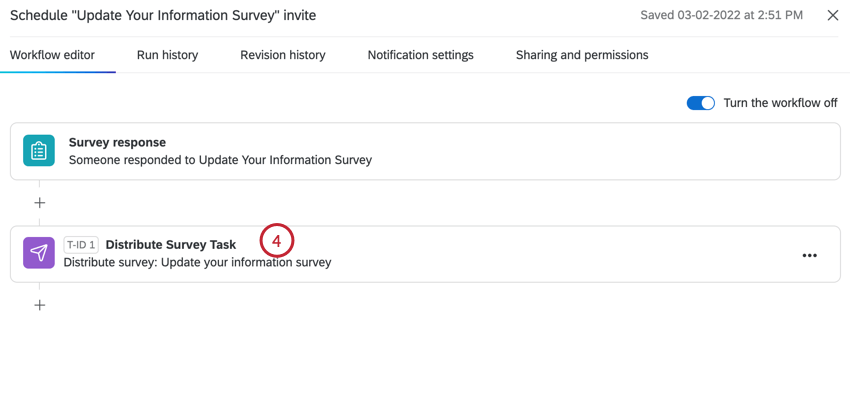
If you opted into automating your update survey, you have the option to send the survey every 3, 6, 9 or 12 months. However, you can change this schedule to a custom time frame.
Customizing the Panelist App
For instructions on customizing your panelist app, see Panelist App (Audience Management).
Using the Panelist Contact List
The Audience Management program creates a specific contact list that can be used in the Panelist contact list tab of the program. For more information on using your contact list, see the sections below.
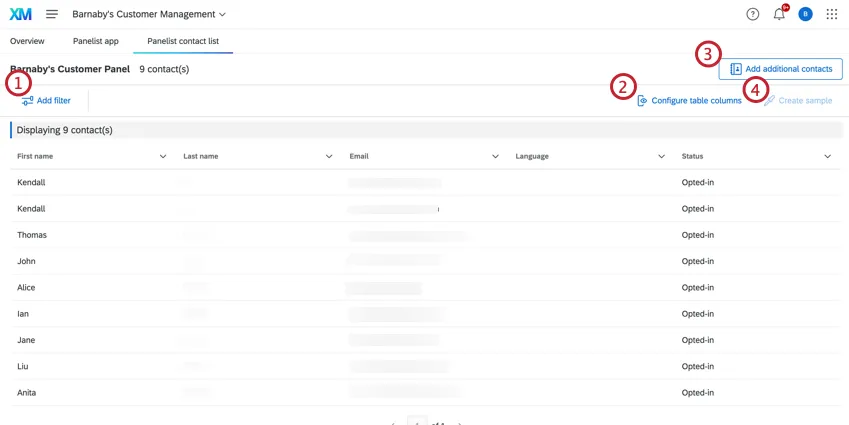
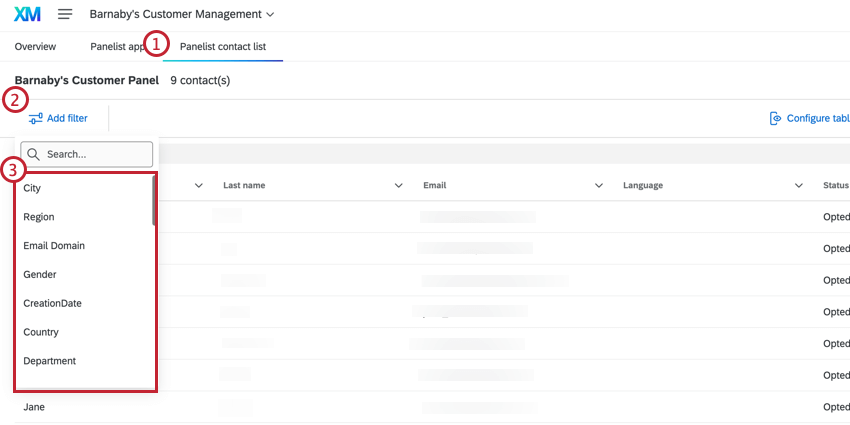
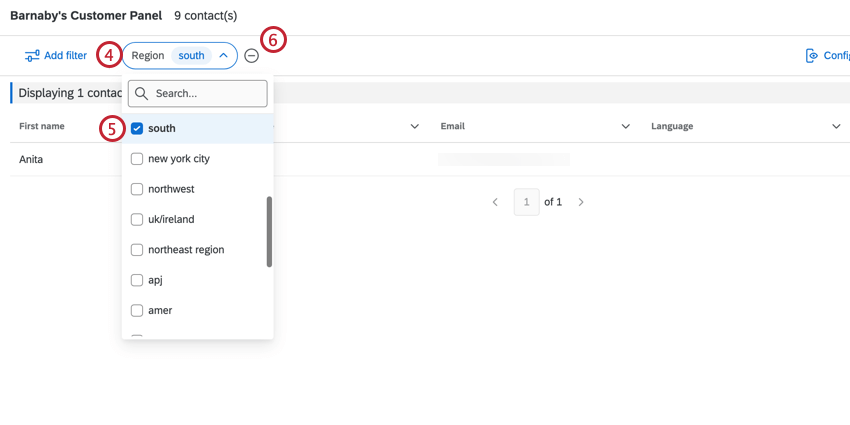
Qtip: You can only click Create sample after a filter is applied. For more information on samples, see the section below.
Add Filter
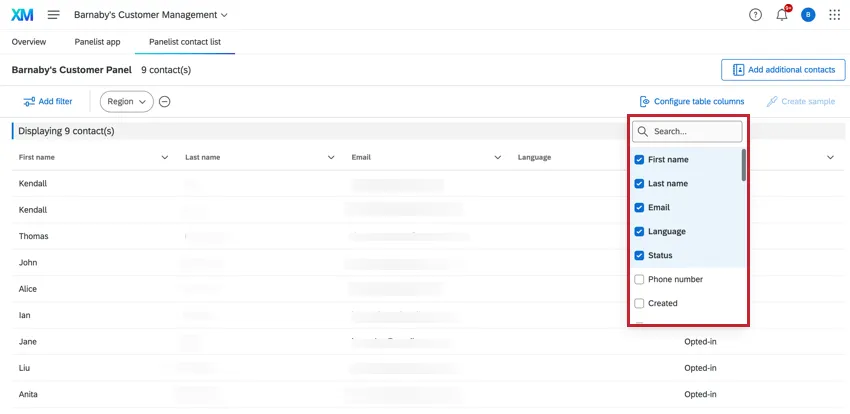
Configure Table Columns
Click Configure table columns then select the columns of data that you would like to display in the contact list. Click on a field to select or de-select it.
Add Additional Contacts
You can add contacts from your XM Directory to your panel contact list.
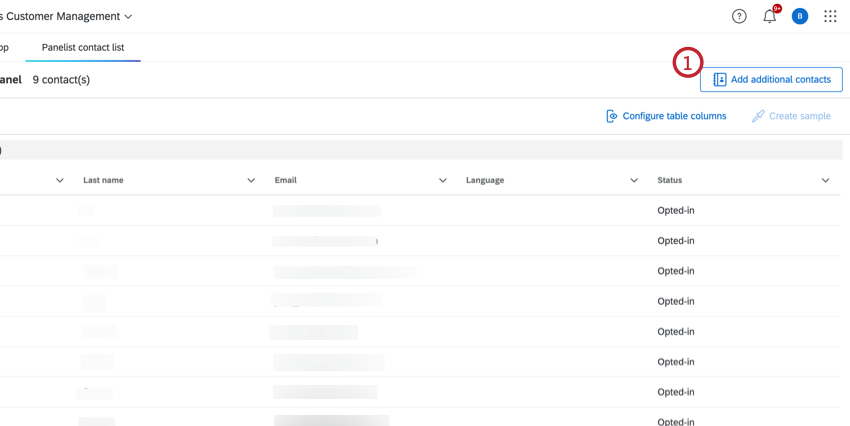
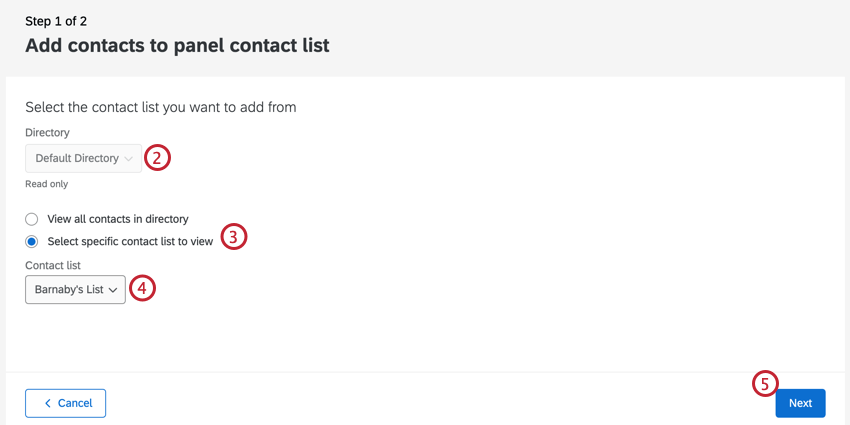
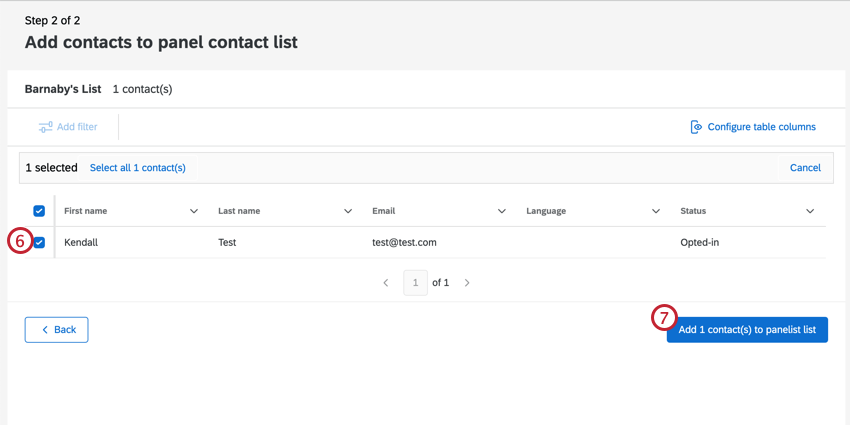
Qtip: To help find specific contacts, you can Add filter to filter your contact list and Configure table columns to view additional columns of data. See the sections above for more information.
Create Sample
Mailing list samples are sub-groups of people from the same mailing list. You can create samples of your panel contact list directly from your Audience Management program.
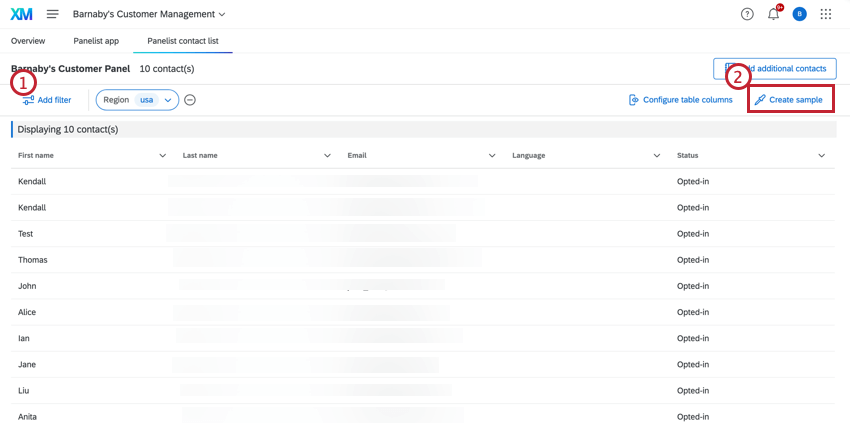
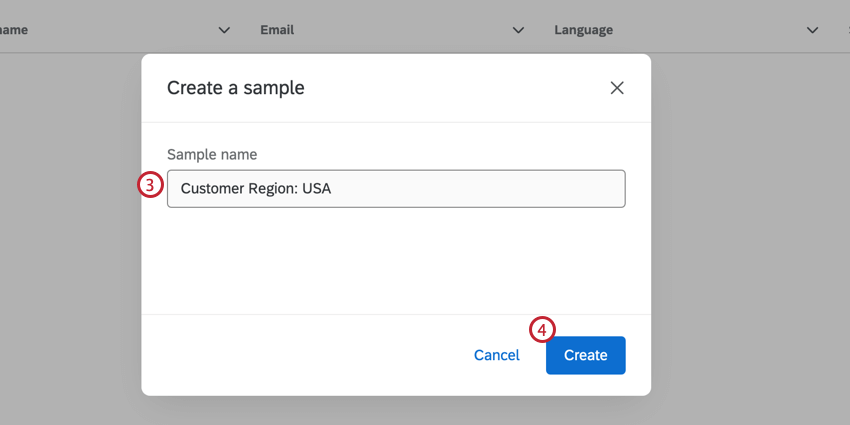
To view and edit your sample lists, visit the Segments & Lists tab of your XM Directory.
Dashboard
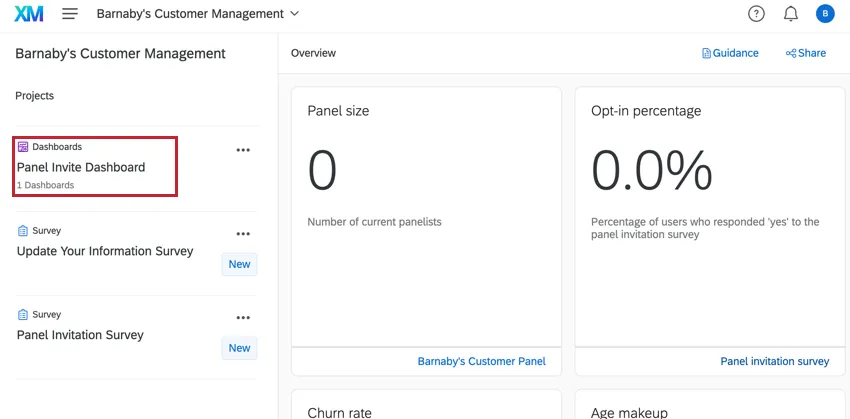
Our team of subject matter experts has developed a dashboard template for this program. This dashboard is designed to provide a summary of the demographics of your panel. When you’re ready, this dashboard can be found in your program’s project list.
Dashboard Editing
Qtip: The premade dashboard was developed by our top subject matter experts. We advise trying to keep your dashboard as similar to the original template as possible, and not making too many large-scale changes.
Check out these introductory pages to get started.
That's great! Thank you for your feedback!
Thank you for your feedback!