

Website / App Insights Technical Documentation
What's on this page
What is a Website / App Insights project, and why are we using it on our site?
Qualtrics Website / App Insights helps organizations measure and enhance the experience a web visitor has within their digital media. With a Website / App Insights project you can present cool graphics on your website with links and embedded surveys to get feedback on your visitors’ experience, let them know about your latest deals and promotions, and more!
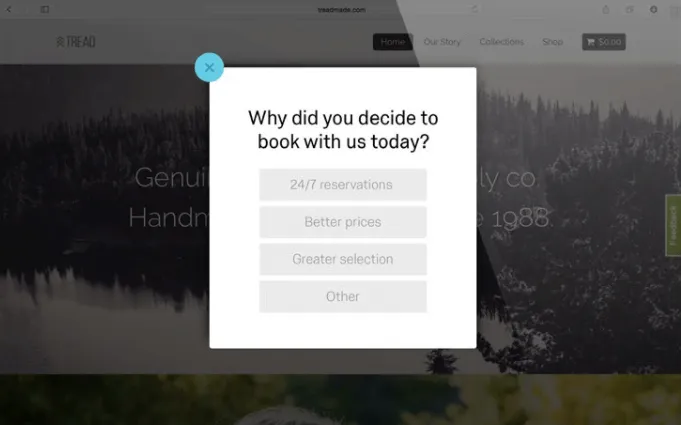
You and your colleagues have power over the appearance of the graphic (also known as a creative), the conditions under which it appears (the intercept), and the code used to deploy it.
Once the code for your project is added to your website, you can make all kinds of changes without ever having to change the code or alert your IT team. Just do the work in Qualtrics, and your websites’ creatives and intercepts will change accordingly.
Is it secure?
We do not pass any data to Qualtrics servers unless it’s needed for targeting logic. That said, we do not store any of this data in our system.
To secure this data over the wire and protect it from man-in-the-middle attacks, Qualtrics always uses the “HTTPS” protocol. Protocol refers to how content is delivered to the visitors’ web browser.
Where can I locate the project code for deployment?
Deployment code (or project deployment code) can be found by going to the Deployment tab within your project. You can simply copy the code and send it to your web development team for implementation. No modifications need to be made to the code.
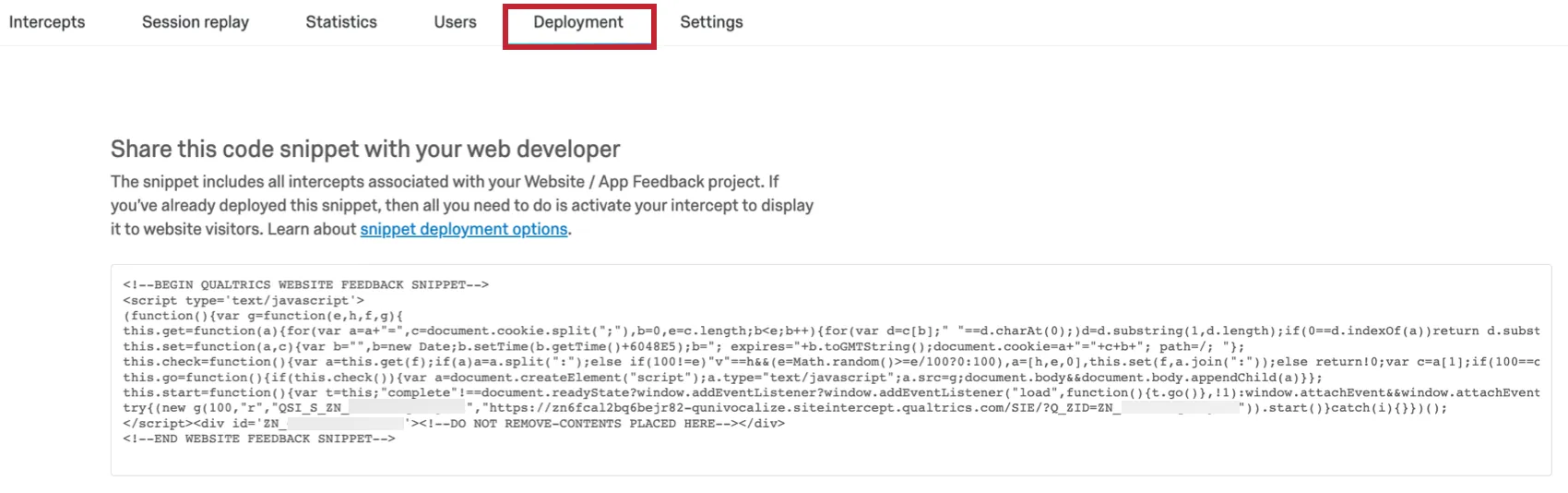
Deployment code displays any intercept that has been built within that entire project.
How does the code work?
Deployment code is asynchronous, meaning that it only runs after everything else on the page has loaded. This means that deployment code will not prevent any other aspect of your page from loading because it will only run once the onLoad event is triggered.
Let’s run through the process of what happens when a visitor views a page in their browser that contains deployment code:
- The deployment code (usually placed in the HTML head) runs right away upon page load and will insert another <script> tag at the end of the Html body when the page onLoad event is triggered.
- This <script> tag requests JavaScript code (Orchestrator) from Qualtrics servers that is cached in a content delivery network (CDN).
- The Orchestrator makes a targeting call to Qualtrics servers to determine which creatives to show. This call is not cached in the CDN.
- If necessary, a second targeting request is sent to the servers to obtain the required data (ex: JavaScript expression or cookie targeting).
- Qualtrics obtains the Website / App Insights definition from the database and builds the code appropriately.
- Based on the targeting response, the Orchestrator makes additional calls to get the different content needed to render on the page. The number of requests made varies depending on the number of creatives to show that pass targeting logic. All this content is cached in the CDN, so it will be fast to load.
- The creative(s) appear(s) on the page.
The deployment code is dynamic, meaning that changes made to intercepts and creatives from within the Website / App Insights project interface will not cause the code itself to change. Thus, changes can be made to Website / App Insights projects from within an account, and code will not need to be exchanged on the website for the changes to be seen.
Attention: In order to maintain the proper service levels across all clients, Qualtrics may restrict traffic to our servers in rare cases when unexpectedly large spikes occur.

How do I deploy a Website / App Insights project?
Attention: To ensure your intercepts work, you must configure your Content Security Policy (CSP) to allow Qualtrics resources. If your CSP blocks these items by default, then Website / App Insights will not work reliably on your site. For a full list of required directives, troubleshooting tips, and setup for CSP nonces, see Using a Content Security Policy for Website / App Insights.
1. Add Code Directly to Your Web Pages
Deployment code can be added anywhere on a web page. Because the code runs asynchronously, it will only start loading once a web page has completely loaded all content (including images, script files, CSS files, etc.).
Our requests start happening once the onLoad event is triggered: https://www.w3schools.com/jsref/event_onload.asp
Additionally, the location of where creatives actually appear on the web page is determined by settings determined within the Qualtrics interface. (See information on Custom Position.) Thus, the location of the code within the page does not affect where on the page content will appear.
2. Global Header/Footer (Recommended)
We recommend that you add deployment code to either the Global Header or Footer. This applies the code globally across the entire site all at once. This method is the easiest way to deploy because you don’t need to repeatedly add code to more pages as you go, which can be a lengthy process. If code has been added globally to your site in this way, you can then use Current URL logic within an intercept to control on which pages an intercept actually appears.
Attention: If you want to limit page views, consider placing the deployment code only on specific pages or using sampling. See Best Practices for Minimizing Page Views for more information.
Attention: If you're recording sessions using Digital Experience Analytics, the placement of the code snippet can affect when recording starts.
If the code snippet is placed in the header, the recording will start earlier, which may capture more user interactions.
If the code snippet is placed in the footer, the recording will start later, which may help ensure more page elements are loaded before the session begins.
3. Use Tag Managers
Another option is adding the deployment code to a Tag Management system, instead of applying it directly to the site code. Code can be copied and pasted from the Qualtrics interface right into a Tag Manager.
Qtip: Qualtrics currently has an extension with Adobe Launch as a Tag Management system. See Adobe Launch Extension for more information.
Qtip: Qualtrics is not able to fully troubleshoot issues with code applied to Tag Managers as we aren’t able to view the settings that have been enabled on your end. Please refer to our Using Tag Managers page for troubleshooting tips.
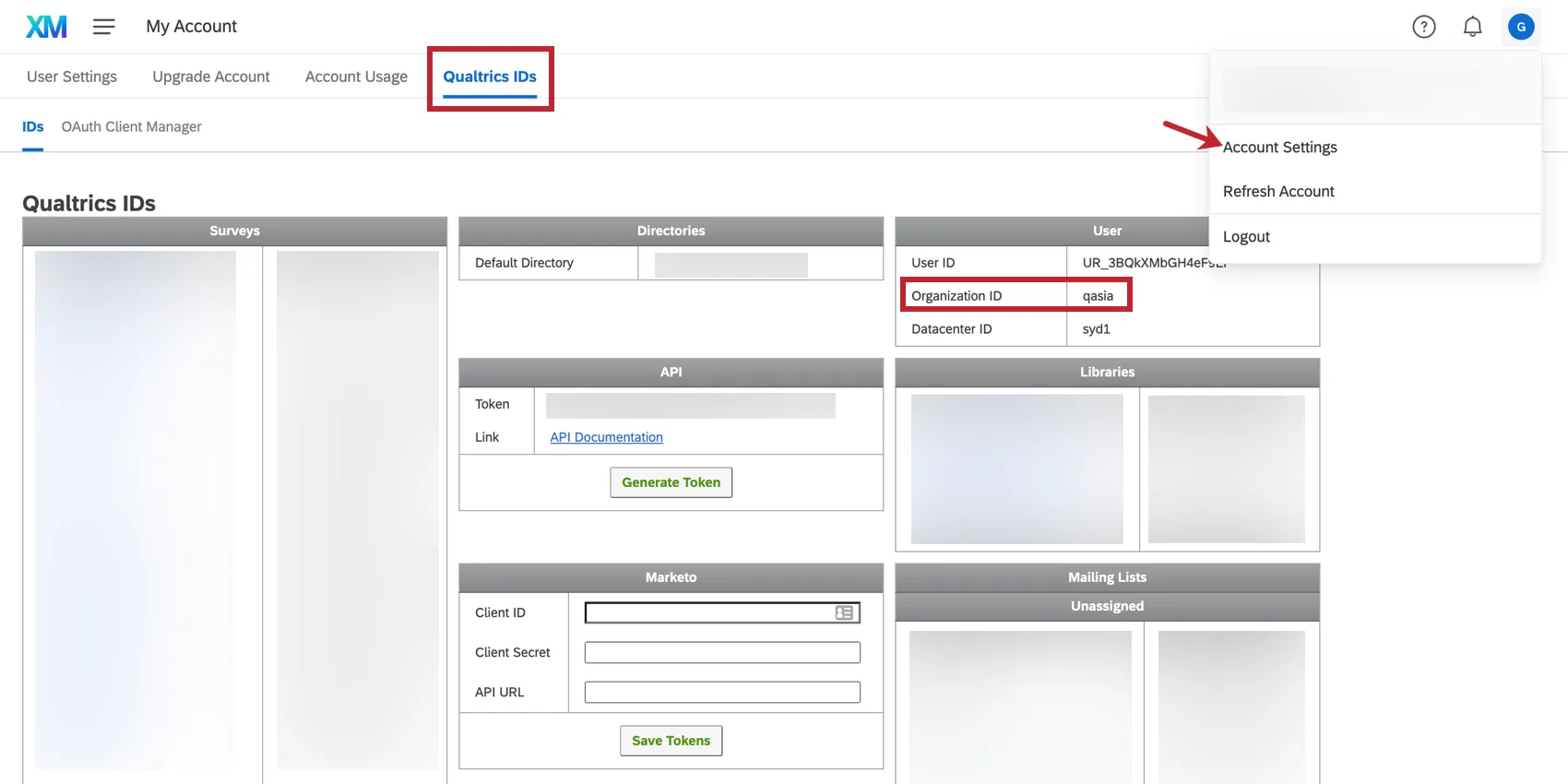
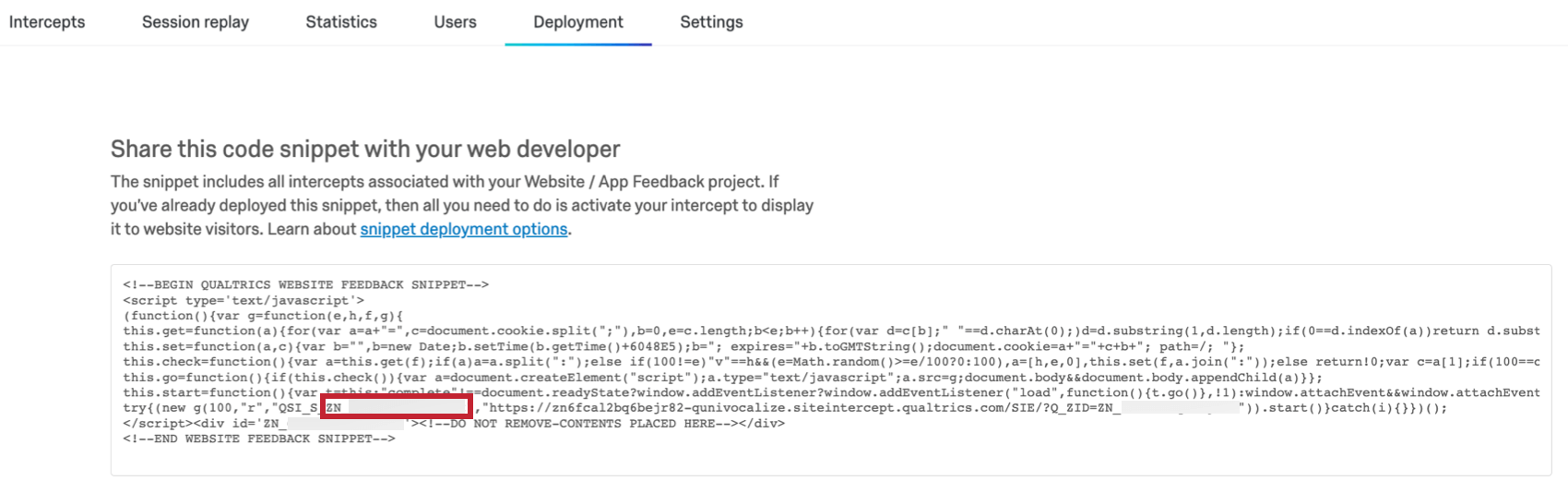
Common Tag Management systems that our clients use in conjunction with Website / App Insights are Adobe Launch, Tealium, Ensighten, and Google Tag Manager. Tealium in particular has a wizard built that allows for easy implementation of Website / App Insights. You will simply need the Zone ID for the project you are implementing and your Organization ID.
The Organization ID can be obtained by going to Account Settings and selecting the Qualtrics IDs tab.
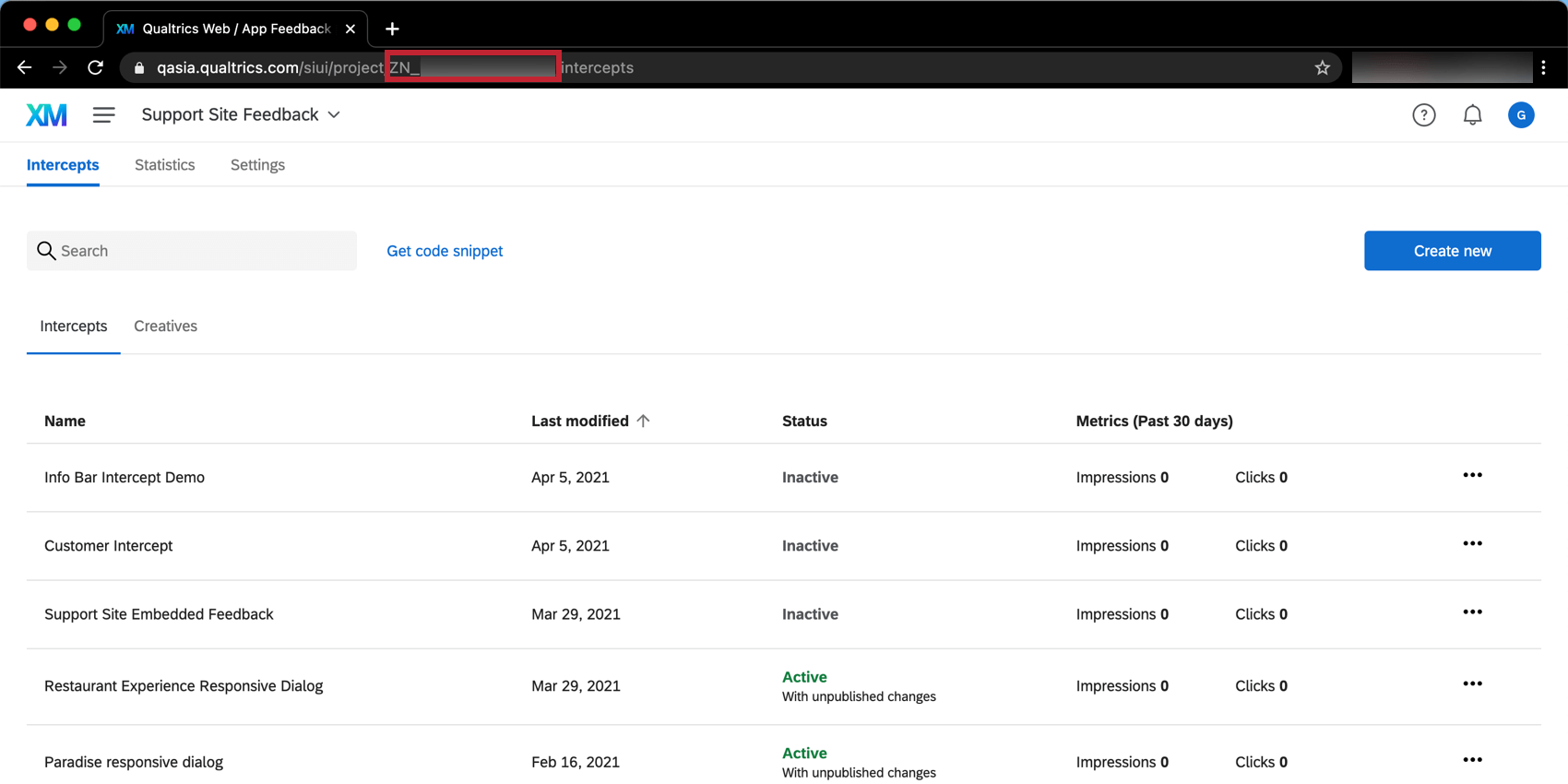
The Zone ID will begin with ZN_ and can be found:
4. Use a CSP Nonce
If your website uses a Content Security Policy (CSP), you may need to use a nonce to allow Qualtrics scripts and styles to run. This requires a small modification to your deployment code to pass your unique nonce value to Qualtrics.
For a full walkthrough on implementation, code examples, and how nonces interact with strict-dynamic or legacy creatives, please see Using a Content Security Policy for Website / App Insights.
Who is typically involved in Website / App Insights implementation?
Someone within your organization that has access to add content to your company’s website. Typically these are individuals on an IT team, Web Content team, etc.
Will Website / App Insights slow down our site?
Deployment code is asynchronous, meaning that it only runs after everything else on the page has loaded. This means that deployment code will not prevent any other aspect of your page from loading because it will only run once the onLoad event is triggered.
What if Qualtrics is down? Will that cause issues with our website?
If Qualtrics is experiencing any outages or issues, the intercepts will simply not show up on the page. Beyond that, there will be no impact to the visitor’s experience on your sites.
How quickly will the code run on my website?
We expect the deployment code to load within 300 milliseconds for more than 50% of requests and within 750 milliseconds for more than 90% of requests. Speed will vary based on user’s geographic location and how many intercepts and creatives a project has.
Opening the Debug Window
You can use the debug window to diagnose why an intercept has not displayed on a specific web page. This window shows all conditions required for the intercept to appear and if the conditions passed or failed.
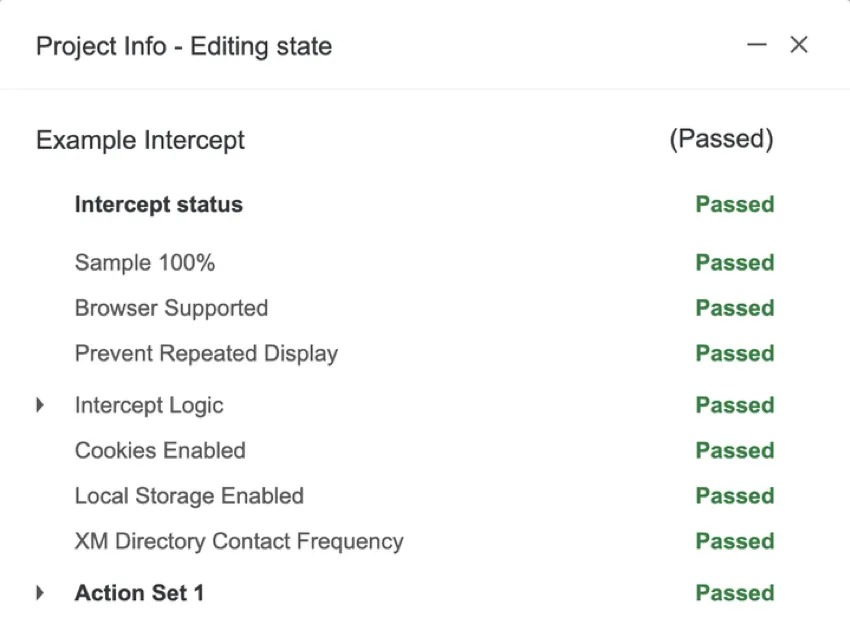
How you open the debug window will depend on when your intercept was implemented.
Attention: The debug window does not function if the code has been implemented using a tag manager.
Intercepts Implemented Before March 2019
For intercepts whose deployment code was implemented prior to March 2019, you can enable the Debug Window by appending the Q_DEBUG query string to the URL. This query string should be appended with either a ? or &, as illustrated in the examples below:
Example:
https://www.qualtrics.com?Q_DEBUG
https://www.qualtrics.com/blog?item=value&Q_DEBUG

Qtip: If the URL already contains a query string with a ?, the query string will require an & instead.
Intercepts Implemented After March 2019
For intercepts whose deployment code was implemented after March 2019, follow these steps to open the debug window:
Using a Content Security Policy (CSP) for Website / App Insights
If your organization uses a Content Security Policy (CSP) to prevent cross-site scripting (XSS) and other data injection attacks, you must configure it to allow Qualtrics to run. A restrictive CSP that has not been optimized for Qualtrics will prevent intercepts and creatives from appearing to your visitors.
Required CSP Directives
To ensure your intercepts work, your web development team must allowlist the following directives in your CSP headers. Even if you use advanced security methods like nonces, these domain allowlists are still required to allow your site to communicate with Qualtrics servers.
- connect-src https://*.qualtrics.com
- frame-src https://*.qualtrics.com
- img-src https://*.qualtrics.com
- script-src https://*.siteintercept.qualtrics.com
For more information on safely implementing these directives, see the OWASP CSP Cheat Sheet.
Attention: If your project utilizes any of the following features, you must allow “unsafe-eval” in your script-src directive, otherwise, Qualtrics will not be able to execute these scripts or capture those values:
- Using Javascript variables in your intercept targeting logic.
- Capturing Javascript values to be stored as embedded data.
- Using “Before Display” or “After Display” custom Javascript within your intercepts.
Restrictive CSPs
If you need more restrictive settings and your CSP cannot allow wildcards, then we recommend the following:
- Your survey URL: `brandid.DC.qualtrics.com`
- frame-src
- form-action
- img-src: Optional for hosting images in Qualtrics library for use in creatives.
- QSI base URL: `siteintercept.qualtrics.com`
- script-src
- connect-src
- img-src: Optional if using creatives with Qualtrics supplied images (close buttons, custom creative images)
- QSI zone URL: `*.siteintercept.qualtrics.com` (optionally, you can use the zone URL from your zone snippet instead of wildcard: `zoneid-brandid.siteintercept.qualtrics.com`)
- script-src
- connect-src
- DXA base URL: `sr.qualtrics.com`
- connection-src
- DXA spoke URL: `*.sr.qualtrics.com` (wildcard is required for Digital Experience Analytics)
- connection-src
Using a CSP Nonce
Qtip: Check out this external help page for more information about how to use a CSP nonce.
Qualtrics inlines styles and scripts directly onto the page for rendering intercepts. To support this securely, we allow for a "nonce" value to be passed into our JavaScript files. To use a nonce, you must:
- Generate a unique value per page request.
- Set that value in your CSP, either through the meta HTML tag or the Content-Security-Policy HTTP response header.
- Pass that value to the Qualtrics JavaScript within your project’s deployment code.
Attention: Qualtrics support cannot assist in troubleshooting or generating nonce values. Please work with your developer team to fully investigate and implement nonces in your CSP. You can always try asking our community of dedicated users instead.
Nonce with strict-dynamic (recommended)
If your CSP uses the strict-dynamic directive, you only need to apply the nonce to the initial Qualtrics snippet. You do not need to set QSI.config.nonce. This method is compatible with creatives customized in the legacy creative editor.
Example: In this example, the nonce is only passed in line 2.
<!-- BEGIN QUALTRICS WEBSITE FEEDBACK SNIPPET --><script type='text/javascript' nonce='<%nonceVar%>'>(function(){"undefined"===typeof QSI&&(QSI={},
[remaining deployment code copied from Qualtrics – excluded here for brevity]
Advanced Nonce Implementation
If you are not using strict-dynamic directive, you must pass the nonce to the initial script tag and explicitly define it within the Qualtrics configuration object.
Example: In this example, the nonce value is passed in lines 2 and 5.
<!-- BEGIN QUALTRICS WEBSITE FEEDBACK SNIPPET --><script type='text/javascript' nonce='<%nonceVar%>'>(function(){"undefined"===typeof QSI&&(QSI={},QSI.config = {nonce: "<%nonceVar%>",});[remaining deployment code copied from Qualtrics – excluded here for brevity]
Keep the following in mind for advanced implementation:
- Nonces only apply to inline Javascript and styles. You must still allowlist the Qualtrics domains listed above for external resource calls.
- We only support a single nonce value for both script-src and style-src directives.
- We do not support creatives that have been customized in the legacy creative editor.
Qtip: Guided intercepts (or the same intercept types created without the guided setup) are compatible with nonces.
- We still require that the Qualtrics domains are added to the CSP directives as outlined above.
Troubleshooting Content Security Policies
If intercepts are not appearing, right-click your page, select Inspect, and check the Console. Look for red error messages starting with "Content Security Policy directive..." to identify which directive is blocking the script.
| Common Console Error | Likely Cause / Solution |
|---|---|
| Refused to execute inline script because it violates... | CSP is blocking inline scripts. Add Qualtrics domain to script-src and possibly use a Nonce. |
| Refused to evaluate a string as JavaScript because 'unsafe-eval'... | You are using JS variables but haven't allowed unsafe-eval or setup a Nonce. |
| Refused to connect to 'https://exampleURL.qualtrics.com/...' | Missing connect-src allowlist. |
| Refused to display '...' in a frame because it violates... | Missing frame-src allowlist. Required for embedded surveys. |
| Refused to load the image '...' because it violates... | Missing img-src allowlist. Required for creative graphics. |
Additional Considerations for CSPs
- Tag Managers: If you use a solution like Adobe, Tealium, or Google Tag Manager, ensure the manager itself is permitted to fire the *.qualtrics.com domain by following your provider's documentation.
- If you use a Website Security Management Solution (e.g., Ensighten), please allowlist the *.qualtrics.com domain within that tool by following the documentation they provide to prevent it from blocking the Qualtrics tag.
- For organizations with the strictest security requirements that cannot allow third-party script sources in their CSP, a solution exists to serve Qualtrics Website/App Insights Javascript from your own first-party domains. If your security policy requires this, please contact your Qualtrics account team to discuss feasibility, cost and scoping.
Troubleshooting Tips
Intercept Logic and Action Set Logic
- Make sure the values are correct.
- Examine your use of “Is” vs. “Contains.”
- Examine your use of And/Or logic.
- Watch out for spaces in the values.
Revision History
Make sure the published version is the most recent (or the version that you would expect).
Watch For the Website / App Insights Network Request
Look For Other Hanging Script Requests That Might Be Interfering With Our Script
Qtip: You will also want to right click and select View Page Source to verify that your deployment code is actually on the page.
Attention: If you receive a console log that violates a Content Security Policy, there is most likely a restriction on your website that is blocking our intercepts from deploying. We recommend reaching out to your web-development team to resolve.
FAQs
When should I use logic on my action sets?
When should I use logic on my action sets?
For example, since creatives are not responsive to screen size, many users like to implement action set logic focused on whether a website viewer is/is not using a mobile device or whether the website is being displayed on a certain screen size. By using logic in this instance, you are able to target a properly formatted and sized creative to the appropriate person.
Action set logic based on location can even be used to make sure that website viewers are seeing a creative that is written in the language that most likely applies to them.
I activated my intercept, but it‘s not showing up on my site. Why not?
I activated my intercept, but it‘s not showing up on my site. Why not?
- Logic: intercept targeting logic and action set logic are the conditions that must be met in order for an intercept to be displayed to a visitor. Checking this logic will be helpful in discovering why the Intercept is not displaying on a page.
- Logic sets that use “Contains”: A common cause of logic error is the use of the “Contains” vs. “Is.” To say a condition “Contains” means that the parameter you are basing the logic off (i.e., Current URL) will have the specified value present in addition to more information. For example, if I had logic that read as Current URL contains ‘qualtrics’, this would cause the intercept to display on any URL that has the word qualtrics present. The other option you have is using Current URL is [URL]. This condition depends on the visited URL being an exact match. Any differences or additional characters will prevent the intercept logic from passing.
- Intercept Revisions: When making edits to intercepts, changes are not made live until the intercept is published. When publishing an Intercept, a version of the intercept, or a “revision,” is saved. Reviewing the revisions that have been made is very useful for identifying any changes that may have suddenly prevented the intercept from appearing.
- Debug Window: The debug window is an invaluable tool for testing why an intercept is not displaying on a particular page.
For intercepts whose deployment code was implemented before March 2019, to enable the debug window, append a query string to any given URL called Q_DEBUG. This must be prefixed with a ? or a & like the following examples: https://www.qualtrics.com?Q_DEBUG, https://www.qualtrics.com/blog?item=value&Q_DEBUG.
For intercepts whose deployment code was implemented after March 2019, run the following JavaScript snippet in the Console of your web page:
QSI.API.unload();

QSI.isDebug = true;

QSI.API.load();

QSI.API.run();Qtip: The Website Insights debugger does not function if the code has been implemented using a tag manager. Also, if the URL already has a query string with a ?, then the debugger will require a & instead.
- Network Request: Most browsers possess a developer tools menu that allows a user to see a site’s source code, resources, cookies, and network calls. Website Insights possesses a distinct presence in the Network section of these tools. To check for these scripts running, open the developer tools and navigate to the Network section. Once here, reload the webpage and the menu should begin to populate with all network requests being made by the website. To identify Website Insights code, look for calls that begin with ?Q_ZID or ?Q_SID. This is the code itself running checks on the display logic. If you cannot find anything matching this format, then there is an issue with the implementation of your project code. You can refer to our support page on implementation for advice on where is best to place the code.
- Content Security Policy Issues: If you receive a console log that violates a Content Security Policy, there is most likely a restriction on your website that is blocking our intercepts from deploying. We recommend reaching out to your web-development team to resolve. To ensure your intercepts work, we generally recommend allowlisting the following items in your Content Security Policy headers:
- connect-src https://*.qualtrics.com
- frame-src https://*.qualtrics.com
- img-src https://siteintercept.qualtrics.com
- script-src https://*.qualtrics.com
- SPA URL Handling: If your site uses a single-page application (SPA) framework, make sure your code triggers history.pushState() when navigating between views. Some frameworks may re-render or update the URL without pushing a new history entry, which can prevent intercepts from firing. If you're using useEffect or similar lifecycle hooks, make sure your intercept logic runs after navigation is complete.
How can I use Website Insights on a Single Page Application or on a page running Angular JavaScript?
How can I use Website Insights on a Single Page Application or on a page running Angular JavaScript?
Can I capture information from my website visitors in my intercept's survey? How?
Can I capture information from my website visitors in my intercept's survey? How?
Aside from simply setting a static value that you want carried into the survey, the embedded data menu also comes pre-built with other options that can be carried into the survey. For example, you will be able to automatically capture the ID of both the intercept and creative shown, the URL of the page that displayed the intercept, the person‘s site history, or even how much time was spent on the site. You will even be able to capture information from a cookie that appears on that person‘s web browser or you can write a JavaScript expression that captures a particular variable that you are interested in.
If you are running a survey in Qualtrics, then you can also add the embedded data in the Survey Flow to save this information to the survey response.
What is the difference between zone code and intercept code? Now that it’s called “project code” in the new interface, what does this mean?
What is the difference between zone code and intercept code? Now that it’s called “project code” in the new interface, what does this mean?
Zones (now “Projects”) act as collections for multiple creatives and intercepts. Zone codes contain all the intercepts in the zone. This allows you to implement a single code on your site instead of continually adding codes for individual intercepts. This can save a lot of time, since every time you activate content on the zone, it’s automatically added to the code, requiring no change.
Projects are the equivalent of zones, so project deployment code is the equivalent of old zone codes.
What is the difference between clicks and impressions?
What is the difference between clicks and impressions?
Clicks are counted when the participant clicks on the target area of an intercept or when a target has loaded. If, for instance, a survey is being displayed as an embedded target, then the target can load before the intercept is actually being displayed to the participant. In this case, the click count may increase before the impression increases.
Why are my clicks equal to/greater than impressions?
Why are my clicks equal to/greater than impressions?
- Using Embedded Targets: Since embedded targets cause a target to load as soon as the creative appears (regardless of when anything on the creative is clicked), an embedded target will commonly cause clicks to equal impressions.
- Using HTTP Redirect Creatives: Because this creative causes the target to be loaded each time the creative loads, the HTTP Redirect will increment a click every time the creative is loaded.
I have built my intercept but would like to test it before activation. How can I do that?
I have built my intercept but would like to test it before activation. How can I do that?
What is the difference between displaying On Load, On Focus, On Exit Intent, and Manually?
What is the difference between displaying On Load, On Focus, On Exit Intent, and Manually?
- On Load: The On Load option is the most basic display option. With this option selected, an intercept fires on a valid page as soon as the page itself loads. This means that a website visitor could load a URL in a separate tab or browser instance and have a creative shown to them without seeing it themselves.
- On Focus: The On Focus option allows us to more reliably ensure that a website visitor is active on a page before encountering an intercept. When a page loads that would display an intercept, the On Focus setting prevents the script from running until the visitor is active on the page. This is determined by mouse movement and clicking. This means that if the URL loads in a new tab, for example, the user will need to navigate to that tab and interact with the page first before the script runs. This is useful if your creatives are set to display on a timer.
- On Exit Intent: This option aims to display a creative when the website visitor attempts to leave your site. When deployment code is present on a page, we can detect the movement of a user’s mouse within the bounds of the browser. The Exit Intent feature detects the moment a cursor moves to the upper regions of a browser and triggers the intercept at this moment. Thus, when someone attempts to close a tab, you can catch their attention.
- Manually: This option is primarily used in Single Page Application setups. Selecting this will prevent anything from being displayed automatically. Instead, the Website Insights API must be run by the site itself to make the script fire and a creative display. Commonly, this is used when you want an intercept to trigger when certain elements on a single page are changed, such as changing filter values or loading elements within the same URL.
How do I have a creative appear smaller on mobile devices?
How do I have a creative appear smaller on mobile devices?
If you chose to make a pop over or an older creative instead, then this is where you would use multiple action sets. You will have different action sets for mobile devices and desktops. You will also have two different creatives for desktop and mobile devices.
How can I stay up to date on new Qualtrics features?
How can I stay up to date on new Qualtrics features?
To access these release notes, you need an XM Community account. These accounts are free for any users with a Qualtrics account. This support page contains information for how to register an XM Community account.
Once you're logged into the XM Community, head over to the Weekly Product Updates Introduction Post. This post contains all the information you need to get started with subscribing to product updates!
Can Web and App Insights Affect My Site's SEO?
Can Web and App Insights Affect My Site's SEO?
That's great! Thank you for your feedback!
Thank you for your feedback!