

Add Contacts and Transactions to XMD Task
What's on this page
About the Add Contacts and Transactions to XMD Task
The Add Contacts and Transactions to XMD task allows you to map data imported into Qualtrics to your XM Directory. For example, you can use an Extract data from SFTP files task to import data into Qualtrics and then map that data to your directory.
Qtip: For more information on using data loading and extracting tasks, see using Workflows tasks to build ETL workflows.
Qtip: This task is compatible with both XM Directory and XM Directory Lite. However, this task is not available in all licenses, and may not include certain features when used with XM Directory Lite, such as transaction data. If you’d like to upgrade to XM Directory, reach out to your Account Executive.
Qtip: For information on general limits that apply to ETL workflows, see Workflow Limits. For any task-specific limits, refer to the information on this page.
Setting Up an Add Contacts and Transactions to XMD Task
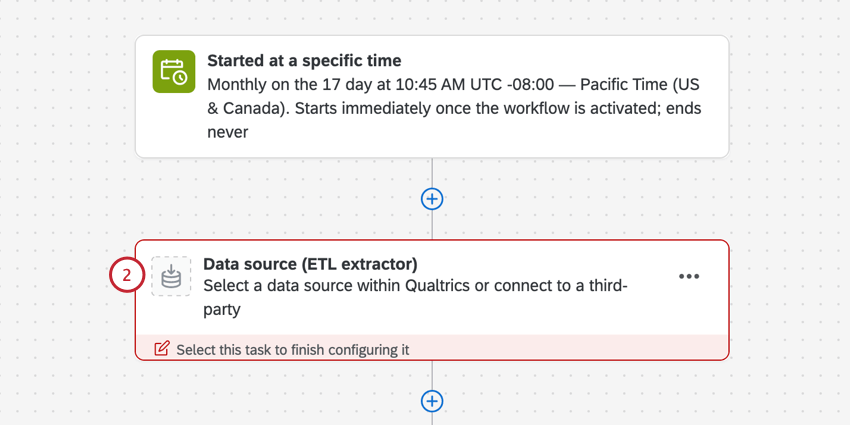
Qtip: Files must be less than 1 GB and 750,000 rows to be compatible with the add contacts and transactions to XMD task.
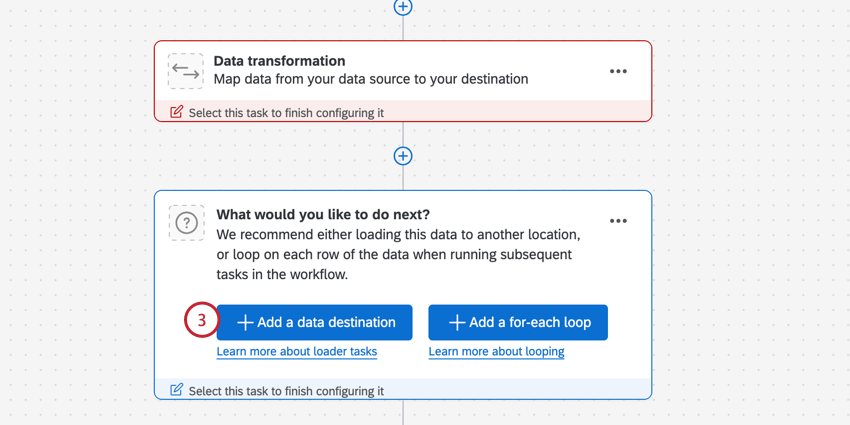
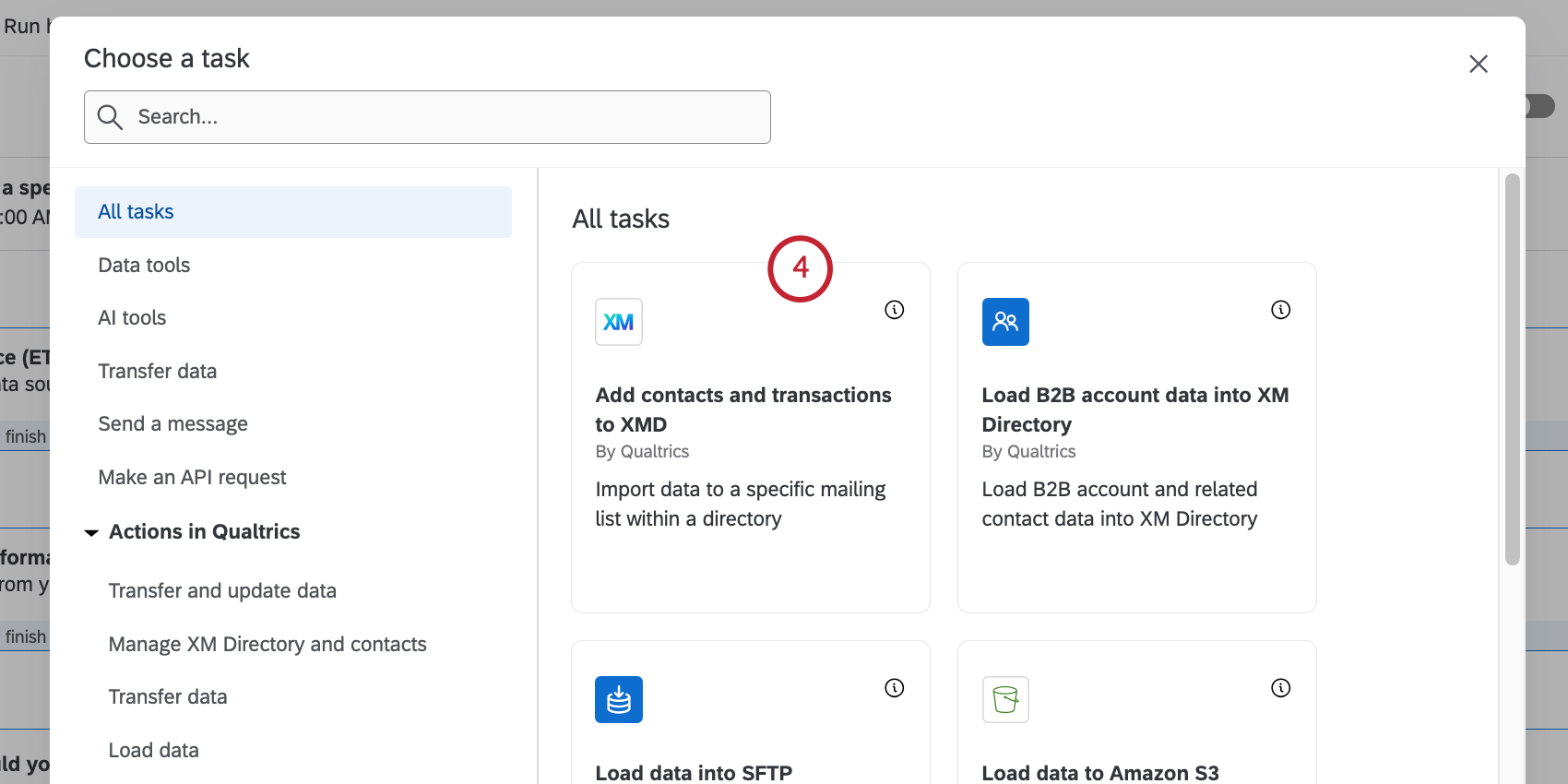
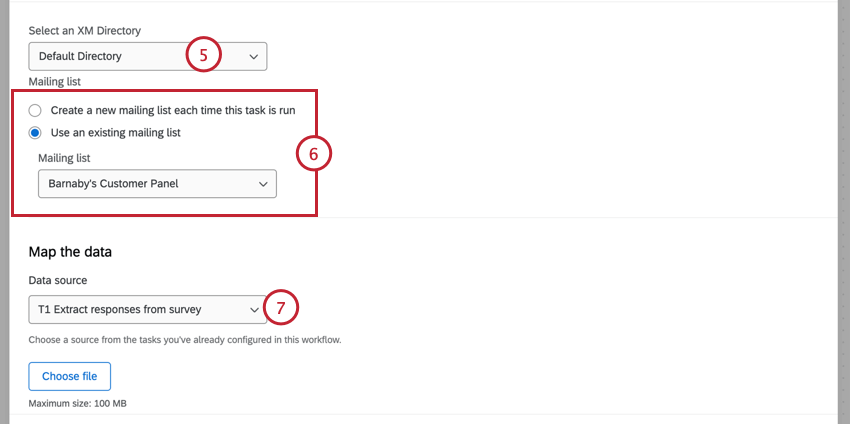
Qtip: Most licenses only have a default directory, but some may have multiple directories.
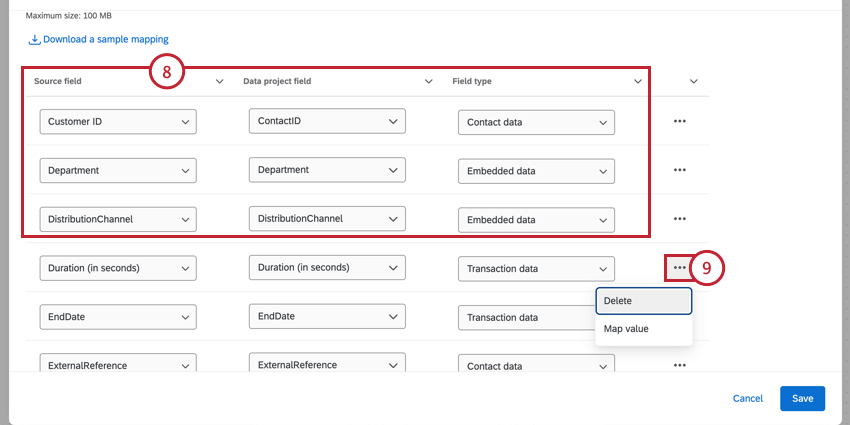
- Source field: The field from your extractor task. Qtip: Source fields can only be mapped to one destination field within the task.

- Data project field: The destination field in XM Directory.
Qtip: The following XM Directory contact fields are added by default:
- ContactID
- FirstName
- LastName
- Language
- Phone
- Unsubscribed
- ExternalReference (also known as ExternalDataReference)
- Field type: The field type the imported data should be saved as:
- Contact data: Standard contact fields.
- Embedded data: Custom embedded data fields for extra contact data.
- Transaction data: Data imported as a transaction field.
Qtip: The TransactionDate field is useful for recording when the transaction occurred. Dates are assumed to be in UTC unless the time zone is explicitly included in the date value. More information on these formats can be found on the Date Format Syntax support page. Here is a list of compatible time formats:
- ISO-8601 (2006-01-02T15:04:05+07:00)
- ANSIC (Mon Jan _2 15:04:05 2006)
- UnixDate (Mon Jan _2 15:04:05 MST 2006)
- RFC822 (02 Jan 06 15:04 MST)
- RFC850 (Monday, 02-Jan-06 15:04:05 MST)
- RFC1123 (Mon, 02 Jan 2006 15:04:05 MST)
You can map TransactionDate to whatever field you want; for example, you can choose a survey’s end date to reflect when a response was submitted, or a custom date field you have created. If your task contains transaction data but you do not map a TransactionDate field, then the date and time of the workflow run will be recorded as the TransactionDate.
Qtip: The TransactionExternalReference field is a reference ID for each transaction. When a transaction is imported with a TransactionExternalReference, if an existing transaction is found with a matching TransactionExternalReference, that matching transaction will be updated. If no matching transaction exists, a new one will be created with the TransactionExternalReference.
- Delete: Remove the mapping.
- Map Value: Map individual field values (for example, Y to Yes and N to No). See Mapping Field Values for more information.
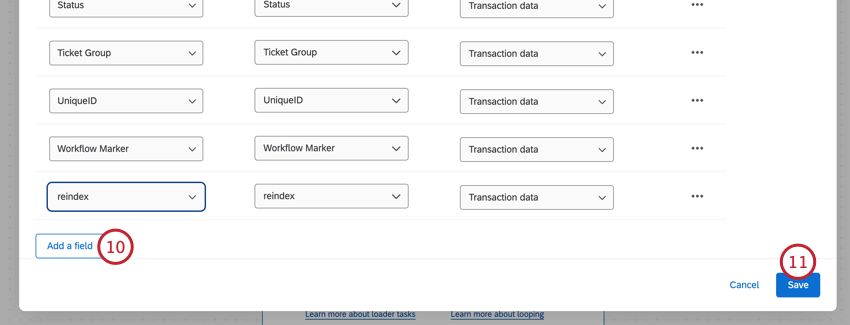
Qtip: This task obeys your directory’s contact deduplication rules.
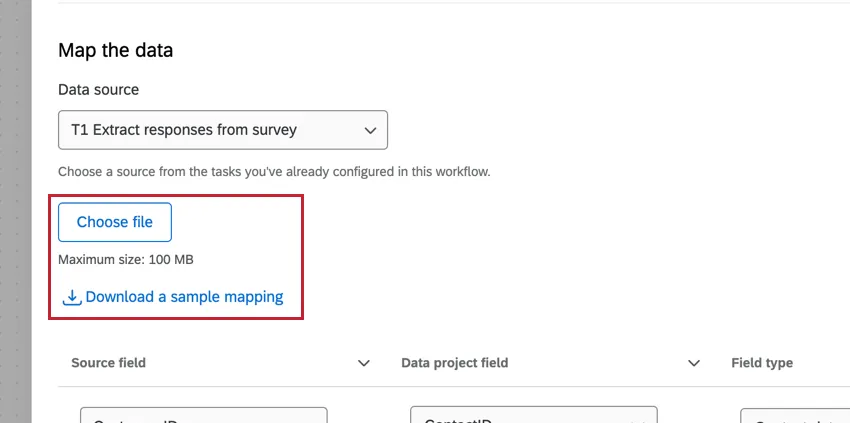
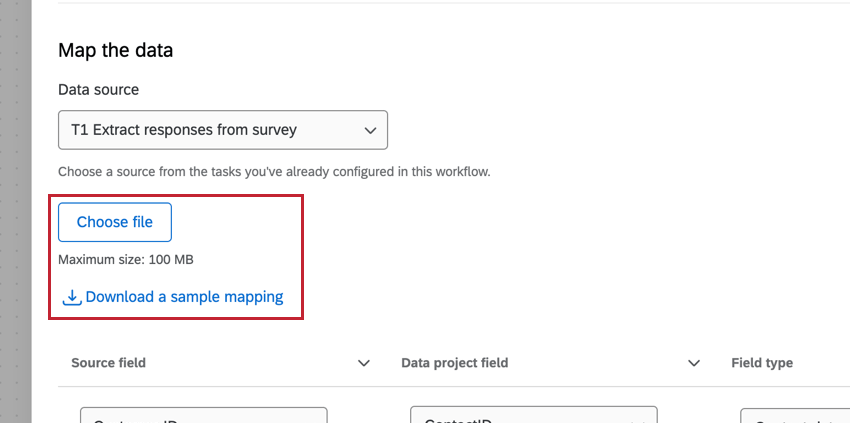
Qtip: If desired, you can upload a file that contains your field mapping. Click Download a sample mapping to download an example CSV to your computer. Open this file in a spreadsheet editor and add your mappings using the file as a guide. Save the file as a CSV on your computer. Then, click Choose File and select your file. Make sure to double check your mappings before saving the task.
Troubleshooting Tips
- When investigating what went wrong with a workflow task, check out Workflows reporting for any errors and correct them before retrying your task.
- Contact deduplication allows you to retry your task without creating duplicate contacts. Make sure to set up contact deduplication rules when testing and retrying this task.
- When mapping field values, keep the following in mind:
- You may have up to 500 mapping pairs. If your file contains more than 500 mappings, then you will receive an error message and only the first 500 rows will be uploaded.
- Make sure your file contains the “from” and “to” headers. If these headers are not detected, then Qualtrics will assume the first column is “from” and the second column is “to.
FAQs
Do I have access to all extensions available through the Workflows templates?
Do I have access to all extensions available through the Workflows templates?
Is there a link to all Workflows events and tasks?
Is there a link to all Workflows events and tasks?
What are Workflows templates?
What are Workflows templates?
What are workflows? / Where are actions?
What are workflows? / Where are actions?
There are no changes to workflow functionality as part of this update.
When you import updates to existing contacts, how are empty / blank fields treated?
When you import updates to existing contacts, how are empty / blank fields treated?
That's great! Thank you for your feedback!
Thank you for your feedback!