

Creating an Account & Logging In
What's on this page
About Creating an Account and Logging In
Before you can start using Qualtrics, you need to create an account and log into it. This page details how to create your account, how to login, and how to solve common issues related to creating and logging into accounts.
Qtip: When creating a new account, your email address will be used as your username by default. Uppercase letters are automatically converted to lowercase.
Creating an Account
The first most important step in creating your Qualtrics account is to make sure you’re on the correct URL.
Qtip: If your organization wants you to sign up with a custom Qualtrics URL, we recommend bookmarking it. This is the same URL you should use to log in later!
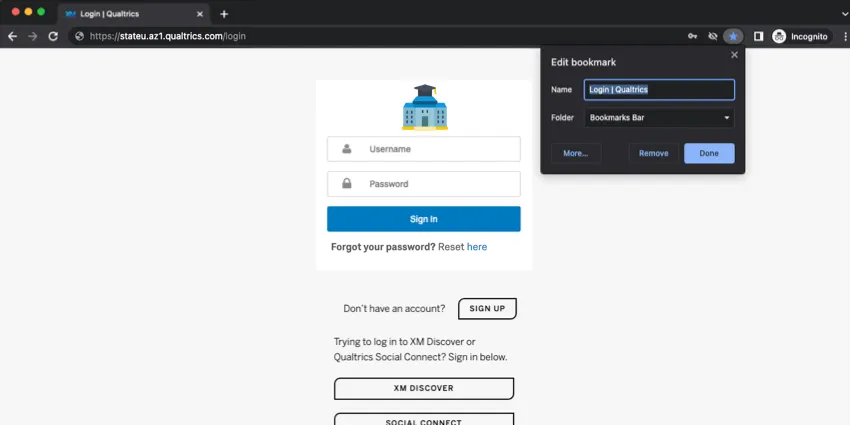
Sign up with an organization you belong to – Standard
If your employer, school, or another organization you belong to has a license with Qualtrics, you can often get an account with lots of premium features, at no expense to you!
However, you first have to be sure to sign up at the correct URL, or else Qualtrics won’t know what organization you’re part of.
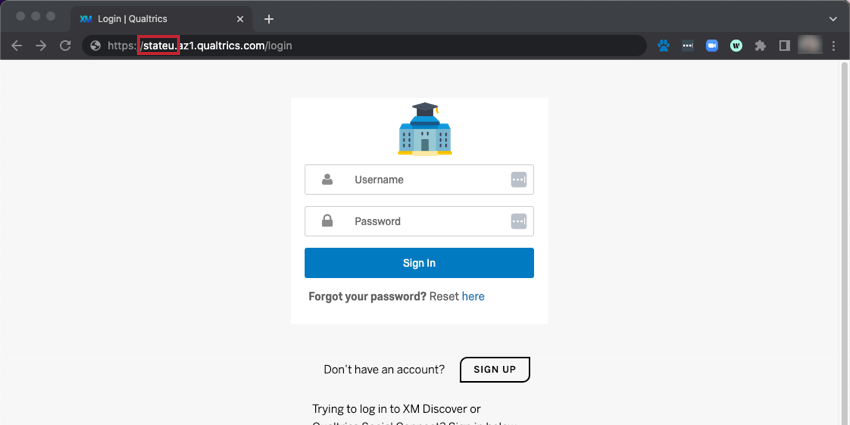
Qtip: You can also reach out to Qualtrics Support if you’re not sure what your organization’s special URL would be.
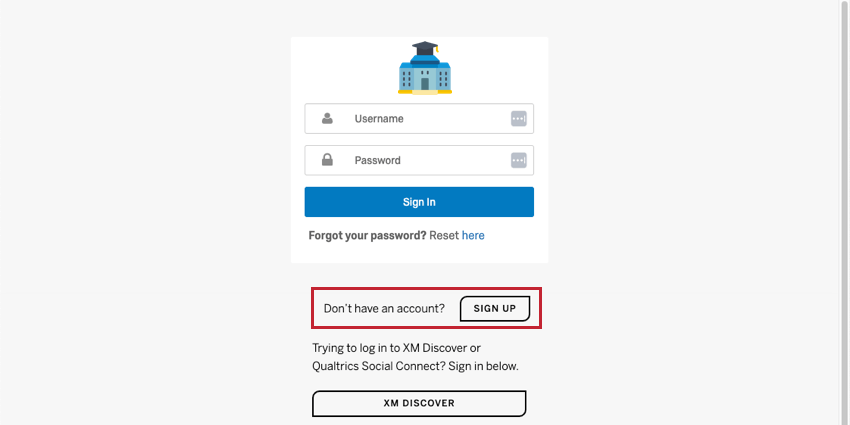
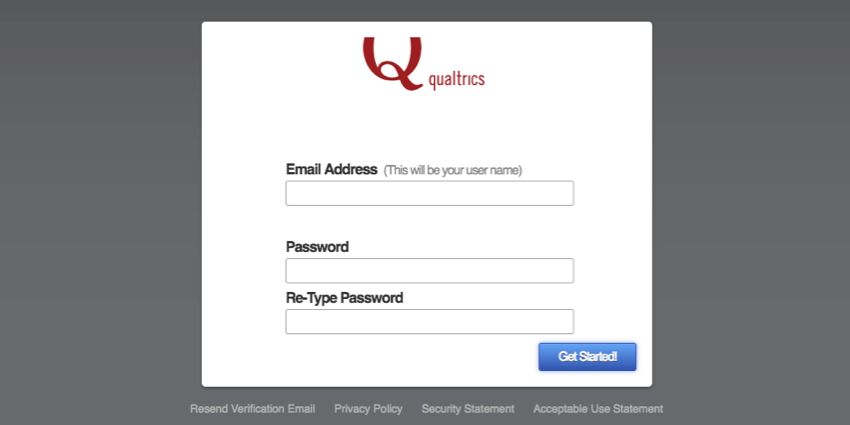
Attention: Sometimes, you will not see an option to sign up. In that case, you should contact Qualtrics support who will reach out to your Brand Administrator on your behalf. This administrator can then create an account for you, if they have space on the license.

Does your sign-up page not look like this? Then read the next section below!
Sign up with an organization you belong to – SSO
Qtip: If you need to combine content from multiple Qualtrics accounts, check out our User Moves support page.
Sign up with Qualtrics for free
If your organization doesn’t have a license, then you can sign up for a free account to test out Qualtrics. You can always upgrade this account if you would like to add more features to it.
Qtip: For questions about what you get access to with a free account, see Free Accounts.
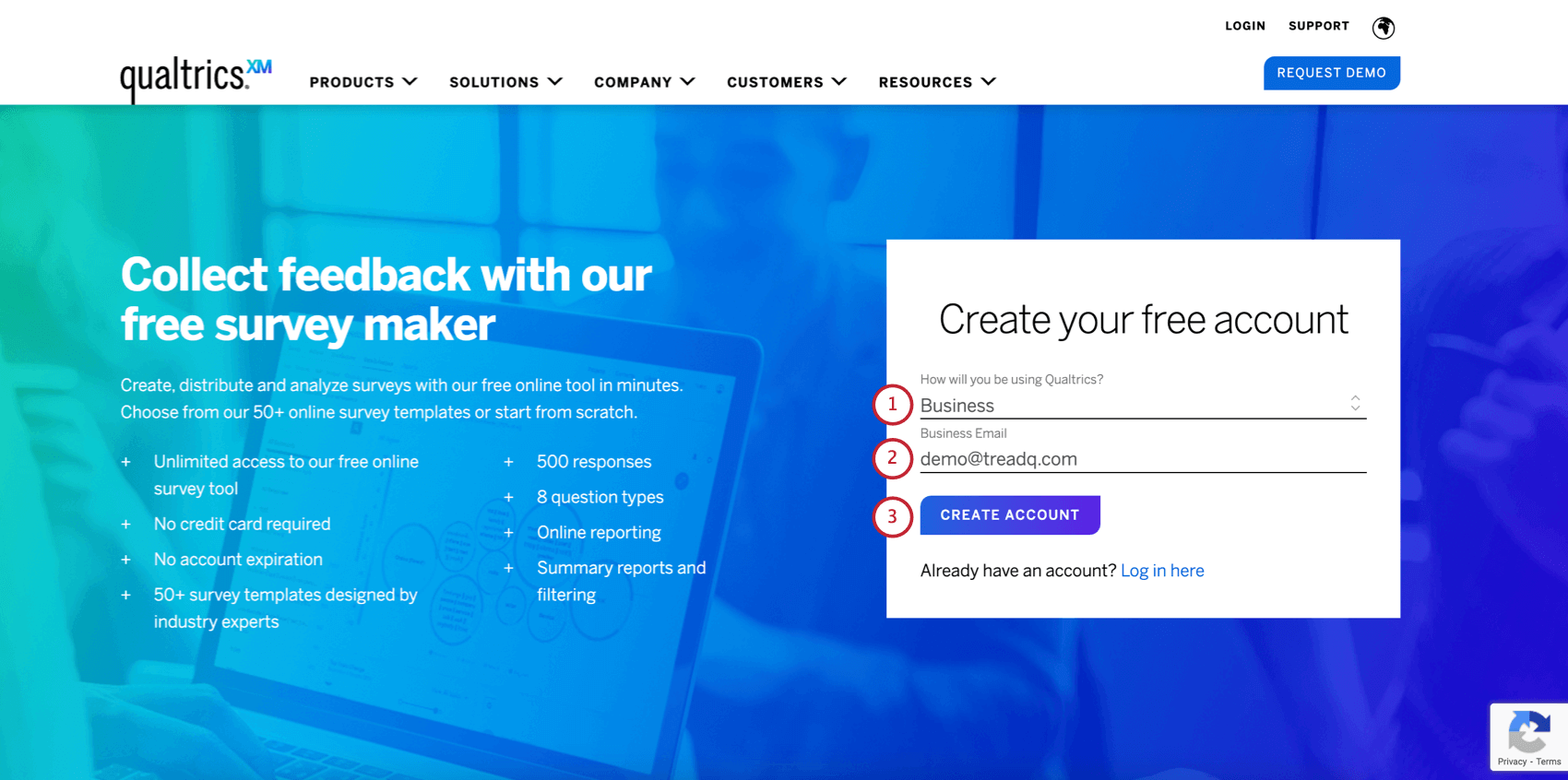
Qtip: If your email address has been used to create another Qualtrics account, you will be prevented from using it to create a new account. For more details, see Account Creation Issues.
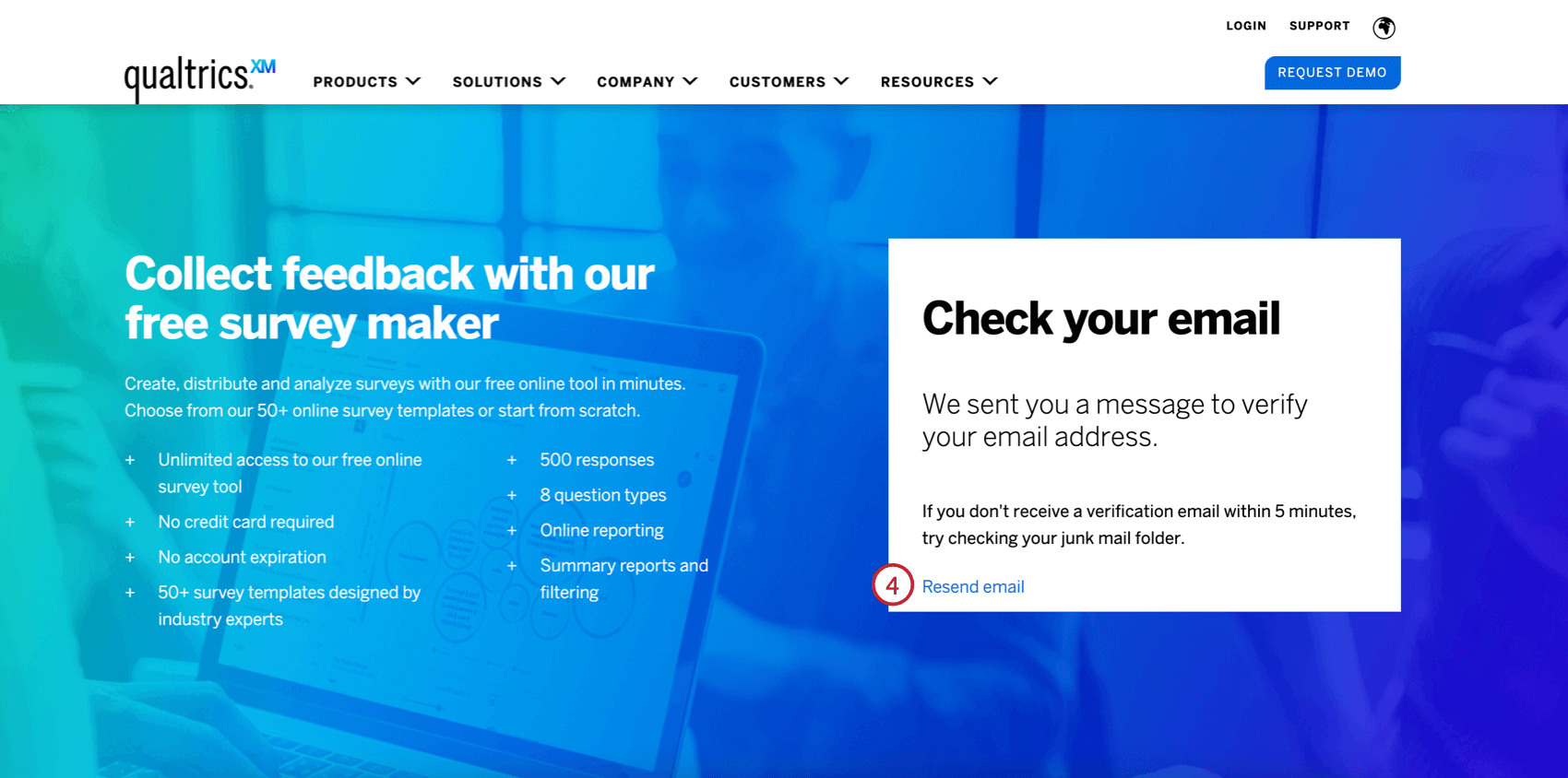
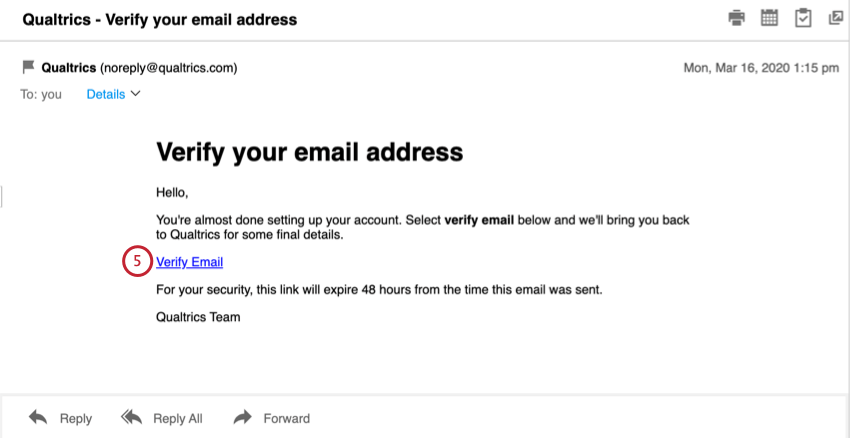
Qtip: If you did not receive the confirmation email, remember to check the Spam or Junk folder before reaching out to support.
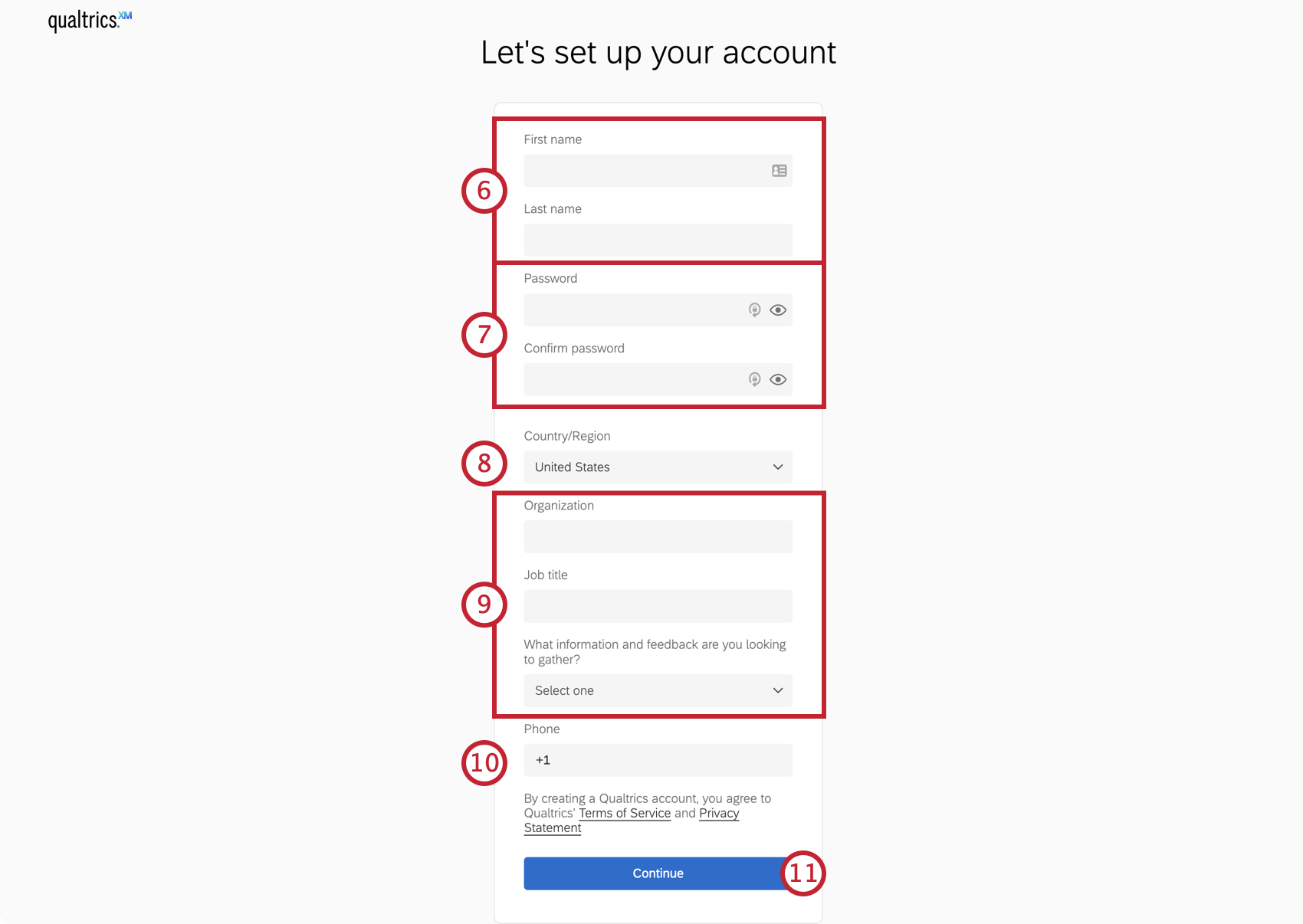
Attention: If your organization has a preexisting license, completing this field will NOT sign you up for that license! You must scroll back up on this support page and read the directions for signing up with an organization. If you have already signed up incorrectly, check out the Account Creation Issues section below.
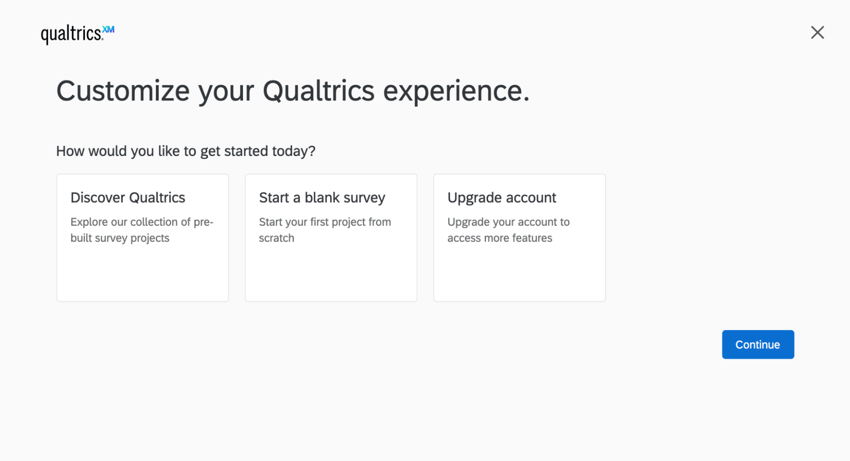
Qtip: Our templates and XM Solutions are designed by our XM Scientists, and reflect industry best standards!
Qtip: Want a list of the features you have access to? You can also check out the Free Accounts support page, or the Plans tab of your Account Settings.
Account Creation Issues
Multiple accounts / Accidentally signed up for a free account / “This email is already in use”
A common issue users have is owning multiple accounts. Maybe you’ve switched schools or jobs and gotten a Qualtrics account at each organization. Maybe you accidentally signed up for Qualtrics under a free account instead of your organization.
Here are some common scenarios and their solutions:
- If you know you have another account and want it moved to your new organization, see our page on User Moves.
- If you have a free account you don’t want to use anymore, contact Qualtrics Support to have it deleted. Note that if the account you want deleted is not a free one, the request will have to go through your Brand Administrator instead.
- If you are unsure if someone at your organization has made an account for you, contact Qualtrics Support for assistance.
If you are fairly certain an account has never been made for you, contact Qualtrics Support for assistance.

Qtip: This is rarely a sign that someone else used your email address. If you’ve ever been sent a 360 survey, or an EX survey distributed by your HR department, this might be why your email is already registered. If this is the case, you can ask your Brand Administrator to link your EX participant account to a standard Qualtrics account.
“Account not verified”
When you first access your account, you might see a yellow warning that says Account not verified. This means you need to log into the email address you used to sign up for Qualtrics and find the verification email we sent you.
If you don’t see this email, click Resend verification email. If these emails never arrive, ask your Brand Administrator to manually verify your account.
Qtip: If you are a Brand Administrator, see instructions on how to verify a user’s account.
Verifying Your Email
Qtip: This section does not apply if your organization uses SSO to log into Qualtrics. Additionally, EX participants are not required to verify their email.
If you are a user in a brand created after June 17, 2026, then you will be required to verify the email associated with your Qualtrics account. This policy is in place to help keep your account secure in the event you need to recover it.
Attention: You will not be able to log into your Qualtrics account until you verify your email address.
If your email address is unverified, you will be prompted to verify it the first time you log into Qualtrics:
Upon entering your credentials, you’ll see the message “The email address associated with your Qualtrics account is not verified. Please check your email for a verification link.”
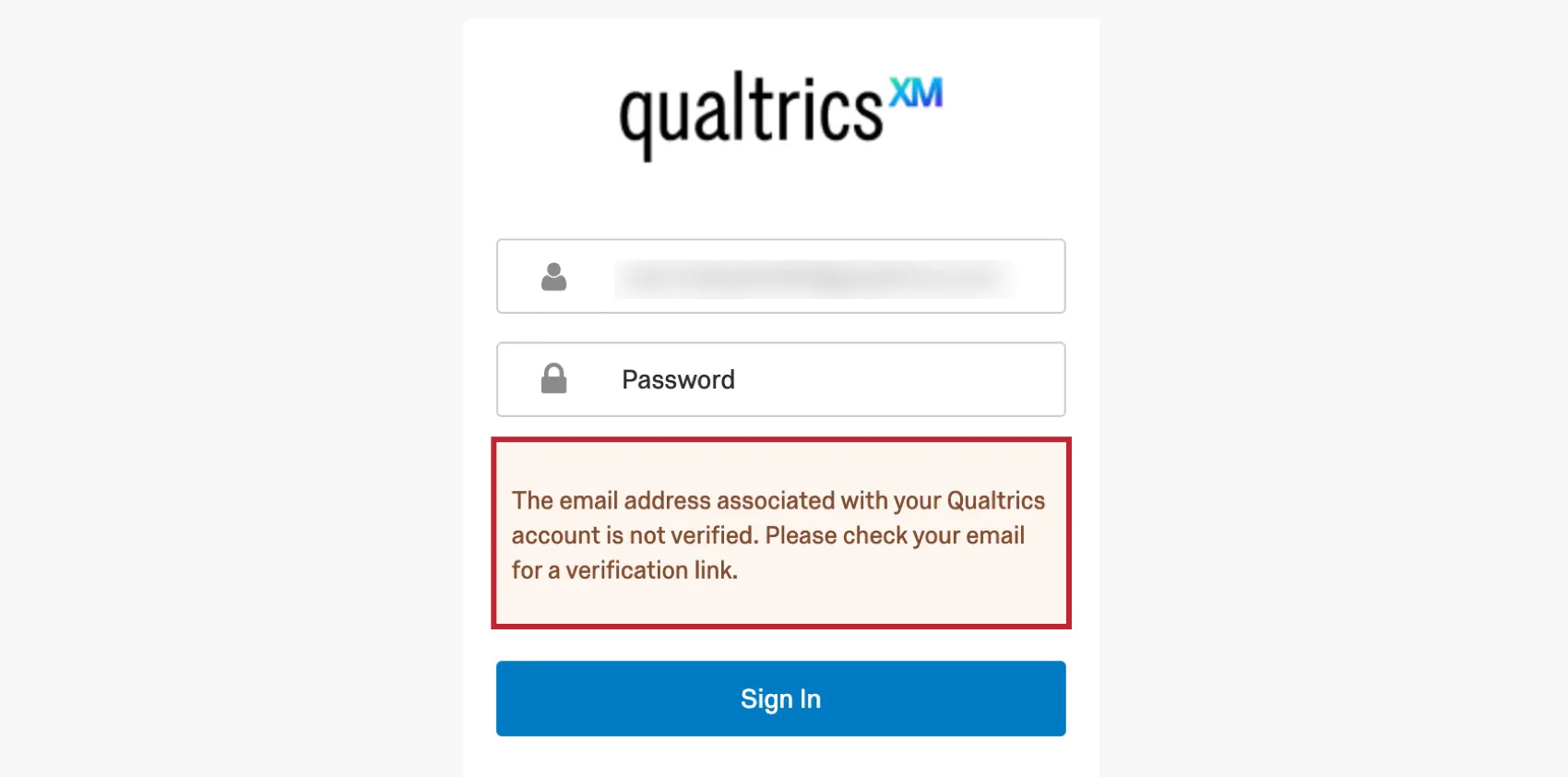
Qtip: If the email address associated with your account is incorrect, then you can contact your Brand Administrator to update your email address. If you are unable to contact your administrator and are not receiving verification emails, then contact Qualtrics Support for assistance.
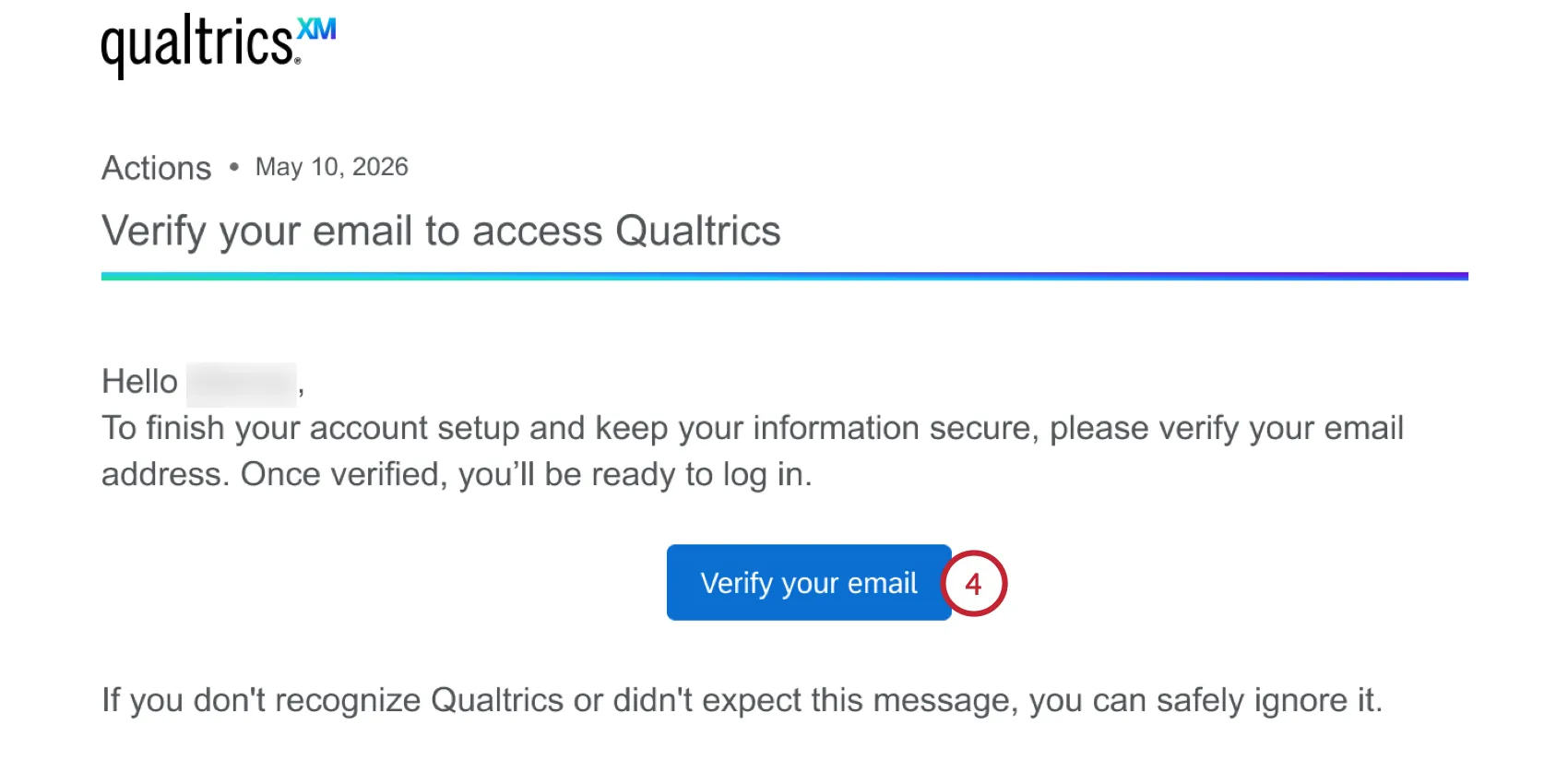
Open your email and find the verification email from Qualtrics. It will have “Qualtrics Email Verification” as the subject line.
Qtip: If you didn’t receive the verification email, then try logging into your account again, which will resend the email.
Click the button in the email to verify your email address.
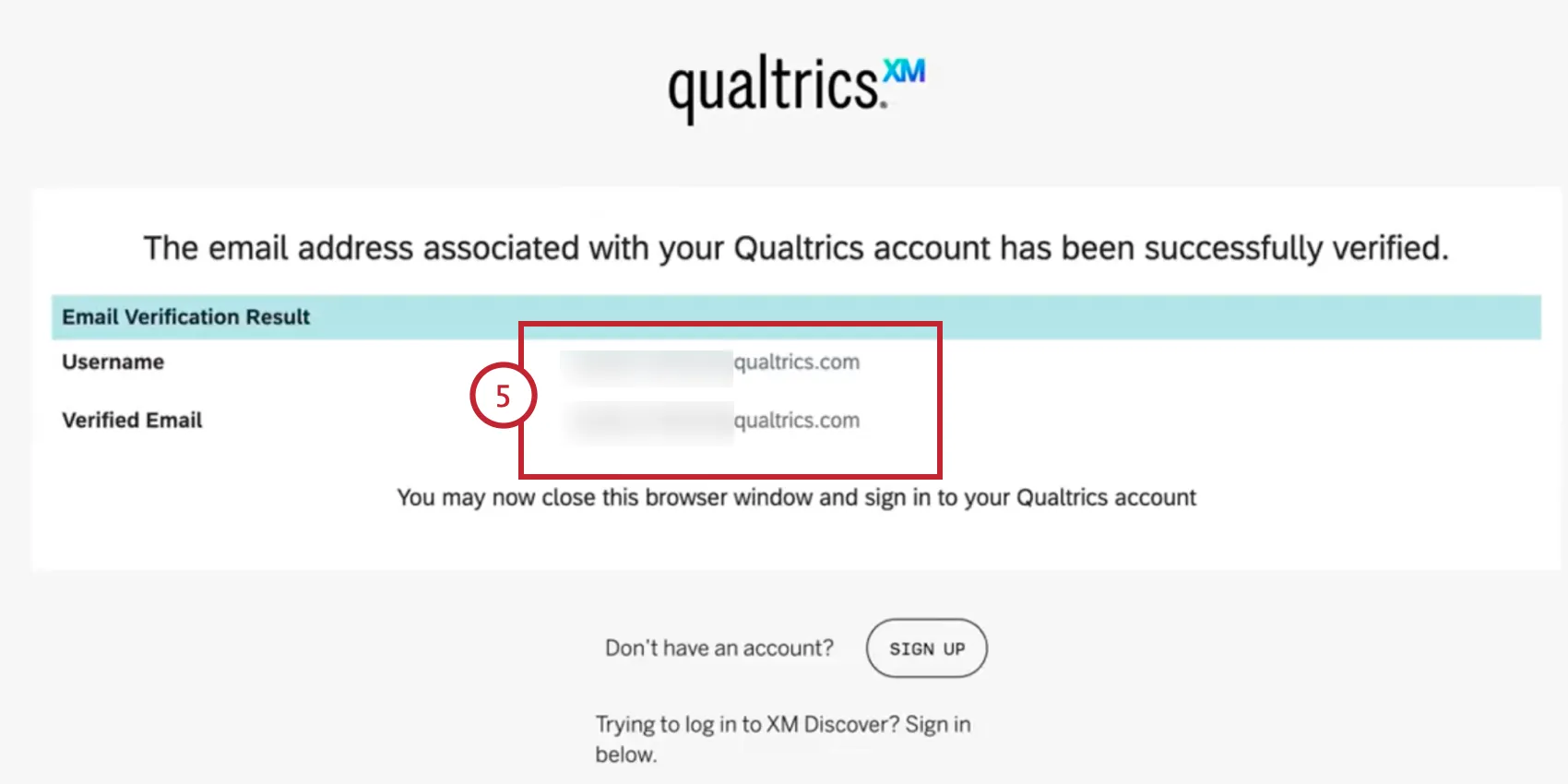
You’ll see a message that your email address has been verified. You can close this window and log into your Qualtrics account.
Logging into Your Account
How you signed up for your account determines how you’re going to log into Qualtrics. The rule is if you signed up with a branded URL, you should always log in with this URL. If you signed up on the main Qualtrics site, you should use the regular Qualtrics login page.
Standard Login
If your company doesn’t have a special login method, or if you signed up through the basic Qualtrics.com site, then you can use the URL https://www.qualtrics.com/login to log into your account.
Qtip: Do you have a free account and an account through your organization? Don’t try to log into the free account with your company’s special Qualtrics URL. Branded URLs are only for members of those brands!
Two-Step Verification
Two factor authentication is an added security measure before you log in. This can be enabled or disabled by a Brand Administrator. The first time you log in after two factor authentication is enabled, you will be asked to choose how you want to verify your account.
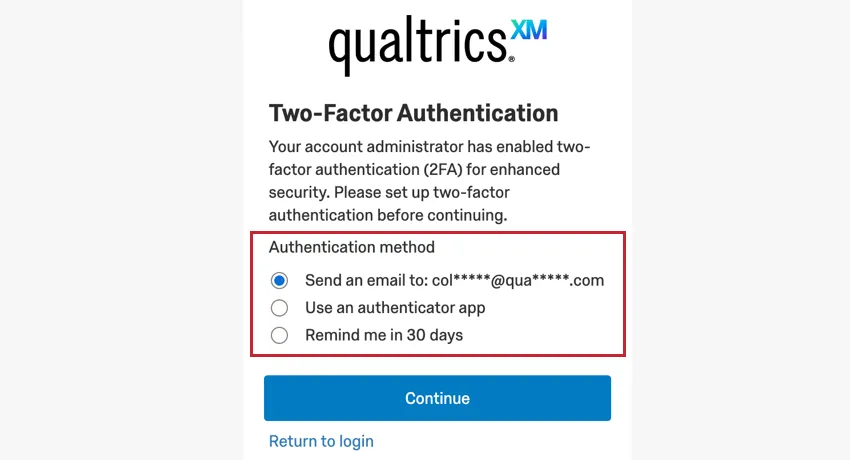
Your options include:
- Send an email: Receive an email containing a verification code to the email address associated with your Qualtrics account.
- Use an authenticator app: Set up a third party authentication app to retrieve an verification code.
- Remind me in 30 days: If you cannot set up two factor authentication now, choose this option to set it up later.
Click Continue after choosing a method. You can always go back and choose a different verification option instead. Just click More verification options on the bottom of almost any of the login screens. After choosing a verification method, follow the below instructions to log in:
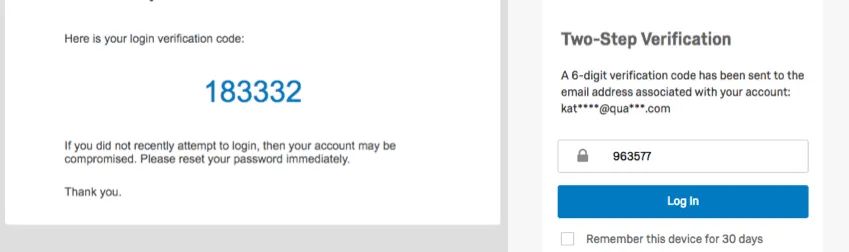
Email Verification: Qualtrics will email you a code, which you then enter in the field provided. If desired, select Remember this device for 30 days which will allow you to log in via the same device and browser for the next 30 days without entering a secondary verification.
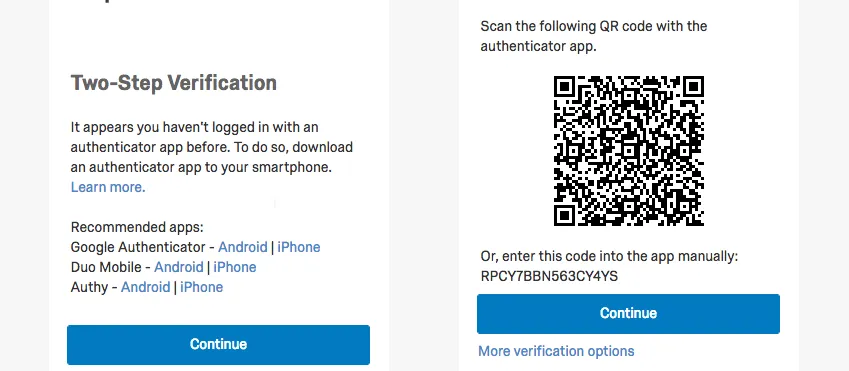
App Verification: Qualtrics will provide a list of apps and a QR code™ you can use them to scan. If for whatever reason the QR code doesn’t scan, you can enter the code on the screen into the app. If desired, select Remember this device for 30 days which will allow you to log in via the same device and browser for the next 30 days without entering a secondary verification.
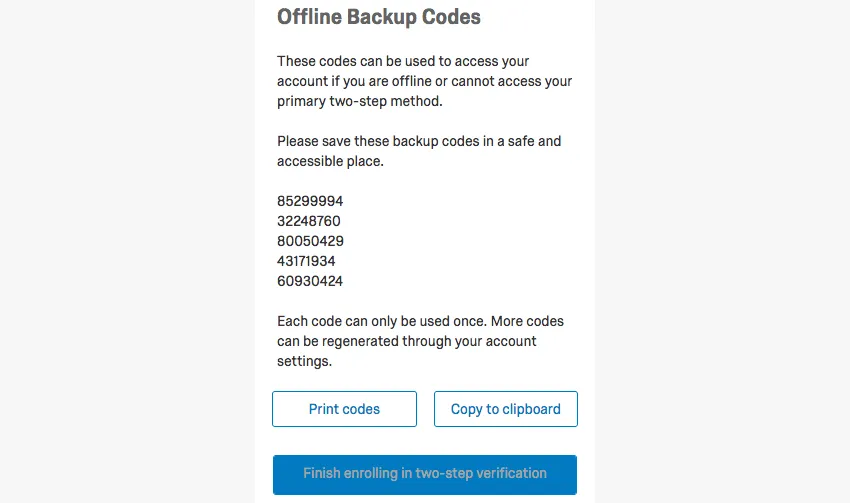
Once you’re done setting up your method, you will be given Offline Backup Codes. If for some reason you ever lose access to your verification method, these will get you back into your Qualtrics account. Print the codes, or click Copy to clipboard to copy them all so they can be pasted into a doc. You must do one or the other before clicking continue.
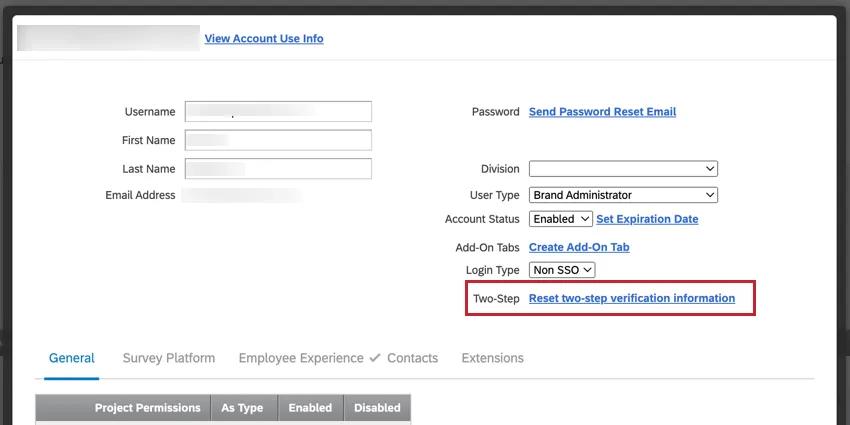
Qtip: A Brand Administrator can reset your two-factor authentication settings in the user admin page by clicking Reset two-step verification information. This is useful if you’re completely locked out of your secondary verification methods and need to reconfigure the authentication.
Single Sign-On
With single sign-on (SSO), users can log in to Qualtrics using their organization’s internal login system. If you log in using SSO, then the URL you use to sign into Qualtrics can be incredibly important. This is especially true if you belong to a particular organization.
There are several ways to get this URL if you don’t have it.
Example: The URL will be in the general format of myorganization.qualtrics.com.

Qtip: If you are in charge of setting up the license and don’t remember purchasing SSO, you probably do not have access to SSO. Talk to your Account Executive or Technical Success Manager for more detail.
Selecting from Several Apps
When you log in, you may be asked where you want to go. Usually this means your administrator has given you access to multiple apps. If you choose Qualtrics, you'll go to the Homepage. This is the option you should select if you want to access the larger Qualtrics platform.
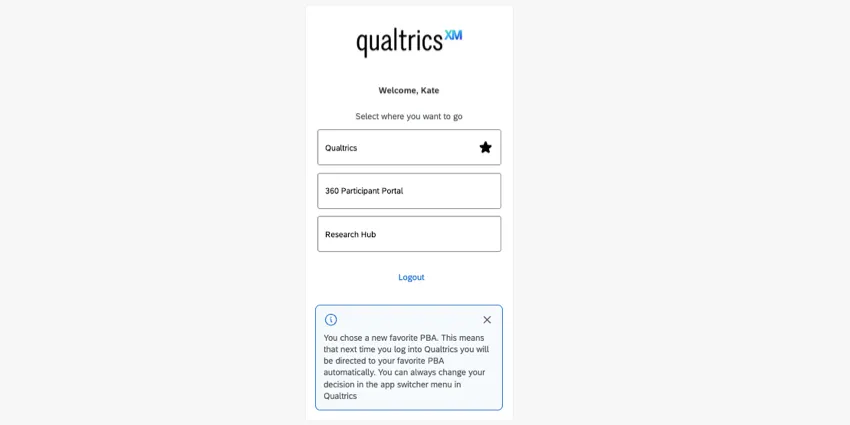
To avoid having to see this screen every time you log in, you can select a favorite app. This will take you straight to the favorite when you log in. Keep in mind you can always change this favorite or switch which app you're viewing at any time.
Qtip: Keep in mind that the apps available depend on what's included in your license and what your Brand Administrator has set up. To learn more, see Available Apps.
Password Reset Prompt Upon Login
The very first time you log in, you may be asked to reset your password. You will see this if your account was created for you by an admin who gave you a temporary password. Qualtrics is asking you to reset your password as a standard security measure, so you can make it something only you know.
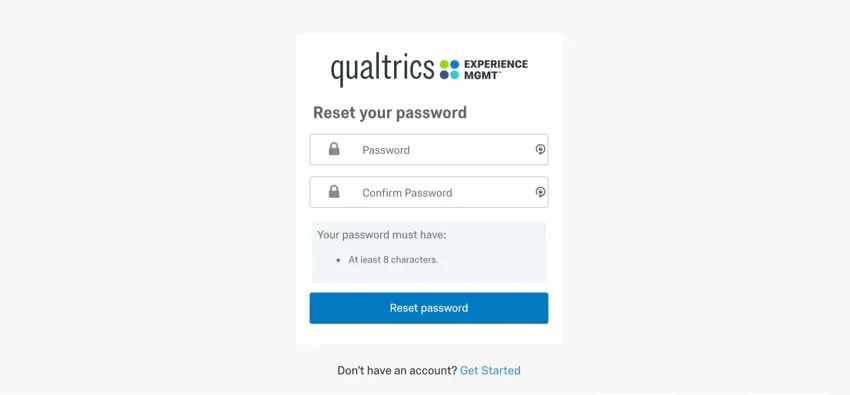
Complete the form to log into your Qualtrics account.
Login Issues
Oops! An unexpected error has occurred
If you try to log in and get this message, your account has expired. Don’t worry – the data on an expired account is safe. It’s just temporarily unavailable to you. If you want access back or feel a mistake has been made, contact your Brand Administrator. Note that Qualtrics Support cannot verify your account for you if it belongs to a private organization.
If you do not have access to your Brand Administrator’s contact info, contact Qualtrics Support, and they can reach out to your Brand Admin on your behalf. Note that Qualtrics Support cannot provide Brand Admin contact information to you directly.
Qtip: If you are a Brand Administrator, you can learn more about verifying accounts and account statuses on the linked support pages.
User Account is Disabled
If you try to log in and get this message, your organization has disabled your account. Don’t worry – the data on a disabled account is safe. It’s just temporarily unavailable to you. If you want access back or feel a mistake has been made, you will need to contact your Brand Administrator.
Qtip: If you are a Brand Administrator, see this support page to learn more about account statuses.
Unverified Email
To ensure account security, you may be required to verify the email address associated with your Qualtrics account. If your email is unverified, you will see the following message upon logging in: “The email address associated with your Qualtrics account is not verified. Please check your email for a verification link.”
To resolve this, follow the instructions in Verifying Your Email.
Too Many Failed Login Attempts
If you try to log in and get this message, your account has been temporarily locked. Some licenses will put a maximum number of login attempts before an account is temporarily locked. How many attempts you can make and in what timeframe varies, as does the time period your account will be locked.
Please wait at least an hour before trying to log in to your account or reaching out to support.
Attention: Support cannot override the lock on your account.
Branded URLs
If your organization has a license with Qualtrics, it can be incredibly important for you to login using your company’s custom Qualtrics URL, or branded URL.
It is especially important for users whose organizations use SSO to use the correct login. SSO is a special system that allows you to use one username and password to log into many different websites, including employee portals, email accounts, and Qualtrics.
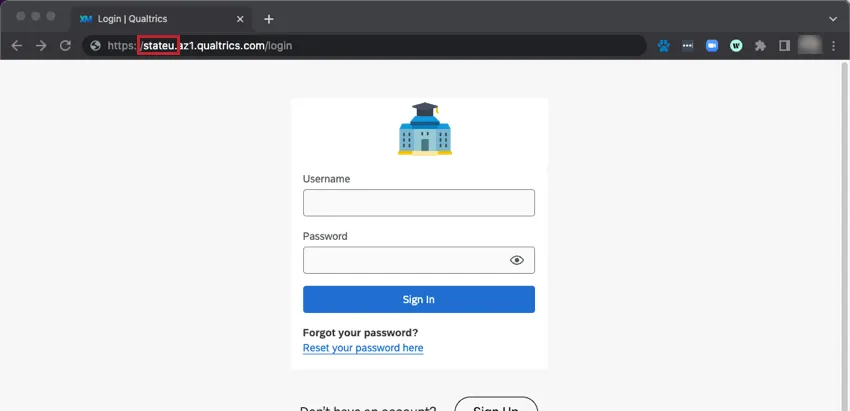
Sometimes when you visit a branded URL, you will be redirected to your organization’s portal, in which case you will log in the same way you’re used to.
However, sometimes you’ll see a regular Qualtrics login with your organization’s logo, as seen in the above screenshot. In this case, what information do you use to log in?
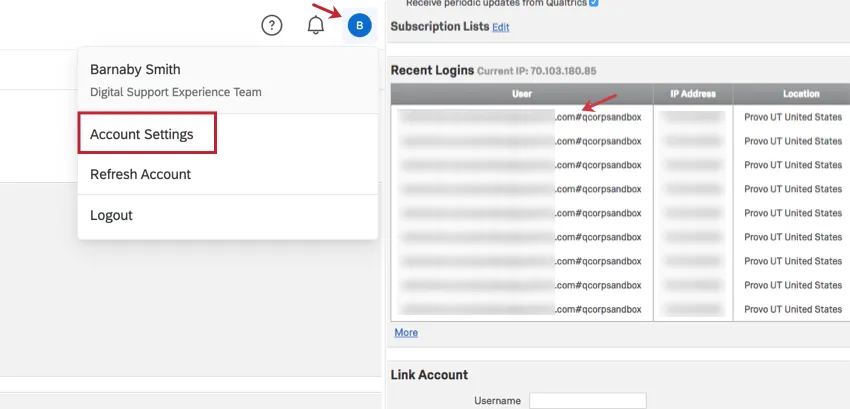
Qtip: Able to log in, but still not sure if your organization has SSO or not? It’s always safer to use the branded URL. However, if you go to Account Settings and scroll down to the Recent Logins section, you will see your username. If there is a hashtag (#) in it, your organization uses SSO, and you have to use the branded login. The value after the hashtag is your Organization ID for logging in via SSO.
Other URL Issues
Qualtrics does not support www in branded URLs.
For example, www.stateu.qualtrics.com will not load correctly. However, stateu.qualtrics.com will.
Offline App Login Issues
If you are having trouble getting into the Qualtrics Offline App, make sure you have followed the instructions on the Setting Up the Offline App support page. Note that login is different if your organization has SSO, and is also covered on this linked support page.
Logging in with Organization ID
Some features, like the Qualtrics Community and XM App, have an option for SSO users that requires you login with an organization ID. See Logging in with Your Organization ID for more details.
Getting Login Help from the Support Team
If you’ve tried the steps on this support page but still can’t access your Qualtrics account, you can reach out to our support team. Check out more on the Limited Customer Success Hub.
Password Resets
Sometimes you will forget your password. But depending on whether your company uses SSO or not, how you reset your password differs.
Qtip: Do you know your password, but still want to change it? You can change your password while logged into your account.
Standard Password Resets
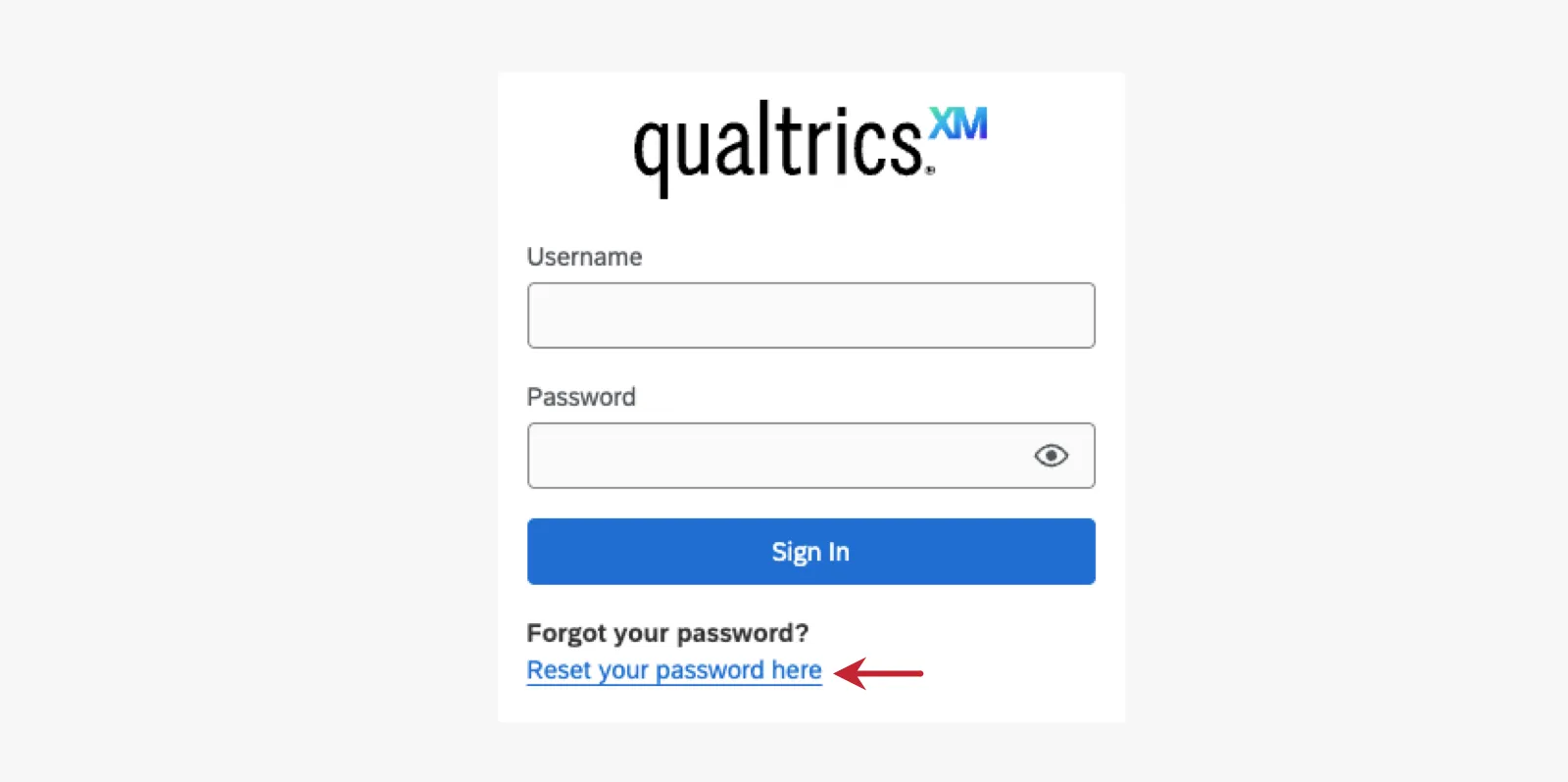
On just about any Qualtrics login, you can click Reset your password here.
Qtip: If you do not receive a password reset email, check the junk or spam folder of your email.
Qtip: If you are a Brand Administrator helping a user with their password reset, see the Password Reset section of our Admin support pages for instructions and troubleshooting tips. Make sure to double-check that the email address on the user’s account is correct!
SSO Password Resets
SSO users should always reset their passwords at their organization’s portal, not in Qualtrics.
Qtip: Often, if your company has SSO, but the login page looks like a standard Qualtrics login page, the Forgot Your Password? link will be missing. This means you need to go back to your organization’s login portal.
On occasion, an SSO brand might have a Reset your password here link on a Qualtrics-style login page. If you use this link, you’ll notice that even if you’re able to change your password through the link you’ve been emailed, you won’t be able to log in with this password again. That means you must access your organization’s main login portal (e.g., www.stateu.edu/login) to officially change your password.
Deleting Your Account
If you have a free account, you can deactivate your own account.
If you belong to a licensed account (such as through a school, your workplace, or another organization), you will need to contact your Brand Administrator to have the account deleted.
Qtip: If you are a Brand Administrator, see the Deleting Users support page for more instructions.
Multiple Accounts with the Same Username
If you have multiple accounts on different organizations with the same username (otherwise known as linked accounts), you will see a screen asking you to choose an account upon logging in. Choose an account from the list to log in to the account.
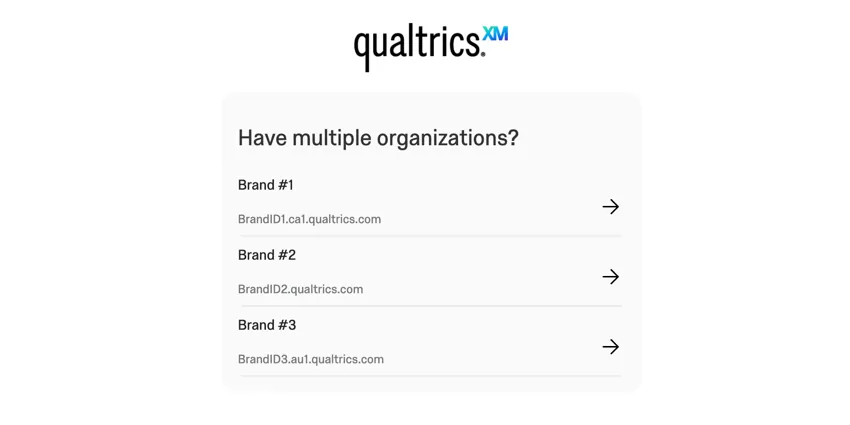
Linked accounts occur when a Brand Administrator creates a standard Qualtrics account for someone who was entered as a participant in a 360 or Engagement survey in the past. Accounts become linked when the participant account and the standard account have the same username.
You can un-link accounts by changing the username of at least one of them. Reach out to your Brand Administrator to get the username of your standard Qualtrics account changed, or reach out to Qualtrics Support to get the username of the 360 / Engagement participant changed.
Attention: Only newly created accounts can be linked with existing Qualtrics accounts. Multiple existing accounts cannot be linked by altering their usernames.
Qtip: If you have an account in the FedRAMP environment, you can only link your account to other accounts in the FedRAMP environment and vice versa. For example, the username me@q.com can be used for accounts across multiple brands in the FedRAMP environment, as well as in our non-FedRAMP environments. However, the login screen the FedRAMP instance will only allow you to choose from other FedRAMP organizations, and the non-FedRAMP login screen will only allow you to login to your non-FedRAMP linked accounts.
Special Instructions for FedRAMP Users
If you are a user in our FedRAMP instance and your brand uses SSO, there are specific considerations when logging in and requesting password resets.
Logging in for FedRAMP users
If your organization has a license with Qualtrics, your company may have a unique Qualtrics URL, otherwise known as a branded URL.
It is especially important for users whose organizations use SSO to use their unique branded URL to log in. SSO is a special system that allows you to use one username and password to log into many different websites, including employee portals, email accounts, and Qualtrics.
If your company doesn’t have a special login method then you can use https://www.gov1.qualtrics.com/login to log into your account. You may also use this login URL if you are a non-SSO user on an SSO brand.
Password Resets for FedRAMP Users
If you have a login that doesn’t use Single Sign On, you can use https://www.gov1.qualtrics.com/login to request a password reset email. This includes both users on brands without SSO, as well as non-SSO users on SSO brands.
SSO users should always reset their passwords at their organization’s portal, not in Qualtrics.
On occasion, an SSO brand might have a “Forgot Your Password?” link on a Qualtrics-style login page. If you use this link, you’ll notice that even if you’re able to change your password through the link you’ve been emailed, you won’t be able to log in with this password again. That means you must access your organization’s main login portal (e.g., www.department.gov/login) to officially change your password.
QR Code is a registered trademark of DENSO WAVE INCORPORATED.
FAQs
I accidentally made a free account instead of signing up with my university or correct affiliation. What should I do?
I accidentally made a free account instead of signing up with my university or correct affiliation. What should I do?
Contact Qualtrics Support to get help finding the correct organization signup page or moving your account to another license.
If you don't have anything to move from your free account, you can also deactivate the account yourself.
How can I delete my free account?
How can I delete my free account?
How can I get my surveys or account moved to another license?
How can I get my surveys or account moved to another license?
If you don’t want or don’t have anything currently in your account (no surveys, no contact lists, and no library messages), you can deactivate your own account. This way you will be able to more make an account with your new license and get started more quickly.
For details on all of the options offered you, see the User Moves page.
I'm receiving the message "Internet Explorer cannot display the webpage" when I go to take my survey or login to my account. What's happening?
I'm receiving the message "Internet Explorer cannot display the webpage" when I go to take my survey or login to my account. What's happening?
I am unable to load or access a section of my account.
I am unable to load or access a section of my account.
How do I find the URL I should use to login to Qualtrics?
How do I find the URL I should use to login to Qualtrics?
If you are having trouble finding your URL with these methods, please reach out to Qualtrics Support.
How do I know if my Qualtrics license has SSO?
How do I know if my Qualtrics license has SSO?
If you already have a Qualtrics account, you can figure out if you have SSO by going to the profile icon in the upper-right of your account -> Account Settings -> Recent Logins. If your username has a hashtag (#) in it, your organization uses SSO.
If you do not yet have a Qualtrics account, try looking on your organization’s website for a special link to Qualtrics, or reach out to the professor or colleague who asked you to create an account. If this link takes you to your standard organization login screen, that means you are using SSO, and must always login from this special link.
If you were in charge of setting up the license and don't remember purchasing SSO, you probably do not have access to SSO. Talk to your Account Executive or Technical Success Manager for more detail.
What do I do if I forgot my password?
What do I do if I forgot my password?
On the login page, click Reset your password here and fill out the information. This will send a password reset email to the email address on the account.
The password reset email may take a few minutes to arrive. Be sure to check your spam or junk folder.
If you have already tried these steps and need more assistance, check out the Password Reset section of our support pages.
I tried to login and got the message, “Too many failed login attempts. Your account has been locked. Please try again later.” What do I do now?
I tried to login and got the message, “Too many failed login attempts. Your account has been locked. Please try again later.” What do I do now?
Please wait at least an hour before trying the methods described on the Login Issues support page, or reaching out to support. Please note that support cannot override the lock on your account.
Why do I have to select a brand from a dropdown when I log in?
Why do I have to select a brand from a dropdown when I log in?
You can un-link accounts by changing the username of at least one of them. Reach out to your Brand Administrator to get the username of your standard Qualtrics account changed, or reach out to Qualtrics Support to get the username of the 360 / Engagement participant changed.
I received an email that my account was disabled. How can I recover it?
I received an email that my account was disabled. How can I recover it?
How can I see what activity occurred within a particular account?
How can I see what activity occurred within a particular account?
That's great! Thank you for your feedback!
Thank you for your feedback!