

Display Logic
What's on this page
About Display Logic
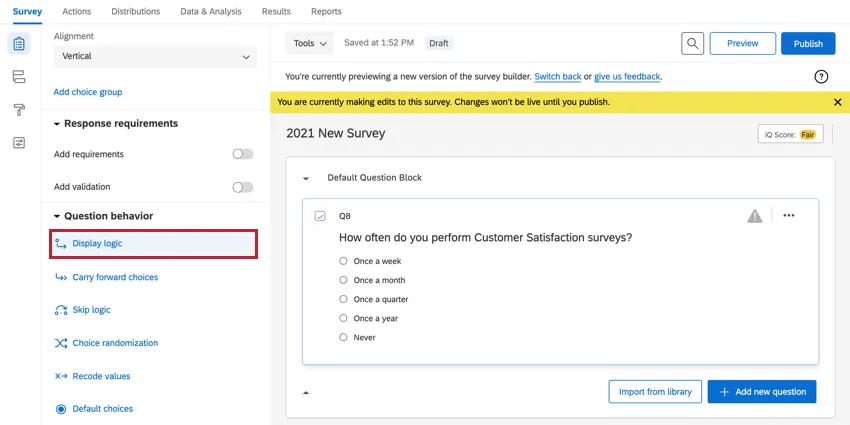
You can use display logic to create a survey that is customized to each respondent. When a specific question or answer choice pertains only to certain respondents, you can set display logic on it so that it shows conditionally based on previous information. You can choose to conditionally display both questions and answer choices, allowing you to create a survey that dynamically adapts to your respondent’s answers. Display logic is found in the Question behavior section of the survey builder.
Qtip: If you’re looking to skip respondents to a later part in your survey based on their answer choices, use skip logic instead.

Qtip: Display logic is ideal for conditionally displaying answer choices or single questions. If you have a group of questions that require the same logic, consider using branch logic instead.
Setting Question Display Logic
This section walks through using display logic to conditionally display a question based on the respondent’s previous answers.
Example: Let’s say you have a survey that asks respondents two questions: “Do you have any children?” and “How many children do you have?” You can set display logic on the second question so that only respondents who answered “Yes” to “Do you have any children?” will see the question asking them how many children they have.

Attention: Using display logic will insert a page break after the question with the display logic unless the In Page option is enabled. See using in page display logic for more information.

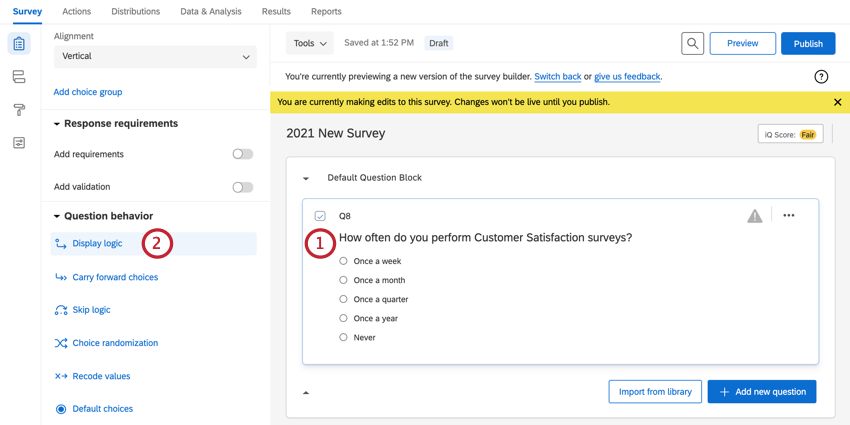
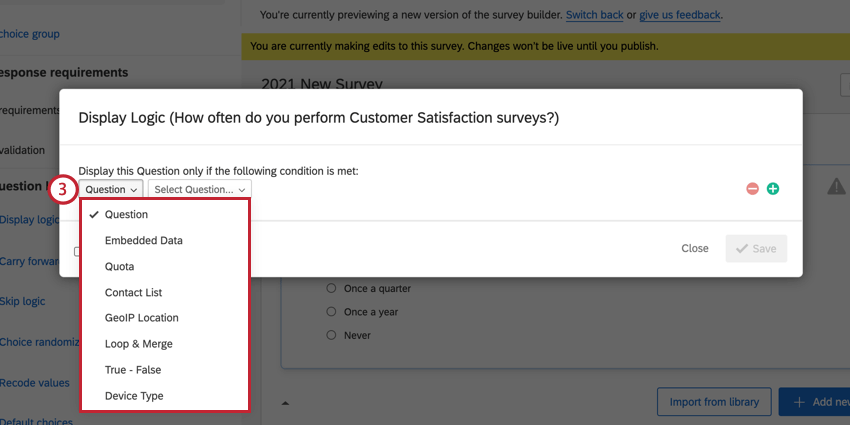
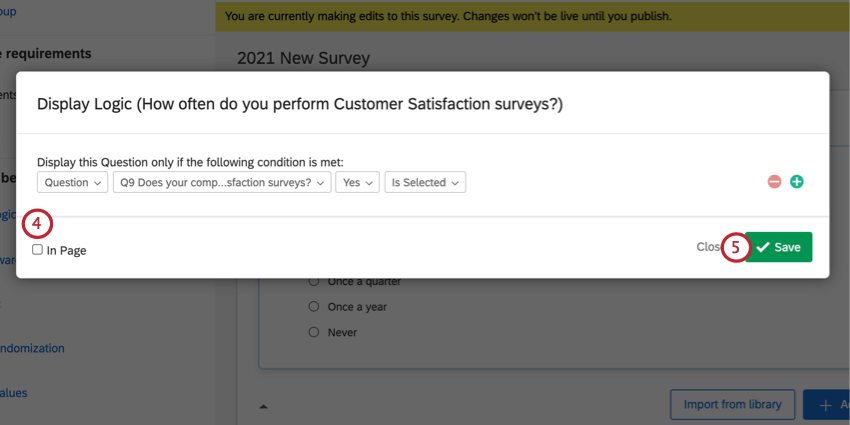
- Question: Display a question only if the respondent chose a specific answer to a previous question. This is the only option compatible with in page display logic (see below). See logic based on a question and a list of possible fields for question logic.
- Embedded Data: Use any information you have stored about the respondent to set display conditions. For example, only display a question to those who have an embedded data field for Age, equal to 25. See logic based on embedded data.
- Quota: Once a Quota has been created, set a condition based on whether or not the quota has been met. See logic based on a quota.
- Contact List: Base the condition on information already stored in a contact list field, such as first name, last name, or email. See a list of logic based on a contact list.
- GeoIP Location: Automatically use the IP address of the survey participant to estimate their location and set a condition based on country, city, postal code, etc. See logic based on GeoIP location and a list of possible fields for GeoIp location logic.
- Loop & Merge: After a loop and merge block has been created, set the conditions within the loop and merge based on the current loop. See logic based on loop and merge.
- Device Type: Base the condition on what type of mobile device is or is not being used, including Mobile (any mobile device), Blackberry, Android, iPhone, iPod, Opera Mobile, Palm, Windows Mobile, and Other Mobile (any mobile device that is not listed here).
- True – False: Create a condition that always evaluates to true (meaning the question will always display) or false (meaning the question will never display). This is particularly useful when building and testing your survey. See logic based on true – false.
Qtip: For an in-depth resource to help build complex logic conditions, or for help troubleshooting your logic, consult our using logic support page.
Features incompatible with In Page Display Logic
Pretty much every question type can have in page display logic applied to it. However, when you’re creating the condition under which display logic is activated, in page functions are not always compatible.
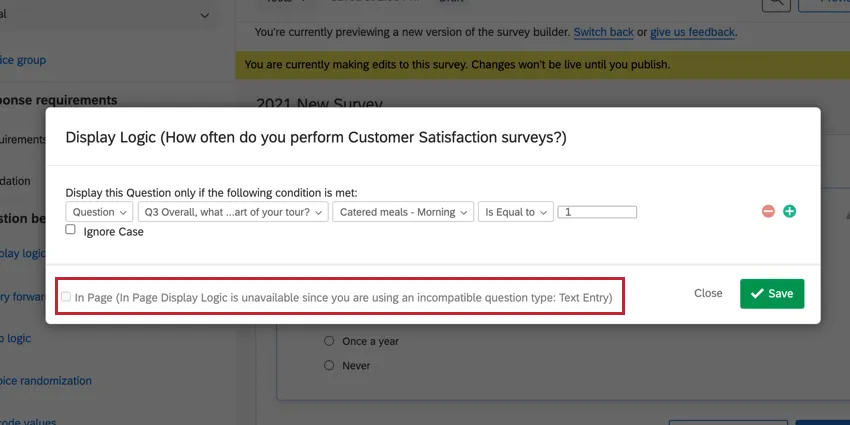
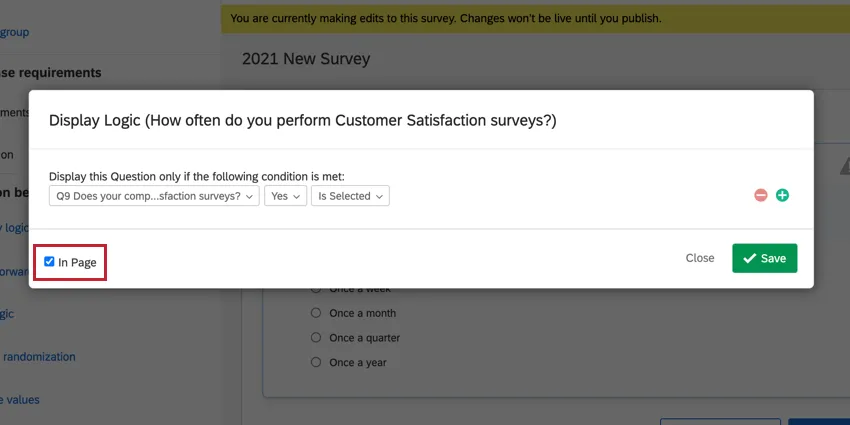
Example: In the screenshot above, the display logic is based off a text entry question, so in page functions can’t be applied since text entry is incompatible with in page logic. It does not matter that the question with the display logic on it is compatible.
Here’s a list of some of the features incompatible with in page display logic:
- Loop and merge
- Skip logic
- Multiple choice – dropdown list questions
- Text entry questions
- Pick, group, and rank questions
- Drill down questions
- Constant sum questions
- Side by side questions
- Rank order questions
- Heat map questions
- Hot spot questions
- Graphic slider questions
- Timing questions
- File upload questions
- Answer choice display logic
- Carry forward answer choices
Setting Answer Choice Display Logic
Answer choice display logic is used when you want to conditionally display certain answer choices in your survey.
Attention: Answer choice display logic is not compatible with in page display logic.
Example: For example, let’s say you’re running a survey for a hotel company and ask respondents to select all of the countries they’ve recently visited. In a follow-up question, you list all of your hotel locations and ask respondents if they stayed at that location when they visited. You can use answer choice Display Logic to hide hotel locations from respondents who did not visit a specific country.
Qtip: If you want to repeat a respondent’s selected answer choices across multiple questions, use carry forward instead. For example, let’s say you ask respondents to choose their favorite foods from a list. In the next question, you want them to rank their selected foods by preference. Instead of duplicating your question and adding display logic to every single answer choice, use carry forward to repeat the respondent’s selected choices in a new question.
- Question: Display a question only if the respondent chose a specific answer to a previous question. This is the only option compatible with in page display logic (see below). See logic based on a question and a list of possible fields for question logic.
- Embedded Data: Use any information you have stored about the respondent to set display conditions. For example, only display a question to those who have an embedded data field for Age, equal to 25. See logic based on embedded data.
- Quota: Once a Quota has been created, set a condition based on whether or not the quota has been met. See logic based on a quota.
- Contact List: Base the condition on information already stored in a contact list field, such as first name, last name, or email. See a list of logic based on a contact list.
- GeoIP Location: Automatically use the IP address of the survey participant to estimate their location and set a condition based on country, city, postal code, etc. See logic based on GeoIP location and a list of possible fields for GeoIp location logic.
- Loop & Merge: After a loop and merge block has been created, set the conditions within the loop and merge based on the current loop. See logic based on loop and merge.
- Device Type: Base the condition on what type of mobile device is or is not being used, including Mobile (any mobile device), Blackberry, Android, iPad, iPhone, iPod, Opera Mobile, Palm, Windows Mobile, and Other Mobile (any mobile device that is not listed here).
- True – False: Create a condition that always evaluates to true (meaning the question will always display) or false (meaning the question will never display). This is particularly useful when building and testing your survey. See logic based on true – false.
Qtip: For an in-depth resource to help build complex logic conditions, or for help troubleshooting your logic, see our using logic support page.
Editing & Removing Display Logic
Question Display Logic
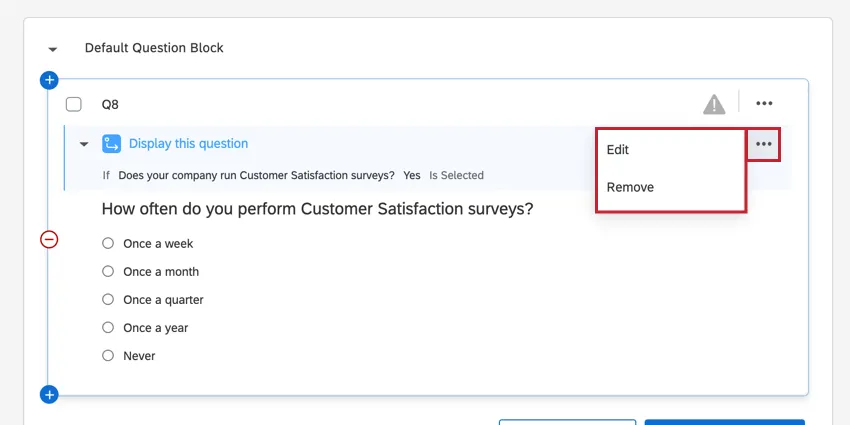
After applying display logic to a question, a blue bar will appear. You can edit the display logic by clicking on the dropdown menu on the right of the blue bar and selecting Edit. To remove the display logic, select Remove.
Answer Choice Display Logic
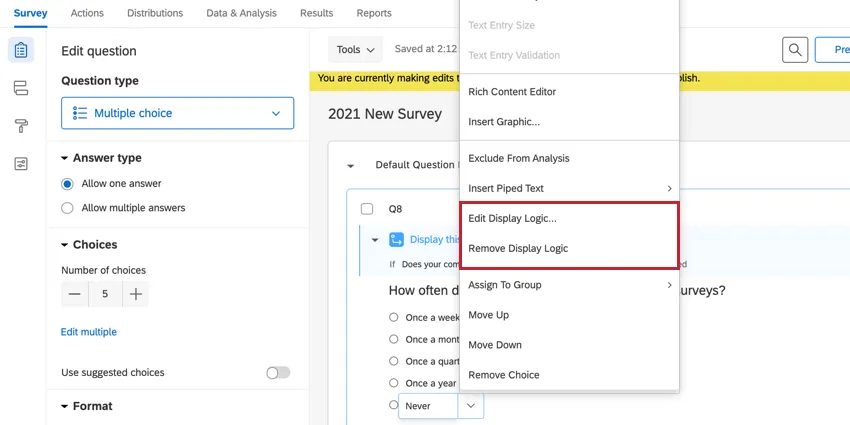
After applying display logic to the answer choices, an arrow will appear to the left of the answer choice. To edit display logic, click the dropdown menu to access the choice options list and select Edit Display Logic. To remove the display logic, select Remove Display Logic.
Hiding Questions and Answer Choices
Have you ever decided that you wanted to remove a question or answer choice halfway through the study? You still want to be able to analyze the data, but you don’t want respondents to see it and respond to it anymore. You can accomplish this with display logic.
To hide a question, you can select Hide question and display logic will be added automatically. For instructions on hiding questions, see Hiding Questions.
Qtip: You can also hide questions but retain their data using advanced question randomization under block options.
Hiding Answer Choices
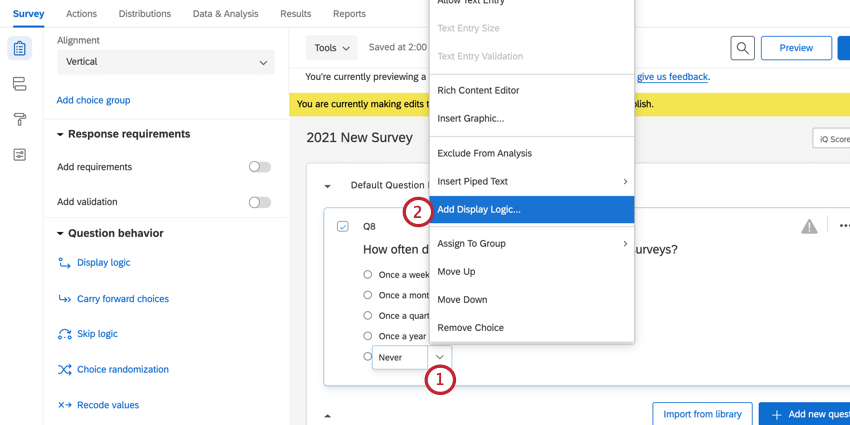
Select the question that contains the answer you want to hide.
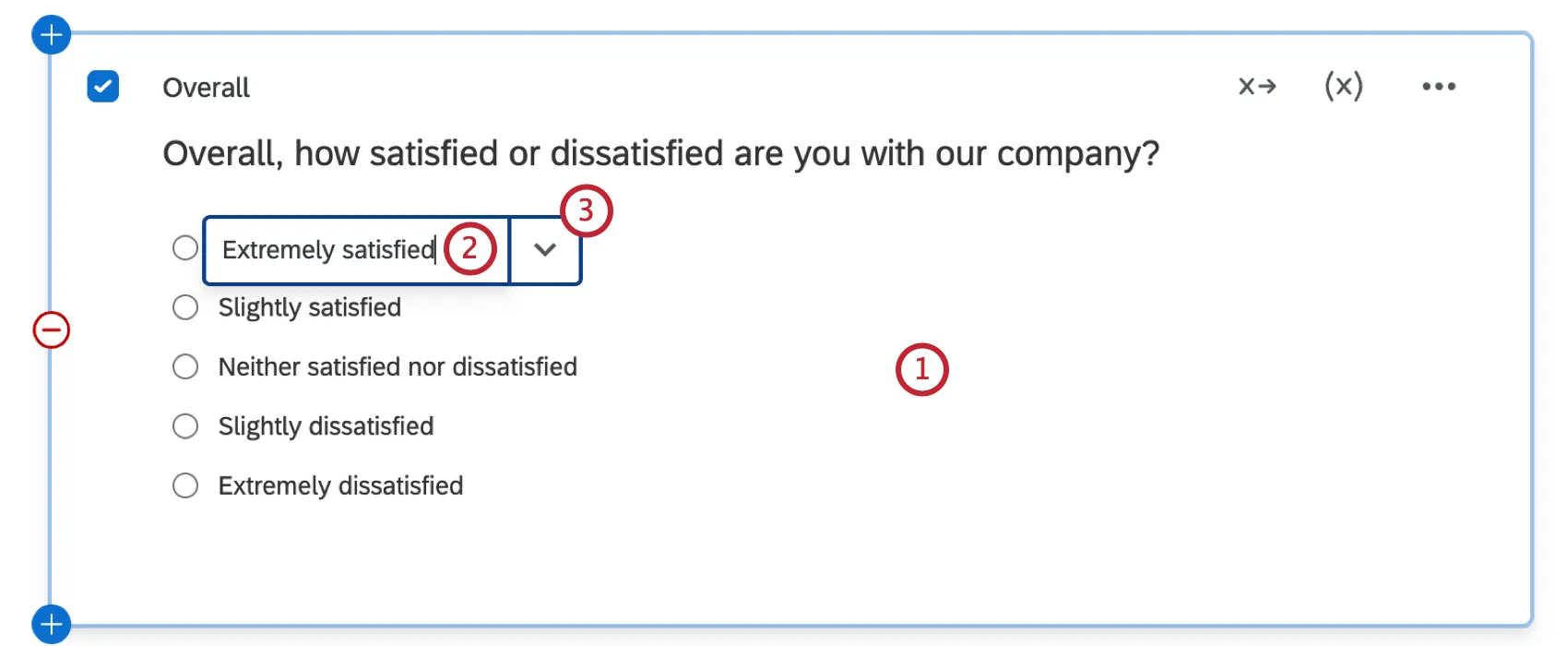
Select the answer choice you want to hide.
Click the arrow to the right of the answer choice.
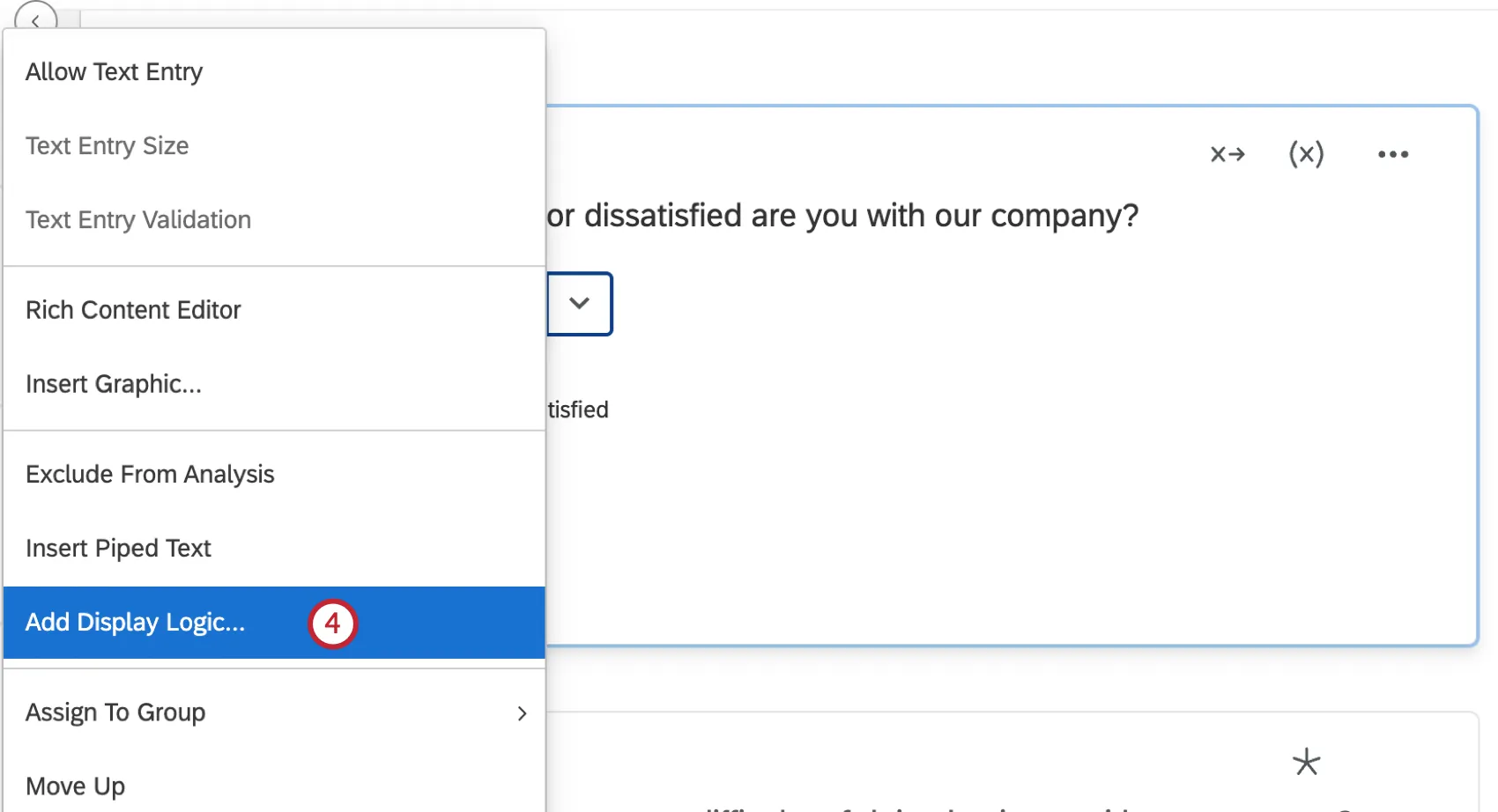
Select Add Display Logic.
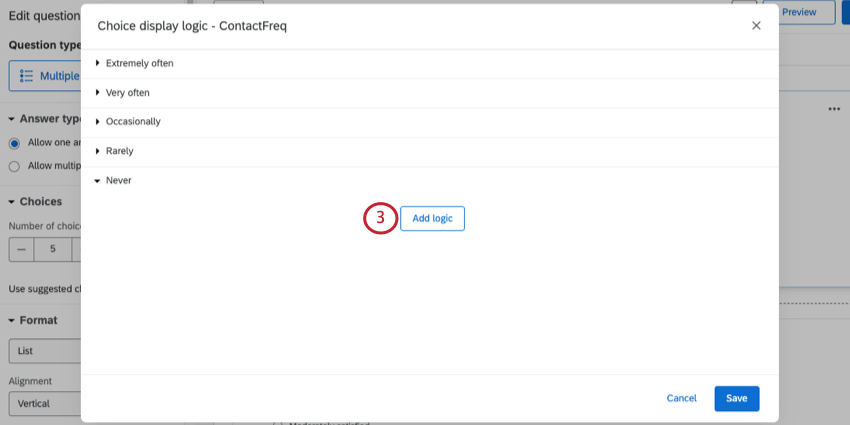
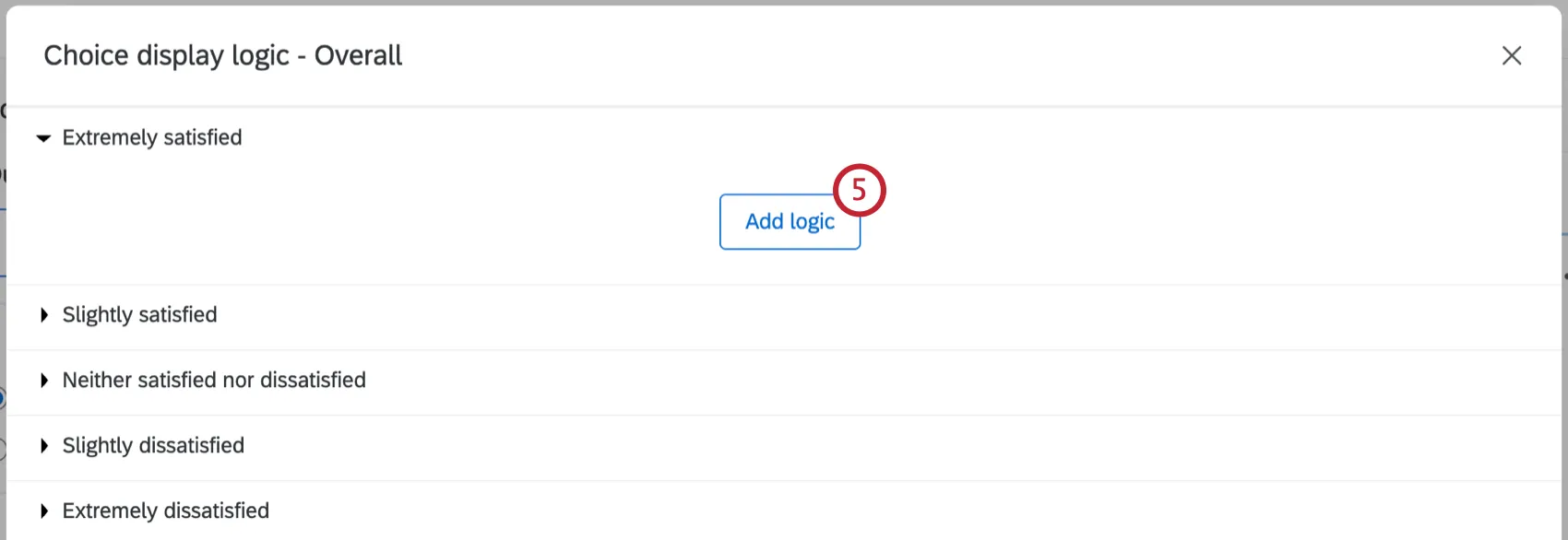
Click Add Logic.
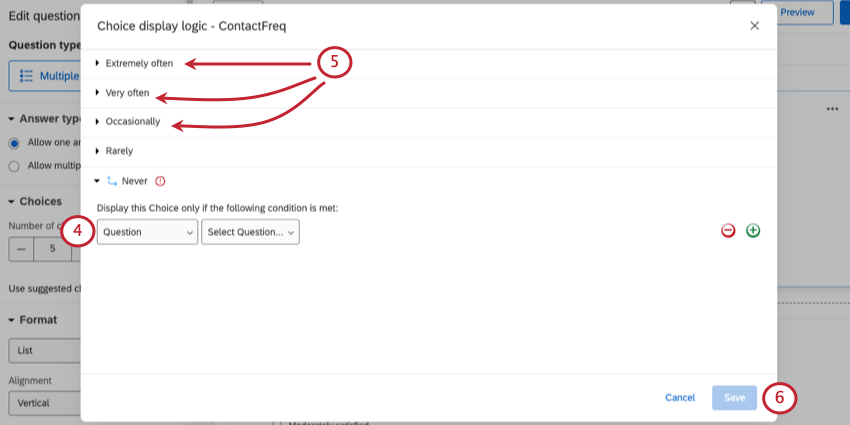
Using the first dropdown menu, select True – False.
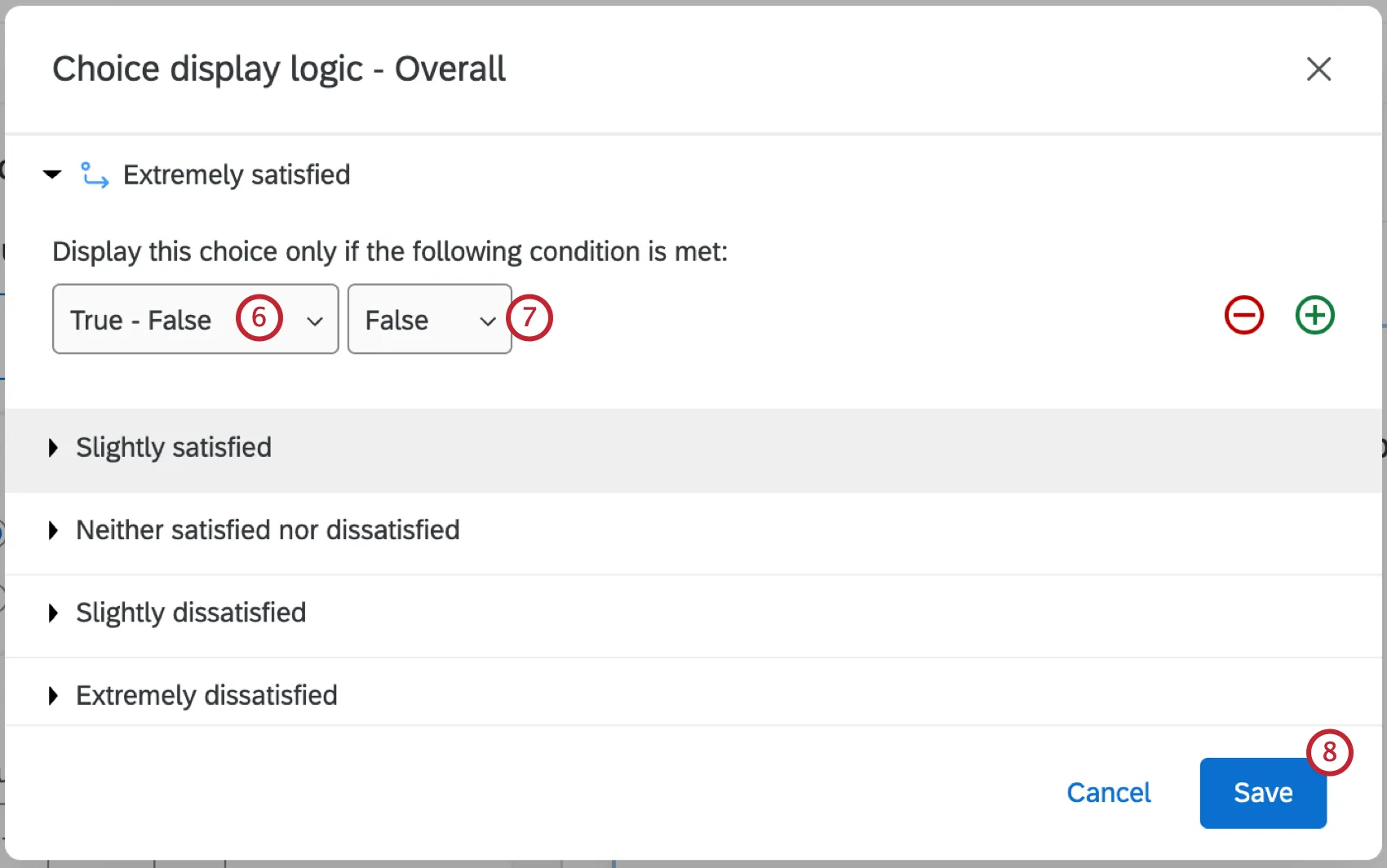
Select False in the second dropdown menu.
Click Save.
Since you’ve created a false logic statement, the question will never be displayed.
Warning: Once you’ve collected data, it is recommended never to delete answer choices, as this can lead to invalidated data. Hiding answer choices allows you to edit your live survey while also preserving your collected data.
Using In Page Display Logic
If desired, select the In Page checkbox if you want the question to appear immediately once the condition is met, rather than displaying it on the next page of the survey.
Attention: In page display logic is not compatible with answer choice display logic.
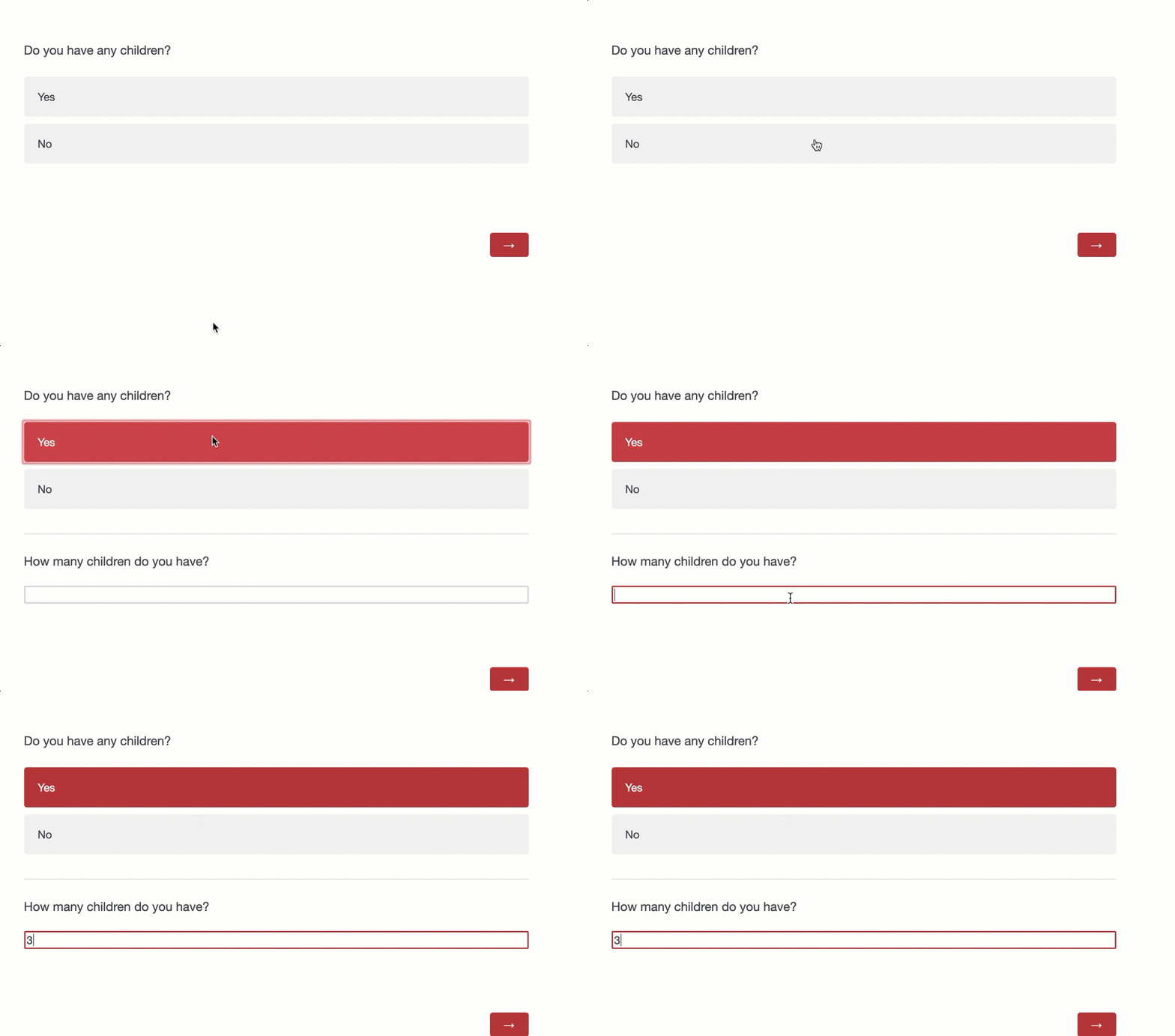
Example: Let’s take a look at in page display logic in action. In this example, we’re asking respondents if they have any children. If they answer “yes,” a second question dynamically appears asking them how many children they have.
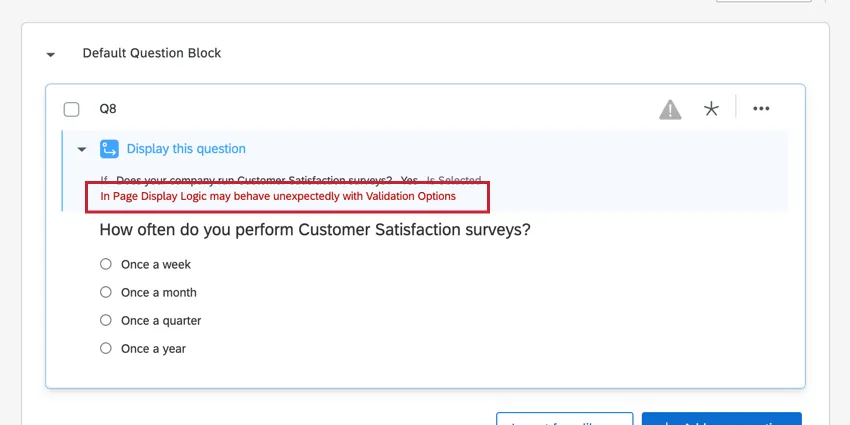
Qtip: In page display logic may behave unexpectedly when used in conjunction with certain features. When this is the case, Qualtrics will display a warning letting you know which feature is causing the issue. This warning means that the question may not display properly to your respondents and could impact the survey taking experience. We recommend either disabling the other feature, or not using in page logic if you see this message.
Troubleshooting Display Logic
Below is a list of common errors and support resources to help you troubleshoot display logic.
Additional Resources
- Using logic: This support page is a general guide on how to use logic in Qualtrics. The following sections of the using logic page are particularly helpful:
- Creating conditions: This section walks through building a condition from scratch, breaking down each aspect of creating a condition.
- Adding multiple conditions: As your survey grows more complicated, your logic likely will too. You may need to add multiple conditions to your display logic to make sure the right respondents are shown the right questions. This subsection shows you how to set up these multiple conditions correctly with multiple examples to help guide you.
- Creating advanced logic with logic sets: Logic sets are sets of statements that are evaluated together. Logic sets allow you to say that if one group of statements is true AND/OR if another group of statements is true, then the condition is true. We recommend using logic sets as you start to add more conditions to your display logic since they make the logic easier to organize.
“Invalid Logic”
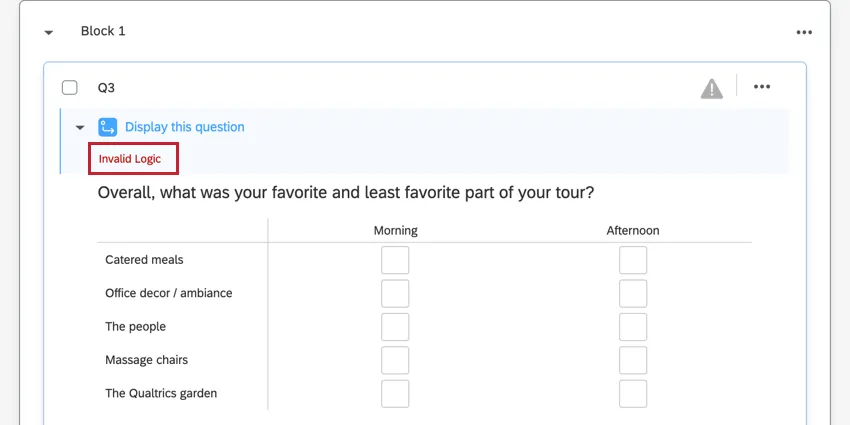
This error appears when the display logic you set up is no longer valid. Usually, this is because the question or answer choice the display logic is based on has been deleted. If the question has been deleted, you can restore it from your trash and the display logic will also be restored. If restoring the question does not fix the display logic, you will need to rebuild the display logic.
Additional Display Logic Issues
ExpertReview will flag any survey questions with invalid display logic. ExpertReview looks for issues with survey methodology, and can identify issues that you may easily miss. For example, ExpertReview will flag if you’ve created display logic based on a question the respondent hasn’t yet seen. The survey editor won’t flag this issue, but ExpertReview will.
Check out this support page for a comprehensive list of issues with examples, and suggestions of how to resolve them.
Display Logic in Different Project Types
This type of question behavior is available in many different types of projects. The options described on this page are available in:
There are a few other projects that have access to question behavior, but with unique functionality to keep in mind.
- For 360 projects, see Question Behavior (360).
- For Conjoint and MaxDiff, see this support page.
FAQs
Why are my page breaks being ignored?
Why are my page breaks being ignored?
- Questions per Page set in the Look and feel
- Question randomization set up in a block
- Skip logic, display logic, and carry forward (all 3 by default will insert a page break)
I am having trouble setting up logic to display a question or set of questions to a specific subset of my respondents.
I am having trouble setting up logic to display a question or set of questions to a specific subset of my respondents.
I want to hide or show questions for different respondents based on their answers or Embedded Data. How can I do this?
I want to hide or show questions for different respondents based on their answers or Embedded Data. How can I do this?
I want to remove a question or answer choice from a survey, but I’ve already collected some data. What do I do?
I want to remove a question or answer choice from a survey, but I’ve already collected some data. What do I do?
That's great! Thank you for your feedback!
Thank you for your feedback!