

Branch Logic
What's on this page
About Branch Logic
Branches are useful when you want to send respondents down different paths in your survey. You can use branch logic to direct respondents to different survey flow elements based on variables like question responses or embedded data. It’s a bit like a choose your own adventure novel. The way your respondents answer certain questions will influence the route they take through your survey.
Example: You can use branches to show a block of questions to survey respondents who own your product and a different block of questions to respondents who don’t. You can also use branches to tag users with embedded data labels.

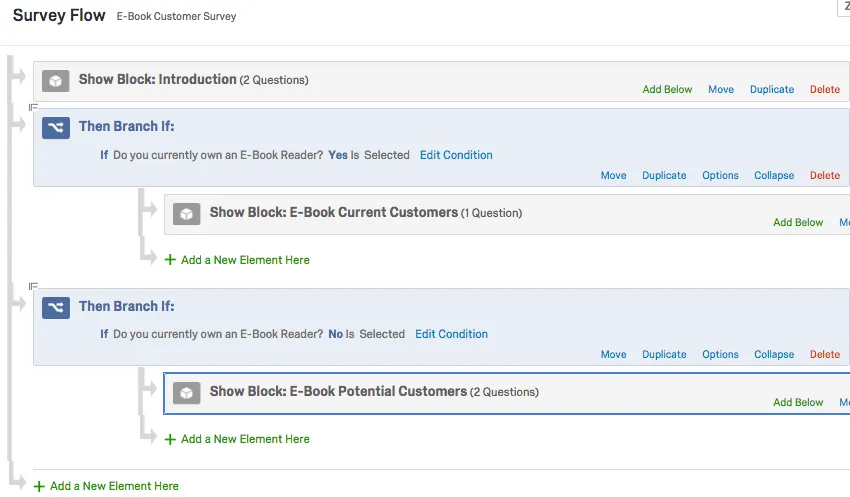
This survey uses branch logic to send respondents who own an E-Book reader to the e-Book Current Customers block, and respondents who don’t to the Potential Customers block.
Qtip: Branches are best for when you want to show a whole block of questions. If you need to hide or display a small number of questions, consider using display logic. If you want to skip respondents to the end of a survey or to a different question within the same block, consider using skip logic.

Attention: Branch logic will disable the back button on the first page of the block that follows it.

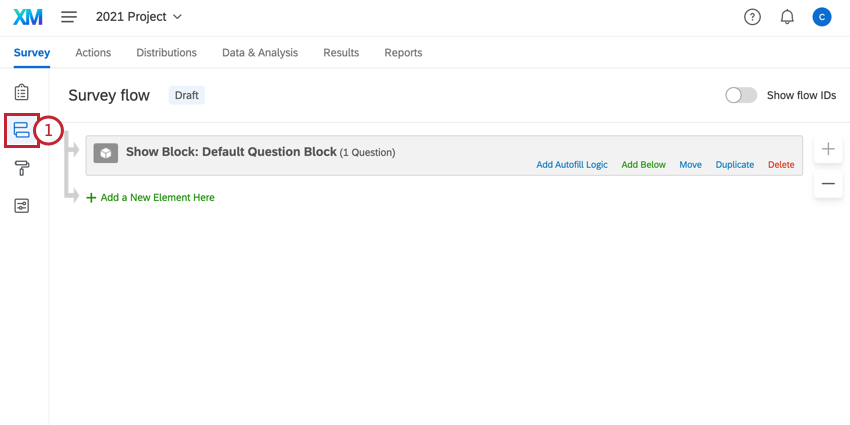
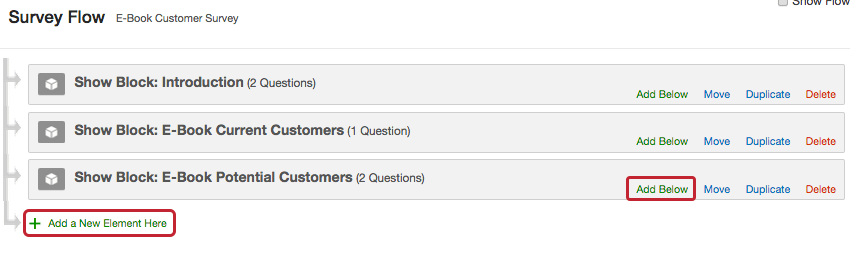
Adding a Branch
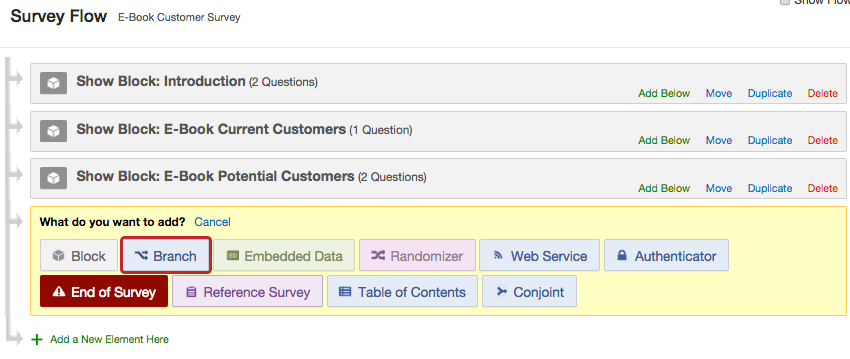
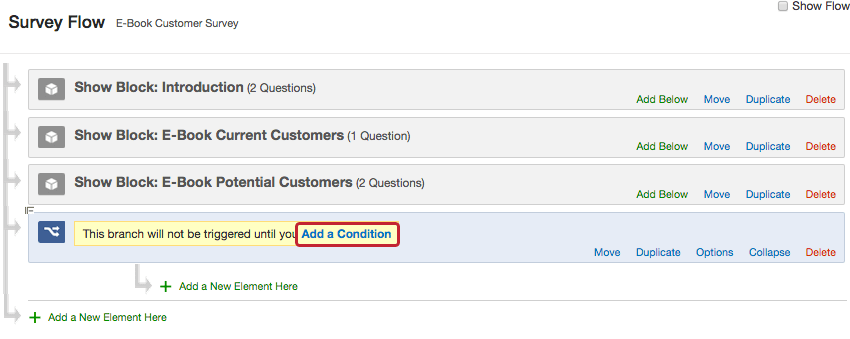
Qtip: For more information on setting logic conditions, see using logic.
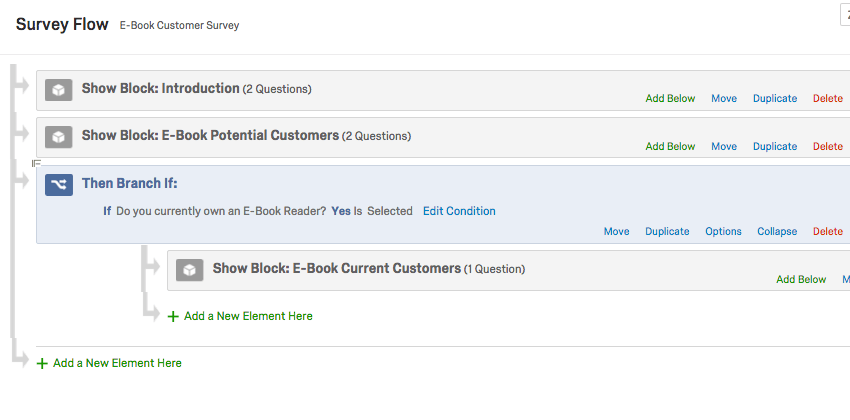
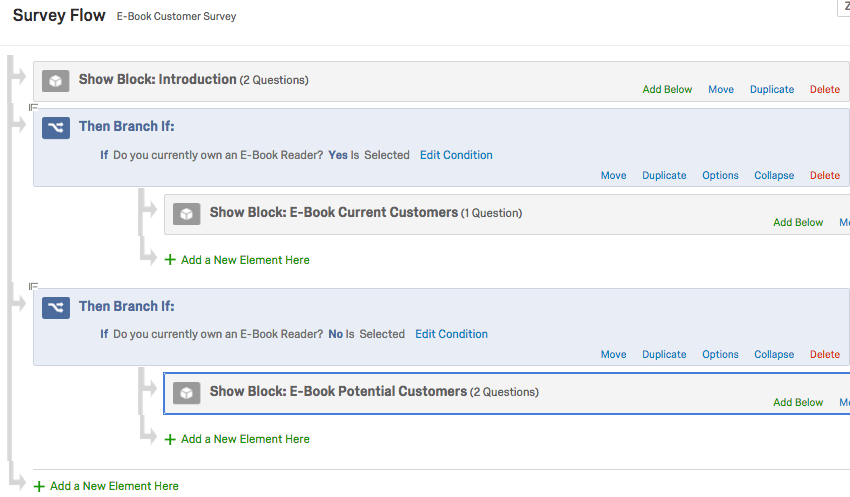
Example: In the above image, participants who answer “Yes” to the question “Do you own an E-Book reader?” will be shown the “E-Book Current Customers” question block. They will not be shown the “E-Book Potential Customers” block since they do not meet the condition for that branch.
Qtip: Elements that you exclude from your branch will not be shown to the respondent.
Adding Multiple Items to a Branch
Sometimes you may want to nest multiple items under 1 branch or have a branch within a branch. To do this, add the items to your survey flow as normal and then move them under the desired branch.
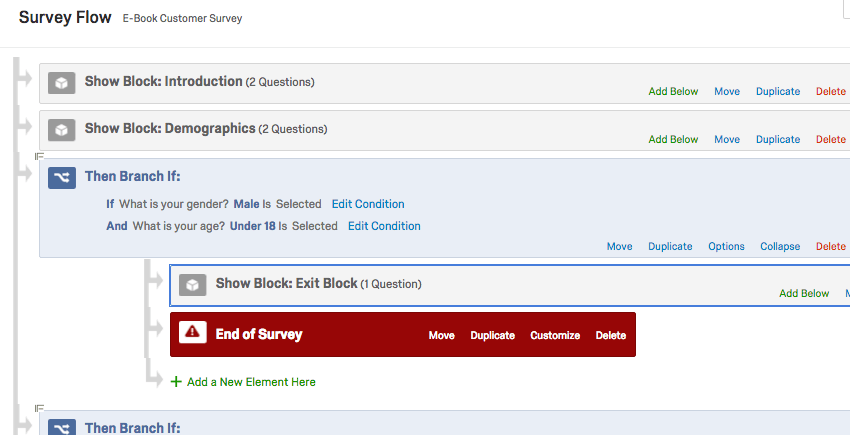
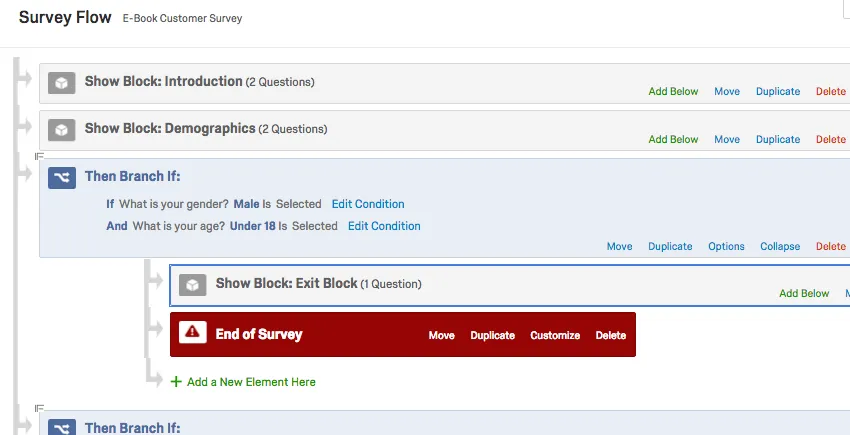
In the above image, after viewing the Demographics block, any respondent who is male and under 18 will be shown a special Exit Block and then have their survey terminated.
Qtip: If you want to use the same block of questions in multiple branches, you can add the block to the survey flow multiple times.
Respondent Experience
The survey flow represents the order that respondents will move through your survey. Each time someone takes the survey, they move through the flow top-to-bottom and left-to-right. When a respondent reaches a branch in the survey flow, they will follow that branch until they reach a condition that they don’t meet, or until they reach an end of survey element.
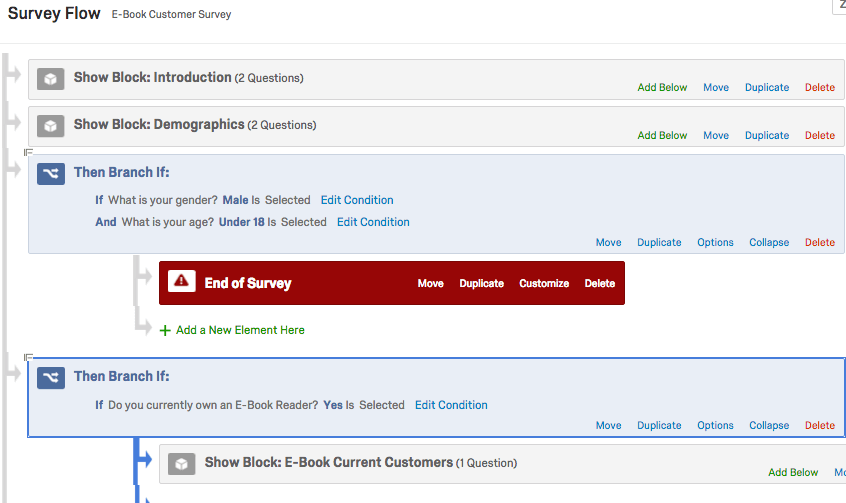
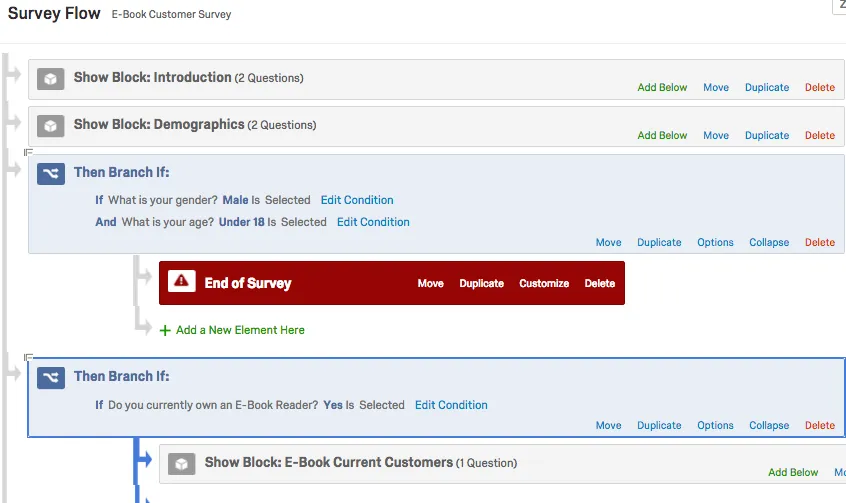
In the above image, each respondent taking this survey will start with the Introduction and Demographics blocks of questions. After, males who are under 18 years old will be directed out of the survey. Everyone else will then continue to the E-Book Current Customers block.
When a respondent reaches the end of a branch that doesn’t terminate in an end of survey element, they will continue to the next element in the survey flow.
Exclude from Progress Bar Calculation
To help your respondents keep track of how much of the survey they’ve completed, you can insert a progress bar into your survey. By default, the progress bar increments for every question the respondent passes when hitting Next.
There are some scenarios where you may want to exclude a set of questions from the survey’s progress. Maybe you have a branch where you ask some filler questions before screening participants out, and you don’t want the progress bar to make such a big leap when other respondents successfully make it past this screen-out. You may also want to make sure you get an accurate reading when you assess the percentage a respondent still working on their survey has completed, or export the completion percentage for an incomplete response.
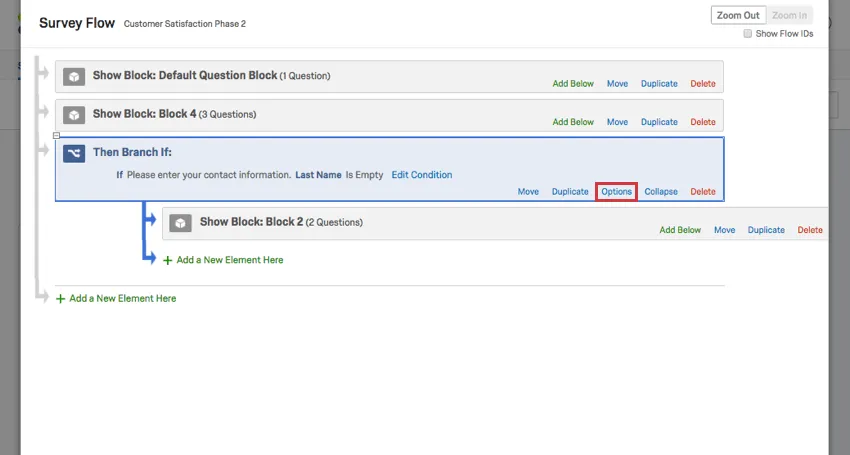
There is a branch option that allows you to exclude that branch from the survey’s progress. In the survey flow, click Options on your branch.
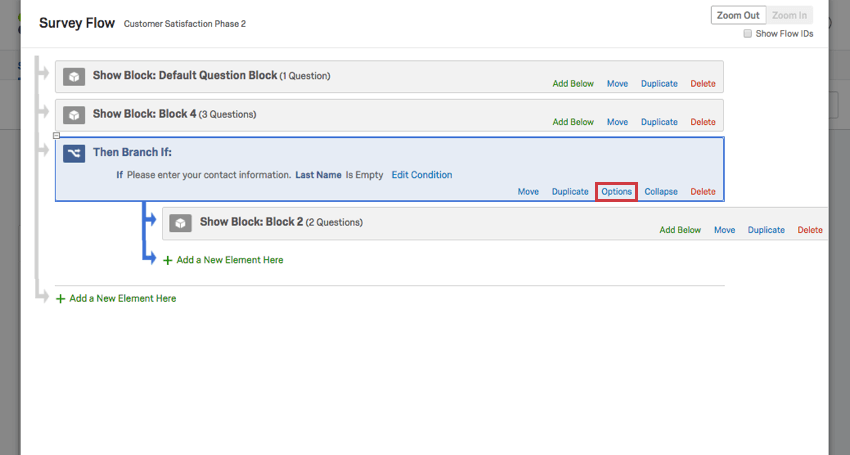
Select Exclude from progress bar calculation. Then click OK.
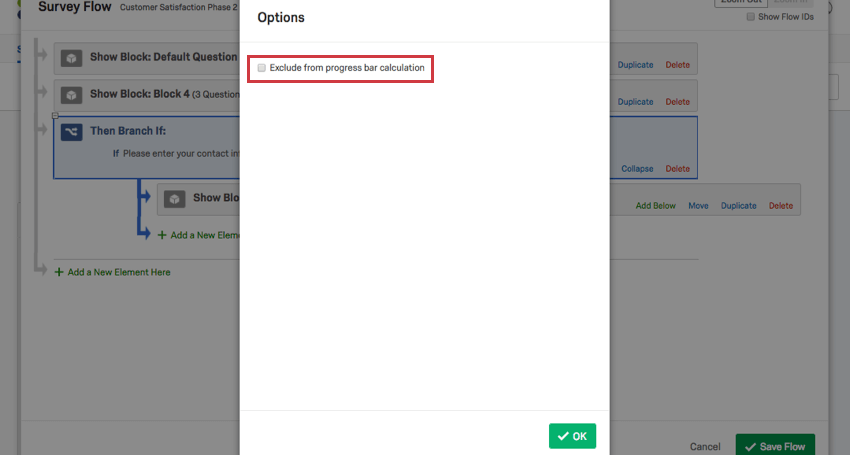
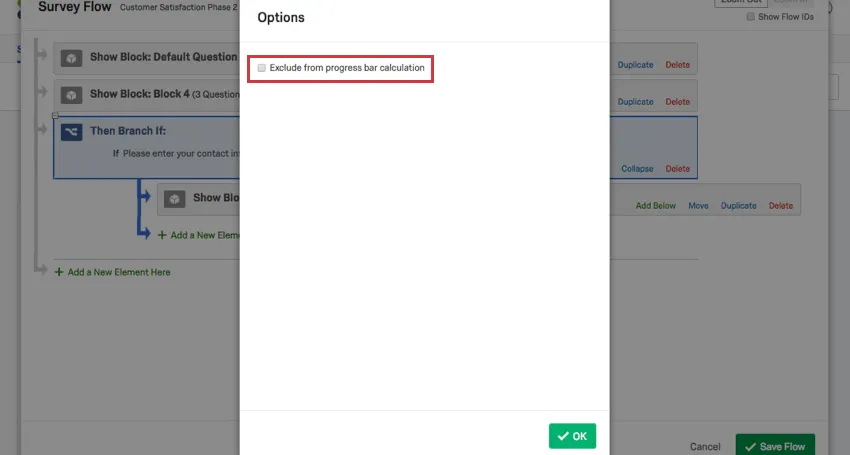
This removes the branch from the progress bar calculation, so any interaction respondents have with the branch won’t impact how their survey progress appears.
Types of Projects this Feature Is Available In
Branches are compatible with every type of project that lets you customize a survey flow. This includes:
FAQs
How do I display different messages for different participants at the end of the survey?
How do I display different messages for different participants at the end of the survey?
I used my quota as a condition in Branch Logic, but instead of kicking out just the respondents who meet the conditions, it is kicking all of my respondents out. What is going on?
I used my quota as a condition in Branch Logic, but instead of kicking out just the respondents who meet the conditions, it is kicking all of my respondents out. What is going on?
Many times this problem is caused by a branch that looks like this:
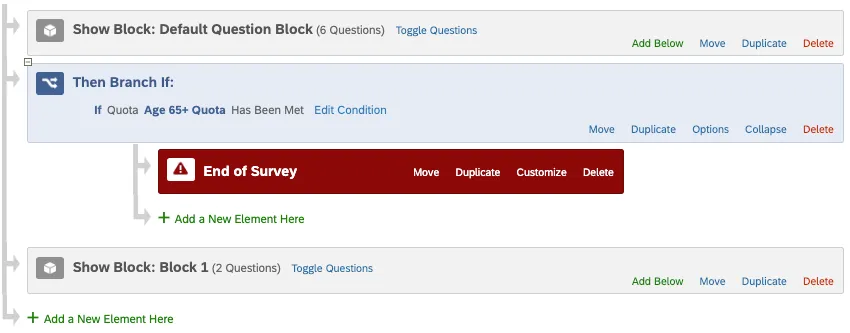
With this logic, once the quota is filled, we end the survey for everyone who gets to this branch. If we want to only end the survey for respondents who meet the conditions of the filled quota, we would need to add additional conditions into our branch logic. The revised logic would look something like this:
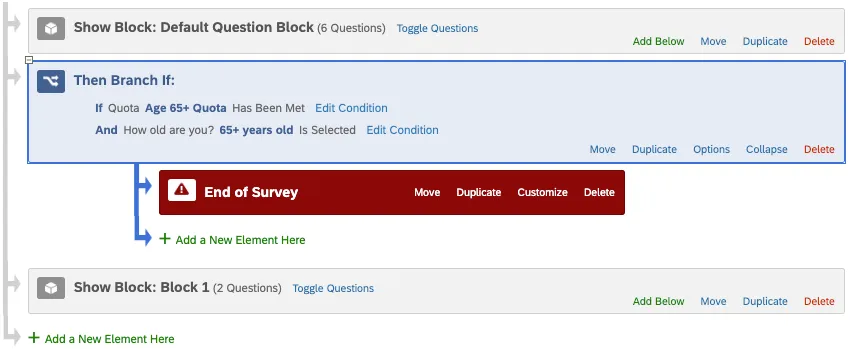
Keep in mind that this setup is only necessary if you need to record embedded data before redirecting your respondents out of the survey. If you do not need to record this information, an easier way to meet your needs would be by using the End Current Survey quota option.
I am having trouble setting up logic to display a question or set of questions to a specific subset of my respondents.
I am having trouble setting up logic to display a question or set of questions to a specific subset of my respondents.
How do I branch my respondents based on today's date?
How do I branch my respondents based on today's date?
When creating logic based on today's date, you need to save the day, month, and year as separate embedded data fields with your response. You can then use logic based on your embedded data fields to send your respondents down different paths based on today's date.
When creating your embedded data fields, use the following piped text codes for your fields:
- Day: ${date://CurrentDate/d}
- Month: ${date://CurrentDate/m}
- Year: ${date://CurrentDate/Y}
Let's run through an example on how to use these fields with branch logic. In this example we want our branch to only include people who are taking the survey in the first half of January. Our logic has three main compontents, one for each piece of the date: Using these logic statements, our branch will capture all respodents who are taking the survey in the first half of January each year.
Why aren't respondents entering the branch I created?
Why aren't respondents entering the branch I created?
- Conditions: Make sure your conditions are set up correctly. If you're unsure, make sure to check out the Using Logic page.
- Blocks: Consider the question you're using to create the conditions for your branch. Is the question at the end of the block, or in the middle? Respondents have to finish the whole block before they can move onto any branch logic that may follow. Either split up your blocks, or use skip logic on that question to move people to the end of the block when they answer a certain way. Skipping respondents to the end of the block will send them directly to the branch logic.
That's great! Thank you for your feedback!
Thank you for your feedback!