

Translate Survey
What's on this page
About Translating a Survey
You can add multiple languages to a single survey. Each respondent can see the survey in a language they are comfortable with, and because there is just 1 survey containing all translations, all results will come back into the same dataset. For each survey, you can translate all the questions as well as the survey’s display name and description.
On this page you will learn about the methods available for translating your survey, how to specify which language each respondent sees, and how to analyze data for translated surveys.
Qtip: It’s best practice not to translate a survey until you are completely finished building your survey. If you make edits after uploading translations, make sure you also edit translations accordingly.
Qtip: Survey translation capabilities are only available to certain licenses. Talk to Account Services if you are interested in this feature.
Translations Overview
You can add, remove, and edit your survey’s translations by going to the Translations tab in the survey builder.
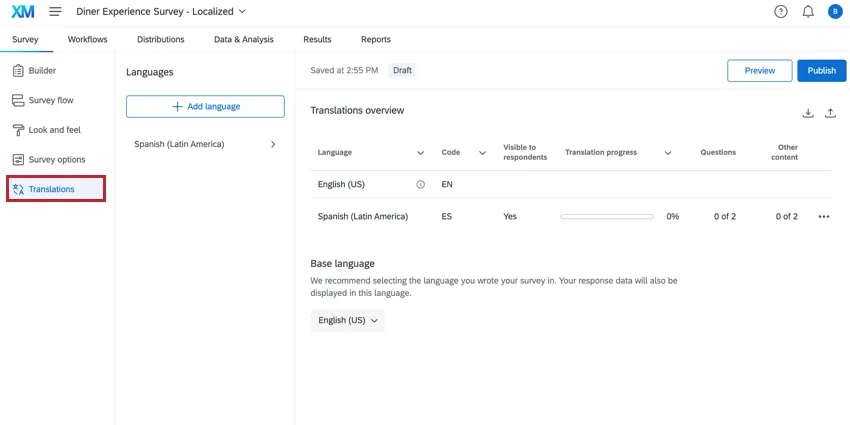
Translation Table
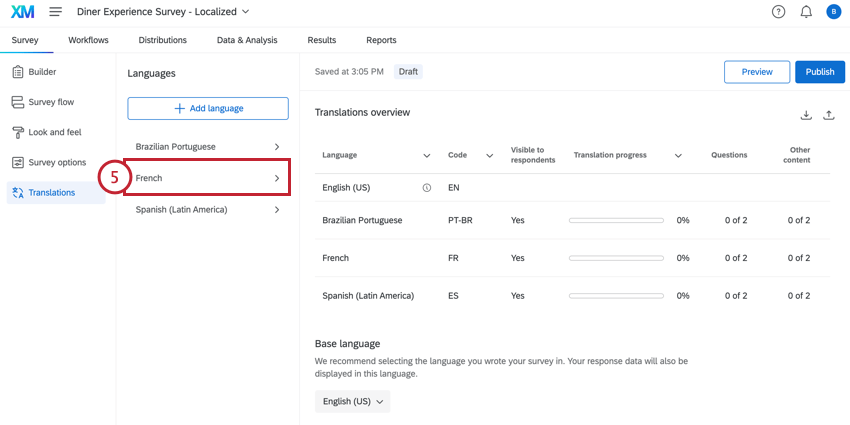
The table on the Translations overview page gives you a quick view of each of your survey’s translations. This table displays:
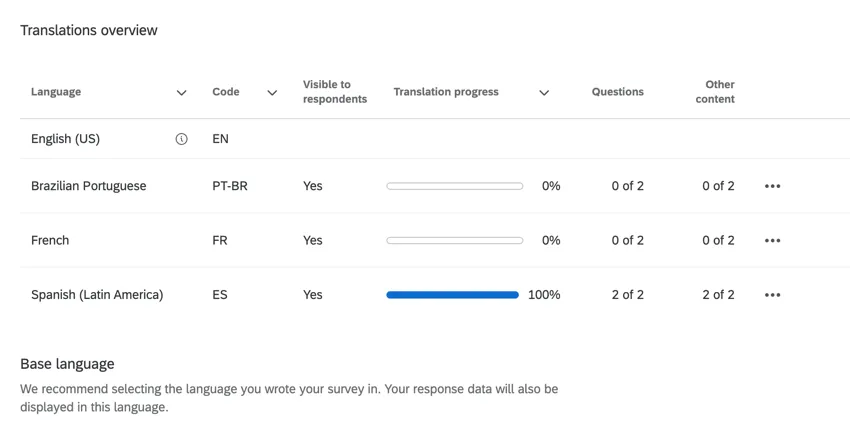
Language: The translation language. The survey’s base language will have an info icon next to it.

Qtip: The base language will have empty entries for most fields in this table since it is considered fully translated.
- Code: The language code for the translation.
- Visible to respondents: Indicates whether the language is visible to survey takers.
- Translation progress: Indicates how complete the survey translation is.
- Questions: Indicates how many questions have been translated out of the total number of survey questions.
- Other content: Indicates if the survey display name and description have been translated.
Qtip: If a field has an arrow next to the name, you can click on the field to sort the table.
Translation Options
Click the 3 dots next to a translation to see a list of options:
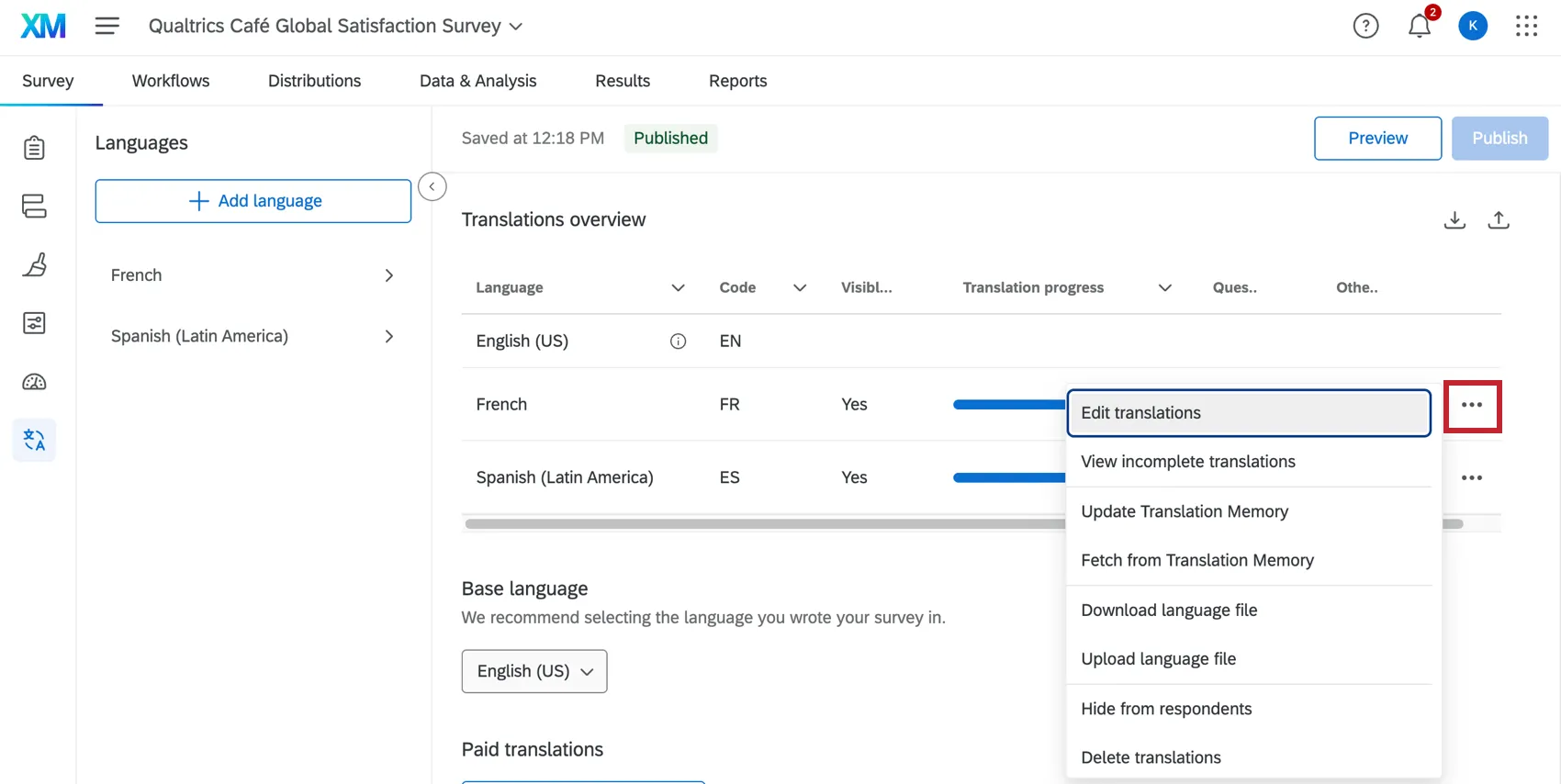
- Edit translations: Begin manually editing the translation.
- View incomplete translations: Begin manually editing the translation, with only the non-translated items visible in the editor.
- Update Translation Memory: Update the translation memory. For more information, see Translation Memory.
- Fetch from Translation Memory: Retrieve translations from the translation memory. For more information, see Translation Memory.
- Download language file: Download a language file to upload a translation.
- Upload language file: Upload a language file.
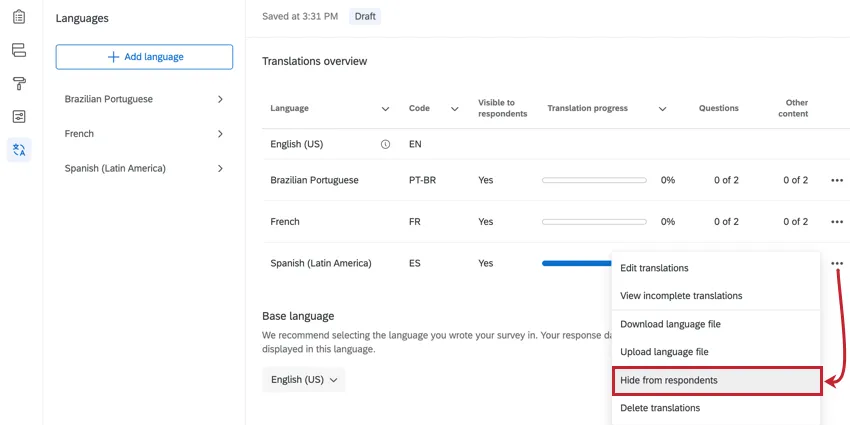
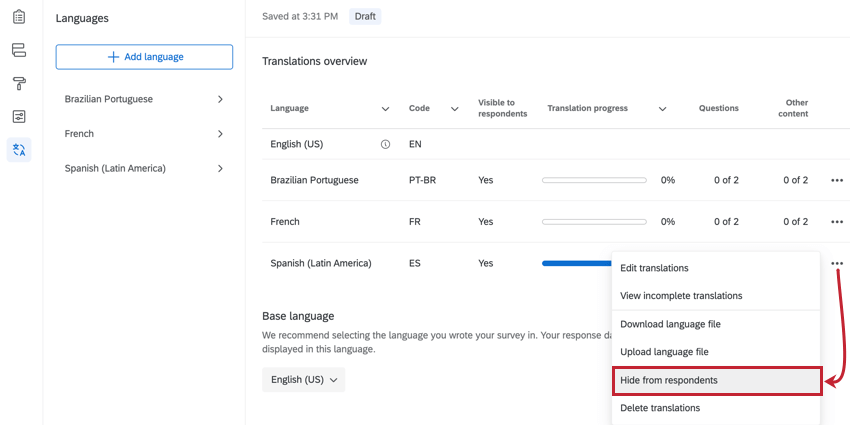
Hide from respondents: Removes this language as an option for survey takers. Choose Show to respondents to re-enable the language.

Attention: Selecting Hide from respondents option will hide the language from your exported file. You will need to show the language again to include it in exports.
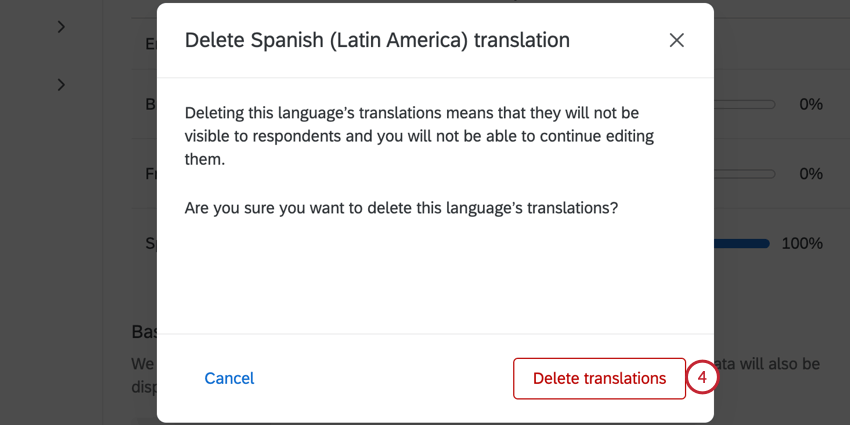
- Delete translations: Deletes the translation from your survey.
Base Language
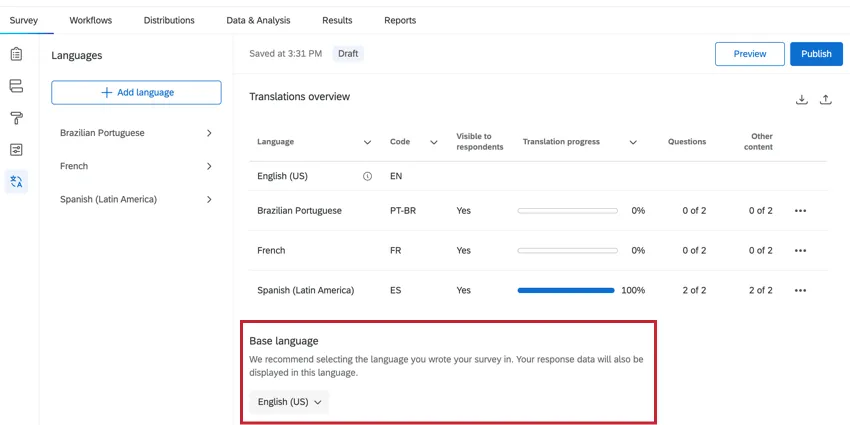
Qtip: It’s best practice to ensure that the base survey language is the language your survey is initially written in. If your base survey language is set to English, but you write your survey in Spanish, respondents will have to choose English from the language dropdown menu to view the survey in Spanish. This only occurs when other language translations are available.
By default, surveys use the language specified in your account settings for any default messages that may appear to respondents as they are taking your survey. However, you can change your survey’s language using the dropdown under Base language.
In addition, some languages like Arabic or Hebrew are read from right to left. Changing the survey language will change the way the survey editor displays the survey questions.
Manually Translating a Survey
This section covers how to manually add a survey translation.
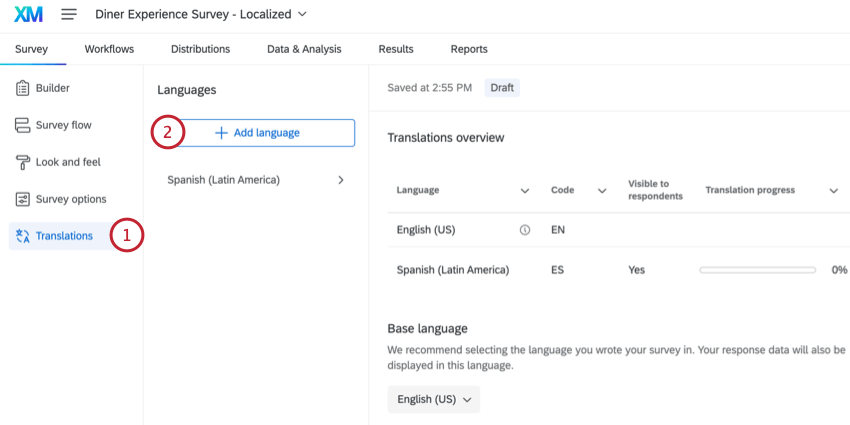
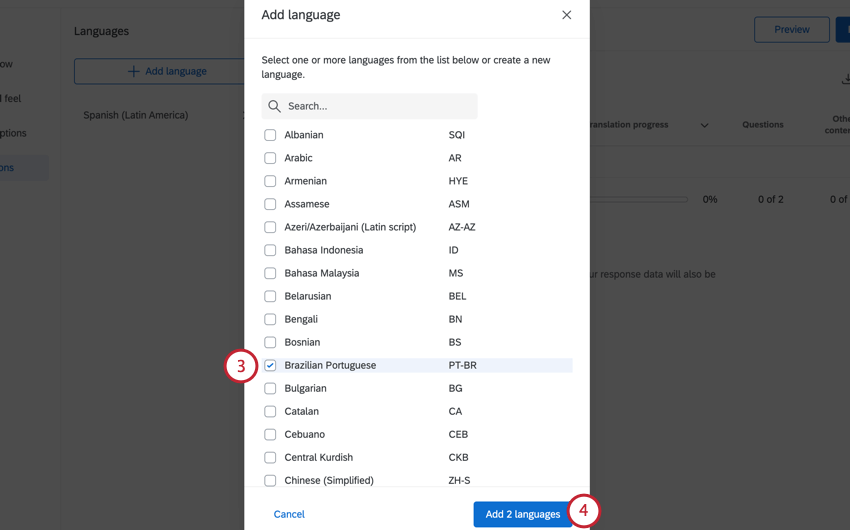
Qtip: Don’t see a language you’d like to use listed here? You can add it as a custom language to your survey.
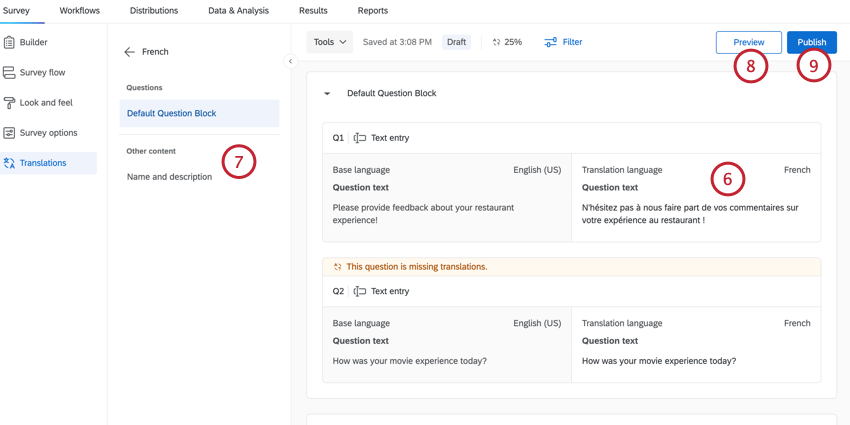
Qtip: Translations for certified questions cannot be manually edited. If you need to adjust the translation for a certified question, then please contact Qualtrics Support.
Qtip: Your survey’s display name and description can be translated by selecting them in this menu.
Qtip: When previewing your survey, you can change the language you take the survey in by using the language dropdown menu in the top right corner.
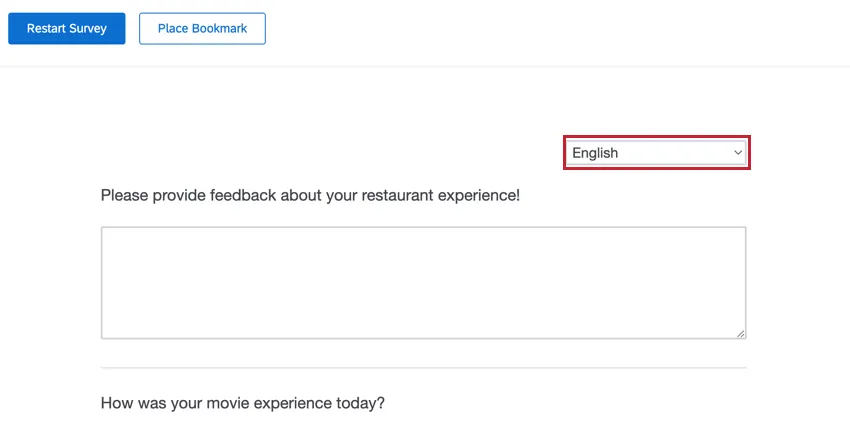
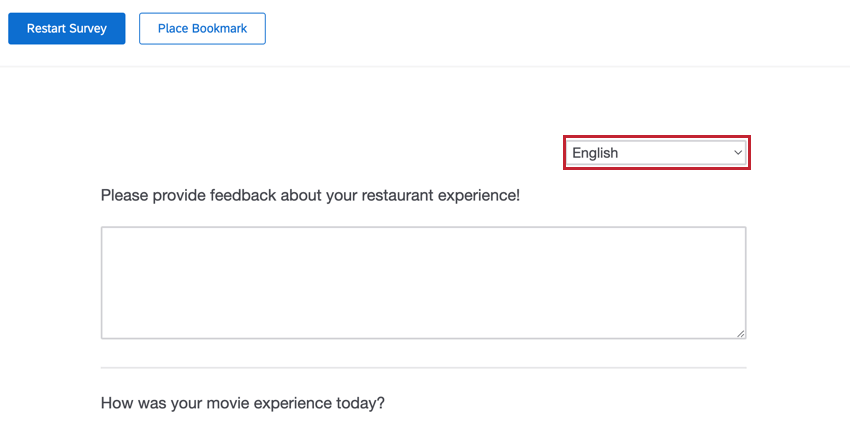
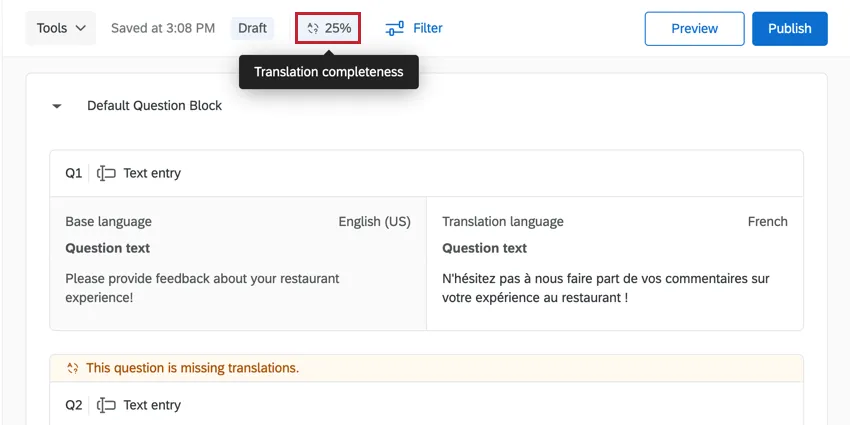
Qtip: The percentage at the top of the survey builder will tell you how much of your translation is complete.
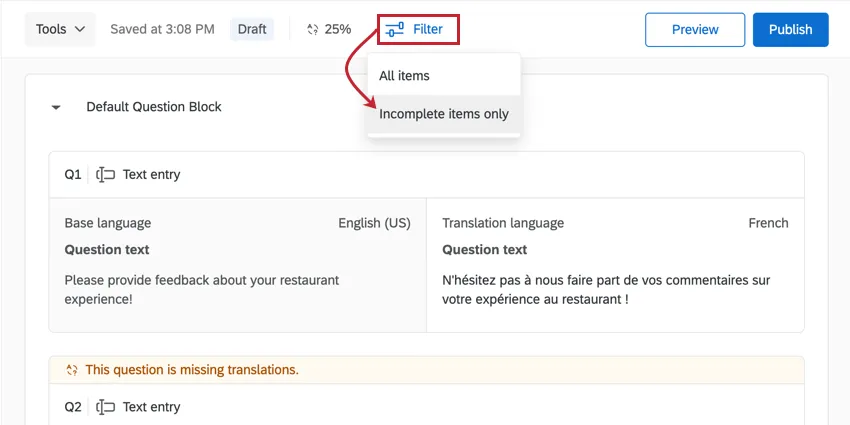
Qtip: Use the Filter at the top of the survey builder to filter for Incomplete items only to help you identify content to translate.
Automatic Survey Translation
Qtip: Brand Administrators can adjust which third-party providers are available for auto-translation. For steps, see Organization-Wide Control for Third-Party Auto-Translators.
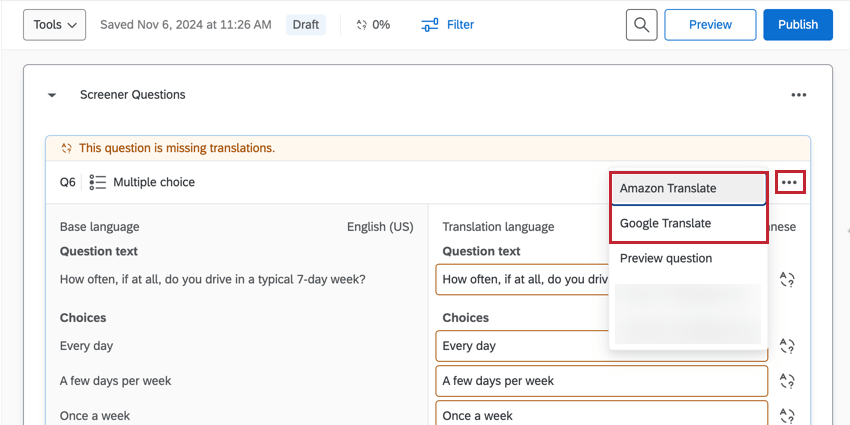
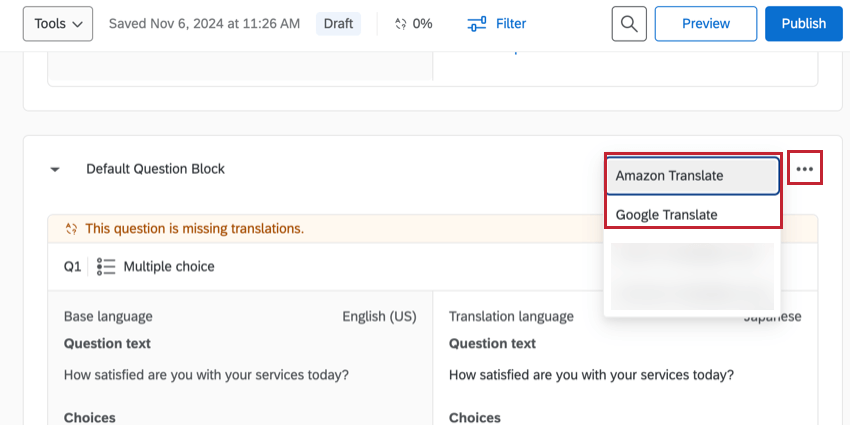
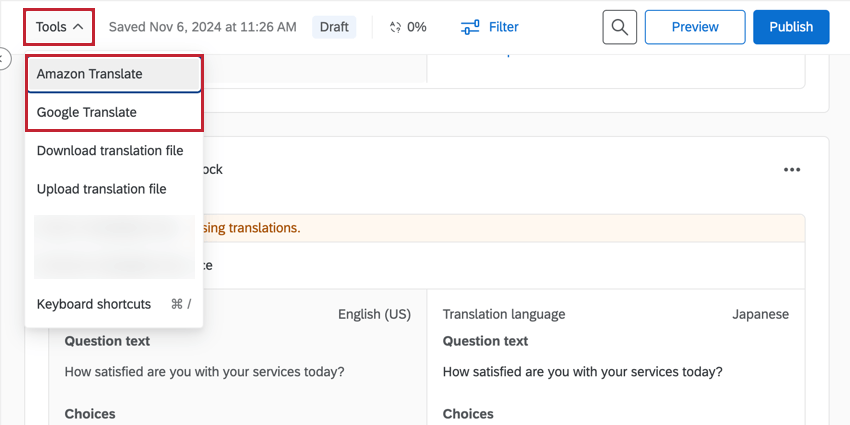
To speed up your survey translation, you can use automatic translation on individual questions, entire survey blocks, or your whole survey. This feature uses third-party services to translate your survey text. The following services are available:
Amazon Translate: Translate survey text using Amazon Translate.
Qtip: Question text that contains more than 10,000 characters cannot be translated via Amazon Translate.
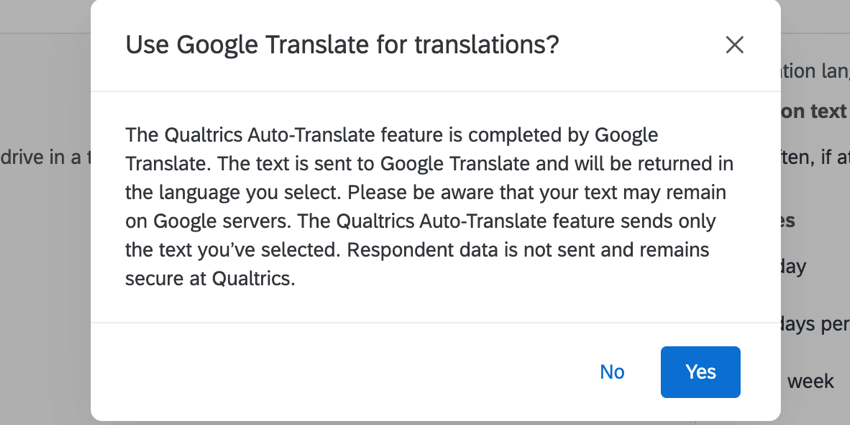
Google Translate: Translate survey text using Advanced Google Cloud Translation’s API. Your data is not stored on Google’s servers (see Google’s data usage policy for more information).
Qtip: Question text that contains more than 30,000 characters cannot be translated via Google Translate.
Attention: The Qualtrics automatic translation feature uses third-party services. The text of your survey questions is sent to the third-party and will be returned in the language you select. This feature only sends your survey text. Respondent data is not sent and remains secure at Qualtrics.
To use automatic translation, click 1 of the following, depending on what you’d like to translate:
Because machine translations are prone to error, we don’t recommend using this as the final translation you share with participants. Rather, this feature can save time when working with a professional translator, as they will only need to edit this existing translation rather than starting from scratch.
Qtip: If you make edits to your original survey after using this feature, you will need to delete the previously made automatic translations before generating a new set of automatic translations. Text changes are not automatically retranslated.
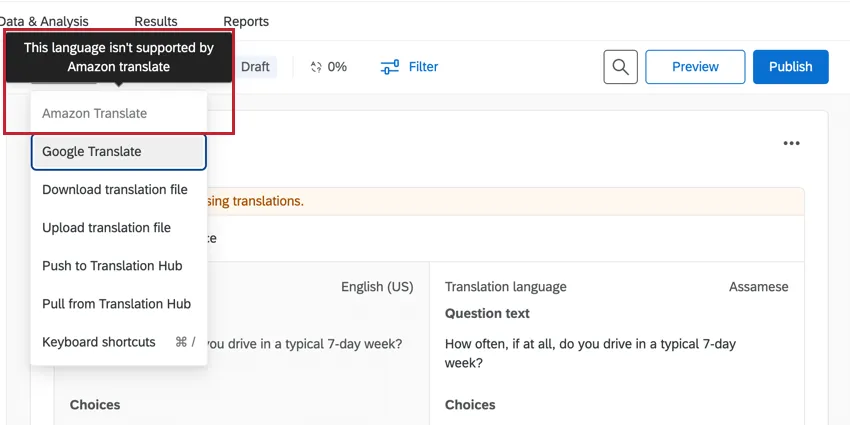
Qtip: If a language is not supported by a particular service, then it will be grayed-out.
Importing a Translation
For some third-party vendors helping you with translations, they may prefer to work in a spreadsheet or in XML rather than typing the translation directly into Qualtrics. The following instructions will allow you to download 1 or all languages in your survey to then be translated and uploaded back into Qualtrics. This will translate your entire survey at once, instead of translating the survey question by question.
To export a translation file
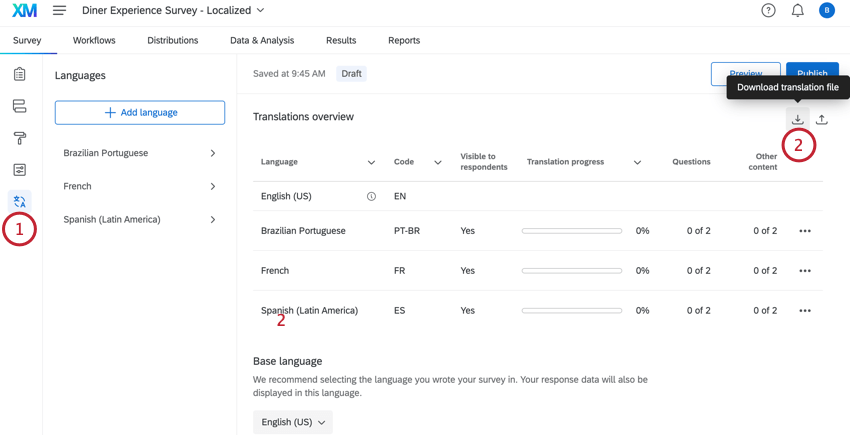
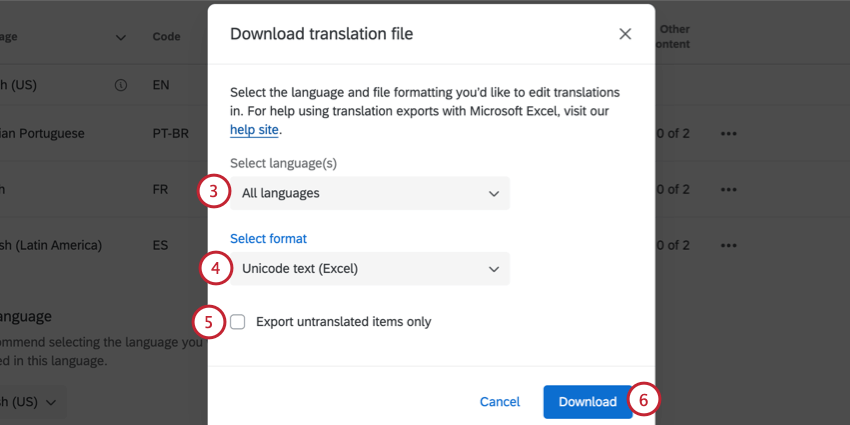
Qtip: In most cases, we recommend the Unicode Text (Excel) format. Like Unicode CSV, this can be opened in Excel. However, unlike Unicode CSV, Unicode Text understands and preserves non-ASCII characters (for example, 是 or ñ) when saved in Excel. For more information about non-ASCII characters in CSV/TSV files and troubleshooting tips, go to the CSV/TSV Upload Issues support page.
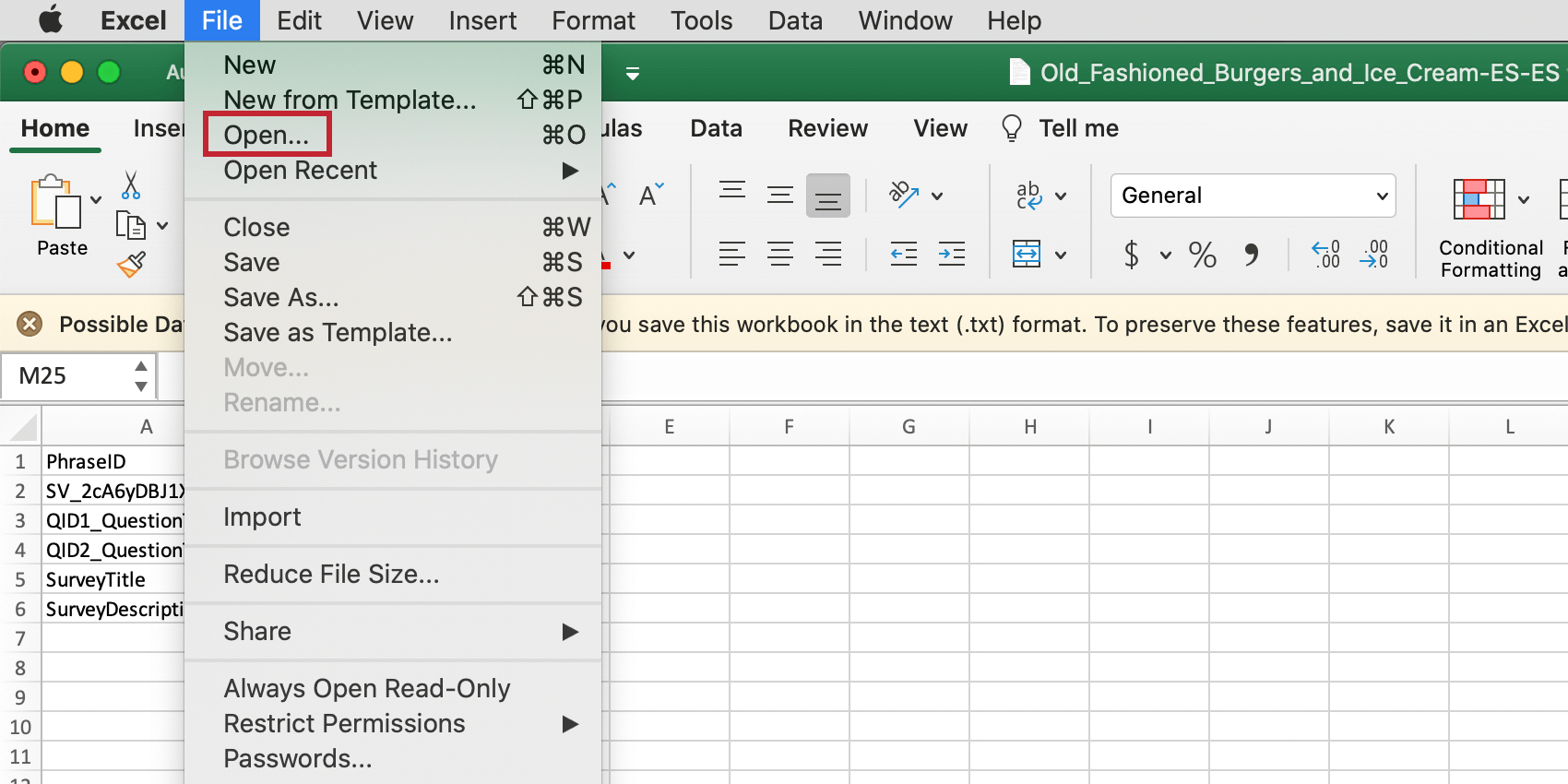
Qtip: Unicode Text (Excel) will open in a text editor by default. Follow the steps below to properly open the file in Excel.
To open a translation file in Excel
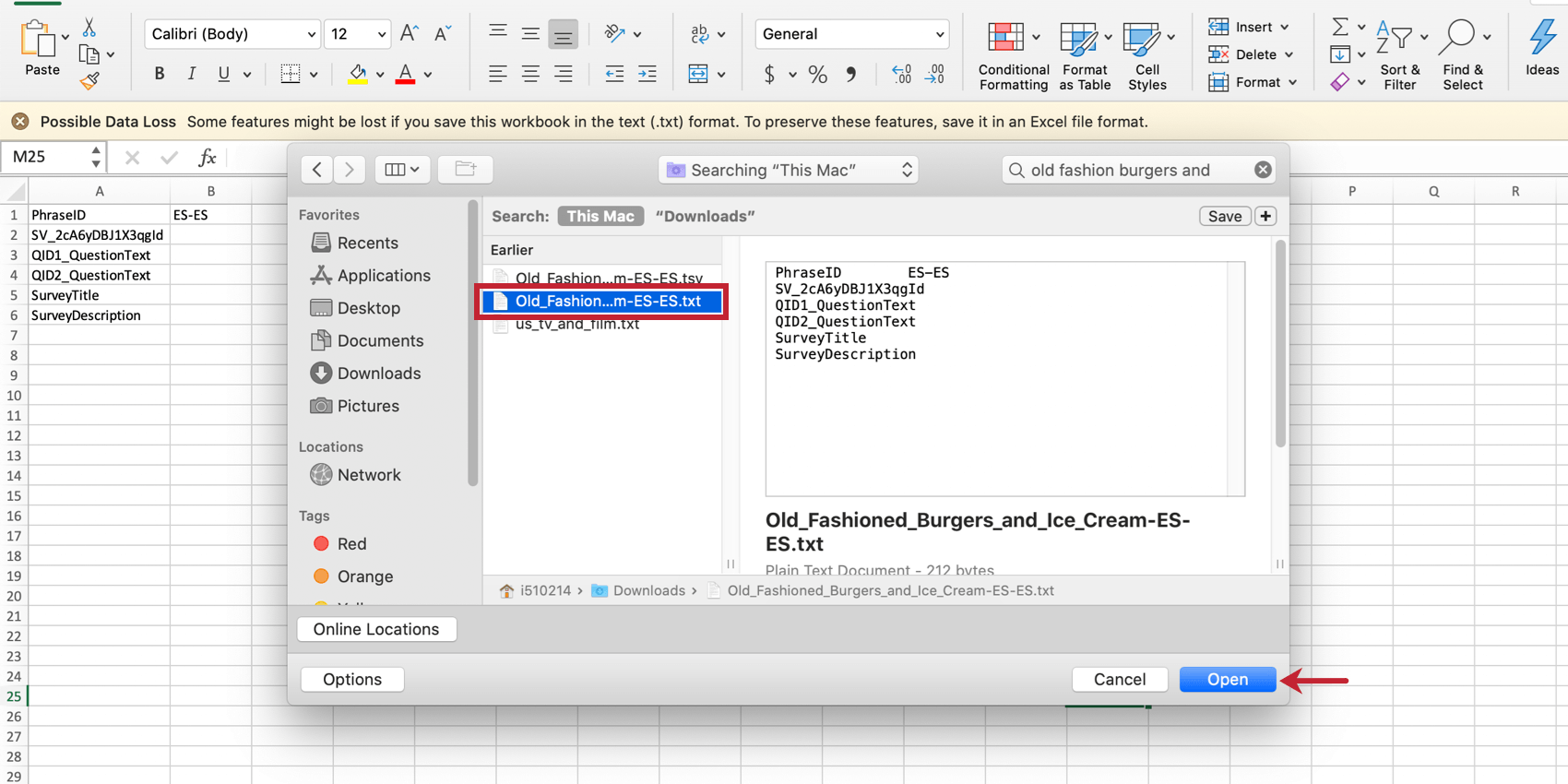
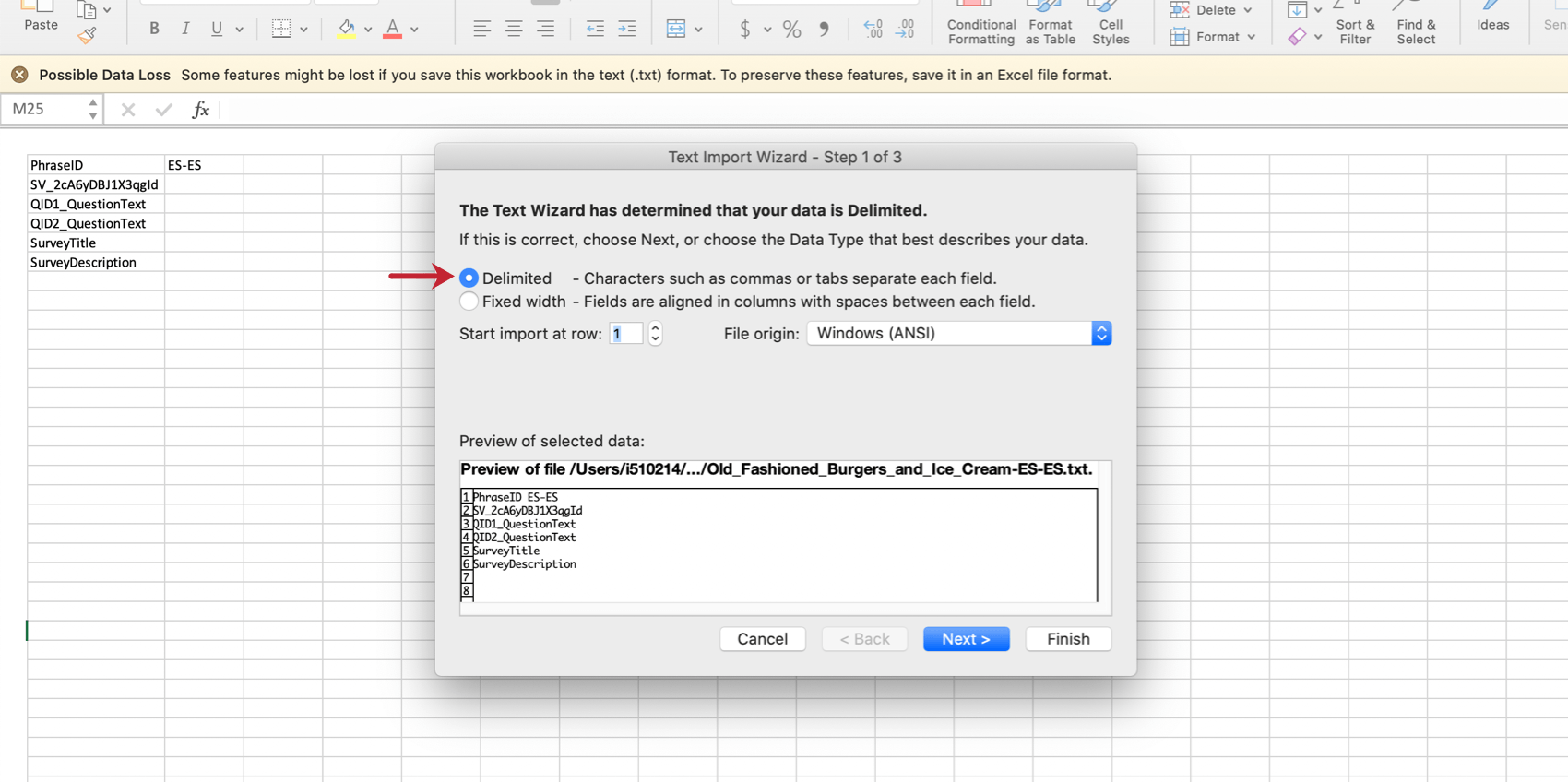
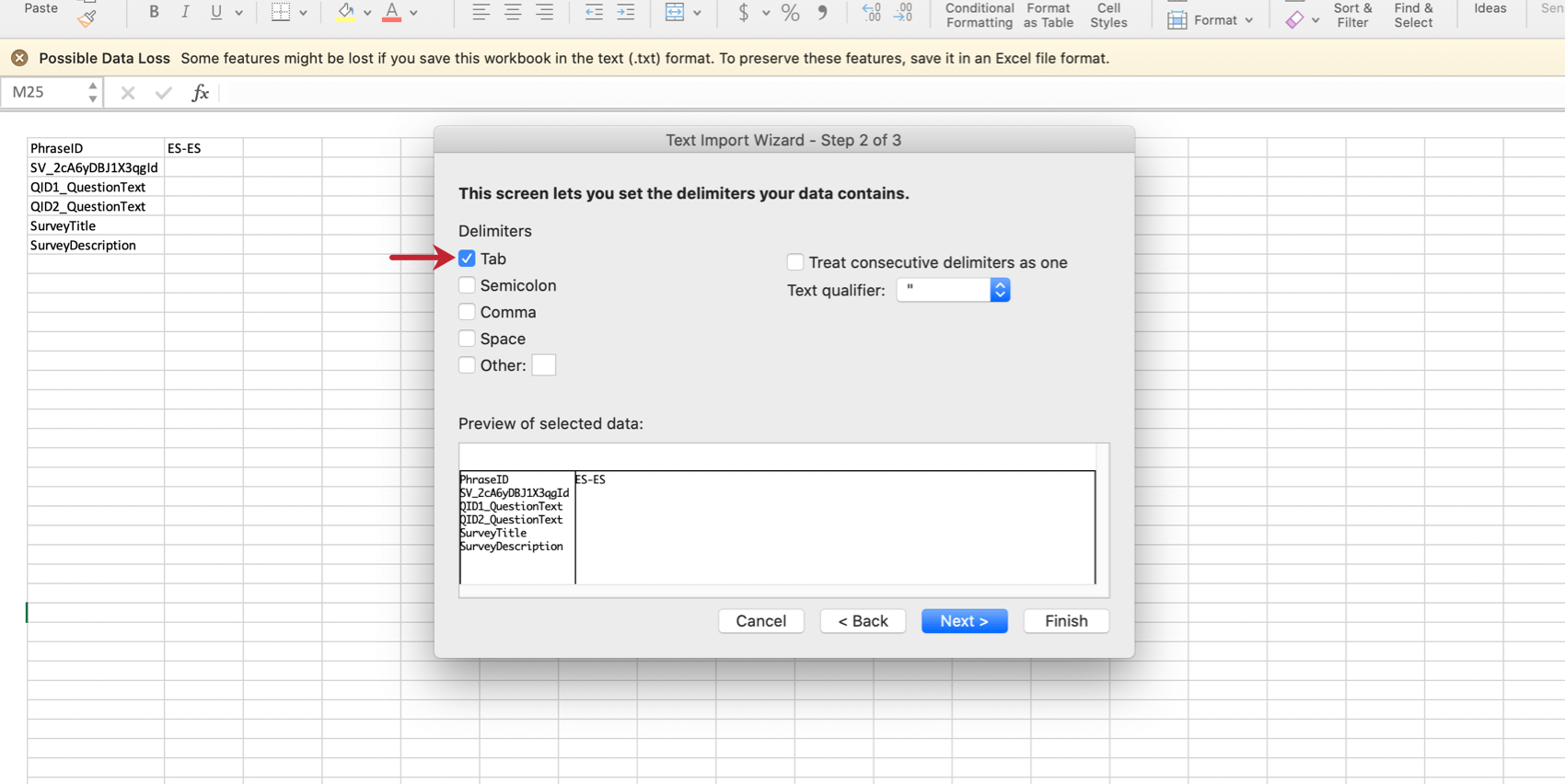
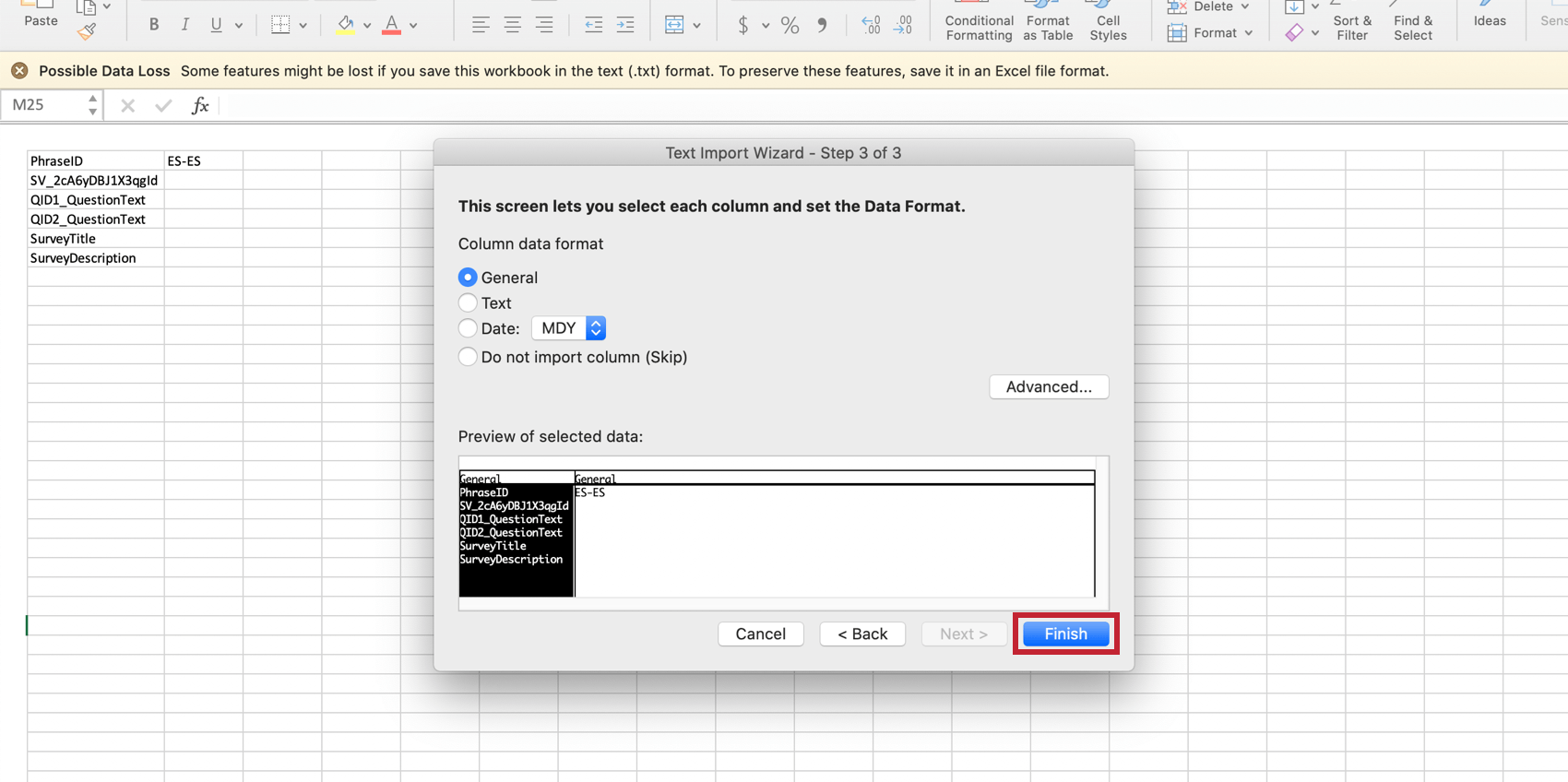
Using the Downloaded Translation File
Unicode Text (Excel) and Unicode CSV both have the following layout in Excel:
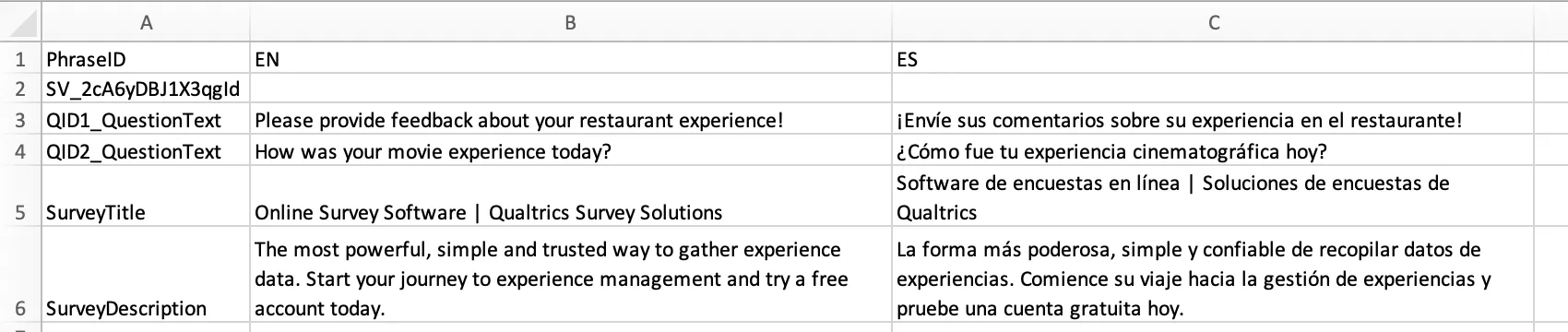
In these files, a row is provided for each item to be translated, with a column for the language downloaded. The elements in the PhraseID column should not be modified from their original format.
XML can be opened in your preferred text editor and will have the following layout:
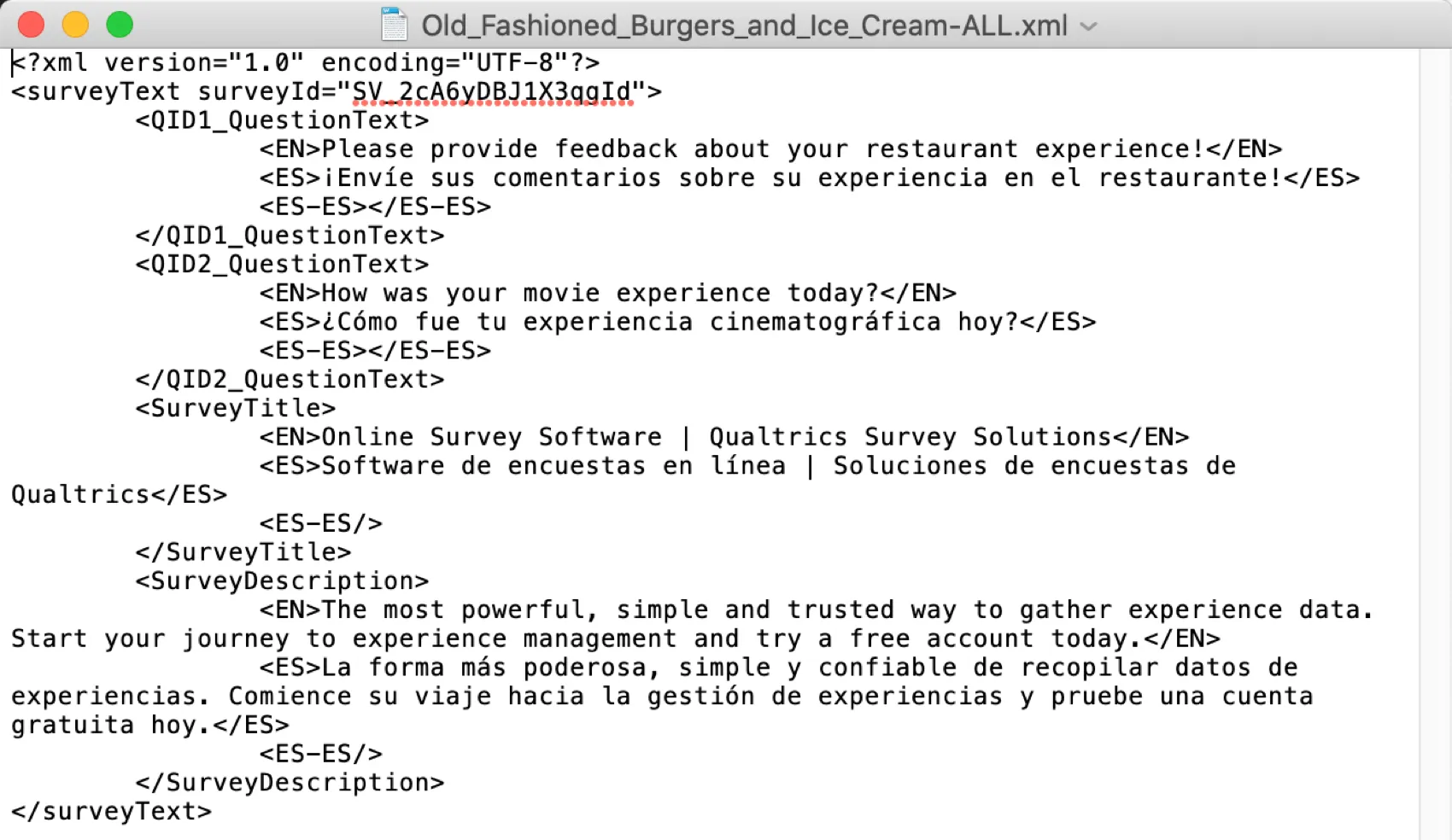
In XML, an element is provided for each item to be translated. A child element is provided for each language downloaded.
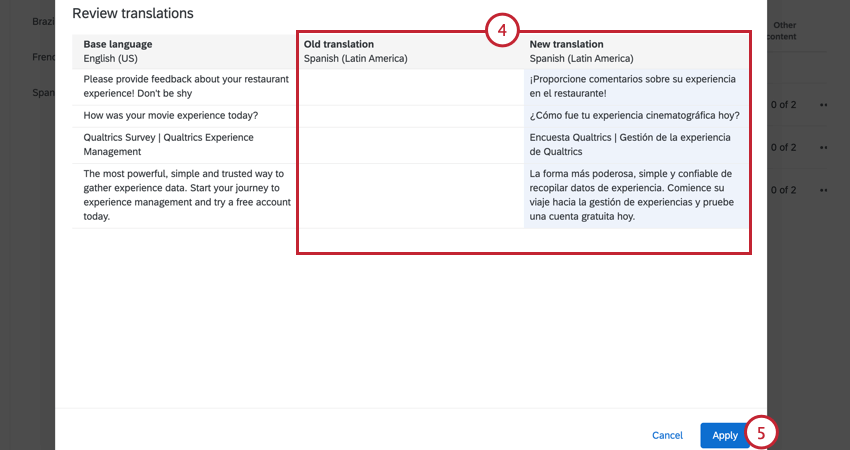
To import a translation file
Qtip: If your import file is missing rows, then those corresponding translations will be unaffected. You can use this method to update parts of your translation while leaving other parts unchanged.
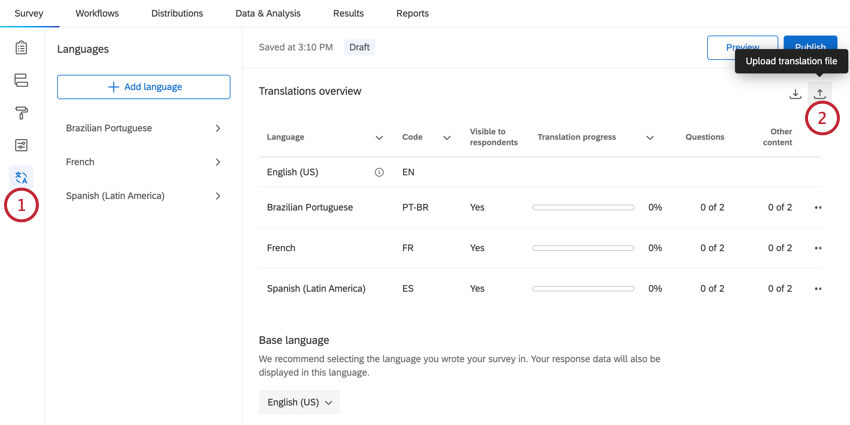
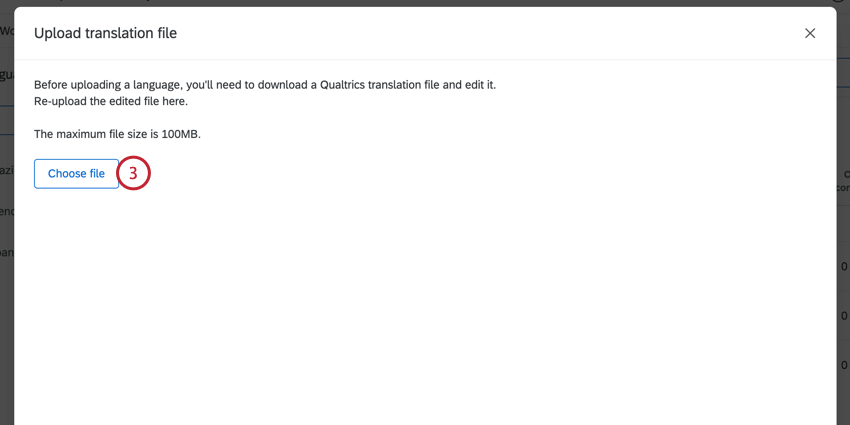
Qtip: The translation file upload is compatible with the same file types supported via download. This includes XML, Unicode text (Excel), CSV, and TSV.
Custom Languages
If the language you’d like to translate your survey into is not available, you can add it as a custom language. This section will cover how to create a custom language.
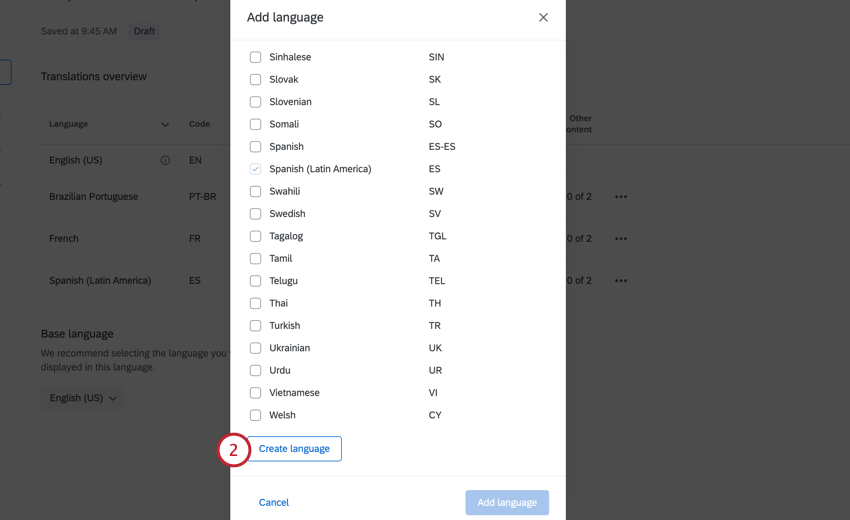
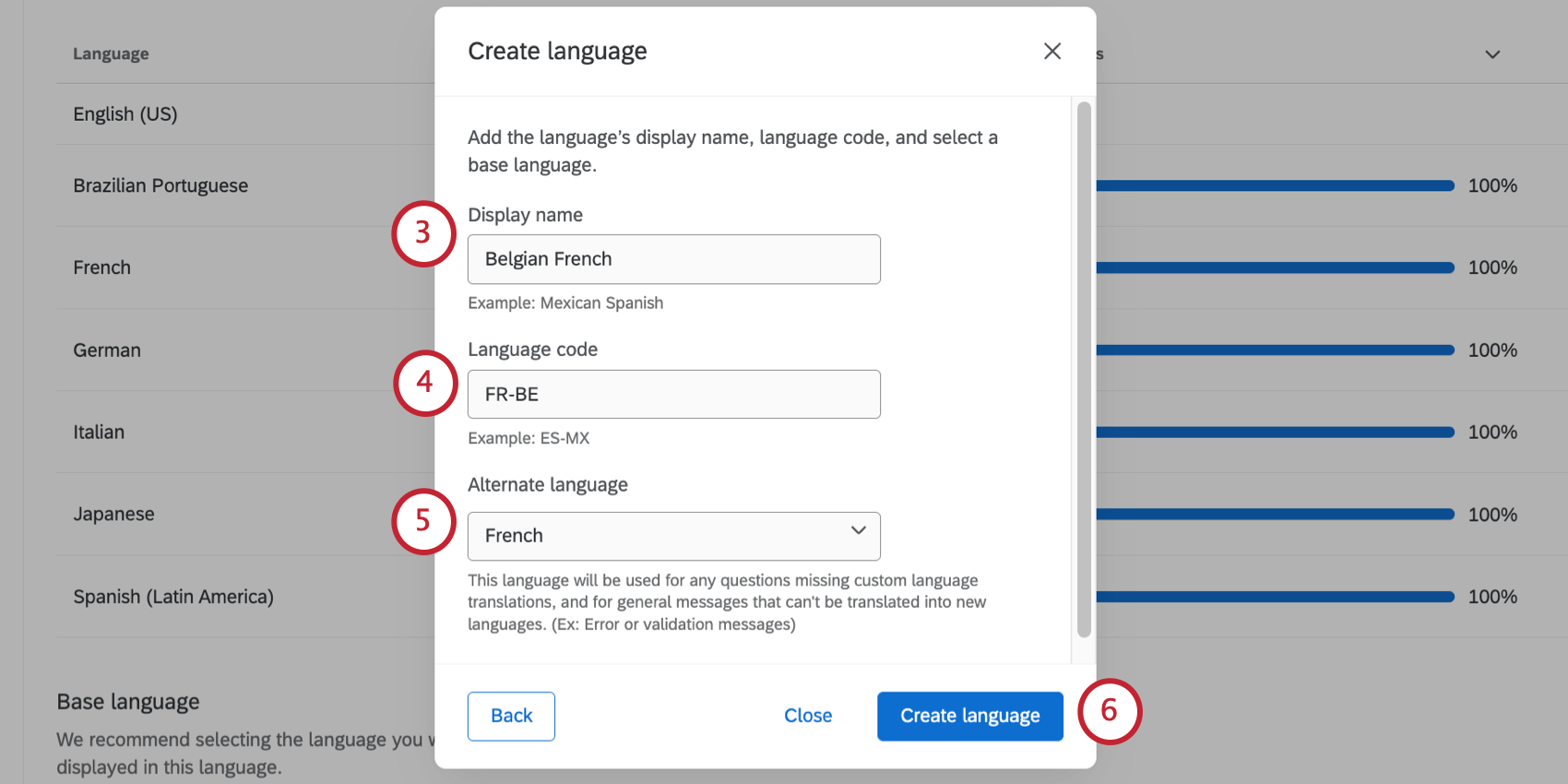
Qtip: Your language code can’t be a code already used by another language.
Example: If I wanted to add a code for French (Belgian), my code would be FR-BE.

Specifying the Participant Language
Once your survey is translated, how do you ensure participants see it in the appropriate language? Qualtrics provides the following 4 options to simplify this process.
Automatic Language Detection
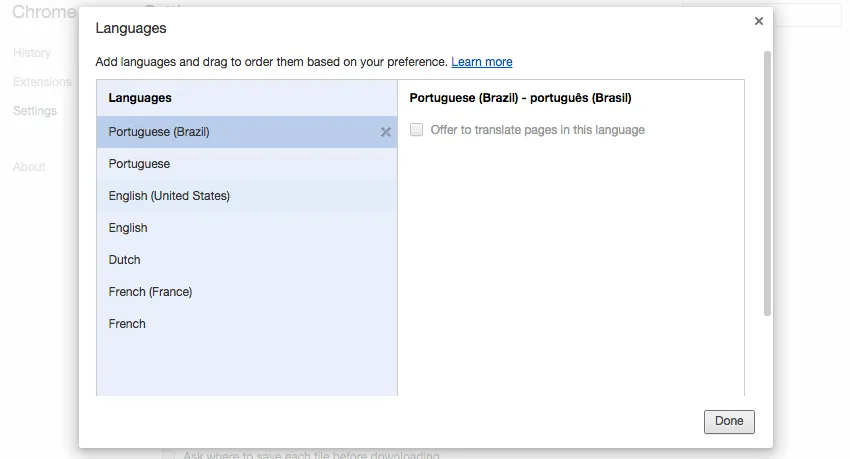
When a participant starts your survey, Qualtrics will check their web browser settings to see which language they use to browse the internet. If your survey is translated into their internet browser language, this translation will automatically be used, placing most participants in the correct translation with no additional work needed on your end.
Specifying Language in a Contact List
If you know your participants’ preferred languages ahead of time, you can upload this information as part of your contact list, in a column titled Language.
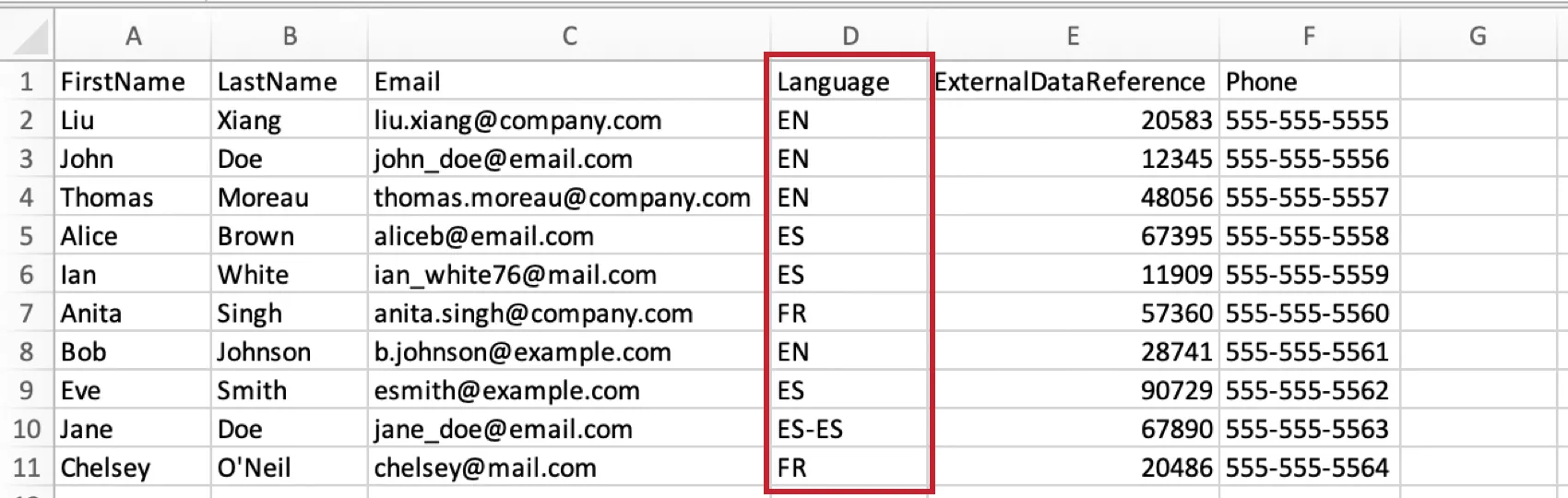
In the language column of your contact list, you’ll insert the appropriate language code for each participant, as outlined in the Available Language Codes section below.
Creating a Survey Link for Each Language
If you are distributing your survey anonymously, you can still specify each participant’s language by creating a different survey link for each language. This can be useful if you are posting your survey to a website that caters to multiple languages.
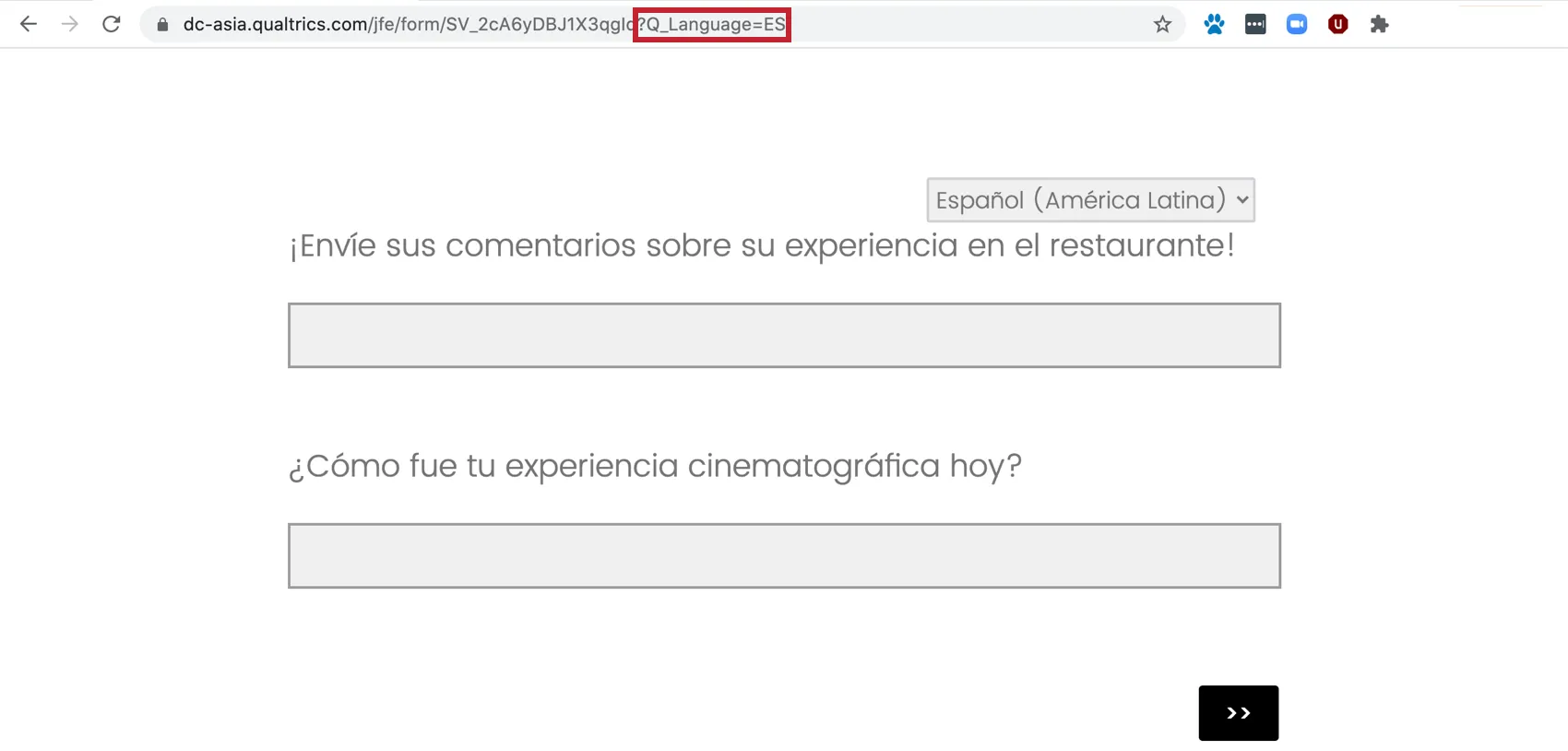
To create a survey link for each language, copy the anonymous link and append “?Q_Language=” to the end, followed by the appropriate language code from the table below. The newly constructed link will look like this:
http://survey.qualtrics.com/jfe/form/SV_cM7uFWAef1IB?Q_Language=ZH-S
Qtip: If your survey link already has a question mark (?) in it, you’ll need to add an ampersand (&) first instead of a question mark (?). See more on the Query Links support page.
When the link is accessed, the survey will display in the indicated language.
Participant Language Selection
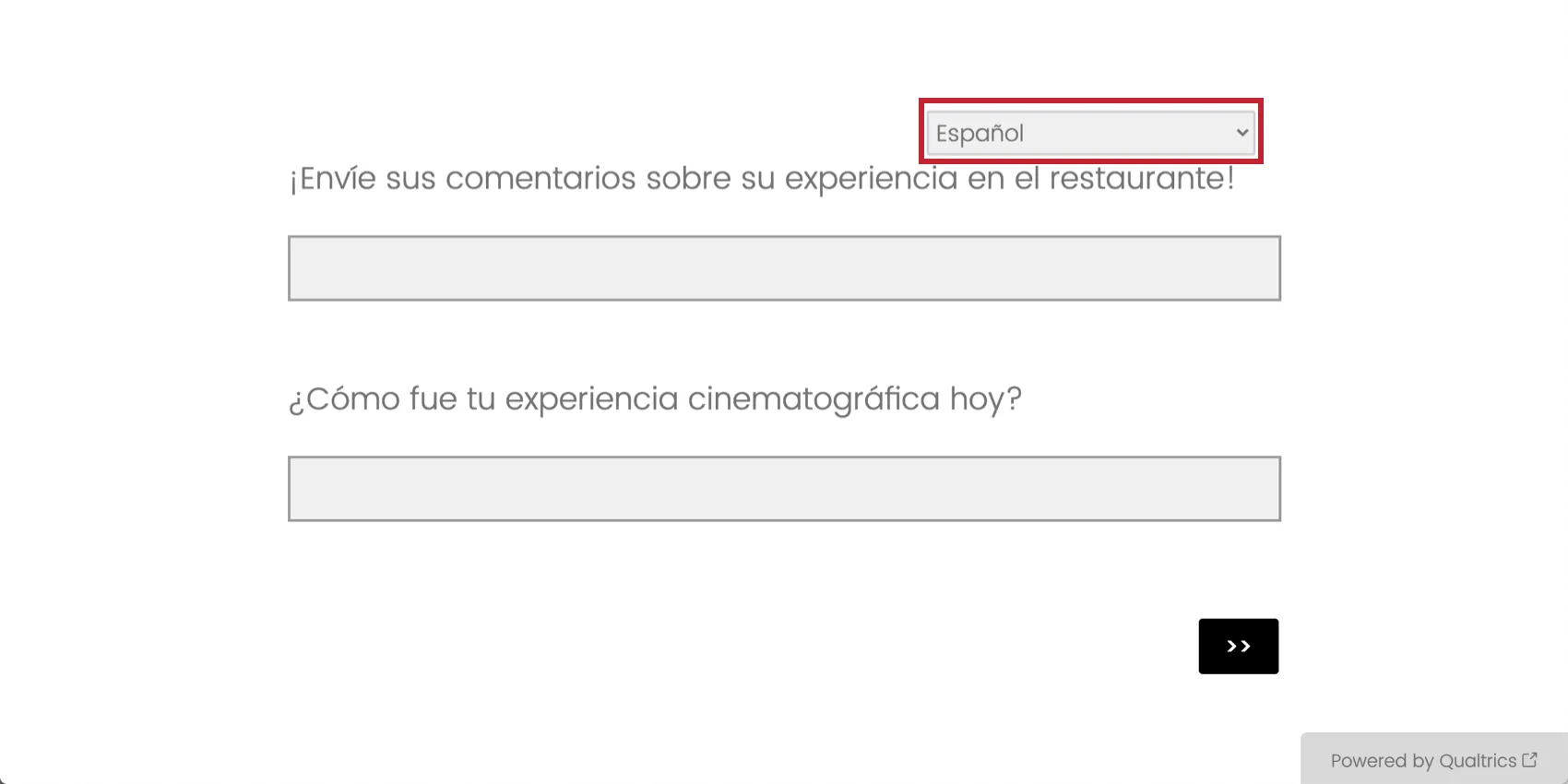
Some participants may want to take the survey in a language other than the 1 selected for them. On the top-right of any translated survey, participants will have the opportunity to switch to a new language at any point in the survey. This language dropdown menu is automatically inserted into every page of the survey for your convenience.
Available Language Codes
Whenever you need to specify the language for a participant, whether in a contact list, query string, or translation upload, you will need to use the language codes specified below. If you use a language code that is not included on this list, you must create a custom language set to that code, or else that language code will not work.
Qtip: Please note that these are the languages available for surveys, and do not necessarily reflect the list of languages our platform is translated into. For a list of platform languages, see the User Settings page.
Qtip: Your language codes must be capitalized in order to function properly. Be sure to capitalize the language code when adding it to your survey.
| SQI | Albanian | NL | Dutch | KAN | Kannada | RO | Romanian |
| AR | Arabic | EN-GB | English – UK | KAZ | Kazakh (Cyrilic) | RU | Russian |
| HYE | Armenian | EN | English – US | KM | Khmer | SR | Serbian |
| ASM | Assamese | EO | Esperanto | KO | Korean | SIN | Sinhalese |
| AZ-AZ | Azeri/Azerbaijani (Latin script) | ET | Estonian | LV | Latvian | SK | Slovak |
| ID | Bahasa Indonesia | FI | Finnish | LT | Lithuanian | SL | Slovenian |
| MS | Bahasa Malaysia | FR | French | MK | Macedonian | ES-ES | Spanish EU |
| BEL | Belarusian | FR-CA | French Canadian | MAL | Malayalam | ES | Spanish LATAM |
| BN | Bengali | KAT | Georgian | MAR | Marathi | SW | Swahili |
| BS | Bosnian | DE | German | MN | Mongolian | SV | Swedish |
| PT-BR | Brazilian Portuguese | EL | Greek | SR-ME | Montenegrin | TGL | Tagalog |
| BG | Bulgarian | GU | Gujarati | MY | Myanmar/Burmese | TA | Tamil |
| CA | Catalan | HE | Hebrew | NE | Nepali | TEL | Telugu |
| CEB | Cebuano | HI | Hindi | NO | Norwegian | TH | Thai |
| ZH-S | Chinese (Simplified) | HU | Hungarian | ORI | Odia/Oriya | TR | Turkish |
| ZH-T | Chinese (Traditional) | HIL | Ilonggo/Hiligaynon | FA | Persian | UK | Ukrainian |
| HR | Croatian | IT | Italian | PL | Polish | UR | Urdu |
| CS | Czech | ISL | Icelandic | PT | Portuguese | VI | Vietnamese |
| DA | Danish | JA | Japanese | PA-IN | Punjabi | CY | Welsh |
Qtip: Are you planning to distribute using language codes and wonder how that is related to respondent browser settings? Language codes in a contact list or query string are prioritized over the respondent’s browser settings. Regardless of the language they set in their browser, if you specify a language code for the respondent to take the survey in, then the survey will begin in that language. The respondent will still have the ability to manually change their survey language to any of the available translations. (Note that in EX projects, the browser language overrides the language code you set. To ensure the language code is used instead of the browser language, add a ?Q_Language=Code query string to your survey link.)
Custom Content for Each Language
On certain studies, you may have survey questions reserved for a specific language. For example, a question asking respondents to rate you with a letter grade may only make sense in English speaking countries.
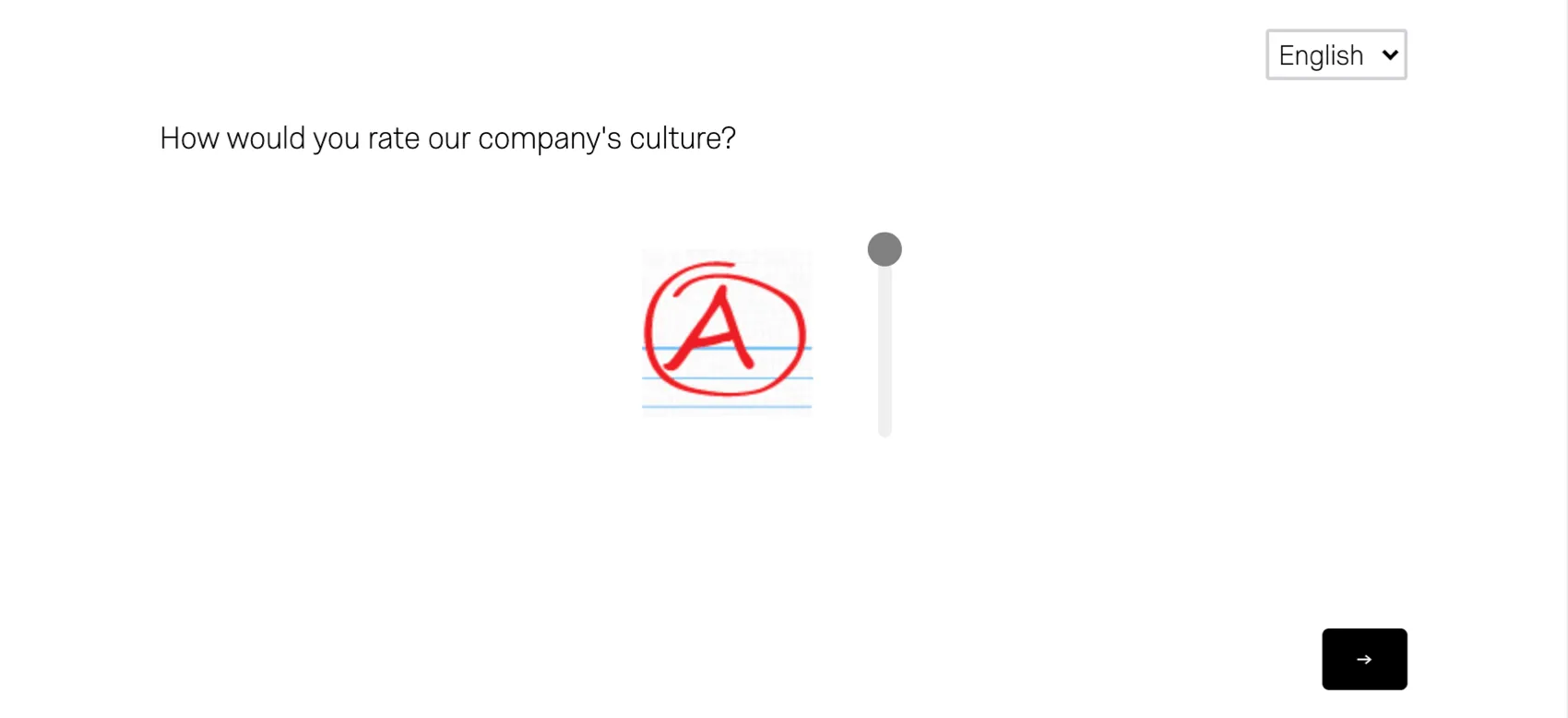
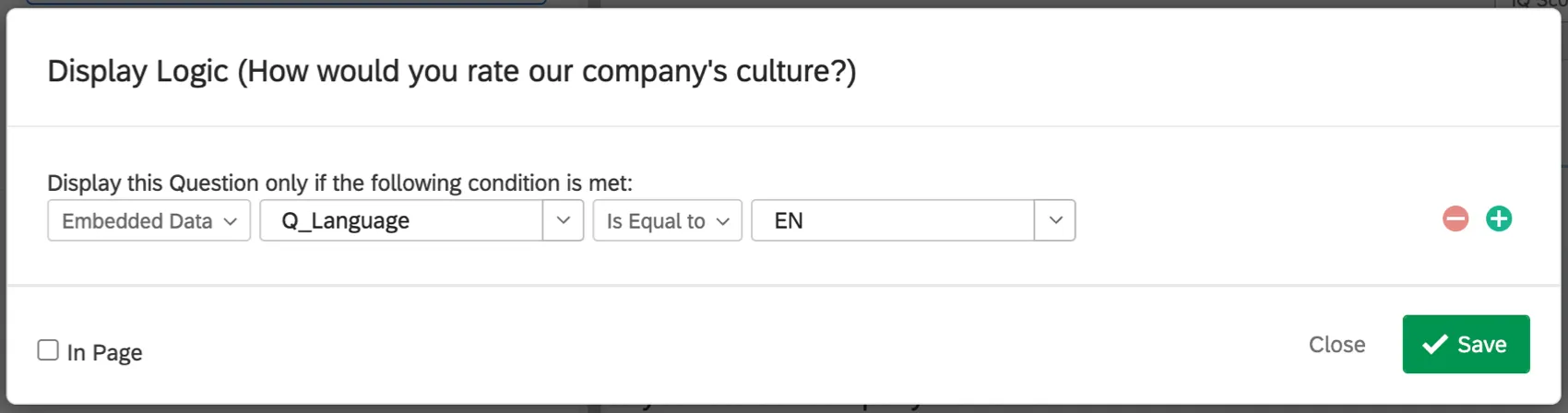
Qualtrics stores the language participants are using to take the survey in an embedded data field named Q_Language. Q_Language can be used in display logic and branch logic to ensure participants only see questions appropriate for their language.
Data Analysis for Translated Surveys
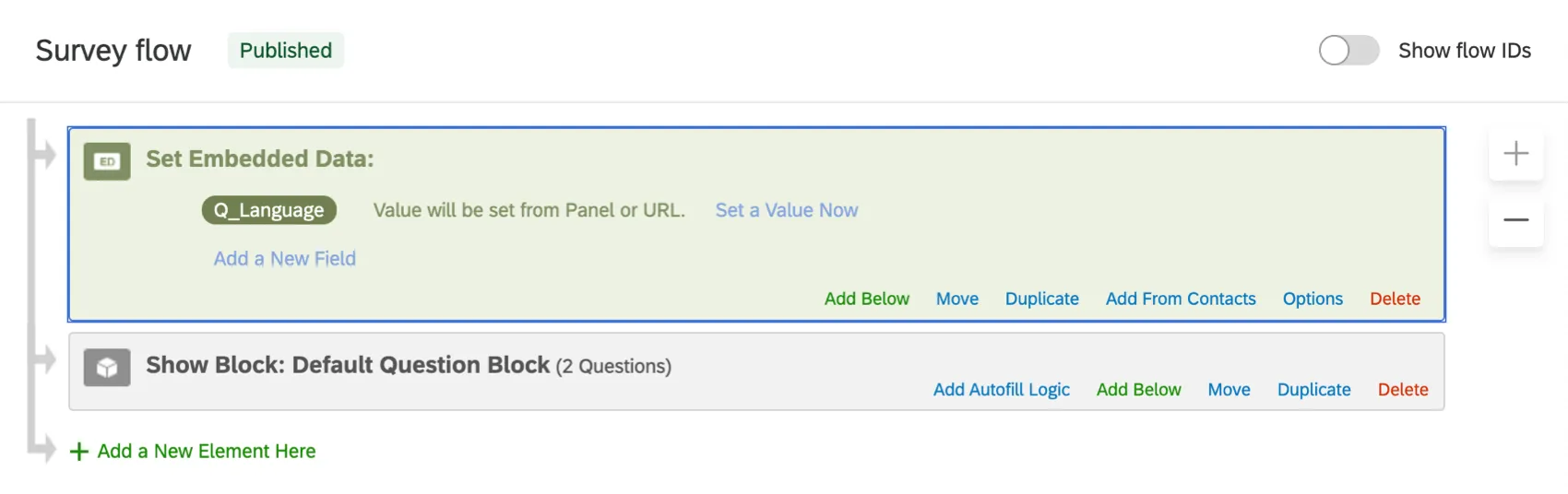
Data from all languages will flow back into the same dataset for easy reporting. Qualtrics tracks which language participants used to take the survey, and this information is stored in an embedded data field called Q_Language. To have this information reported in your results along with the survey questions, add an embedded data field to your survey flow named Q_Language.
In the Reports tab and the downloaded dataset, Q_Language can be reported along with your survey questions.
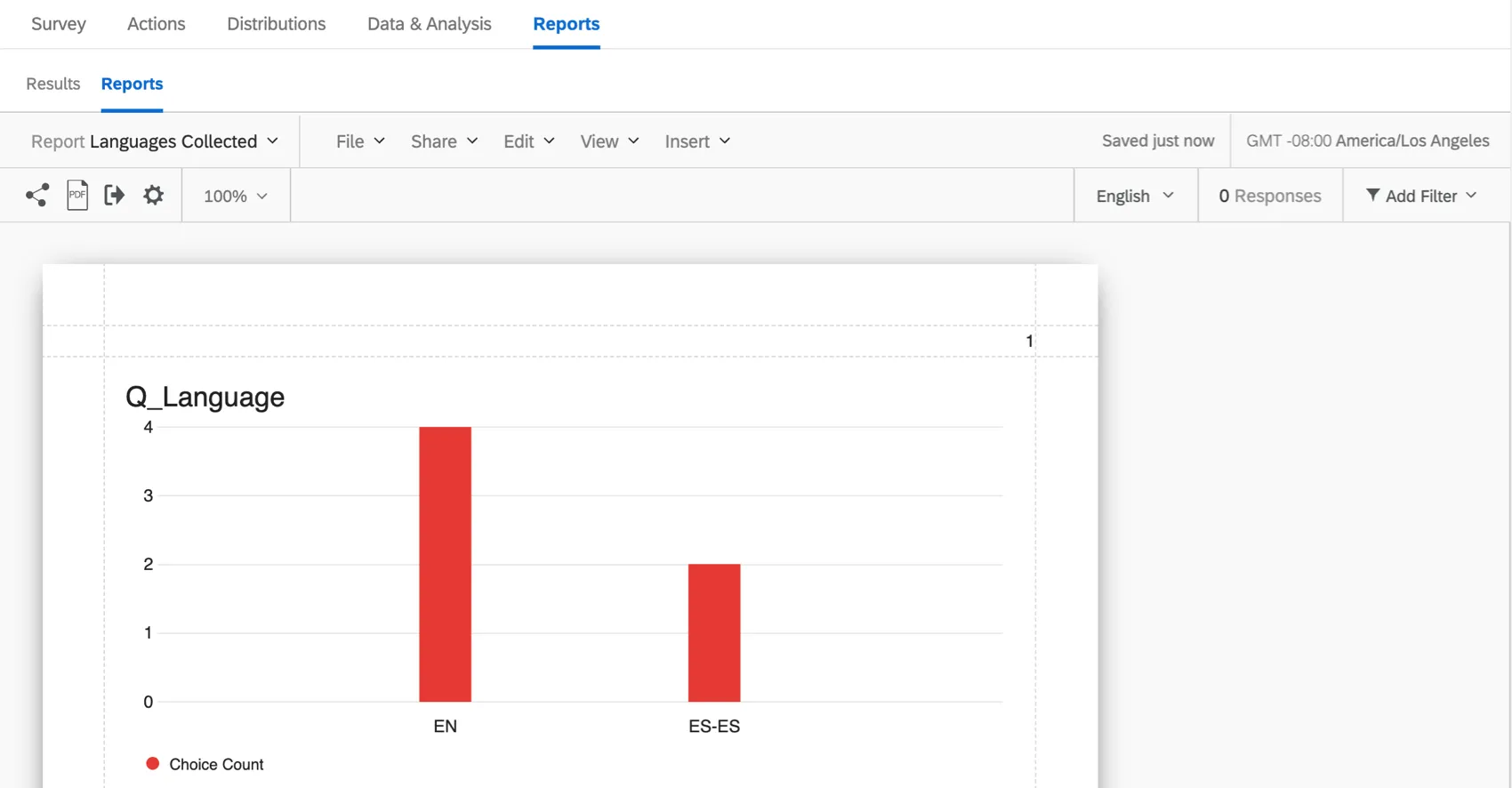
Qtip: You might need to change the format of the Q_Language embedded data to a multi-value text set to be able to make a bar chart like the chart pictured above.
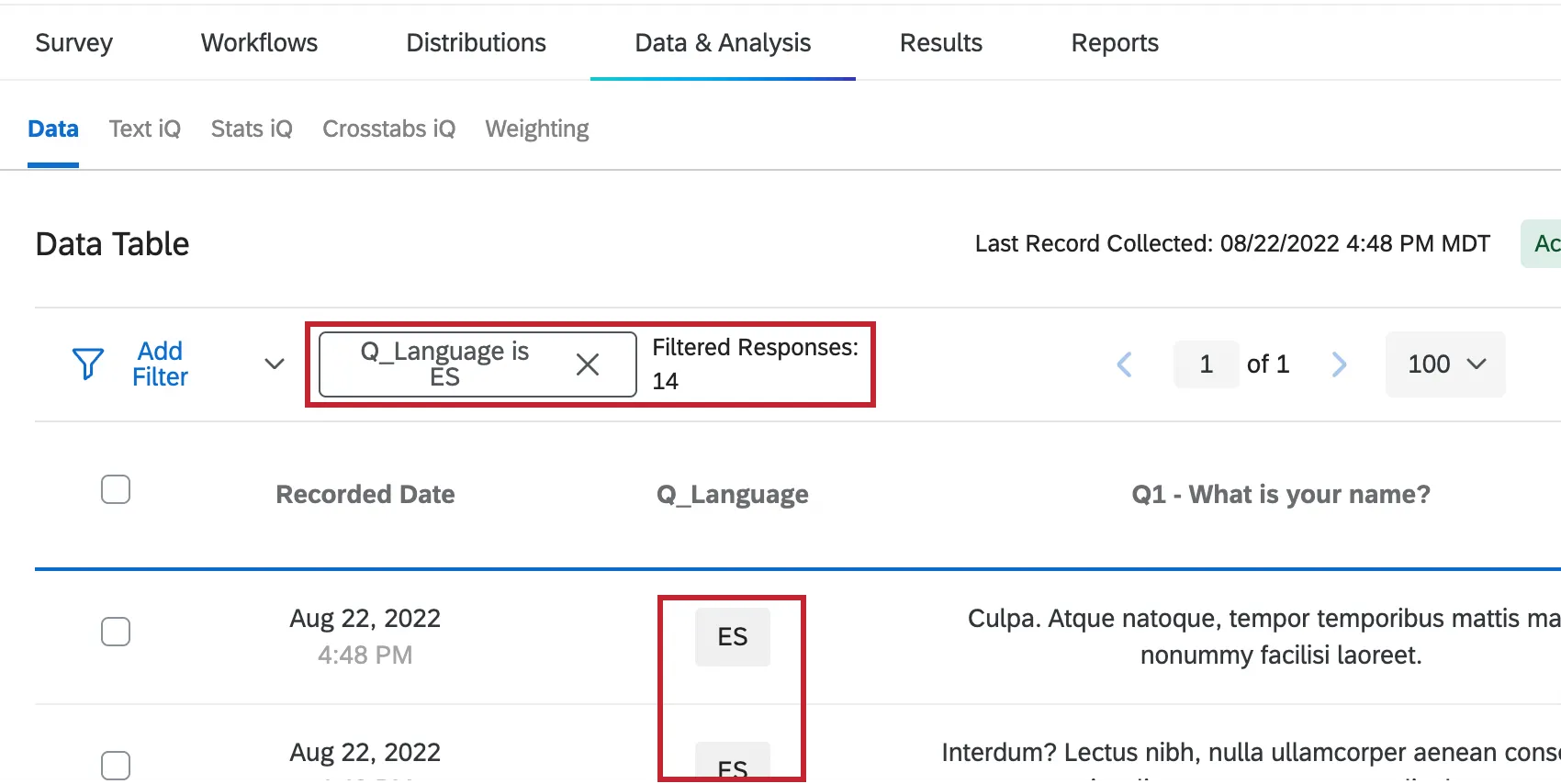
Q_Language can also be used for filtering survey results in both Reports and Data and Analysis, as well as for filtering downloading data.
Deleting a Translation
This section covers how to delete a survey translation.
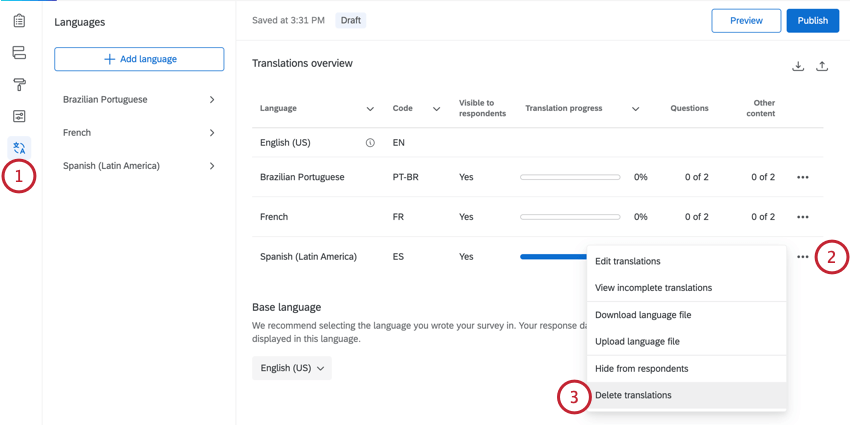
Qtip: If you want to hide the translation from survey takers but not delete it, use the Hide from respondents option instead.
Translating Different Types of Surveys
You can translate about every type of project where you customize a survey. This includes:
- Survey projects
- XM Solutions
- Engagement
- Lifecycle
- Ad Hoc Employee Research
- Pulse
- 360
- Conjoint and MaxDiff (See also Translating Conjoints & MaxDiffs)
Keep in mind that this page describes how to translate surveys. The steps to translate other areas of the product, such as messages, dashboards, and reports, will vary from what’s described on this page. To learn more, see Languages in Qualtrics.
FAQs
How do I translate my survey into other languages and specify a language for my survey respondents?
How do I translate my survey into other languages and specify a language for my survey respondents?
How can I make sure a specific word or phrase in my survey doesn't get translated by the Google Translate API?
How can I make sure a specific word or phrase in my survey doesn't get translated by the Google Translate API?
That's great! Thank you for your feedback!
Thank you for your feedback!