

Creating Mailing Lists
What's on this page
About Creating Mailing Lists
Before you can send out invitations for your surveys, you need to create mailing lists. Mailing lists are lists of your directory contacts that you can send emails to. You can create mailing lists either through a file upload or manually.
Unlike contacts in the directory, mailing lists are not visible to the entire organization. However, many of the steps described in adding contacts to mailing lists are similar to adding contacts to the directory. Every contact added to a mailing list will automatically be added to the directory.
Private list data will only be visible within the list it was added to, and will not be visible within the directory.
Qtip: Instead of having to create the lists one at a time, you can also set up automatic list enrollment, which allows you to upload all contacts to your directory at once and have them automatically sort into lists, instead of creating each list one at a time.

Qtip: Worried about uploading the same contacts multiple times? Be sure to merge duplicates or set up directory settings to automatically merge duplicates as they’re added to the directory.
Warning: XM Directory can only return 10,000 mailing lists at a time. If you have more than 10,000 mailing lists, you will experience trouble finding them within your account. If possible, avoid having more than 10,000 mailing lists.

Attention: Users with the Edit XM Directory permission disabled can view the lists and samples they have access to. They can also create new lists with contacts from existing lists, but cannot upload new contacts.
Projects That Can Use Mailing Lists
Qtip: The features discussed in this section are not necessarily included with every license. If you’re interested in getting access, please reach out to your Account Executive.
You can use XM Directory to build mailing lists and send invitations for several types of Qualtrics projects. However, not every Qualtrics project type is compatible with XM Directory.
XM Directory can be used to send the following:
- Survey projects
- Conjoint / MaxDiff
- Certain non-EX XM Solutions
In contrast, XM Directory cannot be used to distribute any Employee Experience (EX) projects. That means that no EX projects can be used with XM Directory, including Engagement, Pulse, 360, and more.
XM Directory contact data is completely separate from the employee / participant information saved in the Employee Directory. That means that data edited in one directory will never affect the other.
Available Fields
See available fields listed on the Adding Directory Contacts support page.
Private List Data
Private list data is embedded data that can be created in specific mailing lists and is only visible to users with access to the list. Benefits of private list data include controlling access to specific attributes, while also avoiding overwriting or editing directory-wide embedded data fields.
Private list data can be enabled by Directory Admins in Directory Settings. See Editing Different Directories for instructions.
Qtip: Contact info and statistics in lists with private data will not be private and will be shared directory-wide.
Qtip: If you did not choose to make list data private when creating a list, this data will always be available directory-wide. Lists with data available directory-wide cannot be made private, and private lists can not be made available directory-wide.
Creating a Mailing List
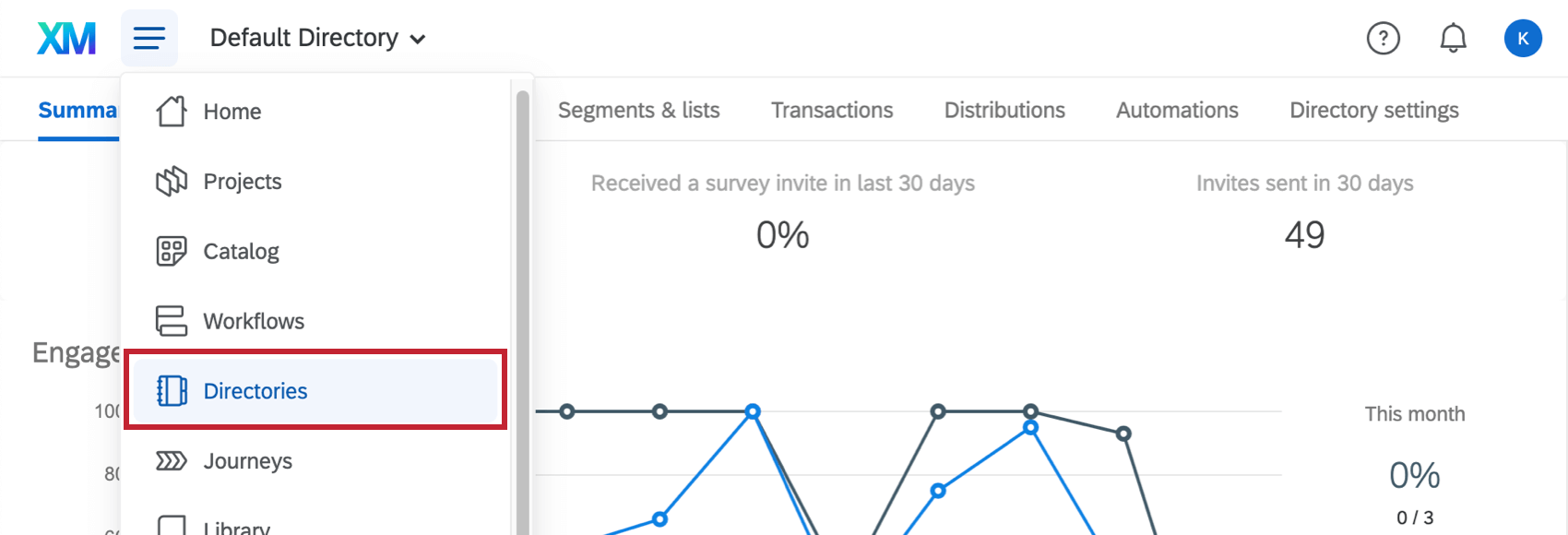
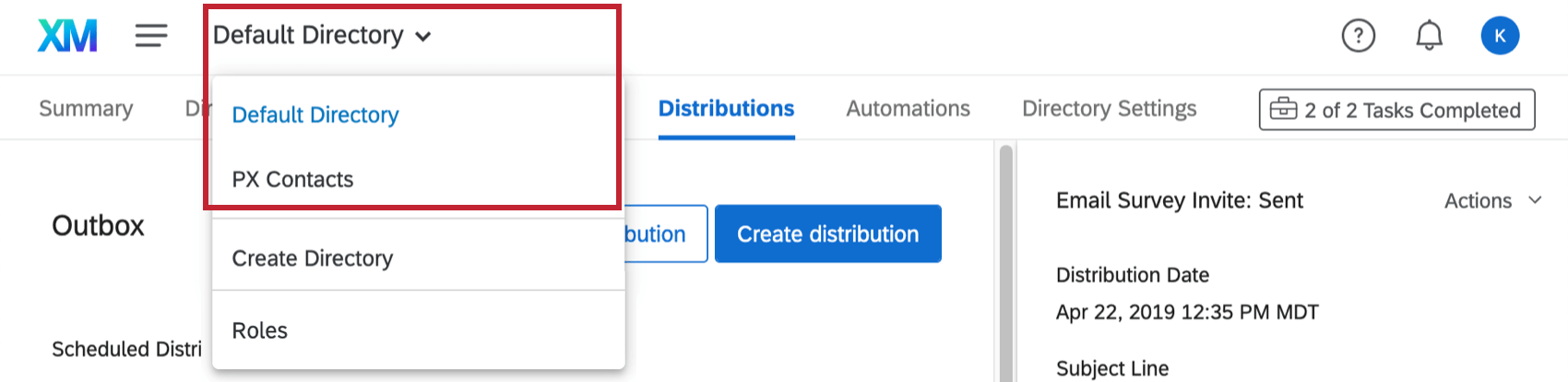
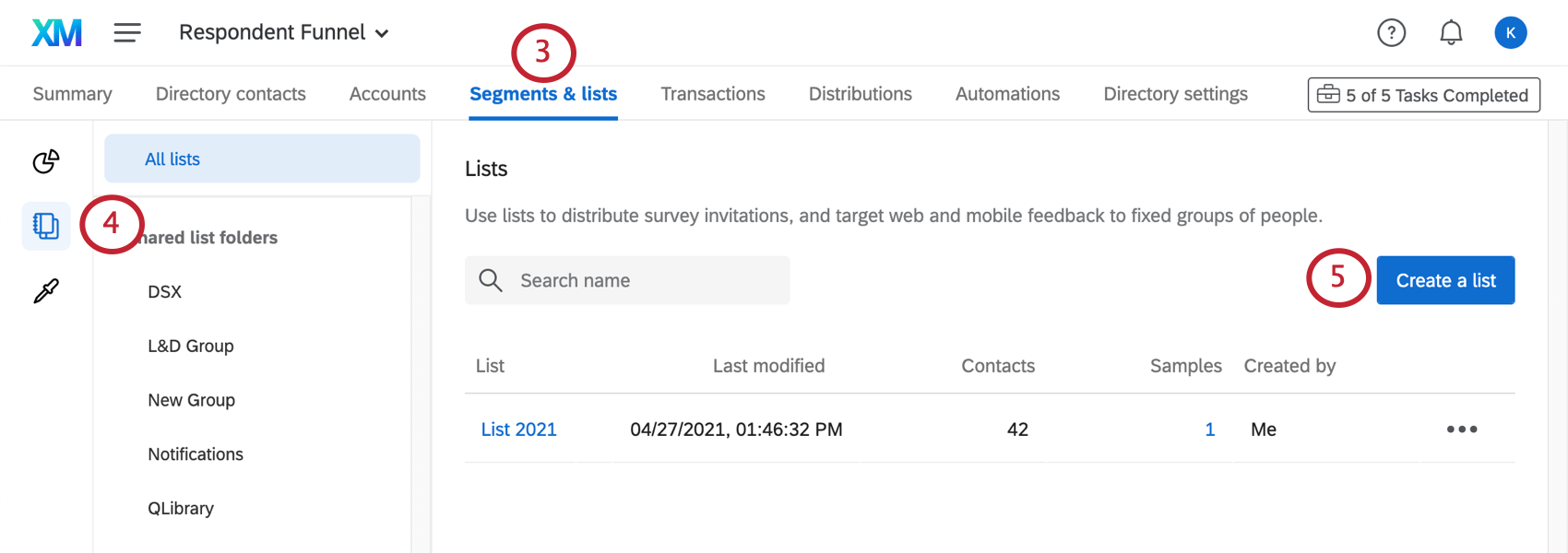
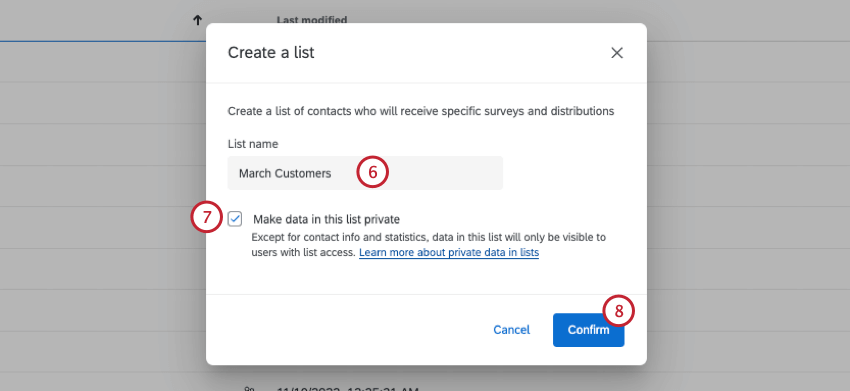
Qtip: List names are not compatible with some special characters (e.g., =, {}, or <>).
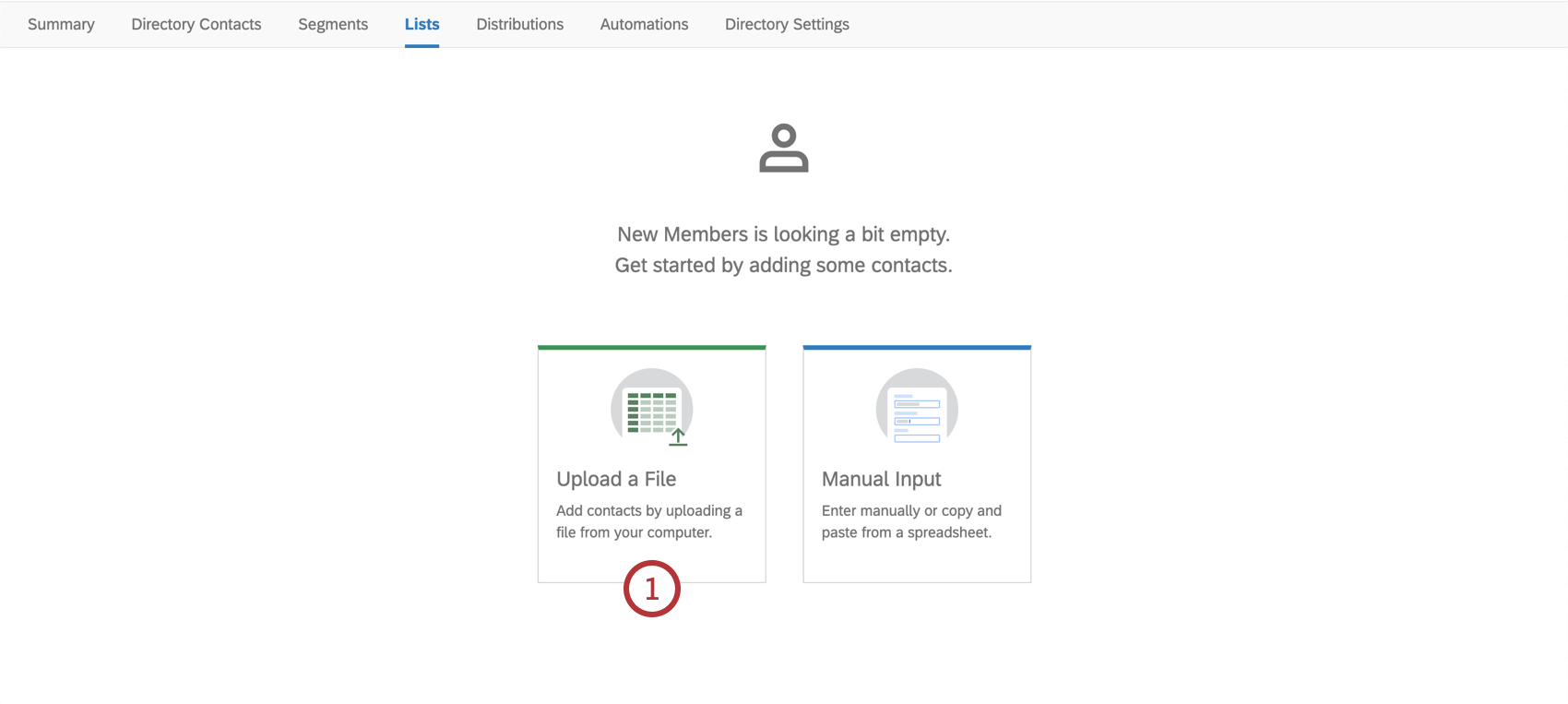
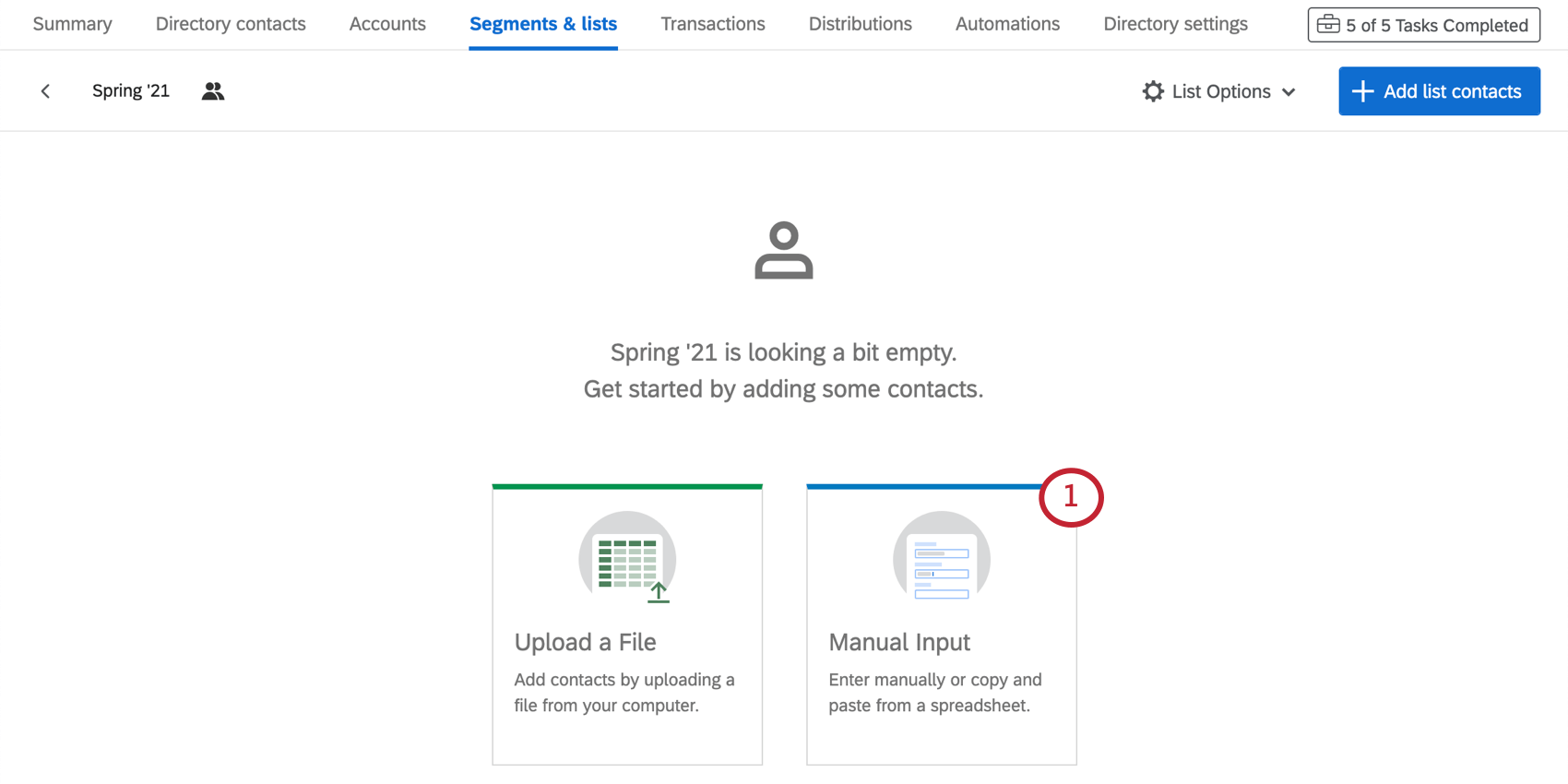
Once inside your contact list, you can choose to upload contacts through a file upload or manually.
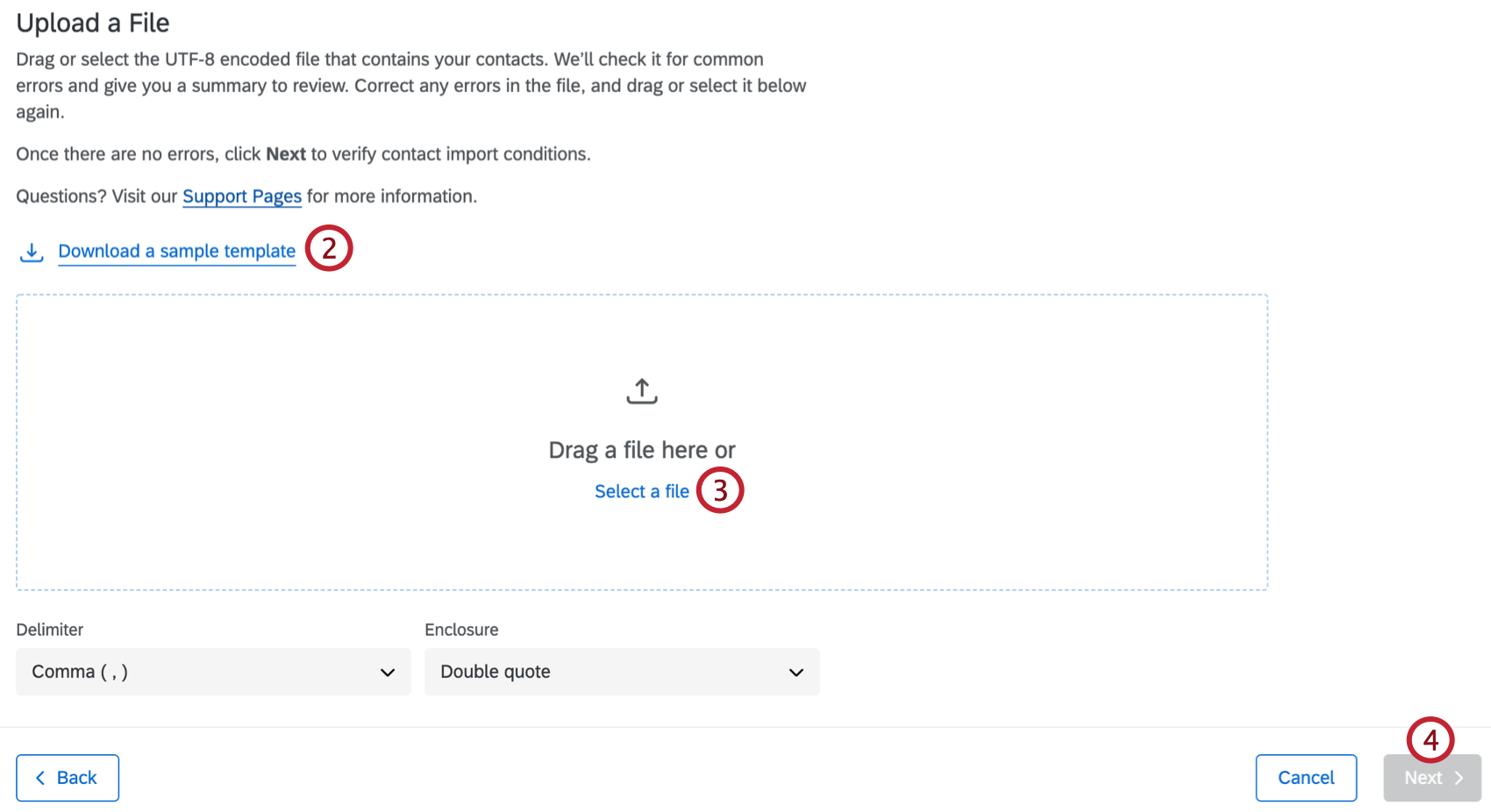
Upload a File
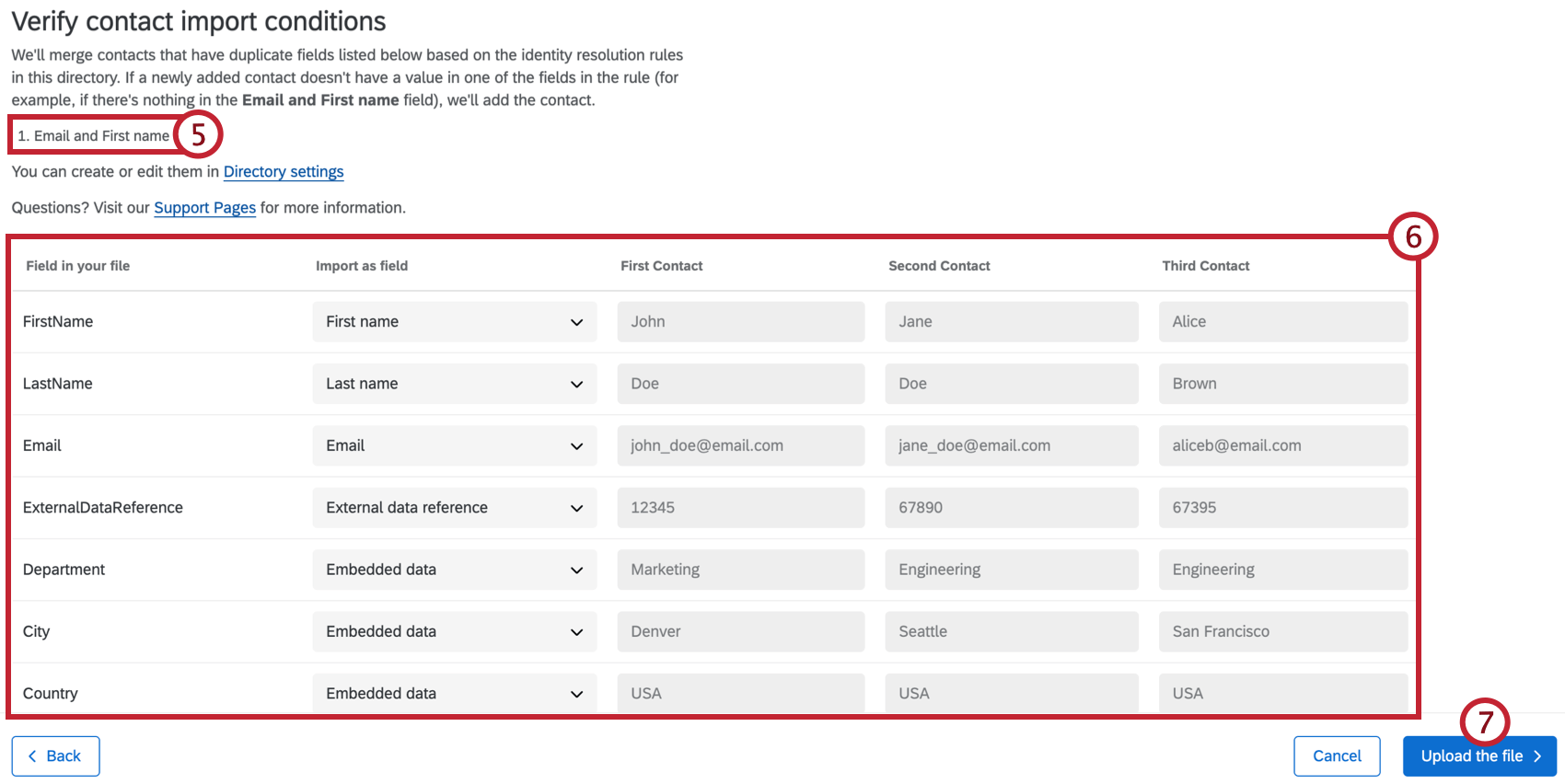
Qtip: Access to the Directory Settings tab requires the Manage Directory permission. Talk to your Brand Administrator if you’re interested in getting access to this setting. This permission is not available in XM Directory Lite.
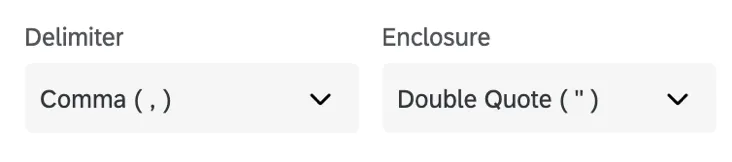
Qtip: If the data is not formatted correctly in the preview (e.g., bunched up instead of divided into columns), your data may not be separating (or “delimiting”) correctly. To fix this, choose a different Delimiter and/or Enclosure above the Verify Fields section.
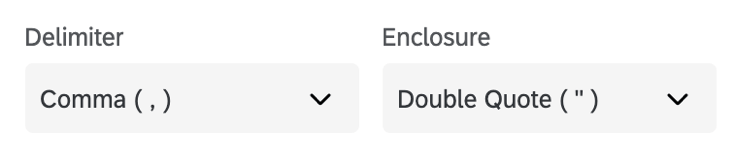
Qtip: Excel interprets non-ASCII characters (e.g., 是 or ñ) in a unique fashion that makes them difficult for Qualtrics to upload. If you are importing names with special characters, you might need to save your contact list info to a text-editor application (e.g., Text-edit for Mac, Notepad for PC) before you upload the file into Qualtrics. See the Special Character Issues on our CSV/TSV Upload Issues page for additional instructions. This page is for the Survey Platform, so be careful to navigate back to the XM Directory pages (not the Survey Platform contacts pages) when finished.
Common Error Messages
- File too large: Your file size exceeds 200 MB, and/or your file has more than 750,000 contacts.
- Some fields in your file have too many characters; make sure that the characters in each of these fields are less than or equal to the numbers shown, and try again: Your file has a field or multiple fields that exceed the character limit. Character limits below:
- Language: 20
- First name: 100
- Last name: 100
- Email address: 254
- Phone number: 20
- External data reference: 100
- Embedded data field: 200
- Embedded data value: 1,024
- A header name is missing; check the headers in your file, and try again: You may have a column in your CSV file that is missing a header.
- The file contains one or more rows that don’t map to headers; fix this in your file, and try again: There is a mismatch between the number of headers and the number of fields.
- Duplicate field: Your file has two fields with the same name. Make sure that each field is unique.
Manual Input
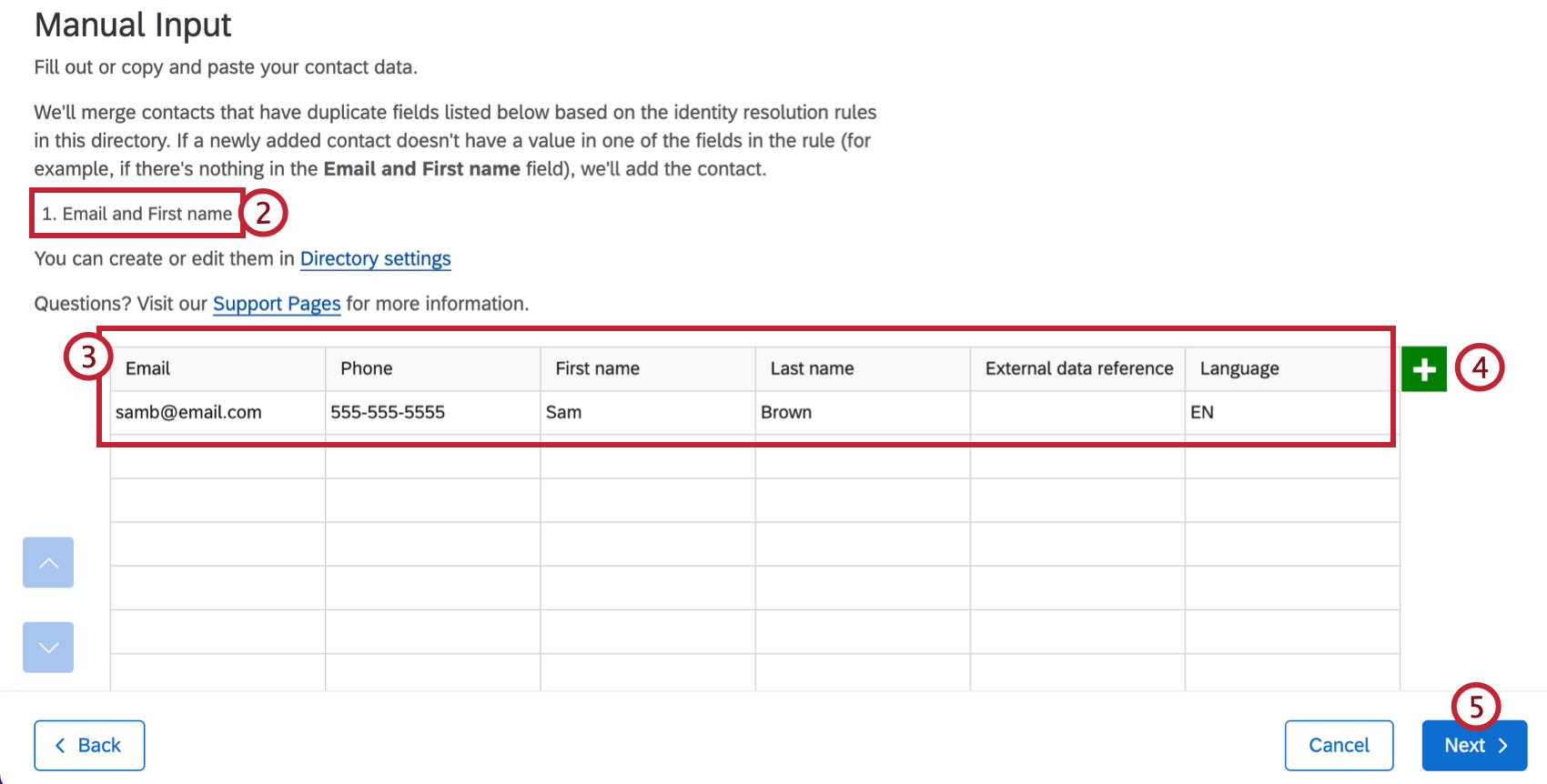
Qtip: Directory settings are not available in XM Directory Lite.
Creating and Updating Contacts Automatically
Often, you may find yourself collecting demographic or transactional data, and you’ll want to either update existing mailing list members or create new lists of new contacts based on information given in a survey response.
The Update XM Directory Contacts Task feature, located inside the Workflows tab, can help you set up this process so that mailing lists are automatically created or updated as responses come in.
FAQs
I'm getting an error message that says, "The CSV file contains one or more empty headers." What does this mean?
I'm getting an error message that says, "The CSV file contains one or more empty headers." What does this mean?
My file looks like it uploaded, but I don't see any contacts in my list in XM Directory. What happened?
My file looks like it uploaded, but I don't see any contacts in my list in XM Directory. What happened?
If you cannot see the Directory Settings tab, consult your Brand Administrator.
My mailing list/directory contacts file won't upload at all in XM Directory. What's happening?
My mailing list/directory contacts file won't upload at all in XM Directory. What's happening?
How do I add contacts that are already in XM Directory to a Mailing List?
How do I add contacts that are already in XM Directory to a Mailing List?
What’s XM Directory? / Where’s Target Audience?
What’s XM Directory? / Where’s Target Audience?
How can I tell if I have XM Directory or XM Directory Lite?
How can I tell if I have XM Directory or XM Directory Lite?
For admins, being able to tell whether or not you have XM Directory Full or XM Directory Lite on your license is easy. Admins of XM Directory have access to many more features than the average XM Directory Lite user, including the Summary tab, the Directory Contacts tab, and Directory Settings.
However, even if you’re not an admin, you can often tell whether you have XM Directory Full or XM Directory Lite in one of the following ways: If you’re still not sure which feature you have, reach out to a Brand Administrator. Brand Administrators who are unsure can reach out to their Account Executive or Account Services.
When you import updates to existing contacts, how are empty / blank fields treated?
When you import updates to existing contacts, how are empty / blank fields treated?
When updating contacts via a file upload, blank contact fields (such as FirstName, LastName, and ExternalDataReference) will overwrite existing values for contacts in the directory.
However, directory embedded data fields will not have their data overwritten by default. You can choose which embedded data fields should allow blank values to overwrite existing ones by adjusting your directory settings. See Importing Blank Values in XM Directory for more information.
That's great! Thank you for your feedback!
Thank you for your feedback!