

General Survey Options
What's on this page
About General Survey Options
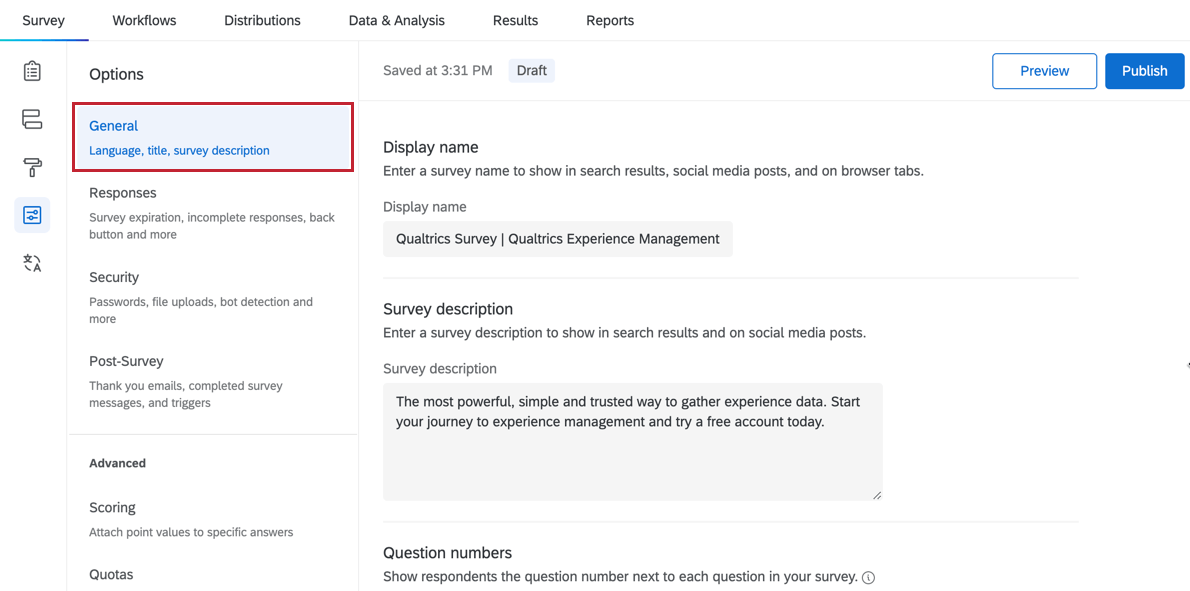
The General section contains survey options related to the survey’s the title and description displayed in search results, question numbering, and Expert Review.
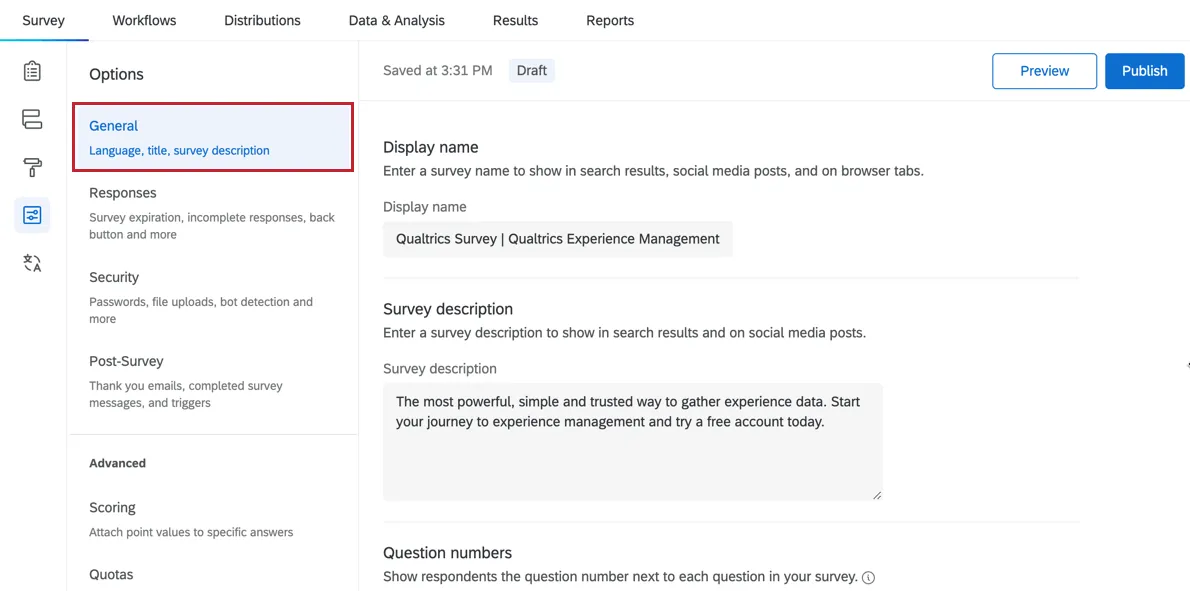
Display Name and Survey Description
Qtip: In the old survey editor, these options are called the survey title and meta description, and appear in the Survey Experience section.

Qtip: The survey’s display name and description can be translated.
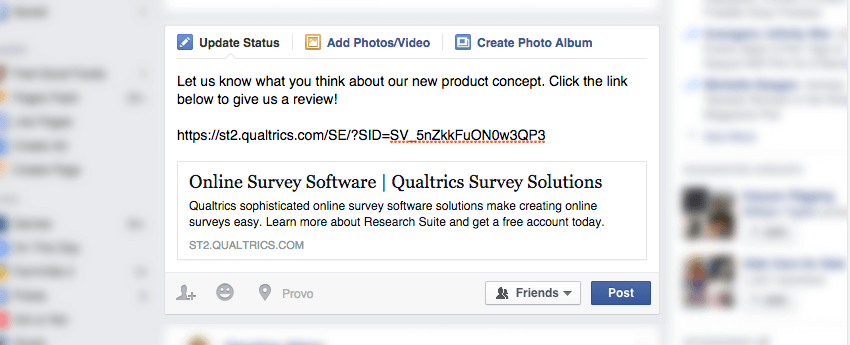
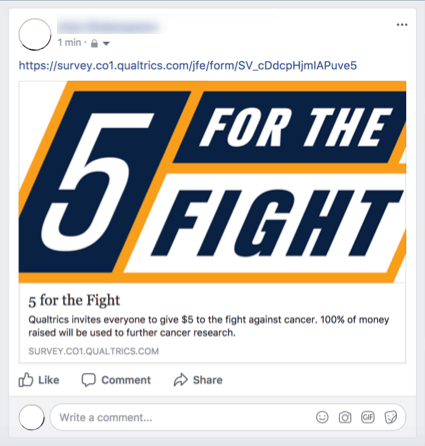
In the results of any web search you receive a list of related pages, each with a title and a short description. Similarly, when you post on a social media site such as Facebook, you will see these displayed as a short header and a summary of the link in your post.
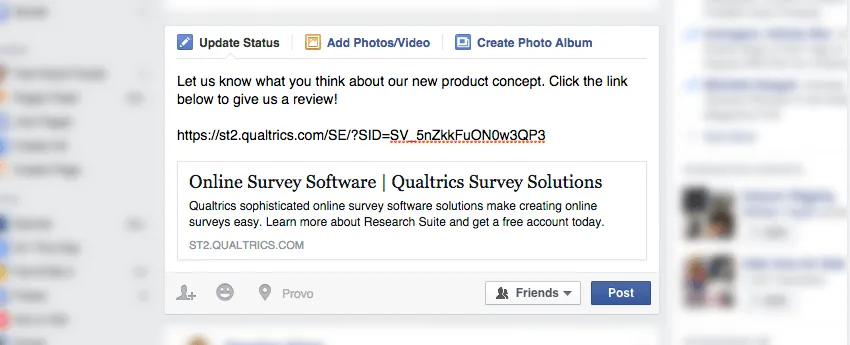
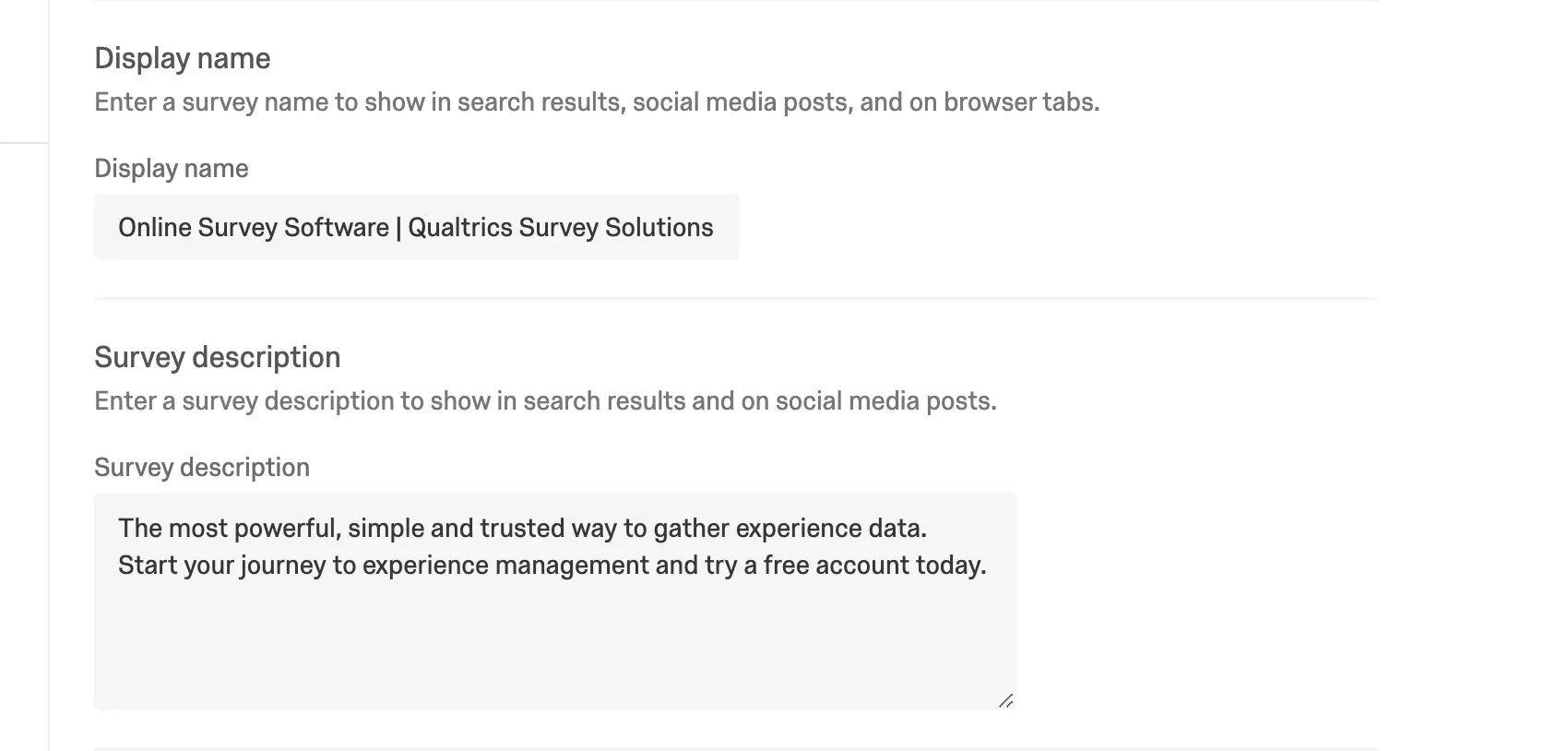
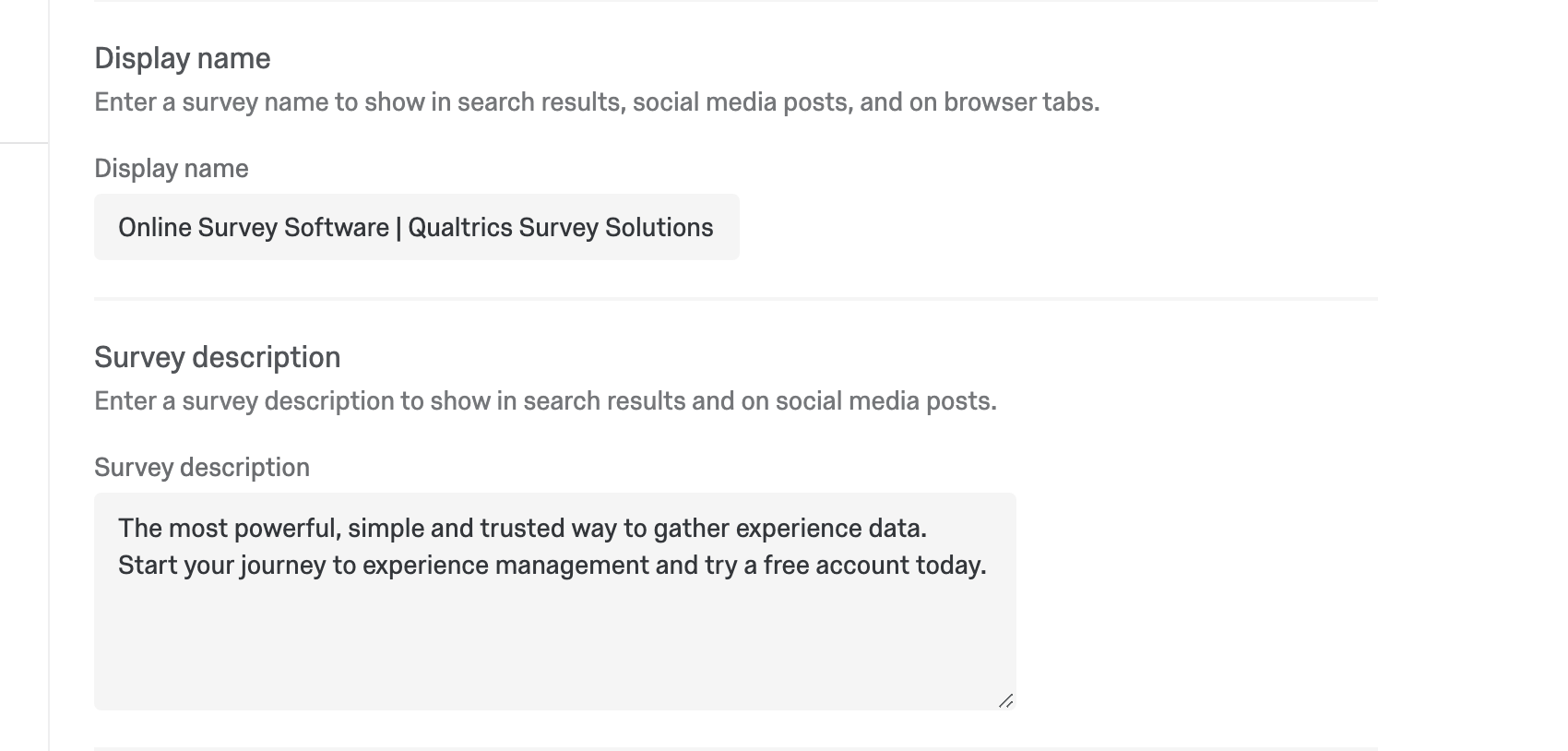
The title of your survey as it appears in web results and on social media posts is the display name, and the description that accompanies this name is the survey description. You can change these settings in survey 0ptions in the fields displayed below.
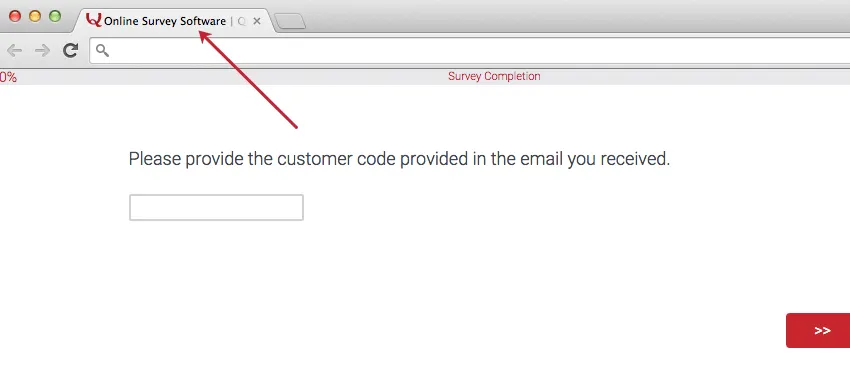
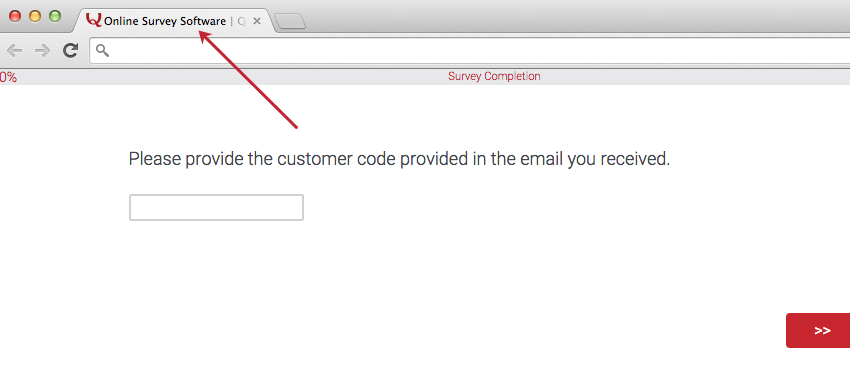
This display name is also displayed as the browser tab title.
The logo you see with the meta description is called an open graph image. It comes from the logo in your survey theme.
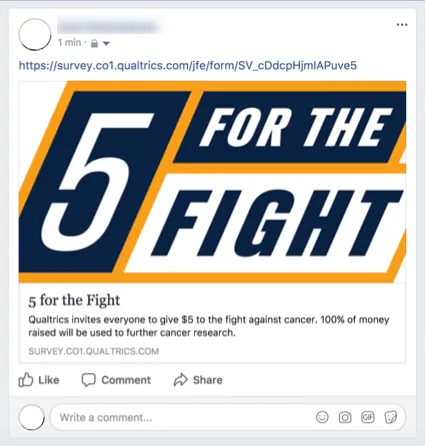
Qtip: Interested in changing the open graph image? It’s included when you create your own theme. You can also request to modify an old theme of yours. See the Branded Themes page on how to submit a theme request.
Qtip: By default, your survey will not be indexed by search engines. However, you can disable this in the Security section of the survey options.
Base Language
This is where you can set the language your project is written in. For more information, see Base Language. For more on translation in general, see Translate Survey.
Question Numbers
To the left of each question you will see the question number, which you can use to help identify questions when exporting your survey data and reference questions while working on a survey with others.
By default, these question numbers are not displayed to your respondents, but you can display them to respondents by enabling Question numbers in your survey options.

Question numbers are often turned on in the testing stage of your survey so those reviewing it can give more specific feedback on which questions they would like to see tweaked.
Qtip: To change any question number, simply click on it in the survey editor and type a new number or name.

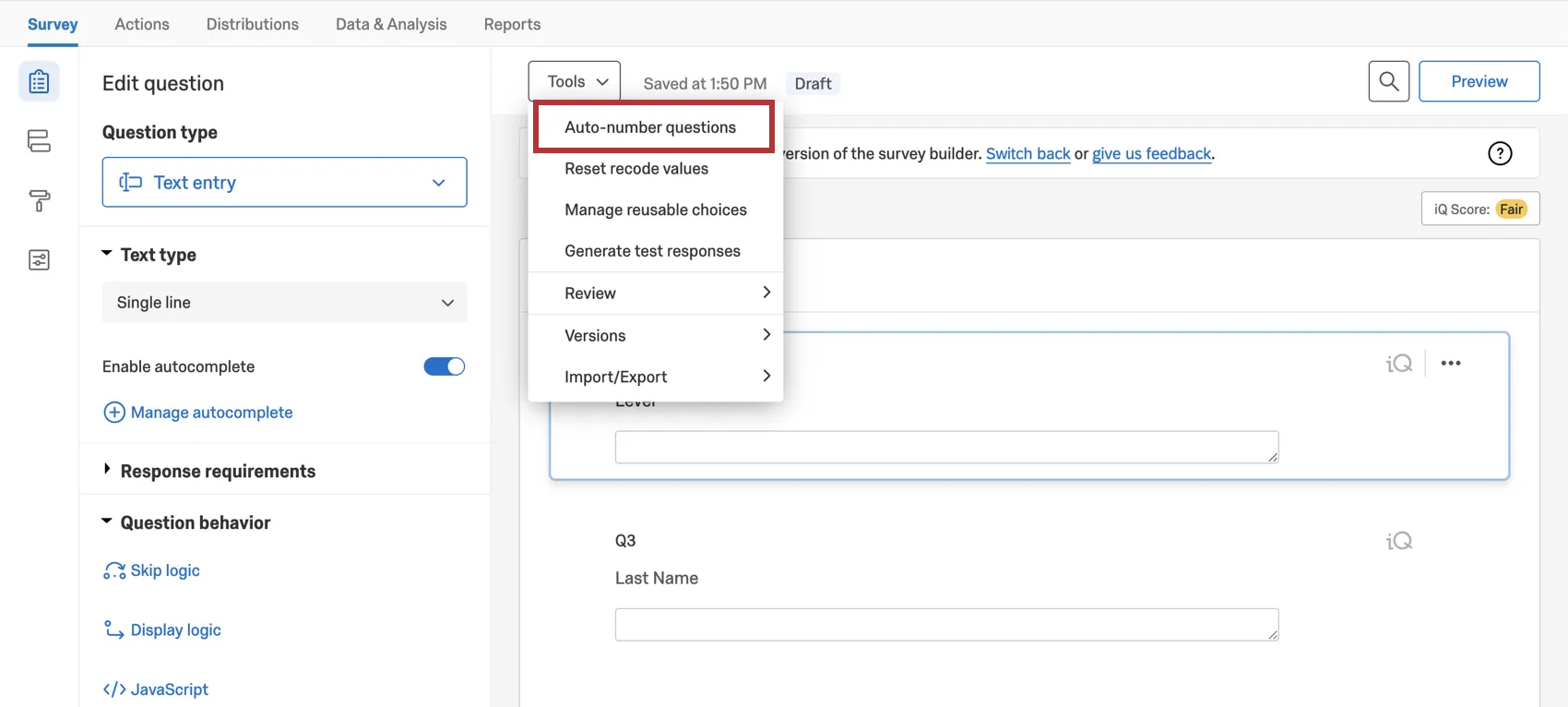
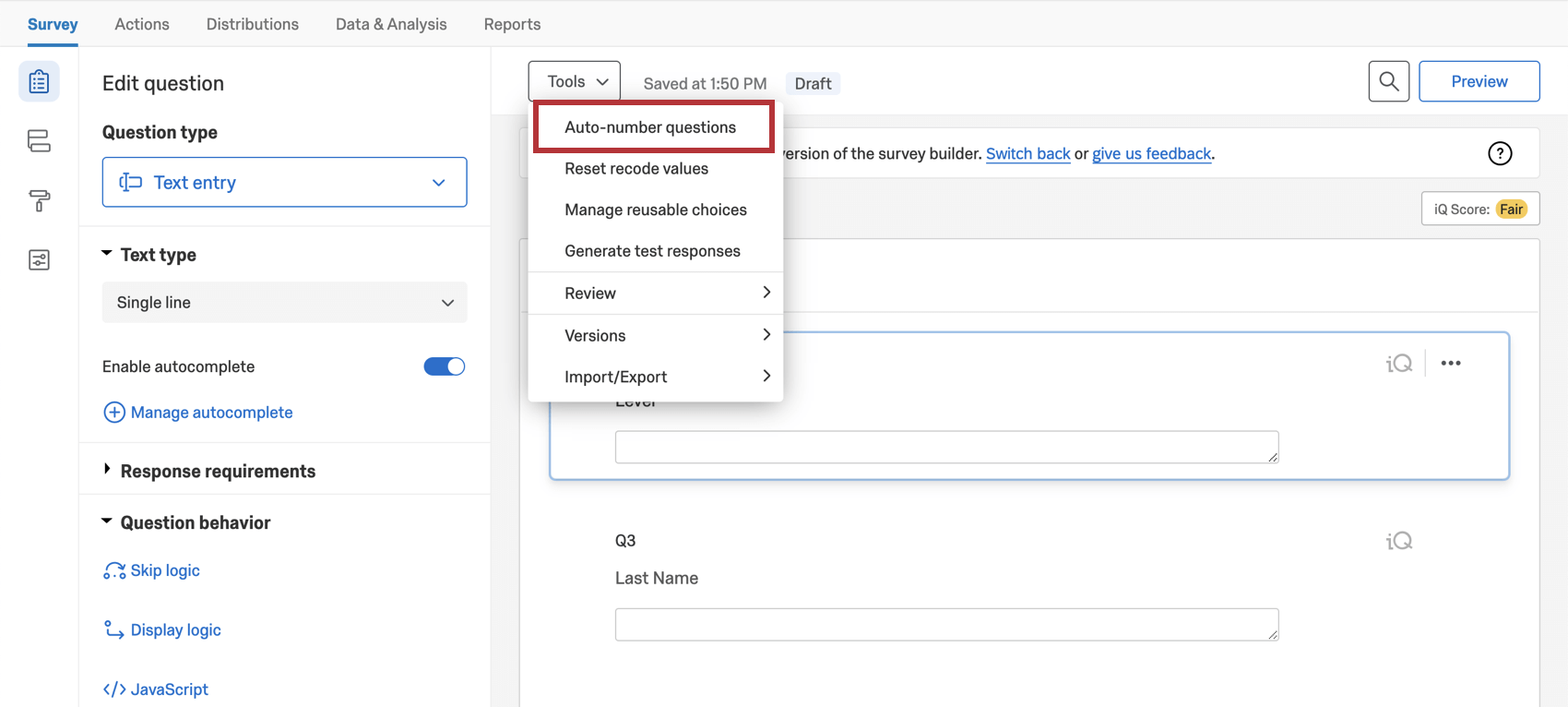
You can also renumber many questions at once.
Qtip: Consider using a progress bar rather than question numbers if you wish to give the participant a sense of how far they have come in the survey. The progress bar will fill up as the percentage of the survey completed increases, which can be more meaningful than a question number if the respondent has no idea how many questions are ahead.
Expert Review
Expert review is a digital reviewer for your surveys. It helps a researcher ensure that their surveys collect data of the highest quality. Use this setting to enable or disable this feature. It is enabled by default.

See Expert Review Functionality for more details.
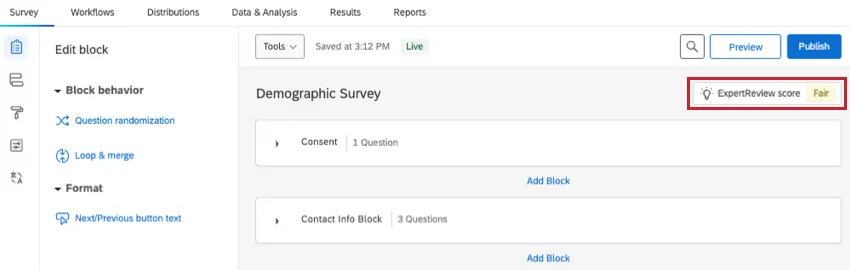
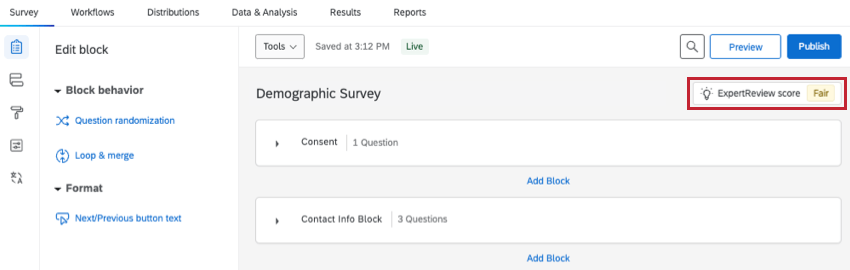
Qtip: Expert review can also be accessed by using the button in the upper-right of the Survey tab, as shown below:



New Survey Taking Experience
The new survey taking experience, formerly called the Simple Layout, is designed to simplify your survey building tools while also making the resulting survey more mobile-friendly, easy to use, and accessible for your respondents. Use this setting to enable or disable this feature. It is enabled by default for new surveys.
See New Survey Taking Experience for more details.
Qtip: The new survey taking experience can also be enabled within the Look and feel tab. See Activating the New Experience for instructions.
Survey Options in Different Project Types
Survey options are available in many different types of projects. The options described on this page are available in:
There are a few other projects that have access to survey options, but with unique functionality to keep in mind.
- For Engagement, Lifecycle, or Ad Hoc Employee Research projects, please see Survey Options (EX).
- For Pulse, see the section on survey options in Features Available in Pulse Surveys.
- For 360 projects, see Survey Options (360).
- For Conjoint and MaxDiff, see Survey Options.
FAQs
How do I show respondents their progress in the survey?
How do I show respondents their progress in the survey?
How do I translate my survey into other languages and specify a language for my survey respondents?
How do I translate my survey into other languages and specify a language for my survey respondents?
What is the incomplete survey responses setting?
What is the incomplete survey responses setting?
For more information regarding Incomplete Survey Responses, visit the Partial Completion support page.
When I click the link, I see an old version of my survey! Are my changes not being saved?
When I click the link, I see an old version of my survey! Are my changes not being saved?
Next, check whether you have Allow Respondents to Finish Later turned on in your Survey Options. If you've been testing out your survey on the Anonymous Link while you make edits, then you're seeing an old version of the survey because a cookie was placed on your browser to save your progress. Open your Anonymous Link in an Incognito Window or a Private Window. If this window has your changes, then Save and Continue is just saving your place, and you don't have to worry about brand new respondents seeing an old version of the survey.
(Note: We recommend testing your survey using your preview link instead of your anonymous link for this reason.)
That's great! Thank you for your feedback!
Thank you for your feedback!