

Generate Test Responses
What's on this page
About Generating Test Responses
If you want to see how your dataset or reports will look before sending out your survey, but you don’t want to complete the survey yourself over and over, you can generate random dummy data. You can find this functionality in the Tools menu of the Survey tab.
Qtip: Test responses generated through this feature do not count toward any limits on your license!
If you are looking to go through the survey yourself, but don’t want any response you submit to count towards your auditable responses, check out the Preview Survey function instead.
Qtip: This page describes generating test responses for survey projects. The steps for Engagement, Lifecycle, Ad Hoc Employee Research, and Pulse project types are different. See Generating Test Responses for EX Projects for more information.
Generating Test Responses
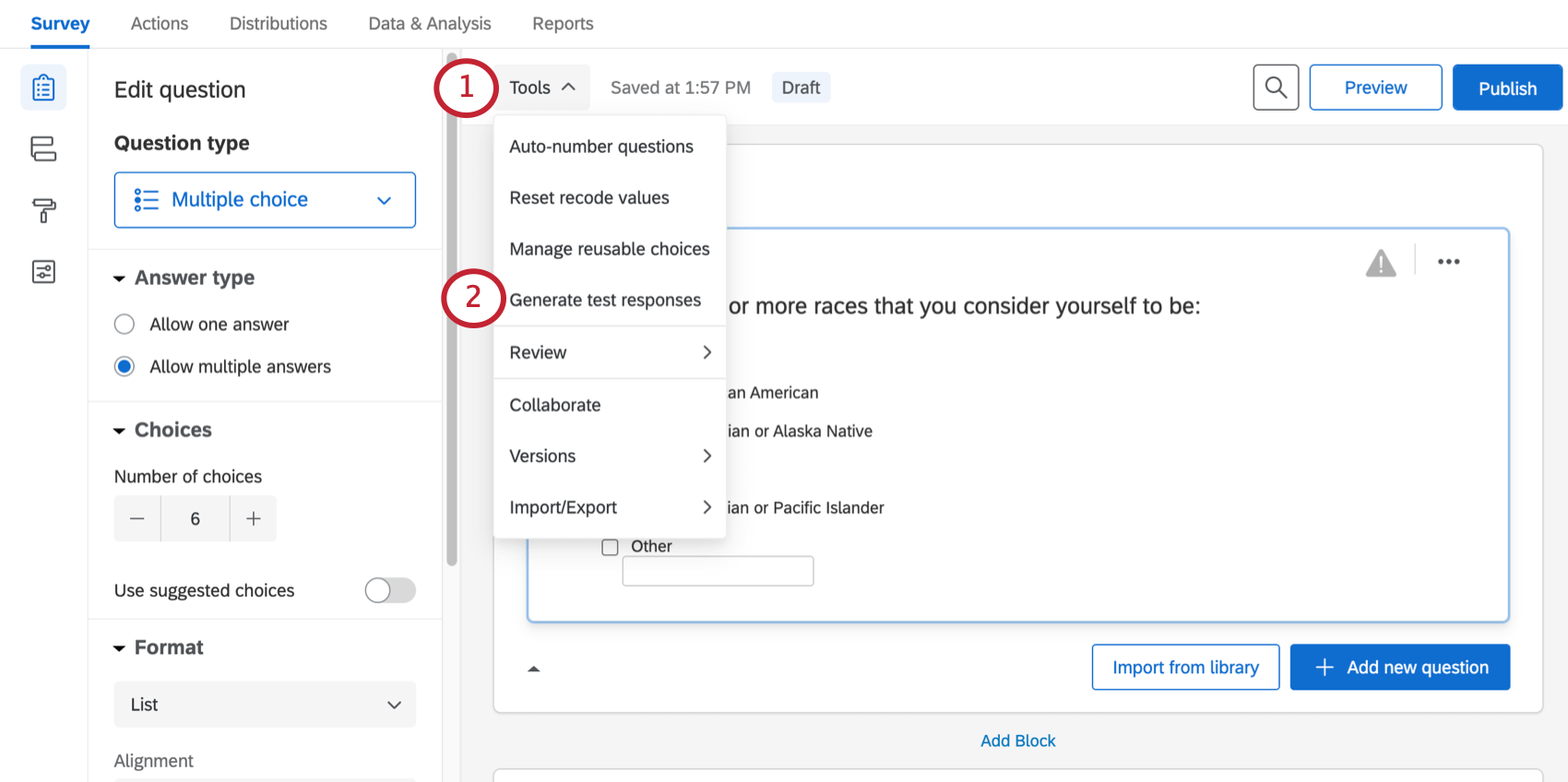
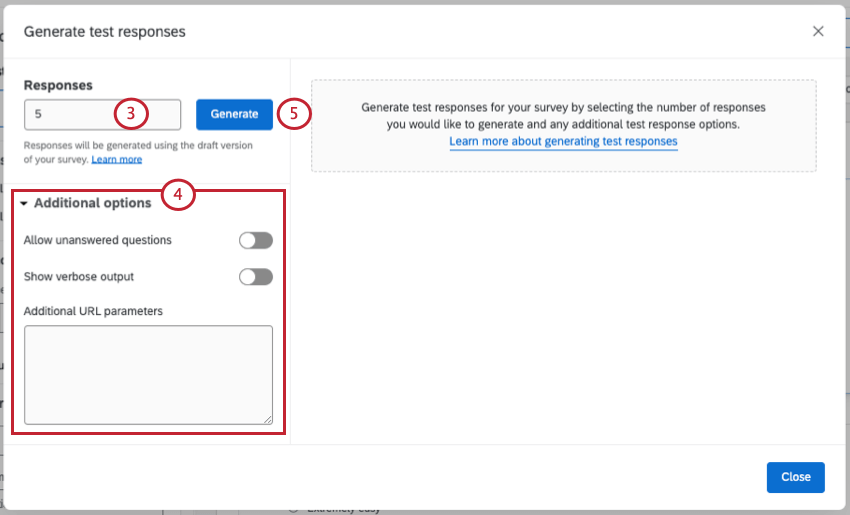
Qtip: Depending on the size of your survey, the request may time out if you try to generate too many test responses at once. If the request times out, try generating test responses in multiple smaller batches.
After waiting for your test to be completed, you will be shown a list of the test iterations, along with a Survey Test Summary. This summary includes a number count of test iterations, saved responses, and average questions per test.
Testing Options
The Options menu in the Generate Test Responses window allows you to enable the following items:
- Allow unanswered questions: Permit the test generator to leave questions unanswered at random. Do not enable this if you have force response on any of your questions.
- Show verbose output: Show more details concerning each test iteration, including which questions and blocks were tested, which order the questions were displayed in, and whether randomization was applied.
- Additional URL parameters: Enter parameters as if you were appending them to the end of the survey link. For example, you could set an embedded data field value for your test responses by entering &State=Utah&City=Provo. This option can also be used to answer test survey questions in a specific way by using the Q_PopulateResponse parameter. Qtip: For adding embedded data to test responses, you must make sure that you have an embedded data element in your survey flow to capture the embedded data values. Additionally, the syntax you use to define the embedded data and their values must follow this format: &FieldName1=value1&FieldName2=value2. You may have as many embedded data fields as you’d like, as long as they are separated by ampersands and the syntax is not interrupted by any spaces or other characters.

Deleting Test Responses
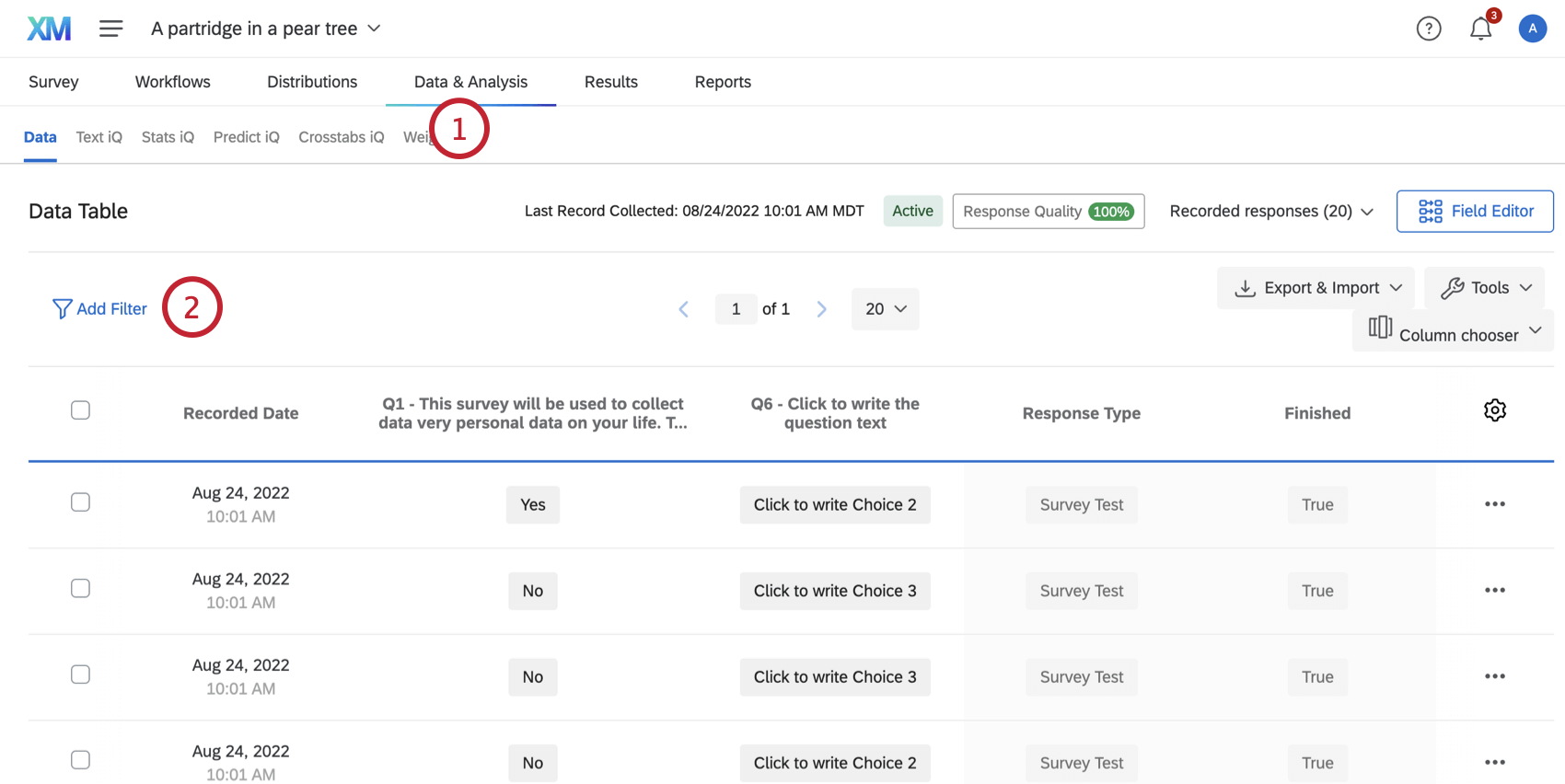
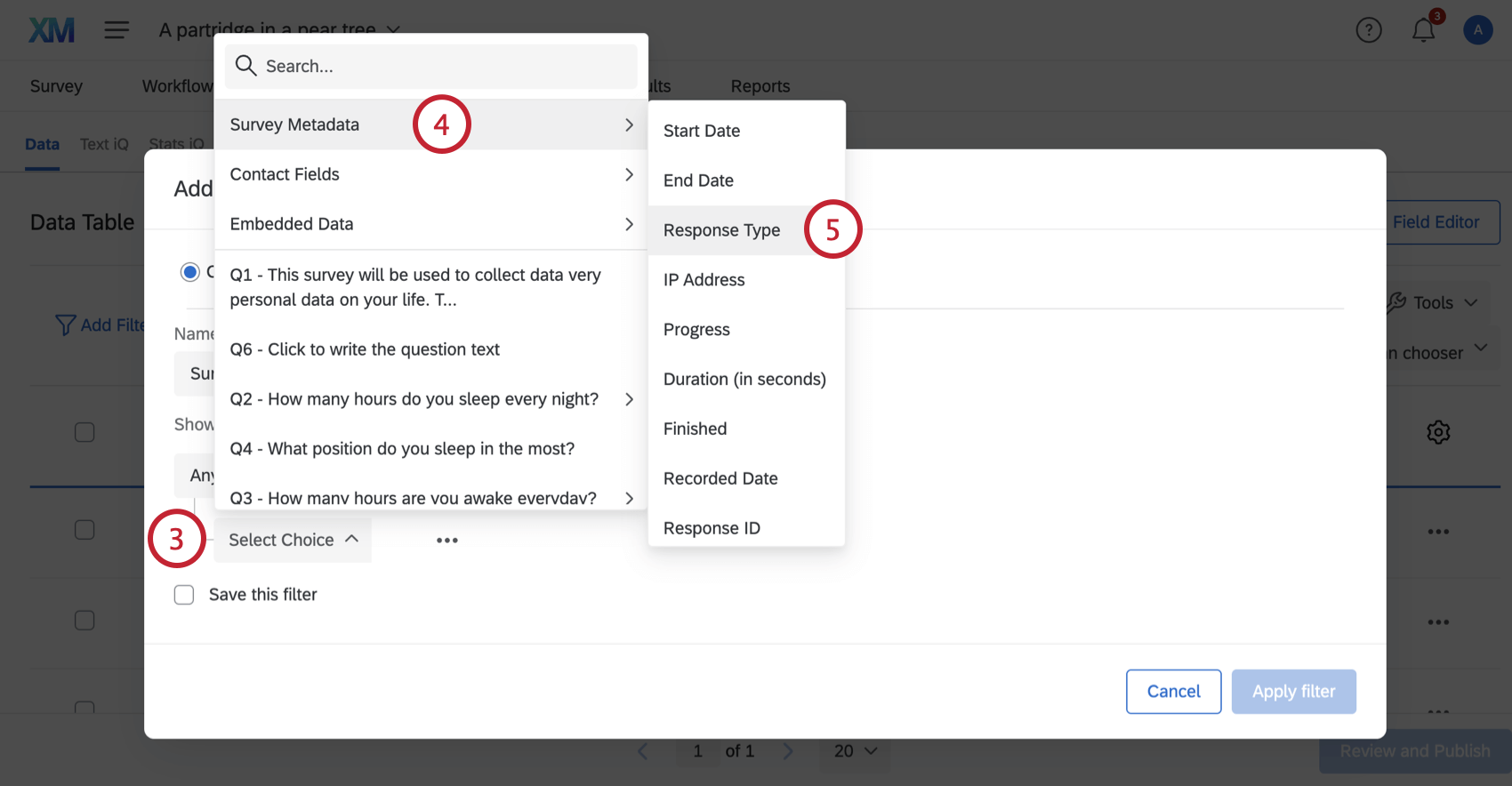
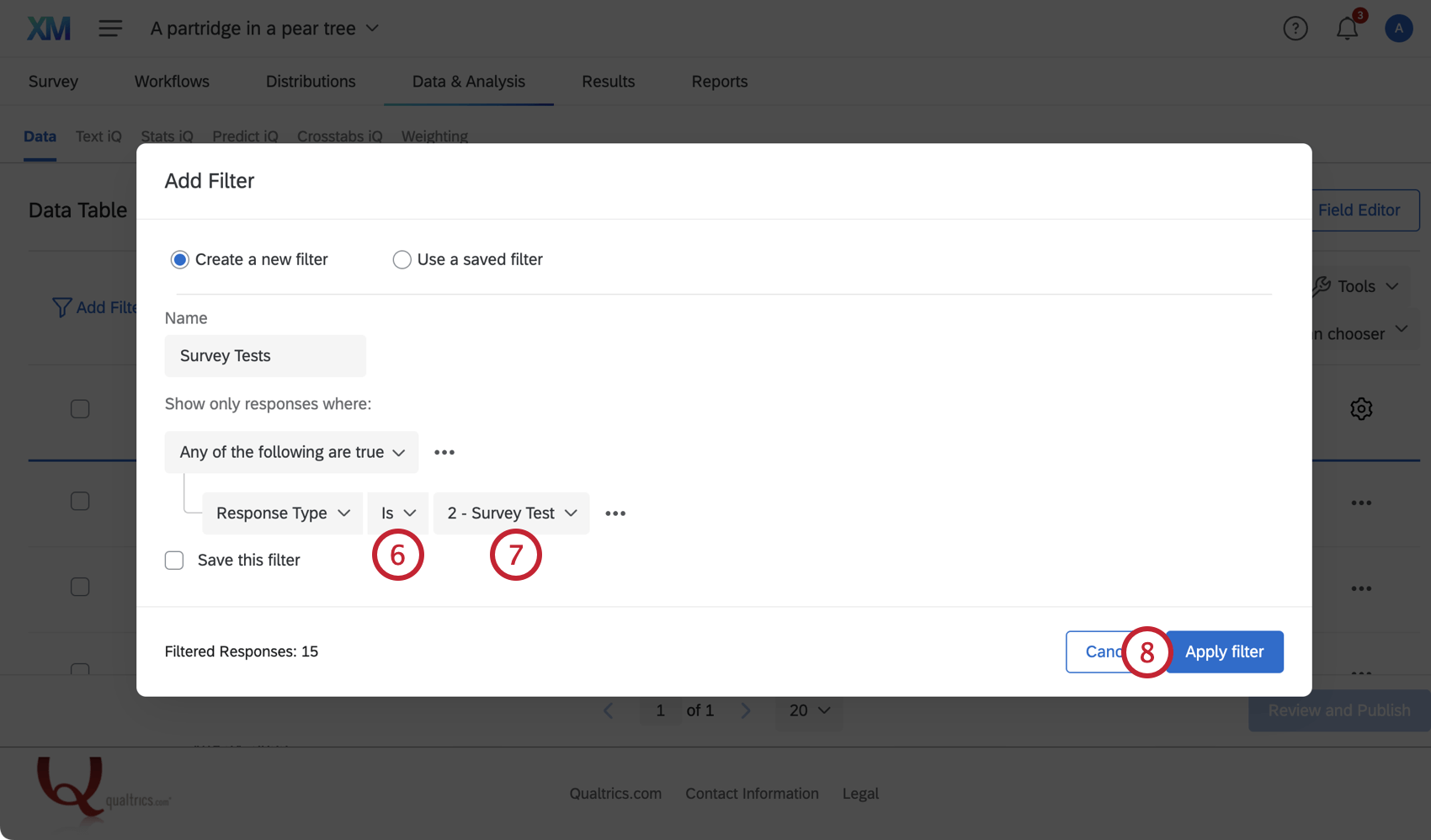
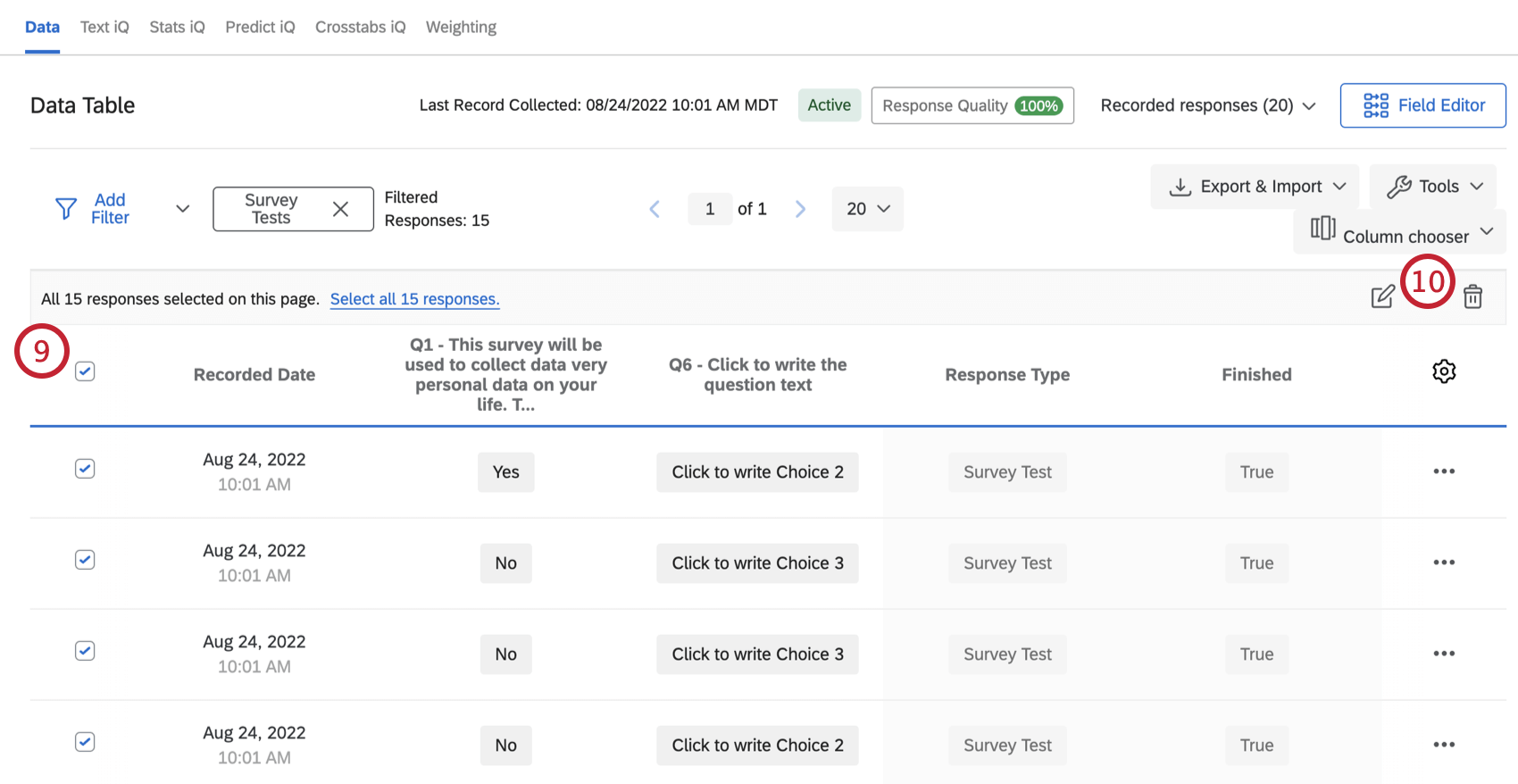
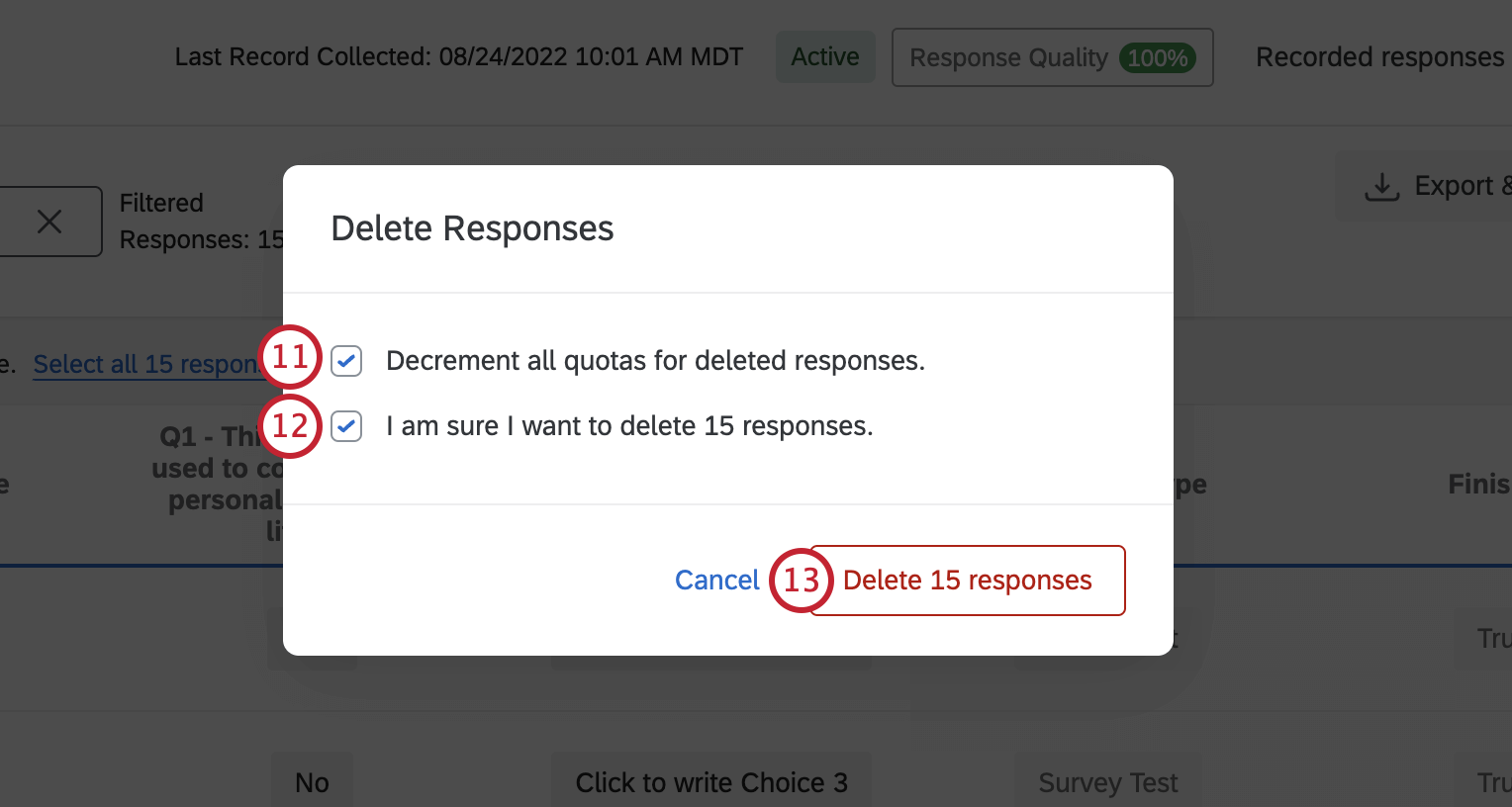
Qtip: If you’d like to delete just one responses or selected responses, see our page on Deleting Responses.
Important Notes
The following are other items to consider when using Generate test responses.
- Generate test responses randomly generates dummy data, including random Latin text for text entry and meta info questions.
- You cannot generate test responses with an authenticator element in your survey flow.
- You cannot generate test responses with a table of contents and a loop & merge block.
- Generate test responses is not currently compatible with questions that use autocomplete or supplemental data.
- Generate test responses is currently not compatible with newer question types such as constant sum, star slider, graphic slider, profile, or carousel view matrix questions.
- Custom validation will not be applied to test responses.
- If you have set up impossible or incomplete validation, the test responses will not generate correctly, just as a real respondent wouldn’t be able to pass the validation.
- If you are using screen outs, you may see “Survey Response Not Saved” while generating test responses. This indicates that the test response was screened out when it randomly answered the survey.
- Test responses will fill quotas and fire workflows (such as email tasks), email triggers, and Salesforce Response Mapping, if applicable.
- Testing timing questions may give unexpected results, such as a “Page Submit” time that is before the “Last Click” time.
- The Captcha Verification question will be ignored by the test generator.
- File upload questions will upload a test file.
Projects Where You Can Generate Test Responses
You can only generate test responses in a few different types of projects. The options described on this page are available in:
- Survey projects
- XM Solutions
- Conjoint and MaxDiff also let you generate test responses, but with unique functionality to keep in mind. See this support page.
Qtip: You can generate test responses for Employee Experience projects, but the steps are different to allow org hierarchy and dashboard testing. See Generating Test Responses for EX Projects for more information.
FAQs
How do I delete my preview responses or test responses?
How do I delete my preview responses or test responses?
Note that “Survey Tests” refers to fake data generated by the Generate Test Responses feature and does not refer to surveys submitted during live testing.
How do I test my survey before sending it out?
How do I test my survey before sending it out?
To learn more, visit our page on Testing and Editing an Active Survey.
Do I have to populate every question of the survey with Q_PopulateResponse?
Do I have to populate every question of the survey with Q_PopulateResponse?
When I generate test responses, what version of the survey will be used?
When I generate test responses, what version of the survey will be used?
That's great! Thank you for your feedback!
Thank you for your feedback!