

Reusable Choices
What's on this page
About Reusable Choices
Sometimes you’ll need to reuse the same list of choices for many of your questions. Instead of copying and pasting the same choices over and over, you can create reusable choices.
Reusable choices allow you to save a list of choices in your survey that you can reuse in more than 1 question. If you realize later that you forgot to add a choice, you don’t have to edit every question individually. You just edit your reusable choices, and all questions using this feature will change automatically.
Qtip: If you add reusable choices to your survey, you can’t save that survey as a reference survey. If you try, you’ll receive a message that says, “You can’t copy a survey with an active reusable choice list to the library.”
Warning: Make sure you add reusable choices before you collect any data. Adding reusable choices to a question after you’ve collected data can invalidate the previously collected data. If you must add reusable choices after a survey has collected data, consider creating a new question that uses the reusable choices, while hiding the old question with display logic.

Project Type Compatibility
Depending on your license, you may have access to a few different types of project. Reusable choices are only available in a few different types of projects, including:
Reusable choices are not available in any project types not listed above.
Manually Creating Reusable Choices
You can create reusable choices manually or by importing them. Reusable choices apply to 1 survey at a time; editing your reusable choices in one survey won’t change them in a different survey.
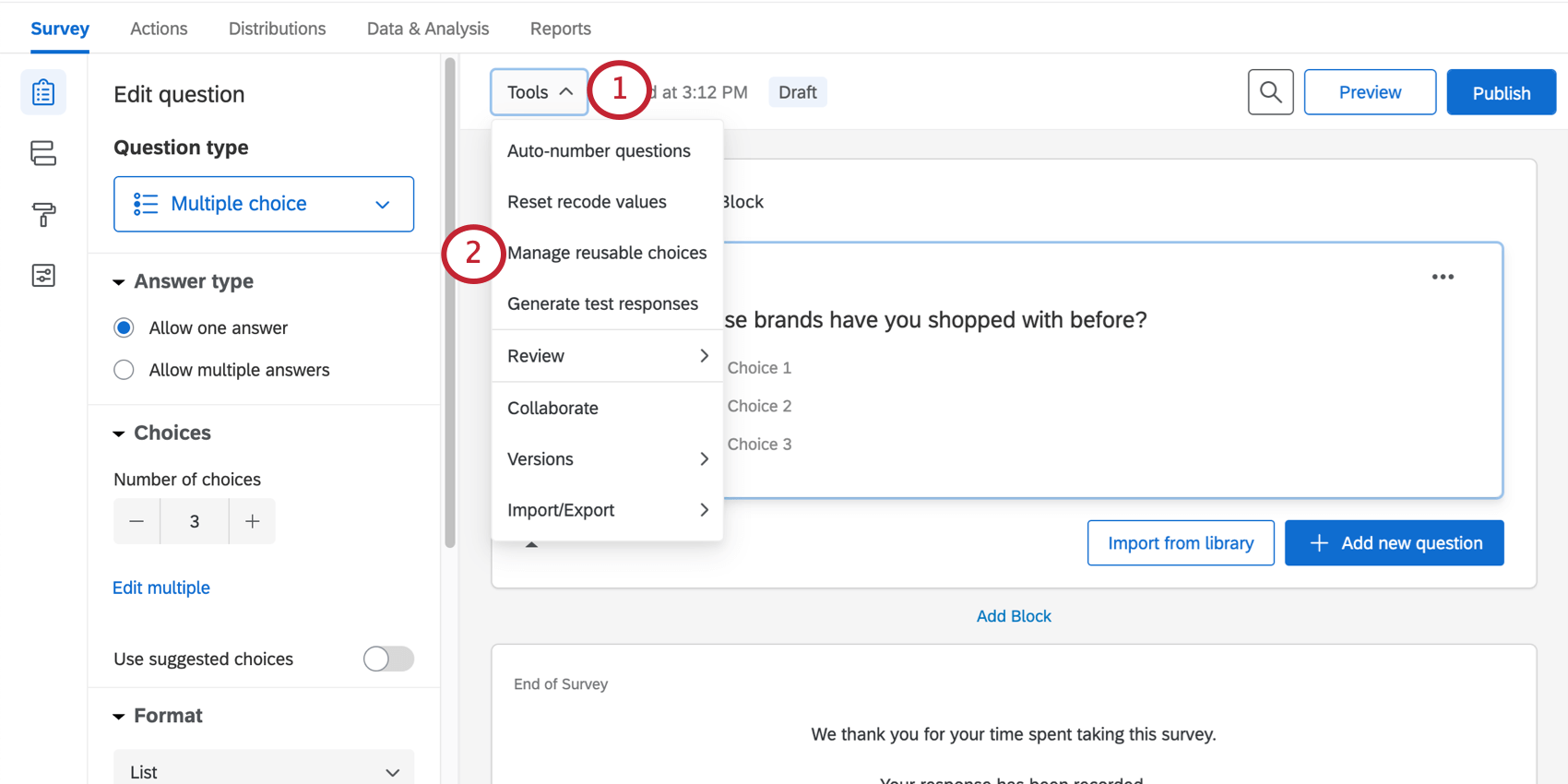
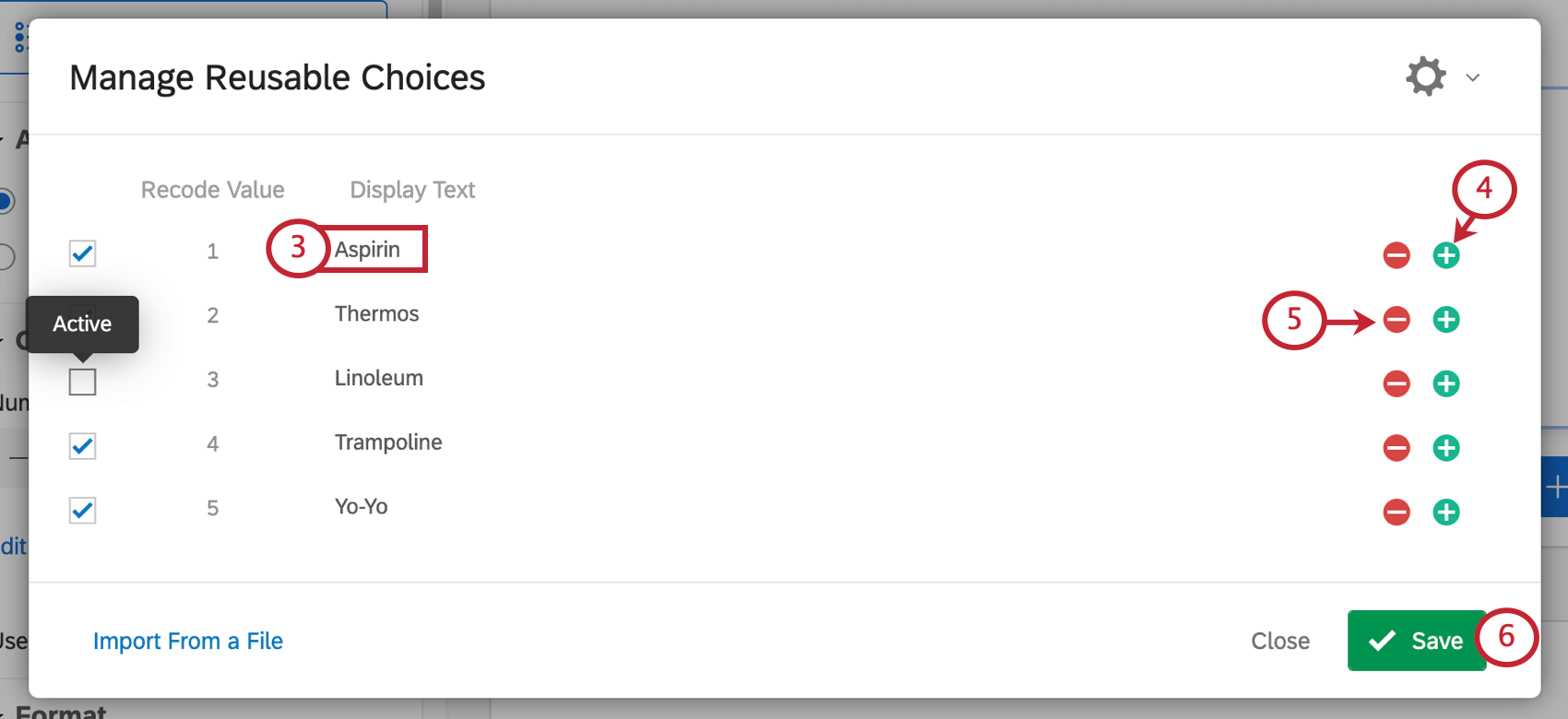
Qtip: Remember that when you’re completely finished with survey edits, you should publish your survey.
Importing Reusable Choices
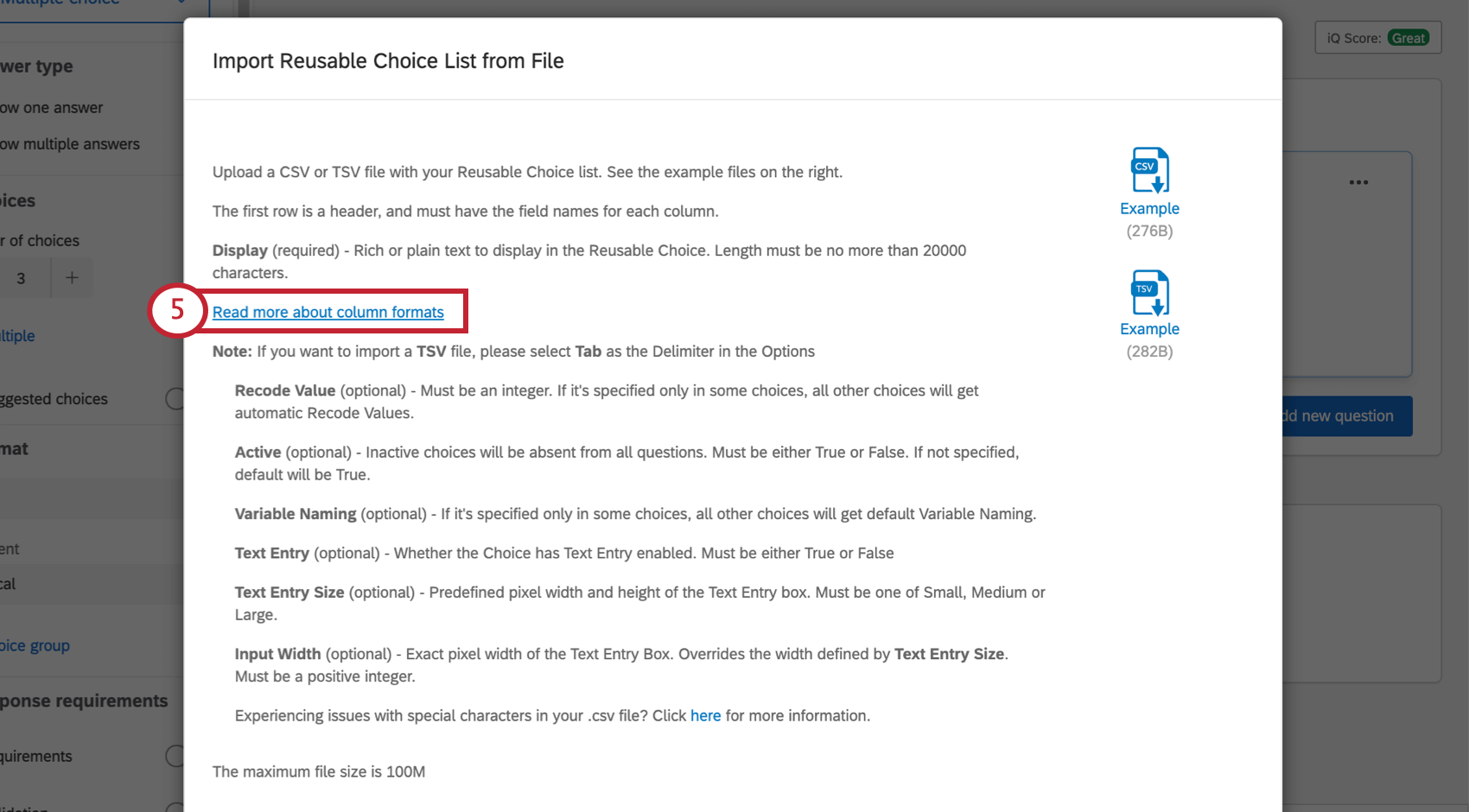
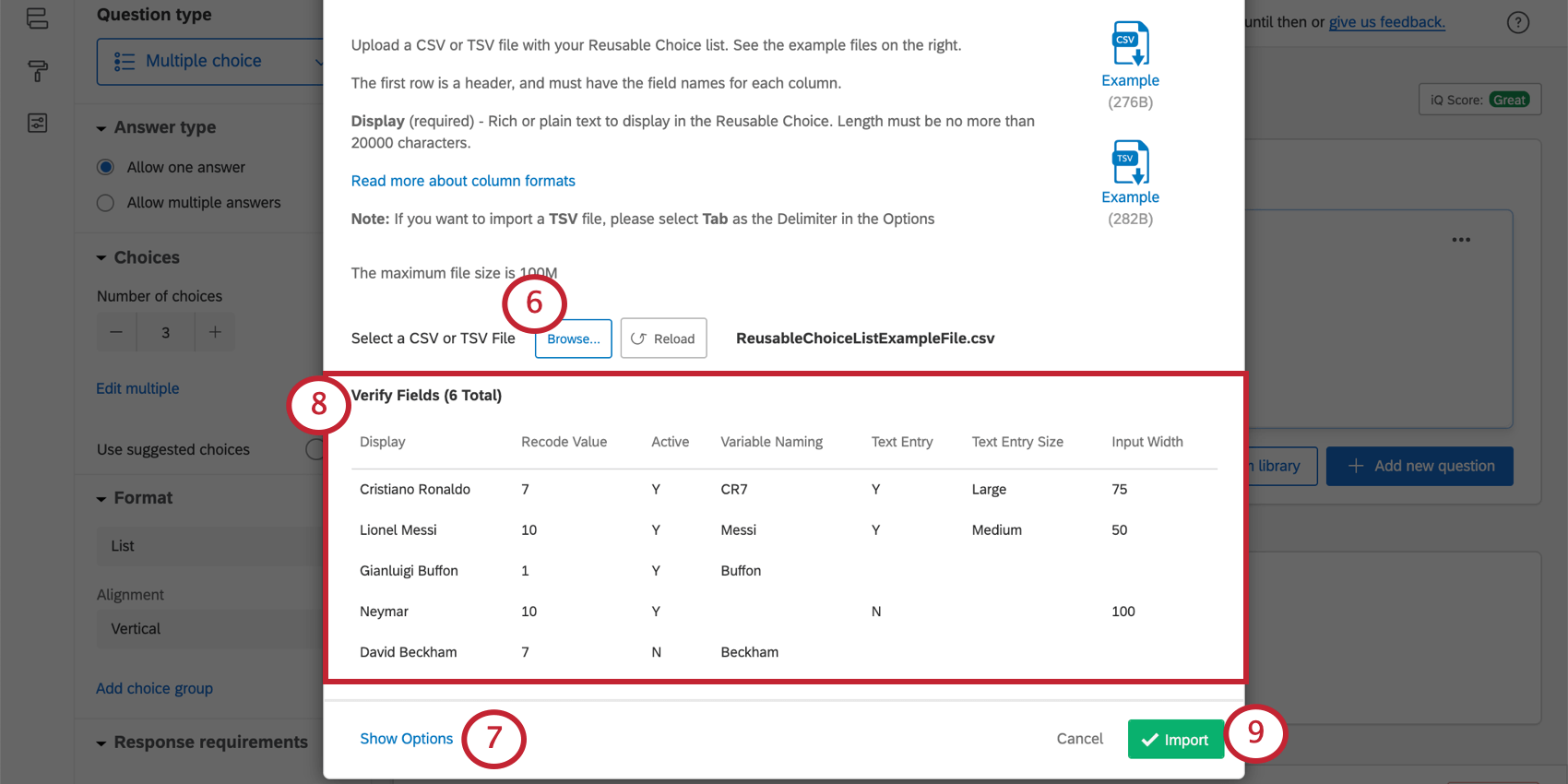
If you want to add the same list of choices to several surveys, or you have many choices with special formatting to add at once, you can save time by importing your choices.
Qtip: This file must be saved in a CSV UTF-8 encoded or TSV format. The first row must contain the headers. The maximum file size is 100M.
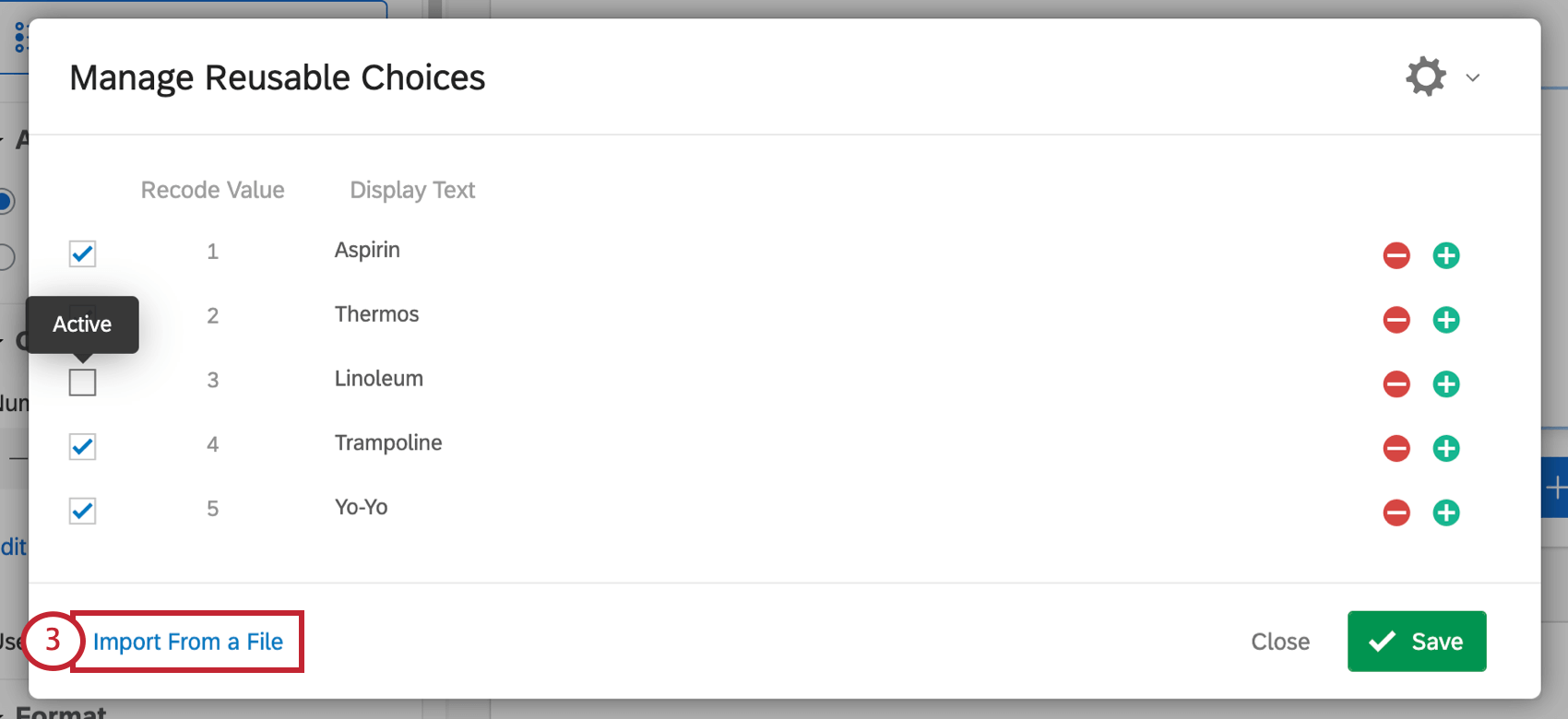
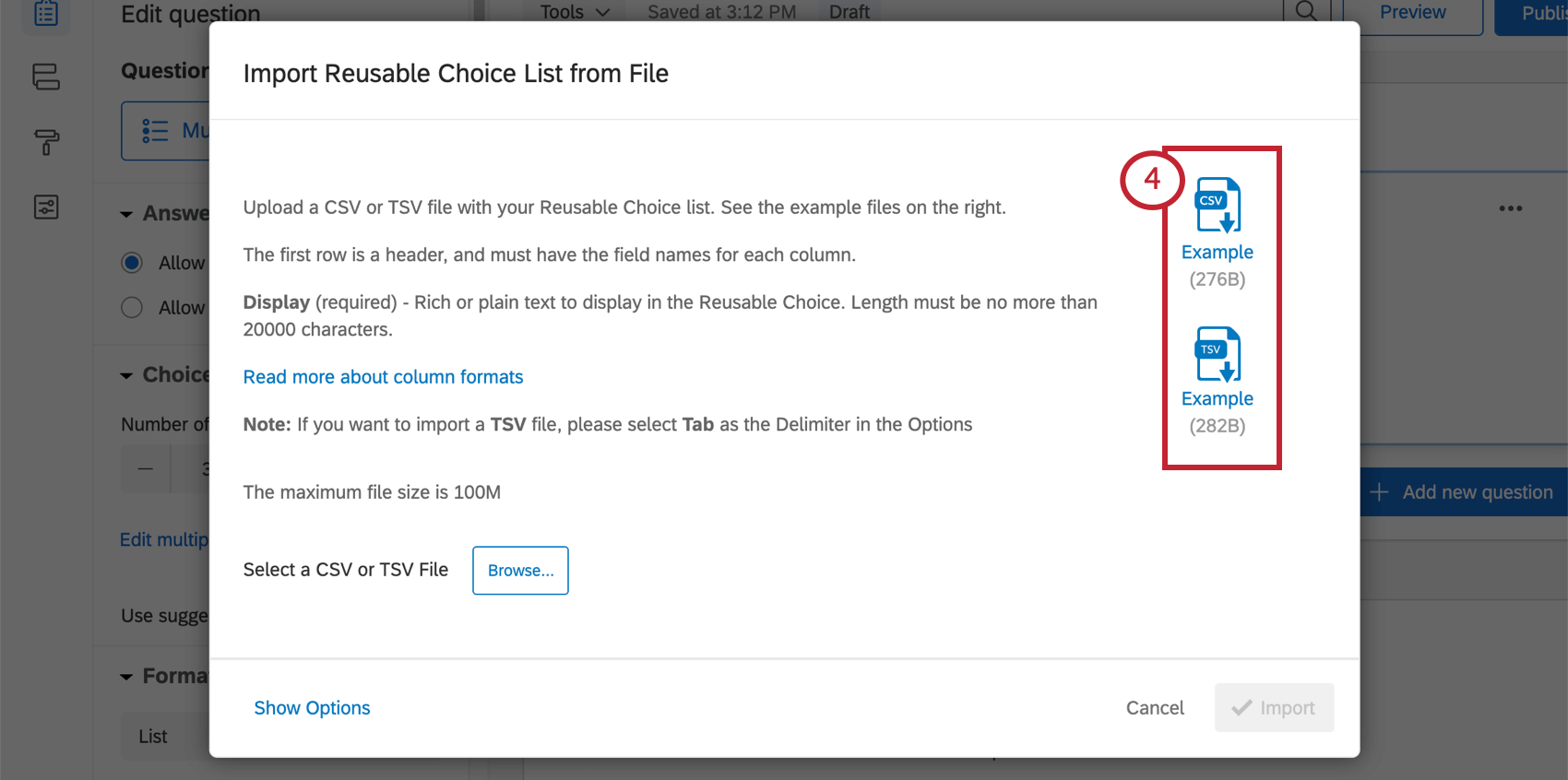
Qtip: If you’re having trouble uploading your file, check out the CSV/TSV Upload Issues support page.
Qtip: If you import a new reusable choices file, all of your existing reusable choices will be overwritten.
Import File Columns
- Display: This is the only required column. Name the choice. You can include basic HTML to add rich text, such as bolding, italics, or font colors. The maximum length of a choice name is 20,000.
- Recode Value: Set a recode value for the choice. This must be an integer (a number with no decimals or fractions). Choices left blank will be automatically assigned recode values.
- Active: If a choice is marked False, it’ll be considered inactive and excluded from all questions. Choices left blank or given a value of True will be considered active.
- Variable Naming: Set a name for the choice. If you leave the choice blank, the choice gets their default variable name, matching exact choice text.
- Text Entry: Whether the choice has text entry enabled. Set this column to True to add text entry, and False to exclude text entry. You can also exclude text entry by leaving the column blank.
- Text Entry Size: Determines the size of the text entry box. Can be set to small, medium, or larger.
- Input Width: Overrides text entry size. Use this field to set specific pixel width instead. Must be an integer (a number with no decimals or fractions).
Qtip: Input Width does not refer to a limit of how many characters a respondent can type into the box. It is the size of the text box itself.
Formatting Reusable Choices
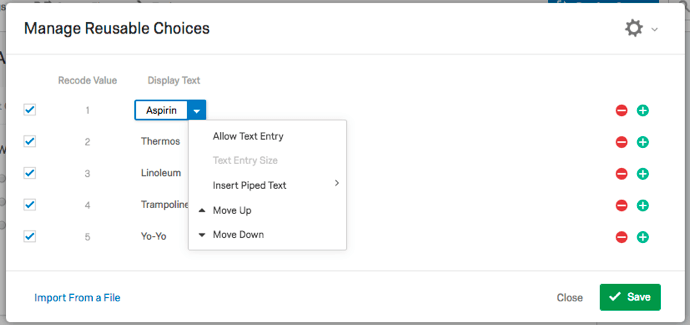
Click on a choice, then click the dropdown arrow to view additional formatting options.
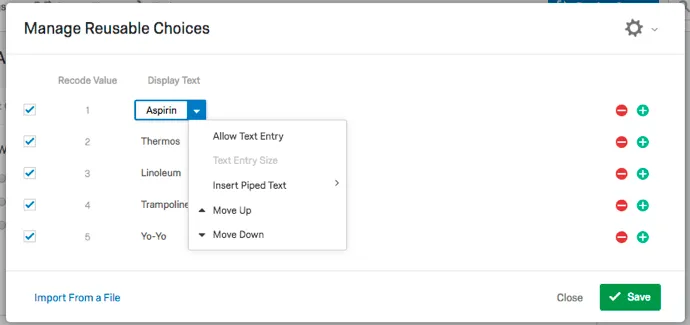
- Allow Text Entry: Add a text entry box next to the answer choice. For example, if “Other” is a choice, you may want respondents to specify what “Other” is.
- Text Entry Size: For answer choices that have Allow Text Entry enabled, change the size of the text entry box. Qtip: This setting is disabled if you are using the New Survey Taking Experience.

- Insert Piped Text: Pull text from another survey question, or from a variety of other resources, into your answer choice.
- Move Up: Move the choice up by 1.
- Move Down: Move the choice down by 1.
Hiding Choices
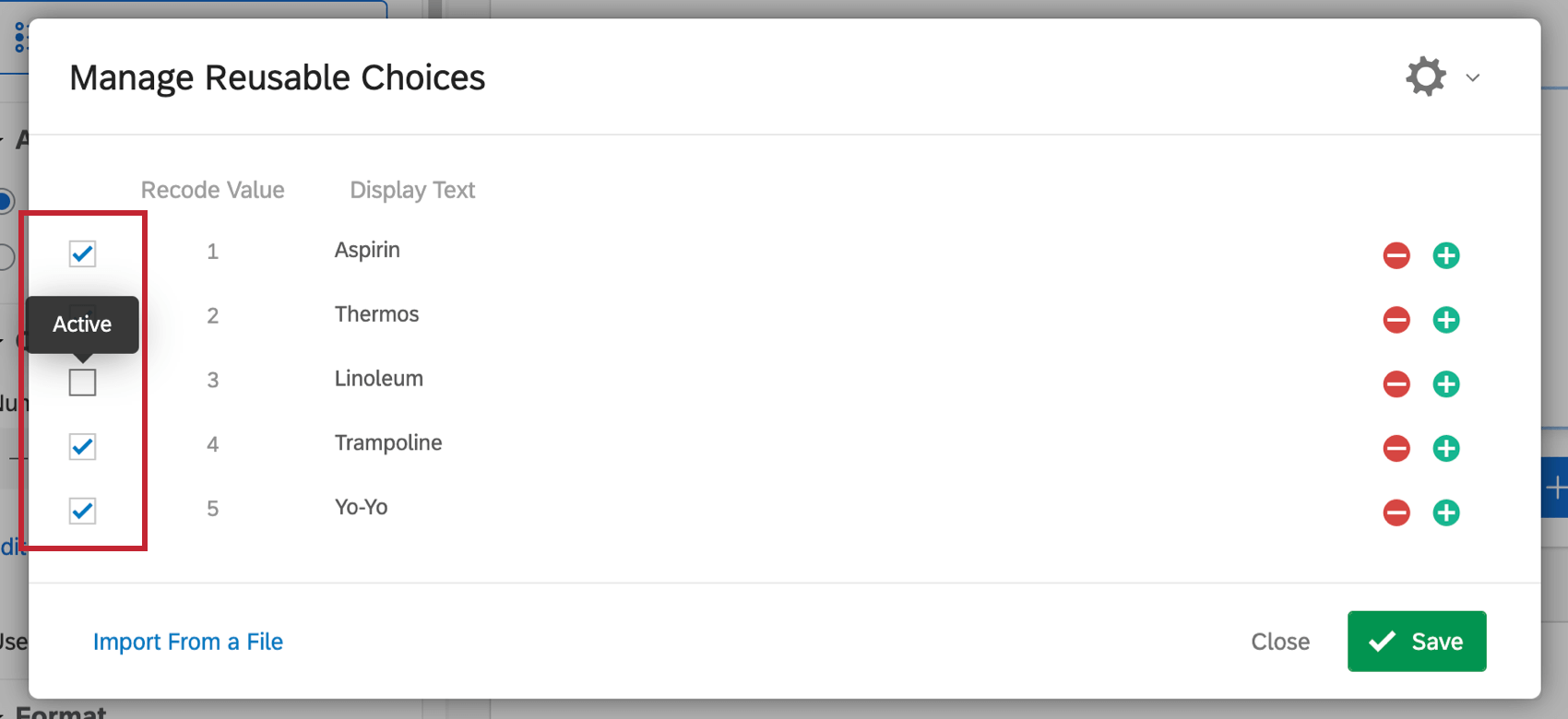
Sometimes, you may decide that you don’t want to include a choice from your list, but you don’t want to delete it. To hide a choice, deselect the check box to the left of the choice.
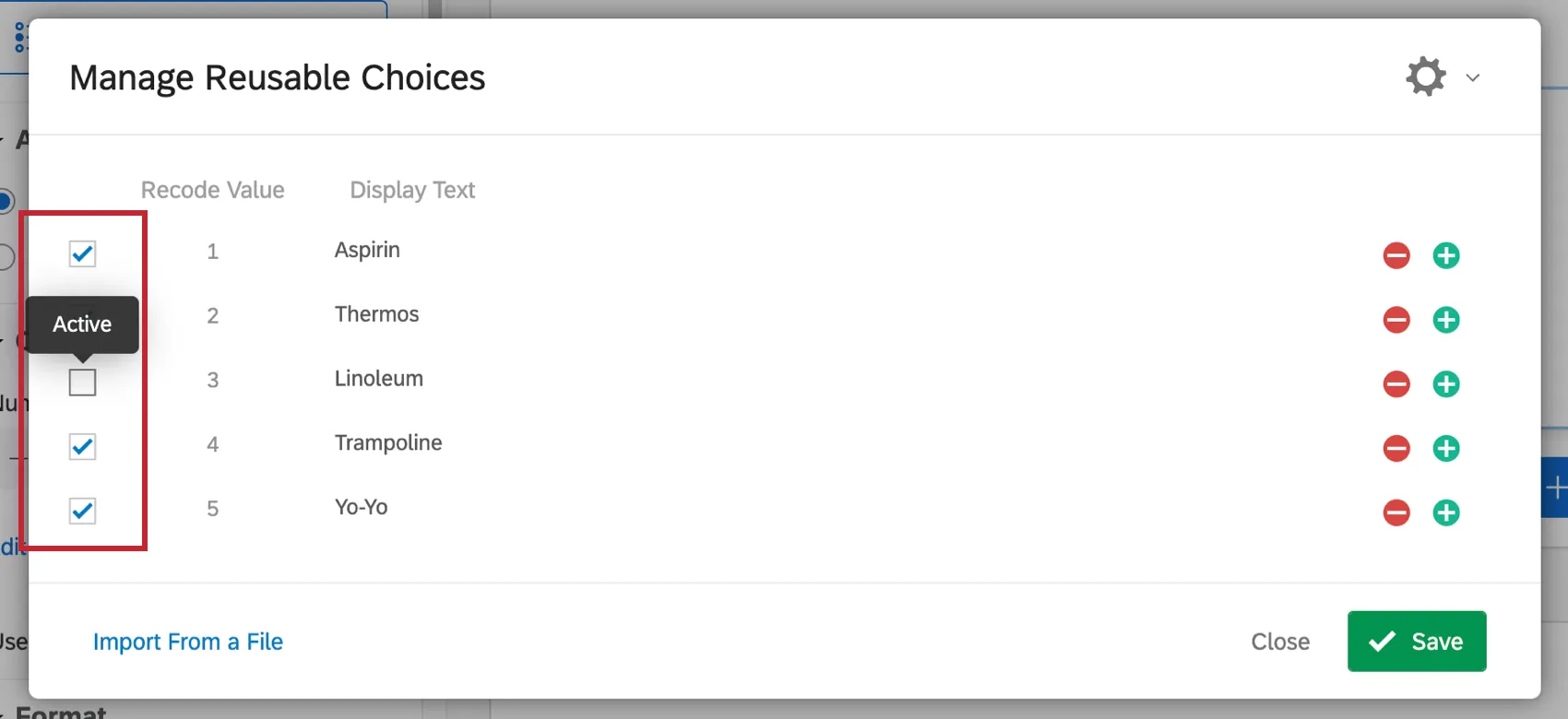
You can show this choice again any time by selecting the choice.
Qtip: Remember that this settings applies to all questions with the reusable choices. If you need to hide different choices for different questions, try setting answer choice display logic or check out the Filtering Reusable Choices section below.
Recode Values and Variable Naming
Recode values are the numeric values behind each answer choice. Variable naming is the label the data exports when you select label format.
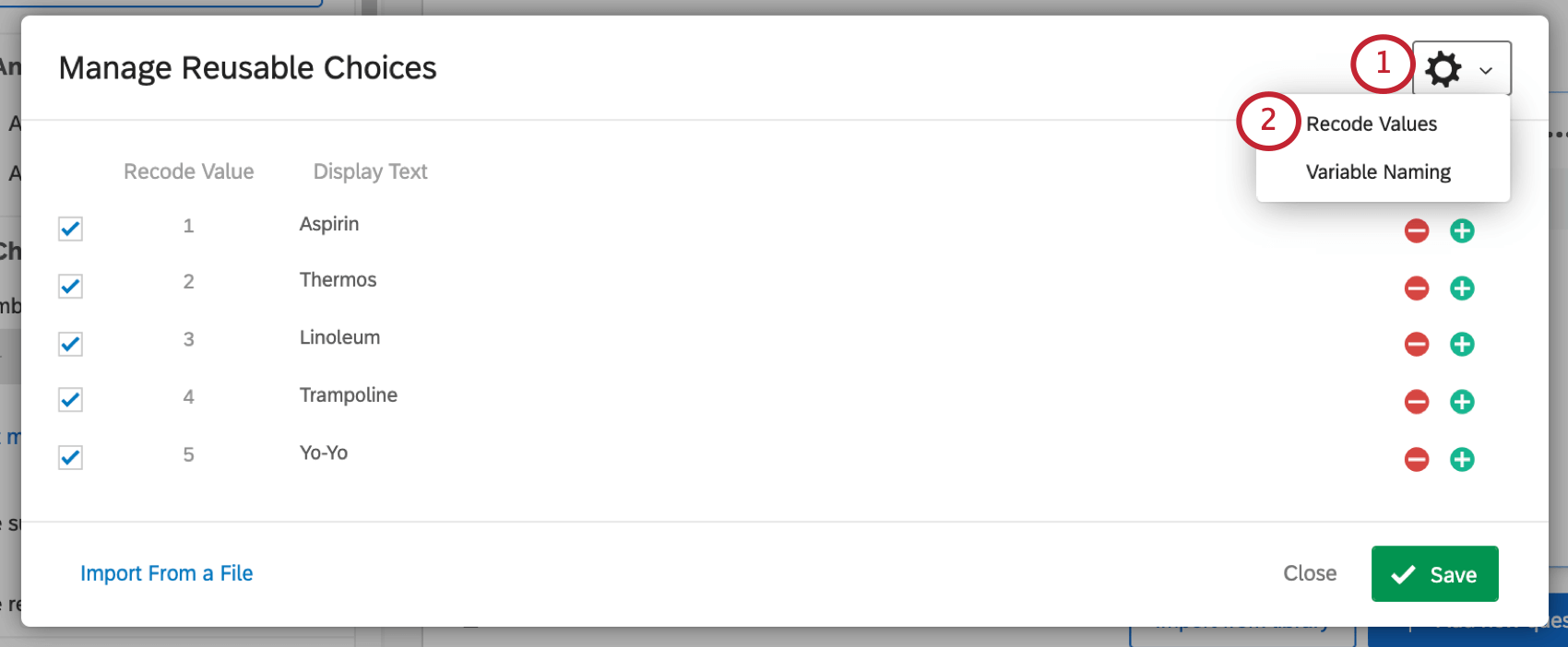
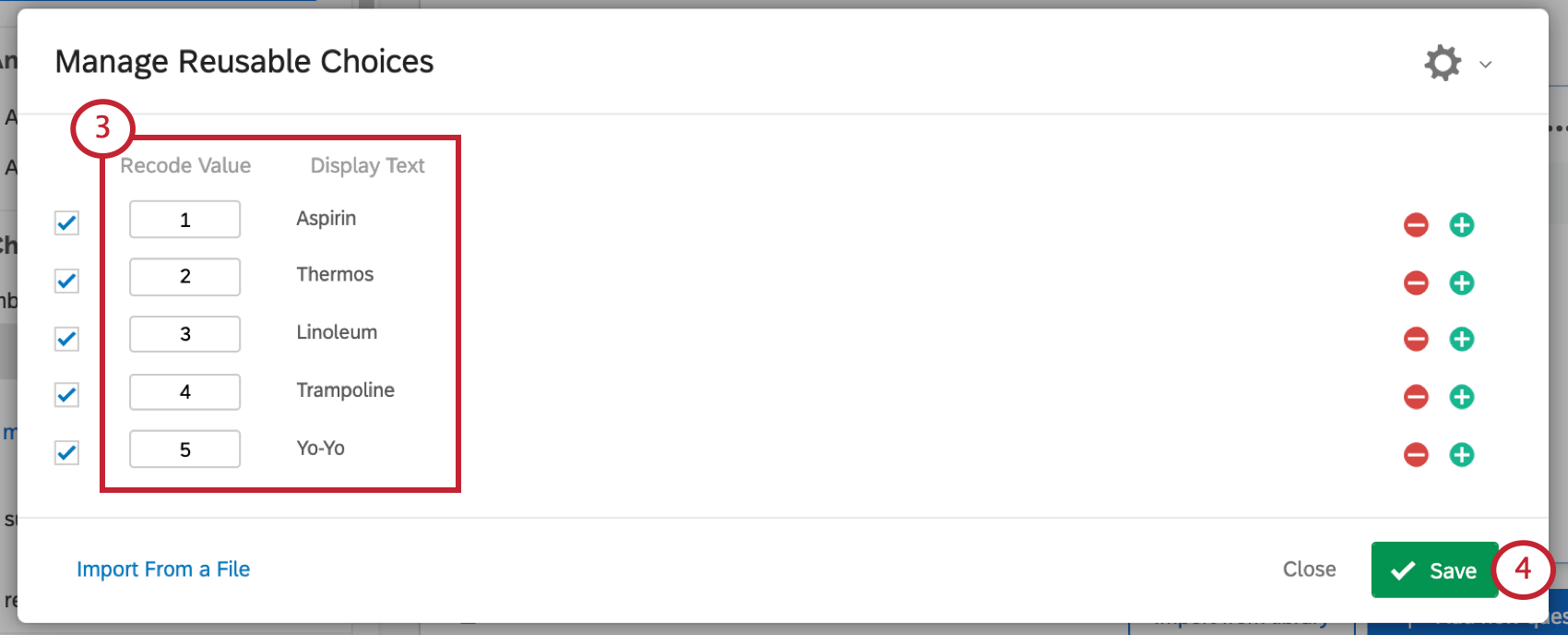
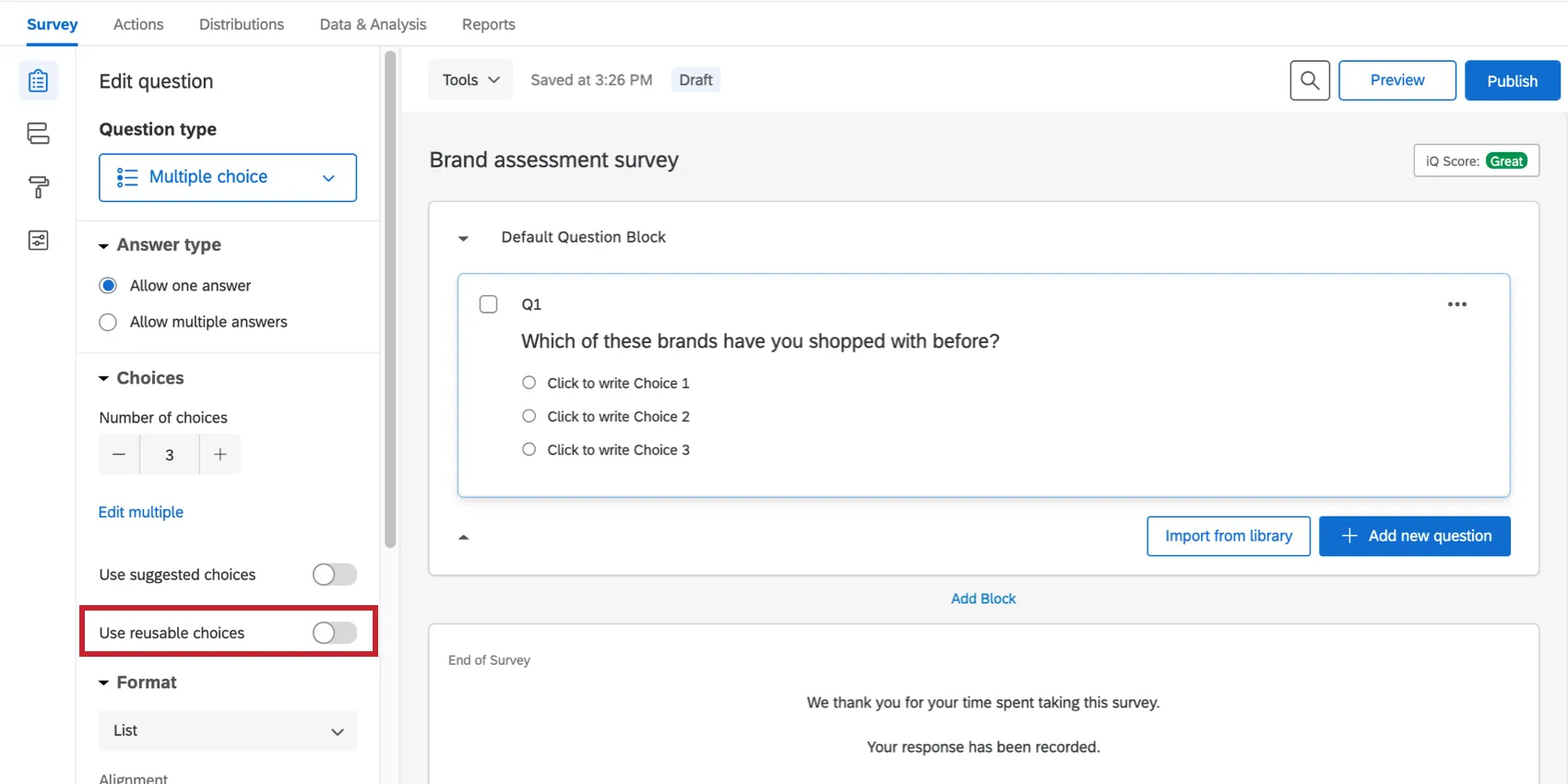
Adding Reusable Choices to a Question
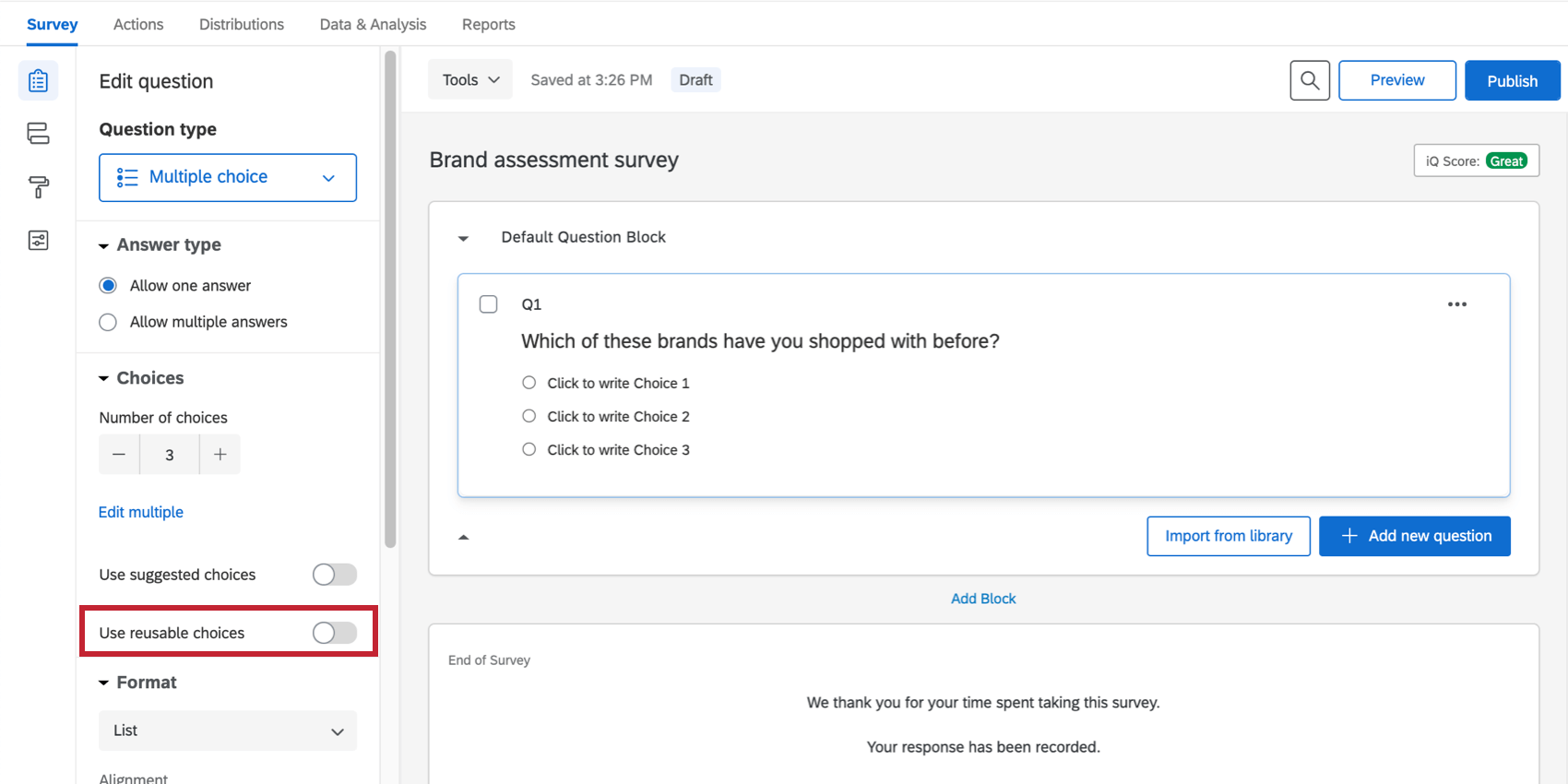
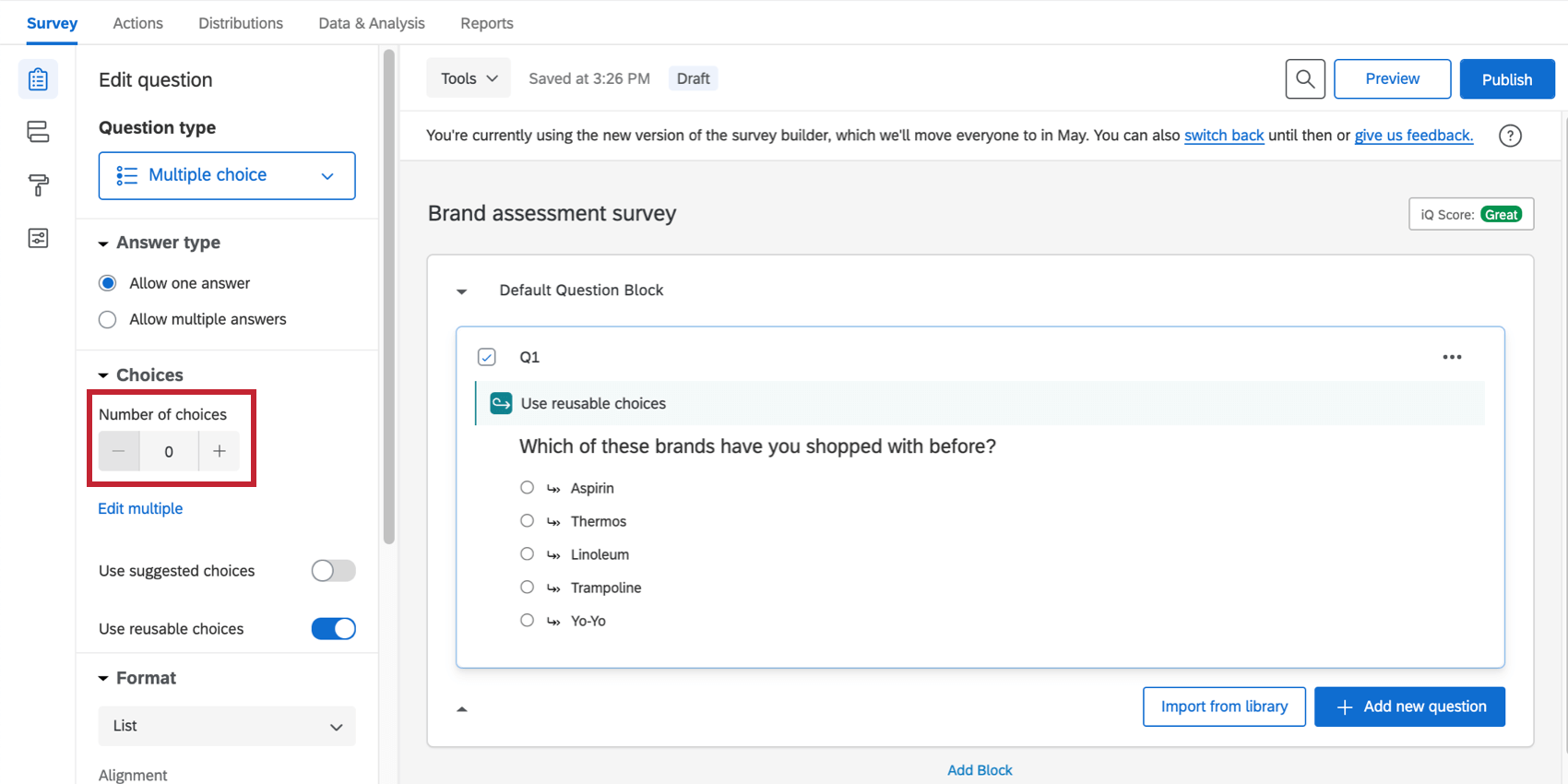
On the right under Choices, it will say 0. If you want to add additional choices just to this question, in addition to the reusable choices, click the number and type out how many extra choices you want.
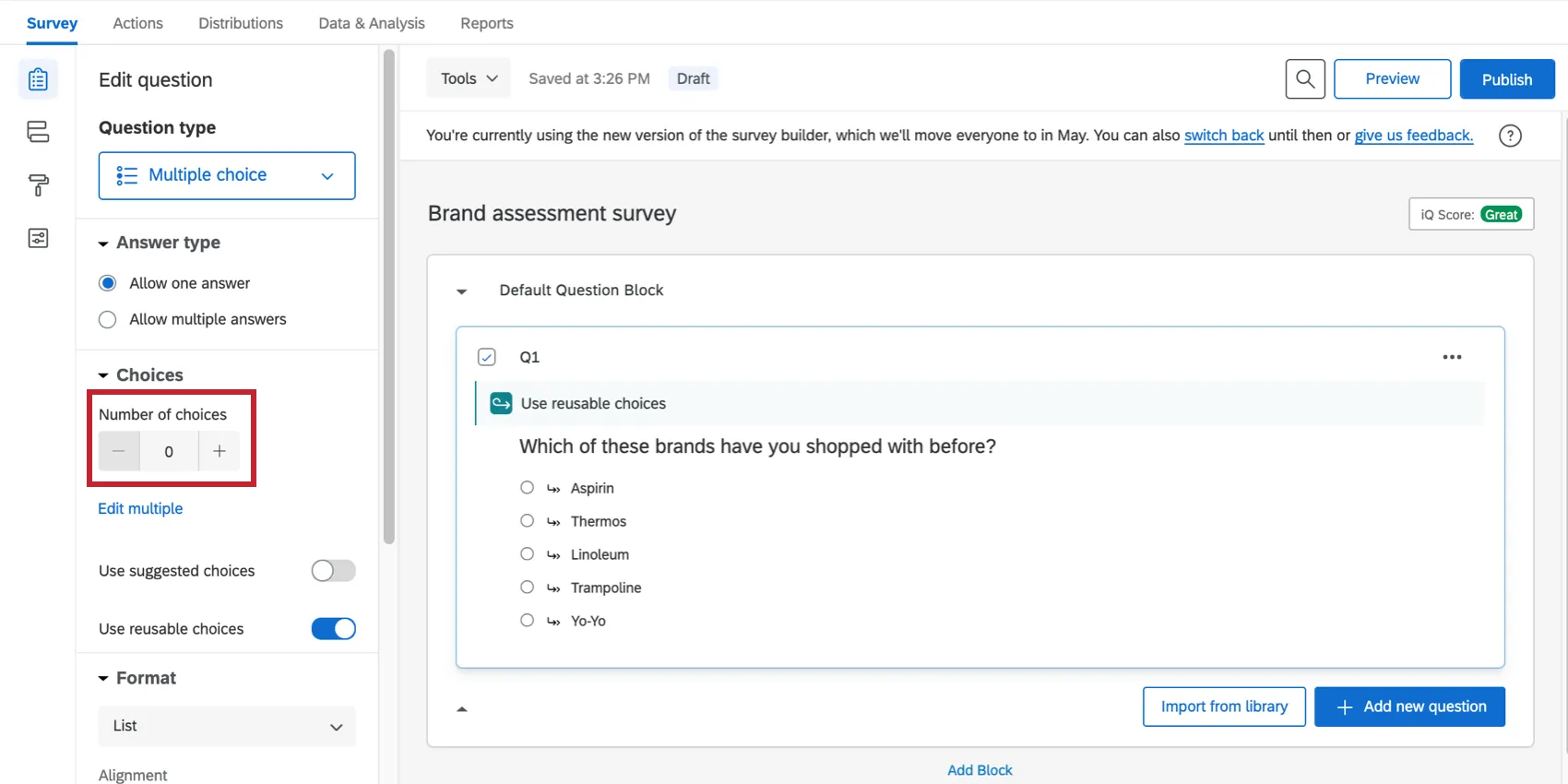
Reusable choices are marked by arrows.
Filtering Reusable Choices
Sometimes, you only want to include reusable choices based on special conditions. For example, maybe you want to hide a brand from the list being assessed if the respondent said they were unfamiliar with that brand in the first question.
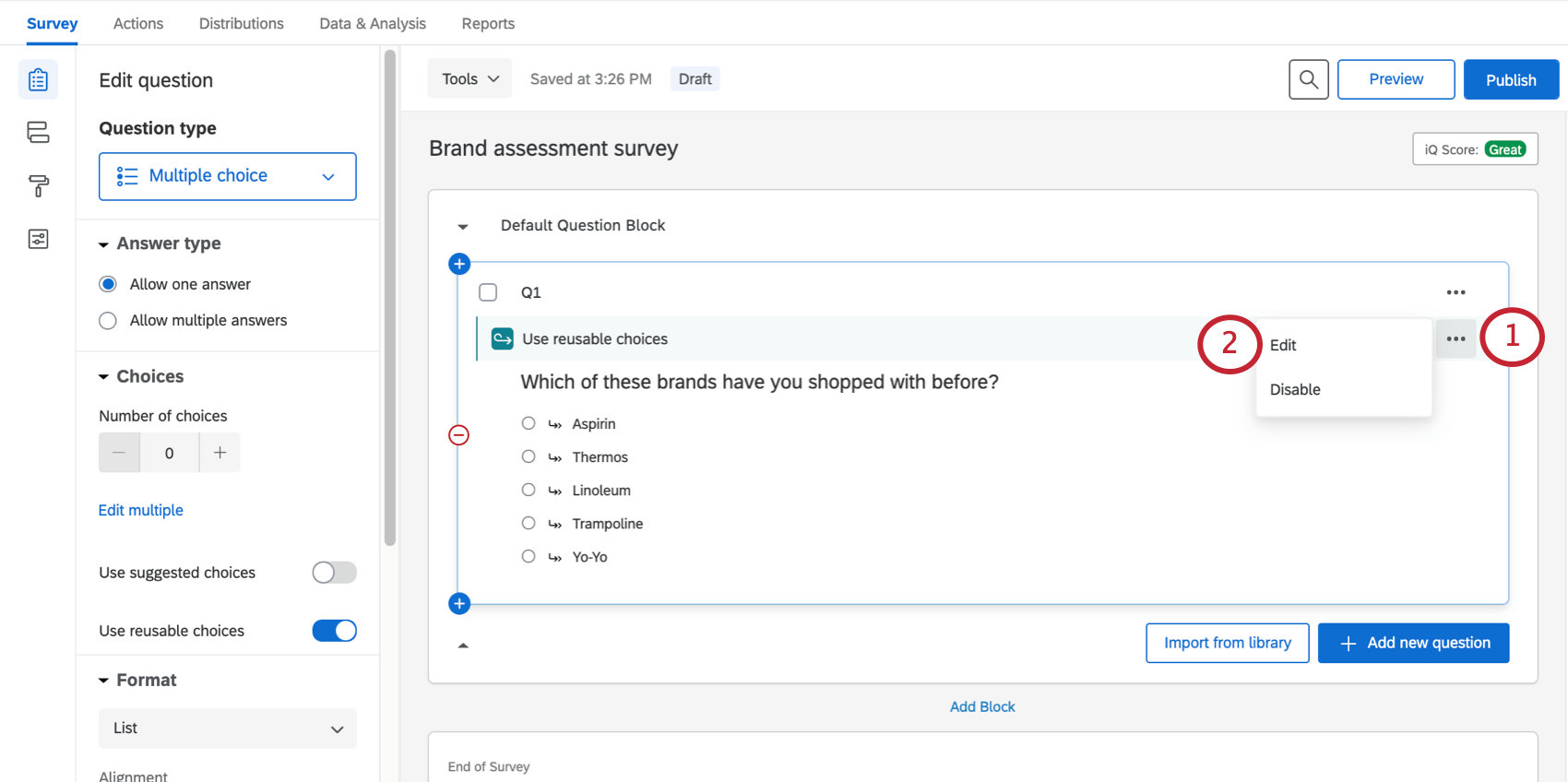
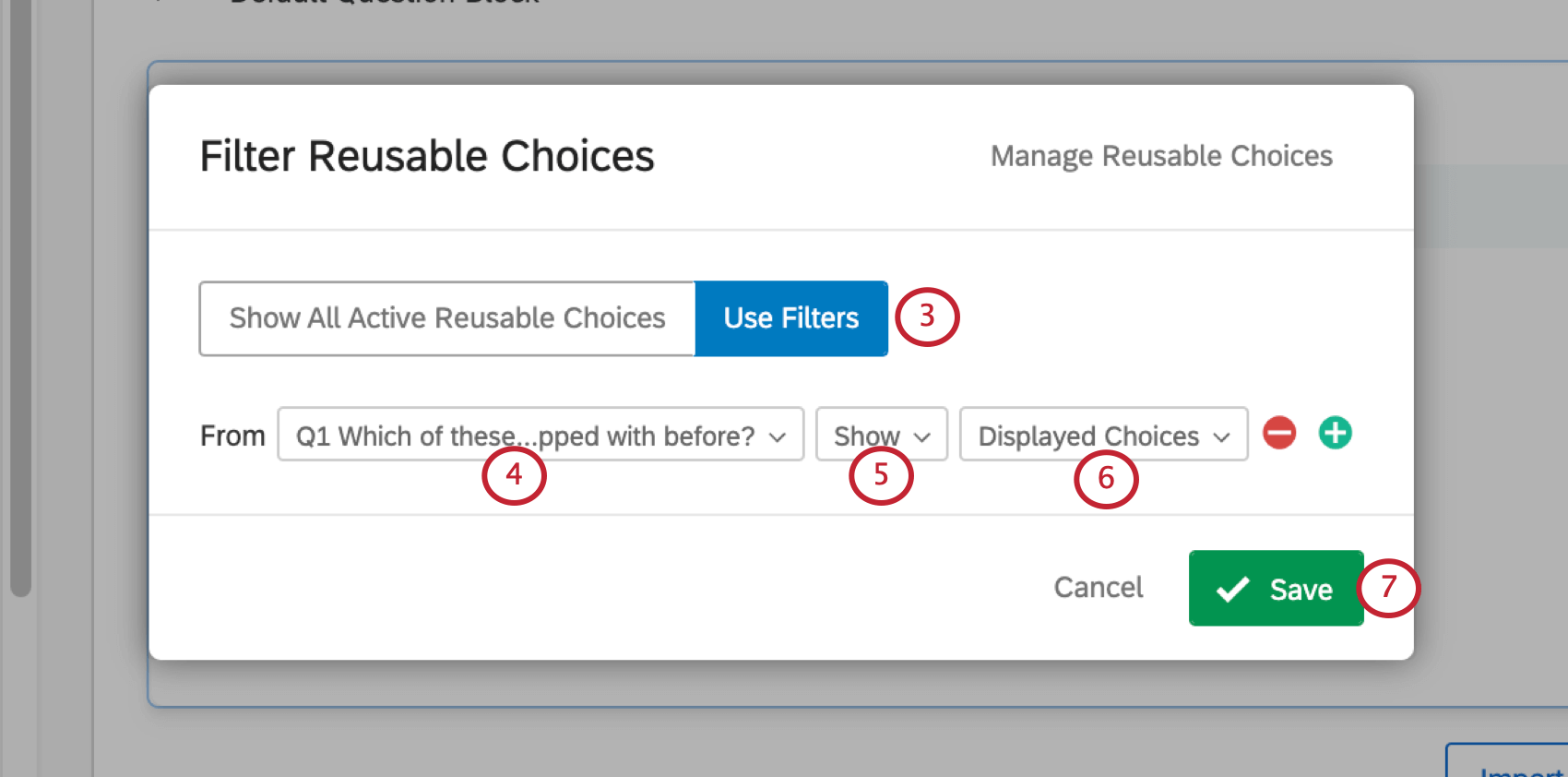
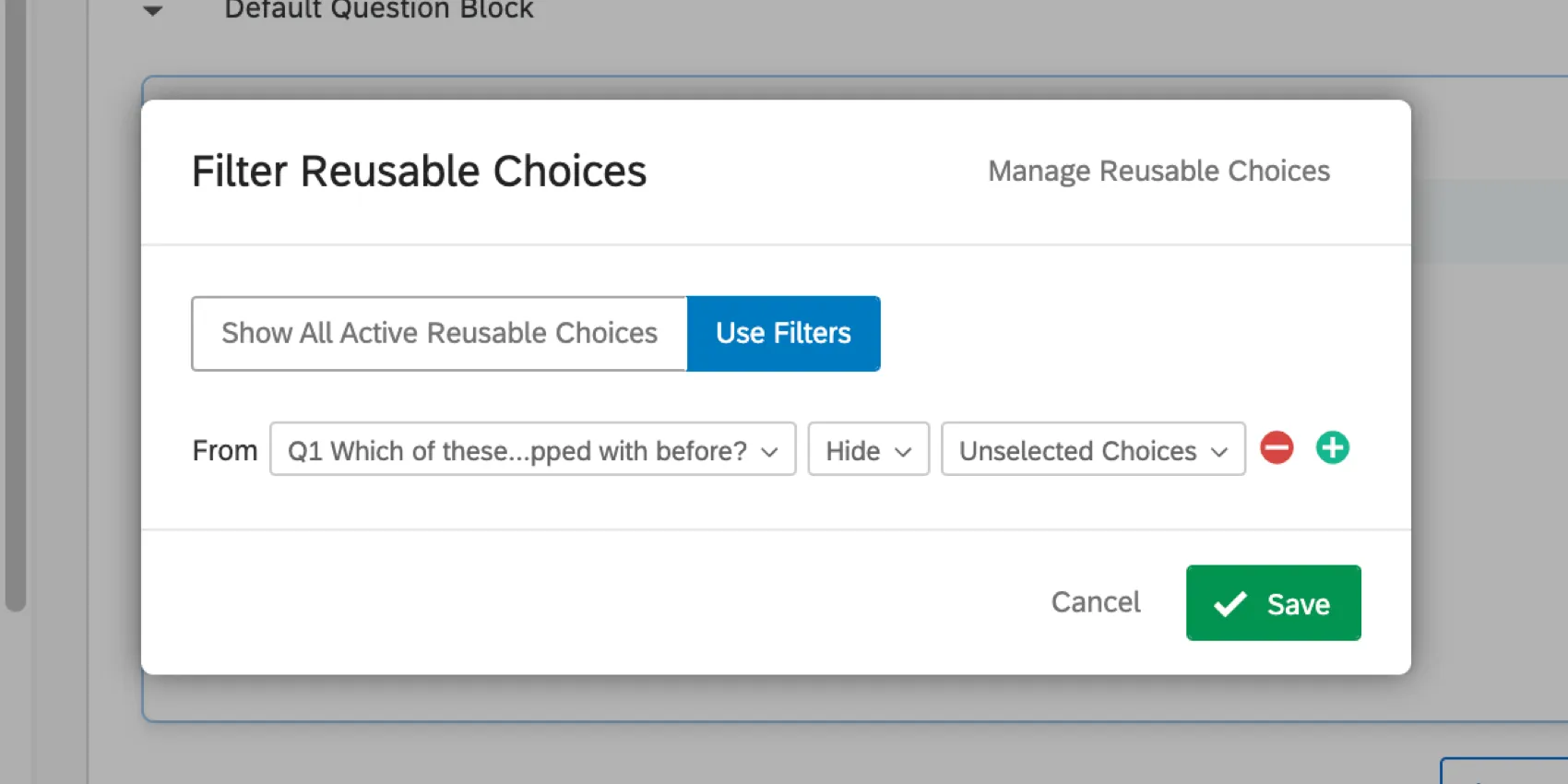
Example: In the screenshot below, Q1 asks what brands the respondent has shopped with. If we ask the respondent about their favorite of the brands, it wouldn’t make sense to include brands they’ve never shopped with before. Therefore we Hide the Unselected choices from Q1, because those are ones the respondent hasn’t shopped with before.

Qtip: Another way to only present certain choices from a previous question is to use the carry forward choices feature. You can carry forward choices from any question to another without having to use the reusable choices feature.
Question Type Compatibility
Any question with discrete choices is compatible with reusable choices. This includes:
FAQs
Can I edit a live survey that is currently being taken?
Can I edit a live survey that is currently being taken?
- Who will see the changes? Only those who have not yet started the survey will see the new changes. Anyone who started the survey prior to your changes will see the original survey, not the updated one.
- What kinds of changes are okay? Superficial text edits are fine (e.g., fixing a typo or changing the font), as are adding questions or answer options. However, deleting questions or answer options can harm previously collected data. We recommend never deleting answer choice options or questions (unless you are 100% positive that you will not ever need any of the collected data associated with those answer choice options or questions). Instead, we recommend hiding unwanted questions and answer options with Advanced Randomization.
Why are my recode values all out of order?
Why are my recode values all out of order?
After you collect your first response, the recode values won't automatically update to be in a sequential order so as to protect your collected data.
So, if you make three options—we'll say Red, Yellow, and Blue—your recode values initially are 1, 2, and 3. If you delete Yellow and add Orange, Orange is the fourth option and has a recode value of 4. Your recode values are now 1, 3, and 4. If you move Red so that it’s the last listed option, your recode values are now 3, 4, and 1.
However, you can change the recode values at any time without affecting your data. You will see the updated values the next time you download your data or view your results.
That's great! Thank you for your feedback!
Thank you for your feedback!