

Integrating with Genesys
What's on this page
About Integrating with Genesys
Integrating with Genesys enables you to collect post-interaction feedback on interactions that occur using Genesys. You can then analyze your contact center data using any Qualtrics analysis method.
Attention: Custom coding features are provided as-is and require programming knowledge to implement. Qualtrics Support does not offer assistance or consultation on custom coding. You can always try asking our community of dedicated users instead. If you’d like to know more about our custom coding services, please contact your Qualtrics Account Executive.

Step 1: Building the Post-Interaction Survey
This section covers how to set up a Customer Care Quickstart project. You’ll need this for setting up the integration with Genesys.
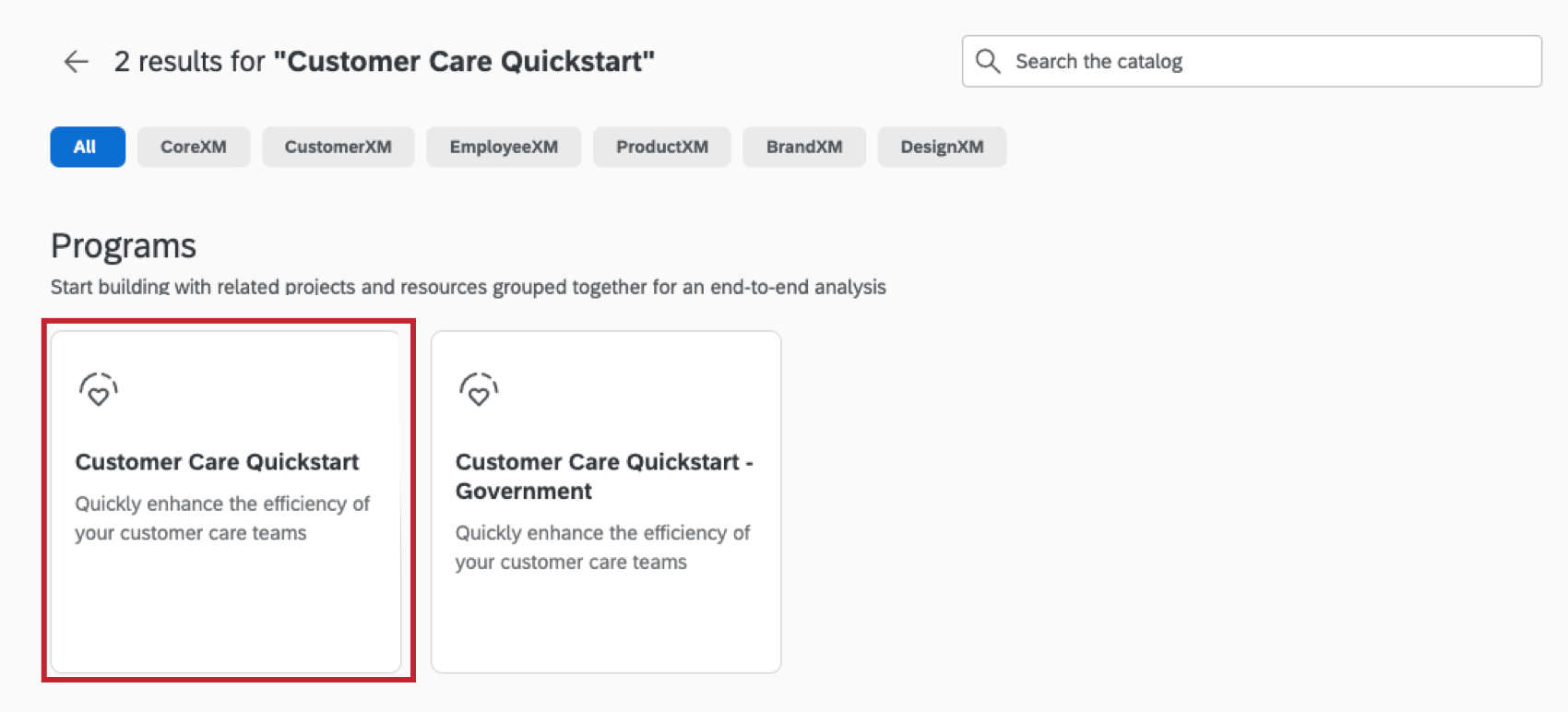
Qtip: For help with set up, launch, and usage of the solution see the Methodology and Implementation Playbook.

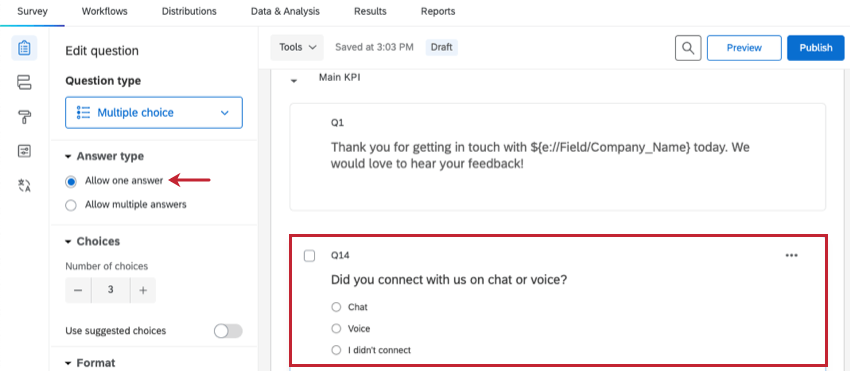
Attention: Make sure the answer type is set to Allow one answer.
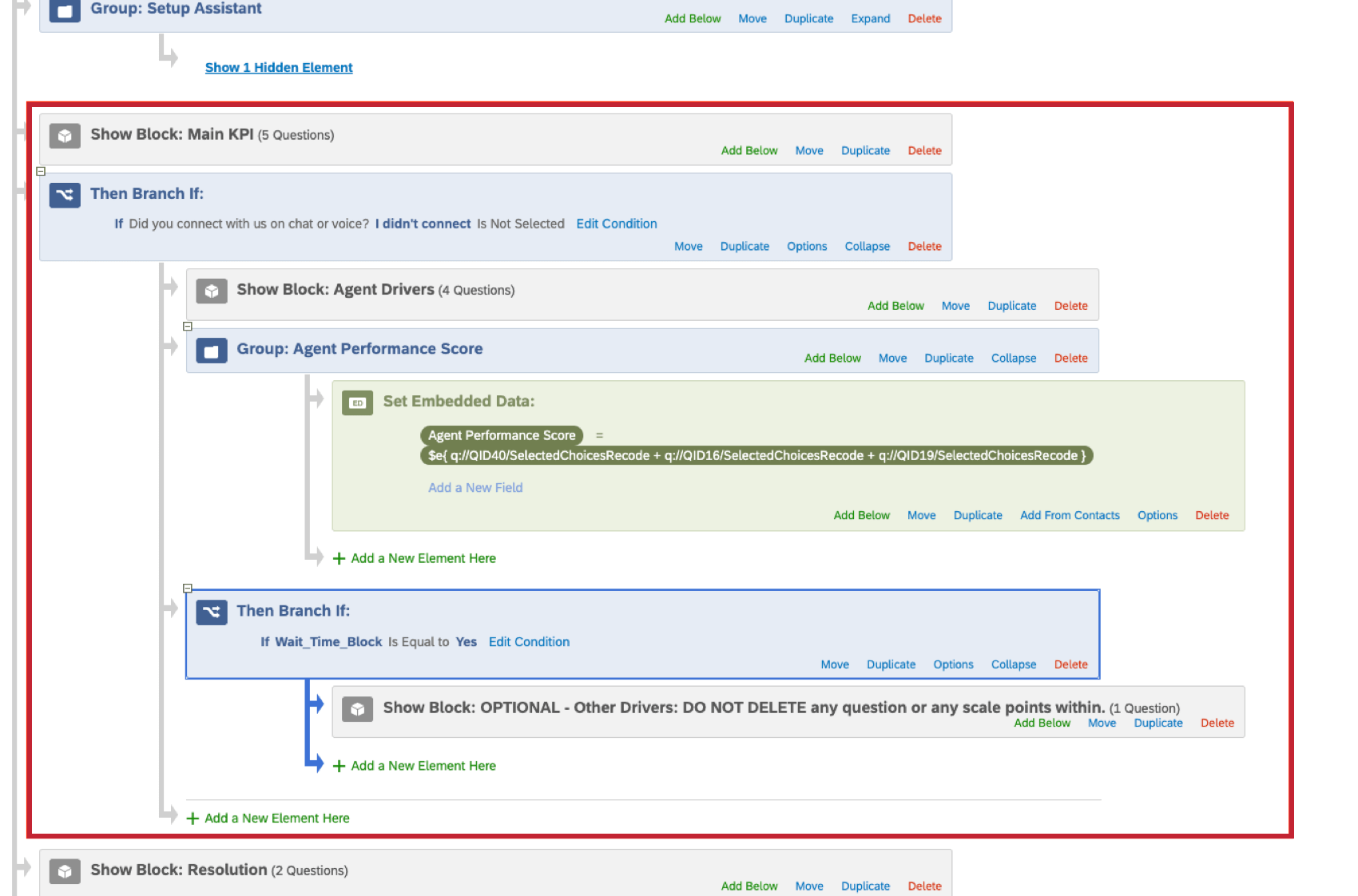
Step 2: Triggering the Survey Distribution
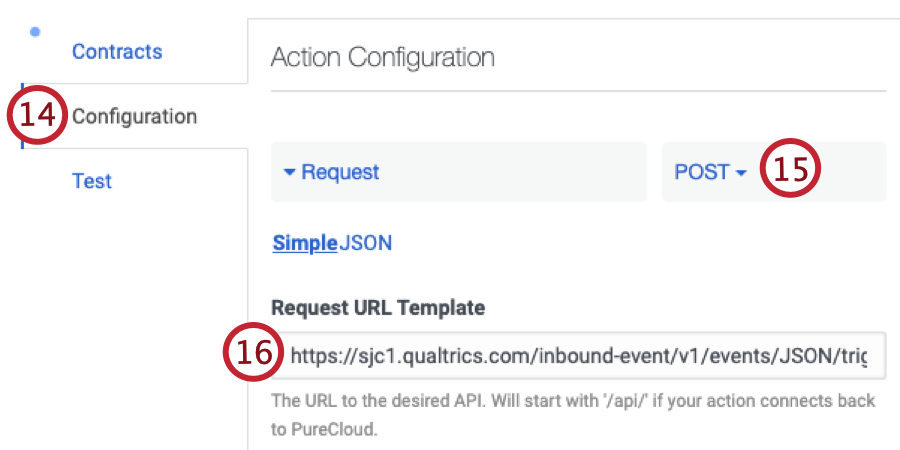
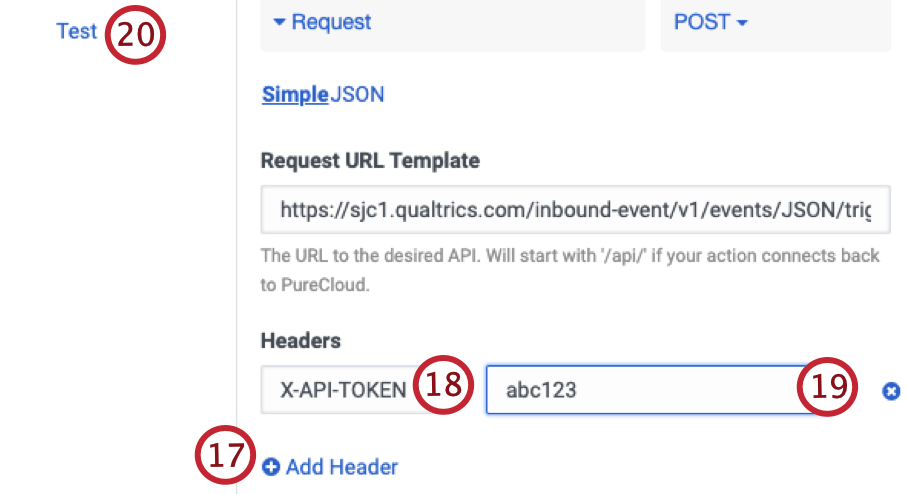
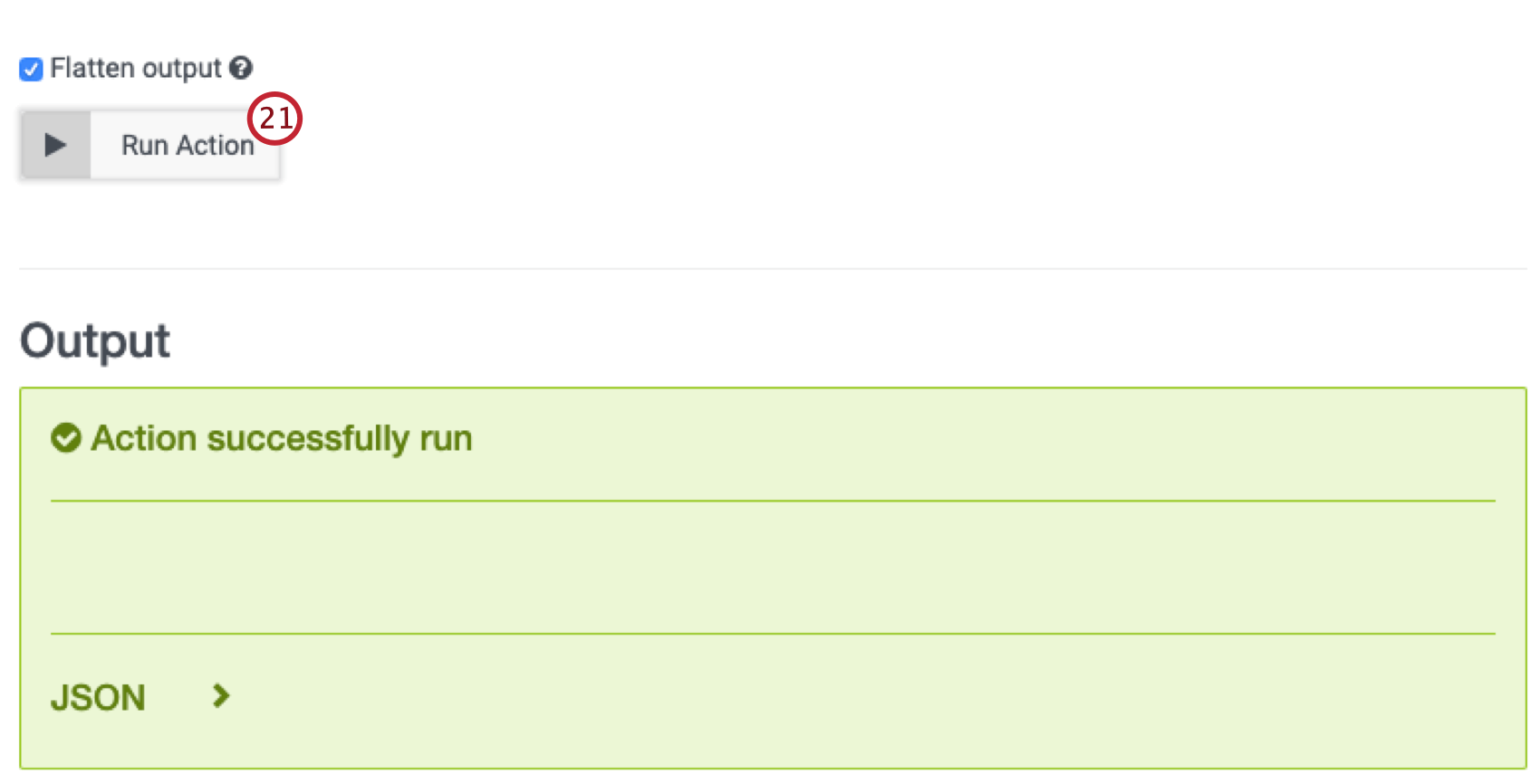
This section covers how to trigger a survey distribution based on Genesys interactions. To begin the setup, you’ll first need to set up a Qualtrics workflow.
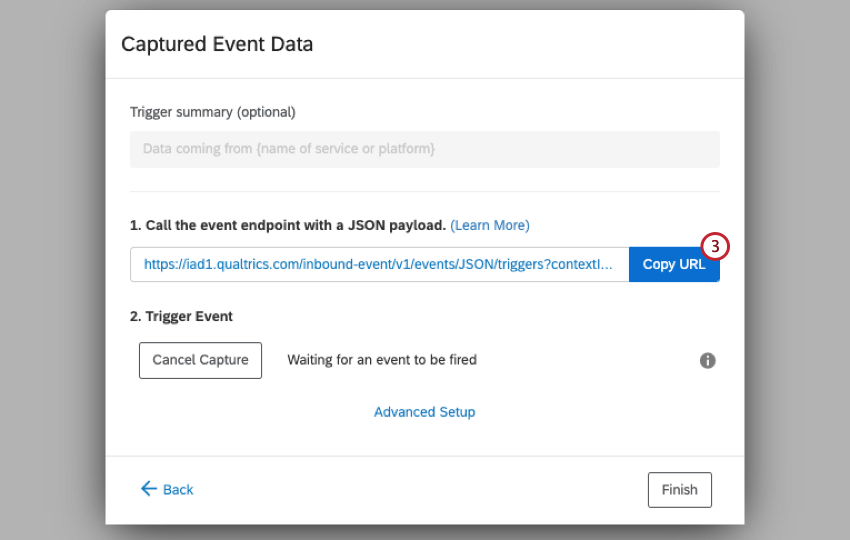
Attention: Do not close this window while you complete the remaining steps in Genesys
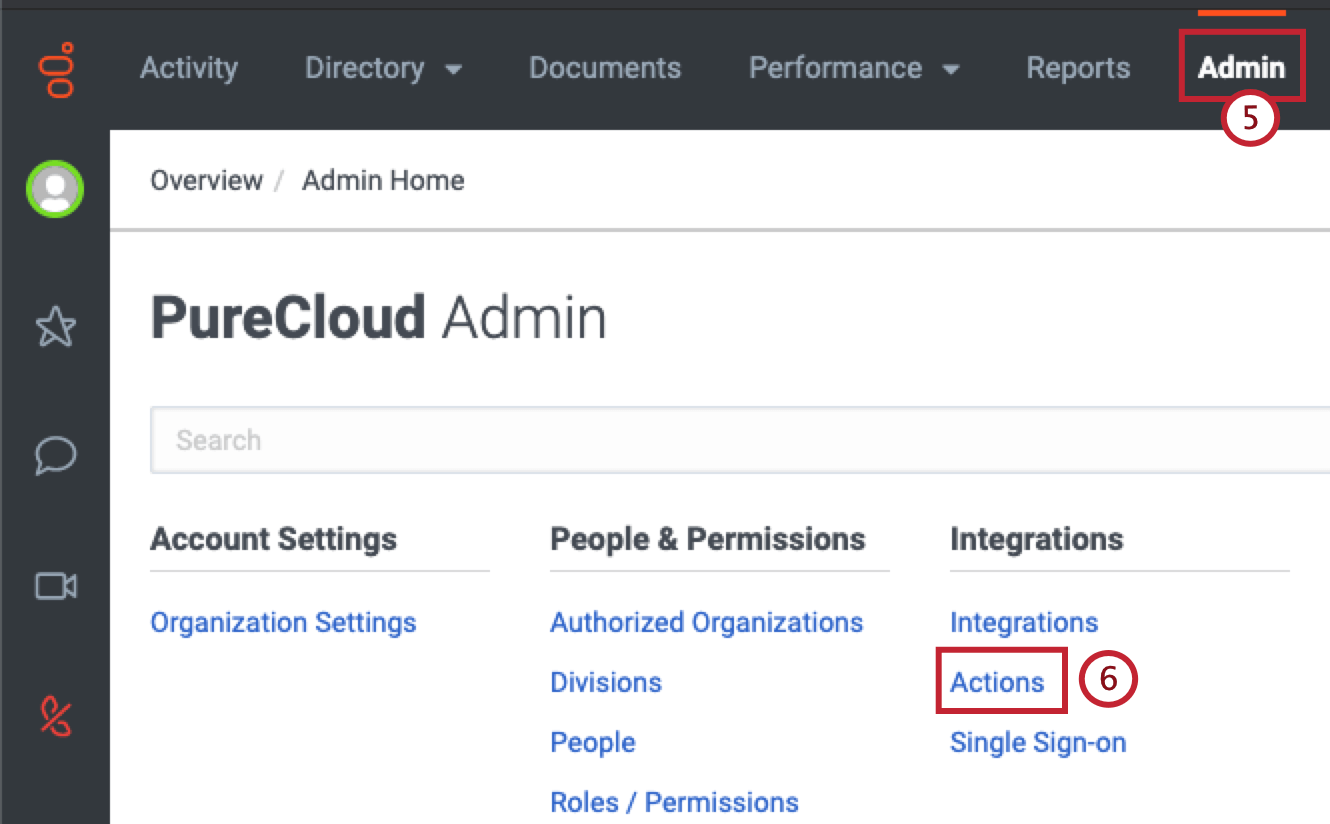
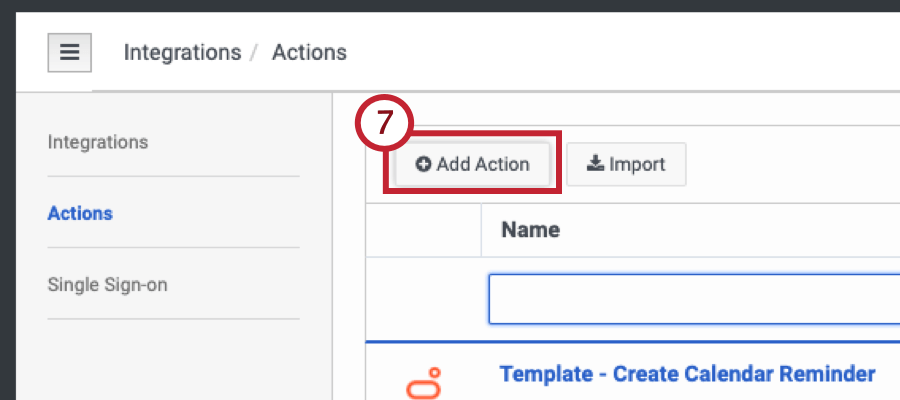
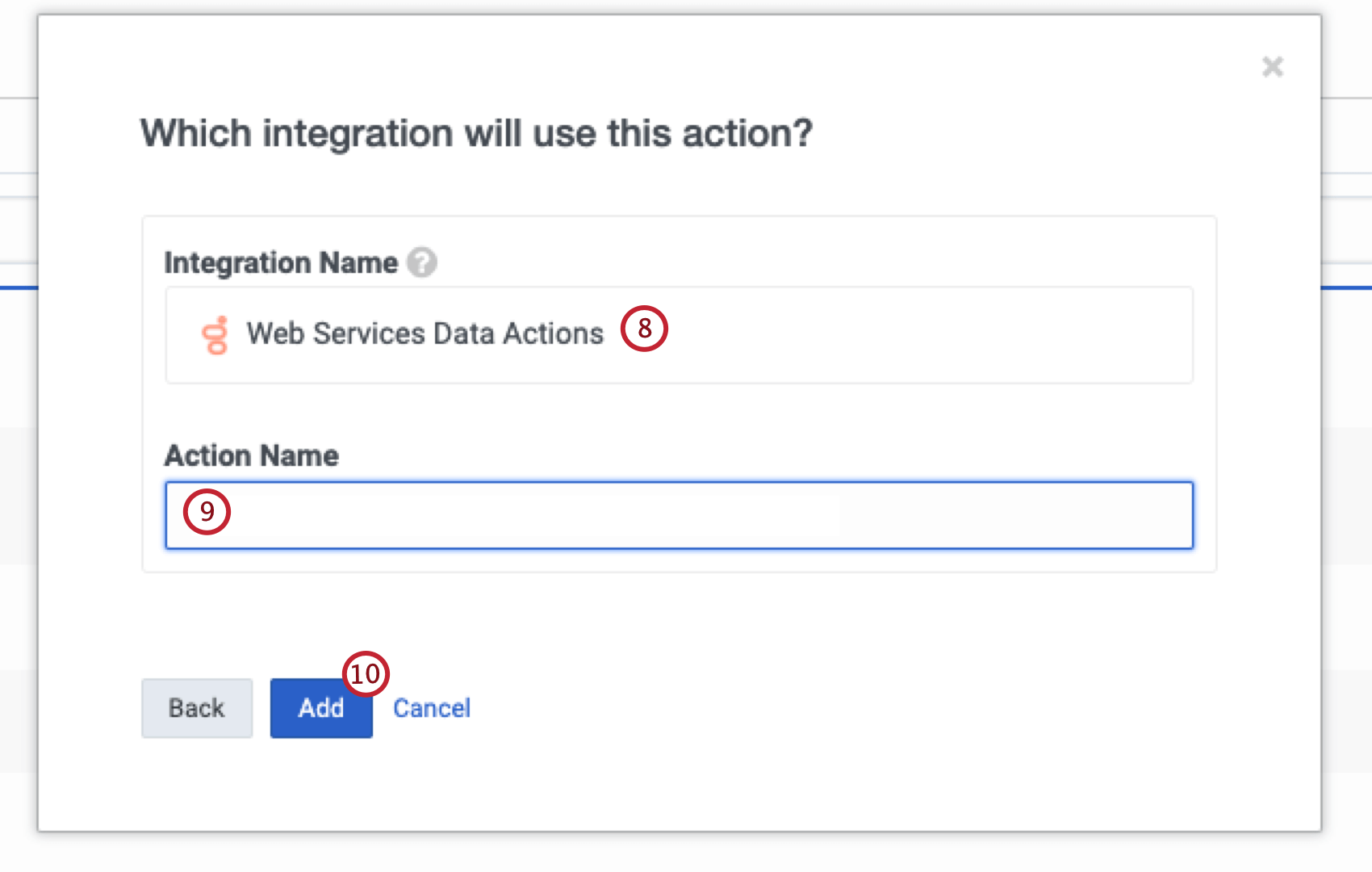
Qtip: You may have to install and enable this integration in the Integrations tab if you haven’t already.
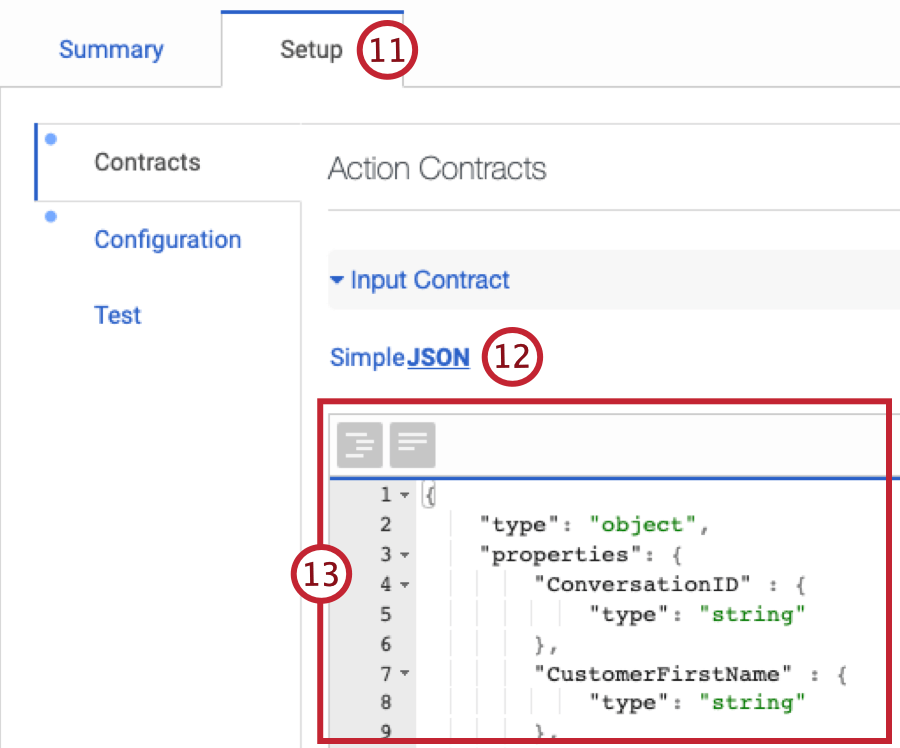
Step 3: Creating a Survey Response Workflow
Now that you’ve built the post-interaction dataset and set up a survey response workflow, it’s time to map data from Genesys to your dataset.
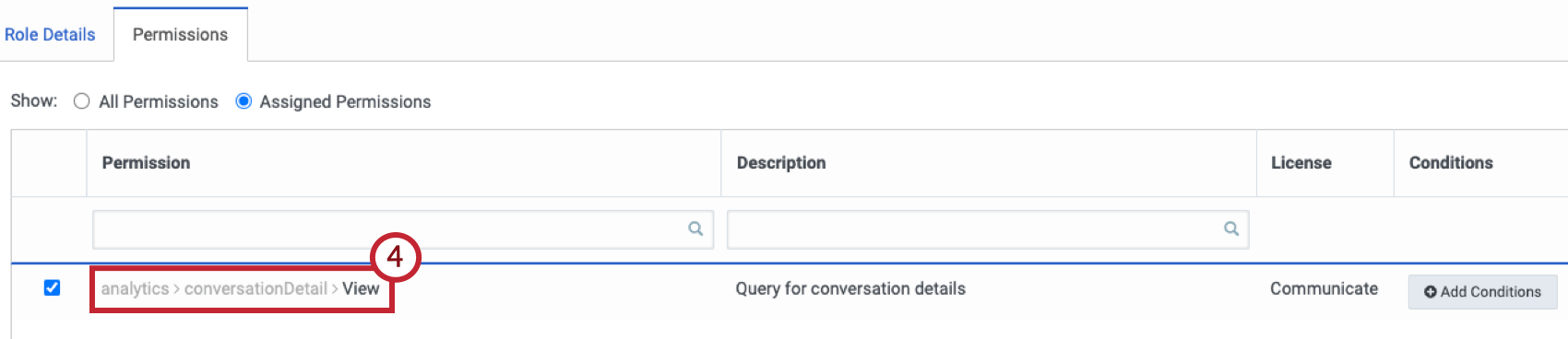
Creating a Role in Genesys
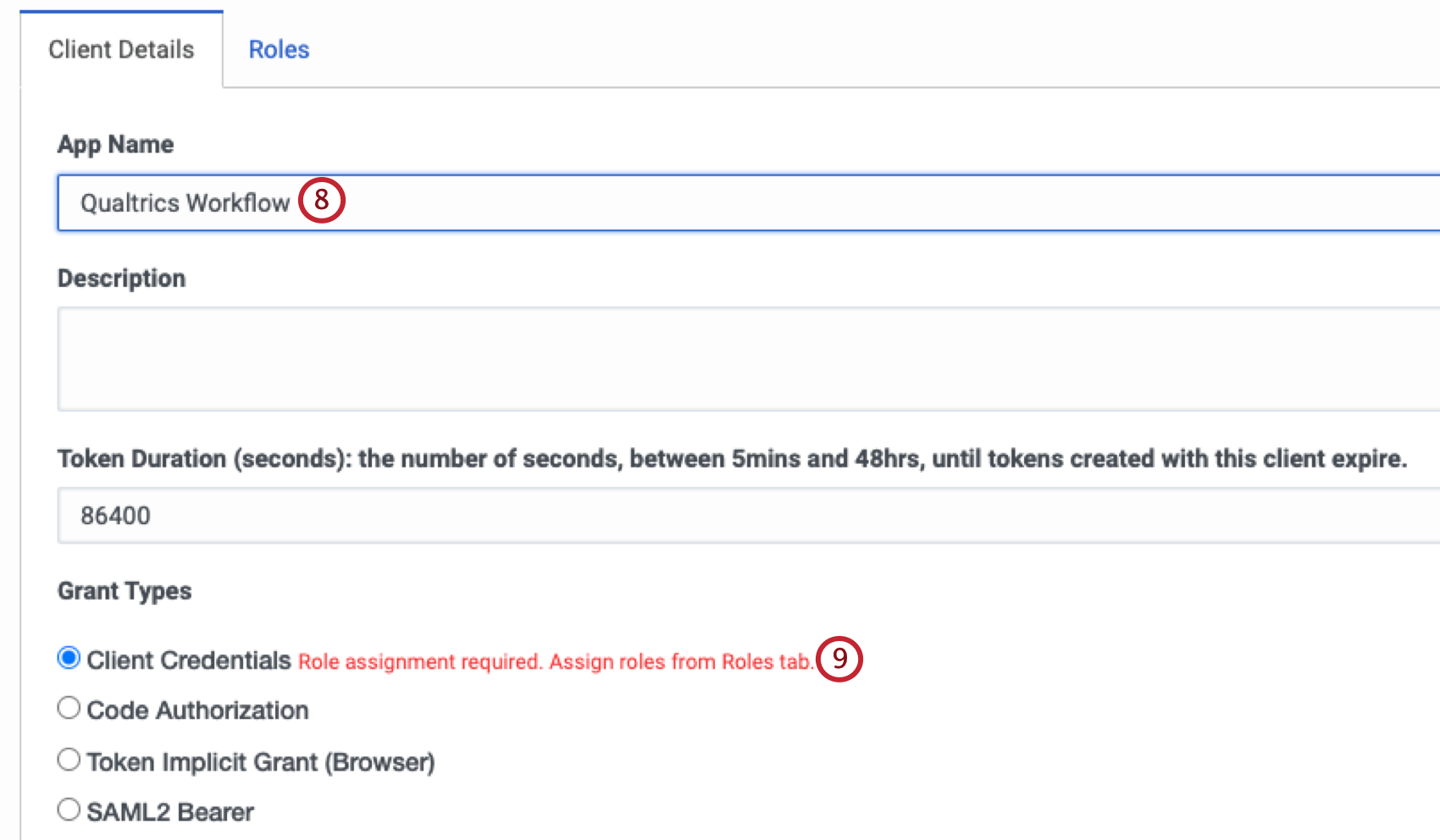
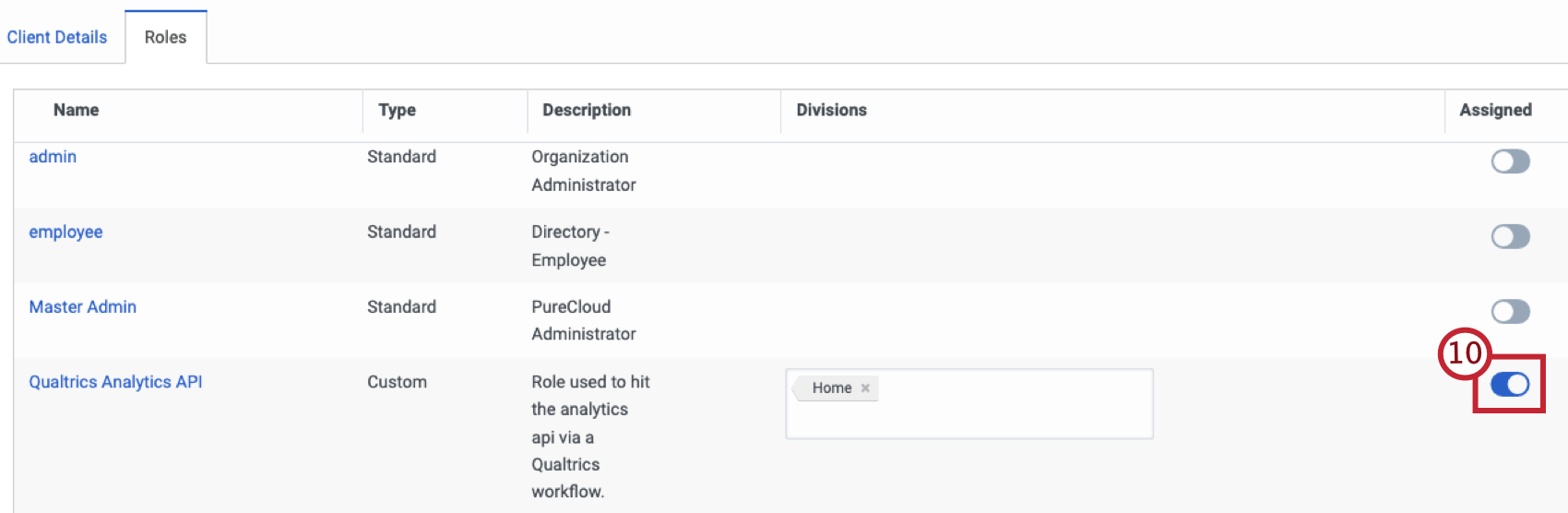
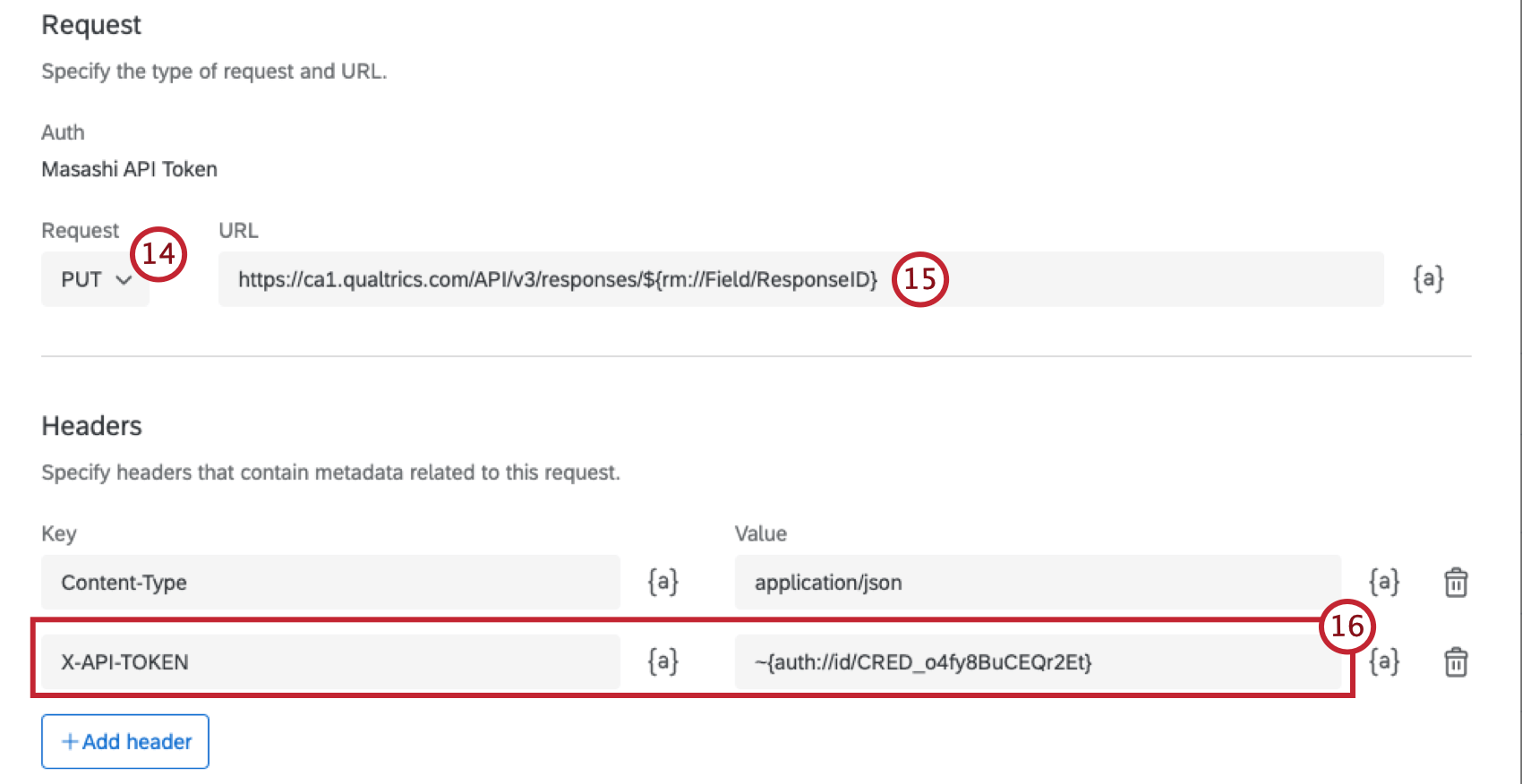
Creating Web Service Workflows
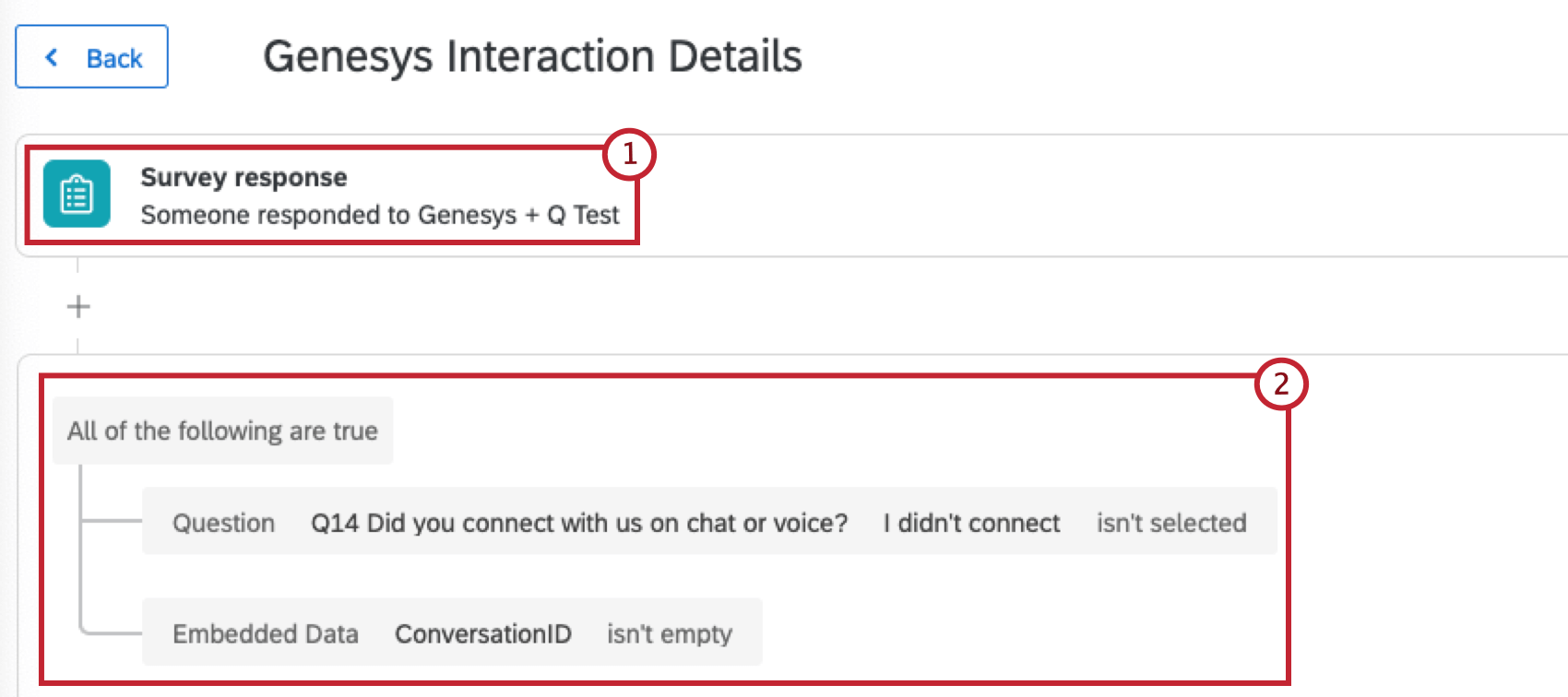
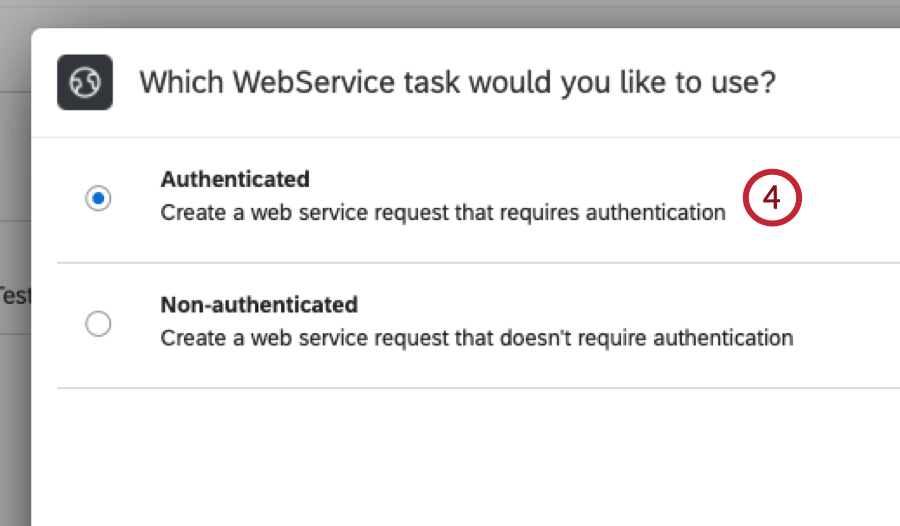
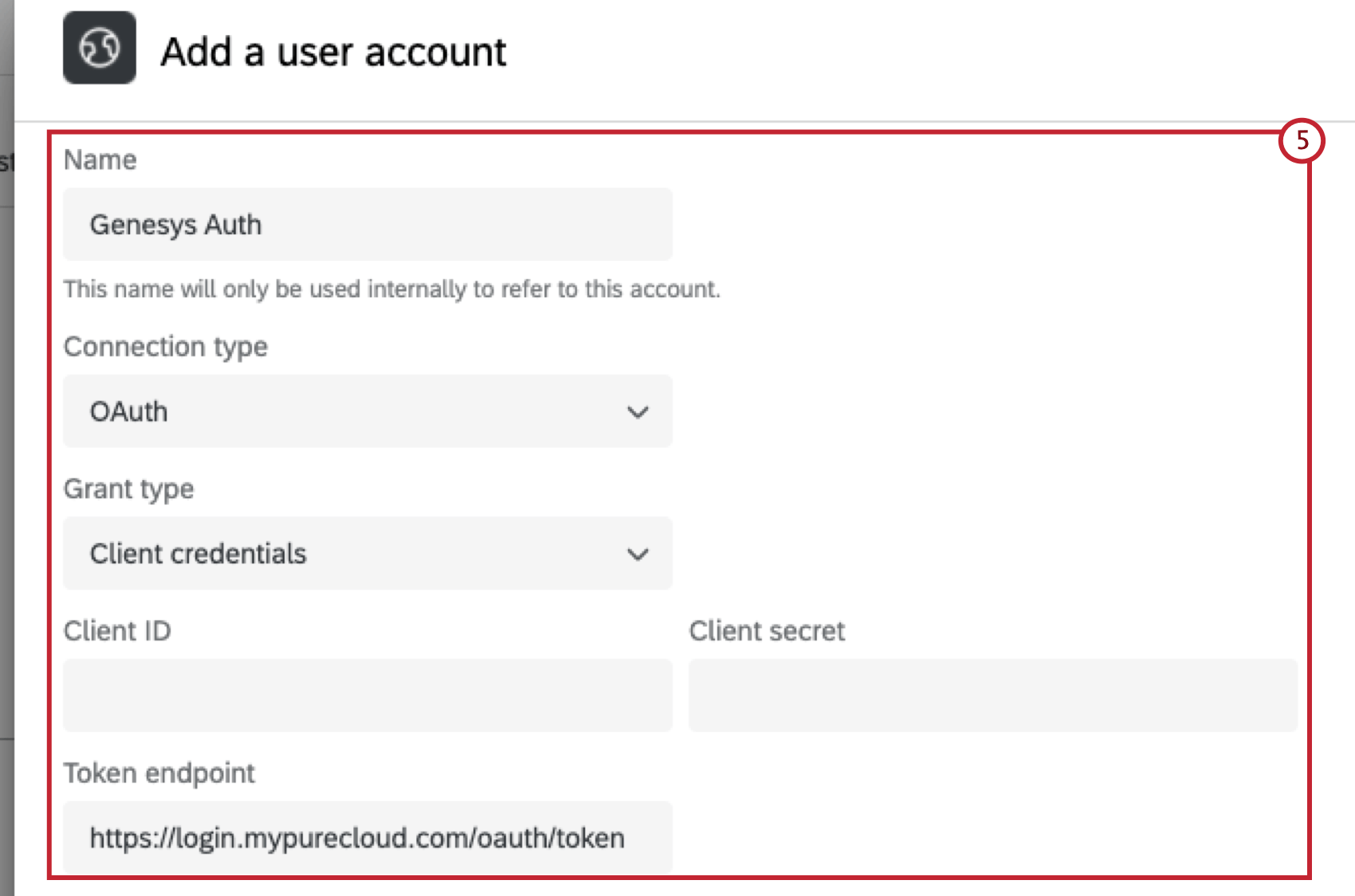
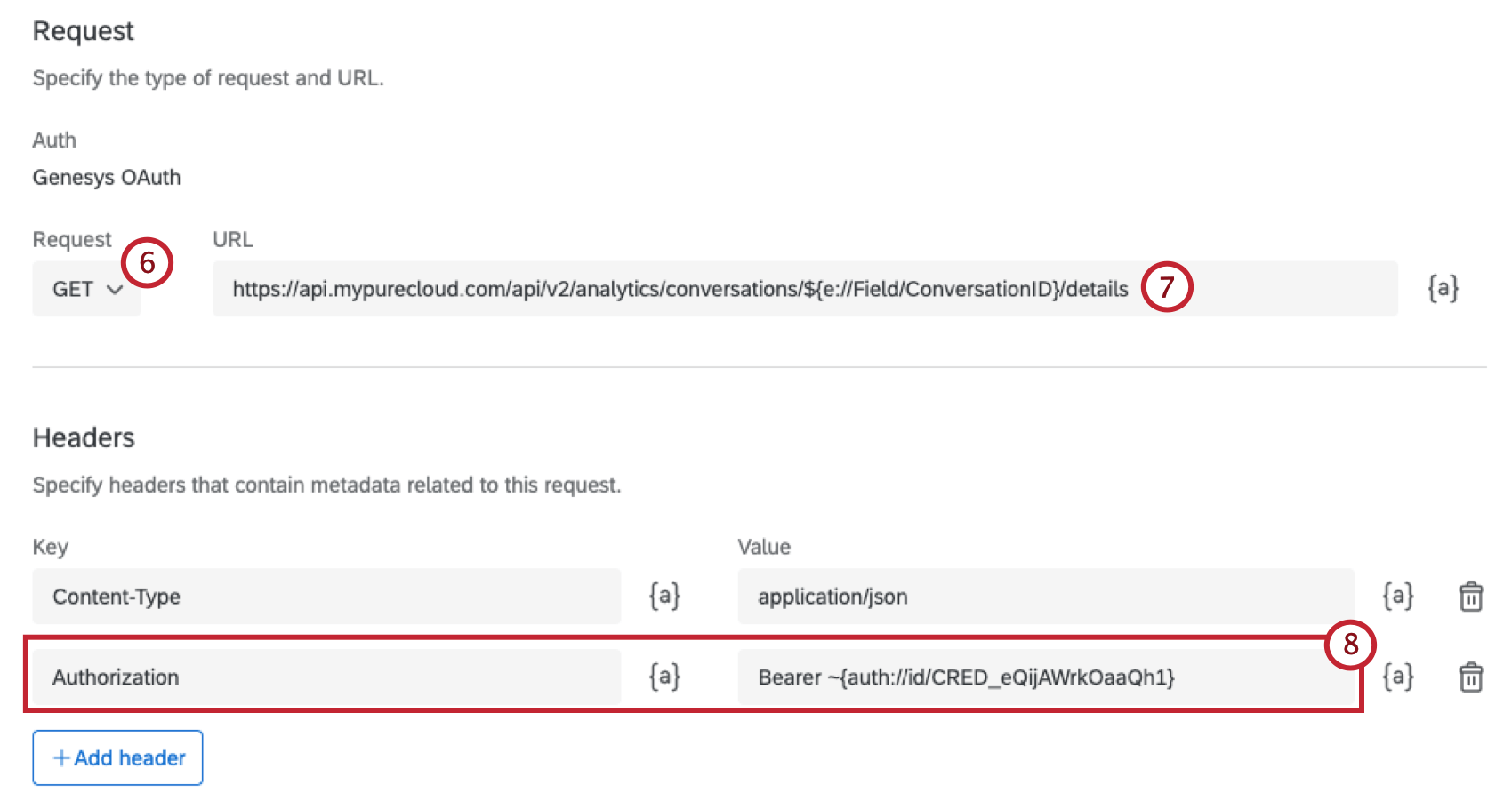
https://api.mypurecloud.com/api/v2/analytics/conversations/${e://Field/ConversationID}/details.
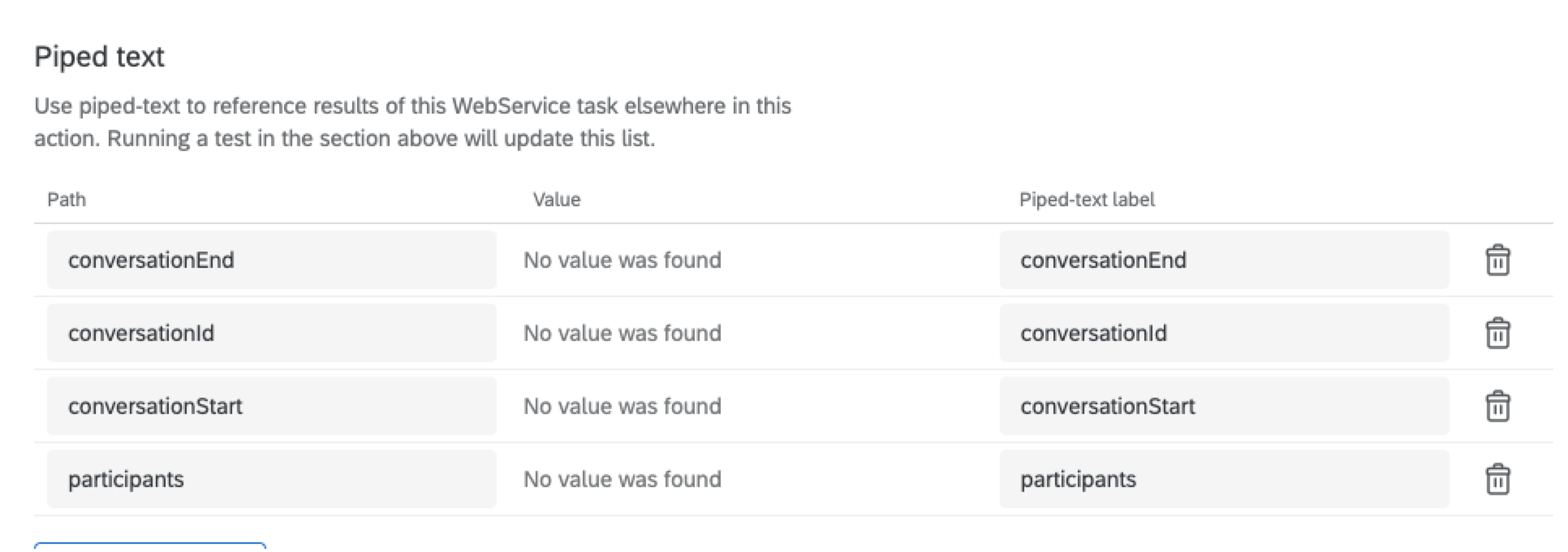
Qtip: Some of the fields that are returned from Genesys may need to be cleaned up using a code task. You can add the code task to your workflow to transform the data into a more readable format.
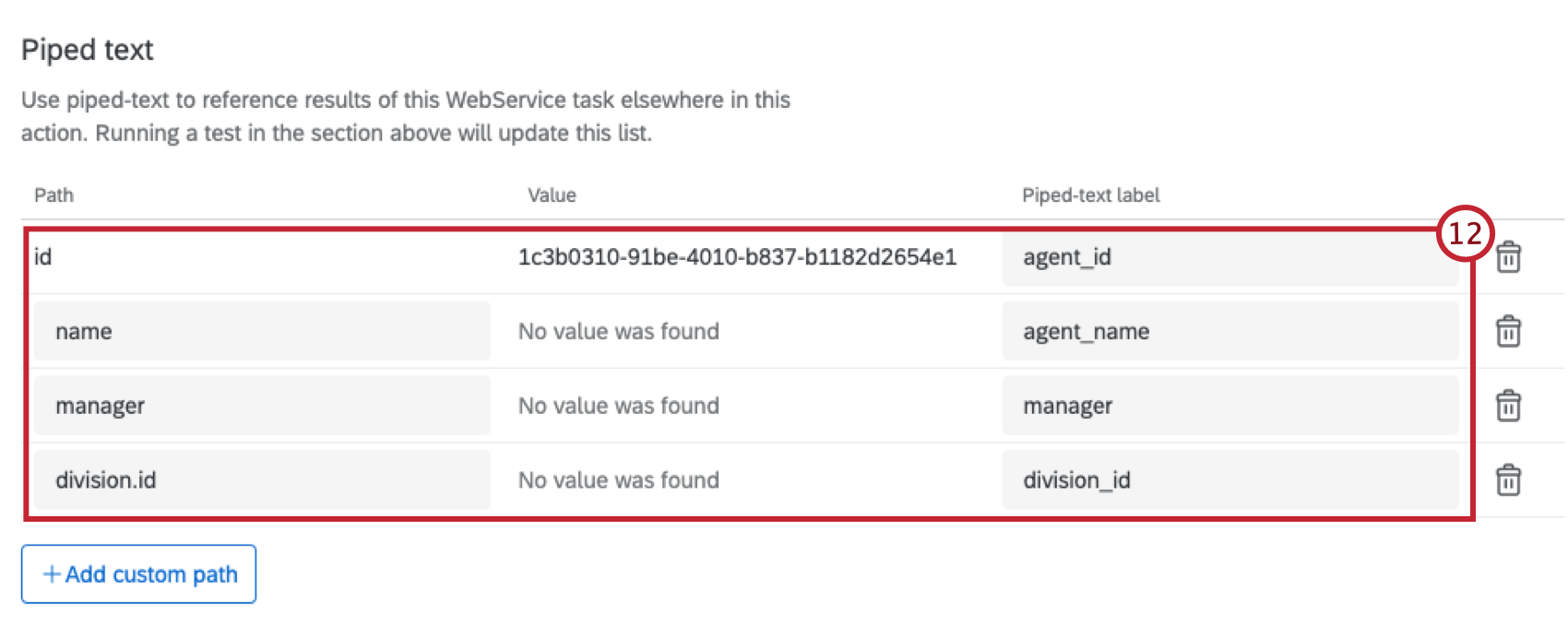
Qtip: Some of the fields that are returned from Genesys may need to be cleaned up using a code task. You can add the code task to your workflow to transform the data into a more readable format.
Step 4: Connecting to Your CRM
After you’ve created your survey response workflows, you must connect Qualtrics to your Customer Relationship Management (CRM) System. This step will look different depending on the way your CRM is set up. Follow the documentation for your CRM to look up other contact data by phone number.
Example: Set up a Genesys Cloud Data Action to call Genesys conversation API. Alternatively, if you are using Salesforce, configure a Salesforce Data Action Integration.

Step 5: Closing the Loop with Tickets
To close the loop, use the Dissatisfied Customer Ticket workflow that was automatically created when you set up your post-interaction survey. For more information, see Closing the Loop.
Step 6: Analyzing Genesys Data in CX Dashboards
An example dashboard is included for the post-interaction survey you created. This dashboard can be modified based on what data you want to visualize from the the survey and interaction data.
That's great! Thank you for your feedback!
Thank you for your feedback!