

WhatsApp Distributions
What's on this page
About Distributing Surveys through WhatsApp
WhatsApp is one of the most widely used messenger apps in the world. With WhatsApp, your Qualtrics survey can reach a wider audience.
There are two ways you can use WhatsApp to send surveys to your respondents:
- 2-way WhatsApp message: Also called an interactive survey. Qualtrics will send the survey questions directly inside WhatsApp, and the recipient will message back all their responses.
1-way WhatsApp link: Send a WhatsApp message that includes a survey link. When the recipient clicks the link, they’ll be taken to the survey in their mobile browser.

Qtip: Recipients will receive a personal link for this distribution. Visit Personal Links for more information about how personal links function.
Qtip: WhatsApp is available to all licenses with XM Directory. It is not available to XM Directory Lite.
Steps Required Before WhatsApp Distribution
Before you can distribute your survey through WhatsApp, you will need to complete some preliminary setup steps. First, you need to decide if you are using the self-service model or the sub-account model. Pricing for these models may differ, so make sure you talk to Account Services.
- Sub-account model: The default model and our recommendation. Leverage Qualtrics’ existing relationship with Twilio, the cloud communication platform through which WhatsApp and SMS distributions in Qualtrics are made possible. Benefits of this model include assistance onboarding, maintaining, and troubleshooting the integration with help from Account Services.
- Self-service model: Recommended if your company has an existing own relationship with Twilio and a dedicated support team that can handle issues directly with Twilio. This model affords your own control over onboarding, maintaining, and troubleshooting the integration with WhatsApp.
Please complete the steps described on one of the two support pages linked above before you proceed with the instructions on the rest of this page.
Attention: Regardless of which model you use, ensure your WhatsApp Meta Business Account has the Contact Book feature enabled. Without it, WhatsApp distributions via Qualtrics will not function correctly.

Overview of WhatsApp Setup
Before you can start sending WhatsApp distributions in Qualtrics, there are a few setup steps you need to complete. Click a linked section for information, or continue scrolling to start at the beginning.
Qtip: For 2-way distributions, be sure to follow the survey design guidelines to ensure it is compatible with direct messages. If you’re distributing a survey link through WhatsApp, there are no limits to your survey design.
- Import WhatsApp numbers to XM Directory Qtip: Required for both 2-Way and Survey Link distributions.
- Instructions for 2-Way Distributions
- Instructions for Survey Link Distributions
WhatsApp Messages Pricing
Qtip: The pricing of WhatsApp distributions is managed by Twilio in the self-service model and Qualtrics in the sub-account model.
Attention: If a delivery attempt is made on a customer’s message and the carrier imposes charges, we will pass those charges onto the customer. For more details on credit consumption for failed messages, please refer to our guidelines.
Sub-Account Model
In the sub-account model, you need to purchase WhatsApp credits to send WhatsApp surveys through Qualtrics. Credit use depends on the recipient’s country/region. See the below table for an explanation of credit by country.
Qtip: The prices below are estimates. The final price is calculated based on the response from the SMS provider after attempting to deliver a message. More price information can be found at Twilio's price calculator, with a conversion of 1 credit to $0.01.
Self-Service Model
In the self-service model, WhatsApp message cost is handled directly by customers with Twilio. You can check how much it costs to send and receive WhatsApp messages with Twilio on the Twilio site.
Credit Fees for Failed Messages
Due to a Twilio Initiative aimed at improving deliverability, Qualtrics will charge for failed messages. This fee is equal to 0.1 credit per message, and applies to the following:
Common Causes of Message Failure
Outbound messages:
- Recipient is unsubscribed from the list or directory.
- Invalid recipient phone number.
- Landline recipient.
Inbound messages:
- WhatsApp send rate limit exceeded.
- No Message Body, Media URL or Content SID.
- Message body exceeds 1600 characters.
Qtip: Qualtrics clients will not be billed for failures caused by the following scenarios:
- Qualtrics internal errors.
- Twilio internal errors.
- Twilio account suspension.
- Twilio imposed trial and fraud detection limits.
- Meta imposed WhatsApp restrictions beyond ability to remedy.
How to Avoid Costs Related to Failed Messages
Use the list of common causes of message failures to regularly clean your mailing lists. Here are some more tips on avoiding WhatsApp message failures:
- Regularly review your distribution history for delivery status. This can help you identify bounces, skips, blocks, failures, and other issues in order to ensure your messages reach valid recipients.
- Update your contact list to only include valid numbers. This means removing contacts who opted out, invalid phone numbers, and bounced phone numbers.
Qtip: Proper consent collection is essential before you distribute through WhatsApp. You are required to get explicit agreement from recipients and clearly communicate the type of message you intend to send them, and retain records of consent. For more information, see Opt-in Requirements for WhatsApp.
Creating a WhatsApp Template Message
Although WhatsApp opens up new communication possibilities, they also carry a set of protective requirements regarding consent. Before you can distribute surveys in WhatsApp, you will need to create messages meeting WhatsApp’s consent guidelines, and submit these templates to Account Services so they can get approval from Twilio.
Step 1: Template Message Requirements
Here are some guidelines for drafting your message template:
- Message templates should avoid the word “survey.” Instead, we recommend that you ask respondents to “share their experience” or “give feedback.”
- Please keep in mind that you may have different language versions of the message template to distribute and they need to be approved separately.
- If you modify the template, you must have it approved again. Distributions sent with unapproved messages will fail.
- Invite templates must include survey and opt-out links as Piped Text.
- The message template content field is limited to 1024 characters.
- The message should not start or end with a piped text or have piped texts back to back.
- Avoid having more than one new line between each of your paragraphs.
Qtip: Messages can include emojis.
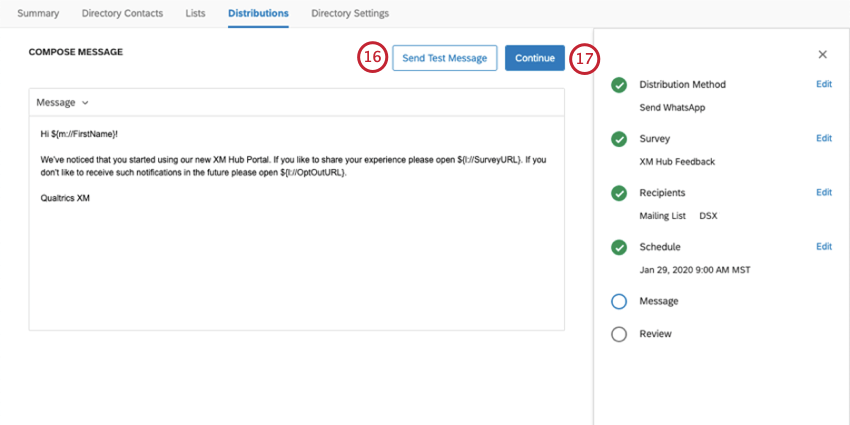
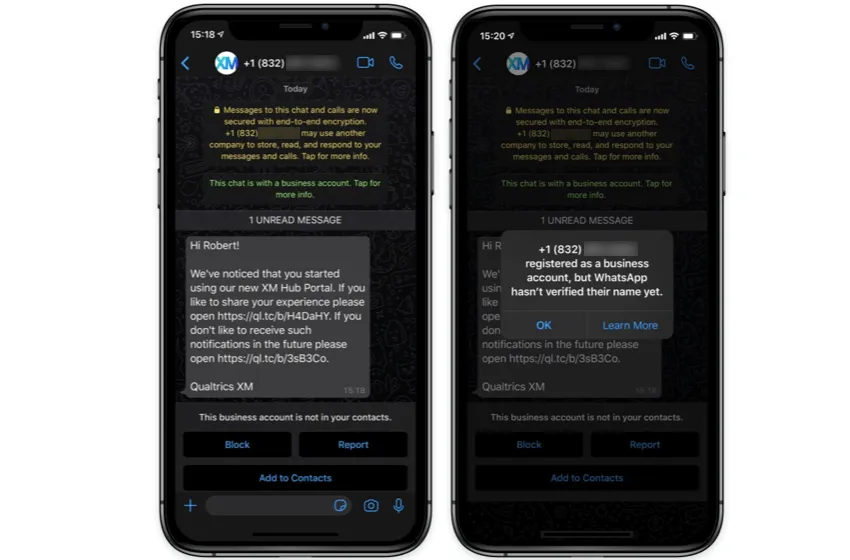
Example for Survey Invitations:
Hi ${m://FirstName}!
We’ve noticed that you started using our new XM Hub Portal. If you like to share your experience please open ${l://SurveyURL}. If you don’t like to receive such notifications in the future please open ${l://OptOutURL}.
Qualtrics XM

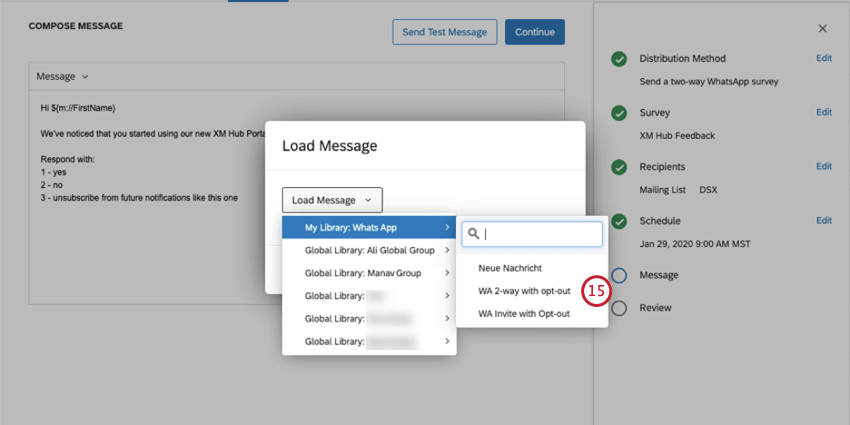
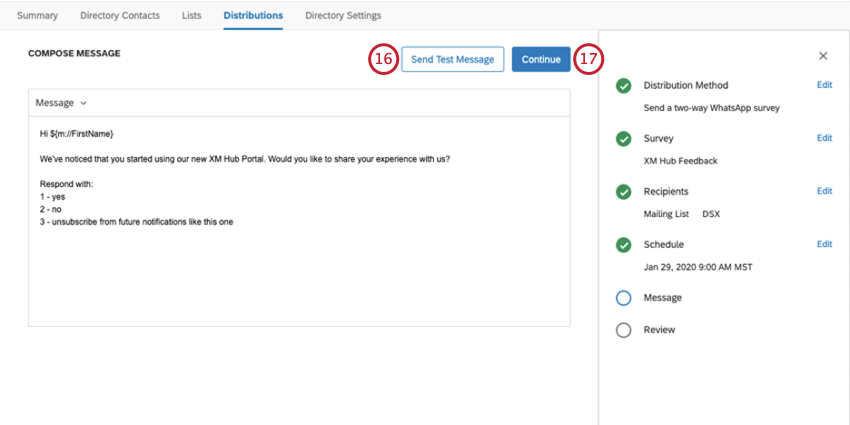
2-way templates must be written in the form of a question that explicitly asks for yes/no answers (e.g., 1 – yes; 2 – no). Additionally, your message must include a third option to unsubscribe.
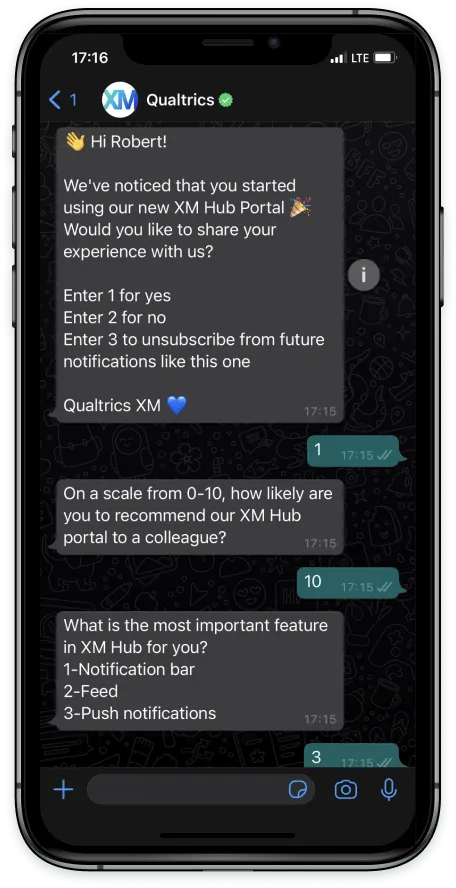
Example for 2-Way:
Hi ${m://FirstName}
We’ve noticed that you started using our new XM Hub Portal. Would you like to share your experience with us?
Enter 1 for yes
Enter 2 for no
Enter 3 to unsubscribe from future notifications like this one
Step 2: Uploading a Message Template to the Qualtrics Library
Once you have prepared your message, upload it to your Qualtrics message library.
Qtip: There is no piped text button in WhatsApp Message Templates. However, any piped text you generate elsewhere and add to the message should still work, so long as it’s relevant to the survey or the mailing list you’re distributing with.
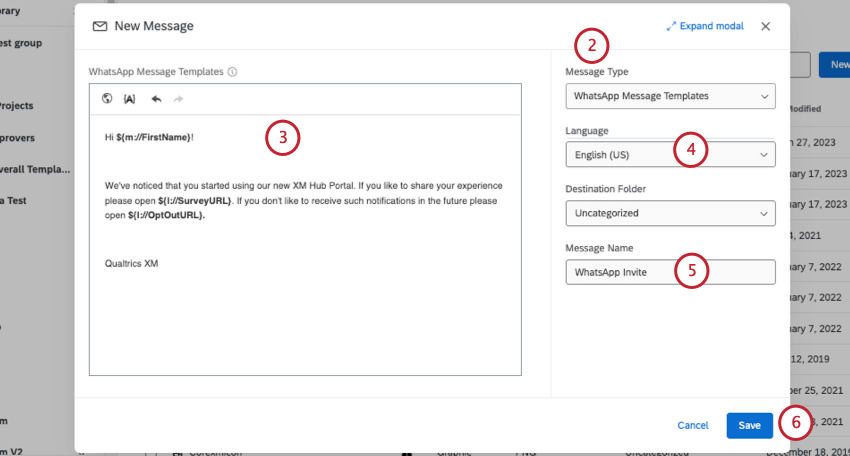
Qtip: You need the Use WhatsApp Distributions permission to create WhatsApp templates in your library.
Qtip: Every translation of the message has to be separately approved by WhatsApp.
Qtip: If the recipient opts out (either by replying “3” or by clicking an opt-out link), they will be opted out of the mailing list. When opted out of a mailing list, the recipient will not receive any distribution sent to that list. This does not, however, opt the recipient out of the entire directory.
Qtip: It may be helpful to add WhatsApp message templates to an organization-wide library that is accessible for all users.
Step 3: Submit the message template and wait for approval
Click Fill the survey to submit your message template for approval.
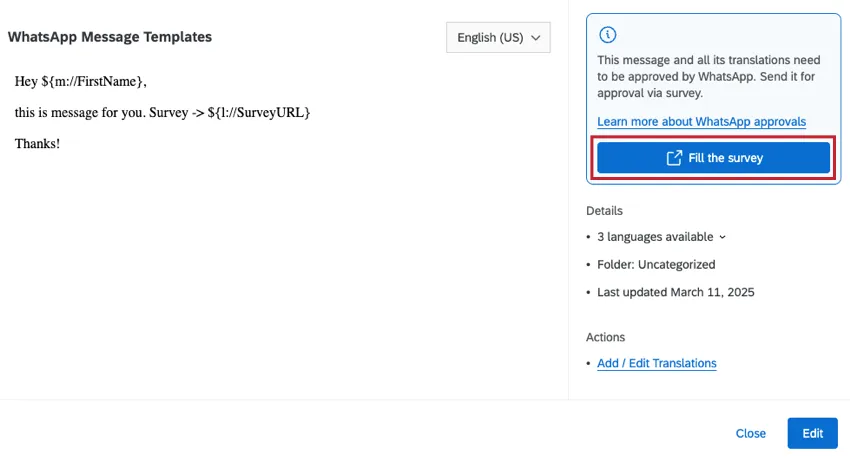
Wait for the approval before proceeding to the next step.
Step 4: Checking Template Approval Status
To check your template's approval status, create a new WhatsApp distribution and choose your message. Below the message, you'll see the template's translations and the status of each one.
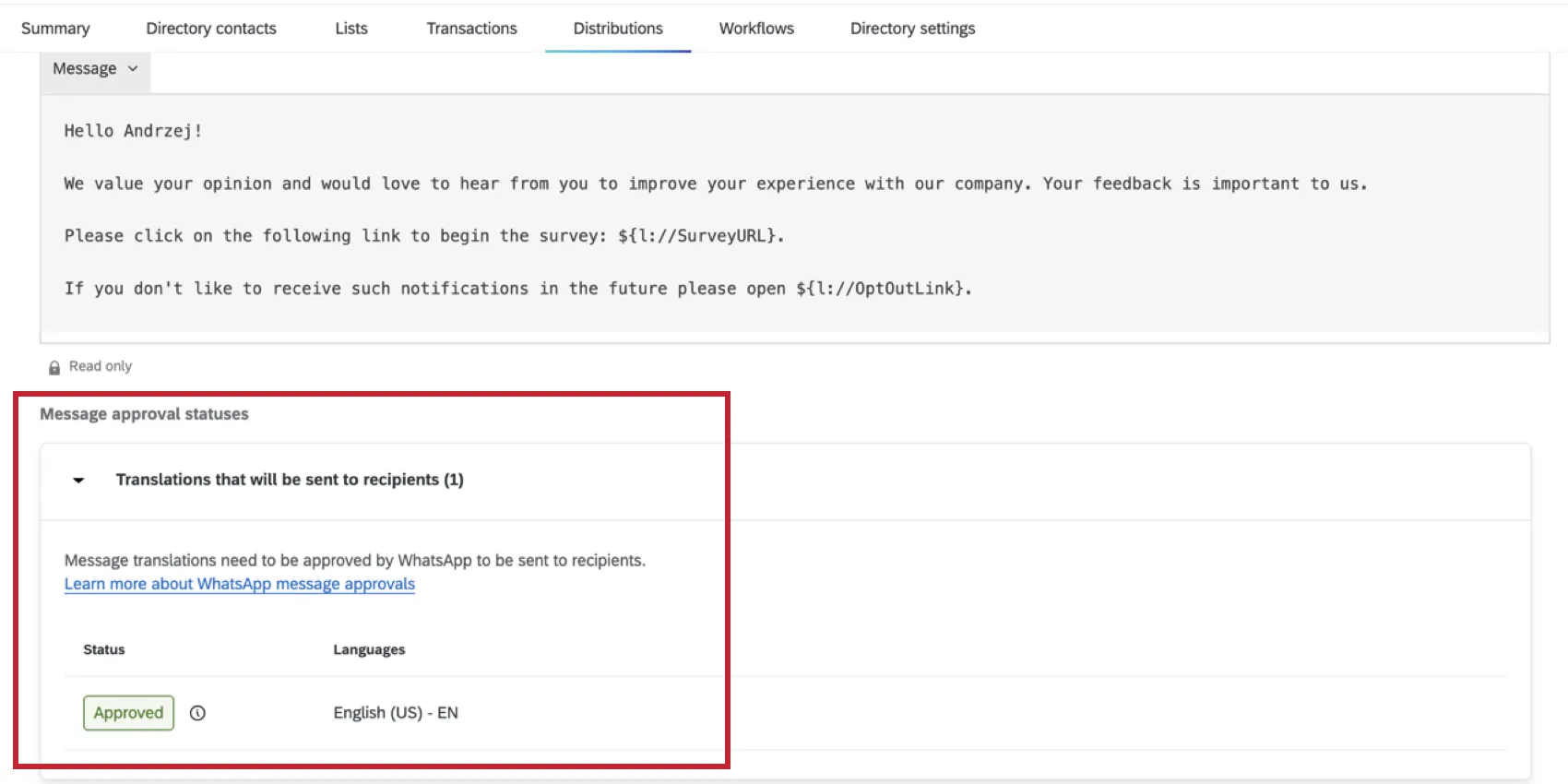
Survey Design for 2-Way Distributions
Qtip: If you are distributing a survey invitation through WhatsApp instead of distributing it through 2-way messaging in WhatsApp, you don’t need to follow the guidelines in this section when you design your survey.
Not all Qualtrics features are compatible with 2-way WhatsApp distribution. Only three question types are supported: NPS©, single answer multiple choice, and text entry. Additionally, you cannot have HTML formatting on your questions. However, branch logic, display logic, and custom end of survey messages (in the survey flow and in the default end of survey settings) are all compatible.
WhatsApp surveys are distributed one question at a time. If a participant answers a question, the next question will be sent. Page breaks are ignored when distributing a survey via WhatsApp. Although longer surveys are possible, we recommend keeping WhatsApp surveys simple with no more than two or three questions.
WhatsApp distributions won’t split into multiple messages as there are no GSM-7/USC-2 encoding concerns like in SMS. The character limit for your initial message is 1024 characters and the character limit for normal messages is 65536.
Qtip: If you are sending survey invites and are not using 2-way WhatsApp distributions, you can design your survey however you want.
Importing WhatsApp Numbers
Phone numbers for a WhatsApp survey distribution are uploaded by creating a mailing list. Please note that even if you do not plan on emailing this distribution, mailing lists often require an “Email” column since they are traditionally used for email distributions.
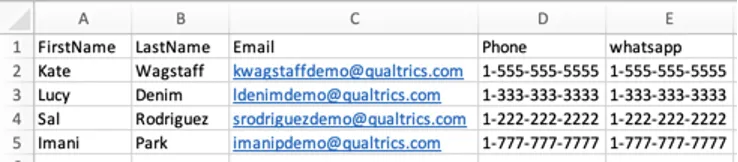
A column for the phone number connected to the WhatsApp account should also be included. This column must be called whatsapp. Capitalization does matter.
Qtip: You will not be charged for distributing to invalid numbers.
Format for US Numbers
For phone numbers based in the United States, you are allowed to use spaces, dashes, and parentheses, provided that you remember to use the country code. The following are valid formats:
- 1(XXX)-XXX-XXXX
- 1-XXX-XXX-XXXX
- 1-(XXX)-XXX-XXXX
- 1XXXXXXXXXX
- 1-XXXXXXXXXX
- 1 (XXX) XXX-XXXX
- 1-(XXX) XXX-XXXX
- 1(XXX) XXX-XXXX
Format for UK Numbers
Numbers based in the United Kingdom must not contain spaces, dashes, or parentheses. Remove the leading 0 after the country code (44) if there is one. The following are valid formats:
- 44XXXXXXXXXX
Format for Other Countries
Write the country code, then the number. Be sure to remove any 0’s after the country code. Do not include spaces or dashes.
WhatsApp Message Rate Limits
WhatsApp limits the rate at which you can send messages. If you exceed the rate limit, then your messages will fail. WhatsApp contains different rate limit tiers that are automatically assigned by WhatsApp.
You can check your tier using your Facebook Business Manager Account. More information about message rate limits can be found on this WhatsApp support page.
Sending a 2-Way WhatsApp Survey
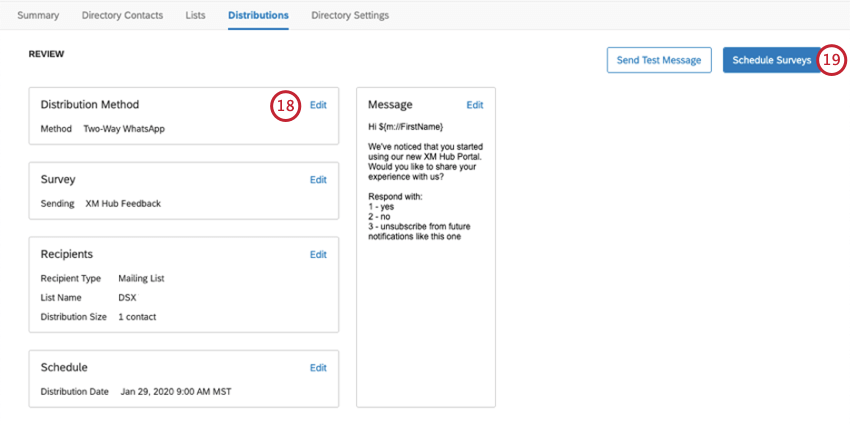
When sending an interactive survey through WhatsApp, Qualtrics will send the survey questions directly inside WhatsApp, and the recipient will message back all their responses.
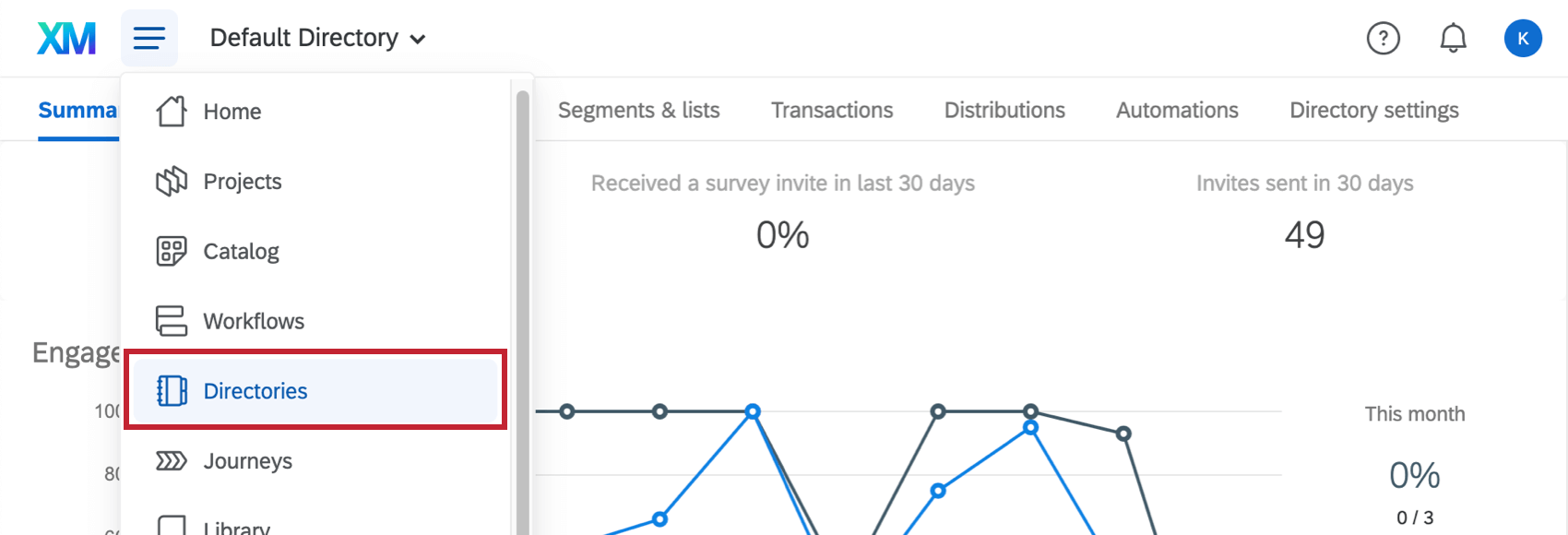
Qtip: WhatsApp distributions can only be sent from XM Directory. You cannot send them straight from the survey, like with SMS distributions.
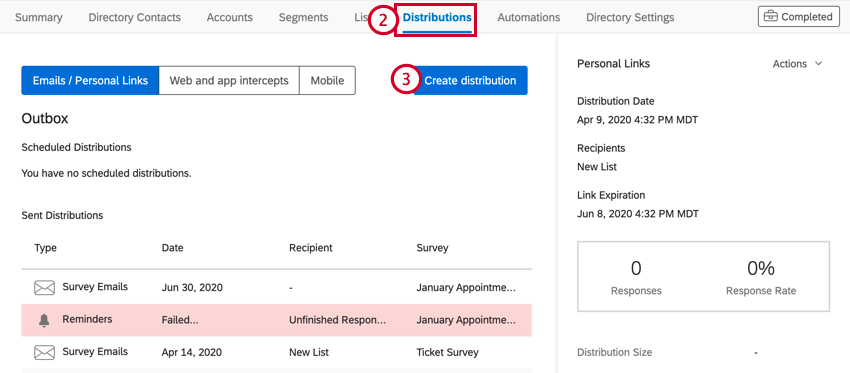
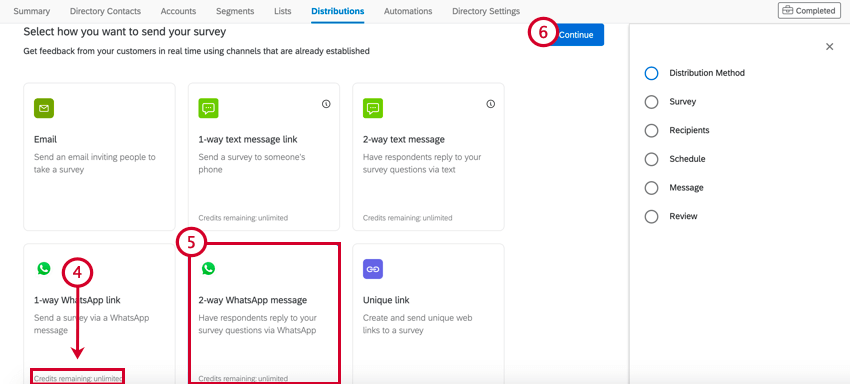
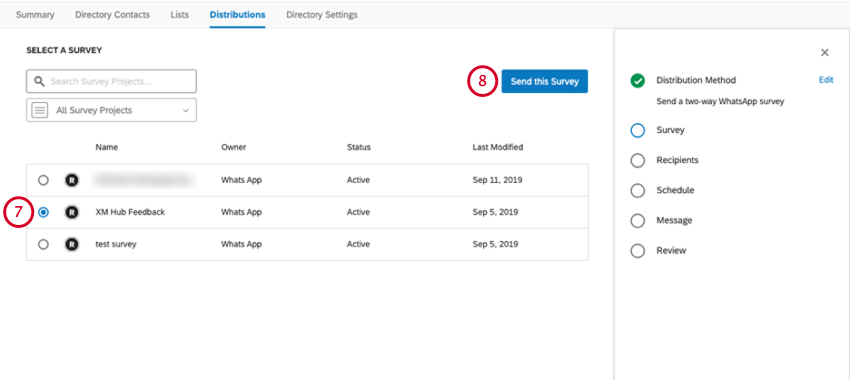
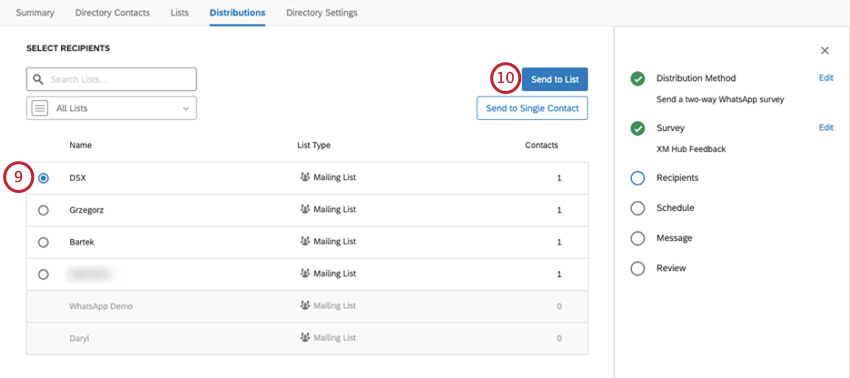
Qtip: Remember to format your WhatsApp numbers correctly!
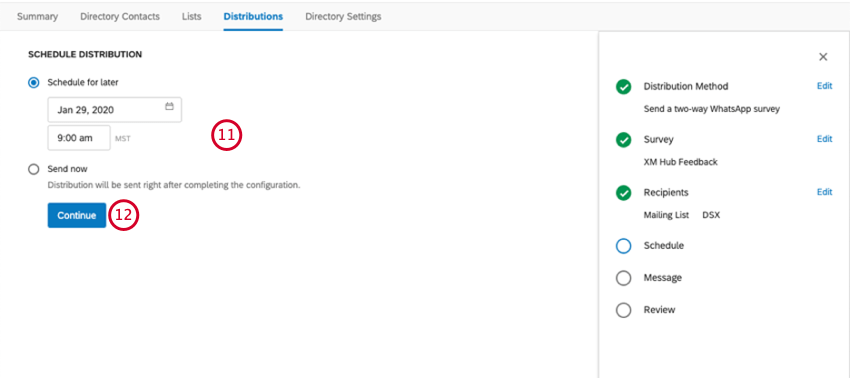
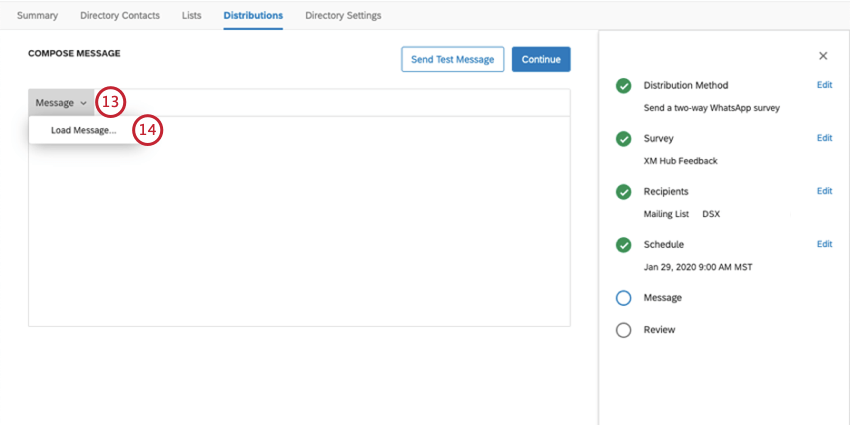
Qtip: Piped Text for fields such as names and Embedded Data will appear as typed in the message instead of populating with real values, since there’s not a contact to pull this information from.
Sending a Survey Link through WhatsApp
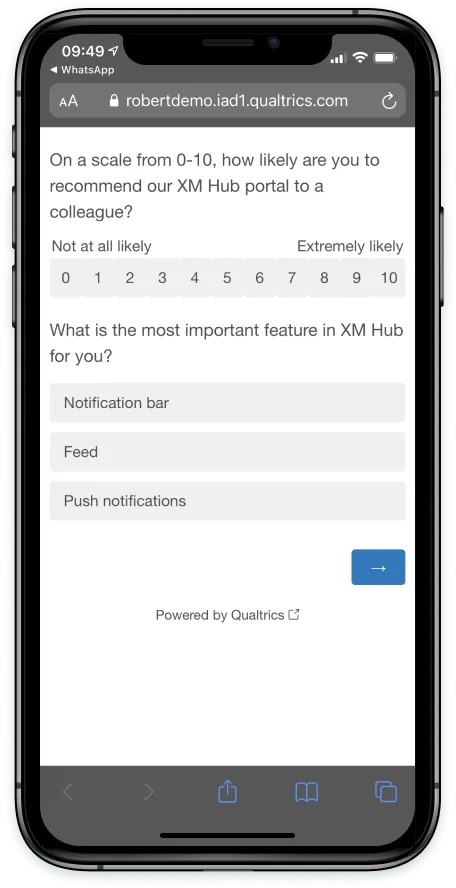
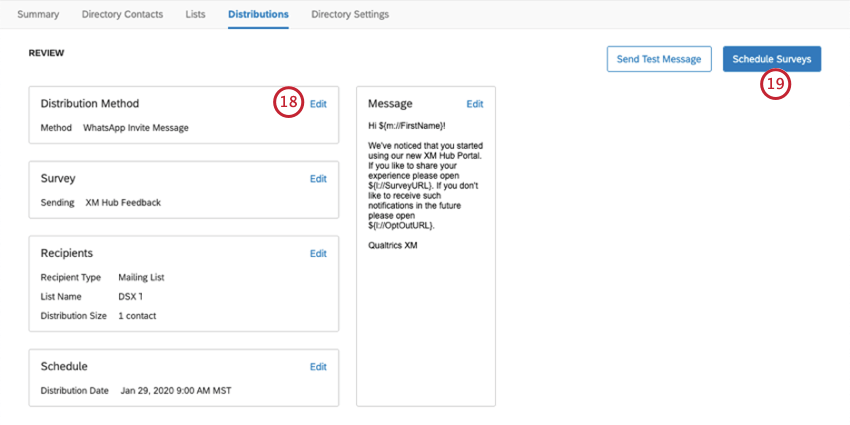
You can also send a WhatsApp message that includes a survey link. When the recipient clicks the link, they’ll be taken to the survey in their mobile browser.
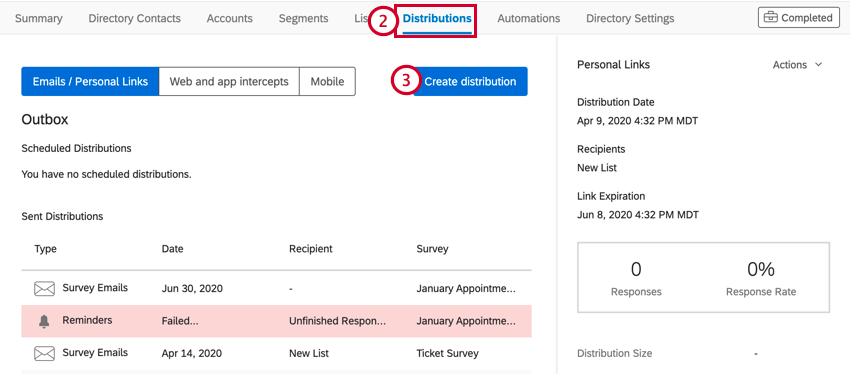
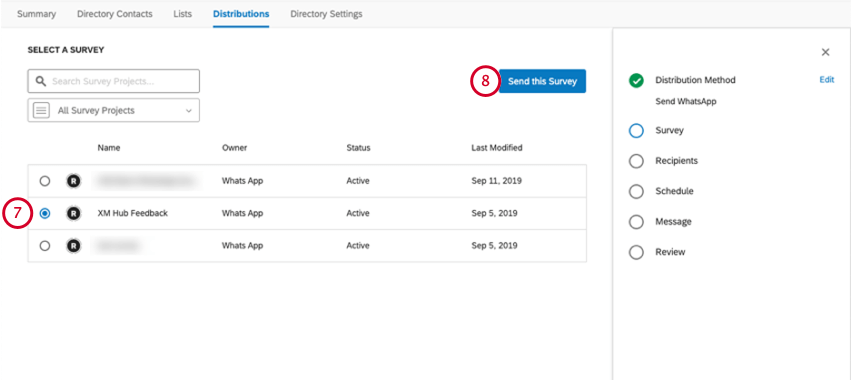
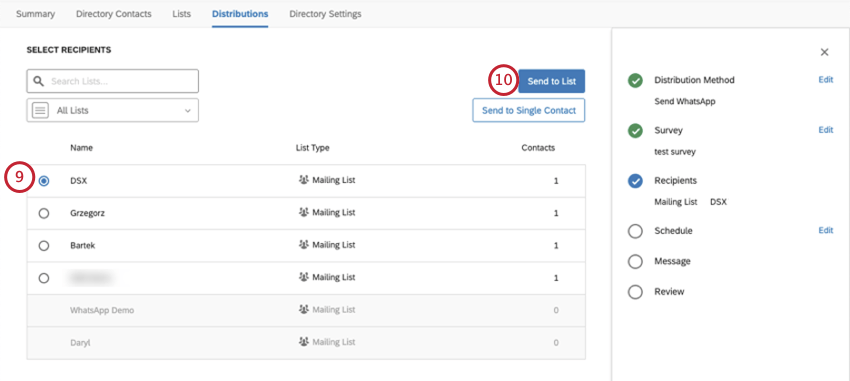
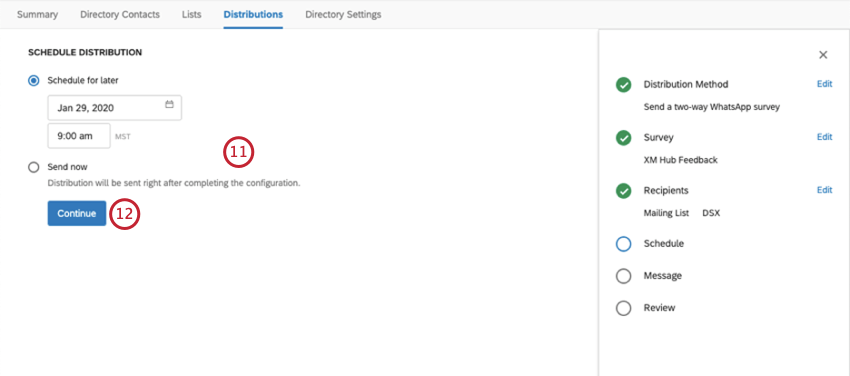
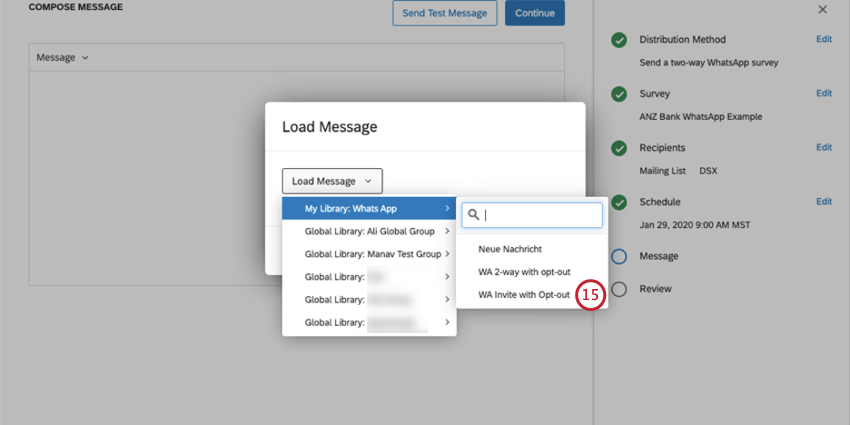
Qtip: You can only run this test with a U.S. number. Piped Text for fields such as names and Embedded Data will appear as typed in the message instead of populating with real values, since there’s not a contact to pull this information from.
Upgrading to a WhatsApp Official Business Account
Although not required, we recommend this step because it adds legitimacy to your WhatsApp distributions and lets respondents know your business can be trusted.
Qtip: Note that approval for a WhatsApp Official Business Account is not guaranteed and is subject to approval by WhatsApp. Generally, Facebook reserves Official Business accounts for internationally recognized brands.
Benefits of Having a WhatsApp Official Business Account
Having an Official Business Account status will:
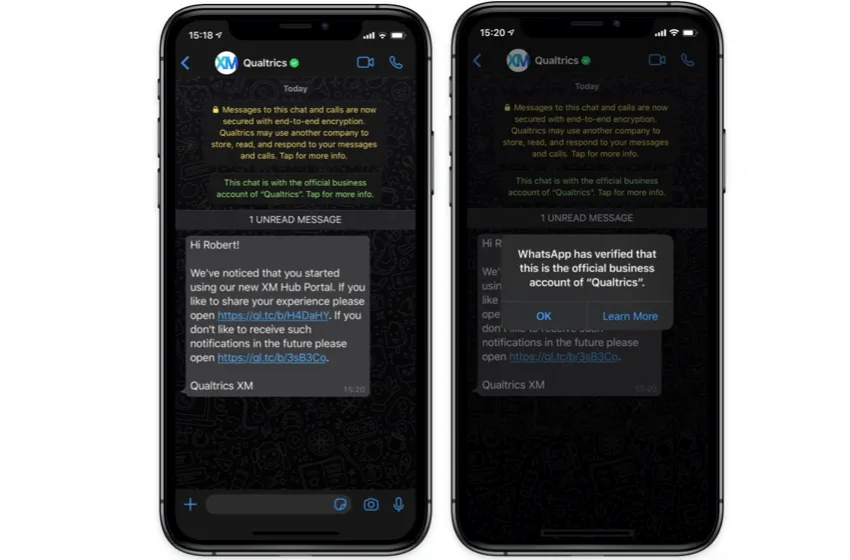
- Mark your business profile as verified and official by WhatsApp.
- Display business name as a contact (instead of a phone number) even if the business is not in the user’s contact list.
- Show the following system message when opening a chat with an Official WhatsApp Business Account: “This is an official WhatsApp Business account. Tap to learn more.”
Viewing Past Distributions
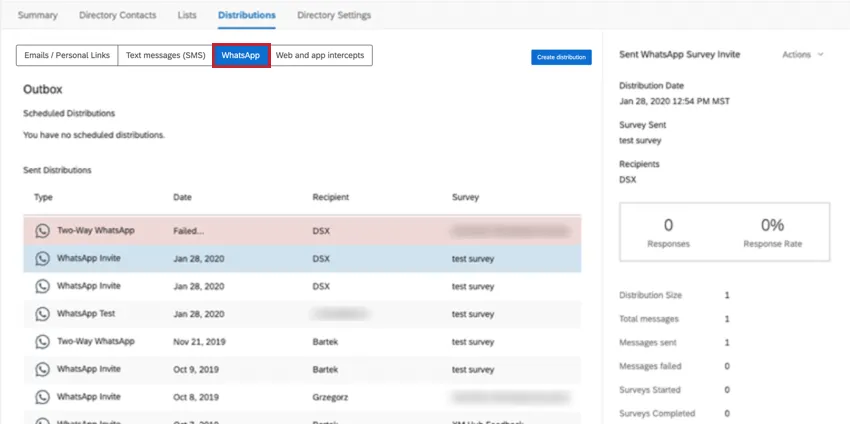
WhatsApp distributions can be managed in the WhatsApp section of the Distributions tab.
Downloading Distribution History
You can download the distribution history for a specific WhatsApp distribution. This allows you to see each respondent in the distribution and view their status for the survey. More information about downloading distribution history can be found on this page.
Opt-in Requirements for WhatsApp
You are required to obtain opt-in consent before starting conversations with customers. You can obtain opt-in consent in a variety of ways, both on and off WhatsApp. This is to ensure people receive useful, expected information from businesses they want to hear from.
Requirements
You must follow the below requirements when obtaining opt-in consent:
- Clearly state that a person is opting-in to receive messages from the business over WhatsApp
- Clearly state the business’s name that a person is opting-in to receive messages from
- Comply with applicable local laws
Opt-In Methods
As long as the opt-in method meets the above requirements, it will be policy compliant. The following are examples of supported opt-in methods:
- SMS
- Website
- In a WhatsApp thread
- By phone (using an interactive voice response [IVR] flow)
- In person or on paper (customers can sign a physical document to opt-in)
For more information and guidance, please see Meta’s page on Opt-in for WhatsApp.
Consenting to and Unsubscribing from 2-Way WhatsApp Communications
When starting a WhatsApp survey, there are several things a respondent can say to either consent to a survey, stop the survey, or unsubscribe from all future surveys. One of each must be included in the message you send via 2-way WhatsApp distributions.
- 1, y, or yes: Confirms that the respondent would like to continue with the survey.
- 2, n, or no: The respondent would not like to take the survey. They refuse further messages from this survey, but are not opted out of future surveys.
- 3, stop, stopall, optout, opt-out, opt out: Unsubscribes the respondent from the mailing list, but not the directory.
Projects You Can Send Through WhatsApp
You can only send WhatsApp distributions through XM Directory. You can only send invites or 2-way invitations for the following types of project:
WhatsApp is also available for Conjoint and MaxDiff, but with different restrictions. See Conjoint and MaxDiff Distributions for more details.
That's great! Thank you for your feedback!
Thank you for your feedback!