

General Look & Feel Settings
What's on this page
About General Look & Feel Settings
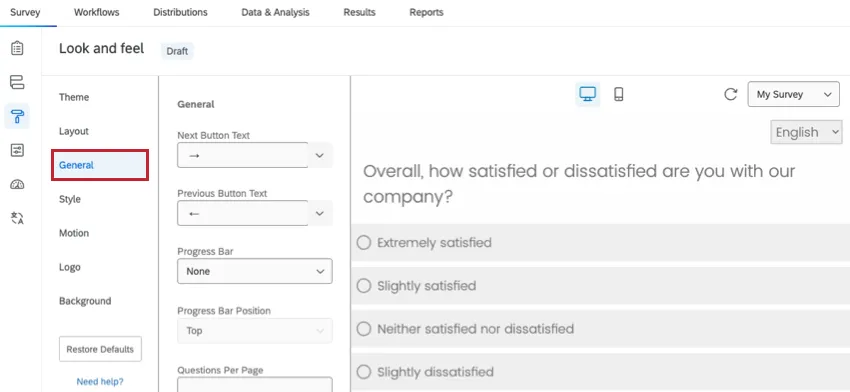
The General section of the Look and feel menu contains options for changing key aspects of your survey’s appearance. These options include changing the next and back button text, adding a progress bar, limiting the number of questions per page, and adding a survey header or footer.
Changing Next and Back Button Text
By default, the buttons at the bottom of each page will show → and ← to cater to an international audience. These buttons can be customized with your own wording.
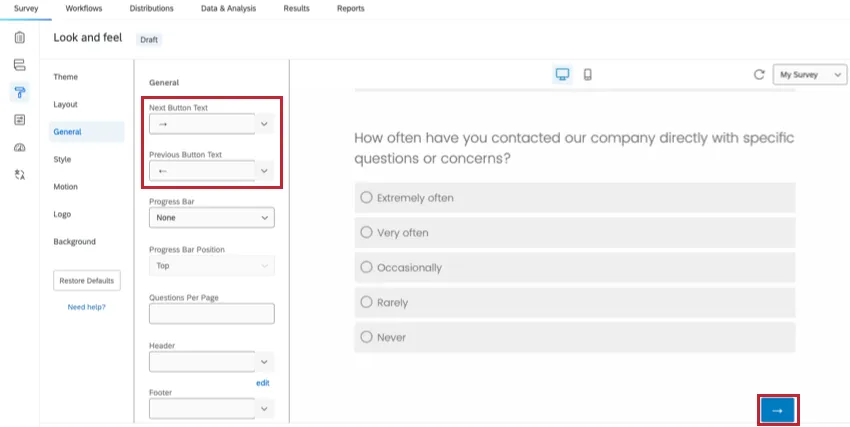
Qtip: Surveys by default don’t include a back button. You can add a back button in the survey options.

Warning: In some cases, a back button won’t show on a page even if you have the setting selected in your survey options. This is caused by having elements between blocks in your survey flow. Any element (branch logic, embedded data, randomizer, web service, etc.) will disable the back button on the first page of the block that follows it.

Changing button text for the entire survey
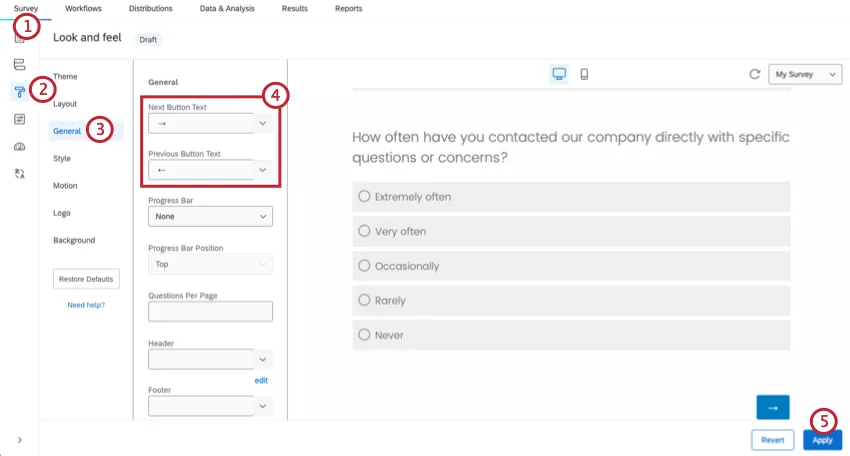
Changing button text for 1 page of the survey
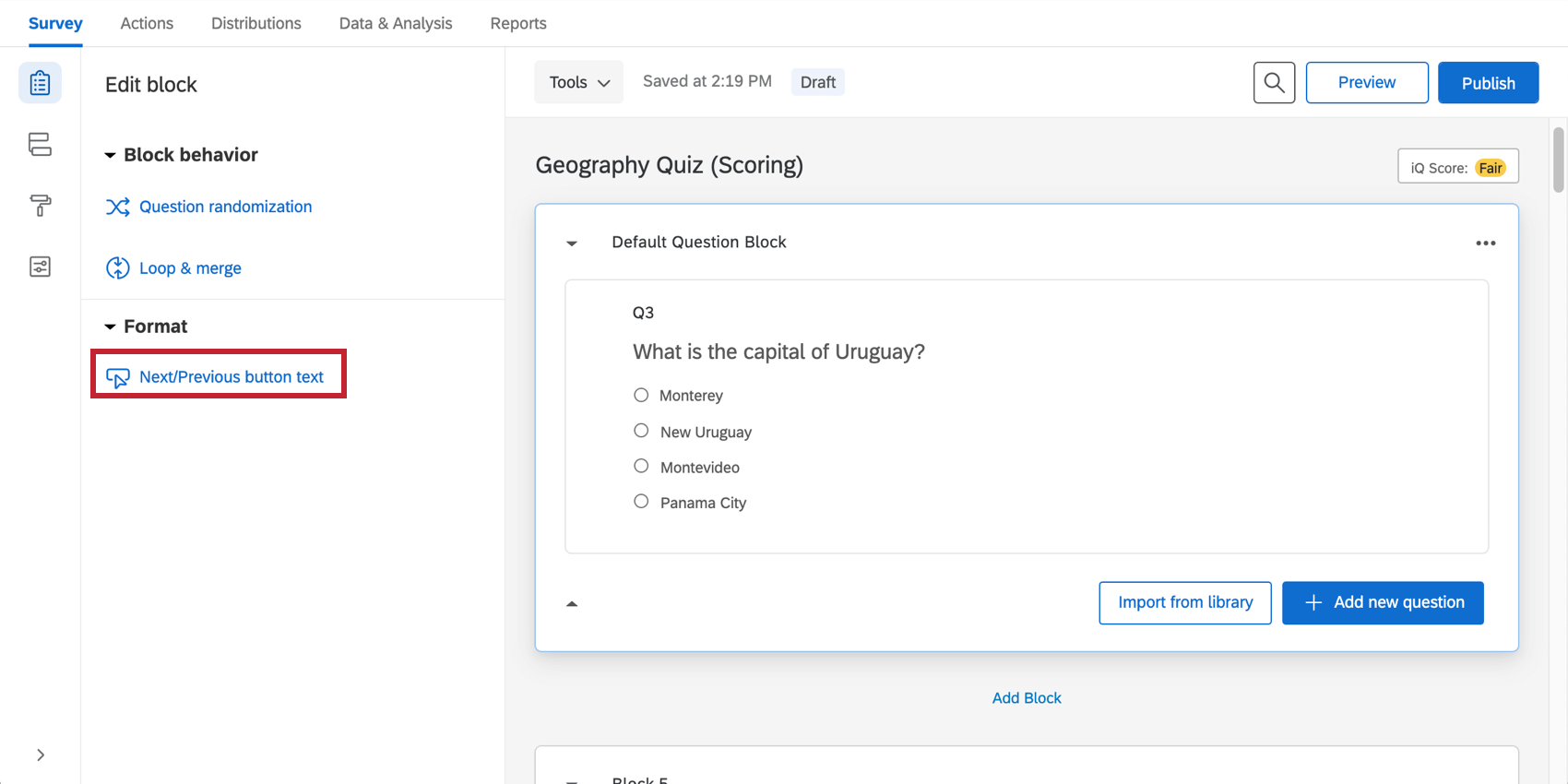
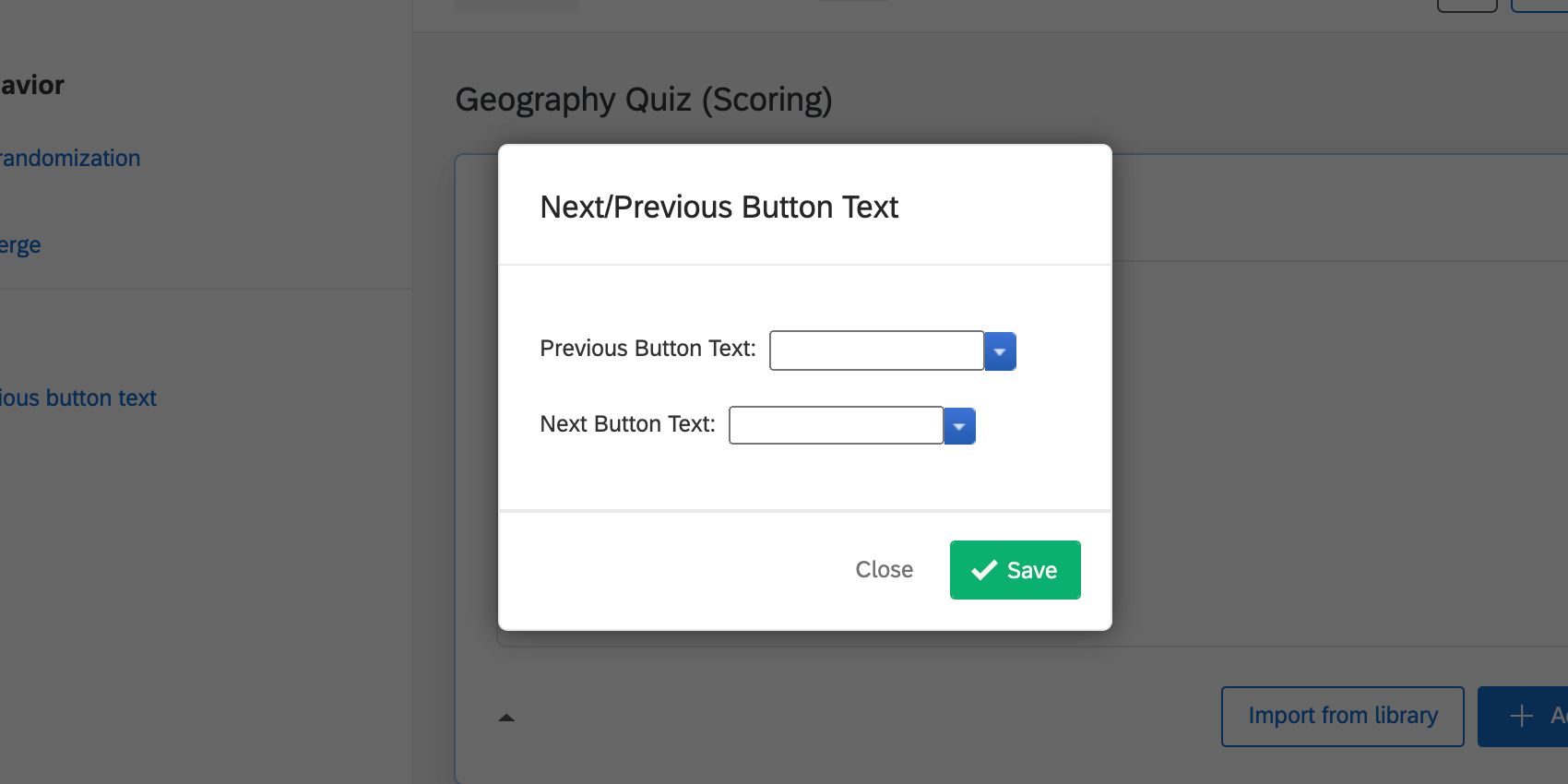
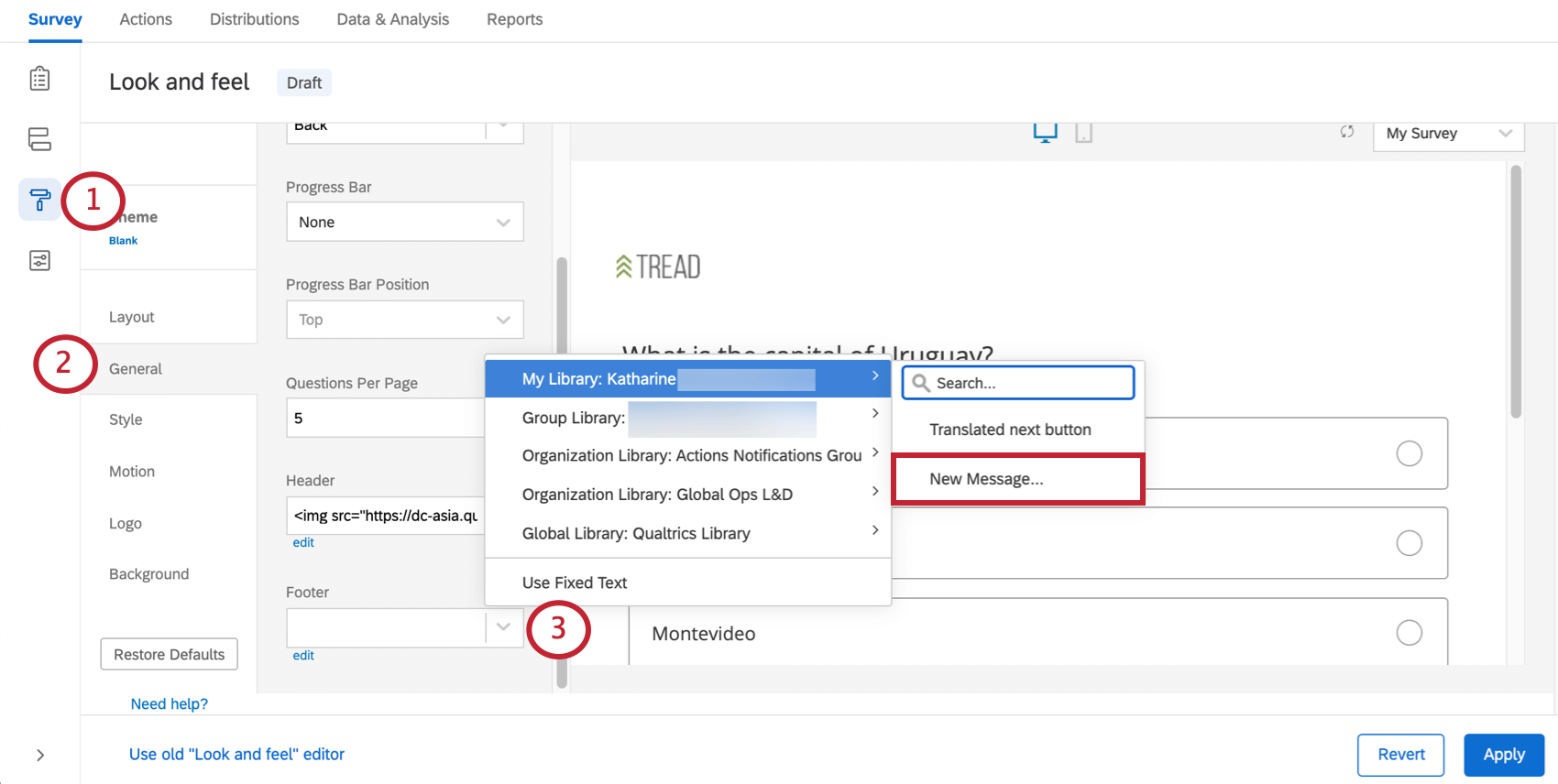
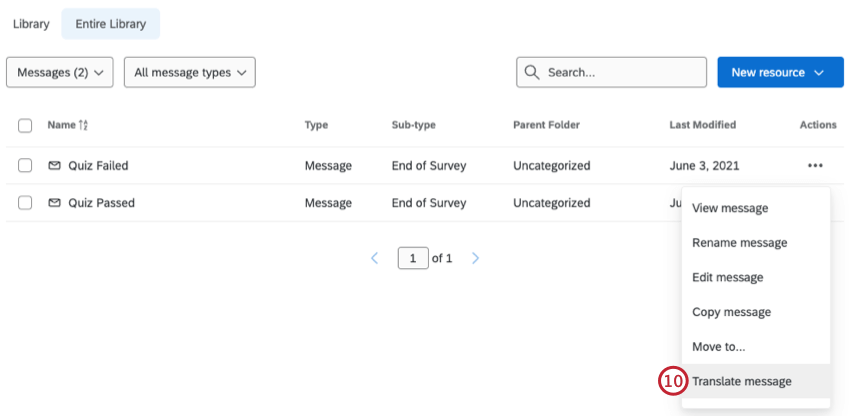
Translating the Next / Previous button text
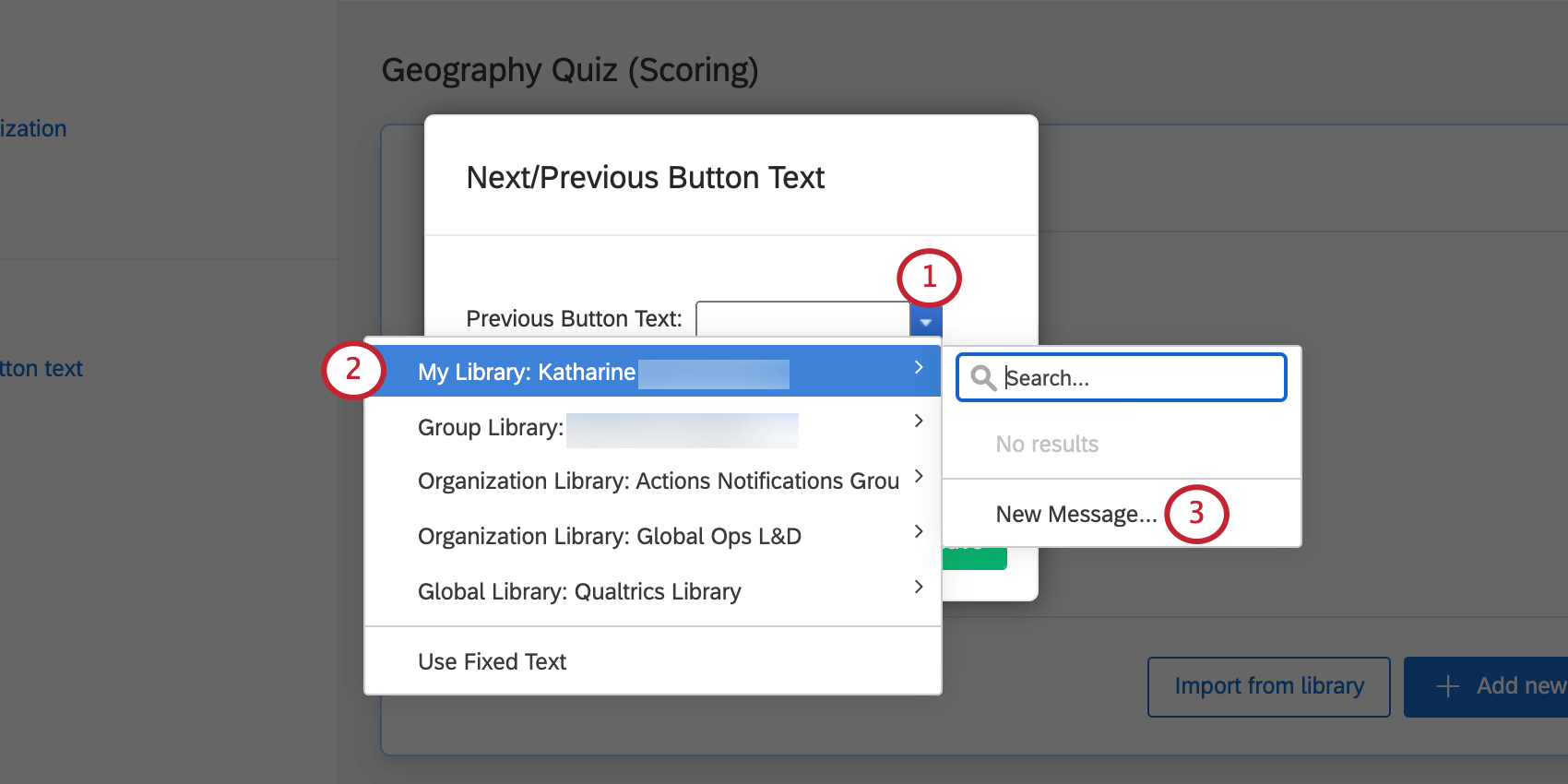
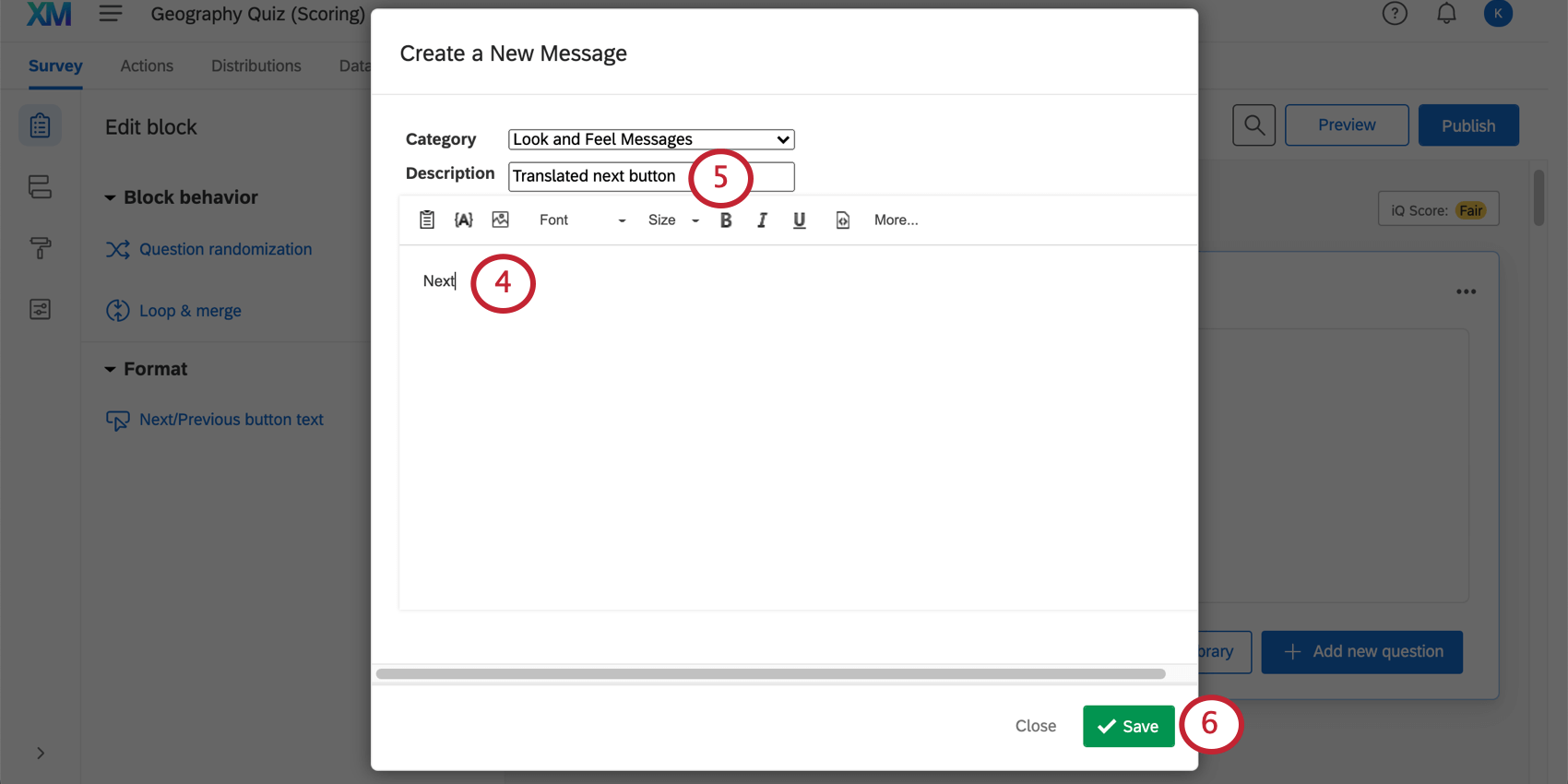
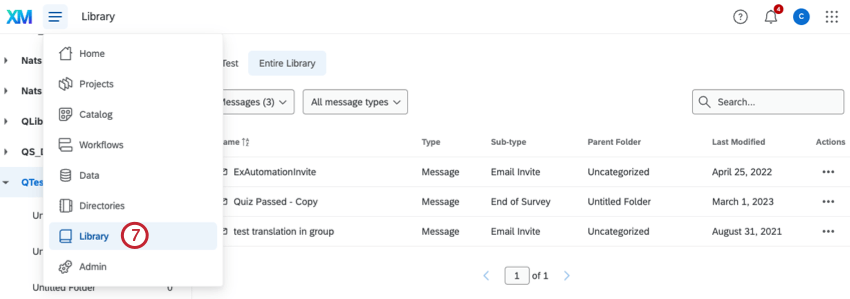
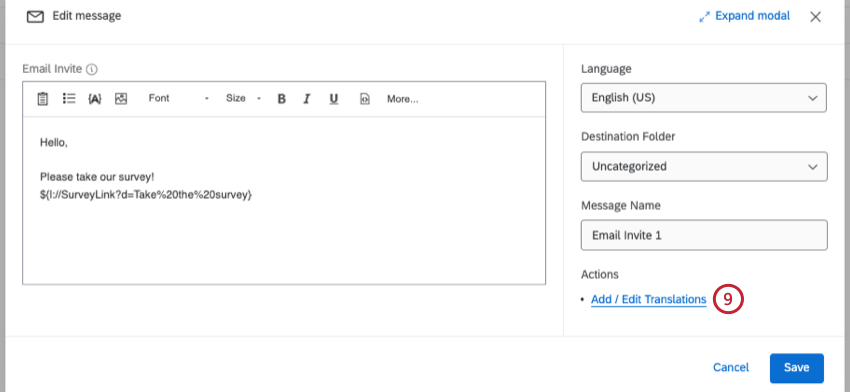
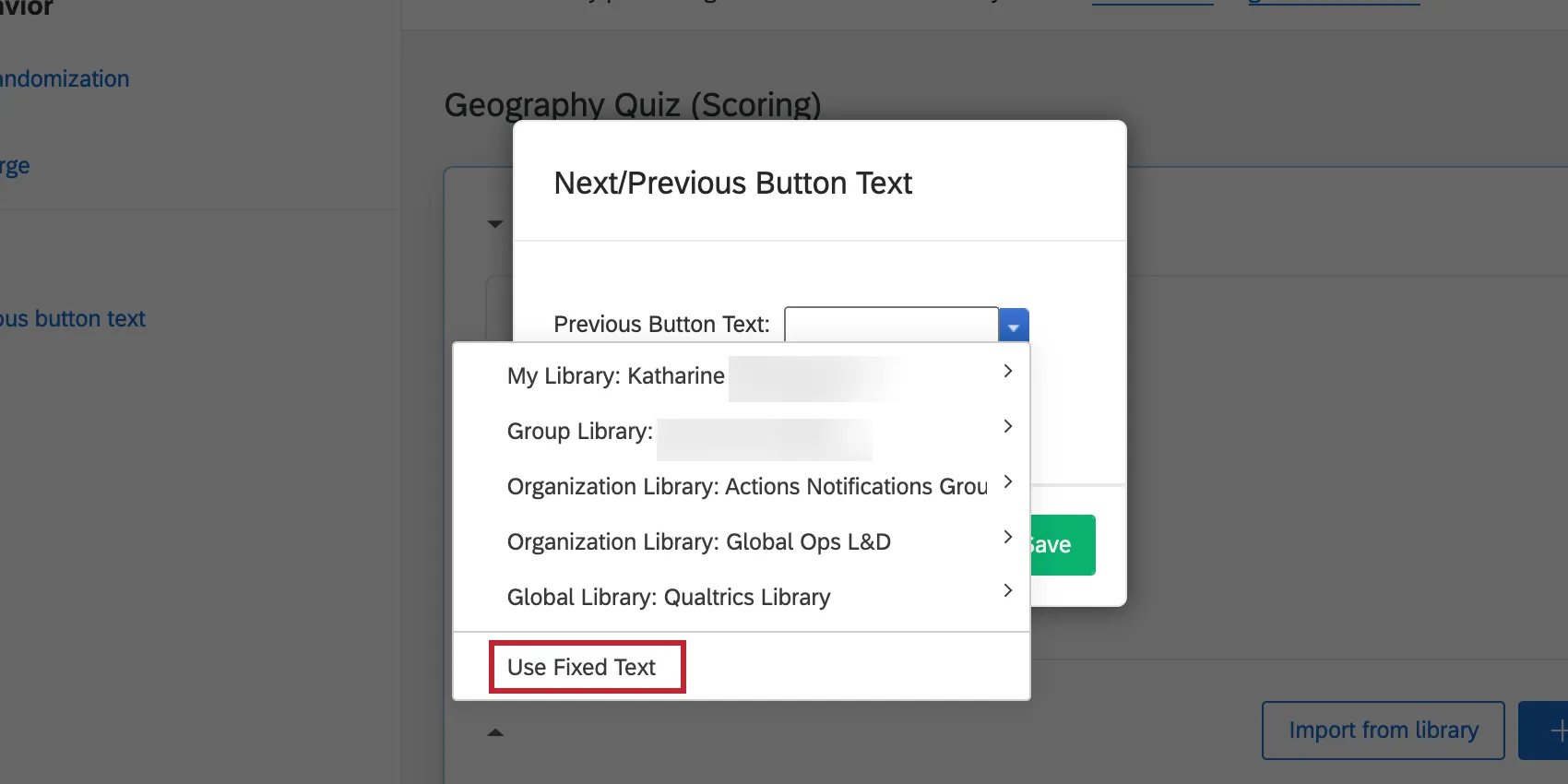
Qtip: To revert to the default button text, click Use Fixed Text from the drop-down menu.
Adding a Progress Bar
With a progress bar, participants can see how far along they are in the survey. We generally recommend a progress bar over question numbers because it gives participants an idea of both how far they’ve come and how much further they have to go.
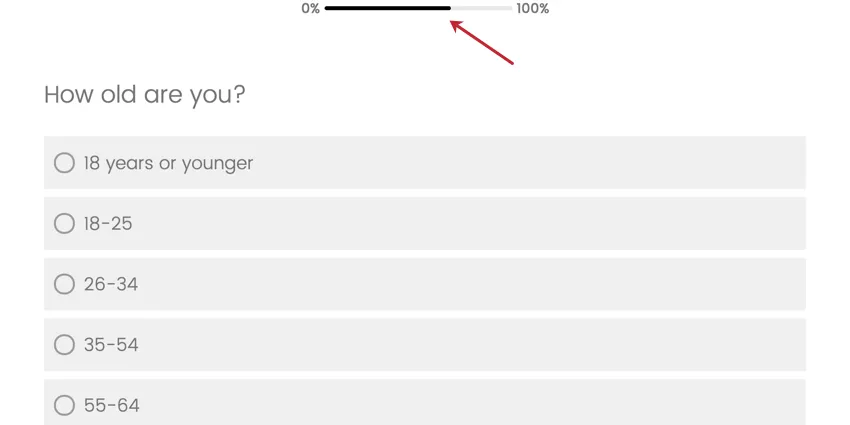
Qtip: The progress bar counts every survey question in its calculation. If logic in your survey skips participants past a set of questions, their progress will jump accordingly. If you want certain content not to be calculated in the progress bar, see Exclude from Progress Bar Calculation.
Qtip: The progress percentage is calculated based on all elements in the survey, including elements in the survey flow. If your survey contains many elements, the progress percentage can be less than 1% even when questions are answered. Progress less than 1% is rounded to 0%.
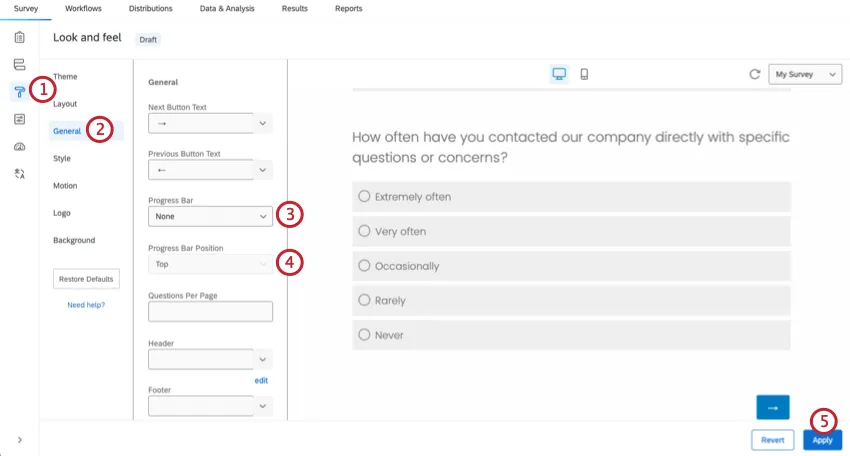
Adding a Progress Bar
Specifying Questions Per Page
By default, your entire survey will show up on 1 page unless you added page breaks or logic to your questions. The questions per page feature is a quick way to add page breaks automatically, saving you time as you create longer surveys.
Specifying a set number of questions per page
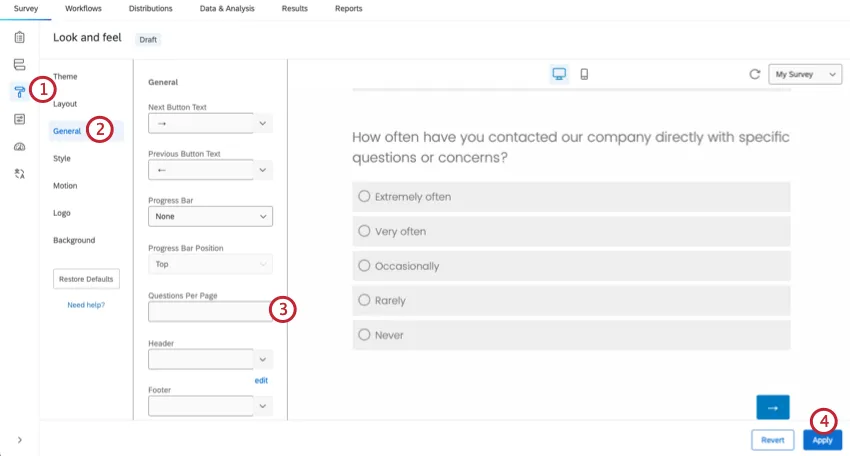
Qtip: If your survey includes timing questions, consider manually splitting your survey into pages using page breaks. Questions per page may result in timing questions working on a different page than the page you intended.
Qtip: If you’re editing a conjoint or MaxDiff project, see differences in page break behavior in Building Additional Survey Content.
Adding a Survey Header/Footer
Survey headers and footers are useful for displaying content on every page of your survey at either the top or bottom of the page. You can use these fields to add a custom company logo, a survey title, or instructions for your survey respondents.
Qtip: If you need a header or footer for just 1 page, try a text / graphic question instead. This question displays information without asking for feedback and is perfect for instructions or section headings.
Adding a header/footer:
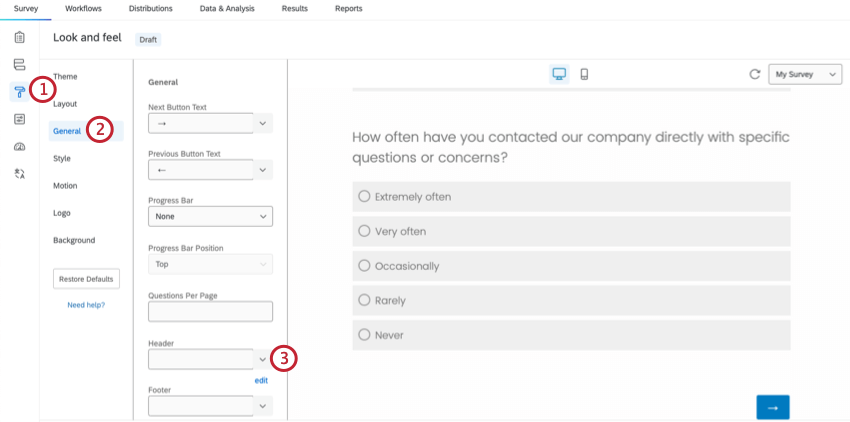
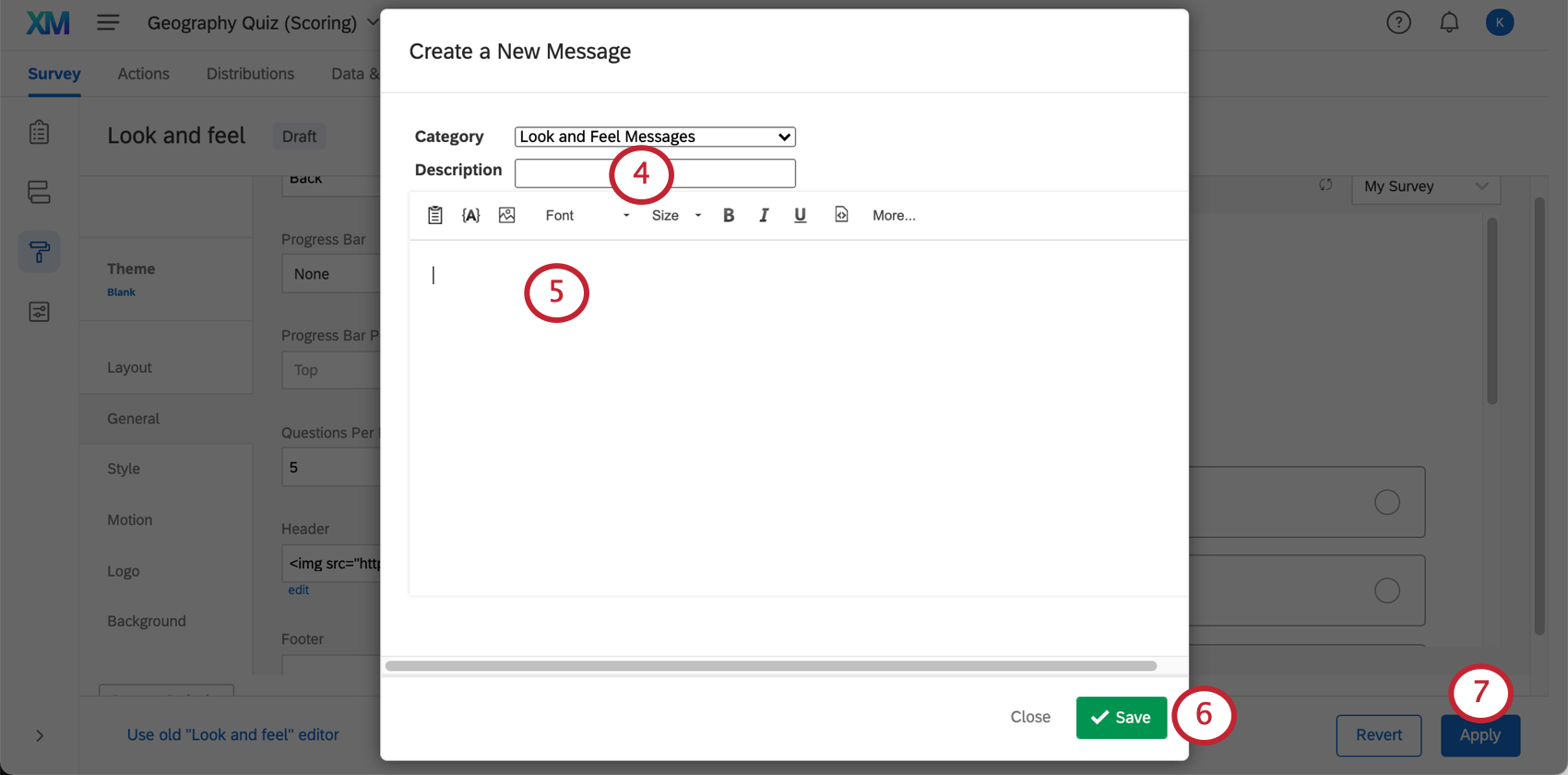
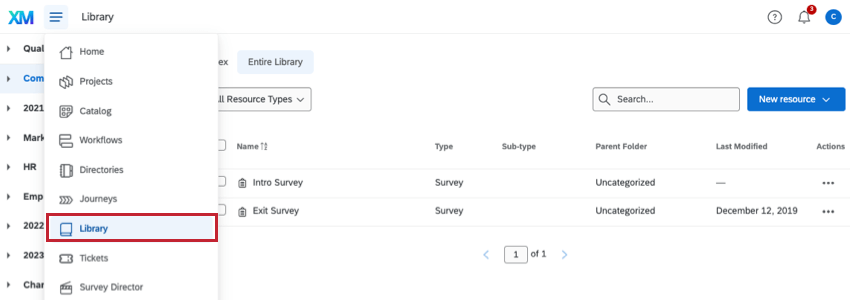
Qtip: You can also click the drop-down arrow, choose the appropriate library, and click New Message to access the rich content editor and create a header that can be translated and used in multiple surveys.
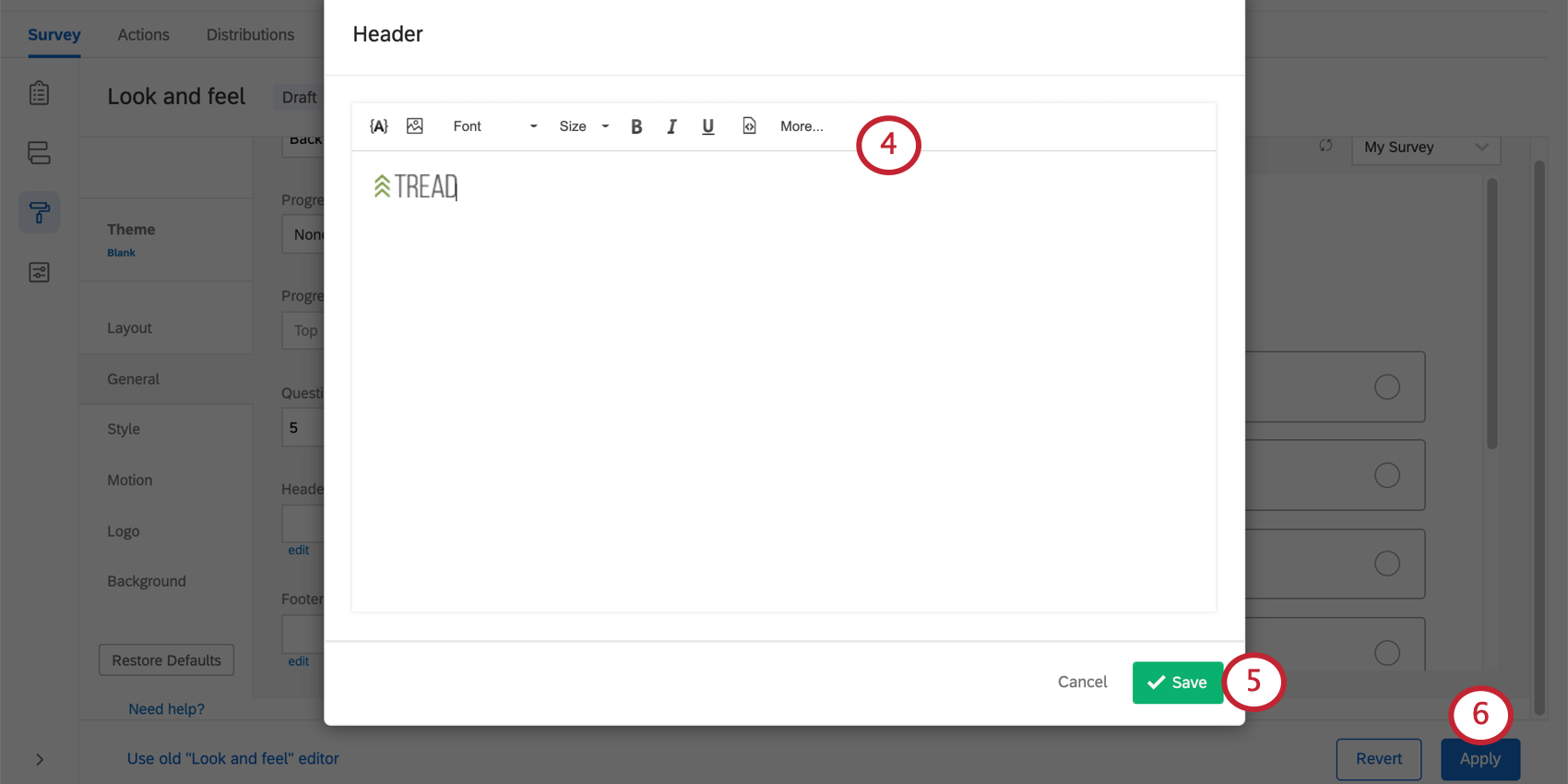
Translating Header/Footer Text
FAQs
How can I change the background/theme of my survey?
How can I change the background/theme of my survey?
How do I show respondents their progress in the survey?
How do I show respondents their progress in the survey?
Why are all of my fonts different in my survey? How do I fix it?
Why are all of my fonts different in my survey? How do I fix it?
Global font changes are made in the Look and feel menu and local font changes are made in the rich content editor for that specific question or answer choice.
Local font changes override global font changes, so if you made both types, you’ll end up with a mix between the global font settings and the local font settings for questions. Follow these steps to clear away all local formatting and let the global changes take effect uniformly: Note that global changes made within Look and feel do not show up in the Survey tab. You need to preview the survey to see the changes and styling.
Why are my page breaks being ignored?
Why are my page breaks being ignored?
- Questions per Page set in the Look and feel
- Question randomization set up in a block
- Skip logic, display logic, and carry forward (all 3 by default will insert a page break)
How do I update or report problems with static themes?
How do I update or report problems with static themes?
That's great! Thank you for your feedback!
Thank you for your feedback!