

Responses in Progress
What's on this page
About Responses in Progress
Responses in progress are responses that have been started but not submitted. This includes both clicked links that have not been filled out and those that are partially filled out, but not submitted.
Responses in progress become recorded responses when:
- A respondent submits a survey
- A survey is manually closed from the Responses in Progress page
- A survey or survey session expires
While still in the Responses in Progress page, you can view, close, or delete these responses.
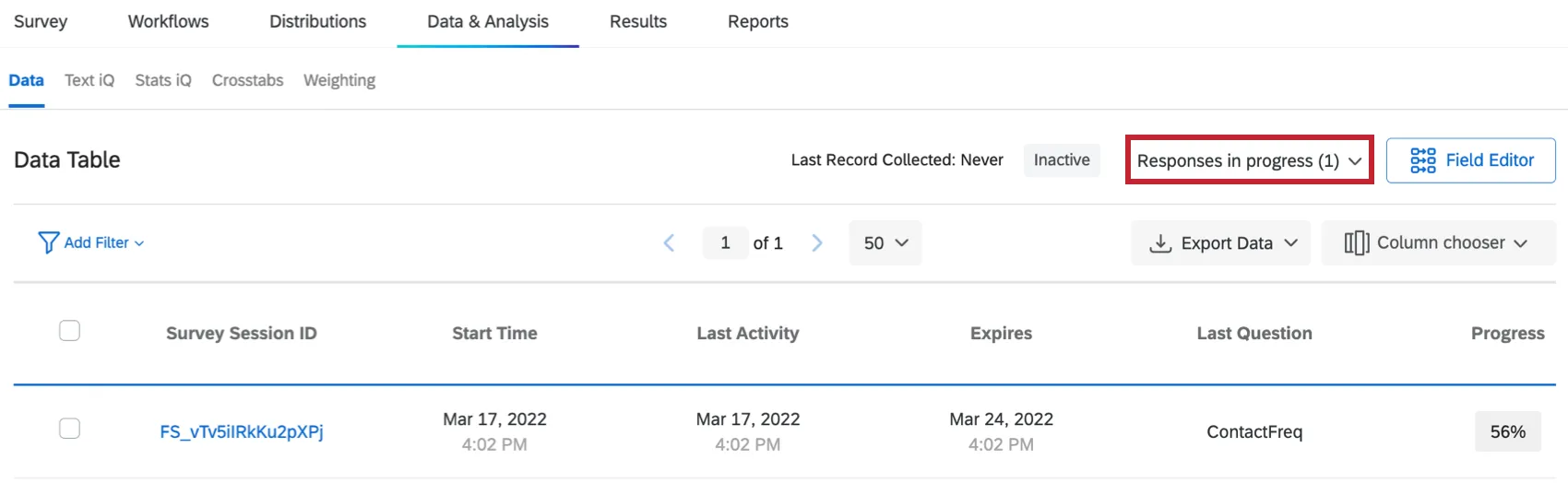
Qtip: In most projects, such as surveys, engagement, or conjoints, responses in progress are found in the Data section of the Data & Analysis tab. In 360 projects, this page is found in the Data tab.

Viewing Responses in Progress
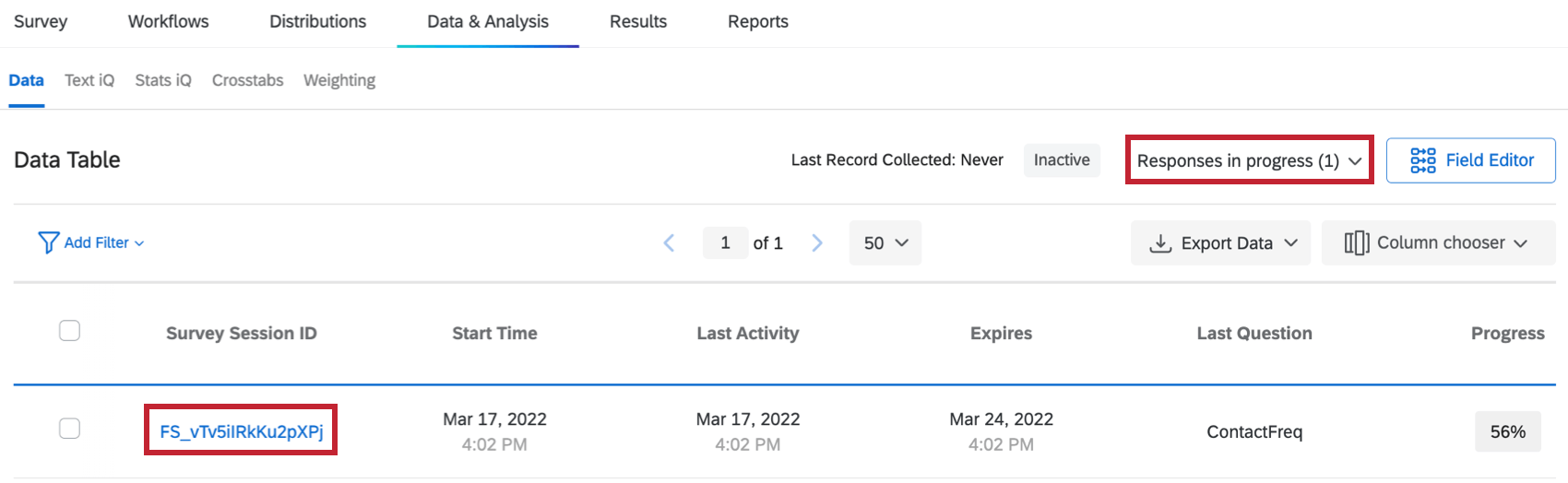
View any active survey sessions by clicking Responses in Progress. For every response in progress, there will be 11 pieces of information in the response viewer:

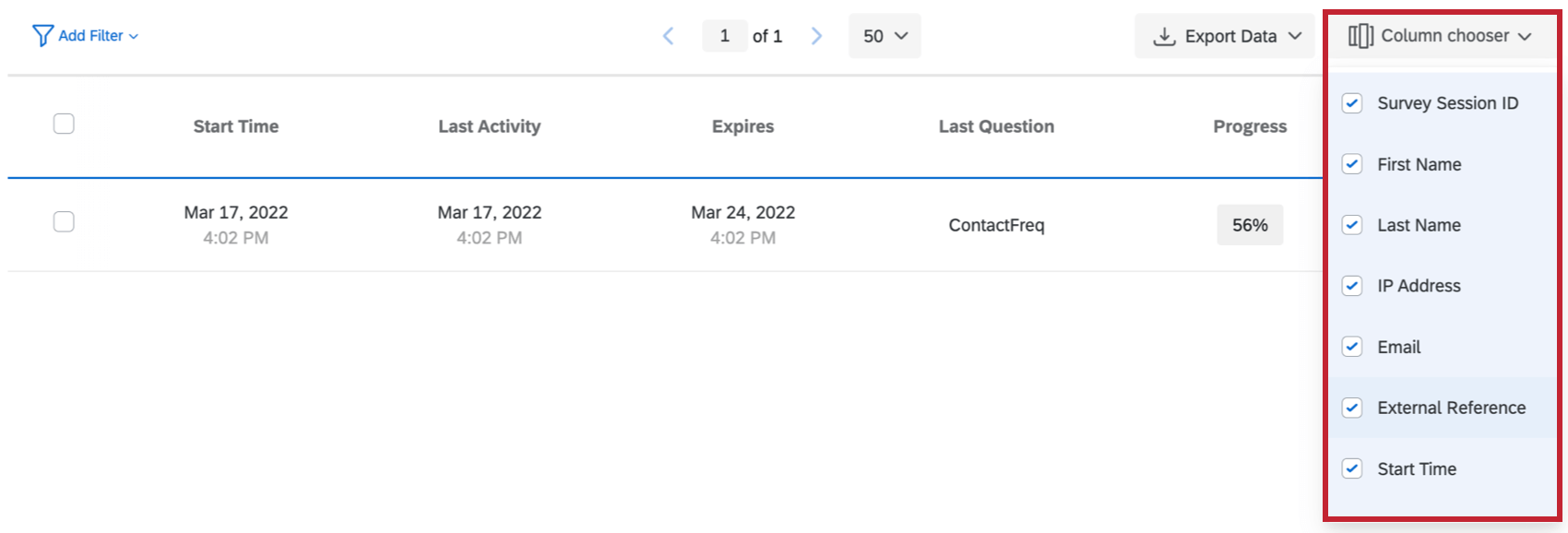
- Survey Session ID: The internal ID used to track the respondent’s answer information.
- IP Address: The IP Address of the respondent. This will not appear if the survey is completely anonymized.
- First Name, Last Name, and Email: If the respondents were emailed the survey, authenticated into the survey, or were given personal links, their first names, last names, and emails will appear as they do in the contact list.

- External Reference: If the respondents were emailed the survey, authenticated into the survey, or were given personal links, their External Data References will appear here as they do in the contact list.
- Start Time: The date and time the respondent first clicked on the survey link.
- Last Activity: The date and time the respondent last switched pages in the survey.
- Expires: The last date and time the respondent will be able to access the survey if they don’t open their survey link again. Qtip: To learn more about where this expiration date comes from, view our Incomplete Survey Responses page.

- Last Question: The last question the respondent answered.
- Progress: The percentage of survey questions the respondent has covered thus far. Qtip: All questions are used to calculate a respondent’s progress, regardless of whether the respondent qualified to see all questions. If a question is skipped, passing that question will still increment the respondent’s progress.
You can also select which of this information you’d like to see on the page by selecting Column chooser.
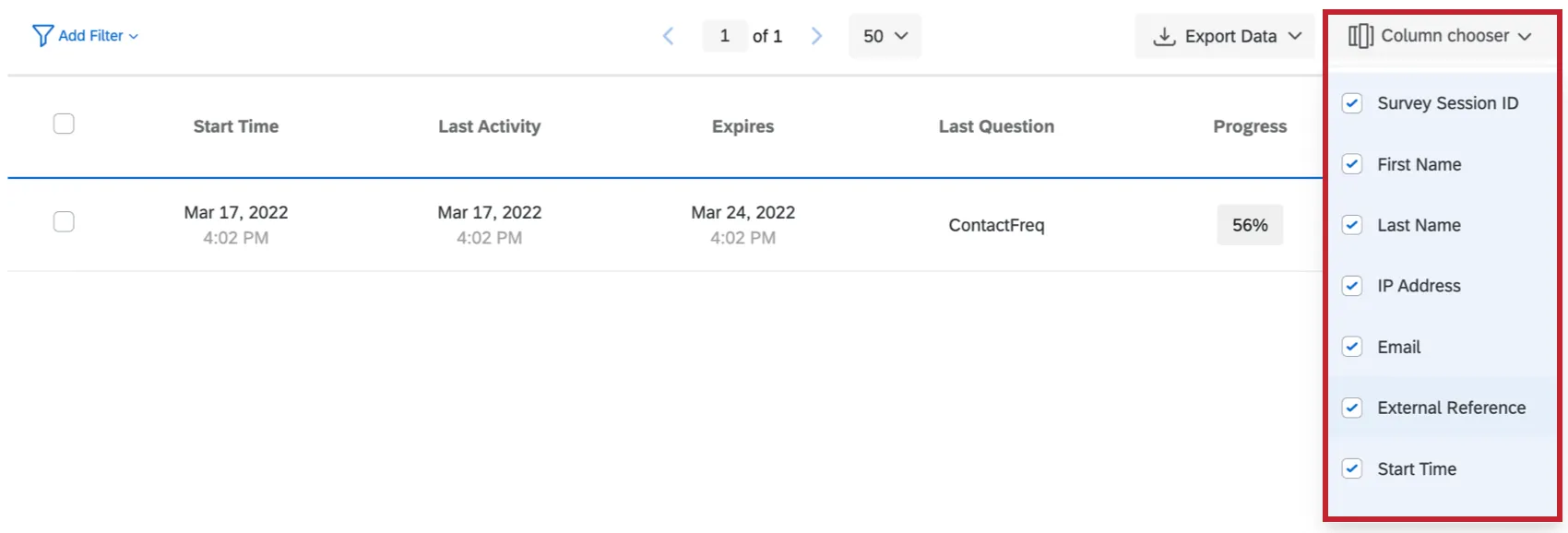
Qtip: It’s important to note that the First Name, Last Name, Email, and External Reference fields are not relevant when viewing responses in progress for engagement, lifecycle, ad hoc employee research, and 360 projects. Although similarly named, these fields do not populate with a participant’s name and email in Employee Experience projects, and instead pull data from XM Directory contact lists.
To view an individual Response in Progress
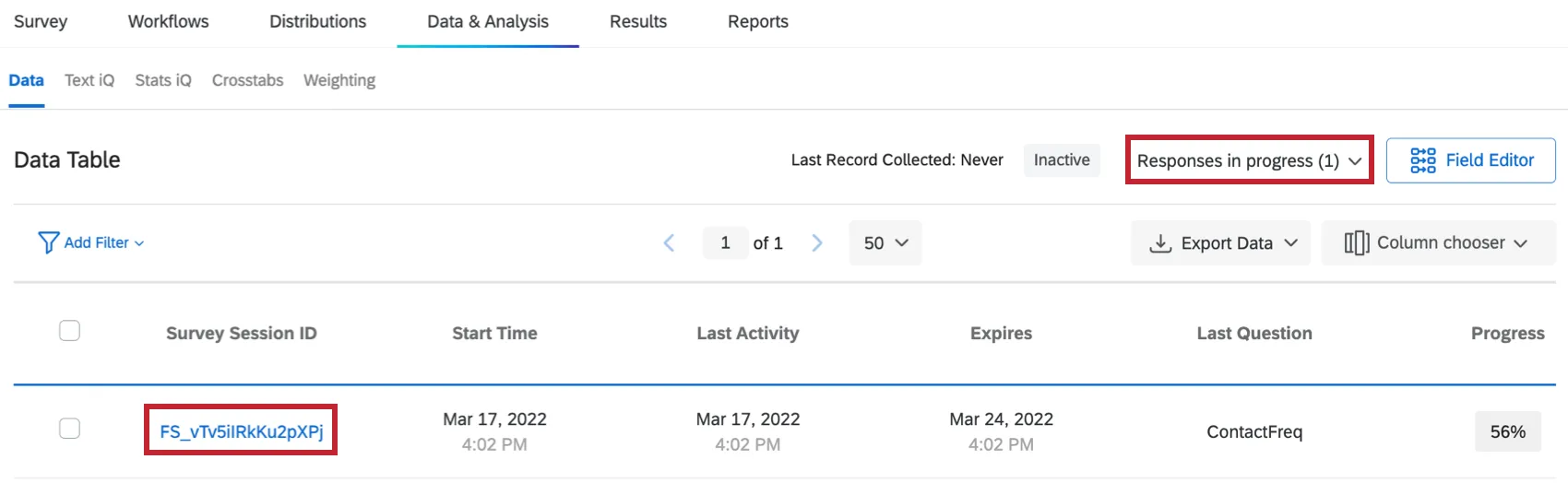
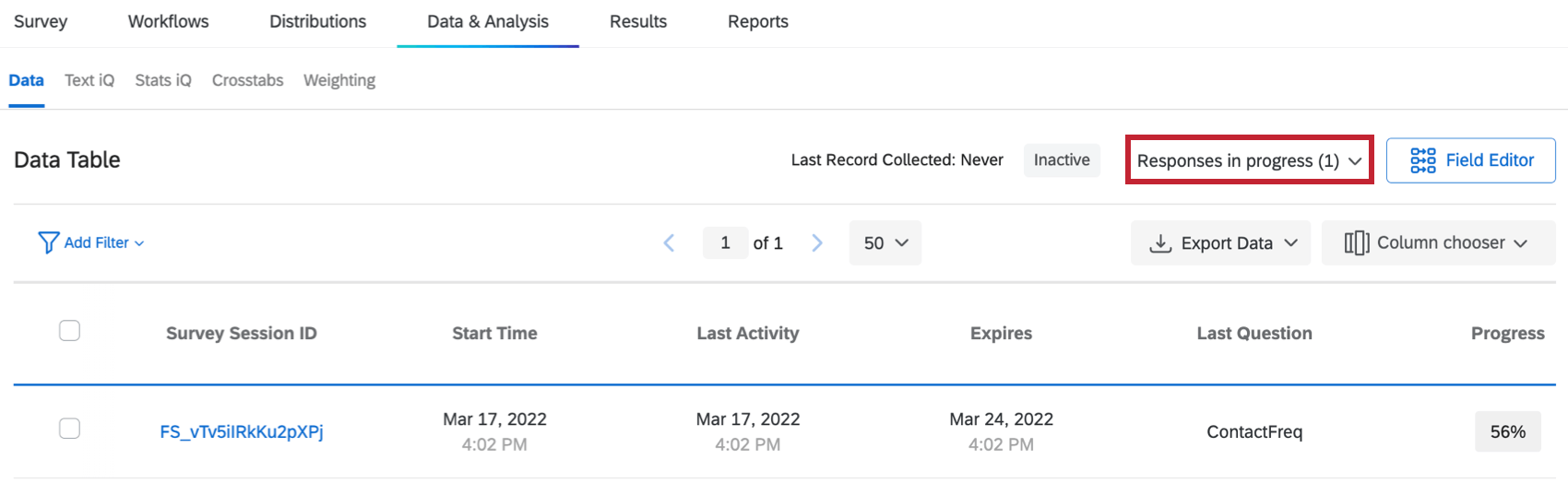
- Navigate to the Data section of the Data & Analysis tab and select Responses in Progress.
- Click the Survey Session ID.
- View the partial response information.
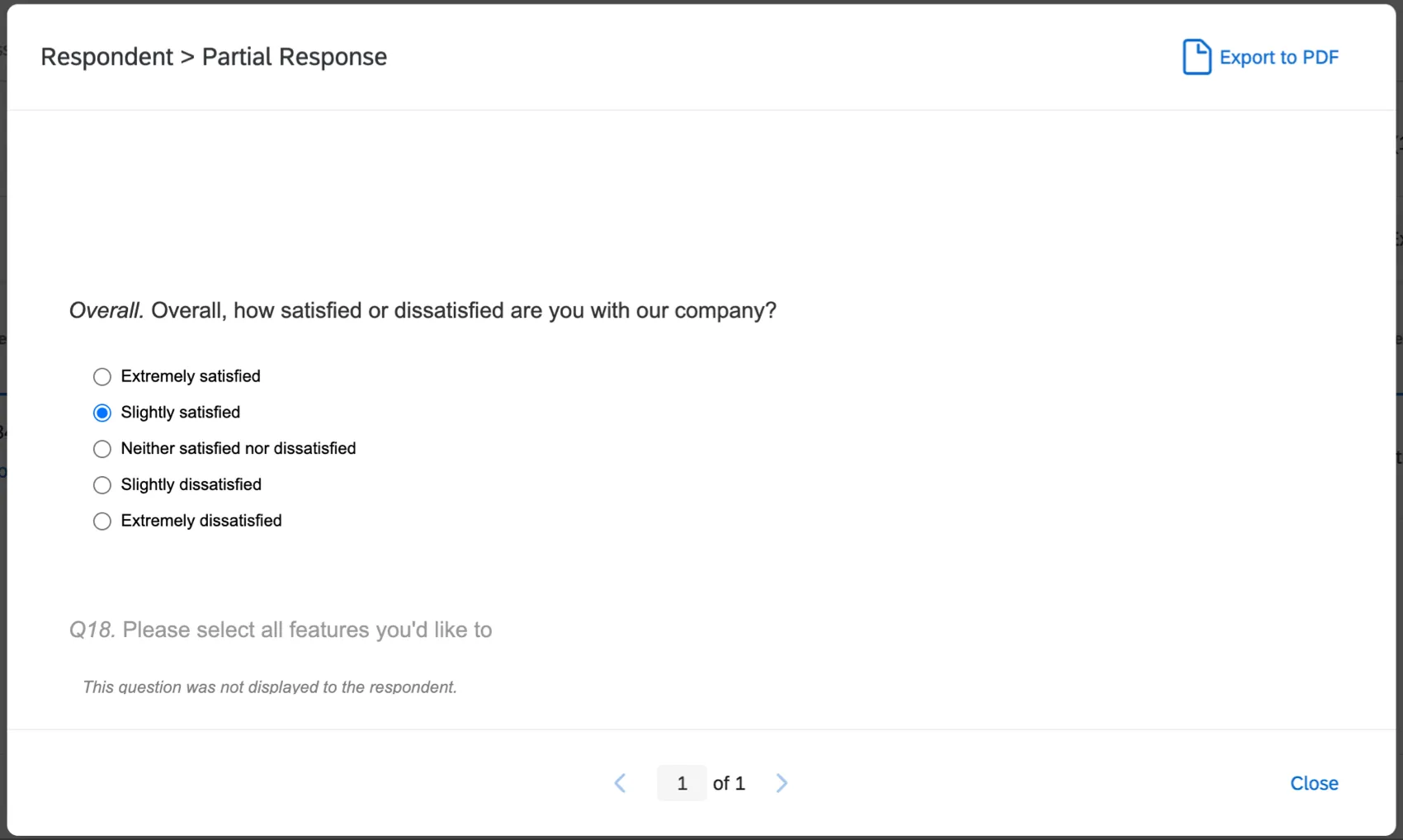
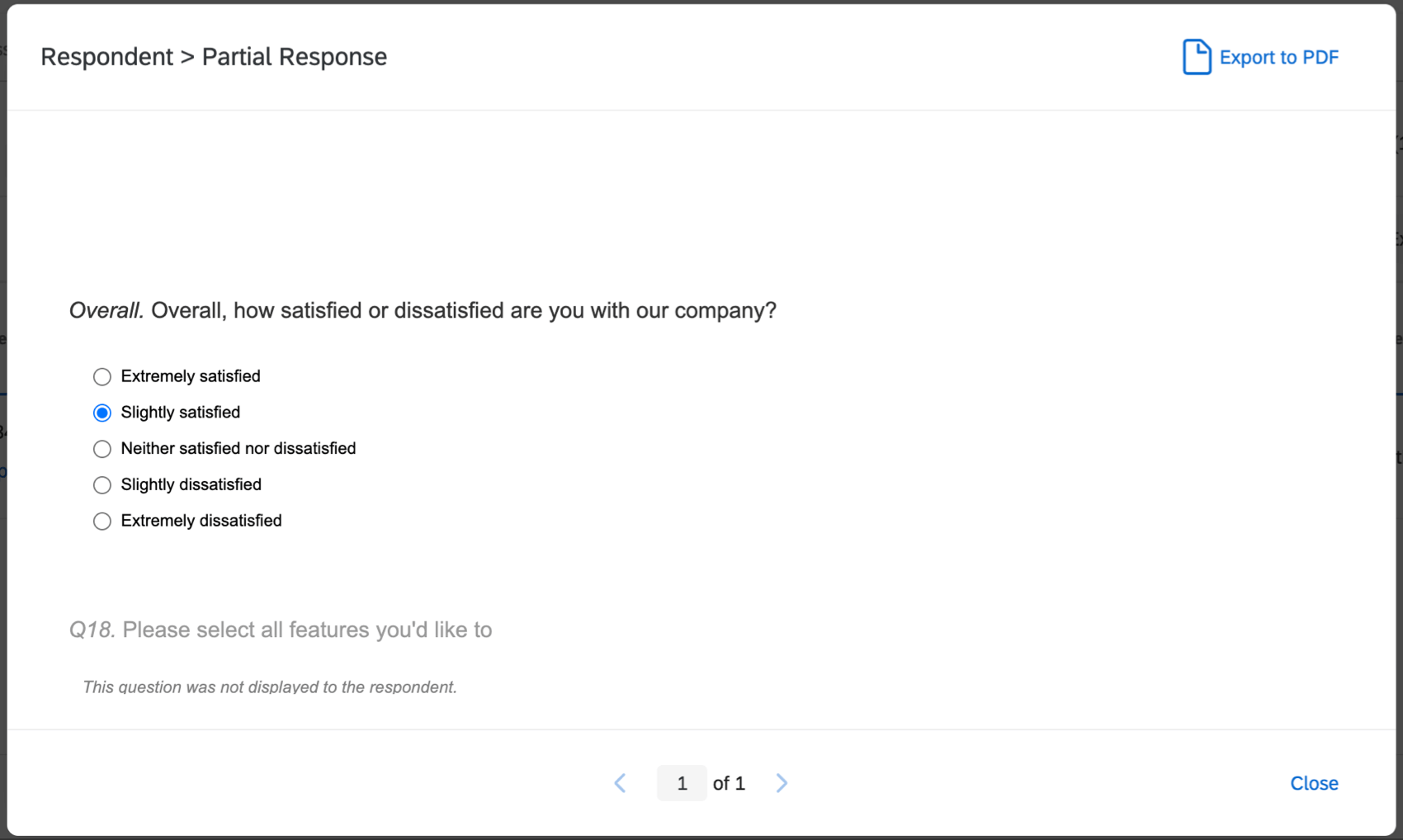
Qtip: When viewing an individual response in progress, scroll down to the bottom of the response to view any associated embedded data.
Closing Responses in Progress
Attention: Make sure that the Incomplete survey response settings in your survey options is not set to delete responses. If it is, responses in progress will be deleted upon closing. This survey setting is determined by the current version of the survey, regardless if it’s published or not.




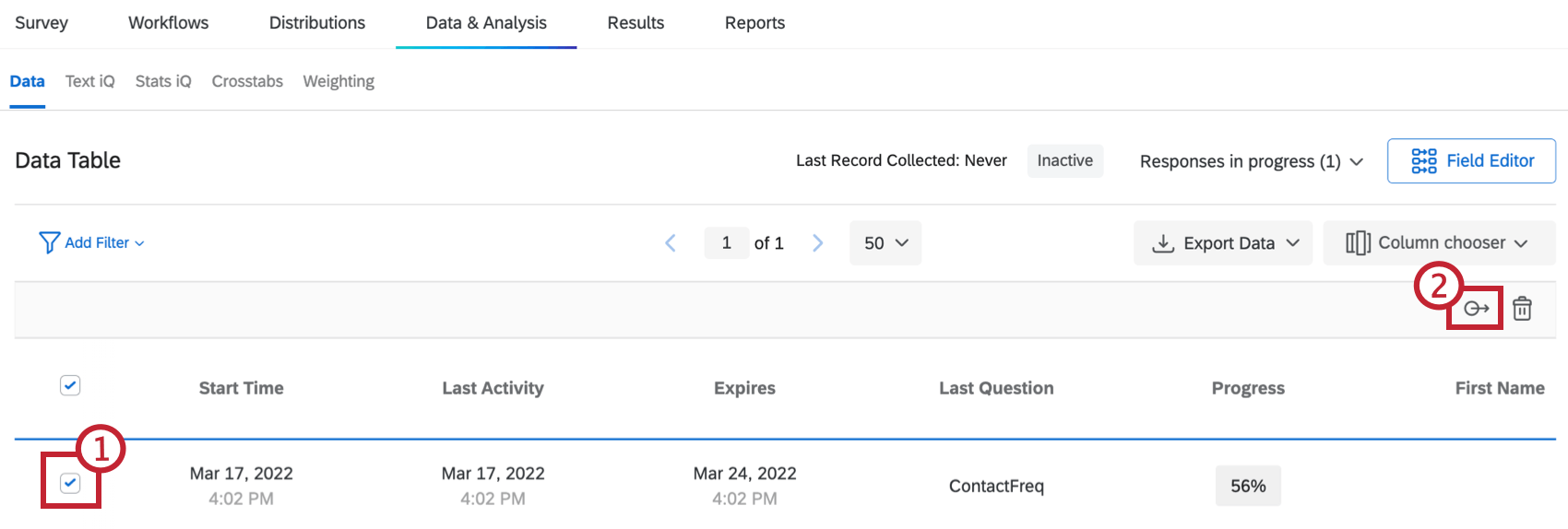
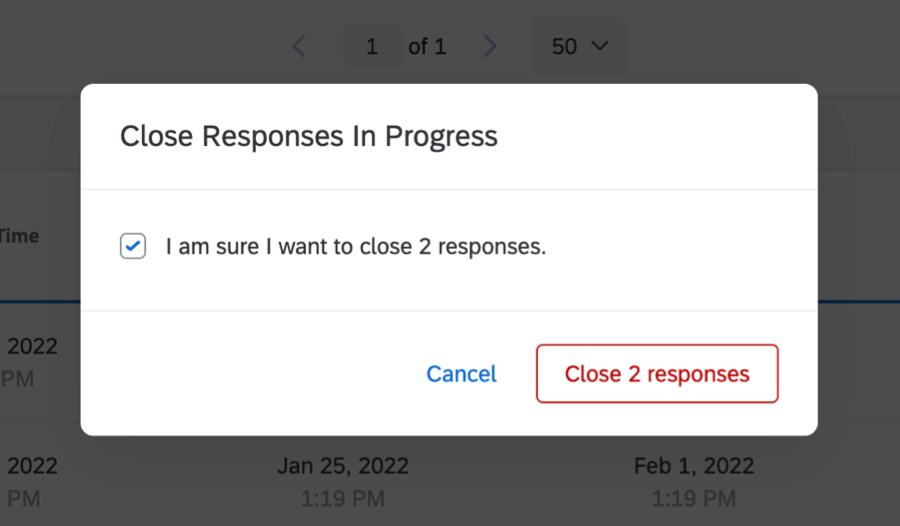
Qtip: Qualtrics doesn’t save empty responses, so if a participant hasn’t answered any questions and you close their response, it will be deleted instead of saved in Recorded Responses.
Qtip: The amount of time it takes to close responses is directly proportional to the number of responses in progress. While the responses are queued, they can still be accessed by respondents.
After a response in progress is closed, it will be listed in the Recorded Responses and will no longer be accessible to the respondent to complete.
Deleting Responses in Progress
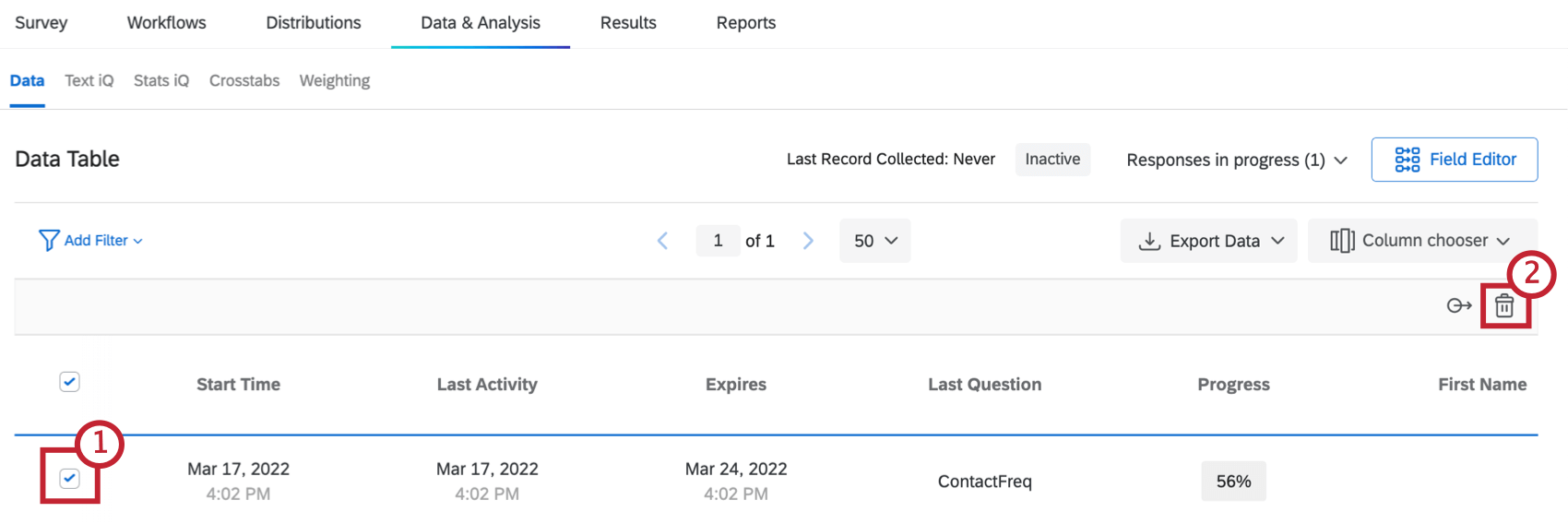
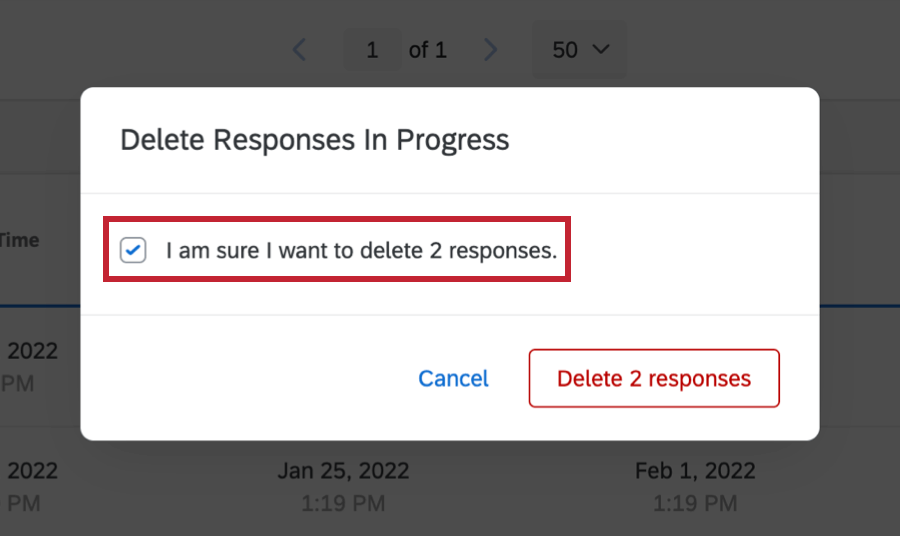
Once you delete a response in progress, the respondent can start over with the same individual link. Once a response in progress is deleted, the timer for a response to close itself is reset.
Warning: Once a response in progress is deleted, the information is irretrievable, so be sure you want to delete it!
Searching Responses in Progress
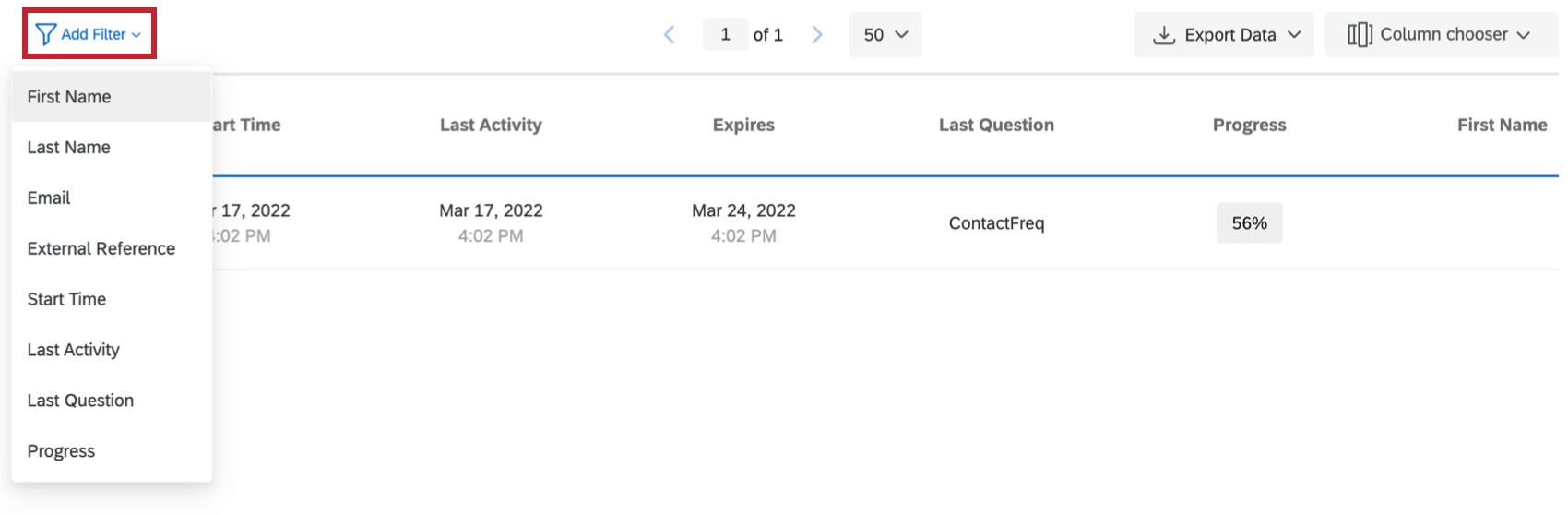
You can search for a particular response in progress using the search functionality found at the top of the page. Simply click the the Add Filter button and fill out the search parameters. You can filter by name, email, External Data Reference, Start Time, Last Activity, Last Question, or Progress.
See exporting data for more information about available export options.
Downloading Responses in Progress
You can export your responses in progress. To do so, go to Responses in Progress, find the Export Data dropdown, and select Export Data.


Attention: Depending on the size of your survey and the number of responses in progress you have, the export may time out before it can complete. If this is the case, you will need to close your responses in progress and then export the data from recorded responses. To only export incomplete responses from recorded responses, filter your data for Survey Metadata – Finished is False.
Qtip: When downloading Responses in Progress, your export file will not contain the Last Question field.
Downloading a single response in progress
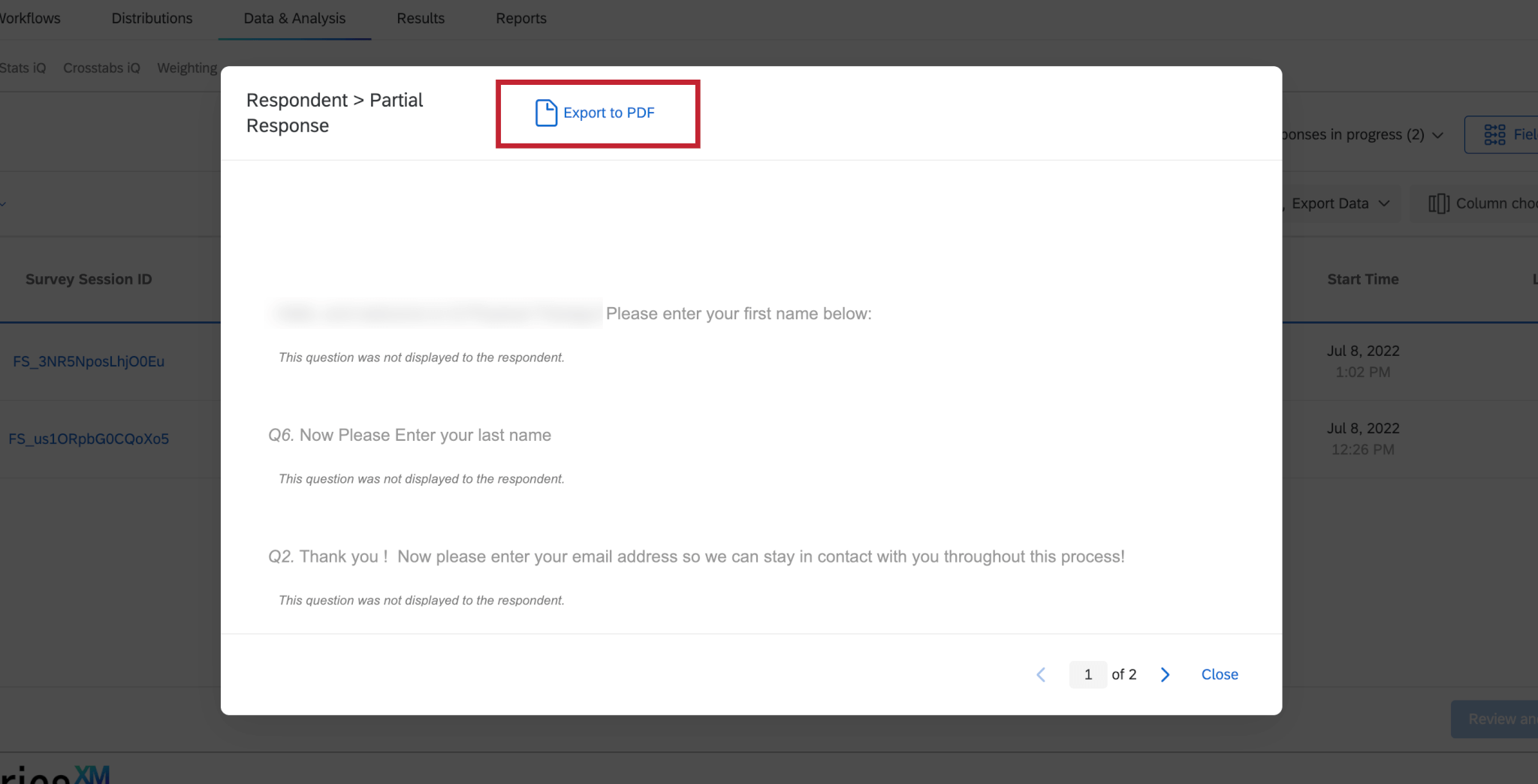
If you don’t want to export all of your responses at once, a single response in progress can be exported via a PDF.
Empty Responses
Responses in Progress in which the respondent’s progress is 0% are not saved by Qualtrics when they are closed. This functionality ignores your incomplete survey response settings; even if you set your incomplete response setting to record (as opposed to delete), Qualtrics will not record the response if it is at 0% progress when it closes.
Your respondent’s progress increments when they navigate through your survey’s pages. If a respondent does not continue past the first page of your survey, their progress will be 0%. Likewise, if a 1-page survey is started and not completed by a respondent but is then closed, their response will be deleted as an empty response (since no progress was saved). We recommend adding page breaks regularly throughout your survey to ensure your respondent’s progress is saved.
Attention: Empty responses are responses where there is no data recorded at all, including question responses, embedded data, and more. If a respondent doesn’t answer any questions but there is embedded data set for their response, this response will not be considered empty.
Qtip: Due to how the data is processed, inline email questions do not follow this rule. If a respondent answers your inline email question, but does not progress further in your survey, their response will still be recorded. This is true even if the response is at 0% progress.
Responses in Progress in Different Types of Projects
Responses in progress work as described on this page in just about every type of project where you can collect and analyze data. This includes:
- Survey projects
- XM Solutions
- Engagement
- Lifecycle
- Ad Hoc Employee Research
- Pulse
- 360
- Conjoint
- MaxDiff
Attention: Safari and Firefox do not support cookies in iFrames, which means that responses in progress cannot be tracked for surveys displayed in Web / App Insights Intercepts. Respondents using these browsers must finish the survey without refreshing the page.
FAQs
What responses actually count toward my license?
What responses actually count toward my license?
Licensed responses are any completed responses that are not Survey Previews or Survey Tests. Completed responses can include imported responses, finished surveys, and partial surveys that were moved out of responses in progress and recorded. If you ever want to know the exact number of interactions you’ve used, reach out to your Brand Admin. You can also view your response usage by going to Account Settings to view the legacy Account Usage report.
Contact Account Services or your Account Executive prior to importing historical responses, as this may require an update to your license.
Can a participant retake their survey?
Can a participant retake their survey?
Note that in Retake Survey links, all of the participant’s original answers are prepopulated. If new questions have been added to the survey in the meantime, those questions will be blank.
I set a survey expiration date, but some responses are still coming in. What is happening?
I set a survey expiration date, but some responses are still coming in. What is happening?
When the survey expiration date arrives, respondents who have already started their surveys will be able to complete their responses for a limited period of time. How long they have is determined by the Incomplete Survey Response setting (also found in Survey Options).
For example, let's say Survey Availability is set to 60 days and Incomplete Survey Response completion is set to 2 weeks. You receive your survey link and wait 55 days before clicking on it. As soon as you move past the first page (i.e., click the first "next" button), the Incomplete Survey Response setting takes over. You now have 2 weeks to finish taking the survey (even though the survey expires in 5 days). In this situation, participants can submit survey responses after a survey has expired or been deactivated.
If you want to avoid this scenario, you can pause response collection and choose to close all incomplete responses. This will close all surveys regardless of Incomplete Survey Response status and stop anyone from submitting after that point. All the partial data will be added to the Recorded Responses page with all the other survey data.
What is the incomplete survey responses setting?
What is the incomplete survey responses setting?
For more information regarding Incomplete Survey Responses, visit the Partial Completion support page.
That's great! Thank you for your feedback!
Thank you for your feedback!