

Account Settings
What's on this page
Attention: The layout of Account Settings has been redesigned. To access the legacy version, click the Switch to older version banner at the top of the page.

About Account Settings
You can find useful settings and statistics for your Qualtrics account in your account settings. From here, you can perform basic tasks such as changing your password or changing your account language.
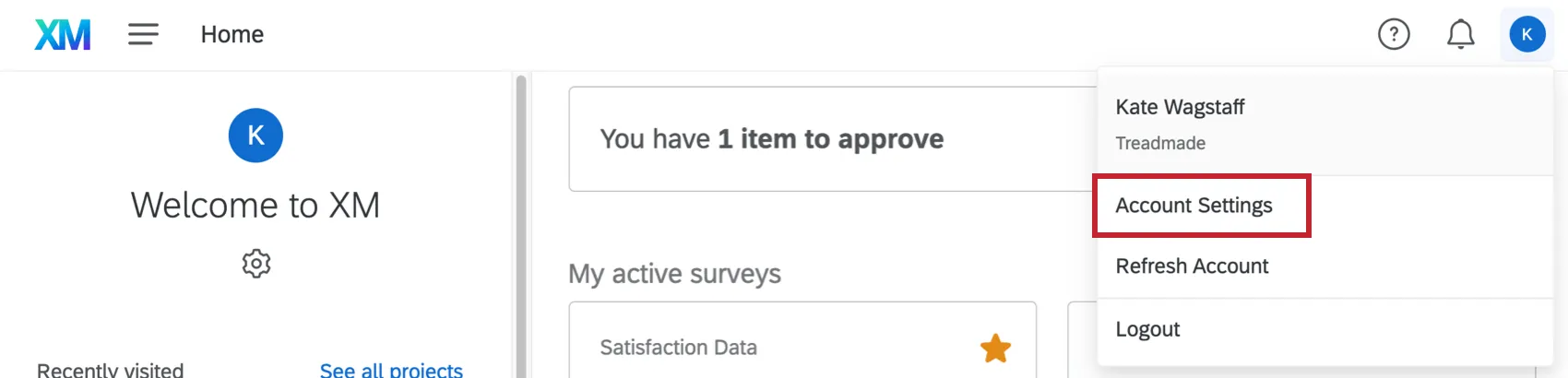
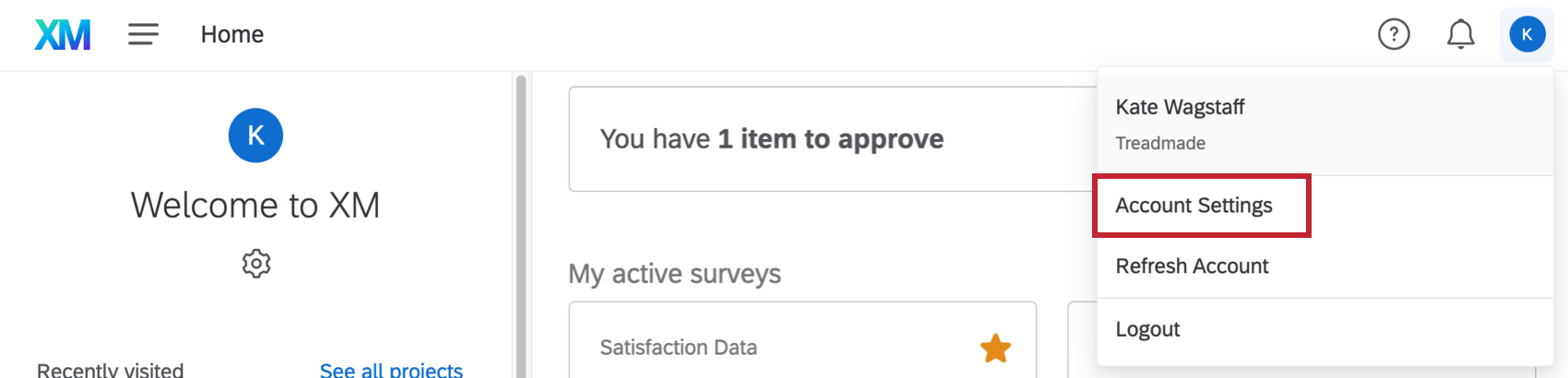
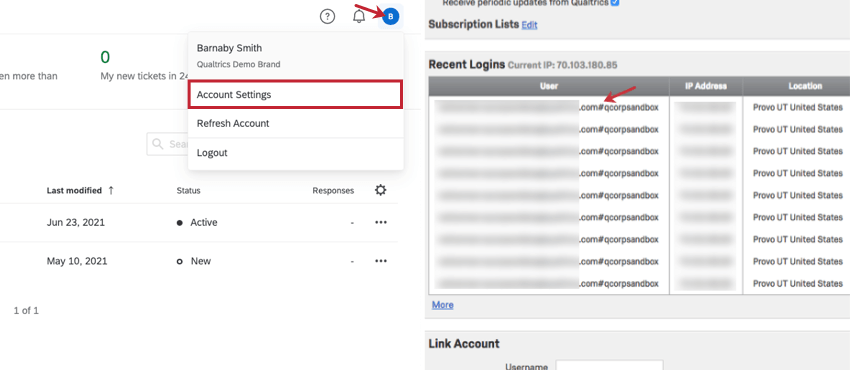
To access your account settings, click on the silhouette in the top-right corner of your account and select Account Settings from the dropdown.
User Settings
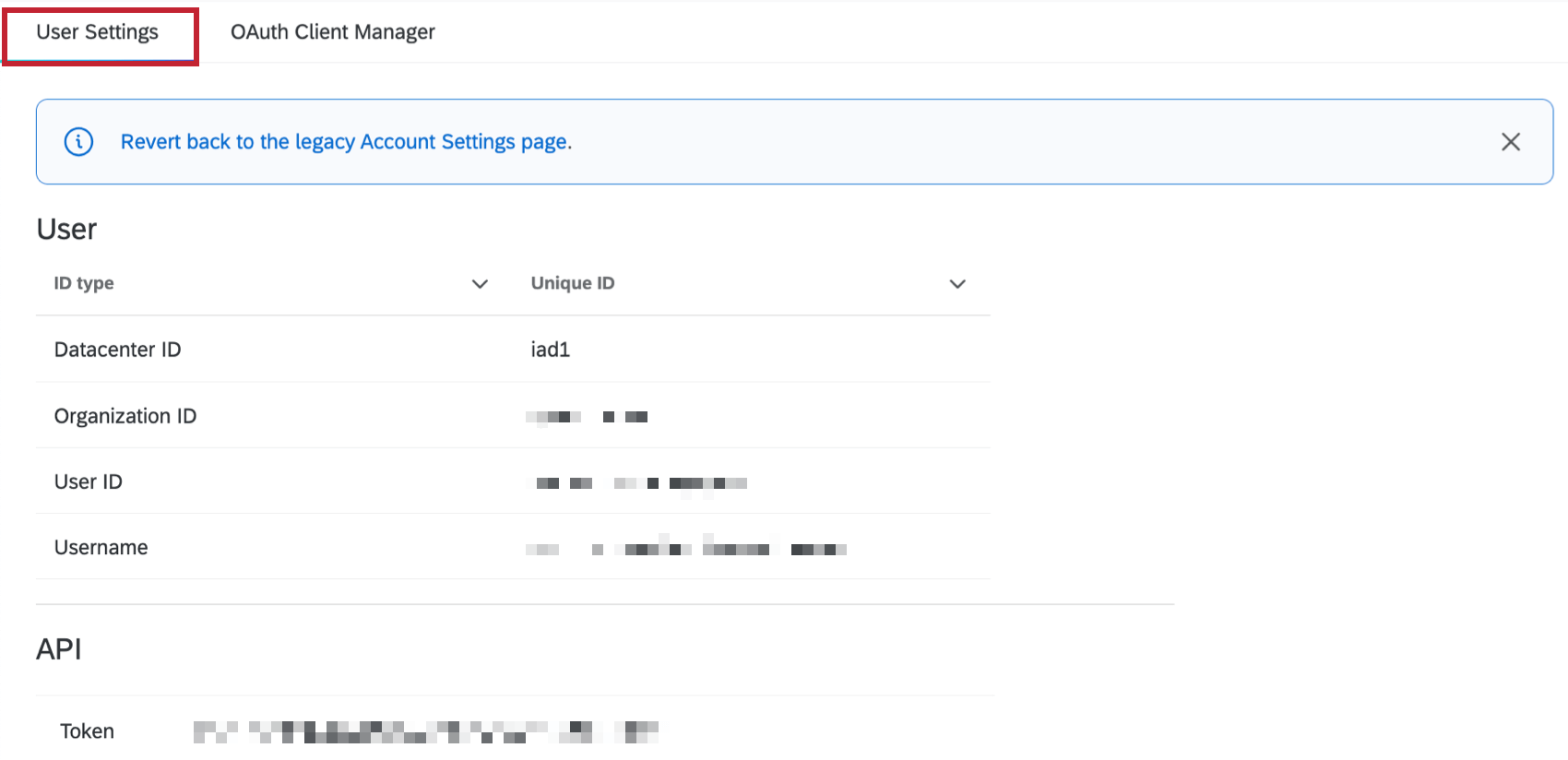
User Settings allows you to adjust a number of basic options.
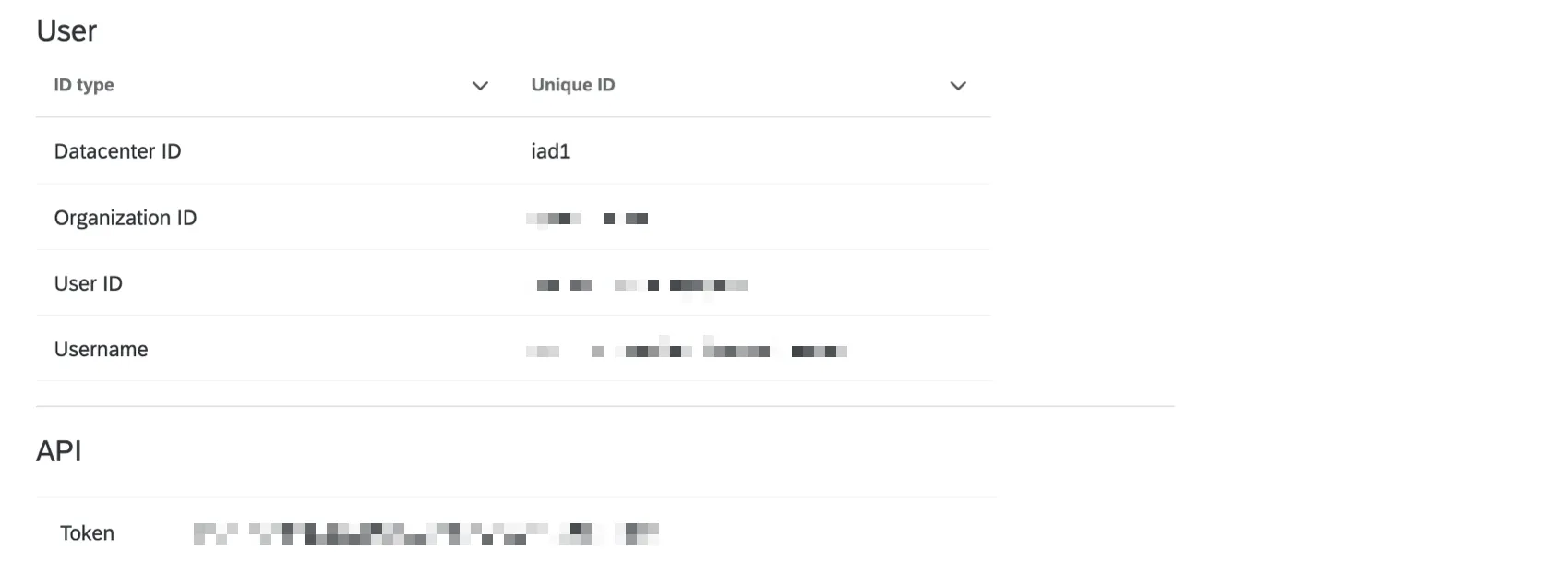
- User: View information about your user account.
- API: View and generate an API token for your account. Attention: If you regenerate a token, the prior token will expire and need to be rotated with the newly-generated token.

- Change Password: Set a new password for your account. Qtip: If your organization uses Single Sign-On (SSO), password changes can only be made through the SSO provider.

- Change Time Zone: Update the dates used throughout your account (timestamps for when surveys are submitted, survey availability dates, etc.). Qtip: If your selected time zone observes an annual Daylight Saving or Summer Time, the dates and times displayed in Qualtrics will automatically adjust for annual time changes.
- Change Language: Update your entire account to be in this language (for new projects, the language set here will be the base language for all participant messaging, such as end of survey messages, though you can still adjust the language in your survey options). For a list of all the available languages you can change your account language to, see the XM Platform section on the Languages in Qualtrics support page. The linked page also contains information about which areas of the platform are available for partially-supported languages.
We offer 2 separate sets of languages:
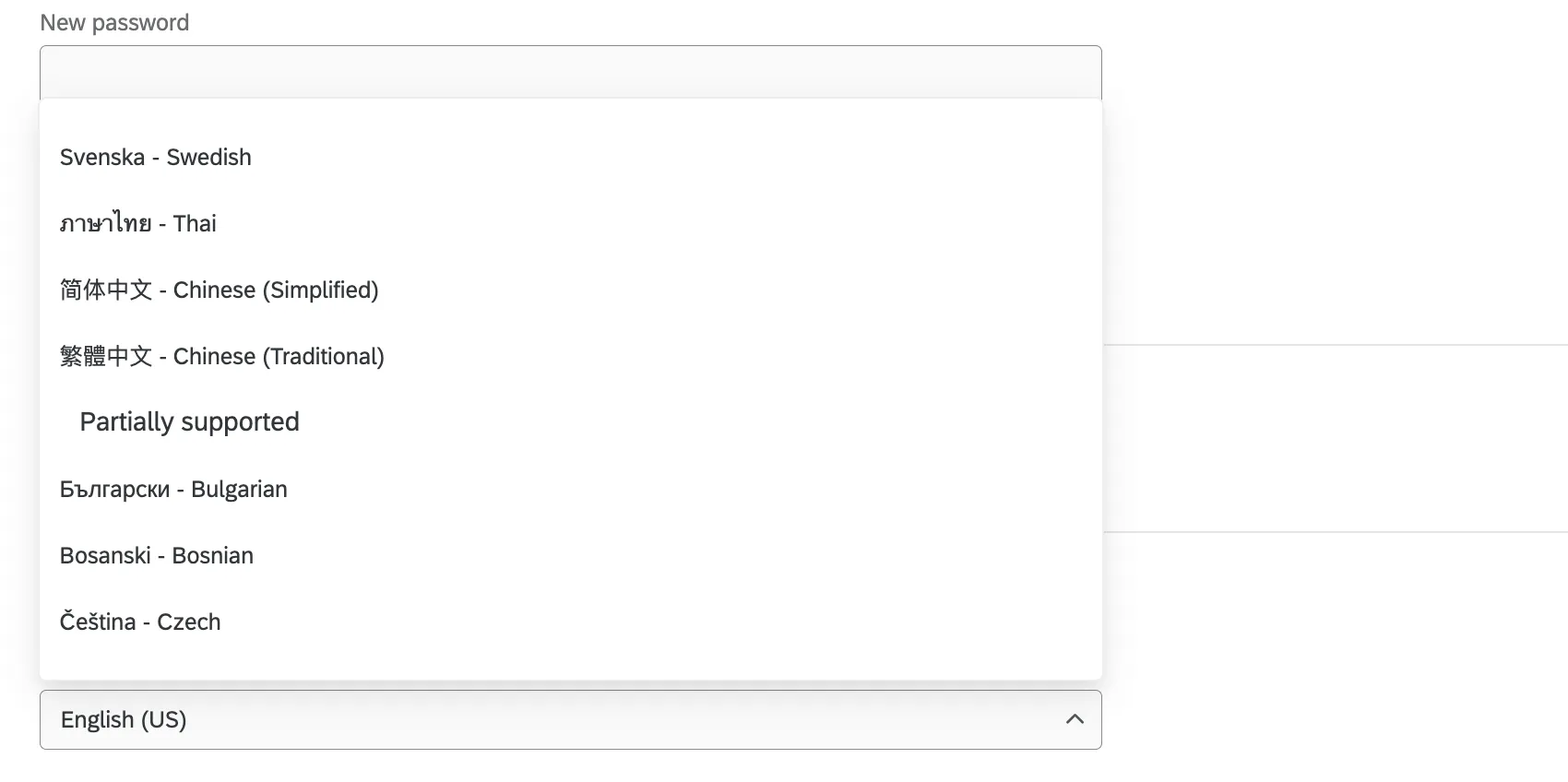
- Fully supported XM Platform languages: These languages are fully supported languages across the entire XM Platform. For a list of fully supported languages, see the column labeled XM Platform in Language Availability.
- Partially supported languages: These languages are fully supported within CX and EX Dashboards, Following Up on Tickets, and the Qualtrics XM App. Note that they are partially supported across the wider XM Platform. The fallback language for product areas that are not fully supported will always be English (US). For a list of partially supported languages, see the column labeled CX/EX Dashboards in Language Availability
For new projects, the language that is set as your account language will be the base language for your surveys and all participant messaging, such as End of Survey messages, though you can still adjust the default survey language in your Survey Options).
- User Email Defaults: The default email addresses used for emailings in your account.
- Default From Email: The default from email address used for emails sent from your account. This setting is useful to configure for features that do not allow you to specify a from address, such as email triggers, thank you messages, and 360 and Employee Engagement messages. Attention: If you’re using a custom domain (i.e. not a Qualtrics default domain), the domain must be properly configured for use within Qualtrics. For more information about using a custom domain, read our Using a Custom From Address page.Qtip: Brand Administrators can request a default from address be configured for their entire brand by contacting Qualtrics Support.
- Default From Name: The from name that appears in your recipient’s inbox.
- Default Reply-to Email: The email address that will receive replies to your email messages.
- Default From Email: The default from email address used for emails sent from your account. This setting is useful to configure for features that do not allow you to specify a from address, such as email triggers, thank you messages, and 360 and Employee Engagement messages.
- Grant Login Access: See Granting Login Access to Support.
- Recent Logins: See an audit of recent logins to your account to ensure there is no unauthorized access. Click More to see more entries. Entries are only accessible until pushed from the list by other logins.
- Link Account: Link your account with your legacy Qualtrics 360 and legacy Site Intercept products (if you have purchased them). Just input your 360/Site Intercept username and password. Warning: This option does not allow you to merge the Survey Platform accounts! If you need to combine content from Qualtrics accounts, see our User Moves page.
Plans
Attention: This tab is only available for free or trial accounts, or self-service licenses. For information about upgrading your existing license, contact your Account Executive.
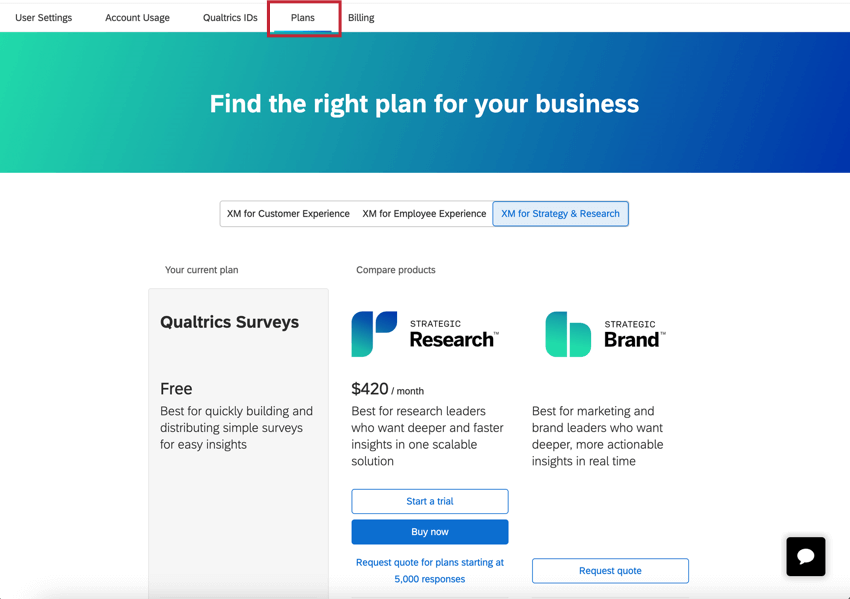
The Plans tab allows you to upgrade your account to a license that includes additional users, responses, and more features.
Explore the different product lines using the menu at the top of the page, and then compare your current plan with the other available offerings. You can view plans side-by-side to review the features and capabilities available in each plan. Select a new plan to purchase it online or to get in contact with our Sales team.
Below the plans, you can view FAQs to find answers to commonly asked questions about pricing, payments, and available plans.
Billing
The Billing tab allows you to manage your existing plan. Within this tab you can cancel your renewal, view and update payment information, and view your transaction history.Attention: This tab is only available for users who purchased their license with a credit card through the Plans page of their free or trial account, or directly through the Qualtrics website.

Refresh Account
For the most part, the Qualtrics platform saves as it goes. However, sometimes there will be a delay between an action you perform in the software and the results appearing on the webpage. Sometimes your imported responses or responses in progress take a while to show up on your Data & Analysis tab. (This often looks like a grey number in parentheses in the upper-right of the Data section.) Sometimes a project that was shared with you doesn’t show up right away.
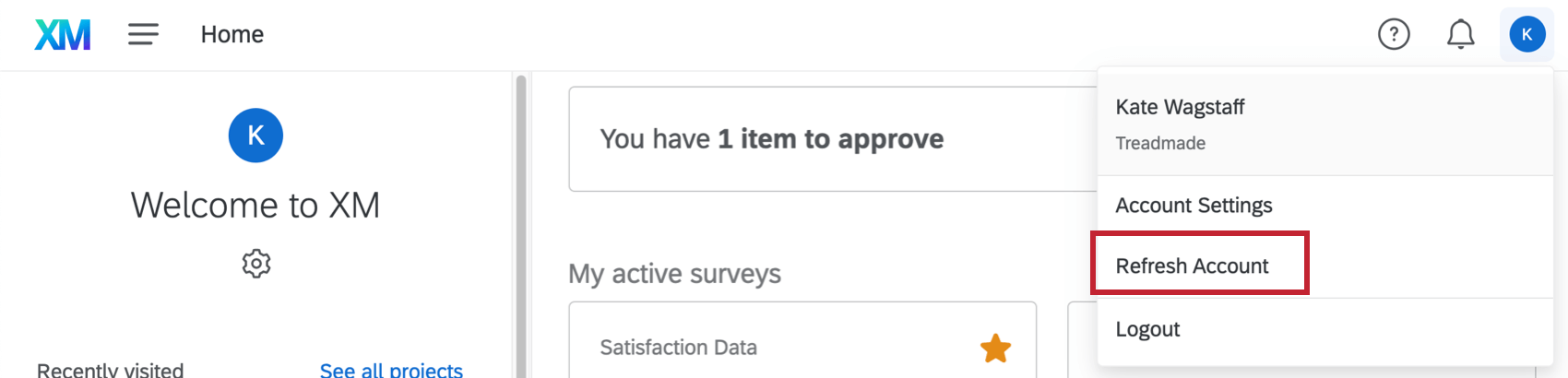
The best way to push these changes is to refresh your account. Access this option by clicking your account settings icon and selecting Refresh Account.
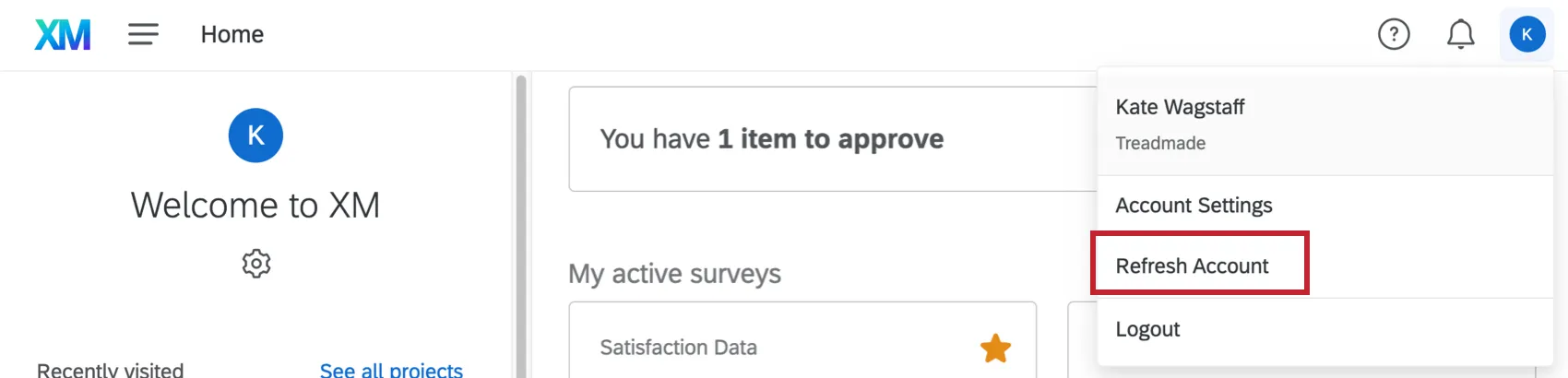
Qtip: This option will not force large datasets to load instantly. Depending on the size of your collected data, the software will need time to load. This option is merely to help changes that are already applied in your account appear on the webpage a little sooner than they normally would.
Account Usage (Legacy)
Attention: Account Settings has been redesigned. To view Account Usage, click Switch to older version.
Account Usage shows you how many responses you’ve collected, how many surveys you’ve created, and other useful statistics. You can also use the filter to decide for what timespan you want to view this information.
Qtip: The statistics on this page may take up to 72 hours to update.
- Total Allowed Surveys: How many surveys you’ve created, total.
- Allowed Active Surveys: How many of these surveys have a status of active.
- Allowed Responses: Across every single survey, how many responses you’ve collected on the Recorded Responses page, except preview data, test data, and imported responses. Qtip: Contact Account Services or your Account Executive for pricing on importing. Imported responses are considered separate from and will not impact the account’s response limit in this legacy report.
- Total Allowed Outgoing Emails: Every email you’ve sent out of the total allowed of your lifetime limit. See Email Limits for more details.
- Weekly Allowed Outgoing Emails: Every single email you’ve sent in a week, out of the weekly limit. See Email Limits for more details.
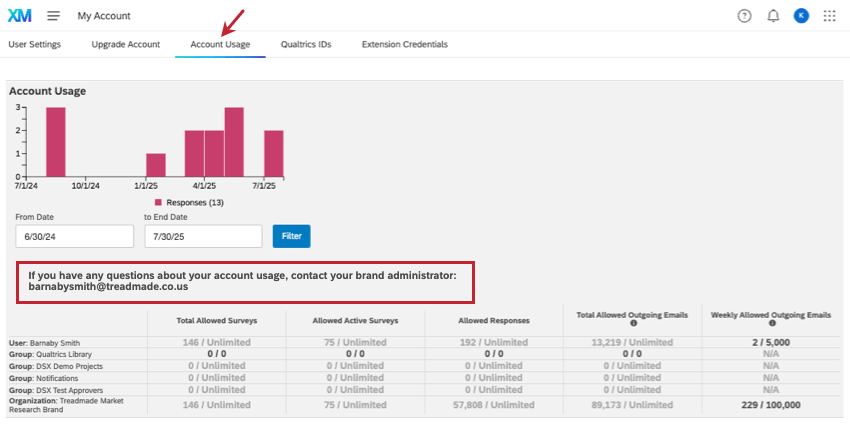
If your organization has a Brand Administrator, you can find their contact information here. Your Brand Administrator can assist with questions about your license and handle requests for changes in your account permissions.
Qualtrics IDs (Legacy)
Attention: Account Settings has been redesigned. To view Qualtrics IDs, click Switch to older version.
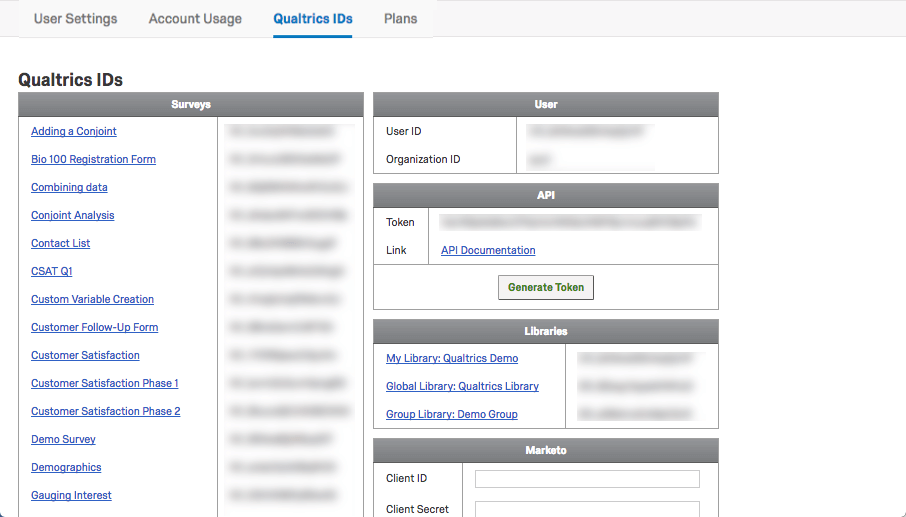
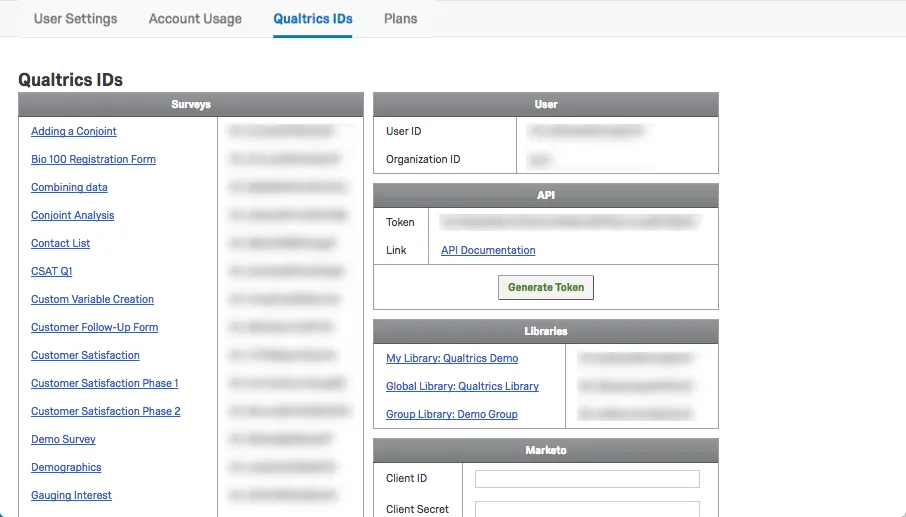
Qualtrics IDs lists all the IDs you’ll need when using the Qualtrics v3 API to connect your surveys with external systems. Here you can find and generate your tokens for API, Adobe Analytics, and the offline app. You can also input your Marketo Extension details (if you have purchased these features).
For more on these IDs, see Finding Qualtrics IDs.
Granting Login Access to Support
When troubleshooting an issue with Qualtrics Support or another Qualtrics employee, you may want to allow them to access your account to help test something with you. This section covers how to grant that permission.
Qtip: Granting login access allows a verified member of Qualtrics Support to enter your account. You can also use this method to grant access to a specific Qualtrics employee.
Qtip: You can also grant login access from inside a support ticket in the Customer Success Hub.
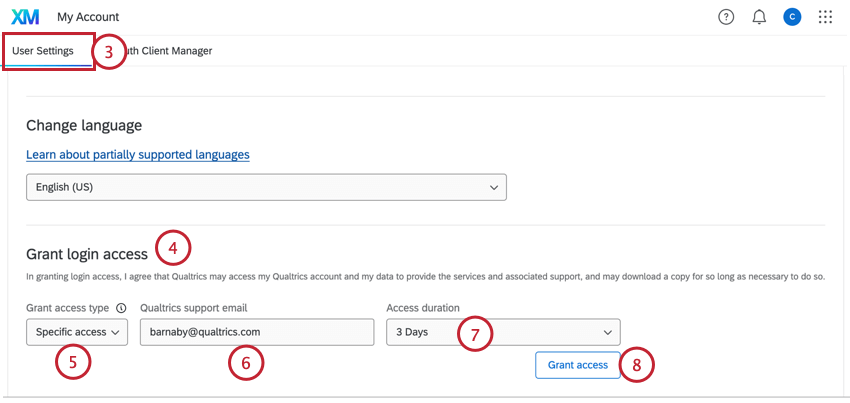
- General access: Grant access to any member of the Qualtrics Support team.
- Specific access: Grant access to a specific Qualtrics employee. Qtip: Specific access is recommended when working with your account team, while general access is recommended when working with Qualtrics Support.
Qtip: Only a valid @qualtrics.com address can be entered here.
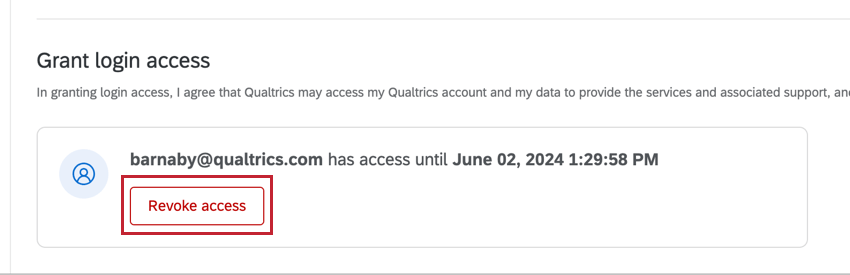
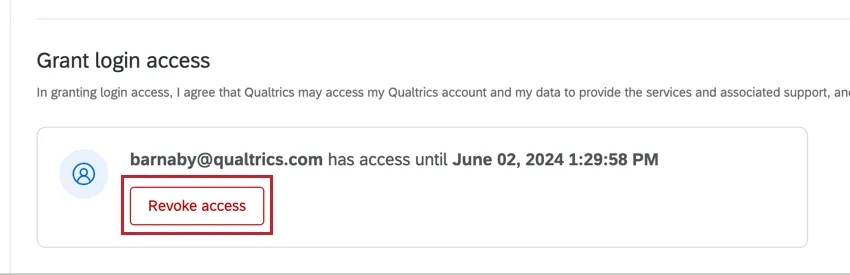
The chosen support reps will be able to access your account until the displayed date. You can immediately remove access at any time by clicking the Revoke access button.
FAQs
What responses actually count toward my license?
What responses actually count toward my license?
Licensed responses are any completed responses that are not Survey Previews or Survey Tests. Completed responses can include imported responses, finished surveys, and partial surveys that were moved out of responses in progress and recorded. If you ever want to know the exact number of interactions you’ve used, reach out to your Brand Admin. You can also view your response usage by going to Account Settings to view the legacy Account Usage report.
Contact Account Services or your Account Executive prior to importing historical responses, as this may require an update to your license.
How do I increase my weekly email limit?
How do I increase my weekly email limit?
- The email limit being requested.
- A description of the project(s).
- A general description of who is being surveyed (student body, small business owners in Iowa, purchased panel, etc.).
- How long the limit needs to be in place (one time or multiple times per year).
I need some help with the administration of my account. Where can I find my Brand Administrator’s contact information?
I need some help with the administration of my account. Where can I find my Brand Administrator’s contact information?
What are the Qualtrics IDs for?
What are the Qualtrics IDs for?
What is the benefit of changing the timezone?
What is the benefit of changing the timezone?
How do I upgrade my free / trial account?
How do I upgrade my free / trial account?
- Click your account icon and select Upgrade Plan to view package options.
- Click the Plans tab in your Account Settings. On the Plans page, click Buy now next to the plan you want to upgrade to. Enter your payment information, review the order summary to confirm the number of users or responses you are purchasing, and submit your payment. See Self-Service Licenses to learn more.
When does my free account expire?
When does my free account expire?
How do I know what email address is associated with my account?
How do I know what email address is associated with my account?
How do I deactivate my Qualtrics account?
How do I deactivate my Qualtrics account?
How does account usage differ from recorded responses?
How does account usage differ from recorded responses?
Think of recorded responses as the total number of complete responses collected for a survey. This can include individual responses, anonymous responses, imported responses, and more.
Imported responses are billable under the new simplified pricing and packaging plans. If your license is on the new pricing plan, you can check your license’s usage with the Interaction Usage Report. If you are on multiple suites, imports are not currently included in the usage report. If you are not on a new plan, imports are not included in your usage report. Contact Account Services if you have questions about your license.
Account Usage shows you how many responses you’ve collected, labeled as “Allowed Responses.” This excludes imported responses because they are considered separate. If you have questions about pricing for imported responses, reach out to your Account Executive.
That's great! Thank you for your feedback!
Thank you for your feedback!