

Creating & Managing Users
What's on this page
About Creating & Managing Users
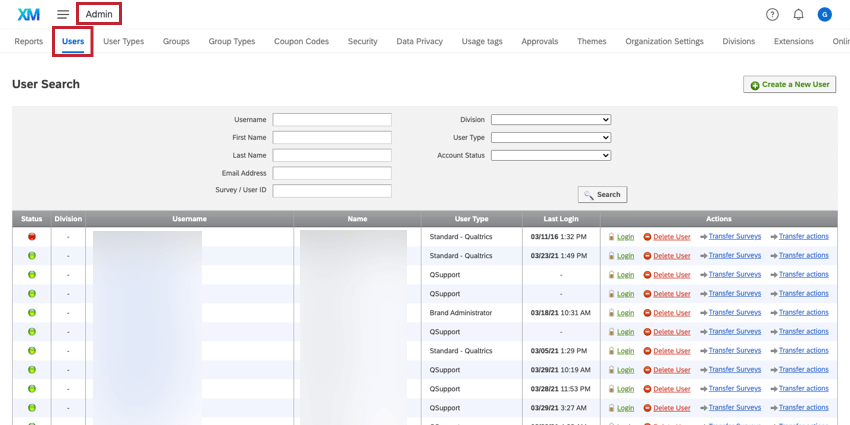
As a Brand Administrator, you are able to create new user accounts for your license in the Users tab of the Admin page. You can also edit account permissions, log into accounts, send password reset emails, delete users, transfer survey ownership, and more. This page will discuss the options available for creating and managing user accounts within your license.
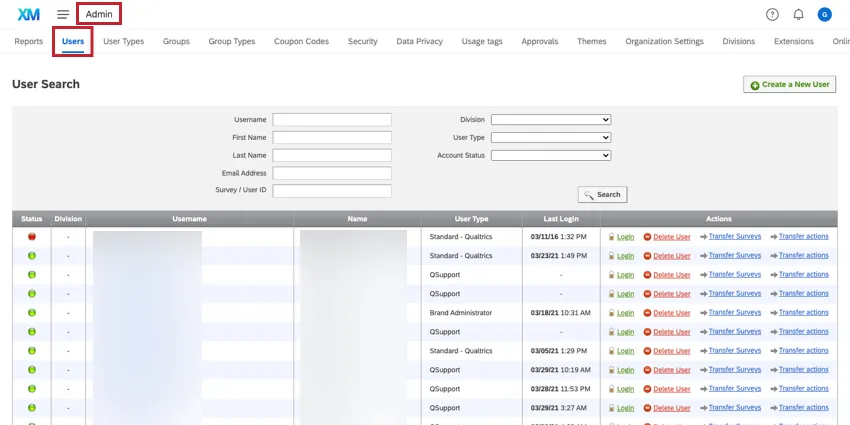
Qtip: Division administrators are also able to edit users from the Users tab. Division administrators will only see and be able to manage users from their division, can only create new users in their own division, and cannot change the division their user belongs to. Otherwise, they can perform most of the same functions described on this page, with exceptions noted where appropriate.
Creating New Users
Qtip: Users are not automatically emailed their username and password when an account is created. Make sure to notify any user you create that their account has been made, or send them a password reset email.
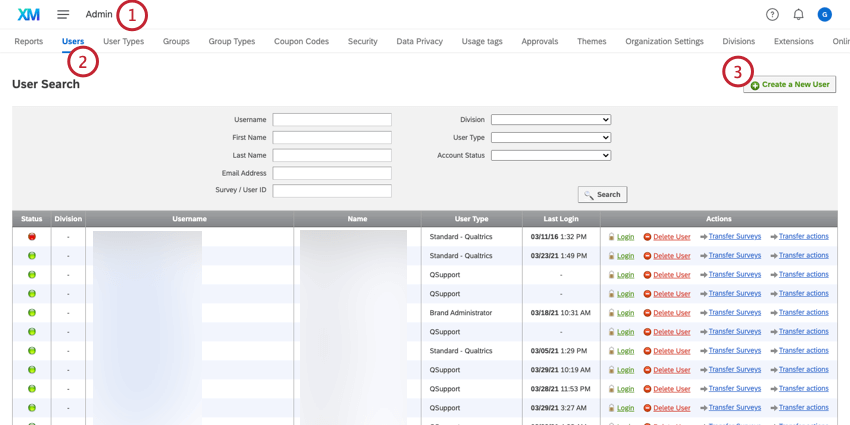
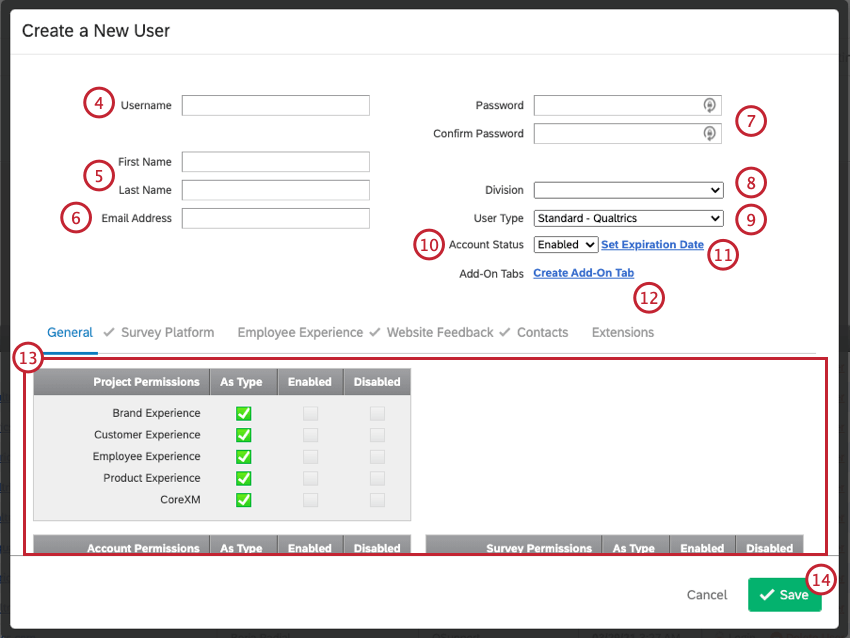
Example: Joel already had a Qualtrics account at his old company, so he can’t use his email address, joel@demo.com, for his new account’s username. However, even though neither is his real email address, he can have joel+1@demo.com or joel+newcompany@demo.com as his username.

Qtip: You will not be able to create a new user with an existing username, with one exception: if the username was uploaded as a 360 or Engagement participant in the past, you can create a standard Qualtrics account with the same name. In this event, the newly created account will require the user to select their brand (Qualtrics license) from a dropdown whenever they log in, to determine which account they want to access. This is the only difference, and the accounts will otherwise function as normal once logged in; however, if you want to eliminate this behavior, the user can reach out to Qualtrics Support to have their 360 / Engagement participant username changed.
Qtip: Here is a list of common symbols that are incompatible with usernames and user fields:
=;~!&*%{}<>[]|\"\\^Additionally, all uppercase characters will be automatically converted to lowercase.
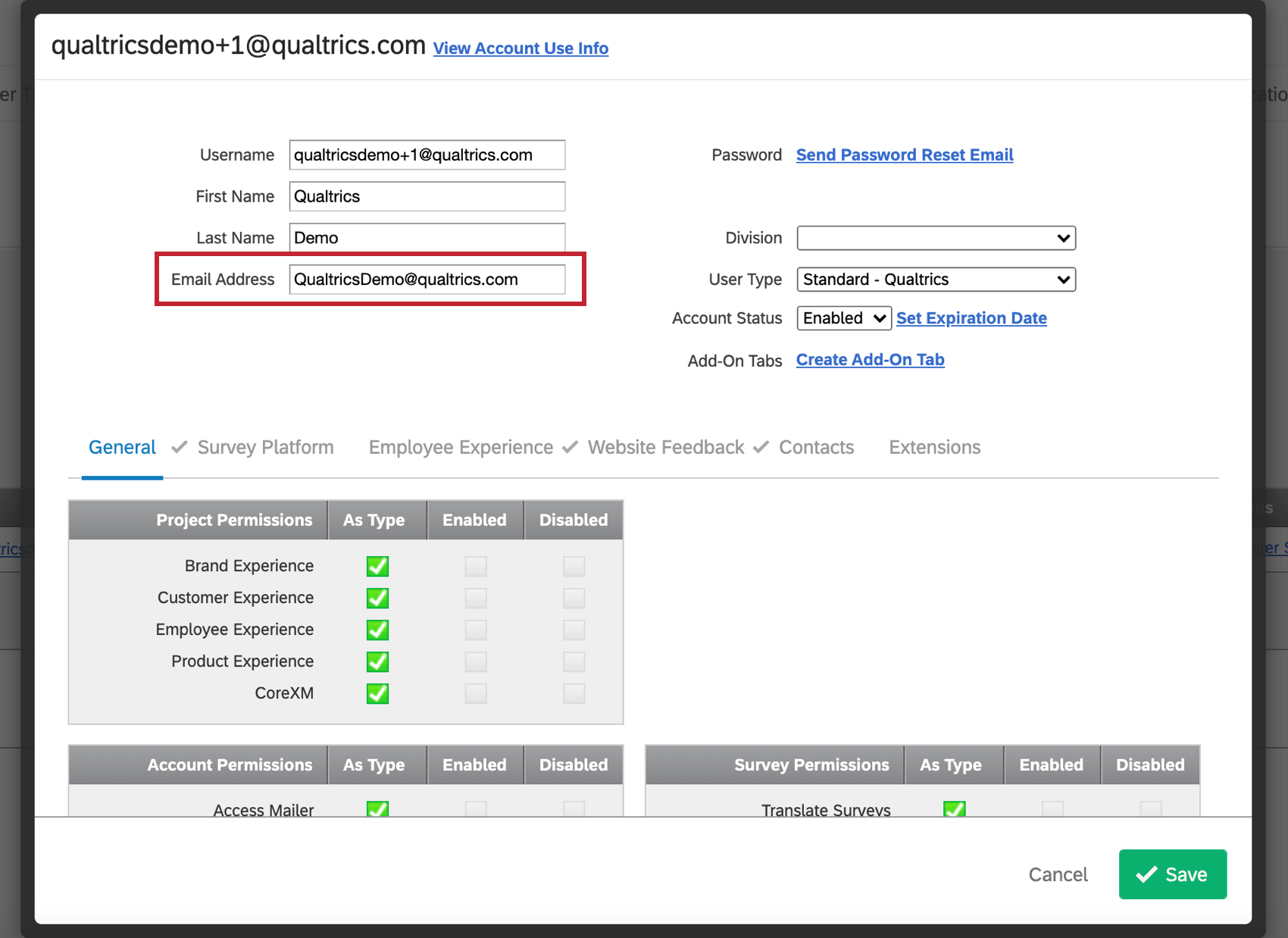
Qtip: The email address can be any functioning email address, even if it’s been used on a previous Qualtrics account. Please make sure this email address is accurate, because this is how users send themselves password resets and receive collaboration invites from colleagues.
Qtip: Brand Administrators may want to set brand-wide requirements for user passwords. For standard licenses, see the Organization Settings Tab. For licenses with upgraded security standards, see the Security Tab.
Qtip: All user types will count towards the user limit in your license. This includes the participant user type.
Qtip: Learn more in the Account Status and Expiration section.
Qtip: Learn more in the Account Status and Expiration section.
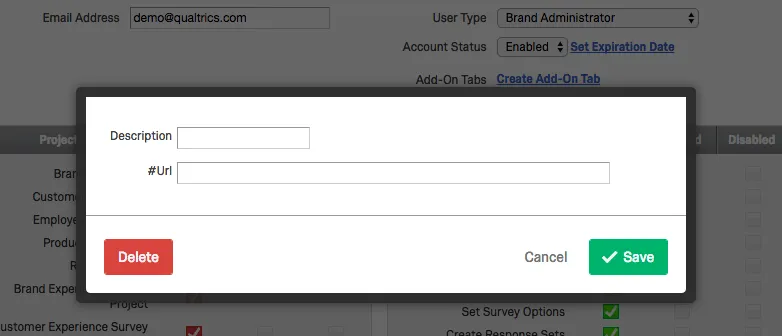
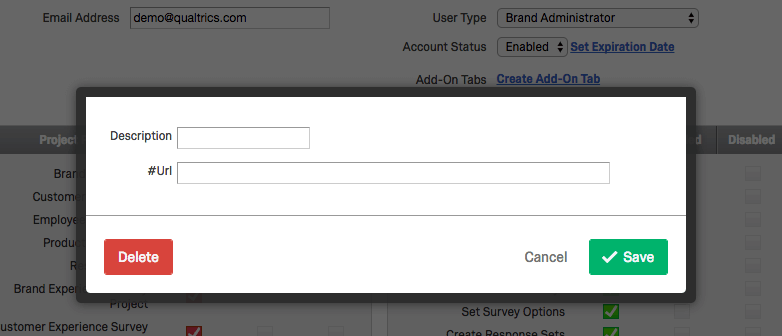
Qtip: An Add-On page allows you to create an additional page in the user’s account that will contain pages that present information from whatever URL you would like. Simply specify a Description and a URL for a page to be added. To delete a page, click on the name and select Delete. You will be able to add multiple pages by selecting Create Add-On Tab as many times as you would like. This could be used to present a guidelines page to your users, for example.
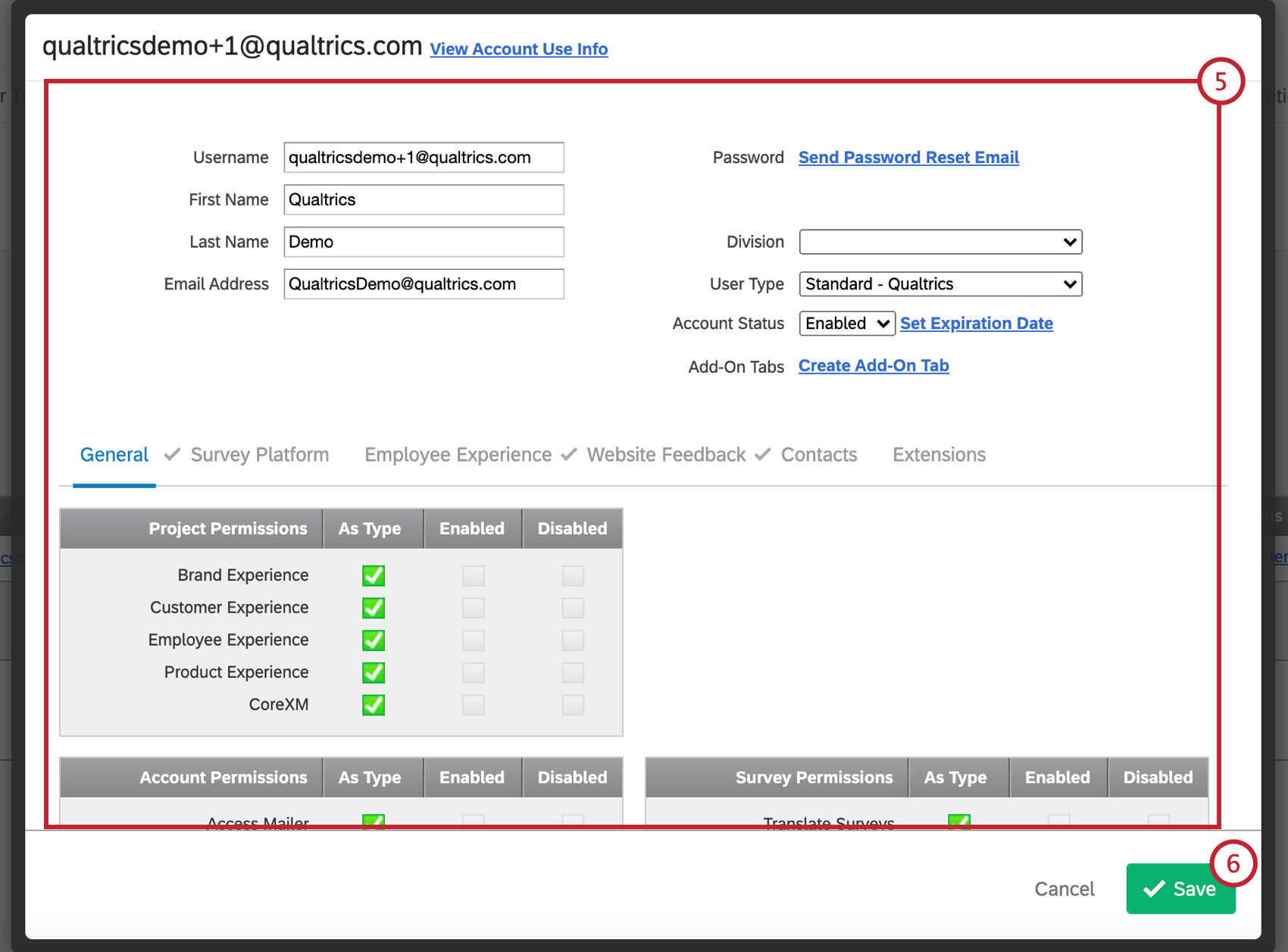
Qtip: Clicking the checkbox under Enabled will enable the permission for the user, whereas clicking the checkbox under Disabled will disable the permission. We recommend creating a new User Type if you find yourself editing many accounts to have the same customized permissions.
Self-Enrollment
Creating new user accounts manually may not be practical in larger licenses. If your organization has a custom branded login page, the self-enrollment feature can be enabled. If enabled, members of your organization will be able to go to your branded login page and create their own accounts.
A branded login page is when your organization has its own special link where they sign into or up with Qualtrics. For example, State University could be at https://stateu.az1.qualtrics.com/, and put its logo at the top so students know they’re at the right place.
Qtip: To enable self-enrollment for your branded login page, Brand Administrators can log into the Customer Success Hub and reach out to support. To get your organization’s logo added to your Qualtrics login page, Brand Administrators can reach out to support, selecting Custom Theme Request / Update.
Managing Existing Users
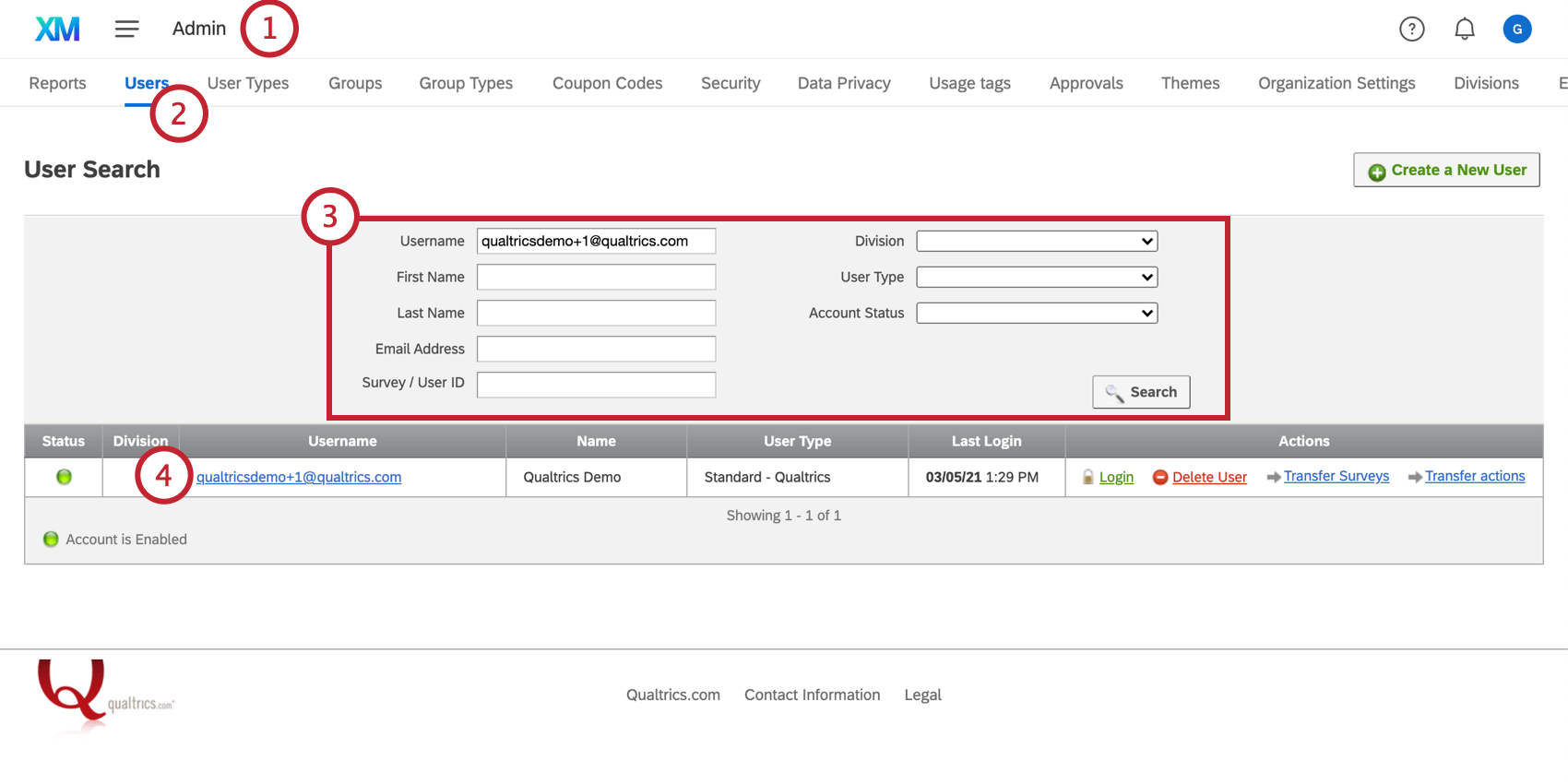
As a Brand Administrator, you can manage an existing user’s account. Managing user accounts can include activating surveys, changing ownership of projects, updating a user’s contact information, and modifying a user’s permissions.
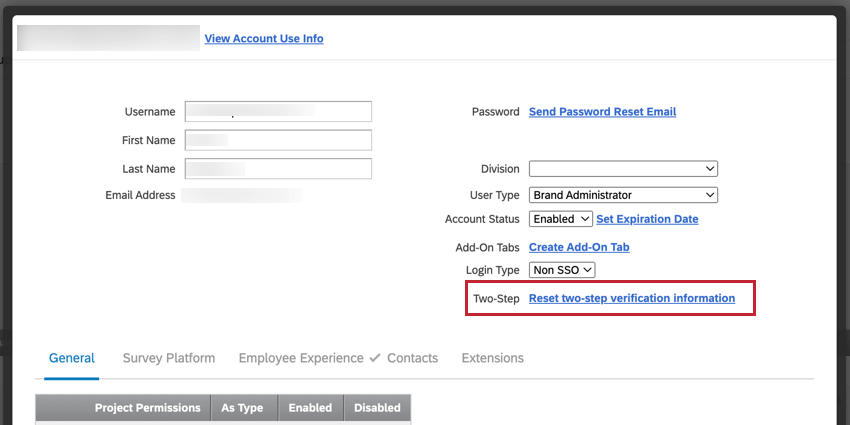
Qtip: A Brand Administrator can reset a user’s two-factor authentication settings in the user admin page by clicking Reset two-step verification information. This is useful if they are completely locked out of their secondary verification methods and need to reconfigure the authentication.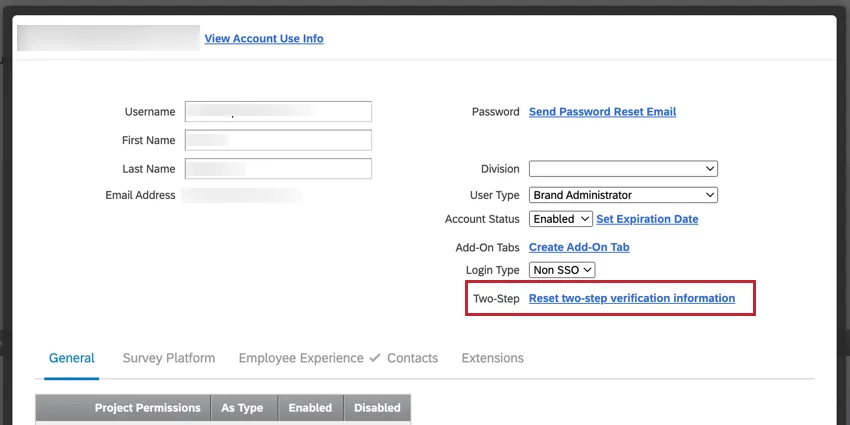
Searching for Existing Users
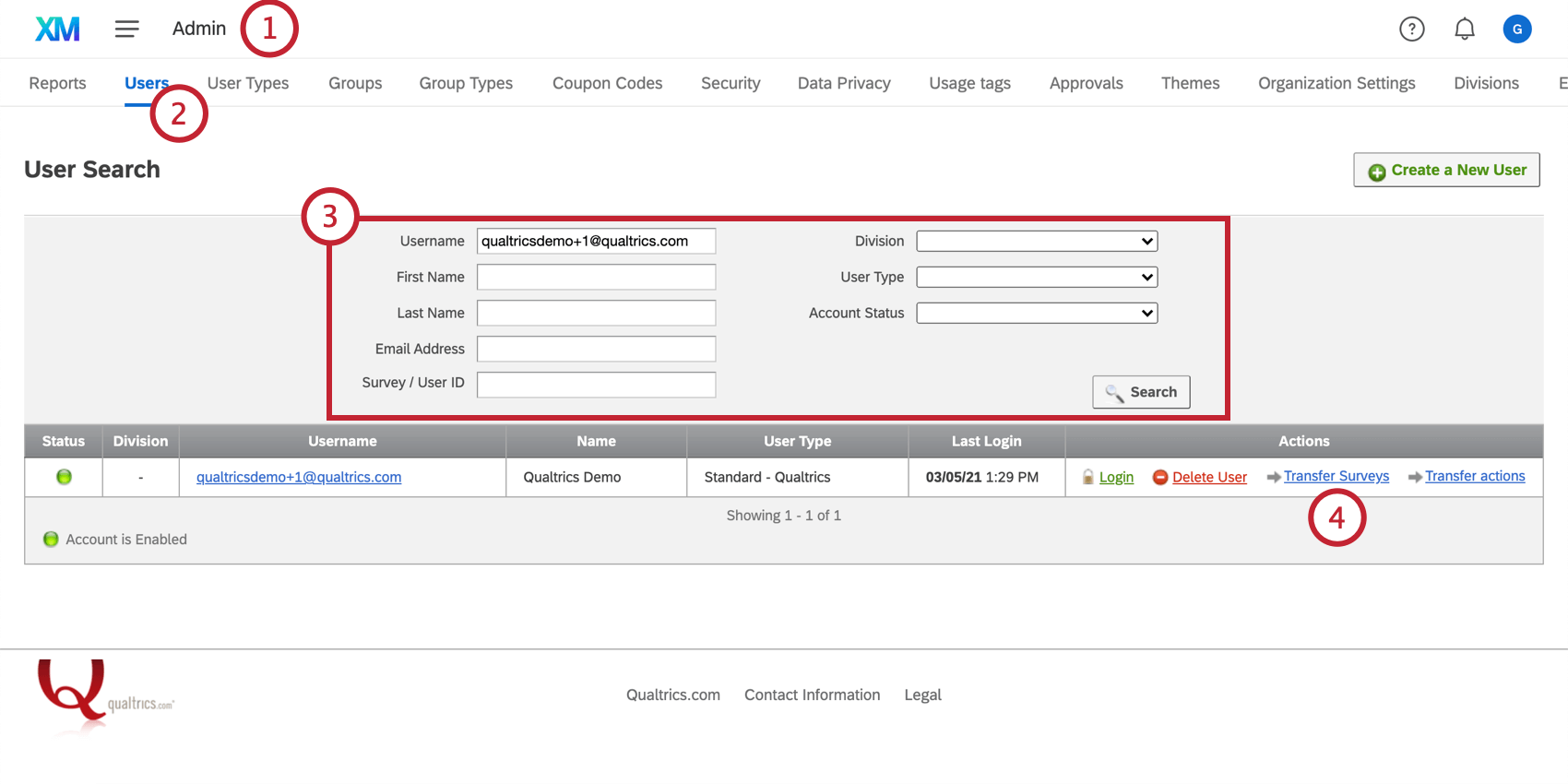
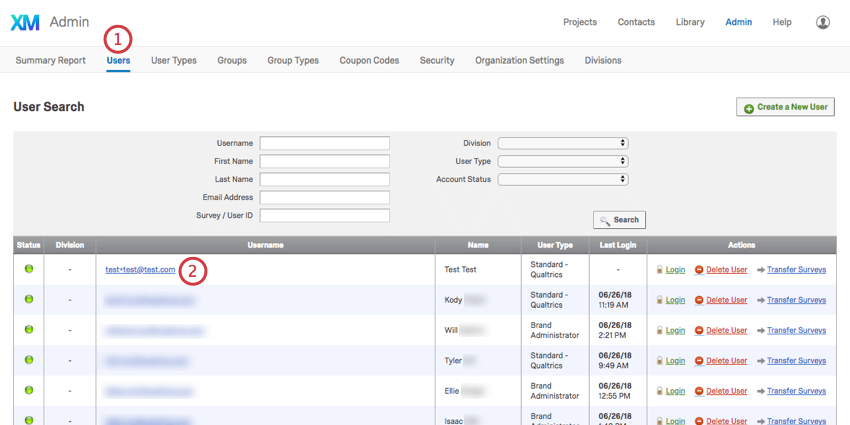
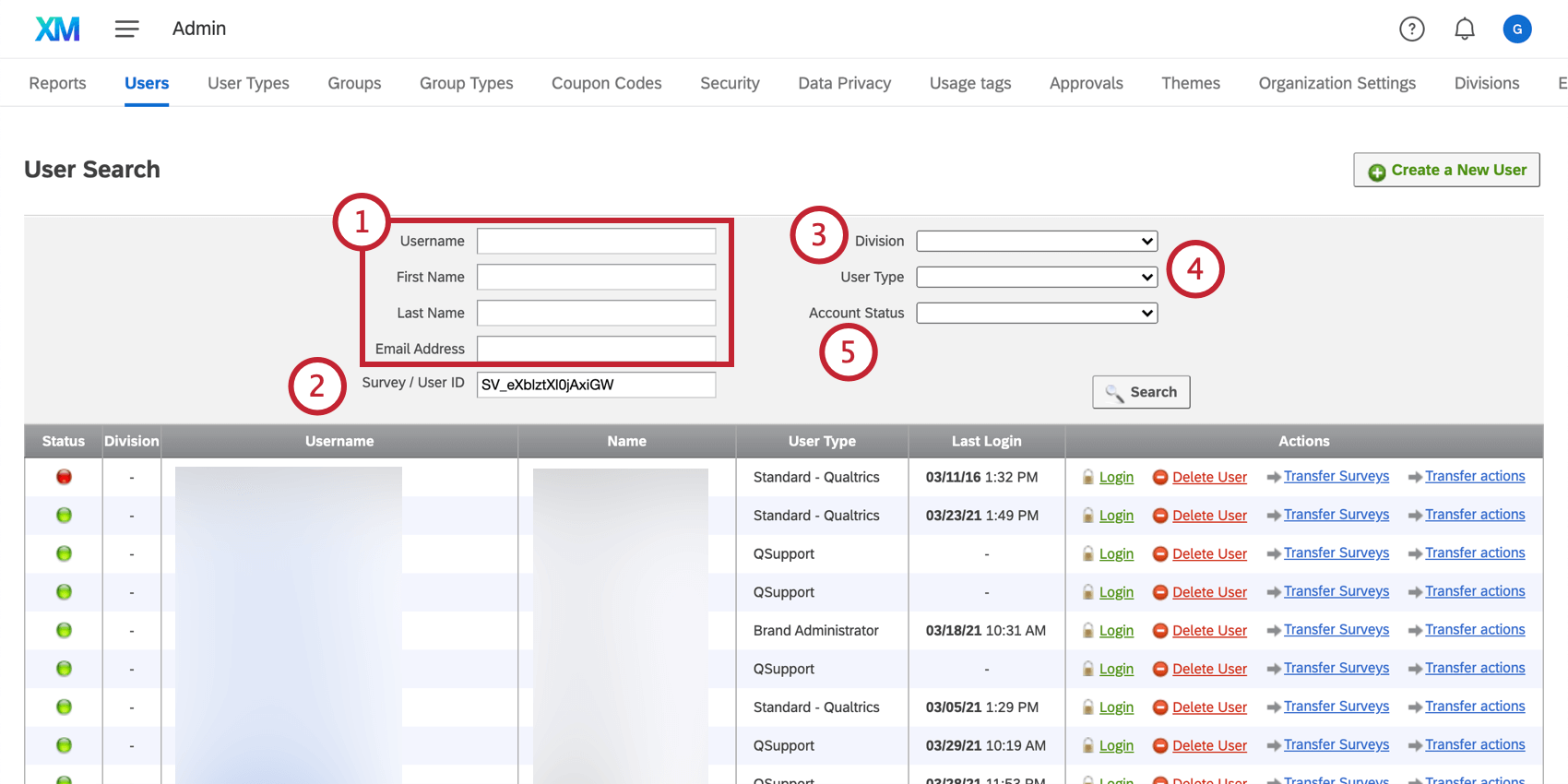
If you need to edit a specific user and have lots of people in your brand, don’t manually navigate through the list of users; make a search instead!
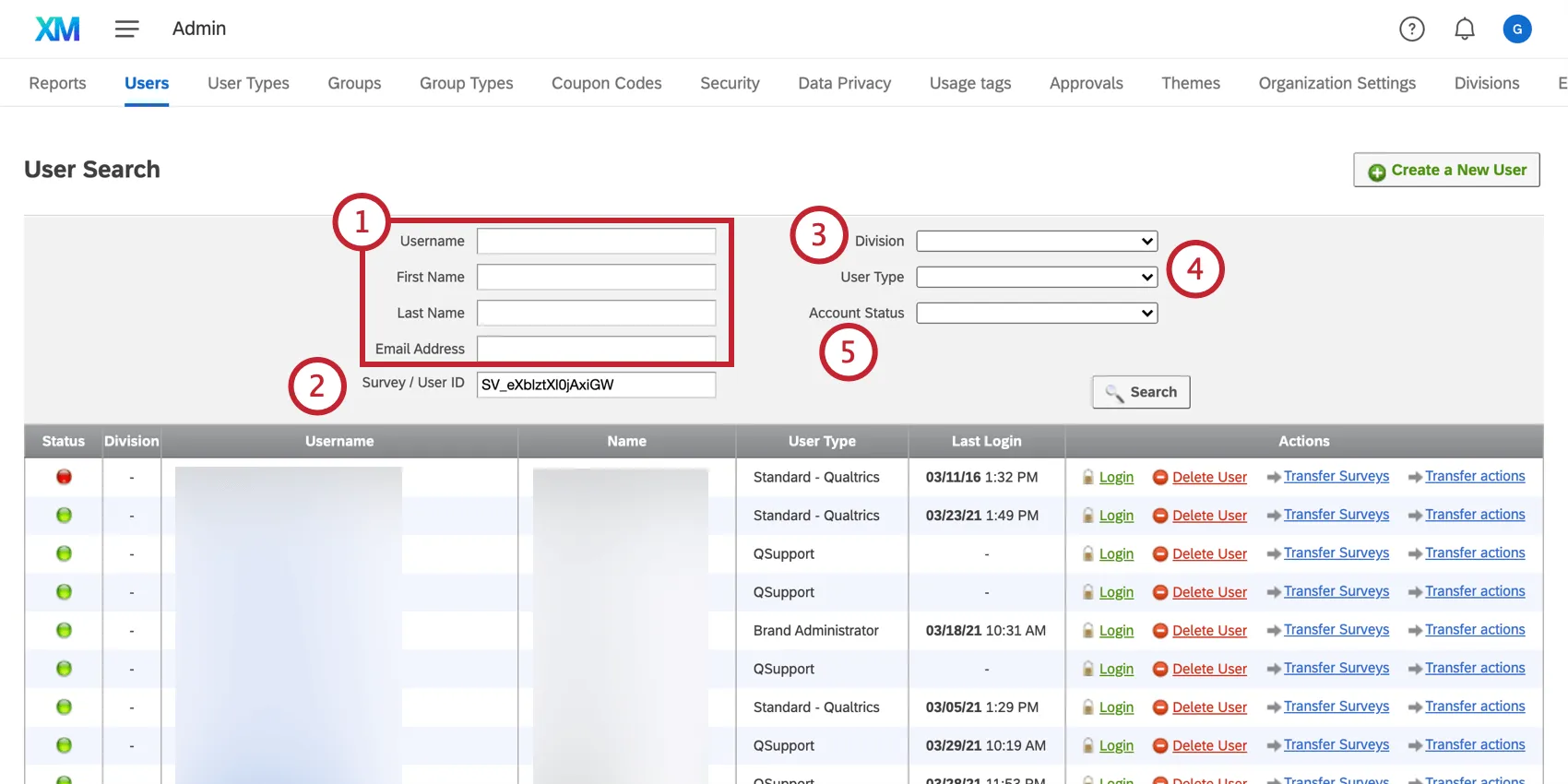
Qtip: If you fill out multiple search fields, these values are joined by “and,” meaning results will match all criteria filled out. For example, you may have someone named “Brian” in your brand. You also have users with the last name “Smith.” If you search “Brian” under first name and “Smith” under last name, you will not find neither “Brian Washington” nor “John Smith” in your results.
Qtip: When searching by survey ID or user ID, you cannot include other searched criteria. Any other fields you fill out will be ignored.
Qtip: A Brand Administrator can retrieve the user ID for any user in your license with the GET User API request. You can view your own user ID in your Qualtrics account settings.
Sending Password Reset Emails
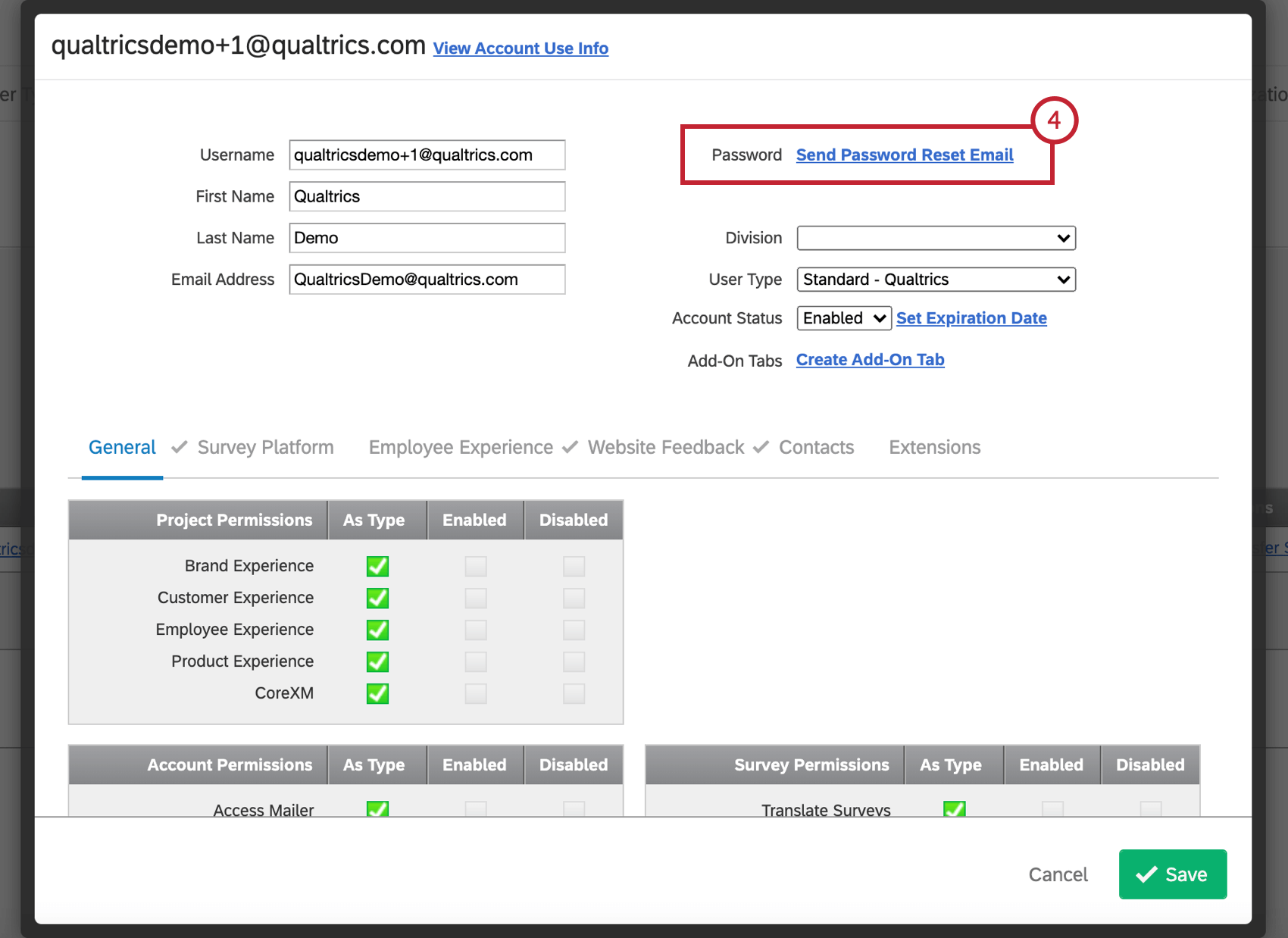
Sometimes users have trouble logging into Qualtrics. They can tell Qualtrics they forgot their password, which will send a secure email to the email address listed for their account. However, there may be times that the user can’t find this email in their inbox or junk folder. In that case, you can try sending a password reset to the user yourself.
Where Password Reset Emails are Sent
Password reset emails are sent to whatever is entered in the email field of a user’s account, not the username. It is important to double-check that what is in the email field for a user is a real, functioning email address. You cannot add multiple email addresses to this field.
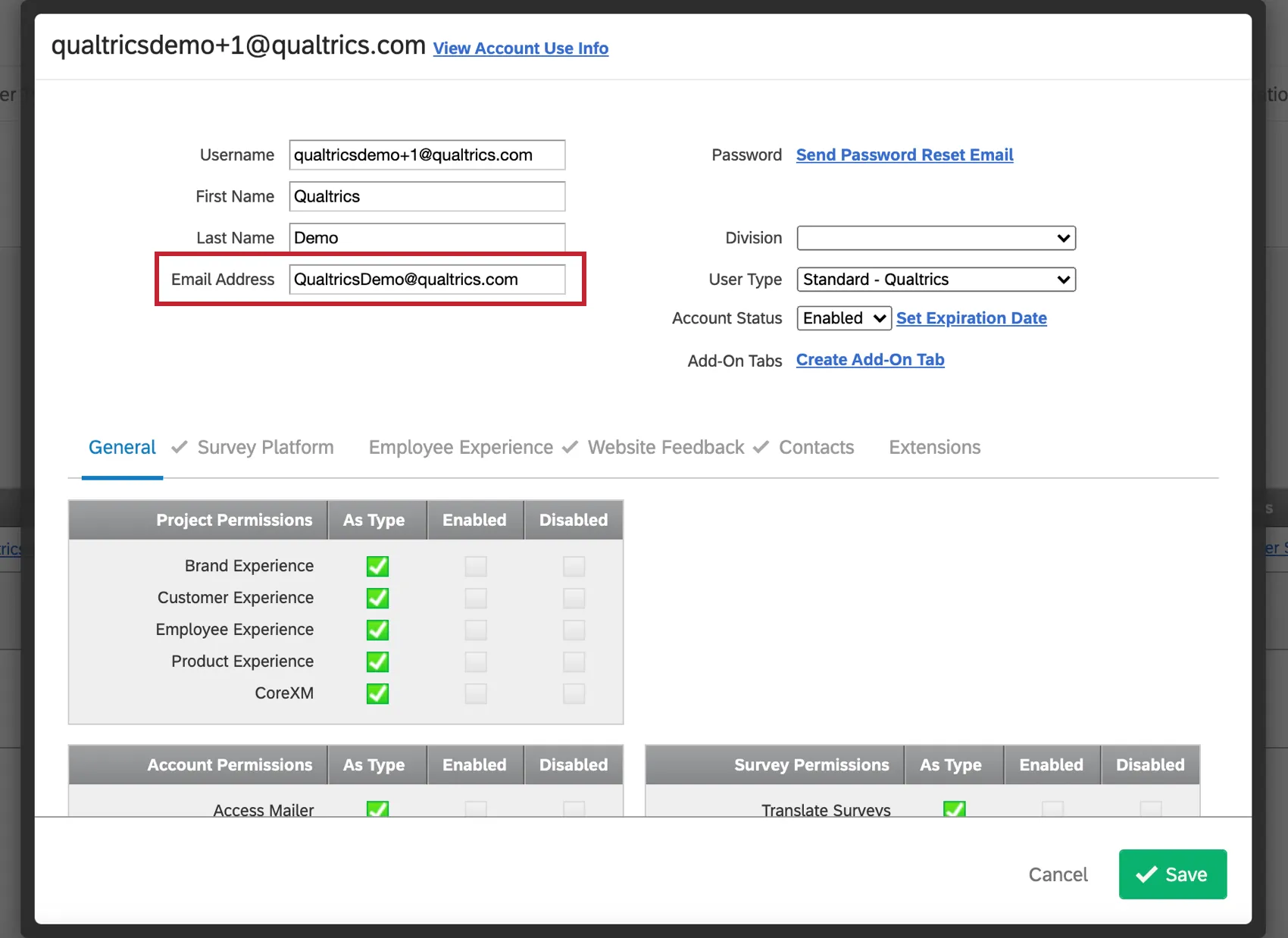
Qtip: If you need to change the email address of a user, make sure you click Save before you send the password reset email.
Setting a Specific Password
When you first create an account, you can set a specific password for the user.
Once an account is created, you cannot set a specific password for that account anymore. This is to protect the user’s privacy and personal password preferences. If you have a user asking for a new password, send them a password reset email instead.
Transferring Survey Ownership
Attention: Conjoint and MaxDiff projects are not transferrable.
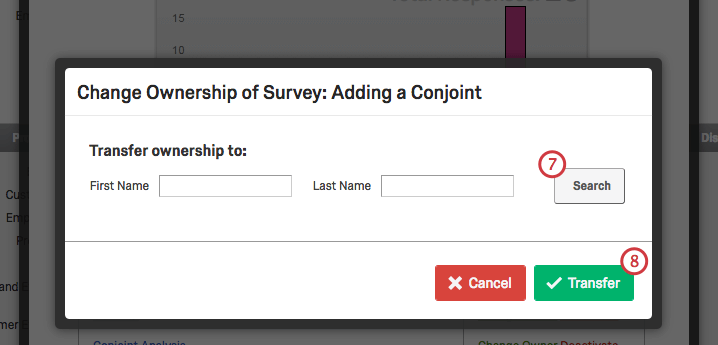
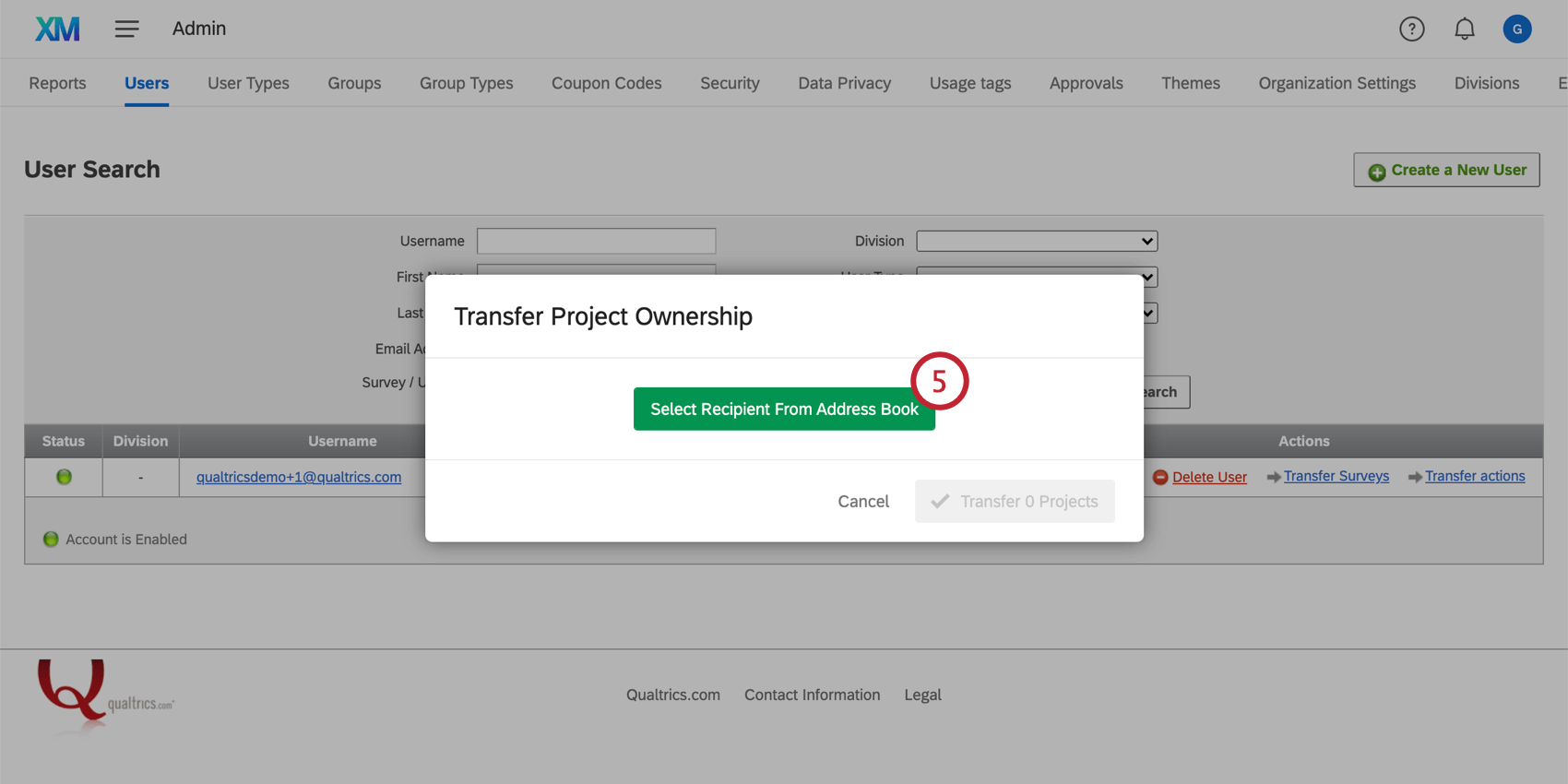
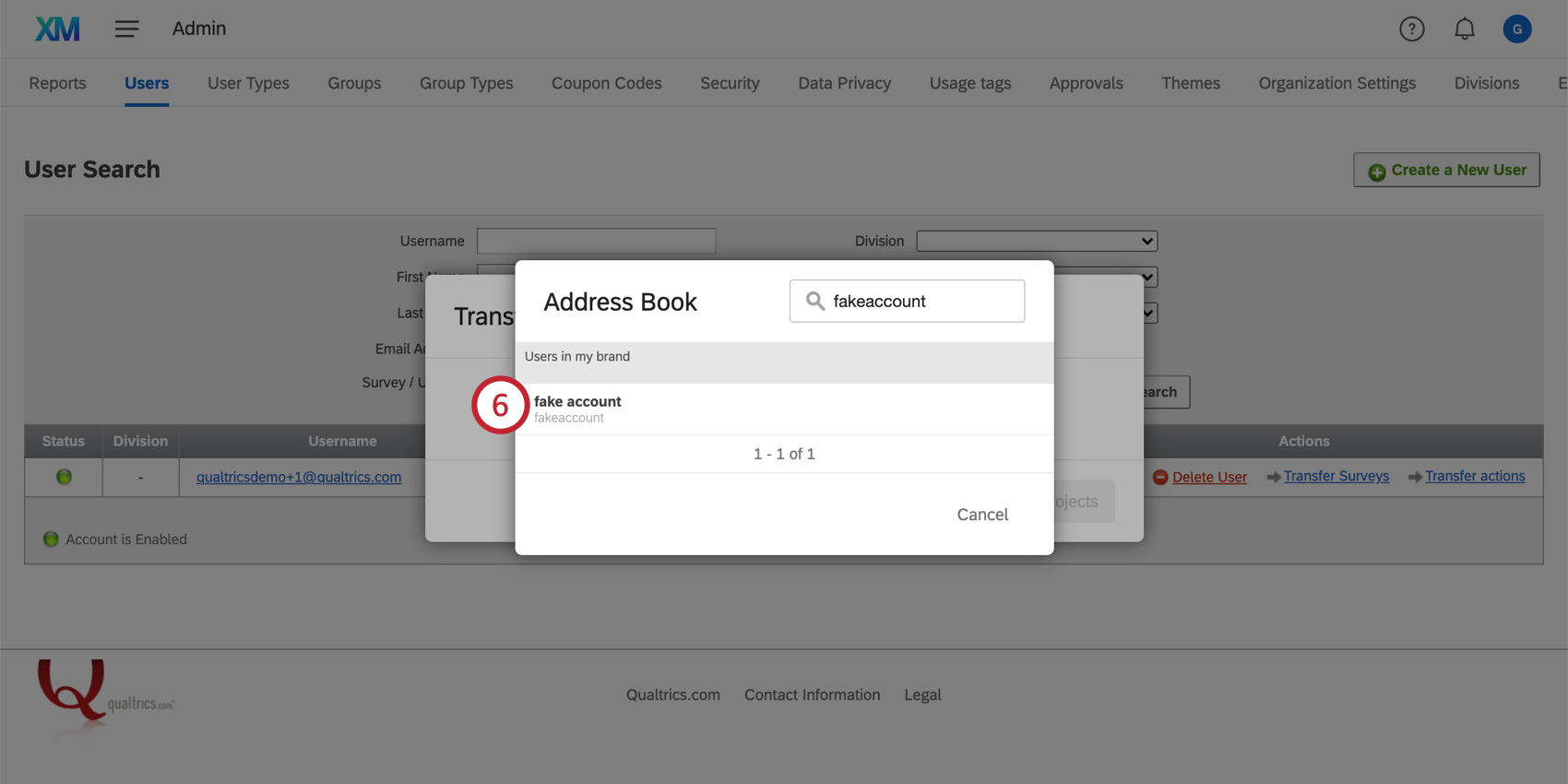
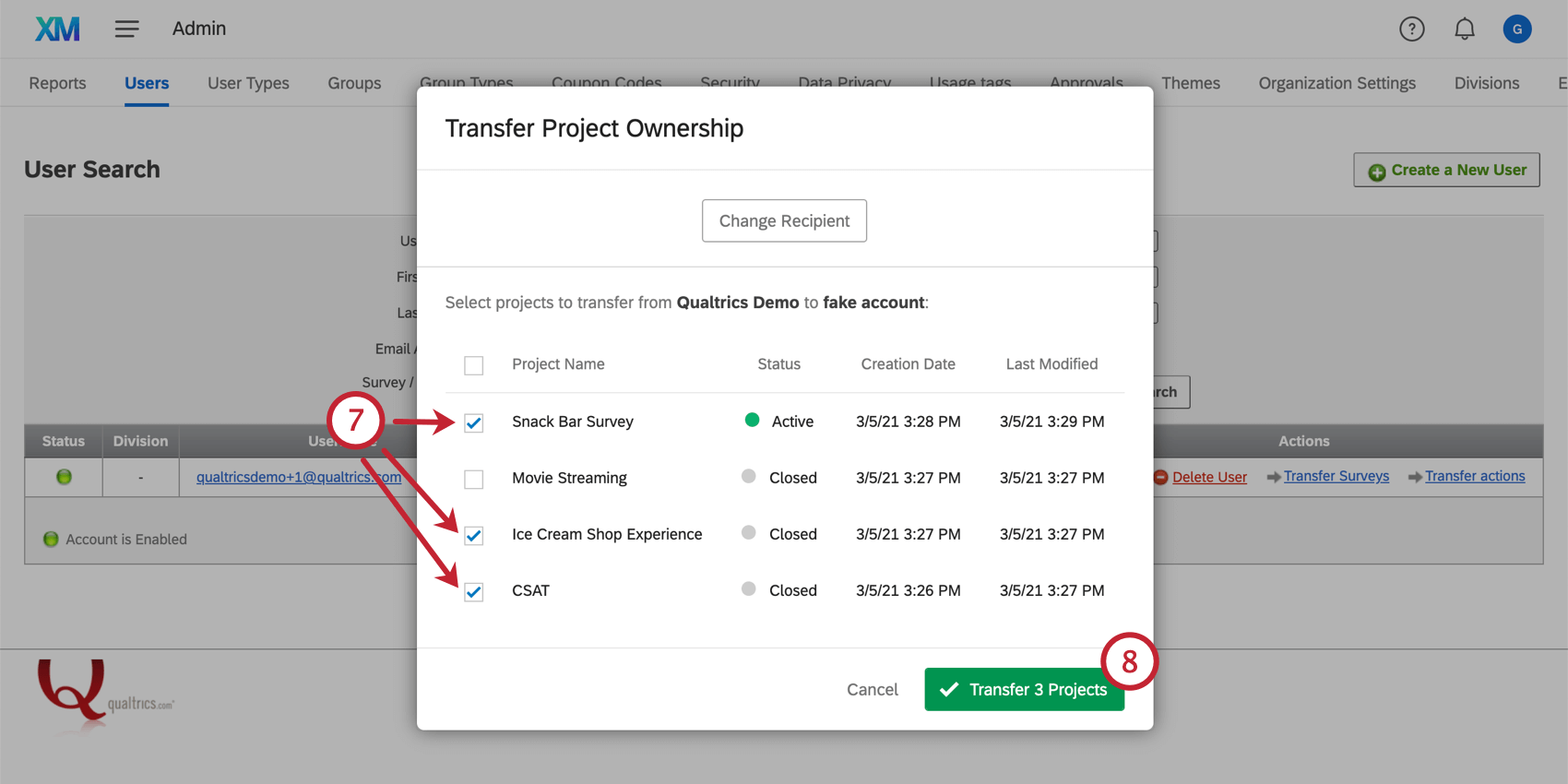
Sometimes collaboration isn’t enough – in the case where a user leaves an organization or a team, they may want to transfer the ownership of their survey to someone else. As an administrator, you can transfer ownership of one survey at a time, or all of a user’s surveys at once.
Warning: Only survey projects should be transferred from one user to another in the Users tab. You should never try to transfer a 360, Engagement, Pulse, Ad Hoc, or Lifecycle project from this tab – you should use the Projects tab of the Admin page instead.
Transferring One Survey
Transferring Multiple Surveys
Transferring Workflow Ownership
Sometimes you may want to change who owns a workflow–for example, when an employee leaves your company. As a Brand Administrator, you can transfer ownership of one or more of a user’s workflows at a time.
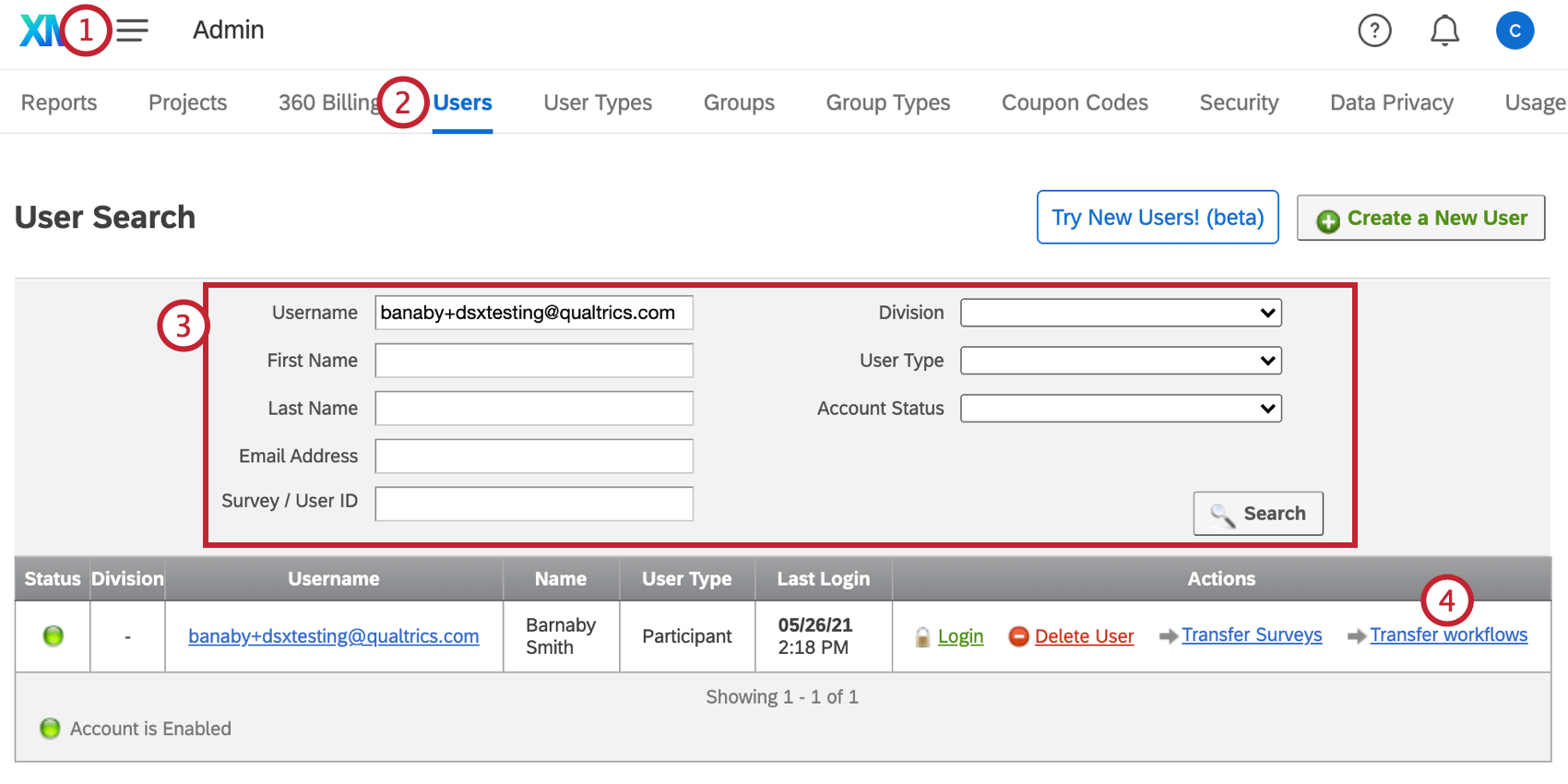
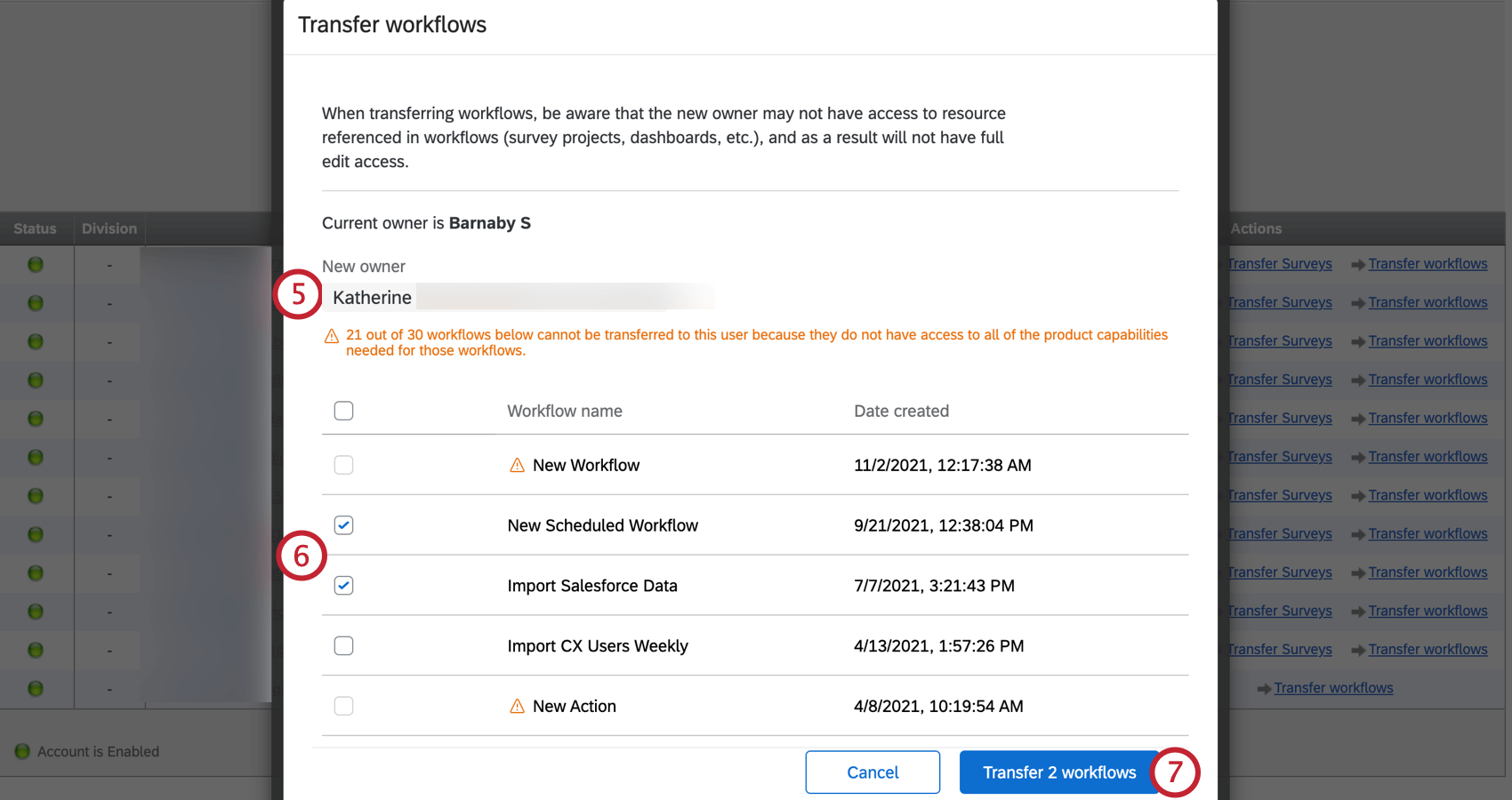
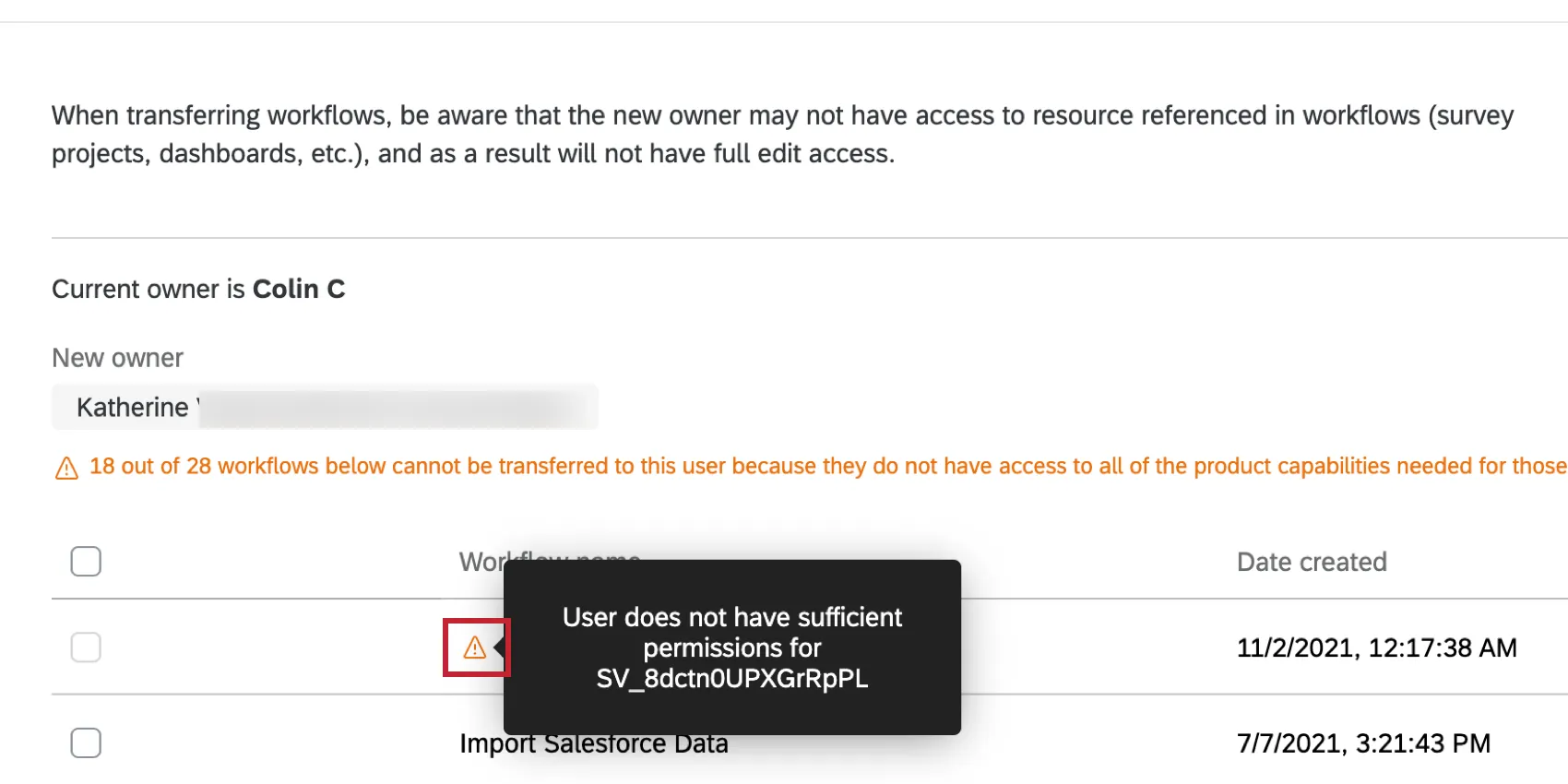
Qtip: You can only transfer workflows where the new owner will have access to the resources referenced in the workflow (e.g., survey, dashboard, third party extension account). If the new owner does not have permission, a yellow triangle will appear next to the workflow name. Hover over the triangle to see more information about what resource the new owner will need access to before the workflow can be transferred.
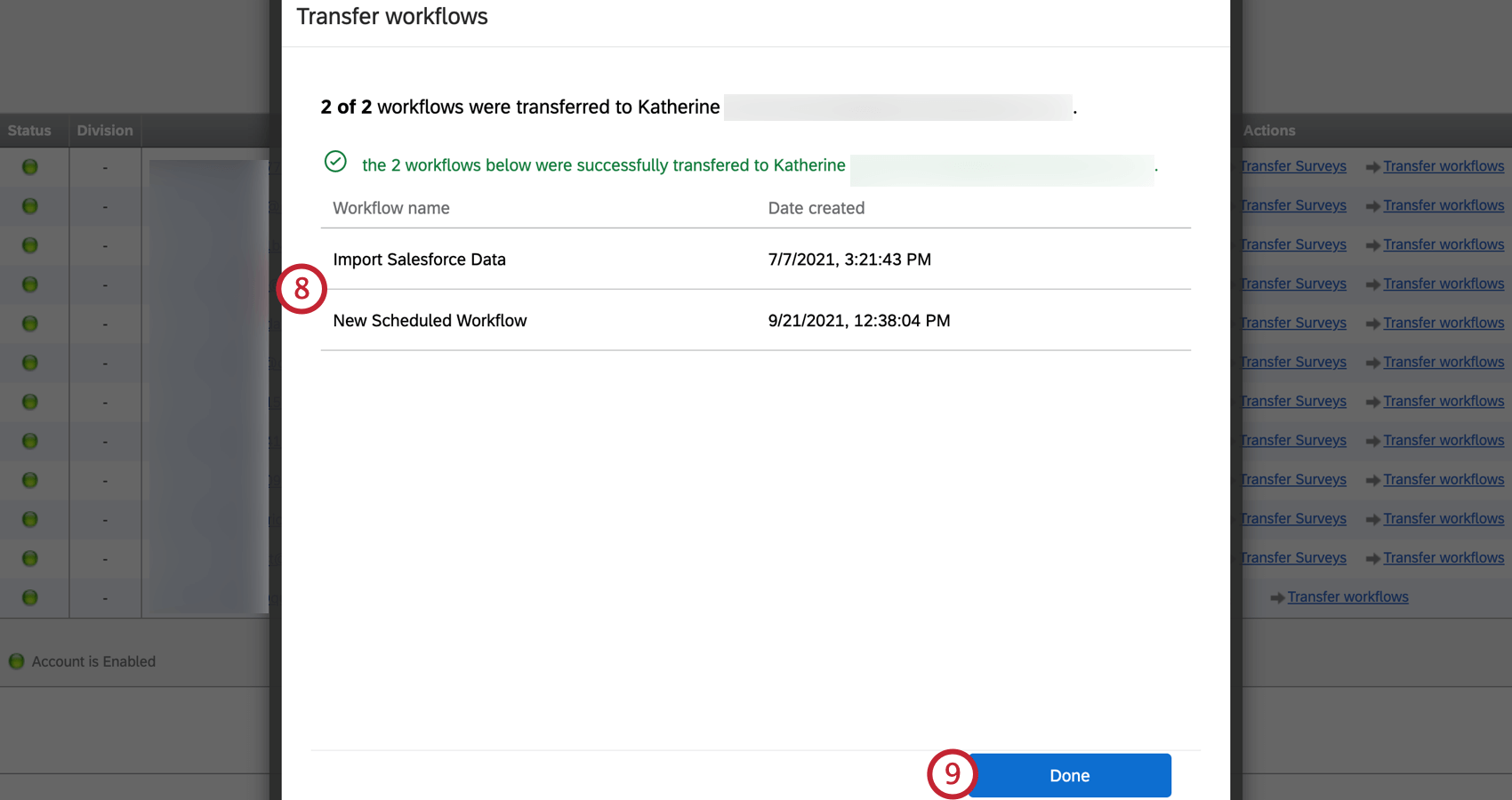
Qtip: If a workflow fails to transfer, try transferring it again. If the problem persists, contact Qualtrics Support.
Logging into User Accounts
You can proxy log into the accounts of users on your brand. This can be useful when investigating account abuse, when a colleague who needs to collaborate on a project is out of office, or to test out different account permissions.
Qtip: All brand administrators are able to log in to users’ accounts by default. For a division administrator to access users’ accounts, the brand administrator must enable the Allow Proxy Logins permission in the division settings.
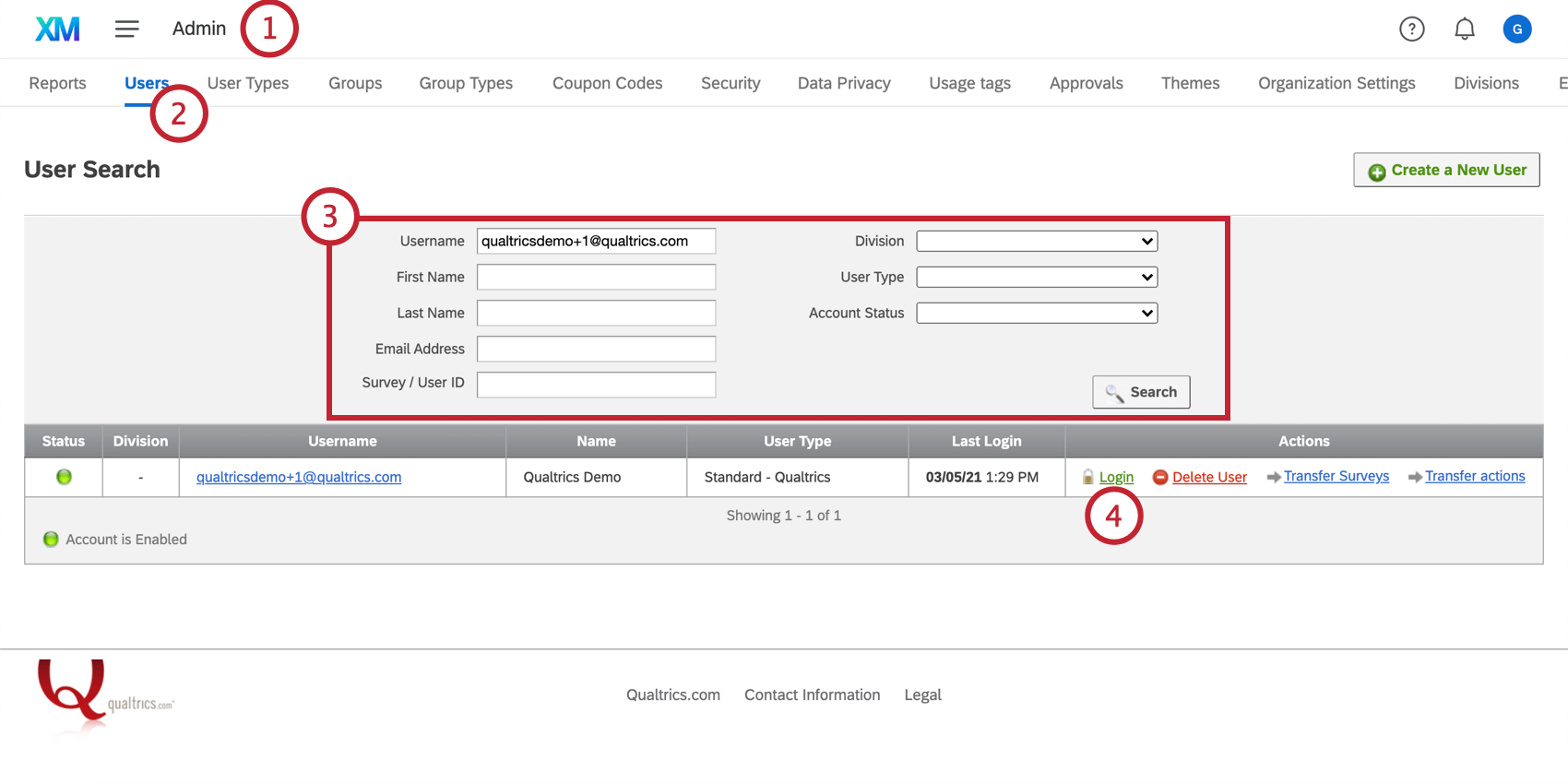
Deleting Users
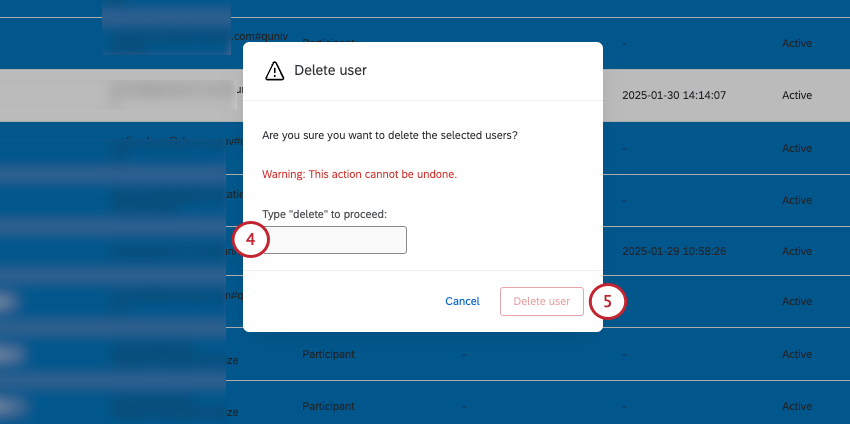
Only delete a user if you are absolutely sure that’s what you want to do. There is no guarantee that Qualtrics Support can restore a user or their account content.
When a user is deleted, many account contents, such as their workflows within projects, and dashboards, will be permanently deleted and will not be recoverable. Note that even if the user is successfully restored later, their dashboards will not be restored. Before deleting a user, a Brand Administrator must log in as the user and grant edit access to any dashboard, as well as transfer ownership of any project, that they want to retain access to.
Disabling an account can be a great alternative to remove someone’s access to Qualtrics without deleting their account or their projects.
Qtip: Deleted users will not show up when searching within the Users tab.
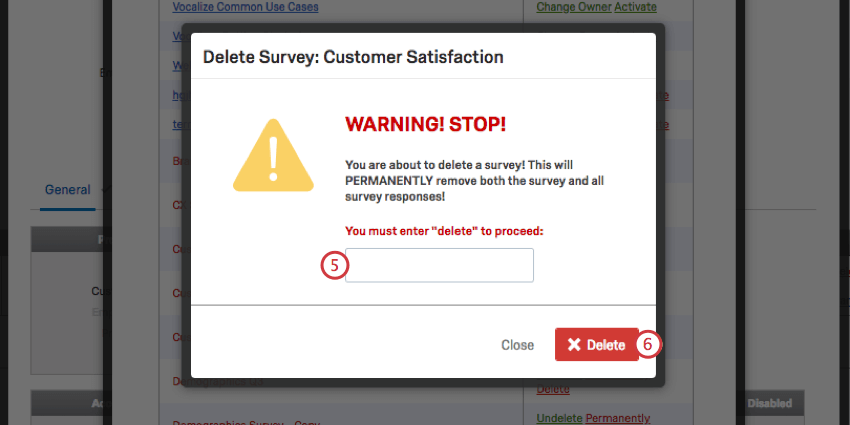
Attention: Deleting a user will not deactivate the surveys within the account. In addition, projects shared from that account with others may not be removed from collaborators’ accounts. We recommend deactivating all surveys in an account before deleting the user.
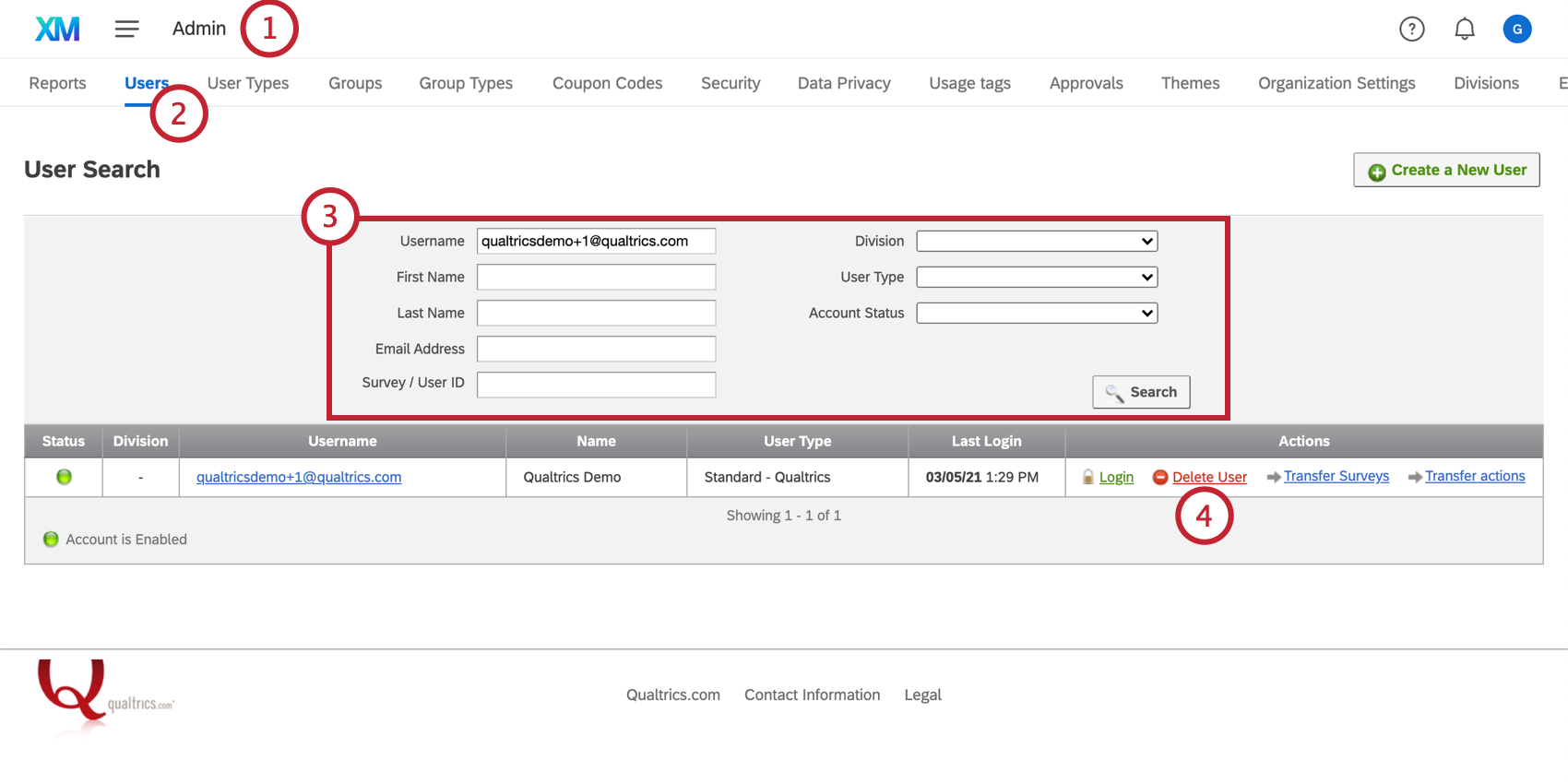
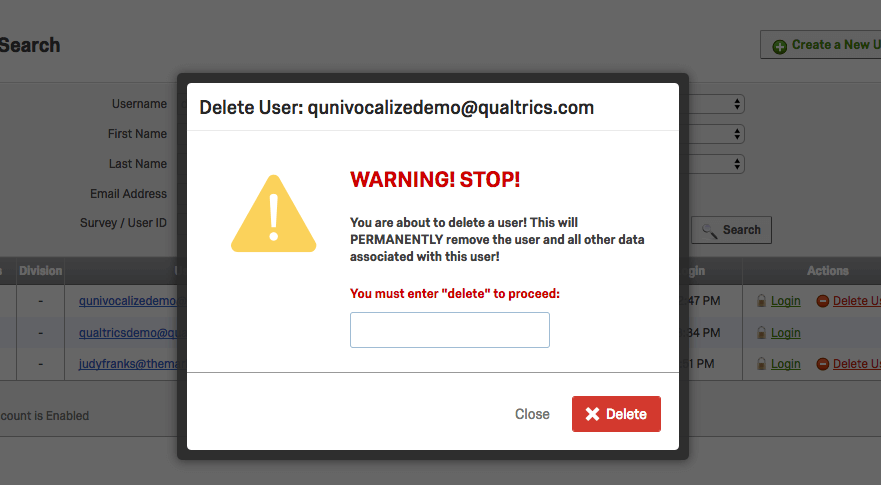
Qtip: If a deleted user is restored, all deleted surveys will also be restored.
User Account Status and Expiration
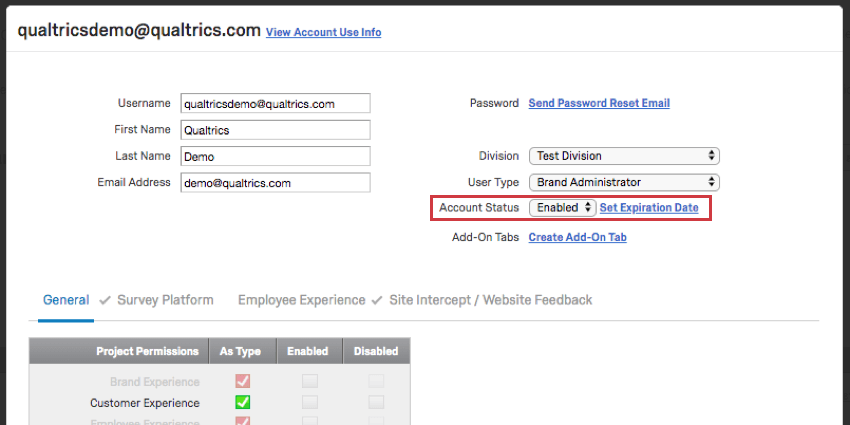
User Accounts have two statuses: Enabled and Disabled. An enabled account is an active account – it can perform all the functions it has permissions for.
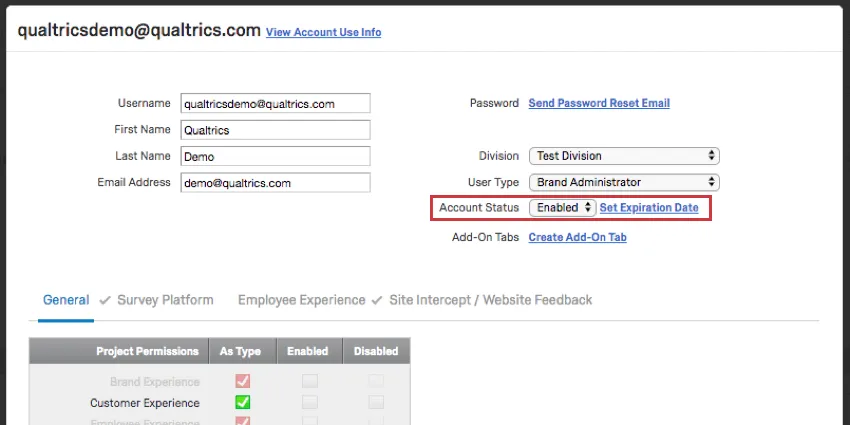
Disabling Accounts
Giving an account the status Disabled is a great way to remove someone’s access to Qualtrics without deleting their account or their projects. When an account’s disabled, the user cannot log into it anymore, and the surveys on that account will stop sending out mailings. Active surveys on the account will continue to collect responses.
Qtip: Administrators can enable accounts at any time by changing the account status to Enabled.
Attention: Disabled users count towards your license’s total number of users. If your license has a limited number of accounts, consider deleting old accounts to make space, or repurposing them for users in similar roles by changing the username and sending a password reset.
Expiration Dates
When you set an expiration date on a user account, you are setting the date that the account will become inaccessible. Some universities use expiration dates to remove students’ access to their Qualtrics accounts after they graduate, without forcing an administrator to remember to go into Qualtrics and update the accounts at the end of the year.
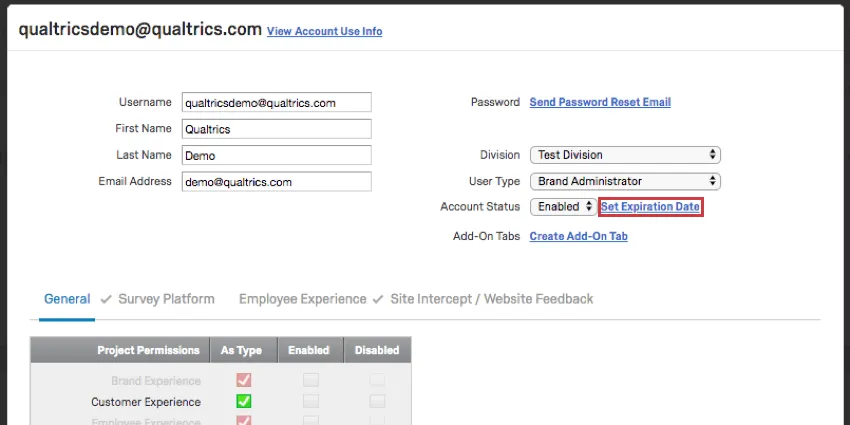
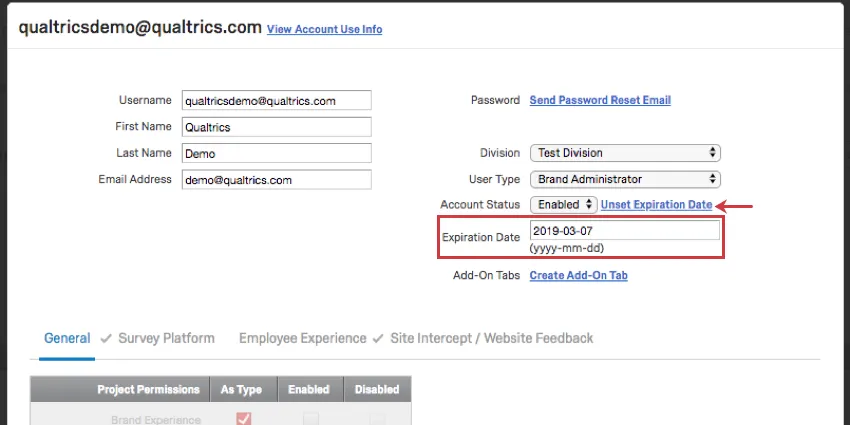
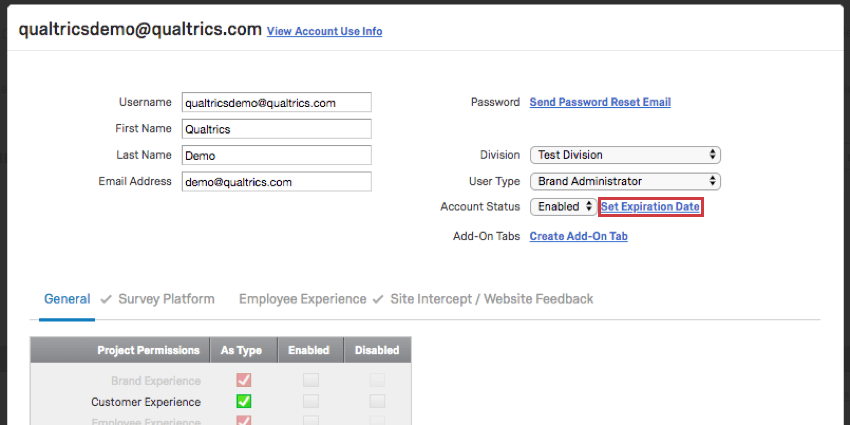
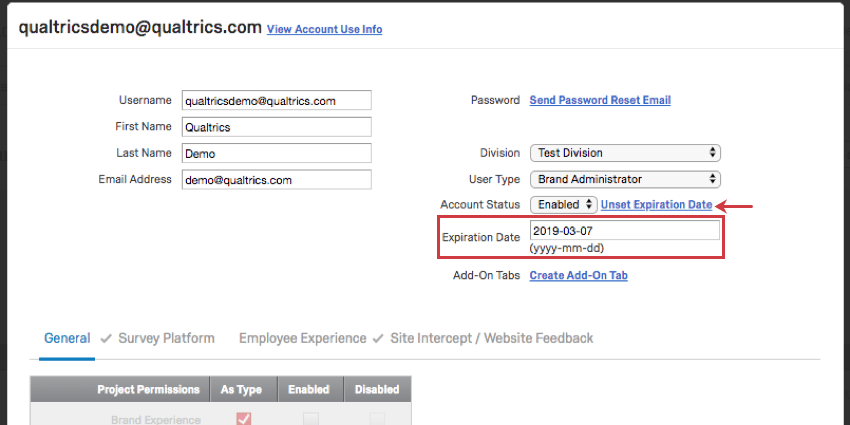
To set an expiration date for a user, click Set Expiration Date. Expiration dates are set as specific dates in the yyyy-mm-dd format. This date is based on the America/Denver timezone, which is then converted to UTC for comparison. When a user logs in to Qualtrics, their current UTC timestamp is recorded; and if it is after the set expiration date, then they will not be able to log in.
To remove the date, click Unset Expiration Date.
Verifying Users
At times, users may reach out to you because they never received an account verification email. Brand Administrators can manually verify the users doing the following:
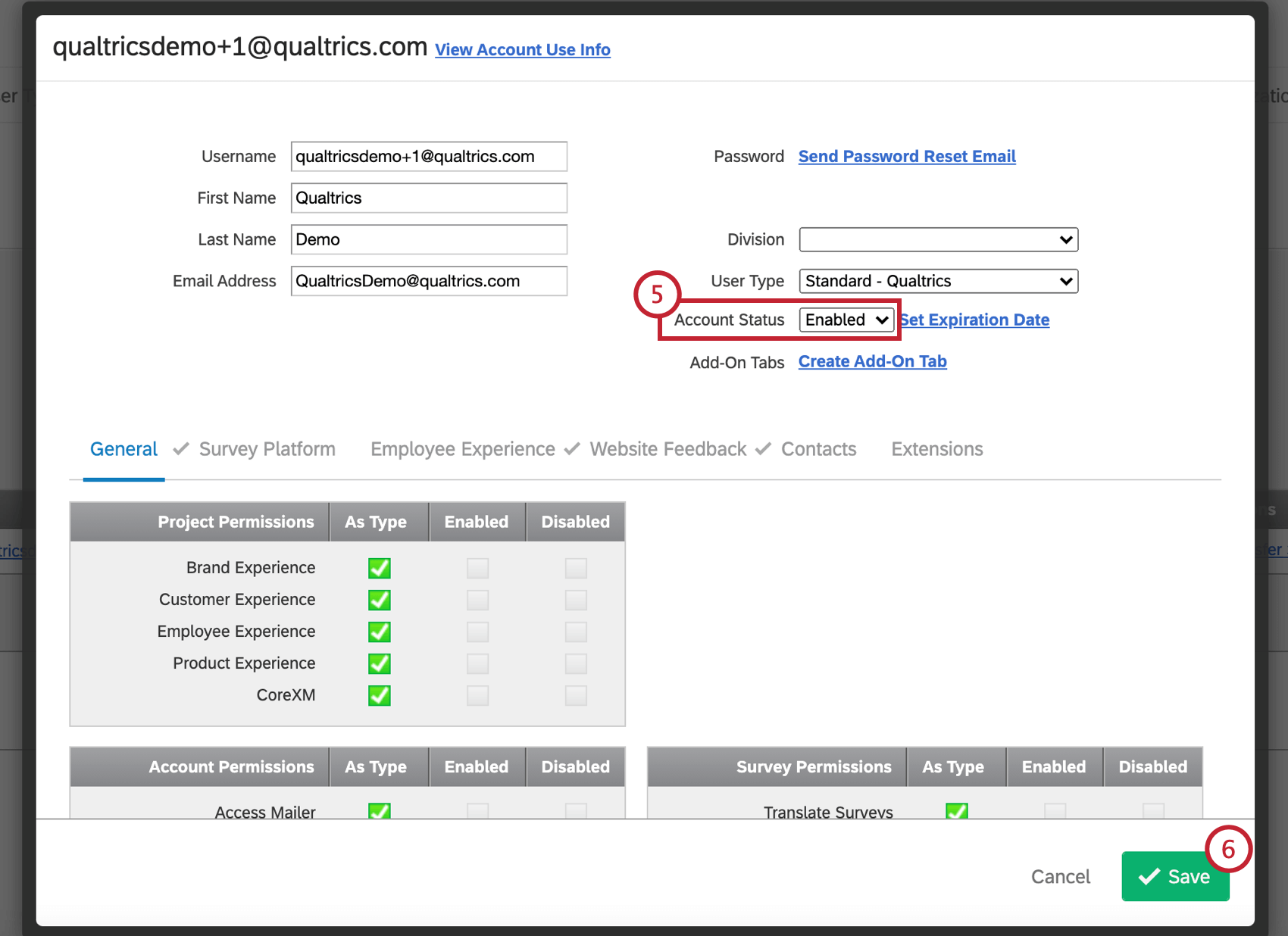
Qtip: Setting Account Status to Disabled allows you to lock a user out of their account without deleting any of their data.
Restoring and Permanently Deleting Surveys
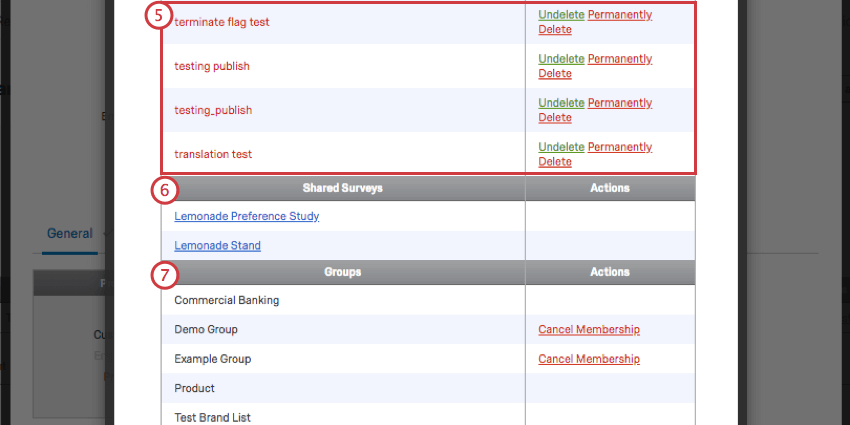
Restoring Deleted Surveys
Attention: If you are using Employee Engagement, 360, or Conjoint projects, you cannot restore the project from this section. Lifecycle projects and Dashboard projects will not be listed and also cannot be restored. Only Survey projects can be restored from this section.
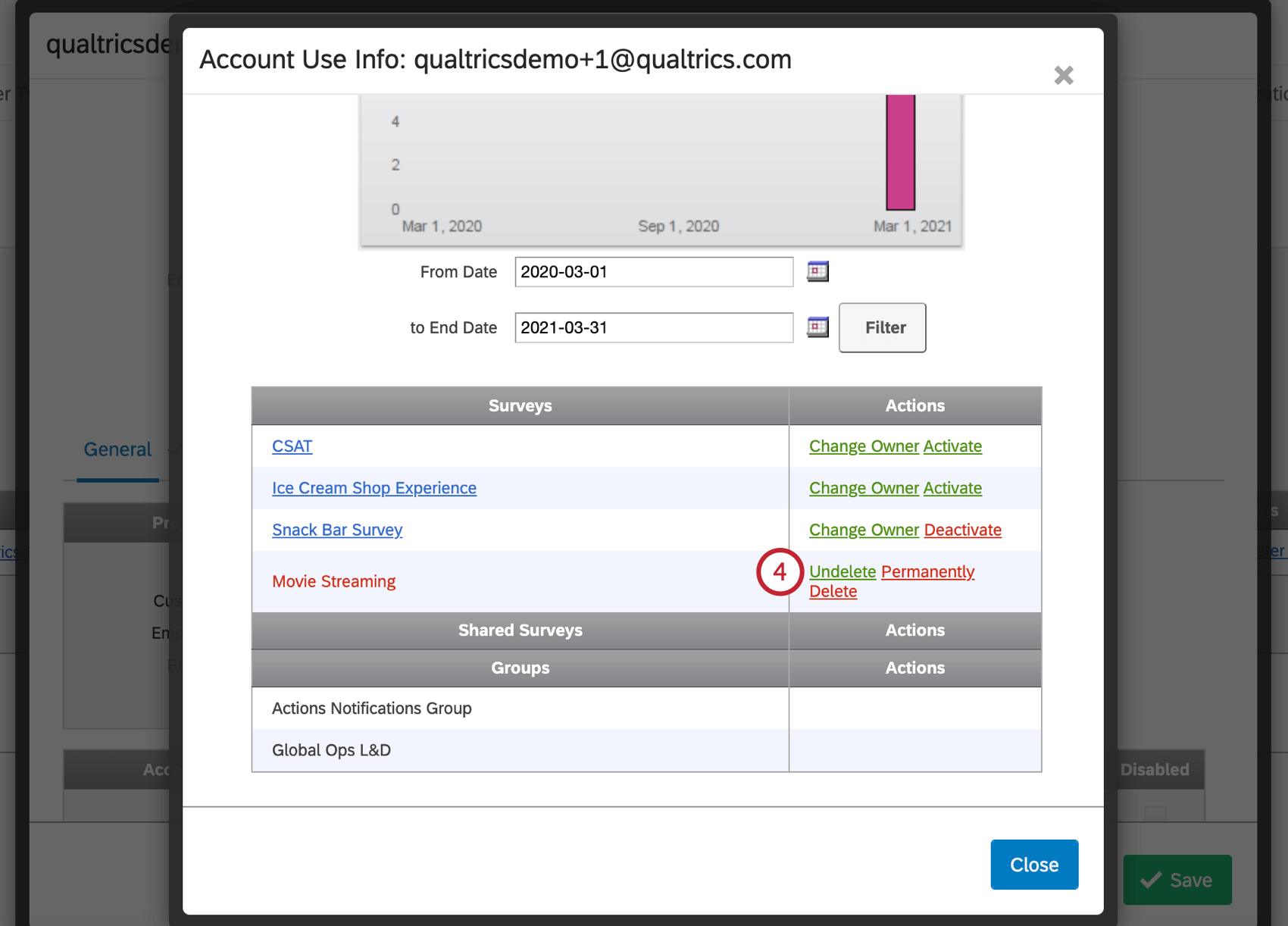
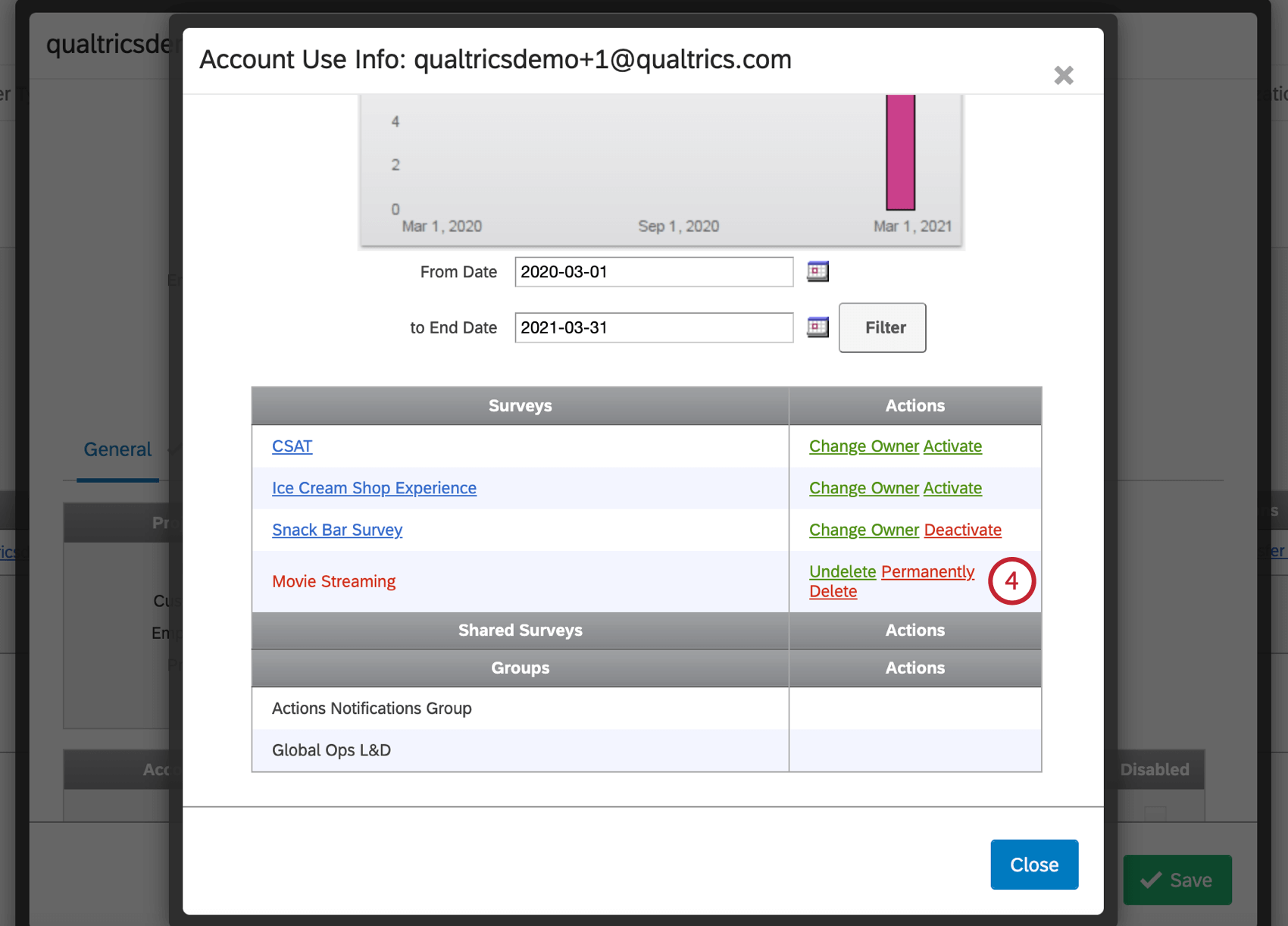
Qtip: If a deleted user is restored, any deleted surveys will also be restored.
Permanently Deleting Surveys
To delete a project permanently from a user’s account, the user must first delete it themselves. Then the Brand Administrator must do the following:
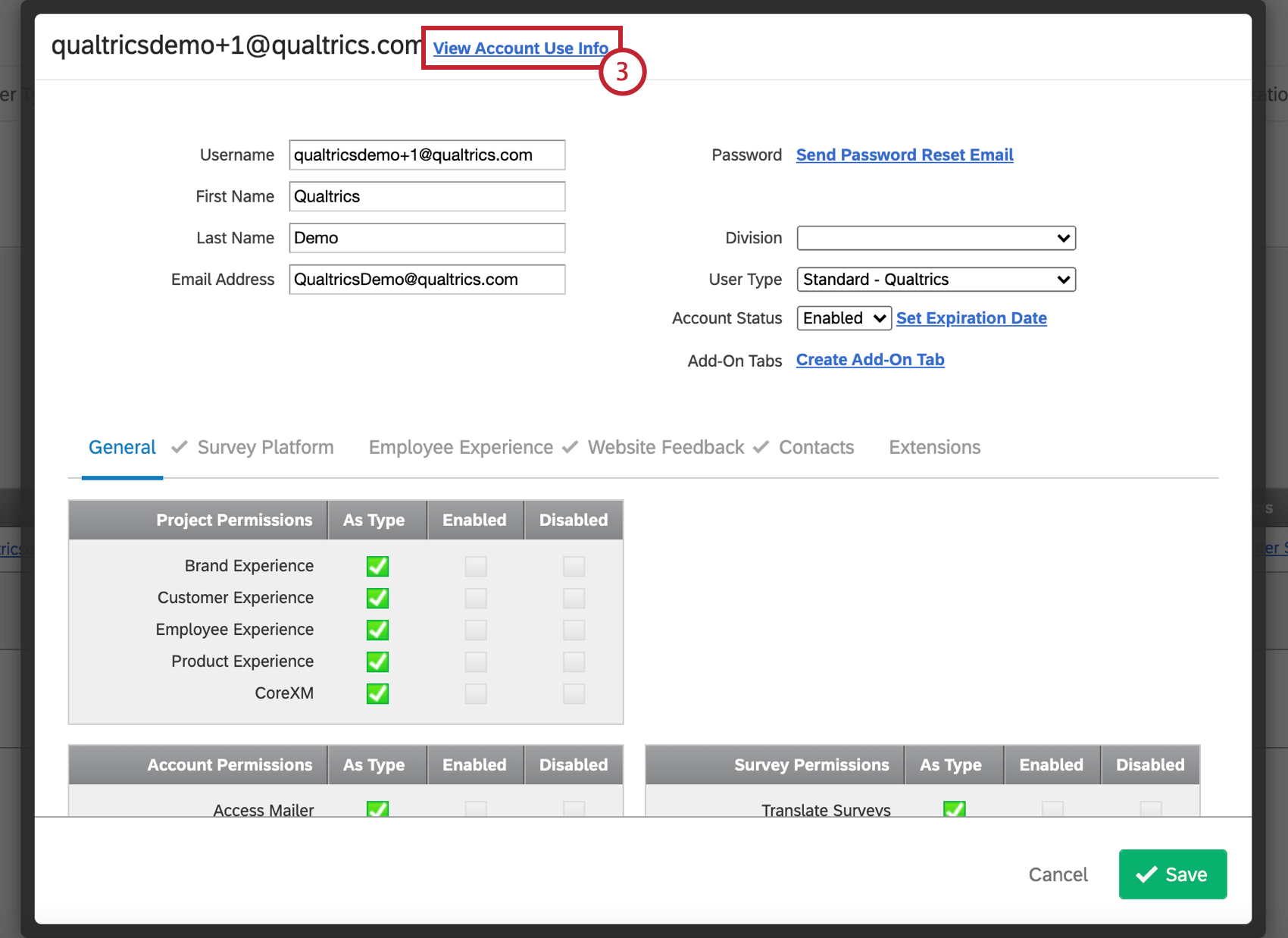
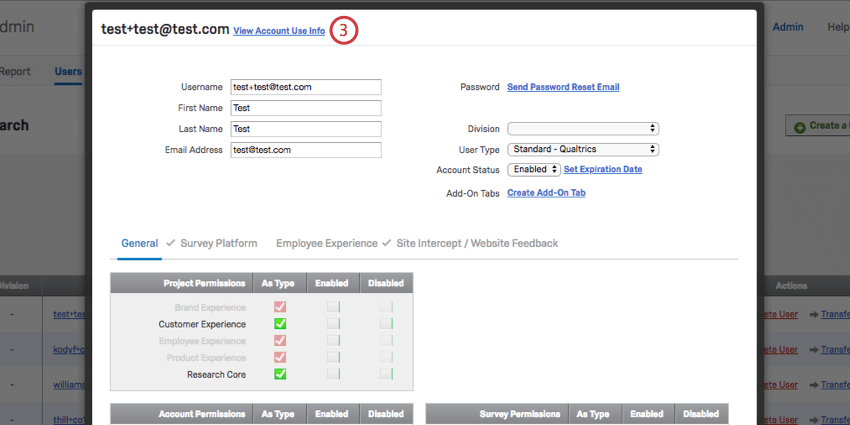
View Account Use Info
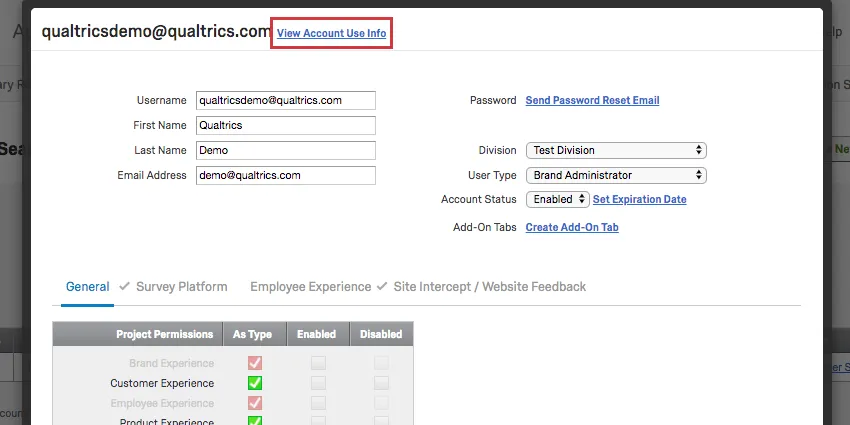
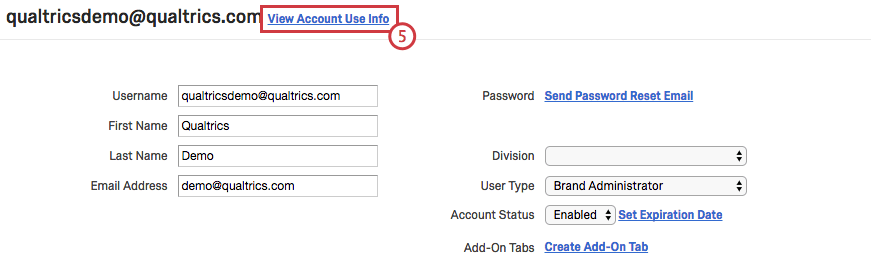
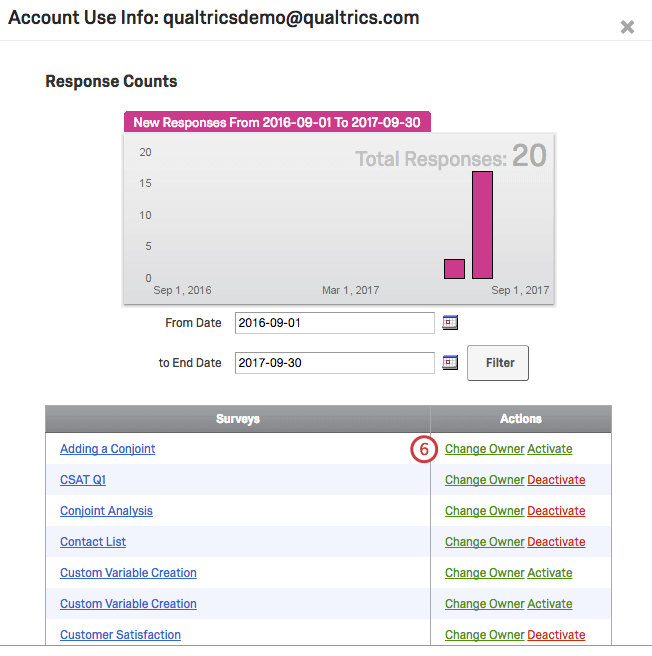
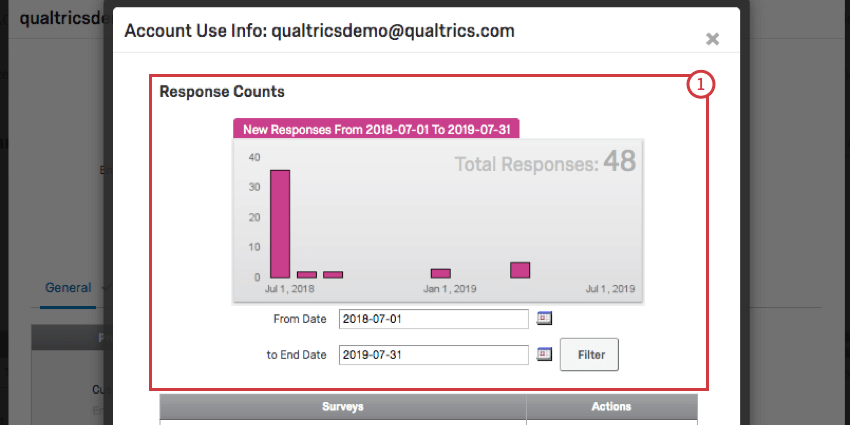
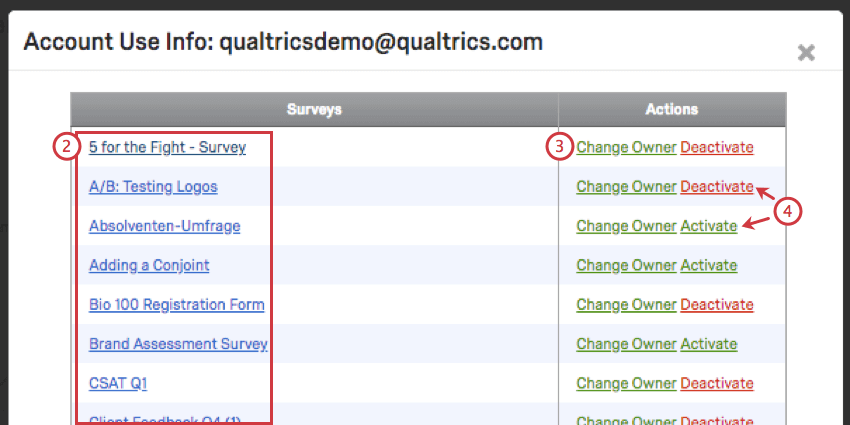
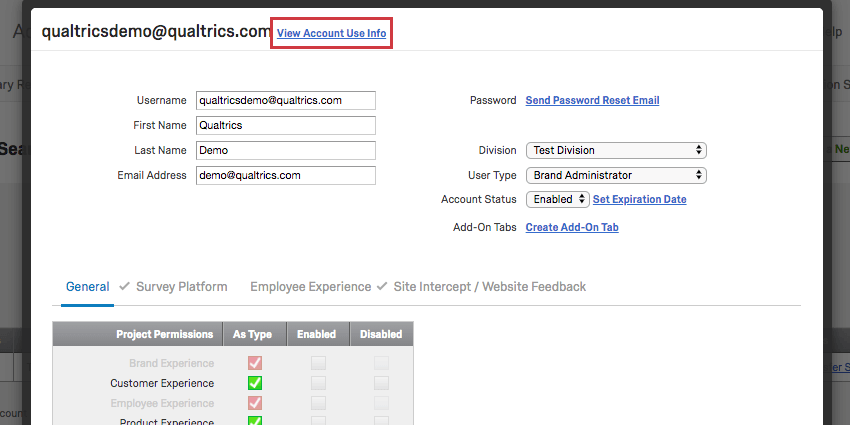
When editing an account, you’ll see the View Account Use Info link at the top. In this section, you can see how many responses the account has collected and which projects the account owns. You can also transfer the ownership of any of the projects to another user account within your organization, as well as activate/deactivate, undelete, and permanently delete any of the projects.
New Users Tab
The Users tab has been redesigned with a more modern look. In addition to supporting all the same behavior you’re used to, the new Users tab also features bulk user upload and bulk user updates.
Switching Between the New and Existing Users Tab
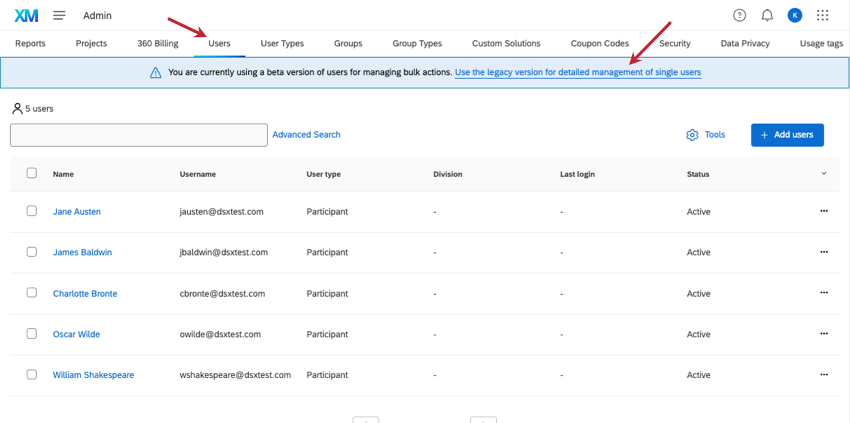
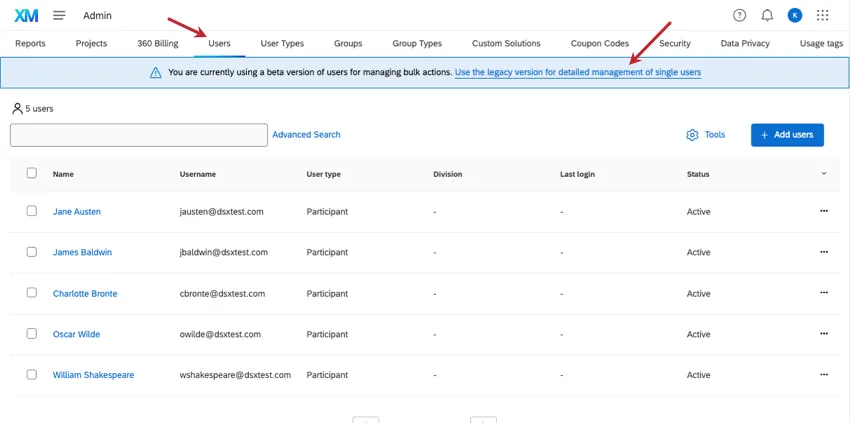
To return to the old user interface, you can click on the banner along the top of the page. The link says, Use the legacy version for detailed management of single users. You can also click the Users tab again.
Uploading Users in Bulk
You can upload many users at once using a CSV or TSV file.
Qtip: For the best results, files should be less than 20MB and have fewer than 100,000 rows.
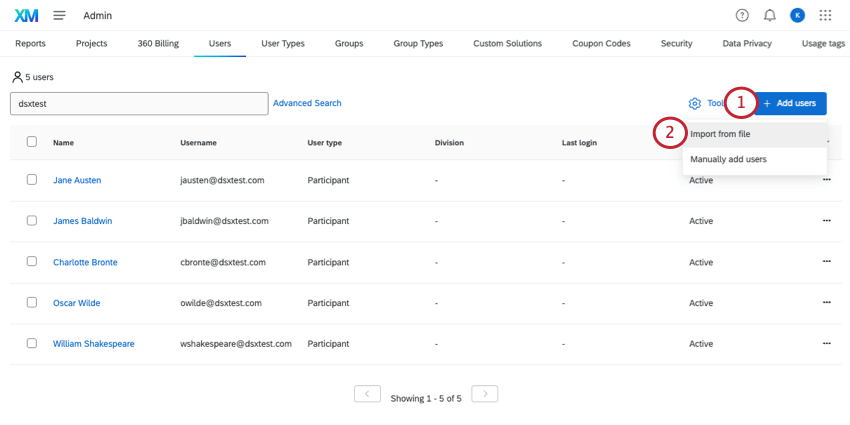
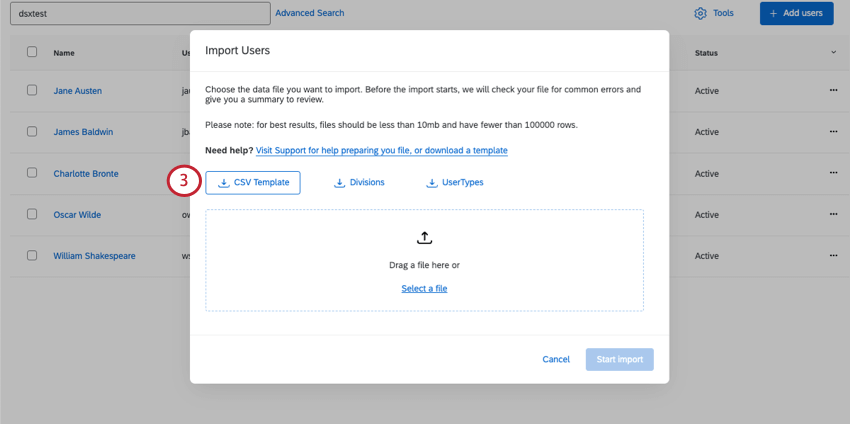
- userID: Leave this blank for all new users.
- userName: What username the user should log into Qualtrics with. Follow the same guidelines you do for manual user creation.
- firstName: First name.
- lastName: Last name.
- email: Email.
- divisionId: The ID of the divisions the user should belong to. If you’re unsure what divisions exist in your organization and what their IDs are, download the Divisions file. This field is optional.
- accountType: The ID of the user type the user should belong to. If you’re unsure what user types exist in your organization and what their IDs are, download the UserType file.
- accountStatus: This should be set to “Active” to indicate the user can access their Qualtrics account. See Account Status and Expiration.
- expirationDate: Expiration dates can be set in the MM/DD/YYYY format. You can leave this field blank if you don’t want the account to expire at a certain date. Warning: Do not remove or change the order of any columns.

Qtip: For more troubleshooting advice, see CSV & TSV Upload Issues.
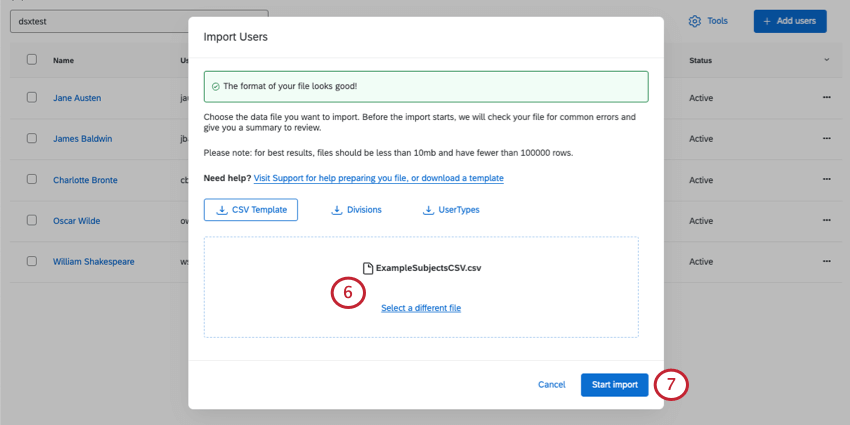
Qtip: The system will do a quick check of the file format and errors, much like the participant upload system.
Qtip: The system will do a quick check of the file format and errors, much like the participant upload system.
You can check the status of your import by clicking Manage Imports\Updates\Exports under Tools. Once an import has completed you can also view detailed messaging about the status of the import job.
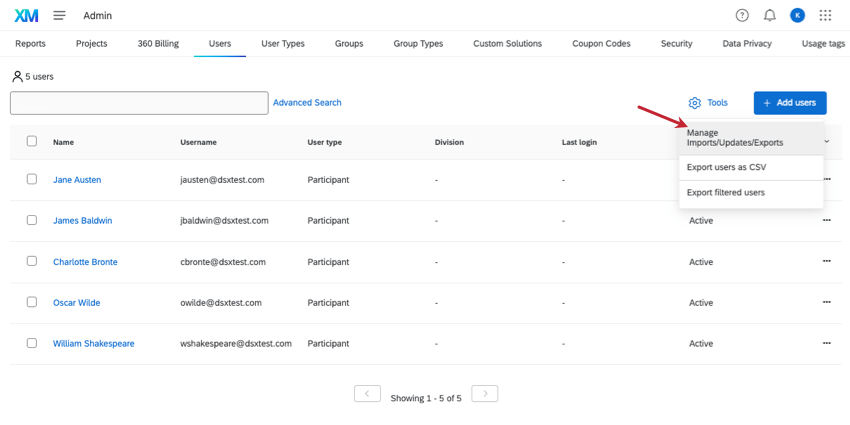
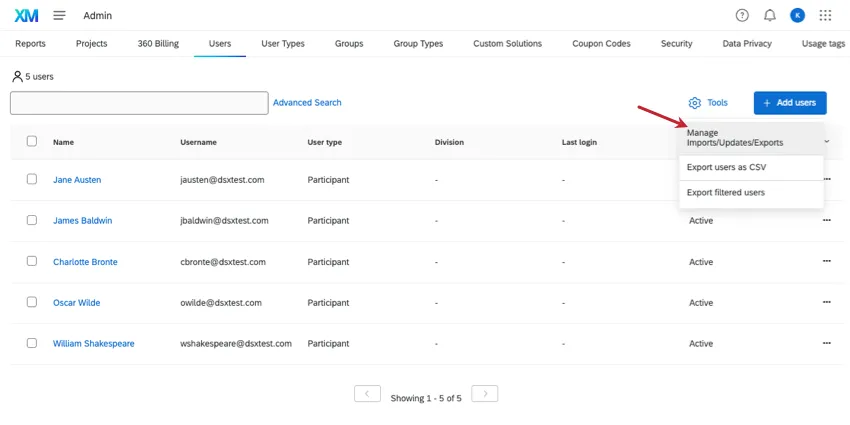
Export All Users in Brand
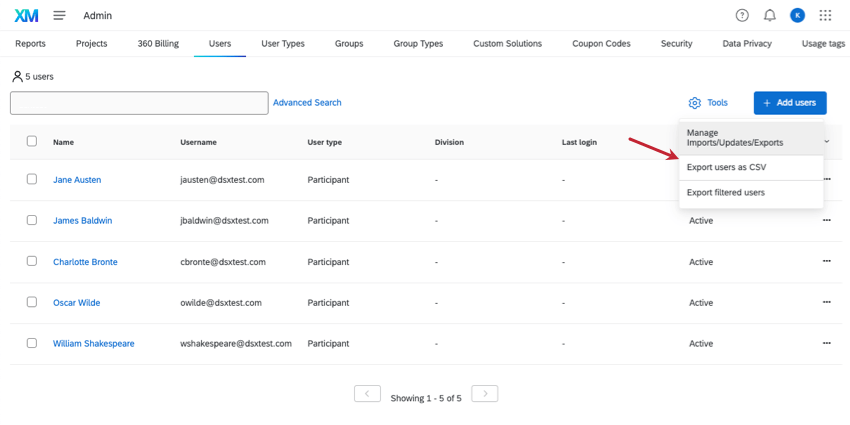
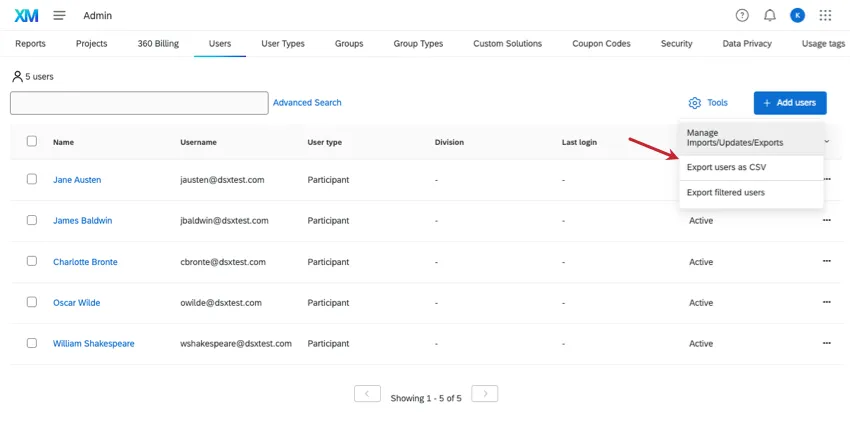
Go to Tools and select Export users as CSV. There is no TSV option.
Updating Users in Bulk
- firstName
- lastName
- divisionId
- accountType
- accountStatus
- userName Qtip: If you are updating the userName field and your brand uses SSO, ensure that the updated username matches the SSO username attribute value. Otherwise, users may experience issues logging in with SSO.

Warning: Do not modify userID for any user. This ID is how the file knows to edit the correct user. New users should have blank userIDs.
Warning: Remove the division name and user type name columns (but keep their IDs). Do not remove or change the order of any other columns.
Qtip: It is okay to remove rows if there are users you don’t want to make changes to.
Qtip: For more troubleshooting advice, see CSV & TSV Upload Issues.
Deleting Users in Bulk
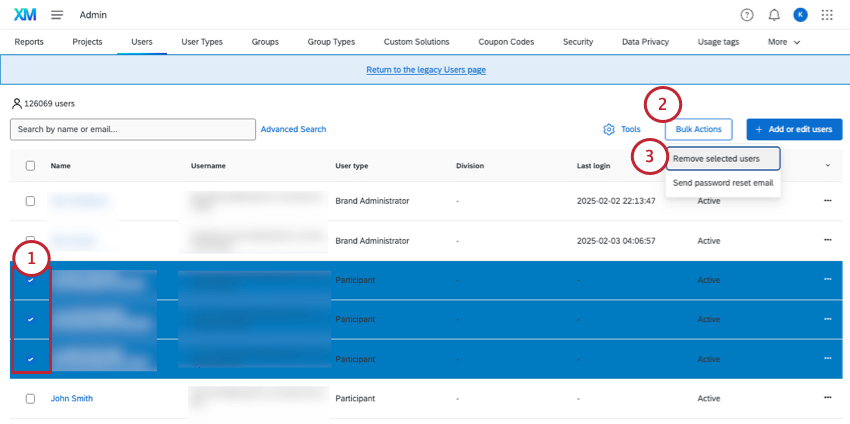
Qtip: You can send a bulk password reset by selecting multiple users at once, then using the bulk actions menu to select Send password reset email.
Searching Users
Type text to search for any field that matches your criteria.
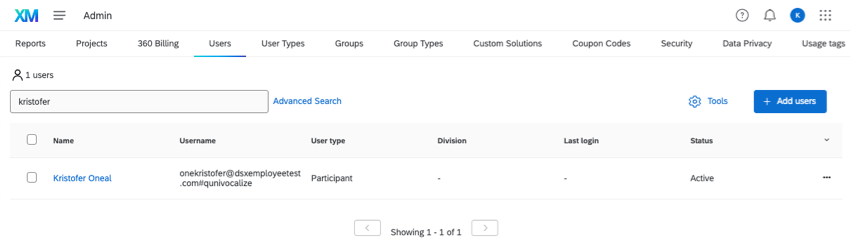
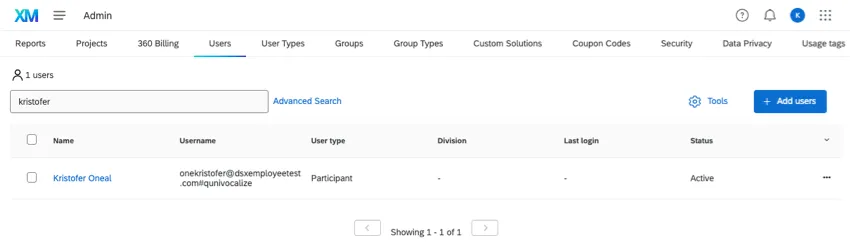
To search specifically by username, first and last name, email, status, user type, or division, click Advanced Search.
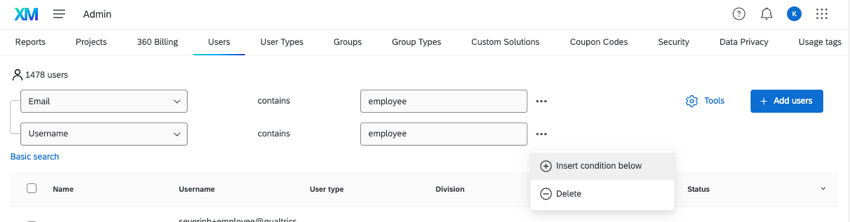
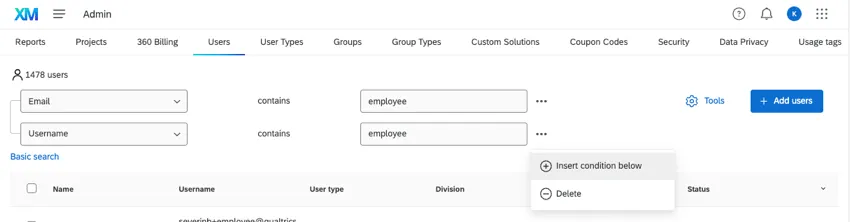
You can insert and delete conditions as needed. If there are multiple conditions, a user must match all of them to be included in results.
Click Basic search to return to the search bar.
Information on Individual Users
Click on a user’s name to see more information about them and make edits to them.
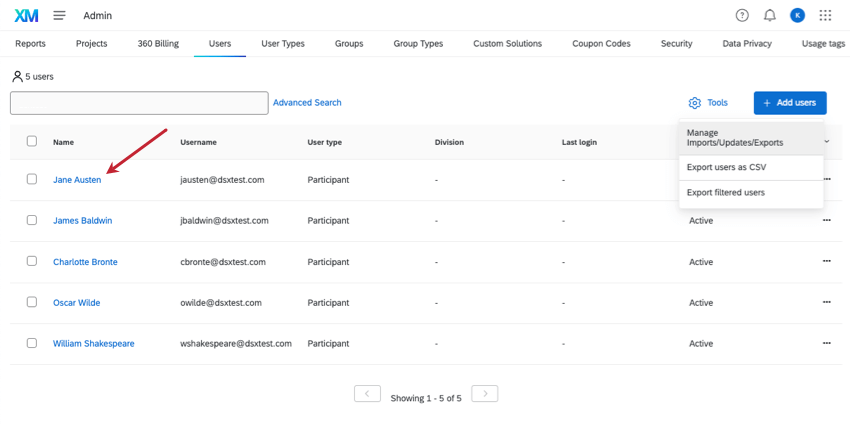
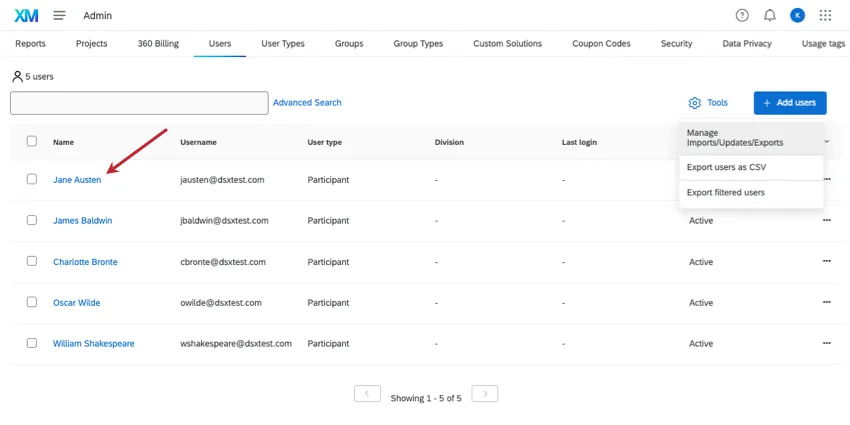
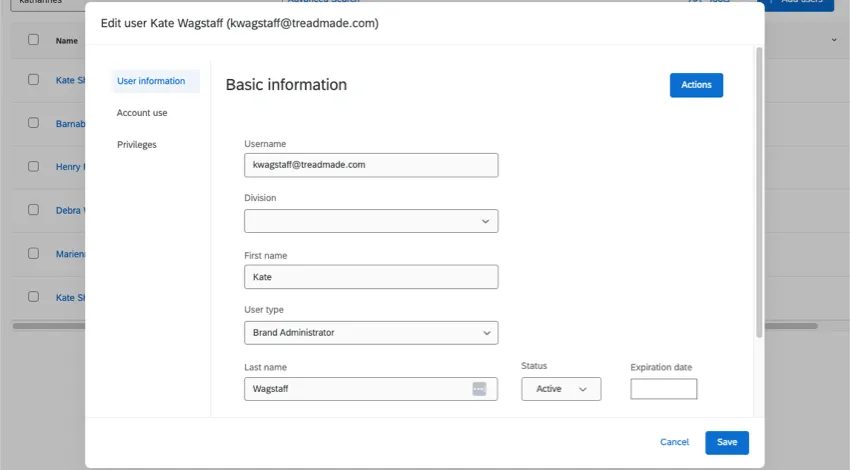
User information contains the user’s username, division, first and last name, user type, status, expiration date, and email. You can edit any of these fields. Under Actions, you can also delete the user, send them a password reset, remove them from multi-factor authentication, or proxy log into their account.
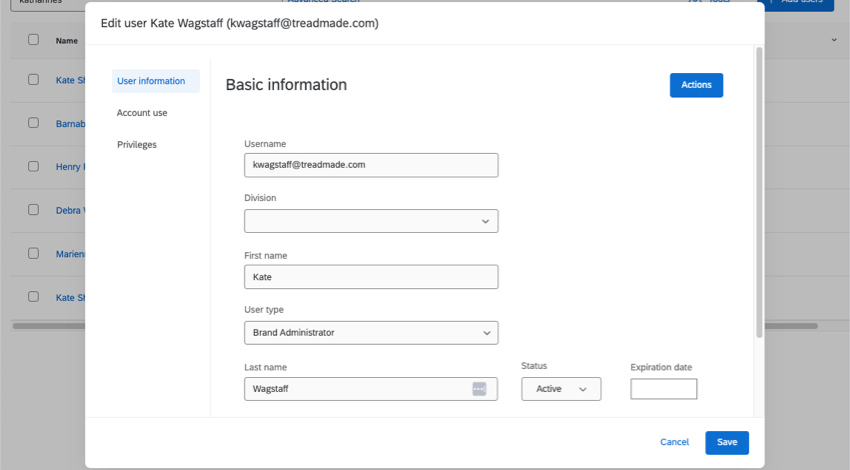
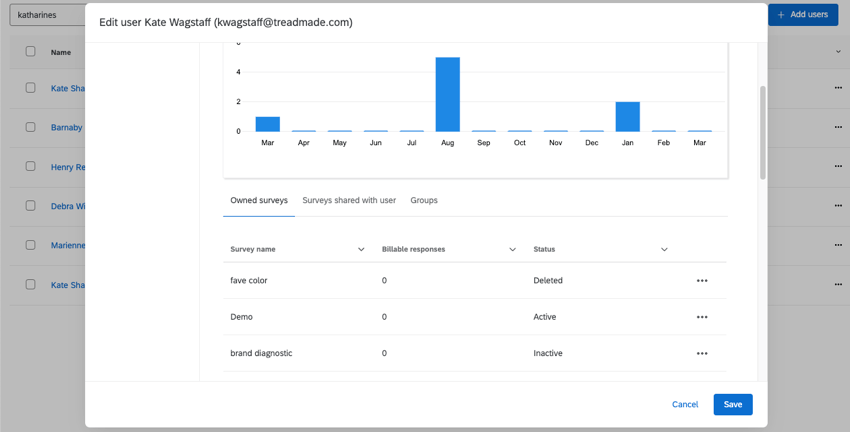
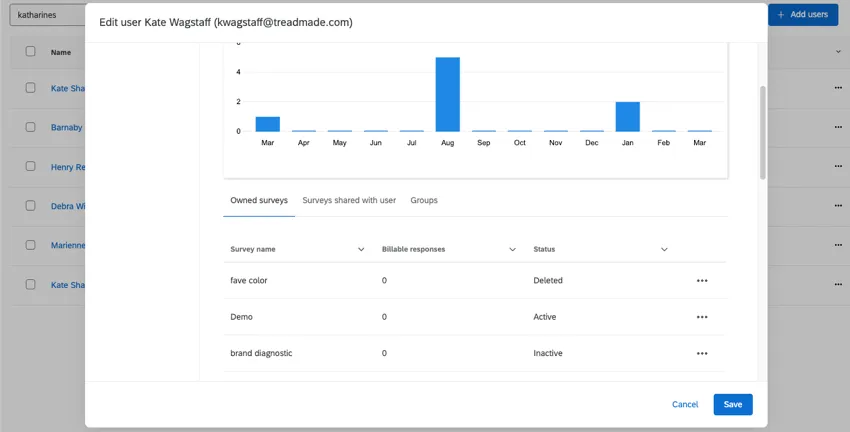
Account use shows the same information you’d find in Account Use Info. In Owned surveys, you can click the dropdown next to a survey to transfer ownership, activate it, delete it, or more. (Options will vary based on whether the user actually owns that survey.) You can use the other tabs to see surveys that have been shared with the user and groups they belong to.
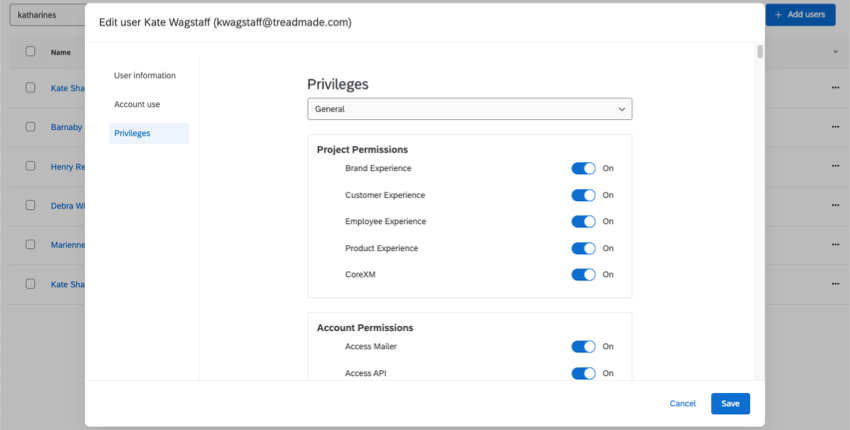
The Privileges tab is where you adjust user permissions. Use the dropdown to switch between types of permissions (e.g., General, Contacts, Employee Experience).
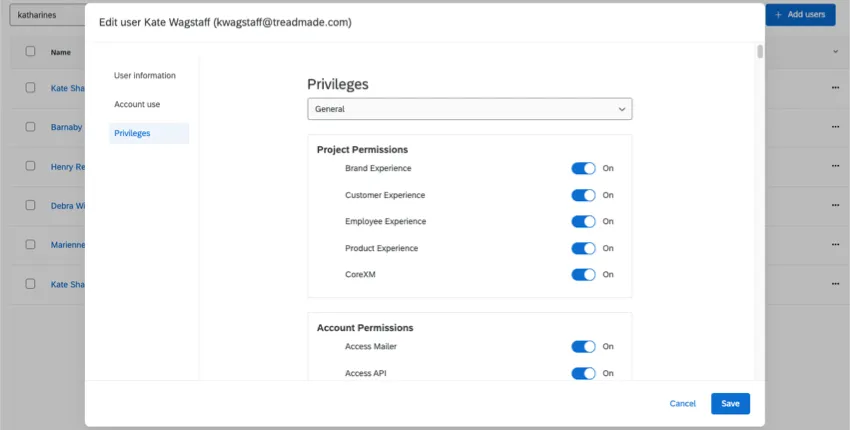
Remember to Save all changes.
FAQs
What does this permission mean?
What does this permission mean?
Once you're on the User, Group, & Division Permissions page, perform a page search to quickly find the permission you're interested in. To perform a page search, press Cmd + F on Mac or Ctrl +F on PC.
I know this user has a Qualtrics account, but why can’t I find them?
I know this user has a Qualtrics account, but why can’t I find them?
- The account it is in a different organization/license (e.g., the user made a free account instead of an account in your license).
- There is a different username, name, or email associated with the account than anticipated (e.g., searching the username field for qualtricsdemo@qualtrics.com doesn’t work because the actual username is qualtricsdemo#qualtrics).
- The user has more than one account and the account information being used to search is for the incorrect account.
- The account has been deleted.
I noticed a specific permission is grayed out for a user; why can’t I give this user that specific permission?
I noticed a specific permission is grayed out for a user; why can’t I give this user that specific permission?
What are coupon codes typically used for?
What are coupon codes typically used for?
How do I edit a user?
How do I edit a user?
For more information, visit the Managing Existing User Accounts section of the Creating and Managing Users support page.
To edit users, you must be a Brand Administrator. Reach out to your Brand Administrator if you need assistance.
How do I transfer ownership of a survey from one user to another?
How do I transfer ownership of a survey from one user to another?
If you would like to transfer only a specific survey between accounts, click on the username of the survey owner and select View Account Use Info. This will allow you to find the survey you would like to transfer; select Change Owner on the right side of the survey.
For more information, visit the Changing Project Ownership section of the Creating and Managing Users support page.
To transfer surveys between accounts, you must be a Brand Administrator. Reach out to your Brand Administrator if you need assistance.
How can I tell what surveys one of my users own?
How can I tell what surveys one of my users own?
To see what surveys a particular user has in their account, you must be a Brand Administrator. Reach out to your Brand Administrator if you need assistance.
How do I send a password reset email to one of my users?
How do I send a password reset email to one of my users?
If you are looking to reset your own password from the login screen, select Reset here under your password input. This will send a reset password email to the email associated with your account.
How do I undelete surveys for a user?
How do I undelete surveys for a user?
To undelete surveys for a user, you must be a Brand Administrator. Reach out to your Brand Administrator if you need assistance.
I received an email that my account was disabled. How can I recover it?
I received an email that my account was disabled. How can I recover it?
How can I see what activity occurred within a particular account?
How can I see what activity occurred within a particular account?
If I uploaded a Qualtrics user in the Admin page first, will they be automatically added to my CX directory?
If I uploaded a Qualtrics user in the Admin page first, will they be automatically added to my CX directory?
Yes, if you upload a user to the Admin page first, that user will automatically be added to your CX Directory (your CX Dashboards' User Admin page).
Conversely, if you create a user through the User Admin page of a dashboard project, that user will also be automatically added to your Admin page, too.
I uploaded Qualtrics users in the Admin page first. How do I link these users to CX dashboards?
I uploaded Qualtrics users in the Admin page first. How do I link these users to CX dashboards?
First, make sure you include a Username column in your file. The values in this column should match the usernames you gave these same people on the Admin page. Then upload these users to the dashboard's User Admin by following these steps.
That's great! Thank you for your feedback!
Thank you for your feedback!