

Question Behavior
What's on this page
About Question Behavior
For each question in a survey, you can enable behavior that enhances your survey design, such as randomizing answer choices, hiding the question based on certain conditions, adding default choices, and more.
To access question behavior, either right-click on the question or use the Edit question pane to the left of your selected question.
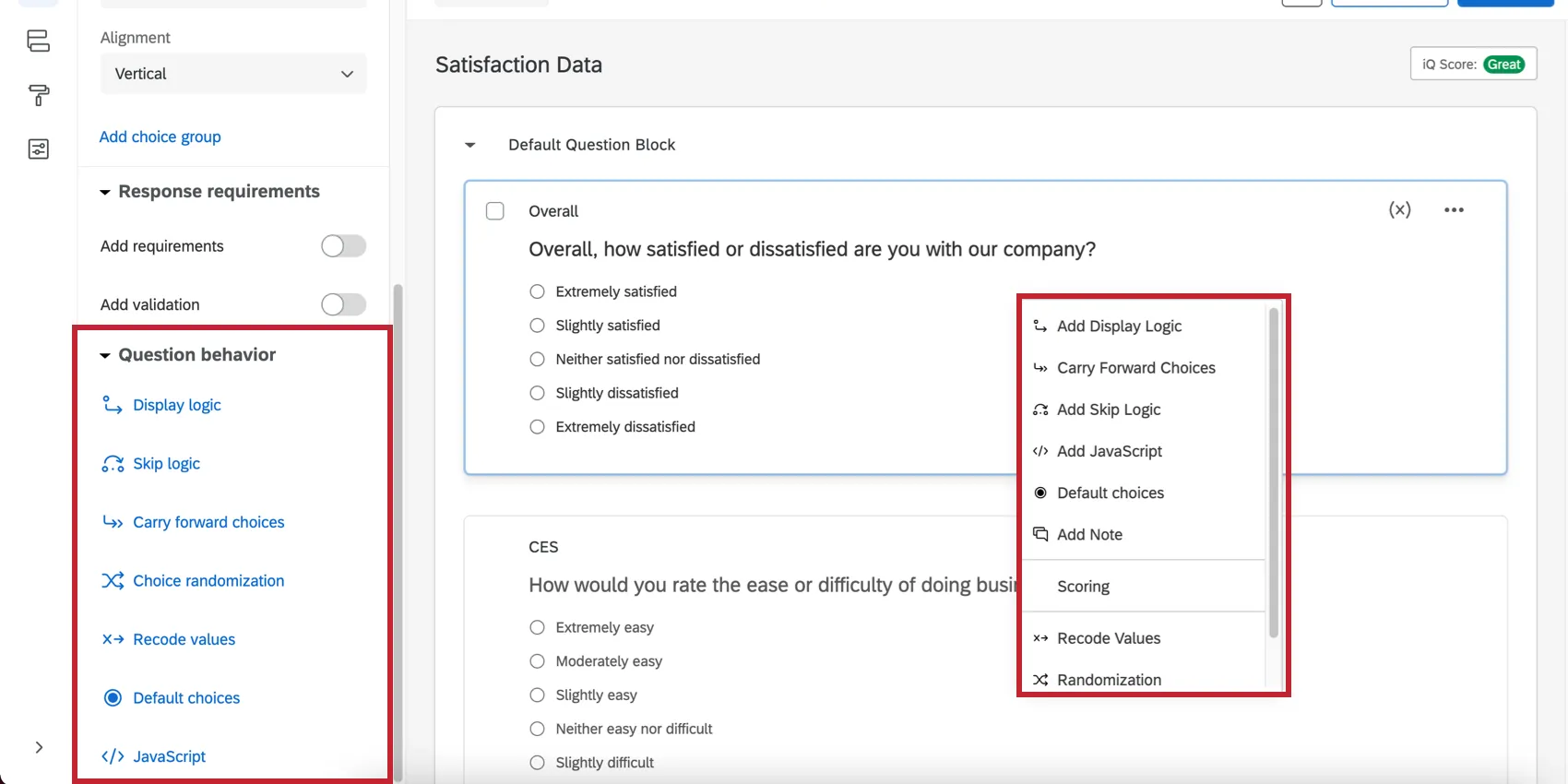
Available Question Behavior
Qtip: Note that the options available under the Question behavior section will differ depending on the question type of the selected question.

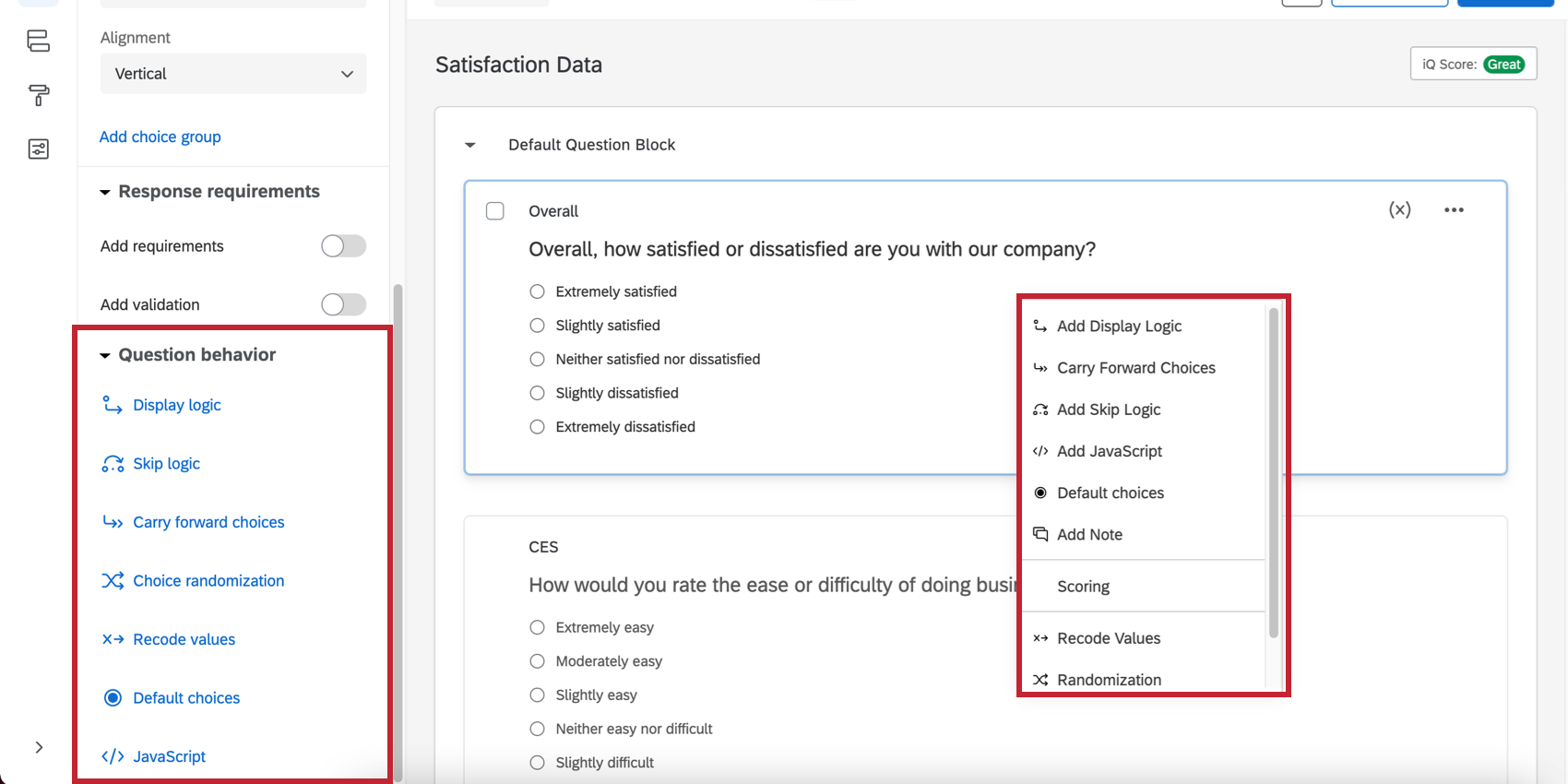
These options can be accessed in the leftmost Question behavior menu and by right-clicking on the question:
- Display logic: Show your question conditionally based on previous information.
- Skip logic: Send respondents to a future point in the survey based on how they answer the selected question.
- Carry forward choices: Carry forward allows you to copy specific answer choices from one question and bring them into a future question in your survey. Attention: Carry Forward is not available for EX projects since it is incompatible with dashboard scales.

- Choice randomization / Randomization: Set your choices to display in a random order.
- Recode values: Use this option to change the default numeric values or variable names for your answer choices. The coding you set here will be reflected in your reports and raw data, and is used to calculate all statistics. Not all question types can be recoded, so this option won’t appear if it’s not one of the compatible types.
- Default choices: You can use default choices feature to pre-populate answer choices within a question when the respondent opens the survey.
- JavaScript: Add JavaScript to the selected question. Warning: Custom coding features are provided as-is and may require programming knowledge to implement. Our support team does not offer assistance or consultation on custom coding. You can always try asking our community of dedicated users instead. If you’d like to know more about our custom coding services, please contact your Qualtrics Account Executive.
Additional options that appear when you right-click on the question:
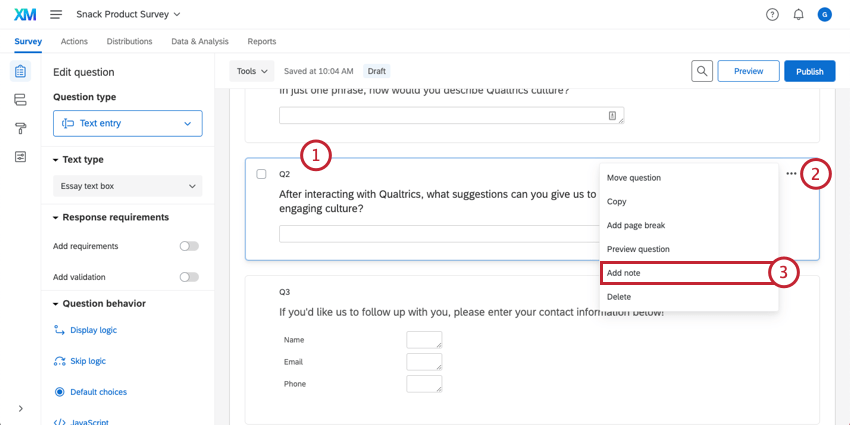
- Add Note: Add comments to questions, either for your own benefit, or for other collaborators to see. These notes won’t be displayed on the survey itself.
- Scoring: Add scoring to a question. If a question can’t be scored, this option won’t appear.
- Add Choice Group: Group answer choices together. Only available for multiple choice and matrix table questions.
Adding & Removing Notes
If you’ve invited colleagues to collaborate on a survey with you, notes can be a good way to leave feedback and questions for each other while editing the survey.
Any notes you add to the survey are only visible to other people who can edit the survey. Respondents and those previewing the survey won’t see these notes. Notes can only be viewed within the survey editor, and can’t be exported.
Qtip: Be careful that you and your collaborators do not edit the survey at the exact same time, or you might override each other’s changes.
Adding Notes
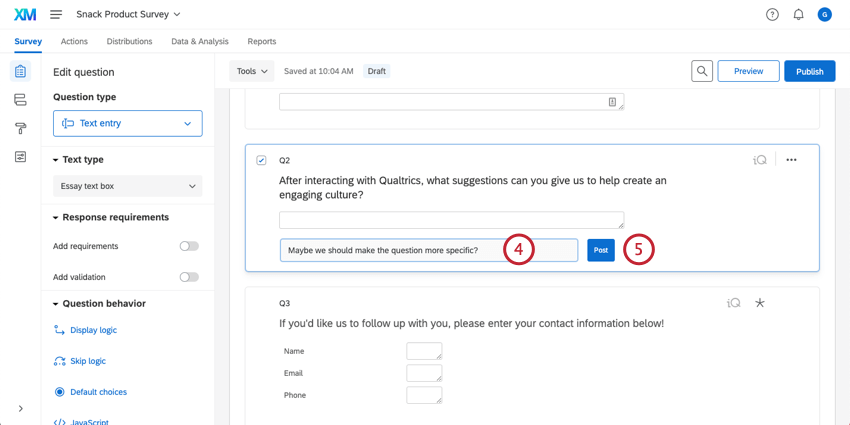
Once the note is added, the first and last name of your account will be added next to it so collaborators can tell who left the note. There will also be a timestamp in the note.
Deleting Notes, Hiding Notes, and Adding More Notes
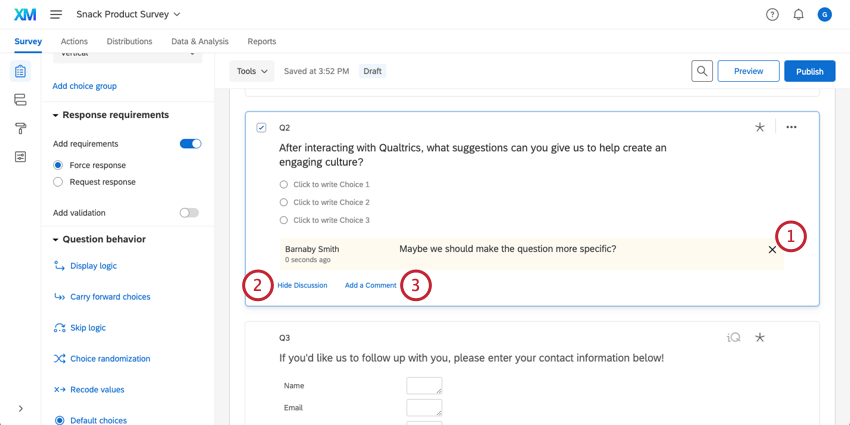
Qtip: This option is best for when there’s a long thread of comments that makes scrolling through the editor cumbersome.
Question Behavior in Different Project Types
This type of question behavior is available in many different types of projects. The options described on this page are available in:
There are a few other projects that have access to question behavior, but with unique functionality to keep in mind.
- For Pulse, see Features Available in Pulse Surveys.
- For 360 projects, see Question Behavior (360).
- For Conjoint and MaxDiff, see this support page.
FAQs
Why are my recode values all out of order?
Why are my recode values all out of order?
After you collect your first response, the recode values won't automatically update to be in a sequential order so as to protect your collected data.
So, if you make three options—we'll say Red, Yellow, and Blue—your recode values initially are 1, 2, and 3. If you delete Yellow and add Orange, Orange is the fourth option and has a recode value of 4. Your recode values are now 1, 3, and 4. If you move Red so that it’s the last listed option, your recode values are now 3, 4, and 1.
However, you can change the recode values at any time without affecting your data. You will see the updated values the next time you download your data or view your results.
Why are my page breaks being ignored?
Why are my page breaks being ignored?
- Questions per Page set in the Look and feel
- Question randomization set up in a block
- Skip logic, display logic, and carry forward (all 3 by default will insert a page break)
Why is my HTML, CSS, and JavaScript not working in my free / trial account?
Why is my HTML, CSS, and JavaScript not working in my free / trial account?
I am having trouble setting up logic to display a question or set of questions to a specific subset of my respondents.
I am having trouble setting up logic to display a question or set of questions to a specific subset of my respondents.
I want to hide or show questions for different respondents based on their answers or Embedded Data. How can I do this?
I want to hide or show questions for different respondents based on their answers or Embedded Data. How can I do this?
What are the numbers in my exported data file, and can I change them?
What are the numbers in my exported data file, and can I change them?
I want to remove a question or answer choice from a survey, but I’ve already collected some data. What do I do?
I want to remove a question or answer choice from a survey, but I’ve already collected some data. What do I do?
That's great! Thank you for your feedback!
Thank you for your feedback!