

Insights Explorer
What's on this page
Attention: This feature is only available to users on the new simplified pricing and packaging plans or customers who actively participated in the Preview Program for this feature. For more information, see Qualtrics Public Preview. If you have questions about your Qualtrics pricing and packaging plan, reach out to Account Services.

About Insights Explorer
Insights Explorer is an AI-powered text analytics tool that uses your open-ended feedback to identify top themes, create headlines, and generate helpful summaries. This feature can help you understand large text datasets faster than ever, and is a great starting point for analysts working with unstructured feedback data.
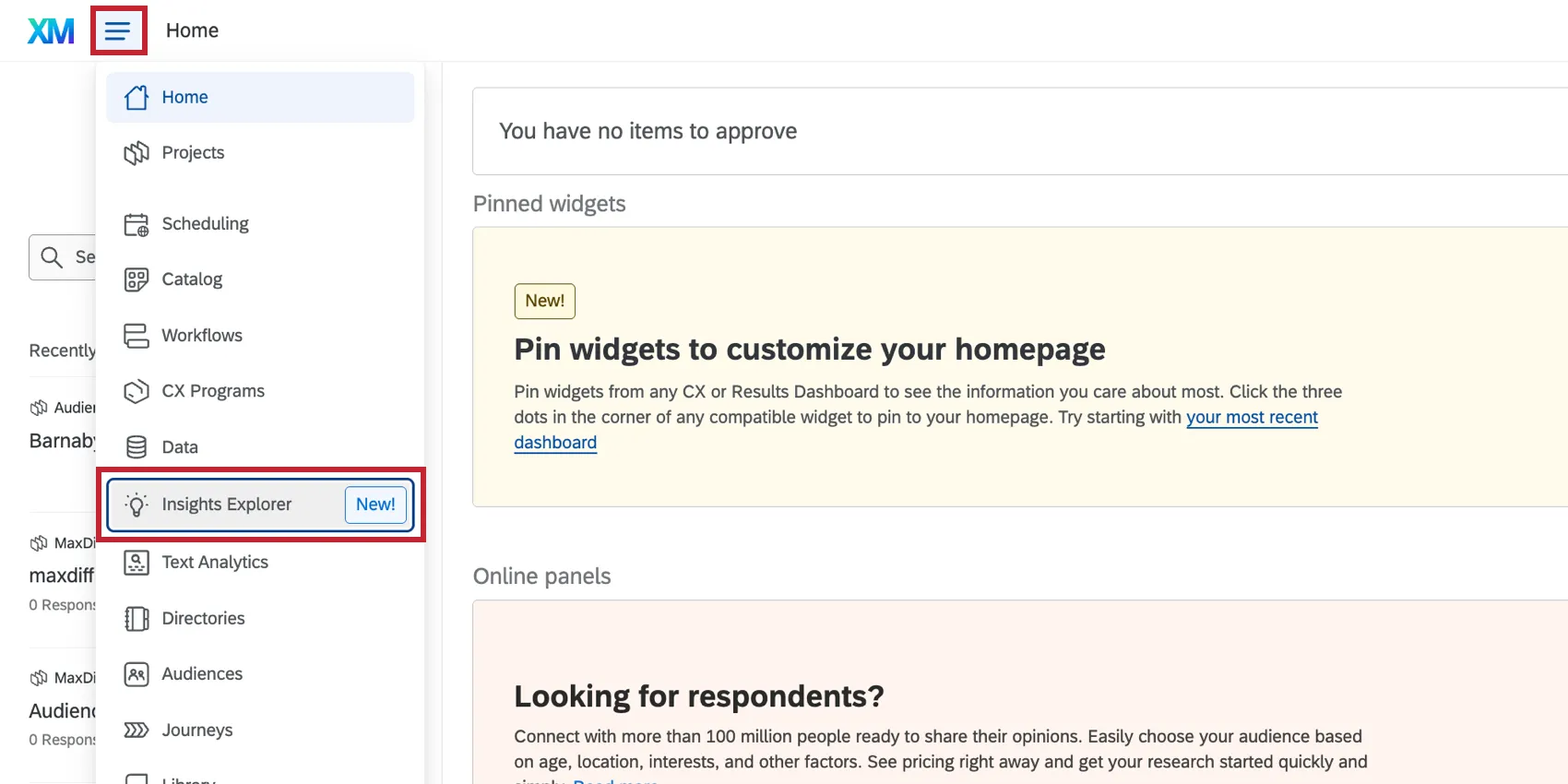
You can access Insights Explorer by clicking the navigation menu in the top lefthand corner of your account.
Qtip: While we have guardrails in place and are continually refining our products, artificial intelligence may at times generate output that is inaccurate, incomplete, or outdated. Prior to using any output from Qualtrics’ AI features, you must review the output for accuracy and ensure that it is suitable for your use case. Output from Qualtrics’ AI features is not a substitute for human review or professional guidance.
Attention: Insights can only be generated on open text data.
Before You Create Insights
Attention: To use this feature with projects you own, you need the Use Insights Explorer user permission enabled in your Qualtrics account (this permission is enabled by default for Brand Administrators). For any projects shared with you, you’ll also need the “View Text Analysis” and "View Survey Results" collaboration permissions enabled to generate insights from that project.
You can create insights on any projects you own or have been shared with you, provided you have the correct permissions. You may also find it useful to have processed your data through Text iQ, although any open text field can be used.
Any type of project with open text fields can be used for generating insights. That includes:
- Survey projects
- Imported Data projects
- CX Dashboards
- Engagement
- Lifecycle
- Ad Hoc Employee Research
- Ticket Datasets

Qtip: If you have questions about using XM Discover projects with Insights Explorer, please reach out to Account Services.
Attention: We recommend having at least 100 feedback responses in your dataset before you can generate insights, which will maximize theme cohesion and clarity. Insights Explorer can sometimes operate below that threshold if you have rich feedback; if you have a smaller dataset, then choose the “Concise summary” insight.
Supported Languages
Insights explorer supports data in English, French, Spanish, German, and Japanese for your data input. Your dataset can contain multiple languages that will be analyzed without requiring manual translation beforehand. This applies to insights generated in both the XM platform and XM Discover.
Qtip: Insights Explorer dynamically routes jobs based on the insight definition and data selected. Depending on the selections and dataset languages, the data may be routed either through a first-party model or through a third-party model. For more details, please see the FAQs below.
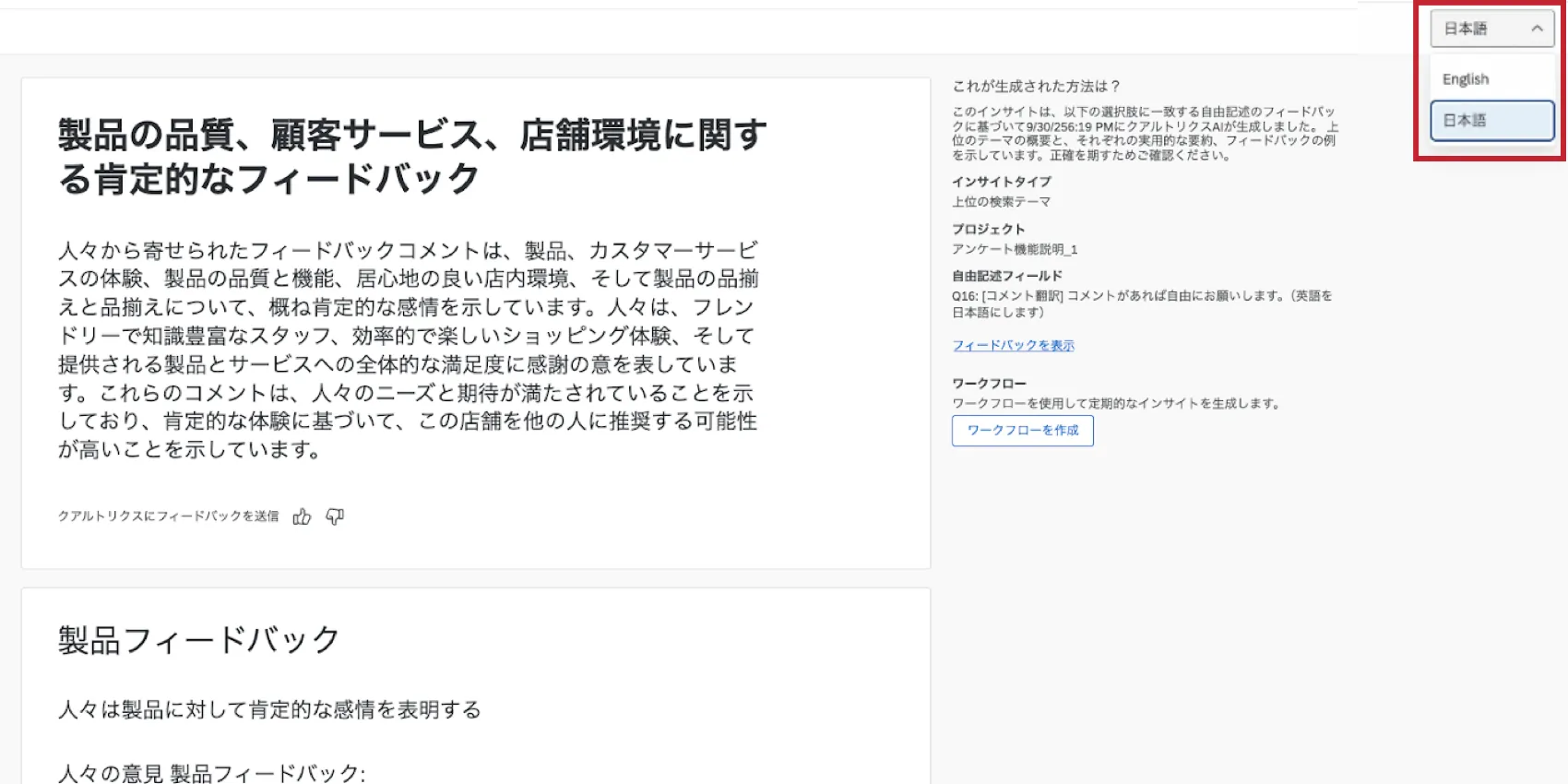
Outputs are available in all XM platform supported languages. By default, the output will be in your account language which is set in your user settings. If your output is in a supported language, you can toggle between the translated output and the default English.
Creating New Insights
Follow the below steps to use Insights Explorer:
Log into your Qualtrics.com account.
Go to Insights Explorer.
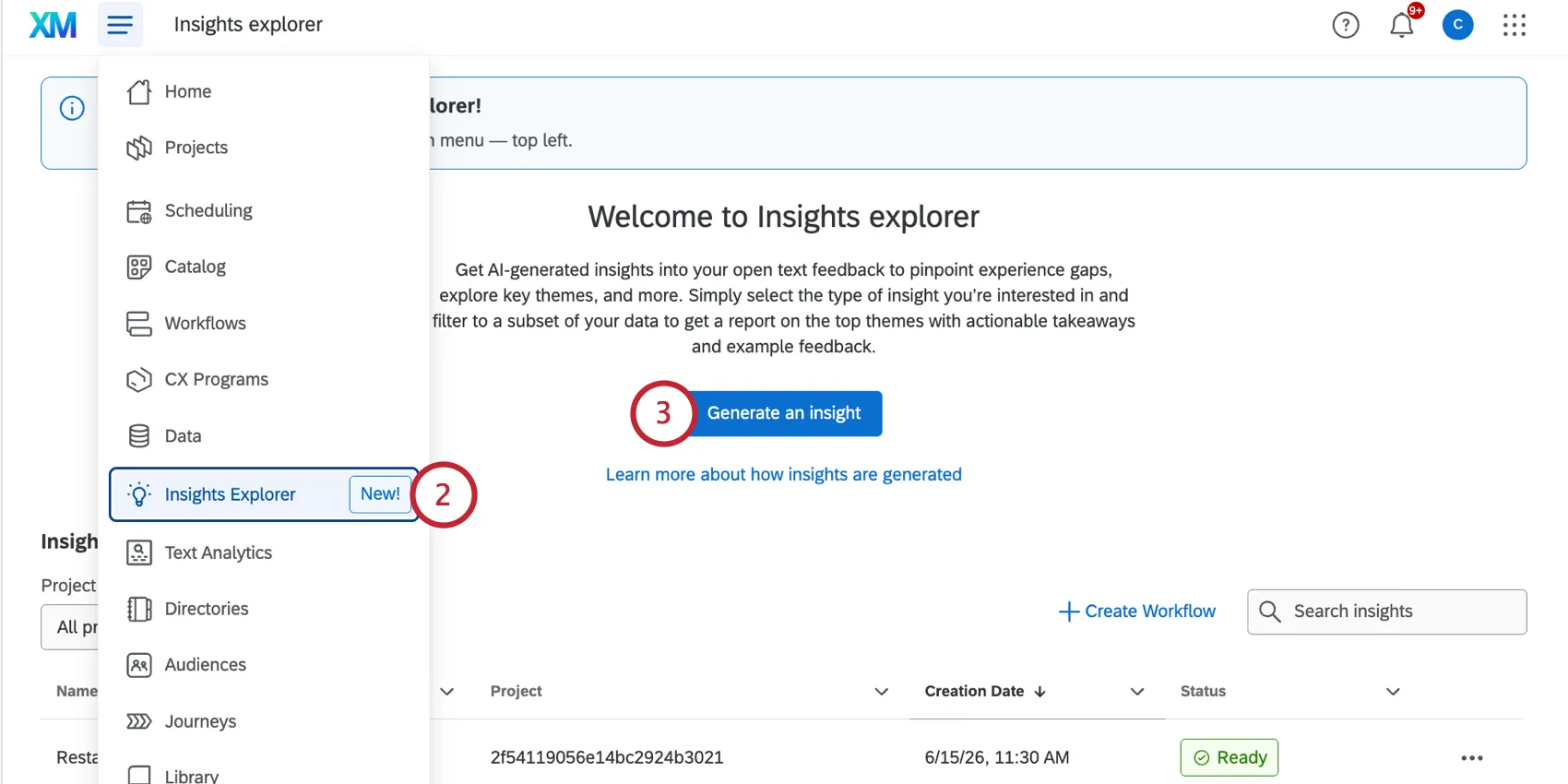
Click Generate an insight.
Choose what kind of insight you want to generate. Your options are:
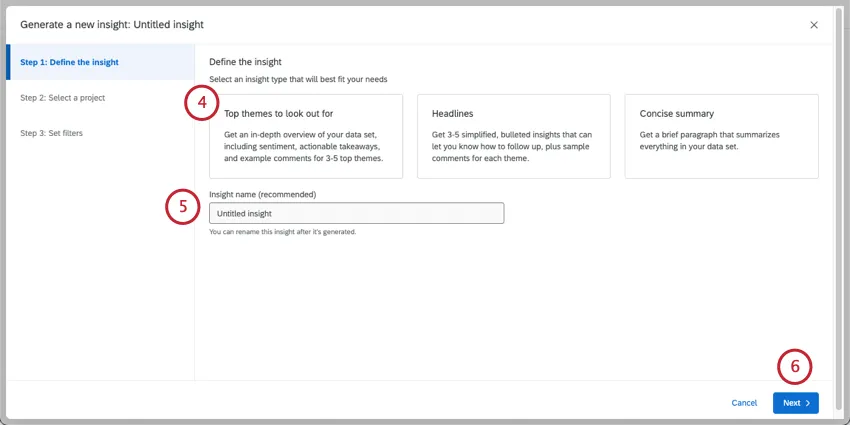
- Top themes to look out for: Generate a high level summary of 3-5 themes with accompanying subthemes, as well as example feedback for each. This output is the most detailed, and is useful if you need a quick report, or if you’re just starting to explore a new dataset.
Qtip: If your dataset is too small to process top themes, this option will automatically be retried as headlines.
- Headlines: Get 3-5 catchy highlights that tell you how to follow up. Each insight comes with an example of a customer verbatim that matches it.
- Concise summary: Get a brief paragraph that summarizes the main takeaways of your dataset.
Name your insight.
Click Next.
Select the Qualtrics project.
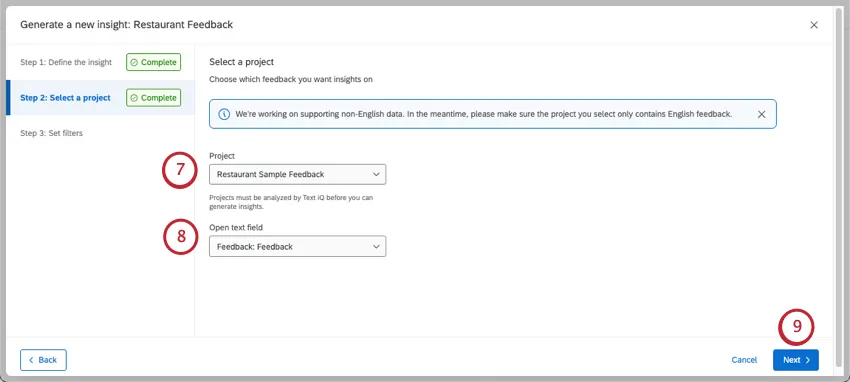
Qtip: All the Qualtrics data you have access to will appear in this list, not just ones with Text iQ. However, you will not be able to generate an insight if you try to select data without open text.
Select an open text field. An open text field is the specific question you want to analyze, where you let respondents write out their feedback.
Qtip: Common open text fields include text entry questions, text embedded data, and open text dashboard fields.
Click Next.
If you’d like, you can use one of our preset enrichment filters to narrow down the data you’re analyzing. Note that enrichment filters are only available when Text iQ is enabled or from an XM Discover project.
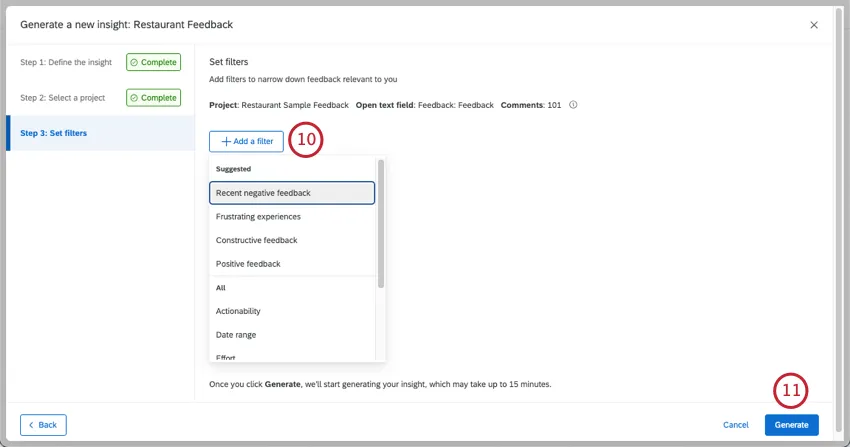
Click Generate.
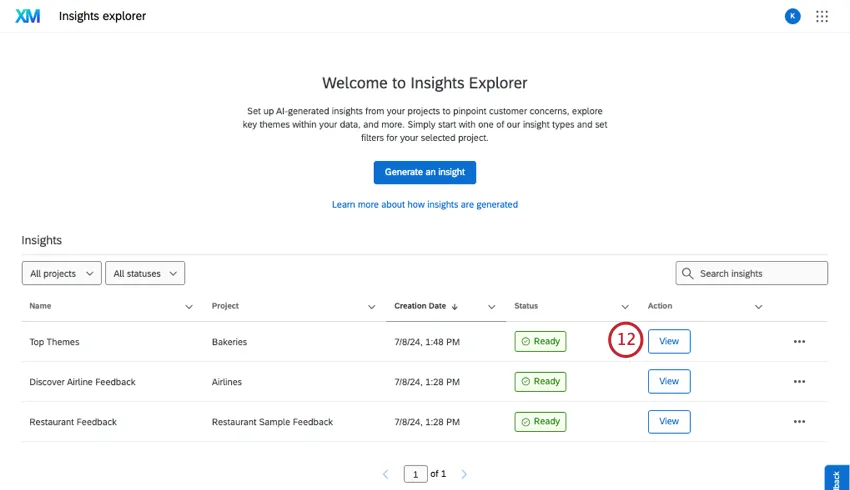
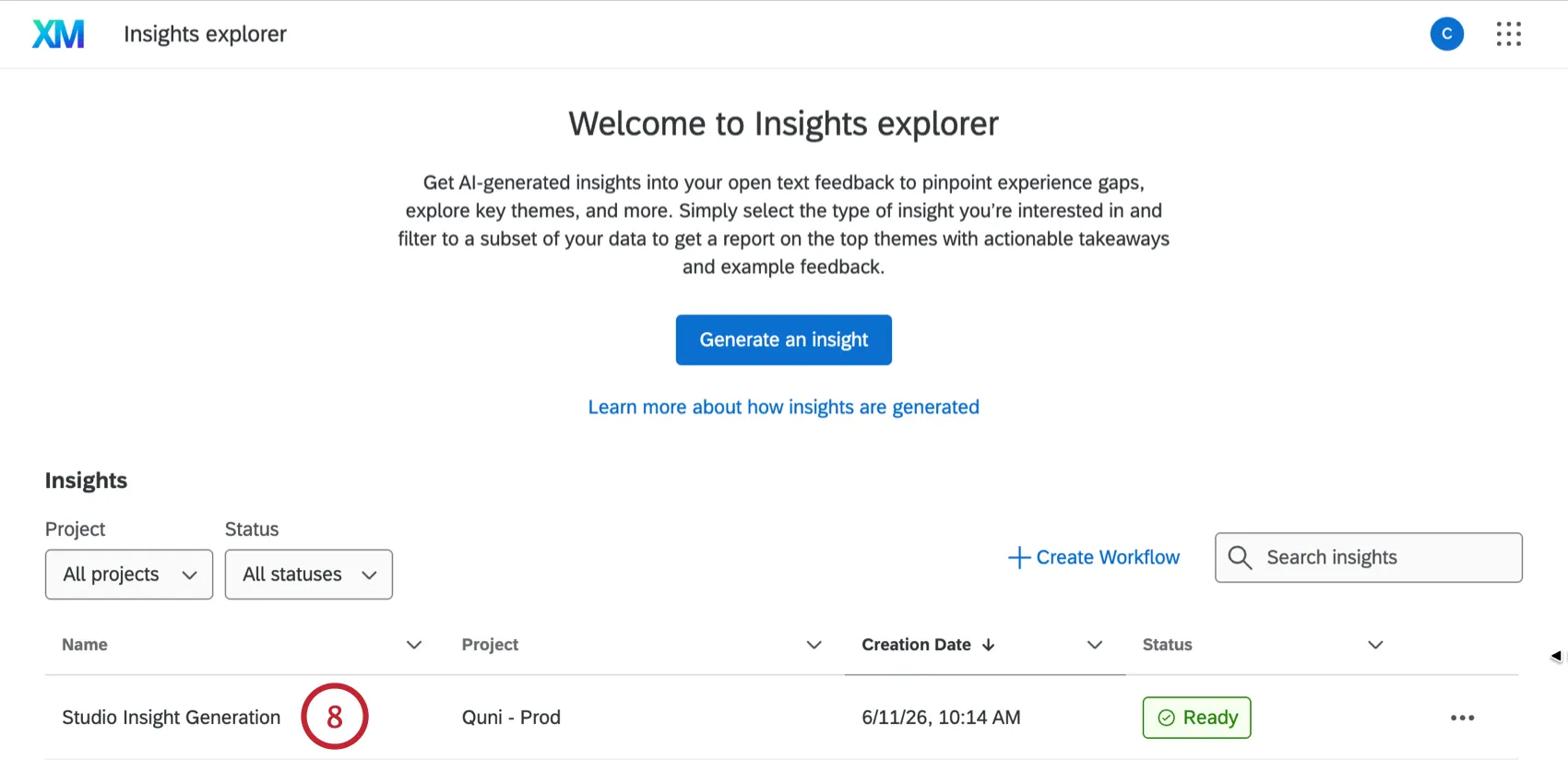
The insight may take time to prepare. Once it says it’s Ready, you can click View to see the results.
Qtip: Insights are generated by sampling the available comments, not by analyzing all of them. Therefore, multiple insights generated from the exact same data (same filters, sources, etc.) can yield different results.
Video Walkthrough
Need help using Insights Explorer? Check out this 2-minute walkthrough video:
For questions and discussions about Insights Explorer, visit the Qualtrics Experience Community AI Center, where you can connect with other Qualtrics users about all things AI.
Insights Filters
You can use filters to narrow down your data when you generate insights. You can only choose from the list of filters provided. You can add multiple filters at a time.
These filters are based on text and enrichment data, such as:
- Date range
- Actionability
- Effort
- Emotion
- Emotional intensity
- Sentiment
- Topics
- Embedded data filters (Text Set, Number Set, or Multi Answer Text Set)
Suggested filters are created based on these enrichments. For example, “Frustrating experiences” refer to feedback where the customer shows high effort and where the emotion frustration is detected.
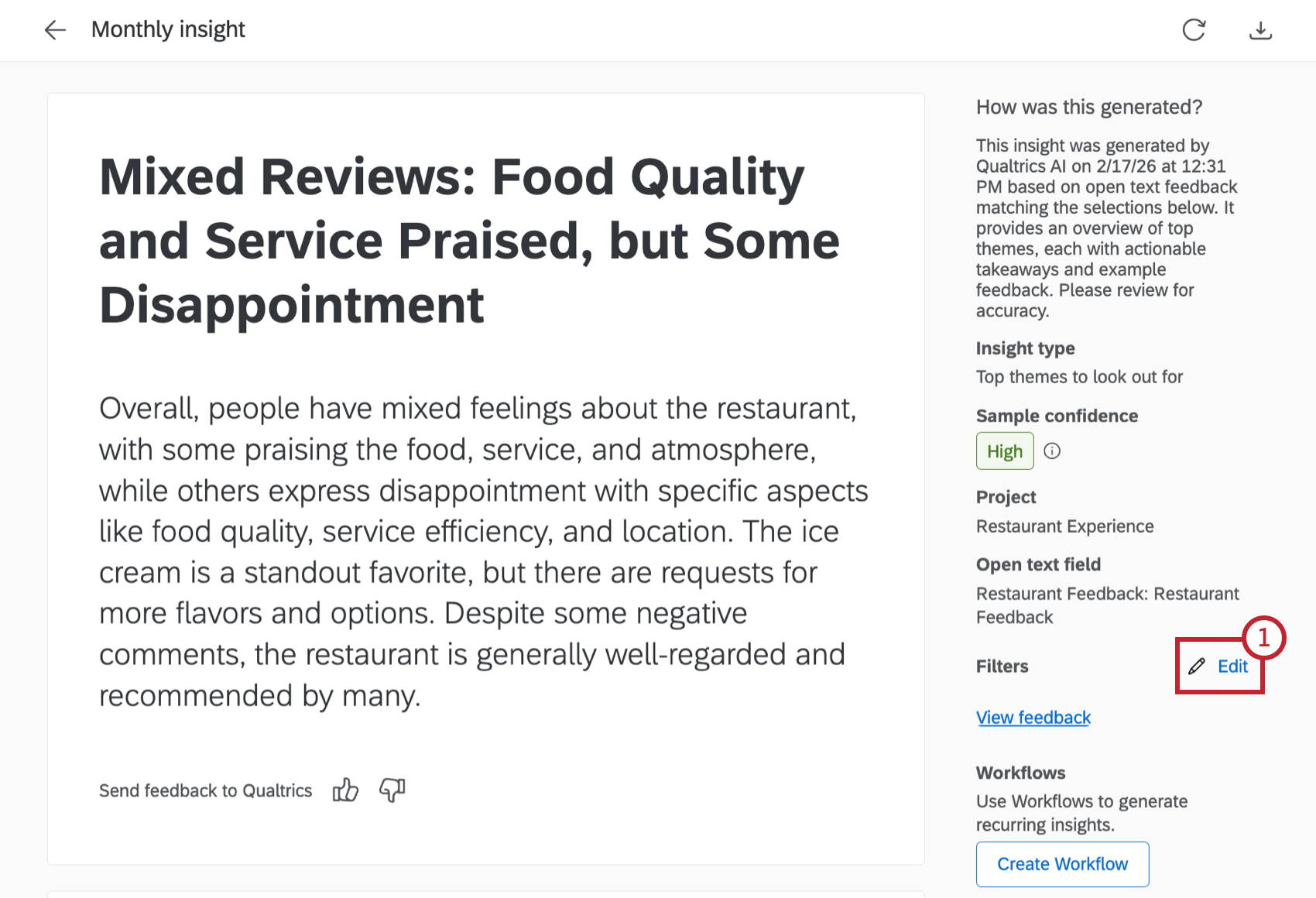
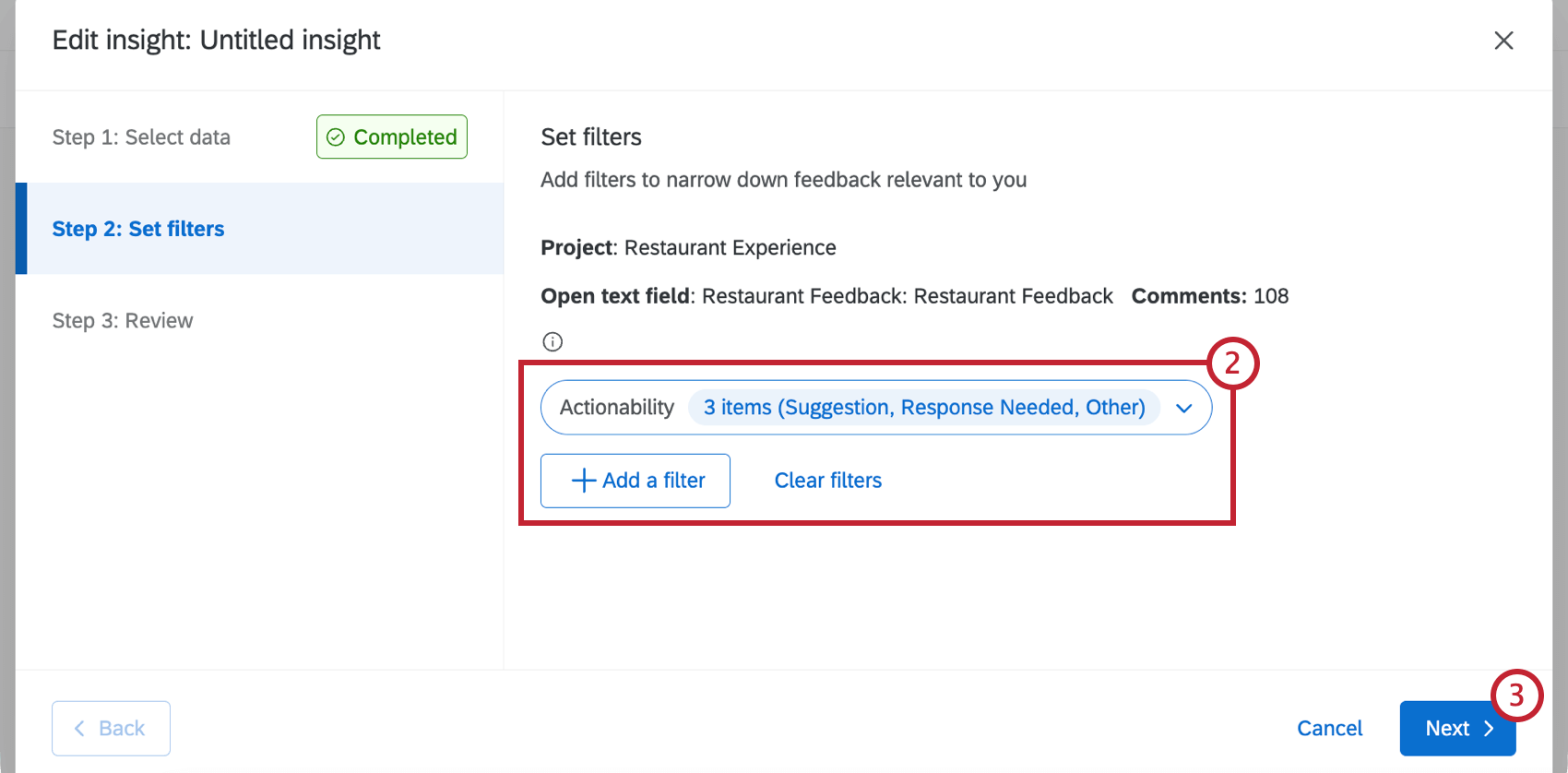
You can adjust the filters applied to your insight at any time. Adding a new filter will cause the insight to regenerate. See the Editing Insights section of Managing Existing Insights for instructions.
Qtip: As you filter down your data, the insight explorer will show you the number of comments that match the filters for Qualtrics data, or the number of sentences for Discover.
Qtip: Insights explorer supports enumerable filter types in the Qualtrics Platform. If you can’t find your embedded data while creating a filter, check that the field type is a Text Set, Number Set, or Multi Answer Text Set. Fields in field groups are not supported. XM Discover attributes are not fully supported. We recommend using structured model rules instead.
Managing Existing Insights
Viewing Insights
The insights you see on the Insight Explorer page are unique to your account. On this page, you can view insights you’ve generated in the past. You can also:
- Filter insights by project.
- See the date insights were generated.
- See whether insights are ready to view (status).
- Search insights by name.
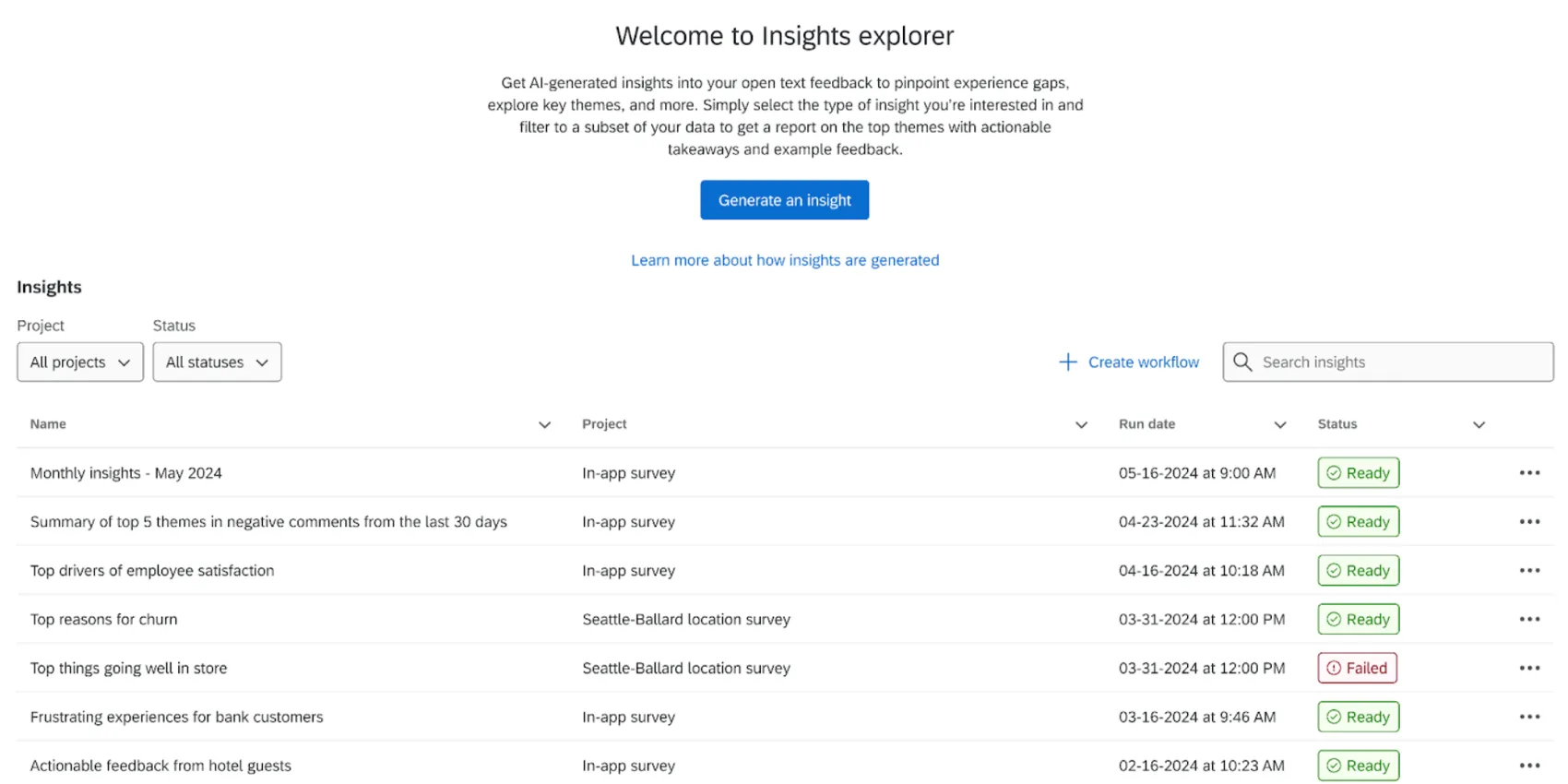
By default, insights do not update as new data comes in. Instead, they serve as snapshots of the data at a moment in time.
You can use the Generate an Insight task to regenerate an insight on a recurring basis. This generates a new version of the insight that you can switch between. Click Create workflow to be brought to the Workflows page, and follow the previously linked instructions to create your workflow.
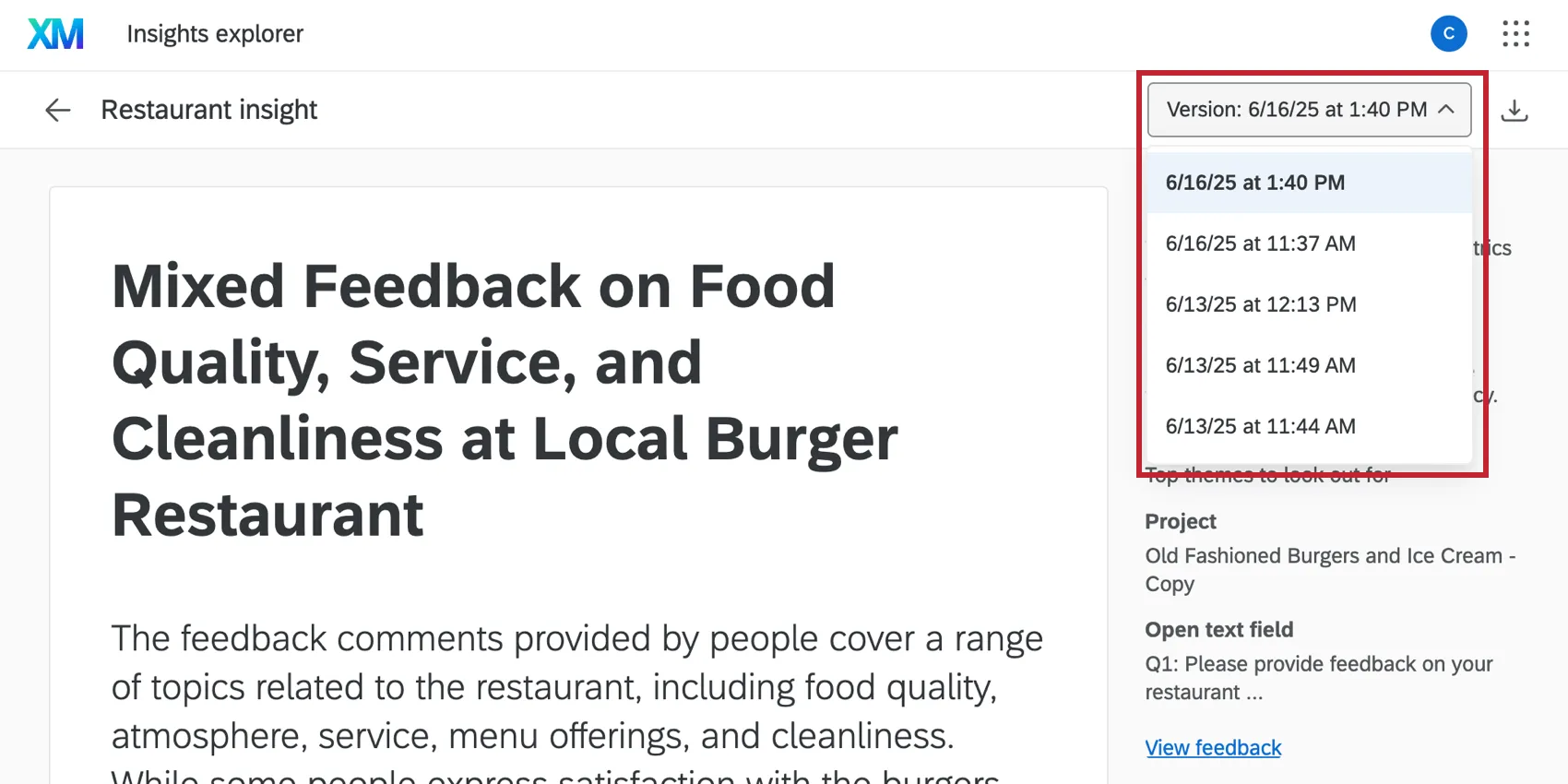
If you’ve generated multiple versions of your insight, then you can switch between them using the dropdown at the top of the page.
Select an insight to see more information about it. The insight summary contains information about how the insight was generated, the inputs for the insight (project, open text field, insight type, and filters), and a Z² sample confidence calculation to estimate how well this sample represents the top themes in your filtered dataset.
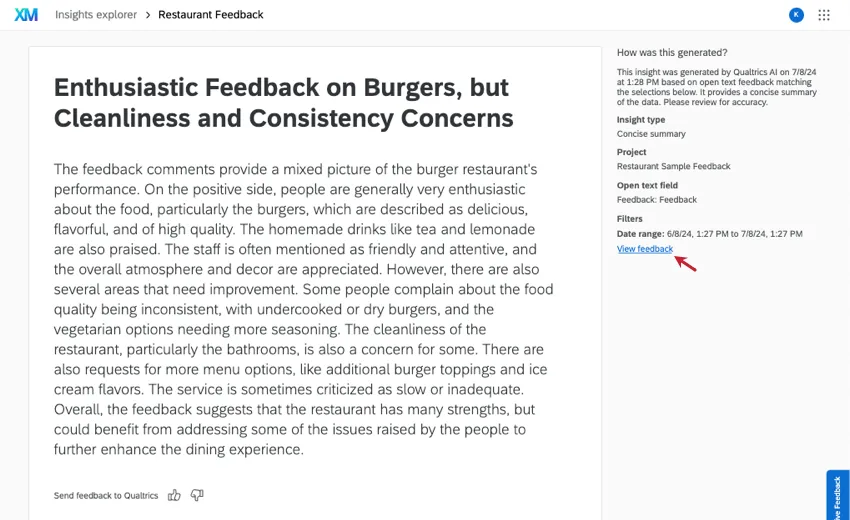
To view the specific comments that were selected by your filters to build these insights, use View feedback.
Qtip: Comments are only available for 30 days after generating insights.
Editing Insights
You can edit the filters applied to your insights after they are created.
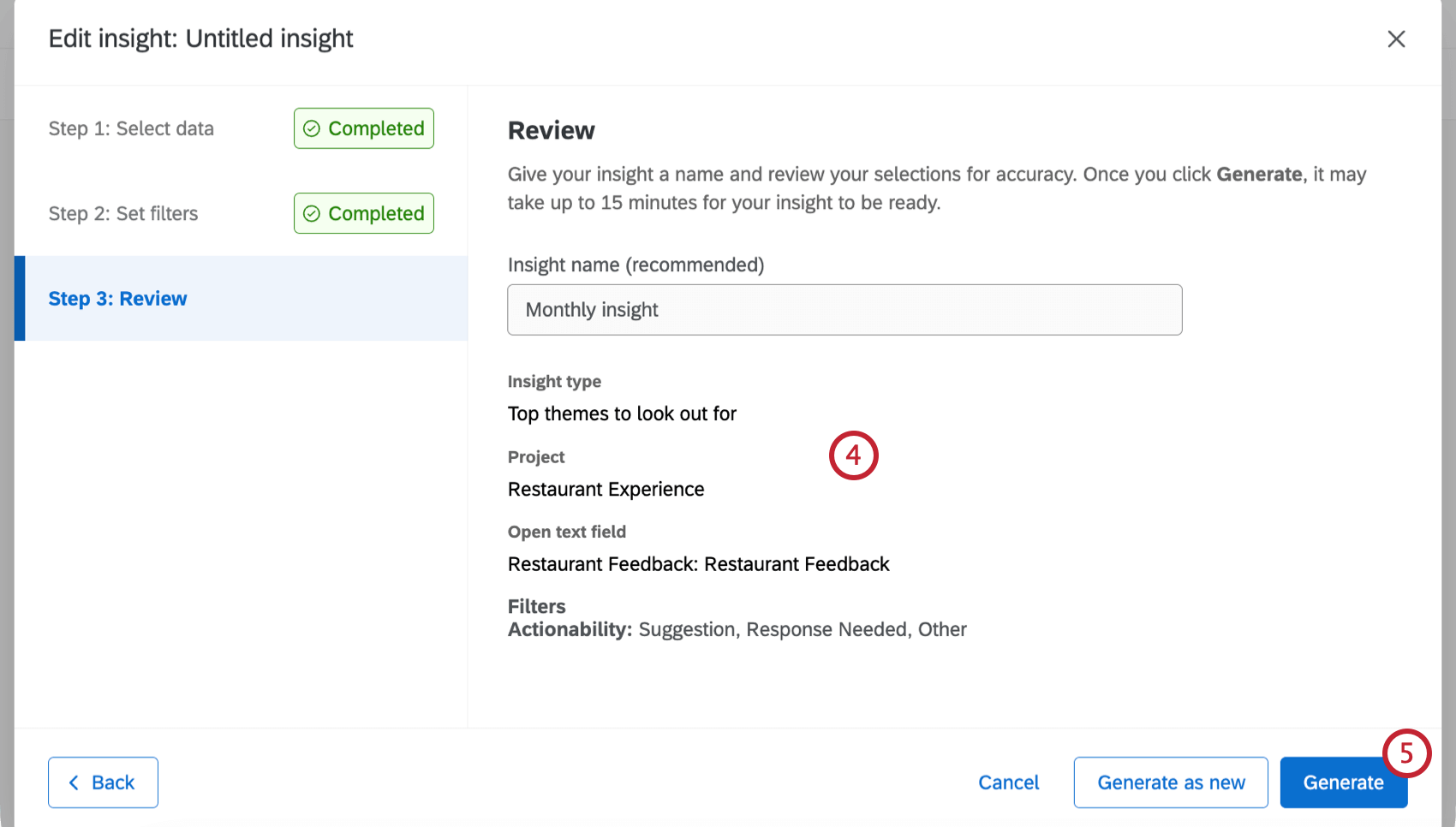
Renaming and Deleting Insights
Click the 3 dots next to an insight to rename it or delete it.
Attention: Deleting an insight removes it permanently from your user account. Do not delete an insight if you think you might need it later.
Sharing Insights
You can download your insights to PDF and can share them via email directly from the Qualtrics platform:
Select the insight you’d like to share.
Click Export.
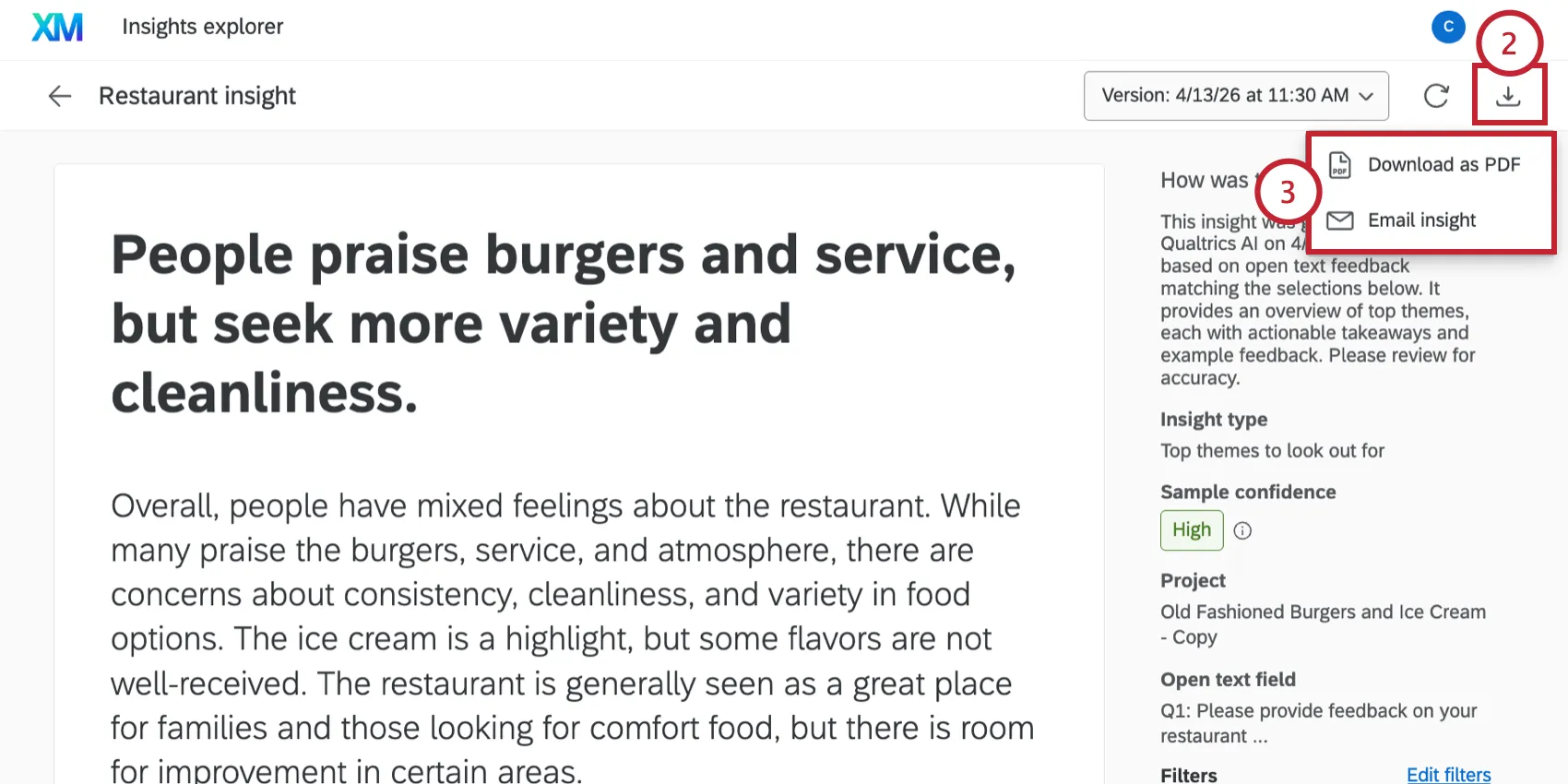
Choose how you’d like to share your insights:
- Download as PDF to save a PDF to your computer.
- Email insight to share the PDF directly via email.
If sharing the PDF via email, customize the email:
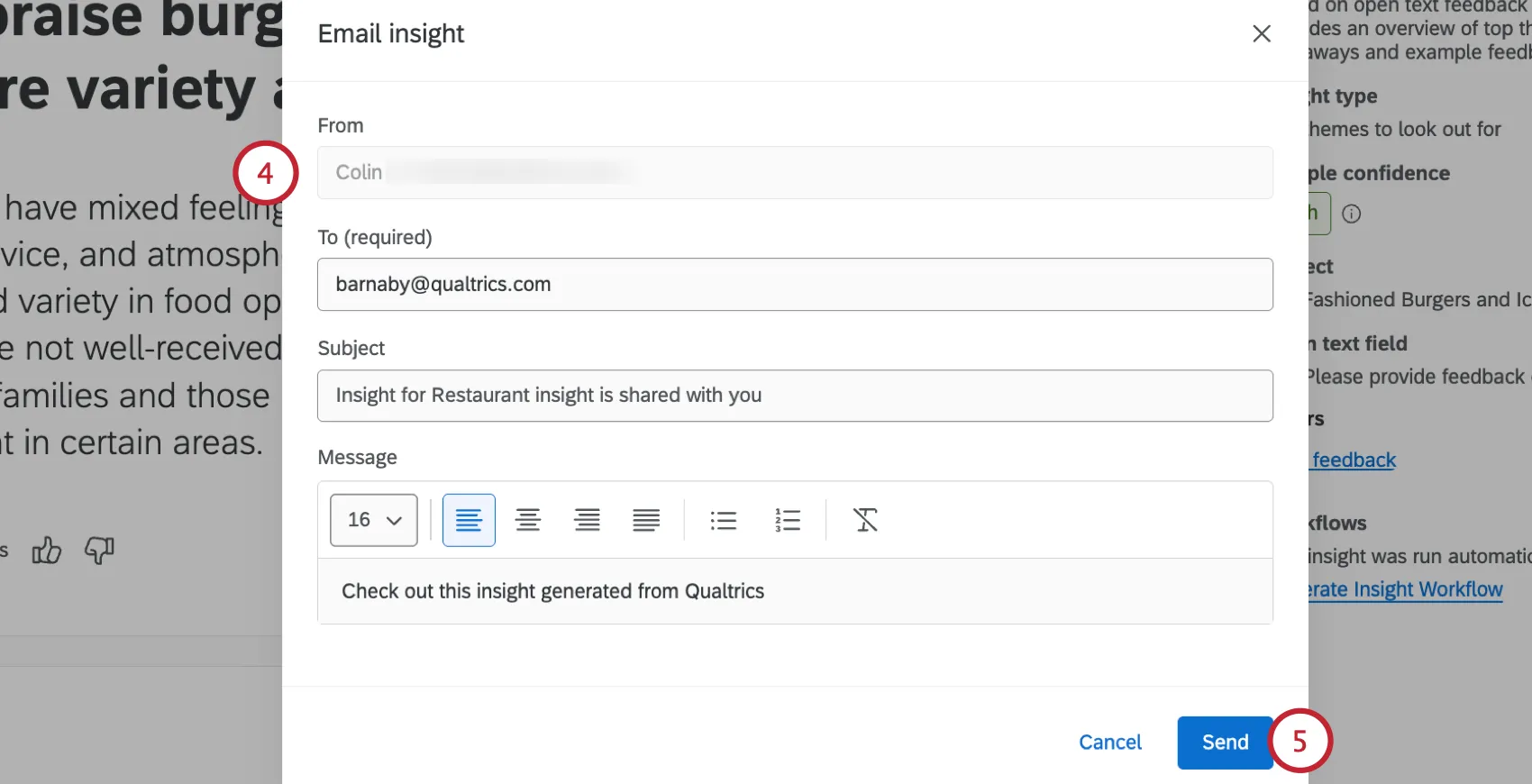
- From: The from name and email address will be the one associated with your Qualtrics account. These cannot be edited directly via this window. To change these, you must update your user settings.
- To: Enter an email address or list of email addresses to receive the PDF. You can add multiple emails with a comma-separated list.
- Subject: Enter the subject line for the email.
- Message: Customize the email body text. A basic text editor is provided to edit the font size, change text alignment, and add lists.
Click Send.
Generating Embedded Insights from Studio Widgets
You can generate embedded insights based on your widgets in Studio in XM Discover. Generated insights will leverage your Studio widget filters to narrow the data scope of the insight. Once you’ve found an interesting insight, you can save it into a new dashboard.
Qtip: Your Studio account needs the following to generate insights:
- Either a Report Creator or Configuration Analyst license type.
- Data access to the relevant project in Discover.
- A linked Qualtrics account with the "Use Insight Explorer" user permission enabled.
- The "Generate Insights" permission in Studio.
If you do not meet these requirements, then you can still generate embedded insights when the permission is enabled for the dashboard, but you will not be able to save new insights.
Click on a data point in any widget that supports drilling.
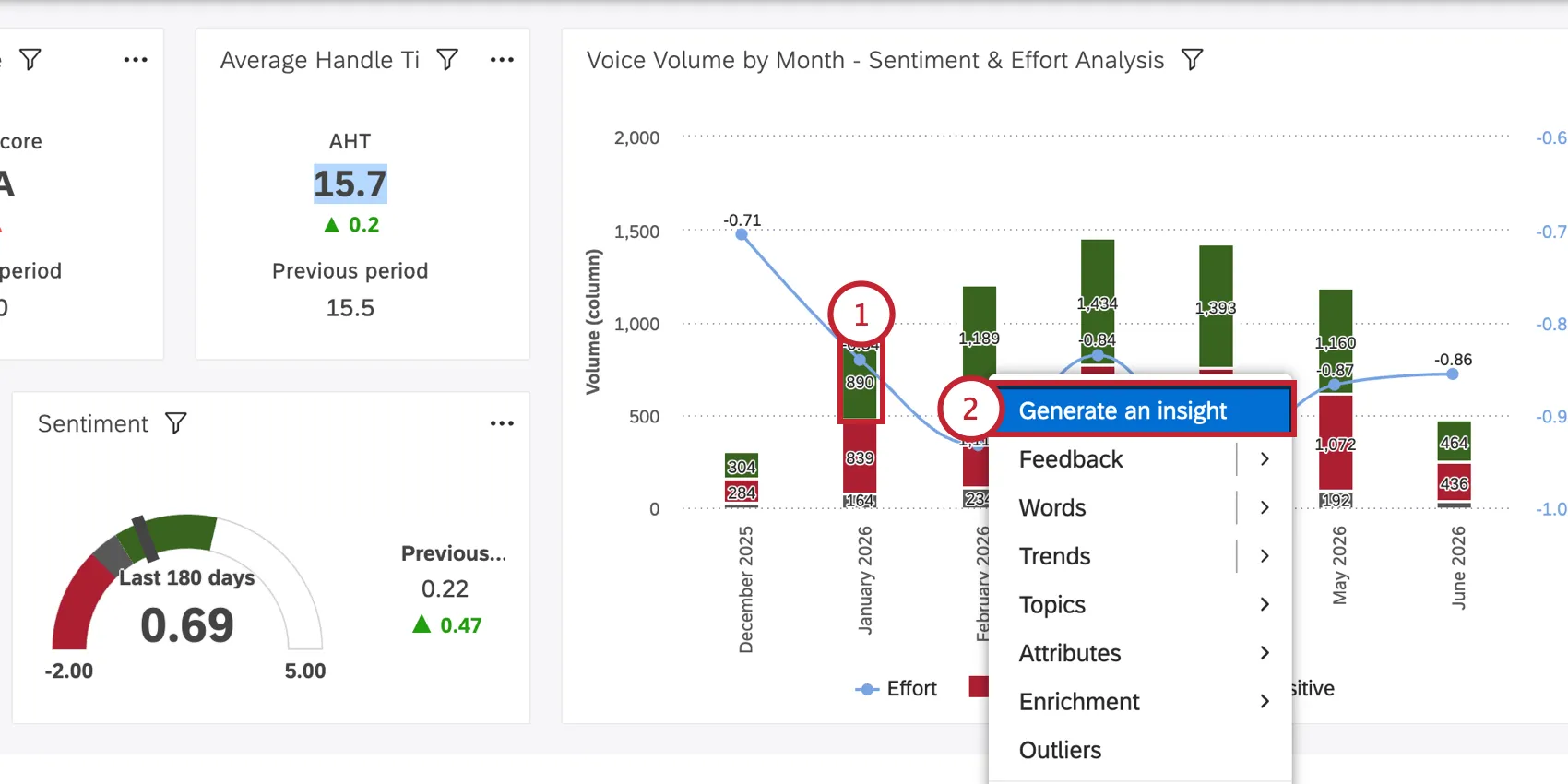
Select Generate an insight.
Refer to the status indicator in the top bar of the dashboard to see if your insight is generating, ready to view, or if something went wrong.
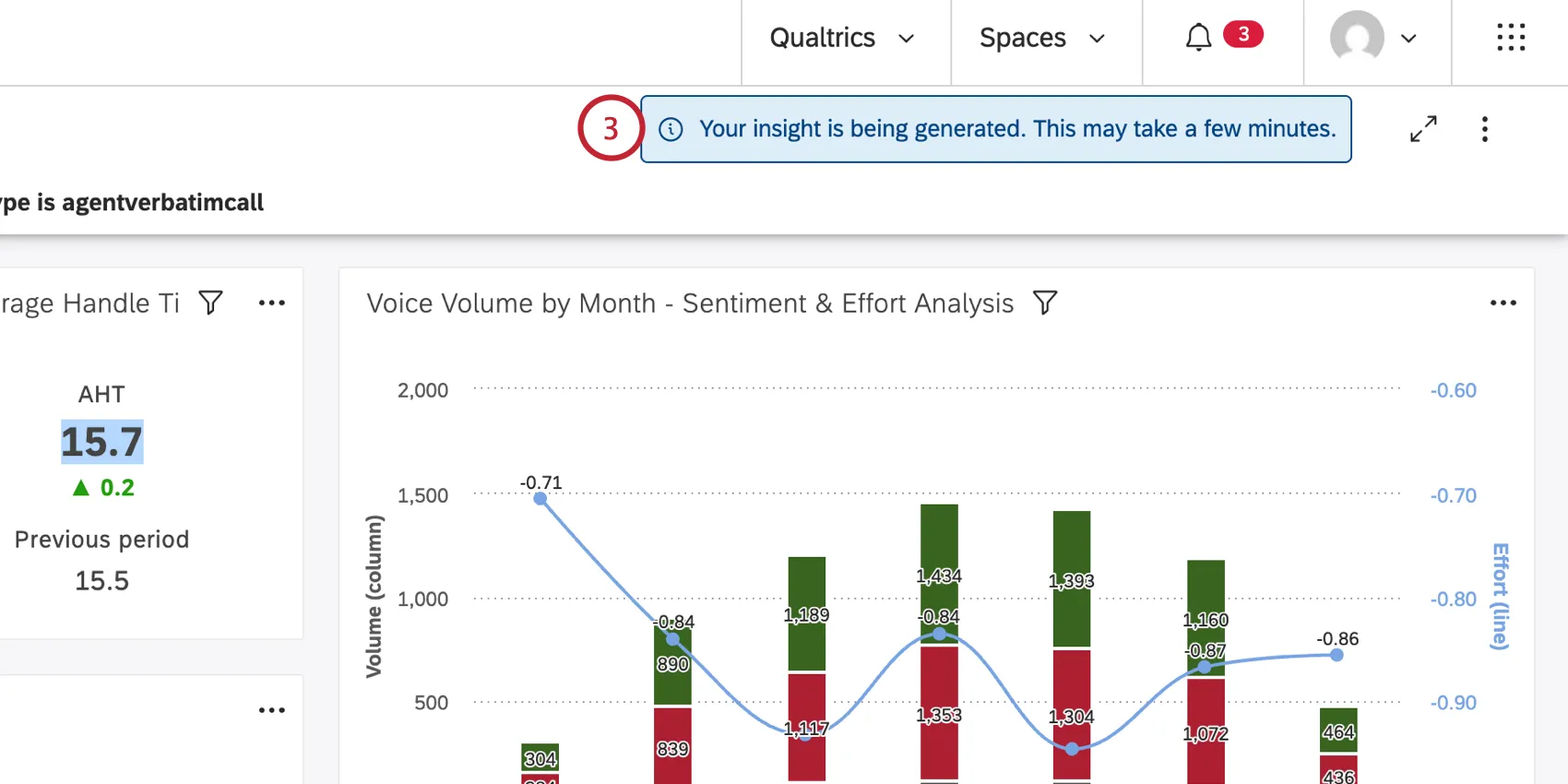
Qtip: Insights are most effective when generated with more than 100 data points. Below this threshold, the insight may fail or provide unexpected results.
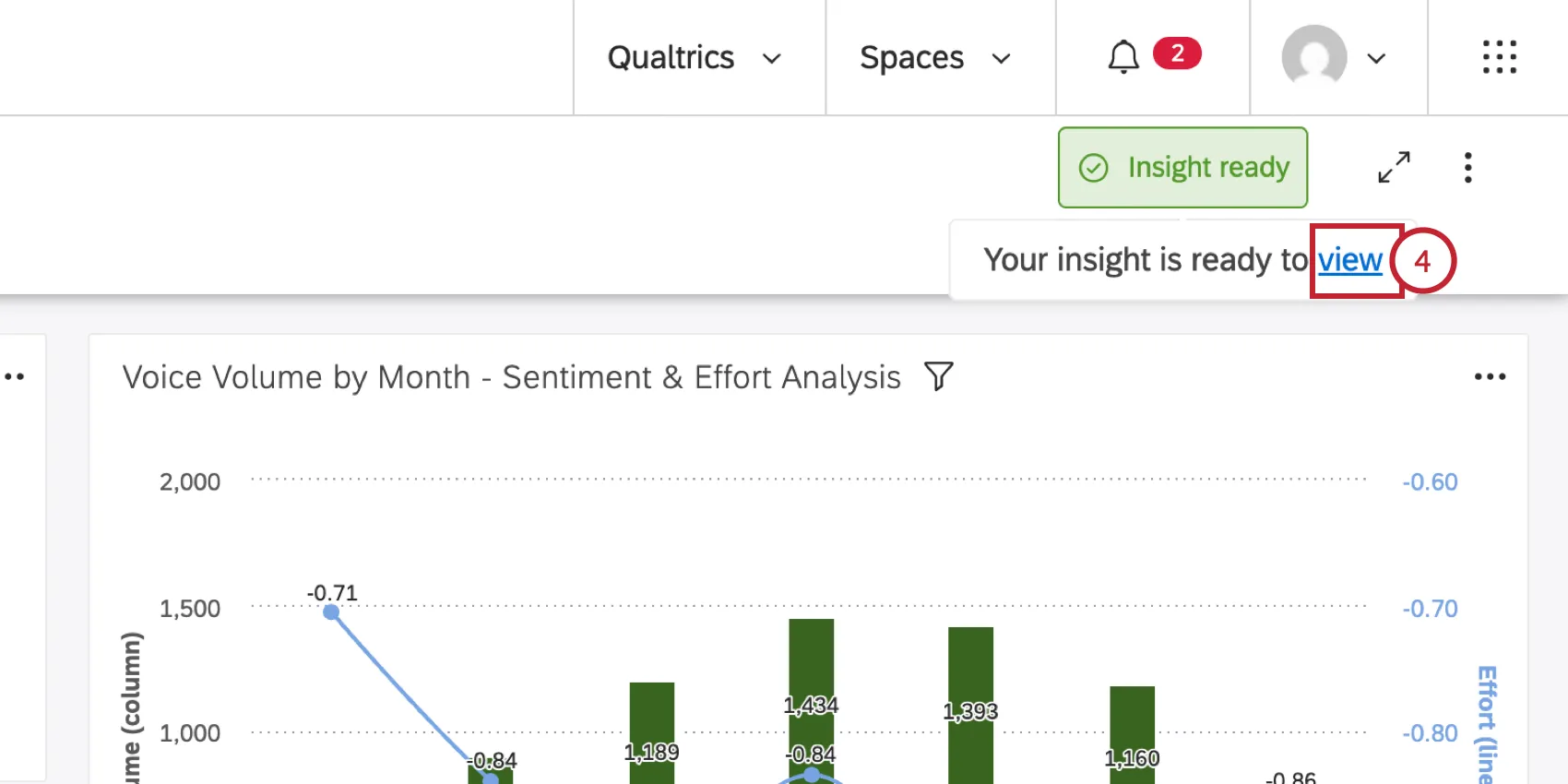
When the insight is ready to view, hover over the status message and click View.
Review the insight. You can click any example feedback to view the original document containing the feedback in Document Explorer.
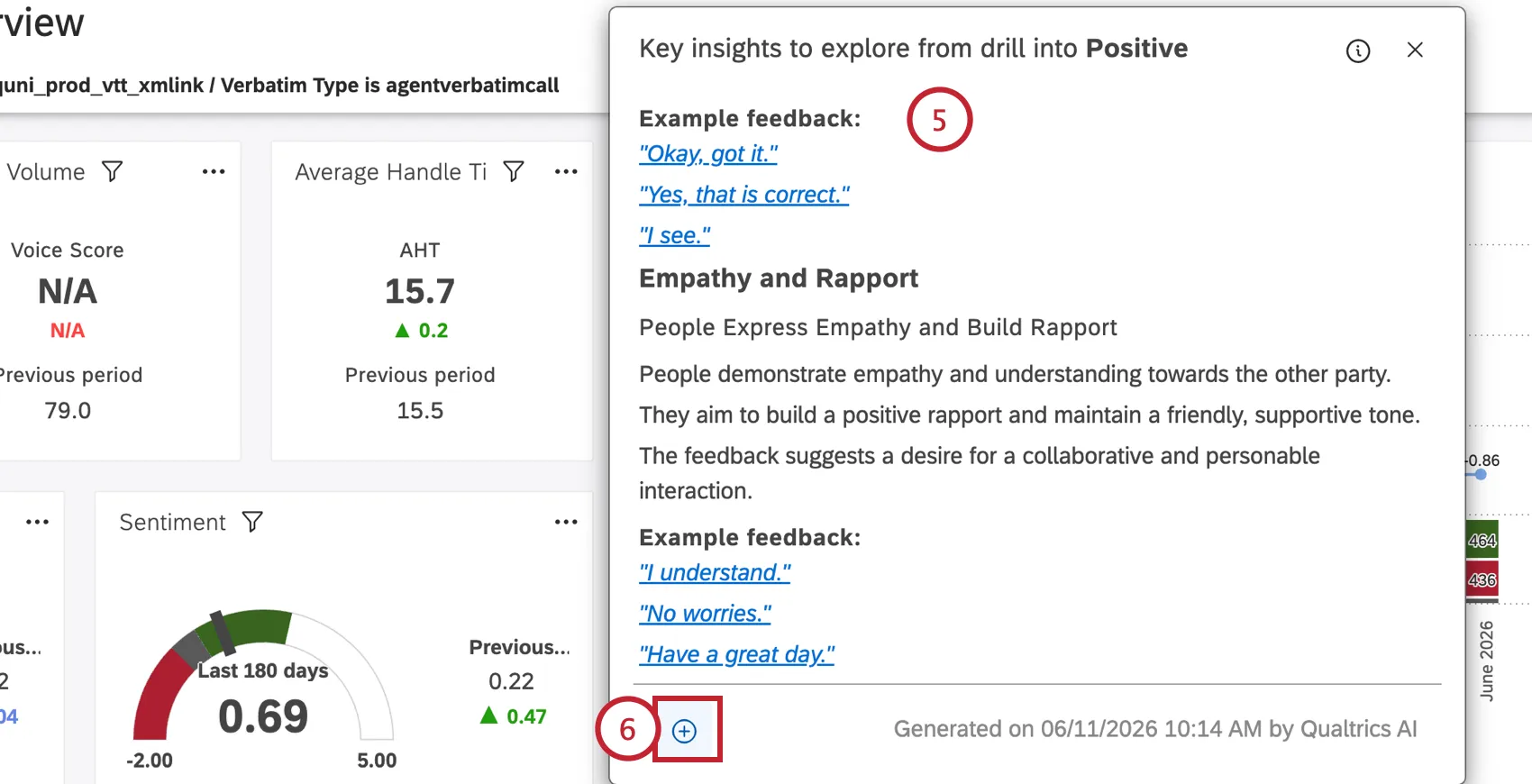
If desired, click Save insight to save the insight. This will create a new dashboard to view additional context around the insight.
Qtip: If your account does not meet the requirements listed earlier, then you will be unable to save the insight.
Dashboards will be automatically named “Drill on {data point that you drilled into}.” You will be automatically redirected to the new dashboard where you can view the insight and the related data.
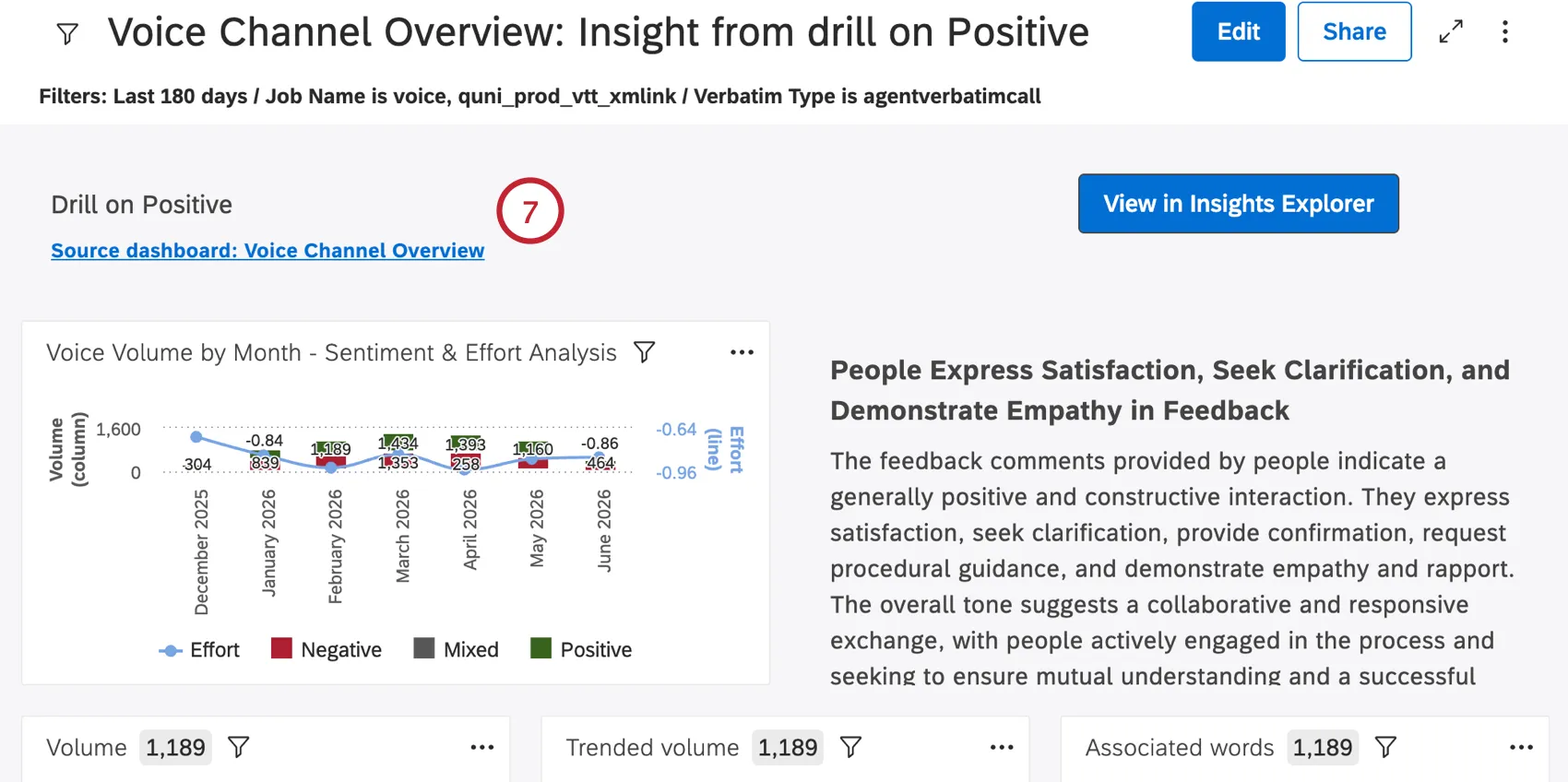
Qtip: You can re-open the source dashboard in a new tab by clicking on the hyperlinked title widget in the new dashboard.
If you choose to close the window, the insight will be saved in and accessible from Insights Explorer, but will no longer be retrievable in Studio itself.
Qtip: See Supported Languages for information about what languages are supported for insights inputs and outputs.
FAQs
How does Insights Explorer know what data I have access to?
How does Insights Explorer know what data I have access to?
Can Insights Explorer manage multilingual datasets?
Can Insights Explorer manage multilingual datasets?
For data including English, Japanese, Spanish, German (or a combination of these languages), the default behavior is to route the request to a first-party model. For any other language(s) or combination, the default behavior is to route the request to a third-party model. However, to ensure timely insight delivery, Qualtrics reserves the right to route the jobs based on available resources, which is why third party opt-in is required for Insights Explorer at this time.
What’s included in an Insights Explorer report?
What’s included in an Insights Explorer report?
- Example feedback: exemplar verbatim directly from the source data
- AI-generated report
- Explainability content: “how this was generated,” data source context, etc.
Why isn’t my Qualtrics Platform or XM Discover embedded data available for filtering?
Why isn’t my Qualtrics Platform or XM Discover embedded data available for filtering?
That's great! Thank you for your feedback!
Thank you for your feedback!