

Creating Questions
What's on this page
About Creating Questions
Once you’ve created your survey, you’re ready to start building. This page outlines how to add, delete, copy, and edit multiple questions at once in the Survey tab.
Adding New Questions
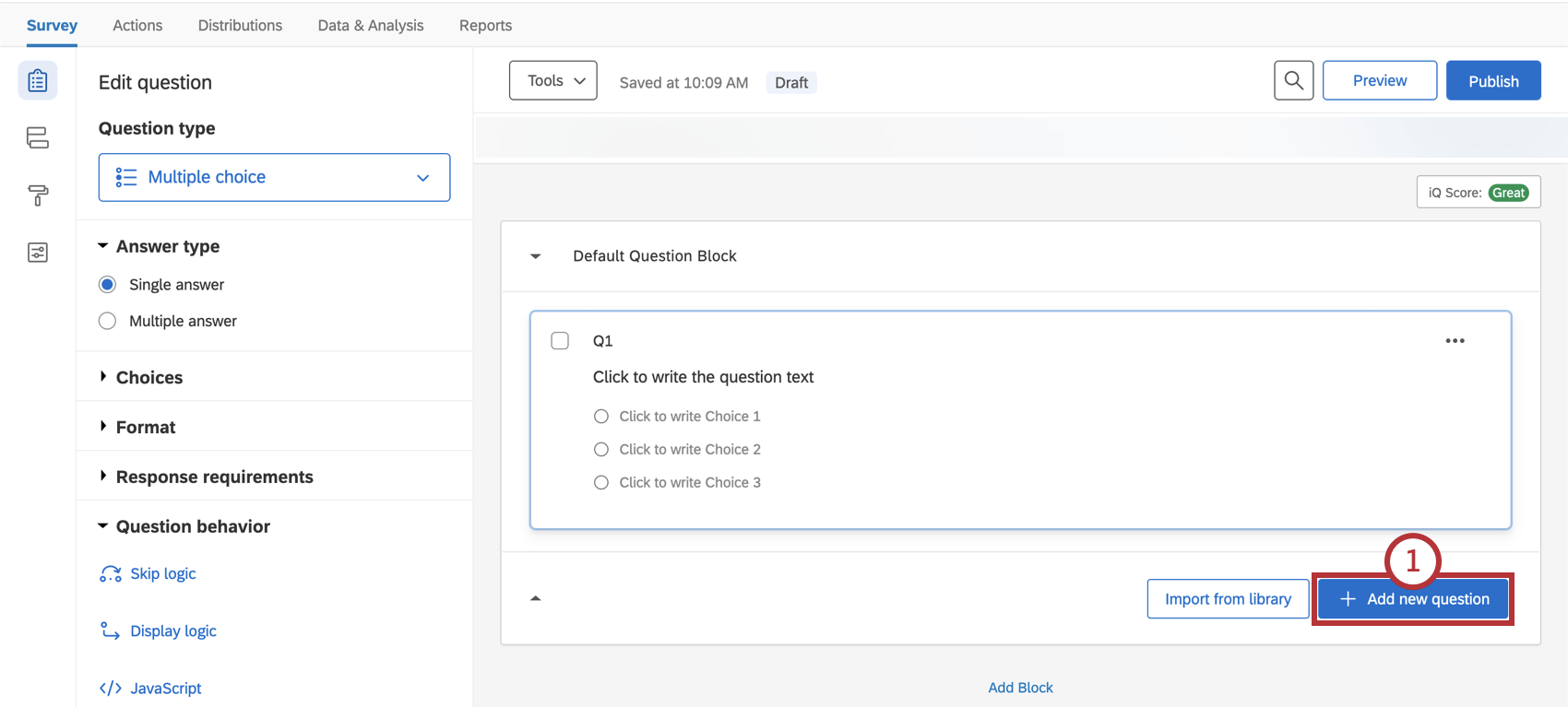
Qtip: Questions are numbered in the order they are created, not the order they appear in the survey. You can renumber your questions using the Auto-Number Questions feature.
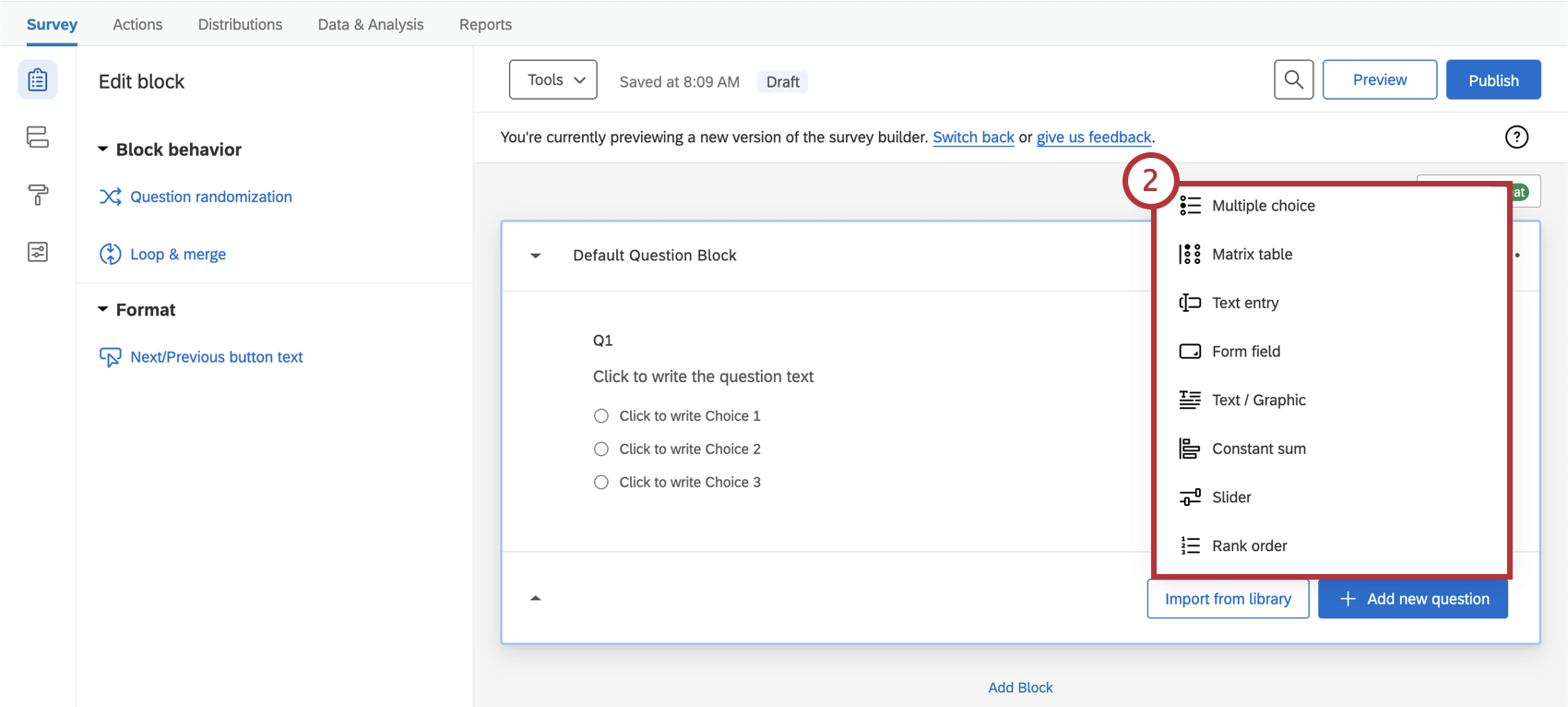
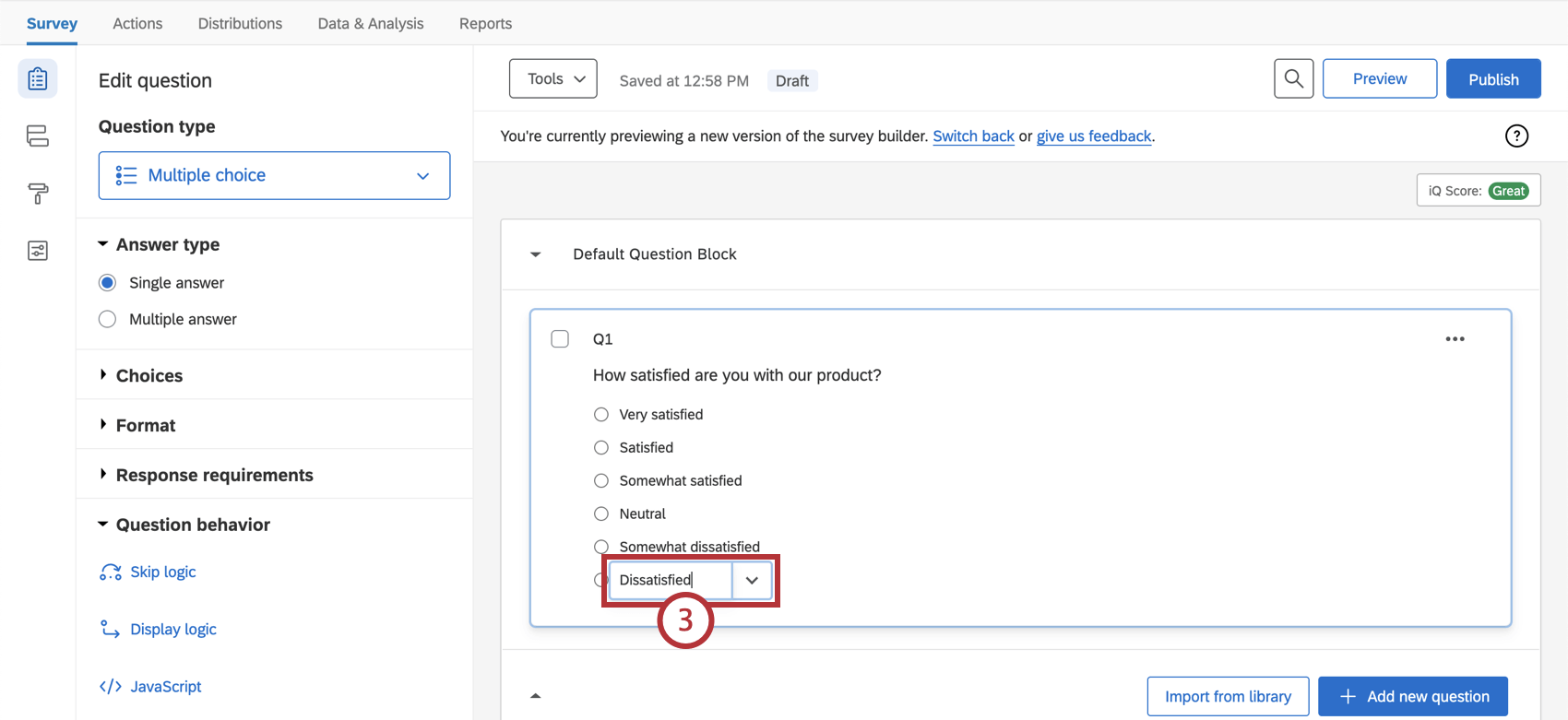
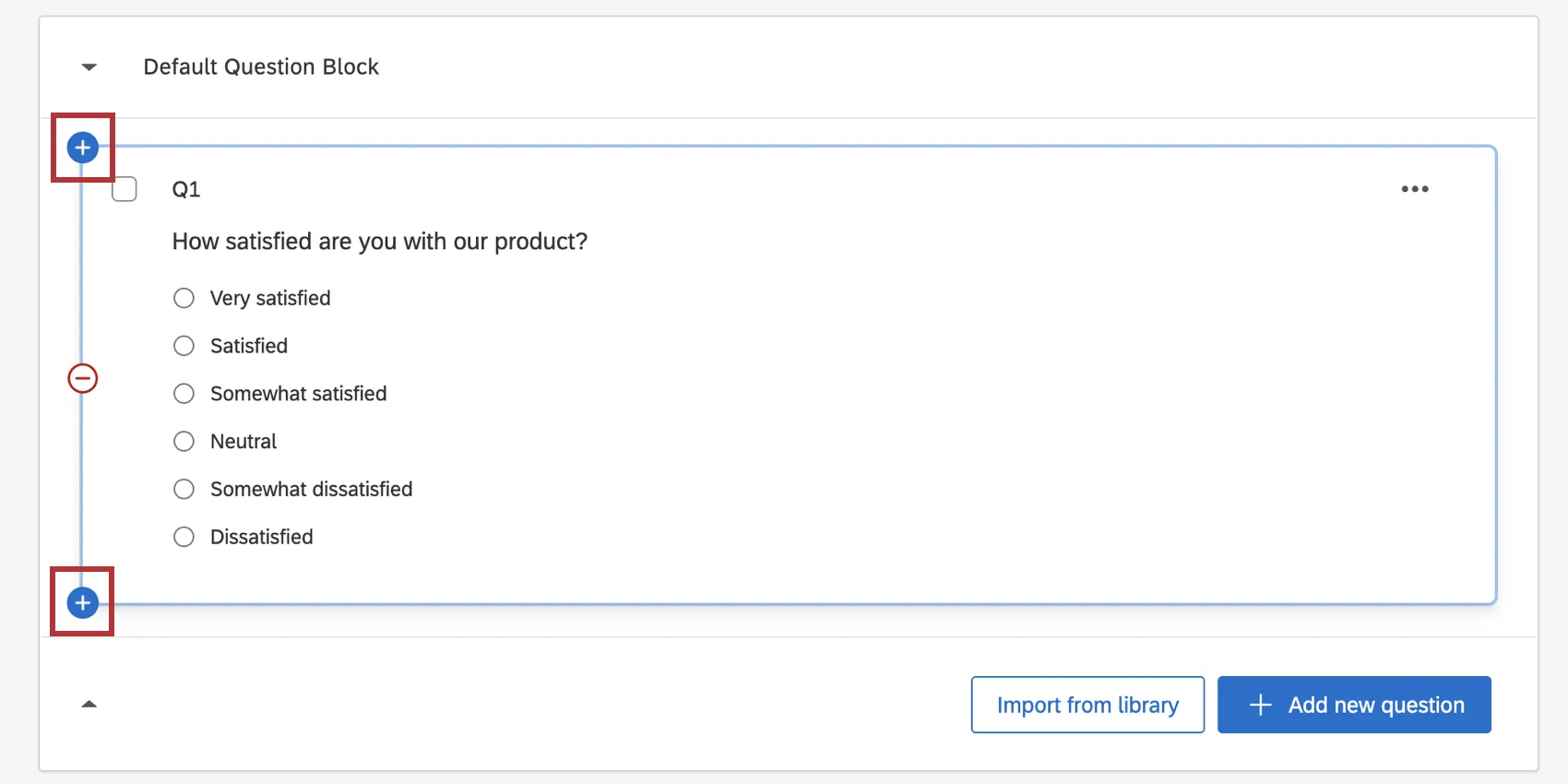
To add another question, you can hover over an existing question and click the blue plus (+) buttons (either above or below the existing question), or you can select Add new question again.
Warning: Be careful to finish all your editing before you distribute your survey! Changing a question’s type after you’ve started collecting data may invalidate previous responses to that question.

Attention: The Edit Multiple feature is disabled as soon as you collect data on your survey. This is to prevent invalidation of your data. If you copy a survey where this feature has been disabled, the copy will also not contain the Edit Multiple feature.
Deleting Questions
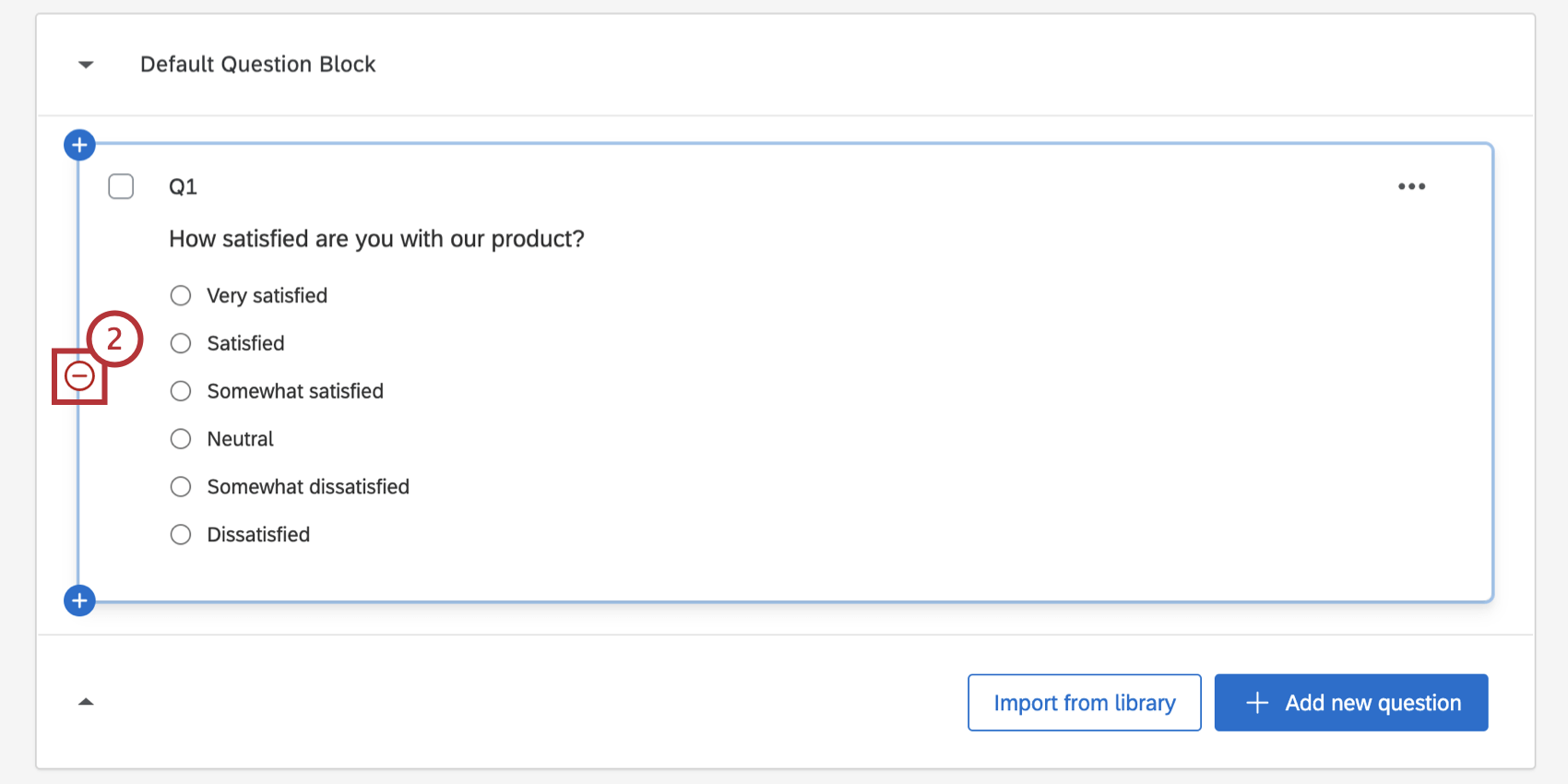
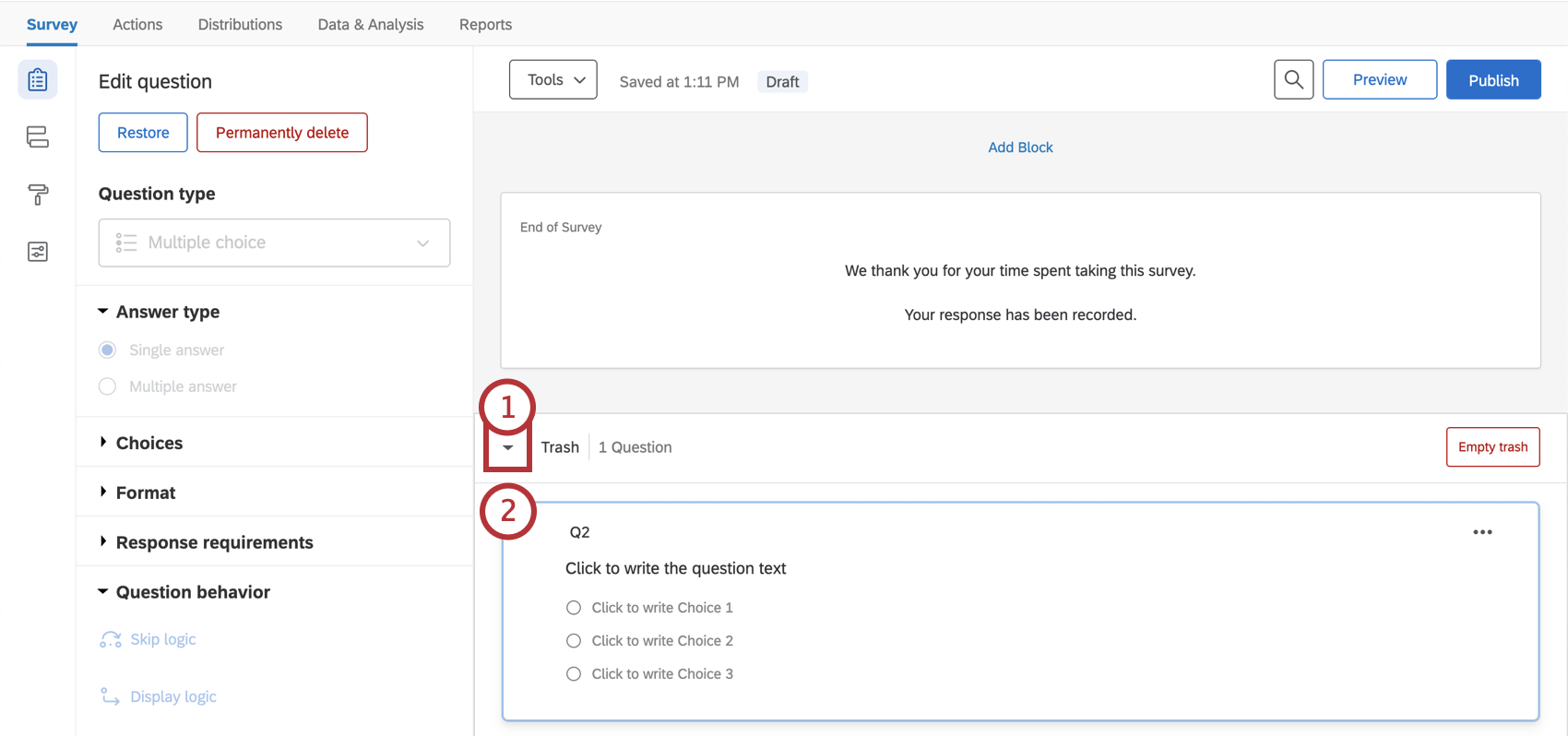
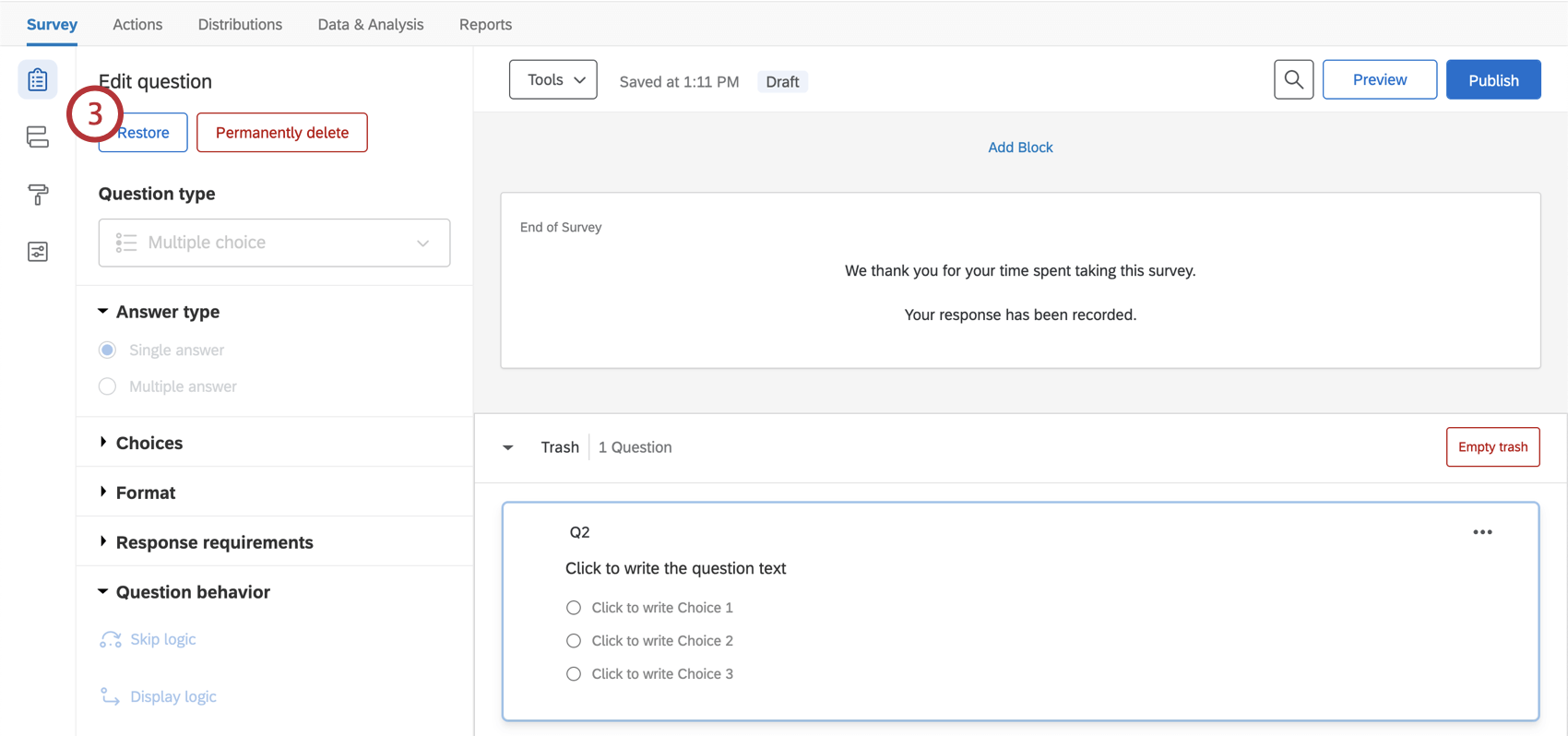
If you no longer need a question, it can be deleted. A deleted question will be stored in your Trash at the bottom of the Survey tab until it is permanently deleted.
Warning: If your survey has collected responses, deleting a question will remove all of the data associated with that question. View our pages on Testing and Editing an Active Survey and Saving and Restoring for more information.
Undeleting a Question
Permanently Deleting a Question
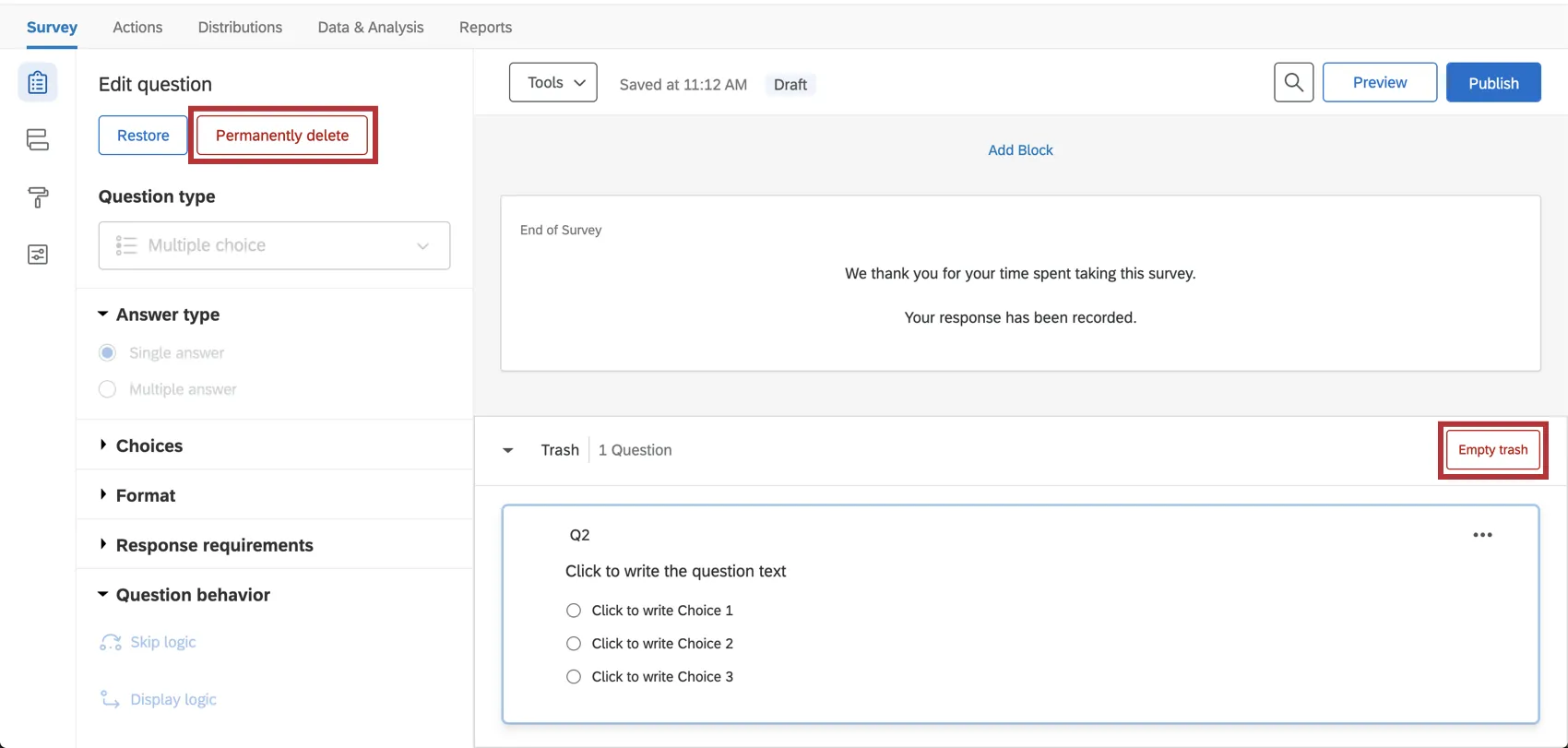
If you would like to permanently remove a question from your trash, select the question and then click Permanently Delete. To finalize the deletion, refresh your account. To permanently delete all questions from your trash at once, select Empty trash.
Editing Multiple Questions
Once you’ve selected multiple questions in your survey, a new menu will appear allowing you to delete, copy, and move these questions in addition to other options.
You have 3 ways to select multiple questions:
Select the checkboxes next to the questions you want to group.
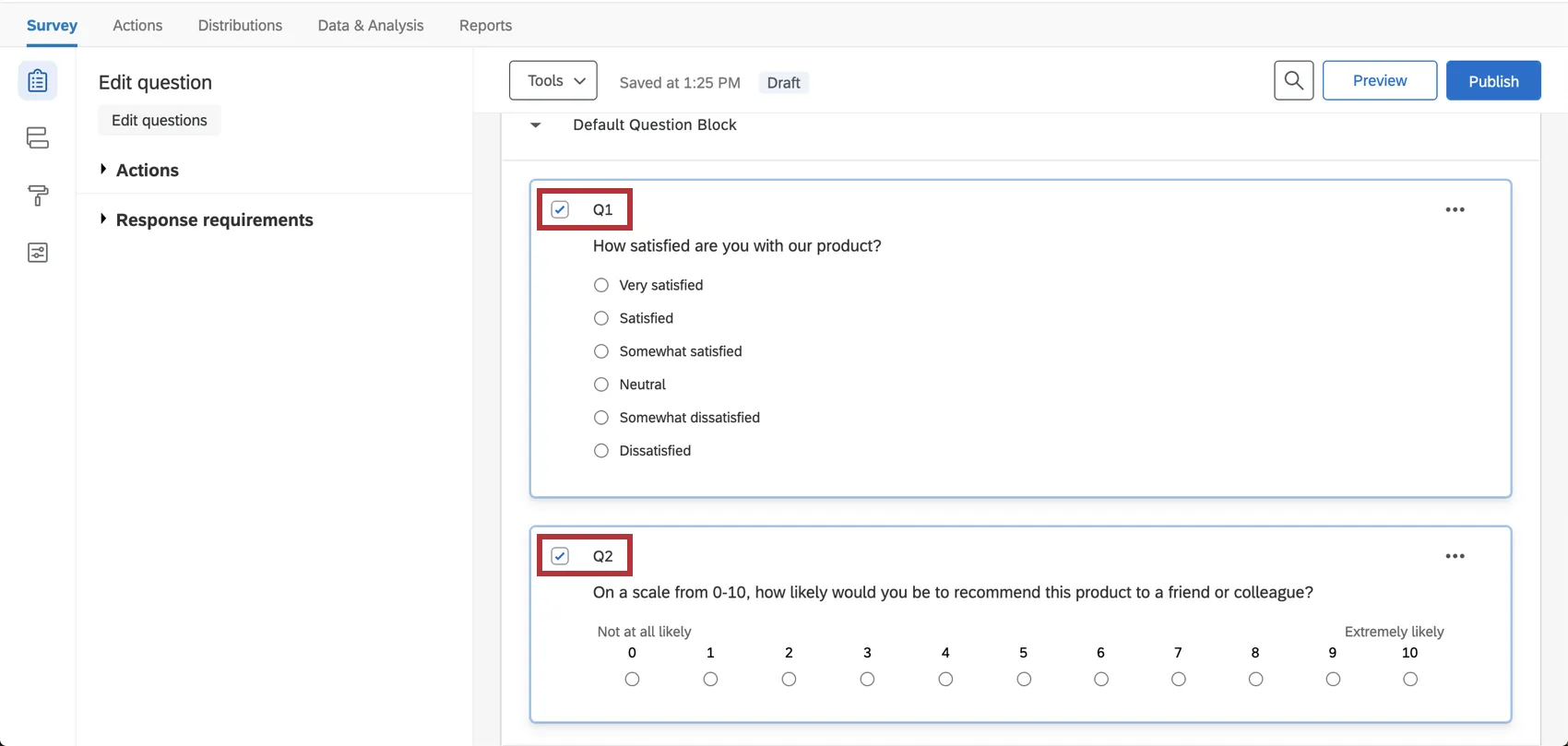
- Hold Ctrl and click the questions you want to group.
- Click the first question you want to select, hold Shift, and then click the last question you want to select. This will select both the questions you clicked and all the questions in between.
Once you’ve selected multiple questions, a list of group actions will appear to the left of the questions.
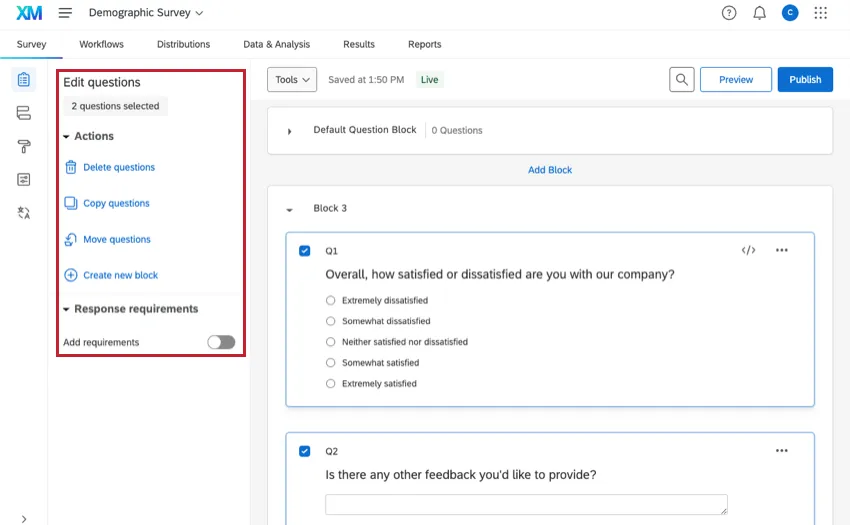
Group Actions
- Delete questions: Delete selected questions. Deleted questions will be stored in your Trash until permanently deleted.
- Copy questions: Copy all selected questions. Copied questions are placed below the currently selected questions.
- Move questions: Move selected questions into an existing block within the survey.
- Create new block: Move selected questions into a newly created block placed at the end of the survey.
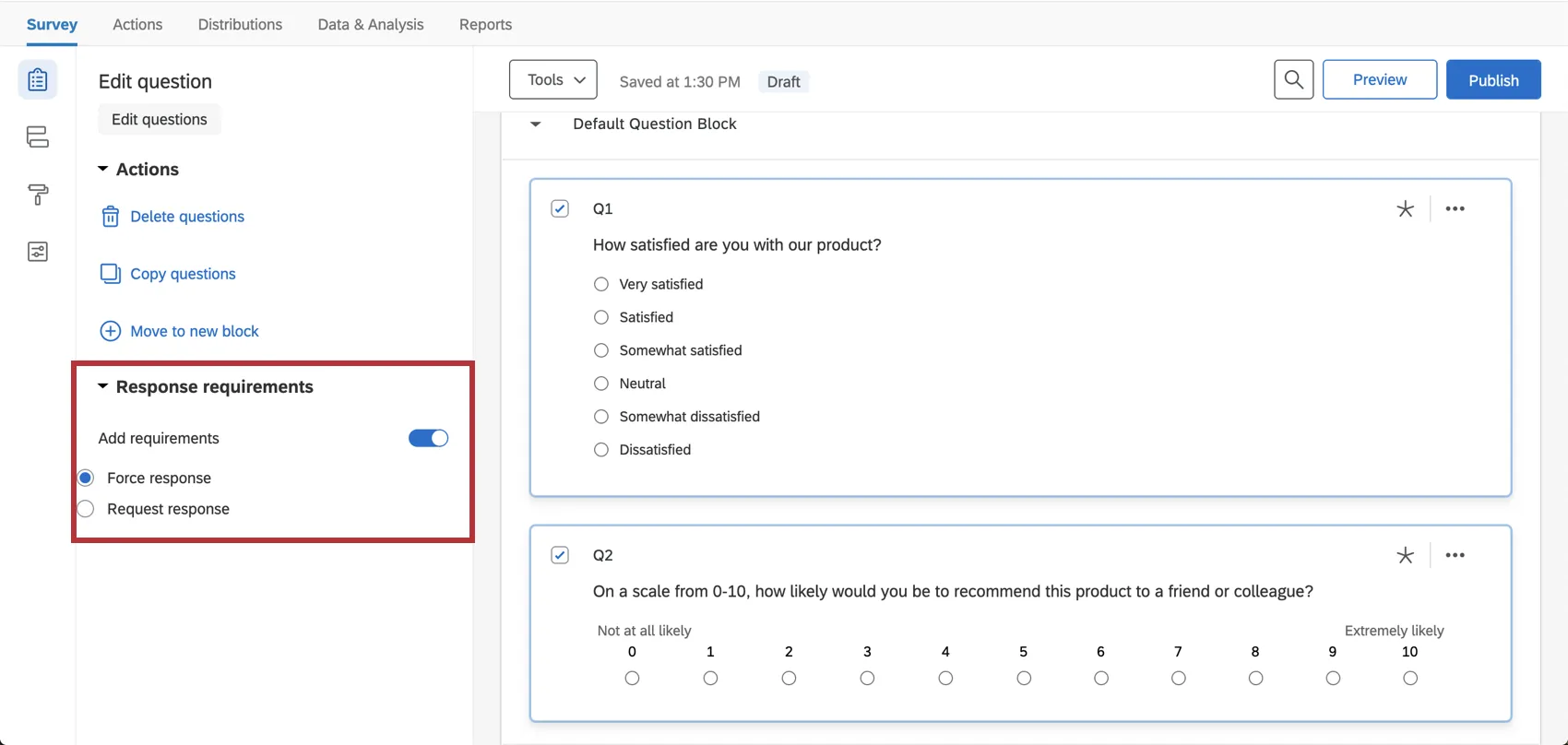
Response requirements: If you select Add requirements, you will be able to force or request a response on all selected questions. See Response Requirements & Validation for more details.
Copying Questions
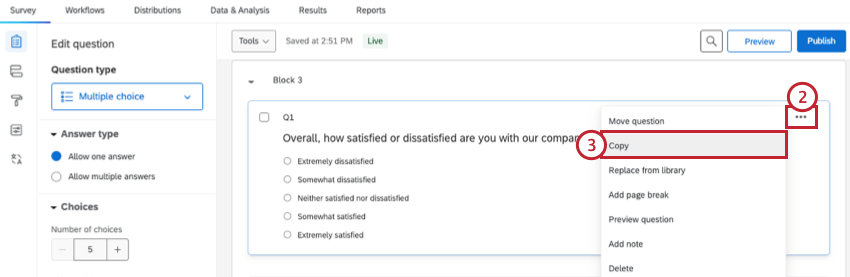
If a question you want to use already exists in your current survey or another survey, you can save time by copying that question to your survey rather than re-creating it. You can also copy pre-built questions from the Qualtrics Library.
Copying a Question From Your Current Survey
Copying a Question From a Previous Survey
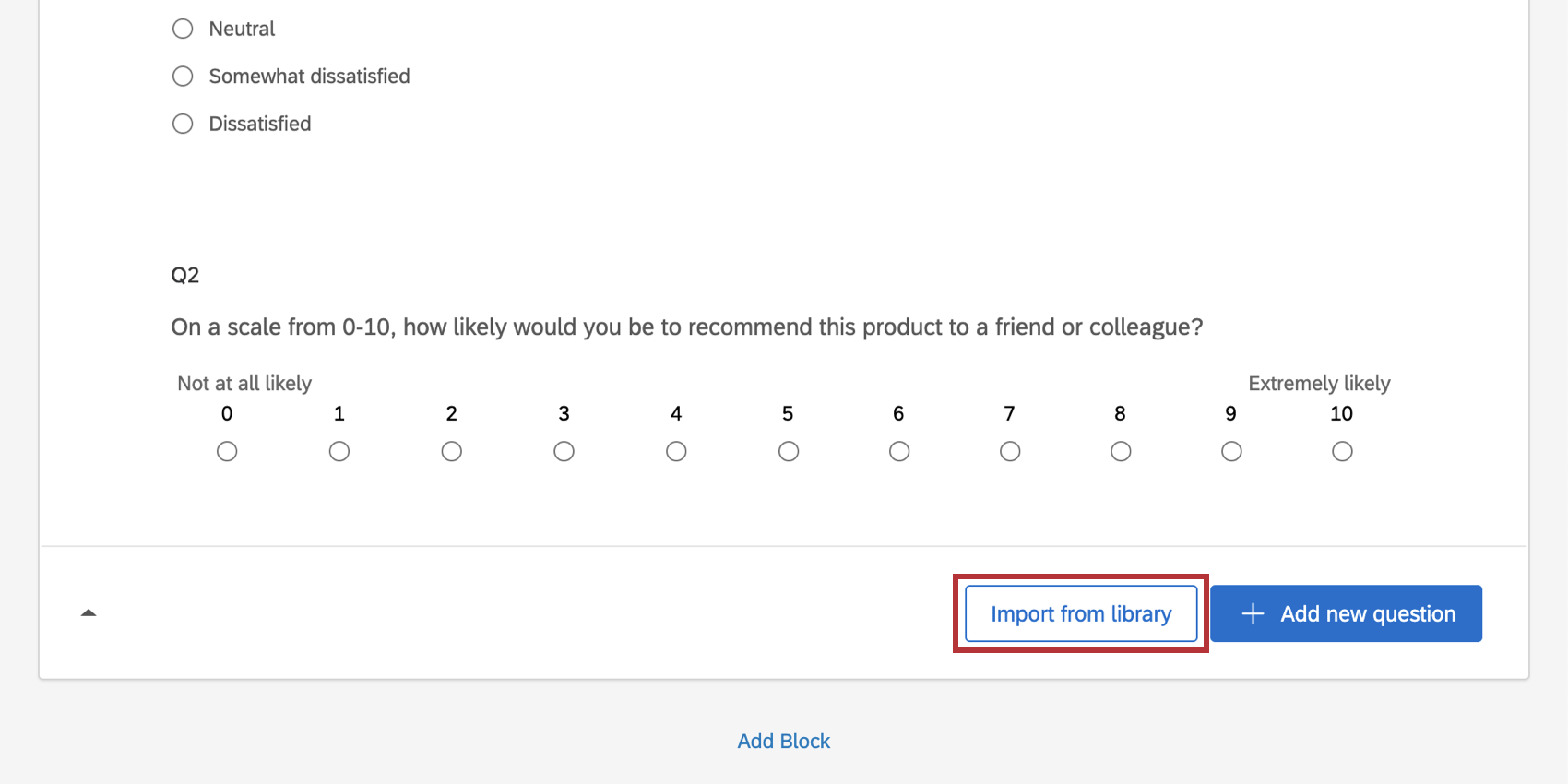
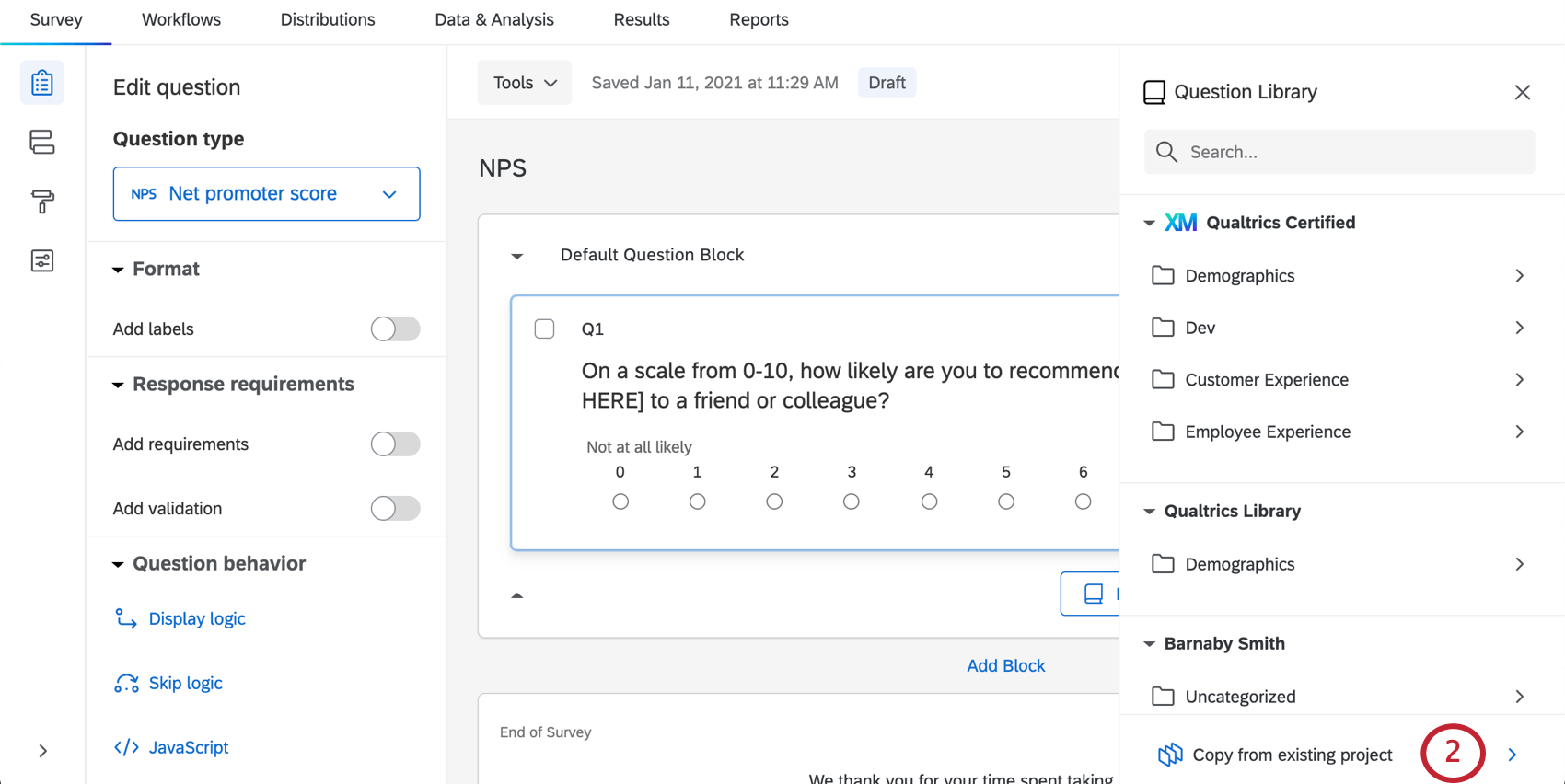
Qtip: You can also add questions from your library, use prebuilt Qualtrics content such as certified questions, or use the search bar to find what you need.
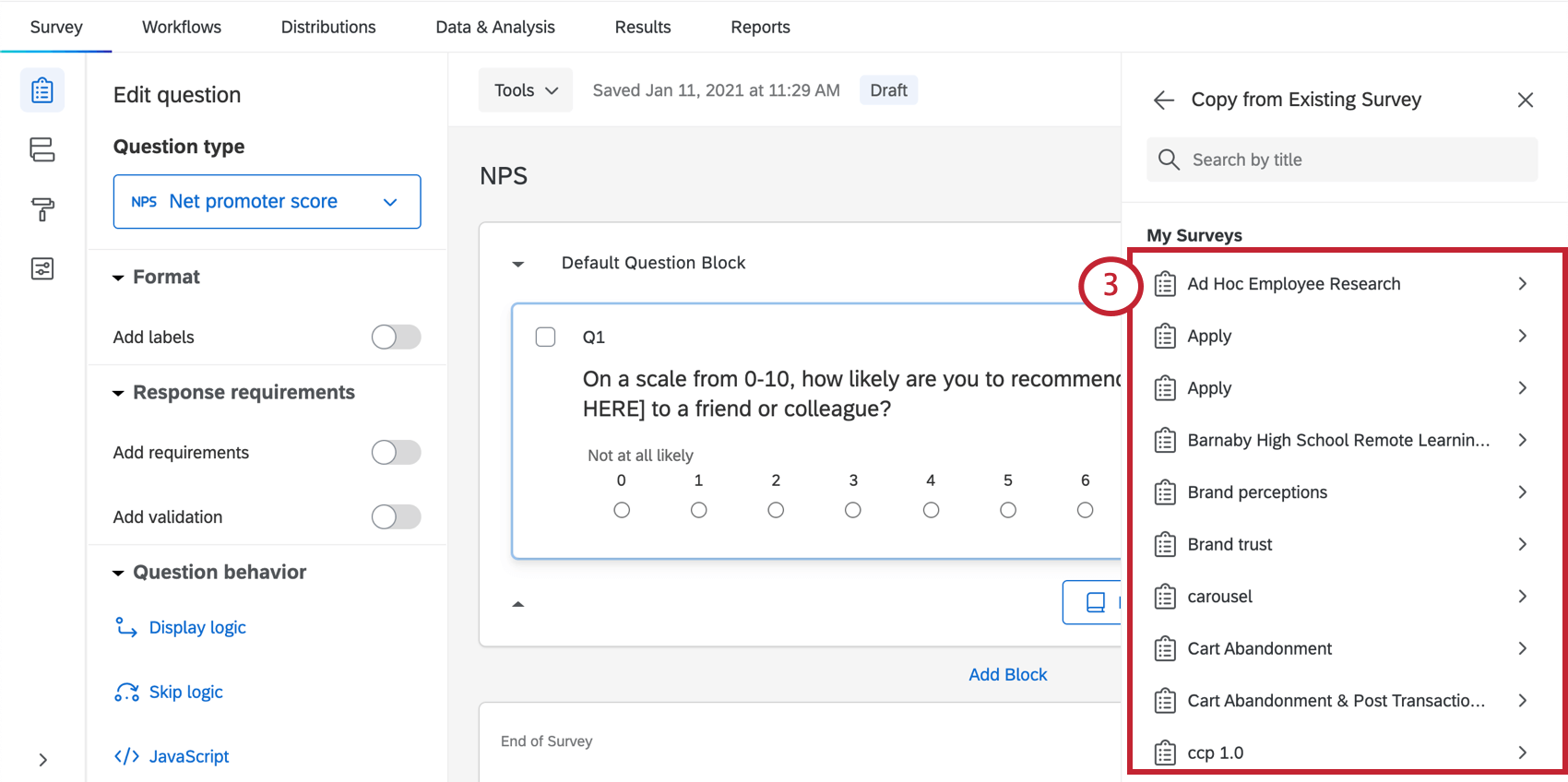
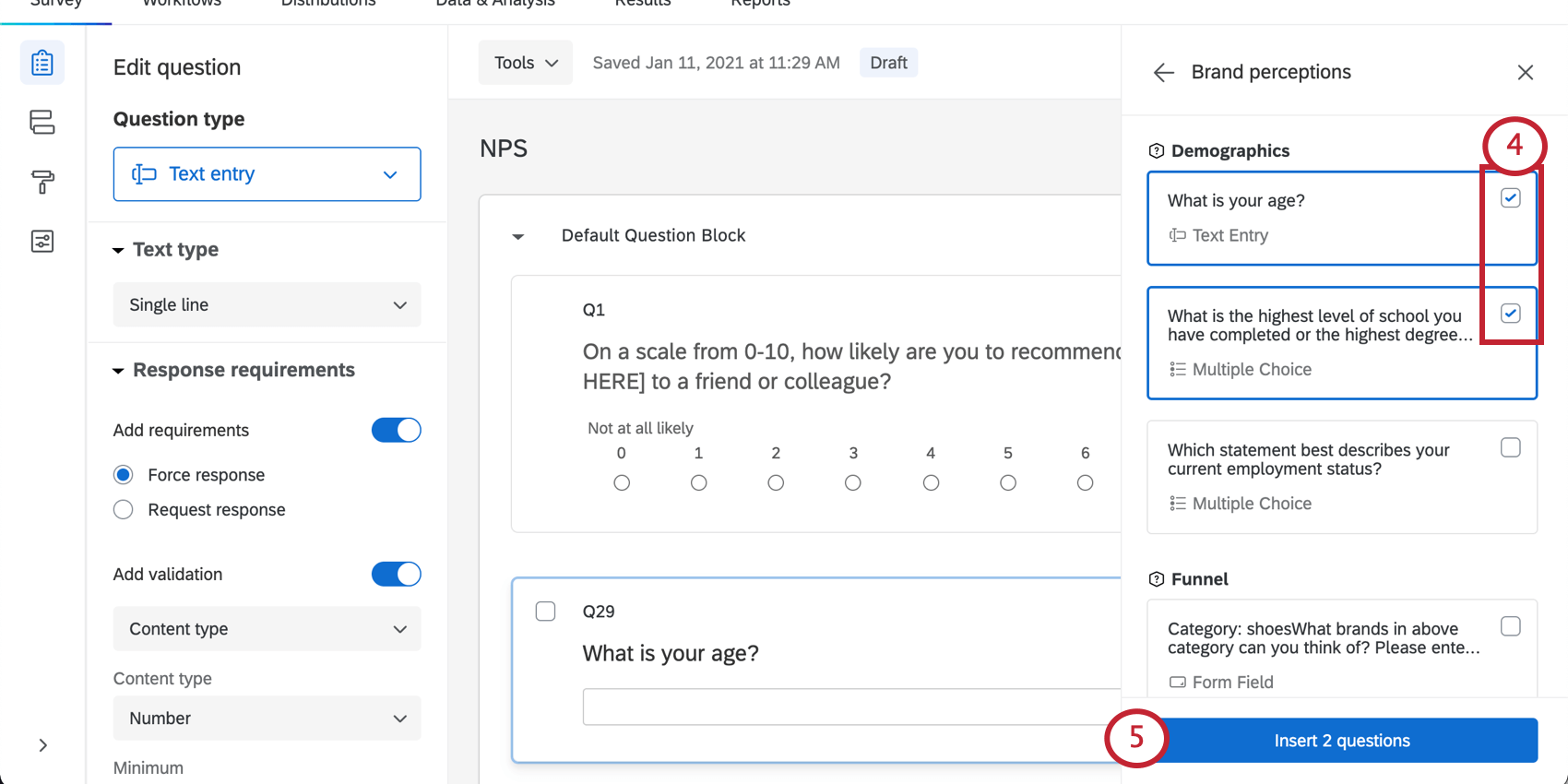
Qtip: If you click the question itself instead of the checkbox, you can view more information about the question. You will also have the option to insert the selected question into your survey.
Qtip: Questions won’t have new numbers assigned to them, but will have preassigned numbers. If the question is Q35 in the original survey, it will be Q35 when you import it, regardless of how many questions are already in your survey. You can always renumber your questions.
Copying a Question from the Qualtrics Library
The Qualtrics library comes equipped with all kinds of helpful, prebuilt content. To learn more about adding questions from the Qualtrics Library and the available questions, see Pre-Made Qualtrics Library Questions.
Moving Questions
As you build your survey, you may find you need to change the order of your questions. Thankfully, moving questions around is easy, and can be done one-by-one, or with multiple questions selected at once. All of these methods allow you to move questions across blocks.
Moving A Single Question
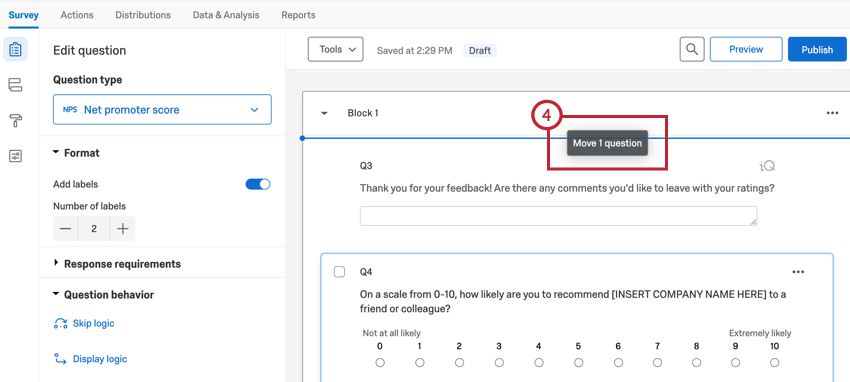
This option allows you to move a question up or down 1 space at a time.
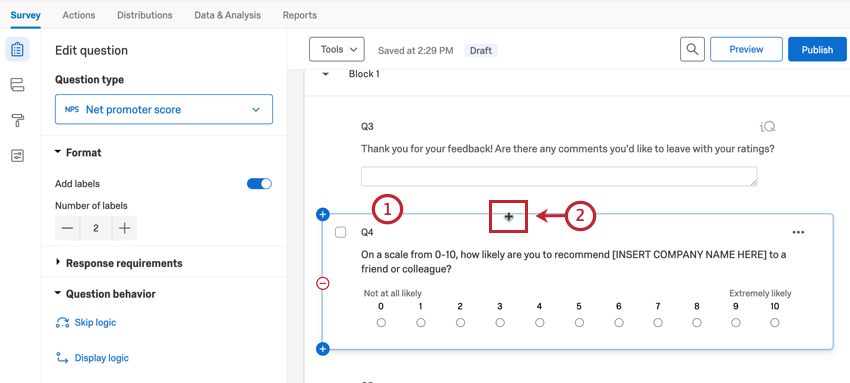
Qtip: You can select multiple questions at once by holding the Shift key on your keyboard when clicking on your questions.
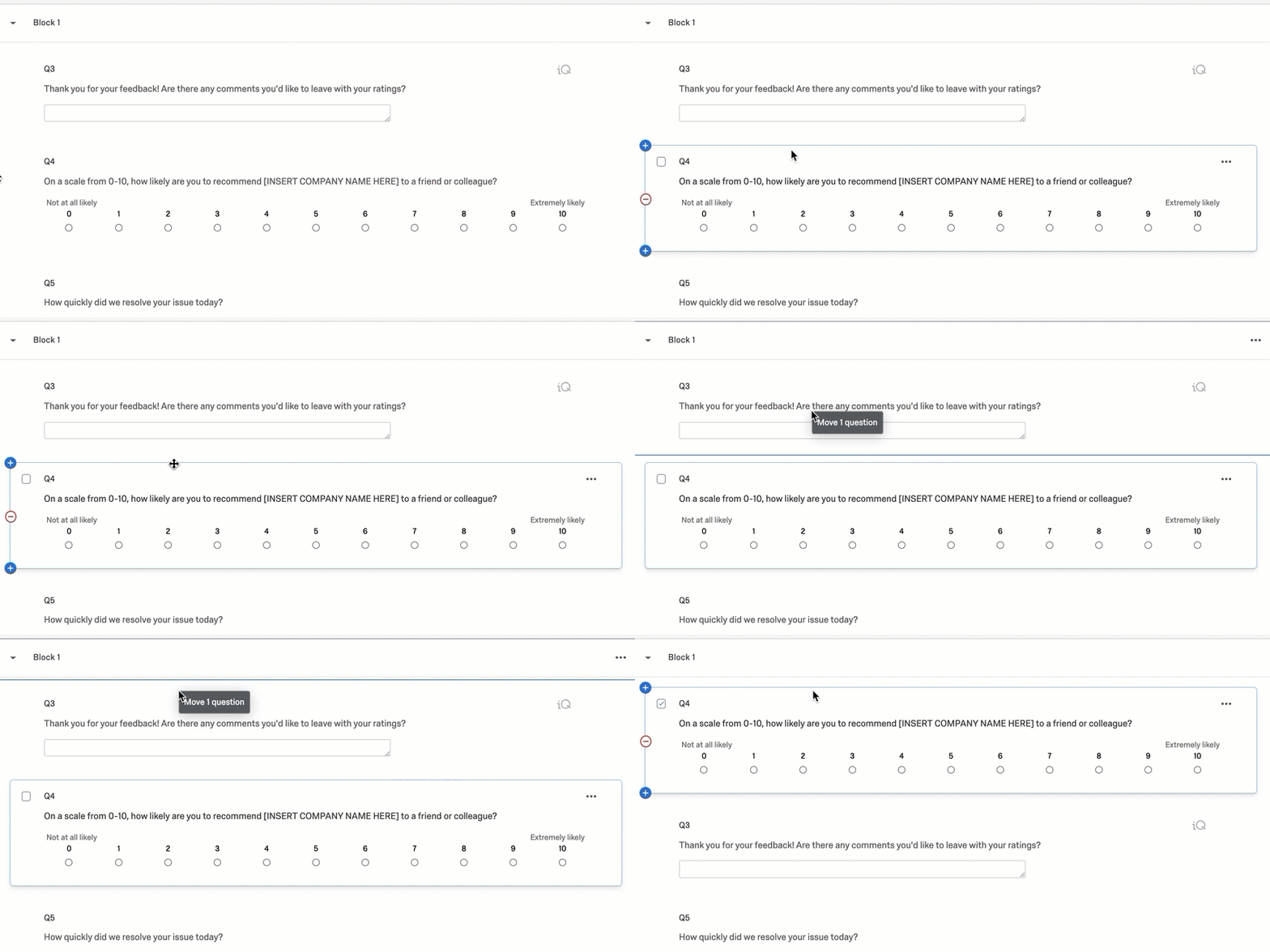
Example: The GIF below demonstrates how to drag and drop a question in the survey builder.
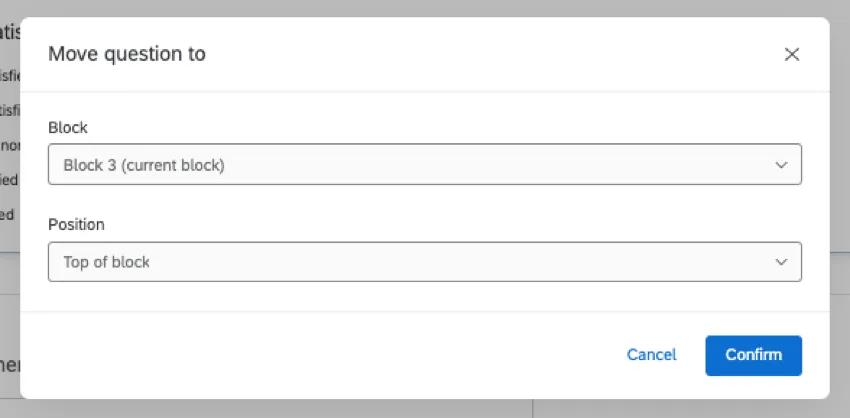
You can also move your questions to a specific part of the survey by clicking the dots in the upper-right of the question, selecting Move question, and selecting a new position in the survey.

Moving Multiple Questions
This option lets you move multiple questions at once. You can move questions as far across the survey as you need.
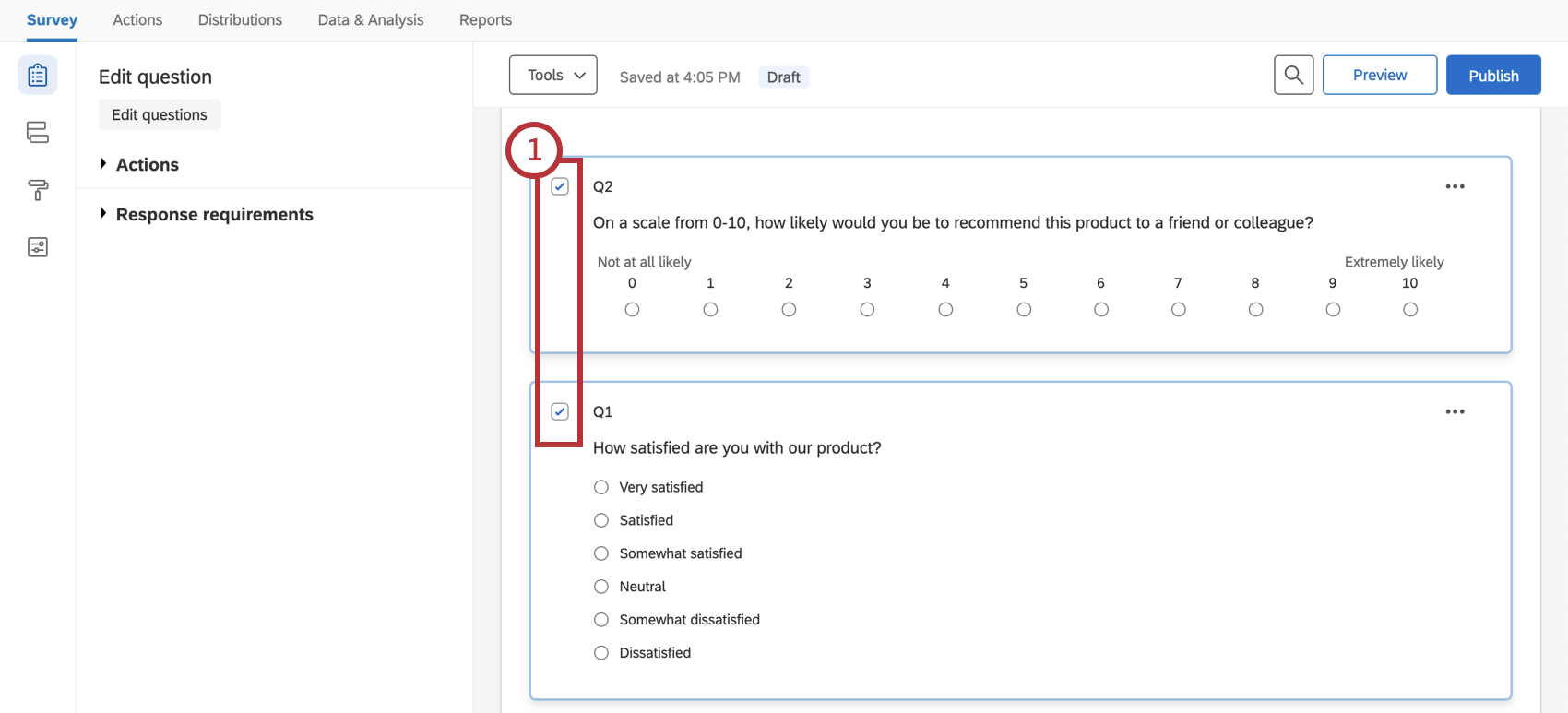
Qtip: You can select multiple questions at once by holding the Shift key on your keyboard when clicking on your questions.
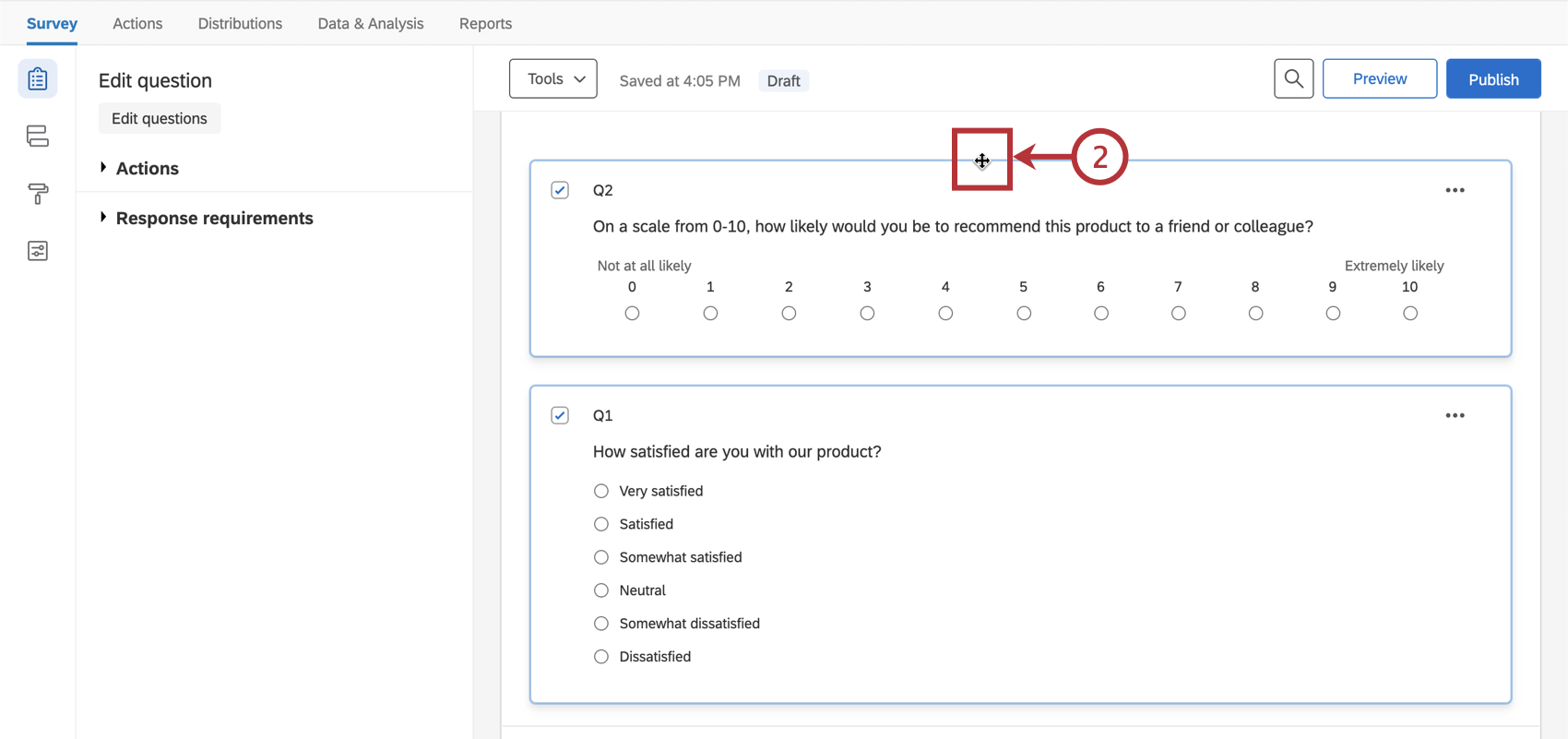
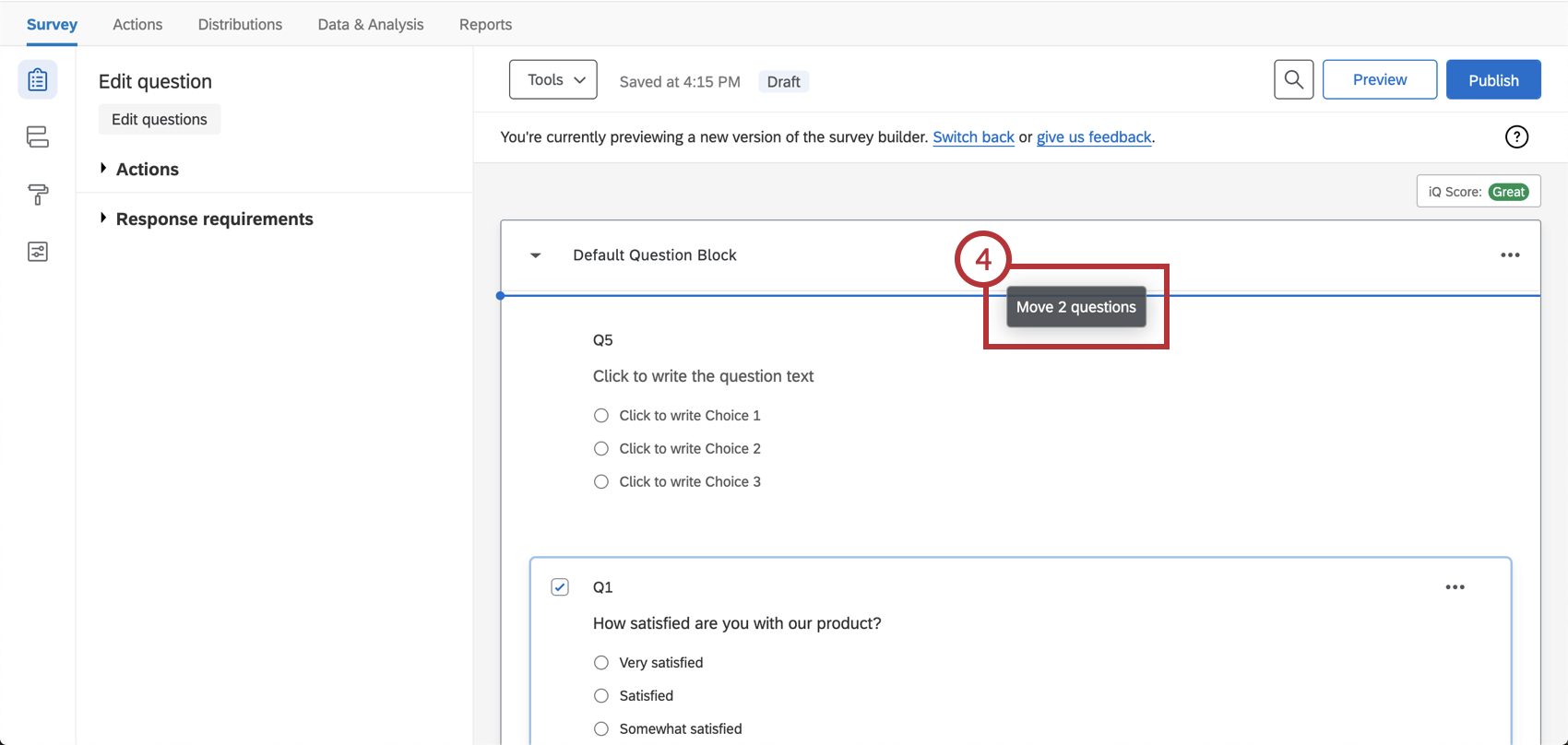
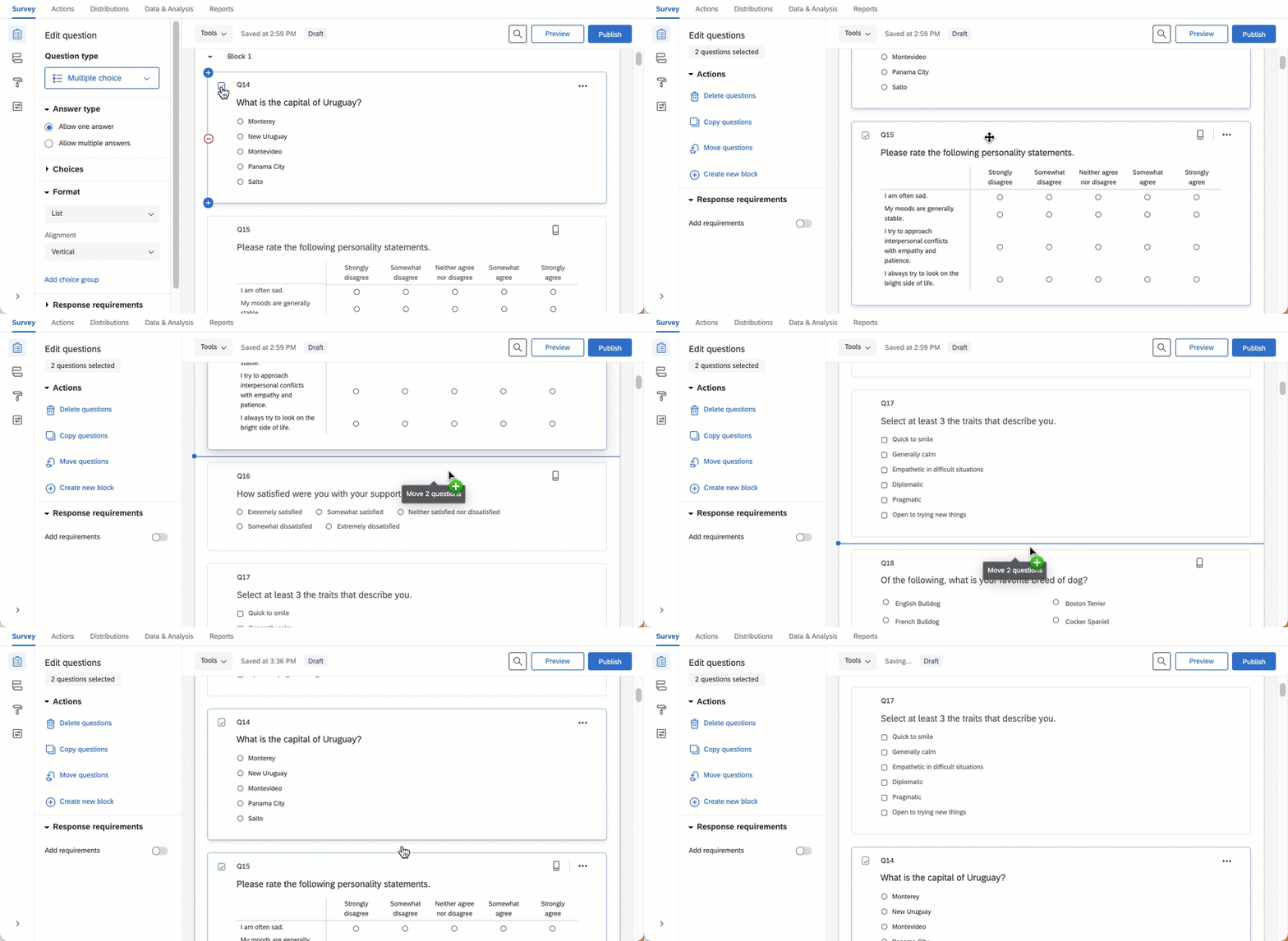
Example: The GIF below demonstrates how to drag and drop multiple questions in the survey builder.
Qtip: If you’d like to move your selected questions together into a new block, you may want to use the Move to a New Block option.
Hiding Questions
As you collect data, you may decide you want to remove a question halfway through your survey. Hiding the question will keep all the data you’ve collected so you can still analyze it, but no future respondents will see or respond to the question.
Warning: Once you’ve collected data, it is recommended never to delete questions, as this can lead to invalidated data. Hiding questions allows you to edit your live survey while also preserving your collected data.
Attention: When you hide questions, data will not be collected for respondents who do not see the question. For instructions on hiding questions for respondents that are taking your survey using a retake link, see Hiding Certain Content During Retakes.
Click on the question you’d like to hide, which will be outlined in blue.
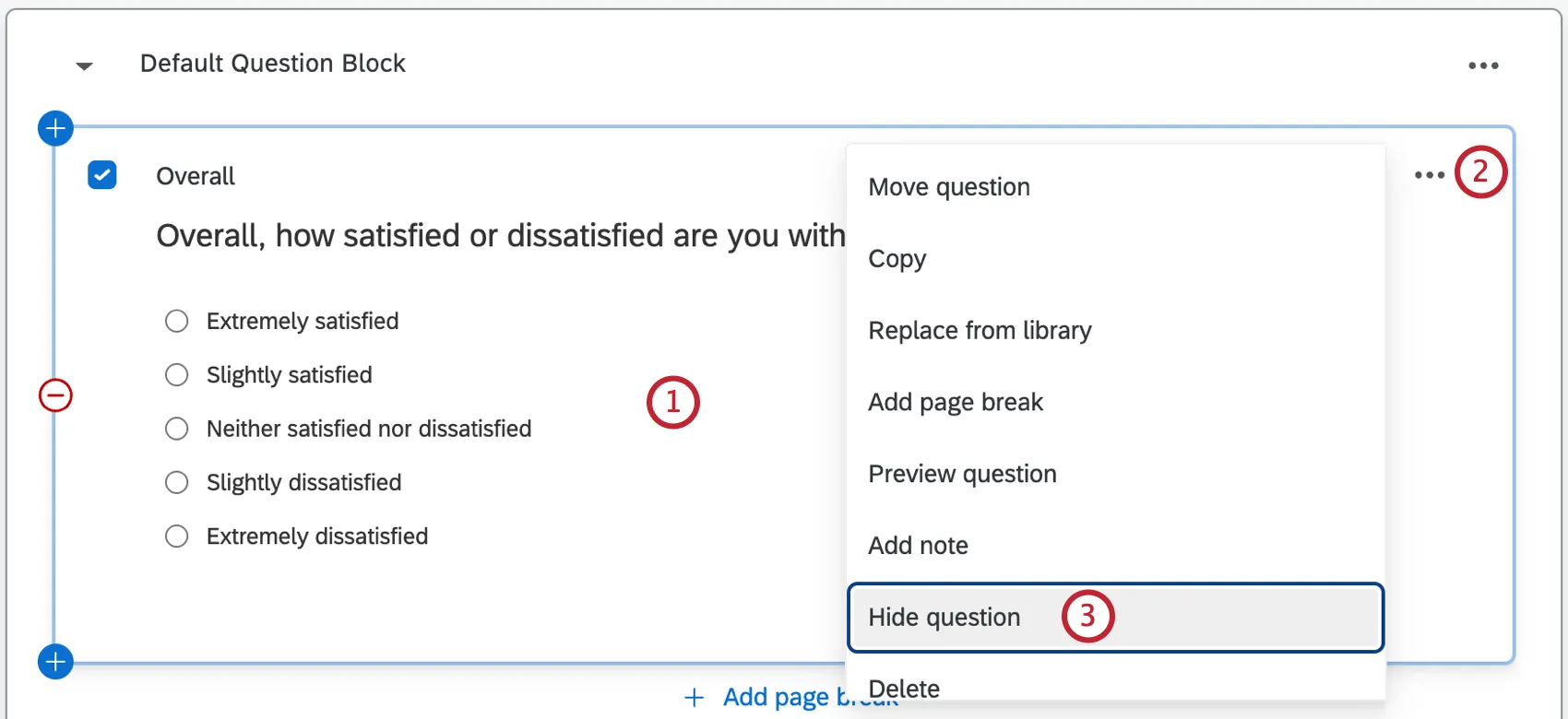
Click the dots in the upper-right of the question.
Select Hide question.
Once your question is hidden, display logic will be added to make sure it is never shown to respondents.
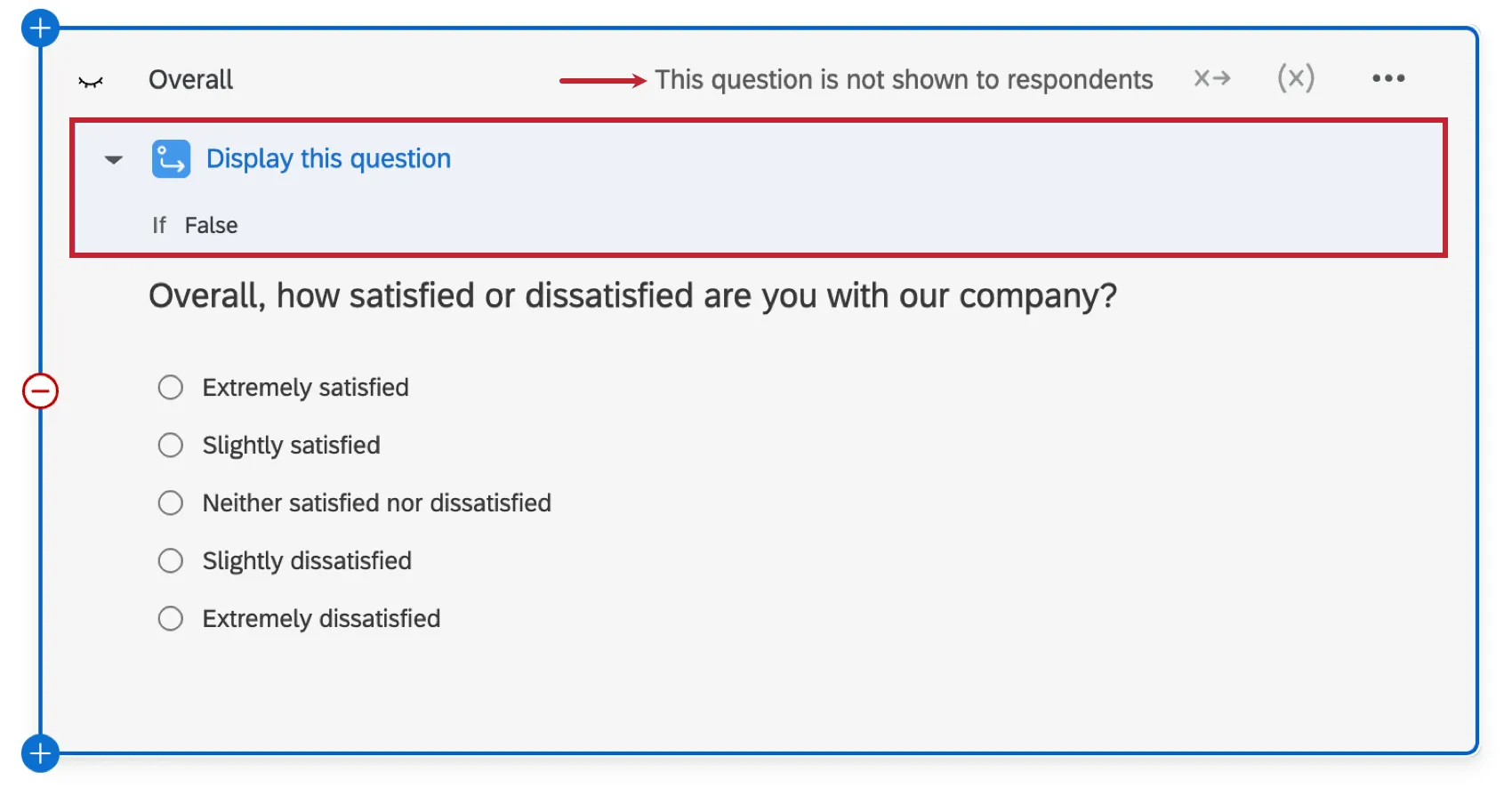
Qtip: You can edit or remove this display logic. See Display Logic for more information.
Qtip: You can also hide questions but retain their data using advanced question randomization under block options.
Unhiding a Question
Click on the question you’d like to unhide, which will be outlined in blue.
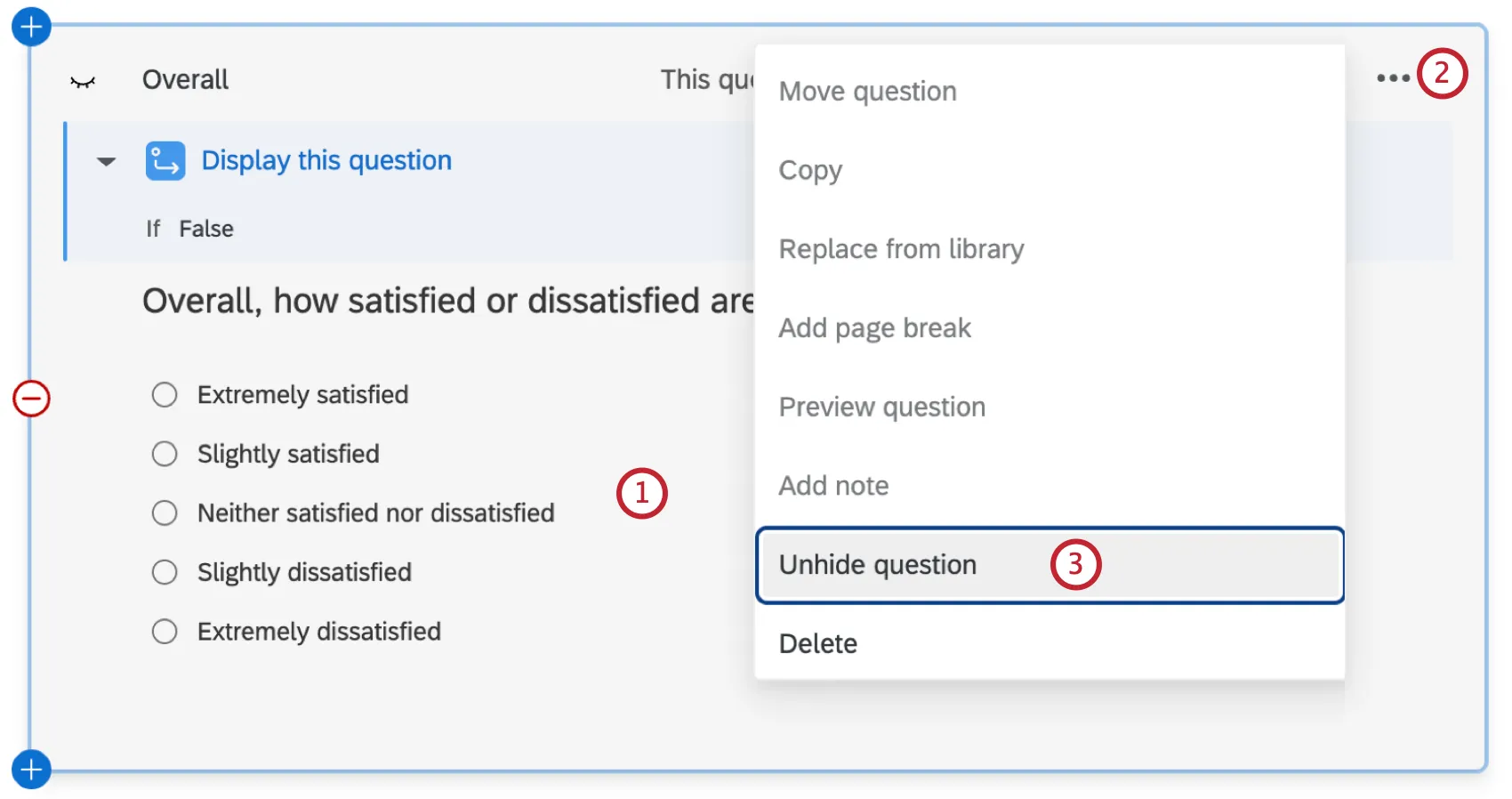
Click the dots in the upper-right of the question.
Select Unhide question.
Creating Questions in Different Project Types
This support page describes how to create, delete, and move questions in just about every type of project where you customize a survey. This includes:
- Survey projects
- XM Solutions
- Engagement
- Lifecycle
- Ad Hoc Employee Research
- Pulse

Qtip: For details on customizing 360 surveys, see Creating & Editing Questions (360).
- Conjoint
- MaxDiff
Qtip: For details on customizing MaxDiff and Conjoint surveys, see this page.
Attention: Although question editing is similar, not every type of project has the same type of questions. See our table showing question types by project.
FAQs
How can I copy a survey/block/question to my library?
How can I copy a survey/block/question to my library?
How do I use a survey from my Library?
How do I use a survey from my Library?
- To create multiple copies of the same survey for use in your account.
- To share static surveys to a group or organization.
- To use in conjunction with the Reference Survey feature to insert the same set of questions and logic into multiple surveys.
How can I embed a survey question directly into the body of my email?
How can I embed a survey question directly into the body of my email?
How do I renumber the questions in my survey?
How do I renumber the questions in my survey?
Note that renumbering will not harm your data, and you can renumber questions at any time.
How do I add a consent form to my survey?
How do I add a consent form to my survey?
How do I export a survey?
How do I export a survey?
- Export Survey: Export a QSF of your survey that contains all formatting and settings but not any response data. This option is usually used to create copies of your survey for storage or sharing. Unlike the other 2 formats covered here, a QSF can be imported back into Qualtrics.
- Export Survey to Word: Export a DOCX of your survey that contains all of the questions, logic, and coded values, but not the stylistic formatting.
- Print Survey: Print a physical copy of your survey or save a PDF.
How do I translate my survey into other languages and specify a language for my survey respondents?
How do I translate my survey into other languages and specify a language for my survey respondents?
I want to remove a question or answer choice from a survey, but I’ve already collected some data. What do I do?
I want to remove a question or answer choice from a survey, but I’ve already collected some data. What do I do?
That's great! Thank you for your feedback!
Thank you for your feedback!