

Translating Dashboard Labels
What's on this page
About Label Translations
Dashboard label translations include the majority of fields in your dashboard that aren’t static or data. Labels include:
- Most widget fields (e.g., titles, descriptions, axis labels)
- Dashboard name
- Page names
- Filter names
- Comparison names (with the exception of org hierarchy comparisons and “Same As Viewer” comparisons)
- Benchmark names
Topics created in Text iQ and displayed in Text iQ table or bubble widgets

Qtip: See columns in your file named “topics:[topic name]”.
Attention: Dashboard label translations cannot be used on dashboard private pages.
Attention: Org Hierarchy Names and Org Hierarchy Unit Names cannot be translated.
Qtip: These steps for translating dashboard labels also apply to Results Dashboards. The results dashboard editor’s account language will be selected as the “translate from” language. This may cause problems if users are in an account language that doesn’t already have translations set manually.
Generating a Labels File with Google Translate
Qtip: Make sure your dashboard is customized and in a completed state before you translate it! When translating a dashboard, remember that any future edits/additions to the default language will need to be translated.

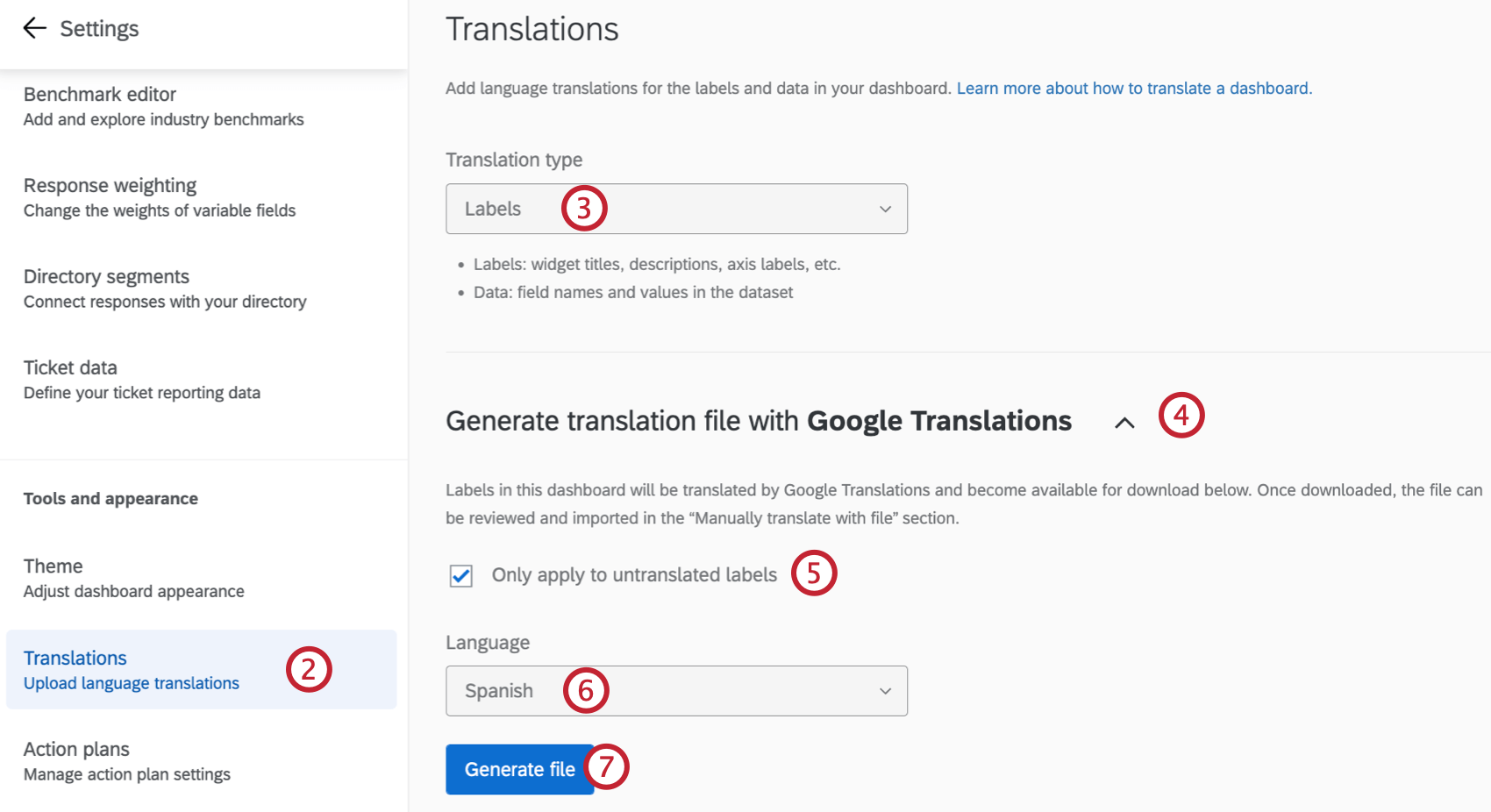
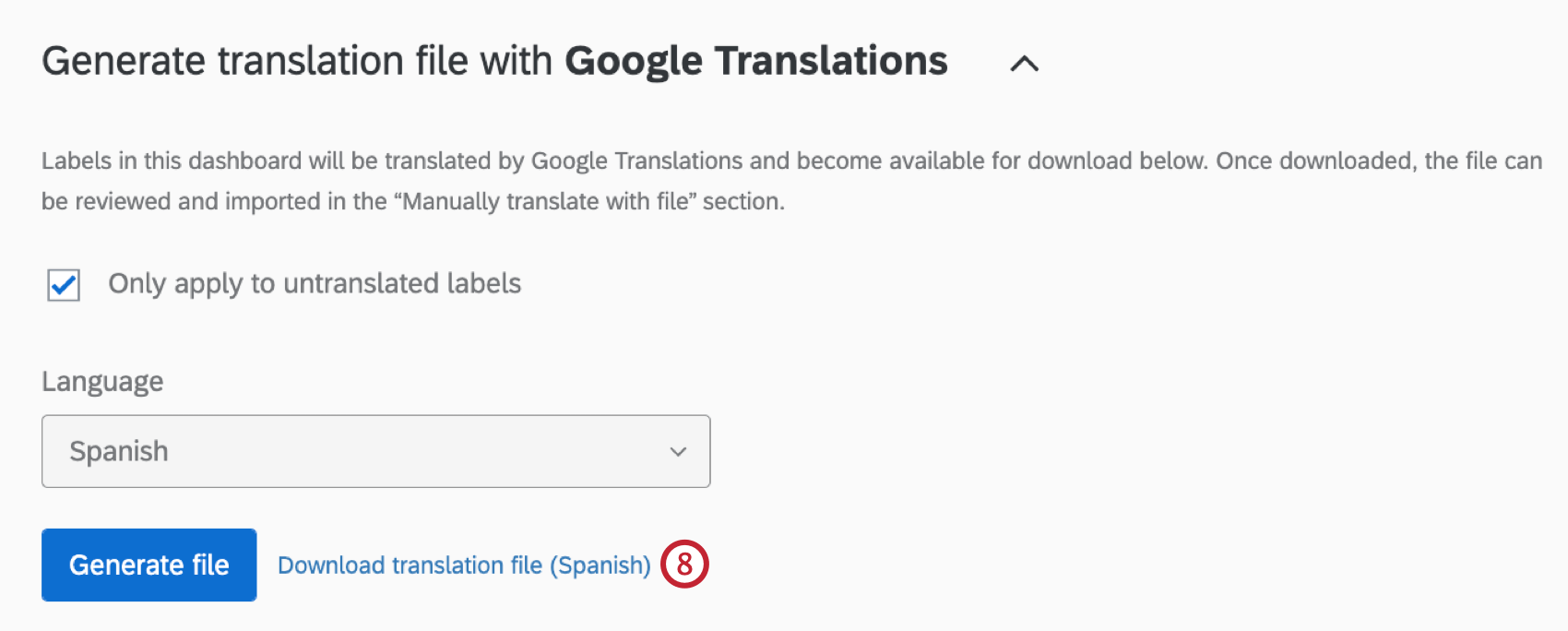
Qtip: The language set in your Account Settings will be used as the source language for auto translation.
Qtip: Only 1 automatic translation can be processed at a time per dashboard.
Manually Creating a Labels File
For a list of languages supported, see the Languages in Qualtrics page.
Qtip: Make sure your dashboard is customized and in a completed state before you translate it! When translating a dashboard, remember that any future edits/additions to the default language will need to be translated.
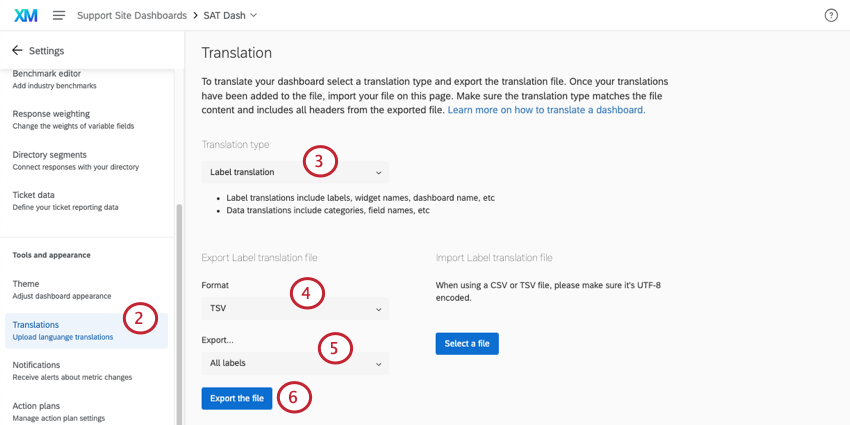
Qtip: We generally advise sticking to TSV, since this file type is better at handling special characters outside the English alphabet.
- All labels: Translate all labels in the dashboard. This includes labels for every widget on every page.
- Dashboard, Page, and Filter Labels: Translate only the dashboard name, page names, and filter names (not values). Comparisons and benchmarks are also included. Learn more about partial translation.
- Widget labels from a specific dashboard page: Translate only widget fields from a specific page of your dashboard. Labels translated include most widget fields (e.g., titles, descriptions, axis labels) and text topics. Comparisons and benchmarks are also included. Learn more about partial translation.
Qtip: The Activate Dashboard dashboard permission must be enabled in order to export the translation file.
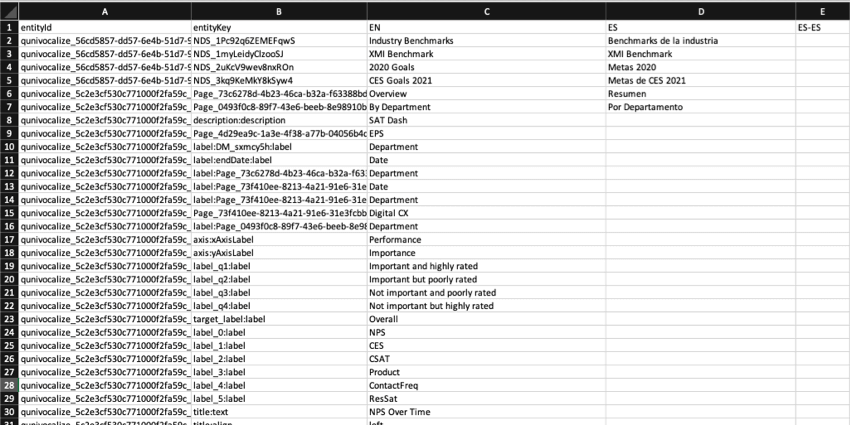
- See the List of Language Codes page for guidance about each language column.
- Follow the file’s exact formatting for creating your translations.
- Use the English column (EN) as a guide.
- Copy and paste to ensure formatting is correct. Do not delete or rearrange the columns, as this will cause the import to fail and translations to be lost.
- Please do not edit anything in the entityId or entityKey columns. Do not delete any strings of numbers and letters – these are internal IDs that identify the parts of the dashboard you are translating.
Warning: Once you’ve saved the file, do not open it again as this could cause you to lose formatting for any special characters.
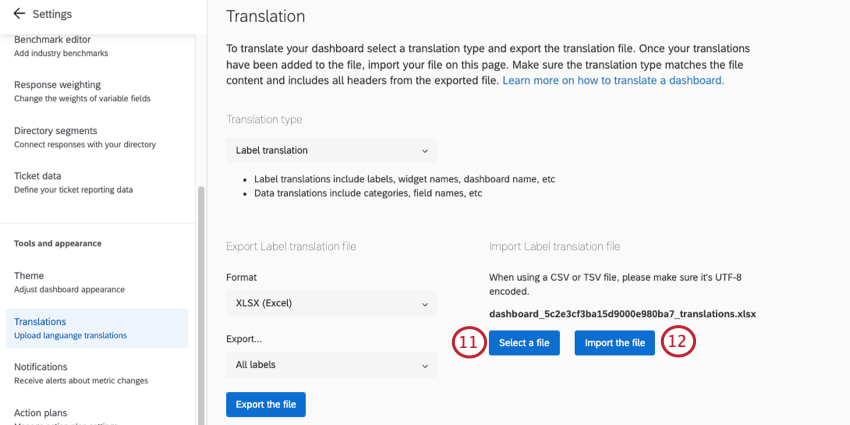
When the translation is done, a message will appear that says Translations updated successfully.
Qtip: If you’re having trouble uploading your file, see CSV / TSV Upload Issues.
Importing a Labels File
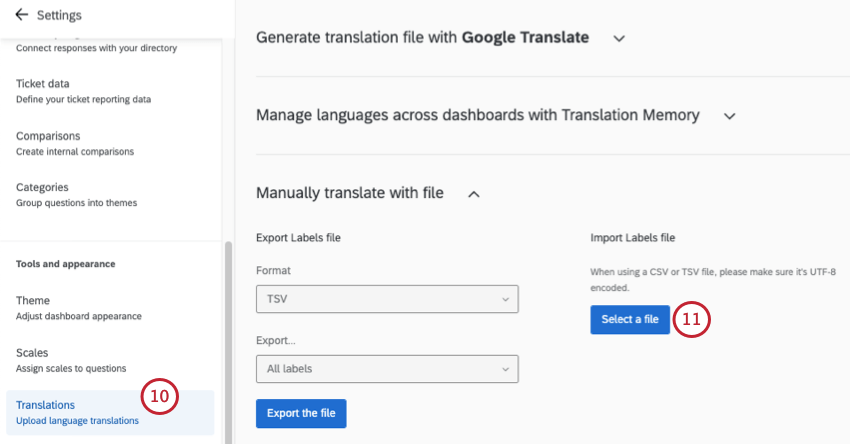
Once you have created a labels file, either manually or using Google Translate, you can import it to your dashboard.
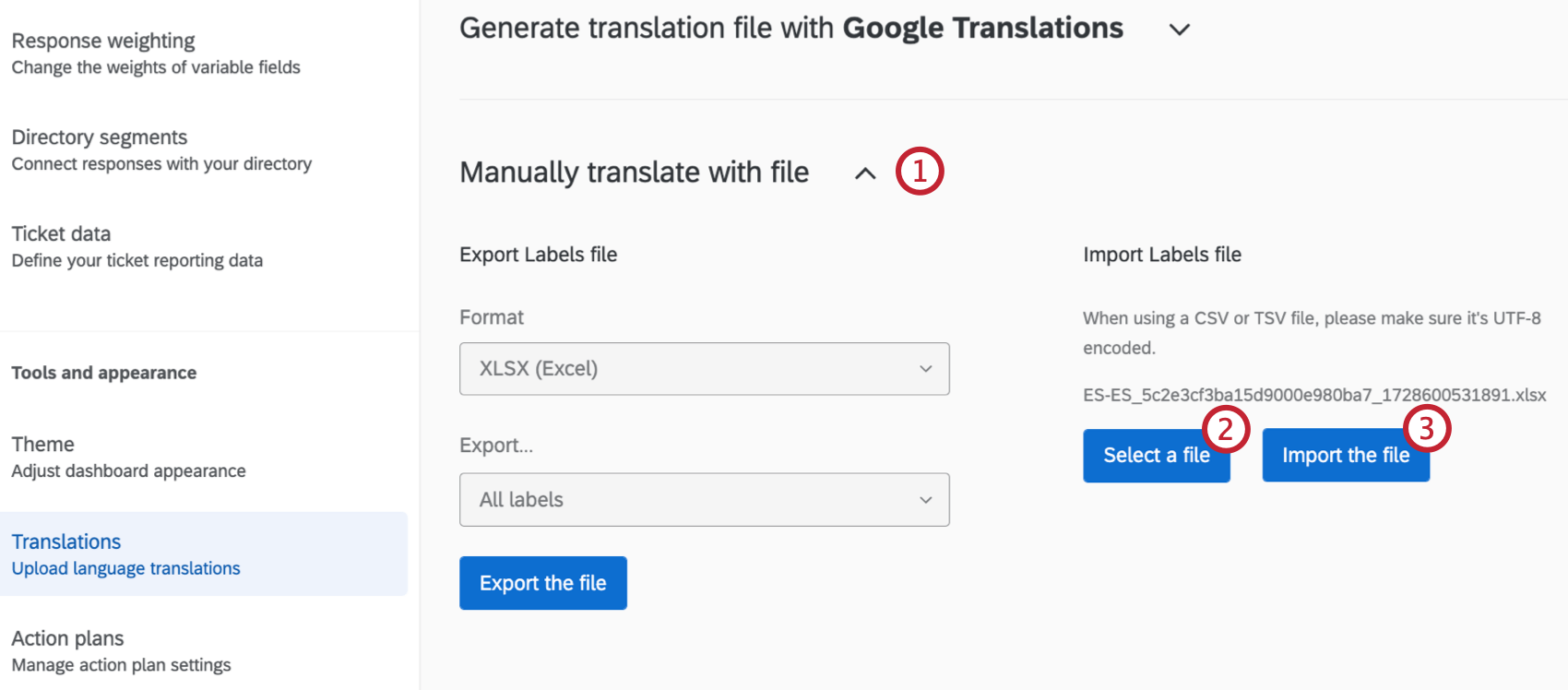
Qtip: If you’re having trouble uploading your file, see CSV / TSV Upload Issues.
Widget Label Translation
While you’re browsing your dashboard, you may notice a translation issue you want to fix. Rather than having to edit the entire dashboard’s translation file, you can just grab the widget’s translation file and make edits to it. In other words, these steps make partial label translations for a single widget faster and easier.
Qtip: When you pull a widget’s translation file, you’re only pulling the labels. This includes text unique to the widget itself, like title, description, and axis labels. Data fields are not included in this file.
Qtip: If you’re translating a dashboard for the first time, we recommend performing a full dashboard translation instead of going widget-by-widget.
Translating an individual widget
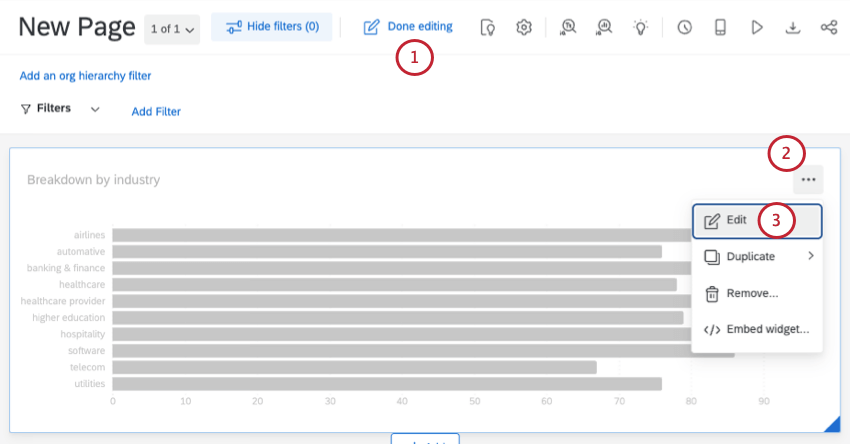
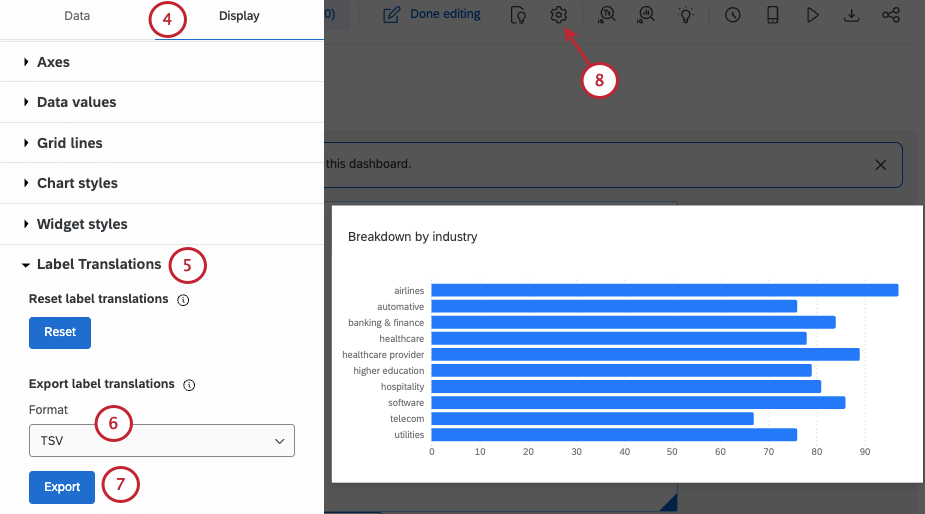
Resetting a widget’s translations
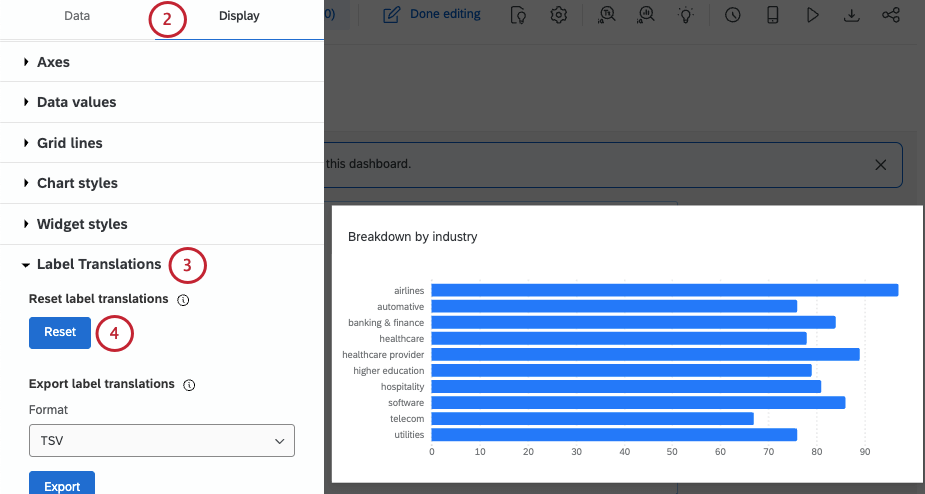
Resetting a widget’s translations sets them to blank. This means the translation labels for this widget will be removed completely, including the strings in the base language. This means that once the translations are reset, any custom titles, descriptions, or labels on the widget are removed from the base language.
This can be useful if you want to rename and label a widget from scratch, including translations.
Warning: Resetting a widget’s labels deletes those labels permanently. Once reset, they cannot be restored.
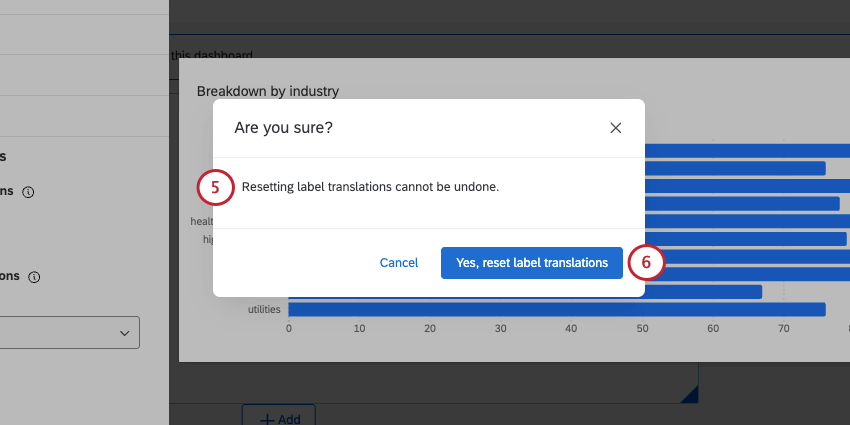
Now you can export the widget’s file and retranslate it, if desired.
This option only resets labels on the specific widget, not any other dashboard translations.
Supported and Unsupported Widgets
The following widgets support both label resets and label translation exports:
Widgets that support reset AND export:
- Gauge Chart
- Number Chart
- Lines
- Donut/Pie
- Vertical Bars
- Horizontal Bas
- Journey Chart
- Star Rating
- Scatterplot
- Record Table
- Table
- Scorecard
- Rich Text Editor
- Key Drivers
- Word Cloud
- Response Ticker
- Participation Summary (EX)
- Engagement Summary (EX)
The following widgets only support label translation exports:
- Bubble Chart
- Heat Map (EX)
- Comparison (EX)
- Question List (EX)
- Engagement Headlines (EX)
- Response Rate Table (EX)
Partial Label Translations
Qtip: You can only upload partial translations for dashboard labels, not data or guided action planning.
You don’t have to upload the dashboard’s entire translation all at once. You can instead upload partial translations. This makes it easy to correct translations for small edits.
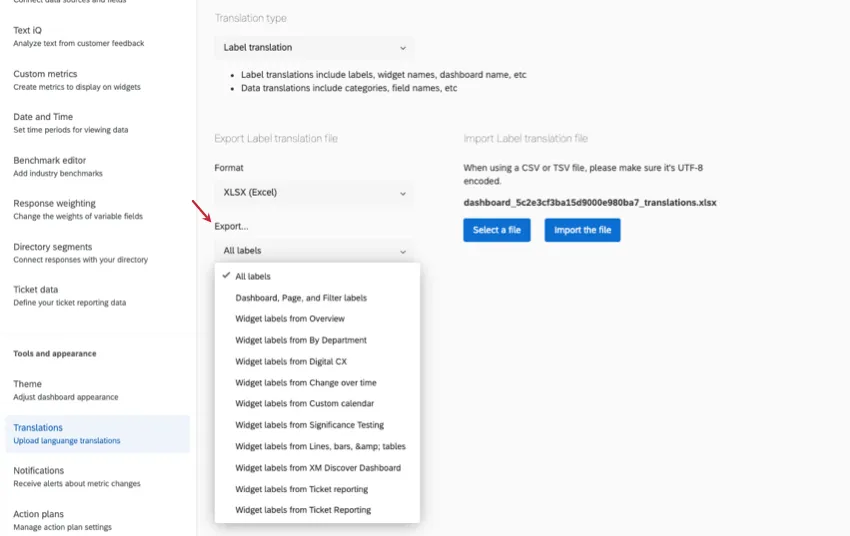
To get a sample file for your partial translation, make sure to choose one of the following from the Export menu:
- Dashboard, Page, and Filter Labels: Translate only the dashboard name, page names, and filter names (not values). Comparisons and benchmarks are also included.
- Widget labels from a specific dashboard page: Translate only widget fields from a specific page of your dashboard. Labels translated include most widget fields (e.g., titles, descriptions, axis labels) and text topics. Comparisons and benchmarks are also included.
Attention: We highly recommend using the sample files we provide with the options above for the easiest experience. However, you can edit a partial translation file down further. See guidance below.
Here are some recommendations to ensure partial translations are uploaded properly.
- Always keep the header (first) row of the exported file
The smallest section you can upload at a time is called an entity. Each widget is its own entity. All rows that belong to the same entity have the same entityId. You must have all of the rows related to a single entity for an import to work.
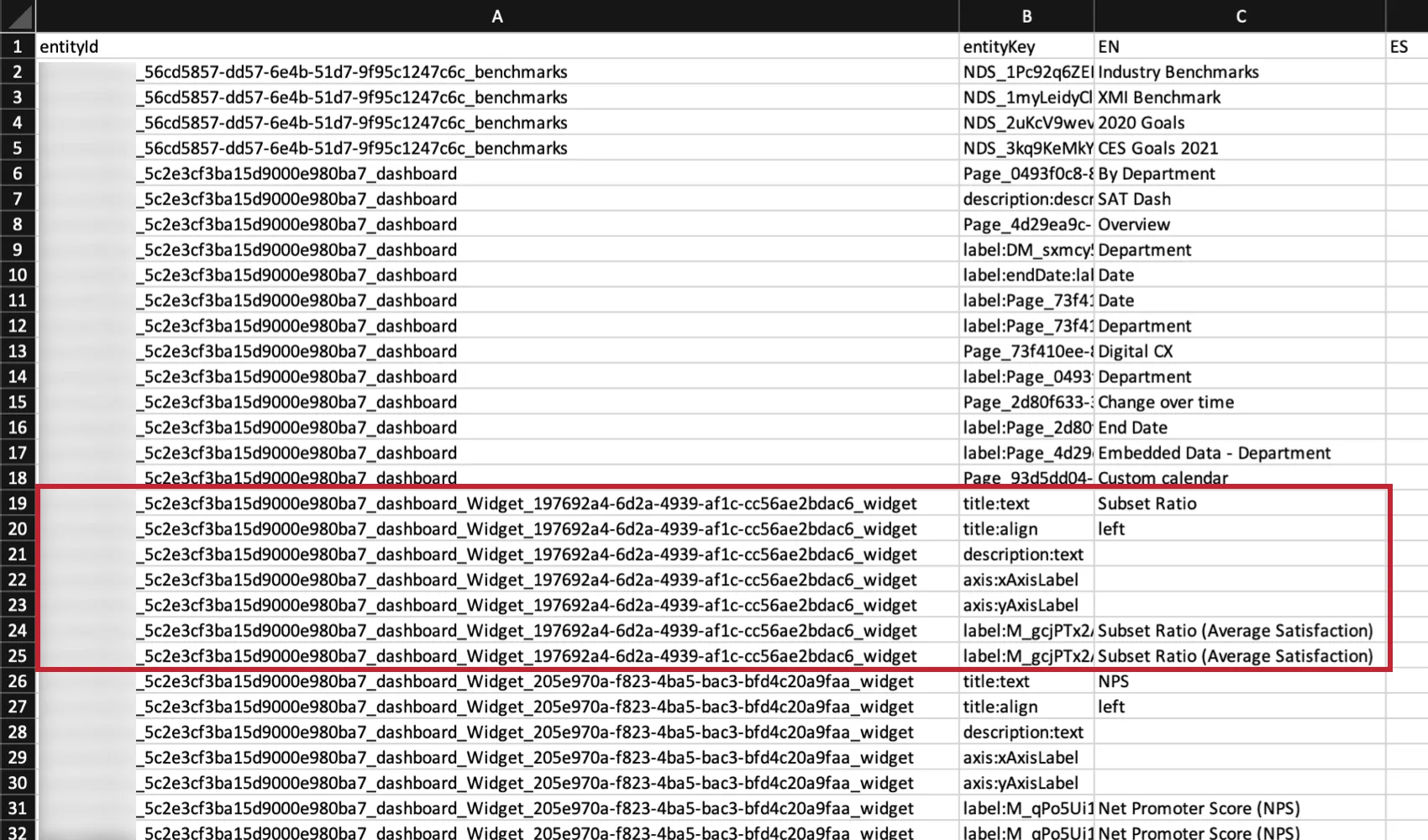

Example: For example, if you’re translating your focus areas widget, you must include every row related to the focus areas widget.

Warning: If you upload only a few of an entity’s rows instead of all of them, any previous translations you uploaded for missing rows will be deleted.
All of the labels for the dashboard, like page names and filter summaries, must be uploaded together. These are considered a single entity.
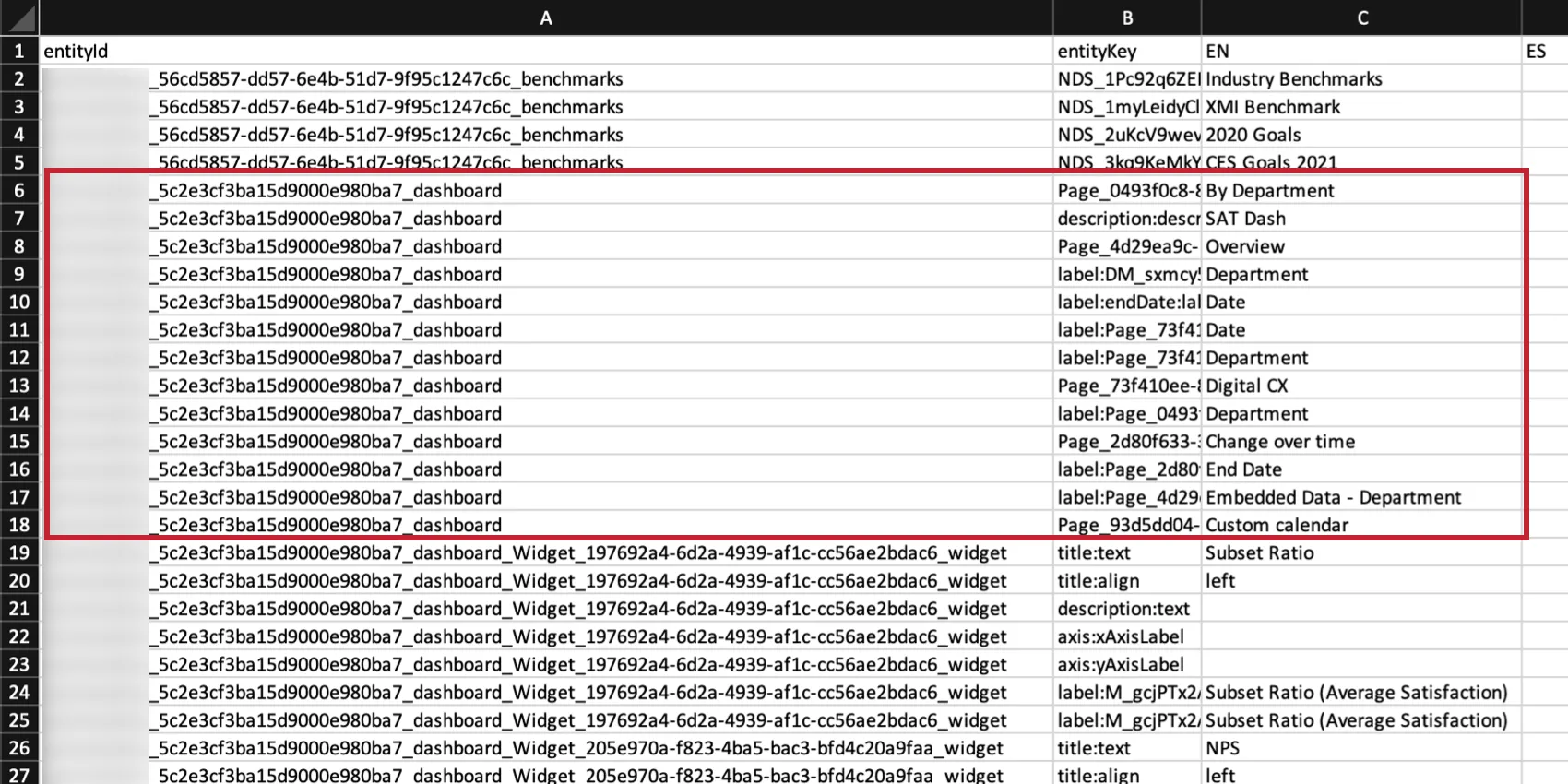
- The best way to safely upload partial translations is to exclude all the rows of an entity you’re not translating. For example, if you’re not going to translate your focus areas widget, exclude all of the focus area rows from the file.
Deleting Dashboard Label Translations
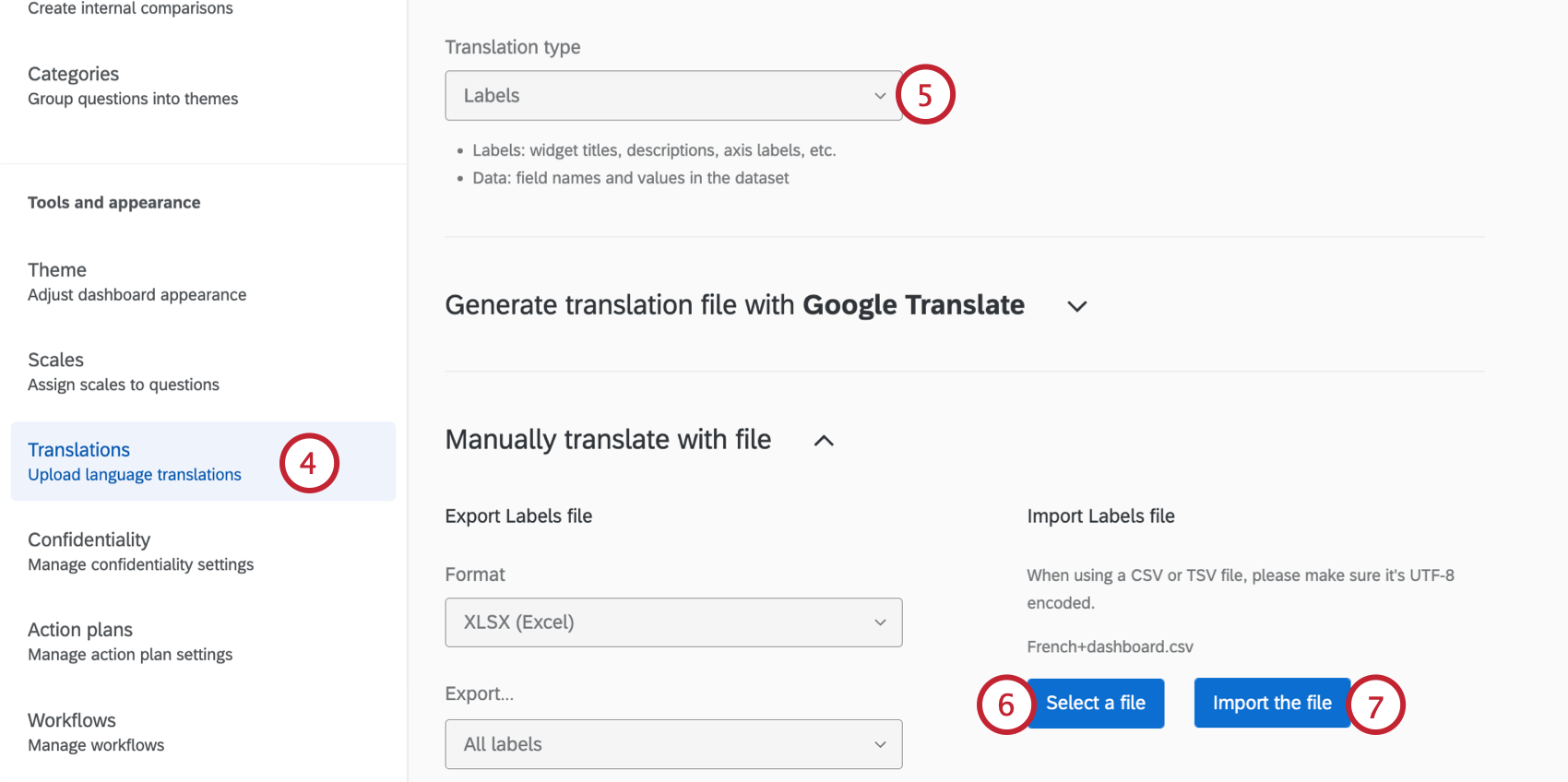
Follow these steps to delete a dashboard label translation:
Attention: Once you delete a translation of your labels, it cannot be retrieved.
Example: To delete the Spanish translation of your data, change the column header from “ES” to “ES [DELETE]”.

Managing Languages Using the Translation Memory
Translation memory allows you to store translations that can be quickly downloaded into surveys and dashboards across your brand. Once translations are uploaded to the translation memory, they can be accessed on demand by anyone in your organization.
Qtip: In dashboards, translation memory can only be used for label translations.
The dashboard translation memory is useful for the following:
- Fetch translations: Download the translations available in your brand-wide translation memory for the labels in your dashboard. You can then upload this file to your dashboard, bringing your dashboard to the most up-to-date, brand-preferred translations.
- Update the translation memory: Updating the translation memory is important because it keeps brand-wide translation standards up-to-date. You might do this if, for example, you just uploaded newly approved translations to your dashboard, and you want to make sure those translations are available for the rest of the organization’s use.
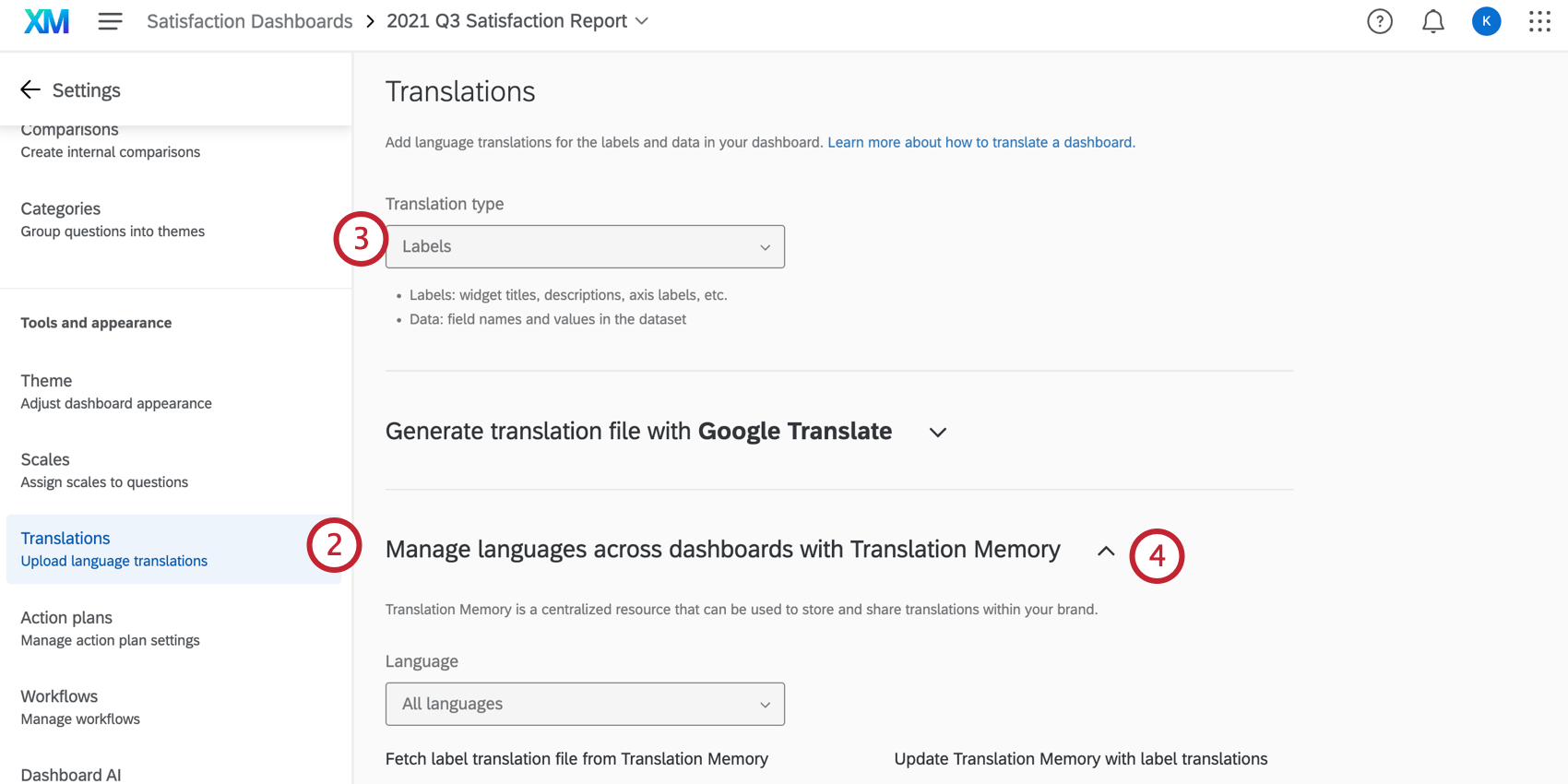
Navigating to translation memory

Fetch label translation file from Translation Memory
Follow these steps to retrieve a translation file using label translations from another dashboard.
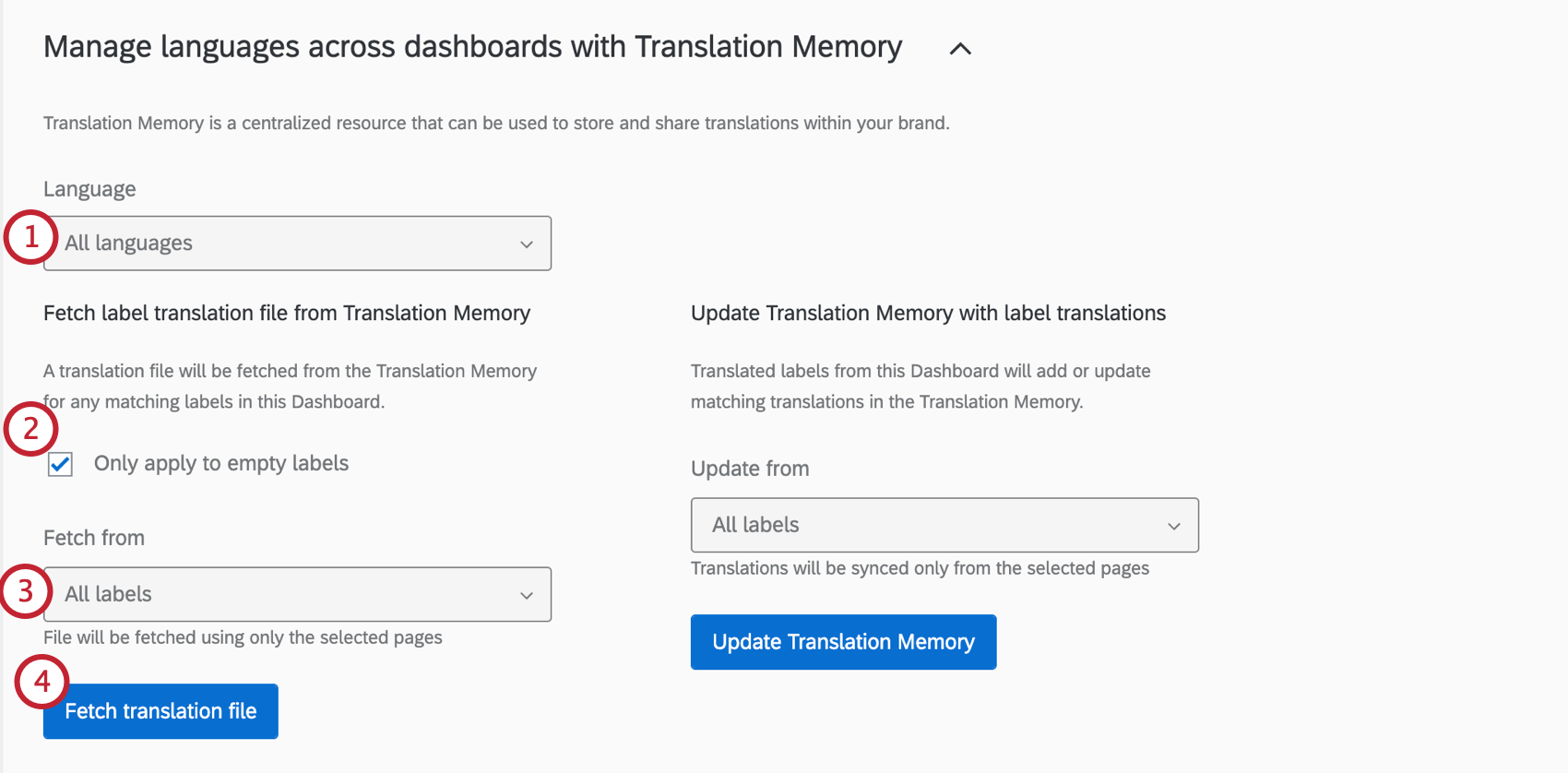
- All labels: By default, the translation file will retrieve all label translations from the translation memory.
- Dashboard, Page, and Filter labels: Only retrieve label translations for dashboard, page, and filters.
- Widget labels from page: Only retrieve label translations for widgets in the page listed.
Update Translation Memory with Label Translations
Qtip: You must have the Update Translation Memory user permission enabled in order to update the translation memory. For access to this feature, reach out to your Brand Administrator.
Follow these steps to update a translation file using label translations from this dashboard. In order to apply these updates to your dashboard, you’ll need to fetch the updated file using the Fetch label translation file steps listed above.
Attention: The translation memory is shared with your entire brand. Any updates to the translation memory will be reflected across the brand.
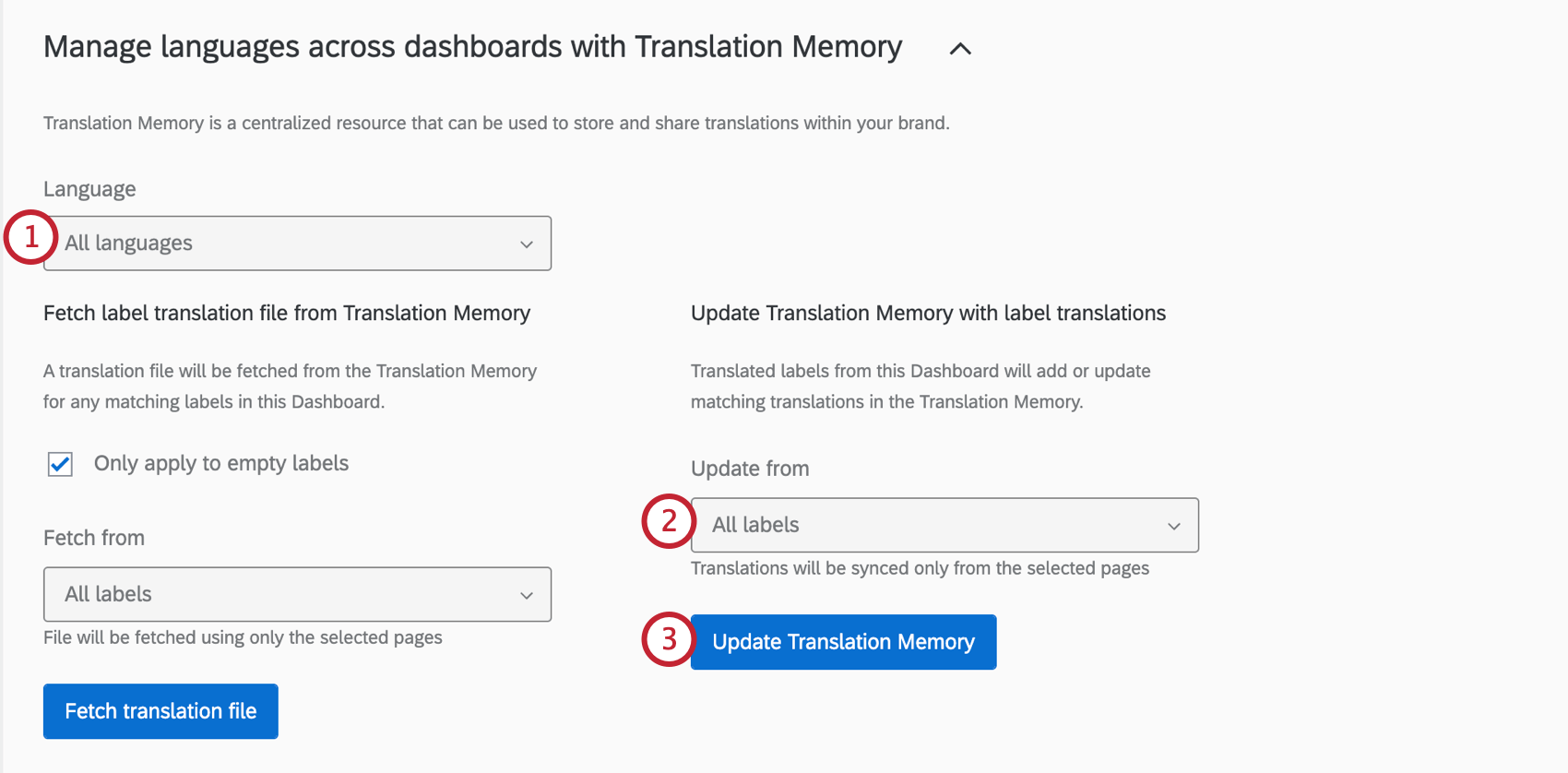
- All labels: By default, the translation file will update all label translations from the translation memory.
- Dashboard, Page, and Filter labels: Only update label translations for dashboard, page, and filters.
- Widget labels from New Page: Only update label translations for widgets.
Troubleshooting Translations
See the Dashboard Translation page for help opening files, previewing translations, fixing file formatting, and more.
Translation Compatibility
Widget Compatibility (CX)
The following widgets are compatible with label translations. Label translations refer to labels, widget names, and dashboard names. Data translations refer to categories and field names.
| Label Translations | |
|---|---|
| Record Table | Yes |
| Table | Yes |
| Text IQ Table | No |
| Gauge Chart | Yes |
| Number Chart | Yes |
| Line and Bar Chart | Yes |
| Response Ticker | Yes |
| Star Rating | Yes |
| Key Driver | Yes |
| Breakdown Bar | Yes |
| Online Reviews Widget | Yes |
| Donut / Pie | Yes |
| Focus Areas | Yes |
| Text IQ Bubble Chart | Yes |
| Coaching Priorities | Yes |
| Action Planning Editor | Yes |
| Frontline Reminders | Yes |
Widget Compatibility (EX)
The following widgets are compatible with label translations. Label translations refer to labels, widget names, and dashboard names. Data translations refer to categories and field names.
| Label Translations | |
|---|---|
| Question List | Yes |
| Score Card | Yes |
| Heat Map | Yes |
| Engagement Summary | Yes |
| Demographic Breakout | Yes |
| Participation Summary | Yes |
| Bubble Chart | Yes |
| Comparison Widget | Yes |
| Response Rates | No |
| Record Grid | Yes |
| Gauge Chart | Yes |
| Number Chart | Yes |
| Simple Chart | Yes |
| Response Ticker | Yes |
| Key Driver | Yes |
| Pie Chart | Yes |
| Focus Areas | Yes |
| TextiQ Bubble Chart | Yes |
| Line & Bar Chart | Yes |
| Table | Yes |
| Record Table | Yes |
EX Manager Report Compatibility
The following manager report widgets can be translated with dashboard labels:
- Question List
- Scorecard
- Engagement Summary
- Heat map
That's great! Thank you for your feedback!
Thank you for your feedback!