

Question Types
What's on this page
About Question Types
Given the diverse needs your research can have, Qualtrics provides many different ways to ask a question. Each question type has its own unique customization options to further tailor it to your study and ensure you’re collecting data in the right format.
You can specify the type of question you want by clicking the Add new question button.
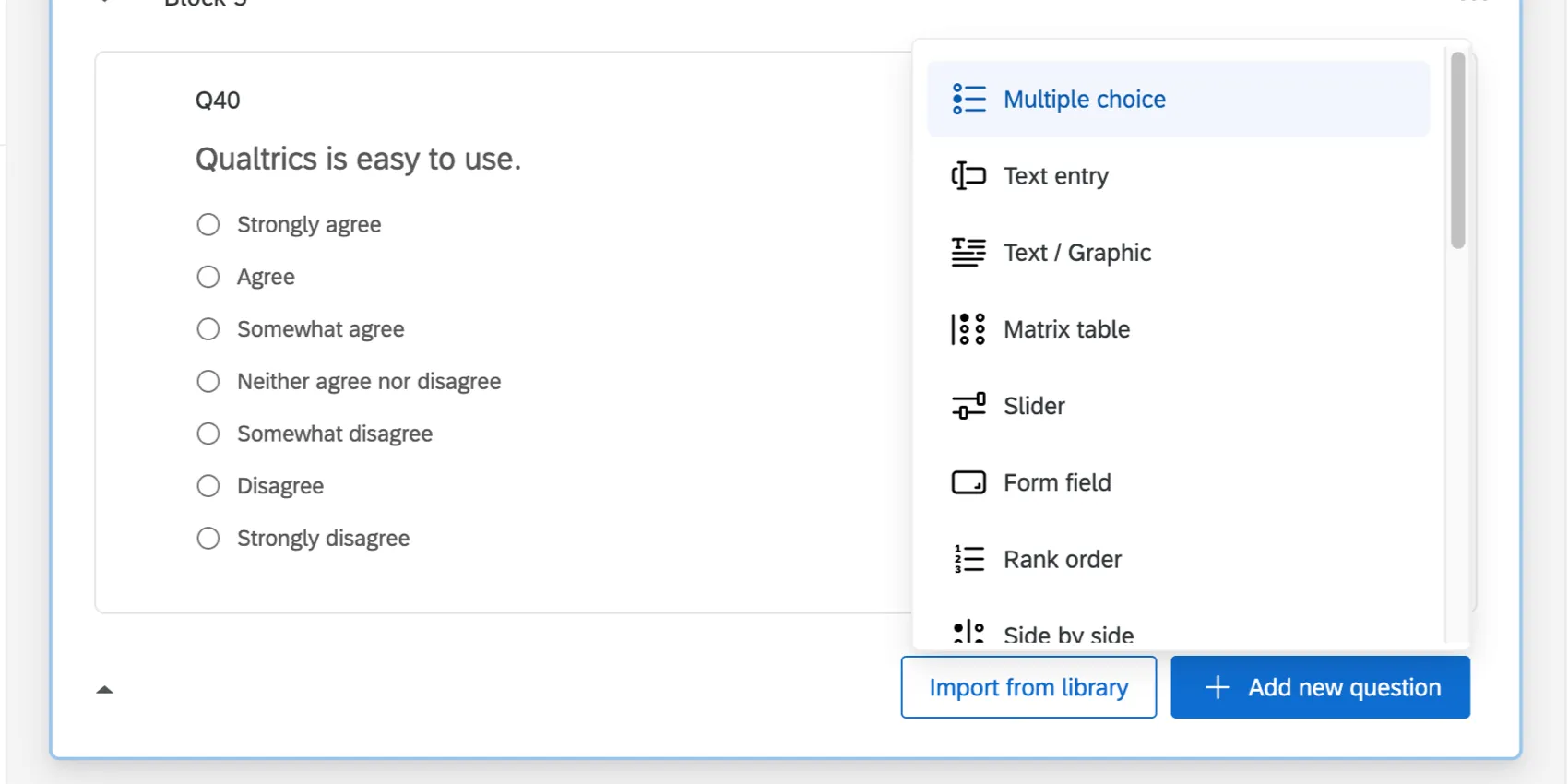
Qtip: You can also change an existing question’s type – but you should only do this if you have not collected data yet.

This page provides a brief description of each question type, with links to pages where you can learn more about each. We also provide a list of projects each question is compatible with.
List of Question Types
Qtip: You can learn more about a question on its linked page. Some of the types of questions listed below may be add-on features not included in the standard Qualtrics license. If you don’t have access to a certain question type and you’d like to learn more, contact your Account Executive.
Qtip: Some question types are only available on the new survey taking experience, while some question types are not available on the new survey taking experience. See the list of Currently Unsupported Survey Features for more information.

Multiple Choice: Multiple choice questions form the basis of most research. They can be displayed as a traditional list of choices or as a dropdown menu, select box, etc.

Text Entry: Text entry is used to gather open-ended feedback from respondents. These responses can be lengthy essays or short text.

Text / Graphic: Text / graphic questions can be used to add an introduction or instructions to your survey, or display an asset, like an image.

Matrix Table: Matrix table is used to collect multiple pieces of information in one question. This type provides an effective way to condense your survey or to group similar items into one question.

Form Field: Gather standard form information such as name and email address.

Calendar: Allow users to input a date and time using a calendar within the survey.

Slider: Sliders let respondents indicate their level of preference with a draggable bar rather than a traditional button or checkbox.

Rank Order: Rank order is used to determine each respondent’s order of preference for a list of items.

Side by Side: Side by side questions let you ask multiple questions in one condensed table and provides an effective way of shortening your survey while gathering the same amount of data.

Net Promoter Score®: NPS® tracks customer loyalty with one simple, standardized question: “On a scale from 0-10, how likely are you to recommend our company to a friend or colleague?”

Timing: This hidden question is used to time—as well as limit—how long participants spend on a page of the survey.

Graphic Slider: This variation of the slider question has respondents use various graphic options, such as changing a frown to a smile or choosing a grade, to indicate their level of preference.

Constant Sum: Constant sum collects numeric data and displays a sum to the respondent. This type is often used for allocation assessments, such as defining how you spend your time in different activities.

File Upload: File upload is used to collect information beyond the survey questions, such as user-uploaded photos or documents.

Pick, Group, and Rank: Pick, group, and rank is used for sorting activities. Respondents place items into groups and have the option to rank the items within the group.

Drill Down: Drill downs help respondents choose from a long list by starting with a broad category and then honing in on the choices that are relevant to the respondent.

Signature: The signature question type presents survey participants with an entry box where they can draw their signature. On a desktop, they can use their mouse, and on a mobile device they can use their finger.

Heat Map: Heat maps let respondents click a specific point on an image. In your data, you can see a heat map that shows which parts of the image were most often clicked. This type is often used for web development (e.g., eye flow analysis) and advertisement testing.

Hot Spot: Hot spots allow respondents to interact with regions of an image. This type is often used in usability testing and concept testing.

Meta Info: Meta info questions report public information about the respondent’s computer, such as their browser and operating system. The question requires no respondent action and is completely hidden.

Captcha Verification: Captcha verification is used to ensure that your respondents aren’t robots. This question has participants respond to a challenge to verify they are real humans.

Highlight: The highlight question type allows you to present survey participants with an interactive text sample. Participants can select words from the text and evaluate using criteria you choose. For example, whether they like or dislike the selected text.

Screen Capture: Screen capture allows respondents to attach a screenshot of the site they are viewing when taking a survey through a Website / App Feedback project. This question type is only available to users that have purchased access to Website / App Feedback projects.

Video Response: Video responses allow survey takers to record and upload a video or audio recording from their device.

Unmoderated User Testing: Unmoderated user testing allows survey participants to record and upload a video or audio recording of their feedback.

Location Selector: The location selector question types allows respondents to select a location from a location source you provide.

ArcGIS Map: The ArcGIS map question type allows respondents to select a location from a map. This location point can be shared with ArcGIS through the Update ArcGIS Task.

Solicit Reviews: Solicit Reviews allows respondents to leave a review on a trusted source – such as Google, Facebook, or G2 – from right inside a Qualtrics survey.

Tree Testing: Tree testing asks survey respondents to use your website’s menu to find a specific web page.

Number Scale: Number scales ask respondents to rate various statements using the same numeric scale.
Import From Library
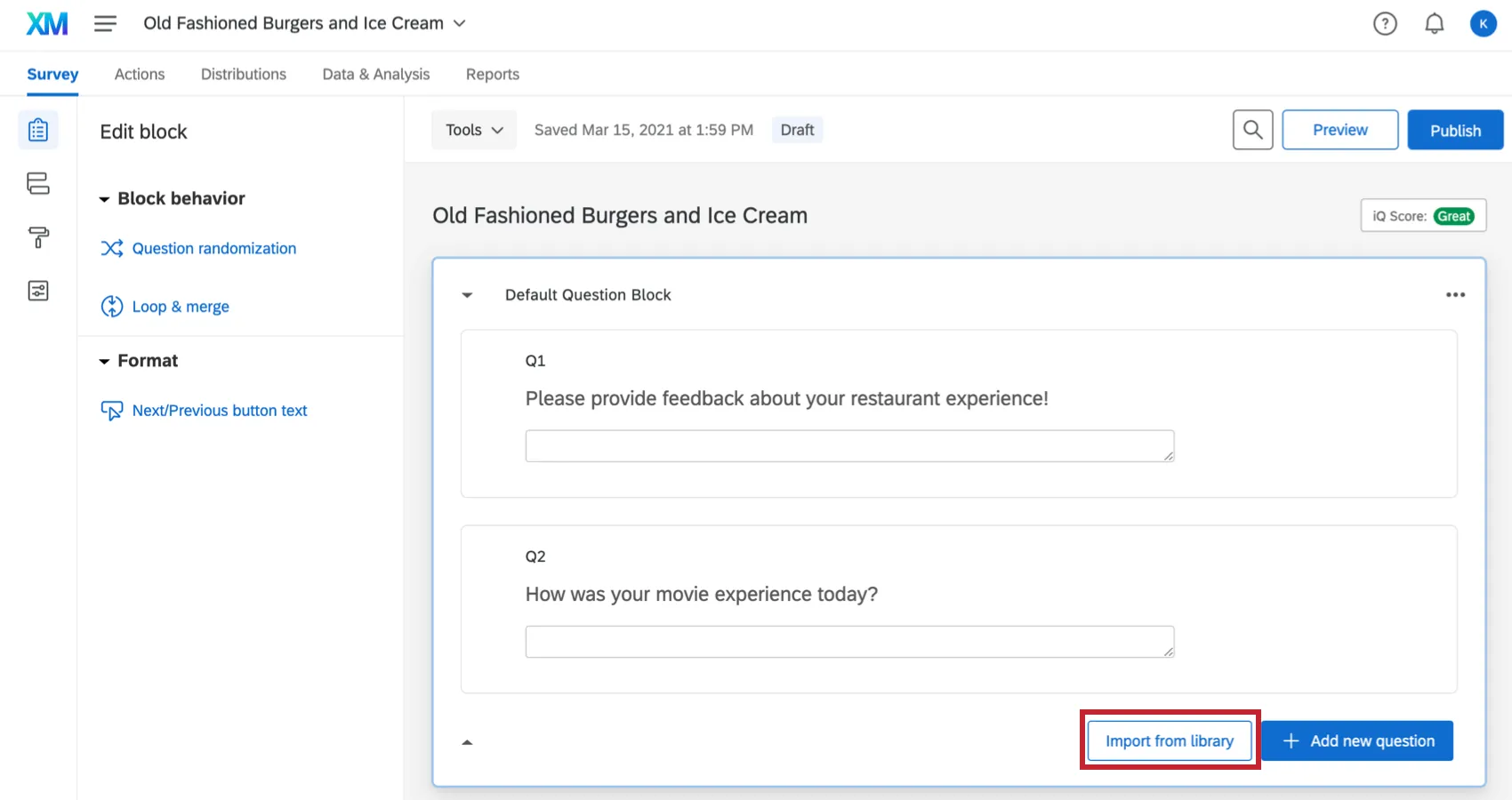
Clicking on the Import from library button will take you to the Qualtrics question library. This allows you to pull questions from other surveys you’ve built or from the Qualtrics library of template questions.
For more information on what templates we have available, visit Pre-Made Qualtrics Library Questions.
Changing the Question Type
Warning: Be mindful of changing question types after you have begun collecting data! This could invalidate your survey’s results. See Testing/Editing Active Surveys for more information about what edits are OK in a survey with data.

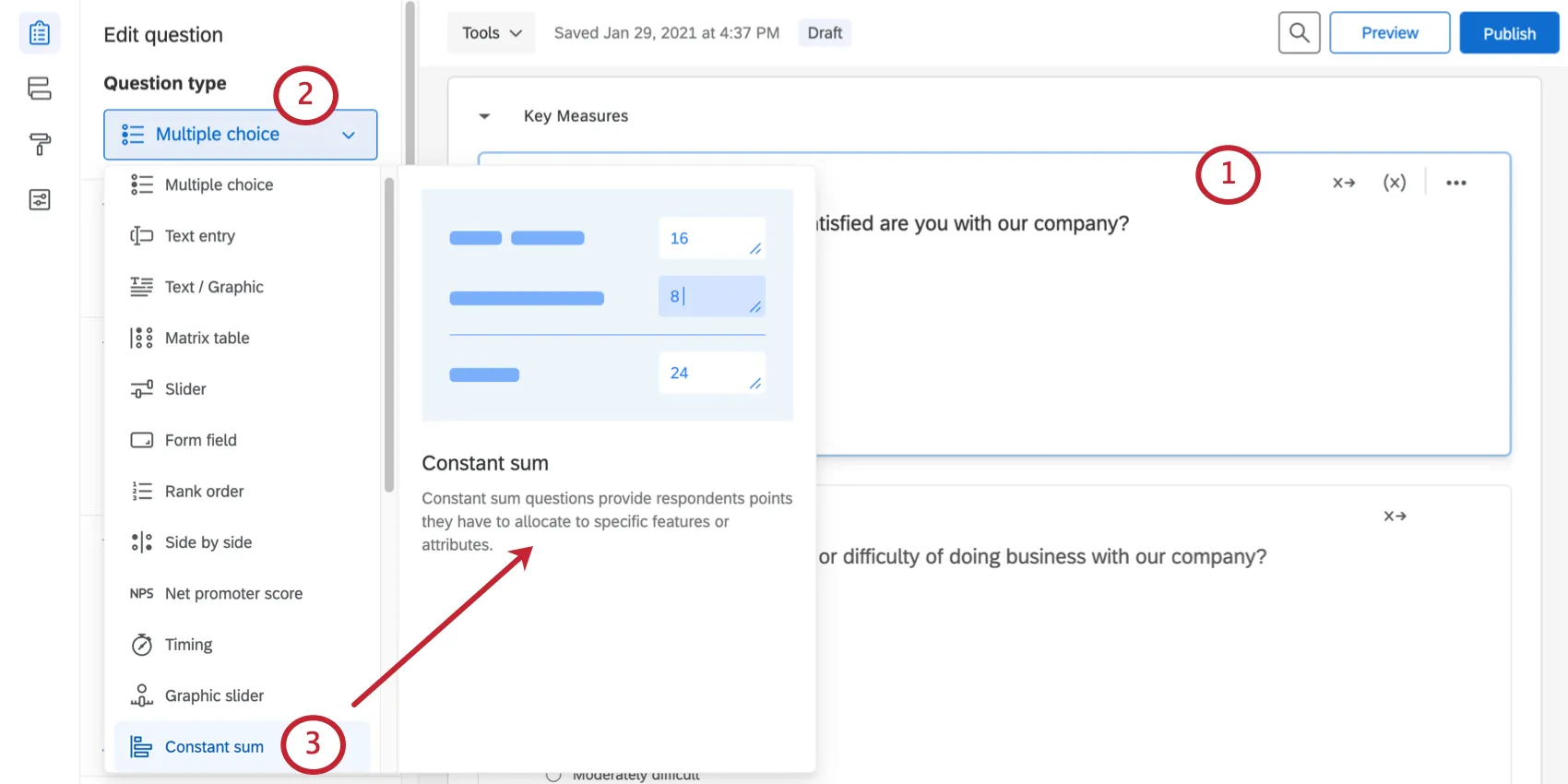
To change a question’s type:
Available Questions for Each Project Type
Depending on your license, you may have access to multiple types of projects. The following table specifies which questions can be used with each project type. Please note that some questions in this list are add-ons. See each question type’s specific support page for more details.
If a project is not listed here, chances are it has the same question types as a survey project. For example, many guided projects, such as Brand Trackers, Conjoints, and MaxDiff projects, have the same question types as survey projects.
| Surveys | Engagement, lifecycle, pulse, & ad hoc employee research | 360 projects | |
|---|---|---|---|
| Multiple choice | Yes | Yes | Yes |
| Text entry | Yes | Yes | Yes |
| Text / graphic | Yes | Yes | Yes |
| Matrix table | Yes | Yes | Yes |
| Form field | Yes | Yes | Yes |
| Calendar | Yes | Yes | Yes |
| Slider | Yes | No | Yes |
| Rank order | Yes | No | Yes |
| Side by side | Yes | Yes | Yes |
| Net Promoter Score® | Yes | Yes | No |
| Timing | Yes | Yes | Yes |
| Graphic Slider | Yes | No | No |
| Constant Sum | Yes | No | Yes |
| File Upload | Yes, as add-on | No | No |
| Number Scale | Yes | Yes | No |
| Pick, group, and rank | Yes | No | Yes |
| Drill down | Yes | No | No |
| Signature | Yes, as add-on | No | No |
| Heat map | Yes | No | No |
| Hot spot | Yes | No | No |
| Meta info | Yes | Yes | Yes |
| Captcha verification | Yes | No | No |
| Highlight | Yes, as add-on | No | No |
| Screen capture | Yes, for licenses including Website / App Feedback | No | No |
| Video response | Yes, for license including Strategic Research | No | No |
| Unmoderated user testing | Yes, for licenses including UX | Yes, for licenses including UX | Yes, for licenses including UX |
| Location selector | Yes, for licenses including Location CX | Yes, for licenses including Location CX | Yes, for licenses including Location CX |
| ArcGIS Map | Yes | Yes | Yes |
| Solicit reviews | Yes, for licenses including Location CX | Yes, for licenses including Location CX | Yes, for licenses including Location CX |
| Tree testing | Yes, for licenses including UX | No | No |
| Org hierarchy | No | Yes, for Engagement and Pulse projects | No |
FAQs
How do I test my survey before sending it out?
How do I test my survey before sending it out?
To learn more, visit our page on Testing and Editing an Active Survey.
I want to remove a question or answer choice from a survey, but I’ve already collected some data. What do I do?
I want to remove a question or answer choice from a survey, but I’ve already collected some data. What do I do?
How do I require a respondent answer a question?
How do I require a respondent answer a question?
I want my survey to start with introductory text or an image. How do I do that?
I want my survey to start with introductory text or an image. How do I do that?
If you're looking to add a logo to your theme or a header / footer on every page of the survey, see Survey Theming or General Look and Feel Settings instead.
That's great! Thank you for your feedback!
Thank you for your feedback!