

Organization Settings
What's on this page
About Organization Settings
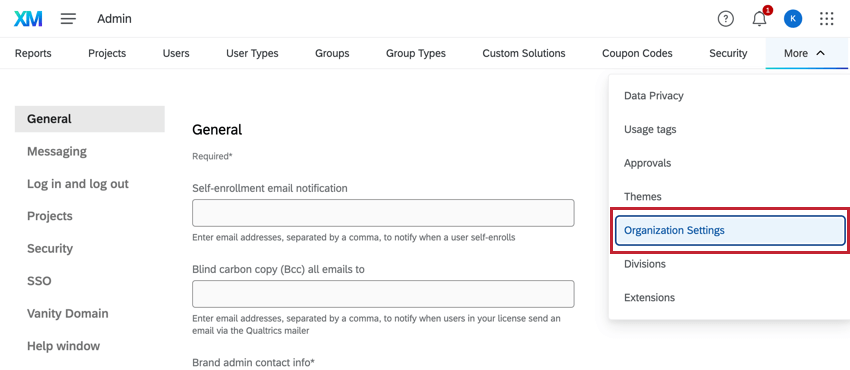
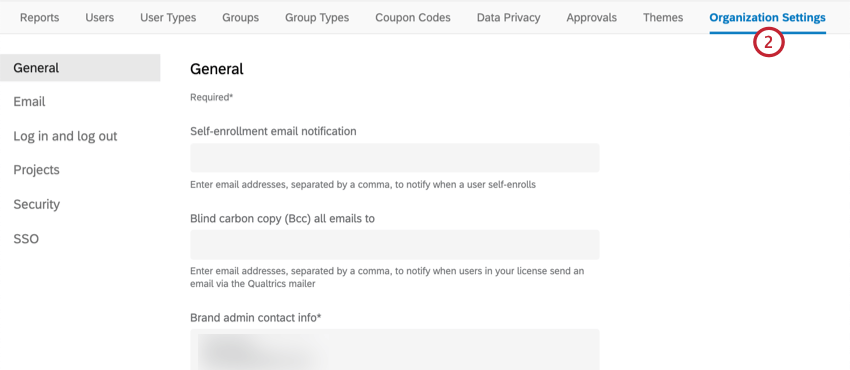
The Organization Settings tab, found in the Admin page, allows you to view and manage options that apply to all Qualtrics users in your organization. From here, you can set up contact info, password parameters, logout redirects, and more.
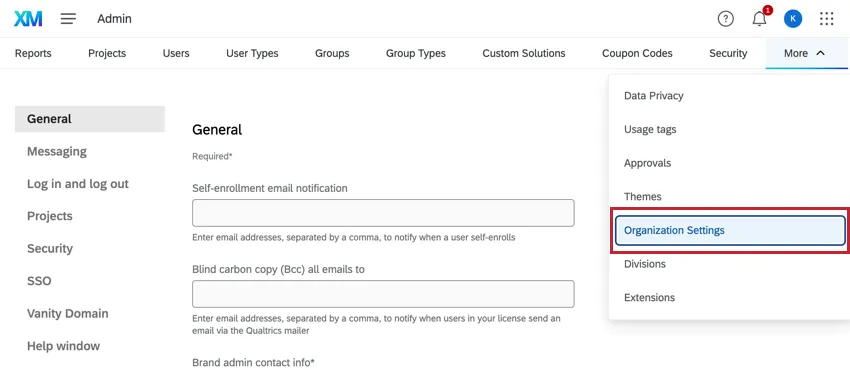
Qtip: Any of the fields in any of the sections can be left blank.
General
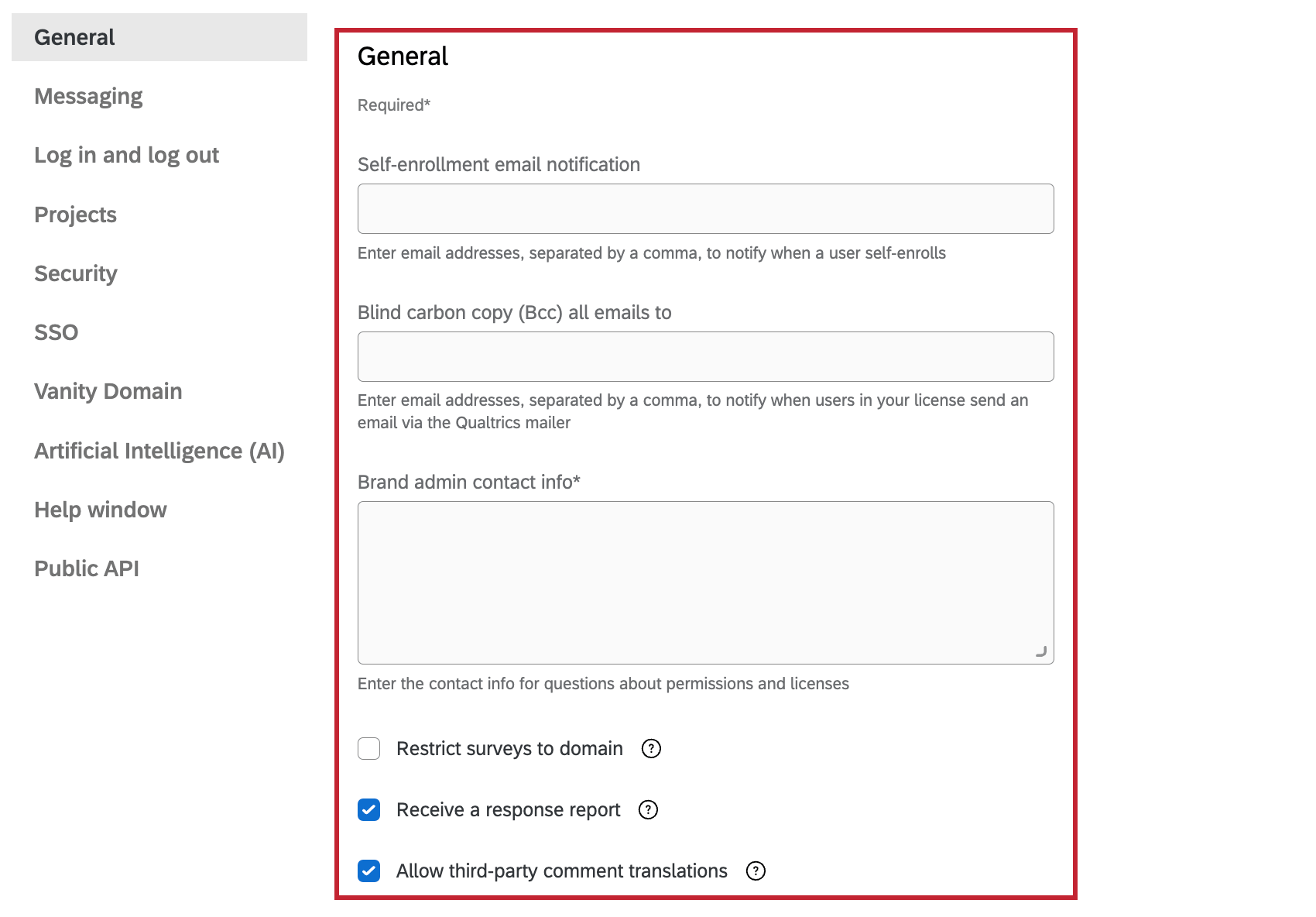
The General section holds settings for emails, notifications, and contact information.
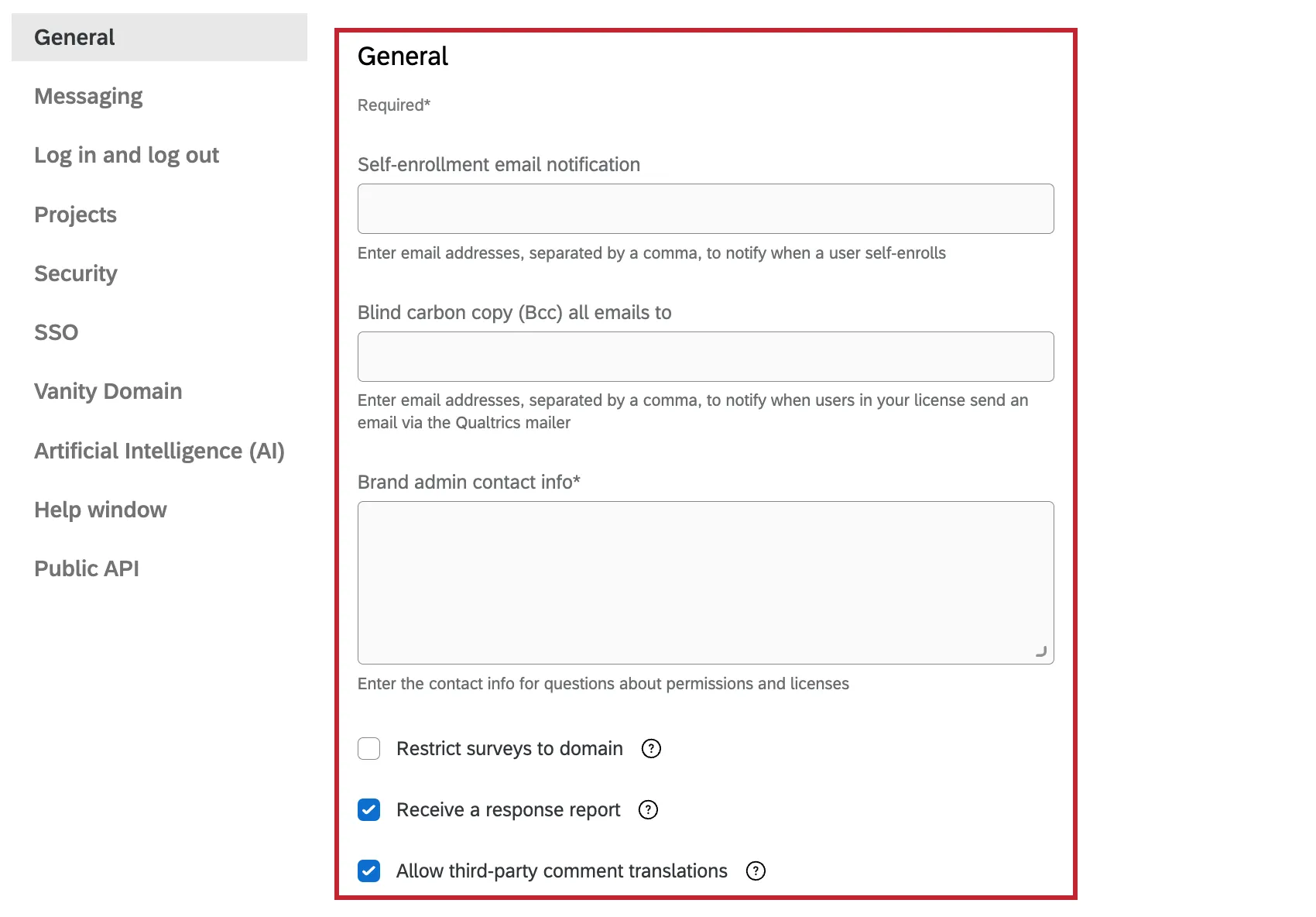
- Self-Enrollment email notification: Specify the email address(es) that should receive a notification whenever a user self-enrolls. Multiple emails should be separated with a comma (e.g., “example1@email.com, example2@email.com”). Note that this setting only applies if you have opted to allow self enrollment for your license and your license does not use Single Sign-On (SSO). Qtip: If your license uses SSO and you’d like to receive email notifications when users self-enroll, please contact Qualtrics Support. Please note that if your license uses the SSO self-service feature, then you do not need to contact Qualtrics Support regarding self-enrollment email notifications.

- Blind carbon copy (Bcc) all emails to: Specify the email address(es) that should be a BCC of every email sent by users in your license via the Qualtrics mailer. This includes email distributions, email tasks, emails sent via the XM Directory task, tickets emails, and sending emails to a contact list.
- Brand admin contact info: Specify the contact information users should follow to ask questions regarding their permissions and the overall license. Note that this is also where Qualtrics Support will direct users with permissions questions. Warning: This field is required and cannot be left blank.

- Restrict surveys to domain: Requires the individual to use their organization’s ID/information in the survey URL.
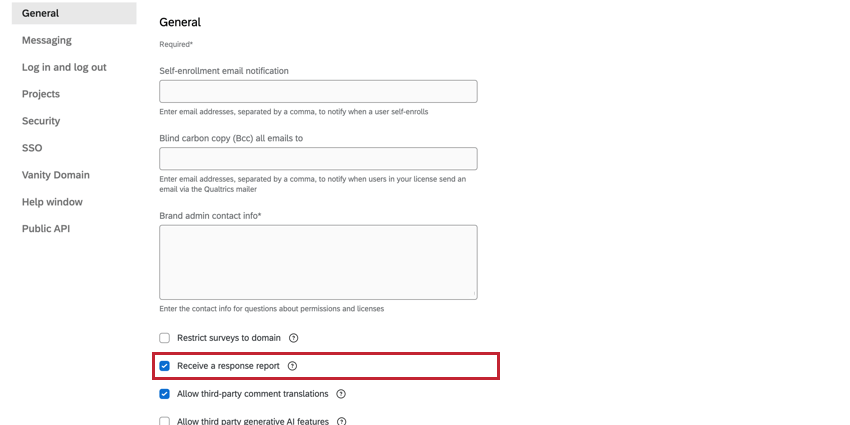
- Receive a response report: See the next section, Allow Response Report.
- Allow third-party comment translations: Enable Multi-Language Sentiment Analysis & Translate Comments in Text iQ. This will ensure responses that aren’t in English are analyzed in their native language, allowing for more accurate sentiment assignment. However, this feature requires sharing data with a third party software. See the linked support page for more information on this feature’s functions and the available languages.
Contact Information
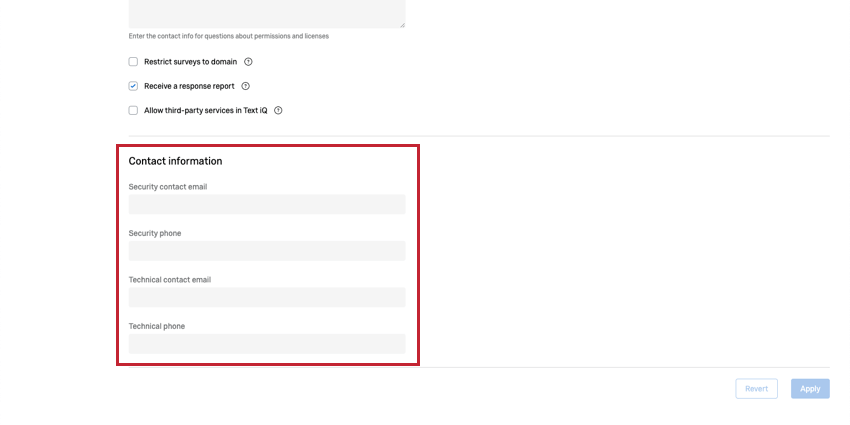
The Contact Information section allows you to enter contact information if you’d like Qualtrics to reach out to alternative security and technical contacts. If you’d like Qualtrics to contact the Brand Administrator, feel free to leave these fields blank.
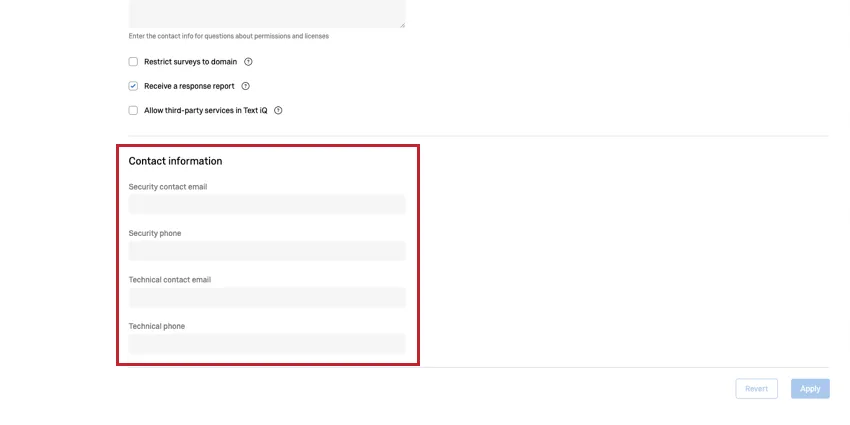
- Security contact email: The email of your organization’s security contact.
- Security phone: The phone number of your organization’s security contact.
- Technical contact email: The email of your organization’s technical contact.
- Technical phone: The email of your organization’s technical contact.
Allow Response Report
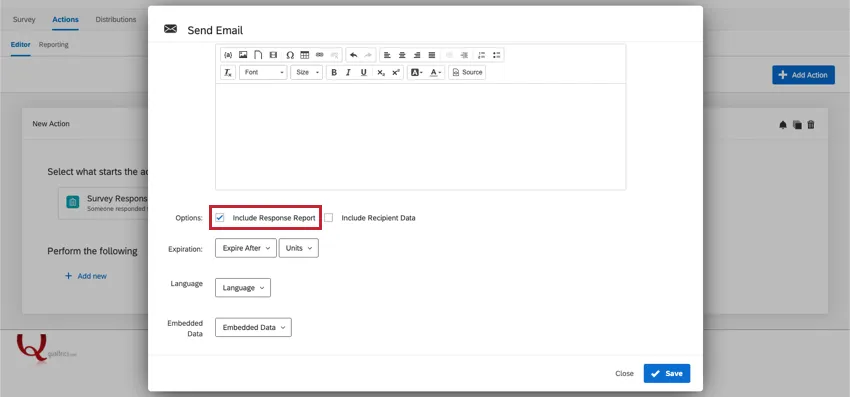
Warning: You are advised to be cautious before selecting this option, and to let your users know of any change you make. After the change, response report links sent before Receive a response report was disabled will still exist, but will no longer display a response report.
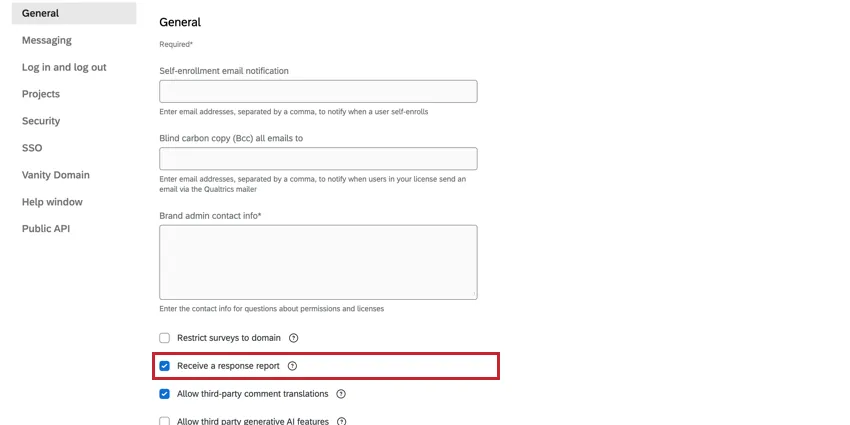
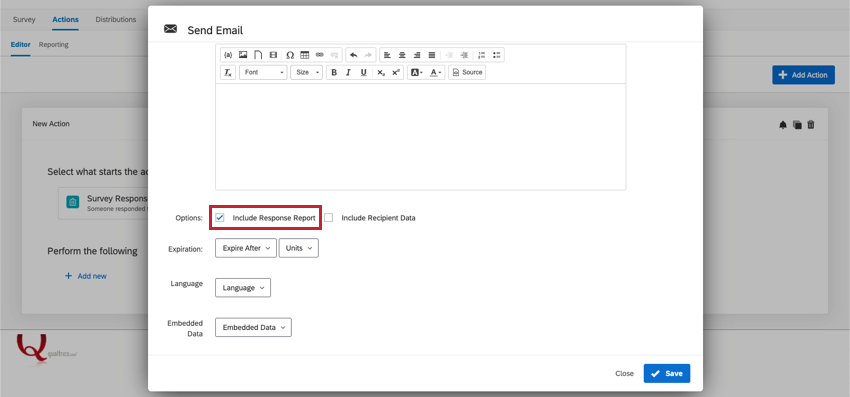
Response reports are a feature that your Qualtrics users can attach to their email task in the Workflows tab. They attach a copy of the participant’s entire survey response to an email a set period of time after it is submitted. When you deselect Receive a response report, you disable the ability for survey creators to display response reports in an email task.
However, the option will still appear in email tasks even after being disabled in the Organization Settings. It is advised you reach out to your users to let them know if you make this change.
Messaging
The messaging section holds settings for custom email settings and survey links for SMS and WhatsApp distributions. Click the header of each section to expand it and access the settings.
Custom Email Header
Qtip: To customize this setting, you will need to have the Customize Email Headers permission enabled.
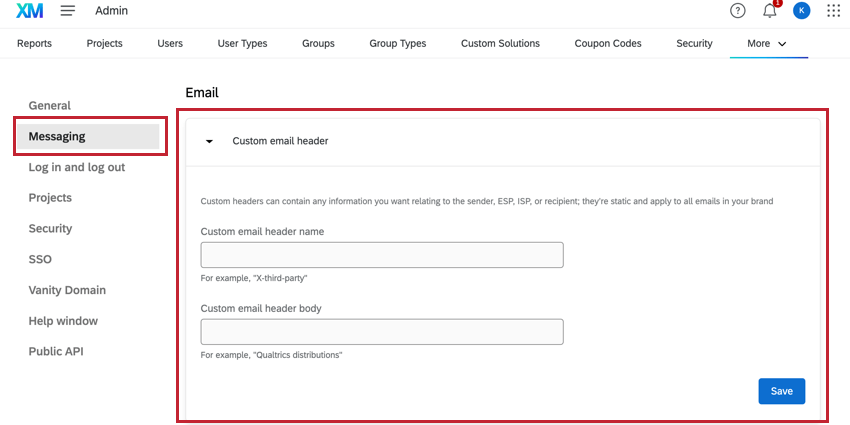
This set of options allows you to set custom headers on all the emails in your brand. These custom headers can contain any information you want relating to the sender, ESP, ISP, or recipient. Custom email headers are static and apply to the entire brand.
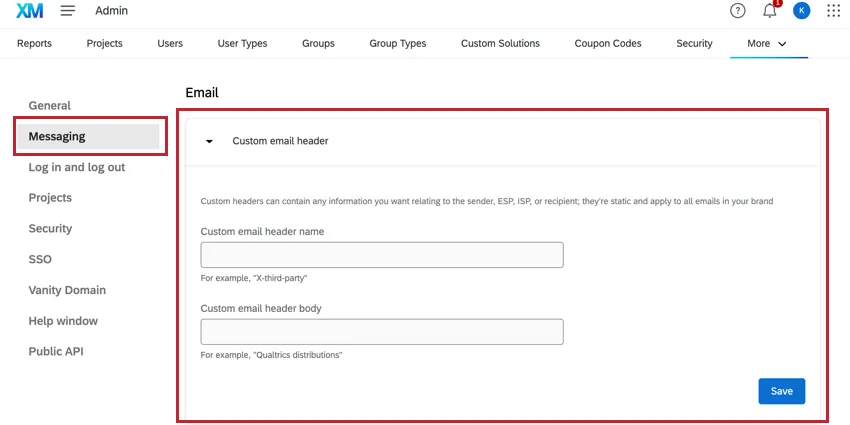
- Custom Email Header Name: The name of the email header.
- Custom Email Header Body: The body of the header. This is what the header’s value will be in every distribution coming from the brand.
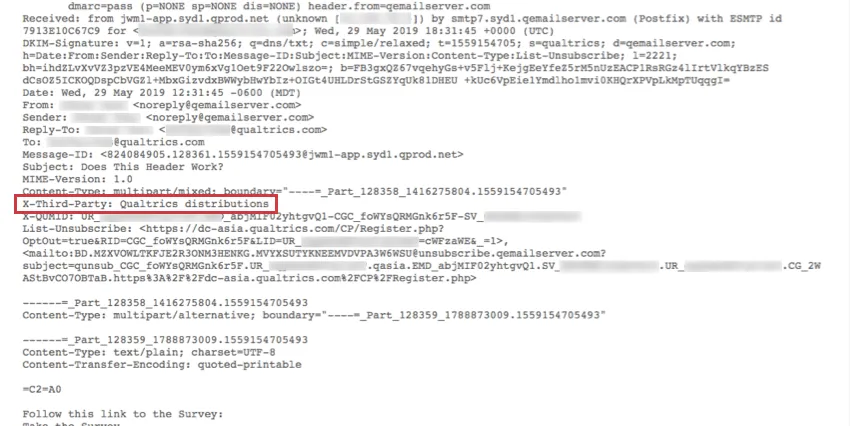
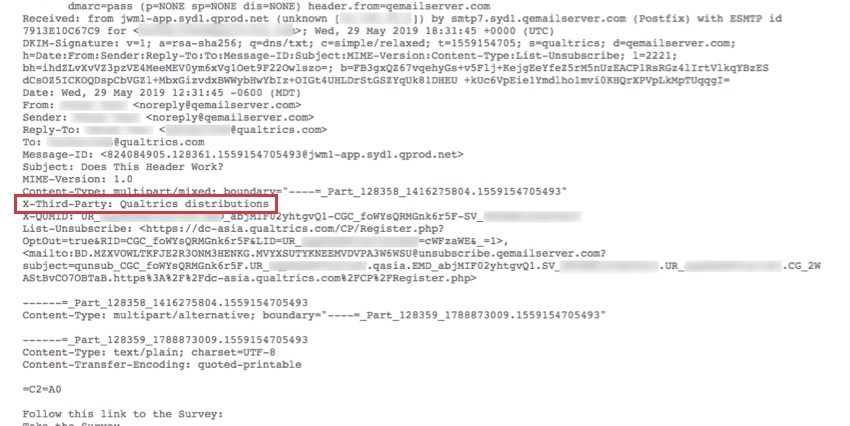
Example: Custom email headers can be used to tag all emails sent from Qualtrics on behalf of your company for your own organizational or tracking purposes. Let’s say your company sends emails using both Qualtrics and your own email server. You can add a custom header to the emails sent via Qualtrics to track email engagement and compare against the engagement for emails sent via your email server.

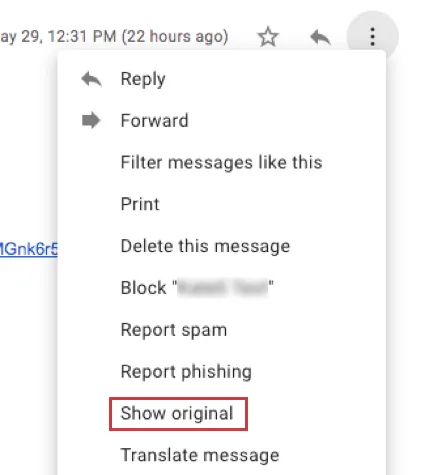
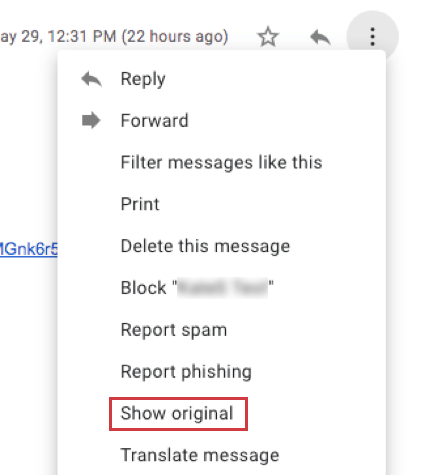
Custom email headers appear when you view the original text of the email. This can be accessed in many mailers by clicking a dropdown and selecting Show original.
Custom Email Domains
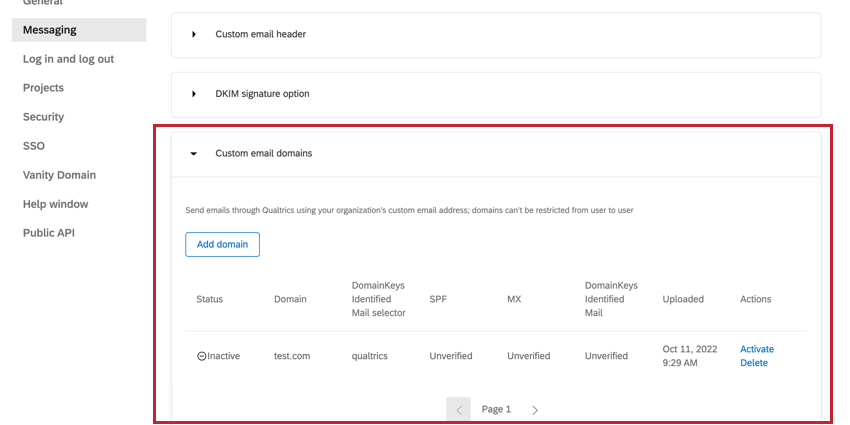
This section of the Organization Settings allows you to create custom email domains. This allows users in your brand to send emails through Qualtrics using your organization’s custom email address. To learn more about this, see Configuring a Custom From Domain.
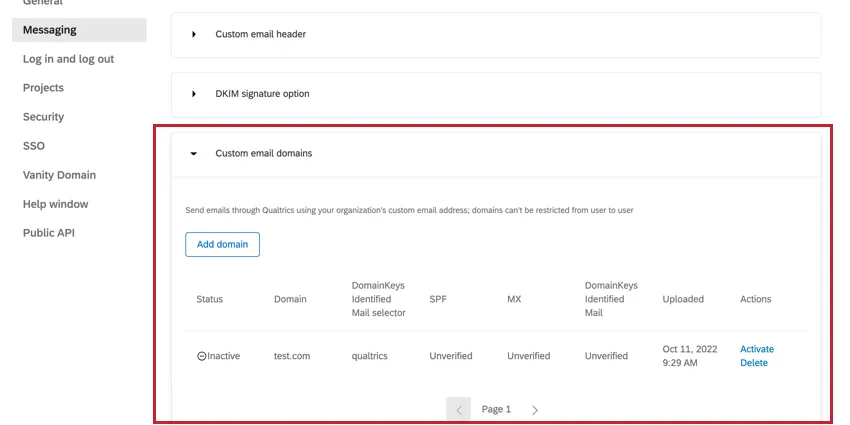
For more information, see Using a Custom “From” Address.
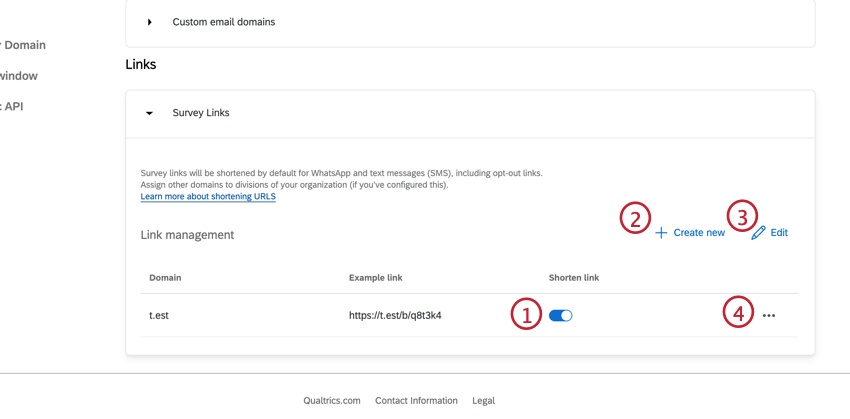
Survey Links
This set of options allows you to customize how your links are displayed in SMS and WhatsApp distributions.
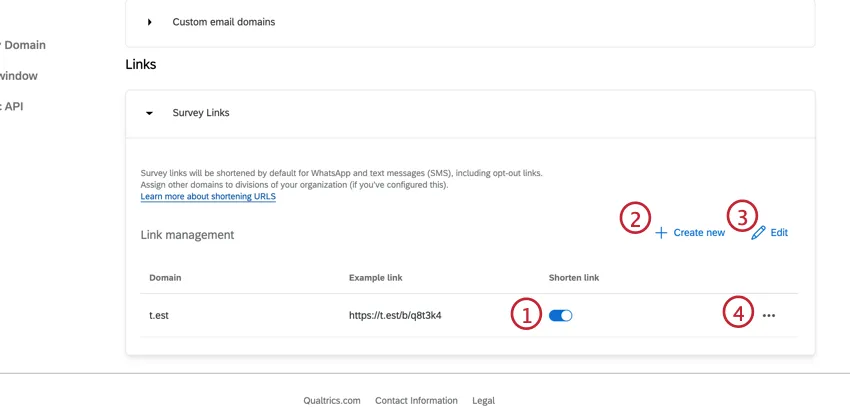
Qtip: If divisions have not been set up for your brand, you will only be able to configure survey links on a brand level. If divisions have been set up, you are able to select which division to customize your links for.
Log in and Log out
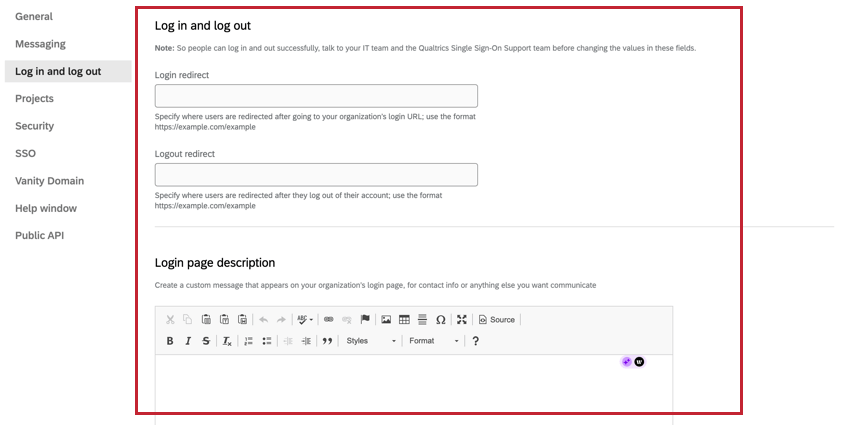
The Log in and log out section allows you to set redirects for your brand’s login and logout experiences.
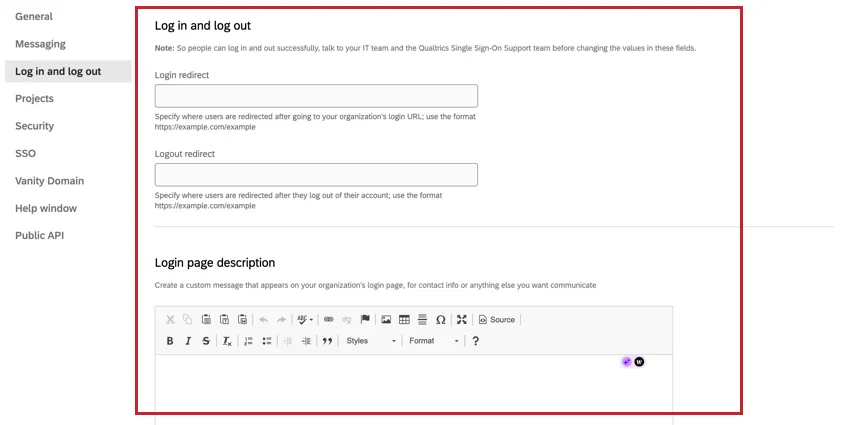
- Login redirect: Specify where a user is redirected upon going to your organization’s login URL.
- Logout redirect: Specify where a user is redirected upon logging out of their account.
Attention: When a brand has Single Sign-On enabled, you may see values in the Login redirect and Logout redirect fields. Please refrain from changing the values in these fields without first consulting your IT team and the Qualtrics SSO Support team. Changing these values without permission may prevent users from logging in and logging out successfully.
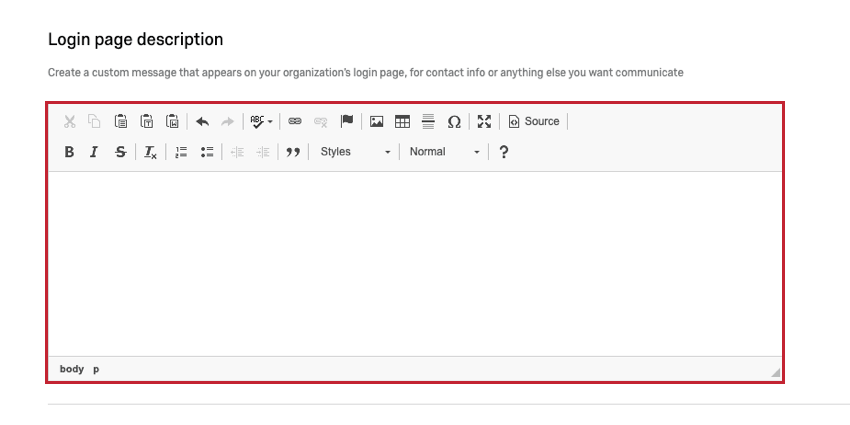
Login Page Description
You can create a custom message that will display on your organization’s login page. This could include contact information or any other instructions you may need to communicate to your users.
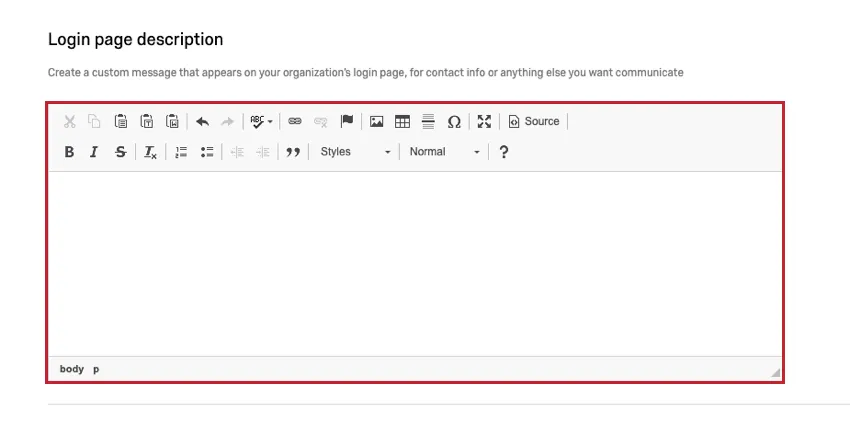
Qtip: When a brand has CAS, Shibboleth/SAML, or Google OAuth2.0 SSO enabled, this field cannot control messages displayed on the login portal. For these SSO types, only your IT team can control what is displayed on the login portal for your brand. When a brand has LDAP SSO enabled, you will be able to edit this field and control messages displayed on the login portal as noted above.
Projects
The Projects section allows your users to set additional information on each survey.
Survey Description
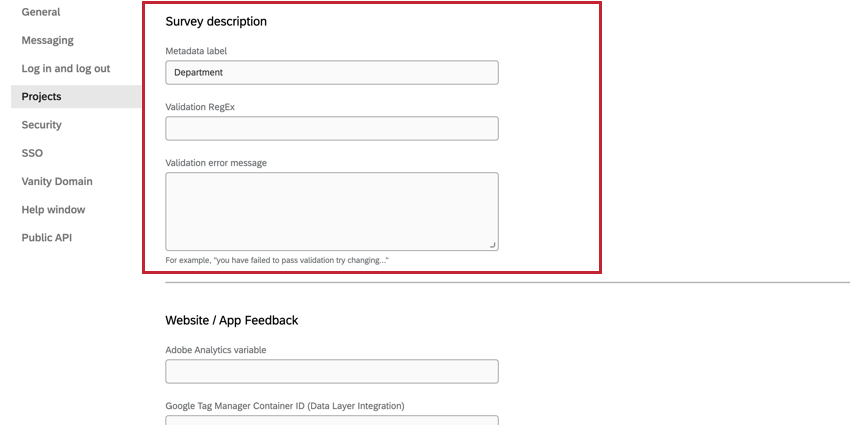
The Survey Description features function as a subtitle that a user is prompted to add when creating a survey. This subtitle information can be used when exporting your Summary Report since it will be added as an additional column in the export.
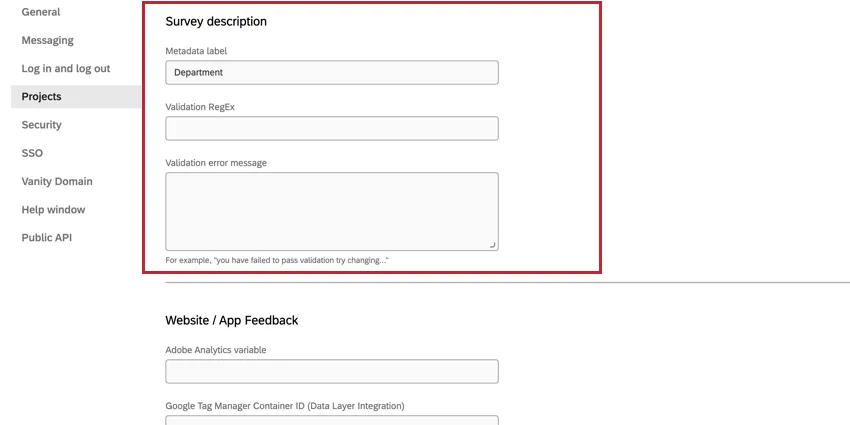
- Metadata Label: What the user is prompted to enter, in addition to the Project Name, when creating a project.
- Validation RegEx: Regex that can be used to make sure the entered description matches a certain format. If no validation is specified, the user will not be required to enter an additional description.
- Validation error message: The message that is displayed to the user if they fail the validation.
Example: If you would like your users to specify the course that each survey is being used for, you could add a Metadata Label called Course. The user would then see the below Create Project menu. You could also use Validation Regex to require that the description be in a certain format, such as Chem111 or Bio101, but not First semester chemistry. The user will also have the Metadata Label as a sorting option on their Projects page.
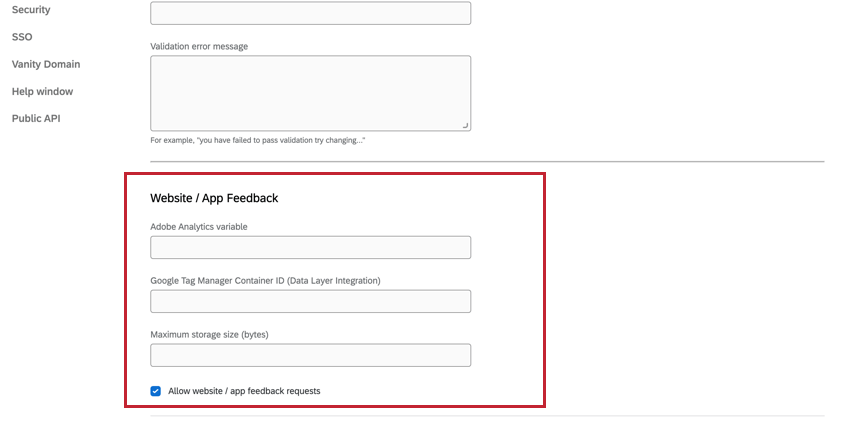
Website / App Feedback
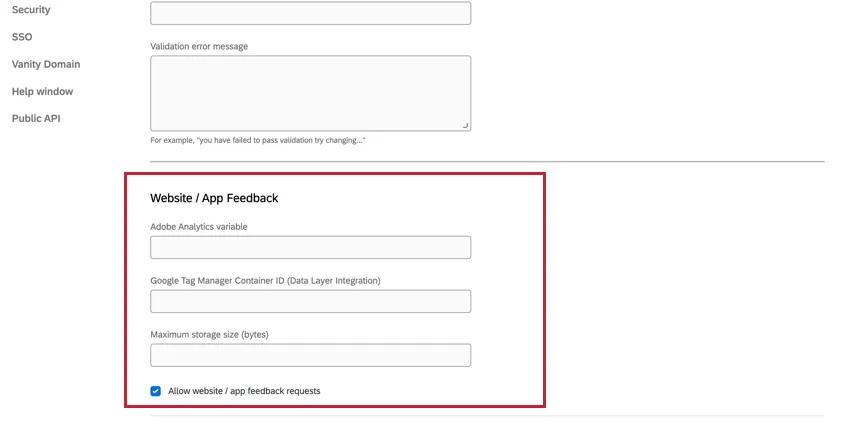
The Website / App Feedback section provides an option to specify information for your Website / App Feedback users.
For more details on how each of these settings work, please see Website / App Insights Administration.
Attention: If your organization does not have Website / App Feedback, this option will not appear. If you don’t have a license that includes Website / App Feedback and are interested, you can contact your Account Executive for more information.
Warning: Do not deselect Enable Website / App Feedback! It will shut down Website / App Feedback on the entire brand and prevent you from using the software!
Security
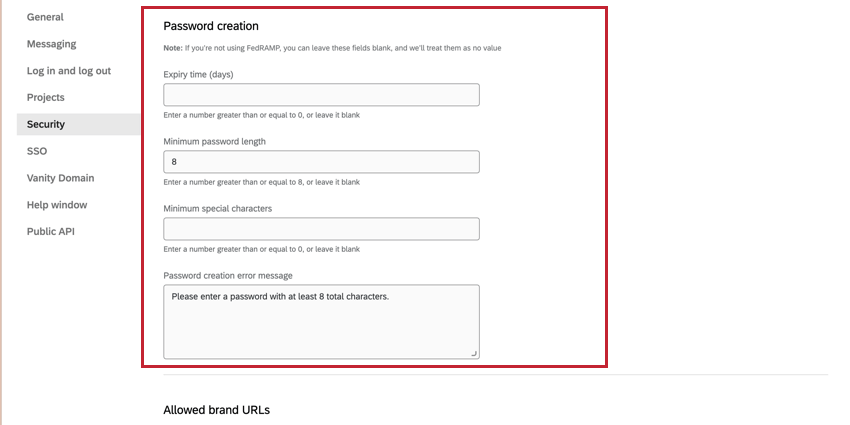
Password
The Password section contains requirements for the types of passwords users must create for their accounts.
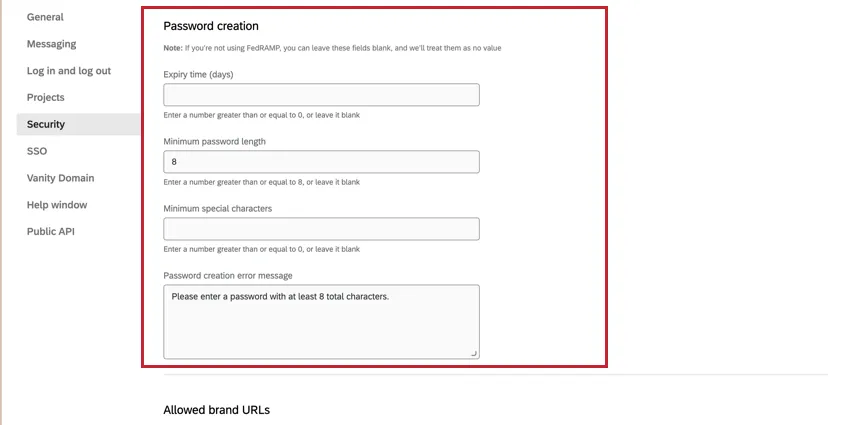
- Expiry Time (days): Designate (in days) when all account passwords will expire (e.g., type “365” if you would like users to redo their password every 365 days). At that time, users will be prompted to create new passwords.
- Minimum password length: Specify the minimum number of characters that can be used in a user password.
- Minimum special characters: Specify the number of non-alpha characters (anything other than a letter) that must be present in user passwords.
- Password Creation Error: Create a unique error message for when users’ passwords don’t fit the specified criteria.
Qtip: If you are using Single Sign-On, you can log into your Customer Success Hub and request Support remove the “Send Password Reset Email” and the “Reset here” links from the login page.
Qtip: The Security section of the Admin tab contains additional password parameters for your organization.
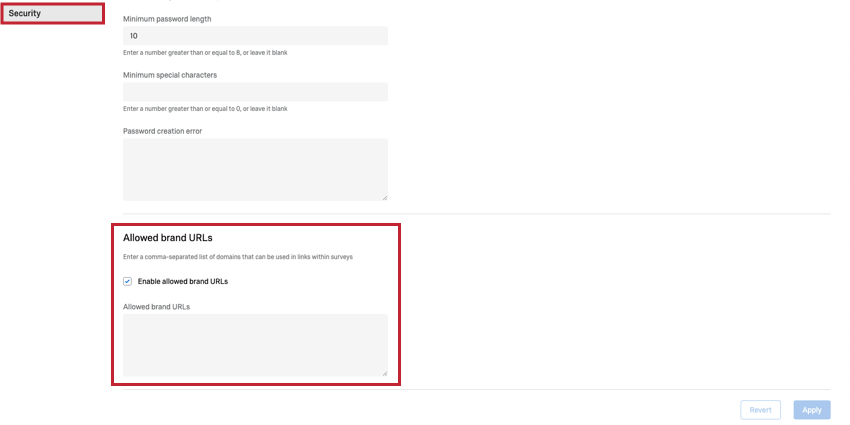
Allowed Brand URLs
The Allowed brand URLs section allows Brand Admins to restrict what domains are allowed to be used in links within surveys.
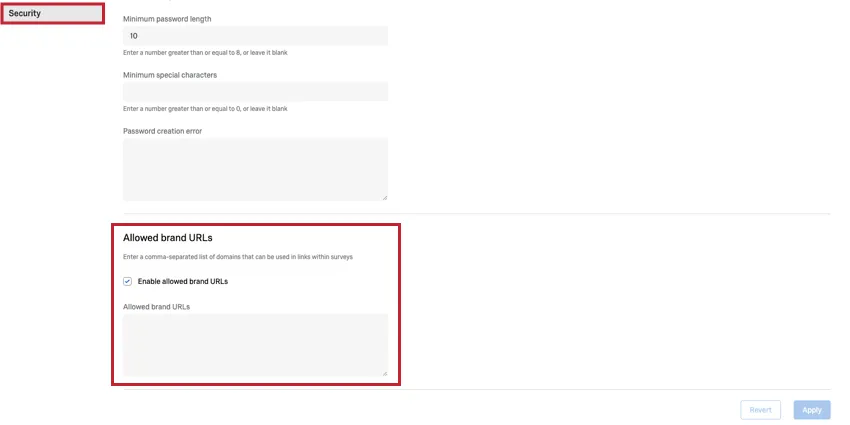
- Enable allowed brand URLs: Enables link domain restrictions for your brand. This setting is disabled by default.
- Allowed brand URLs: Specify the list of domains that can be used in links within surveys. Domains should be added in a comma separated list. Qtip: Wildcards can be used to allow all subdomains for a given domain. For example, *.qualtrics.com would allow users to use surveys.qualtrics.com, research.qualtrics.com, etc. within links.
Example: Let’s say you want to restrict your survey builders to only allow linking to your company’s website. You can add yourcompanydomain.com to your Allowed brand URLs settings so that your users’ surveys cannot link to any other websites besides your company’s.
Allowed Email Domains
The Allowed email domains section allows Brand Admins to restrict what domains are allowed to be sent emails.
Attention: This functionality is currently only available for emailing dashboards.
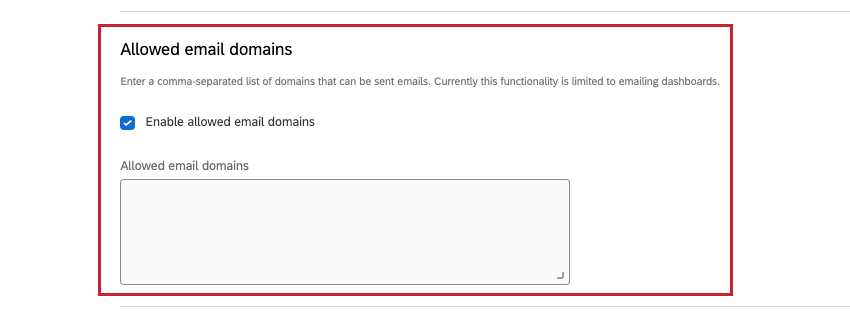
- Enable allowed email domains: Enables email domain restrictions for your brand. This setting is disabled by default.
- Allowed email domains: Specify the list of domains that can be sent emails. Domains should be added in a comma separated list. Qtip: Wildcards can be used to allow all subdomains for a given domain. For example, *.qualtrics.com would allow users to use surveys.qualtrics.com, research.qualtrics.com, etc. within links.
Example: Let’s say you want to restrict your dashboard builders to only email dashboards to employees within your company. You can add yourcompanydomain.com to your Allowed email domains settings so that your users’ dashboards can only be emailed to people with a company email address.
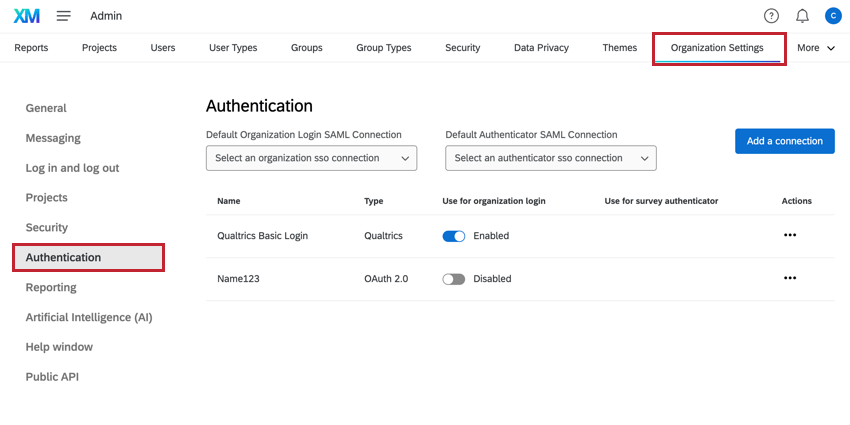
Authentication
The Authentication section of organization settings allows you to customize the authorization requirements for users in your license. This includes setting up SSO configurations and controlling the login experience for standard Qualtrics logins.
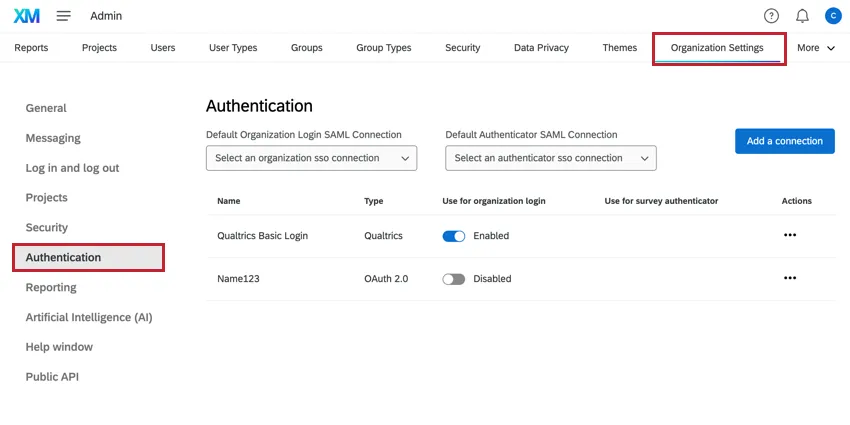
Login Types
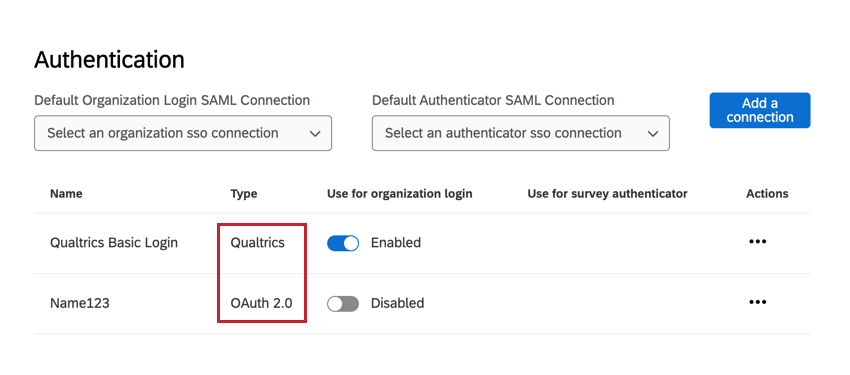
When viewing login configurations on this page, there are 3 different types available:
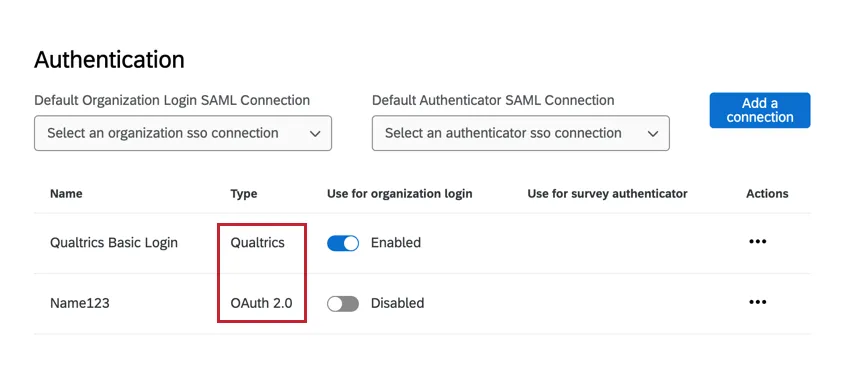
- Qualtrics: Controls login settings for standard Qualtrics login (with a Qualtrics username and password).
- OAuth 0: Controls login settings for an OAuth 2.0 SSO configuration.
- SAML: Controls login settings for a SAML SSO configuration.
See the below subsections for more information about each login type.
Qtip: Use the toggle to enable or disable a login type for your entire organization.
Qualtrics Login
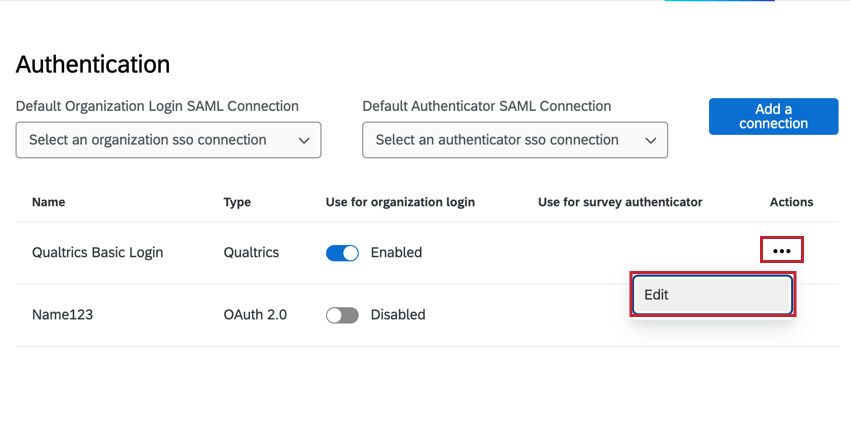
The Qualtrics login controls the login experience for logging in with a unique Qualtrics username and password. Click Edit to change these settings.
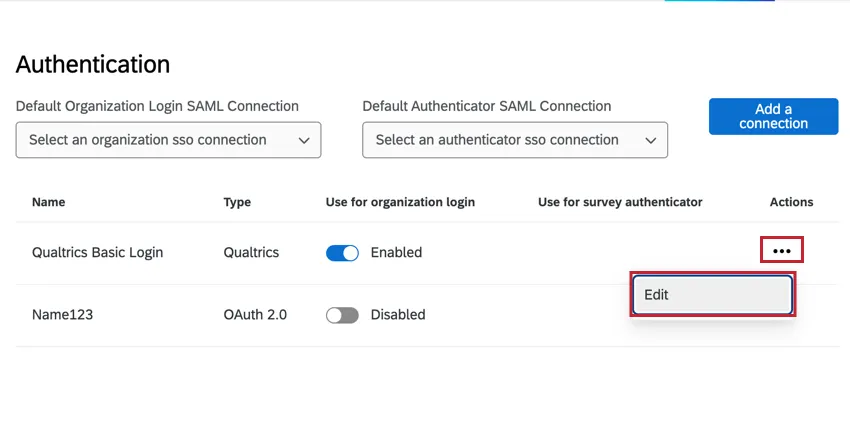
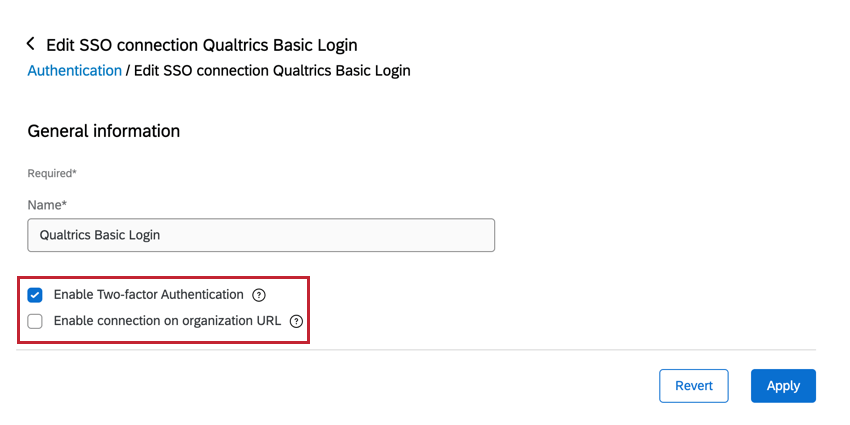
You can then customize the following:
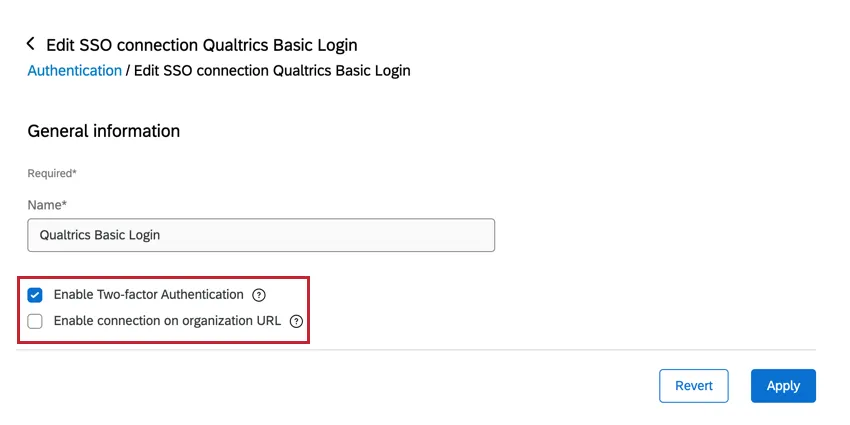
- Name: If desired, you can change the display name that’s shown in organization settings.
- Enable Two-factor Authentication: When enabled, users must provide a verification code after logging in. Users can set a preferred method of receiving this code – for example, through email or an authentication app on their phone. See the Logging into Your Account for more information about two-factor authentication. Attention: Two-factor Authentication is disabled for SSO users on brands with SSO. If your brand has SSO enabled, then only non-SSO users will be able to use two-factor authentication.Qtip: Two-factor Authentication does not apply to Participant user types. For example, participants log into their dashboards and 360 portals without providing two-factor authentication.
- Enable connection on organization URL: When enabled, users can log in at your branded URL instead of the general Qualtrics login page (ex., https://brandID.datacenter.qualtrics.com/login). If this option is enabled and your brand uses SSO, then users will be able to choose which connection to log in with.
SSO Logins
OAuth 2.0 and SAML credentials allow you to create and manage your Single Sign-On (SSO) connections. You’ll be able to add new connections, update certificates on existing connections, modify settings such as Just In Time provisioning, and more.
For more information on how to implement your organization settings for SSO, see the Configuring Organization SSO Settings page.
Adding Two-Factor Authentication (2FA) to Your Organization
Two-factor authentication (2FA) adds an extra layer of security by requiring a second form of verification after you enter your username and password. As a Brand Administrator, you can adjust the two-factor authentication settings for your entire Qualtrics organization. Once enabled, users will be required to either use a message their email address or an authentication app to confirm their identity before they can log in.
Only Brand Administrators can adjust 2FA settings for the entire organization.
Qtip: This section covers basic 2FA enablement. If you’re interested in other authentication settings like single sign-on, see the Authentication section.
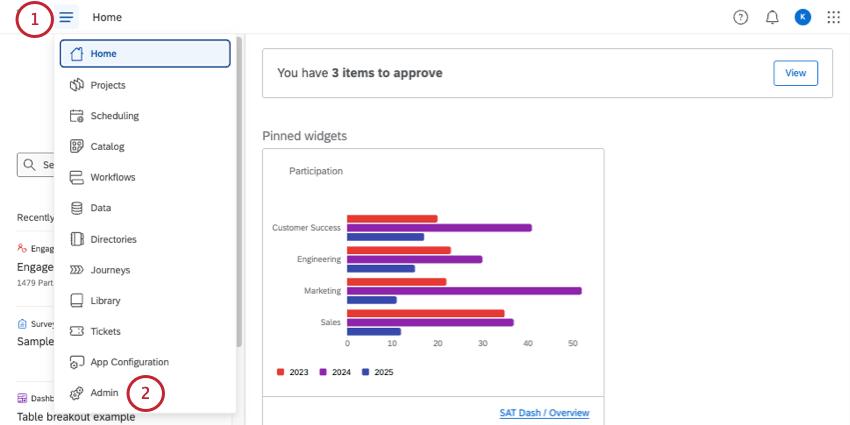
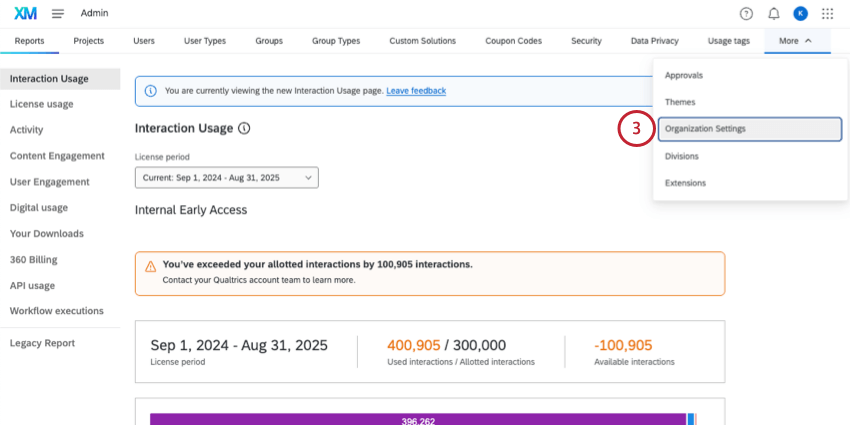
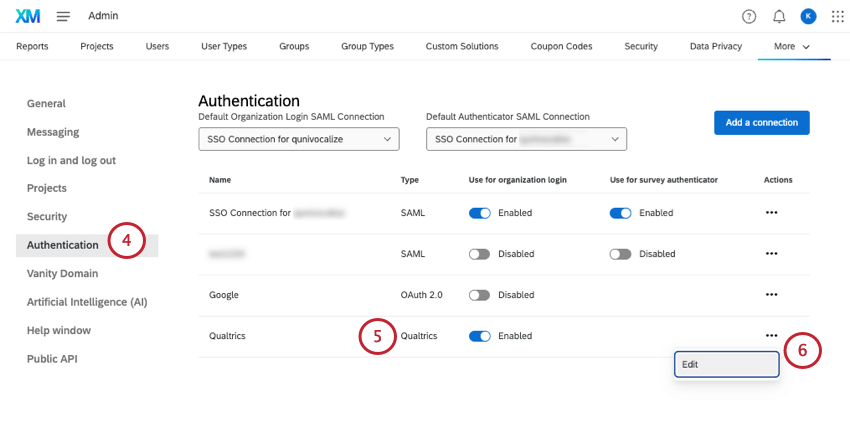
Qtip: This connection needs to be marked Enabled.
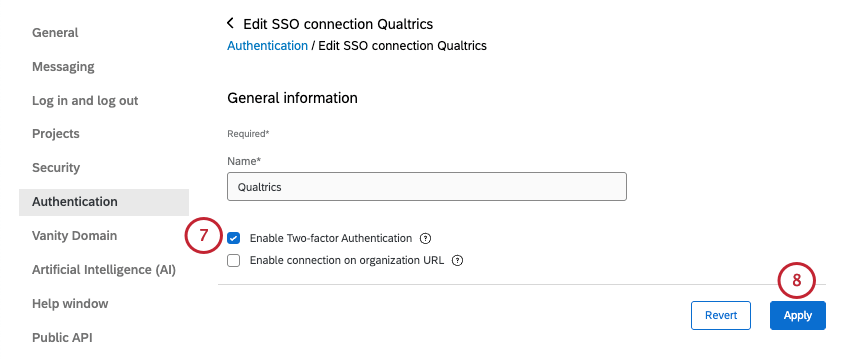
Qtip: If you want to see what 2FA looks like from a user’s point of view, check out the Logging into Your Account page, under Two-Step Verification.
Vanity Domain
Vanity URLs are custom branded URLs for surveys, dashboards, and user accounts. Brand Administrators can create and manage vanity domains for the entire brand. For more information, see Vanity URLs.
Artificial Intelligence (AI)
As a Brand Administrator, you have the ability to turn features involving third-party generative models on or off for your entire organization, giving you autonomy over your data. You can also decide whether new third-party generative AI features are enabled by default for your organization. For more information, see Artificial Intelligence (AI) Administration.
Help Window
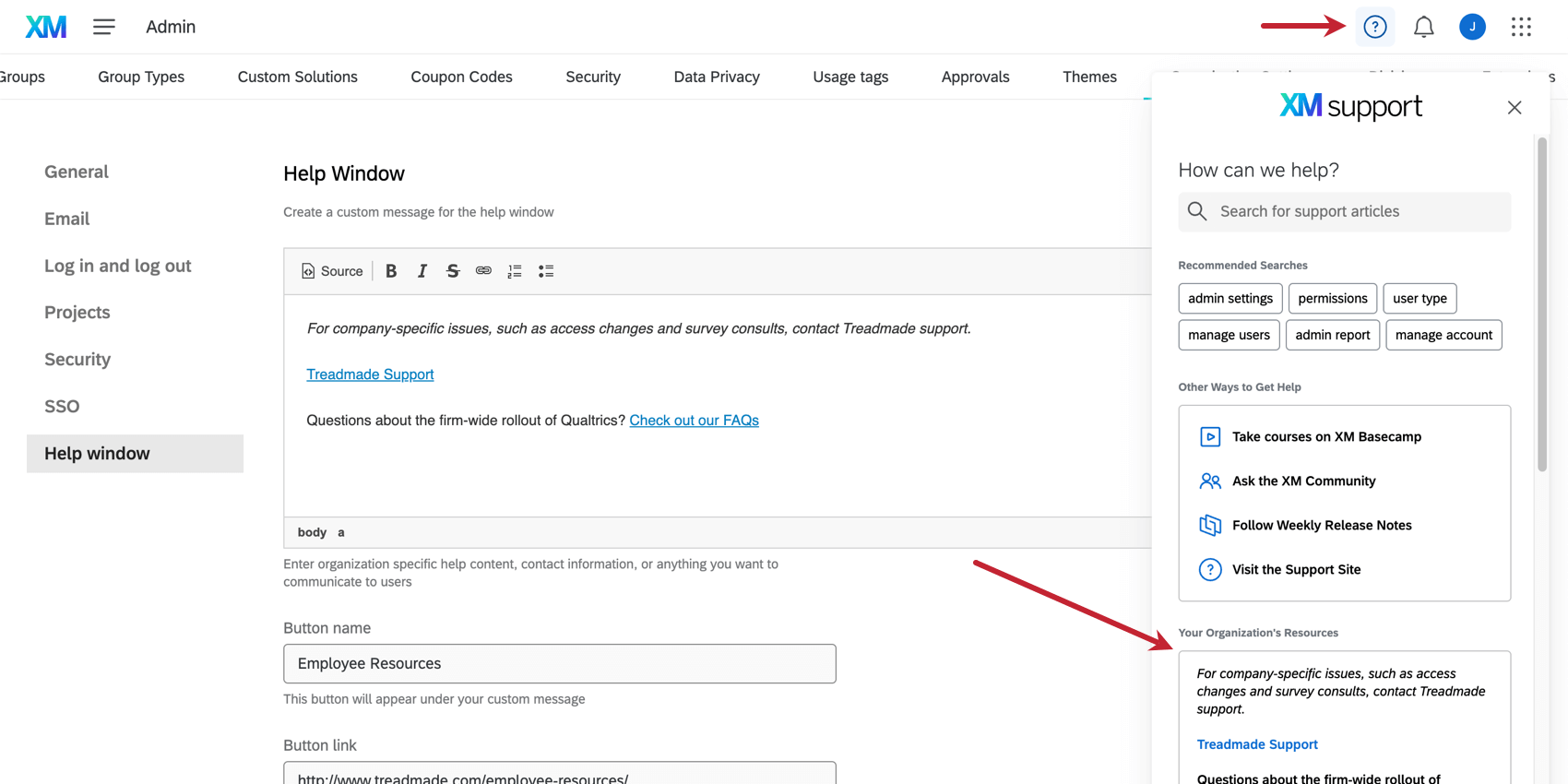
The help window gives you access to Qualtrics support resources right inside the product, including specialized recommendations based on what page you’re in. You can customize this help window for everyone in your organization by providing your own unique company resources for all of your users to see.
Qtip: Only Brand Administrators can edit the custom help window content.
Help Window Customization
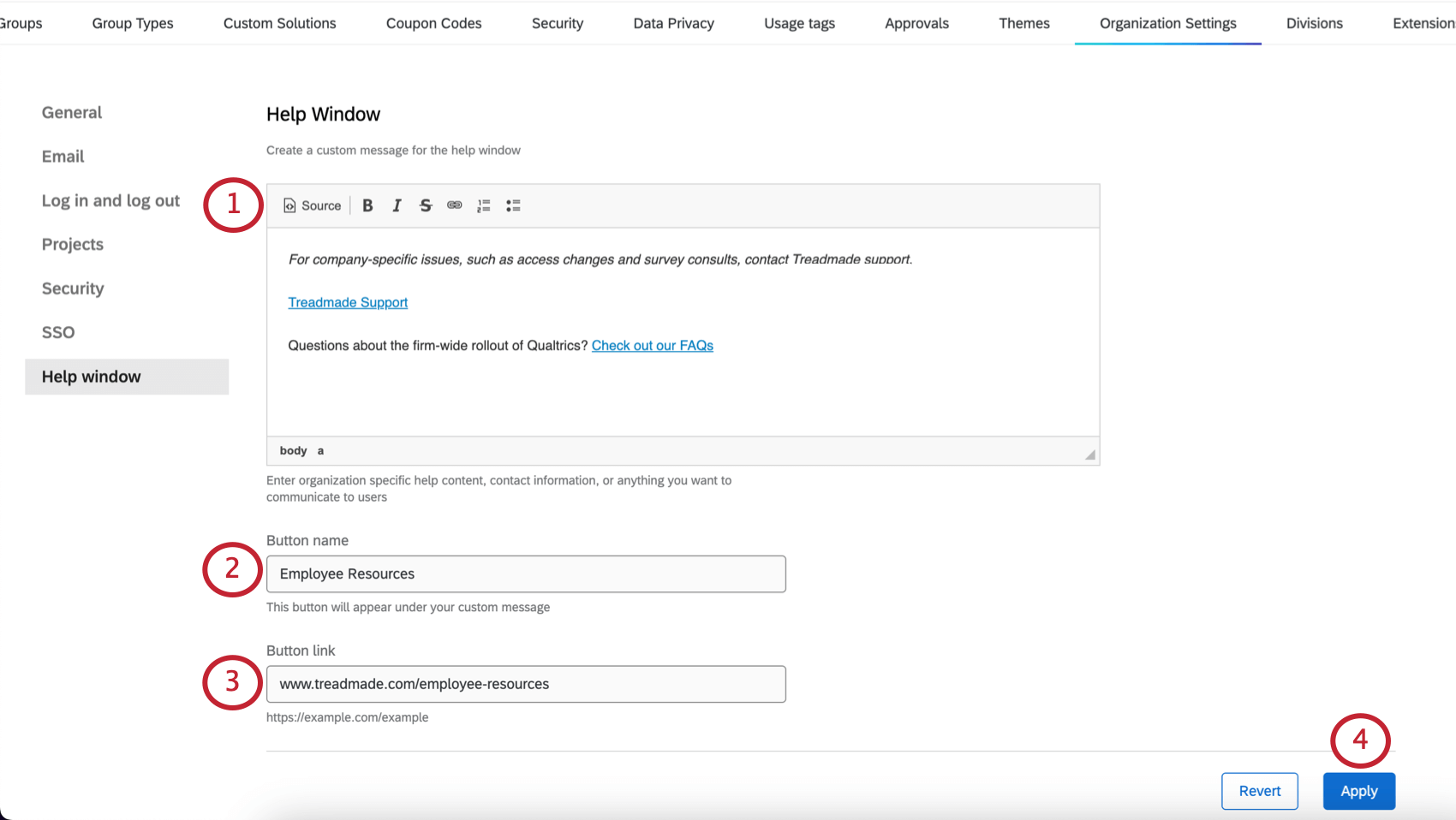
Go to your Organization Settings and select Help Window. Your custom content will consist of a body of text, with a custom button leading to a resource of your choice underneath.
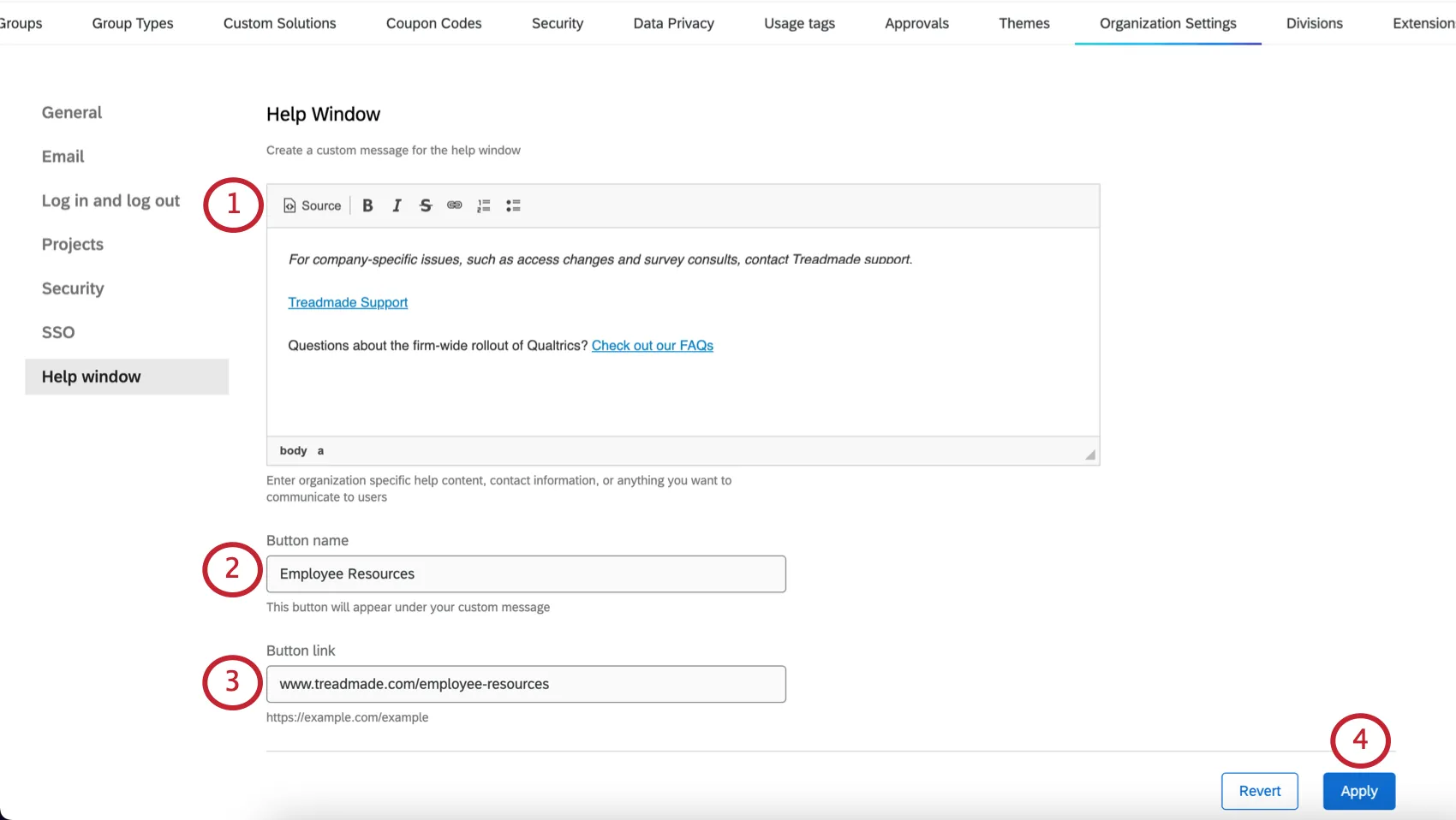
Qtip: Not all formatting will be compatible with the custom help window.
Qtip: You can drag and drop the corner if you need more room to format your message. However, this will not affect the width of the help window.
Qtip: Your link must start with http:// or https://
Qtip: Custom help content cannot be translated at this time. Custom content will only appear in the language it was originally written in.
Example Help Window
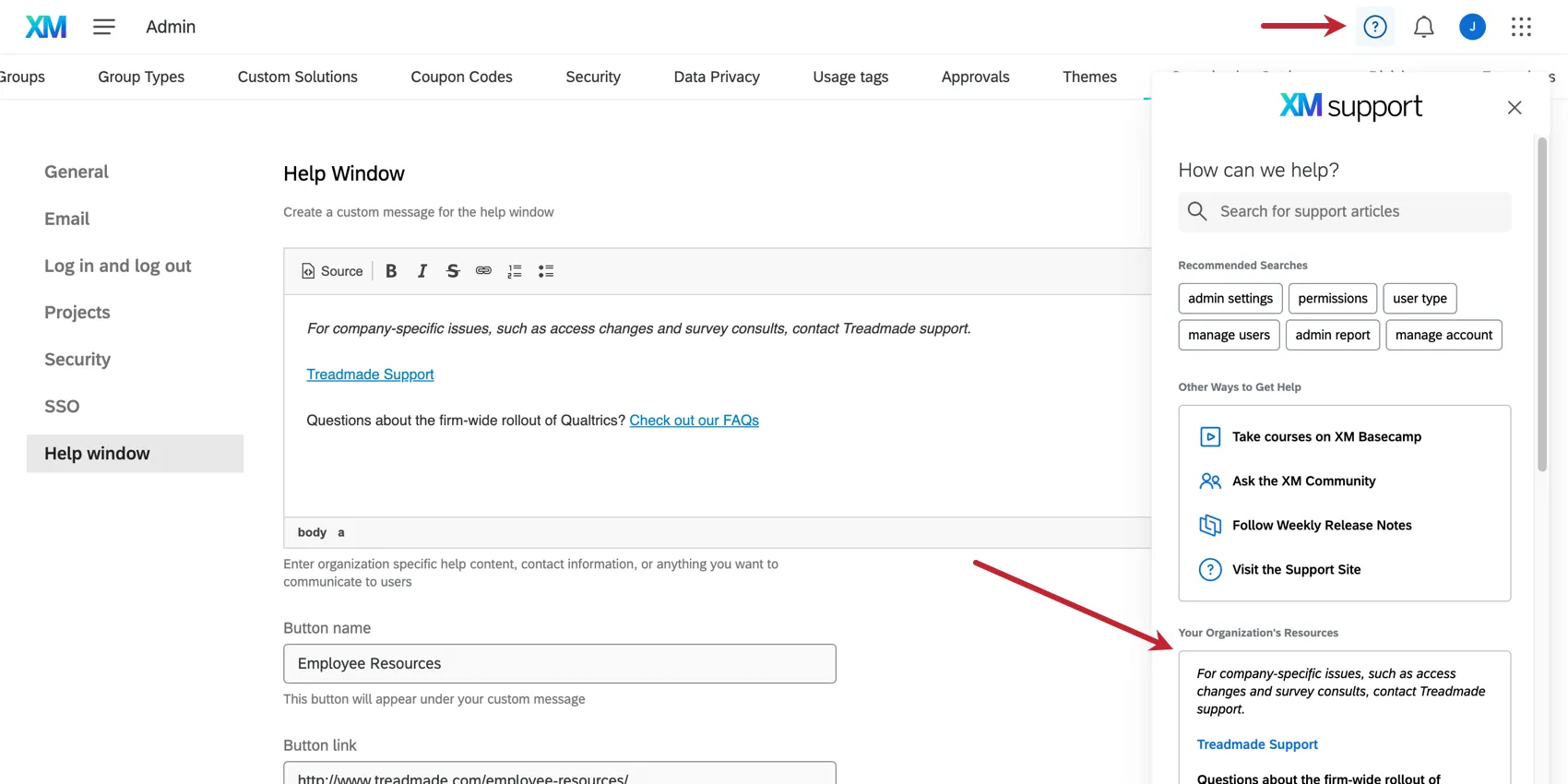
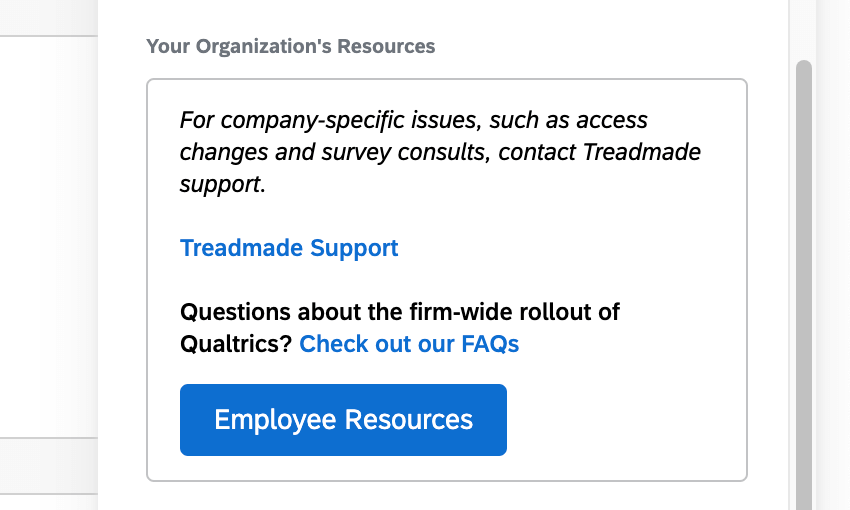
Open the help window. Your content will appear under Your Organization’s Resources.
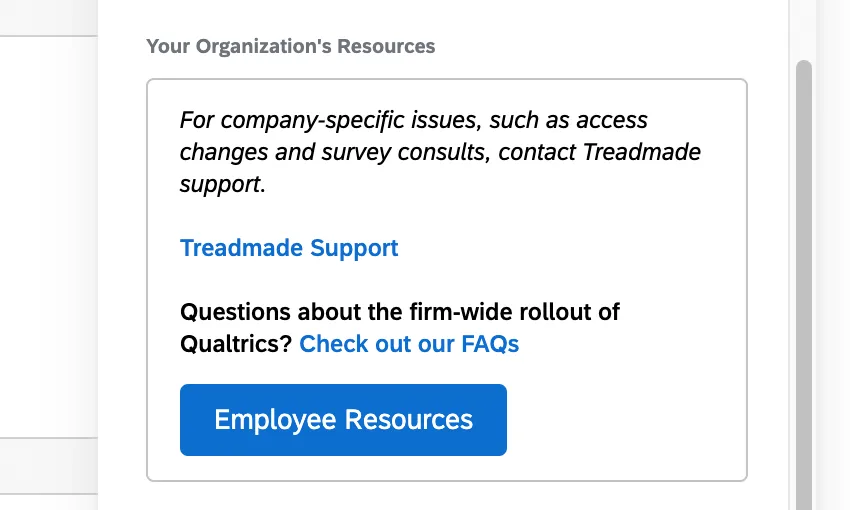
Here’s what this entire custom help content looks like:
App Help Windows
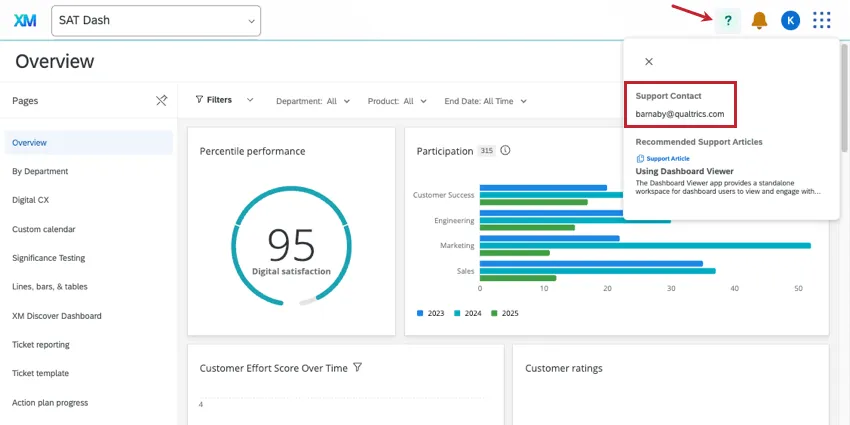
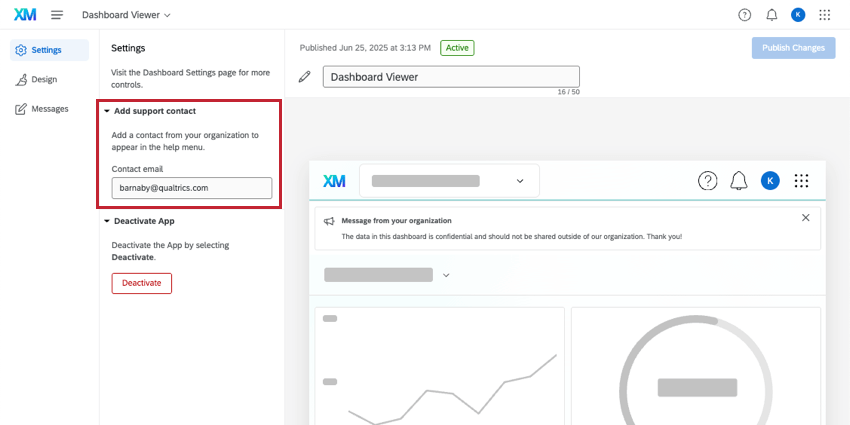
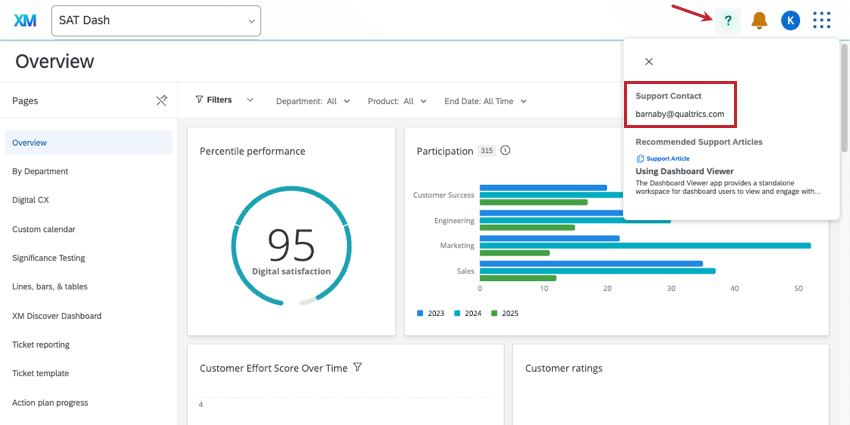
The help window cannot display the customized information in an app like Dashboard Viewer or Manager Assist. Instead, the only option is to add an email address.
To customize the help window, Got to App Configuration and select your app. Then go to Settings and fill out the Contact email.
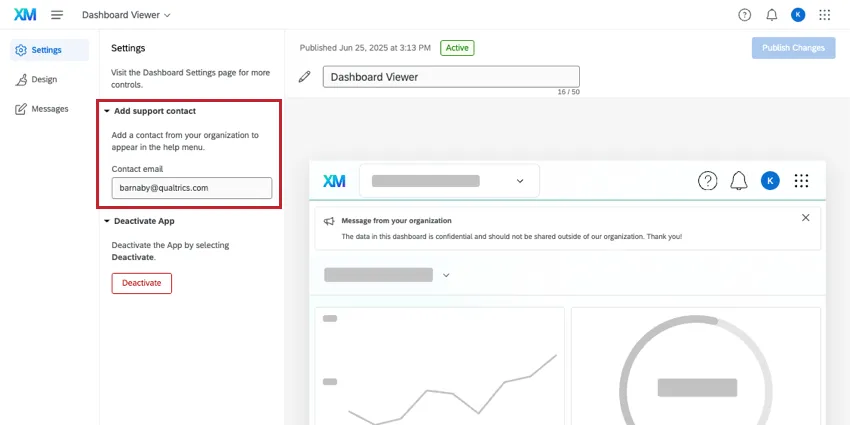
Here’s an example of how this help window looks in Dashboard Viewer, with only an email address:
Public API
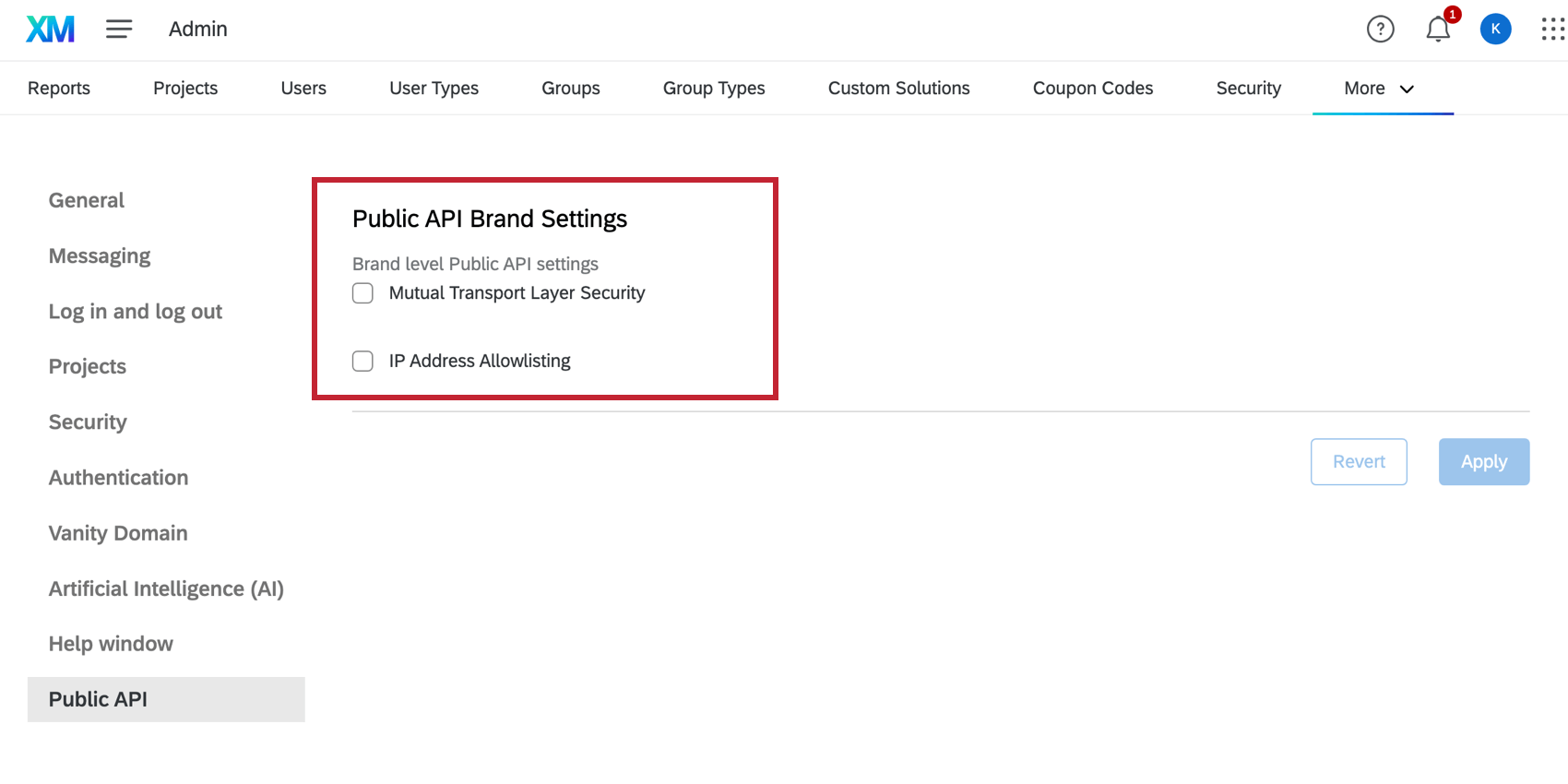
Public API settings allow you to enforce additional security measures for API requests by users in your brand. These settings affect all users in your Qualtrics license.
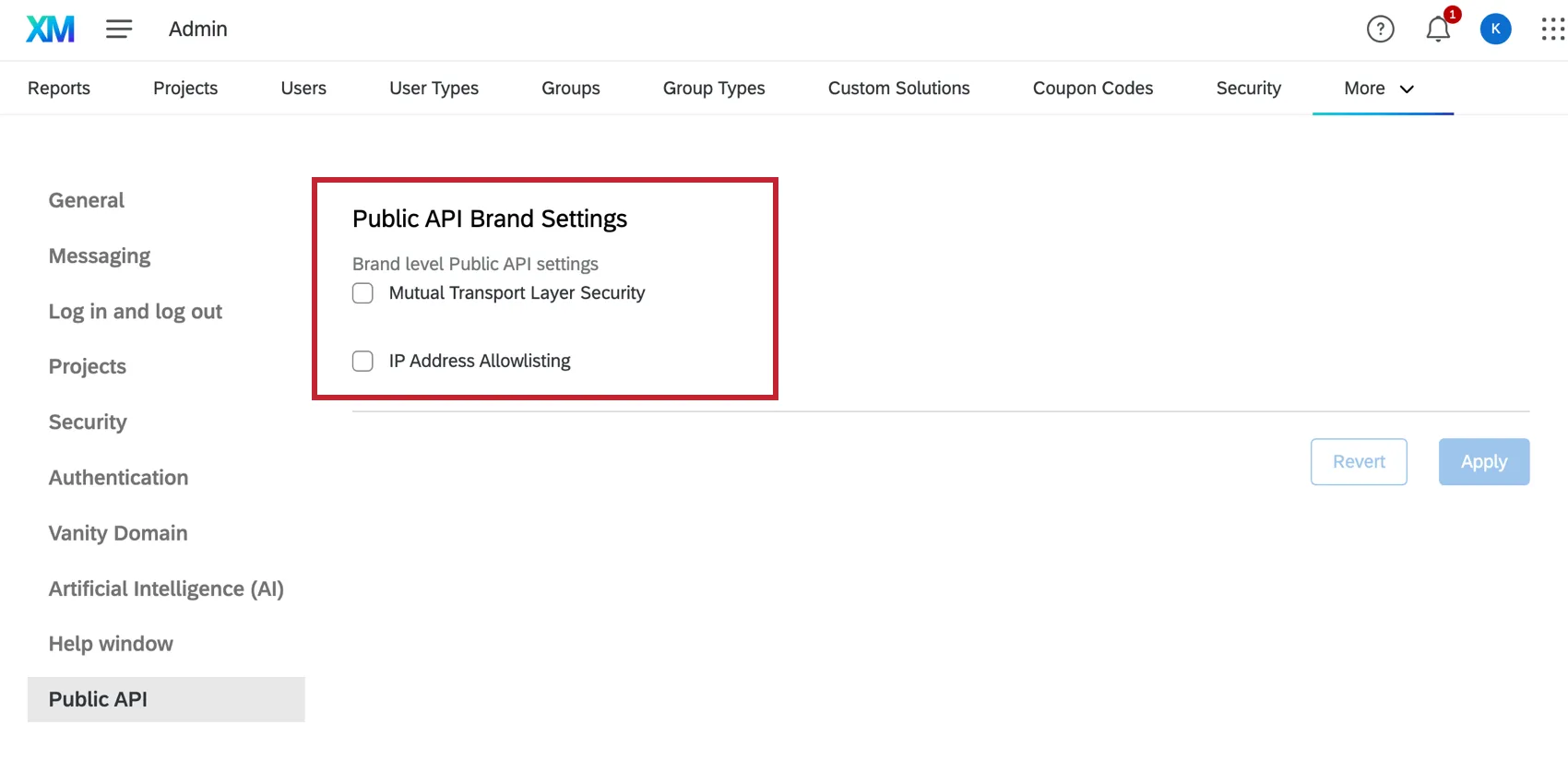
- Mutual Transport Layer Security: When enabled, public API calls from your brand must use mTLS authentication and include an mTLS certificate. If a public API call fails due to missing authentication, then it will return an AUA_1.1 error.
- IP Address Allowlisting: When enabled, users with IP address restrictions will have their public API calls rejected if sent from an IP address that isn’t included in the allowed IP addresses. If a public API call fails due to this reason, then it will return an ARH_15 error.
After changing one of these settings, click Apply to save the settings. If you’ve changed your mind and do not want to save your changes, click Revert.
Setting API Rate Limits
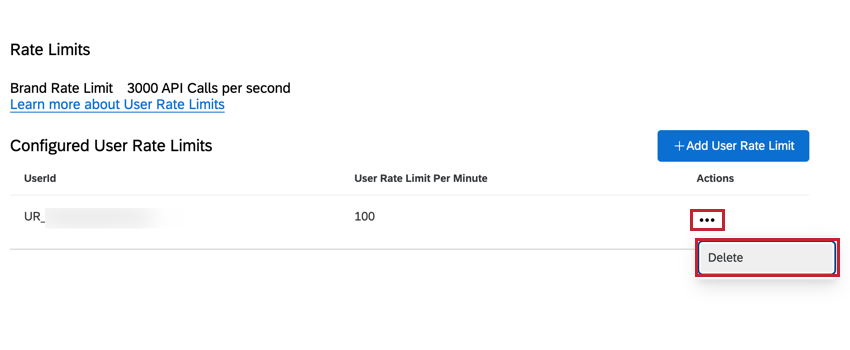
By default, there is a limit to the number of API requests across all users in an organization, but there is no limit for any given user. You can create API rate limits for individual users, putting a cap on how many requests the user can call per minute.
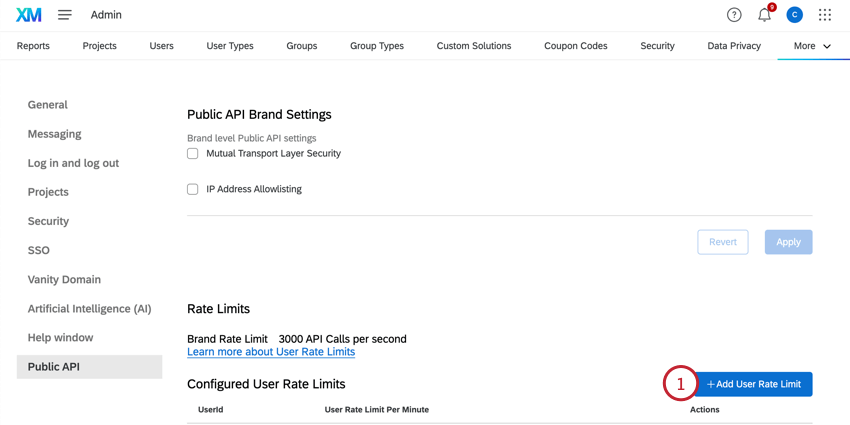
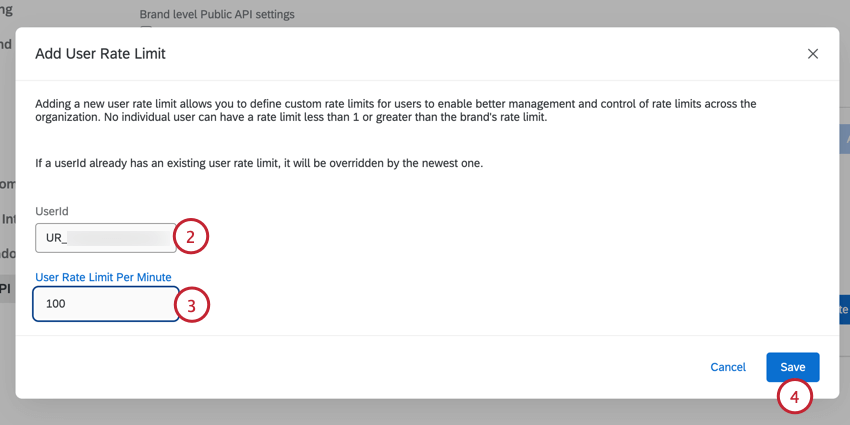
Qtip: You can get a list of all users in your organization by using the GET List User API call. You can also find the user ID of users who’ve called Public APIs by viewing the API Usage report.
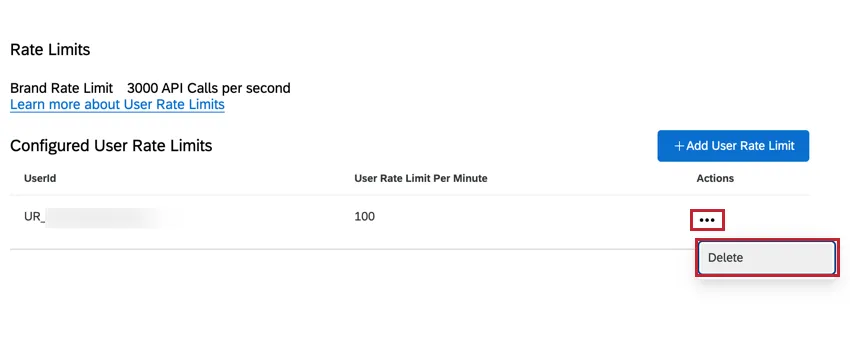
If needed, you can delete a user’s rate limit by clicking the menu in the Actions column and choosing Delete.
Organization-Wide Control for Third-Party Auto-Translators
As a Brand Administrator, you can control what third-party, automatic translation providers are available for all of the Qualtrics users in your organization. These automatic providers allow users to translate content in Qualtrics, like surveys and open text responses, by sharing their text with a third-party machine translation service.
You can use organization settings to select a preferred provider. If you disable all available providers, you can disable third-party automatic translation altogether.
Attention: Settings will apply to every user in your organization.
Qtip: The organization settings described in the steps below do not control access to translation features, just the automatic translators within.
- For survey and library message translations, see User Permissions.
- For translate comments, see the Organization setting “Allow third-party comment translations.” You need at least one provider enabled following the steps below for translate comments to work.
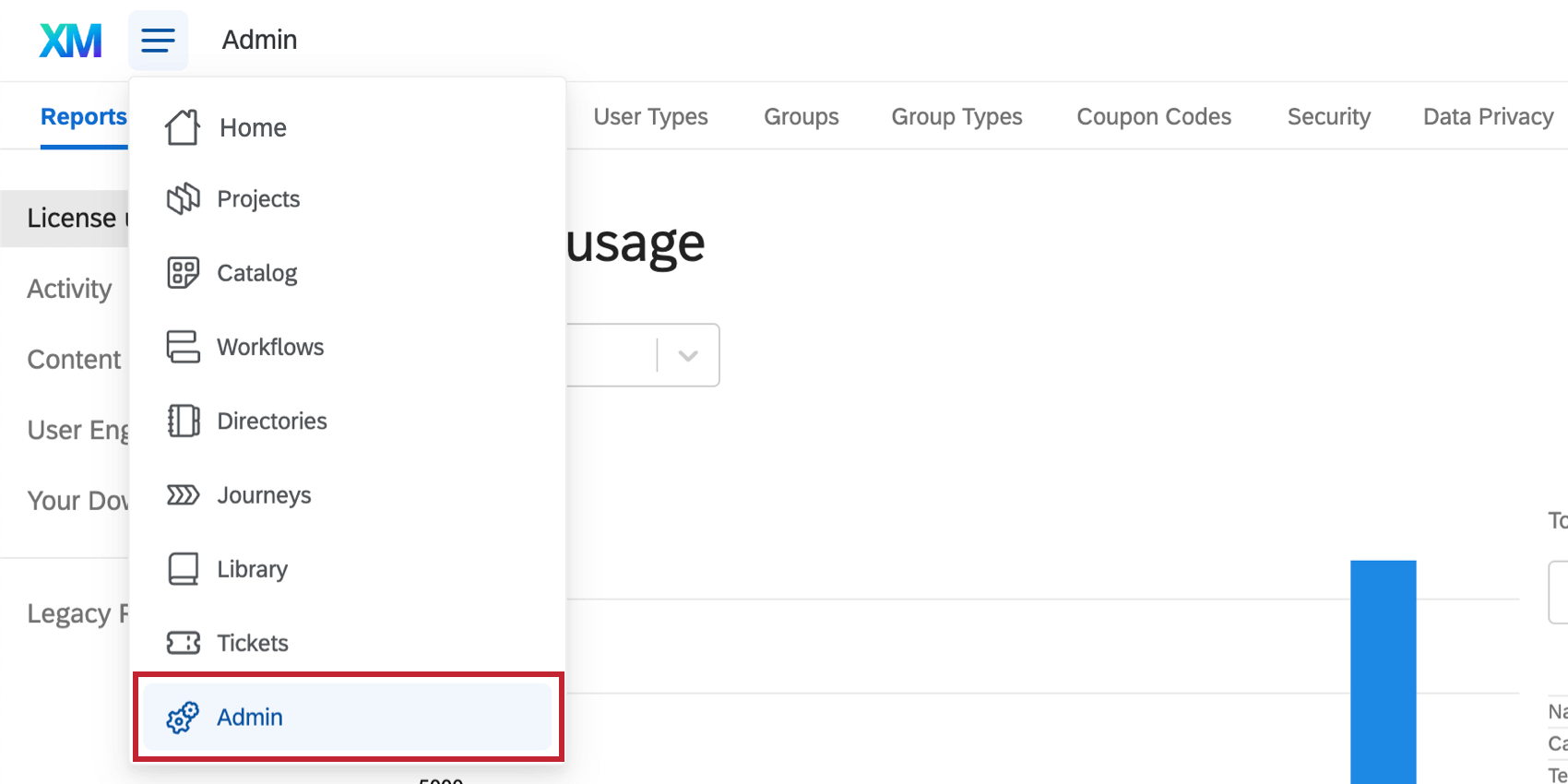
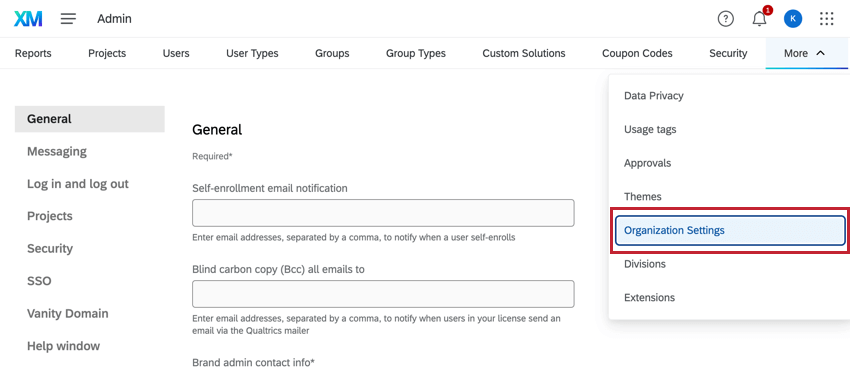
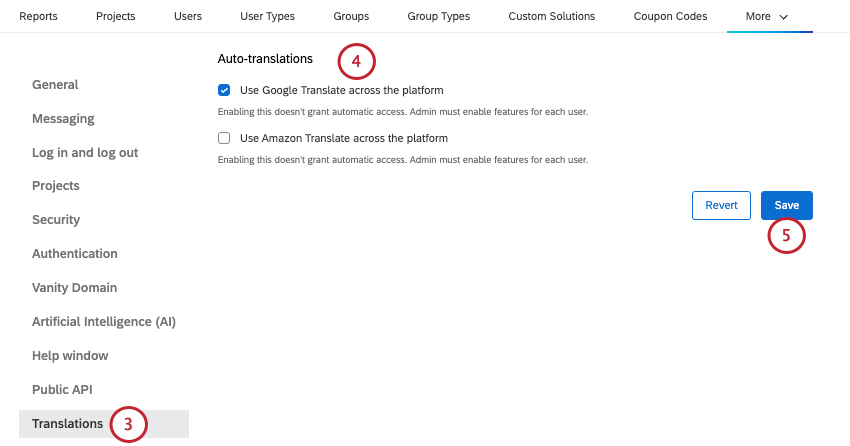
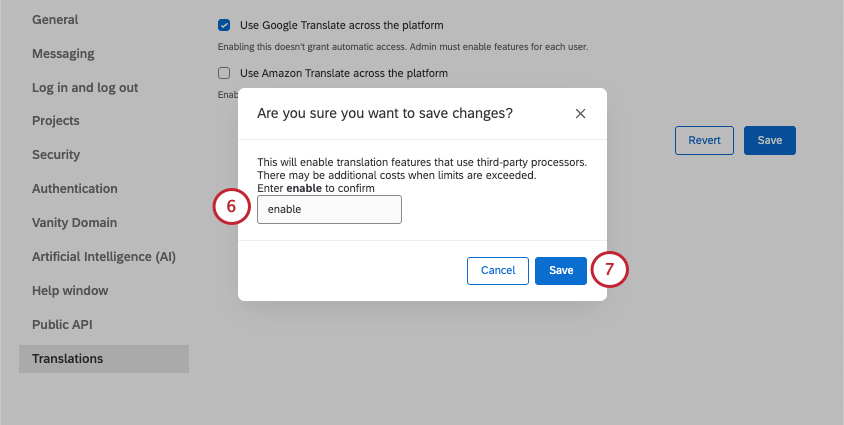
- Use Google Translate across the platform
- Use Amazon Translate across the platform Qtip: If you’re enabling a provider for the first time, you’ll be presented with a reminder that this provider requires sharing data with a third-party service, and be asked to confirm your selection.
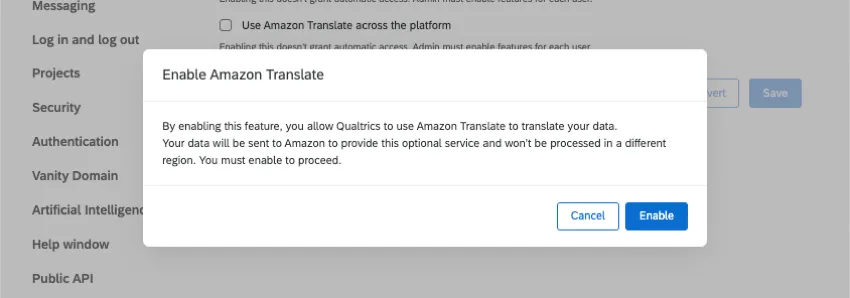
Qtip: Changes can take up to 1 hour to be applied.
1st Party Applications Opt-In
If you are a Brand Administrator, you can control your users’ access to XM Basecamp. When this permission is enabled, users in your license can log into XM Basecamp using their Qualtrics accounts and access the resources there. When this permission is disabled, users will not be able to log into XM Basecamp this way.
Attention: XM Basecamp is hosted by an external platform that is not FedRAMP certified. Users will sign up for Basecamp using an access code; Qualtrics will not pass any user information to Basecamp.
ENABLING XM BASECAMP FOR YOUR USERS
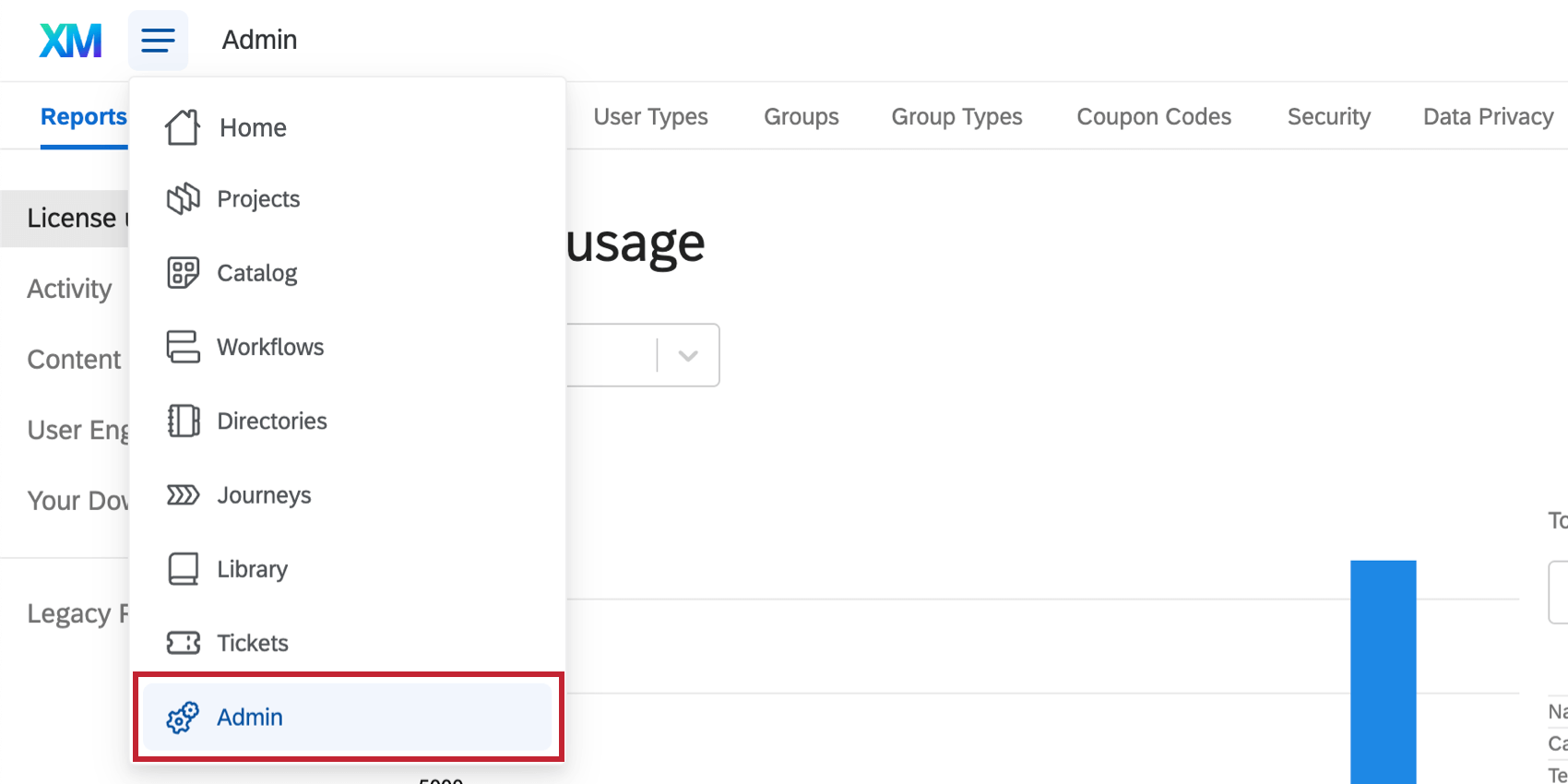
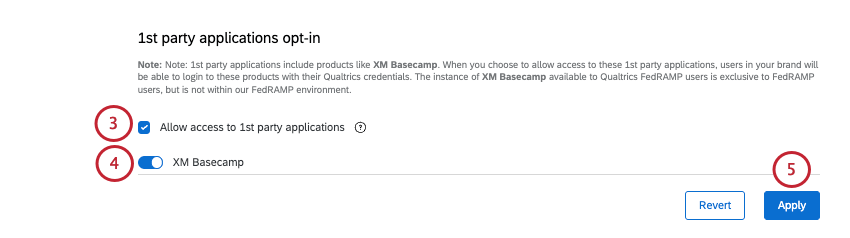
Please note that if you have already enabled XM Basecamp for your license and choose to disable it, any users currently logged into XM Basecamp will remain logged into XM Basecamp for 2 weeks before being automatically logged out.
FAQs
How do I change the Brand Administrator contact information?
How do I change the Brand Administrator contact information?
How do I change the text on my organization's login page?
How do I change the text on my organization's login page?
To change the text on your brand's login page, you must be a Brand Administrator. Reach out to your Brand Administrator if you need assistance.
That's great! Thank you for your feedback!
Thank you for your feedback!