

Testing Status Manager
What's on this page
About the Testing Status Manager
The Testing Status Manager helps you ensure your employees who are not fully vaccinated against COVID-19 submit to weekly testing to demonstrate that they are not infected with the coronavirus. This XM solution will generate a program with the following components:
- COVID Test Submission Project: A weekly survey that allows information about employee test results to be uploaded individually or in bulk. The testing results and associated documentation can then be used to understand if employees are allowed entry into the workplace.
- COVID Status Check Project: Allows employees to check a status that tells them if they can return to the workplace. The status project will compare between the expiration dates of the employee’s test and today’s date to let the employee know if they are cleared to enter the workplace, or if they need to submit another test result.
- Testing Status Dashboard: Allows for aggregate reporting on testing results, including a comprehensive employee roster for employees who are not yet fully vaccinated. The dashboard also includes the same dashboard pages as the Vaccination Status Dashboard in the Vaccination Status Manager, in case you would like to report all results in just one place.
Creating a Testing Status Manager
Attention: Before you create a Testing Status Manager, please read the following:
- This project should be created by a user who is a Brand Administrator. This user will have access to all employee data collected by this program.
- You must create a Vaccination Status Manager before you create the testing solution.
- The Vaccination Status Manager and the Testing Status Manager must be created by the same user.

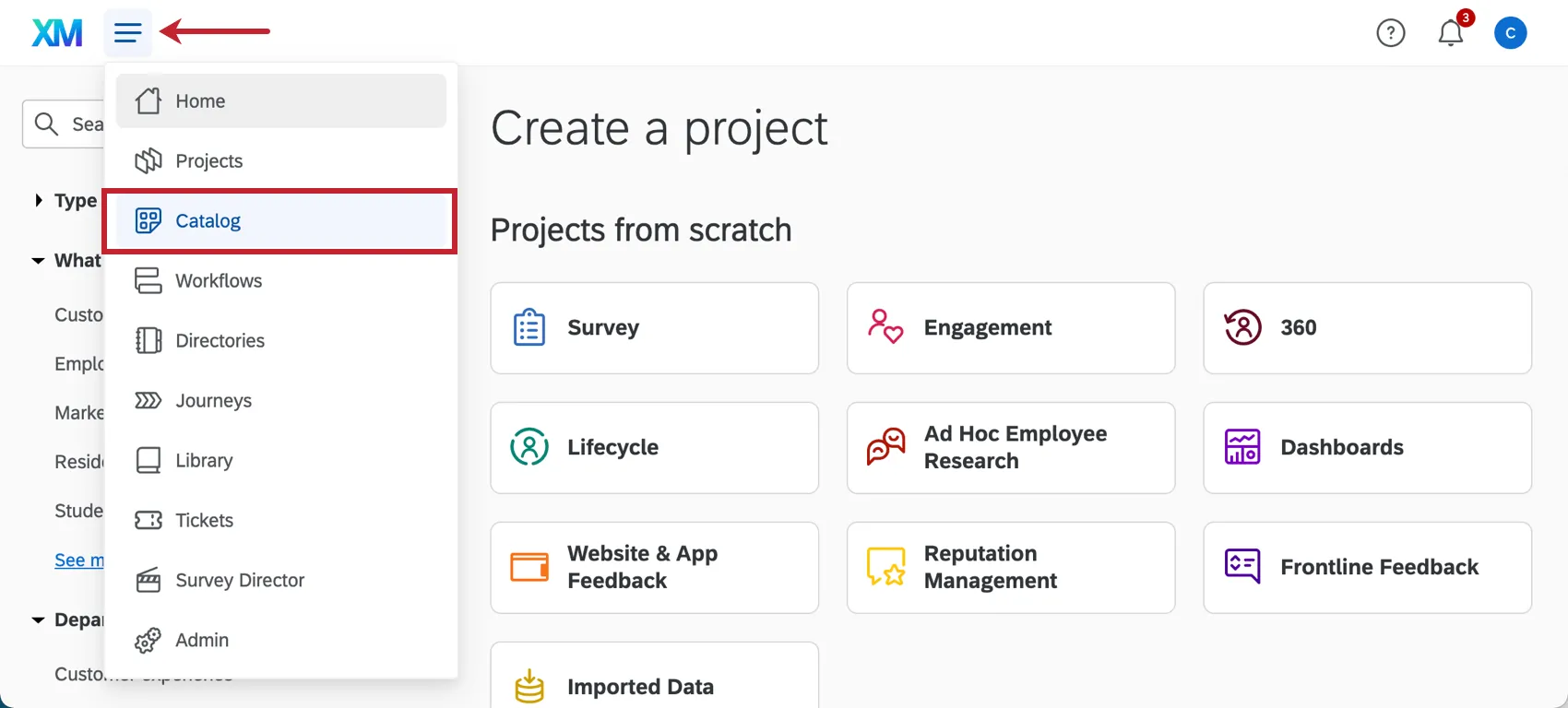
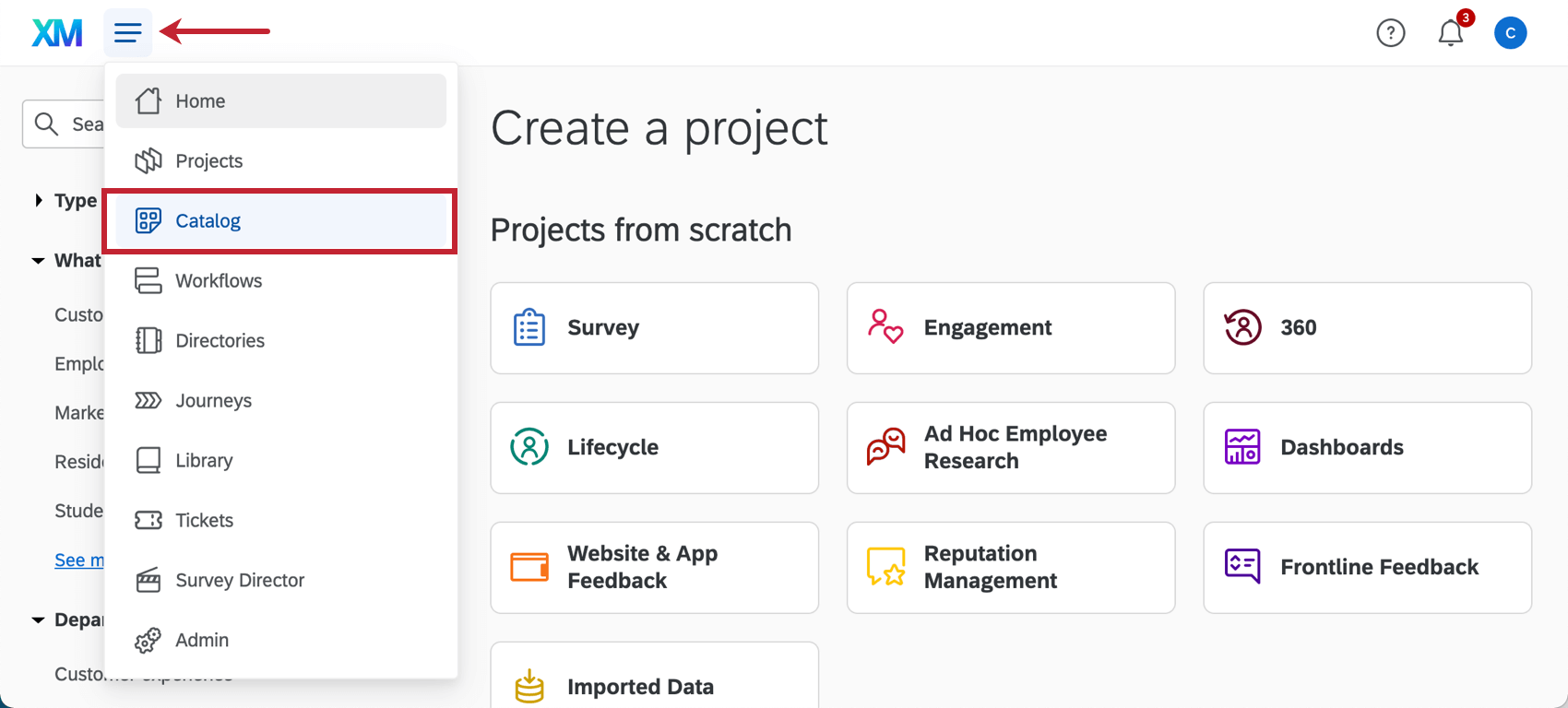
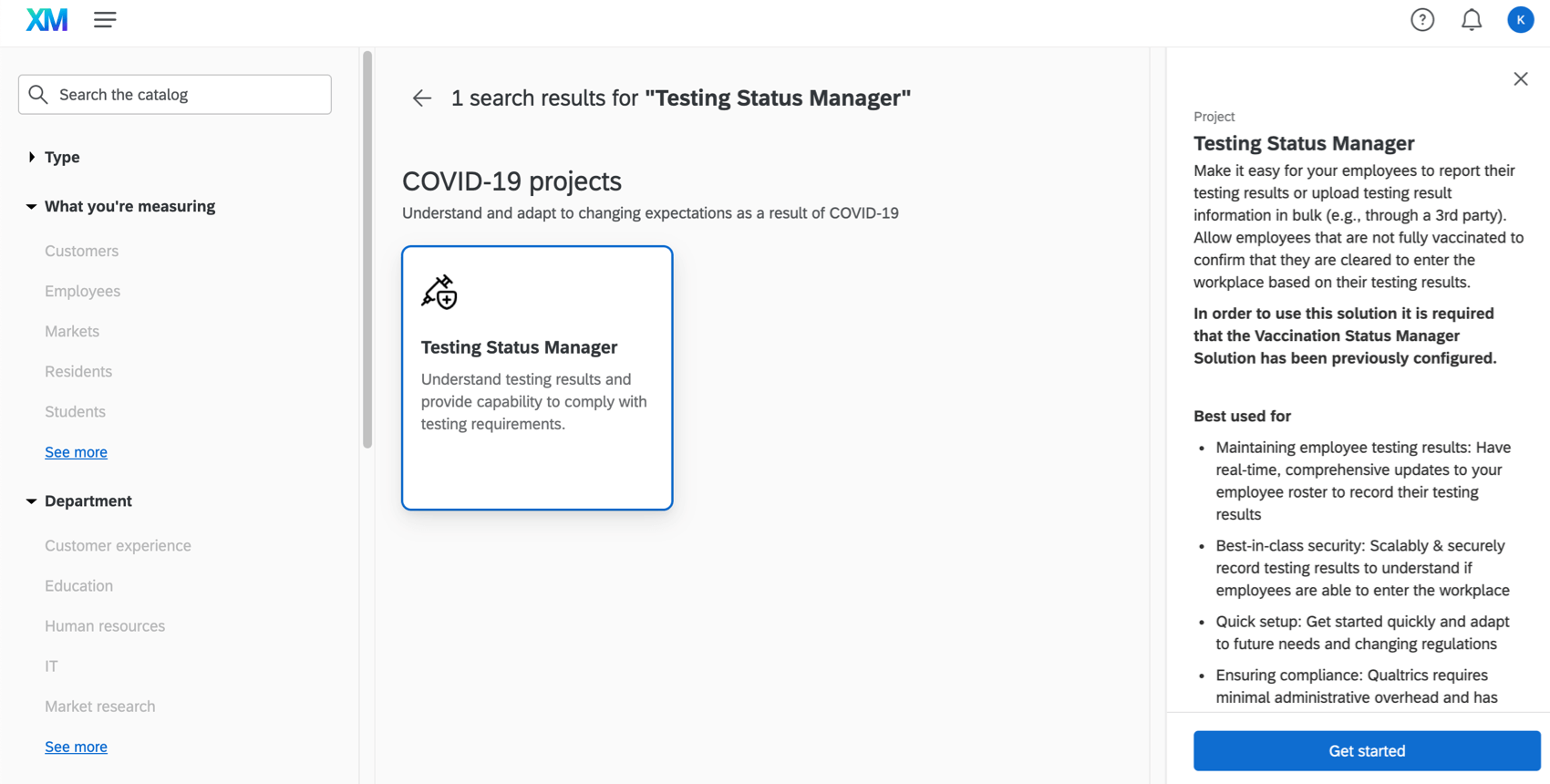
You can create a Testing Status Manager by going to the catalog and either searching it by name, or looking under COVID-19 Projects.
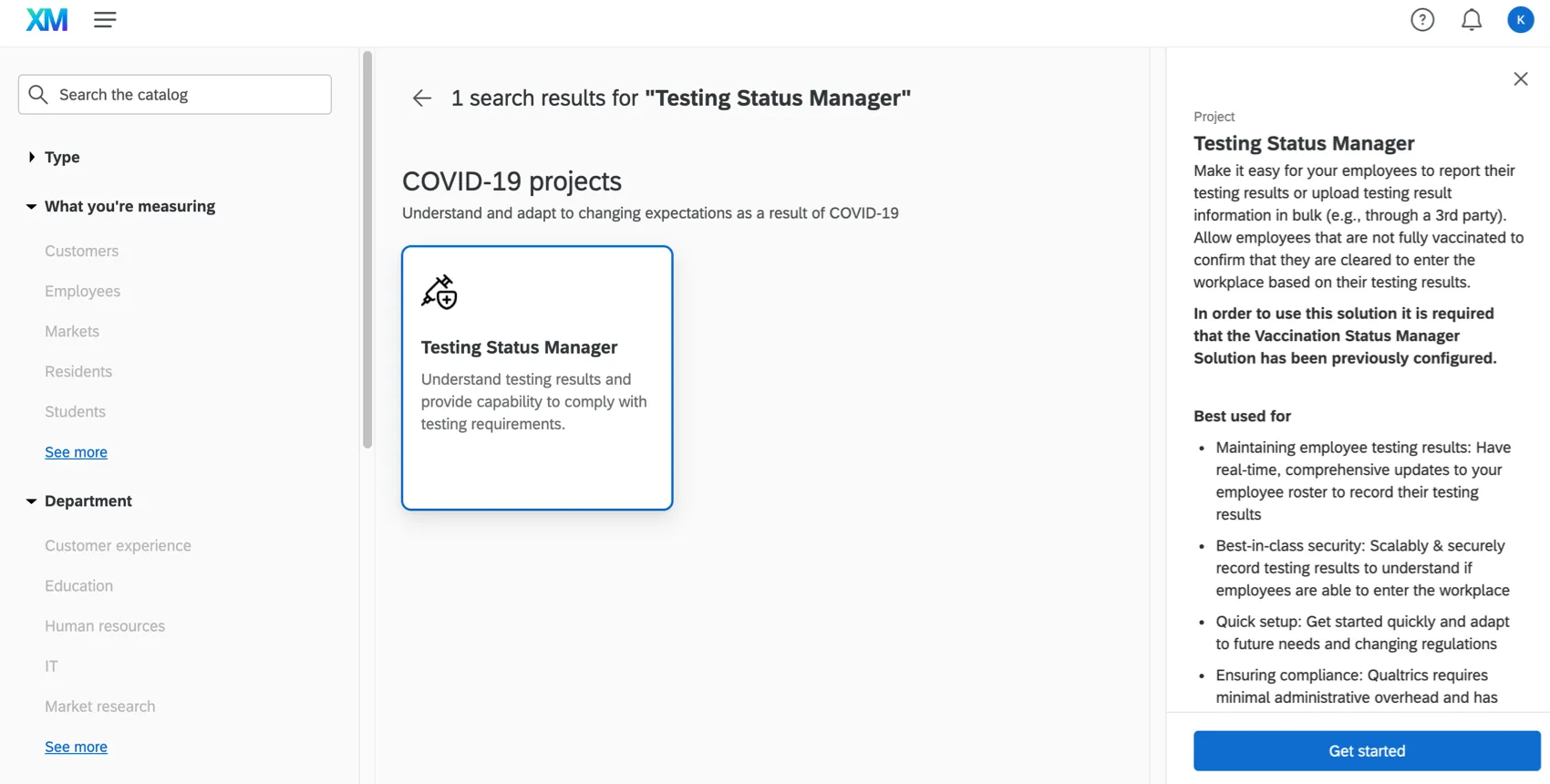
You will be asked to name your project. Then once you click Start customizing, the guided setup will begin.
In order to prepare your program and enable the appropriate automated workflows, you must perform the steps described in the following sections in their entirety:
Qtip: Some of these steps are the same as the Vaccination Status Manager and link out to that separate support page. Make sure you come back here and follow all steps in their entirety.

The setup assistant will include links to key pages you need to complete tasks on, which will automatically open in a new tab. We recommend completing these tasks in a separate window or tab of your browser so that you do not lose your place in the setup assistant.
Attention: Once you’re finished with your initial setup and ready to launch, do not forget to complete crucial launch steps.
1. Complete Full Setup of the Vaccination Status Manager Solution
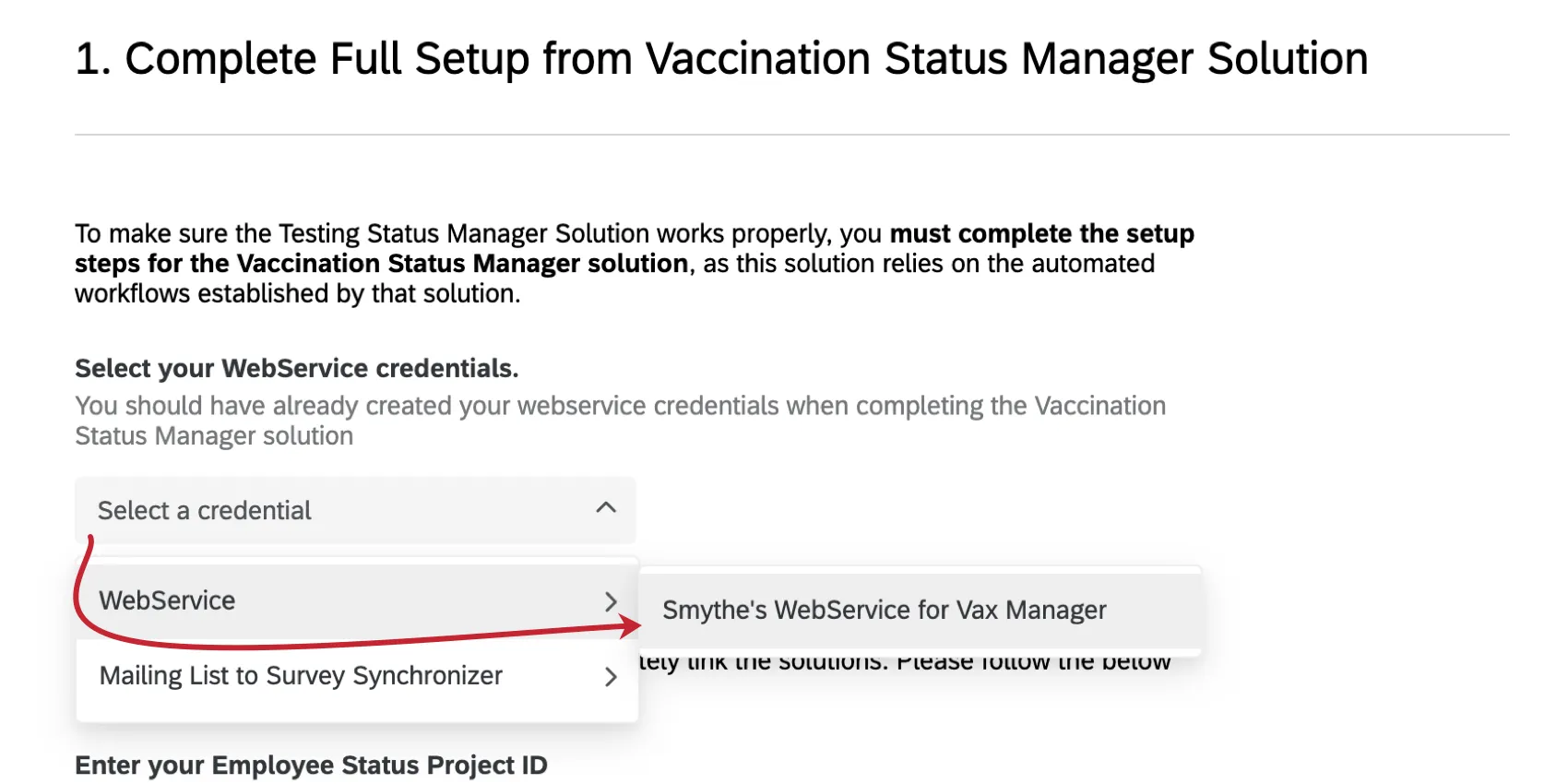
To make sure the Testing Status Manager Solution works properly, you must first complete the setup of the Vaccination Status Manager Solution, as these solutions share important automated workflows.
Once you have created your Vaccination Status Manager and completed its setup, fill out the following fields inside your Testing Status Manager.
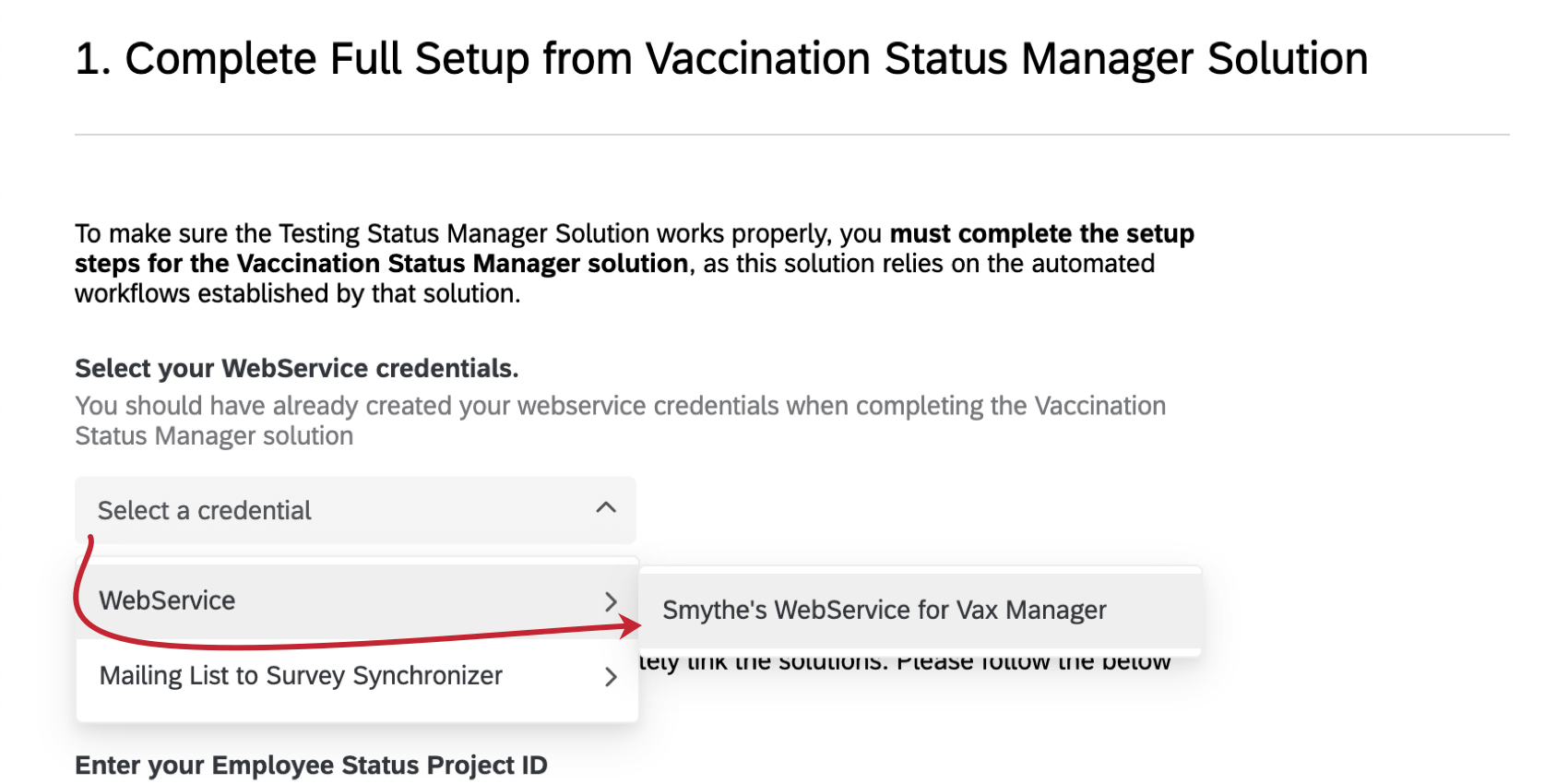
Select your WebService credentials
You should have already created your web service credentials when completing the Vaccination Status Manager solution. Add these same credentials inside your Testing Status Manager.
Enter your Vaccination Attestation and Employee Status Project IDs
In these steps, you will get the survey ID for the Vaccination Attestation and Employee Status projects that were created in your Vaccination solution. Then you will paste the ID in your Testing solution. That allows us to link important workflows together that the programs share.
Qtip: Survey IDs can also be found in the URL when you’re editing a survey.
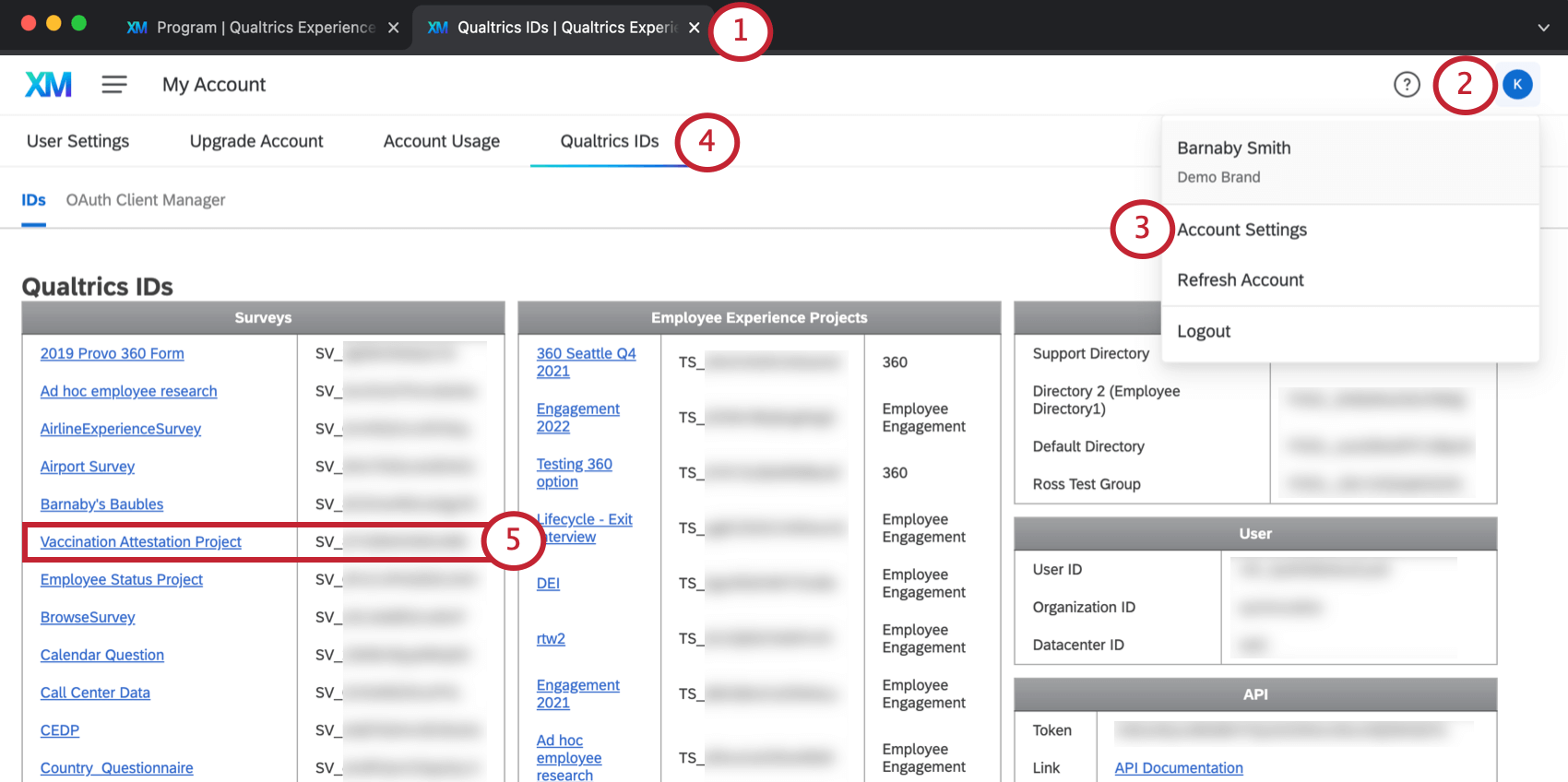
Qtip: Surveys are listed in alphabetical order.
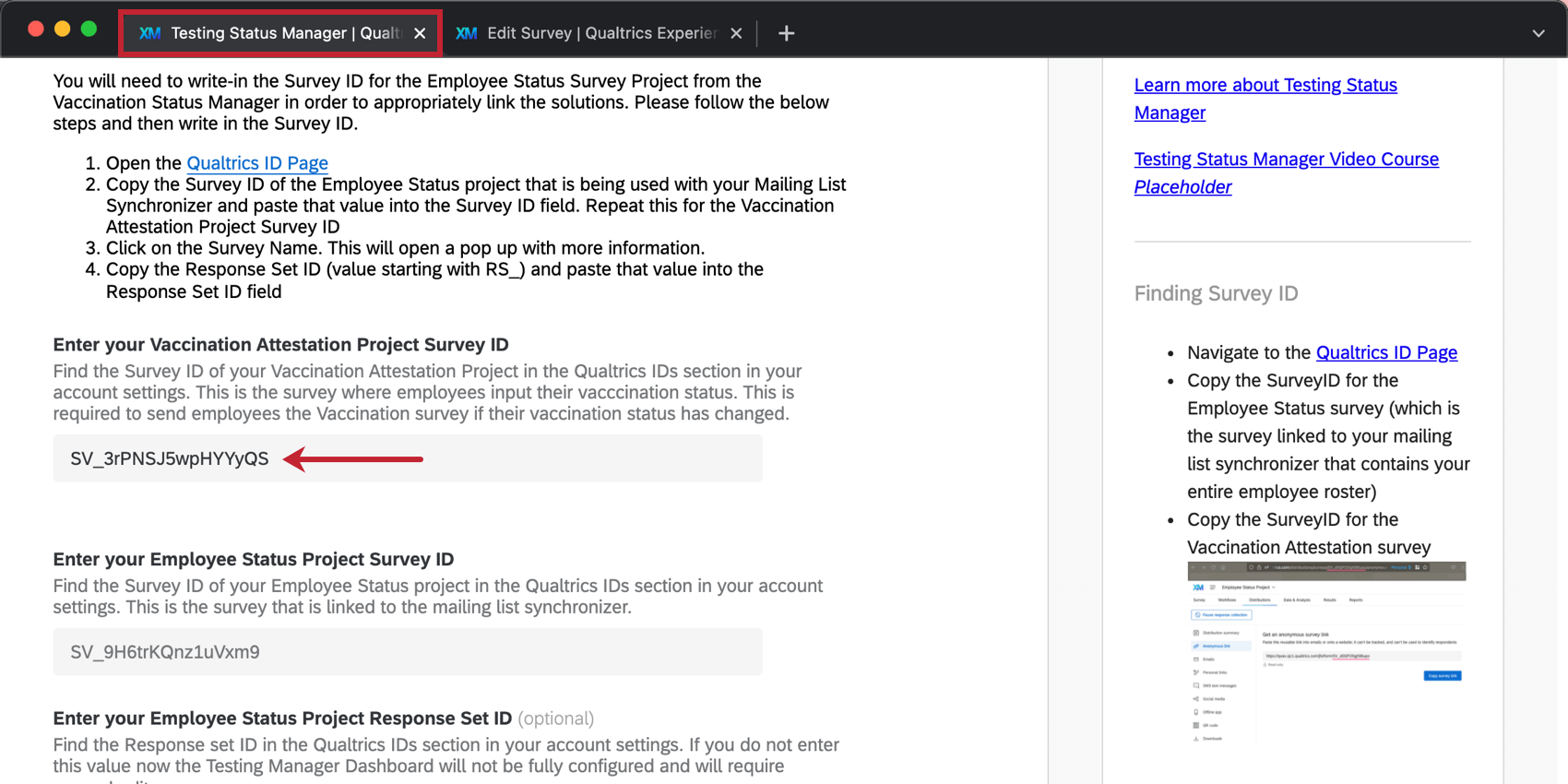
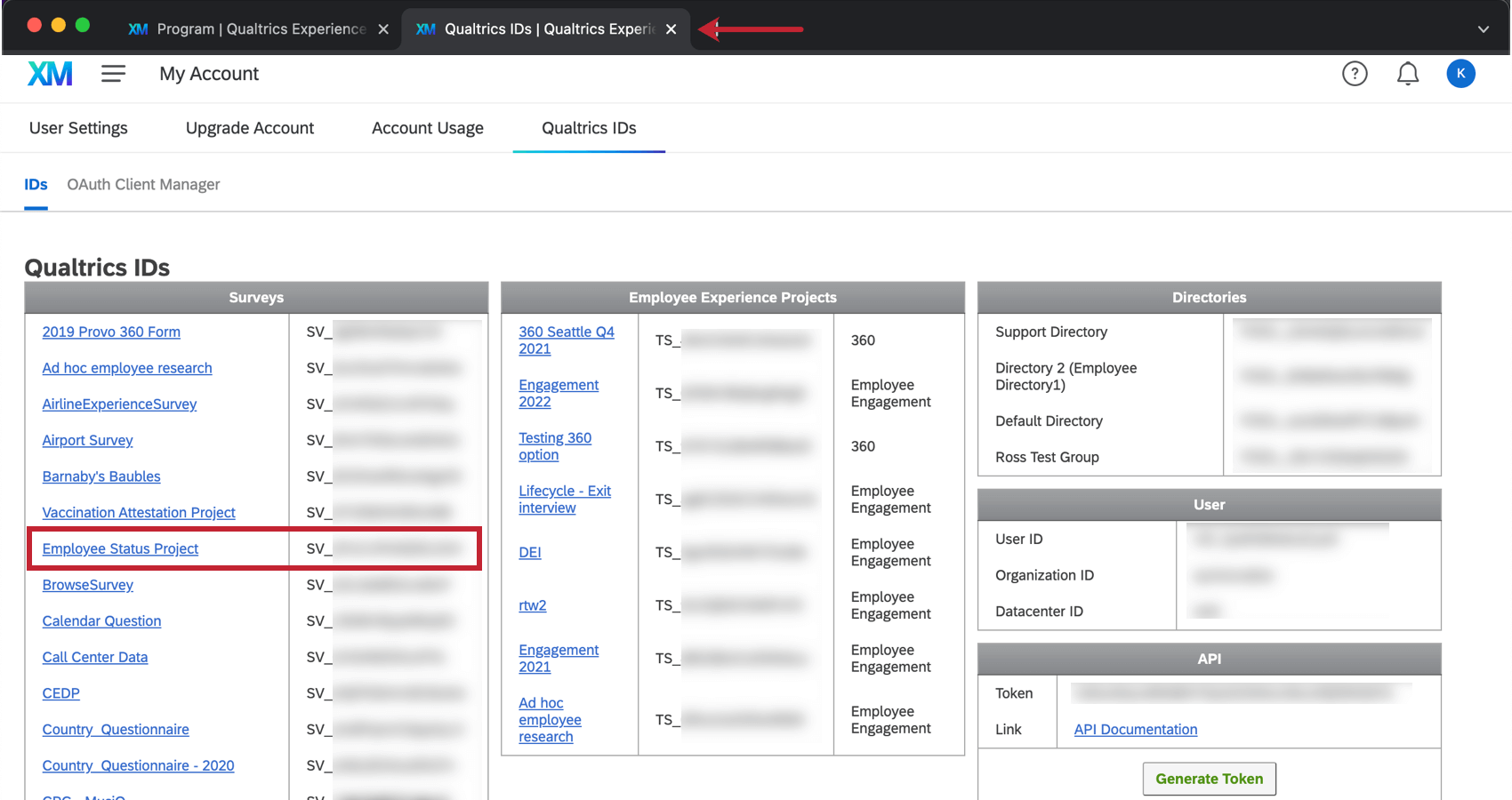
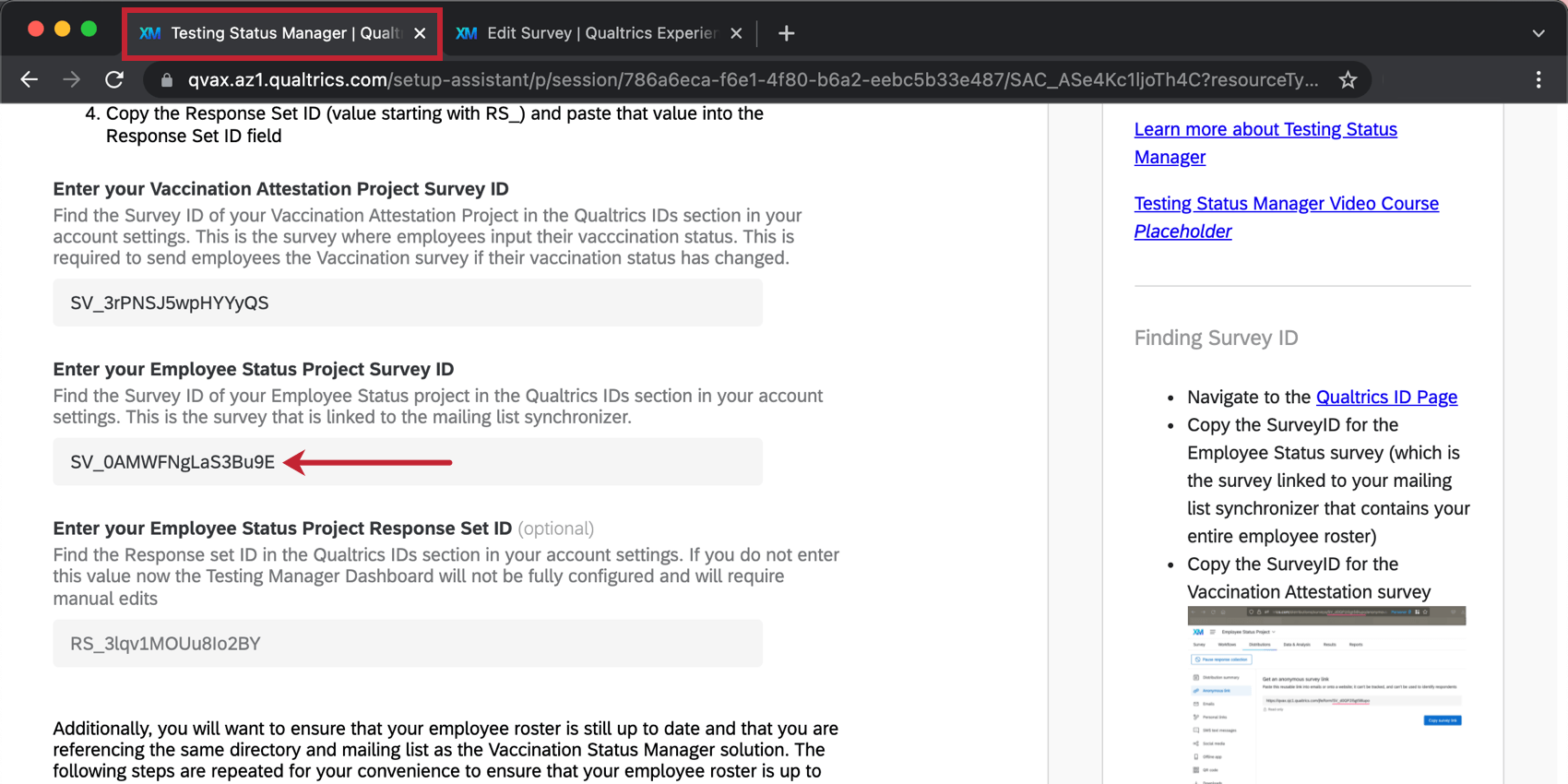
Attention: Do not close the tab with your Qualtrics IDs inside! You will need it for the next steps.
Enter your Employee Status Project Response Set ID
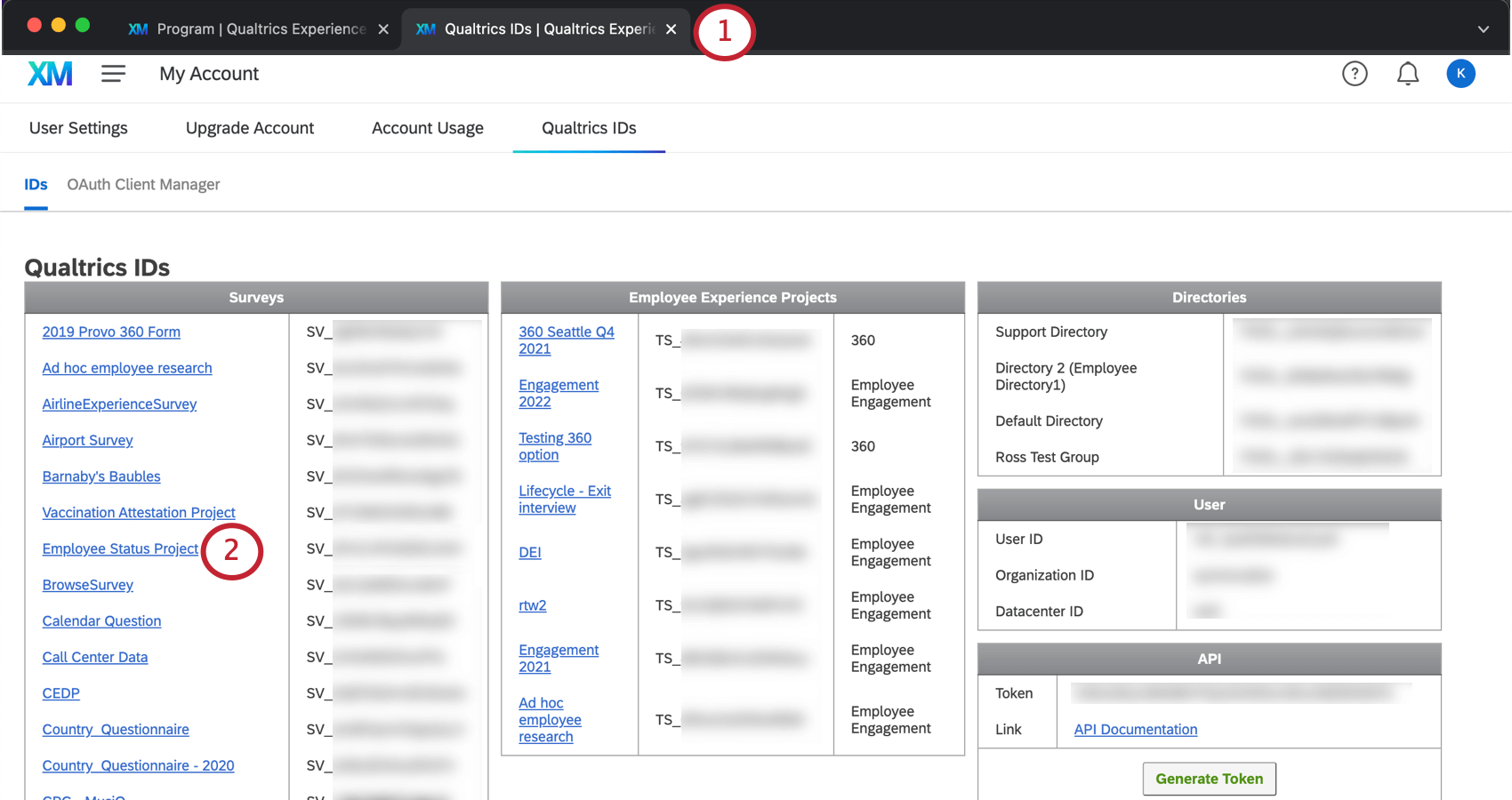
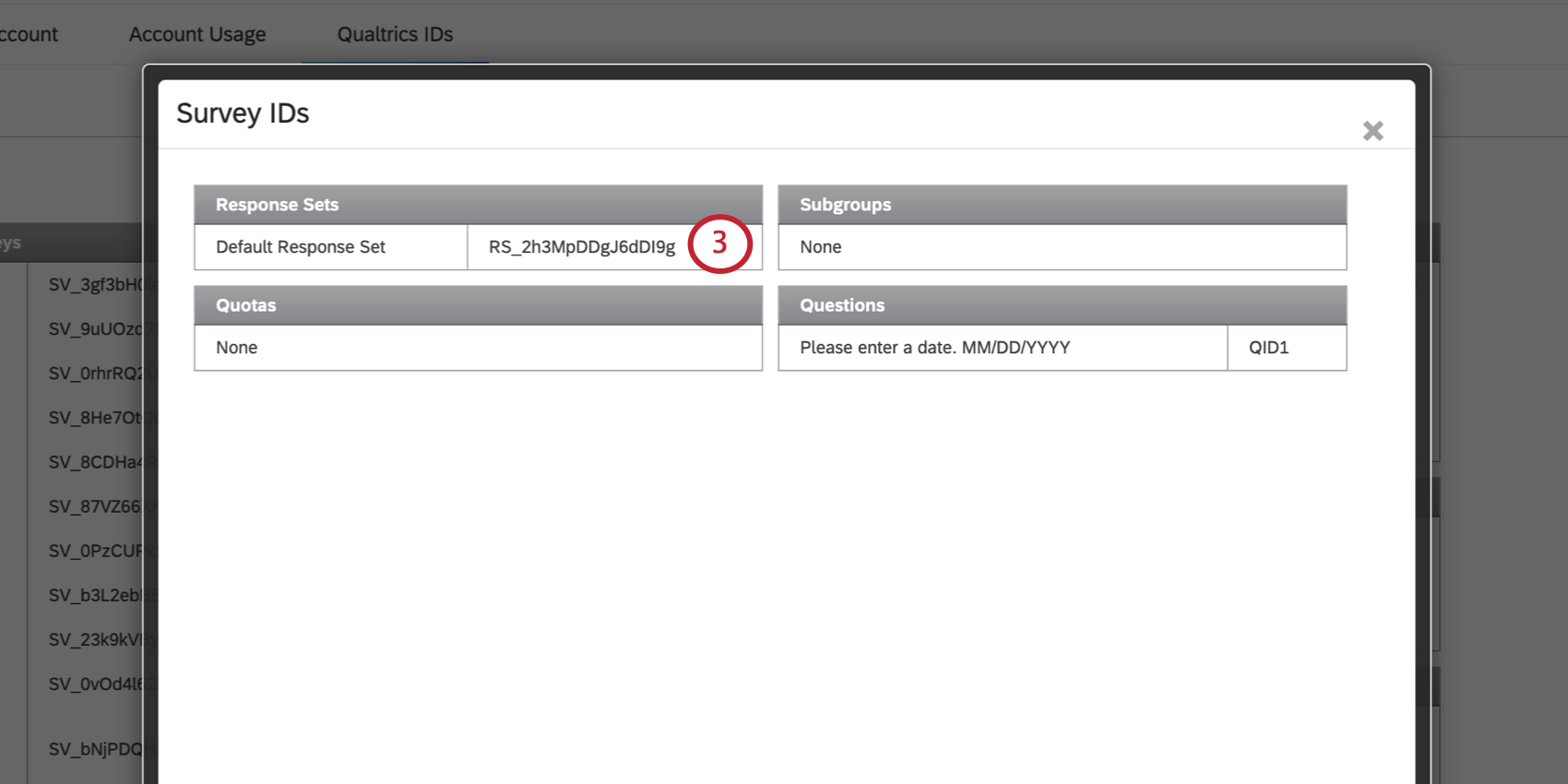
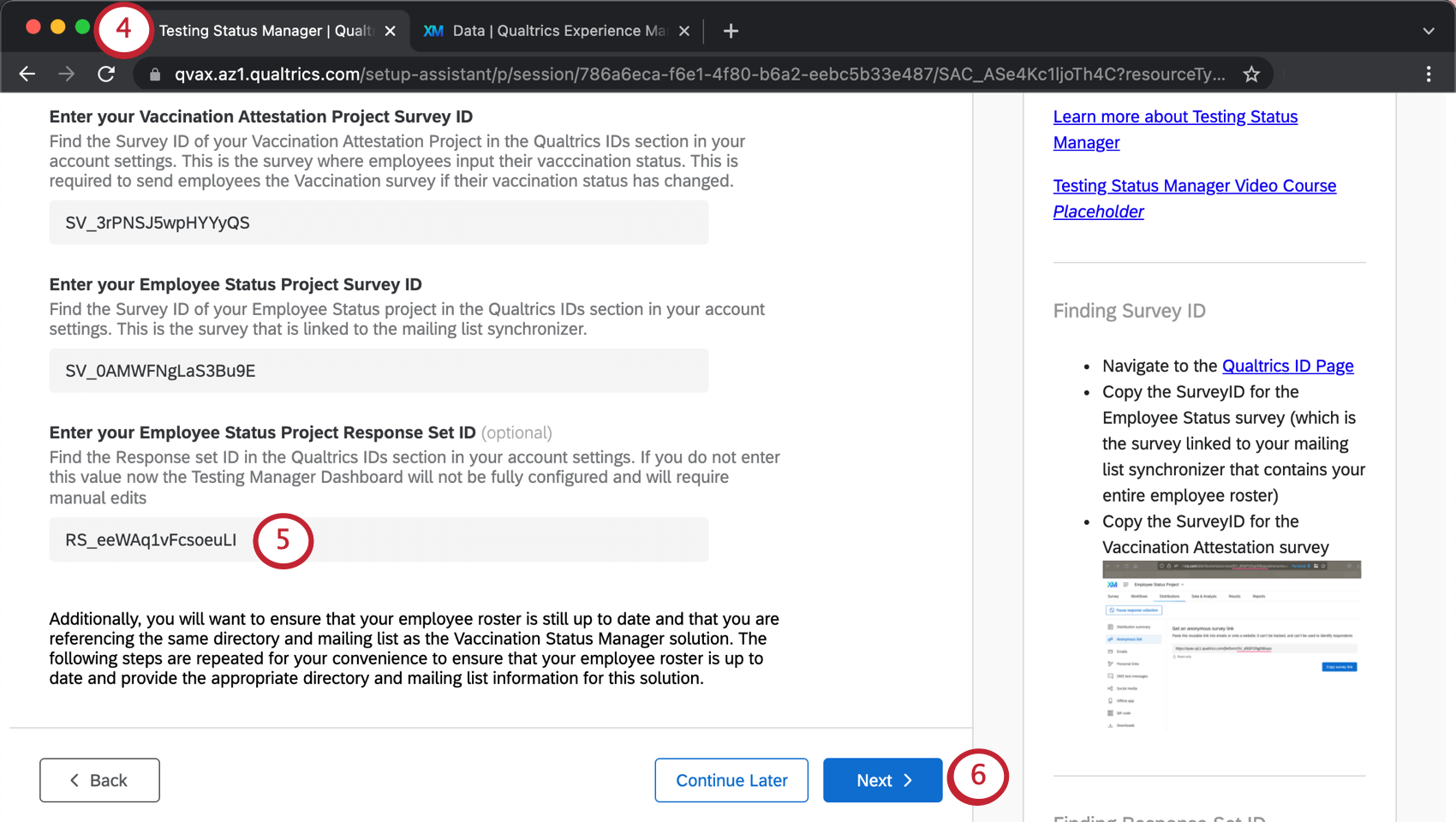
You may now close the tab with your Qualtrics IDs inside.
2. Prevent Duplicate Employee Records
In order to make sure each employee is being updated with the correct status, make sure the directory you created to house your employee roster knows how to identify and merge duplicate contacts.
See the Vaccination Status Manager page for the exact same steps.
Attention: If you already completed this step when you created the Vaccination Status Manager, skip ahead to the next step.
3. Prepare Your Employee Roster File
Now it’s time to create a list of your employees. For this solution to work as intended, there are some required fields that are unique to this program.
See the Vaccination Status Manager page for the exact same steps.
Attention: If you already completed this step when you created the Vaccination Status Manager, skip ahead to the next step.
4. Upload Employee Data
To complete your employee roster, make a mailing list in your newly created directory, and upload the file you made to it.
See the Vaccination Status Manager page for the exact same steps.
Attention: If you already completed this step when you created the Vaccination Status Manager, skip ahead to the next step.
5. Provide a Mailing List
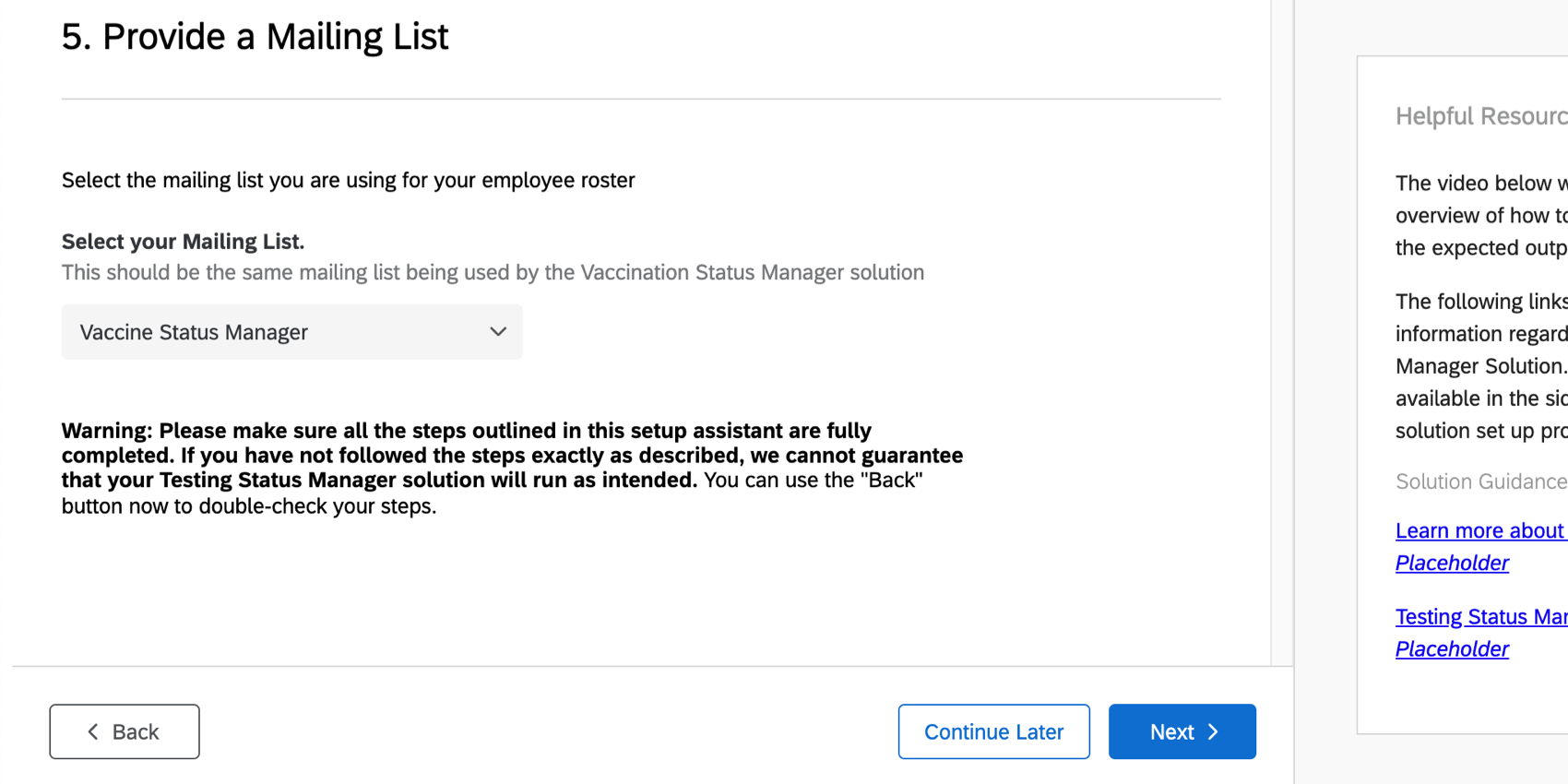
In the solution setup assistant, get to the page that says Select your Mailing List and add the list you created in the previous steps.
Attention: This should be the same mailing list you used in the Vaccination Status Manager solution.
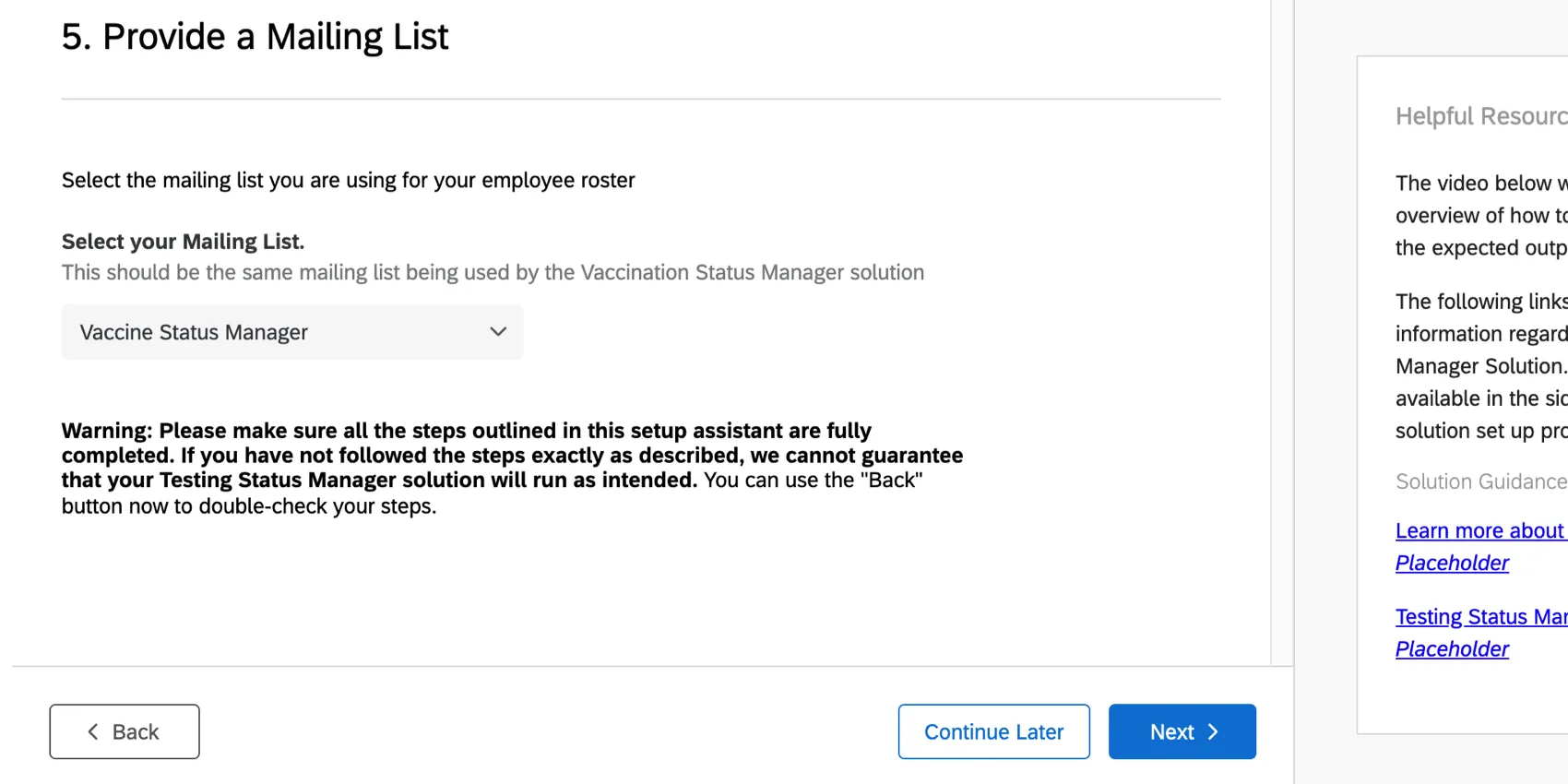
Qtip: If nothing appears in this dropdown, go back and make sure you completed the previous steps correctly. You may need to go back a page in the setup assistant and re-submit.

6. Provide Details for Optional Configurations
At the end of the setup assistant, you’ll be presented with a few optional features.
Attention: If you do not include this link, we recommend finding Q1 in your survey and editing it to remove the hyperlink.
This solution also includes an automated email distribution to employees who indicate that their vaccination status has changed. The email will go out immediately after their testing status submission and will contain a link to the vaccination attestation survey so the employee can update their status to indicate they are now partially or fully vaccinated. This survey distribution can be found in the Workflows tab of the COVID Test Submission Project, under “Send Vaccine Survey.”
7. Email Your Employees Their Testing Status
As one last note, the solution will tell you about a couple of workflows you’ll find in your program.
The solution will automatically email each employee that submits a testing result their test expiration date. These emails are intended to help employees understand when they need to be retested and/or can be used as proof for entering the workplace. This email can be found in the Workflows tab of the COVID Test Submission Project, under “Positive/Negative COVID Result Notification.”
Additionally, the solution will also send an automated email to an employee 6 days after their submission of a negative test result and 85 days after their submission of a positive test result. This email is intended to remind the employee to submit another test result to ensure they can enter the workplace. These emails can be found in the Workflows tab of the COVID Test Submission Project. They are all built using survey response events with conditions that lead to email tasks.
8. Finish the Testing Status Manager Solution Setup
You can use the Back button to check your answers. Otherwise, when you’re done setting up your Testing Status Manager, click Finish.
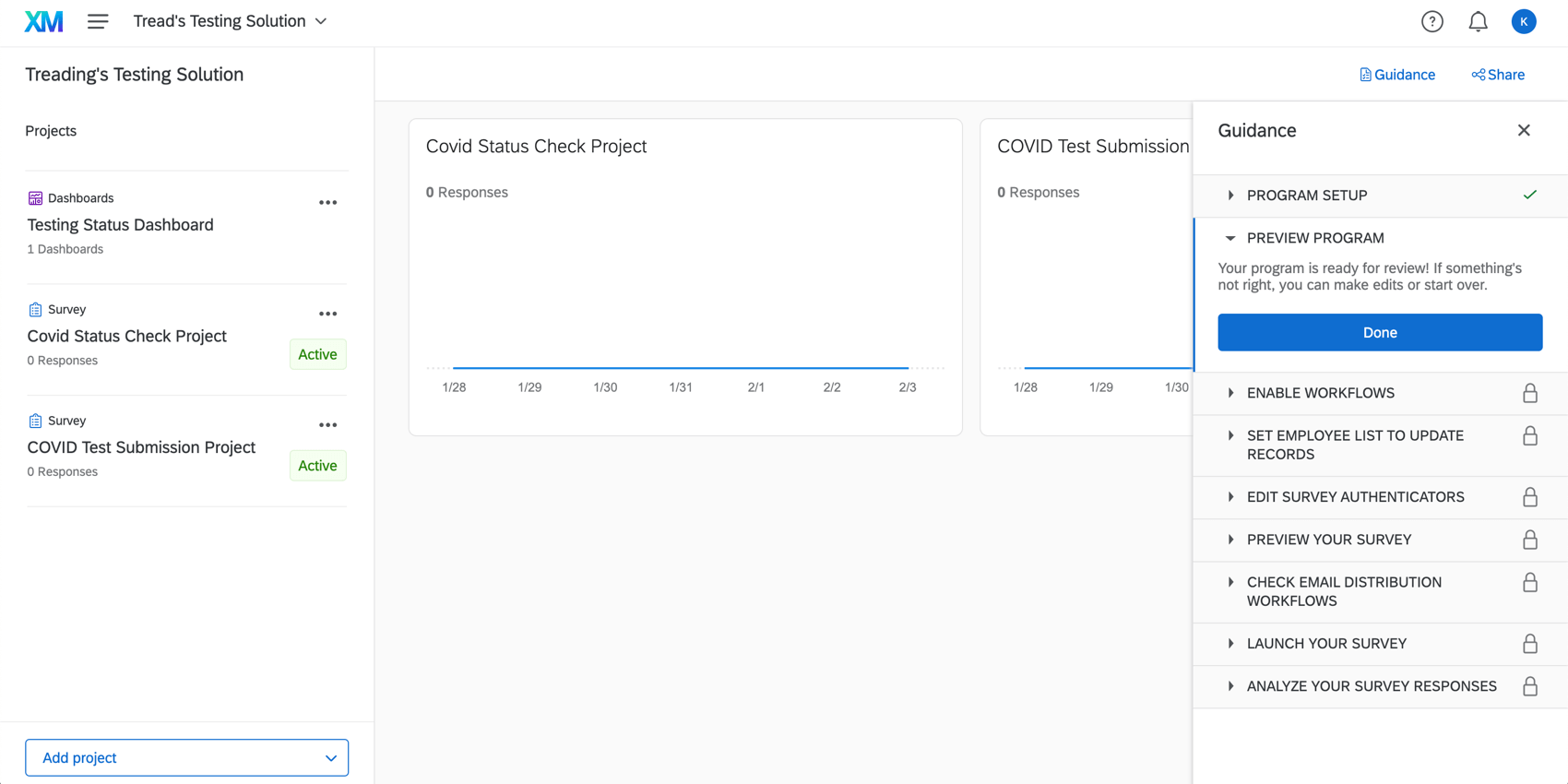
You’ll be taken to a program that holds your COVID Status Check, weekly COVID Test Submission survey, and Testing Status Dashboard in one place. The guidance sidebar will provide instructions on the next steps, which will be to launch your project.
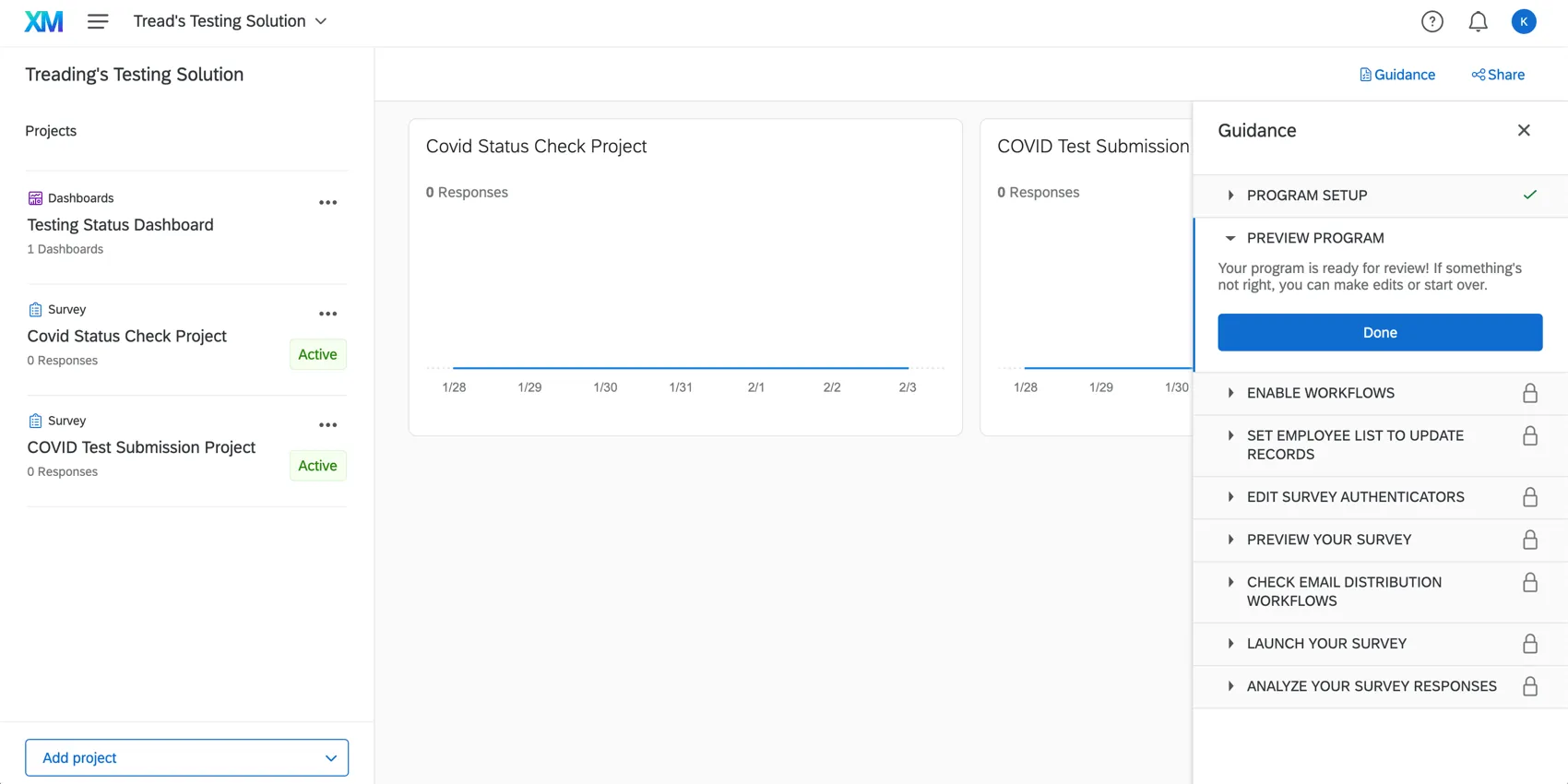
Launching the Testing Status Manager
Now that you’ve completed the initial setup, there are some things you must do to successfully launch your solution:
Qtip: Some of these steps are the same as the Vaccination Status Manager and link out to that separate support page. Make sure you come back here and follow all steps in their entirety.
Edit Survey Authenticators
When employees visit the COVID Test Submission Project and the COVID Status Check, they are prompted to log in. This is due to the presence of an authenticator in the survey flow.
By default, your authenticators are based on a mailing list. If your organization has single sign-on (SSO), you can change your setup to an SSO authenticator. Whatever you choose, you should set up all of your authenticators the same way.
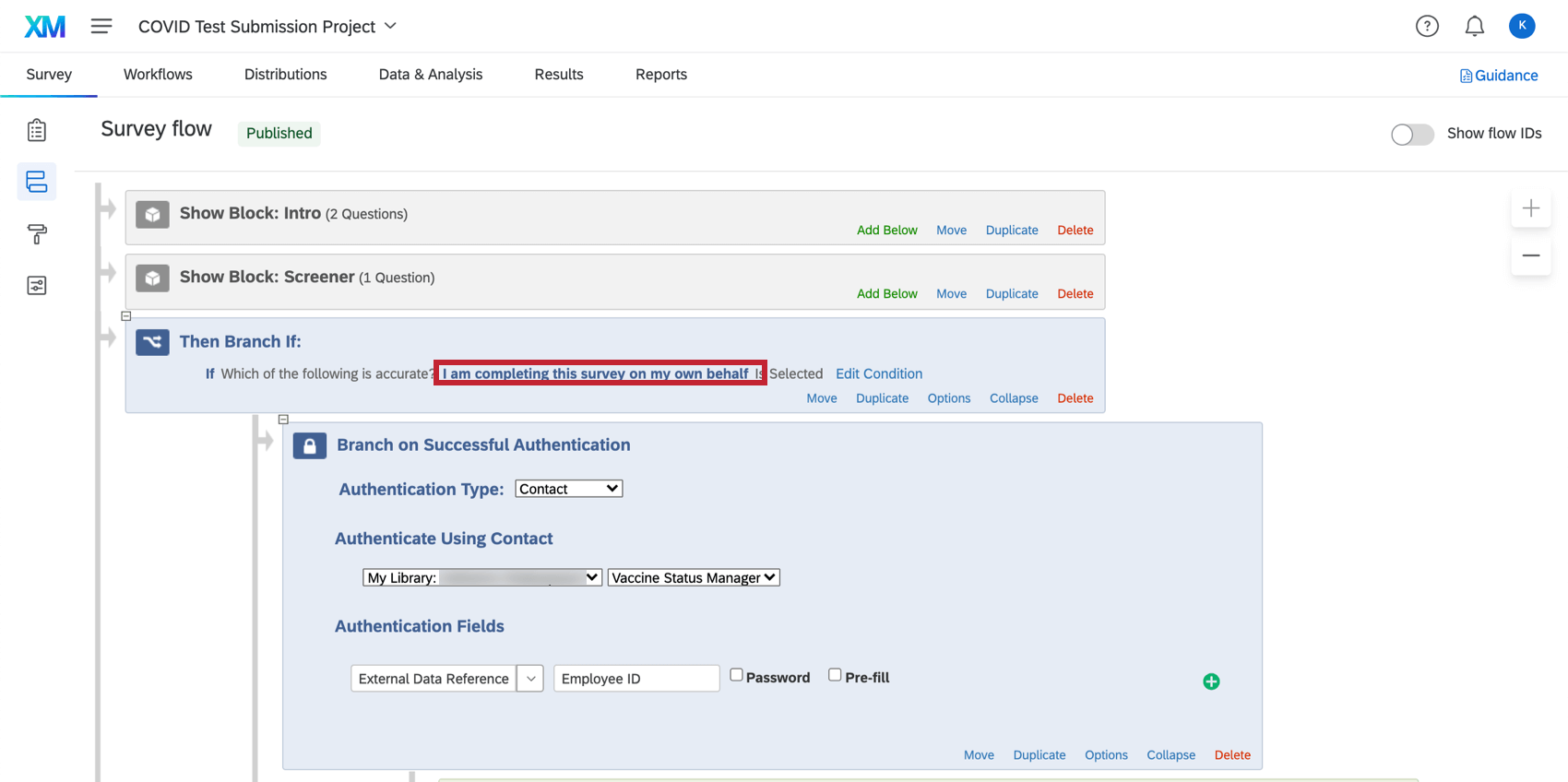
Qtip: The COVID Test Submission Project has two authenticators with the same setup. One is under a branch that says “I am completing this survey on my own behalf”, and the other is under a branch that says “I am completing this survey on behalf of an employee”. The COVID Status Check has just one authenticator.
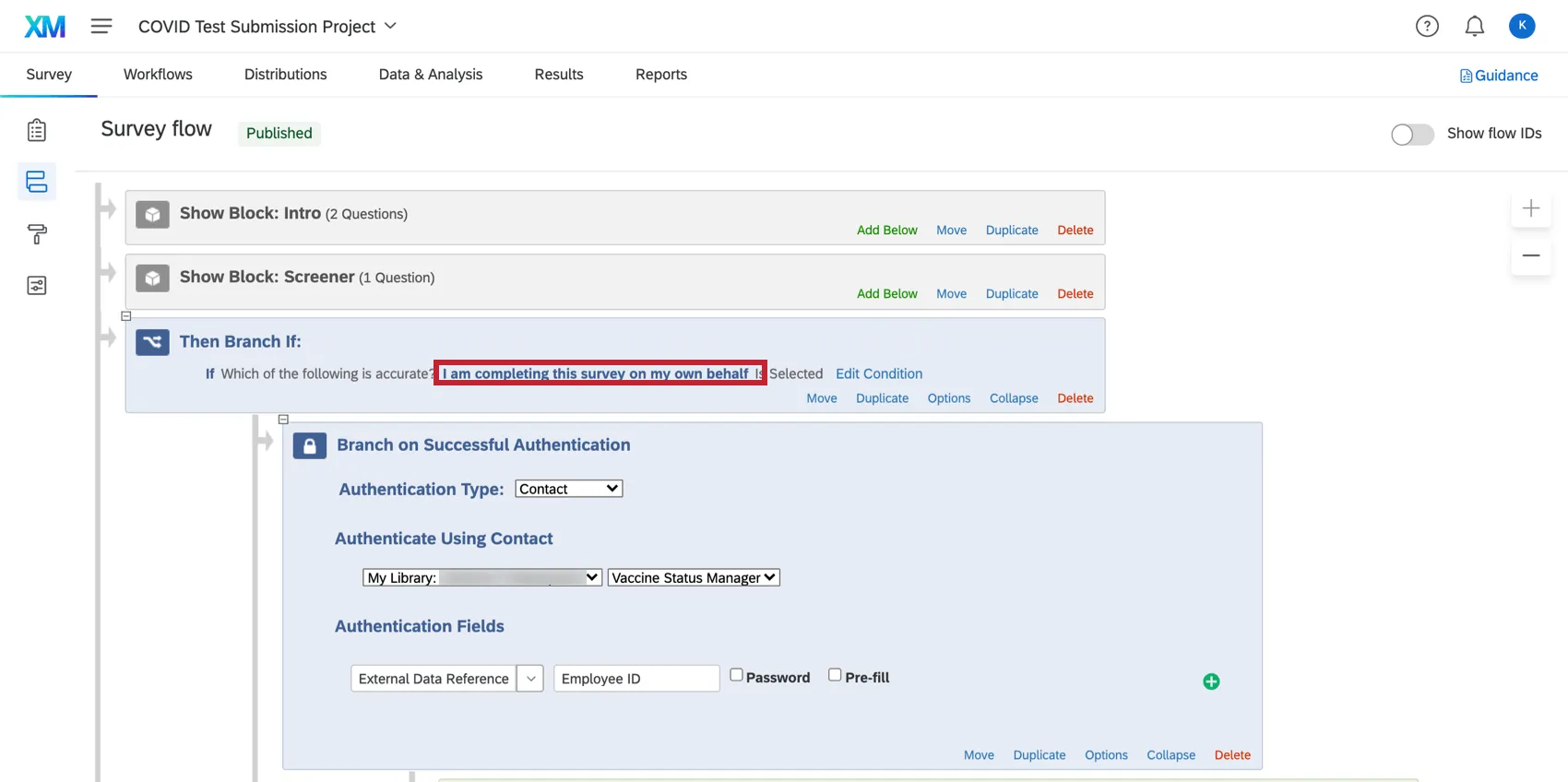
Mailing List-Based Authenticator
This section explains how the authenticator is set up by default, based on a mailing list. This kind of authenticator can be supported by any organization. It will use information you already set up in XM Directory in earlier steps.
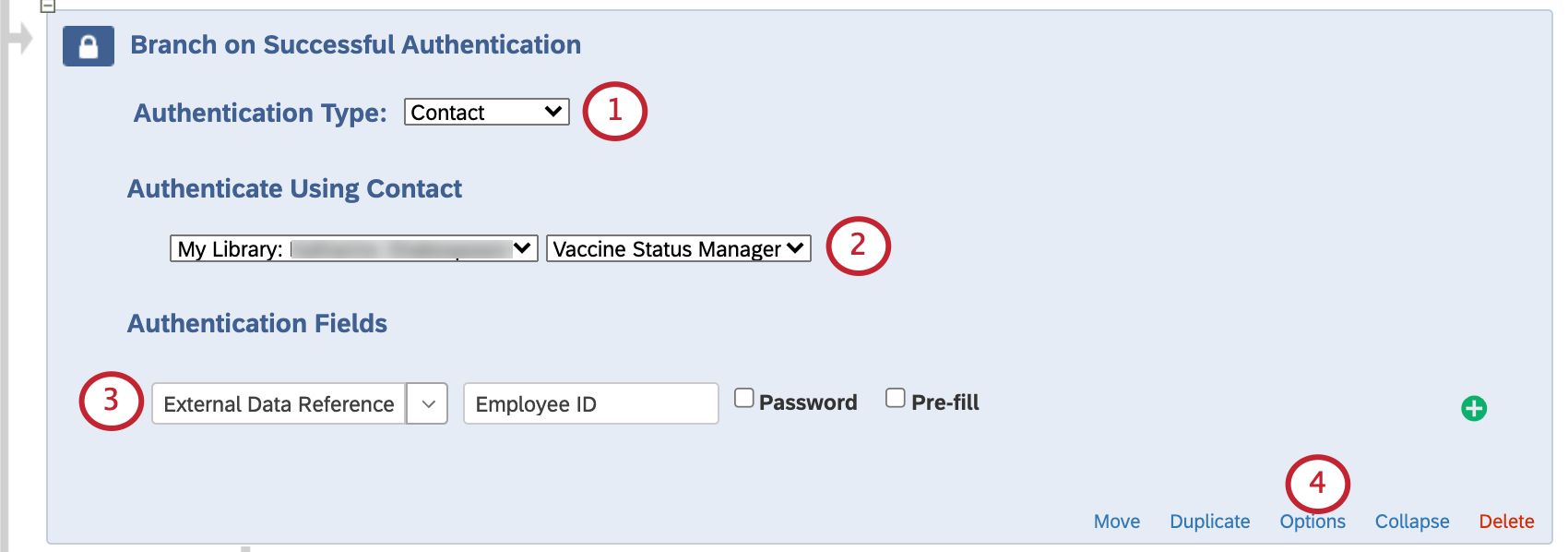
Example: Here, we named our mailing list “Vaccine Status Manager”.


Qtip: We use the optional label to tell the person logging into the survey that they should enter their “Employee ID.” That’s because that’s the information we saved as the External Data Reference in the mailing list.
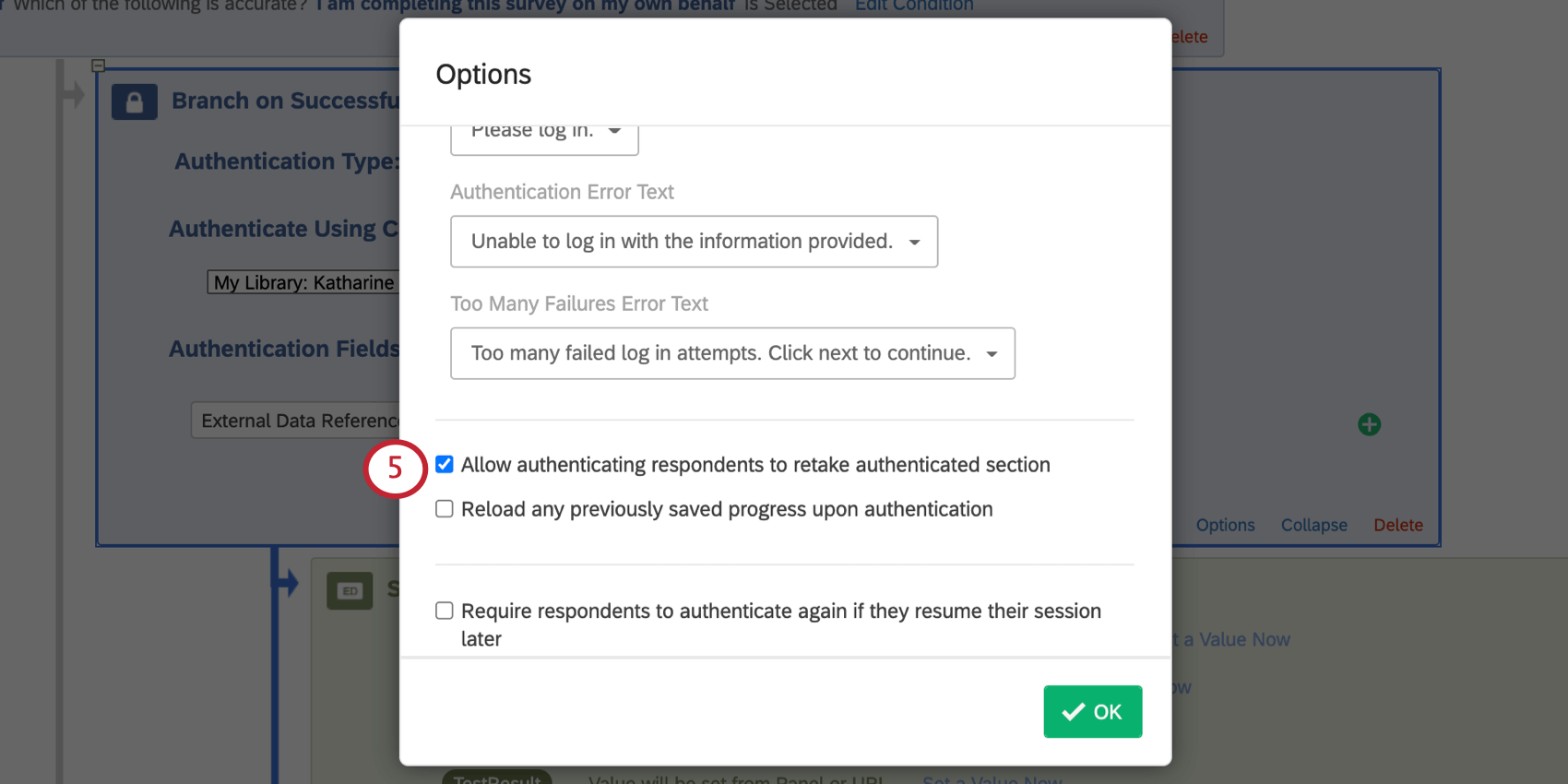
Qtip: When you’re finished editing authenticators and want to distribute your survey, make sure you get the anonymous link or QR Code® from each survey.
SSO Authenticator
This kind of authenticator can only be set up if you have single sign-on (SSO) set up for your organization’s Qualtrics license. Keep in mind that you may need to be in close contact with a member of your organization’s IT team to set this up.
Warning: In order to use SSO Authentication with ExternalDataReference as the employee identifier, ExternalDataReference must be passed as the id/uid/UserName attribute via SSO. Thus, we strongly recommend using your organization’s SSO, not Google or Facebook.
See the SSO Authenticator support page for detailed steps for each type of SSO connection. Make sure you also do the following:
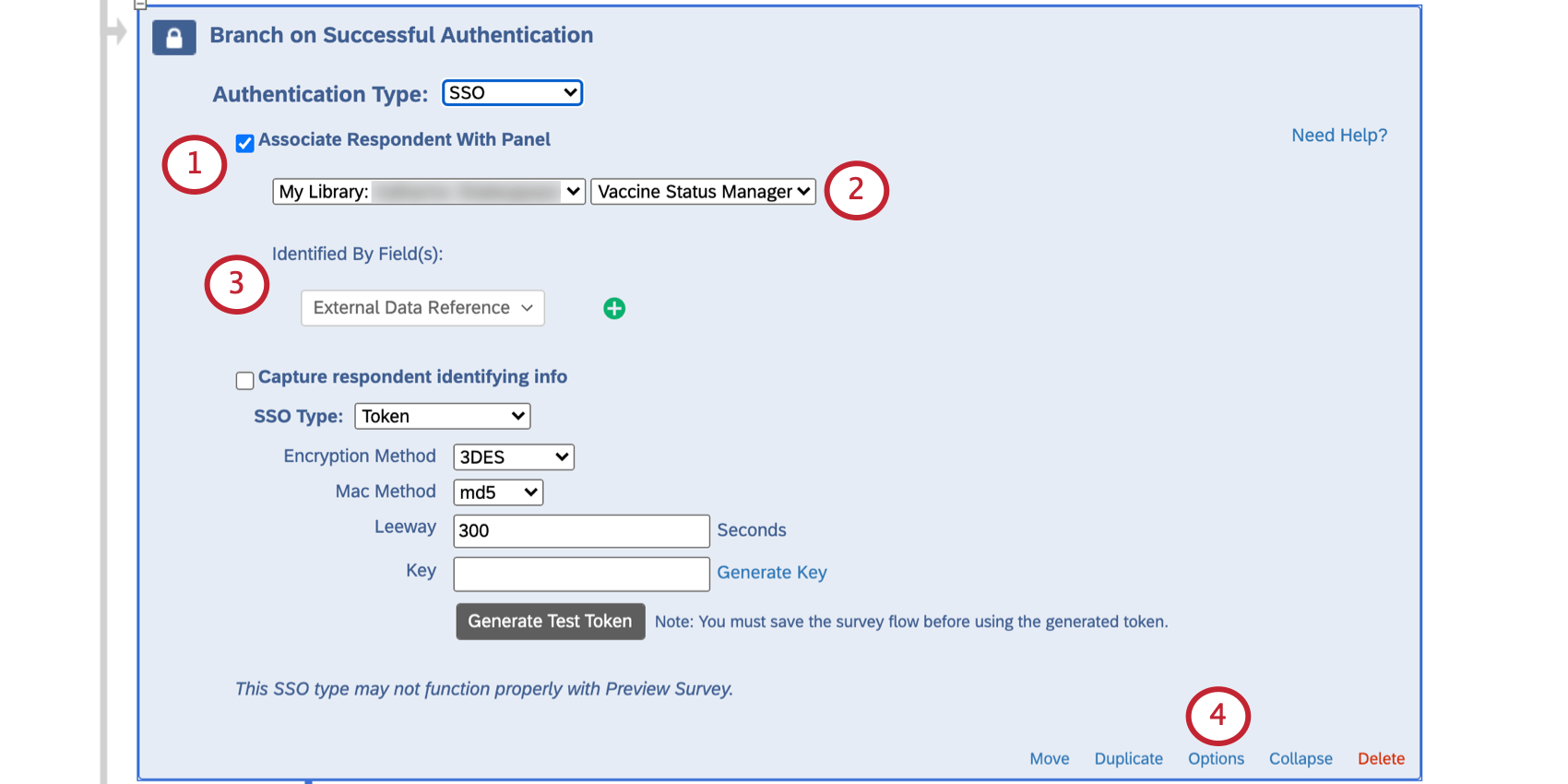
Qtip: When you’re finished editing authenticators and want to distribute your survey, make sure you get the anonymous link or QR Code from each survey.
Schedule Your Distribution
Once you have synchronized your employee list and configured your email messages, you can start sharing your surveys with your employees.
Making both surveys easy for employees to find
The COVID Test Submission lets employees submit their weekly test, and the COVID Status Check lets them check their current status. You’ll want to make sure it’s easy for employees to find both of these surveys.
- Anonymous links: This is a general link to the survey you can post on an internal company website / intranet. Despite the name, responses won’t be anonymous, because employees will log into the survey with their ID.
- QR Codes®: Print this code so employees can scan it with their phones to access the survey on their mobile browser.
Qtip: Whatever you choose, make sure you grab the link or QR code for each survey, not just one.
Sending employees weekly emails reminding them to upload test results
One of the best ways to remind your employees to fill out their tests is to email them. This section describes how you can set up automated emails that will go out to eligible employees every week.
Qtip: The Testing Required segment will include all employees subject to testing requirements, regardless of whether they have submitted a negative test within the past 7 days.
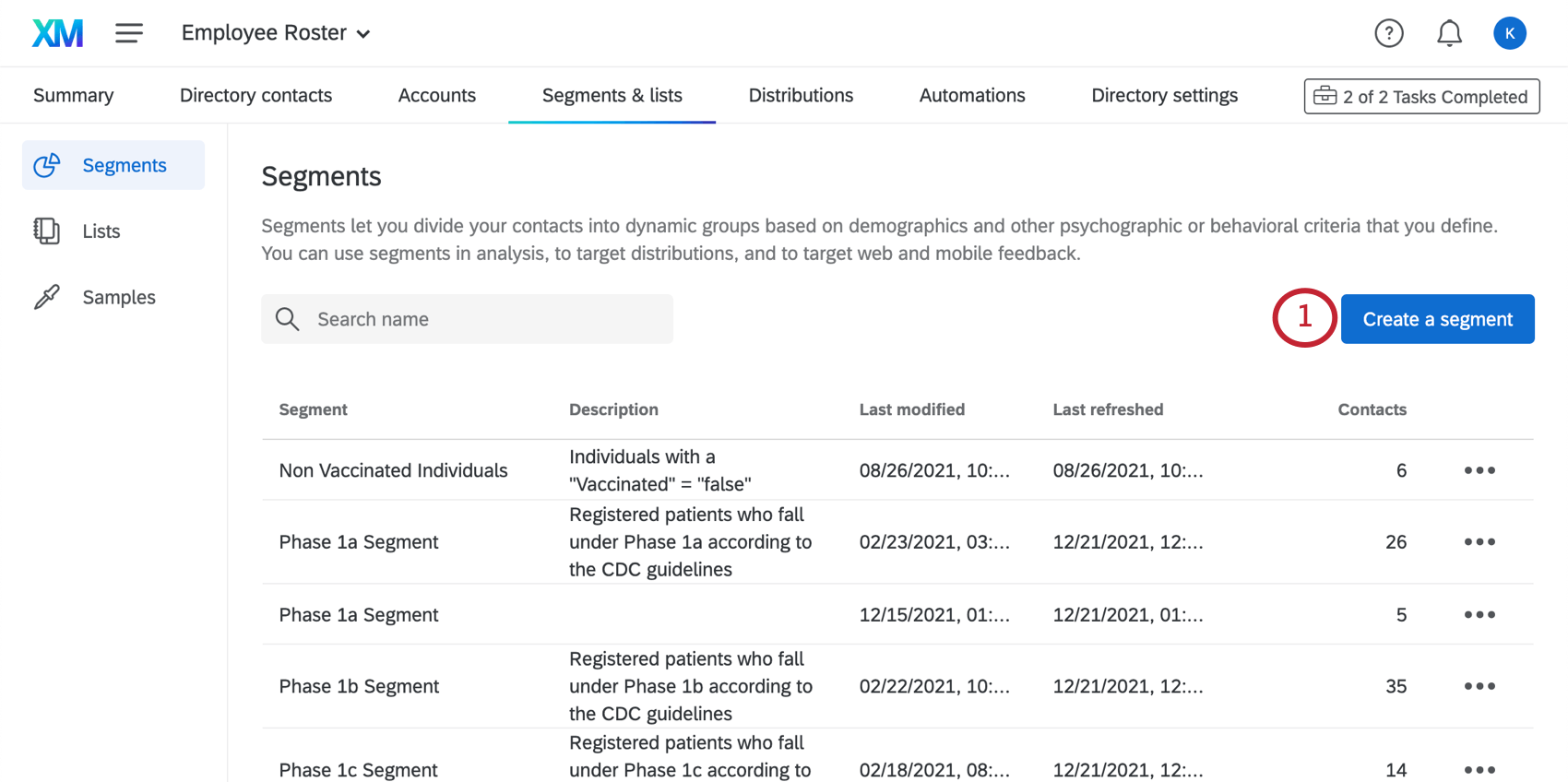
Qtip: Make sure this is in the employee roster directory you created for the Vaccination Status Manager.
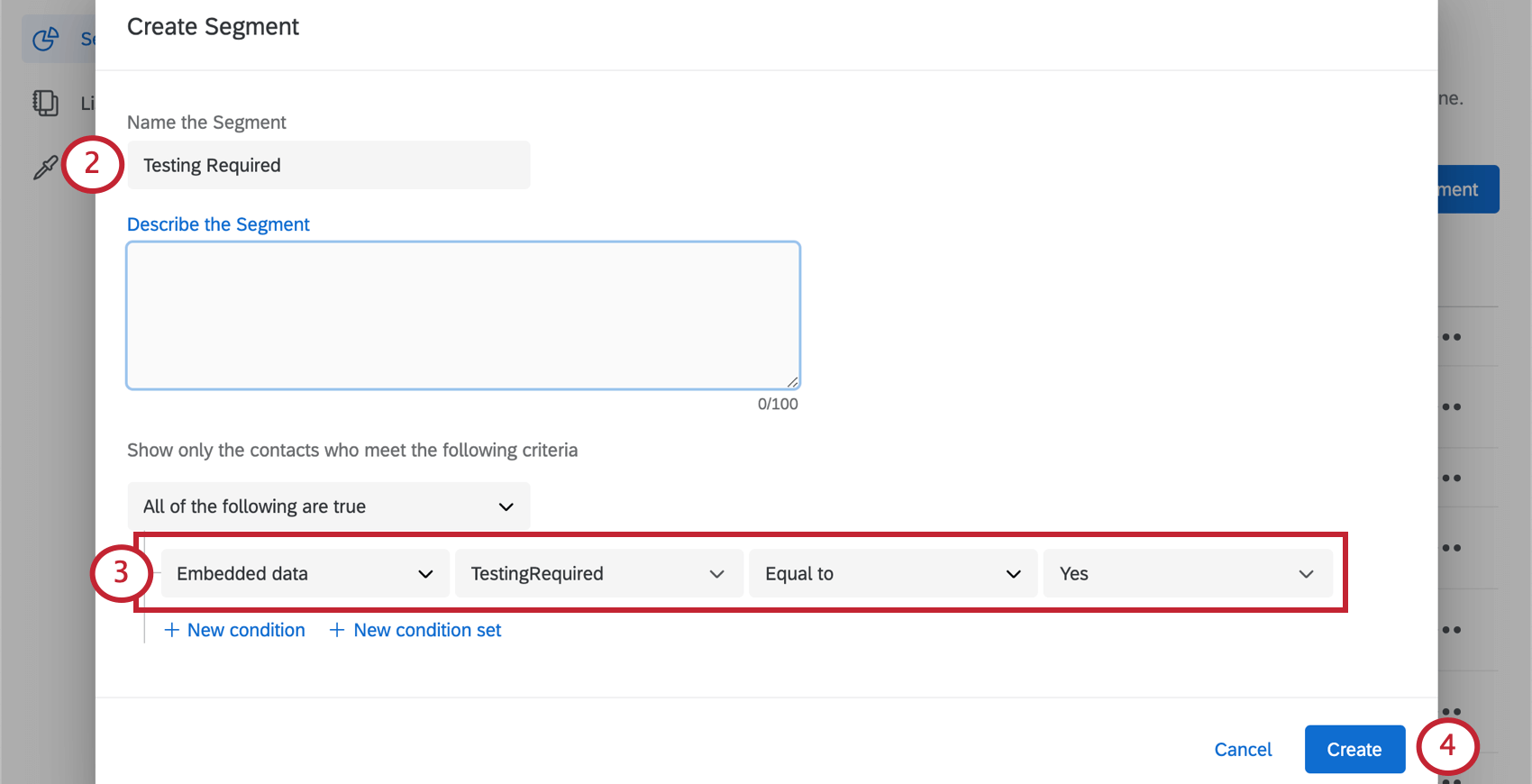
- Embedded data “TestingRequired” is equal to “Yes.”
Sending employees weekly text reminders to upload test results
You may want to send a link to the test submission survey to your employees over text (SMS) rather than email. In order to do this, you will need to ensure that you have purchased SMS credits through Account Services. How many credits you have can be checked right inside the platform.
If you have SMS credits available, you can begin setting your SMS distribution up.
Qtip: The Testing Status Manager is not compatible with 2-way SMS distributions.
Using this XM Solution to Confirm Employees’ COVID Testing Status
Use the resources created by this solution to determine if your employees are eligible to return to the office.
Using the COVID Status Check Survey
The COVID Status Check project can be used to confirm whether an individual employee is eligible to enter the office. We recommend posting a link to the COVID Status Check on the company’s intranet, sharing it via QR code, or emailing a link directly to employees. (See distribution options.)
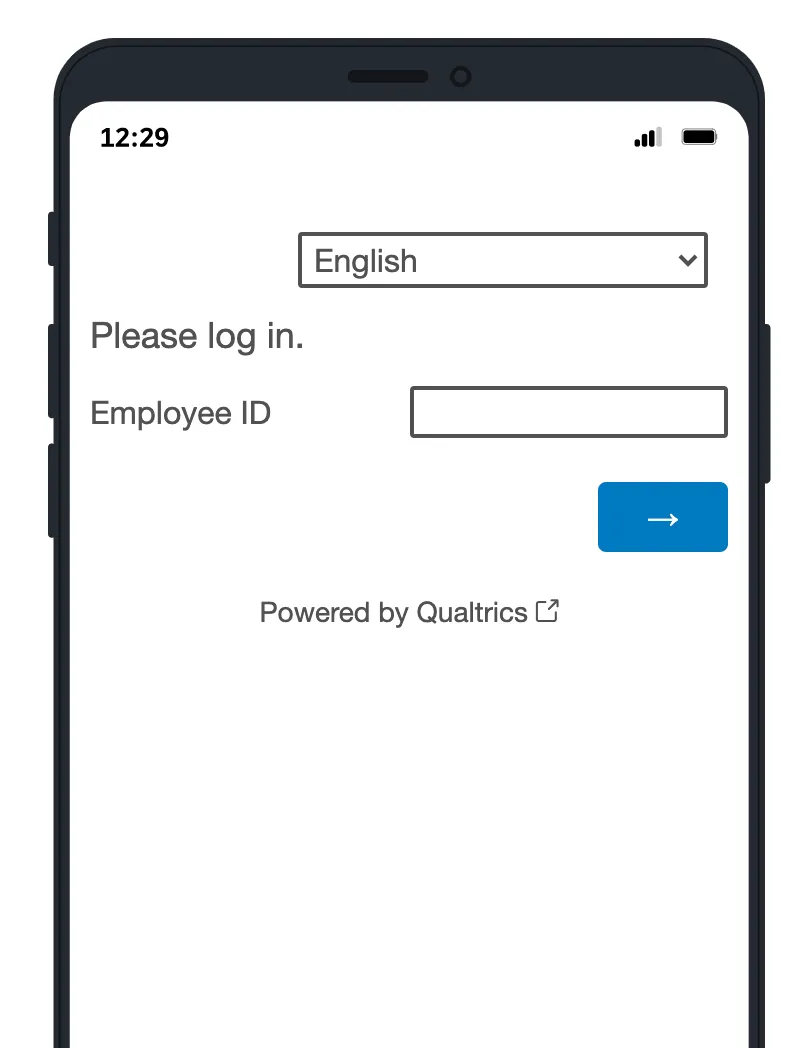
When they’ve opened the survey, employees will log in with their Employee ID or with single sign-on.
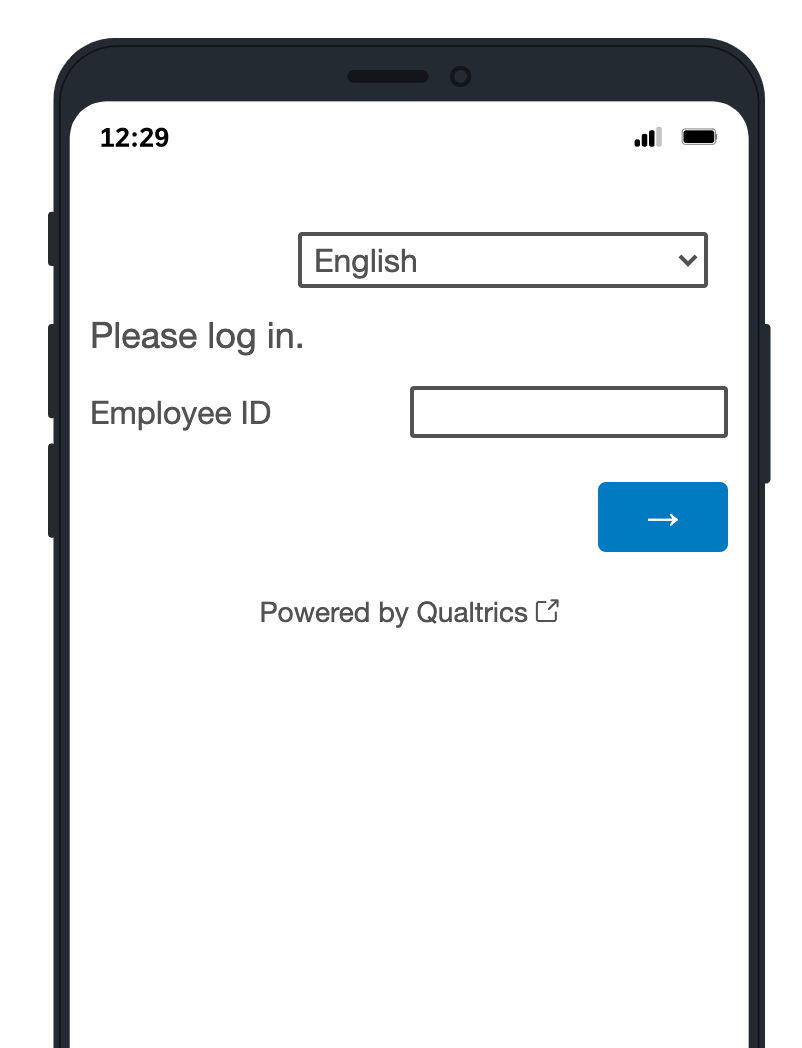
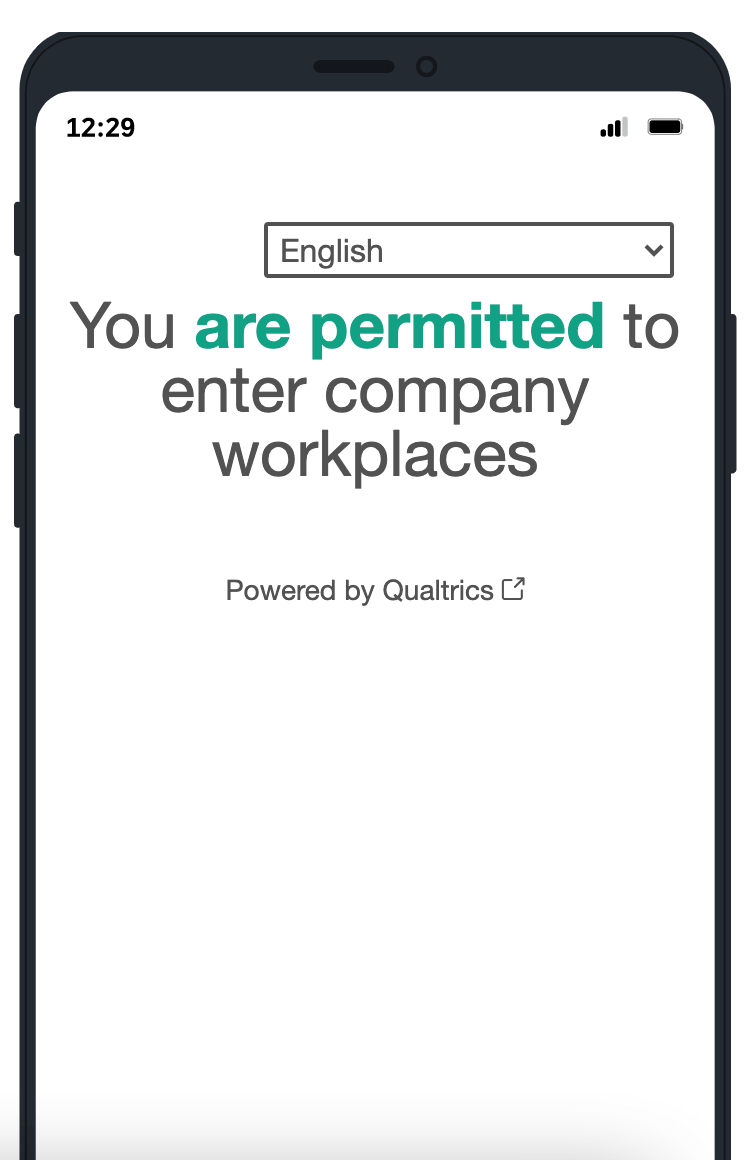
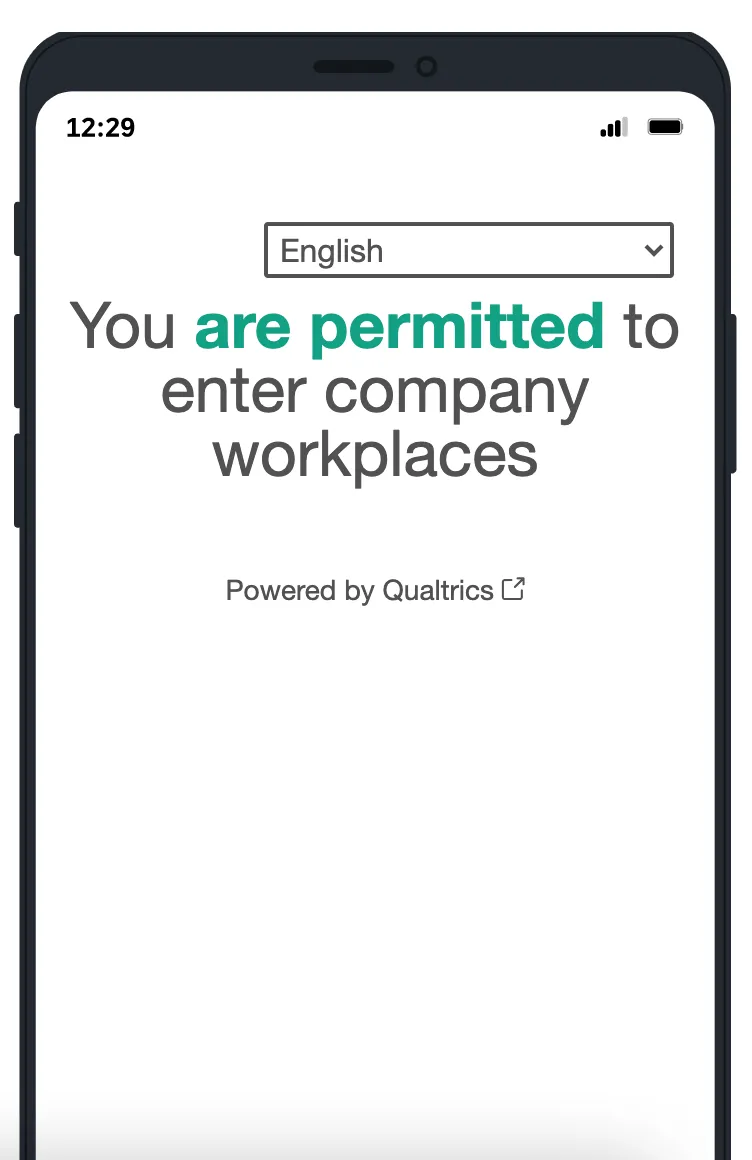
Once signed in, employees will be presented with their current vaccination status. This can be used to perform real-time checks on testing status on-site.
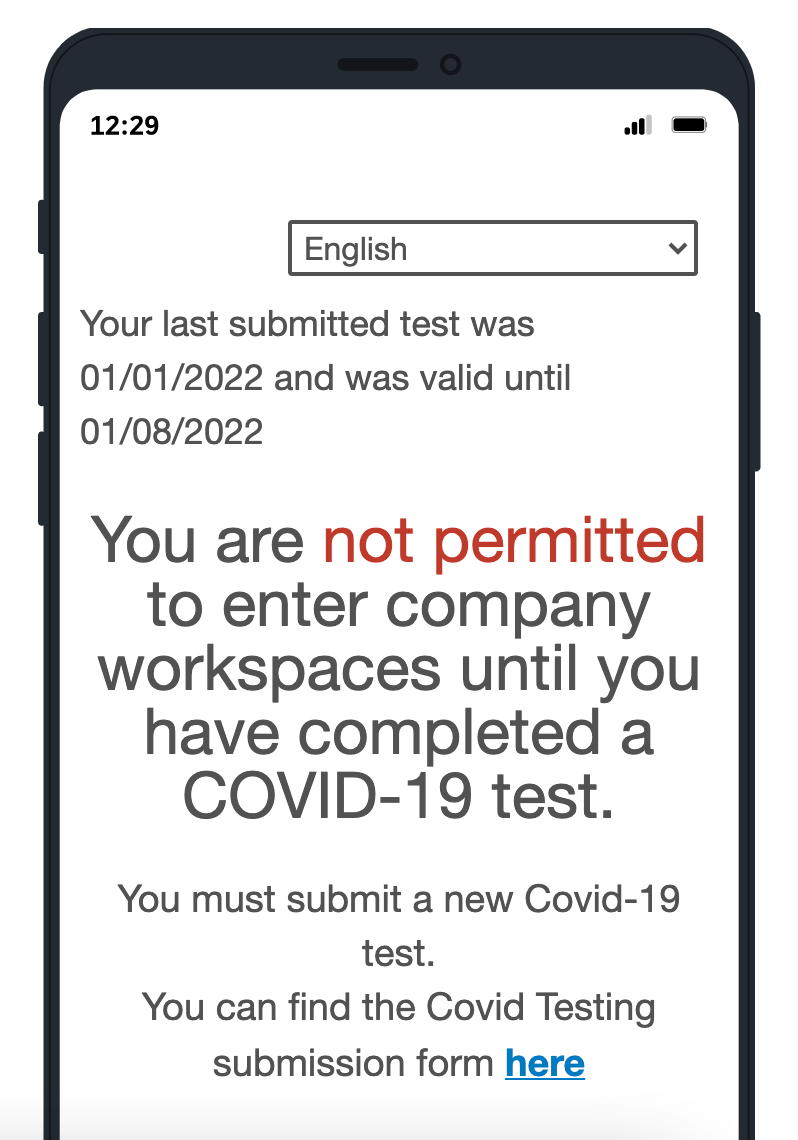
Using the Testing Status Dashboard
HR and security operations can leverage the Testing Status Dashboard to track the number of individuals who are eligible to enter the office.
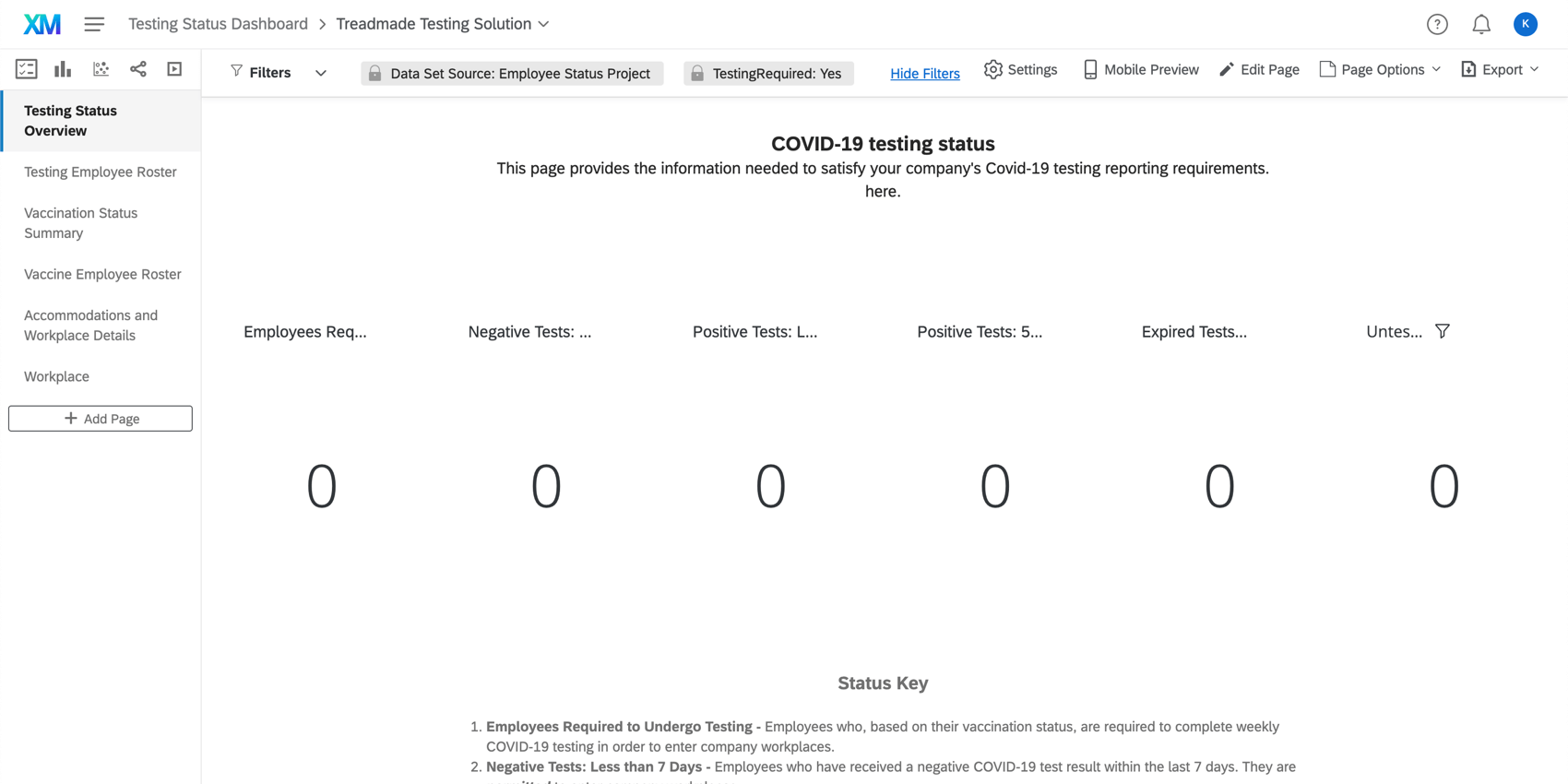
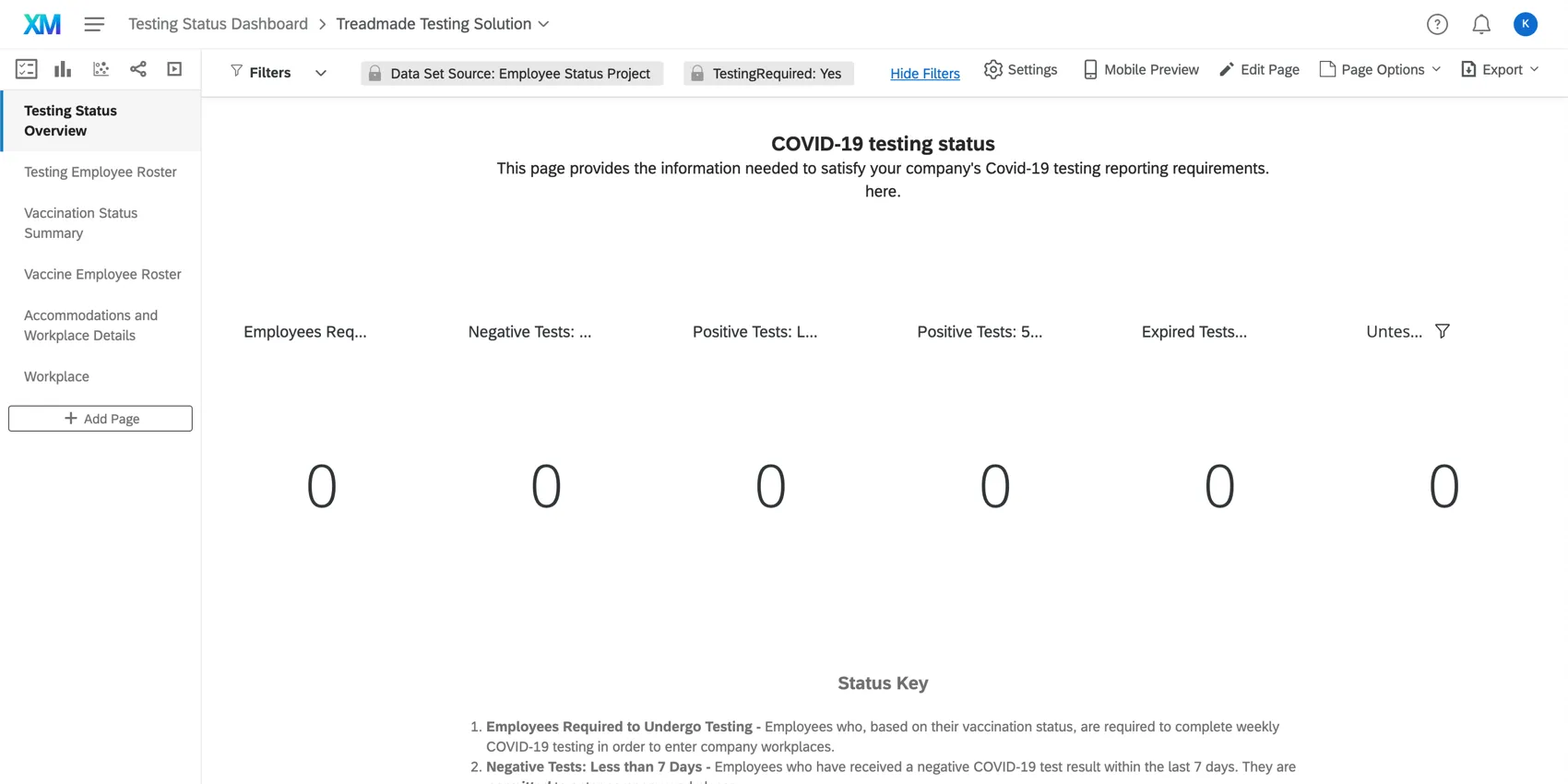
Hover over text to see the full name. The following employee counts are available in the dashboard:
Qtip: CDC guidance encourages companies to prohibit employees from returning to company workplaces for a certain number of days after the employee first experienced symptoms. Consult the official CDC website for the most up-to-date guidance.
Qtip: To get information about a specific employee, we recommend seeing the Employee Roster page of the dashboard, or finding their response in Data & Analysis.
Download COVID Test Result Documents
Your employees will upload an image of their COVID-19 test result to the COVID Test Submission Project. It’s easy to download all of the uploaded tests at once.
Qtip: These files, while labeled by Response ID, will not necessarily be labeled by respondent.
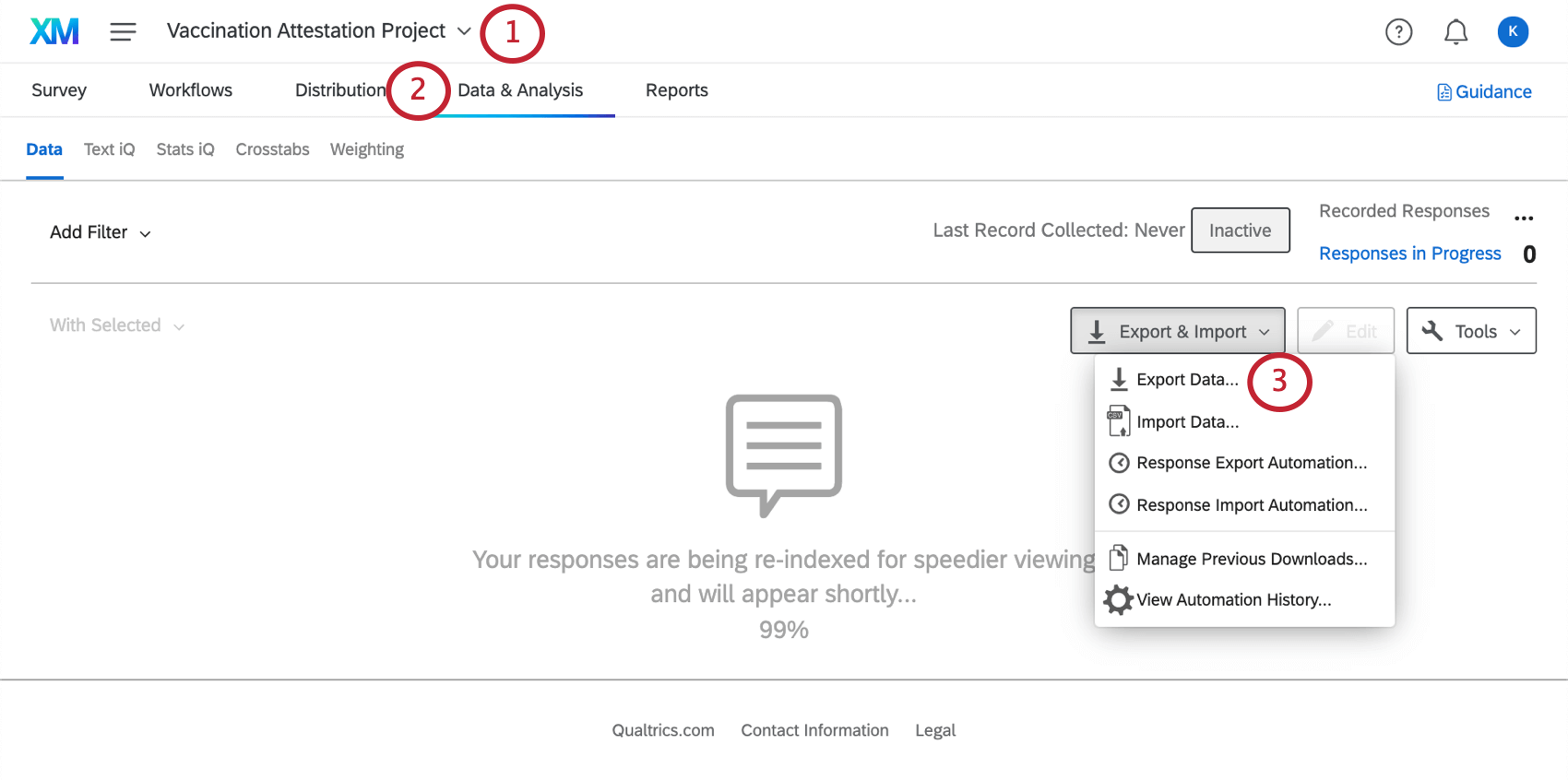
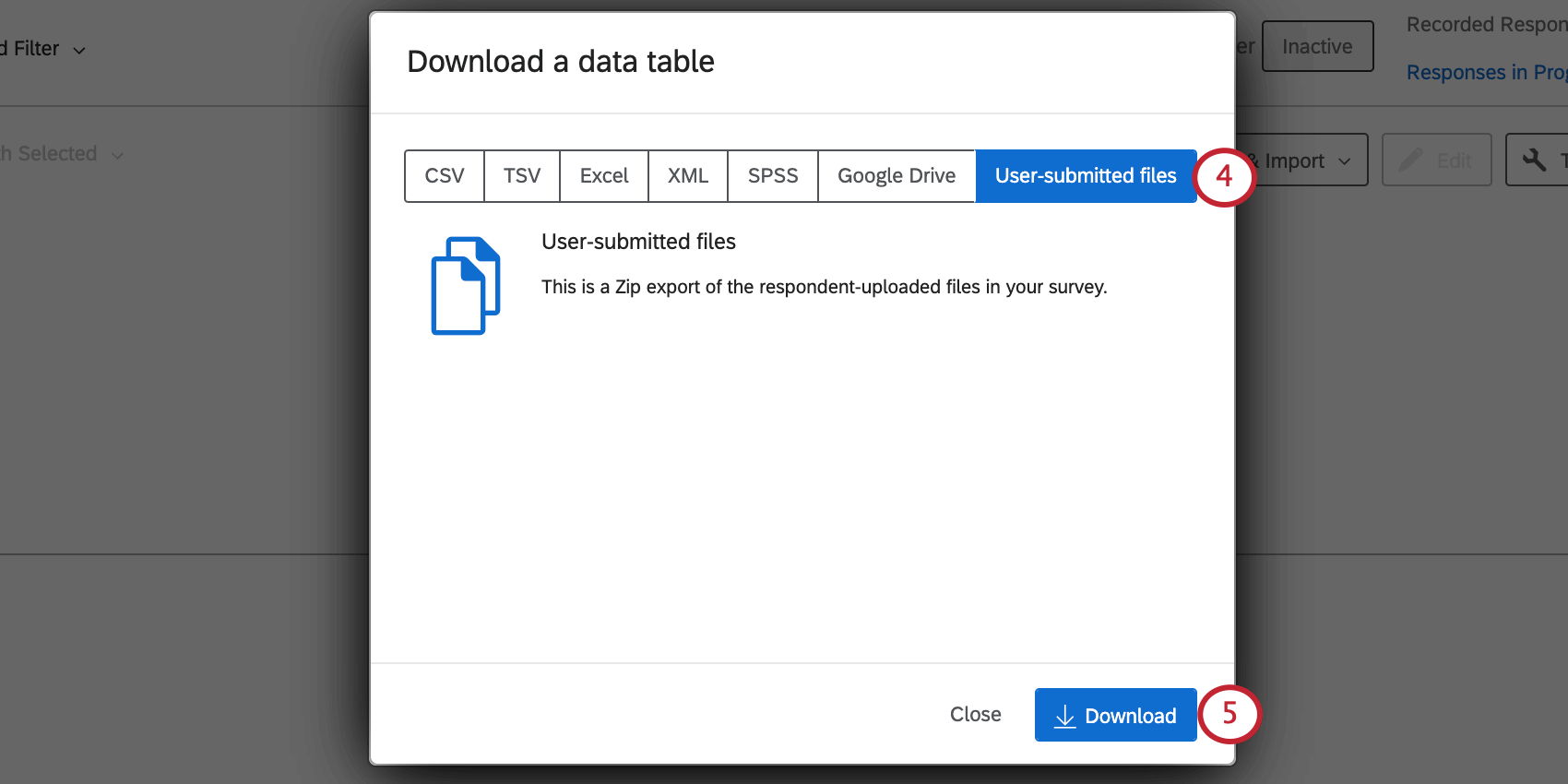
See the Exporting Response Data page for more detailed steps.
Qtip: It’s also possible to export a test result for just one respondent at a time. See the File Upload Question’s page for all the ways this data can be exported.
Testing Status Dashboard
The Testing Status Dashboard can be found on the Projects page or inside your Testing Status Manager program by searching its name, “Testing Status Dashboard.”
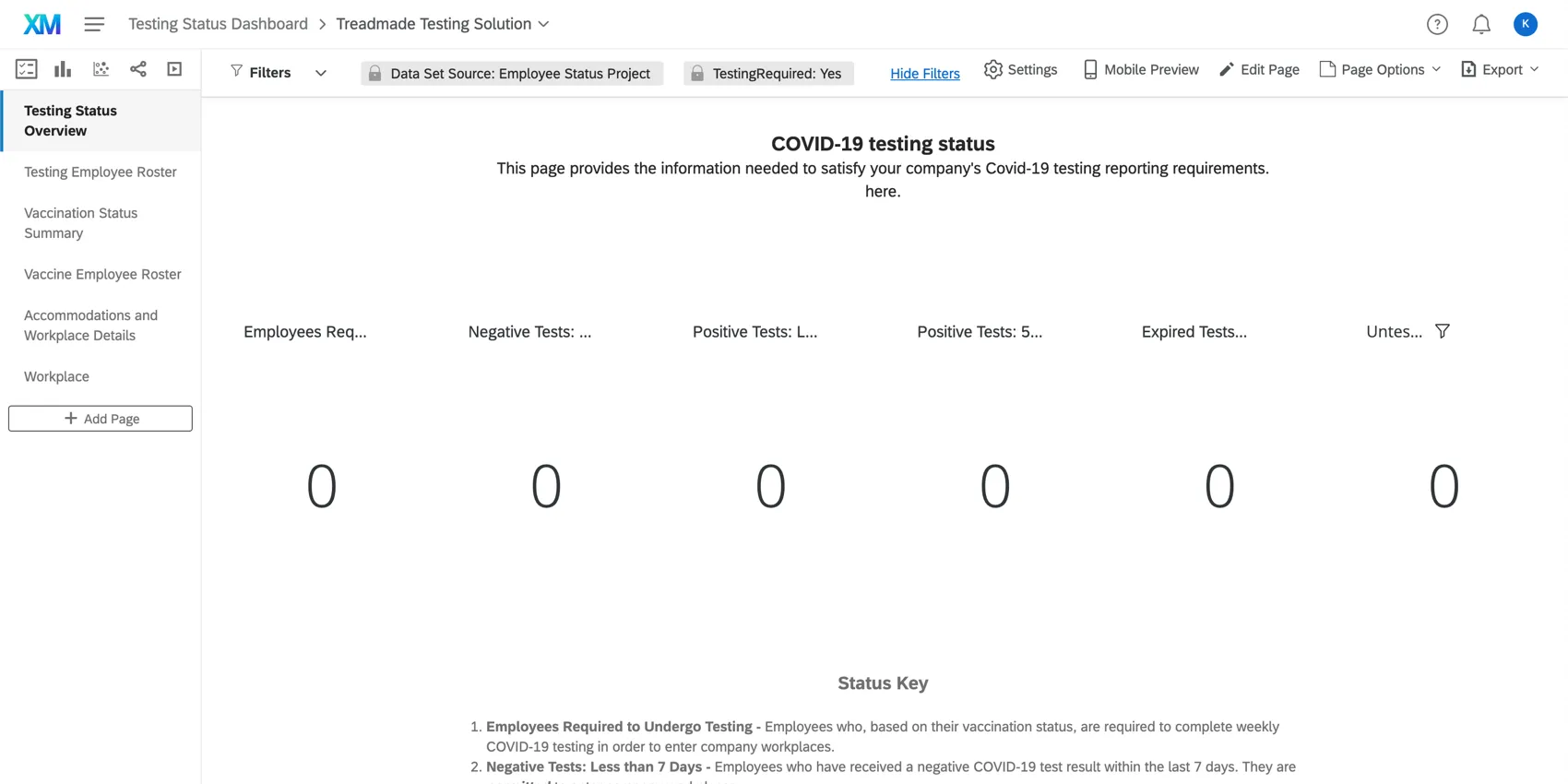
In this project is a premade dashboard designed by our top subject-matter experts. It includes the following pages:
- Testing Status Overview: Track the number of individuals allowed to enter the office. This page shows how many employees need to submit to testing, how many positive or negative test results have been reported, and more. (See Using this XM Solution to Confirm Employees’ COVID Testing Status.) This page also has a list of employees who have reported positive test results, split by whether or not they are experiencing symptoms.
- Testing Employee Roster: In order to maintain the health and safety of employees, you may be required to provide a roster of current employees, along with Covid-19 test status. This page provides that roster, which can be easily downloaded, if needed.
- Vaccination Status Summary: See how many employees fit each vaccination status, how many have been granted special workplace situations, and how many people are either seeking or have been granted an accommodation.
- Vaccine Employee Roster: A roster of all current employees and their vaccination statuses.
- Accommodations and Workplace Details: This page breaks down details on employees who state they have either:
- Requested or been granted a reasonable accommodation under civil rights laws; or
- Work from home, outdoors, or in a workplace where no other individuals such as coworkers or customers are present.
- Workplace: This page gives information similar to the Vaccination Status Summary, but broken out by workplaces.
Qtip: This is a separate dashboard from the one in the Vaccination Status Manager, although it contains much of the same information. Because these dashboards are separate, keep in mind that they have different sharing settings and user admin. We recommend focusing on getting your team access to the Testing Status Dashboard.
You are welcome to add more pages or make edits as needed. If you delete premade dashboard content, it will not be retrievable, and you will have to rebuild it from scratch.
Dashboard Editing
Check out these introductory pages to get started.
- Getting Started with CX Dashboards
- Step 1: Creating Your Project & Adding a Dashboard
- Step 2: Mapping a Dashboard Data Source
- Step 3: Planning Your Dashboard Design
- Step 4: Building Your Dashboard
- Step 5: Additional Dashboard Customization
- Step 6: Sharing & Administering Users
Qtip: Once you’ve uploaded all your dashboard users, you can easily send everyone their login credentials.
Granting Accommodations
Qtip: The steps for granting testing accommodations are slightly different than the steps to grant vaccination accommodations. Please read carefully.
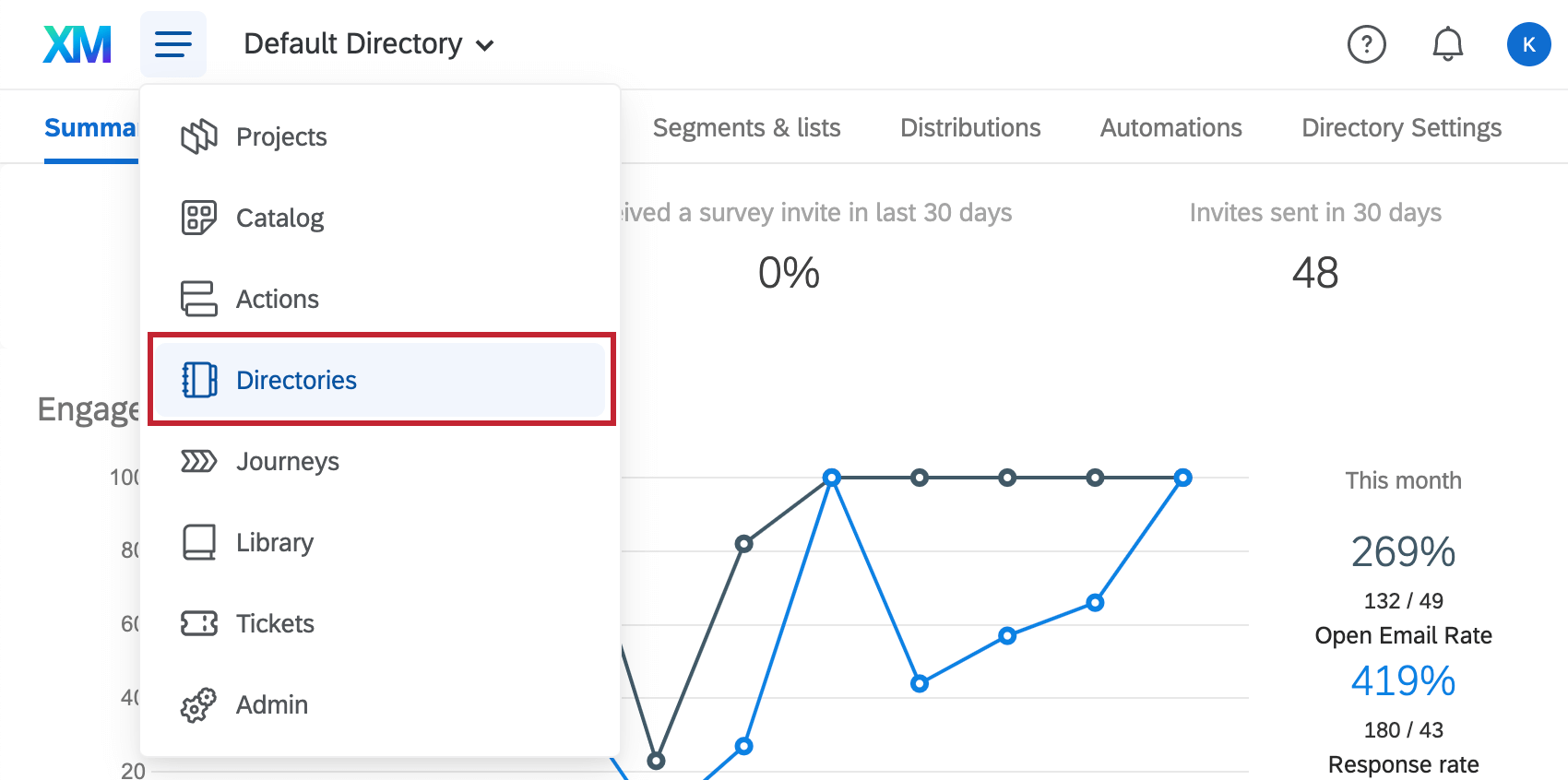
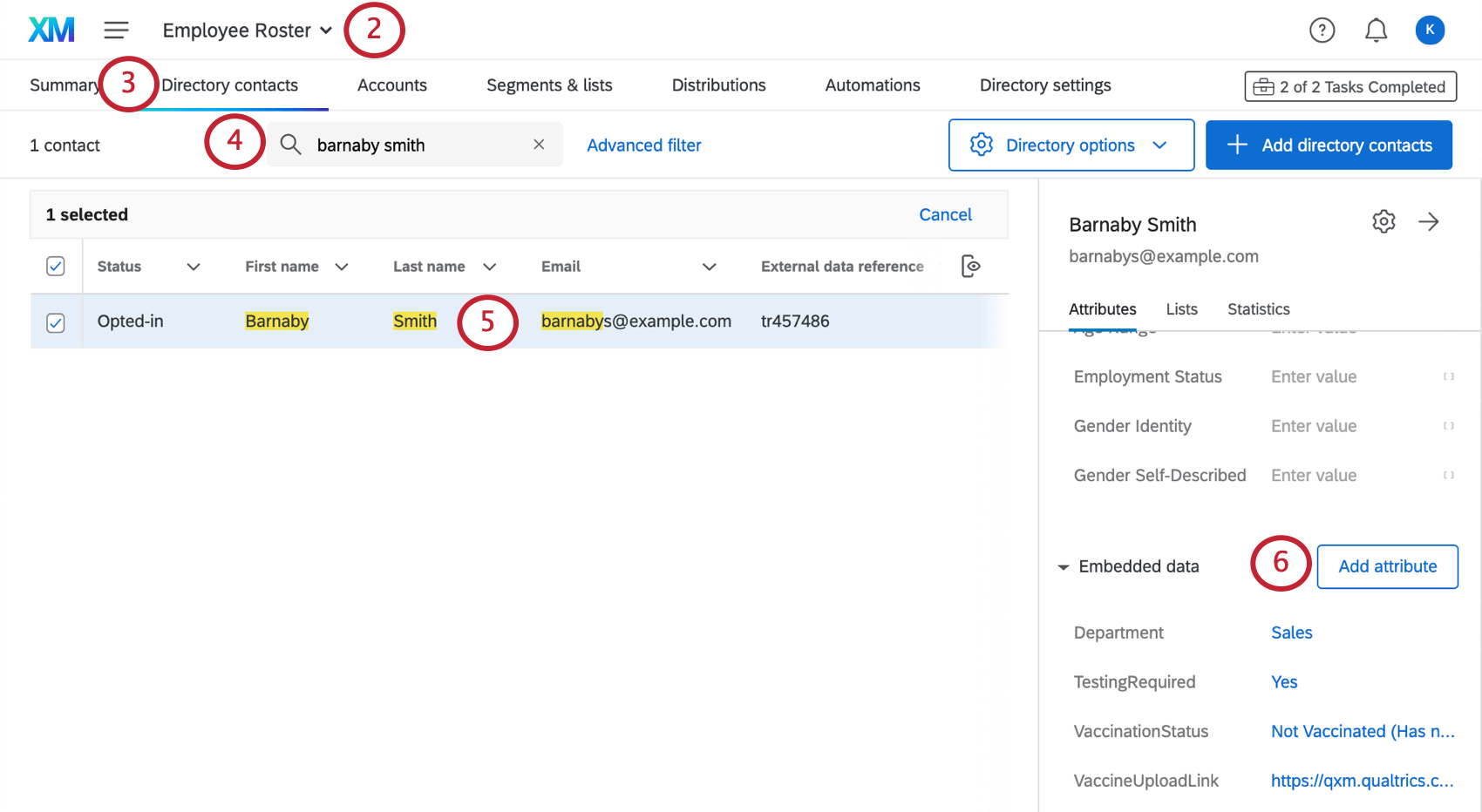
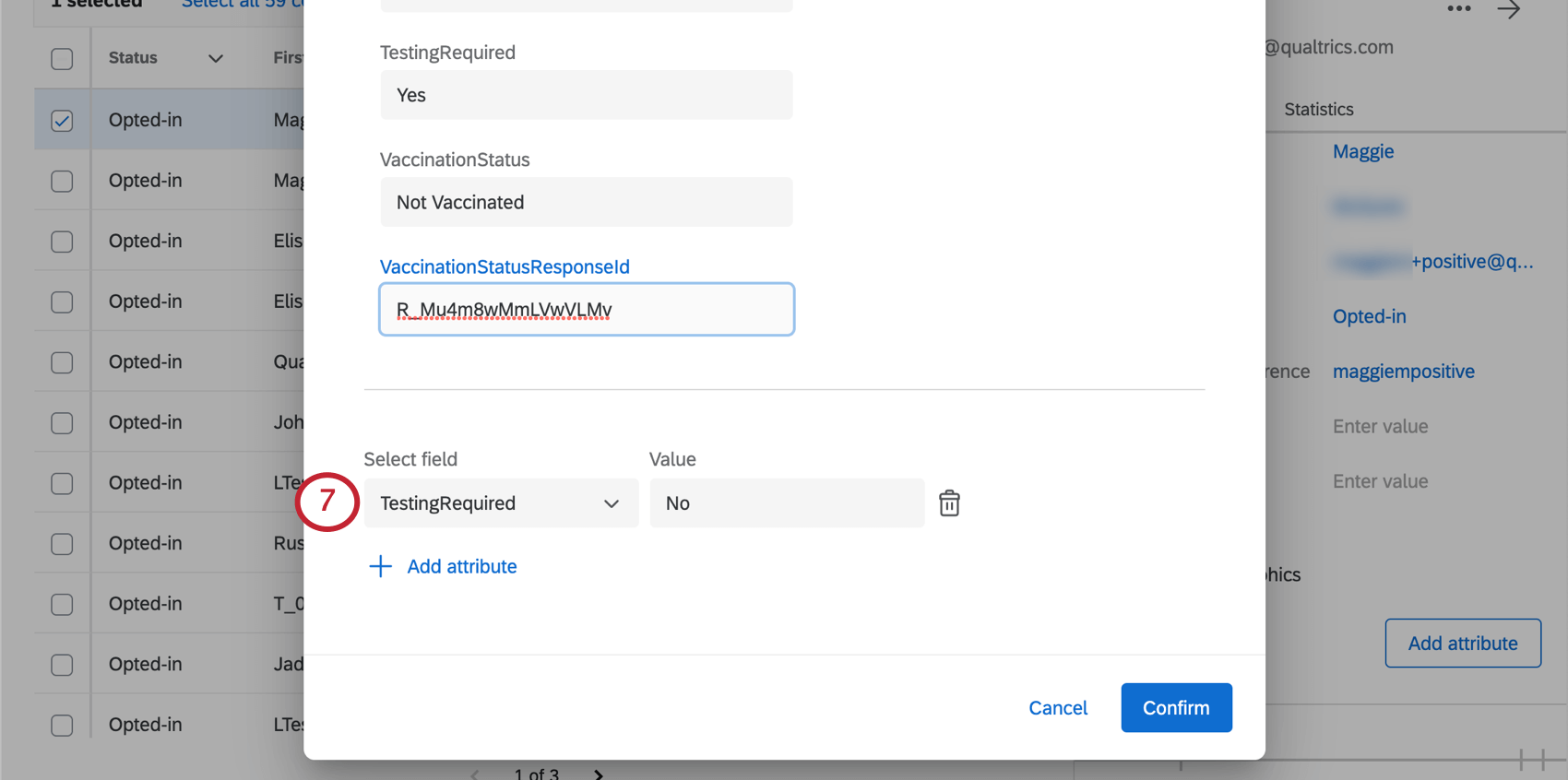
When an employee requests an accommodation, a team of your choice that you specified during setup (e.g., Human Resources) will be notified over email. If that individual’s accommodation has been approved, the team can update that employee’s record in XM Directory to reflect that approval. To do this,
Other Important Program Maintenance and Information
Here is a list of relevant steps that are not covered on this page. They are the same in both the Testing Status Manager and the Vaccination Status Manager:
In addition, the permissions required to create the Testing Status manager are the same as the permissions required for the Vaccination solution.
QR Code is a registered trademark of DENSO WAVE INCORPORATED.
FAQs
Who is the Brand Administrator of my account and what types of tasks can they perform?
Who is the Brand Administrator of my account and what types of tasks can they perform?
What will happen if I redo the setup assistant on my XM Solution?
What will happen if I redo the setup assistant on my XM Solution?
If you want to start the setup assistant over, do the following: Please note that if you want to start over from scratch, you can also create a new XM Solution instead.
Is this solution HIPAA compliant?
Is this solution HIPAA compliant?
If you have specific questions or concerns, we encourage you to seek your own legal advice about what additional steps, if any, you need to take to comply with applicable privacy laws or company policies. We have included suggested consent statements in these materials but you will need to confirm whether these statements are adequate or need to be modified to meet your specific needs.
How can I tell if I’m a Brand Administrator?
How can I tell if I’m a Brand Administrator?
You can easily find out who your organization’s Brand Administrators are by logging into the Customer Success Hub.
That's great! Thank you for your feedback!
Thank you for your feedback!