

Security Survey Options
What's on this page
Warning: We recommend you take extra care when setting up surveys that involve incentives (e.g., with a single-instance incentive, setting up an anonymous raffle, or setting up your own incentive survey). Using the correct settings and configuration is essential to ensure that the incentives are restricted to your intended respondents. Without appropriate settings, it may be possible for people to take advantage of your survey distributions and claim the incentives. Please carefully review the settings you can use to protect your survey below.

About Survey Security Options
These survey options can increase your survey’s security and protect your survey from unwanted responses.
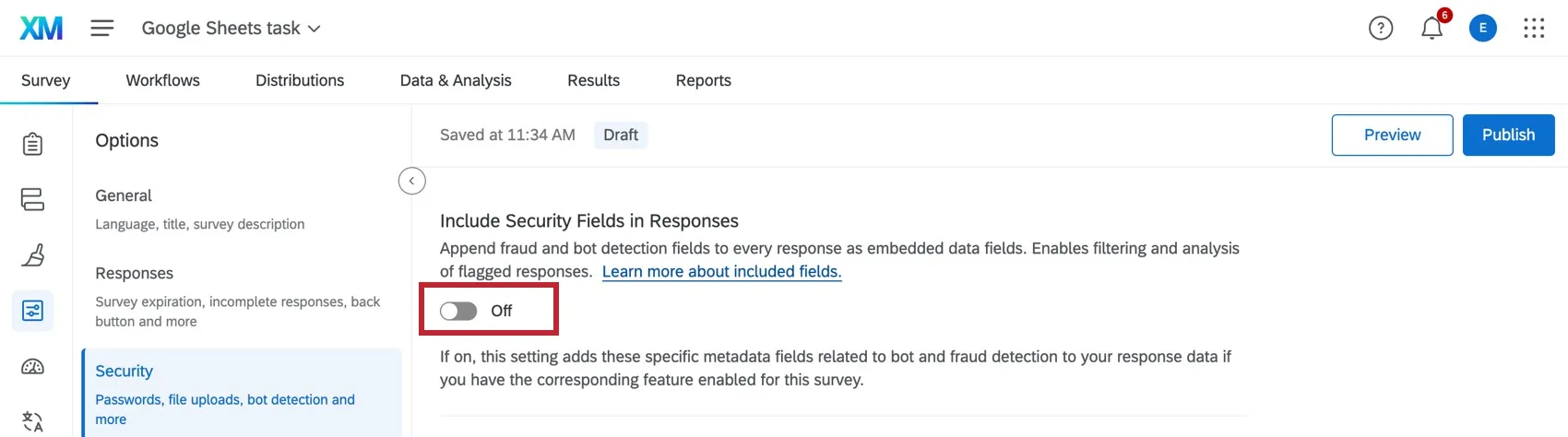
Include Security Fields in Responses
Certain survey security options come with reserved embedded data fields that will automatically be added if this feature is toggled on. For more information on these fields and how to interpret them, please see the Fraud Detection support page.
Survey Access
Qtip: These options used to be called “open access” and “by invitation only.”

There are 2 ways a respondent can enter your survey. The first is to do so anonymously, by clicking an anonymous link. The second is to click an individual link generated just for them (either through emails or personal links).
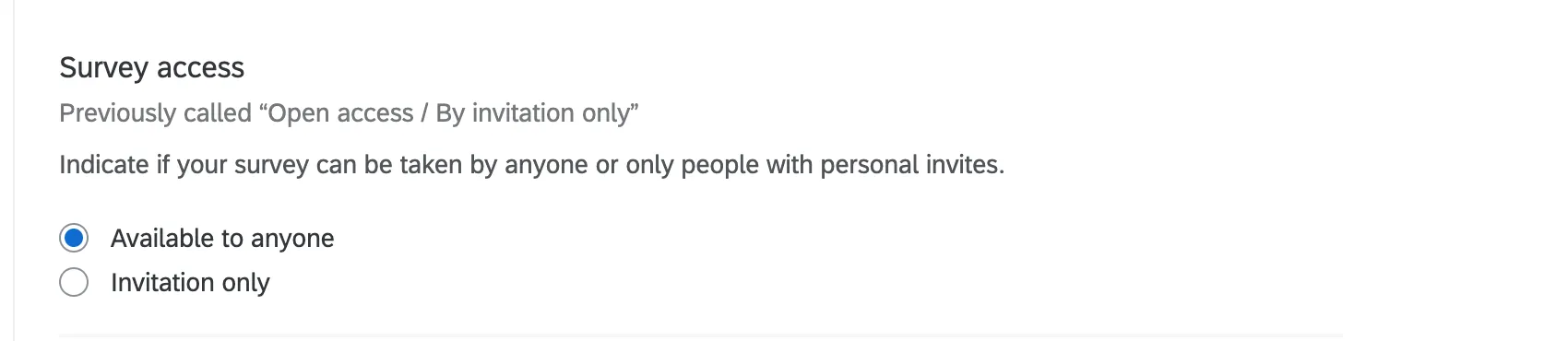
- Available to anyone: By default, respondents with either the anonymous link or an individual link can take your survey.
- Invitation only: Only respondents sent a personal link or invited over email (with the default individual link) can access the survey. No one can enter the survey using the anonymous link or the multiple completes link
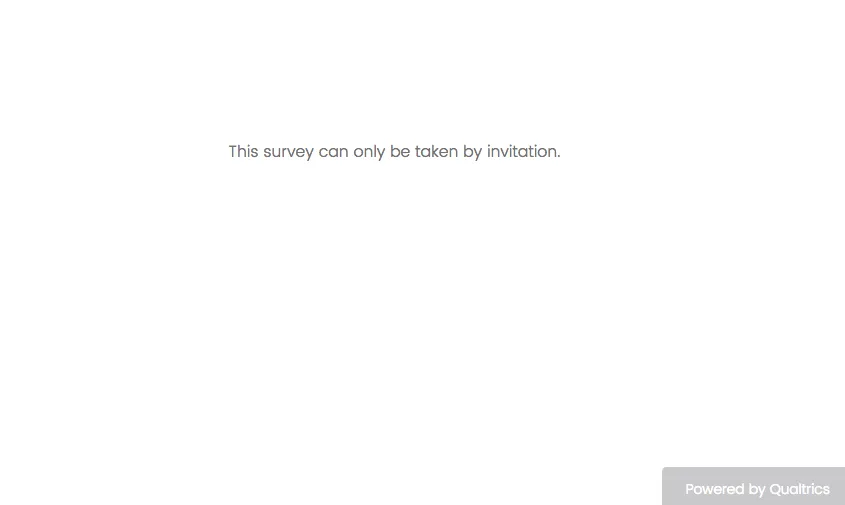
If an individual tries to access your survey with an anonymous or multiple completes link when the Invitation Only setting is turned on, they will receive a message that says, “This survey can only be taken by invitation.”
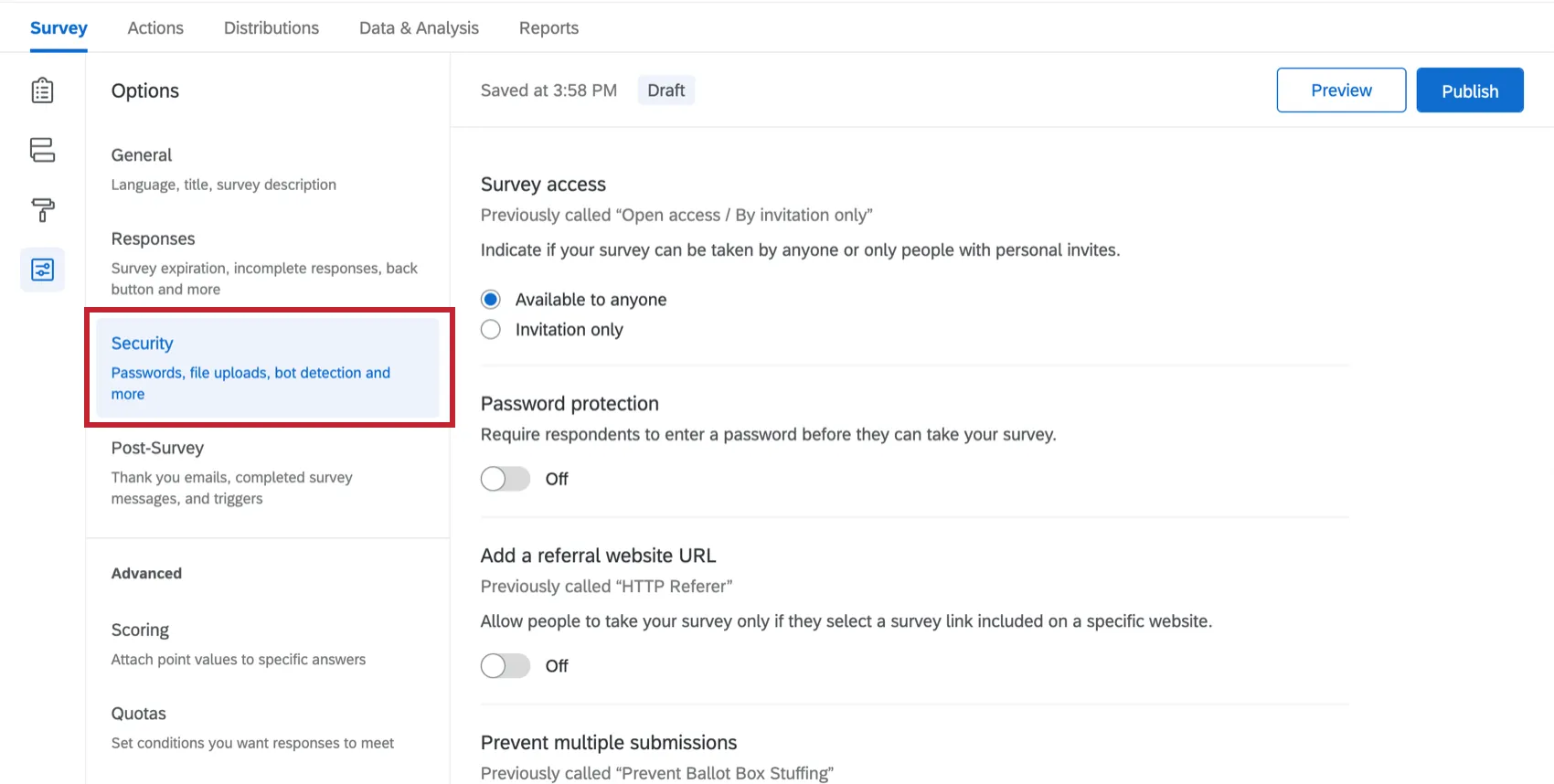
Password Protection
You can set a single, general password that any respondent must enter to access your survey. This is helpful when you are using the anonymous link and want to restrict who can enter the survey.
Enable Password protection and enter your desired password in the field that appears.
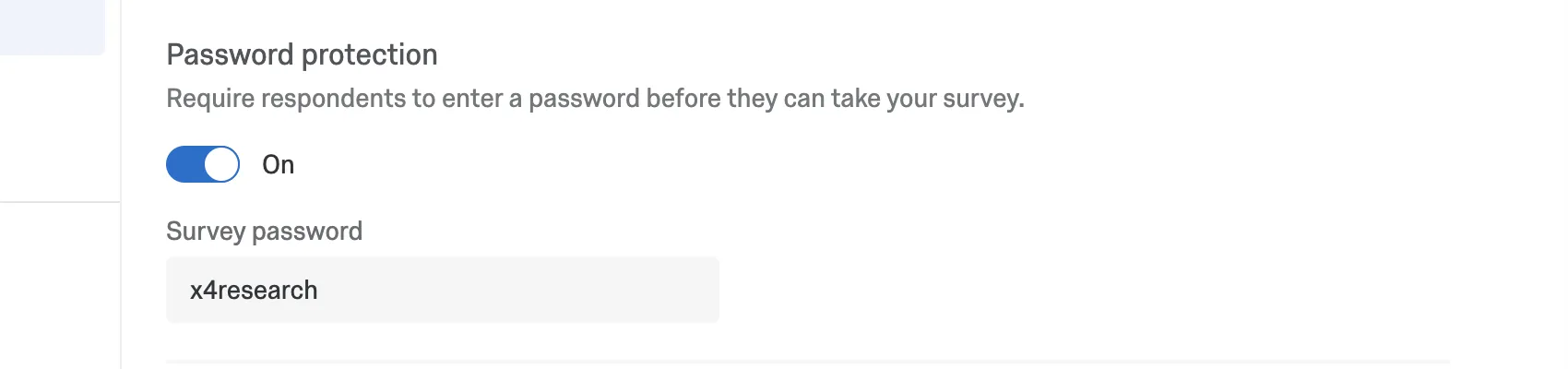
There is no limit to how many times respondents can try to guess the password of a survey.
Qtip: If you want to have a unique password for each survey taker, you might consider using an authenticator in your survey instead.
Add a Referral Website URL
Specify the URL your respondents must come from in order to access your survey. This setting is useful if your survey link is posted on a particular website (such as an internal university or company page) and you want to make sure the link does not get copied and sent to others. Only those who can access that page would be able to take the survey.
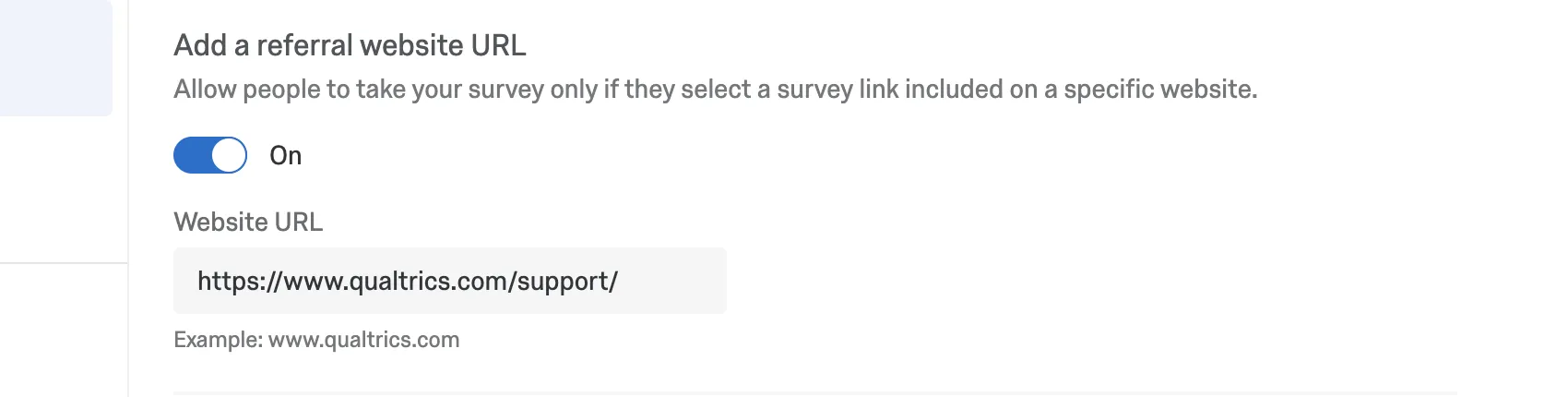
Example: A retailer might want to provide a short survey with a password for the next study at the end. Concerned that participants might forward this password and this survey link to friends, they add a referral website URL stating that the participant must click on the link while on a specific page of the website.

Qtip: The URL entered here needs to match the URL of the corresponding website exactly. We recommend copying the URL from your web browser. For example, if we wanted to restrict respondents to a survey accessible on our support site, we would need to use “https://www.qualtrics.com/support/”. Using just “qualtrics.com/support” will not work.
Qtip: Due to recent browser changes, limitations have been made to what information we can get from referrer Headers. In the past if a URL was “https://www.google.com/search?q=search”, we could get the referrer as the whole URL containing every query parameter. Now due to the aforementioned changes, we can only get “https://www.google.com”. This functionality is based on the websites Referrer-Policy, so some sites may get the query parameters and others won’t.
Prevent Multiple Submissions
Qtip: If you have 2 different "Prevent Multiple Submissions" options, "In survey" and "Post survey," you have Fraud Detection enabled. To learn more about these enhanced settings, see Prevent Multiple Submissions and Duplicate Detection.
In circumstances where you are offering an incentive or conducting a sensitive vote, you may want to prevent participants from taking a survey more than once. This setting works by placing a cookie on their browser when they submit a response. The next time the respondent clicks on the survey link, Qualtrics will see this cookie and not permit them to take the survey.
“Prevent multiple submissions” is a great deterrent, but can be circumvented by savvy participants clearing their browser cookies, switching to a different web browser, or using a different device. With surveys that have a higher incentive to cheat, consider distributing your survey by email (which creates a unique, 1-time use link for each participant) or by using an authenticator.
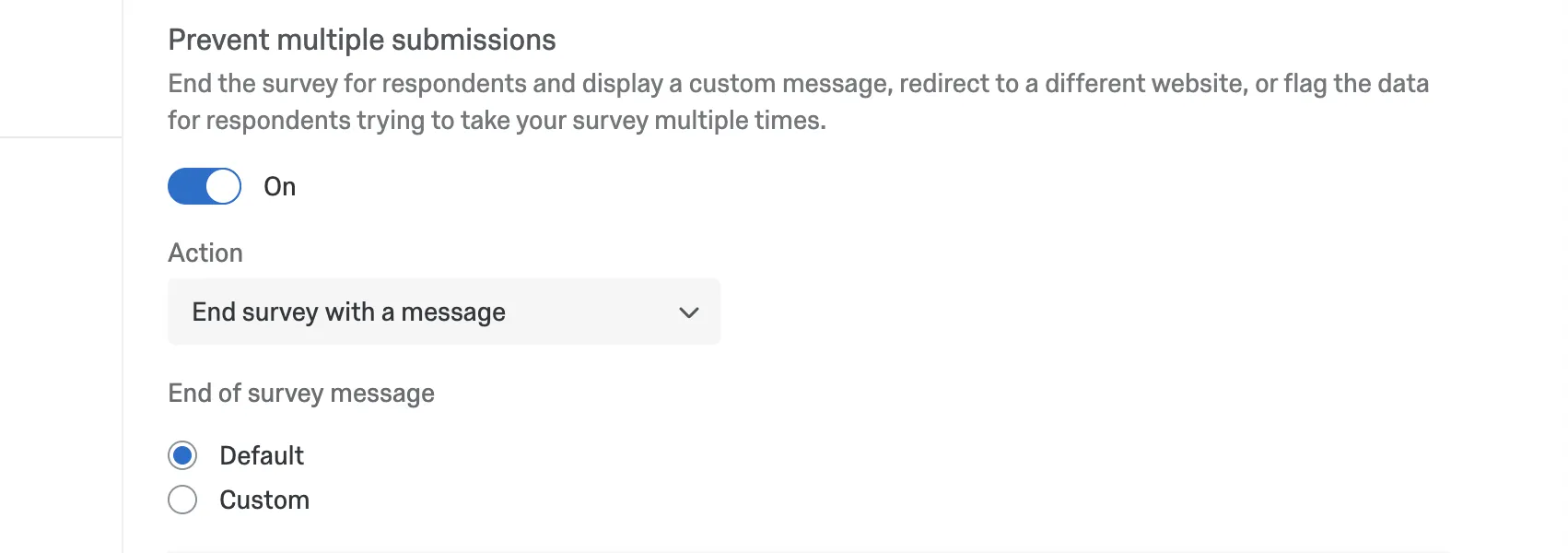
Qtip: This setting works regardless of the link type you’re using. We generally don’t advise pairing this multiple completes links unless you’ve chosen “Continue survey and set an embedded data field.”
Bot Detection
Look for respondents that could be bots and flag their responses. For more details, see the Bot Detection section of the Fraud Detection support page.
Security Scan Monitor
Qtip: This option used to be called “Email Scan Roadblock.”
Prevent security scanners from accidentally starting a new session on your survey. See the Security Scan Monitor section of the Fraud Detection support page.
Prevent Indexing
Search engines work by creating what is called an index, or a map of all pages on the Internet so they can be searched quickly. By enabling Prevent indexing, you can keep search engines from finding your survey and presenting it in their search results.

Uploaded Files Access
Qtip: Survey collaborators will need the “View Survey Results” collaboration permission to view uploaded files.
Uploaded files access controls whether people can download respondent submitted files. This includes files uploaded in response to the file upload, screen capture, and signature question types. In addition, these users will be able to see survey responses within XM Directory touchpoints and view full responses in any public reports shared with them.
If you cannot access the URL from your data export, it is because the survey owner has Only users with permission to view responses turned on and they have not given you permission to view responses. If you’d like anyone to be able to view the links from the dataset, you will need to turn on Anyone with the link to the file.
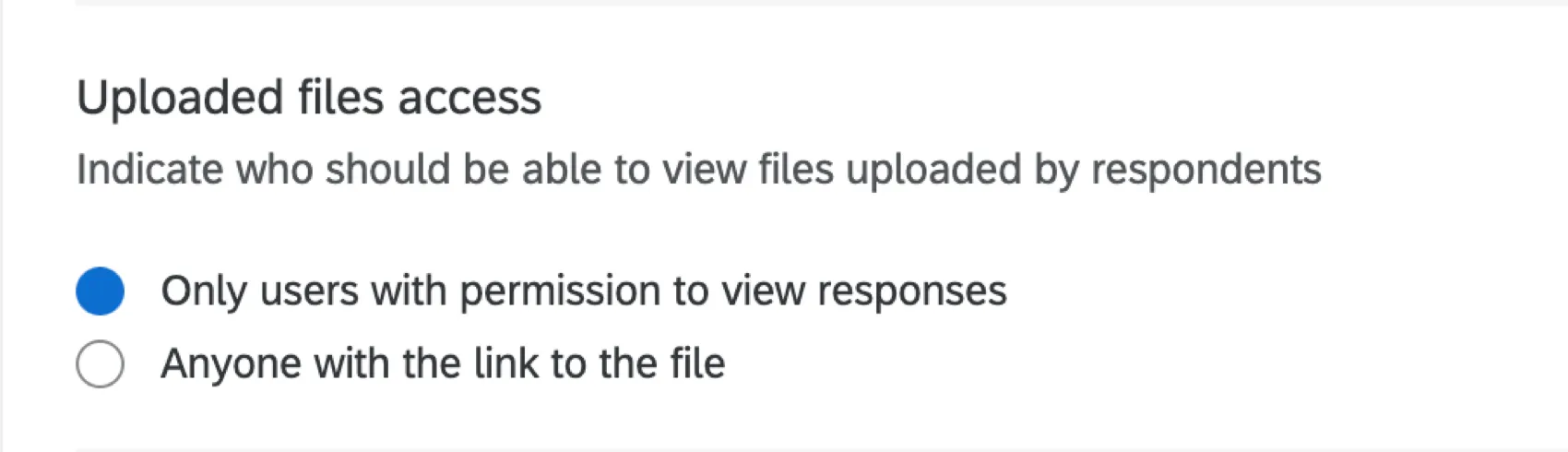
Qtip: “Only users with permission to view responses” is selected by default, but may be unchecked for surveys whose file uploads need to be able to be downloaded by anyone with a link to the file. This can be turned on or off at any time.
Qtip: This option used to be called “Require permission to view uploaded files.”
Anonymize Responses
Attention: Responses collected after Anonymize responses is enabled will not contain identifying information, even if this setting is later turned off again. Do not enable this setting in a survey unless you are sure you are fine with permanently removing identifying information from responses.
Enabling the Anonymize responses setting is an effective way to permanently scrub a response of identifying information before saving it in the data.

When responses are gathered with the anonymous link, enabling this setting will remove the respondents’ IP address, location data, and all other default Qualtrics fields from your results. When responses are gathered with the individual link, enabling this setting will remove the IP address and location data and disconnect the response from the contact who provided it. In this way, you can know which contacts have responded (through your distribution history and contact history), but not which response belongs to which contact.
Attention: If responses have been recorded prior to you turning on the Anonymize responses option, those respondents’ information will remain in the platform but will be hidden in certain views. Any responses recorded after turning on the Anonymize responses option will not include the information.
Attention: If you have XM Directory, survey invite information will always be available in the contact’s touchpoint timeline. Turning on anonymize responses will prevent the survey response from showing in the timeline. Appending embedded data fields from XM Directory to a survey response may result in the survey response no longer being anonymous.
Qtip: There is a setting in end of survey elements that works the same way “Anonymize responses” does, called “Do NOT record any personal information and remove panel association (not recommended).” If “Anonymize responses” is disabled in the survey options, but a respondent encounters an end of survey element with this “Do not record” setting enabled, they will still be anonymized.
Attention: When viewing the full response record for an anonymized response that was recorded prior to turning on the Anonymize responses option, the respondent’s IP address, latitude, and longitude will be available.
Same Session Detection
When a user from your organization takes a survey while actively logged into their account on your organization's Qualtrics platform, enabling Same Session Detection allows the system to automatically tag their response with their account details.
The following embedded data fields will be saved:
- Brand ID: Q_SSD_BrandID
- Email: Q_SSD_Email
- First Name: Q_SSD_Firstname
- Last Name: Q_SSD_Lastname
- User ID: Q_SSD_UserID
- Username: Q_SSD_Username
Attention: These fields will only show in Reports or Data & Analysis if Include Security Fields in Responses is turned on.
Attention: This data is not captured if the response is anonymized.
Survey Options in Different Project Types
Survey options are available in many different types of projects. The options described on this page are available in:
There are a few other projects that have access to survey options, but with unique functionality to keep in mind.
- For Engagement, Lifecycle, or Ad Hoc Employee Research projects, please see Survey Options (EX).
- For Pulse, see the section on survey options in Features Available in Pulse Surveys.
- For 360 projects, see Survey Options (360).
- For Conjoint and MaxDiff, see Survey Options.
FAQs
My participants are telling me that their survey link is not working. What could be causing this?
My participants are telling me that their survey link is not working. What could be causing this?
- Prevent Multiple Submissions: The participant may be attempting to take a survey on the same computer and browser with the Prevent Multiple Submissions feature enabled in the Survey Options. Prevent Multiple Submissions places a cookie on the participants browser that will prevent another survey session from being started from that device. The participant will need to clear their browser cache.
- Used Individual Links: The participant may be trying to access the survey through a used or expired Individual Link. Individual Links are created automatically for every person in your contact list when you send the survey out through the Qualtrics mailer or create Personal Links. This kind of survey link can be used only once and then becomes invalid. We recommend not forwarding any Individual Link to avoid this situation. In addition, if your respondent clicks onto the link, decides not to fill anything out, and leaves the survey for a long time (one week by default), this can also cause the link to close, because the incomplete survey response timeframe has passed. In both of these scenarios, the participant will need to receive another survey link (either through a new email distribution, Personal Link, or the Anonymous Link) in order to access the survey.
- Expiration: The participant may be trying to access a survey that is expired. In the Survey Options, there is an option to set an Expiration Date (after which participants can no longer start new surveys). Turn off the expiration to allow them access to the survey. (Please note that copying a project will copy over all survey settings, including the Expiration Date.)
How can I make sure the participant only takes the survey once?
How can I make sure the participant only takes the survey once?
If you are distributing your survey through the Qualtrics mailer or Personal Links, then Individual Links will automatically be generated for each participant. These Individual Links can be used only once and then become invalid.
If you are distributing your survey through the Anonymous Link, there are 2 options to prevent participants from retaking the survey:
- Prevent Multiple Submissions: You can enable Prevent Multiple Submissions in your Survey Options. This option will place a cookie in the participant’s browser that will restrict them from retaking the survey on that browser. However, the participant could still clear their cookie cache, use a different browser, or use a different computer in order to take the survey again.
- Authentication: You can use the Authenticator element in the Survey Flow. This option will require the participant to be a member of a contact list you have previously set up within your account. The Authenticator prevents contacts from retaking the survey by using the contact list as an authentication database. (Unless the Reload any previously saved progress upon authentication option is enabled, a single response from each contact is not guaranteed.)
I set a survey expiration date, but some responses are still coming in. What is happening?
I set a survey expiration date, but some responses are still coming in. What is happening?
When the survey expiration date arrives, respondents who have already started their surveys will be able to complete their responses for a limited period of time. How long they have is determined by the Incomplete Survey Response setting (also found in Survey Options).
For example, let's say Survey Availability is set to 60 days and Incomplete Survey Response completion is set to 2 weeks. You receive your survey link and wait 55 days before clicking on it. As soon as you move past the first page (i.e., click the first "next" button), the Incomplete Survey Response setting takes over. You now have 2 weeks to finish taking the survey (even though the survey expires in 5 days). In this situation, participants can submit survey responses after a survey has expired or been deactivated.
If you want to avoid this scenario, you can pause response collection and choose to close all incomplete responses. This will close all surveys regardless of Incomplete Survey Response status and stop anyone from submitting after that point. All the partial data will be added to the Recorded Responses page with all the other survey data.
How do I change the link expiration when I email my survey using the Qualtrics Mailer?
How do I change the link expiration when I email my survey using the Qualtrics Mailer?
When you are composing your email, select Show advanced options and click Set survey link expiration. You cannot change this after the email has been sent.
If you would like to change the expiration for your entire survey and not just a few links, see Survey Availability. This availability can be changed at any time.
Why do the options for Anonymous and Multiple Completes links not show up when I try to change the Link Type in my email I am sending?
Why do the options for Anonymous and Multiple Completes links not show up when I try to change the Link Type in my email I am sending?
Navigate to the Survey tab and select Survey Options. In the Survey Protection section you can change your survey to be Open Access which will allow you to choose Anonymous or Multiple Completes links when sending your survey.
Does a survey expire? Under what circumstances?
Does a survey expire? Under what circumstances?
Yes - see Distribution and Survey Expiration for a full explanation.
I want to offer the opportunity to enter a raffle following the end of my survey for my participants. I want participants to submit their email address, but keep it separate from their response so it remain anonymous. Is this possible?
I want to offer the opportunity to enter a raffle following the end of my survey for my participants. I want participants to submit their email address, but keep it separate from their response so it remain anonymous. Is this possible?
Does Qualtrics set the value of the "Referer" field?
Does Qualtrics set the value of the "Referer" field?
As of August 25, 2020, Chrome has changed the default behavior around the referrer field. Previously Chrome defaulted to no-referrer-when-downgrade as the value for Referrer-Policy. Now the default value is strict-origin-when-cross-origin. What that means is that if the customer hasn't specified their own policy on their page, it will default to this policy. This policy affects requests that are cross origin, meaning the parent page is on a different domain that the link (i.e., my webpage is example.com and my survey is on the base URL test.qualtrics.com). In a cross origin request, only the origin will be passed. That means that if my page is actually at the URL qualtrics.com/support-center, the Referer is going to be qualtrics.com. Changing this behavior has to be done by the owner of the parent page.
That's great! Thank you for your feedback!
Thank you for your feedback!