

Email Task
What's on this page
About the Email Task
Email tasks let you send an email notification in response to a variety of events in Qualtrics. The most common example is to send out an email to a person or group of people every time a survey response is submitted.
Example: Send an email to a customer service rep and their manager every time a customer submits a response to a CSAT survey. This email includes a report of what the customer said about their support interaction.
Example: When a customer signs up for an event using a survey, they receive a follow-up email confirming their registration, and detailing the time of the event and who to contact if they have more questions.
Example: Every Monday, you send an email to your HR team reminding them to go through their weekly checklist.
The email task is a great alternative to email triggers, and has the following improvements:
- Ability to use library messages (and thus provide message translations) for the email body and the subject line.
- Access to Workflows reporting for troubleshoot purposes.
- Ability to be triggered not just by survey response completion, but also by survey response edits, events in Salesforce, an ongoing schedule, changes made to tickets, and other events.
Setting Up an Email Task
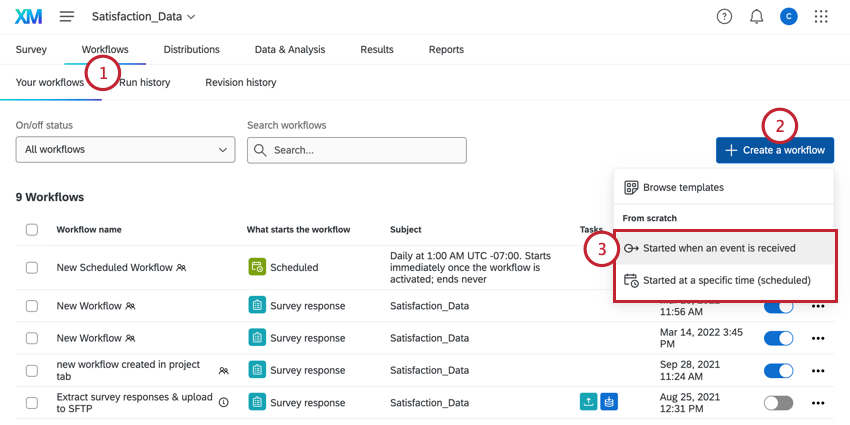
Qtip: Choosing Started when an event is received and then survey response event is the most common, although you are free to select another choice.

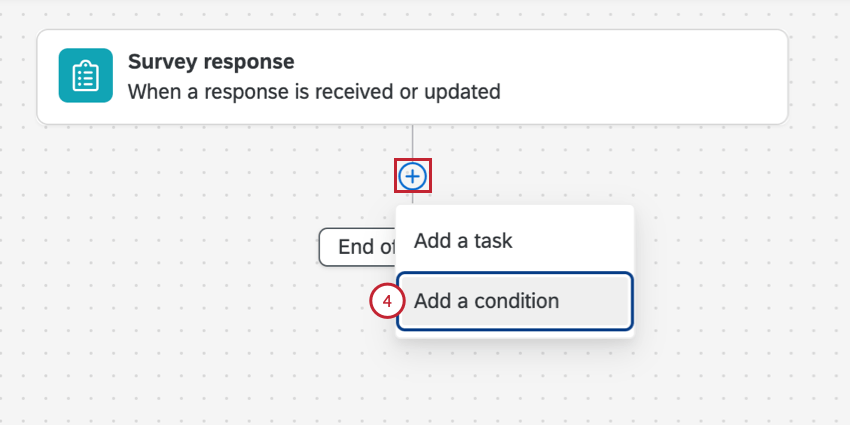
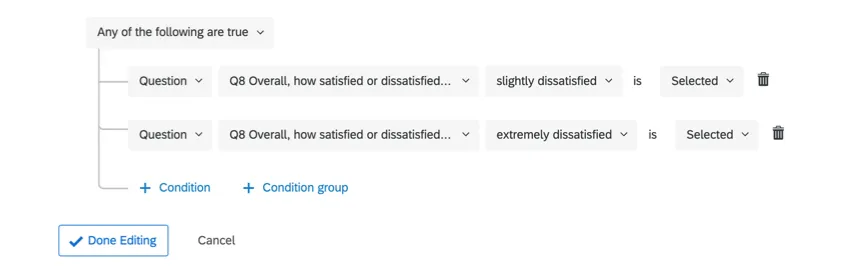
Example: We only want to send a follow-up email to customers who were upset with the service they received. Thus, we set up a condition that only respondents who said they were slightly dissatisfied or extremely dissatisfied will receive a follow-up email.
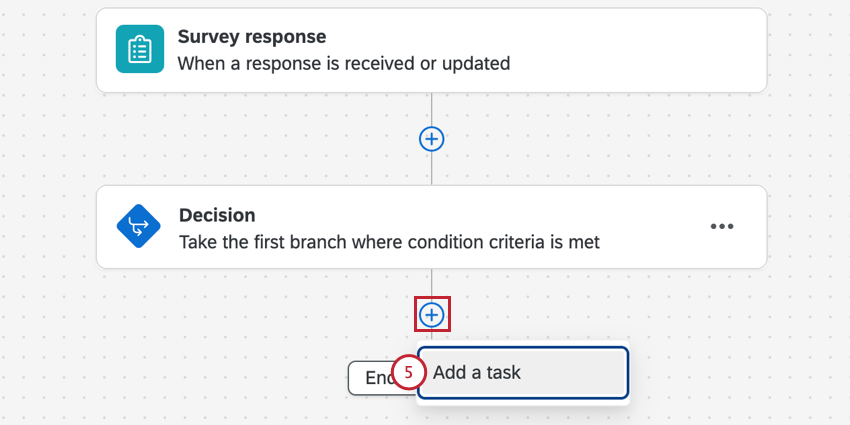
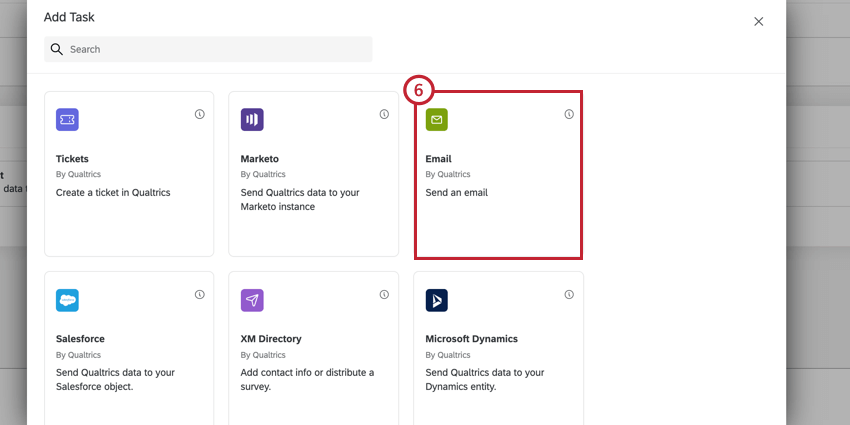
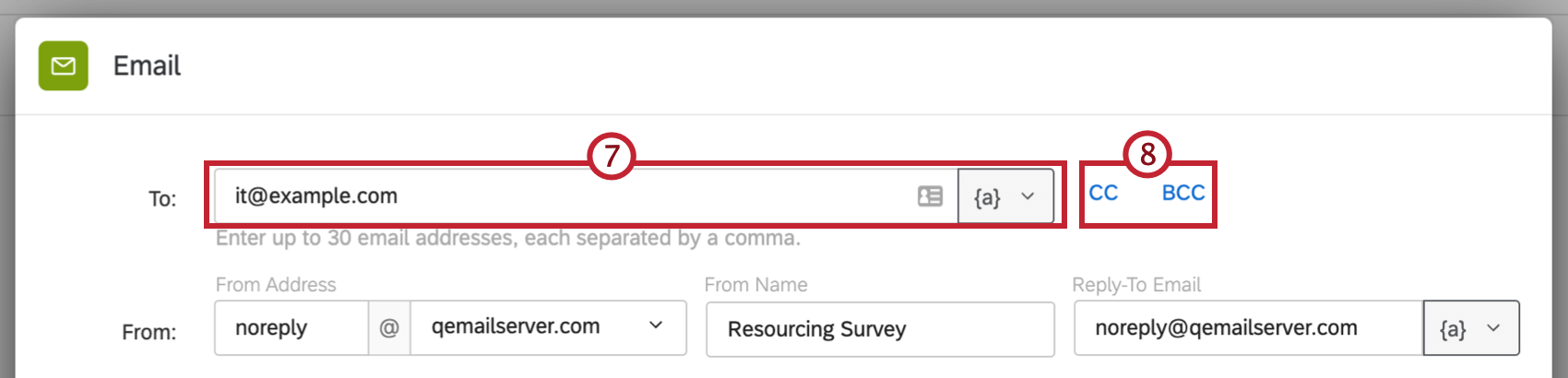
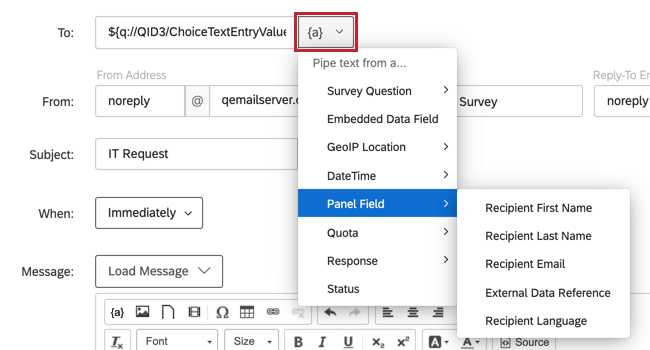
Qtip: If you asked the respondents for their email addresses, or this survey was initially distributed through email, you can click the piped text button and select the Survey Question or Panel Field where the respondent’s email address is stored.
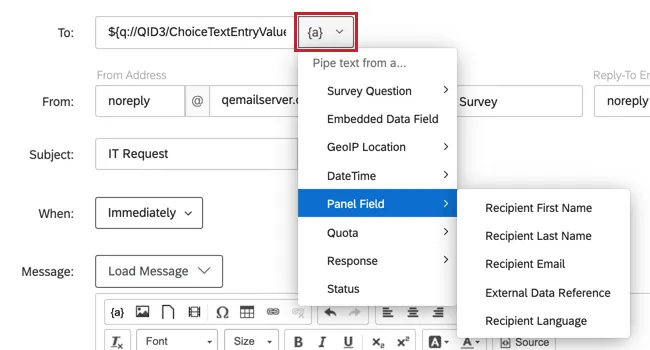
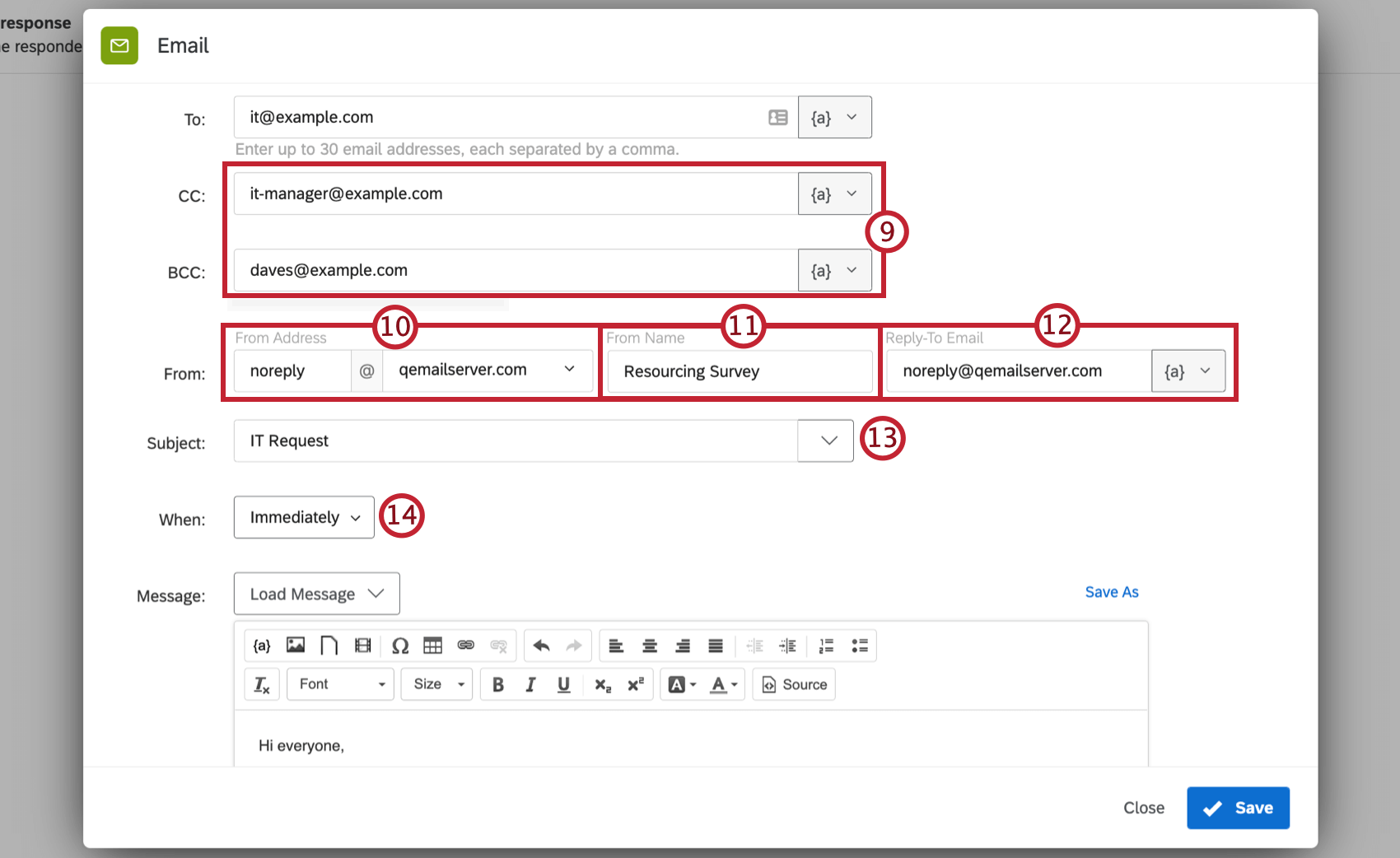
Qtip: The CC field will be visible to all recipients, while the BCC field will not be visible to all recipients.
Qtip: The BCC field will not be shown to the BCC recipient. See the RFC 2822 Internet Message Format document for more information on different ways the BCC field can be used.
Attention: If a BCC email address has been specified for your user division, this email address will automatically be BCCed on all emails for the task.If you are not part of a division or there is no BCC email address specified for your division, the BCC email address specified for the brand, if there is one, will automatically be BCCed on all emails for the task.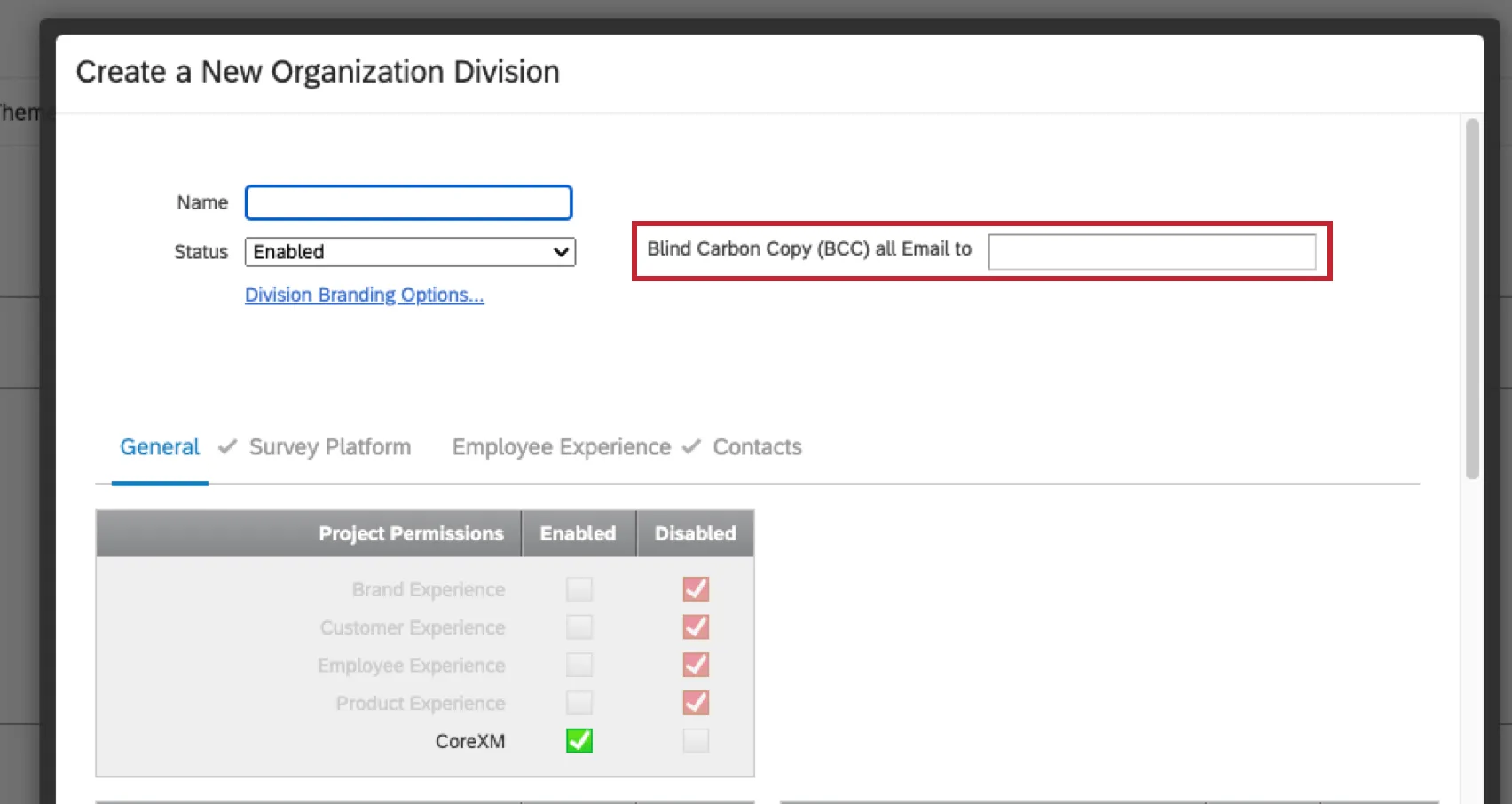

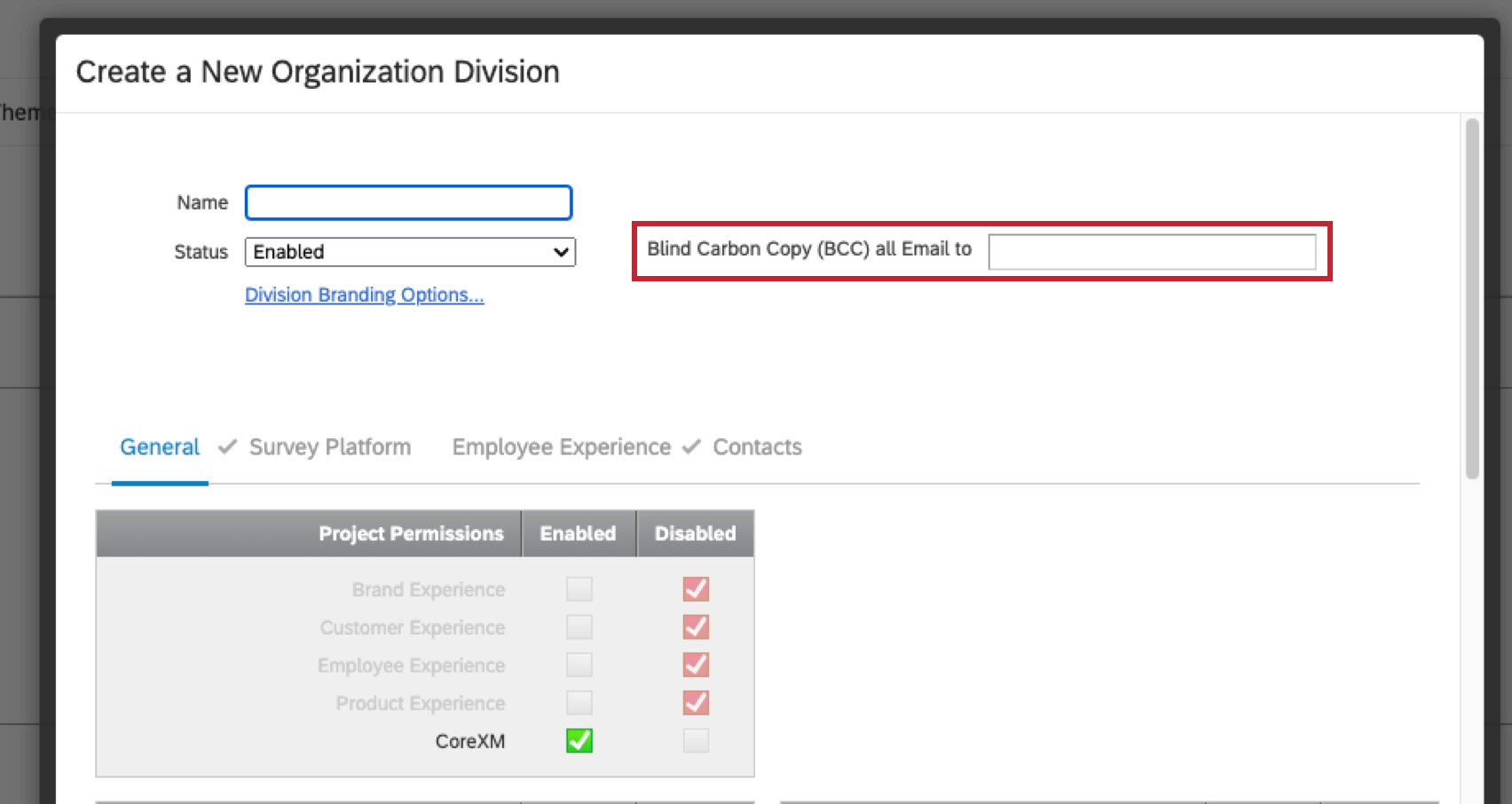
Qtip: Often a brand has a series of custom FROM domains that a Brand Administrator and your organization’s IT team will set up. These valid domains allow you to use any email address with a valid domain as your “From” Address. For example, if you’re a student at Qualtrics University, you may be able to use any email address ending in @qualtricsuniversity.edu. If you’re having trouble setting your “From” email, reach out to your Brand Administrator.
Qtip: The email you use doesn’t have to be real. For example, if you don’t want to receive replies but want the address to look official, you can set the Reply-To to YourCompany@qemailserver.com.
Attention: Only one email address can be entered in the reply-to field.
Qtip: Subject lines must be less than 254 characters.
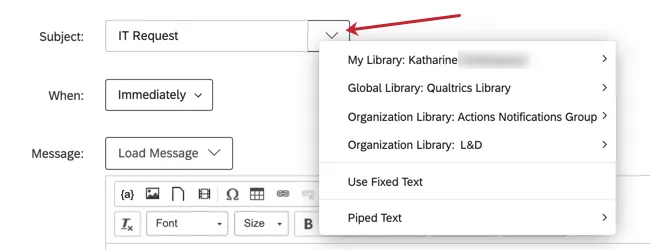
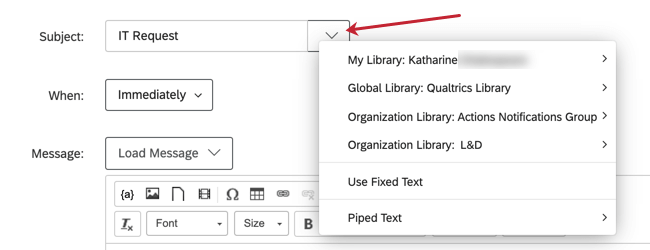
Qtip: If you click the dropdown next to the Subject field, you can choose a subject saved in your library (which can have translations), or add piped text.
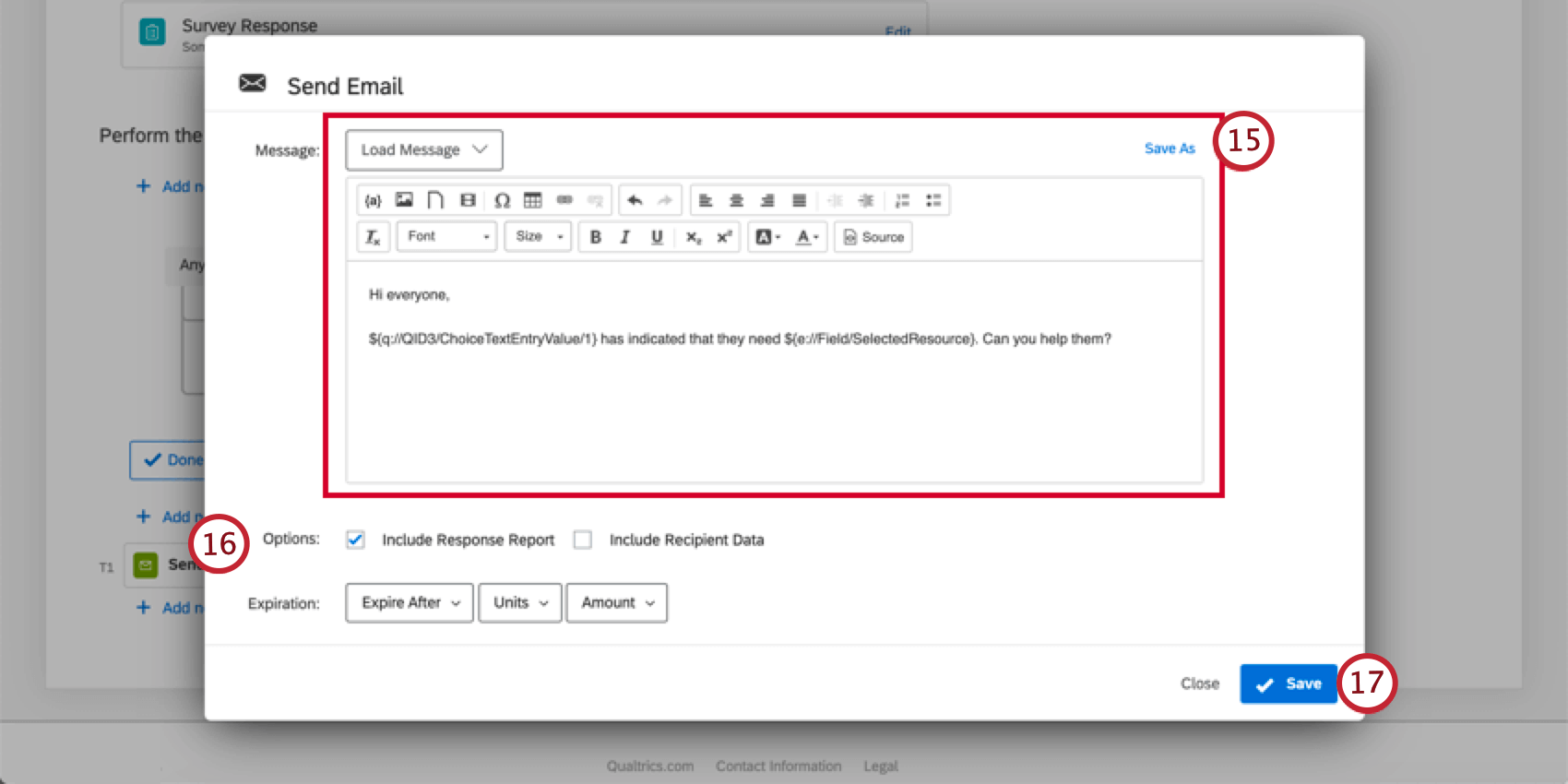
Qtip: If you click the dropdown next to the Message field, you can choose a general message saved in your library or add piped text. If adding piped text, fields from other tasks in your workflow will be available in the menu. For example, if you have a tickets task in the workflow before your email task, the ticket fields will be available in the piped text menu.
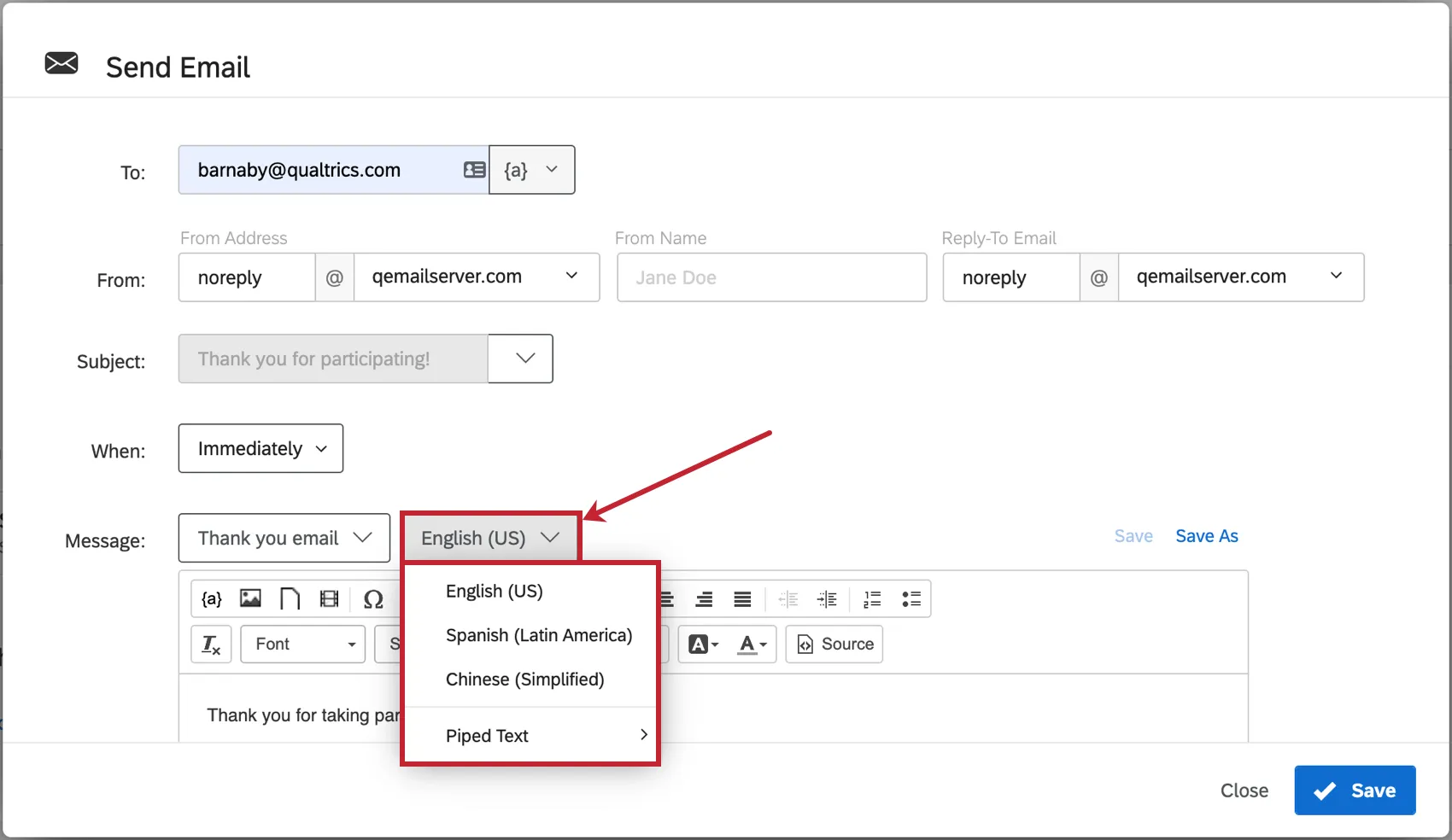
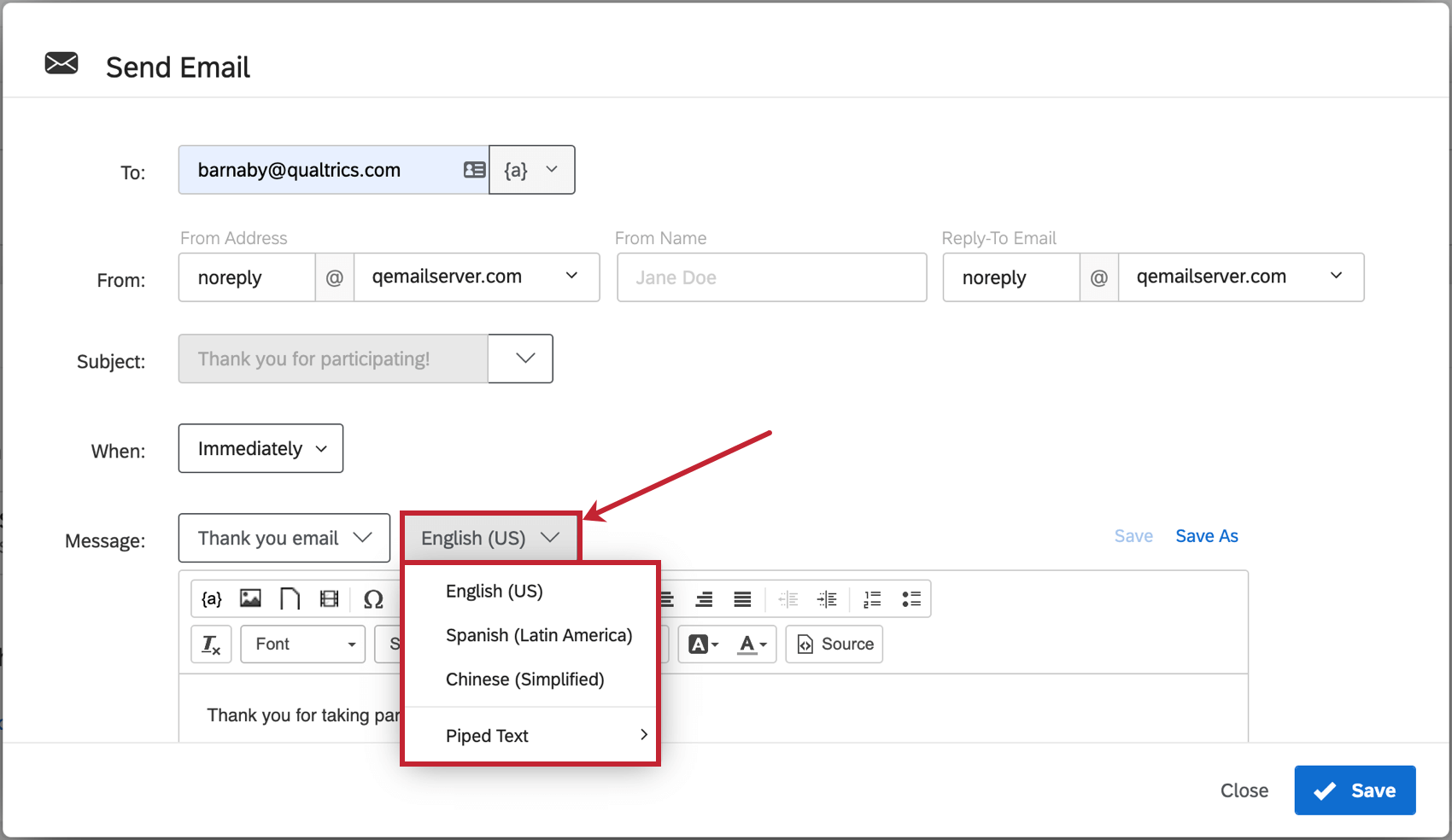
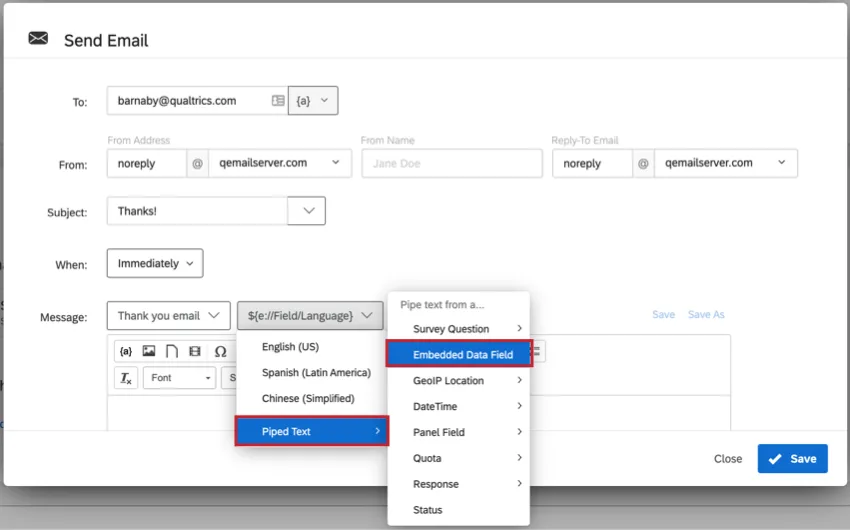
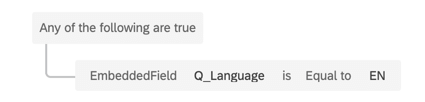
Qtip: By default, messages in the email task will default to English. You can translate your task by using embedded data and translated messages from your message library. First, you’ll need to make sure that you have a Q_Language embedded data field in your survey flow. Once you have that, you’ll need to select Piped Text > Embedded Data Field in the Message dropdown field and then enter Q_Language in the box that appears. This will allow you to dynamically pull in your message in the language your respondent took the survey in.
Attention: If you are including images in your email message, you must insert the images through the image icon in the rich content editor. You will be able to choose any images saved in your library (and add new images to your library from the email editor). If you manually paste an image into your email message, the email task will fail.
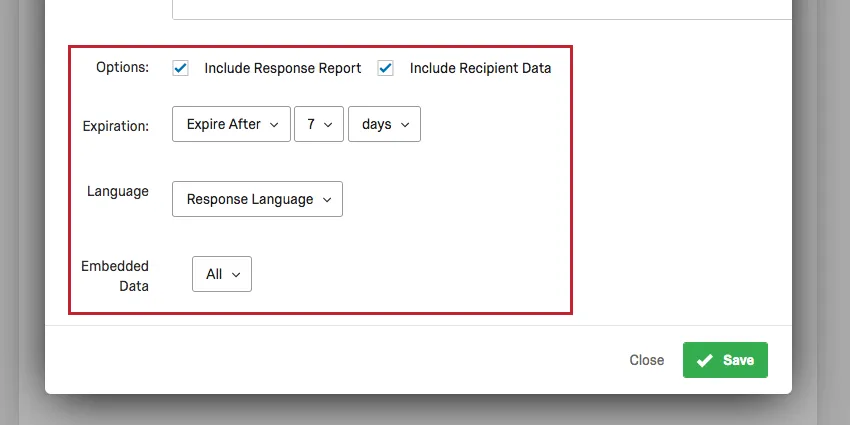
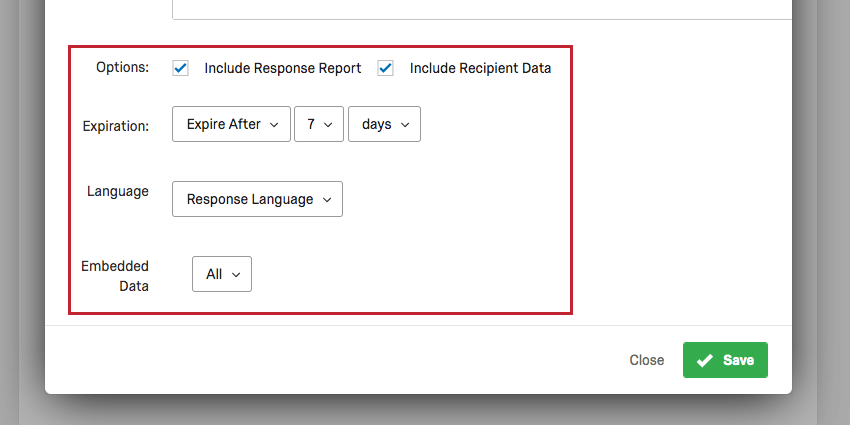
Qtip: “Include Response Report” adds a summary of the questions and respondent’s answers to the body of the email (as well as includes a link to an online version). “Include Recipient Data” displays information about the respondent’s survey response.
Qtip: Opt-out links only work in messages made for survey invitations, reminders, and thank you emails. They will not work with email tasks.
Response Reports
Qtip: We are migrating away from old response reports links that contain Report.php. For a list of solutions, see Migrating from Report.php Response Reports.
When creating an email task, you have the option to select Include Response Report. Response reports are a summary of the questions and the respondent’s answers. They come in the body of the email, in a linked webpage, and in a PDF export.
Attention: Response reports display the current text of your survey as it appears in the survey editor. If you have made changes to your survey but have not published them, those changes will still be reflected in the response report.
Qtip: Response summaries are only available in languages fully supported as XM Platform languages in Qualtrics. If your language is not on the “Using the XM Platform in a specific language” list, the response summary will not translate to that language. Instead, you’ll see the message, Cannot get translation response summary for language code.
Piped Text
Instead of enabling “Include Response Report,” you can add a link to the single response report in your email task by using the following piped text. This allows you to control where the response report link appears in your message.
${srr://SingleResponseReportLink}
Attention: If you’ve copied the text above, make sure to paste it without formatting. Otherwise the piped text might have additional HTML formatting applied, and might not work. You can also retype the piped text as it appears above straight into your email task.
Additionally, you can add the following parameters to customize your response report link.
- ttl: The expiration of your link in seconds. The default is 7 days (604800 seconds). The expiration of the link is calculated from when the email task is sent. Example: ${srr://SingleResponseReportLink?ttl=60} will generate a link that expires in 60 seconds.

- edata: The type of embedded data to display in the report. Valid options are “all,” “none,” and “user.” The default is “user.” Example: ${srr://SingleResponseReportLink?edata=none} will exclude all embedded data from the report.
- password: The password needed to access the link. The default is no password protection. Example: ${srr://SingleResponseReportLink?password=test123} will require anyone accessing the link to enter the password “test123” before they can view the report.
You can combine these parameters into 1 link. The first parameter should have a question mark ( ? ) in front of it. Join all of the following parameters with an ampersand ( & ).
Example: If I want to include all 3 parameters in the link, it would look like this:
${srr://SingleResponseReportLink?ttl=60&edata=none&password=test123}
Qtip: The single response report references the last edited version of a survey, not the last published version.
Expiration
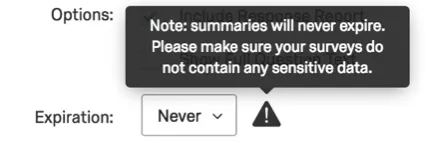
As an extra security measure, you can set when the response report link will expire. This only affects the webpage and the PDF export, not the body of the email. This expiration can be determined by hours, days, or months from the email task being sent.
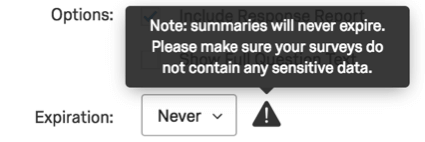
Qtip: If you select Never for the expiration, you’ll receive a warning. If you decide you never want response reports to expire, you should make sure your survey doesn’t request any sensitive data from the respondent.
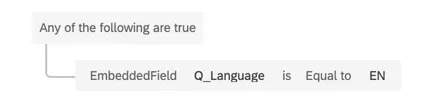
Language
Determine the language of the response report. This allows you to compose different email tasks for different respondents by language; using Q_Language and corresponding language codes, you can set the conditions under which email tasks with translated message bodies and specified response report languages are sent out.
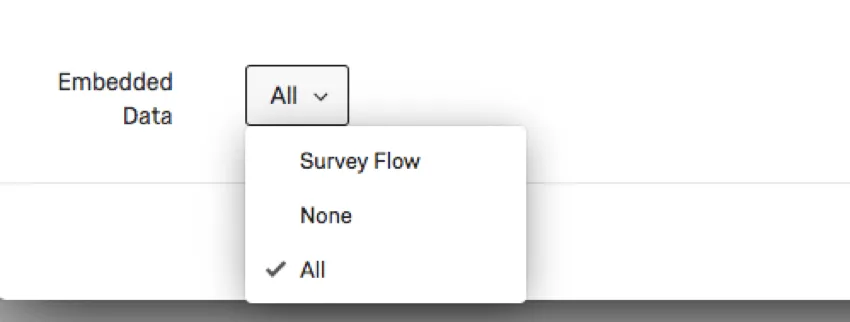
Embedded Data
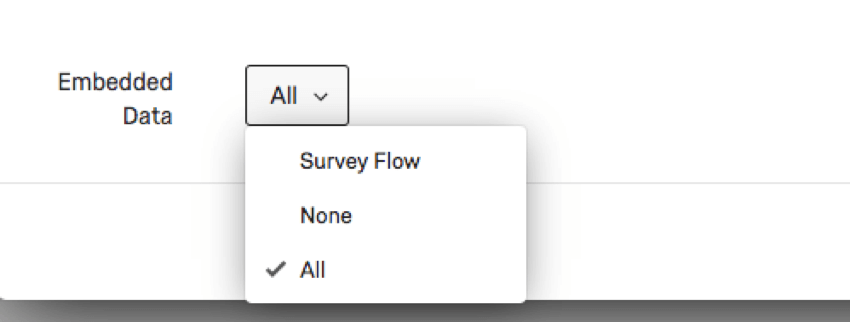
The response report can contain the embedded data that is saved with the response. You can choose to include all embedded data, only the embedded data defined in your survey flow, or no embedded data.
Viewing and Exporting Response Reports
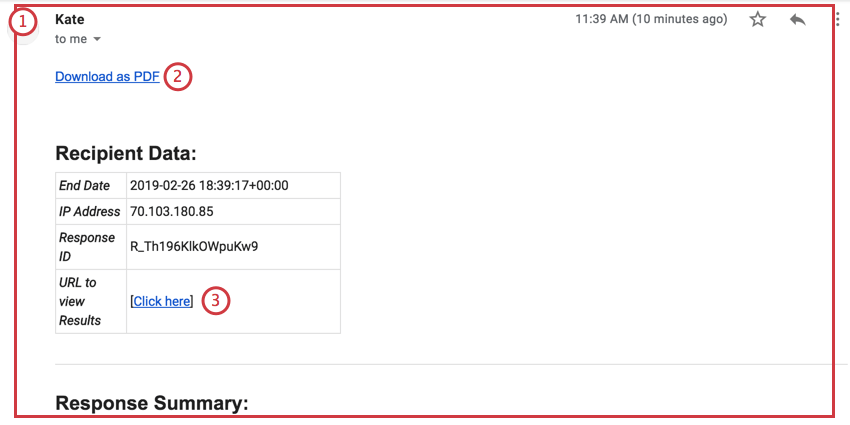
When response reports are enabled in an email task, they will appear in three formats:
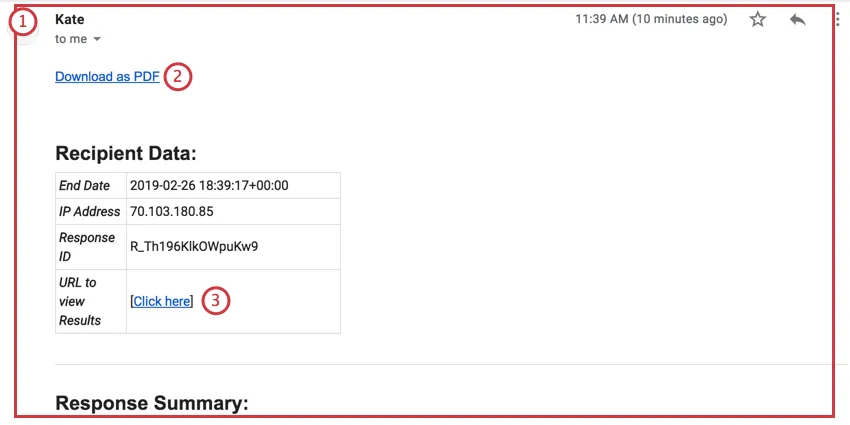
Qtip: Remember, the expiration setting in the email task defines when this link is disabled.
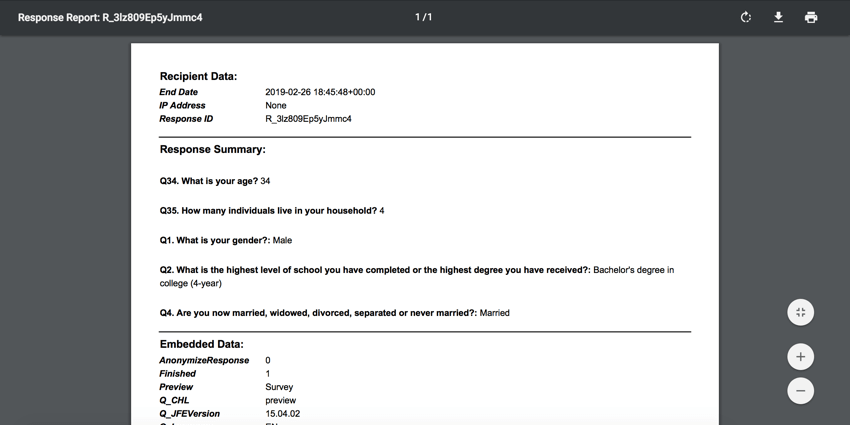
Response reports come with three headers of information: Recipient Data, Response Summary, and Embedded Data.
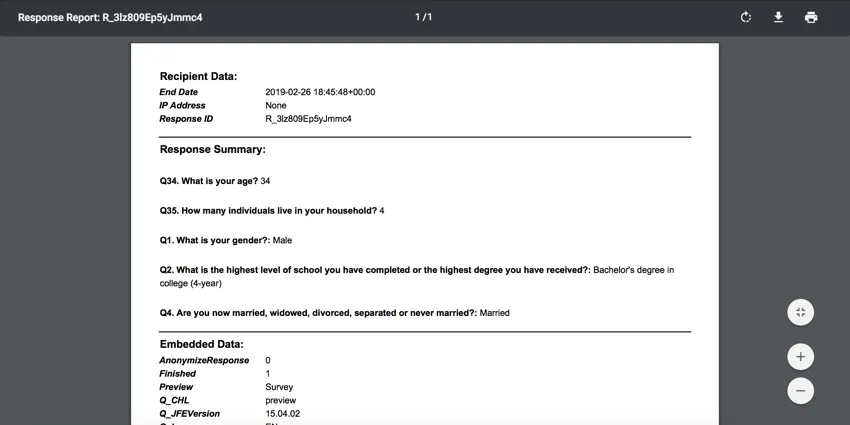
Recipient Data contains information such as the date the survey response was completed, IP Address, internal Response ID, and the URL to view the Response Report. The Response Summary contains all questions in the survey and their answers. Finally, Embedded Data contains all the embedded data you set in your Survey Flow, in addition to several default fields.
Qtip: By default, all answers to all questions and all embedded data are included in a response report. However, our Engineering Services team can create custom response reports to fit your organization’s needs. Contact your Account Executive if you’re interested in this solution.
For a more manual solution, consider using piped text in an email task. This will require building reports from scratch, which will not have the PDF export or live link.
Attention: If your response report displays the error message “You no longer have access to the response report,” the permission has been disabled for your brand. To get access, contact your Brand Administrator and ask them to enable the Allow Response Report organization permission.
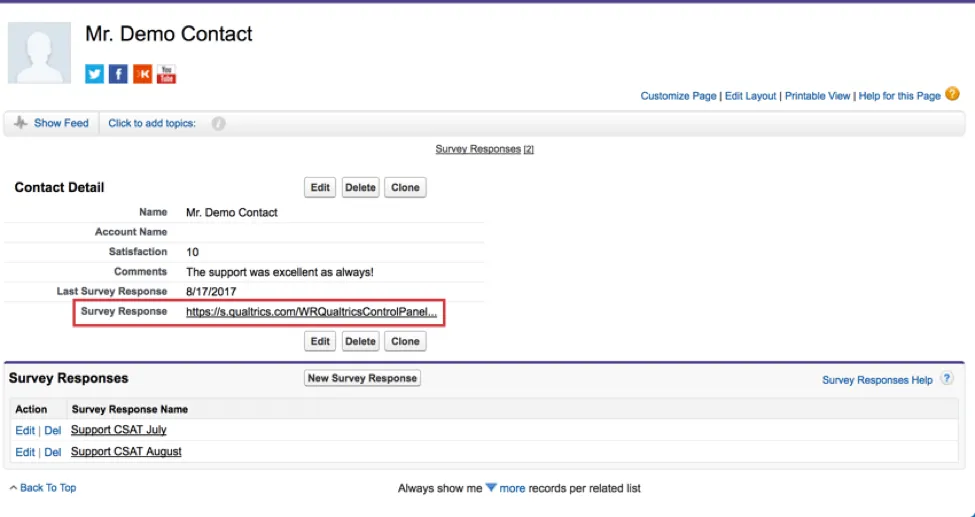
Mapping a Response Report Link in Salesforce
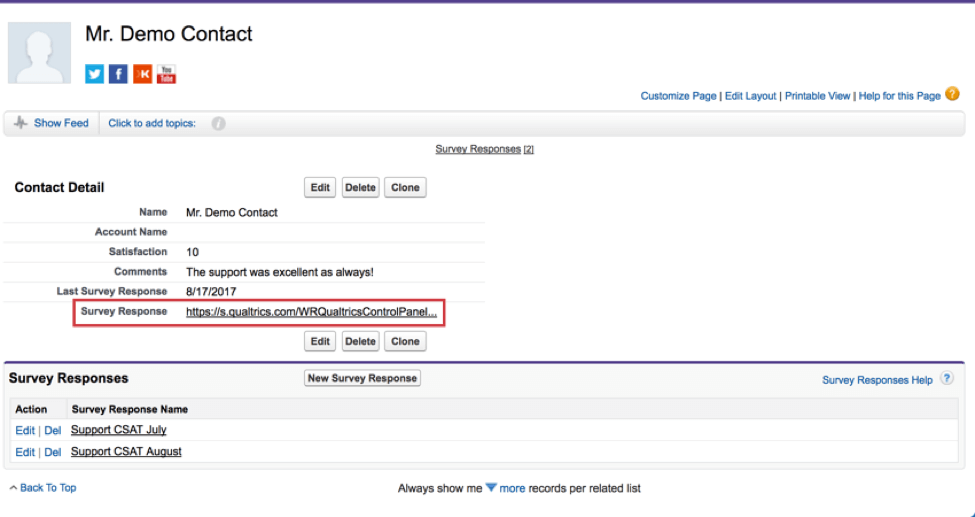
You can map a response report link to Salesforce so it appears on record pages. To map a response report link to Salesforce, see Mapping a Response Report Link.
When Email Tasks Are Sent
All types of survey responses can cause email tasks to be sent under certain conditions.
- Completed responses (people who got all the way to an end of the survey) will generate email tasks they meet the conditions for.
- Incomplete survey responses (people who didn’t finish their survey) do not generate emails unless the task has a condition added to it, and the response is recorded.
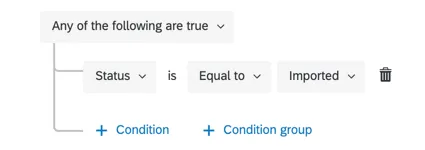
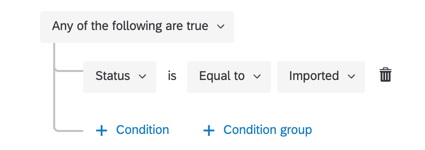
- Imported responses only generate emails if they’re selected as a response condition.
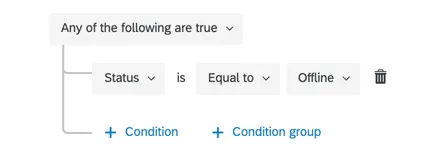
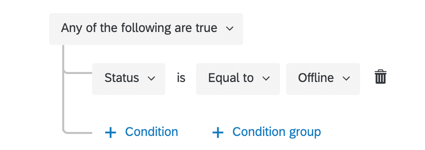
- Offline app responses only generate emails if they’re selected as a response condition and are then uploaded.
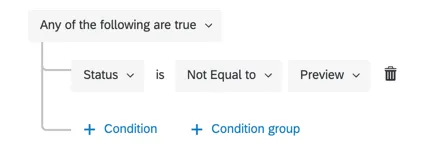
- Preview responses always generate emails they meet the conditions for, unless there’s specifically a condition saying they should not generate a response.
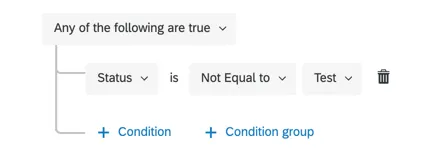
- Test responses always generate emails they meet the conditions for, unless there’s specifically a condition saying they should not generate a response.
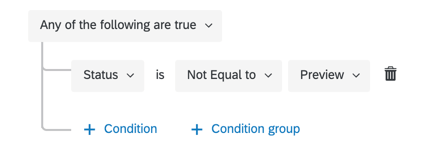
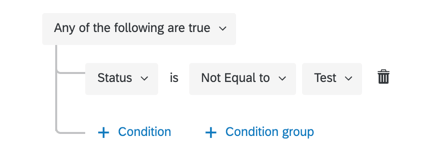
Attention: Once a workflow is completed, the scheduled email will not be able to be deleted. For example, if a response just submitted meets the condition of an email task, and you go to delete the email task, the email for that response is still scheduled.
Troubleshooting Email Tasks
This section has links to additional resources that can help you troubleshoot issues related to email tasks.
- Identifying Whether Email Tasks Failed: Workflows Reporting allows you to check on the status of tasks in your survey, and identify whether they succeeded. This troubleshooting tool is best for checking on issues on the task setup side, and will not help you dig deeper into email deliverability issues, such as invalid recipients.
- Email Deliverability Troubleshooting: There are certain rules that can be applied to any email distributions in Qualtrics. Check out Troubleshooting Email Distributions for a comprehensive guide.
- Troubleshooting Conditions: The way a condition on an email task is worded can change when the email task is executed. First, remember to check the general rules for who receives email tasks, and when. If you need help troubleshooting the way conditions are written, check out these resources:
- Creating Conditions (With step-by-step example)
- New Conditions and Condition Sets
- All vs. Any
- Nesting Logic
Qtip: Some of the resources for condition-building use examples in data filtering instead of Workflows. However, the logic behind these conditions are the same.
Examples of Use Cases for Email Tasks
Sometimes it can be hard to decide how or when to use a feature until you know how other users have used it successfully in the past. Below, we have a list of common use cases that include email tasks.
- Adding an email confirmation to an appointment / event registration survey
- Follow-up email displaying the randomized ID assigned to a respondent
- Building customized response reports with piped text
- Sending retake links upon survey completion
- Sending various alerts to customers or internal stakeholders, or soliciting feedback, in a “close the loop” setup
FAQs
How can I avoid my emails being marked as spam?
How can I avoid my emails being marked as spam?
How can I change my "From" address for email distributions?
How can I change my "From" address for email distributions?
What are workflows? / Where are actions?
What are workflows? / Where are actions?
There are no changes to workflow functionality as part of this update.
The survey response dates in this workflow aren't displaying in my time zone. Is that intended?
The survey response dates in this workflow aren't displaying in my time zone. Is that intended?
To capture the date in your time zone, you can always set an embedded data equal to today's date.
Can I edit multiple scheduled distributions at the same time?
Can I edit multiple scheduled distributions at the same time?
That's great! Thank you for your feedback!
Thank you for your feedback!