

XM Directory Lite Basic Overview
What's on this page
About XM Directory Lite
XM Directory Lite lets you create and update contact information for use in survey distributions. You can upload contacts to create mailing lists and samples, and these lists can be shared across your organization.
Qtip: XM Directory Lite has some of the same features as XM Directory, with more limited functionality. For an overview of XM Directory, see Getting Started with XM Directory.

Mailing Lists
Mailing lists are lists of contacts used to distribute survey invitations. They contain each contact’s name and email address, in addition to any other information you feel is important to include. The benefit of building a good, detailed contact list is that, in addition to making survey distribution easy, you can save information about your survey-takers ahead of time, and add it to their responses.
Mailing lists are managed on the Directories page, where you can create new lists, create samples of lists, and manage existing lists. Mailing lists can be built by manually typing out contacts within Qualtrics, or importing contacts from a file. See Creating a Mailing List for step-by-step instructions.
Qtip: Setting up contacts is an important step in project configuration. Once you’re finished, check out the Distributions Basic Overview.
Available Contact Fields
Whether you add contacts manually or by uploading a list, it’s important to consider the type of information you want to include about your contacts beforehand. You can add any information you want to your list, but we also have a few default fields you should be careful to name exactly as listed:
- Email: The contact’s email address. (This field is always required.)
- FirstName: The contact’s first name.
- LastName: The contact’s last name.
- ExternalDataReference: Extra information about the contact. This is most often used to store data such as an employee or student ID. It can be used to log into authenticators.
- Language: The language the user should see the survey in. This field has a pre-defined set of Available Language Codes. EN, for example, refers to English, while FR refers to French.
- Phone: The contact’s phone number.
Qtip: If you include these fields in your file, your column titles must perfectly match these names in capitalization and spacing. The only exception is embedded data.
In addition to these default fields, you can add as many custom fields as you want. Examples of fields you might want to add to your list include gender, state, country, occupation, position, supervisor, etc. Once these custom fields are added to your list, they are considered embedded data.
Embedded Data saved in your contact list can be attached to the responses of your contacts. That means before the recipient even starts the survey, you have information stored about them in the response, and don’t have to waste time asking for this information again. To include your custom fields in your reports and downloaded data, you must navigate to the survey flow and add an embedded data element for those fields.
Attention: The character limit for embedded data in XM Directory Lite is 1024 characters.

Creating a Mailing List
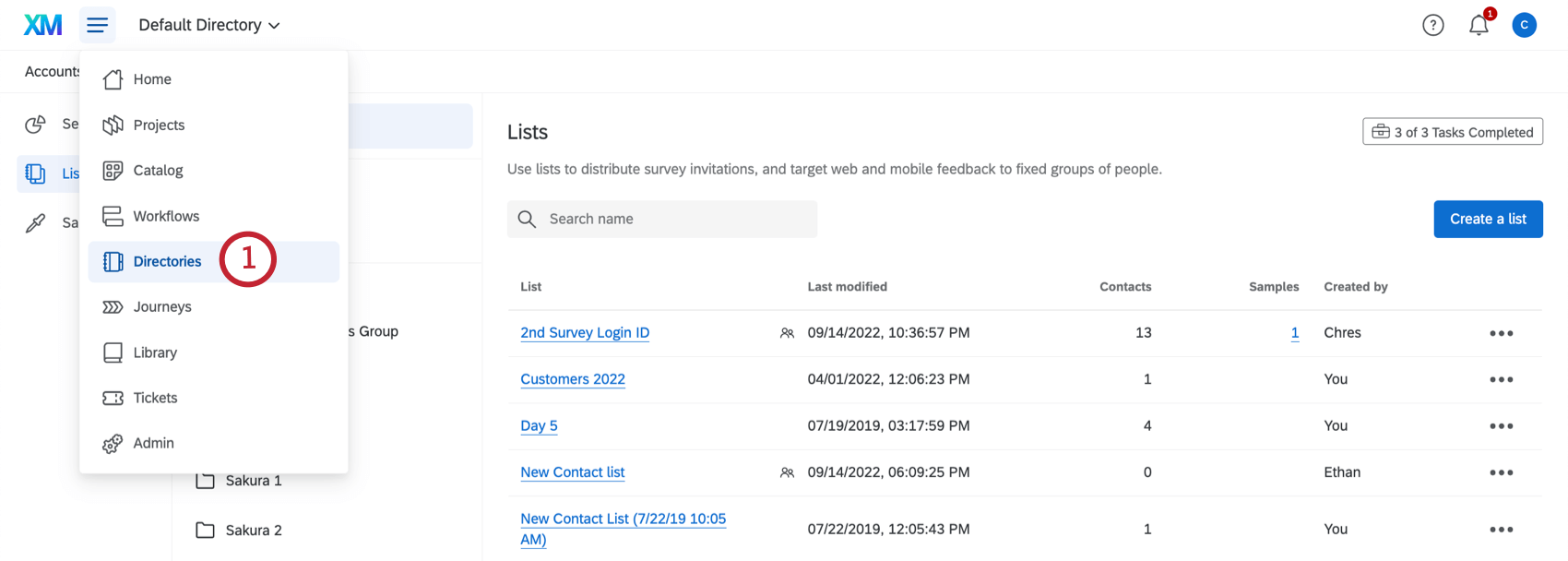
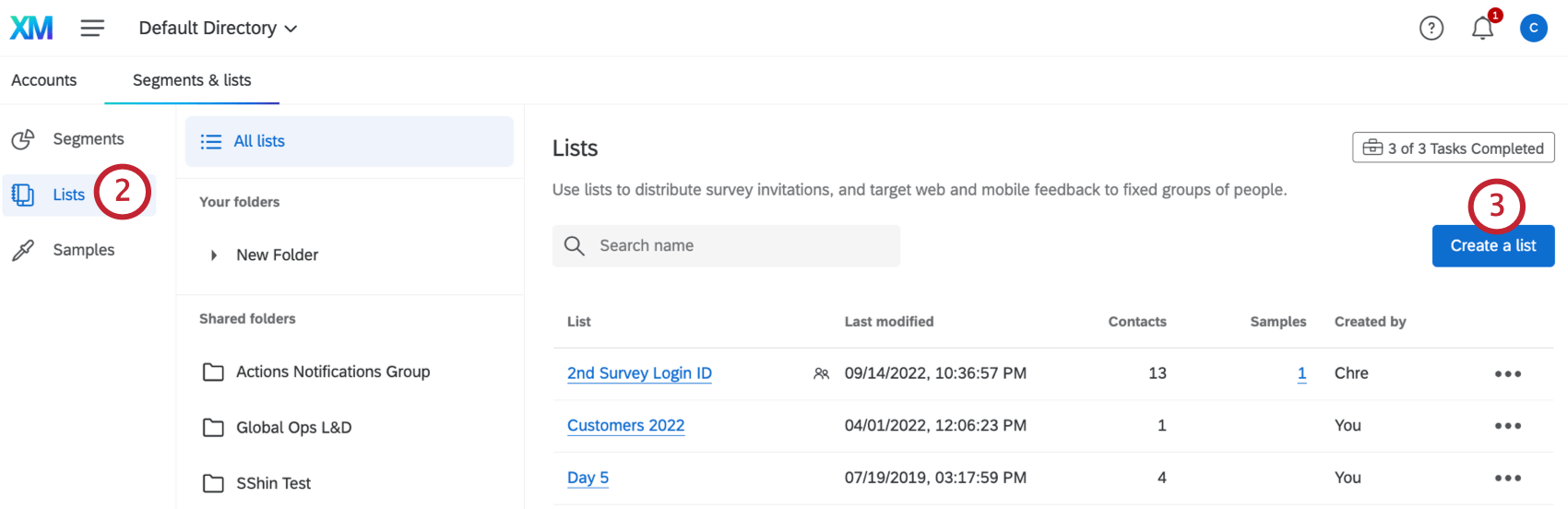
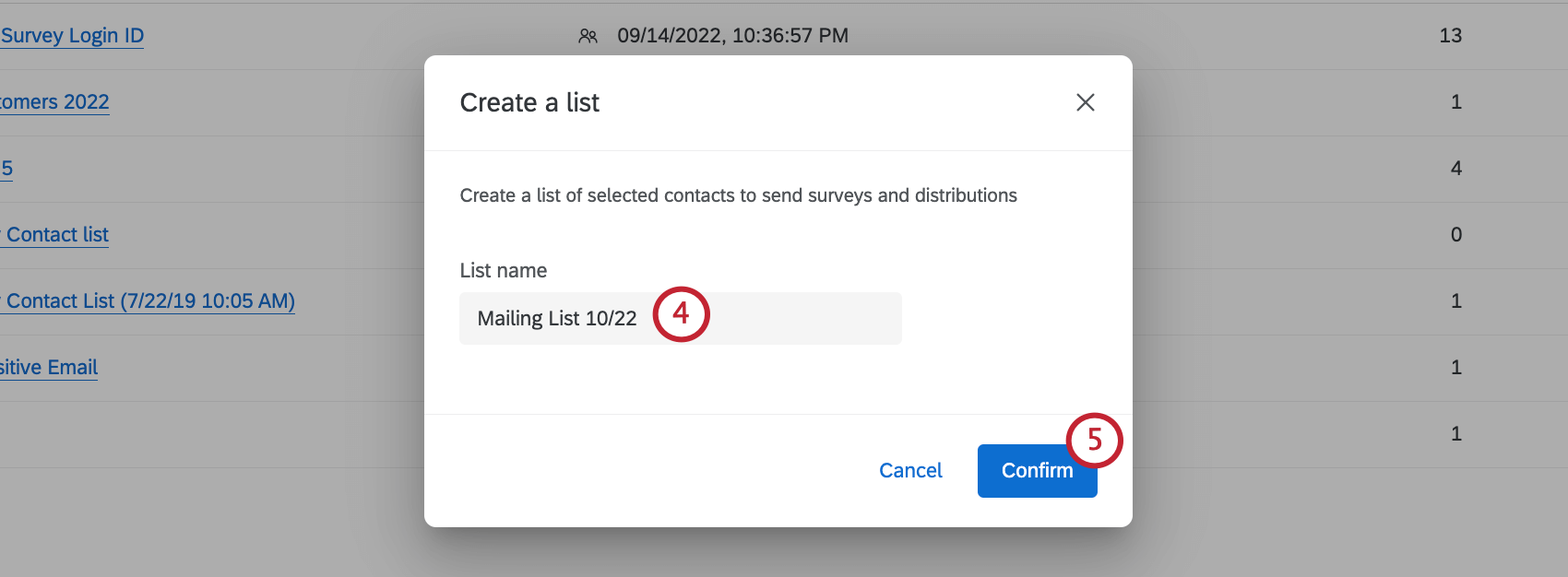
Qtip: List names are not compatible with some special characters (e.g., =, {}, or <>).
Once inside your contact list, you can choose to upload contacts through a file upload or manually. While these pages provide instructions for creating a mailing list in XM Directory, the functionality is the same in XM Directory Lite.
Using Mailing Lists in Distributions
Now that you’ve created your contact list, let’s talk about all the ways you can use them to distribute your surveys.
- Emailing Survey Invitations: Before you can email your survey to respondents, you need to know who those respondents are. Once you build a good mailing list, you can send an invitation to your list members through Qualtrics. The benefit of emailing a mailing list in Qualtrics is that you can also send reminders and thank you emails, track your distribution status, customize emails based on personal information, and much more.
- Generating Personal Links for Another Mailer: If you’re going to use a mailer other than Qualtrics, but still want your recipients to get personalized links, this the best option for you.
- Sending Surveys through SMS: Distribute surveys through automated text messages. Depending on how you format your survey, you can either just text your recipients a link to the survey, or text them an interactive survey experience. Just remember to add a Phone column to your contact list!
- Making Respondents Authenticate Before They Take a Survey: By adding an authenticator to your survey, you can require respondents log in (confirm their identity) before they take the survey. Thus, you can use 1, general link for your survey, while still keeping responses personalized.
Managing Contact Lists and Samples
The Directories page isn’t just for making new mailing lists – it’s also for managing the ones you’ve already made. Check out these pages for more information on managing contacts and creating samples.
- Purchasing Contact Lists / Respondents: Providing panels to researchers has turned into a robust industry. If you’re interesting in purchasing a panel from Qualtrics, reach out to our Research Services team here.
- Edit Contacts in a Mailing List: Learn to import updates to a mailing list, add more contacts, delete contacts, subscribe and unsubscribe contacts, and consolidate duplicates.
- Manage Lists: Learn to delete lists, filter list contacts, export lists, share lists, or move lists into folders.
- Creating Samples: Learn to break existing lists into subsets.
Converting Existing Directories
If you are using XM Directory Lite, but your organization has access to XM Directory, existing directories can be converted to take advantage of the expanded functionality available with XM Directory. This action can only be performed by users with the Manage Directories permission enabled.
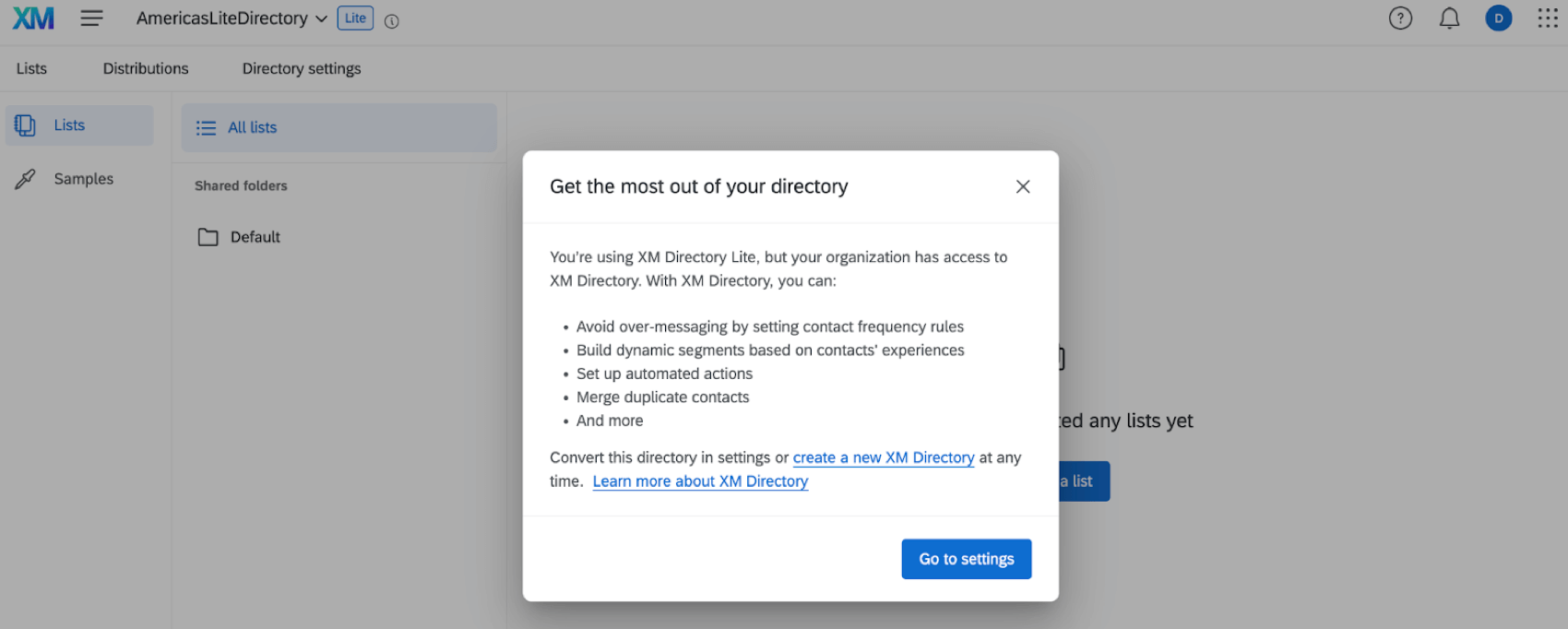
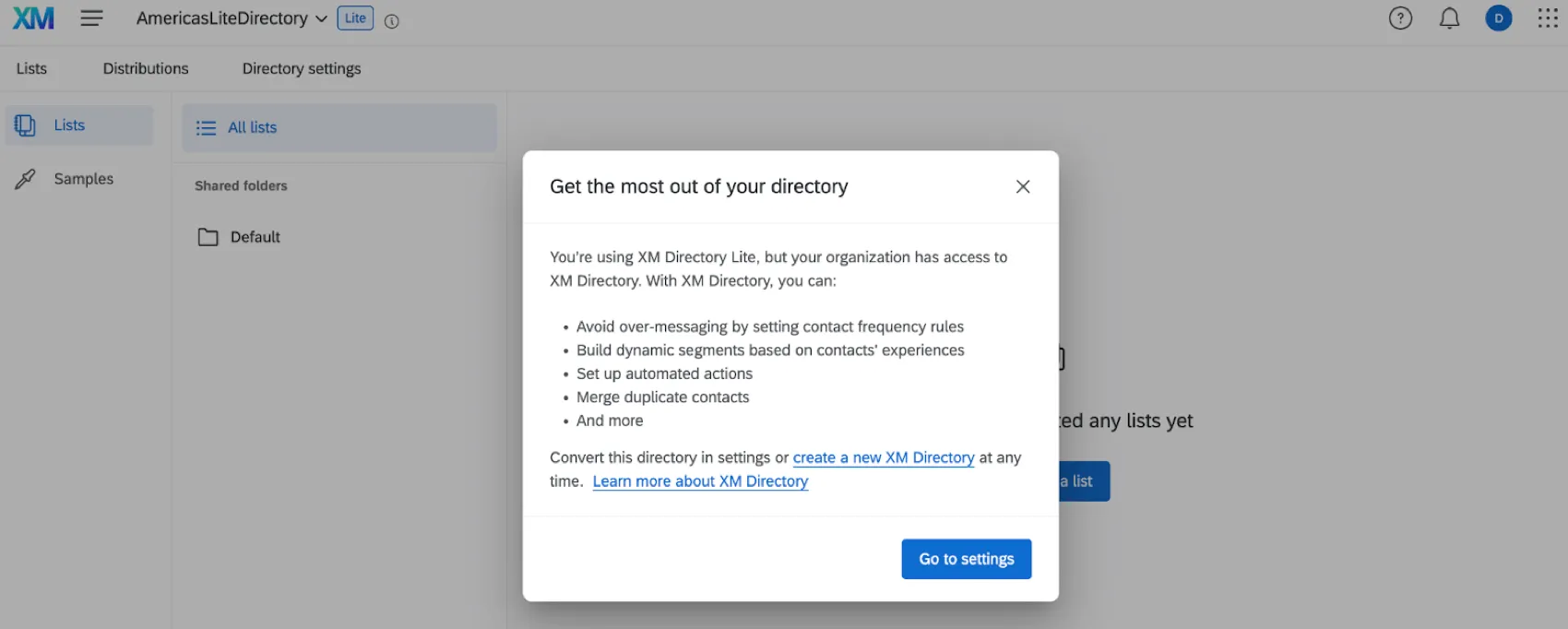
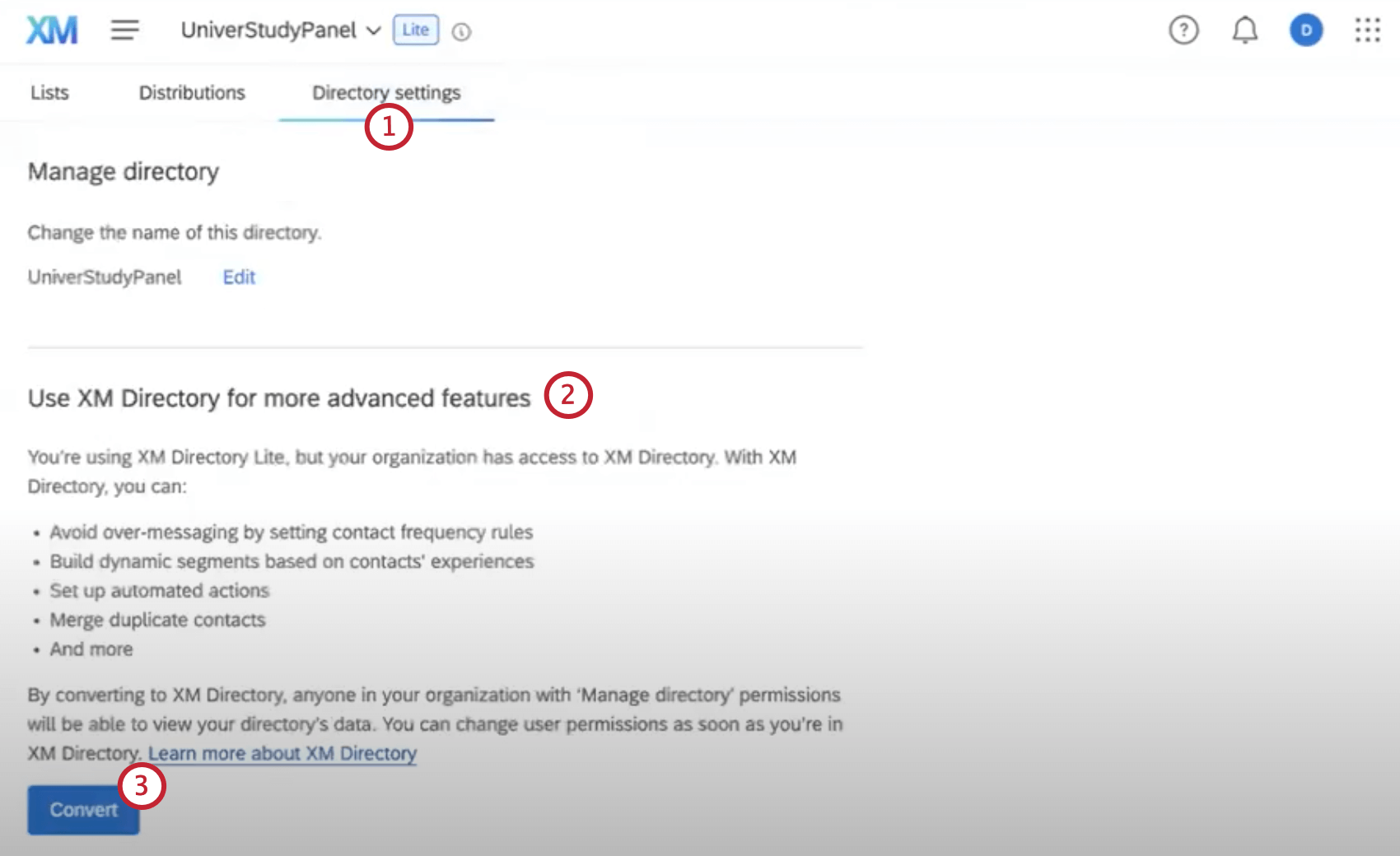
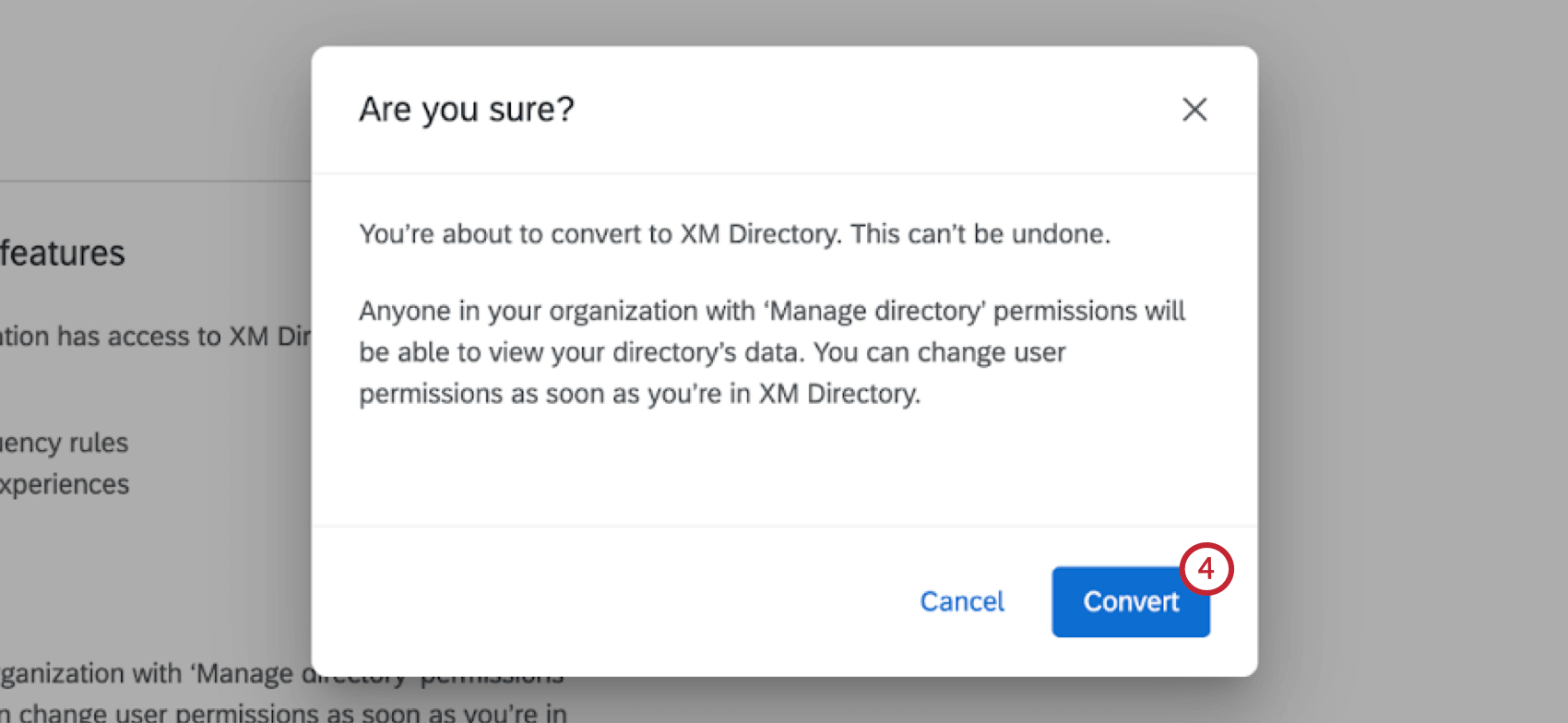
Attention: This action cannot be undone.
Projects That Can Use XM Directory Lite Contacts
Qtip: The features discussed in this section are not necessarily included with every license. If you’re interested in getting access, please reach out to your Account Executive.
You can use XM Directory Lite to build contact lists and send invitations for several types of Qualtrics projects. However, not every Qualtrics project type is compatible with XM Directory Lite.
XM Directory Lite can be used to send the following:
- Survey projects
- Conjoint / MaxDiff
- Certain non-EX XM Solutions
Qtip: You can also send emails without a link to any survey.
However, XM Directory Lite contact data is completely separate from the employee / participant information saved in the Employee Directory. That means that data edited in one directory will never affect the other. XM Directory Lite cannot be used to distribute any Employee Experience (EX) projects, including Engagement, Pulse, 360, and more.
FAQs
Why is my contact list not importing?
Why is my contact list not importing?
- The file is not saved as a CSV or TSV. Contact list files need to be in CSV or TSV format, not XLXS or anything else.
- The Email column is missing or is not being recognized.
- The file is larger than 100 MB.
- There are values in cells that do not have a column header.
- There are column headers with no values in the cells beneath them.
How can I add extra information to my contact list (gender, city, department, etc.)?
How can I add extra information to my contact list (gender, city, department, etc.)?
Can I add information to a contact list after I have sent out my survey?
Can I add information to a contact list after I have sent out my survey?
- If you change the recipient email address, a new email is not sent, but all future emails (new invitations, reminders, etc.) will go to the updated address.
- If the respondent has already opened their survey, their survey and collected data will not update with the new information. They will have to be sent a new link.
- If the respondent has not yet opened their survey, their survey will update with the new information.
If I accidentally added the same person in my contact list twice, will they get two emails?
If I accidentally added the same person in my contact list twice, will they get two emails?
If someone unsubscribes from one of my contact lists, will they automatically be unsubscribed from all my other contact lists?
If someone unsubscribes from one of my contact lists, will they automatically be unsubscribed from all my other contact lists?
Why is my contact list information not appearing in the downloaded data?
Why is my contact list information not appearing in the downloaded data?
If you forgot to put Embedded Data in the Survey Flow, you can add it to your data retroactively, so long as there are values in the contact list. See the Embedded Data support page for further instruction.
Note that if the contact list information you’re trying to download was not included in the contact list at the time the members took the survey, retroactively adding the Embedded Data fields to the Survey Flow will not add that information to the downloaded data later.
How can I insert values from my contact list into the body of my email (First Name, Last Name, etc.)?
How can I insert values from my contact list into the body of my email (First Name, Last Name, etc.)?
Qualtrics is loading the preview of my file, but everything is bunched into one column. Why?
Qualtrics is loading the preview of my file, but everything is bunched into one column. Why?
I'm getting an error message that says, "The CSV file contains one or more empty headers." What does this mean?
I'm getting an error message that says, "The CSV file contains one or more empty headers." What does this mean?
Why are the emails in my contact list showing as invalid? I'm positive that the emails are real and exist.
Why are the emails in my contact list showing as invalid? I'm positive that the emails are real and exist.
Why aren't new contacts being created? It looks like it's just updating other contacts instead.
Why aren't new contacts being created? It looks like it's just updating other contacts instead.
How do I pull Embedded Data from my Contact List into my survey?
How do I pull Embedded Data from my Contact List into my survey?
How can I use the information my panel company gives me in my Qualtrics survey?
How can I use the information my panel company gives me in my Qualtrics survey?
Can I create a group of people or sample out of my larger contact list that I can send surveys to?
Can I create a group of people or sample out of my larger contact list that I can send surveys to?
How can I tell if I have XM Directory or XM Directory Lite?
How can I tell if I have XM Directory or XM Directory Lite?
For admins, being able to tell whether or not you have XM Directory Full or XM Directory Lite on your license is easy. Admins of XM Directory have access to many more features than the average XM Directory Lite user, including the Summary tab, the Directory Contacts tab, and Directory Settings.
However, even if you’re not an admin, you can often tell whether you have XM Directory Full or XM Directory Lite in one of the following ways: If you’re still not sure which feature you have, reach out to a Brand Administrator. Brand Administrators who are unsure can reach out to their Account Executive or Account Services.
I don't have the tab described on this page! What do I do?
I don't have the tab described on this page! What do I do?
What are the consequences of switching from XM Directory to XM Directory Lite?
What are the consequences of switching from XM Directory to XM Directory Lite?
That's great! Thank you for your feedback!
Thank you for your feedback!