

Survey Publishing & Versions
What's on this page
About Publishing Surveys & Versions
Publishing enables greater control over response data quality. Instead of every edit to an active survey going live the moment you make it, you can instead control when all edits will be presented to new respondents using publishing.
Publishing is a vital step in the survey distribution process, since it determines the edits that are live to your respondents.
Survey versions allow you to save multiple iterations of your survey. You can preview or even restore old versions of your survey at your convenience.
Publishing a New Survey
When you publish a survey, it’ll be a little different if your survey is active and open to responses than if it is new. If your survey is new, the first time you publish will also activate a survey.
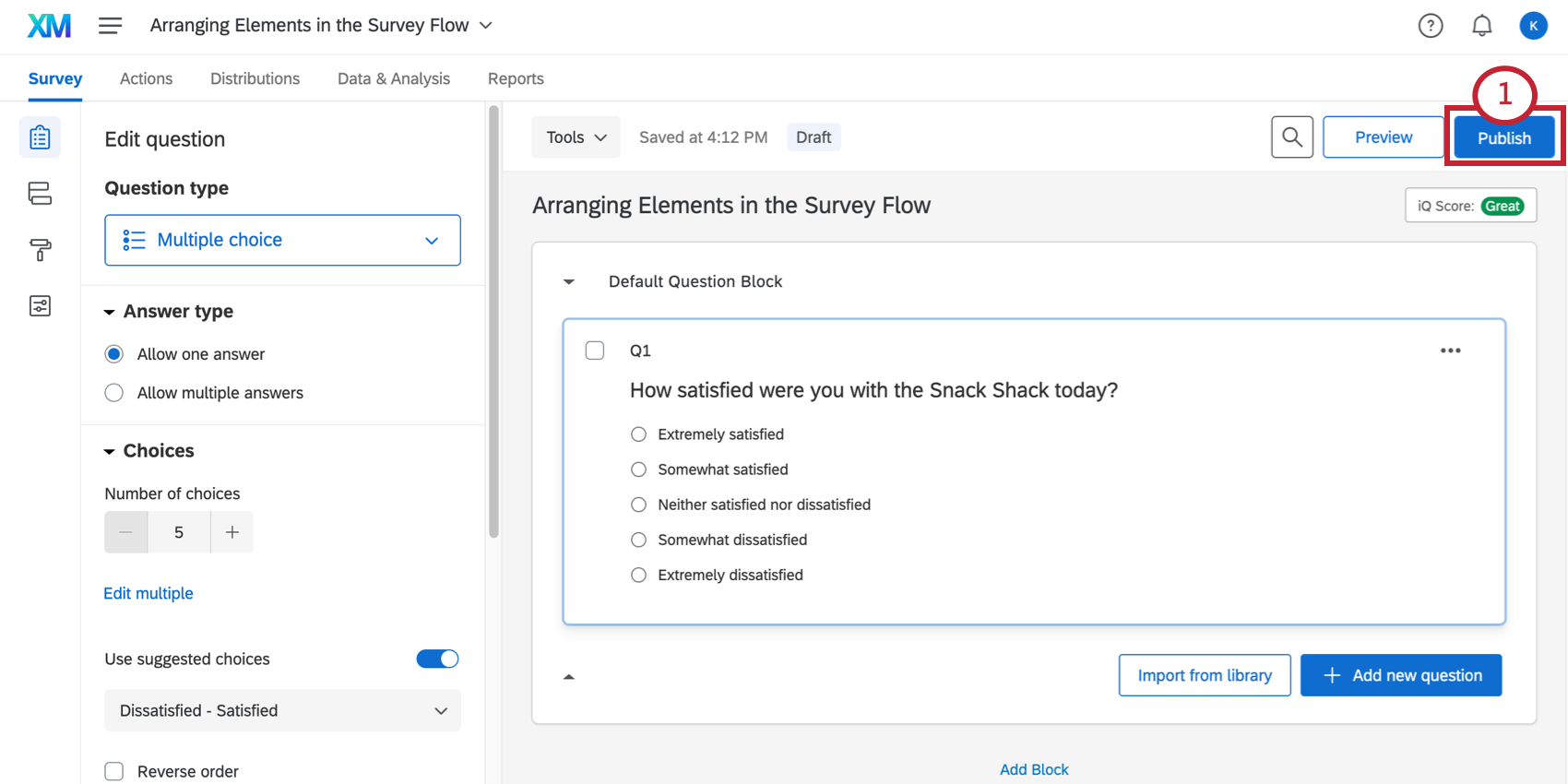
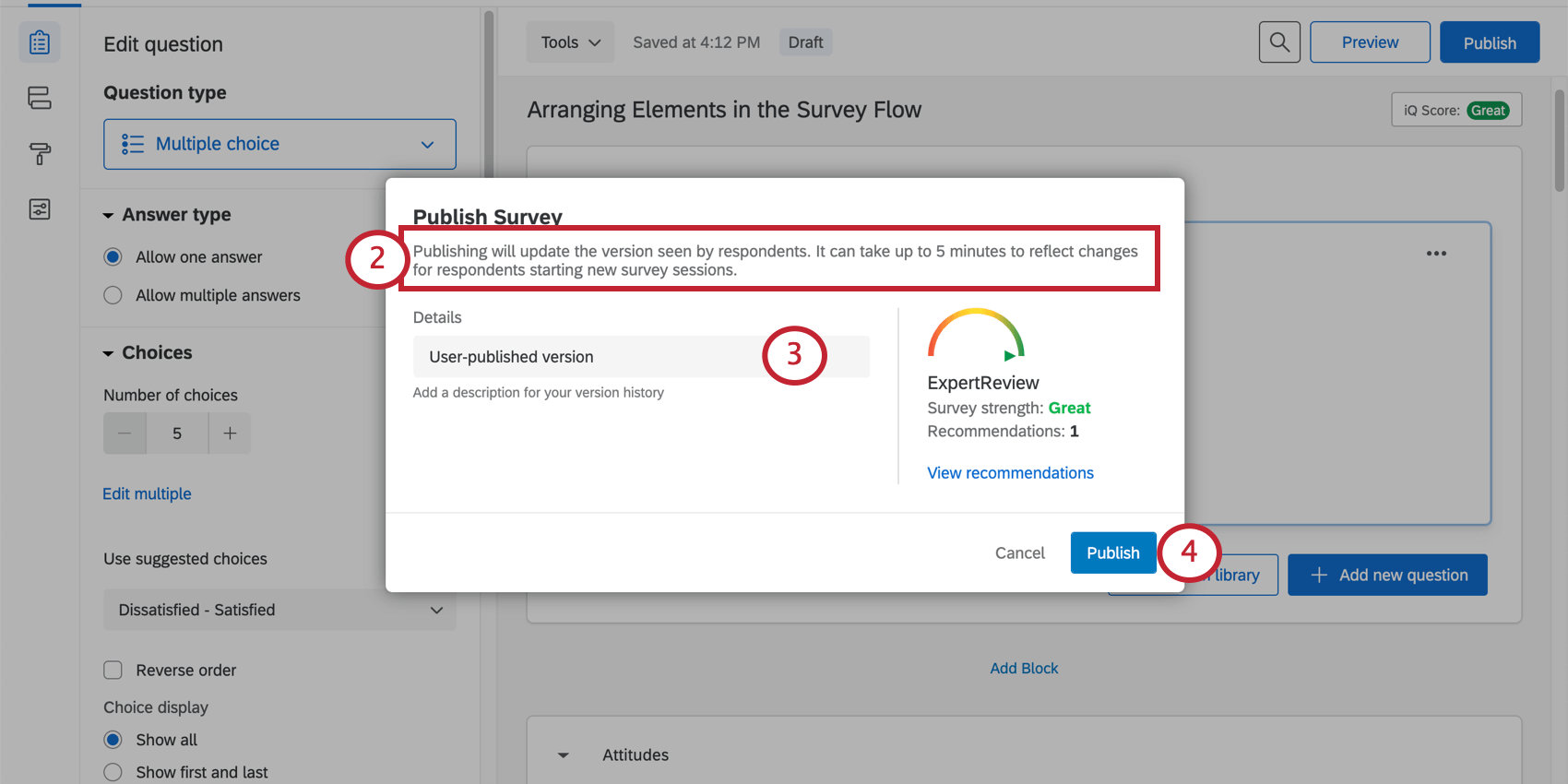
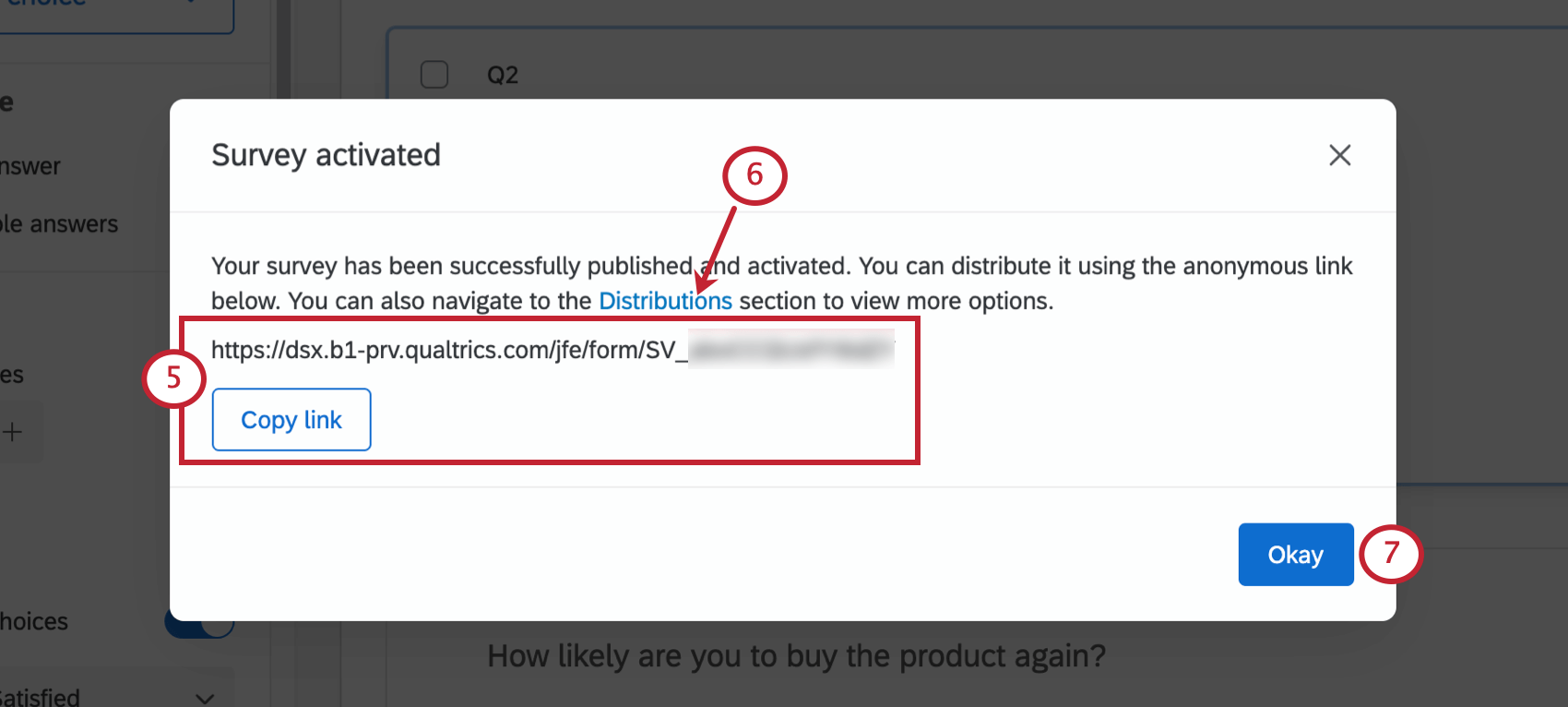
Qtip: Learn more about how this feature works on the Anonymous Link support page.
Publishing Changes to Active Surveys
Sometimes after sending your survey out, you’ll notice you need to fix something, or that there’s some important content you left out. If you edit your survey after it has been distributed, the changes will not go live until you publish the survey. This allows you to carefully review all of your changes before your participants see them.
Qtip: Publishing changes to your survey will never change the survey link.
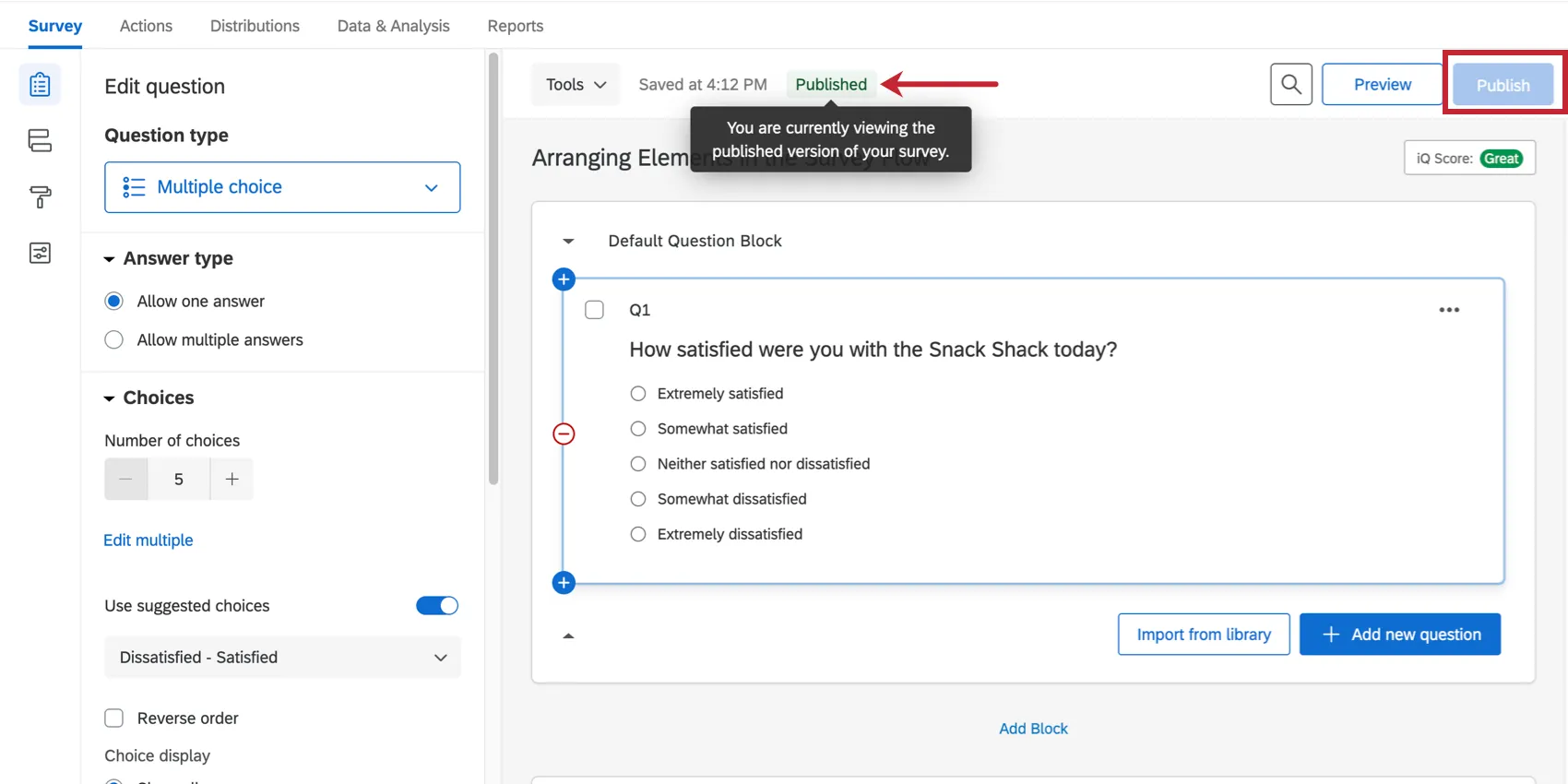
Click the Publish button when you decide that you want the edits you made to be pushed to the active survey.
Qtip: If your survey is not yet activated, clicking Publish for the first time will activate it. See section above.
The publication status will appear to inform you which version of the survey you are currently viewing. Here, it says Published.
Example: After sending your survey out, you realize you forgot to add 3 different questions. You don’t want there to be respondents who see just 1 or 2 of these new questions, which is what would happen if the survey automatically published every time Qualtrics saved your changes. Instead, you can wait until you’ve added all 3 questions to press Publish. (And you can always send a retake link to the respondents who never got the 3 missing questions, of course.)

Qtip: Publishing a survey only affects new, incoming respondents. Responses in progress will be unaffected.
Qtip: If you’re testing your survey with the anonymous link and you don’t see your edits after publishing your survey, chances are the old version of your survey is cached on your browser. Try clearing your browser’s cache or opening the survey in a new browser. For more information on testing with the anonymous link, read the Testing/Editing Active Surveys page.
Saving vs. Publishing
Your changes are always saved automatically in Qualtrics, and they work exactly as explained in the Automatic vs. Manual Saving support page. Publishing just determines when your respondents see your saved changes.
Qtip: The publishing system exists to protect your survey’s data. When you make a change to your survey, you will immediately see it reflected in the Data and Analysis tab, but respondents won't see it until you click Publish. For more guidelines on editing active surveys, and what will invalidate collected data, see our Testing/Editing Active Surveys support page.
Publishing Statuses
You’ll notice there are statuses at the top of the editor that change every time you edit or publish your survey. Click the grey icon next to a status to learn more about it.
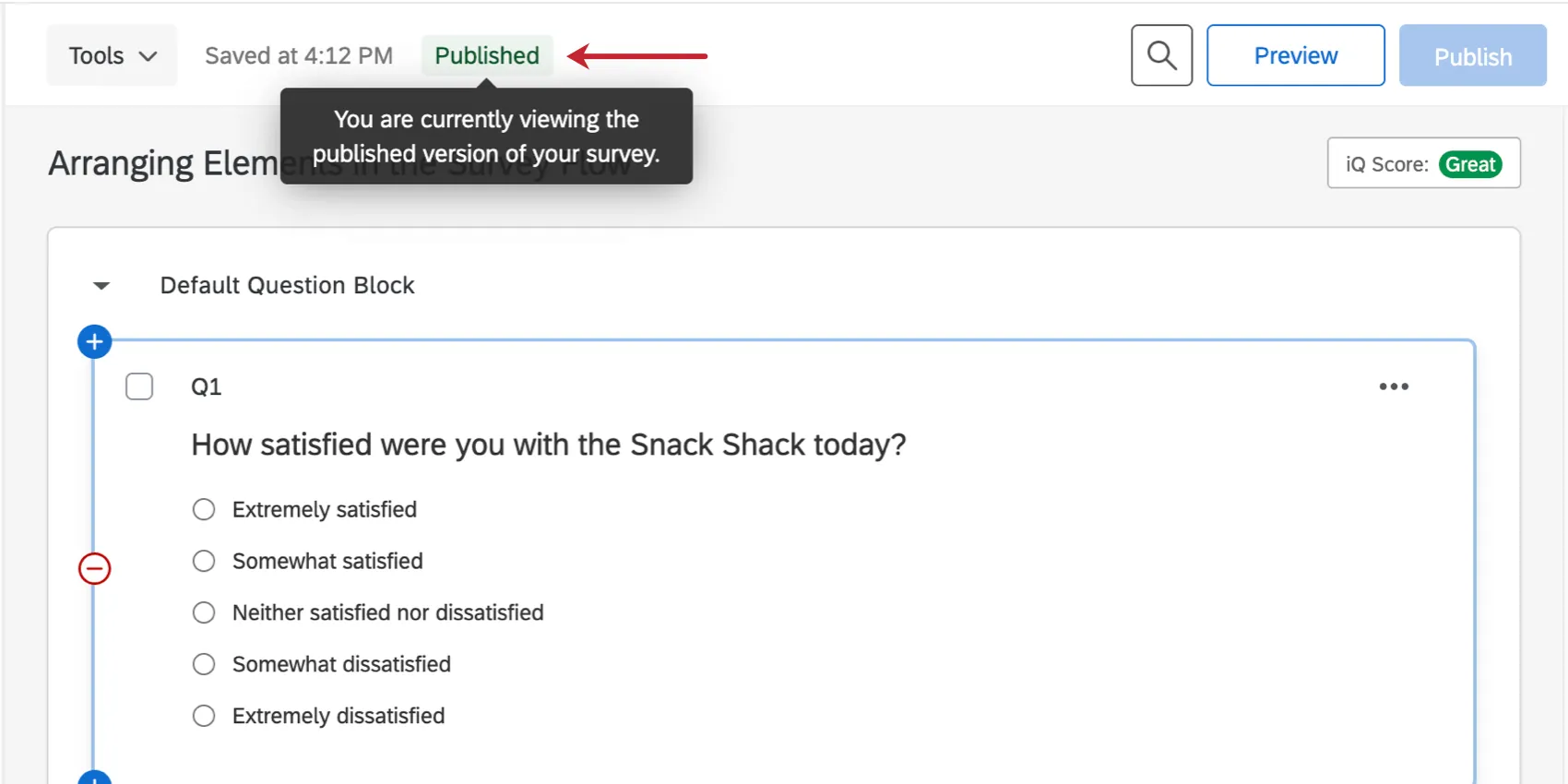
- Published: The version of the survey you are looking at is the published version. It is what your respondents will see, so long as they didn’t start the survey before you published these changes.
Draft Version: You have made edits to the survey, but not published them. You will need to click Publish for your respondents to see those changes.

Qtip: If this is the case, a yellow banner will also appear to warn you.
- Changes Live: You activated this survey before the survey publish feature was added to your account. That means that every edit you make will automatically go live. If you want to use the publishing system instead, click Publish. Then changes will only go live when you click Publish.
Features that Don’t Require Publishing
There are some features that will automatically impact your incoming respondents without you having to click Publish.
- Project name (not the display name)
- Survey Options: Back Button
- Survey Options: Survey Availability
- Survey Options: Survey Description (not the display name)
- Scoring
- Recode Values
Changes to connected reference blocks and surveys
Qtip: Changes to reference blocks and surveys are published in the library. See more on the Reference Surveys page.
- Base language of the survey
- Project status
- Changes to the survey owner, division, or brand
- Tools: Reset Recode Values
- Tools: Salesforce Web to Lead
- Tools: Salesforce Response Mapping
- Tools: Trigger & Email Surveys (Salesforce)
- Changes made outside the Survey tab (e.g., Workflows tab, Reports tab, etc.)
Qtip: Any feature not listed there must be published before it will take effect. This includes all features in the survey builder, Look and Feel menu, survey flow, survey options, and tools that are not listed here.
Qtip: Export survey exports the current draft, not the published version.
Version History
Every time you publish or save your survey, you create a “version” of it. You can view, preview, or even restore past versions of your survey this way.
Warning: Restoring to a previous version and then publishing can affect previously collected data. It can restore data that was invalidated by later changes to questions, but it can also invalidate data that was collected after the changes. See Restoring Previous Versions below for more details.

Creating new versions
Aside from publishing or saving your survey normally, you can choose to create a new survey version any time.
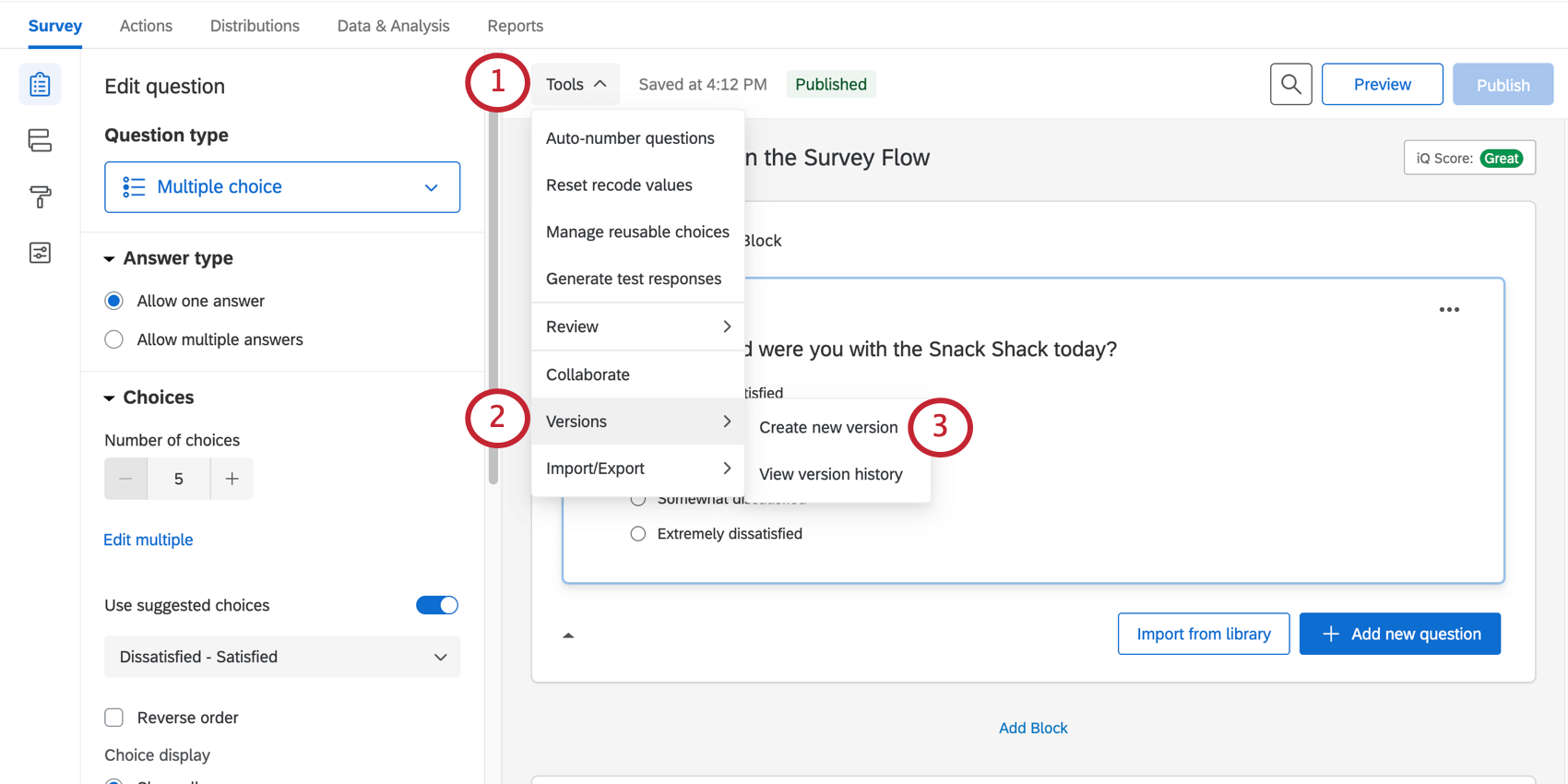
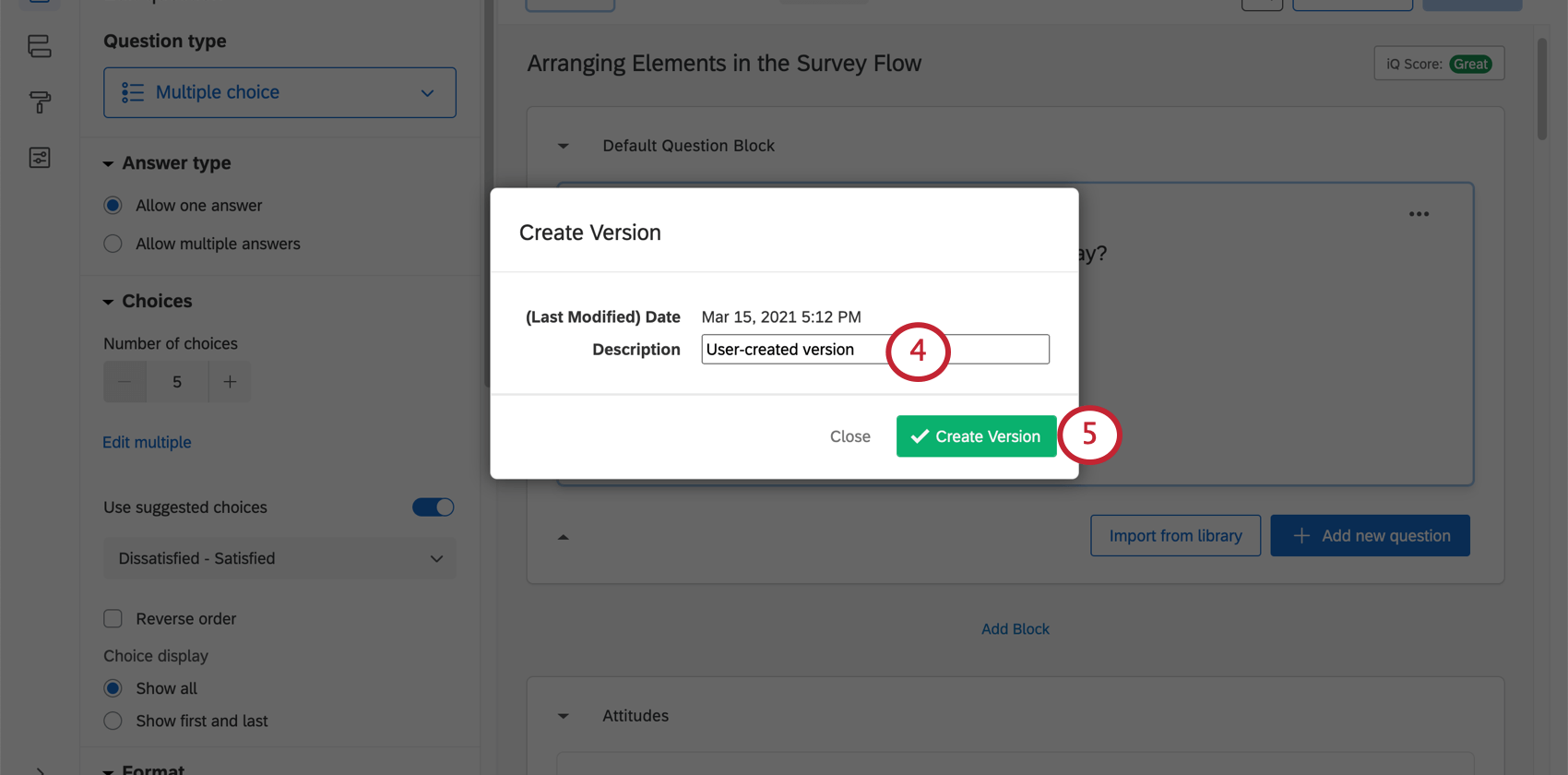
Qtip: Qualtrics will also automatically save new versions for you in the following circumstances:
Additionally, you can’t save a new version if you haven’t made any changes from the previously saved version.
Viewing Past Versions
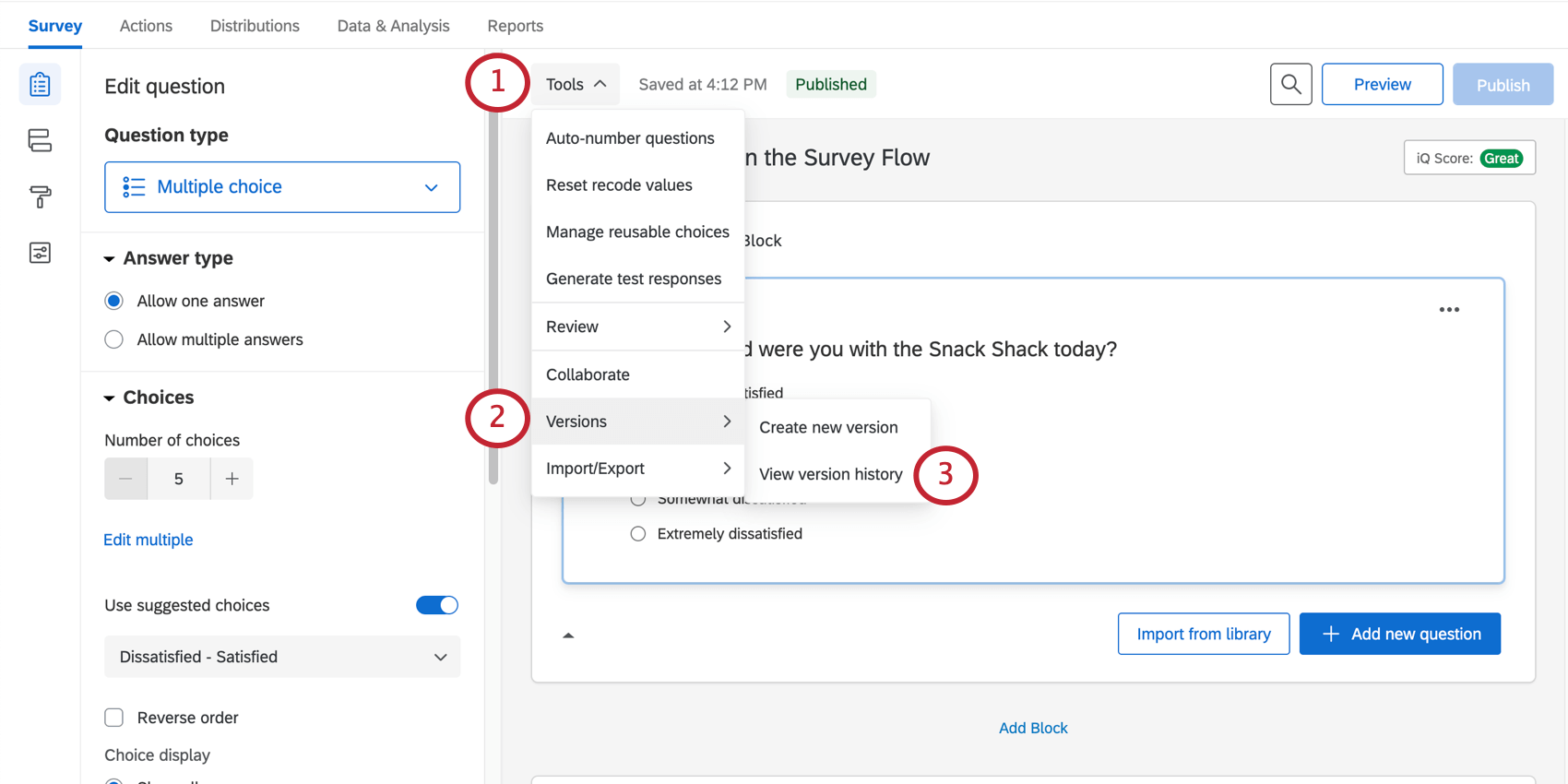
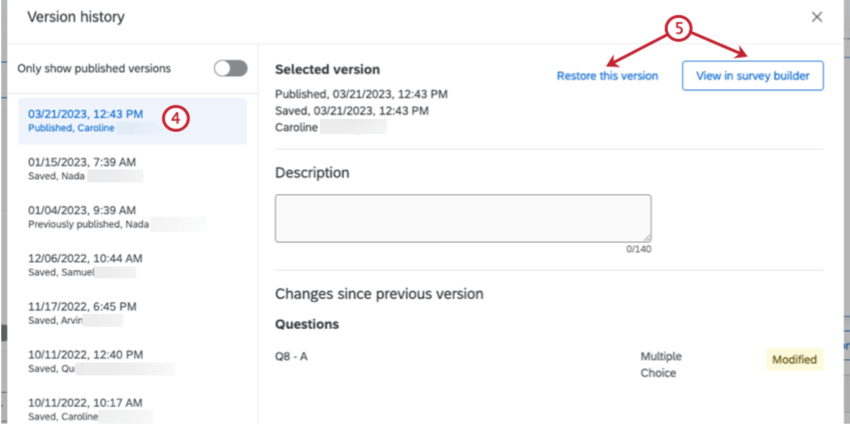
Qtip: Restoring a version of the survey does not automatically publish this change.
Qtip: The name attached to the version is the user who was accessing the survey at the time of version creation, not necessarily the user who made the changes.

Qtip: The dates displayed in the sidebar to the left are all version creation dates, not necessarily publish dates. Once you click on a version, Published is the date a version was published, and Saved is the date a version was saved / created. A version won’t have a published date if it wasn’t published.

Version Options
When you select View in survey builder, you will not be able to edit the version you see. However, you have several options:
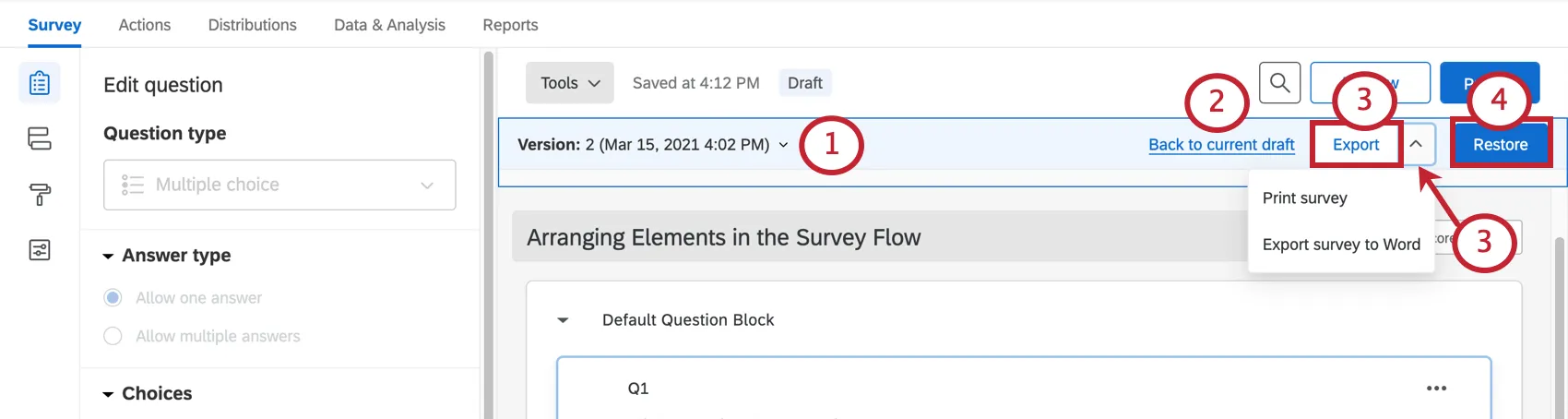
Warning: Restoring to a previously saved version and then publishing can affect previously collected data. It can restore data that was invalidated by later changes to questions, but it can also invalidate data that was collected after the changes. See Restoring Previous Versions below for more details.
Restoring Previous Versions
If your questions have been permanently deleted or changed in a way that you want to reverse, you might be able to restore an earlier version of your survey using the version in your version history. Restoring to an earlier version will bring back deleted questions and alter all settings to what they were at the time this version was created. It will also bring back that same version’s data.
Because of the publishing system, restoring a survey does not affect your respondents or hurt your data. You can restore a version, export old data and a survey QSF, and change back to the version you want to edit. Just make sure not to publish the restored version unless you are sure you want to overwrite your current survey and affect your respondents’ experience.
Attention: Just restoring a previous version of a survey will not affect the respondent’s experience – clicking Publish after you restore a survey will. Once changes are published, those currently taking the survey won’t experience a change, but new respondents will see the restored survey. Publishing will also overwrite data you have collected. Restoring and publishing versions too many times may invalidate old data, so proceed with caution.
Restoring and Publishing Surveys in Other Project Types
Every type of project where you customize a survey requires that you publish changes live, and every project has the ability to view and restore older versions. The options described above apply to the following project types:
There are also projects where the functionality is a little different. For Employee Experience projects, see the next section on Differences in 360, Engagement, and other Employee Experience Projects.
Attention: If you’re customizing a Conjoint and MaxDiff, there are much bigger differences to consider for restoring and publishing. See Restoring Older Versions and Publishing for details.
Differences in 360, Engagement, and other Employee Experience Projects
For the most part, publishing Employee Experience projects and restoring versions works as described on this page. (Employee Experience projects include 360, engagement, lifecycle, and ad hoc employee research.) However, there are a few small differences to take into account:
Other than these 2 differences, publishing is the same in Employee Experience as it is in survey projects.
FAQs
Can I edit a live survey that is currently being taken?
Can I edit a live survey that is currently being taken?
- Who will see the changes? Only those who have not yet started the survey will see the new changes. Anyone who started the survey prior to your changes will see the original survey, not the updated one.
- What kinds of changes are okay? Superficial text edits are fine (e.g., fixing a typo or changing the font), as are adding questions or answer options. However, deleting questions or answer options can harm previously collected data. We recommend never deleting answer choice options or questions (unless you are 100% positive that you will not ever need any of the collected data associated with those answer choice options or questions). Instead, we recommend hiding unwanted questions and answer options with Advanced Randomization.
How do I save/undo my edits to my survey?
How do I save/undo my edits to my survey?
Often, Qualtrics will allow you to undo a change if you hit Ctrl + z (PC) or Cmd + z (Mac) on your keyboard. However, not all changes are undoable.
Qualtrics automatically saves previous versions of your survey when you make edits or publish your survey. Survey versions are a snapshot of your survey and its settings and allow you to view any past version and restore your survey to that form. See the linked page for more information on this feature.
How do I test my survey before sending it out?
How do I test my survey before sending it out?
To learn more, visit our page on Testing and Editing an Active Survey.
When I generate test responses, what version of the survey will be used?
When I generate test responses, what version of the survey will be used?
That's great! Thank you for your feedback!
Thank you for your feedback!