

Recorded Responses
What's on this page
About Recorded Responses
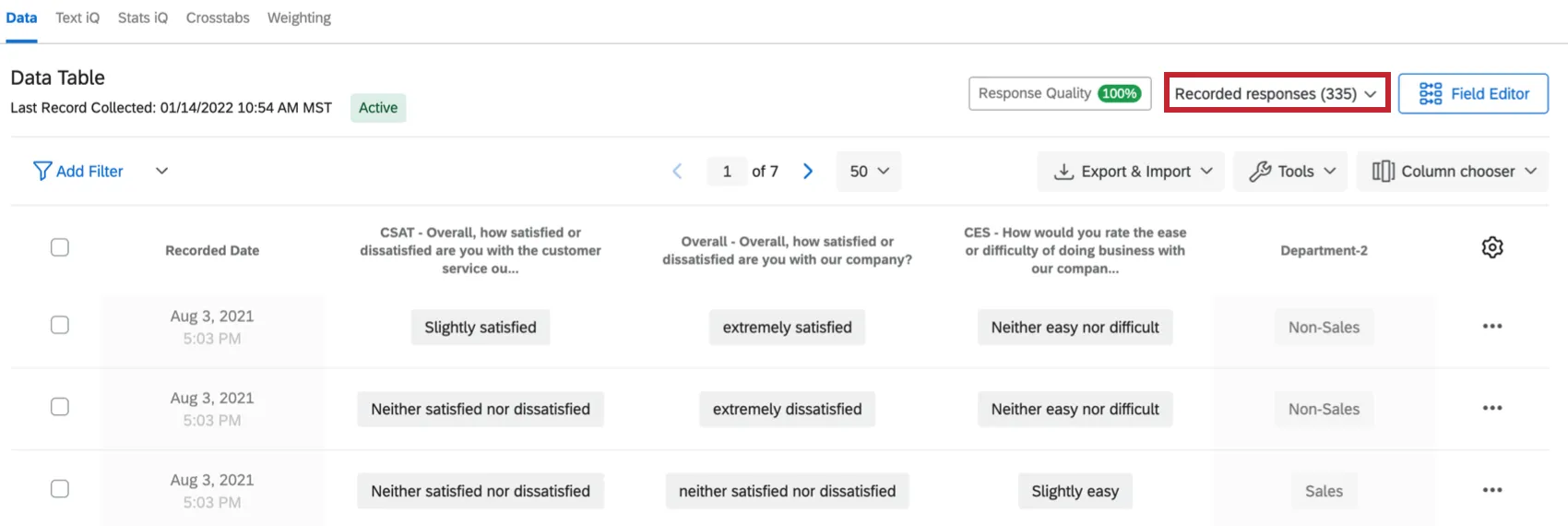
When you enter the Data & Analysis tab, you will land on the Recorded Responses page by default. Recorded responses contain all the responses recorded for your survey (that are not in progress), and includes all the data that can be displayed in reports or exported from the platform. From here, you can view and manage the data you’ve collected. On this support page, we will cover what is considered a “recorded response,” customizing columns, individual response PDFs, deleting data, and more.
The number of recorded responses displays in the top-right corner of the Recorded Responses page.
Qtip: Looking for functions not covered on this support page, such as filtering, response editing, or exporting data? Check the menu to the left for more support on Data & Analysis.

What Counts as a Recorded Response?
Recorded responses include any survey response that is completed or incomplete responses that were closed. This includes:
- Responses that were 100% completed by the respondent.
- Responses where the respondent got all the way to the end of the survey, even if they skipped
- Preview, test, and imported responses.
- Responses uploaded from the offline app.
- Incomplete survey responses that were manually closed out from the Responses in Progress page.
- Incomplete survey responses that were automatically closed due to the incomplete survey responses survey option.
Only recorded responses are used in Text iQ, Stats iQ, Crosstabs, and both types of reports.
Qtip: The time zone used for all dates and times recorded in your Qualtrics account correlates to the time zone set in your Account Settings.
Dataset Update Frequency
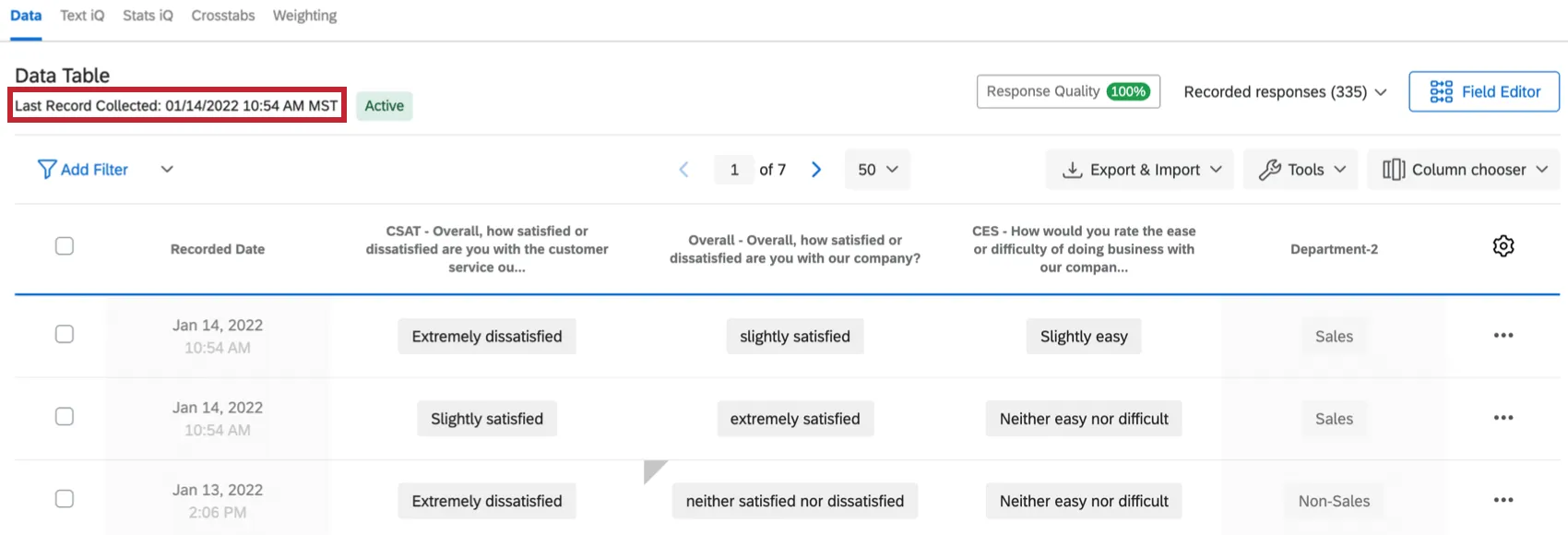
Depending on how frequently your dataset is updated, your Data section will return a specific dataset update status. This status allows you to get a quick understanding of how frequently your dataset is updated with new responses.
Dataset Update Statuses
There are 3 possible dataset update statuses you’ll be able to see: Active, Partially active, or Inactive.
- Active: This dataset is updated frequently (within the last 15 days).
- Partially active: This dataset is updated occasionally (within the last 15-30 days).
- Inactive: This dataset is updated infrequently (hasn’t been updated in more than 30 days).
You can view more information about your dataset records by hovering over the Active, Partially active, or Inactive status in your Data section. When you hover over the status, a tooltip will appear with more details about the update status of your dataset.

Navigating Pages of Responses
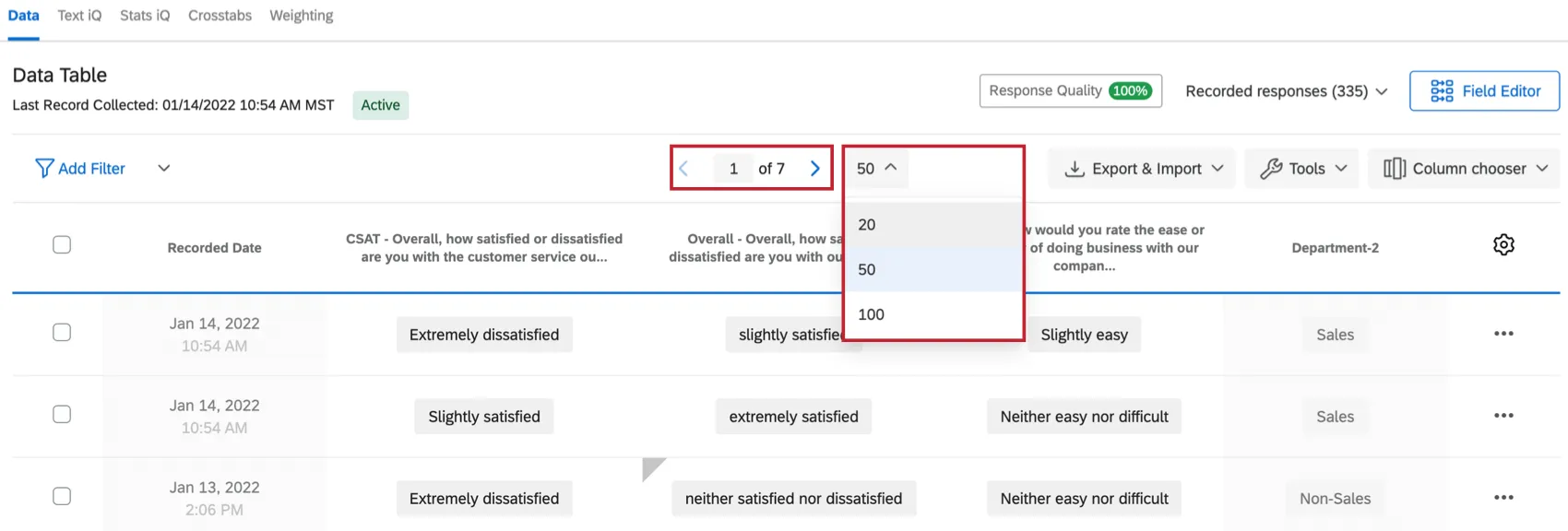
You may collect more responses than can appear on 1 page. Use the table navigation at the top of the table to view additional responses. You can click the page number and enter a specific page to view, as well as select how many records to display on 1 page.
Attention: You cannot view more than 10,000 responses in the Qualtrics data table. If you have more than 10,000 responses, filter to view specific responses or export to view the entire table externally.

Viewing Individual Responses
Navigate to the Data & Analysis tab.
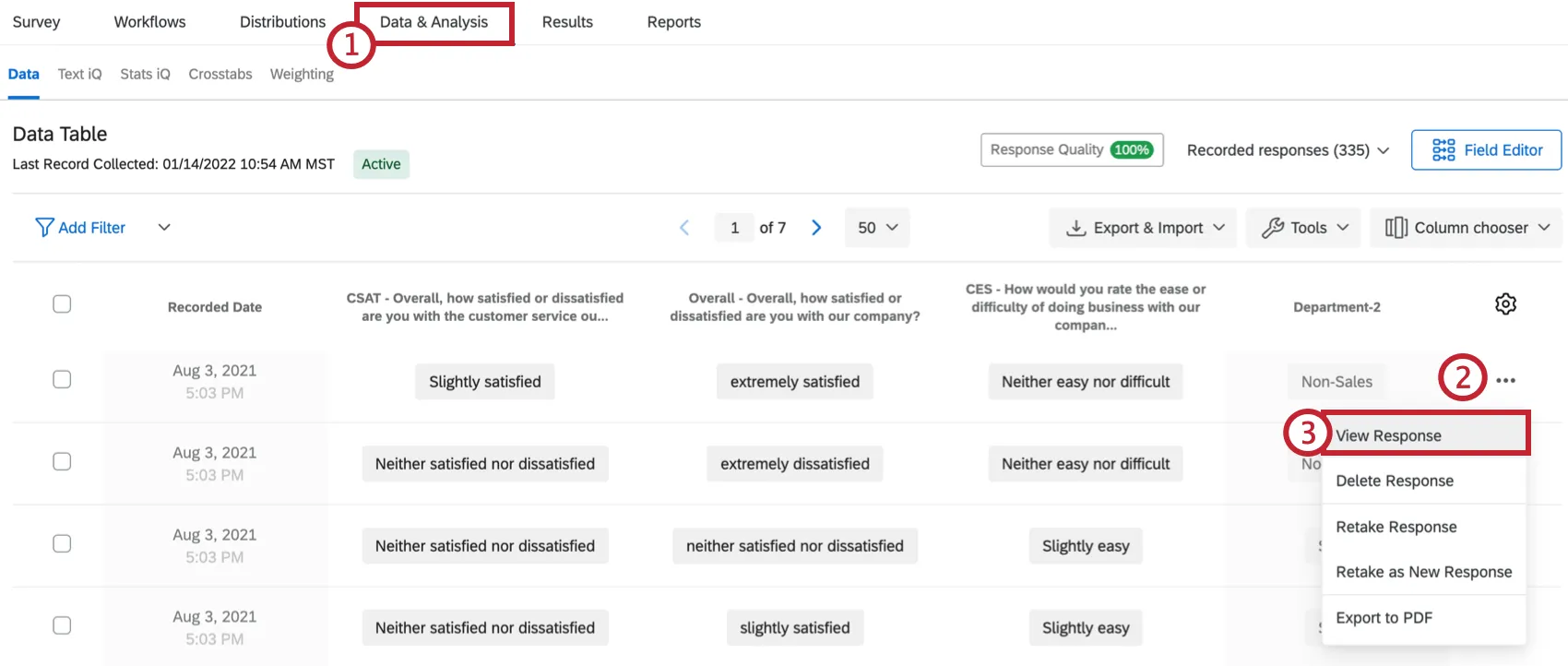
Find the response you want to view, and click the 3 dots to the far-right under the gear icon.
Choose View Response.
View the response summary.

Attention: The question text that is displayed in the response summary is from the version of the survey the respondent saw when they took it. This may be different from the current version of your survey as it appears in the survey editor. If you’ve made changes to your survey since your respondent submitted their response, the response summary will not be updated to include those changes. Because of this behavior, your response summary may look different than expected if your survey has been edited after data collection.
Click Close to return to your recorded responses.
This Question Was Not Displayed to the Respondent
When viewing an individual response, you may see the phrase “this question was not displayed to the respondent” for some questions. There are a few different scenarios which can cause this message to appear.
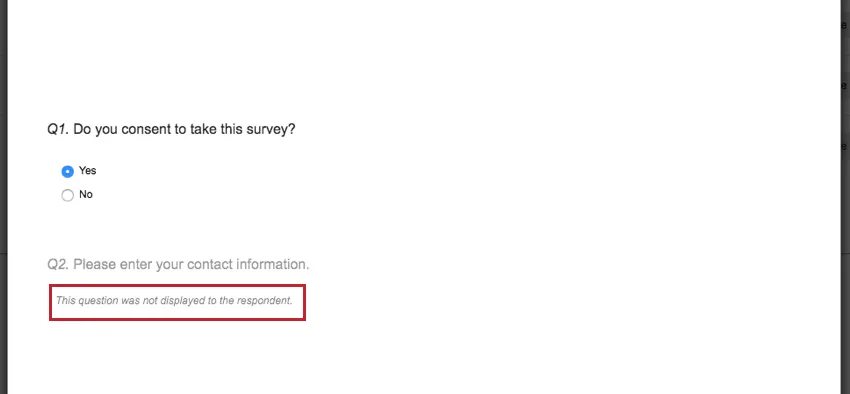
The common causes of this message are outlined below:
- This is an incomplete survey response, and the respondent didn’t reach the question before their response was recorded.
- The question was not shown to the respondent due to branch logic or display logic.
- The respondent saw a previously published version of the survey without the question.
- The question was nested in a block under an authenticator into which the respondent failed to authenticate.
- Question randomization or a randomizer survey flow element caused the question not to be seen.
Exporting an Individual Response to PDF
By exporting an individual response to a PDF, you can share this file with colleagues and collaborators.
Qtip: You can only export 1 individual response to PDF at a time.
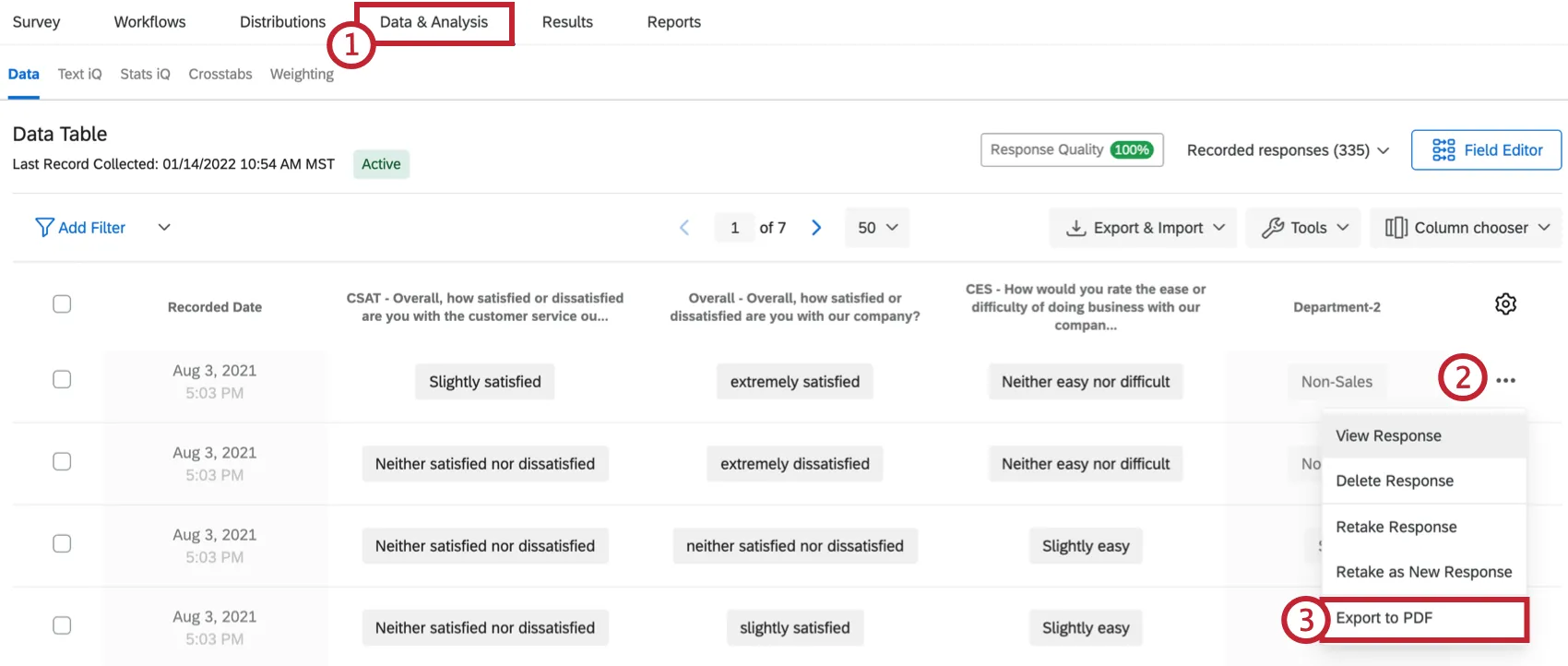
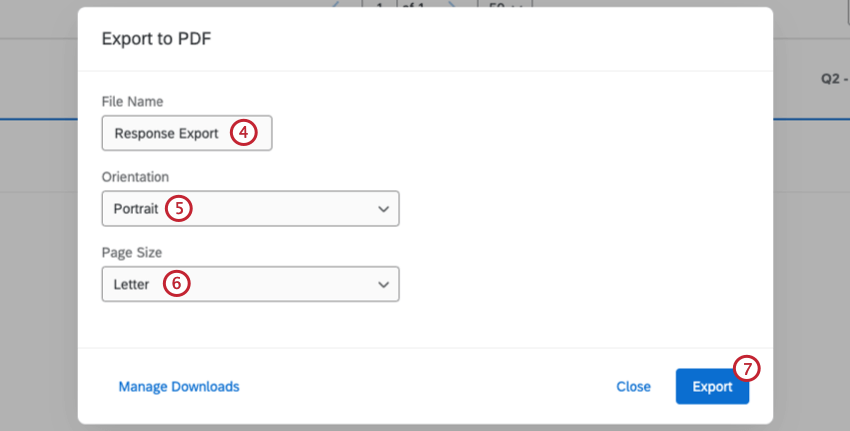
Qtip: To print this report, export it to PDF. From there, you can open the file on your computer to print it.
Deleting Responses
Attention: Responses can be undeleted in limited cases, though it is not guaranteed. Contact Qualtrics support to determine if your responses can be restored.
Qtip: It may take up to 24 hours for responses to be deleted.
You can easily remove specific responses from your dataset. You can delete a single response, selected responses, or responses based on filters.
Qtip: Learn more about GDPR Compliance in Qualtrics.
How to delete a single response
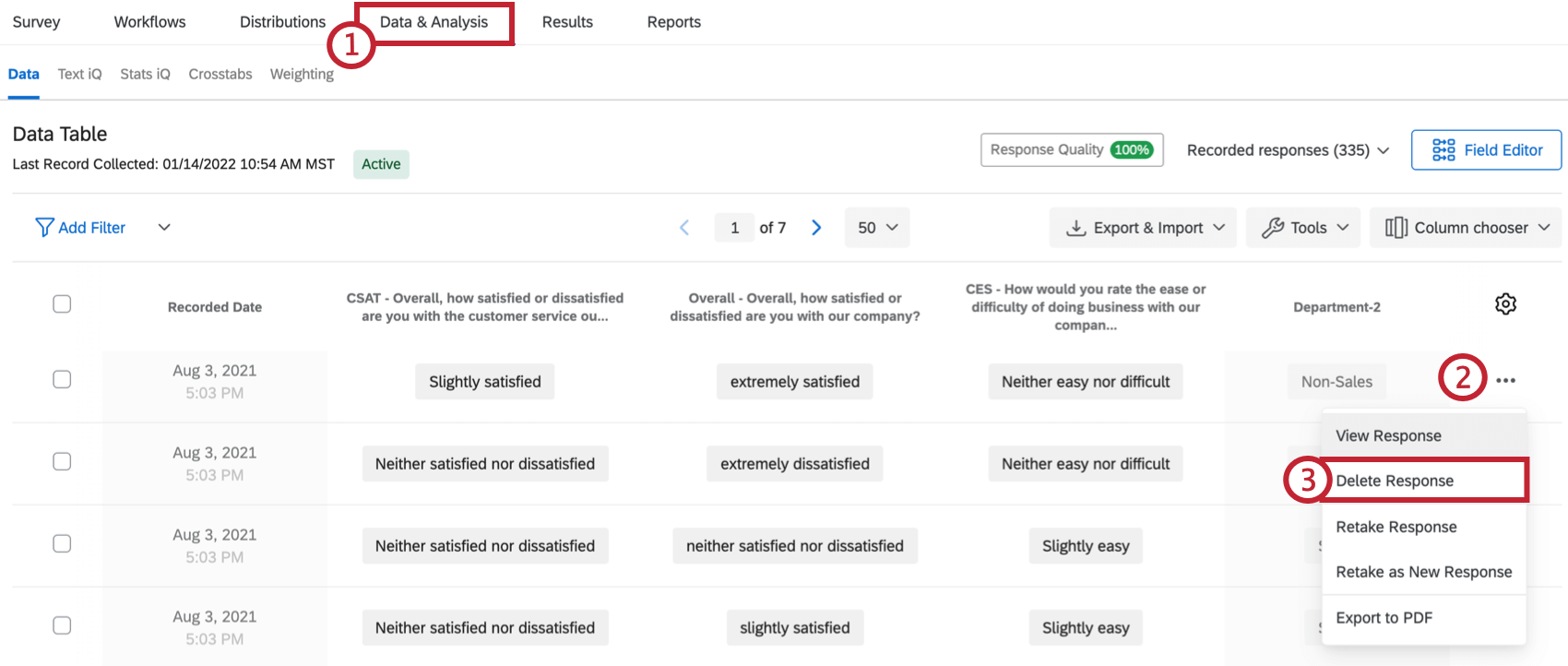
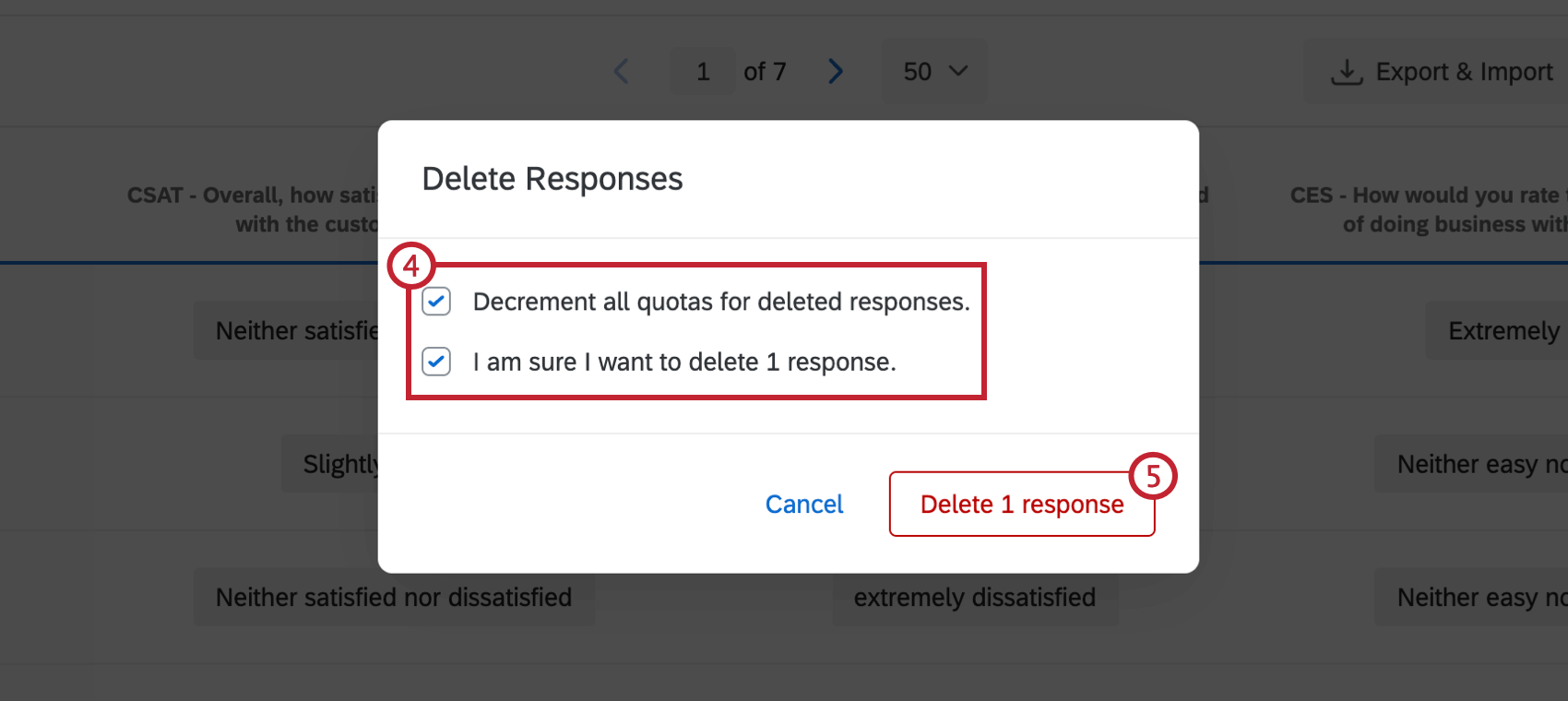
Qtip: “Decrement all quotas for deleted responses” means that your quotas will be decreased accordingly when you delete the responses. For example, if one of the responses you are about to delete previously increased your quota count when the response was submitted, your quota will be decreased by one when you delete this response and check the box for “Decrement all quotas for deleted responses.” If your survey does not have any quotas in use, checking or unchecking this box will not affect anything.
How to Select and Delete Multiple Responses
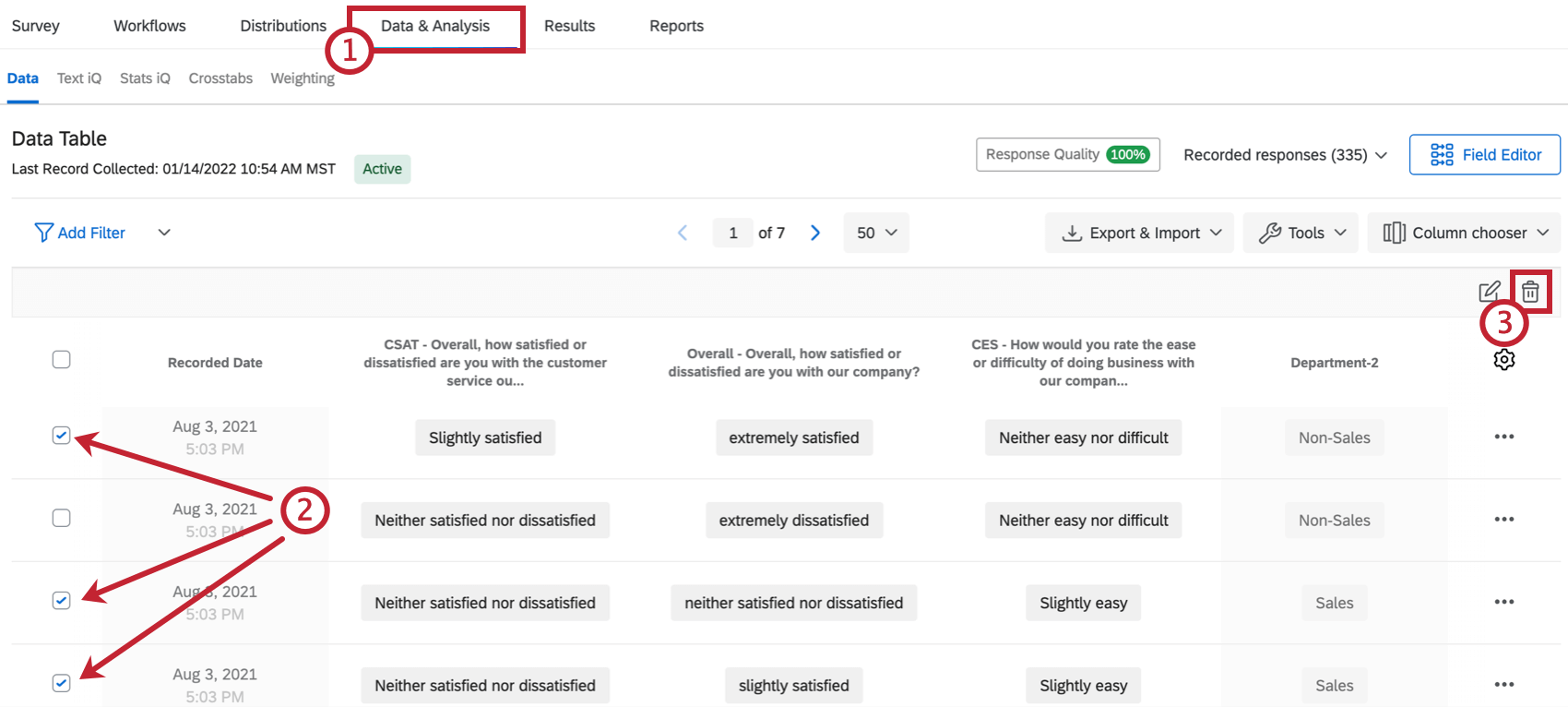
Qtip: “Decrement all quotas for deleted responses” means that your quotas will be decreased accordingly when you delete the responses. For example, if one of the responses you are about to delete previously increased your quota count when the response was submitted, your quota will be decreased by one when you delete this response and check the box for “Decrement all quotas for deleted responses.” If your survey does not have any quotas in use, checking or unchecking this box will not affect anything.
How to Delete All Responses at Once
In this section, we go over how to delete all the responses in your survey at once.
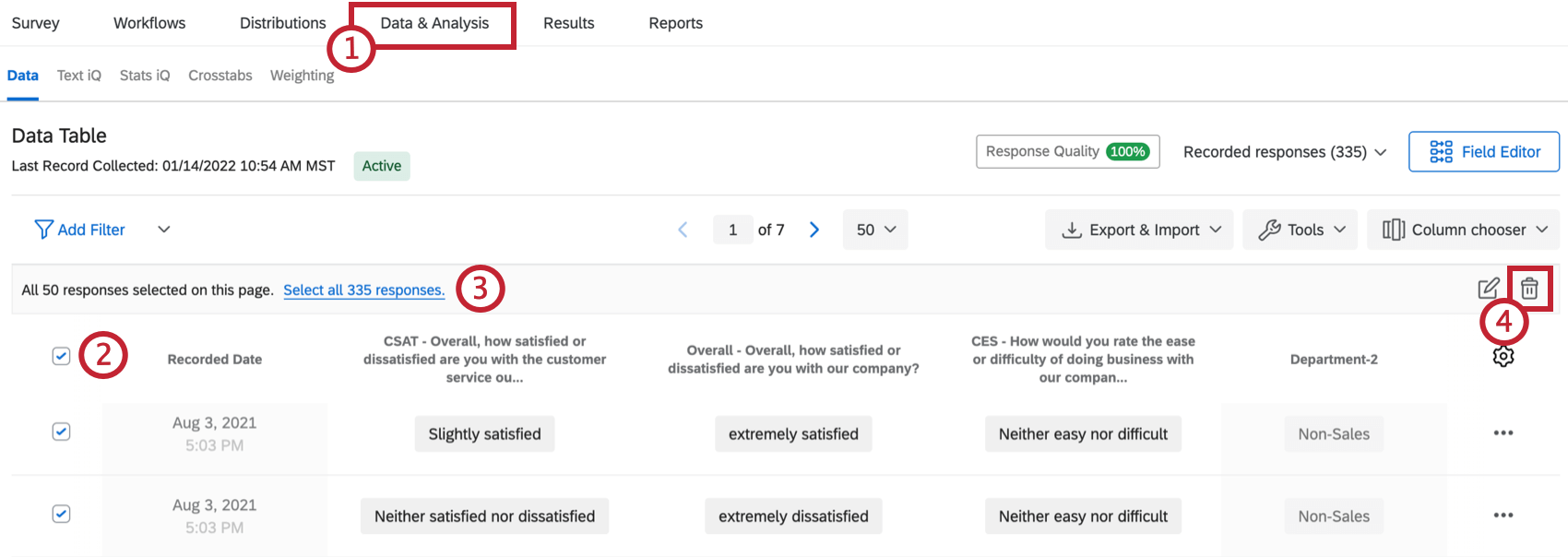
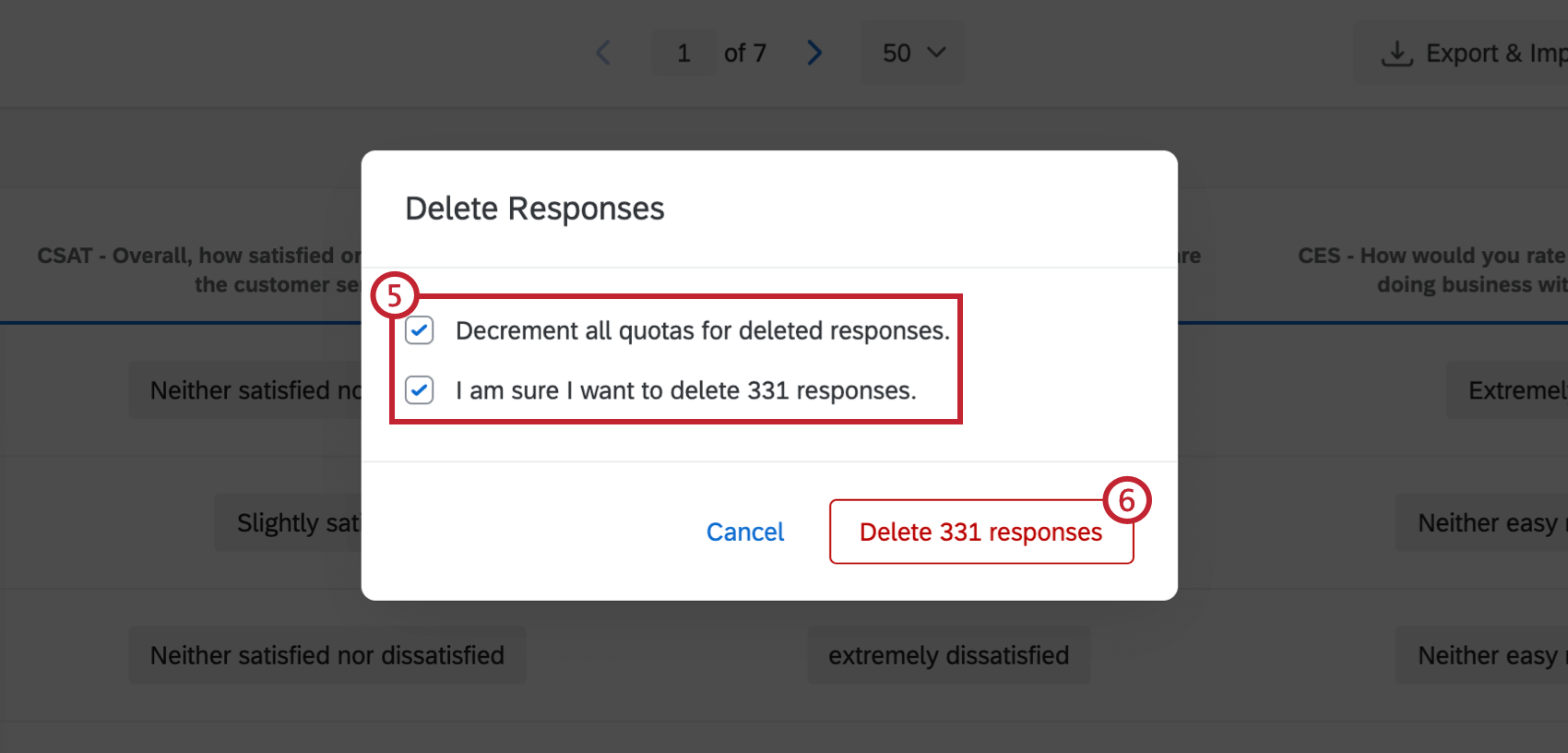
Qtip: “Decrement all quotas for deleted responses” means that your quotas will be decreased accordingly when you delete the responses. For example, if one of the responses you are about to delete previously increased your quota count when the response was submitted, your quota will be decreased by one when you delete this response and check the box for “Decrement all quotas for deleted responses.” If your survey does not have any quotas in use, checking or unchecking this box will not affect anything.
How to Filter For and Delete Responses
There are times when you may need to delete a lot of data at once that doesn’t necessarily fit a response type. This section covers how to use filters to delete many responses at once.
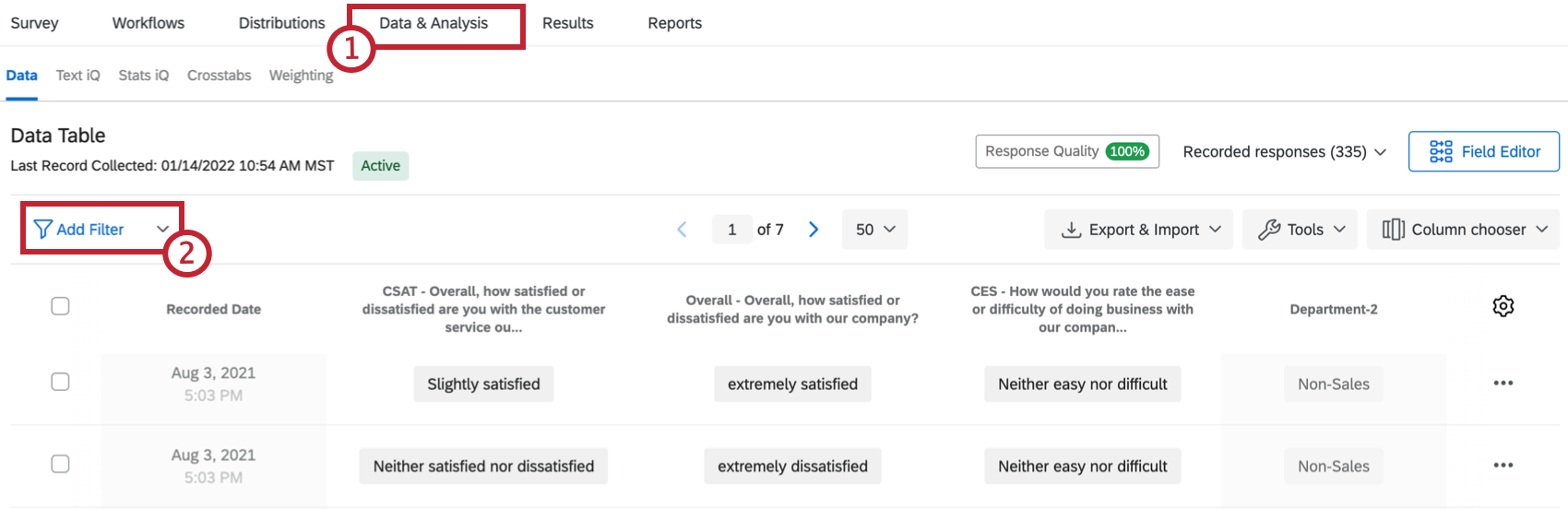
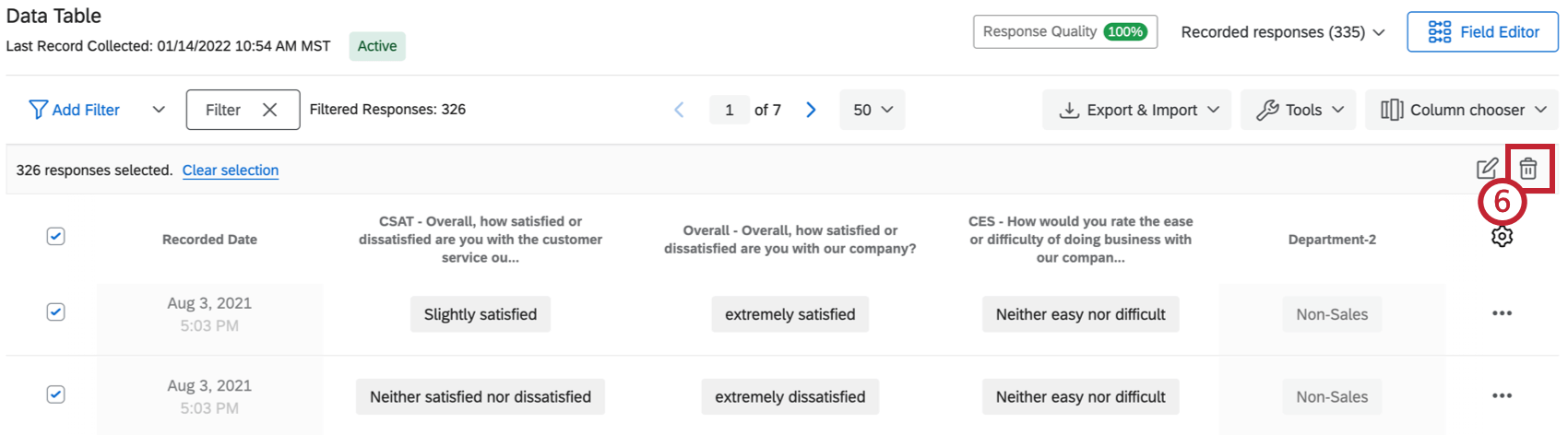
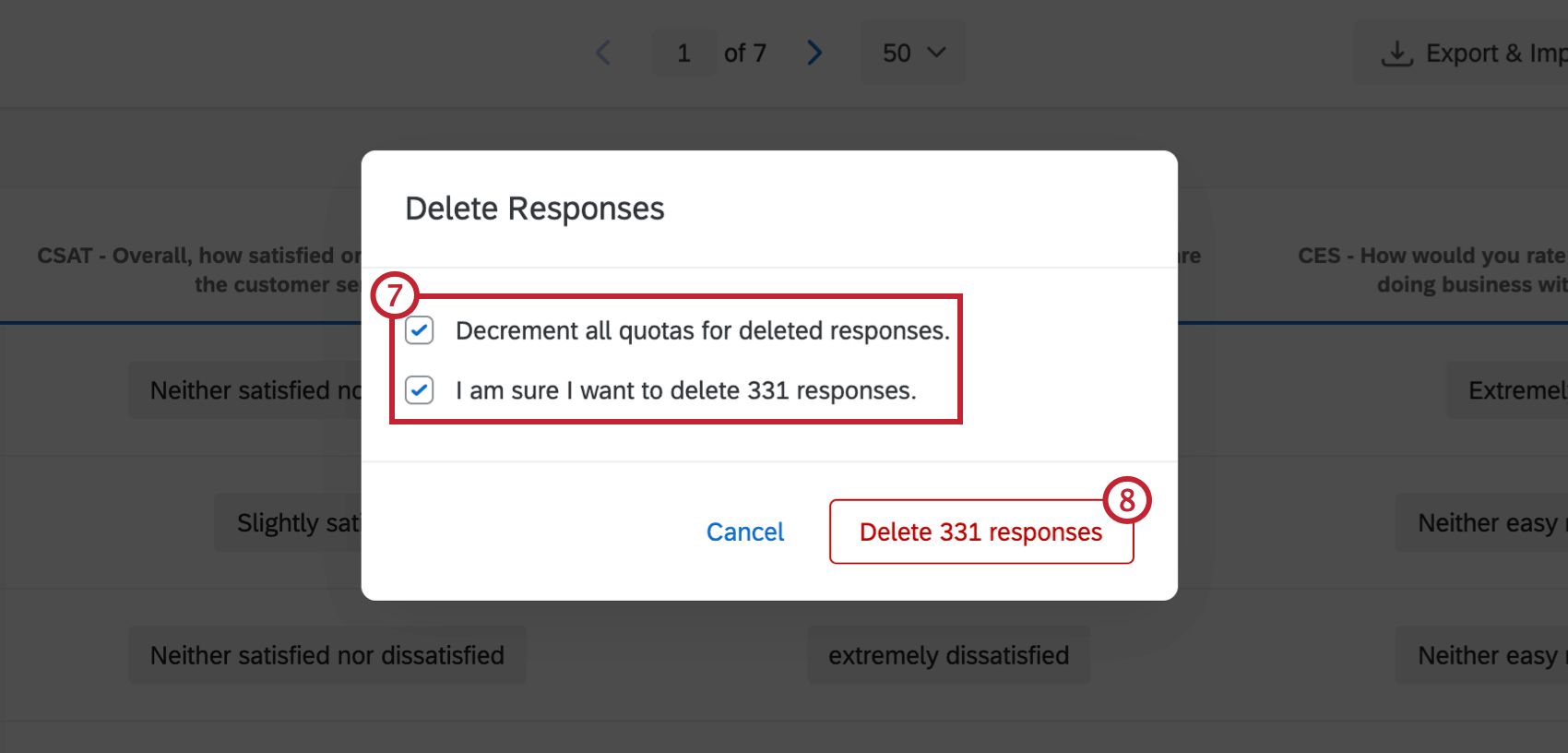
Qtip: “Decrement all quotas for deleted responses” means that your quotas will be decreased accordingly when you delete the responses. For example, if one of the responses you are about to delete previously increased your quota count when the response was submitted, your quota will be decreased by one when you delete this response and check the box for “Decrement all quotas for deleted responses.” If your survey does not have any quotas in use, checking or unchecking this box will not affect anything.
Choosing Columns
By default, the columns on the Recorded Responses page display the Recorded Date for each response, in addition to a few questions from the survey. However, you can change which columns of data you would like to display. The column options include any data you collected in the survey, such as answers to questions, survey metadata, Embedded Data fields, and custom fields.
You can only display up to 100 columns at a time.
Qtip: When downloading data, you can customize which columns are exported and/or the order of exported columns by using the steps described below. Then, when downloading your data, deselect Download all fields in your export options. With this option unchecked, only currently displayed columns in the Data & Analysis tab are exported.
Attention: If your survey is exceptionally large, then only Contact Fields and Survey Metadata will be available when choosing columns. This can occur in surveys with more than 6,500 basic fields such as multiple choice questions, or 2,000 larger fields such as free form text. To access your data, you must reduce the size or your survey’s dataset to be less than 6,500 fields. Additionally, you will not be able to export your dataset if it contains over 100,000 fields. If you have questions on how to reduce the size of your specific survey or how to prevent it in future, please contact Qualtrics Support.
How to Choose Columns
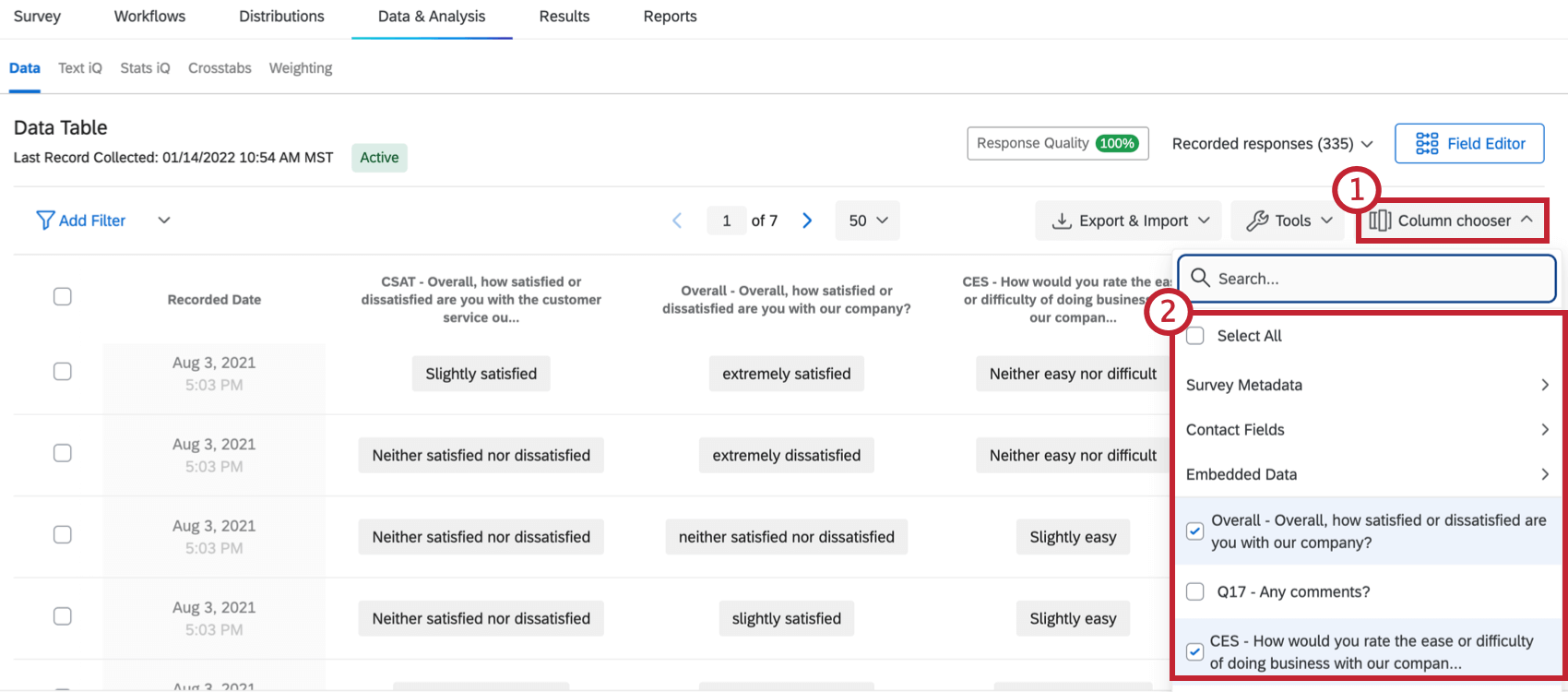
Note that you can also hover over a column header and click the blue plus sign (+) to add columns, or the red minus sign (–) to remove a column.
You can re-select a column to remove it. Columns currently displayed on the page will be noted with checkmarks.
Column Options
You can access additional options for a column by clicking on the column header.
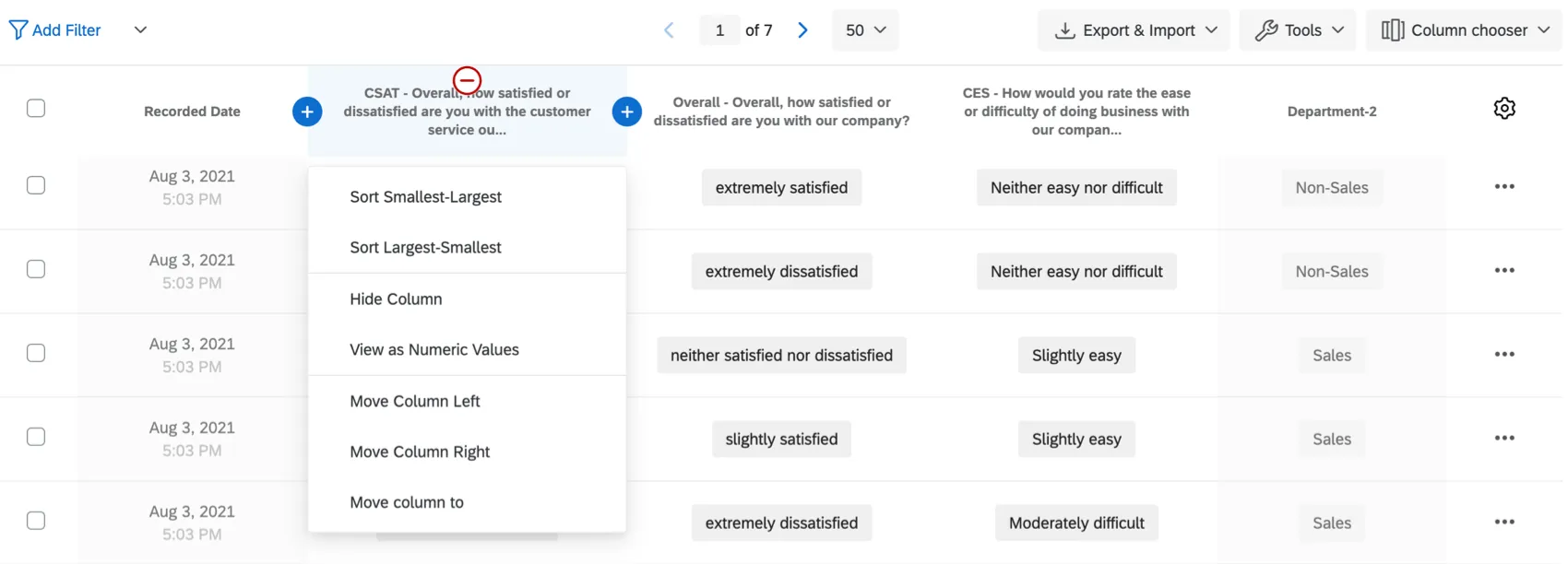
From here, you can perform the following actions:
- Sort: Sort the responses in your response viewer by the values in the column (A-Z, Smallest-Largest, etc.).
- Hide Column: Hide the column from the response viewer.
- View as Numeric Values: View the recode values for each answer rather than the choice text.
- Move Column Left/Right: Shift the column over one column left or one column right.
- Move Column To: Move the column to a specific spot in the data table.
Save Layouts
After choosing which columns to display, you may find that there are several combinations of columns you want to be able to reuse later. For example, because you can export just your chosen columns (by deselecting Download all fields), you might have arrangements you rely on when you export your data.
Luckily, you can save different arrangements of columns using the Save Layouts feature.
Qtip: This feature only saves the arrangement of your data columns. It will not save your filters – see Saving and Reloading Filters for those instructions.
Saving a New Layout
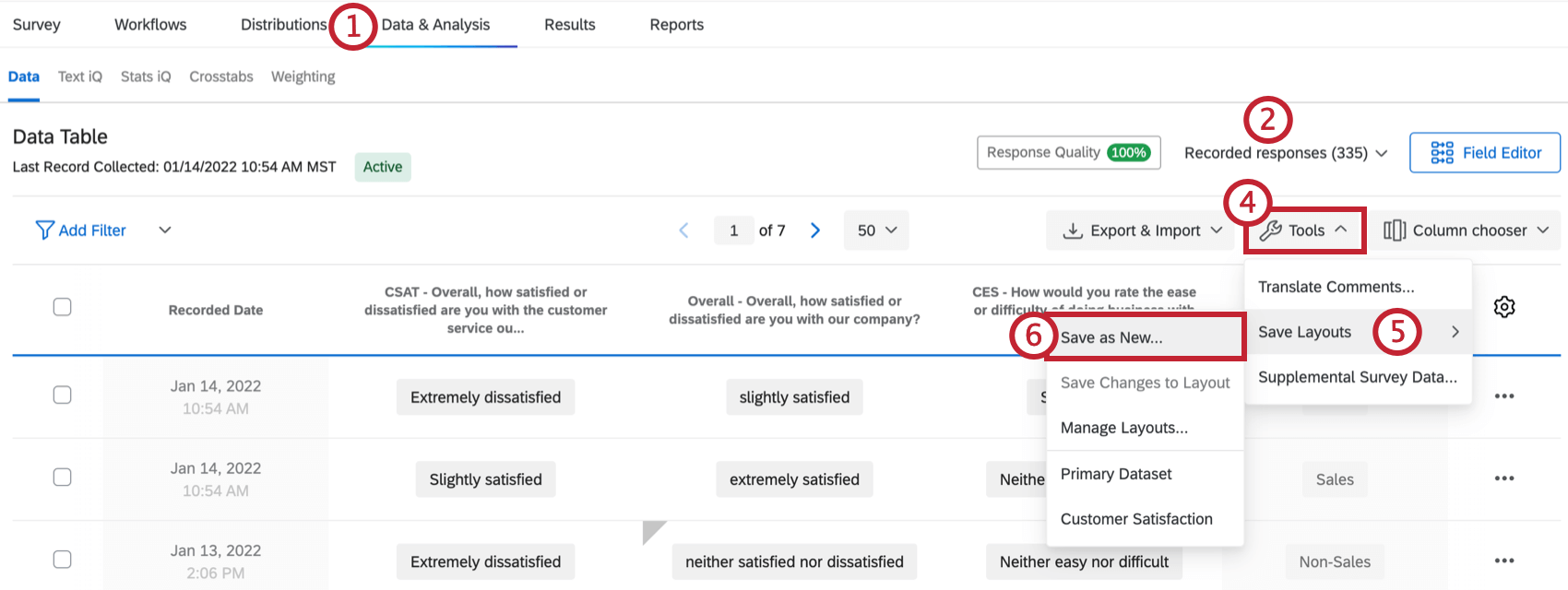
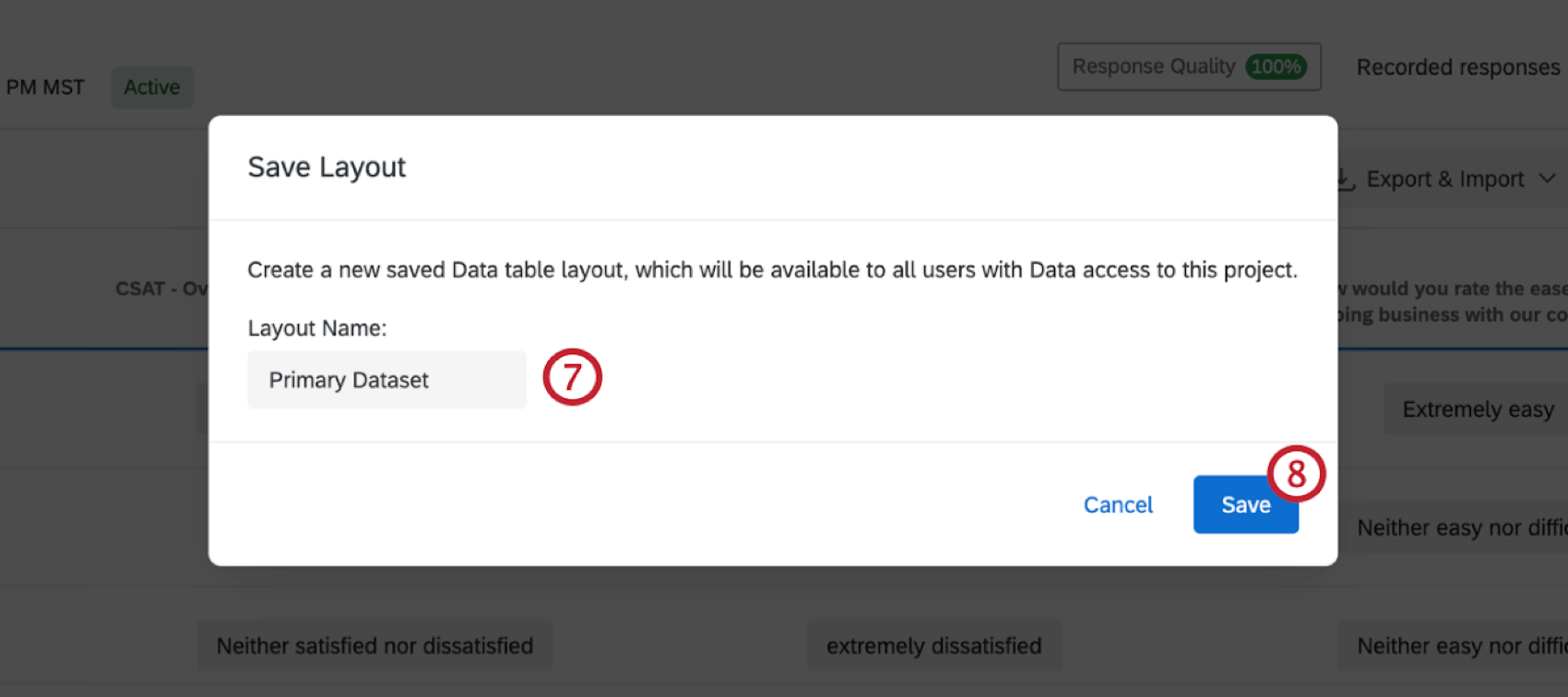
Loading and Editing a Layout
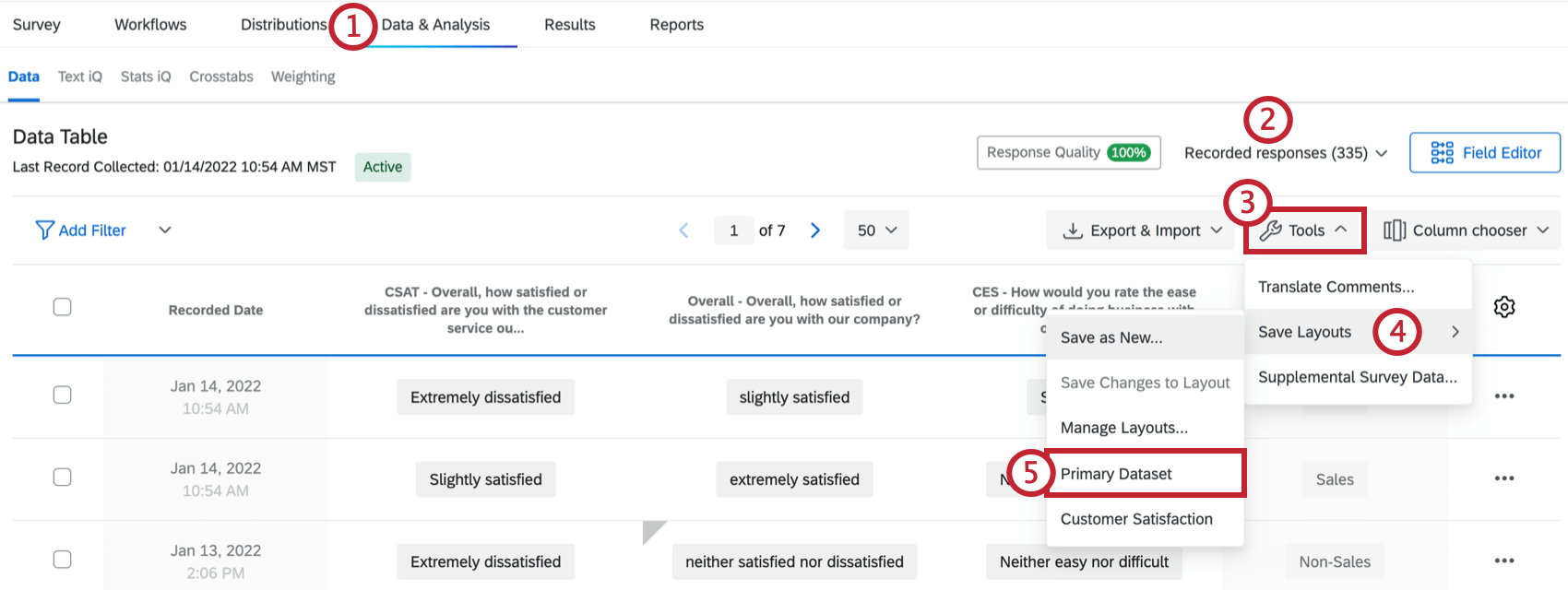
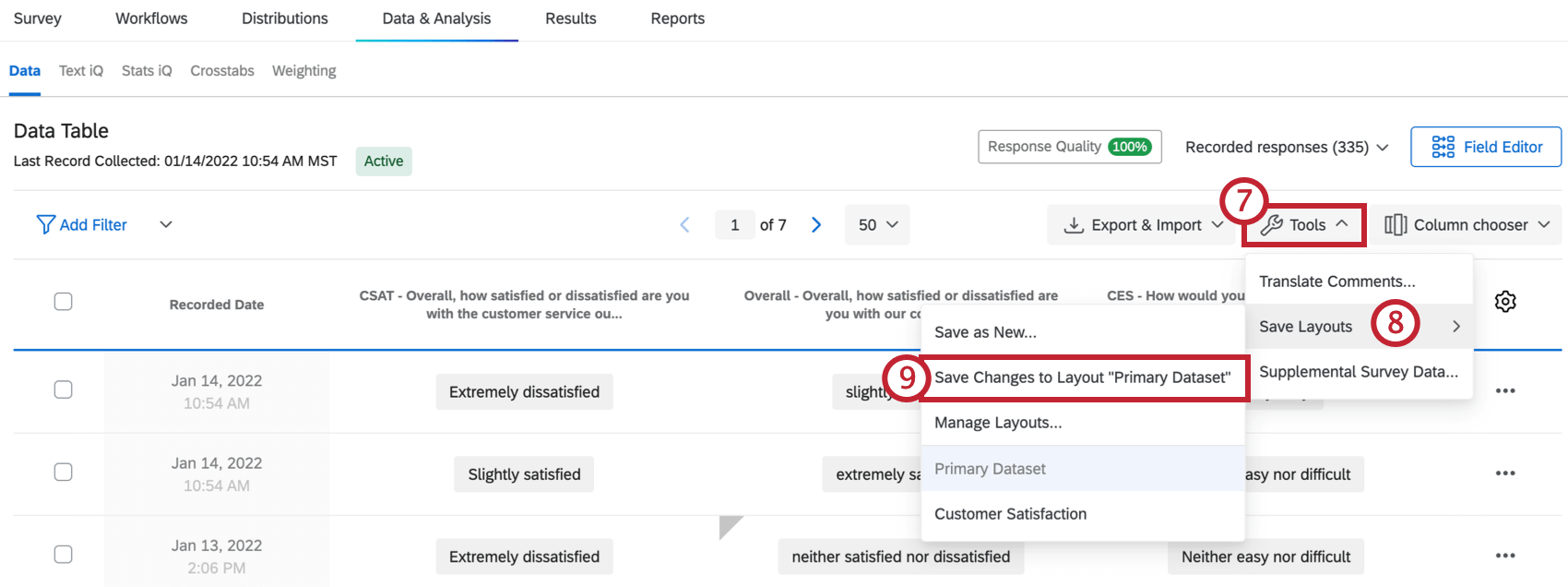
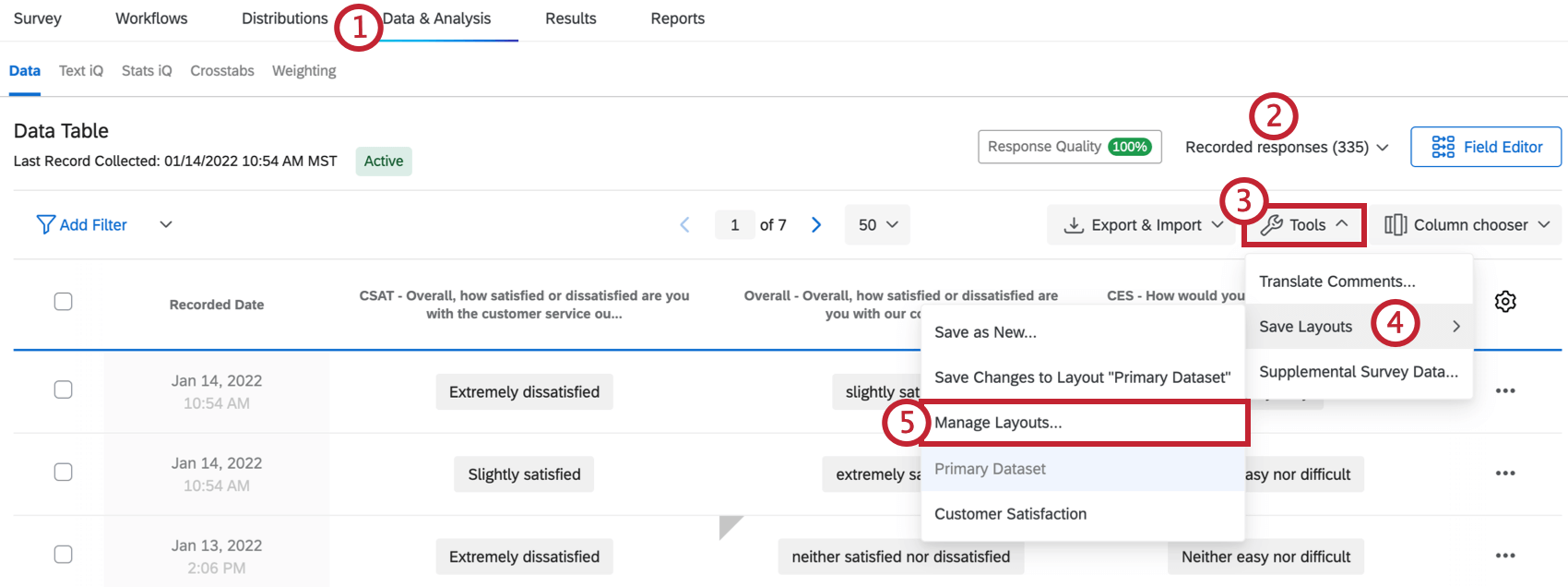
Manage Layouts
After your layouts are created, you have the option of renaming or deleting them.
Redacted Responses
Sometimes, you may notice asterisks concealing part of a response. This means that your Brand Administrator has set up a Sensitive Data Policy, which will flag and redact sensitive information in a survey to protect the respondent. Please see the Collecting Sensitive Data section of the Sensitive Data Requests support page for more information.

Recorded Responses in Different Project Types
The Recorded Responses page is available in many different types of projects. The steps and options described on this page apply to the following project types:
There are a few other types of projects with a page called Recorded Responses. However, there are important differences to keep in mind:
FAQs
How do I filter my responses?
How do I filter my responses?
How can I export an individual response report to PDF? Is it possible to download them all at once?
How can I export an individual response report to PDF? Is it possible to download them all at once?
Unfortunately, exporting all individual responses to PDF at once is not possible. However, you can export all of your responses to a variety of formats (CSV, SPSS, etc.) by using our Export Data feature.
What responses actually count toward my license?
What responses actually count toward my license?
Licensed responses are any completed responses that are not Survey Previews or Survey Tests. Completed responses can include imported responses, finished surveys, and partial surveys that were moved out of responses in progress and recorded. If you ever want to know the exact number of interactions you’ve used, reach out to your Brand Admin. You can also view your response usage by going to Account Settings to view the legacy Account Usage report.
Contact Account Services or your Account Executive prior to importing historical responses, as this may require an update to your license.
How do I delete my preview responses or test responses?
How do I delete my preview responses or test responses?
Note that “Survey Tests” refers to fake data generated by the Generate Test Responses feature and does not refer to surveys submitted during live testing.
How do I set which columns show in my response viewer?
How do I set which columns show in my response viewer?
Can a participant retake their survey?
Can a participant retake their survey?
Note that in Retake Survey links, all of the participant’s original answers are prepopulated. If new questions have been added to the survey in the meantime, those questions will be blank.
Why is my contact list information not appearing in the downloaded data?
Why is my contact list information not appearing in the downloaded data?
If you forgot to put Embedded Data in the Survey Flow, you can add it to your data retroactively, so long as there are values in the contact list. See the Embedded Data support page for further instruction.
Note that if the contact list information you’re trying to download was not included in the contact list at the time the members took the survey, retroactively adding the Embedded Data fields to the Survey Flow will not add that information to the downloaded data later.
What do the different columns in my downloaded data mean (Status, Finished, External Data Reference)?
What do the different columns in my downloaded data mean (Status, Finished, External Data Reference)?
Can I import my own data into Qualtrics?
Can I import my own data into Qualtrics?
I set a survey expiration date, but some responses are still coming in. What is happening?
I set a survey expiration date, but some responses are still coming in. What is happening?
When the survey expiration date arrives, respondents who have already started their surveys will be able to complete their responses for a limited period of time. How long they have is determined by the Incomplete Survey Response setting (also found in Survey Options).
For example, let's say Survey Availability is set to 60 days and Incomplete Survey Response completion is set to 2 weeks. You receive your survey link and wait 55 days before clicking on it. As soon as you move past the first page (i.e., click the first "next" button), the Incomplete Survey Response setting takes over. You now have 2 weeks to finish taking the survey (even though the survey expires in 5 days). In this situation, participants can submit survey responses after a survey has expired or been deactivated.
If you want to avoid this scenario, you can pause response collection and choose to close all incomplete responses. This will close all surveys regardless of Incomplete Survey Response status and stop anyone from submitting after that point. All the partial data will be added to the Recorded Responses page with all the other survey data.
What happens if I collect more responses than my account allows?
What happens if I collect more responses than my account allows?
Is personal data permanently deleted when I remove it?
Is personal data permanently deleted when I remove it?
I have filtered my results and they say that I have 45 people who meet my condition, but my Quota says I have 50. Why is there a discrepancy?
I have filtered my results and they say that I have 45 people who meet my condition, but my Quota says I have 50. Why is there a discrepancy?
You do have the option to decrement your quota when you delete a response. To do this, select Decrement all Quotas associated with deleted responses when confirming deletion of your responses. Doing this will help your quota count remain accurate.

How do I export my data into a CSV or SPSS file?
How do I export my data into a CSV or SPSS file?
I have a lot of questions in my survey and I would rather not export data for the entire survey. Is there a quick way I can see the entire response for an individual?
I have a lot of questions in my survey and I would rather not export data for the entire survey. Is there a quick way I can see the entire response for an individual?
What are the numbers in my exported data file, and can I change them?
What are the numbers in my exported data file, and can I change them?
Can I edit or add information to a response after it has been submitted?
Can I edit or add information to a response after it has been submitted?
If you would like an individual to retake their response instead, you can find instructions for this on the Retake Survey Link support page.
How do I delete responses I do not want?
How do I delete responses I do not want?
For more information regarding deleting responses, see Deleting Responses.
I want to remove a question or answer choice from a survey, but I’ve already collected some data. What do I do?
I want to remove a question or answer choice from a survey, but I’ve already collected some data. What do I do?
Why have my contact fields been replaced with “******”?
Why have my contact fields been replaced with “******”?
How does account usage differ from recorded responses?
How does account usage differ from recorded responses?
Think of recorded responses as the total number of complete responses collected for a survey. This can include individual responses, anonymous responses, imported responses, and more.
Imported responses are billable under the new simplified pricing and packaging plans. If your license is on the new pricing plan, you can check your license’s usage with the Interaction Usage Report. If you are on multiple suites, imports are not currently included in the usage report. If you are not on a new plan, imports are not included in your usage report. Contact Account Services if you have questions about your license.
Account Usage shows you how many responses you’ve collected, labeled as “Allowed Responses.” This excludes imported responses because they are considered separate. If you have questions about pricing for imported responses, reach out to your Account Executive.
That's great! Thank you for your feedback!
Thank you for your feedback!