

Relationship Surveys
What's on this page
About Relationship Surveys
A relationship survey is a strategic tool designed to capture key metrics over time, as well as open feedback. A relationship survey is an important part of any strong Customer Experience (CX) program, because it establishes a standardized baseline for customer sentiment, which is essential for setting corporate targets and assessing long-term loyalty trends. Furthermore, these surveys can identify systemic friction points within the customer experience and quantify the financial impact of improvements on retention and lifetime value.
Qtip: If you’d like to take a lesson or watch short videos on this subject, check out the How to Launch a Relationship Survey course on Qualtrics Learn!

Relationship Survey Best Practices
As you build your survey, here are some recommendations on information to include, as well as the Qualtrics features that will benefit your survey the most.
- Survey introduction: Use a text / graphic question. Set expectations for how long the survey will take to complete and include how feedback will be used. This sets the tone and establishes trust.
- Key metrics: Key metrics are usually questions formatted as scales – e.g., “Rate this from 1 to 5.” Metrics are valuable in evaluating overall loyalty and satisfaction. Examples include NPS (Net Promoter Score) or CSAT (Customer Satisfaction). Metrics should appear at the beginning of the survey; afterwards, the open-ended feedback can help explain why the respondent gave the score they did.
- Brand perception drivers (optional): Ask customers about their perception of your brand vs. your competitors. Brand drivers commonly follow key metric questions to understand customer sentiment around defined brand attributes (e.g. trust, helpfulness, value, etc).
- Product usage (optional): Ask specific questions about how the customer has interacted with products / services and service channels to understand their perceptions of each.
Qtip: Want to include brand drivers and product usage questions, but unsure where to start? Try using our certified questions. Check out the Customer Experience categories of Customer Care and Relationship Health.
- Open-ended comments: End with a text-entry question to capture any additional feedback the customer wants to share about their relationship or experience with your brand.
- Closed-loop request (optional): If you plan to integrate this survey with case management or closed loop processes, you should add a yes/no question asking for consent to follow up with the client.
End of survey message: This should thank the customer for their time and remind them how their feedback will be used to improve their future experiences. The message can be used to direct customers to additional information or next actions they can take.
Qtip: You may want to give a custom end of survey message to respondents who indicated it’s okay to follow up with them, letting them know when they can expect a response. To achieve this, use a branch and an end of survey element in the survey flow.
- Frequency: Relationship surveys are generally distributed annually or semi-annually. A recommended approach is to create a "Quarterly NPS Survey" where active customers receive the survey once a year, but distributions are sent quarterly to 25% of the customer population to maintain a steady flow of data.
Distribution method: We recommend emailing the survey to active customers.
Create a Relationship Survey
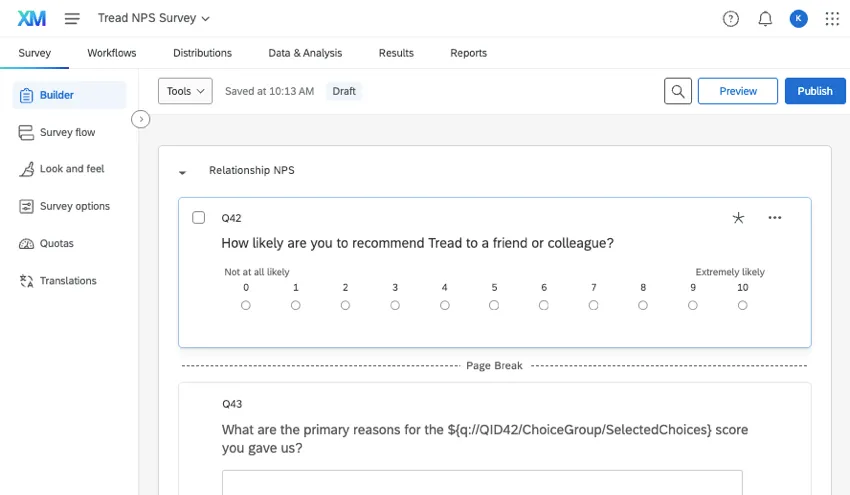
Qtip: Do you have a Customer Experience Program? You can create your survey inside it. You can also add the survey to the program later at any time.
Give the survey a name. For example:
- Quarterly NPS Survey
- Annual Customer Satisfaction Survey
Add questions. Relevant types include:
Customize the survey flow as needed.
Qtip: To add info to contacts, include it when you upload contact lists. Then add your embedded data to the survey flow.
Qtip: See our guide to adding consent forms to surveys (if applicable to your industry).
Write your end of survey message.
Edit the look & feel to fit your brand.
If needed, add translations.
Create Workflows
Workflows are an optional but powerful step that can help integrate Qualtrics surveys with your larger program of action. By building workflows, you level up from mere feedback programs to an experience management program, driving results. Here, we go through a few examples of workflows you can build from your relationship survey.
For more introduction to workflows, see Workflows Basic Overview or Building Workflows.
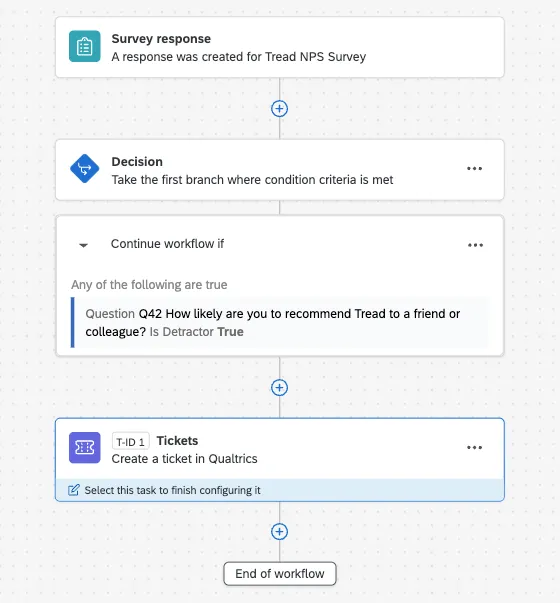
Create workflows in your survey.
Choose an event to start the workflow.
Example: A survey response is submitted.

Example: A ticket is assigned or changes status.
Narrow down the starting event with conditions.
Example: A negative NPS is received.
Choose what tasks happen as a result. For example:
- Send an email.
- Send a message in Slack or Microsoft Teams.
- Make a ticket in Qualtrics, Salesforce, ServiceNow, Zendesk, Jira, or another CRM.
- Reopen a ticket.
- Send a different survey.
Attention: Once you’re finished, don’t forget to Publish your workflow!


Distribute the Survey
There are many ways to distribute your survey. If you’d like to email your survey to your customers:
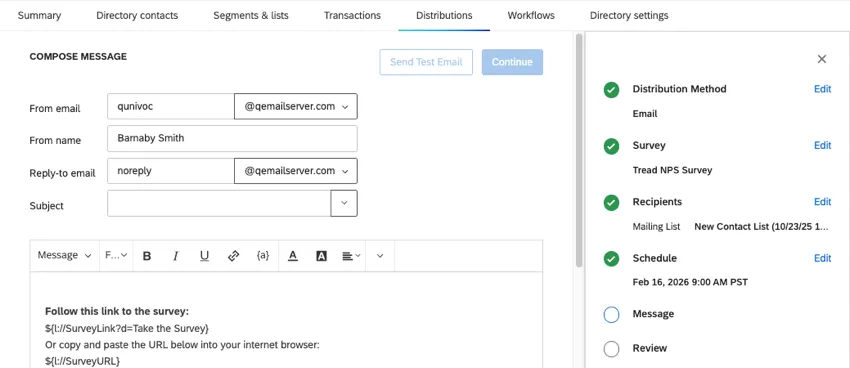
You can also automate survey invites so they go out on a regular, scheduled basis using workflows. This option takes a little more initial work to set up, but less work in the long run.
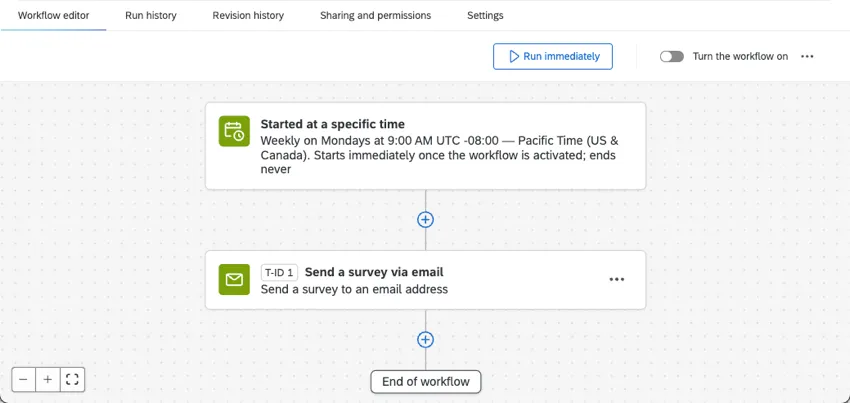
- Distribution workflow: Email the survey on a scheduled basis.
Workflow distributions work best with a well-maintained customer directory. For example, by using a Contact upload workflow, you can regularly pull your organization’s contacts from one source (Google Drive, S3, etc.) to your contact directory. This can ensure the list of contacts your regular invite to your survey is completely up-to-date.
Qtip: Administrators interested in contact directory setup can see Getting Started with XM Directory.
FAQs
Can I edit a live survey that is currently being taken?
Can I edit a live survey that is currently being taken?
- Who will see the changes? Only those who have not yet started the survey will see the new changes. Anyone who started the survey prior to your changes will see the original survey, not the updated one.
- What kinds of changes are okay? Superficial text edits are fine (e.g., fixing a typo or changing the font), as are adding questions or answer options. However, deleting questions or answer options can harm previously collected data. We recommend never deleting answer choice options or questions (unless you are 100% positive that you will not ever need any of the collected data associated with those answer choice options or questions). Instead, we recommend hiding unwanted questions and answer options with Advanced Randomization.
How do I save/undo my edits to my survey?
How do I save/undo my edits to my survey?
Often, Qualtrics will allow you to undo a change if you hit Ctrl + z (PC) or Cmd + z (Mac) on your keyboard. However, not all changes are undoable.
Qualtrics automatically saves previous versions of your survey when you make edits or publish your survey. Survey versions are a snapshot of your survey and its settings and allow you to view any past version and restore your survey to that form. See the linked page for more information on this feature.
How do I display different messages for different participants at the end of the survey?
How do I display different messages for different participants at the end of the survey?
I am having trouble setting up logic to display a question or set of questions to a specific subset of my respondents.
I am having trouble setting up logic to display a question or set of questions to a specific subset of my respondents.
How do I translate my survey into other languages and specify a language for my survey respondents?
How do I translate my survey into other languages and specify a language for my survey respondents?
Does a survey expire? Under what circumstances?
Does a survey expire? Under what circumstances?
Yes - see Distribution and Survey Expiration for a full explanation.
How do I import a mailing list?
How do I import a mailing list?
How can I make sure the participant only takes the survey once?
How can I make sure the participant only takes the survey once?
If you are distributing your survey through the Qualtrics mailer or Personal Links, then Individual Links will automatically be generated for each participant. These Individual Links can be used only once and then become invalid.
If you are distributing your survey through the Anonymous Link, there are 2 options to prevent participants from retaking the survey:
- Prevent Multiple Submissions: You can enable Prevent Multiple Submissions in your Survey Options. This option will place a cookie in the participant’s browser that will restrict them from retaking the survey on that browser. However, the participant could still clear their cookie cache, use a different browser, or use a different computer in order to take the survey again.
- Authentication: You can use the Authenticator element in the Survey Flow. This option will require the participant to be a member of a contact list you have previously set up within your account. The Authenticator prevents contacts from retaking the survey by using the contact list as an authentication database. (Unless the Reload any previously saved progress upon authentication option is enabled, a single response from each contact is not guaranteed.)
How do I see which emails were sent, failed, and bounced after I send my survey via email?
How do I see which emails were sent, failed, and bounced after I send my survey via email?
To download the Distribution History, go to the 3 dot menu to the right of any distribution and choose Download history. To learn more about the statuses shown in the downloaded document, see the Distribution Statuses page.
I’m trying to send an email, but there’s an error! What does it mean?
I’m trying to send an email, but there’s an error! What does it mean?
That's great! Thank you for your feedback!
Thank you for your feedback!