-

Qualtrics Platform -

Customer Journey Optimizer -

XM Discover -

Qualtrics Social Connect
Exporting Response Data
About Exporting Response Data
You can export (another word for “download”) all of your participants’ responses to all the questions in your survey. When you export data from Qualtrics, you can save data to your computer for analysis in another software, to share the file with a trusted colleague, or even to import back into another survey. Each row of the file is a different respondent, and each column is a question of the survey they answered, survey metadata (e.g. Recorded Date, IP Address, etc.), contact fields, and any embedded data you may have recorded for each respondent.
Attention: If the export option is missing in your account, it may be due to one of the following:
- If your Qualtrics account is through your university or organization, this permission may simply be disabled for your account. Please contact your brand administrator to get this permission enabled.
- If you have a free account, you are not allowed to export data, and will need to upgrade your account.
Exporting Response Data from a Survey
- Make sure you are in the Data section of the Data & Analysis tab.
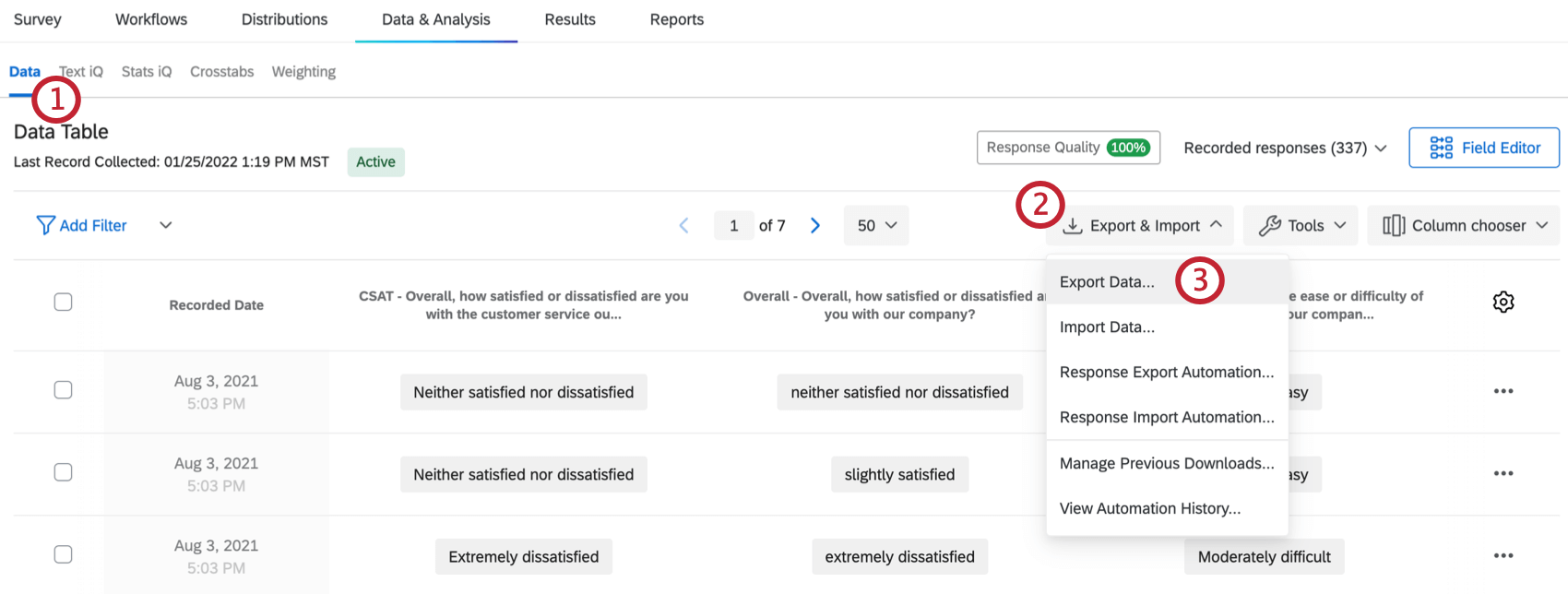
- Click Export & Import.
- Select Export Data.
- Select your desired file format. You have the following options:
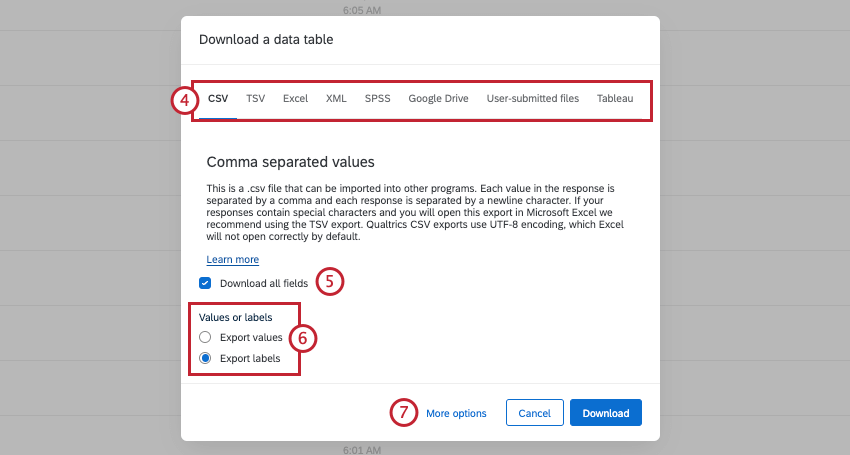
- CSV: A file format that can be opened in a text or spreadsheet editor. If you plan on importing this data back into a survey and your respondents primarily speak English, CSV is a compatible file format.
Qtip: Note that if you choose a format other than CSV or TSV, the options presented in the next steps may vary.
- TSV: A file format that can be opened in a text editor or as a spreadsheet in Excel. This file format works better than CSV when data contains special characters or the respondents speak in languages that do not use the English alphabet (or use more characters than the English alphabet, such as à, á, â, etc.). If you plan on importing this data back into a survey, TSV is a compatible file format.
- Excel: Export the data to an XLSX format, which is the preferred format for opening files in Excel. This file format cannot be imported back into Qualtrics.
- XML: A file format that can be opened as a spreadsheet in Excel. This format cannot be imported back into a survey.
- SPSS: This file format is compatible with SPSS, one of the world’s leading statistical softwares, and a staple in many research labs and classrooms. Note that if you do not already have access to SPSS, you should not use this file format.
Qtip: For more information about file formats and the differences between them, please visit the Export Formats page.
- Google Drive: Export your data to a Google Sheet in Google Drive. For more information, read our page on Exporting Response Data to Google Drive.
- User Submitted Files: If you included a File Upload or Signature question in your survey, you can use this option to download either the files users uploaded or the signatures they provided.
Attention: We recommend that you keep the size of your exports under 1.8 GB.
- CSV: A file format that can be opened in a text or spreadsheet editor. If you plan on importing this data back into a survey and your respondents primarily speak English, CSV is a compatible file format.
- Select Download all fields if you would like to export all of the data you collected.
Qtip: If this option is deselected, only columns currently displayed on the Data tab will export. See Choosing Columns for information on customizing what’s displayed in your Data tab.Example: If you want to export the data from a single question, make sure that question is the only column displayed in the Data tab, then export the data with Download all fields deselected.
- Decide whether you’d like to download data in a quantifiable, numeric format (Export values) or with the answer choices as written (Export labels).
- Click More Options to see additional export options.
- Select as desired. For more information on each option, please visit the Export Options page.
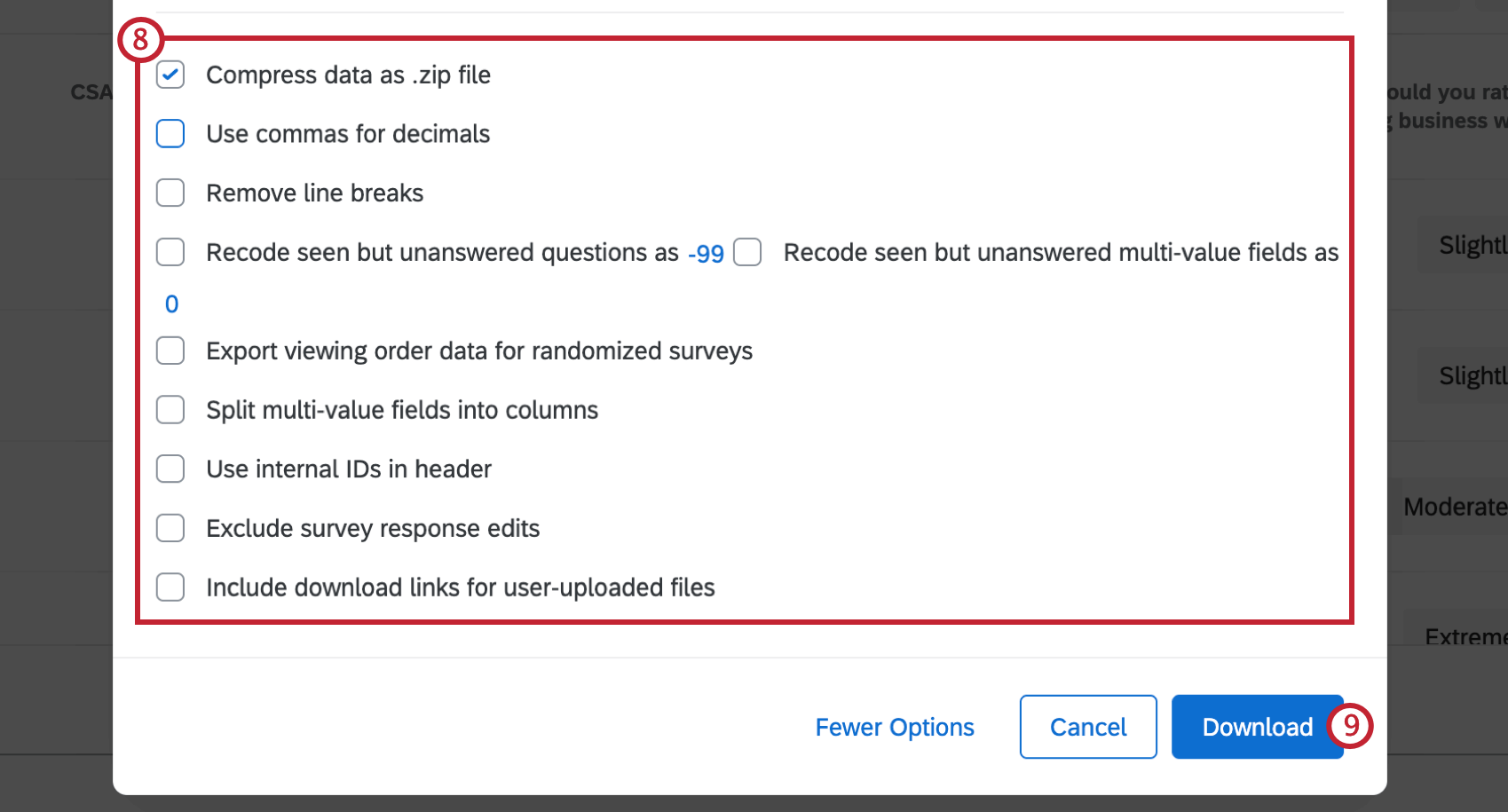
- Click Download.
Available File Formats
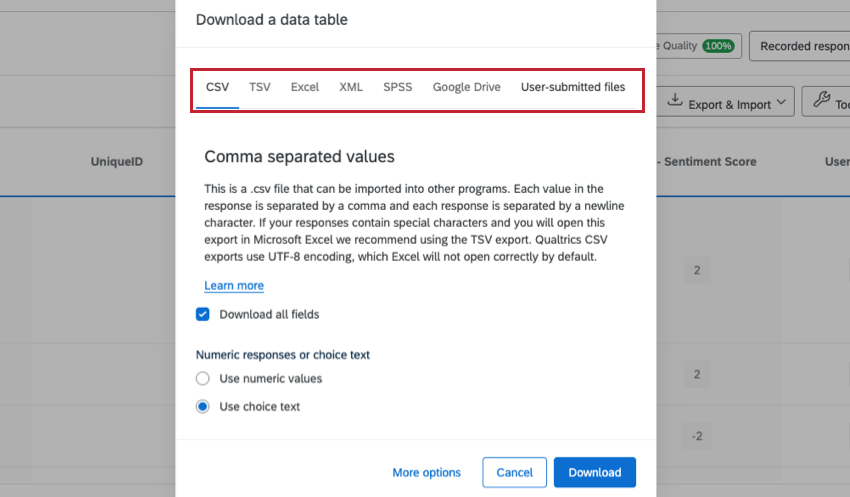
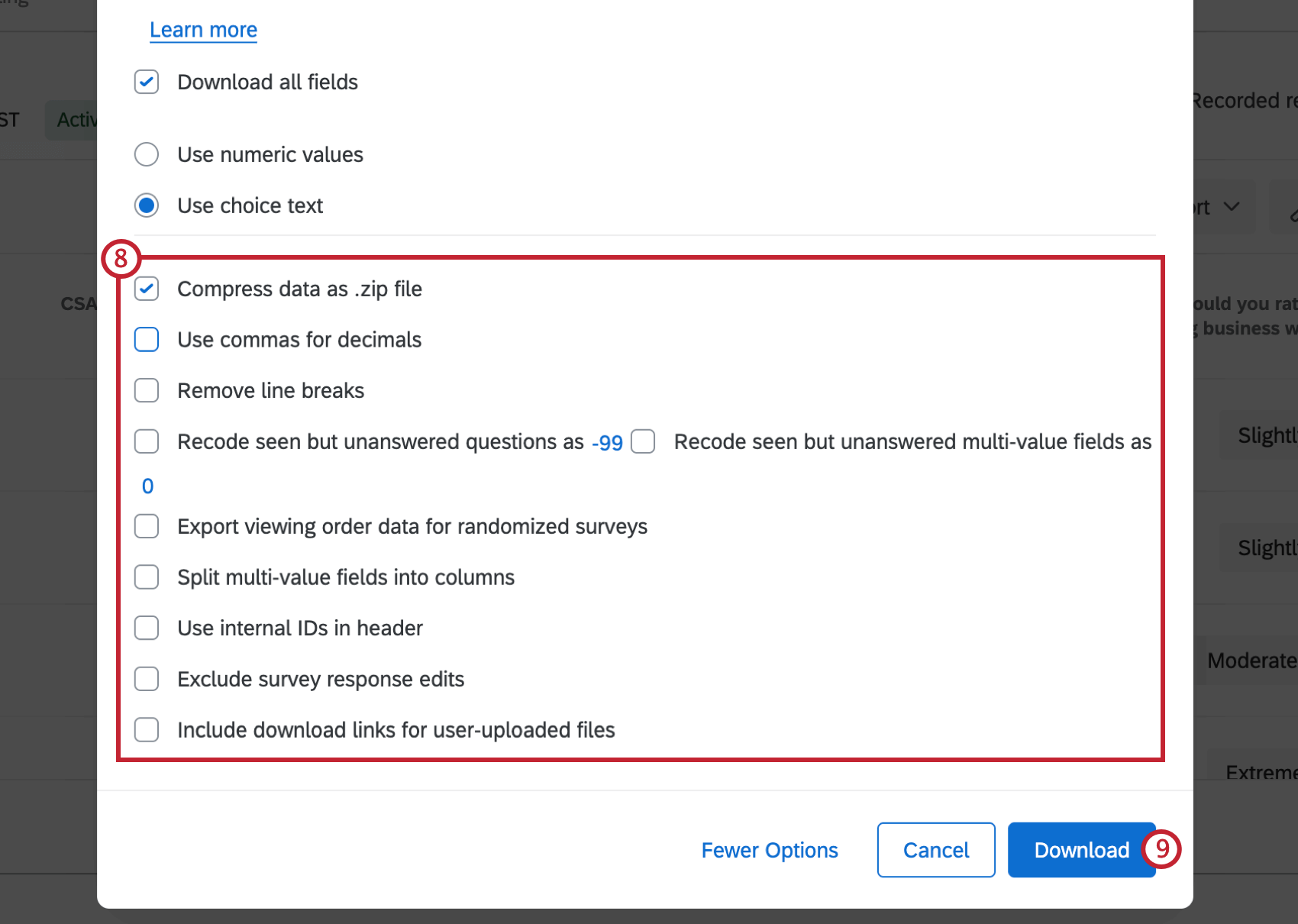
You can choose the file type of your downloaded data. The available file types include CSV, TSV, XML, SPSS, and more.
To learn about each of these file types and how they’re used, see the Data Export Formats support page.
More Export Options
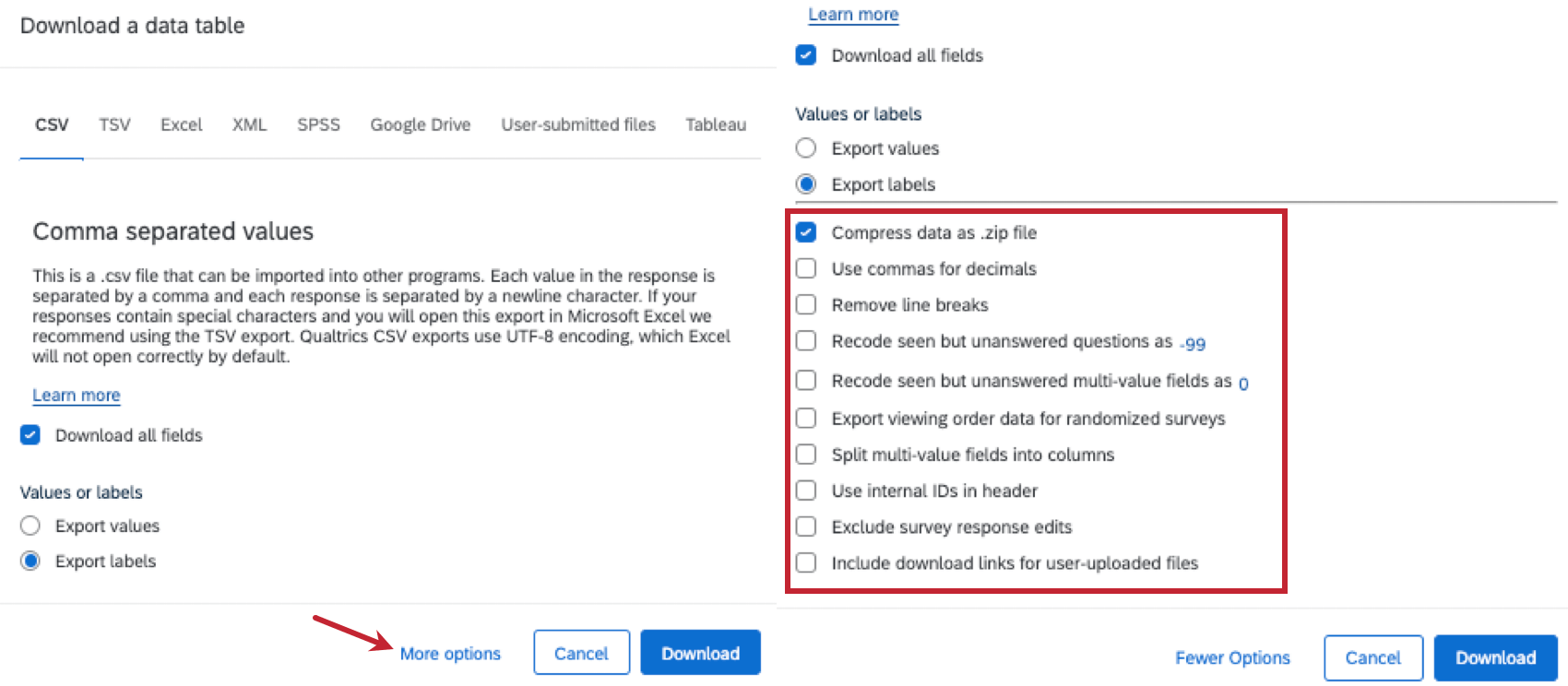
As you’re going through the steps to export your data, you’ll notice that you are asked if you would like to Download all fields, and whether you’d like your data in values or labels. You’ll also notice a lot of extra options will appear when you click More Options. These options determine whether you include line breaks in open-ended feedback, how you recode seen but unanswered questions, whether your export includes randomized data, and more.
To learn more about how each of these options works, see the Data Export Options support page.
Understanding Your Exported Data File
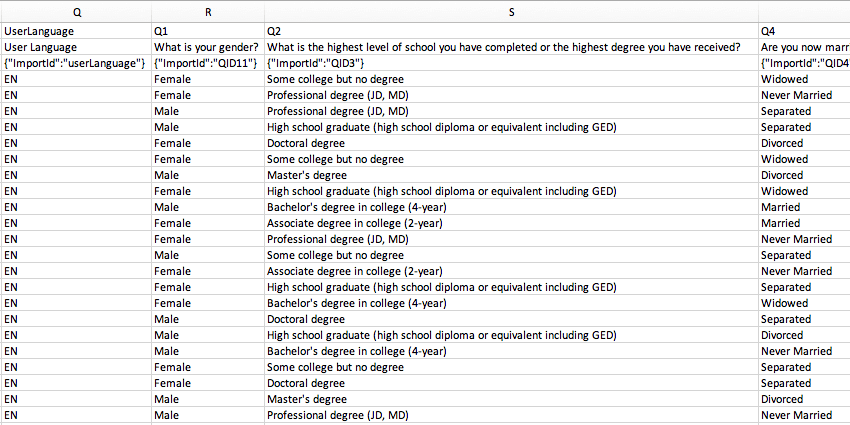
Once you export your data to a CSV or TSV, that file is organized into rows and columns. Each row is a different respondent, and each column is a question of the survey they answered, survey metadata (e.g. Recorded Date, IP Address, etc.), contact fields, and any embedded data you may have recorded for each respondent. But what do each of these “metadata” mean? What do their values mean? What does question data look like?
To learn more, see the Understanding Your Dataset support page.
Manage Downloads
After clicking Download, the Manage Downloads window appears. The Manage Downloads window displays all of your requested downloads and their export progress. Each time you start an export, a new entry appears at the top of the list, detailing several pieces of information:
- Status: Whether the export is In Progress, Failed, or is ready to Download.
- Type: Which export file format was selected.
- Percent Complete: How far along the export has progressed.
- Last Updated: When the export status was last updated.
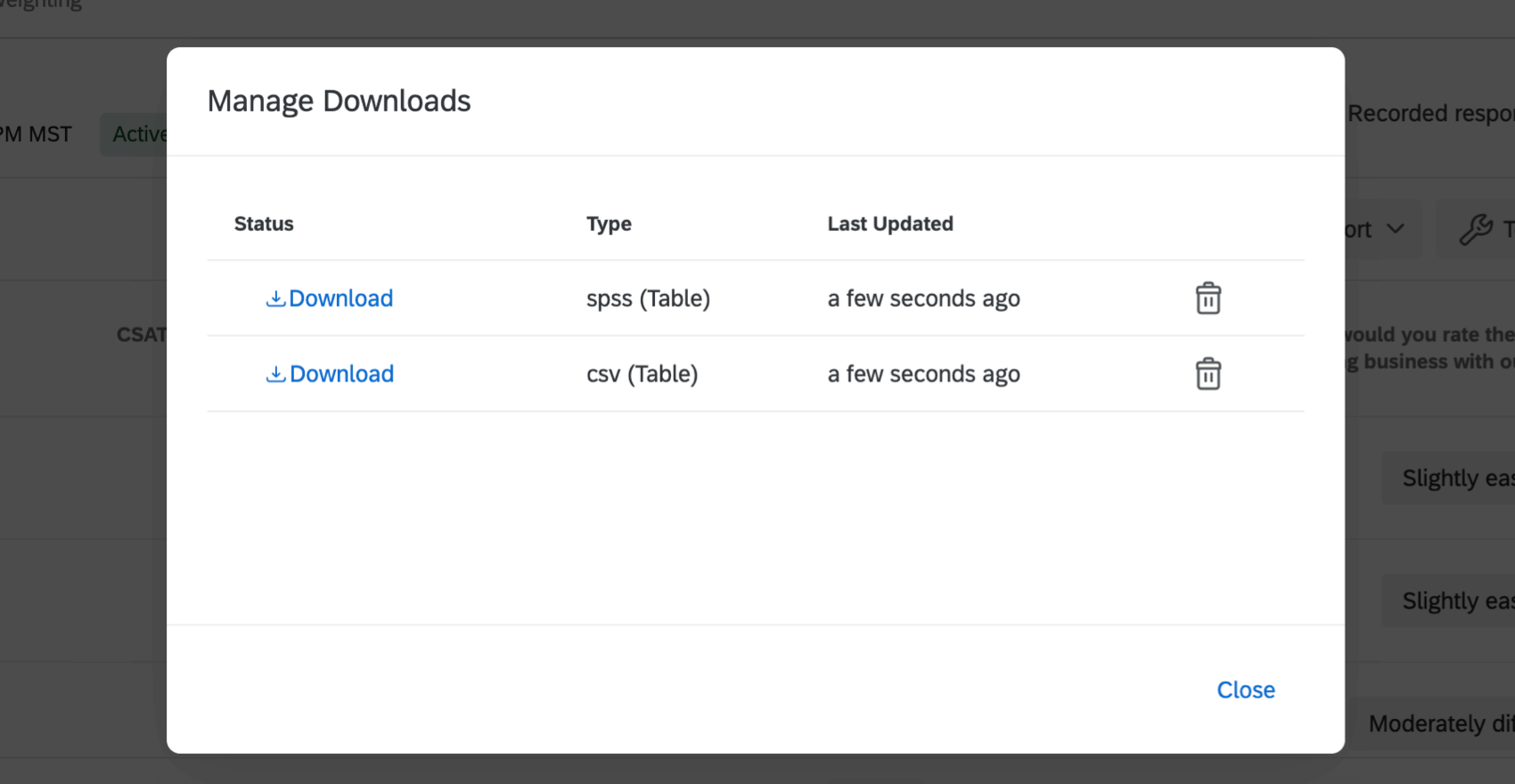
Large datasets may take a long time to export, but you can leave the page and return later. You can even have multiple downloads running at the same time, starting one download and then immediately beginning another.
When exports are complete, the value of the Status column changes into a download button. The data file automatically downloads to your computer. Clicking on the button also downloads the file to your computer. You can download the file as many times as you would like.
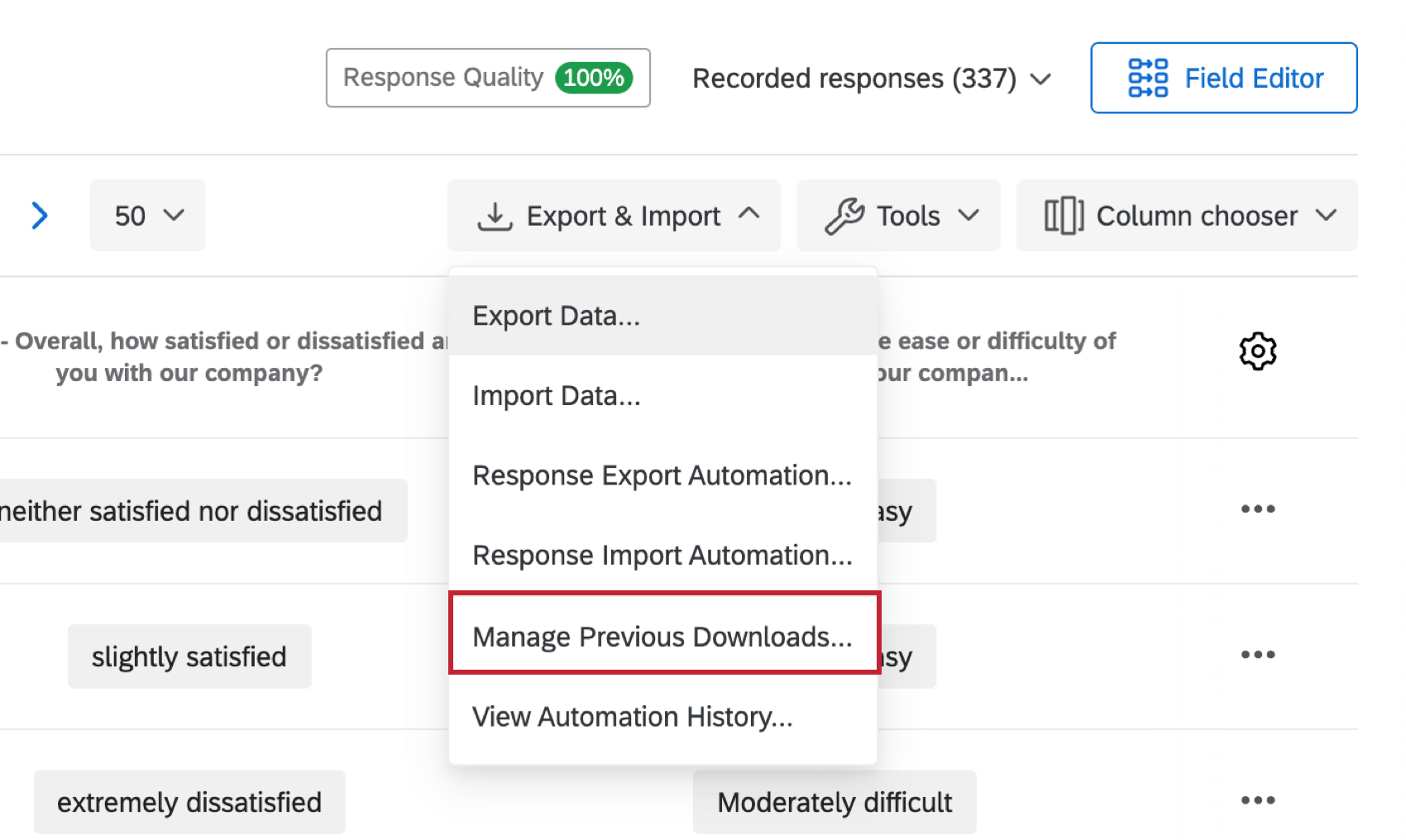
If you leave export jobs in Manage Downloads, you can return at any point by clicking Export Data, Manage Previous Downloads, and download an earlier job. You can also delete an old job from the list by clicking the X to the far right of it.
Data Export Security Measures
Qualtrics takes a few precautionary steps to protect you and your CSV/TSV files from any malicious scripts a respondent would try to type into a Text Entry response.
Your CSV/TSV export puts a single quote in front of any data field that starts with +, -, @, or =. For example, a text comment that says “@Qualtrics you’re the best!” would be exported as “‘@Qualtrics you’re the best!” Note the extra single quote before the @. This prevents Excel from automatically executing a malicious script.
However, if you predict this feature could interfere with any data retrieval scripts you run, have no fear. If Qualtrics knows that the field is a numeric field, it will not add the quote to the front of the data, even if it starts with a + or -. Numeric fields are guaranteed to be safe, since the text required to create a malicious script would be rejected by the numeric validation.
The following fields are considered numeric:
- A text entry question with the Content Validation set to Number
- Embedded data set to Number, Number Set, or Date
Exporting Data in Different Project Types
You can export response data in many different types of projects. The steps and options described on this page apply to the following project types:
There are a few other types of projects where you can export response data. However, there are important differences to keep in mind:
- For Imported Data projects, see Data & Analysis in Imported Data Projects.
- For 360 projects, see Exporting Response Data (360).
- For all other Employee Experience projects, see Exporting Response Data (EX).
- For Conjoint, see Exporting Raw Conjoint Data.
- For MaxDiff, see Exporting Raw MaxDiff Data.
- For Online Reputation Management, see Data & Analysis with Online Reputation Management.